display MERCEDES-BENZ GLE COUPE 2021 Manual Online
[x] Cancel search | Manufacturer: MERCEDES-BENZ, Model Year: 2021, Model line: GLE COUPE, Model: MERCEDES-BENZ GLE COUPE 2021Pages: 525, PDF Size: 8.83 MB
Page 289 of 525
#
Tozoom in and out of the map: movetwo
fi ngers toget her or apart. #
Tocall up thegl obal menu: press and hold
on theto uchsc reen until theOPTIONS menu
appears.
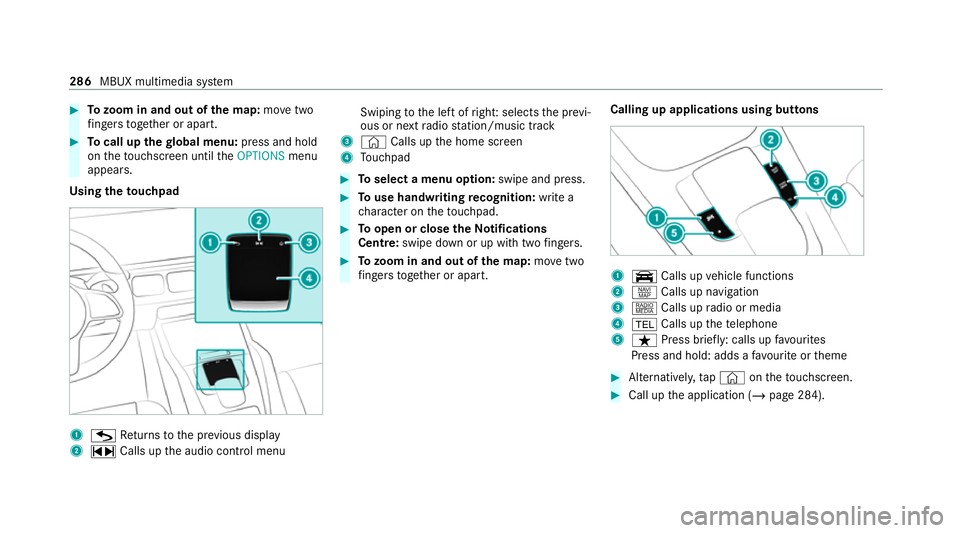
Using theto uchpad 1
G Returns tothe pr evious display
2 ~ Calls up the audio control menu Swiping
tothe left of right: selects the pr evi‐
ous or next radio station/music track
3 © Calls up the home screen
4 Touchpad #
Toselect a menu option: swipe and press. #
Touse handwriting recognition: write a
ch aracter on theto uchpad. #
Toopen or close theNo tifications
Centre: swipe down or up with twofingers. #
Tozoom in and out of the map: movetwo
fi ngers toget her or apart. Calling up applications using buttons 1
y Calls up vehicle functions
2 z Calls up navigation
3 | Calls up radio or media
4 002B Calls up thete lephone
5 ß Press brief ly: calls up favo urites
Press and hold: adds a favo urite or theme #
Alternatively, tap© ontheto uchsc reen. #
Call up the application (/ page 284).286
MBUX multimedia sy stem
Page 291 of 525
Overview of
the MBUX Interior Assistant &
WARNING Risk of injury fromthe cam‐
era's laser radiation
This product uses a classification 1 laser sys‐
te m. If the housing is opened or damaged,
laser radiation may damage your retina. #
Do not open the housing. #
Alw ays ha vemaintenance workand
re pairs car ried out byaqu alified spe‐
cialist workshop. This device is a class 1 laser product in accord‐
ance with DIN EN 60825-1:20
14
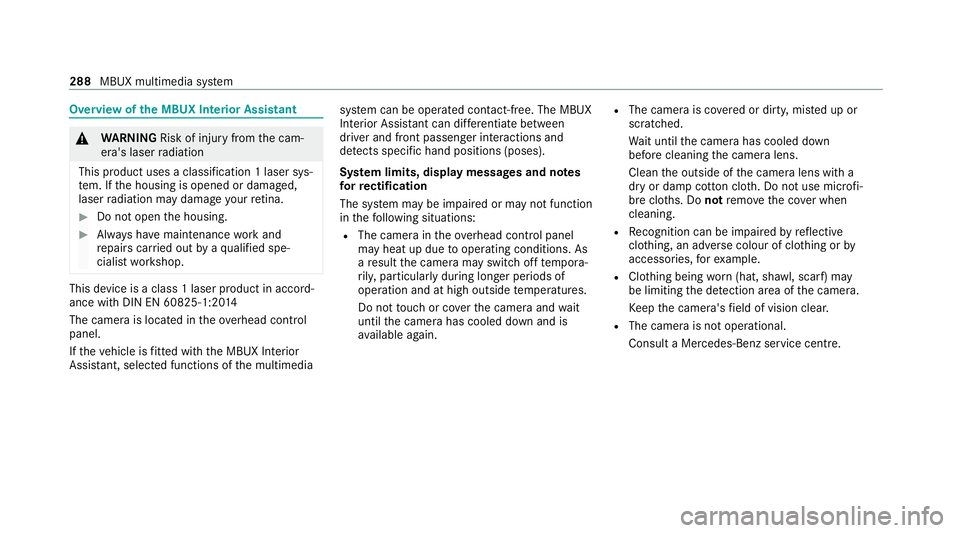
The camera is located in theove rhead control
panel.
If th eve hicle is fitted wi th the MBUX Interior
Assis tant, selected functions of the multimedia sy
stem can be operated conta ct-free. The MBUX
Interior Assi stant can dif fere ntia tebetween
driver and front passenger interactions and
de tects specific hand positions (poses).
Sy stem limits, display messages and no tes
fo rre ctification
The sy stem may be impaired or may not function
in thefo llowing situations:
R The camera in theove rhead control panel
may heat up due tooperating conditions. As
a re sult the camera may switch off temp ora‐
ri ly , particular lyduring longer periods of
operation and at high outside temp eratures.
Do not touch or co verth e camera and wait
until the camera has cooled down and is
av ailable again. R
The camera is co vered or dirty, mis ted up or
scratched.
Wa it until the camera has cooled down
before cleaning the camera lens.
Clean the outside of the camera lens with a
dry or damp cotton clo th. Do not use microfi‐
bre clo ths. Do notremo vethe co ver when
cleaning.
R Recognition can be impaired byreflective
clo thing, an adverse colour of clo thing or by
accesso ries, forex ample.
R Clothing being worn(hat, shawl, scarf) may
be limiting the de tection area of the camera.
Ke ep the camera's field of vision clear.
R The camera is not operational.
Consult a Mercedes-Benz service cent re.288
MBUX multimedia sy stem
Page 292 of 525
The MBUX In
terior Assistant supports thefo llowing interactions: Interaction area
Interaction Description
In front of the media display or
abo vetheto uchpad Pr
ox imity tothe control element The Interior Assis tant recognises the approach of the hand towa rds a con‐
trol element.
Depending on the active application, the display will be adjus ted in the
media displa y.Some functions di fferentiate between driver and front
passenger.
No specific hand position is requ ired.
Abo vethe cent reconsole Defined pos eAfavo urite is called up with a defined pose.
Bel ow the inside rearview mir rorB rief up and down mo vements With brief vertical up and down mo vements below the inside rearview mir‐
ro rth ere ading light forth e driver or the front passenger is switched on and
off.
Abo vethe front passenger seat Stretching out a hand ab ovethe
front passenger seat By
stre tching out a hand ab ovethe front passenger seat the sear chlight is
switched on. If you withdraw a hand from this area, the sear chlight is
switched off again. MBUX multimedia sy
stem 289
Page 294 of 525
&
WARNING Risk of becoming trapped
du ring adjustment of the driver's seat
af te r calling up a driver profile
Selecting a user profile may trigger an
adju stment of the driver's seat tothe posi‐
tion sa ved under the user profile. You or
ot her vehicle occupants could be injured in
th e process. #
Make sure that when the position of
driver's seat is being adjus ted using the
multimedia sy stem, no people or body
parts are in the seat's range of mo ve‐
ment.
If th ere is a risk of someone becoming trap‐
ped, stop the adjustment process immedi‐
ately: #
a)Tapth ewa rning message on the
media displa y.
or #
b) Press a memory position button or a
seat adjustment switch on the driver's
door.
The adjustment process will be stop‐
ped. The driver's seat is equipped with an access pre‐
ve
nter.
If th e driver's door is open, the driver's seat will
not be set af ter calling up the driver's profile.
Profiles store your vehicle settings and settings
fo rth e multimedia sy stem. If theve hicle is used
by several drivers, the driver can select their
ow n profile wi thout changing thestored profile
settings of other drivers.
% Information on profiles from Mercedes me
connect can be found in the Digital Opera‐
to r's Manual.
Ve hicle settings are, forex ample, driver's seat,
st eering wheel and mir ror settings, clima tecon‐
trol and ambient lighting. Forth e settings of the
multimedia sy stem, you can select, forex ample,
ra dio stations, pr evious destinations as well as
th emes, suggestions and favo urites. Fo
rre cur ring driving situations, su chas long
drives on the mo torw ay,yo u can sa veyour pre‐
fe rred settings in a theme in theve hicle. In a
th eme you can sa vethe display of the digital
map, your prefer redra dio station and prefer red
drive prog ram, forex ample.
The vehicle can learn the habits of the driver. It
th en of fers suggestions forth e most probable
navigation destinations, media sources, radio
st ations or con tacts. The pre-requirements for
th at are the selection of a profile, your consent
to there cording of data and sufficient collected
da ta.
Fa vourites pr ovide quick access toapplications
th at are used of ten. You can select favo urites
from categories or add them directly toan appli‐
cation. MBUX multimedia sy
stem 291
Page 295 of 525
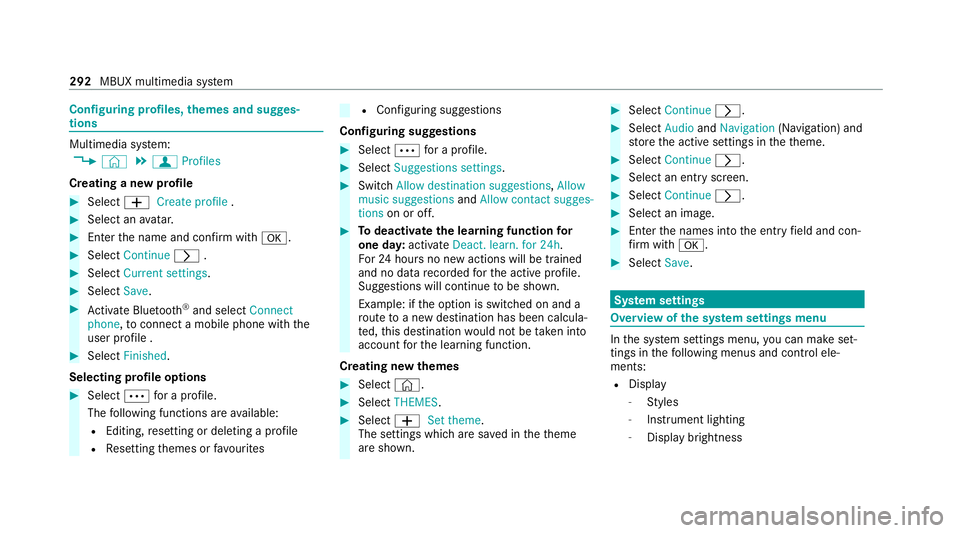
Configuring profiles,
themes and sugges‐
tions Multimedia sy
stem:
4 © 5
f Profiles
Creating a new profile #
Select 0081Create profile .#
Select an avatar. #
Enterth e name and confi rmwith 0076. #
Select Continue 0048. #
Select Current settings. #
Select Save. #
Activate Blu etoo th®
and select Connect
phone, toconnect a mobile phone wi th the
user profile . #
Select Finished.
Selecting profile options #
Select 0062for a profile.
The following functions are available:
R Editing, resetting or deleting a profile
R Resetting themes or favo urites R
Con figuring suggestions
Configuring suggestions #
Select 0062for a profile. #
Select Suggestions settings . #
Switch Allow destination suggestions, Allow
music suggestions andAllow contact sugges-
tions on or off. #
Todeactivate the learning function for
one da y:activate Deact. learn. for 24h .
Fo r24 hours no new actions will be trained
and no data recorded forth e active profile.
Suggestions will continue tobe shown.
Example: if the option is switched on and a
ro ute toa new destination has been calcula‐
te d, this destination would not be take n into
account forth e learning function.
Creating new themes #
Select ©. #
Select THEMES . #
Select 0081Set theme.
The settings which are sa ved in theth eme
are shown. #
Select Continue 0048. #
Select AudioandNavigation (Navigation) and
st ore the active settings in theth eme. #
Select Continue 0048. #
Select an entry screen. #
Select Continue 0048. #
Select an image. #
Enter the names into the entry field and con‐
fi rm with 0076. #
Select Save. Sy
stem settings Overview of
the sy stem settings menu In
the sy stem settings menu, you can make set‐
tings in thefo llowing menus and control ele‐
ments:
R Display
- Styles
- Instrument lighting
- Display brightness 292
MBUX multimedia sy stem
Page 298 of 525
#
Select "Connect via WPS PBC" in the options
on the device tobe connec ted (see the man‐
ufacturer's operating instructions). #
Press the WPS button on the device tobe
connecte d. #
Select Continue inthe multimedia sy stem.
Ac tivating automatic connection #
Select Connect via Wi-Fi . #
Select the options 0048ofthe desired Wi-Fi
networ k. #
Activate Permanent Internet connection .
Connecting with a known Wi-Fi #
Select Connect via Wi-Fi . #
Select a Wi-Fi networ k.
The connection is es tablished again.
Configuring the multimedia sy stem as a Wi-
Fi hotspot forex tern al devices
The type of connection es tablished depends on
th e device tobe connec ted. The function must
be suppor tedby the multimedia sy stem and by
th e device tobe connec ted. The type of connec‐
tion es tablished must be selected on the multi‐ media sy
stem and on the device tobe connec‐
te d. #
Select Vehicle hotspot. #
Select Connect device to vehicle hotspot .
Connecting using WPS PIN generation #
Select Connect using WPS PIN generation. #
Ente rth e PIN shown in the media display on
th e device tobe connec ted and confi rm.
Connecting using WPS PIN entry #
Select Connect using WPS PIN input. #
Enterth e PIN that is shown on theex tern al
device's display on the multimedia sy stem.
Connecting using a button #
Select Connect via WPS PBC. #
Press the push button on the device tobe
connecte d (seethe manufacturer's operating
instructions). #
Select Continue. Connecting using a security
key #
Select Connect device to vehicle hotspot .
A secu rity key is displa yed. #
Select theve hicle from the device tobe con‐
nec ted. The vehicle is displa yed with the
DIRECT-MBUX XXXXX network name. #
Enter the security key which is shown in the
media display on the device tobe connec ted. #
Confirm the entry.
Connecting using NFC #
Select Connect via NFC. #
Activate NFC on the mobile device (see the
manufacturer's operating instructions). #
Hold the device tobe connec ted at theve hi‐
cle's NFC inter face. #
Select Finished.
The mobile device is now connected tothe
multimedia sy stem hotspot via NFC.
Generating a new security key #
Select Vehicle hotspot. MBUX multimedia sy
stem 295
Page 300 of 525
#
Alw ayske ep an eye on the actual traf fic
situation. #
Avoid extended obser vation of the cam‐
era image. &
WARNING Risk of accident and inju ry
due toimprecise positioning of addi‐
tional information
The additional information from the augmen‐
te dre ality display is not a substitute for
observing the actual driving situation. #
Alw ayske ep an eye on the actual traf fic
situation when car rying out all driving
manoeuvres. Switching navigation on
Multimedia sy
stem:
4 © 5
Navigation (Navigation) #
Alternatively: press thez button.
The map displa ys the cur rent vehicle posi‐
tion. The navigation menu is shown. The navigation menu is hidden if
route guid‐
ance is active. #
Tosho w:tap on theto uchsc reen.
The menu is hidden automaticall y. MBUX multimedia sy
stem 297
Page 301 of 525
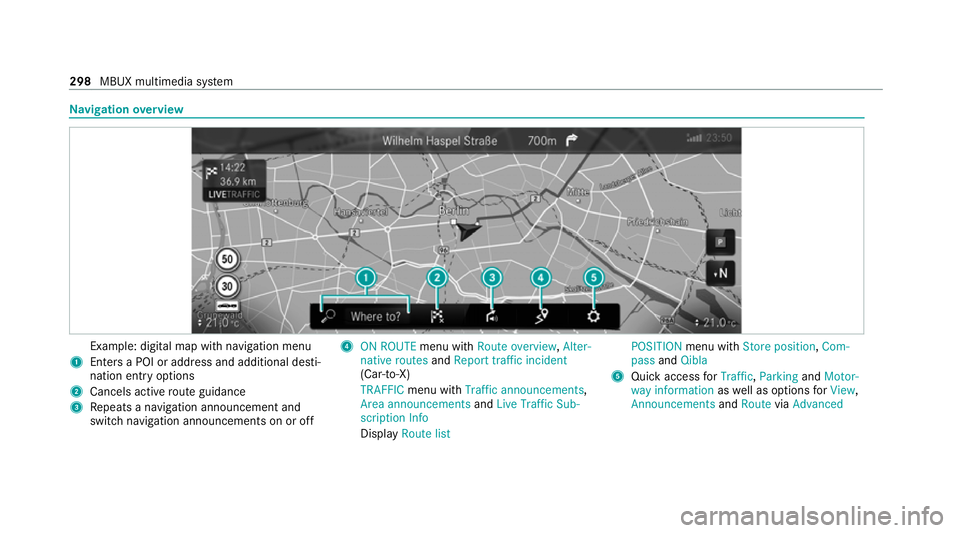
Na
vigation overview Example: digital map with navigation menu
1 Enters a POI or address and additional desti‐
nation ent ryoptions
2 Cancels active route guidance
3 Repeats a navigation announcement and
switch navigation announcements on or off 4
ON ROUTE menu withRoute overview, Alter-
native routes andReport traffic incident
(Car-to-X)
TRAFFIC menu with Traffic announcements,
Area announcements andLive Traffic Sub-
scription Info
Display Route list POSITION
menu with Store position, Com-
pass andQibla
5 Quick access forTraffic, Parking andMotor-
way information aswell as options forView,
Announcements andRoute viaAdvanced 298
MBUX multimedia sy stem
Page 304 of 525
or
#
Select Start new route guidance.
The destination address is set as the new
destination. The pr evious destination and the
intermediate destinations are dele ted. Ro ute
guidance tothe new destination begins.
Selecting route settings #
Select Z. #
Select Advanced . #
Select Route. #
Select thero ute type. #
Take traf fic information into consideration
wi th Dynamic route guidance 0048.#
Select route options with Avoid options. #
Activate Suggest alternative route.
Alternati veroutes are calculated forev ery
ro ute. #
Activate Activate commuter route .
If th ere qu irements are met, the multimedia
sy stem automatically de tects that theve hicle
is on a commuter route. Route guidance
begins without voice output. Ac
tivating route guidance with augmented
re ality #
During route guidance, tap on the camera
symbol on the media displa y.
The camera image will be shown ins tead of
th e navigation map before a turning manoeu‐
vre and will show additional information. #
Toreturn tothe navigation map: tapon
th e camera symbol again.
Displaying additional information in the cam‐
era ima ge #
Select Z. #
Select Advanced . #
Select Augmented Reality. #
Activate Street names andHouse numbers.
During route guidance, stre et names and
house numbe rsare shown in the camera
image. Using map functions
Multimedia sy
stem:
4 © 5
Navigation
Setting the map scale #
Tozoom in: tap twice quickly with one finger
on the media displa y. #
Tozoom out: tap with two fingers on the
media displa y.
Moving the map #
Moveone finger in any di rection on the
to uchsc reen. #
Toreset the map tothe cur rent vehicle
position: press\briefly.
Selecting map orientation #
Tapre peatedly on theÄ compass symbol
on the map.
The view changes in the sequence 3D,2D
heading up to2D north up .
Switching mo torw ay information on/off #
Select Z. MBUX multimedia sy
stem 301
Page 305 of 525
#
Switch Motorway information on or off.Using se
rvices Re
quirements:
R There is an Internet connection.
R Mercedes me connect is available.
R You ha veset up a user account in the
Mercedes me Portal.
R The vehicle is connected toa user account
and you ha veaccep tedth e conditions of use
fo rth e service.
Fu rther information can be found at:
https://www.mercedes.me
R The service is available and has been activa‐
te d.
R The following requirements apply tothePa rk‐
ing service:
- The navigation services option is availa‐
ble, subsc ribed toand activated in the
Mercedes me Portal.
- The parking service is within the scope of
th e navigation service. Multimedia sy
stem:
4 © 5
Navigation
Displaying the traf fic situation with Live Traf‐
fi c Information #
Select Z. #
Activate Traffic. #
Select Advanced . #
Select View. #
Select Map elements. #
Switch on Traffic incidents ,Free-flowing traf-
fic and Delay.
If traf fic information has been recei ved, then
tra ffic incidents such as roadwor ks,ro ad
bloc ks, local area reports (e.g. fog) and warn‐
ing messages are displa yed.
The tra ffic delay is displa yedfo rth e cur rent
ro ute. Traf fic del ays lasting one minute or
longer are take n into conside ration.
Displ aying hazard warnings with Car-to-X-
Communication
If hazard warnings are available these can be
shown as symbols on the map. The display depends on
the settings forth eTraffic andTraf-
fic incidents options. #
Set the options.
If Traffic is switched off and Traffic incidents
is switched on, the symbols are shown on
th e prospective route.
Displaying weather information and other
map contents #
Select Z. #
Select Advanced . #
Select View. #
Select Map elements. #
Scroll up and show theONLINE MAP CON-
TENTS categor y. #
Switch on a service, e.g. Weather.
Cu rrent weather information is displa yed on
th e navigation map, e.g. temp erature or
cloud co ver. 302
MBUX multimedia sy stem