navigation MERCEDES-BENZ GLE SUV 2019 User Guide
[x] Cancel search | Manufacturer: MERCEDES-BENZ, Model Year: 2019, Model line: GLE SUV, Model: MERCEDES-BENZ GLE SUV 2019Pages: 681, PDF Size: 11.7 MB
Page 307 of 681
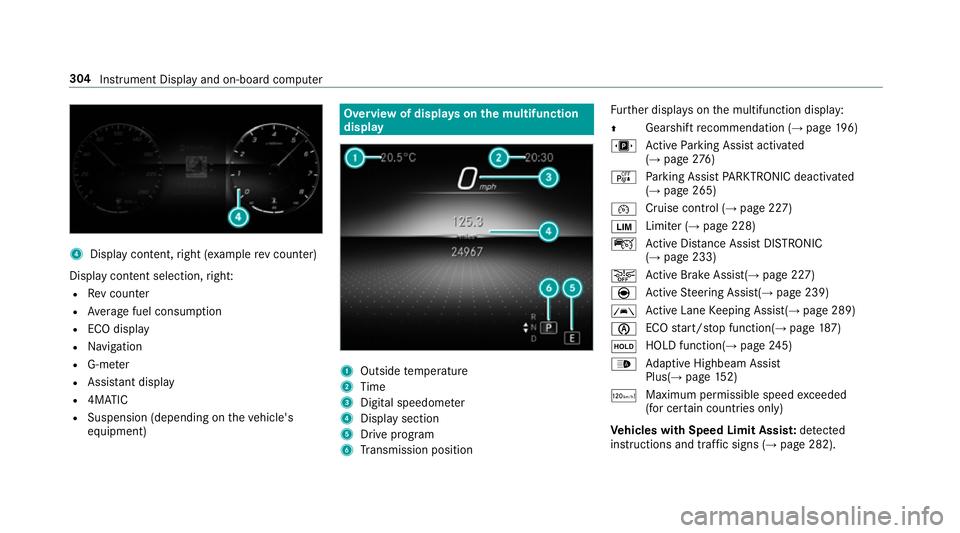
4
Displ aycontent, right (e xamp lerev counter)
Display content selection, right:
R Rev counter
R Average fuel consum ption
R ECO display
R Navigation
R G-me ter
R Assi stant display
R 4MATIC
R Suspension (depending on theve hicle's
equipment) Overview of displa
yson the multifunction
display 1
Outside temp erature
2 Time
3 Digital speedome ter
4 Displ aysection
5 Drive program
6 Transmission position Fu
rther displa yson the multifunction display:
Z Gearshift
recommendation (→ page 196)
u Active Parking Assist activated
(→ page 276)
é Parking Assist PARKTRONIC deacti vated
( → page 265)
¯ Cruise control (→
page 227)
È Limiter (→
page 228)
ç Active Dis tance Assi stDISTRONIC
(→ page 233)
æ Ac
tive Brake Assi st(→ page 227)
è Active Steering Assis t(→ page 239)
à Ac
tive Lane Keeping Assist(→ page 289)
è ECO
start/ stop function(→ page187)
ë HOLD fu
nction(→ page 245)
_ Ad
aptive Highbeam Assist
Plus(→ page152)
ð Ma
ximum pe rmissible speed exceeded
(for cer tain countries only)
Ve hicles with Speed Limit Assis t:de tected
instructions and traf fic signs (→ page 282). 304
Instrument Displ ayand on-board computer
Page 310 of 681
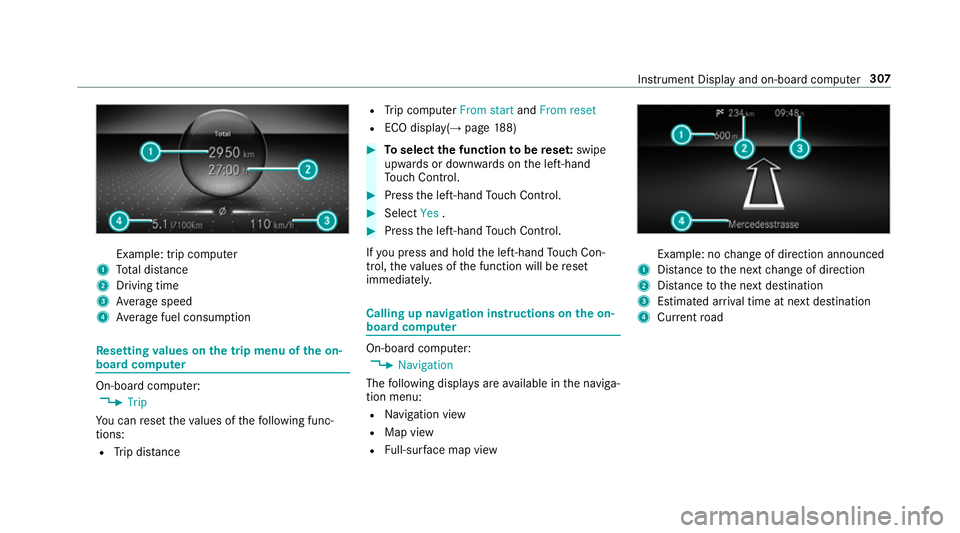
Example: trip computer
1 Total dis tance
2 Driving time
3 Average speed
4 Average fuel consum ption Re
setting values on the trip menu of the on-
board compu ter On-board computer:
, Trip
Yo u can reset theva lues of thefo llowing func‐
tions:
R Trip dis tance R
Trip computer From startandFrom reset
R ECO displa y(→ page 188) #
Toselect the function tobe rese t:swipe
upwards or down wards on the left-hand
To uch Control. #
Press the left-hand Touch Control. #
Select Yes. #
Press the left-hand Touch Control.
If yo u press and hold the left-hand Touch Con‐
trol, theva lues of the function will be reset
immediatel y. Calling up navigation instructions on
the on-
board compu ter On-board computer:
, Navigation
The following displa ysare available in the naviga‐
tion menu:
R Navigation view
R Map view
R Full-sur face map view Example: no
change of direction announced
1 Distance tothe next change of direction
2 Distance tothe next destination
3 Estimated ar riva l time at next destination
4 Current road In
stru ment Display and on-board computer 307
Page 311 of 681
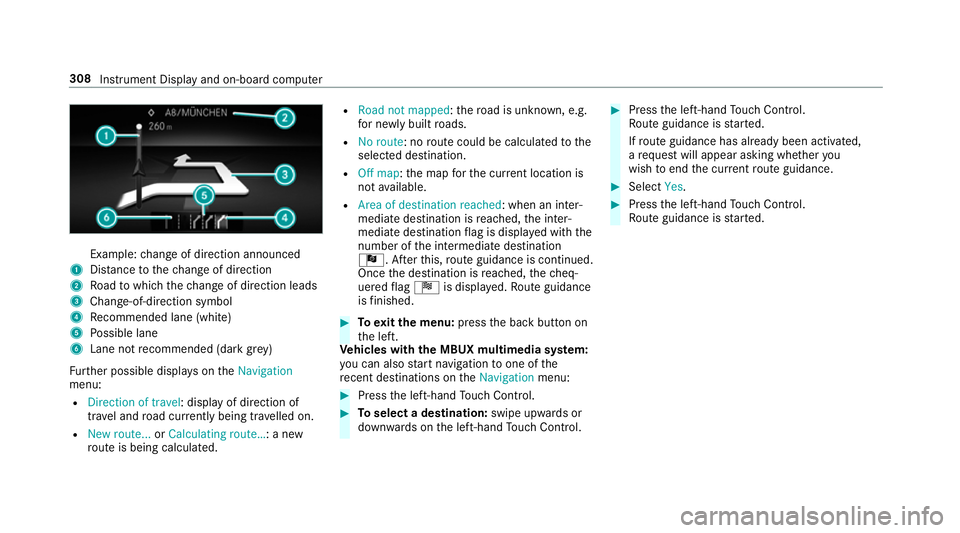
Example:
change of direction announced
1 Distance tothech ange of direction
2 Road towhich thech ange of direction leads
3 Chan ge-of-direction symbol
4 Recommended lane (white)
5 Possible lane
6 Lane not recommended (da rkgrey)
Fu rther possible displa yson theNavigation
menu:
R Direction of travel: display of direction of
tra vel and road cur rently being tr avelled on.
R New route... orCalculating route… : a new
ro ute is being calculated. R
Road not mapped :th ero ad is unknown, e.g.
fo r newly built roads.
R No route: no route could be calculated tothe
selected destination.
R Off map: the map forth e cur rent location is
not available.
R Area of destination reached: when an inter‐
mediate destination is reached, the inter‐
mediate destination flag is displa yed with the
number of the intermediate destination
Î. Af terth is, route guidance is continued.
Once the destination is reached, thech eq‐
uered flag Í is displa yed. Ro ute guidance
is finished. #
Toexitth e menu: pressthe back button on
th e left.
Ve hicles with the MBUX multimedia sy stem:
yo u can also start navigation toone of the
re cent destinations on theNavigation menu: #
Press the left-hand Touch Control. #
Toselect a destination: swipe upwards or
down wards on the left-hand Touch Control. #
Press the left-hand Touch Control.
Ro ute guidance is star ted.
If ro ute guidance has already been activated,
a re qu est will appear asking whe ther you
wish toend the cur rent route guidance. #
Select Yes. #
Press the left-hand Touch Control.
Ro ute guidance is star ted. 308
Instrument Display and on-board computer
Page 314 of 681
#
Press the left-hand Touch Control.
Yo u may accept/ reject the call using button
6 or~ onthesteering wheel. Setting
the head-up display using the on-
board compu ter On-board computer:
, HEAD-UP DISPLAY
The following head-up display settings can be
selec ted:
R Position
R Brightness
R Displa ys #
Toselect a setting: swipe upwards or down‐
wa rds on the left-hand Touch Control. #
Press the left-hand Touch Control. #
Toadjust the position: swipe upwards or
down wards on the left-hand Touch Control. #
Toadjust the brightness: swipetothe left
or right on the left-hand Touch Control. #
Press the left-hand Touch Control. Selecting what
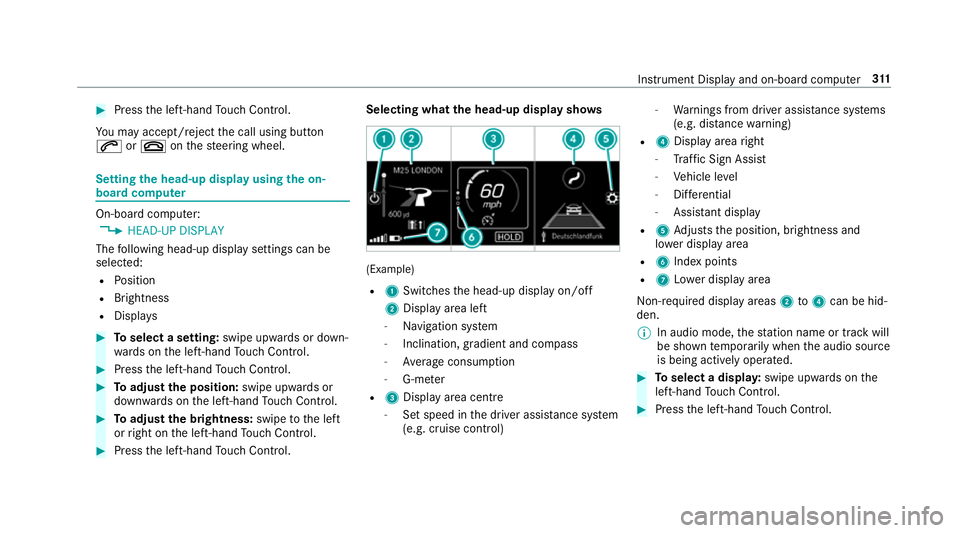
the head-up display sho ws (Example)
R 1 Switches the head-up display on/off
2 Display area left
- Navigation sy stem
- Inclination, gradient and compass
- Average consum ption
- G-me ter
R 3 Displ ayarea centre
- Set speed in the driver assis tance sy stem
(e.g. cruise control) -
Warnings from driver assis tance sy stems
(e.g. dis tancewarning)
R 4 Display area right
- Traf fic Sign Assi st
- Vehicle le vel
- Differe ntial
- Assi stant display
R 5 Adjusts the position, brightness and
lo we r display area
R 6 Index points
R 7 Lowe r display area
Non-re quired display areas 2to4 can be hid‐
den.
% In audio mode, thest ation name or track will
be shown temp orarily when the audio source
is being actively operated. #
Toselect a displa y:swipe upwards on the
left-hand Touch Control. #
Press the left-hand Touch Control. In
stru ment Display and on-board computer 311
Page 315 of 681
Head-up Display
Fu
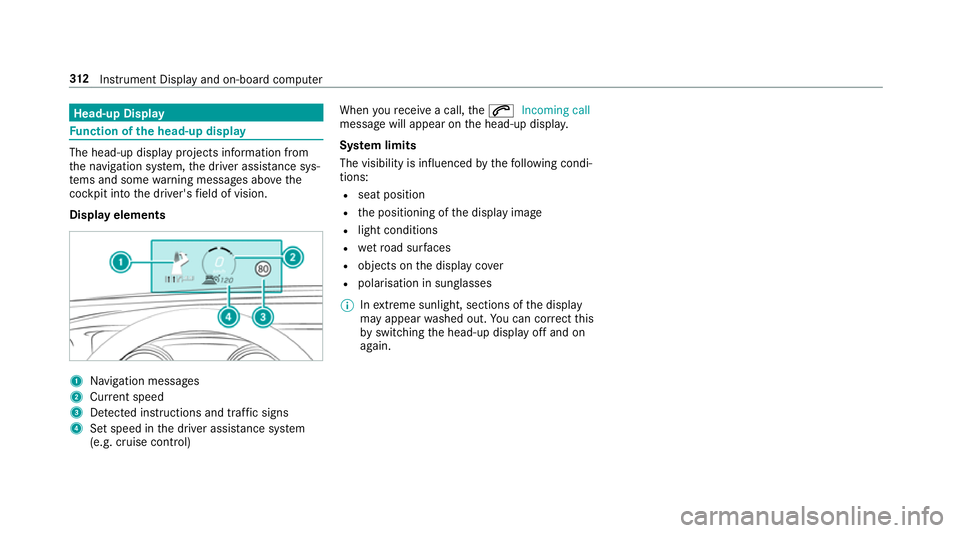
nction of the head-up display The head-up display projects information from
th e navigation sy stem, the driver assis tance sys‐
te ms and some warning messages abo vethe
cockpit into the driver's field of vision.
Display elements 1
Navigation messa ges
2 Current speed
3 Detected instructions and traf fic signs
4 Set speed in the driver assis tance sy stem
(e.g. cruise control) When
youre cei vea call, the6 Incoming call
message will appear on the head-up displa y.
Sy stem limits
The visibility is influenced bythefo llowing condi‐
tions:
R seat position
R the positioning of the display image
R light conditions
R wetro ad sur faces
R objects on the display co ver
R polarisation in sunglasses
% Inextreme sunlight, sections of the display
may appear washed out. You can co rrect this
by switching the head-up display off and on
again. 312
Instrument Display and on-board computer
Page 318 of 681
#
Tointer rupt avo ice output: speak inthe
middle of a voice dialogue when the sy stem
is still answering.
The voice output is shor tened and the con‐
clusion is reached more quickl y.
% The Voice barge-in option must be switched
on in the multimedia sy stem forth is
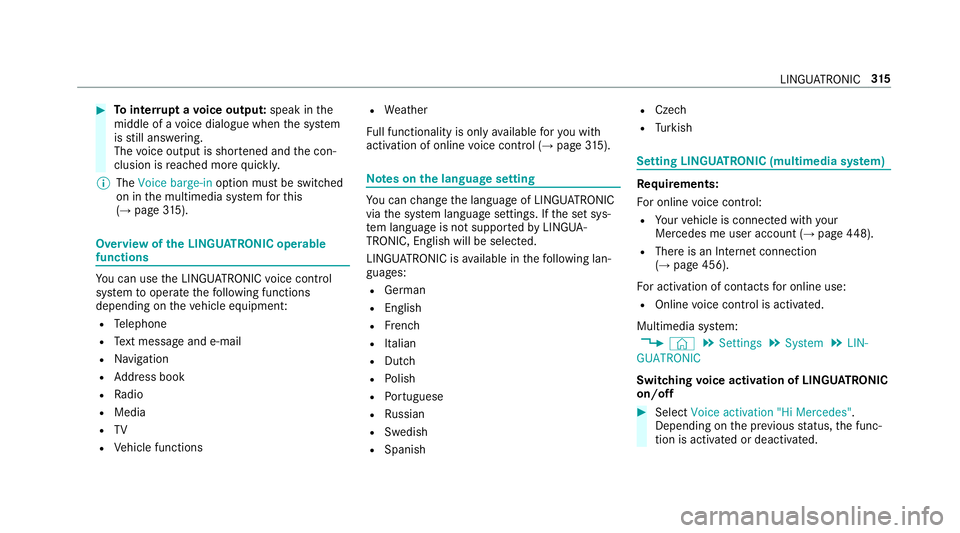
(→ page 315). Overvi
ewofthe LINGU ATRO NIC ope rable
functions Yo
u can use the LINGU ATRO NIC voice control
sy stem tooperate thefo llowing functions
depending on theve hicle equipment:
R Telephone
R Text messa geand e-mail
R Navigation
R Address book
R Radio
R Media
R TV
R Vehicle functions R
Weather
Fu ll functionality is only available foryo u with
activation of online voice control (→ page315). Note
s on the language setting Yo
u can change the language of LINGU ATRO NIC
via the sy stem language settings. If the set sys‐
te m language is not suppor tedby LINGUA‐
TRONIC, English will be selected.
LINGU ATRO NIC is available in thefo llowing lan‐
guages:
R German
R English
R French
R Italian
R Dutch
R Polish
R Portuguese
R Russian
R Swedish
R Spanish R
Czech
R Turkish Setting LINGU
ATRO NIC (multimedia sy stem) Requ
irements:
Fo r online voice control:
R Your vehicle is connected with your
Mercedes me user account (→ page448).
R There is an In tern et connection
(→ page 456).
Fo r activation of contacts for online use:
R Online voice control is activated.
Multimedia sy stem:
, © .
Settings .
System .
LIN-
GUATRONIC
Switching voice activation of LINGU ATRO NIC
on/o ff #
Select Voice activation "Hi Mercedes".
Depending on the pr evious status, the func‐
tion is activated or deactivated. LINGU
ATRO NIC 315
Page 321 of 681
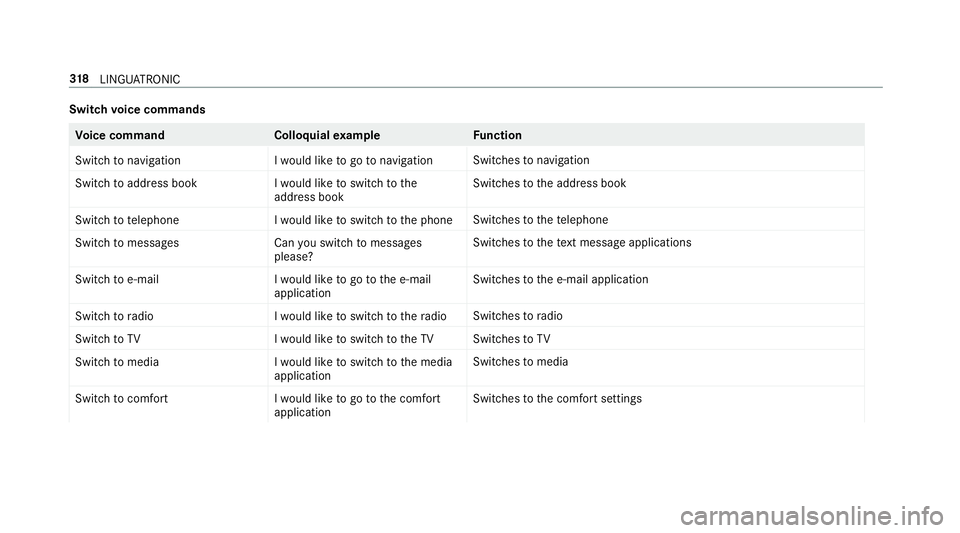
Switch
voice commands Vo
ice command Colloquialexample Function
Switch to navigation I would like to go to navigationSwitches
tonavigation
Switch to address book I would like to switch to the
address bookSwitches
tothe address book
Switch to telephon eI would like to switch to the phone Swit
ches tothete lephone
Switch to messages Can you switch to messages
please?Swit
ches tothete xt messa geapplications
Switch to e-mail I would like to go to the e-mail
applicationSwit
ches tothe e-mail application
Switch to radio I would like to switch to the radioSwitches
toradio
Switch to TV I would like to switch to the TVSwitches
toTV
Switch to media I would like to switch to the media
applicationSwitches
tomedia
Switch to comfort I would like to go to the comfort
applicationSwitches
tothe comfort settings 318
LINGU ATRO NIC
Page 322 of 681
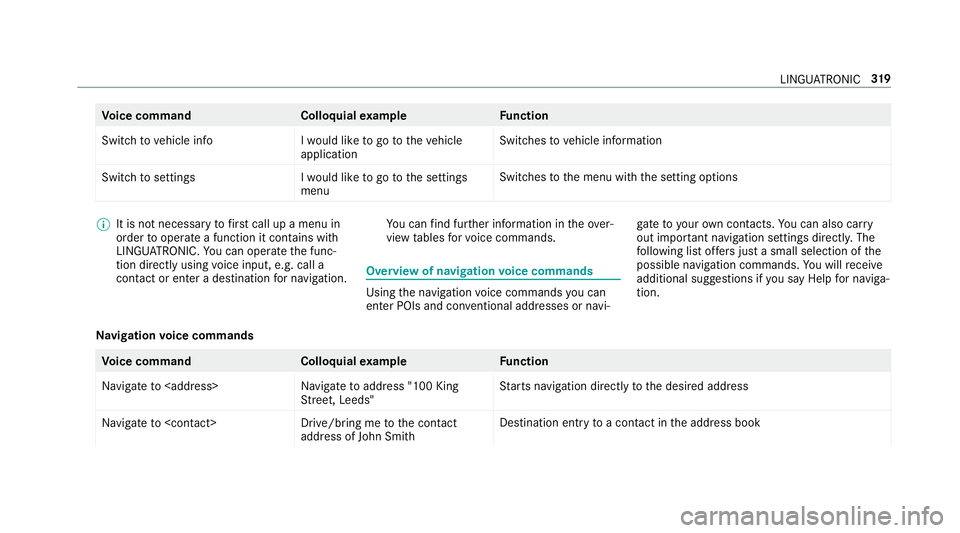
Vo
ice command Colloquialexample Function
Switch to vehicle info I would like to go to the vehicle
applicationSwitches
tovehicle information
Switch to settings I would like to go to the settings
menuSwitches
tothe menu with the setting options %
It is not necessary tofirs t call up a menu in
order tooperate a function it contains with
LINGU ATRO NIC. You can operate the func‐
tion directly using voice input, e.g. call a
con tact or enter a destination for navigation. Yo
u can find fur ther information in theove r‐
view tables forvo ice commands. Overview of navigation
voice commands Using
the navigation voice commands you can
en ter POIs and con ventional addresses or navi‐ ga
te to your ow n contacts. You can also car ry
out impor tant navigation settings di rectl y.The
fo llowing list of fers just a small selection of the
possible navigation commands. You will recei ve
additional suggestions if you say Help for naviga-
tion.
Na vigation voice commands Vo
ice command Colloquialexample Function
Navigate to
Street, Leeds"St
arts navigation direct lyto the desired address
Navigate to
address of John Smith Destination entry
toa con tact in the address book LINGU
ATRO NIC 319
Page 323 of 681
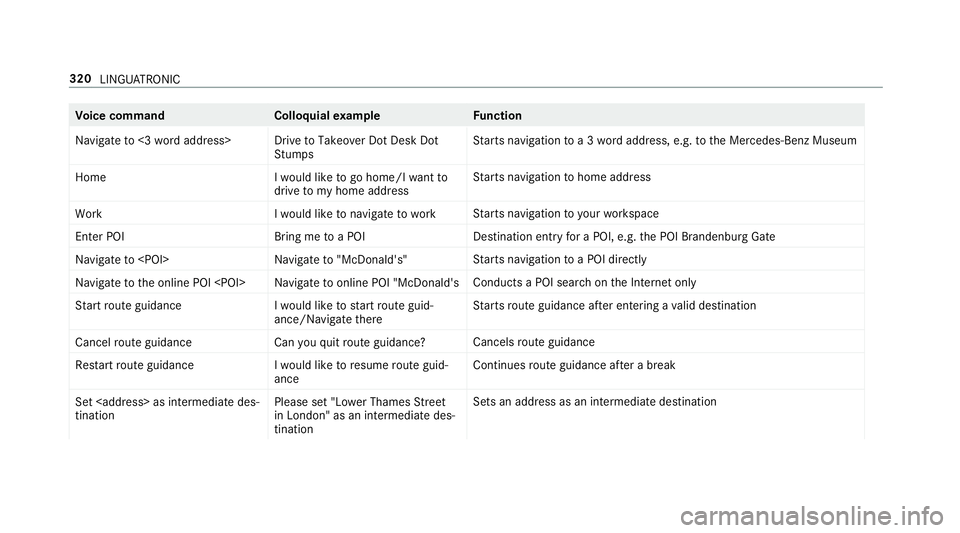
Vo
ice command Colloquialexample Function
Navigate to <3 word address> Drive to Takeover Dot Desk Dot StumpsSt
arts navigation toa 3 wordaddress, e.g. tothe Mercedes-Benz Museum
Home I would like to go home/I want to
drive to my home addressSt
arts navigation tohome address
Work I would like to navigate to workSt
arts navigation to yourwo rkspace
Enter POI Bring me to a POIDestination entry
for a POI, e.g. the POI Brandenburg Gate
Navigate to
arts navigation toa POI direct ly
Navigate to the online POI
chon the Internet only
Start route guidance I would like to start route guid-
ance/Navigate thereSt
arts route guidance af ter entering a valid destination
Cancel route guidanc eCan you quit route guidance? Cancels
route guidance
Restart route guidance I would like to resume route guid-
anceContinues
route guidance af ter a break
Set as intermediate des-
tination Please set "Lower Thames Street
in London" as an intermediate des-
tinationSets an addre
ss as an intermediate destination320
LINGU ATRO NIC
Page 335 of 681
Overview and operation
Overview of
the MBUX multimedia sy stem &
WARNING Risk of di stra ction from infor‐
mation sy stems and communications
equipment
If yo u operate information and communica‐
tion equipment integ rated in theve hicle
when driving, you will be distracted from the
traf fic situation. This could also cause youto
lose control of theve hicle. #
Only operate this equipment when the
traf fic situation permits. #
Ifyo u cannot be sure of this, stop the
ve hicle whilst paying attention toroad
and traf fic conditions and ope rate the
equipment with theve hicle stationar y. Yo
u must obse rveth e legal requirements forthe
country in whi chyou are cur rently driving when
operating the multimedia sy stem.
MBUX stands for Mercedes-Benz User Experi‐
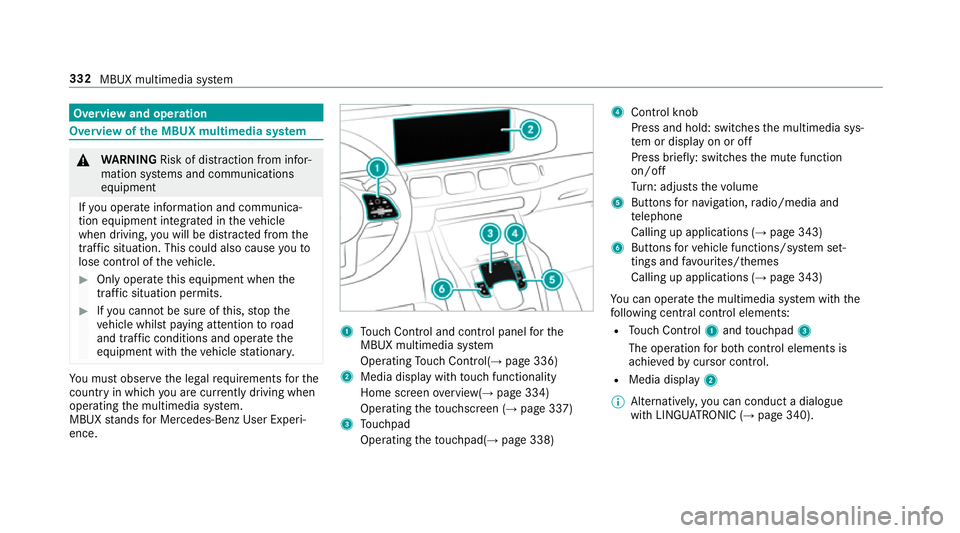
ence. 1
Touch Control and cont rol panel forthe
MBUX multimedia sy stem
Operating Touch Control(→ page 336)
2 Media displ aywith touch functionality
Home sc reen ove rview(→ page 334)
Operating theto uchsc reen (→ page 337)
3 Touchpad
Operating theto uchpad( →page 338) 4
Control knob
Press and hold: swit ches the multimedia sys‐
te m or display on or off
Press brief ly: switches the mute function
on/off
Tu rn: adjusts thevo lume
5 Buttons for navigation, radio/media and
te lephone
Calling up applications (→ page 343)
6 Buttons forve hicle functions/sy stem set‐
tings and favo urites/ themes
Calling up applications (→ page 343)
Yo u can operate the multimedia sy stem with the
fo llowing central control elements:
R Touch Control 1and touchpad 3
The operation for bo thcontrol elements is
achie vedby cursor control.
R Media displ ay2
% Alternati vely, you can conduct a dialogue
with LINGU ATRO NIC (→ page 340). 332
MBUX multimedia sy stem