navigation MERCEDES-BENZ GLE SUV 2019 Owners Manual
[x] Cancel search | Manufacturer: MERCEDES-BENZ, Model Year: 2019, Model line: GLE SUV, Model: MERCEDES-BENZ GLE SUV 2019Pages: 681, PDF Size: 11.7 MB
Page 10 of 681
1
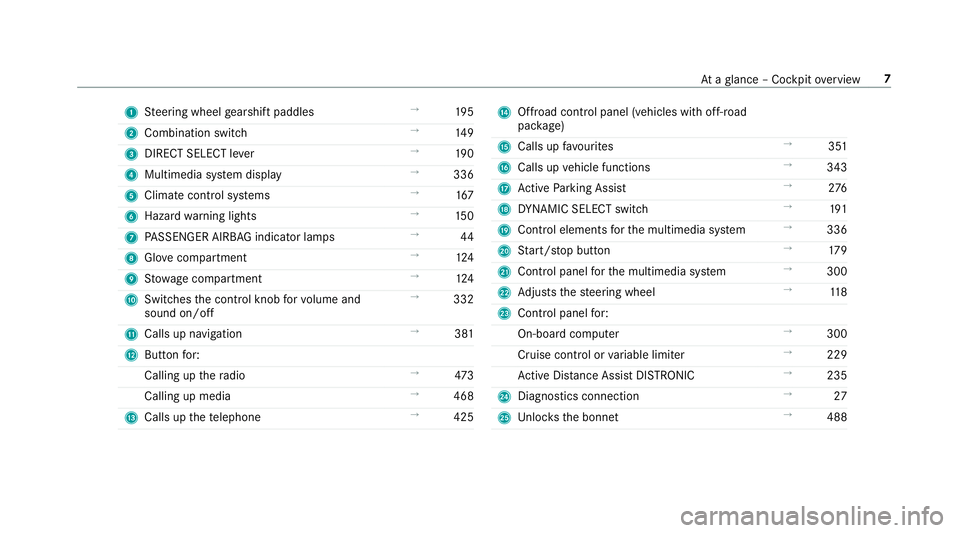
Steering wheel gearshift paddles →
19 5
2 Combination swit ch →
14 9
3 DIRECT SELECT le ver →
19 0
4 Multimedia sy stem display →
336
5 Climate control sy stems →
167
6 Haza rdwa rning lights →
15 0
7 PASSENGER AIRB AGindicator lamps →
44
8 Glovecompa rtment →
124
9 Stow age compartment →
124
A Switches the control knob forvo lume and
sound on/off →
332
B Calls up navigation →
381
C Buttonfo r:
Calling up thera dio →
473
Calling up media →
468
D Calls up thete lephone →
425 E
Offroad control panel (vehicles with off- road
pac kage)
F Calls up favo urites →
351
G Calls up vehicle functions →
343
H Active Parking Assist →
276
I DYNA MIC SELECT switch →
191
J Control elements forth e multimedia sy stem →
336
K Start/ stop button →
17 9
L Control panel forth e multimedia sy stem →
300
M Adjusts thesteering wheel →
11 8
N Control panel for:
On-board computer →
300
Cruise contro l orvariable limiter →
229
Ac tive Dis tance Assi stDISTRONIC →
235
O Diagno stics connection →
27
P Unloc ksthe bonn et →
488 At
aglance – Cockpit overview 7
Page 34 of 681
Depending on
the selected equipment, you can
import data into vehicle con venience and info‐
ta inment functions yourself.
This includes, forex ample:
R multimedia data such as music, films or pho‐
to sfo r playback in an integrated multimedia
sy stem
R address book data for use in connection with
an integrated hands-free sy stem or an inte‐
grated navigation sy stem
R entered navigation destinations
R data about the use of Internet services
This data can be sa ved locally in theve hicle or it
is located on a device which you ha veconnected
to theve hicle (e.g. smartphone, USB flash drive
or MP3 pla yer). If this data is stored in theve hi‐
cle, you can dele teit at any time. This data is
sent tothird parties only at your requ est, partic‐
ular lywhen you use online services in accord‐
ance with the settings that you ha veselected.
Yo u can store or change con venience settings/
individualisations in theve hicle at any time. Depending on
the equipment, this includes, for
ex ample:
R settings forth e seat and steering wheel posi‐
tions
R suspension and climate control settings
R customisations such as interior lighting
If yo ur vehicle is accordingly equipped, you can
connect your smartphone or ano ther mobile end
device totheve hicle. You can cont rolth is by
means of the control elements integrated in the
ve hicle. Images and audio from the smartphone
can be output via the multimedia sy stem. Cer‐
ta in information is simultaneously transfer redto
yo ur smartphone.
Depending on the type of integration, this can
include:
R general vehicle data
R position data
This allo wsyouto use selected apps on your
smartphone, such as navigation or music play‐
bac k.There is no fur ther interaction between the
smartphone and theve hicle; in particular, vehi‐
cle data is not directly accessible. Which type of fur
ther data processing occurs is de term ined by
th e pr ovider of the specific app used. Which set‐
tings you can make, if an y,depends on the spe‐
cific app and the operating sy stem of your
smartphone. Online services
Wire
less network connection
If yo ur vehicle has a wireless network connec‐
tion, it enables data tobe exc hanged between
yo ur vehicle and additional sy stems. The wire‐
less network connection is enabled via theve hi‐
cle's transmission and reception unit or via con‐
nected mobile end devices (e.g. sma rtphones).
Online functions can be used via the wireless
network connection. This includes online serv‐
ices and applications/apps pr ovided bythe man‐
ufacturer or other pr oviders.
Manu factu rer's se rvices
Re garding online services of the manufacturer,
th e individual functions are described bythe
manufacturer in a suita ble place (e.g. Owner's
Manual, website of the manufacturer) along with
th ere leva nt da taprotection information. Per‐ General no
tes31
Page 44 of 681
&
WARNING Risk of inju ryor death due to
incor rect seat position
If yo u deviate from the cor rect seat position,
th e airbag cann otper form its intended pro‐
te ctive function and deployment may even
cause fur ther injuries.
To avo id hazardous situations, alw ays make
sure that all vehicle occupants:
R Have their seat belt fastened cor rectly,
including pregnant women.
R Are seated properly and keep as faraw ay
as possible from the airbags.
R Obser vethefo llowing information. #
Alw ays make sure that there are no
objects between the airbag and vehicle
occupant. To
avo idtherisks resulting from the deployment
of an airbag, each vehicle occupant must
obser vethefo llowing information:
R Before starting your journe y,adjust your seat
co rrectly ;th e driver's seat and front passenger seat should be mo
ved as far back
as possible.
When doing so, alw ays obser vethe informa‐
tion on the cor rect driver's seat position
(→ page 105).
R Onlyhold thesteering wheel bythesteering
wheel rim. This allow sth e airbag tobe fully
deplo yed.
R Alw ays lean against the seat backrest when
th eve hicle is in motion. Do not lean forw ards
or against the door or side windo w.You may
ot herwise be in the deployment area of the
airbags.
R Alw ayske ep your feet on thefloor. Do not
put your feet on the cockpit, forex ample.
Yo ur feet may otherwise be in the deploy‐
ment area of the airbag.
R Ifch ildren are tra velling in theve hicle,
obser vethe additional no tes (→ page 49).
R Alw aysstow and secure objects cor rectly. Objects in
theve hicle interior may pr event an
airbag from functioning cor rectly. Each vehicle
occupant must alw ays make sure of thefo llow‐
ing:
R There are no people, animals or objects
between theve hicle occupants and an air‐
bag.
R There are no objects between the seat, door
and door pillar (B-pillar).
R There are no hard objects, e.g. coat hangers,
hanging on the grab handles or coat hooks.
R There are no accessory parts, such as PNDs
(Personal Navigation Devices), mobile
phones or cup holders attached totheve hi‐
cle within the deployment area of an airbag,
e.g. on the cockpit, on doors, side windo ws
or side panelling.
In addition, no connecting cable, tensioning
st ra p or retaining stra p may be routed
th ro ugh or attached in the deployment area
of an airbag. Alw ays obser vethe accesso ry
manufacturer's ins tallation instructions, in
particular the information on suitable places
fo r ins tallation. Occupant saf
ety41
Page 193 of 681
If
th e sy stem does not inter vene du ring the
eve nt ahead, no thing will be displa yed. The sys‐
te m is passive.
ECO Assist is active only in drive programs ;
and A.
Sy stem limitations
ECO Assist can function more precisely if the
ro ute is main tained when route guidance is
active. The basic function is also available with‐
out active route guidance. Notall information
and traf fic situations can be fore seen. The qual‐
ity depends on the map data.
ECO Assist is only an aid. The driver is responsi‐
ble forke eping a safe dis tance totheve hicle in
front, forve hicle speed and for braking in good
time. The driver must be ready tobrake at all
times ir respective of whe ther the sy stem inter‐
ve nes.
The sy stem may be impaired or may not function
in thefo llowing situations:
R Ifth ere is poor visibility, e.g. due toinsuf fi‐
cient illumination of thero ad, high lyvariable
shade conditions, or due torain, sno w,fog or
heavy spr ay. R
Ifth ere is glare, e.g. from oncoming traf fic,
di re ct sunlight or reflections.
R Ifth ere is dirt on the windscreen in the vicin‐
ity of the multifunction camera or the camera
is mis ted up, damaged or obscured.
R Ifth e traf fic signs are ha rdtodetect, e.g. due
to dirt or snow or insuf ficient lighting, or
because they are co vered.
R Ifth e information on the navigation sy stem's
digital map is incor rect or out of da te.
R Ifth e signs are ambiguous, e.g. traf fic signs
on construction sites or in adjacent lanes. DY
NA MIC SELECT switch Fu
nction of theDY NA MIC SELECT switch Depending on
the engine and equipment, the
ve hicle has dif fere nt drive programs.
Use theDY NA MIC SELECT switch tochange
between thefo llowing drive programs:
R = (Individual): individual settings
R B (Sport Plus): particularly sporty driving
st yle R
C (Sport): sporty driving style
R A (Comfort): comfortable and economi‐
cal driving style
R ; (Eco): particular lyeconomical driving
st yle
R Vehicles with ACTIVE BODY CONT ROL:
N (CURVE): comfortable driving with
cur veinclination function
R FOff-road: driving on less demanding
cross-country terrain
R GOff- road Plus: driving on dif ficult cross-
country terrain
% The drive prog ram selected appears in the
multifunction display of the on-board com‐
puter.
Depending on the drive prog ram, thefo llowing
sy stems change their characteristics:
R drive
-
engine and transmission management
- Active Dis tance Assi stDISTRONIC
R ESP ® 19 0
Driving and pa rking
Page 246 of 681
R
if possible, an emer gency call is placed to
th e Mercedes-Benz emer gency call centre
The driver can cancel the deceleration at any
time byper form ing one of thefo llowing actions:
R steering
R depressing the brake or accelera tor pedal
R pressing a steering wheel button or operating
To uch Control
R activating or deactivating Active Dis tance
Assi stDISTRONIC Ac
tive Traf fic Jam Assist Ac
tive Traf fic Jam Assi stis countr y-dependent
and only available forve hicles with the Driving
Assis tance Package Plus and factory navigation.
Ac tive Traf fic Jam Assi sthelps you when in traf‐
fi c jams on multi-lane roads with stru cturally
separated car riag ew aysby automatically pulling
aw ay and with mode rate steering manoeuvres. It
orients itself using theve hicle in front and lane
markings. Active Traf fic Jam Assi stautomatically
main tains a safe dis tance from theve hicle in
front and vehicles cutting in. Ac
tive Traf fic Jam Assi strequ ires you, as the
driver, tokeep your hands on thesteering wheel
at all times so that you are able tointer vene at
any time tocor rect the course of theve hicle and
ke ep it in lane.
Ac tive Traf fic Jam Assi stis only an aid. The driver
is responsible forke eping a safe dis tance tothe
ve hicle in front, forve hicle speed and for braking
in good time.
Ac tive Traf fic Jam Assi stactivates automatically
when all of thefo llowing conditions are me t:
R You are in a traf fic jam on a mo torw ay or
high-speed major road.
R Active Dis tance Assi stDISTRONIC is acti va‐
te d (→ page 235).
R Active Brake Assi stisavailable (→ page 221).
R Active Steering Assist is activated
(→ page 241).
R You are tra velling no fasterthan 60 km/h. The
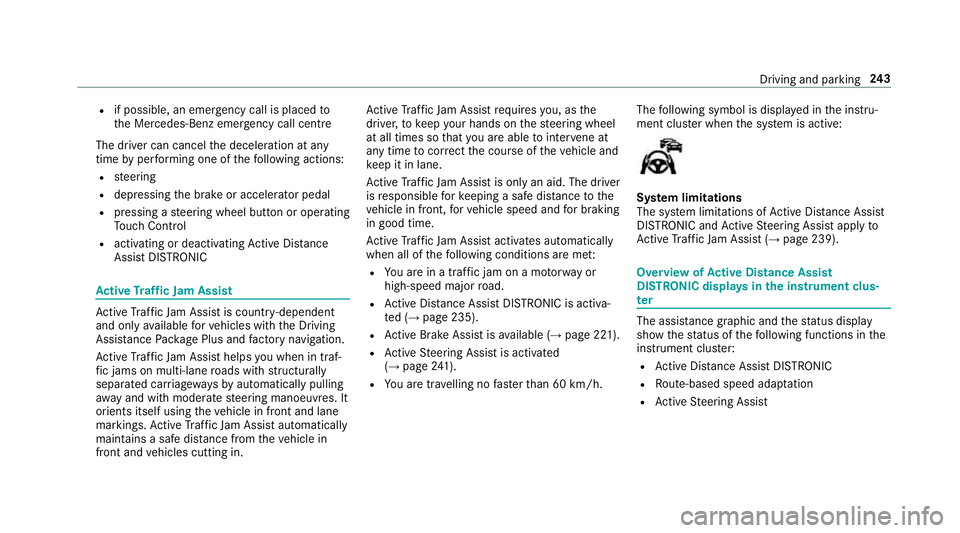
following symbol is displa yed in the instru‐
ment clus ter when the sy stem is active: Sy
stem limitations
The sy stem limitations of Active Dis tance Assi st
DISTRONIC and Active Steering Assist apply to
Ac tive Traf fic Jam Assi st (→page 239). Overview of
Active Di stance Assist
DISTRO NIC displa ysinthe instrument clus‐
ter The assis
tance graphic and thest atus display
show thest atus of thefo llowing functions in the
instrument clus ter:
R Active Dis tance Assi stDISTRONIC
R Route-based speed adap tation
R Active Steering Assist Driving and parking
243
Page 288 of 681
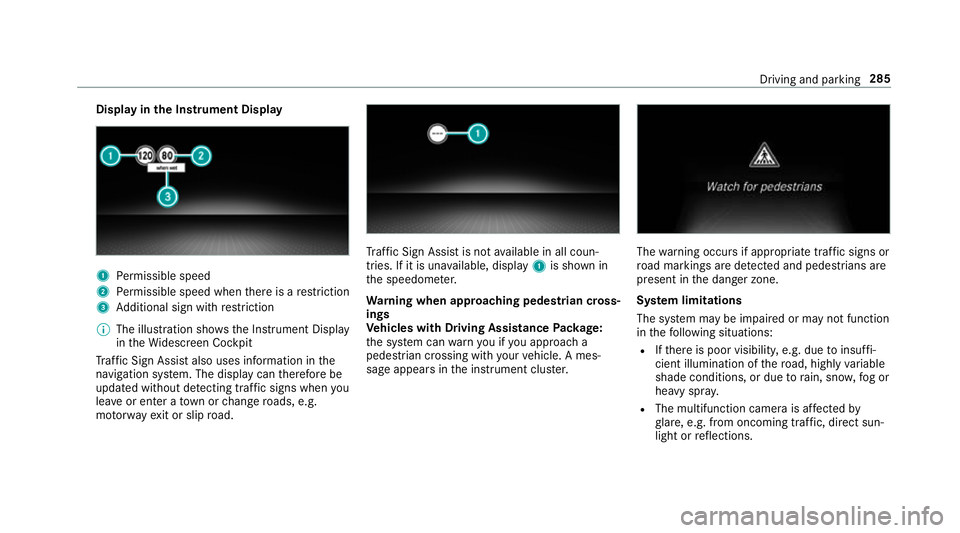
Display in
the Instrument Display 1
Perm issible speed
2 Perm issible speed when there is a restriction
3 Additional sign with restriction
% The illu stra tion sho wsthe Instrument Display
in theWi descreen Cockpit
Tr af fic Sign Assi stalso uses information in the
navigation sy stem. The display can therefore be
updated without de tecting traf fic signs when you
lea veor enter a town or change roads, e.g.
mo torw ay ex it or slip road. Tr
af fic Sign Assi stis not available in all coun‐
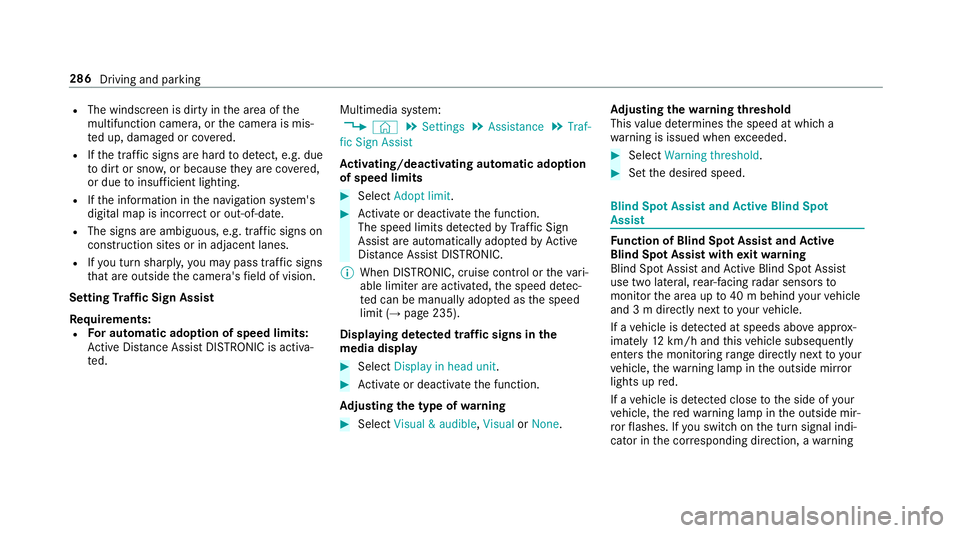
tries. If it is una vailable, display 1is shown in
th e speedome ter.
Wa rning when app roaching pedestrian cross‐
ings
Ve hicles with Driving Assistance Package:
th e sy stem can warnyou if you approach a
pedestrian crossing with your vehicle. A mes‐
sage appears inthe instrument clus ter. The
warning occurs if appropriate traf fic signs or
ro ad markings are de tected and pedestrians are
present in the danger zone.
Sy stem limitations
The sy stem may be impaired or may not function
in thefo llowing situations:
R Ifth ere is poor visibility, e.g. due toinsuf fi‐
cient illumination of thero ad, high lyvariable
shade conditions, or due torain, sno w,fog or
heavy spr ay.
R The multifunction camera is af fected by
gl are, e.g. from oncoming traf fic, di rect sun‐
light or reflections. Driving and parking
285
Page 289 of 681
R
The windscreen is dirty in the area of the
multifunction camera, or the camera is mis‐
te d up, damaged or co vered.
R Ifth e traf fic signs are ha rdtodetect, e.g. due
to dirt or sno w,or because they are co vered,
or due toinsuf ficient lighting.
R Ifth e information in the navigation sy stem's
digital map is incor rect or out-of-da te.
R The signs are ambiguous, e.g. traf fic signs on
construction sites or in adjacent lanes.
R Ifyo u turn sharpl y,yo u may pass traf fic signs
th at are outside the camera's field of vision.
Setting Traf fic Sign Assist
Re quirements:
R For automatic ado ption of speed limits:
Ac tive Dis tance Assi stDISTRONIC is acti va‐
te d. Multimedia sy
stem:
, © .
Settings .
Assistance .
Traf-
fic Sign Assist
Ac tivating/deactivating automatic adoption
of speed limits #
Select Adopt limit . #
Activate or deacti vate the function.
The speed limits de tected byTraf fic Sign
Assi stare automatically adop tedby Active
Dis tance Assi stDISTRONIC.
% When DISTRONIC, cruise control or theva ri‐
able limiter are activated, the speed de tec‐
te d can be manually adop ted as the speed
limit (→ page 235).
Displaying de tected traf fic signs in the
media display #
Select Display in head unit . #
Activate or deacti vate the function.
Ad justing the type of warning #
Select Visual & audible ,Visual orNone. Ad
justing the warning threshold
This value de term ines the speed at which a
wa rning is issued when exceeded. #
Select Warning threshold. #
Set the desired speed. Blind Spot Assist and
Active Blind Spot
Assi st Fu
nction of Blind Spot Assist and Active
Blind Spot Assi stwith exitwa rning
Blind Spot Assist and Active Blind Spot Assi st
use two lateral, rear-facing radar sensors to
monitor the area up to40 m behind your vehicle
and 3 m directly next to yourvehicle.
If a vehicle is de tected at speeds ab ove appr ox‐
imately 12km/h and this vehicle subsequently
enters the monitoring range di rectly next to your
ve hicle, thewa rning lamp in the outside mir ror
lights up red.
If a vehicle is de tected close tothe side of your
ve hicle, there dwa rning lamp in the outside mir‐
ro rflashes. If you swit chon the turn signal indi‐
cator in the cor responding direction, a warning 286
Driving and parking
Page 304 of 681
#
Ifyo u cannot be sure of this, stop the
ve hicle whilst paying attention toroad
and traf fic conditions and ope rate the
equipment with theve hicle stationar y. Obser
vethe legal requ irements forth e count ry
in which you are cur rently driving when operat‐
ing the on-board computer.
% The on-board computer displa ysappear on
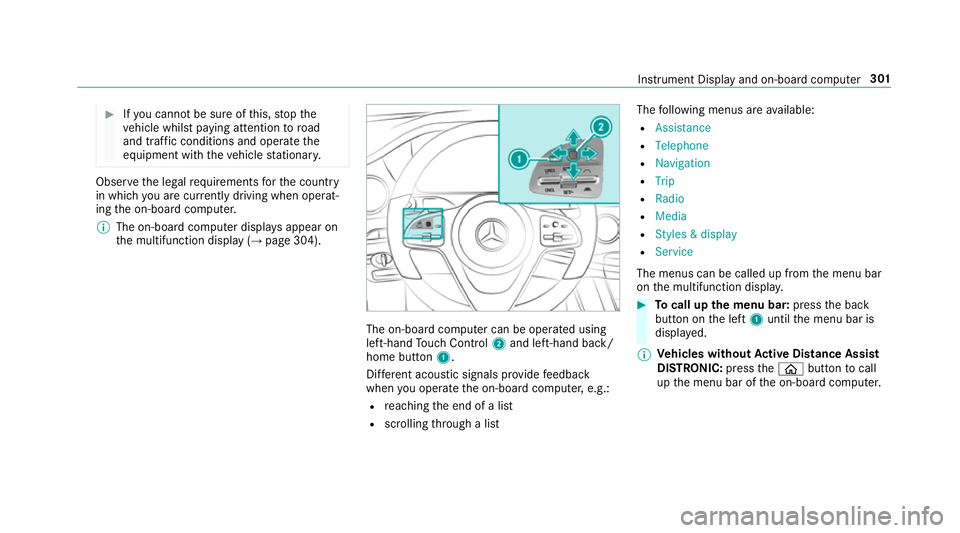
th e multifunction display (→ page 304). The on-board computer can be operated using
left-hand Touch Control 2and left-hand back/
home but ton1.
Dif fere nt acoustic signals pr ovide feedback
when you operate the on-board computer, e.g.:
R reaching the end of a list
R scrolling thro ugh a list The
following menus are available:
R Assistance
R Telephone
R Navigation
R Trip
R Radio
R Media
R Styles & display
R Service
The menus can be called up from the menu bar
on the multifunction displa y. #
Tocall up the menu bar: pressthe back
button on the left 1until the menu bar is
displa yed.
% Ve
hicles without Active Di stance Assist
DISTRO NIC:press theò button tocall
up the menu bar of the on-board computer. Instrument Display and on-board computer
301
Page 305 of 681
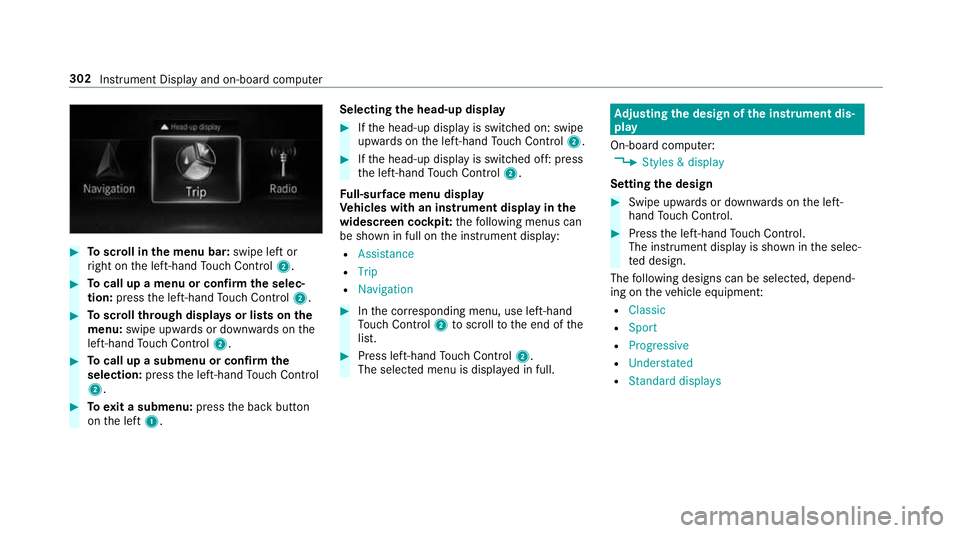
#
Toscroll in the menu bar: swipe left or
ri ght on the left-hand Touch Control 2. #
Tocall up a menu or confirm the selec‐
tion: press the left-hand Touch Control 2. #
Toscroll through displa ysor lists on the
menu: swipe upwards or down wards on the
left-hand Touch Control 2. #
Tocall up a submenu or confirm the
selection: pressthe left-hand Touch Control
2. #
Toexit a submenu: pressthe back button
on the left 1. Selecting
the head-up display #
Ifth e head-up display is switched on: swipe
upwards on the left-hand Touch Control 2. #
Ifth e head-up display is switched off: press
th e left-hand Touch Control 2.
Fu ll-sur face menu display
Ve hicles with an instrument display in the
widescreen cockpit: thefo llowing menus can
be shown in full on the instrument display:
R Assistance
R Trip
R Navigation #
Inthe cor responding menu, use left-hand
To uch Control 2toscroll tothe end of the
list. #
Press left-hand Touch Control 2.
The selected menu is displ ayed in full. Ad
justing the design of the in stru ment dis‐
play
On-boa rdcompu ter:
, Styles & display
Setting the design #
Swipe up wards or down wards on the left-
hand Touch Control. #
Press the left-hand Touch Control.
The instrument displ ayis shown in the selec‐
te d design.
The following designs can be selec ted, depend‐
ing on theve hicle equipment:
R Classic
R Sport
R Progressive
R Understated
R Standard displays 302
Instrument Display and on-board computer
Page 306 of 681
Showing display content on
the instrument
clus ter
Ad ditional display con tent can also be shown on
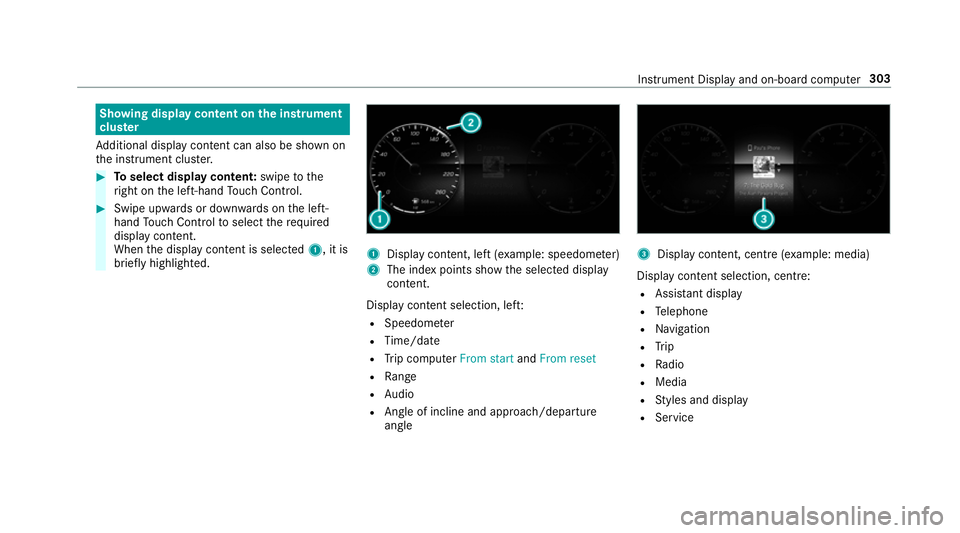
th e instrument clus ter. #
Toselect display content: swipetothe
ri ght on the left-hand Touch Control. #
Swipe upwards or down wards on the left-
hand Touch Control toselect there qu ired
display con tent.
When the display conte nt is selected1, it is
brie fly highligh ted. 1
Display con tent, le ft(exa mp le: speedom eter)
2 The index points show the selected display
conte nt.
Display content selection, le ft:
R Speedom eter
R Time/date
R Trip computer From startandFrom reset
R Range
R Audio
R Angl e of incline and approach/departure
angle 3
Display conte nt, centre (examp le: media)
Display con tent selection, centre:
R Assi stant display
R Telephone
R Navigation
R Trip
R Radio
R Media
R Styles and display
R Service Instrument Display and on-board computer
303