light MERCEDES-BENZ GLK-Class 2012 X204 Comand Manual
[x] Cancel search | Manufacturer: MERCEDES-BENZ, Model Year: 2012, Model line: GLK-Class, Model: MERCEDES-BENZ GLK-Class 2012 X204Pages: 182, PDF Size: 4.89 MB
Page 110 of 182
X
To return tothe phonebook with
ch arac terbar: select Back in
the list and
pre ssW toconfi rm.
or
X Pre ssthe k button. Di
spl aying detai lsfora ne ntry
X Select anent ryinthe select ionlistby
turn ingcVd theCOMAND controller.
X Select Options by
sliding VYandpress
W tocon firm.
X Select Details and
press Wtocon firm.
The detailed displayappears.
X To close thedeta iledview: slideXVY
repeatedly untiltheentryishighlighted
again orpress thek button . Deleting
anentry fromthephone
book
If the entrycon tains onlyphone numbers, it
is deleted fromthephone bookandaddress
book.
If there isadditional dataincluded alongwith
the phone number, e.g.anavigable
destin ation, theentryisdeleted fromthe
phone bookbutretain edinthe address book.
X Select anent ryinthe select ionlistby
turn ingcVd theCOMAND controller.
X Select Options by
sliding VYandpress
W tocon firm.
X Select Delete and
press Wtocon firm.
Ap rompt appears asking whethe rthe entr y
should bedeleted.
X Select Yes or
No and
press Wtoconfirm .
If you select Yes ,
the entr yis deleted in
accordance withtherules described above.
If you select No ,
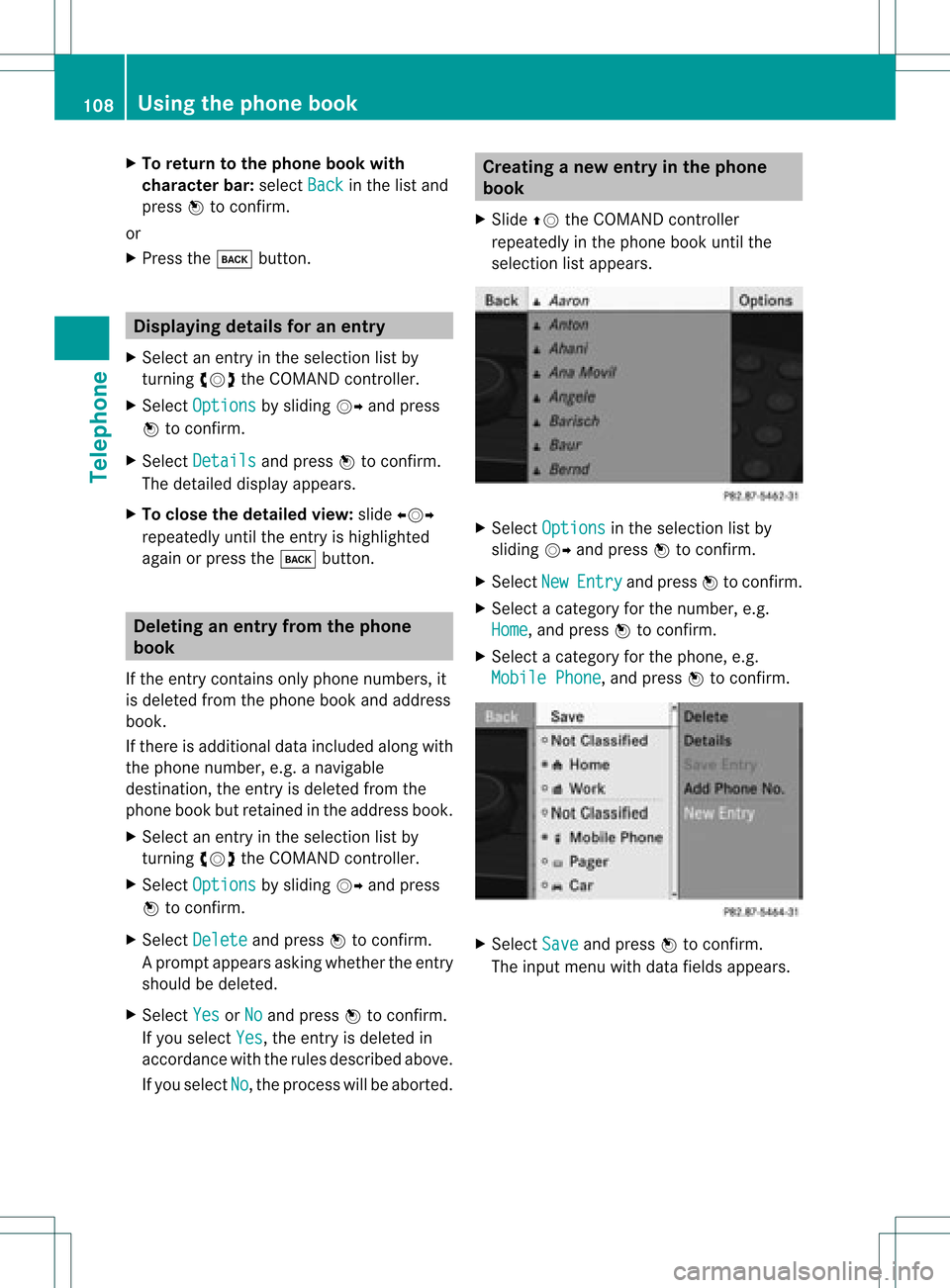
the process willbeaborted. Creating
anew entry inthe phone
book
X Slide ZVtheCOMAND controller
repeatedly inthe phone bookuntilthe
selection listappea rs. X
Select Options in
the selection listby
sliding VYandpress Wtoconfirm .
X Select New Entry and
press Wtoconfirm .
X Select acategory forthe number, e.g.
Home ,
and press Wtoconfirm .
X Select acategory forthe phone, e.g.
Mobile Phone ,
and press Wtoconfirm . X
Select Save and
press Wtoconfirm .
The input menu withdata fields appea rs. 108
Using
thephone bookTelephone
Page 112 of 182
X
Sel ect CallsReceived or
Cal ls Dia
led us
ing cVd andpressW to
confi rm.
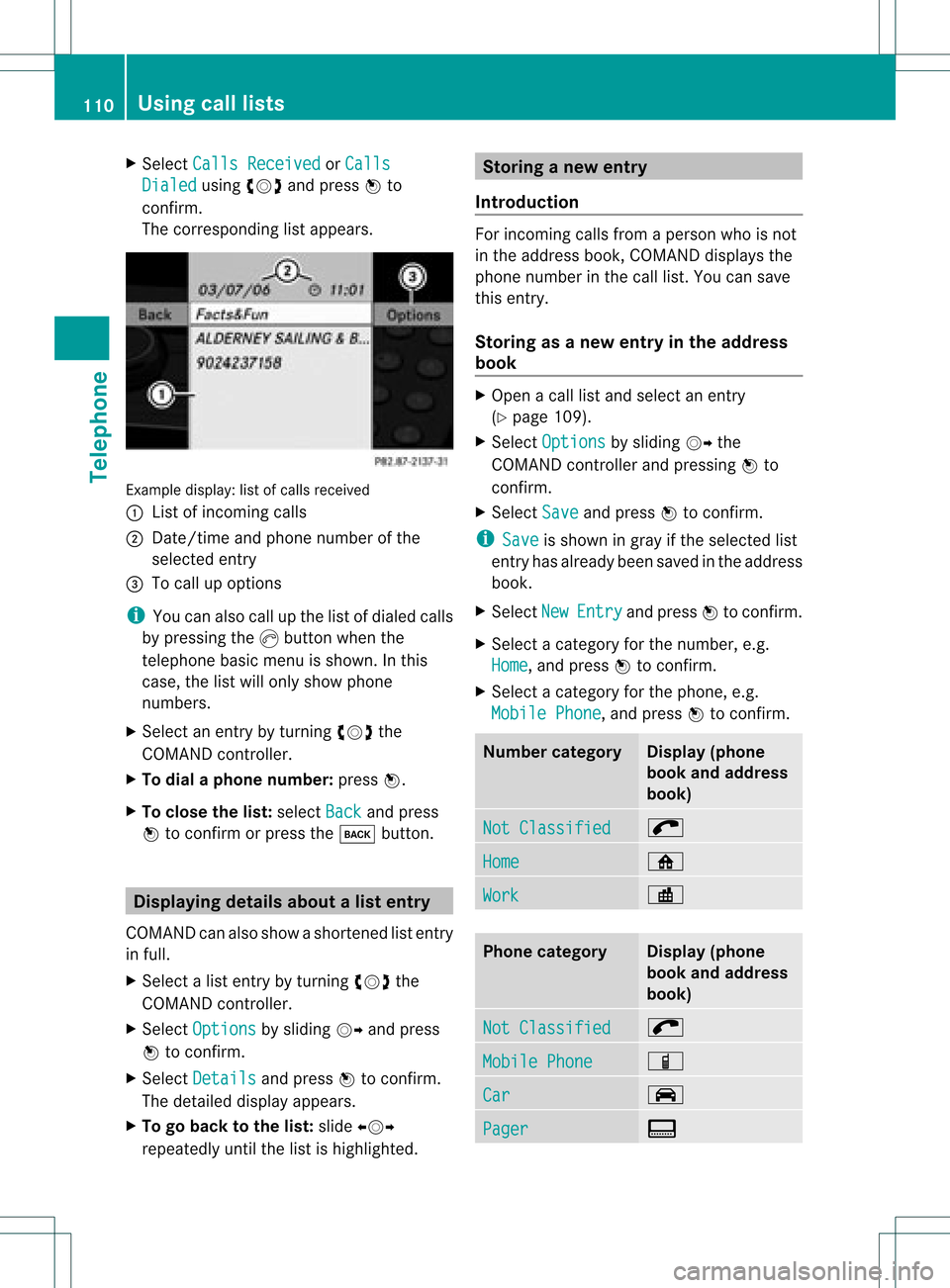
The corre sponding list appe ars . Examp
ledispl ay:list ofcalls received
: List ofinc omin gcalls
; Date/time and phon enumbe rof the
select edent ry
= Tocall upoptio ns
i You canalso callupthe listofdialed calls
by press ingthe Kbutt onwhen the
teleph onebasic menuis shown .Int his
case, thelistwill only show phone
numbers.
X Select anentr yby turning cVdthe
COMAND controller.
X To dial aphone number: pressW.
X To close thelist: select Back and
press
W toconfirm orpress thek button. Displaying
detailsaboutalist entr y
COMAN Dcanalso showasho rten ed list entry
in full.
X Sel ect alist entry by turnin gcVd the
COMA NDcontroll er.
X Sel ect Options by
slidin gVY andpres s
W toconfirm .
X Sel ect Details and
pres sW toconfirm .
The detailed displayappear s.
X To go back tothelist :slide XVY
repe atedly untilth elist ishigh light ed. St
ori ng anew entr y
Intr odu ction For
incomin gcalls from apers onwho isno t
in theaddre ssbook ,COMA NDdisplays the
phon enum berinthecall list.You can save
this entry.
Storing asanew entry inthe address
book X
Open acall listand select anentr y
(Y page 109).
X Select Options by
sliding VYthe
COMAND controller andpressing Wto
conf irm.
X Select Save and
press Wtoconf irm.
i Save is
shown ingray ifthe selected list
entr yhas already beensaved inthe address
book.
X Select New Entry and
press Wtoconf irm.
X Select acategory forthe number, e.g.
Home ,
and press Wtoconf irm.
X Select acategory forthe phone, e.g.
Mobile Phone ,
and press Wtoconf irm. Num
bercategory Display
(phone
book andaddress
book) Not
Classified ;
Home ¸
Work ·
Phone
category Display
(phone
book andaddress
book) Not
Classified ;
Mobile
Phone Ï
Car ´
Pager ¨110
Using
calllistsTelephone
Page 116 of 182
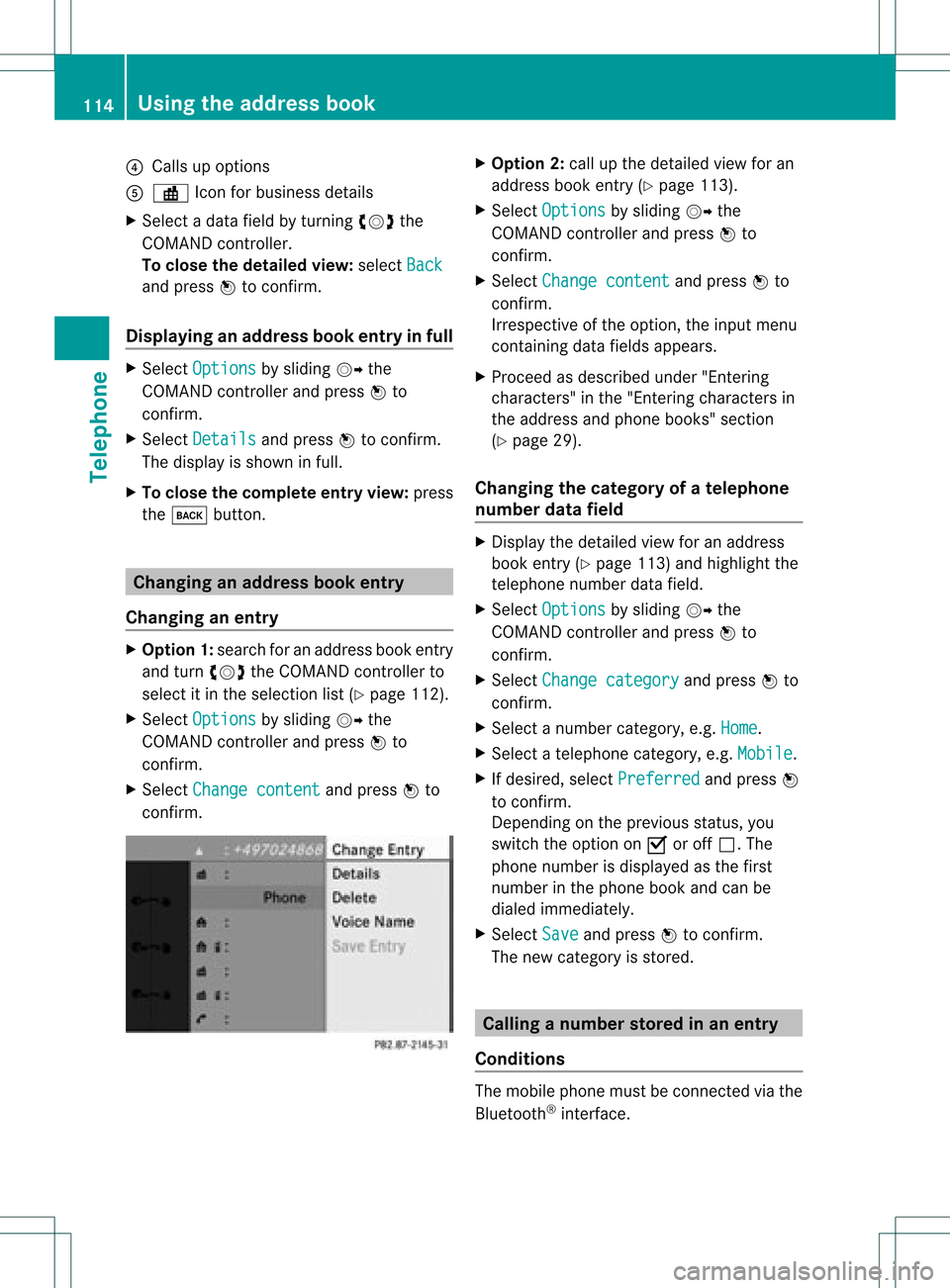
?
Calls upopt ions
A · Icon for busin essdetails
X Se lec tada tafield byturn ingcVd the
COMAND controller.
To close thedeta iledview: select Back and
press Wtocon firm.
Displaying anadd ress book entryinfull X
Select Options by
sliding VYthe
COMAND controller andpress Wto
con firm.
X Select Details and
press Wtocon firm.
The display isshown infull.
X To close thecomplete entryview:press
the k button . Changing
anadd ress book entry
Changing anentry X
Opt ion1:search foranaddress bookentry
and turn cVd theCOMAND controller to
select itin the select ionlist(Ypage 112).
X Select Options by
sliding VYthe
COMAND controller andpress Wto
con firm.
X Select Change content and
press Wto
con firm. X
Opt ion 2:call upthe detailed viewforan
address bookentry(Y page 113).
X Select Options by
sliding VYthe
COMAND controller andpress Wto
con firm.
X Select Change content and
press Wto
con firm.
Irrespec tiveofthe option ,the input menu
con tainin gdata fields appears.
X Proceed asdescribed under"Entering
charact ers"inthe "Ent ering charact ersin
the address andphone books" section
(Y page 29).
Changing thecategory ofatelephone
number datafield X
Display thedetailed viewforanaddress
book entry(Y page 113)and highlight the
telephon enumber datafield.
X Select Options by
sliding VYthe
COMAND controller andpress Wto
con firm.
X Select Change category and
press Wto
con firm.
X Select anumber category,e.g. Home .
X Select atelephon ecategor y,e.g. Mobile .
X Ifdesired, selectPreferr ed and
press W
to con firm.
Depen dingonthe previous status,you
switch theoption onO oroff ª.T he
phone number isdispla yedasthe first
number inthe phone bookandcanbe
diale dimmediately.
X Select Save and
press Wtoconfirm .
The new category isstored. Calling
anumber storedinan entry
Co nditio ns The
mobi lephone mustbeconnected viathe
Blue tooth ®
interface . 114
Usi
ngthe address bookTele phone
Page 129 of 182
The
DVD changer loadsthedisc intothe
selected magazine tray.Themessage
Loading Disc
i Itmay take some timeforthe disc tobe
loaded, depending onthe type ofdisc. Ifno
disc isinsert edfor approximately 20
seconds, thedisplay returnstothe
magazine menu.
The DVD changer playsthedisc if:
R ithas been insert edcorrec tly.
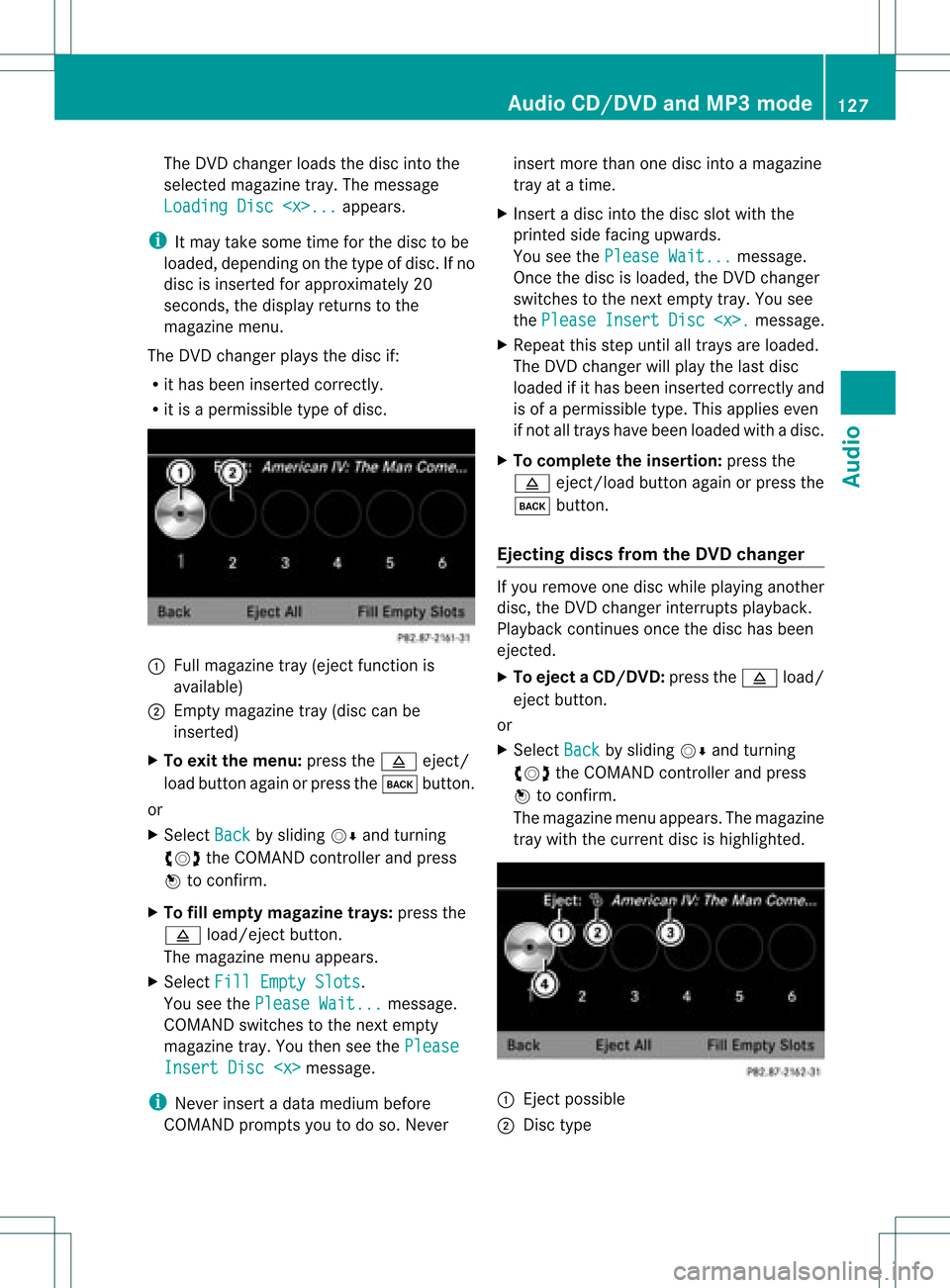
R itis apermissible typeofdisc. :
Full magazine tray(eject functionis
availa ble)
; Empt ymagazine tray(disc canbe
insert ed)
X To exit themenu: pressthe8 eject/
load button againorpress thek button .
or
X Select Back by
sliding VÆandturnin g
cVd theCOMAND controller andpress
W toconf irm.
X To fill empt ymagaz inetrays: press the
8 load/eject button.
The magazine menuappears.
X Select FillEmpty Slots .
You seethePlease Wait... message.
COMAND switchestothe next empty
magazine tray.Youthen seethePlease Insert
Disc
i Never insertadata medium before
COMAND promptsyoutodo so. Never insert
morethanonedisc intoamagazine
tray atatime.
X Insert adisc intothedisc slotwith the
printed sidefacing upwards.
You seethePlease Wait... message.
Once thedisc isloaded, theDVD changer
switches tothe next empty tray.Yousee
the Please Insert Disc
X Repeat thisstep until alltrays areloaded.
The DVD changer willplay thelast disc
loaded ifit has been insert edcorrec tlyand
is of apermissible type.Thisapplies even
if not alltrays havebeen loaded withadisc.
X To complete theinsertion: pressthe
8 eject/load button againorpress the
k button .
Ejecting discsfromtheDVD changer If
you remove onedisc while playinganother
disc, theDVD changer interruptsplayb ack.
Playba ckcont inues oncethedisc hasbeen
eject ed.
X To eject aCD/DVD: pressthe8 load/
ej ec tbut ton.
or
X Se lec tBac k by
slid ing VÆ andturning
cVd theCOMA NDcontrol ler and press
W toconfirm .
The mag azine men uappea rs.T he magazine
tray with thecurrent discishighlighted. :
Ejec tpossible
; Disc type Audio
CD/DVD andMP3 mode
127Audio Z
Page 133 of 182
Pause
function
In audio CD/DVD andMP3 mode X
To pause playback: brieflypresstheB
button.
The , symbol appears atthe top leftin
the status bar.
X To continue playback: brieflypressthe
B button again.
The , symbol disappea rs.
Only inaudio DVDmode X
To pause playback: switchonaudi oDVD
mode (Ypage 129).
X Select Ëbysliding VÆandturnin g
cVd theCOMAND controller andpress
W toconf irm.
The Ë display changes toÌ.
X To continue playback: selectÌand
press Wtoconf irm.
Play back continues fromthepoint where it
was interr upted. TheÌ display changes
to Ë. Stop
function
This funct ionisonly availa bleinaudi oDVD
mode.
X Switch onaudi oDVD mode (Ypage 129).
X To interru ptplayback: selectÉby
sliding VÆandturnin gcVd theCOMAND
cont roller andpress Wtoconf irm.
The Ë display changes toÌ. É
remains highlighted.
X To continue playback: selectÌand
press Wtoconf irm.
Play back continues fromthepoint where it
was interr upted. X
To stop playback: whileplayback is
interr upted, selectÉagain andpress
W toconf irm.
or
X Select Éandconf irmbypressing W
twice inrapid succession.
Ì ishighlighted.
X To restar tplayback: selectÌand
press Wtoconf irm.
Play back starts atthe beginning ofthe
DVD . Selec
tingaudio CD/DVD/MP3 discs
Selec tingviathe media list X
In audio CD/DVD andMP3 mode: select
Media by
sliding VÆorturnin gcVd the
COMAND controller andpress Wto
conf irm.
or
X In audio CD/DVD mode only:press W
the COMAND controller when thedisplay /
selection windowisactive.
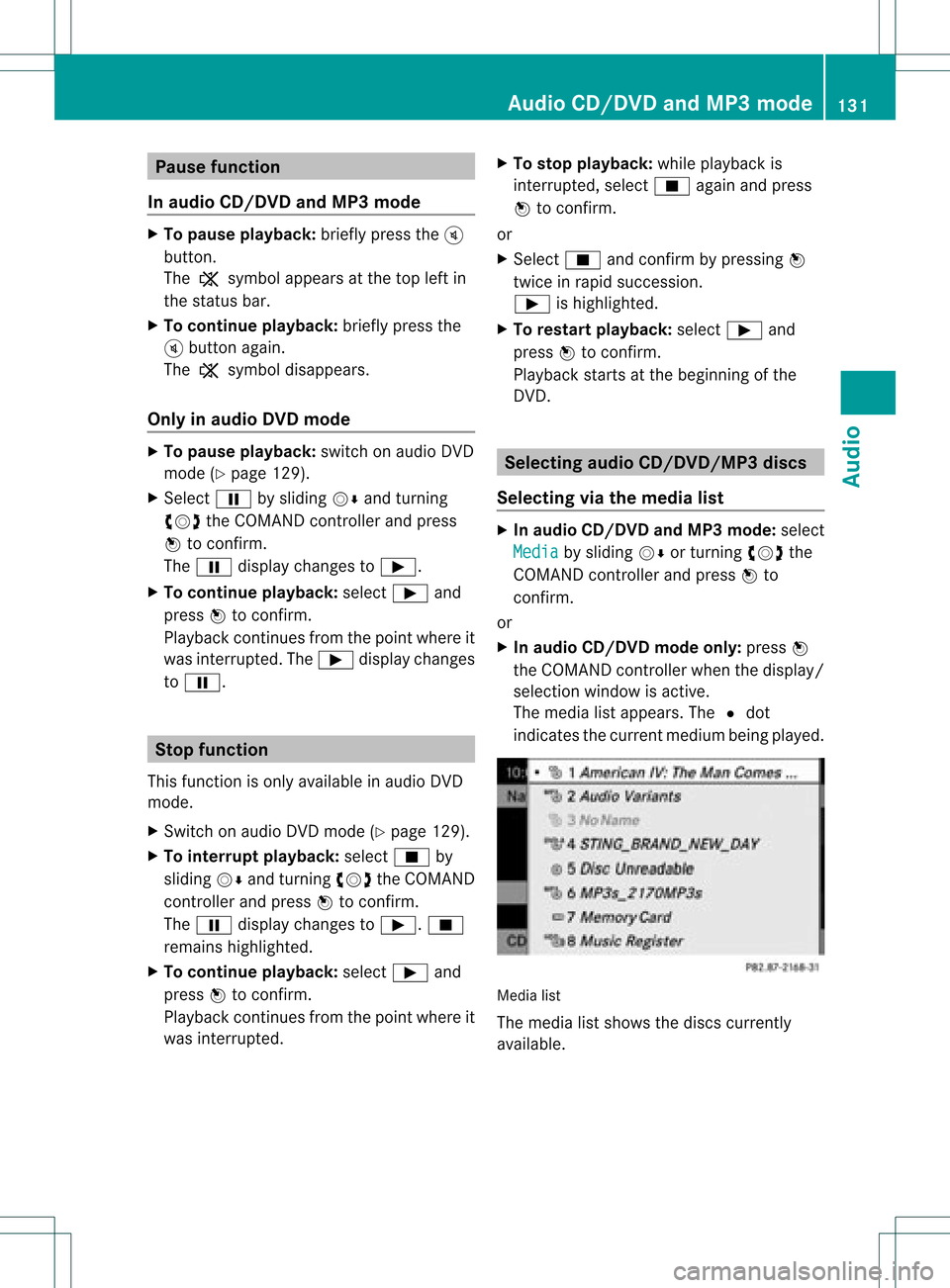
The media listappears. The#dot
indicates thecurrent medium beingplayed. Media
list
The media listshows thediscs current ly
availa ble. Audio
CD/DVD andMP3 mode
131Audio Z
Page 140 of 182
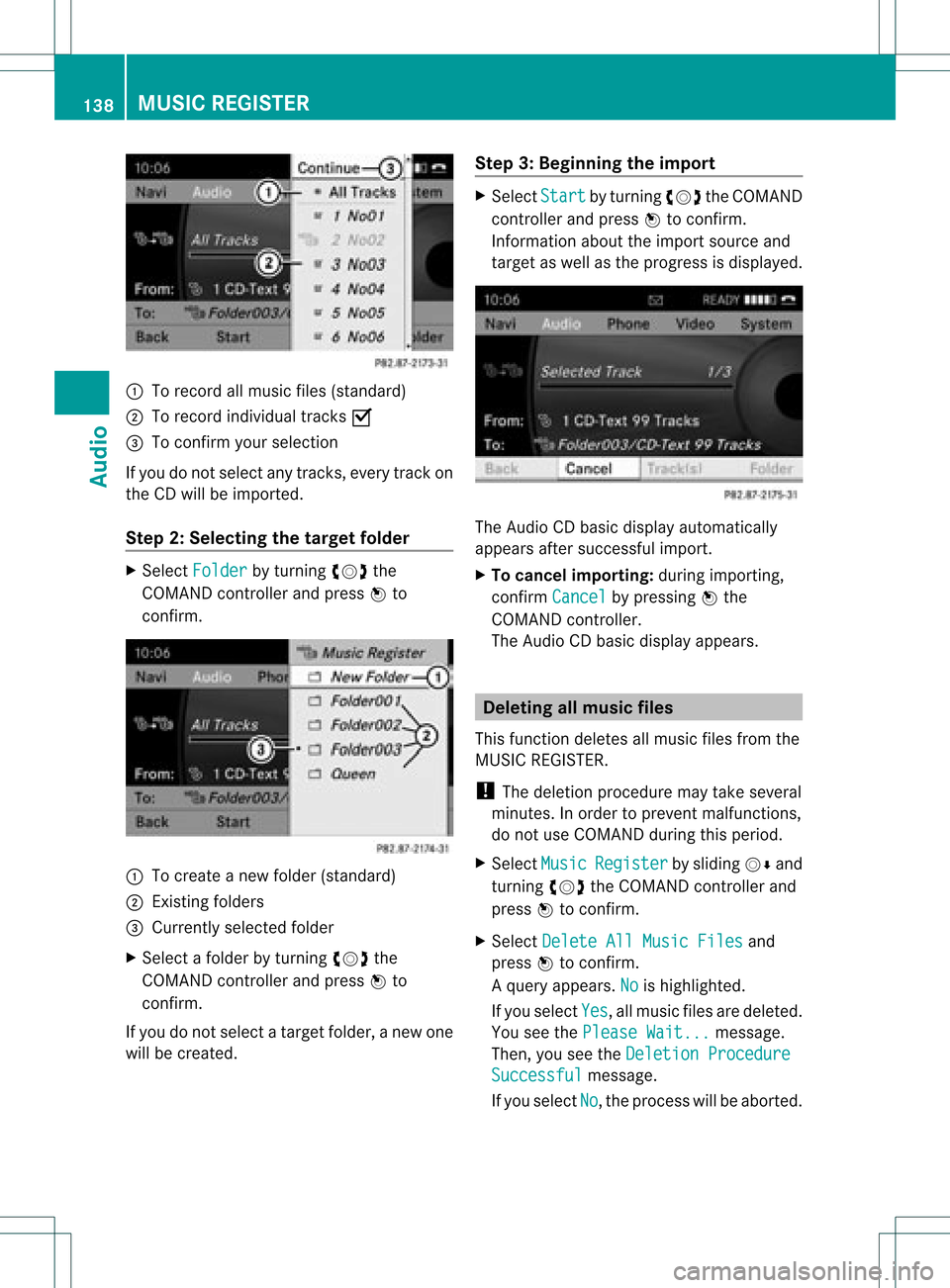
:
Torecord allmusic files(standard)
; Torecord individual tracksO
= Toconf irmyour selection
If you donot select anytrack s,every trackon
the CDwill beimported.
Step 2:Selecting thetarget folder X
Select Folder by
turnin gcVd the
COMAND controller andpress Wto
conf irm. :
Tocreate anew folder (standard)
; Existing folders
= Currently selectedfolder
X Select afolder byturnin gcVd the
COMAND controller andpress Wto
conf irm.
If you donot select atarget folder, anew one
will becreated. Step
3:Beginning theimpor t X
Select Start by
turnin gcVd theCOMAND
cont roller andpress Wtoconf irm.
Infor mation abouttheimport source and
target aswell asthe progress isdisplay ed. The
Audio CDbasic display automatically
appears aftersuccessf ulimport.
X To cancel importing:during importin g,
conf irmCancel by
pressing Wthe
COMAND controller.
The Audio CDbasic display appears. Dele
ting allmusic files
This funct iondeletes allmusic filesfrom the
MUSIC REGISTE R.
! The deletion procedure maytake several
minutes. Inorder toprevent malfunct ions,
do not use COMAND duringthisperiod.
X Select Music Register by
sliding VÆand
turnin gcVd theCOMAND controller and
press Wtoconf irm.
X Select Delete AllMusic Files and
press Wtoconf irm.
Aq uery appear s.No is
high light ed.
If you sele ctYes ,
all musi cfiles aredelet ed.
You seethePlea seWait ... mess
age.
Then ,you seetheDele tion Procedure Succ
essful mess
age.
If you selec tNo ,
the proc esswillbeabort ed. 138
MUSIC
REGISTERAudio
Page 141 of 182
Callin
gup diskspace informati on
X Sel ect Mus ic Reg
ister by
sliding VÆ and
turni ngcVd theCOMAND controllerand
pre ssW toconfi rm.
X Sel ect Memory Info and
pressW to
confi rm.
The followi ng isdispl ayed :
R stora gecap acity
R ava ilab lememo ry
R occu pied memo ry
R content (folders ,tracks ) Fo
lde rfuncti ons
Introduc tion You
canview thecontent ofthe MUSIC
REGI STER, change folderor track names and
del ete individu alfold ersortracks.
Call ingupthe MUSI CREGI STER X
Select Folder by
sliding VÆandturning
cVd theCOMAND controllerand press
W toconfirm.
or
X Press Wthe COMAND controllerwhen the
displa y/selection windowisactive.
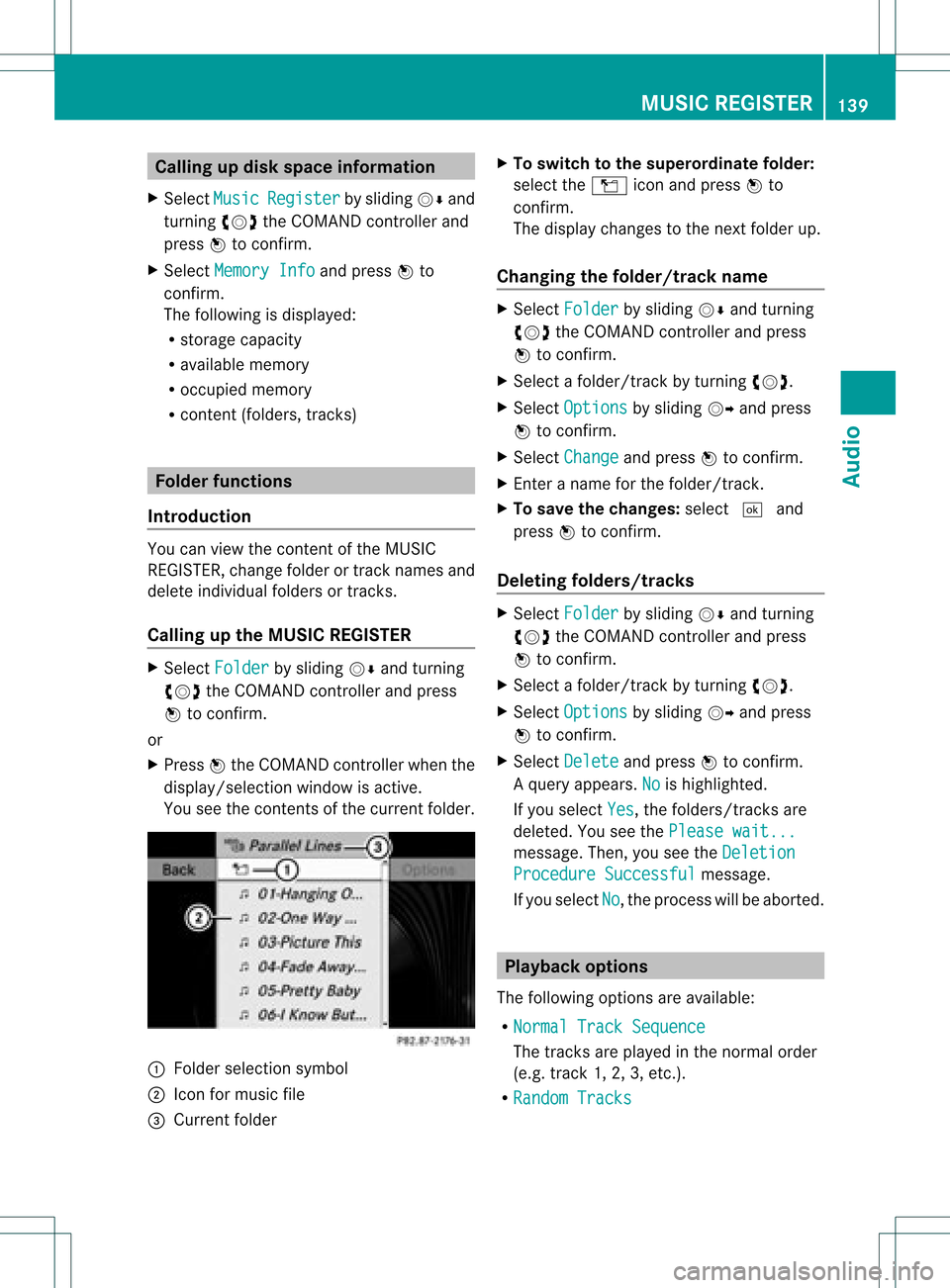
You seethecont ents ofthe current folder. :
Folder selection symbol
; Icon formusic file
= Current folder X
To switch tothe superord inatefolder:
select theÒ iconandpress Wto
confirm .
The displa ychanges tothe next folder up.
Changing thefolder/tra ckname X
Select Folder by
sliding VÆandturning
cVd theCOMAND controller andpress
W toconfirm .
X Select afolder/track byturning cVd.
X Select Options by
sliding VYandpress
W toconfirm .
X Select Change and
press Wtoconfirm .
X Ent eraname forthe folder/track .
X To save thechanges: select¬and
press Wtoconfirm .
Dele ting folders/tra cks X
Select Folder by
sliding VÆandturning
cVd theCOMAND controller andpress
W toconfirm .
X Select afolder/track byturning cVd.
X Select Options by
sliding VYandpress
W toconfirm .
X Select Delete and
press Wtoconfirm .
Aq uery appear s.No is
high light ed.
If you selectYes ,
th efol der s/track sare
delet ed.You seethePle ase wait... mes
sage .Then, youseetheDeletion Procedure
Successful message.
If you select No ,
the process willbeaborted. Playback
options
The following optionsareavaila ble:
R Normal TrackSequence The
track sare play edinthe normal order
(e.g. track 1,2,3, etc. ).
R Random Tracks MUSIC
REGISTER
139Audio Z
Page 142 of 182
All
the tracks onthe med iuma repla yed in
random order.
R Random Folder (only
inMP3 mode)
The tracks inthe currently activefolderare
pla yed inrandom order.
X To selecto ptio ns:switch onthe MUSIC
REG ISTER (Ypage 137).
X Sel ect Musi c Regi
ster by
sliding VÆ and
turni ngcVd theCOMAND controllerand
pre ssW toconfi rm.
The options list appea rs.The #dot
ind icates the optionselected .
X Sel ect anopti onand pressW toconfi rm.
The optionisswi tched on.For allopti ons
excep tNorm alTrac kSequ ence ,
yo uwi ll
see acorre spondingdispl ayinthe displ ay/
sel ectio nwindow.
i The Norm alTrac kSequ ence opt
ion is
autom atically selec tedwhen youchan ge
the disc youarecurr entlylist enin gto or
when youselec tadifferent medium.Ifan
option isselect ed,itremains selectedafter
COMAND isswitc hedonoroff. Media
Interfacemode Connection
options
Overview You
willfind theconnection sock etsinthe
cen tercon sole.
Devic e-spec ificadapter cables,included with
the Media Interface, arerequired tocon nect
ext ernal devices tothe Media Interface.
i Store individual partsinas afe plac e.
On lyuse genuine Mercedes-Ben z
co nn ect ion cabl es.
You canconn ect thefoll owin gdat acar rier s
to COMA NDviatheMedia Inte rface:
R iPod ®
R US Bd evices (USBsticks,USB hard drives) i
iPod ®
is aregister edtrademark ofApple
Inc .,Cupertino, California,USA.
Supp orted iPod®
var iants The
following areexamples ofsupported
iPod ®
variant s:
R iPod ®
mini
R iPod ®
nano
R iPod ®
classic
R iPod ®
touch
Supp orted USBdevices The
following USBdevices aresupported:
R USB sticks(flash memory)
R USB hard drives requiring astart up/
permanen tcurren tof amaximum of
800 mA(itmay benec essary tocon necta
separate powersupply)
R cert ainMP3 players
i The Media Interface supports USB
stor age media of"USB DeviceSubclass 6".
Inf ormat ionconcern ingUSB Devic e
Subclass 6isavail able from theequip ment
manufacturer.
For details andalist ofsupported devices,
visit http://www .mbusa-mobile.com.
Altern atively, calltheMercedes-Benz
Customer Assistance Centerat
1-80 0-FOR-ME RCedes(1-800 -367-6372)
(for theUSA) orCustomer Relations at
1-80 0-38 7-0100(for Canada ). Conne
ctinganexternal device
i Donot leave extern aldevices inthe
vehicle, astheir correct function cannotbe
guara nteed ifthey aresubjected to
extreme temperatures, e.g.from exposure
to direct sunlight orvery lowoutside
temperatures (seetheoperating
instruct ionsofthe respective device).
Mercedes-Benz USA,LLCaccepts no
liab ility fordamage toextern aldevices. 140
Media
Interface modeAudio
Page 146 of 182
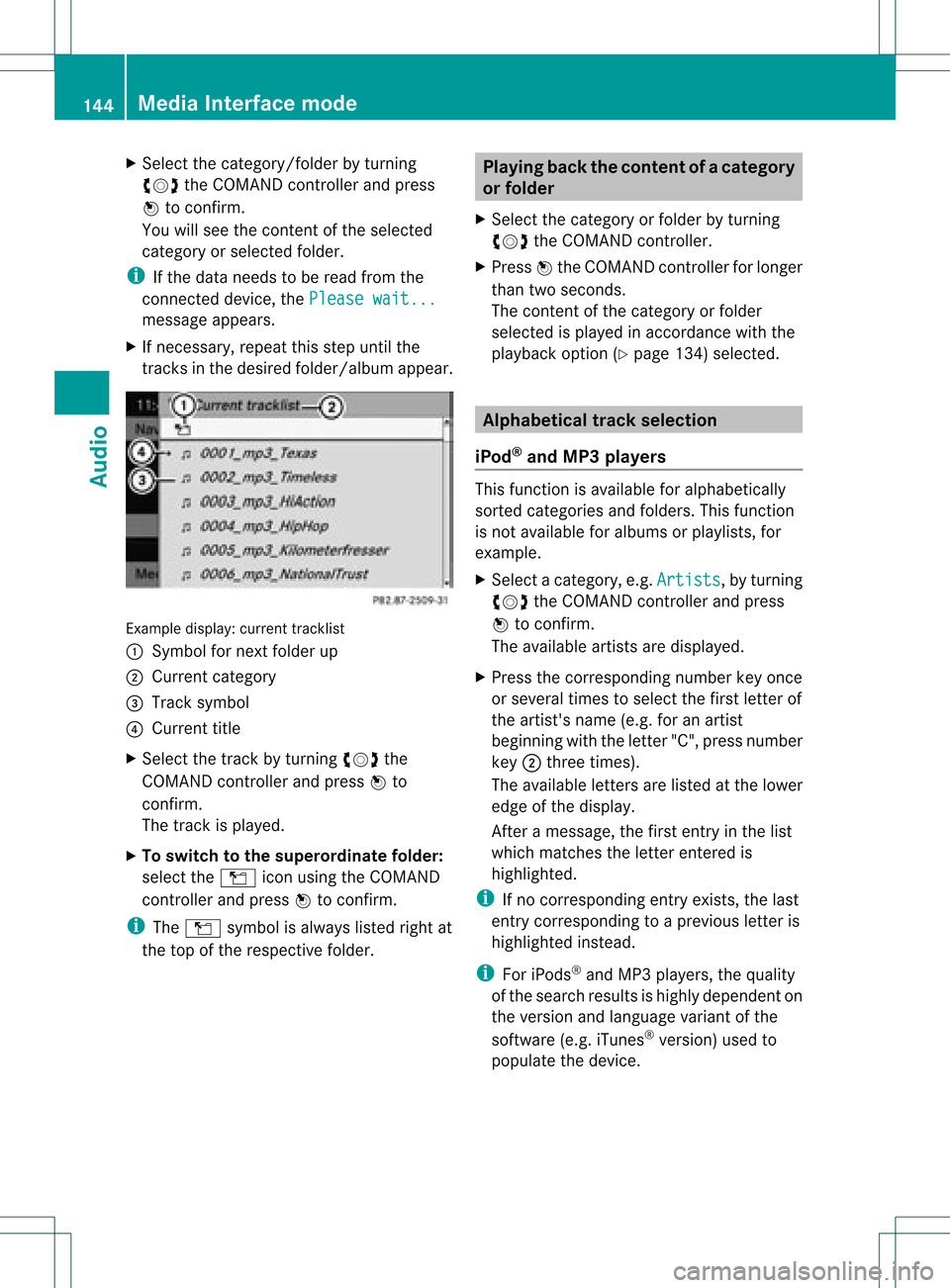
X
Sel ect the cate gory/folde rb ytur ning
cVd theCOMA NDcontro ller and press
W toconfirm .
You willsee theco nten to fthe selected
category orselected folder.
i Ifthe data needs tobe read from the
conn ected device, thePlease wait... message
appears.
X Ifnecessary, repeatthisstep until the
track sin the desired folder/album appear. Example
display:curr ent track list
: Sym bolfornex tfold erup
; Curre ntcat egor y
= Trac ksymbo l
? Curr enttitle
X Se lec tth etrack byturning cVd the
COMA NDcontro ller and pressW to
co nfirm .
The track isplayed .
X To swit chtothesup eror dina te fold er:
sele cttheÒ iconu sing theCOMAND
cont roller andpress Wtoconfirm.
i The Ò symbol isalwa yslisted rightat
the top ofthe respective folder. Playing
backthecontent ofac atego ry
or folder
X Sele ctthe catego ryor fold erby turning
cVd theCOM AND controll er.
X Press Wthe COM ANDcontroll erfor longe r
than twoseconds .
The content ofthe catego ryor fold er
sel ected ispla yedin accord ancewith the
pla yback optio n(Ypage 134)select ed. Alphabet
icaltrack selection
iPod ®
and MP3 players This
function isavailable foralphabetically
sort edcateg ories andfolders. Thisfunction
is not available foralbums orplaylists, for
example.
X Select acateg ory,e.g.Artist s ,
by turn ing
cVd theCOMAND controller and press
W tocon firm.
The available artistsare displayed.
X Press thecorr espondin gnumber keyonce
or several timestoselect thefirst letterof
the artist 'sname (e.g.foranartist
beginn ingwith theletter"C", press number
key ;three times ).
The available letters are listed atthe lower
edge ofthe display.
Aft eramessage, thefirst entryinthe list
which matchestheletterent ered is
highlighted.
i Ifno corr espondin gent ryexist s,the last
ent rycorr espondin gto ap reviou sletter is
high lighted instead .
i For iPod s®
and MP3 players ,the quality
of the search resultsishigh lydepe ndent on
the versio nand langu ageva ria nt ofthe
sof twa re(e.g. iTune s®
ver sion) used to
po pulate the devic e. 14
4 Me
dia Interfac emodeAu dio
Page 158 of 182
X
Sel ect DVD Functions and
pressW to
confi rm.
X Sel ect Subtitles or
Cam era Angle and
pre ssW toconfi rm.
In both cases,amenu appe ars .The # dot
in front ofan entr yindicates thecurrent
settin g.
X Select asettin gby turning cVdthe
COMAND controller andpress Wto
confirm .
X To exit themenu: slideXVY theCOMAND
cont roller. Interactive
content
DVD scan cont aininteract ivecont ent(e.g. a
video game). Inavideo game, forexample,
you may beable toinfluence eventsby
selecting andtriggering actions.Thetype and
number ofactions depend onthe DVD .
X Select anaction bysliding ZVÆorXVY the
COMAND controller andpress Wto
execute it.
A menu appearsand thefirst entry,
Select ,
is highlighted.
X Press Wthe COMAND controller. 156
Video
DVDmodeVideo