light MERCEDES-BENZ GLK-Class 2012 X204 Comand Manual
[x] Cancel search | Manufacturer: MERCEDES-BENZ, Model Year: 2012, Model line: GLK-Class, Model: MERCEDES-BENZ GLK-Class 2012 X204Pages: 182, PDF Size: 4.89 MB
Page 70 of 182
e.g.
roads closed tothr ough trafficand non-
resident s.
R roads thathave timerestrictions (e.g.
closed onSundays andpublic holidays) are
avoided forroute guidance. Change
ofdir ection
Introd uction Changes
ofdirect ionhave three phases:
R preparation phase
R announ cementphase
R change-of- directionphase
Prepar ationphase COMAND
preparesyouforthe upcoming
change ofdirection. Basedonthe example
displa ybelow, thechange ofdirection is
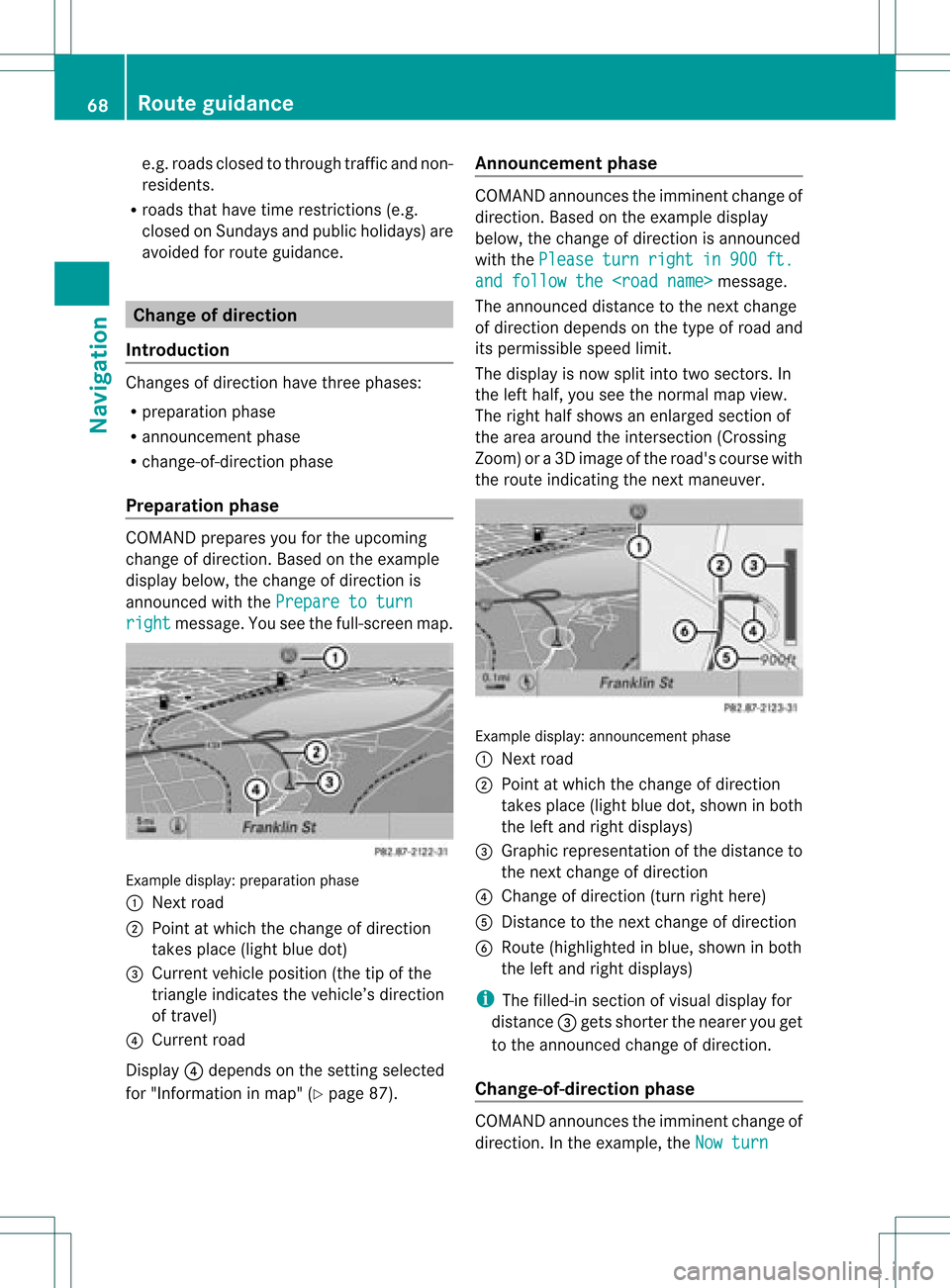
announced withthePrepare toturn right message.
Youseethefull-screen map. Example
display:prepa ration phase
: Next road
; Point atwhi chthe change ofdirectio n
takes place(light bluedot)
= Current vehicl eposi tion (the tipofthe
triangle indicatesthe vehicl e’sdirectio n
of travel)
? Current road
Displa y? depe ndsonthe setting selected
for "Informati oninmap" (Ypag e87). Ann
ounc ement phase COMAND
announces theimminent changeof
directio n.Based onthe exampl edisp lay
belo w,the change ofdirectio nisannounced
with thePlease turn right in 900 ft.
and
follow the
The announced distancetothe next change
of direction dependsonthe type ofroad and
its permissible speedlimit.
The displa yis now split intotwosectors. In
the left half, youseethenormal mapview.
The right halfshows anenlarged sectionof
the area around theintersect ion(Crossing
Zoom) ora3D image ofthe road's course with
the route indicating thenext maneuver. Example
display:announcement phase
: Next road
; Point atwhich thechange ofdirection
takes place(lightbluedot,shown inboth
the left and right displa ys)
= Graphi crepresent ationofthe distanc eto
the nextchange ofdirect ion
? Change ofdirect ion(turn righthere)
A Dist ance tothe nextchange ofdirect ion
B Route (highlighted inblue, shown inboth
the left and right displays)
i The filled-in sectionofvisual display for
distanc e= gets short erthe nearer youget
to the announ cedchange ofdirect ion.
Change-of- direction phase COMAND
announcestheimminen tchange of
direction. Inthe example, theNow turn 68
Route
guidanceNavigat ion
Page 71 of 182
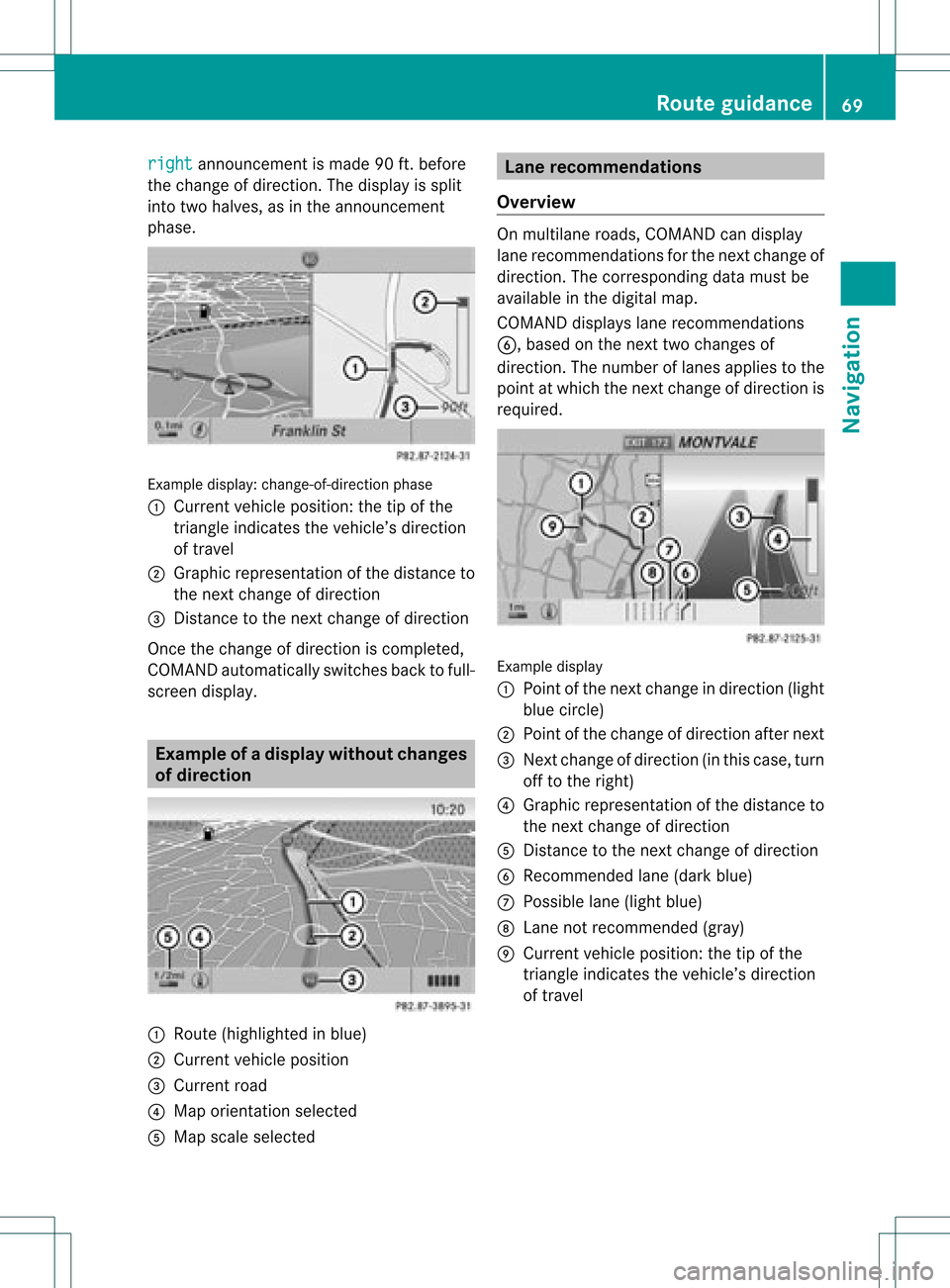
right announcement
ismade 90ft.before
the change ofdirection. Thedispla yis split
into twohalves, asinthe announcement
phase. Example
display:change-of-direct ionphase
: Current vehicleposition: thetipofthe
triangle indicates thevehicle’s direction
of travel
; Graphi crepresent ationofthe distanc eto
the nextchange ofdirect ion
= Dist ance tothe nextchange ofdirect ion
Onc ethe change ofdirect ioniscomplet ed,
COMAND automaticallyswitch esback tofull-
screen display. Examp
leof ad ispla ywithout changes
of dir ection :
Route (highlight edinblue)
; Curren tvehicle position
= Current road
? Map orient ationselect ed
A Map scale select ed Lane
recomm endations
Overview On
multilane roads,COMAND candisplay
lane recom mendat ionsforthe nextchange of
direction. Thecorresponding datamust be
availa bleinthe digital map.
COMAND displayslane recommen dations
B, based onthe next twochanges of
direction. Thenumber oflanes appliestothe
point atwhich thenext change ofdirection is
required. Example
display
: Point ofthe next change indirection (light
blue circle)
; Point ofthe change ofdirection afternext
= Next change ofdirection (inthis case, turn
off tothe right)
? Graphic representat ionofthe distance to
the next change ofdirection
A Distanc eto the next change ofdirection
B Recommended lane(dark blue)
C Possible lane(light blue)
D Lane notrecommen ded(gray)
E Current vehicleposition: thetipofthe
triangle indicates thevehicle’s direction
of travel Route
guidance
69Navigation Z
Page 72 of 182

Disp
layandd escri ption oflane recom mendation s The
colo rsused inthelane recomm endatio ndisplay varydepen dingonwhet herday ornigh t
design isswitc hedon. Lane Day
design Nigh
tdesign Recom
mendedlane B
In this lane, youwillbeable tocom pleteth e
nex ttwo chan gesofdirec tionw itho ut
chan ginglanes. Dar
kblue Light
blue Possib
lelane C
In this lane, youwillonly beable tocom plete
the nextchange ofdirection without
changing lanes. Light
blue Dark
blue Lane
notrecommen dedD
In this lane, youwillnotbeable tocomplete
the next change ofdirection without
changing lane. Gray Gray
Cancel
ingorcontinuing route
guidance
Cancel ingroute guidance X
To switch onnavigation mode:pressthe
g funct ionbutton.
X To show themenu: pressWthe COMAND
cont roller.
X Select Dest. in
the navigation system
menu barbyturning cVdtheCOMAND
cont roller andpress Wtoconfirm .
X Select Cancel Route Guidance and
press
W toconfirm .
Continuing routeguidance X
To switch onnavigation mode:pressthe
g funct ionbutton.
X To show themenu: pressWthe COMAND
cont roller.
X Select Dest. in
the navigation system
menu barbyturning cVdtheCOMAND
cont roller andpress Wtoconfirm . X
Select Continue RouteGuidance and
press Wtoconfirm .
COMAND calculates theroute. Destination
orarea ofdestination
reached
When youreach yourdestination, COMAND
displa ysacheck eredflagand route guidance
is automatically ended.
For certain pointsofinterest (airports or
freeway intersections),youwillsee the
message: Areaofdest. reached in
addition tothe check eredflag. Navigat
ionannouncements
Repeating navigation announcements G
WARNING
Navigation announcemen tsare intended to
direct youwhile driving without diverting your
attent ionfrom theroad anddriving. 70
Route
guidanceNavigat ion
Page 74 of 182
X
To del ete the bloc ke ds ection: select
Del ete while
themess ageisshown and
pres sW tocon firm.
COMA NDcalc ulates therout ewitho utthe
block . Selecting
analterna tiveroute
With the"Alternativ erout e"func tion,rout es
oth erthan theorigin alone canbecalc ulated.
X To switch onnaviga tionmod e:press the
g func tion button.
X To show themenu :press Wthe COMA ND
con troller.
X Selec tRout e in
the navig ation system
men ubar byturnin gcVd theCOMA ND
con troller andpress Wtocon firm .
X Selec tAlte rnativeRoute and
press W
to con firm .
You seetheselec tedrout e.The display now
shows asplit -screen view. Onthe left-han d
side, oneormor ealter native rout esare
shown fromstart todest ination. The
curr entrout eis highligh teddark blue; other
alter native rout esappear lightblue.
X To select thenext orprevious
alt erna tiveroute:selec tNext or
Prev ious and
press Wtocon firm .
X To select theorigina lrou te:selec tBack a
cor respo ndingnumb eroftim esand press
W tocon firm .
X To sta rtrou teguid ance using the
selected alterna tiveroute:selec tStar t and
press Wtocon firm .
COMA NDcalc ulates thealter native rout e. Displa
yingdestinationinfor mation
You have entered adest ination(Y page 51)
or apoint ofint erest (Ypage 61)and possibly
an interme diate stop (Ypage 59). X
To switch onnavig ation mod e:press the
g func tion button.
X To show themenu :press Wthe COMA ND
con troller.
X Selec tRout e in
the navig ation system
men ubar byturnin gcVd theCOMA ND
con troller andpress Wtocon firm .
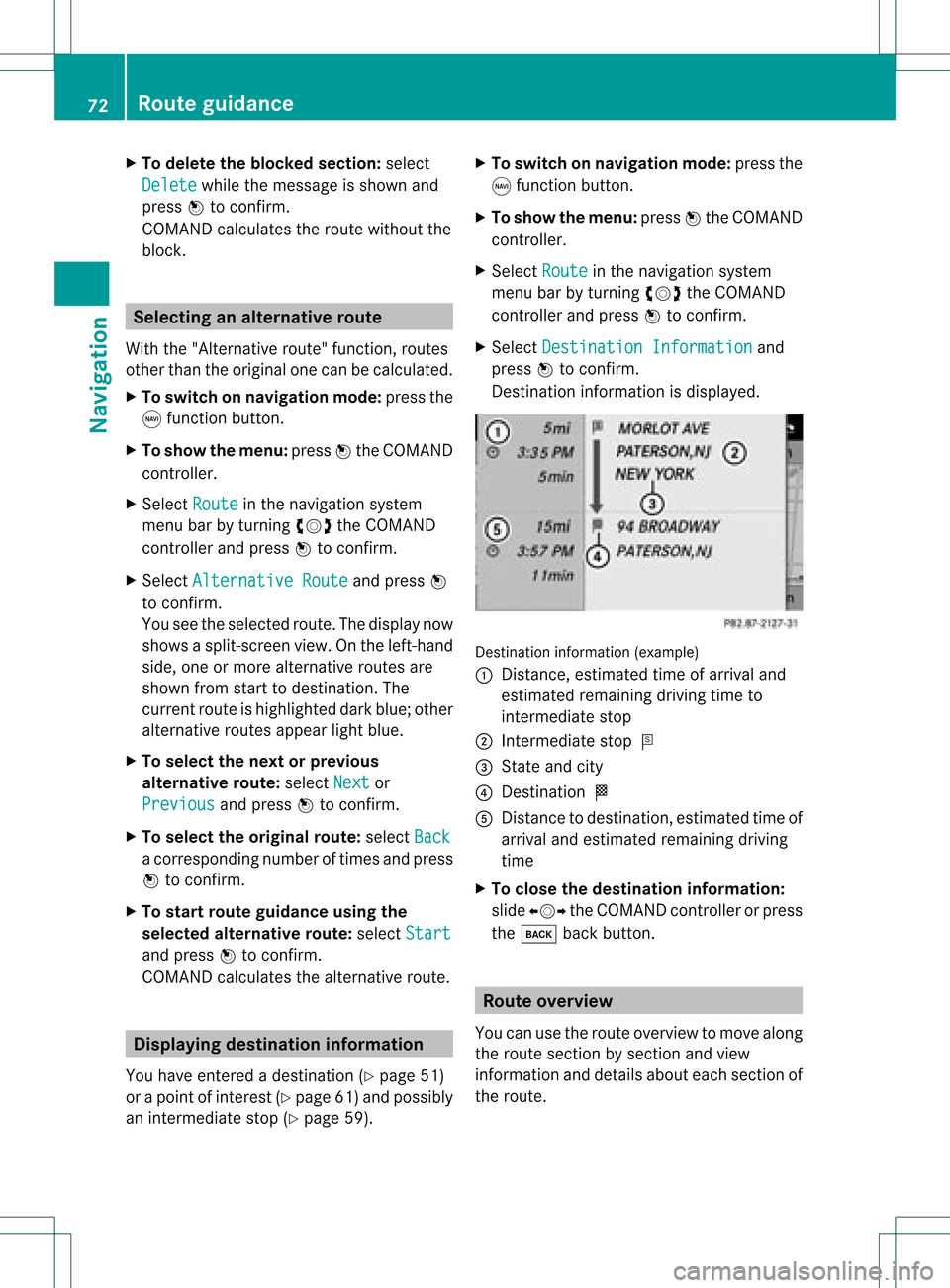
X Selec tDest inationInformation and
press Wtocon firm .
Des tination inform ation isdisplayed. Des
tination inform ation (exam ple)
: Dist ance,est imat edtim eof arriv aland
est imat edremain ingdrivin gtim eto
int erme diate stop
; Inter mediat est op P
= State and city
? Des tination O
A Dist anceto dest ination, estimat edtim eof
arriv aland estimat edremain ingdrivin g
tim e
X To close thedest inationinfor mation:
slide XVY theCOMA NDcon troller orpress
the k backbutton. Rou
teoverv iew
You canusetherout eover view tomov ealong
the rout esect ionbysect ionand view
inf orm ation anddetails abouteachsectionof
the rout e. 72
Rou
teguid anceNavigat ion
Page 75 of 182
You
have entered adest ination(Y page 51)
or apoint ofint erest (Ypage 61)and possibly
an interme diate stop(Y page 59).
X To switch onnaviga tionmod e:press the
g func tion button.
X To show themenu :press Wthe COMA ND
con troller.
X Selec tRout e in
the navig ation system
men ubar byturn ingcVd theCOMA ND
con troller andpress Wtocon firm .
X Selec tRout eBrow ser and
press Wto
con firm .
At the top ofthe display, youwillsee
inf ormat ionabout thehighlight edrout e
sect ion,forexam plethe dist anceto be drive n
on the road androad design ation.The
highlighted routesection ismarked inwhite
with ared border onthe map.
X To view thenext orprevious route
section: selectNext or
Previous and
press Wtoconfirm .
i Ifthe first orlast route section is
highlighted, youcannot selectPrevious or
Next .
X To zoom inor out ofthe map :select N
or M and press Wtoconfirm .
X To close theroute overview: select
Back and
press Wtoconfirm . Off-r
oadand off-ma p
Import antsafety note G
WARNING
The COMAND navigation systemmaydirect
you tooff-road routesthatyour vehicle may
not becapable oftraversing throughwithout
damaging yourtires, wheels orvehicle. Itis
the driver's soleresponsibility todetermine
the suitabili tyof the route. Off-roadroutes
may beofvarying condition sand their
appropriateness foruse may beaffected by various
factorssuchastime ofday, time of
year andimmediate weathercondition sthat
cannot bejudged ortaken intoconsideration
by the COMAND system.
Route guidance toadestination thatis
not onadigitized road COMAND
canguide youtodestinations
which arewithin thearea covered bythe
digital map,butwhich arenot themselves
recorded onthe map.
These destinations areknown asoff-r oad
destinations, whichyoucan enter using the
map, forexample. Inthese cases, COMAND
guides youforaslong aspossible with
navigation announcemen tsand displa yson
roads known tothe system. Route
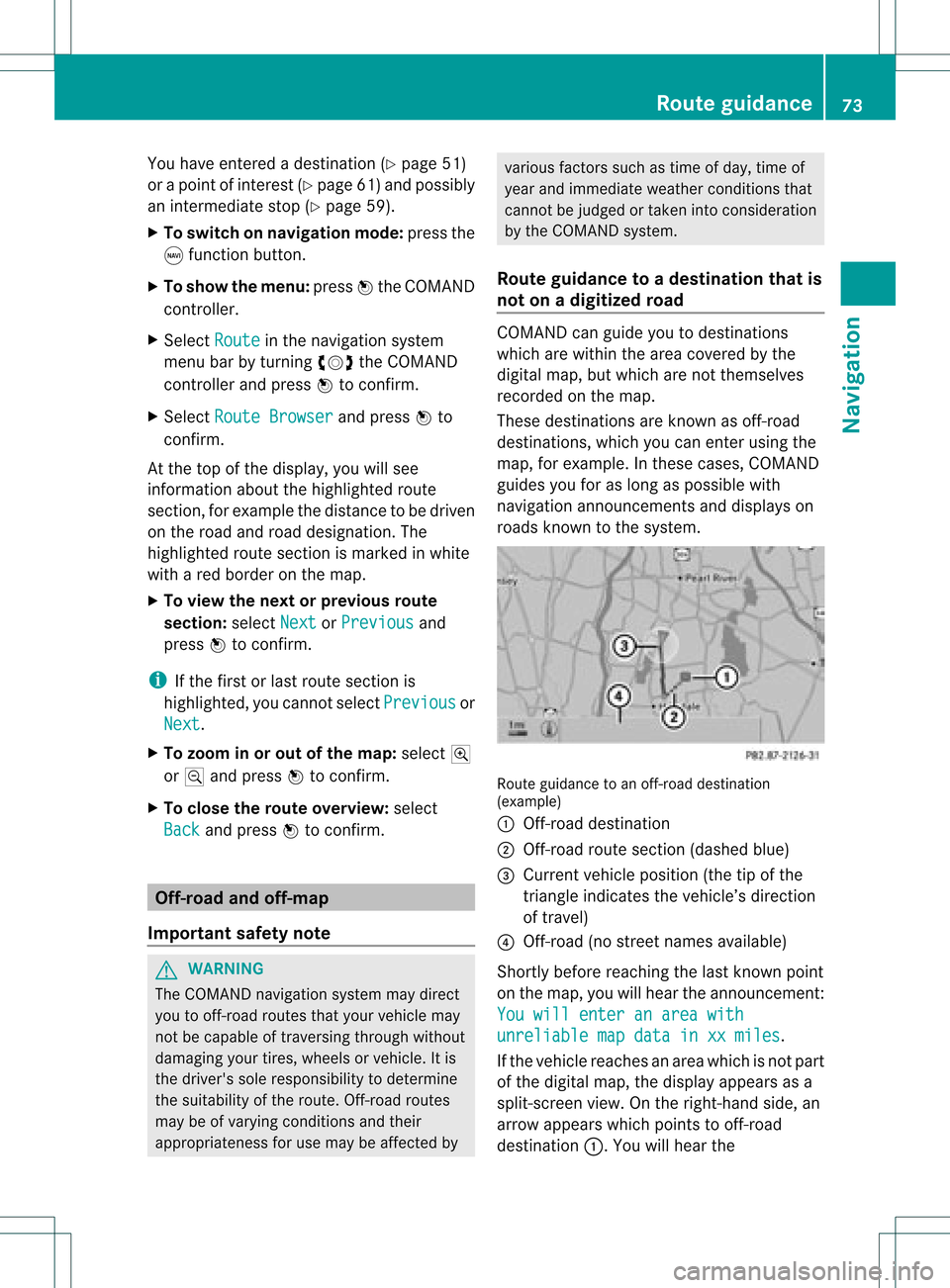
guidance toan off-road destination
(example)
: Off-r oaddestination
; Off-r oadroute section (dashed blue)
= Current vehicleposition (thetipofthe
triangle indicates thevehicle’s direction
of travel)
? Off-r oad(nostreet names available)
Short lybefore reaching thelast known point
on the map, youwillhear theannouncemen t:
You will enter anarea with unreliable
mapdata inxxmiles .
If the vehicle reaches anarea which isnot part
of the digital map,thedispla yappea rsas a
split-screen view.Onthe right-hand side,an
arrow appearswhich points tooff-r oad
destination :.Youwill hear the Rout
eguidance
73Navigation Z
Page 76 of 182
ann
oun cem ent:"Please follow thearr ow on
th edispl ay".Astheveh icle appro achesthe
dest ination,th eAre aof destination rea
ched mes
sage appear s.
Rou teguid ance from anoff-road
locat iontoad esti nation If
th eveh icle posit ioniswith inthearea
cov ered bythedigit almap, butthemap does
no tcon tain anyinform ationabout that
locat ion,th eveh icle isin an off-road locat ion.
COMA NDisalso able toguide youtoa
dest inationeven from anoff-road locat ion.
At thest art oftherout eguidan ce,you willsee
th eOff Mapped Road mes
sage, anarro w
and thedist anceto thed estin ation. Thearrow
shows thecompass headingtothe actual
destin ation.
The route ishighlighted blue,startingfrom
the last recogn izedstreet the vehicle wason
before itleft themap.
As soon asthe vehicle isback onaroad
kn own tothe system, routeguidance
con tinues inthe usual way.
Rout eguida ncefrom anoff-m ap
location toad esti nation If
th eveh icle posit ionisouts idethearea
cov ered bythedigit almap, then theveh icle
is in an off-map locat ion.COMAND isalso
able toguide youtoadestination evenfrom
an off-map location.
At the start ofthe route guidance,youwillsee
the Off Mapped Road message,
anarrow
and thedistance tothe destination. Thearrow
shows thecompass headingtothe road left
last.
The route ishighlig htedbluefrom thenearest
road known tothe system.
As soon asthe vehicle isback onaroad
known tothe system, routeguidance
cont inues inthe usua lway . Off-road
duringrouteguidance Due
toroadworks, forexample, theremaybe
differences betweenthedata onthe digital
map andtheactual course ofthe road.
In such cases, thesystem willtemporarily be
unable tolocate thevehicle position onthe
digital mapandthus considers thevehicle to
be inan off-road position.
In the displa y,you willsee theOff Mapped Road message,
anarrow andthedistance to
the destination. Thearrow shows the
compass headingtothe last road youwere
driving on.
As soon asthe system canassign thevehicle
position tothe map again,route guidance
cont inues inthe usua lway . Tra
ffic reports Condition
s
To receive real-time trafficreports via
satellite radio,yourequire:
R optionally available satellite radio
equi pment
R asubscription toSIRIUS XMSatellite Radio
Traffic Message Service
Further information onsatellite radiois
avail able inthe "Satellite radio"section
(Y page 121).
COMAND canreceive trafficreports via
satellite radioandtake these intoaccount for
route guidanceinthe navigation system.
Received trafficreports aredispla yedinthe
map either astext oras icons. Real-time
traffic report son the map
COMAND canshow certain trafficincidents
on the map. Traffic reports areshown onthe
map atscales of0.05 mito20 mi. 74
Tr
affic report sNavigat ion
Page 83 of 182
auto
maticall yhigh light edinthes election
list.
If no home address hasbeen storedyet, you
can now assign anaddress bookentry.Ifa
home address alreadyexists,itis displayed
and youcan alter it.
i Ifyou select NewEntry ,
you arealso
offered theoption ofent ering thehome
address forthe first time. Youcanthen
save thehome address withoutstarting
route guidance.
X To enter thehome address forthe first
tim e:select Assign toAddress Book Entry and
press Wtocon firm.
X Select Home or
Work and
press Wto
con firm.
X To change thehome address: select
Change and
press Wtocon firm.
X Select Assign toAddress BookEntry and
press Wtocon firm.
i Ifyou select NewEntry ,
you arealso
offered theoption ofchangin gthe home
address byent ering anaddress. Youcan
then save thehome address without
start ingroute guidance.
X Select Home or
Work and
press Wto
con firm.
In both cases, youwillsee theaddress book
either withthecharact erbar oras a
select ionlist.
X To select anadd ress book entry:
proceed asdescribed inthe "Searchin gfor
an address bookentry" sect ion
(Y page 112).
X To confirm theselection: pressWthe
COMAND controller.
If no home address hasbeen stored,
COMAND savestheentry.You willsee a
message andthen theaddress menuwith
the select edaddress. Start is
highlighted
automatic ally.
If ahome address hasalready beenstored,
you willsee aprompt askingyouwhether the
MyAddress ent
ryshould be
overwrit ten.
X Select Yes or
No and
press Wtocon firm.
If you select Yes ,
COMAND overwritesthe
destin ation. Youwillsee amessage and
then theaddress menuwiththeselect ed
address. Start is
highlighted
automatic ally.
If you select No ,
the listwill appear again.
Selecting thehome address forrout e
guida nce X
Proceed asdescribed inthe "Select inga
destin ationfromthedestin ationmemory"
sect ion(Ypage 57). Stor
ingadesti nation inthe
dest inationmem ory
Not es This
function also stores thedest inationin
th eaddre ssbook .
When theaddre ssbook isfull, nodest inations
can besaved inthedest inationmem ory.You
must first delet eaddre ssbook entries
(Y page 113).
Aft erdest inationentr y X
The dest inationhas been entered andis
shown intheaddre ssent rymen u
(Y page 54).
X Sele ctSav e by
slidin gVÆ andturnin g
cVd theCOMA NDcontroller andpres s
W tocon firm.
You cannowselec tstora geoptio ns
(Y page 82) .
Du ringrou tegui danc e X
To sho wthe men u:pre ssW the COMAND
contr oller. Dest
inationmemo ry
81Navi gatio n Z
Page 103 of 182
meantime.
Inthis case, startanew search
to upd ate the Blue tooth ®
teleph onelist.
Authorizin g(regi stering )am obile
ph one X
In theBluet ooth®
te lepho neslist,selec tthe
not yetauthorized mobilephonebyturning
cVd theCOMAND controller.
X Select Options by
sliding VYthe
COMAND controller andpress Wto
confirm .
X Select Authorize and
press Wtoconfirm .
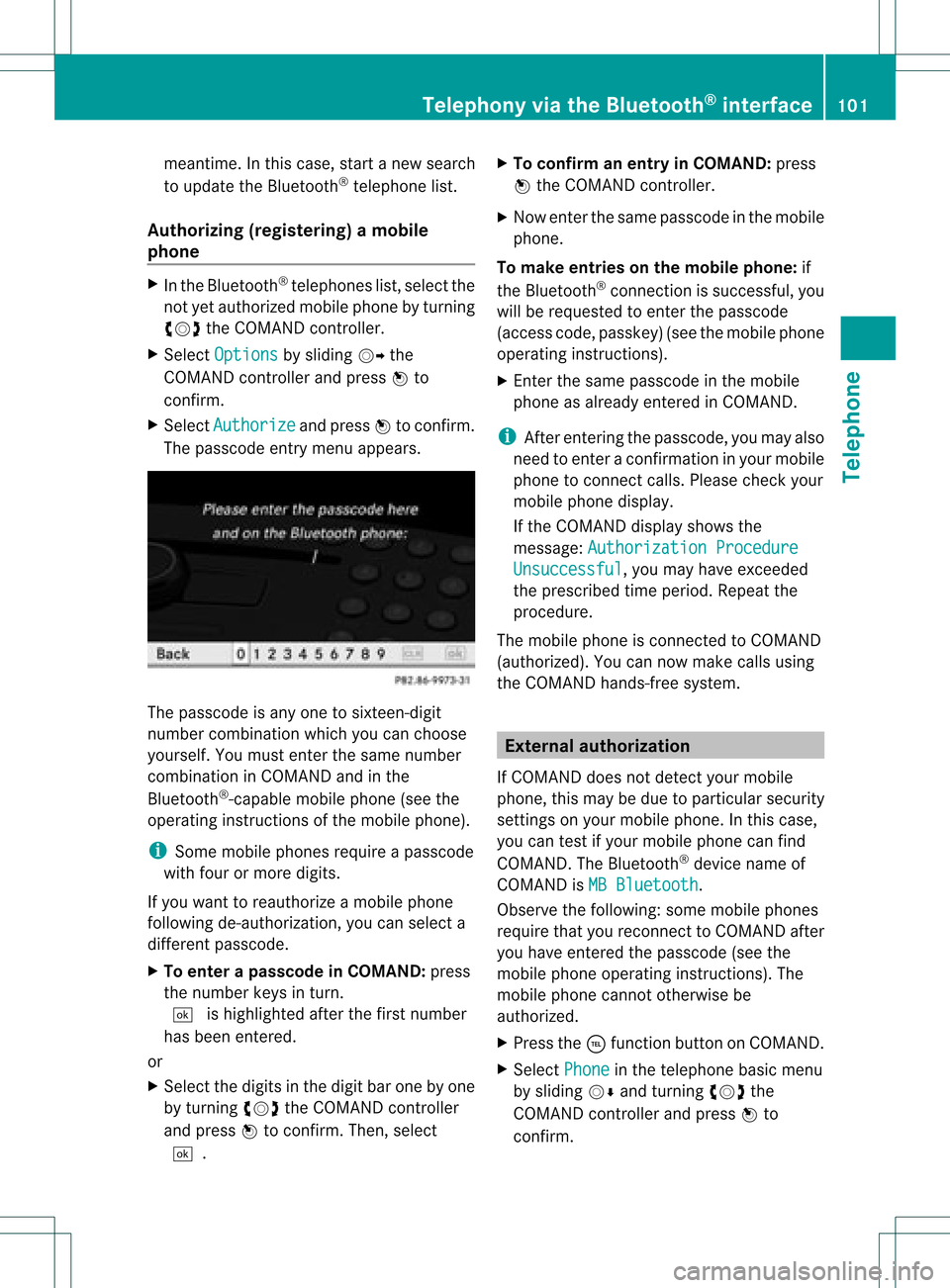
The passcode entrymenu appears. The
passcode isany one tosixteen- digit
number combination whichyoucan choose
yourself. Youmust enter thesame number
combination inCOMAND andinthe
Bluetooth ®
-capable mobilephone(seethe
operating instructionsofthe mobile phone).
i Some mobile phones requireapasscode
with fourormore digits.
If you want toreauthorize amobile phone
following <0004000500250001001500140008000F00120009001C000100140009000F000E
0032V youcan select a
different passcode.
X To enter apassc odeinCOMA ND:press
the numbe rkeys inturn.
¬ ishigh lighted after thefirst numbe r
has beenentere d.
or
X Sel ect the digits inthe digitb aroneby one
by turnin gcVd theCOMA NDcontroll er
and pres sW toconfirm .Then ,selec t
¬. X
To confir man ent ryinCOMAN D:pres s
W theCOMA NDcontroll er.
X Now enterthe same passcode inthe mobile
phone.
To make entries onthe mobile phone:if
the Bluetooth ®
conn ection issuccessful, you
will berequested toenter thepasscode
(access code,passkey) (seethemobile phone
operating instructions).
X Ent erthe same passcode inthe mobile
phone asalready entered inCOMAND.
i Afterenterin gthe passcode, youmay also
need toenter aconfirm ationinyour mobile
phone toconn ectcalls. Please checkyour
mobile phonedisplay.
If the COMAND displayshows the
message: Authorization Procedure Unsuccessful ,
you may have exceeded
the prescribed timeperiod. Repeatthe
procedure.
The mobile phoneisconn ected toCOMAND
(authorized). Youcannow make callsusing
the COMAND hands-free system. External
authorizat ion
If COMAND doesnotdetect yourmobile
phone, thismay bedue toparticular security
settin gson your mobile phone. Inthis case,
you can test ifyour mobile phonecanfind
COMAND. TheBluetooth ®
device nameof
COMAND isMB Bluetooth .
Observe thefollowing: somemobile phones
require thatyoureconn ecttoCOMAND after
you have entered thepasscode (seethe
mobile phoneoperating instructions).The
mobile phonecannot otherwise be
authorized.
X Press the÷funct ionbutton onCOMAND.
X Select Phone in
the telephone basicmenu
by sliding VÆandturning cVdthe
COMAND controller andpress Wto
confirm . Telephony
viathe Bluetooth ®
interface 101Telephone Z
Page 108 of 182
cha
racte rsinthe characte rba rand press
W toconfi rm.
or
X Pre ssthe corre sponding key onthe
CO MAND numberkey pad.
Every characte rselected willbe
tran smitt edimmediately.
X To send aphone bookentry asaDTMF
sequence: selectName by
turn ingcVd the
COMAND controller andpress Wto
con firm.
X Select thedesired phonebookentryand
press Wtocon firm.
The entryissent asaDTMF charact er
str ing.
X To retu rntothe call displa y:select
Back and
press Wtocon firm. Using
thephone book Introd
uction
The phone bookdisplays thenames and
phone numbers ofall ofthe address book
ent ries saved inthe COMAND addressbook.
If an address bookentrydoes nothave a
telephon enumber, itdoes notappear inthe
phone book. Calling
upthe phone book
Overview X
Select Name in
the telephon ebasic menu
by sliding VÆandturningcVd the
COMAND controller andpress Wto
con firm.
If the phone bookcontains entries, they will
be displayed inalphabetical order.
Character bar=isactive.
The charact erbar serves toreduce the
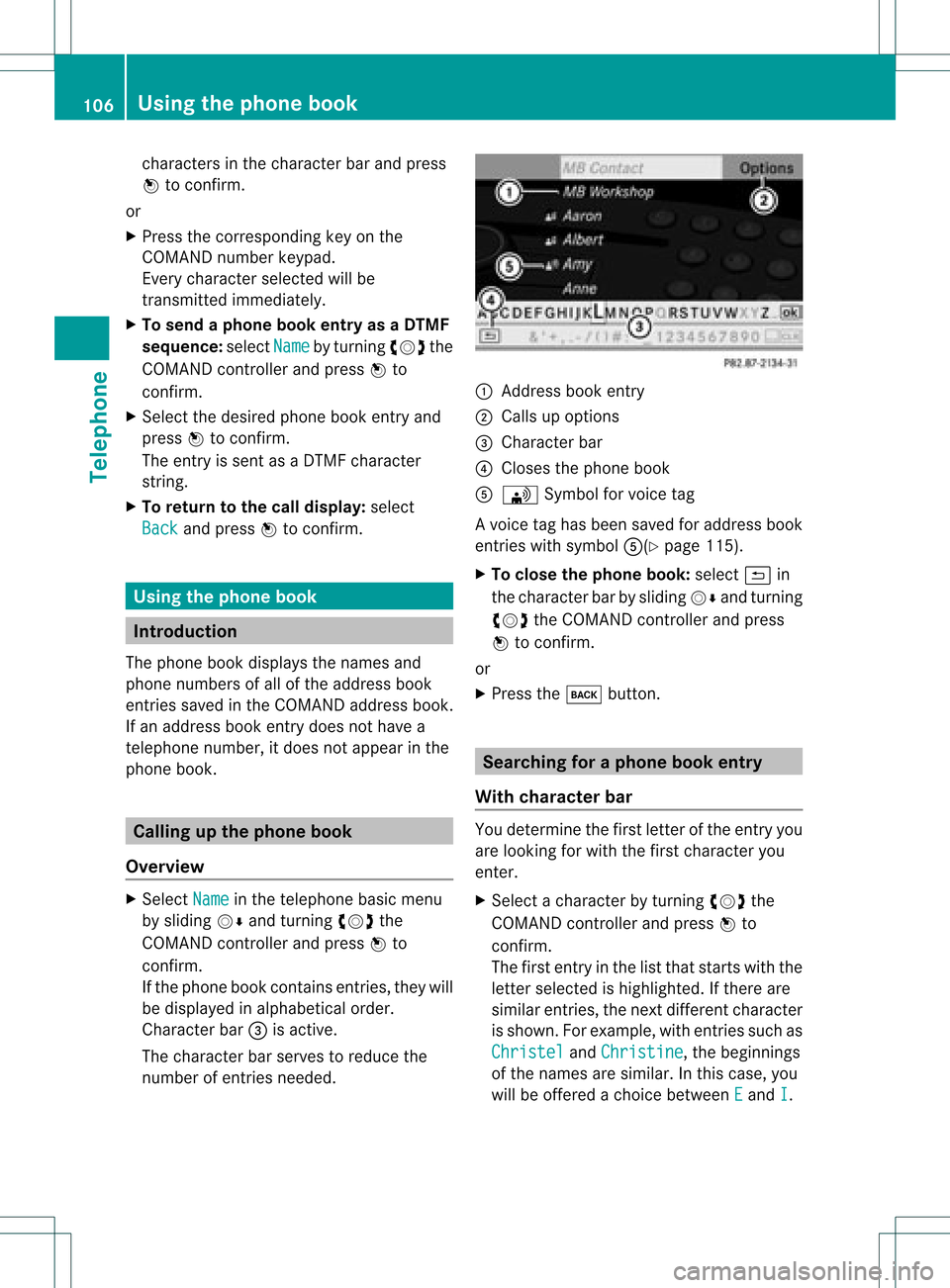
number ofent ries needed. :
Address bookentry
; Calls upoption s
= Character bar
? Closes thephone book
A \ Symbol forvoice tag
Av oice taghas been saved foraddress book
entr ieswith symbol A(Ypage115).
X To close thephone book:select &in
the charact erbar bysliding VÆandturnin g
cVd theCOMAND controller andpress
W toconf irm.
or
X Press thek button . Searching
foraphone bookentry
With chara cterbar You
determin ethe first letter ofthe entr yyou
are looking forwith thefirst charact eryou
enter .
X Select acharact erby turnin gcVd the
COMAND controller andpress Wto
conf irm.
The first entryin the listthat start swith the
letter selected ishighlighted. Ifthere are
similar entries,thenext different character
is shown. Forexample, withentriessuch as
Christel and
Christine ,
the beginnings
of the names aresimilar. Inthis case, you
will beoffered achoice between E and
I .106
Using
thephone bookTelephone
Page 109 of 182
X
Sel ect the characte rsof the entry youare
sea rchi ngfor one byone andpressW to
confi rm.
Whe nthe selection isclear, COMAND
switches automatically tothe selection list.
X To complete thesearch: switchfromthe
phone bookwiththecharacter bartothe
selection list(Ypage 107).
The lastlistentr yis automatically
highlighted.
With number keypad Altern
atively, youcan also enter digits using
the number keypad(directentry)
(Y page 28).
Dele ting character s X
To delete anindividual character:select
the 2 symbol byturning cVdthe
COMAND controller andpress Wbriefly.
or
X Briefly pressthe2 button
Each timeacharacter isdeleted, theentr y
most closely resembling theremaining
characters isshown atthe top ofthe list.
X To delete anentry: selectthe2
symbol byturning cVdtheCOMAND
cont roller andpress Wuntil theentr yis
deleted.
or
X Press andhold the2 button untilthe
entire entryis deleted.
Changing thelanguage ofthe character
bar X
Select B.
X The language isswitched. Changing
thecharacter setofthe
character bar X
Select pandpress Wtoconfirm .
The character setchanges eachtimeyou
make thisselection.
Selec tinganentry directly fromthelist You
canswitch tothe listatany time during
character entry.
X Slide VZtheCOMAND controller
repeatedly orpress andhold Wuntil the
character bardisappe ars.
or
X Select ¬andpress Wtoconfirm .
X To selec tanentry :turn cVd the
COMAND controller untilthedesired entry
is highlighted andpress Wtocon firm.
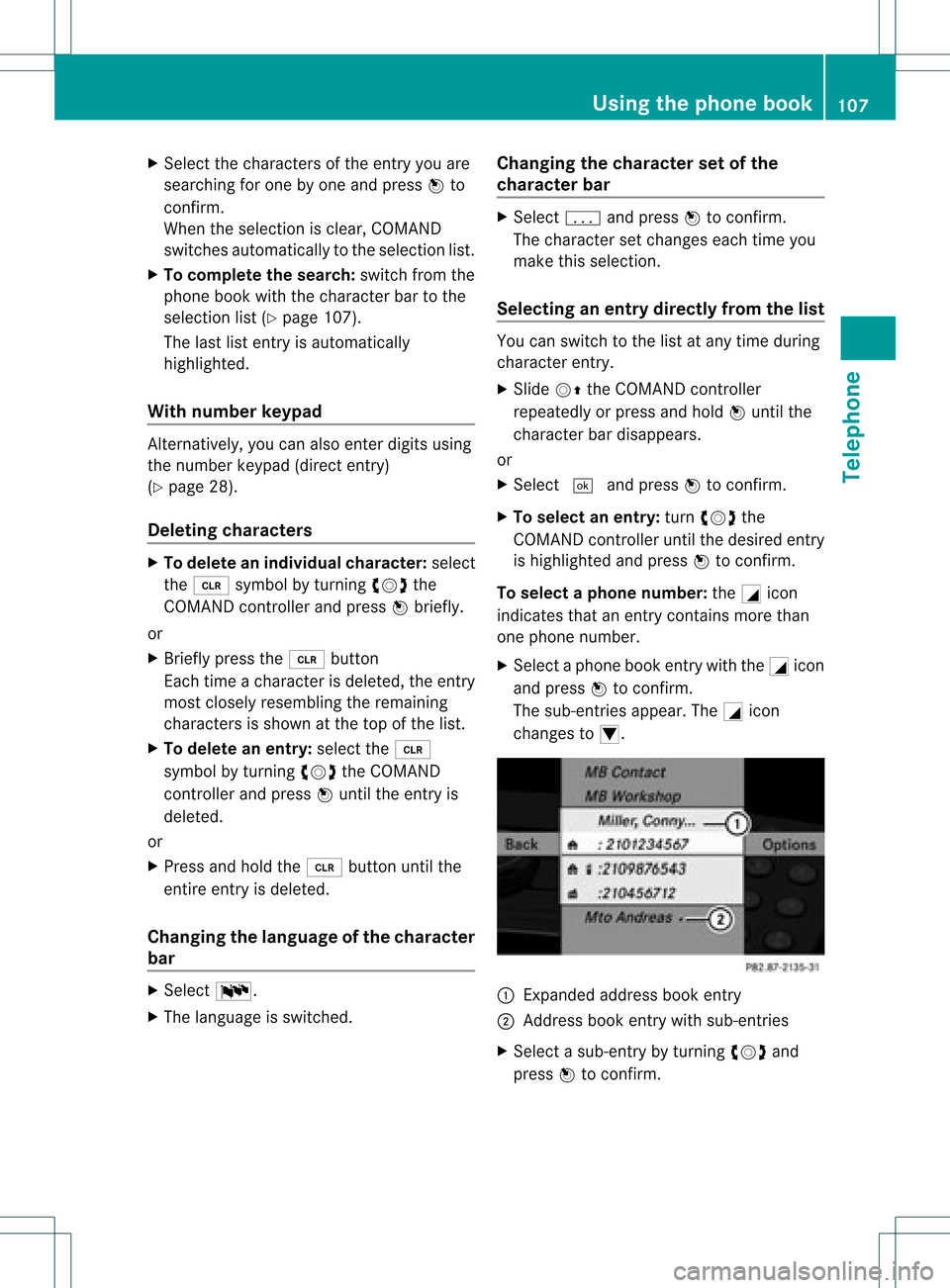
To select aphone number: theGicon
indi cates thatanentry contains morethan
one phone numbe r.
X Select aphone bookentry withtheGicon
and press Wtoconfirm.
The sub-entries appear. TheGicon
changes toI. :
Expanded address book entry
; Address bookentry withsub-entries
X Select asub -entry byturning cVdand
press Wtoconfirm. Usi
ngthe phone book
107Tele phone Z