trip computer MERCEDES-BENZ GLK SUV 2008 User Guide
[x] Cancel search | Manufacturer: MERCEDES-BENZ, Model Year: 2008, Model line: GLK SUV, Model: MERCEDES-BENZ GLK SUV 2008Pages: 261, PDF Size: 8.67 MB
Page 100 of 261
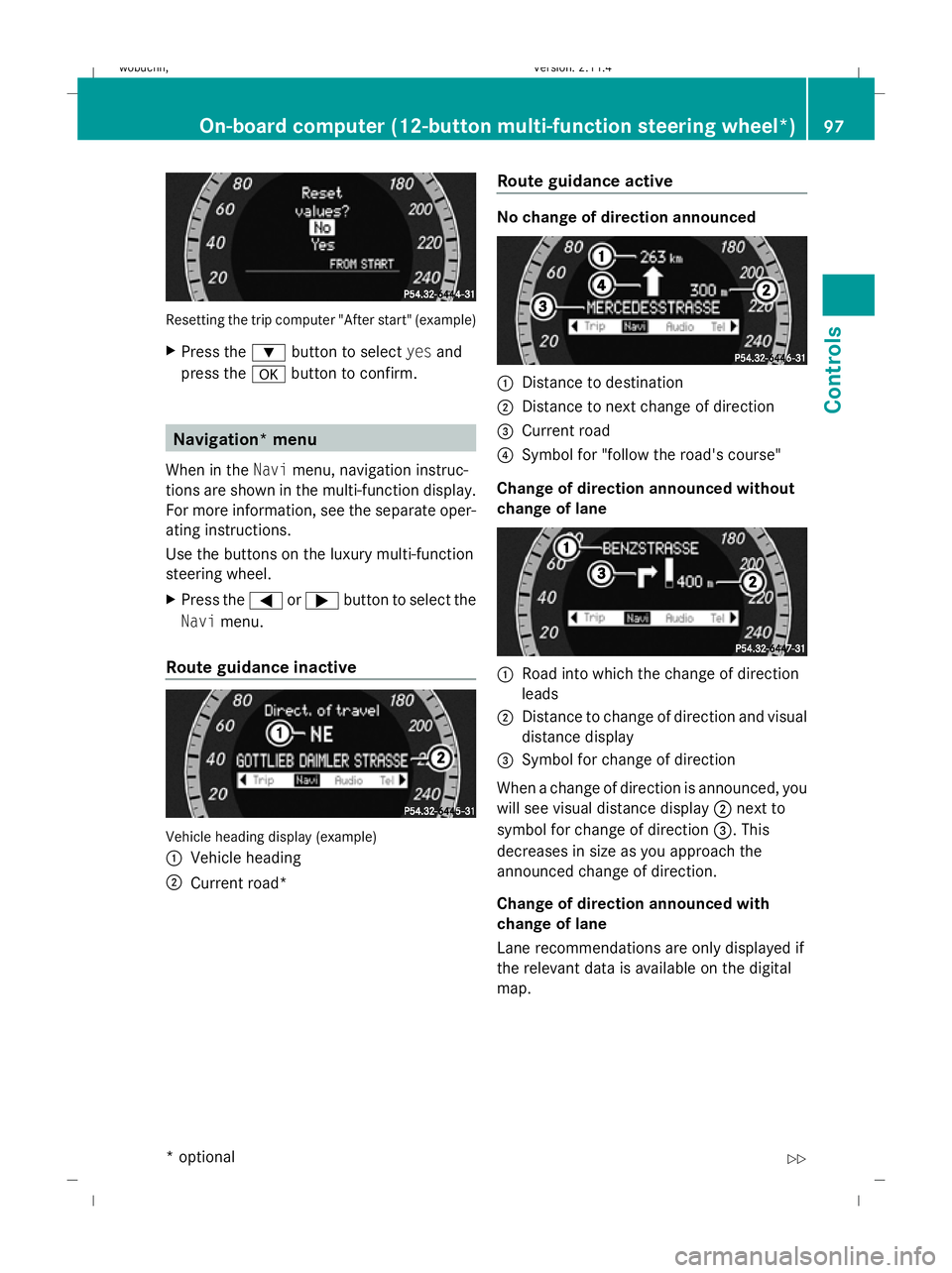
Resetting the trip computer "After start" (example)
X Press the :button to select yesand
press the abutton to confirm. Navigation* menu
When in the Navimenu, navigation instruc-
tions are shown in the multi-function display.
For more information, see the separate oper-
ating instructions.
Use the buttons on the luxury multi-function
steering wheel.
X Press the =or; button to select the
Navi menu.
Route guidance inactive Vehicle heading display (example)
: Vehicle heading
; Current road* Route guidance active No change of direction announced
:
Distance to destination
; Distance to next change of direction
= Current road
? Symbol for "follow the road's course"
Change of direction announced without
change of lane :
Road into which the change of direction
leads
; Distance to change of direction and visual
distance display
= Symbol for change of direction
When a change of direction is announced, you
will see visual distance display ;next to
symbol for change of direction =. This
decreases in size as you approach the
announced change of direction.
Change of direction announced with
change of lane
Lane recommendations are only displayed if
the relevant data is available on the digital
map. On-board computer (12-button multi-function steering wheel*)
97Cont
rols
* optional
X204_AKB; 1; 5, en-GB
wobuchh,
Version: 2.11.4 2008-10-15T13:20:56+02:00 - Seite 97 ZDateiname: 6515_0671_02_buchblock.pdf; preflight
Page 104 of 261
X
Press the 9or: button to select the
desired name or number.
X Press the 6ora button to start dial-
ling. Service menu
In the
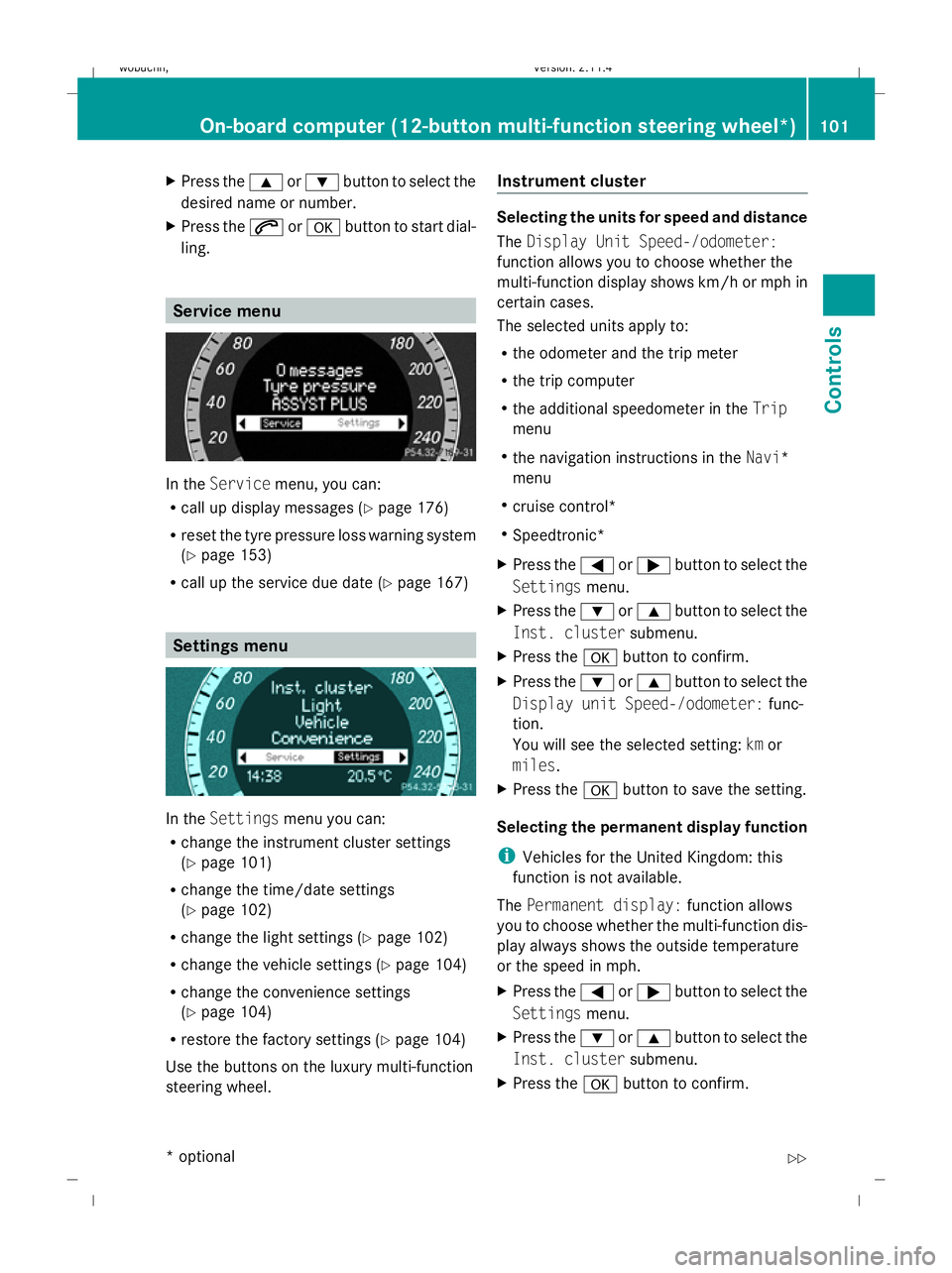
Service menu, you can:
R call up display messages (Y page 176)
R reset the tyre pressure loss warning system
(Y page 153)
R call up the service due date (Y page 167)Settings menu
In the
Settings menu you can:
R change the instrument cluster settings
(Y page 101)
R change the time/date settings
(Y page 102)
R change the light settings (Y page 102)
R change the vehicle settings (Y page 104)
R change the convenience settings
(Y page 104)
R restore the factory settings (Y page 104)
Use the buttons on the luxury multi-function
steering wheel. Instrument cluster Selecting the units for speed and distance
The
Display Unit Speed-/odometer:
function allows you to choose whether the
multi-function display shows km/h or mph in
certain cases.
The selected units apply to:
R the odometer and the trip meter
R the trip computer
R the additional speedometer in the Trip
menu
R the navigation instructions in the Navi*
menu
R cruise control*
R Speedtronic*
X Press the =or; button to select the
Settings menu.
X Press the :or9 button to select the
Inst. cluster submenu.
X Press the abutton to confirm.
X Press the :or9 button to select the
Display unit Speed-/odometer: func-
tion.
You will see the selected setting: kmor
miles.
X Press the abutton to save the setting.
Selecting the permanent display function
i Vehicles for the United Kingdom: this
function is not available.
The Permanent display: function allows
you to choose whether the multi-function dis-
play always shows the outside temperature
or the speed in mph.
X Press the =or; button to select the
Settings menu.
X Press the :or9 button to select the
Inst. cluster submenu.
X Press the abutton to confirm. On-board computer (12-button multi-function steering wheel*)
101Controls
* optional
X204_AKB; 1; 5, en-GB
wobuchh, Version: 2.11.4
2008-10-15T13:20:56+02:00 - Seite 101 ZDateiname: 6515_0671_02_buchblock.pdf; preflight