display MERCEDES-BENZ GLK SUV 2008 Owner's Guide
[x] Cancel search | Manufacturer: MERCEDES-BENZ, Model Year: 2008, Model line: GLK SUV, Model: MERCEDES-BENZ GLK SUV 2008Pages: 261, PDF Size: 8.67 MB
Page 98 of 261
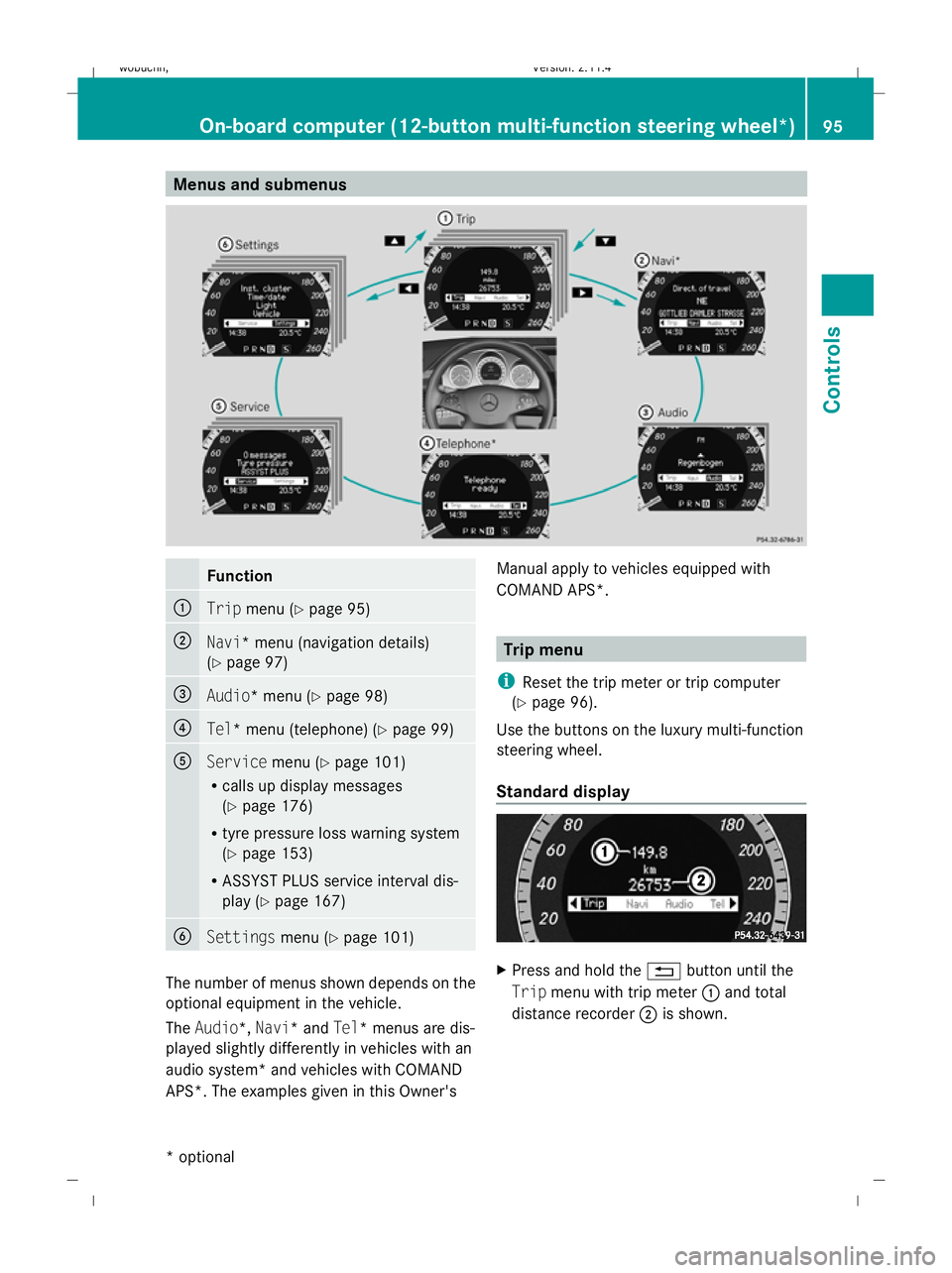
Menus and submenusFunction
:Trip
menu (Y page 95)
;Navi* menu (navigation details)
(Ypage 97)
=Audio* menu (Y page 98)
?Tel* menu (telephone) (Y page 99)
AServicemenu (Ypage 101)
R calls up display messages
(Y page 176)
R tyre pressure loss warning system
(Y page 153)
R ASSYST PLUS service interval dis-
play (Y page 167)
BSettings menu (Ypage 101)
The number of menus shown depends on the
optional equipment in the vehicle.
The Audio*, Navi* and Tel* menus are dis-
played slightly differently in vehicles with an
audio system* and vehicles with COMAND
APS*. The examples given in this Owner's Manual apply to vehicles equipped with
COMAND APS*.
Trip menu
i Reset the trip meter or trip computer
(Y page 96).
Use the buttons on the luxury multi-function
steering wheel.
Standard display
X Press and hold the %button until the
Trip menu with trip meter :and total
distance recorder ;is shown.
On-board computer (12-button multi-function steering wheel*) 95
Controls
* optional
X204_AKB; 1; 5, en-GB
wobuchh,
Version: 2.11.4
2008-10-15T13:20:56+02:00 - Seite 95Z Dateiname: 6515_0671_02_buchblock.pdf; preflight
Page 99 of 261
Trip computer "After start" or "After
reset" The values in the
After startsubmenu are
calculated from the start of a journey whilst
the values in the After resetsubmenu are
calculated from the last time the submenu
was reset.
X Press the =or; button to select the
Trip menu.
X Press 9or: to select After
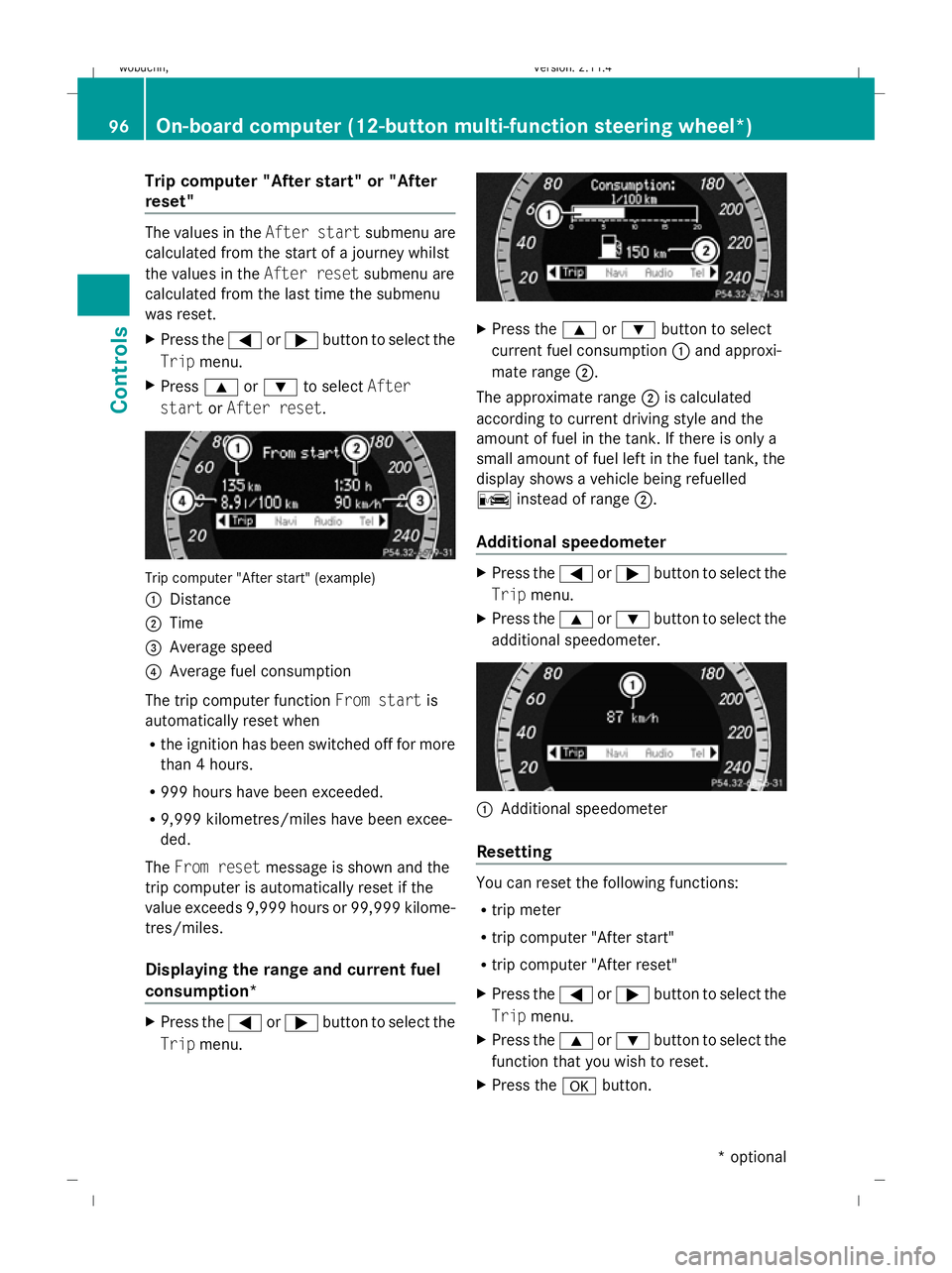
start orAfter reset. Trip computer "After start" (example)
:
Distance
; Time
= Average speed
? Average fuel consumption
The trip computer function From startis
automatically reset when
R the ignition has been switched off for more
than 4 hours.
R 999 hours have been exceeded.
R 9,999 kilometres/miles have been excee-
ded.
The From reset message is shown and the
trip computer is automatically reset if the
value exceeds 9,999 hours or 99,999 kilome-
tres/miles.
Displaying the range and current fuel
consumption* X
Press the =or; button to select the
Trip menu. X
Press the 9or: button to select
current fuel consumption :and approxi-
mate range ;.
The approximate range ;is calculated
according to current driving style and the
amount of fuel in the tank. If there is only a
small amount of fuel left in the fuel tank, the
display shows a vehicle being refuelled
C instead of range ;.
Additional speedometer X
Press the =or; button to select the
Trip menu.
X Press the 9or: button to select the
additional speedometer. :
Additional speedometer
Resetting You can reset the following functions:
R
trip meter
R trip computer "After start"
R trip computer "After reset"
X Press the =or; button to select the
Trip menu.
X Press the 9or: button to select the
function that you wish to reset.
X Press the abutton. 96
On-board computer (12-button multi-function steering
wheel*)Controls
* optional
X204_AKB; 1; 5, en-GB
wobuchh,
Version: 2.11.4 2008-10-15T13:20:56+02:00 - Seite 96Dateiname: 6515_0671_02_buchblock.pdf; preflight
Page 100 of 261
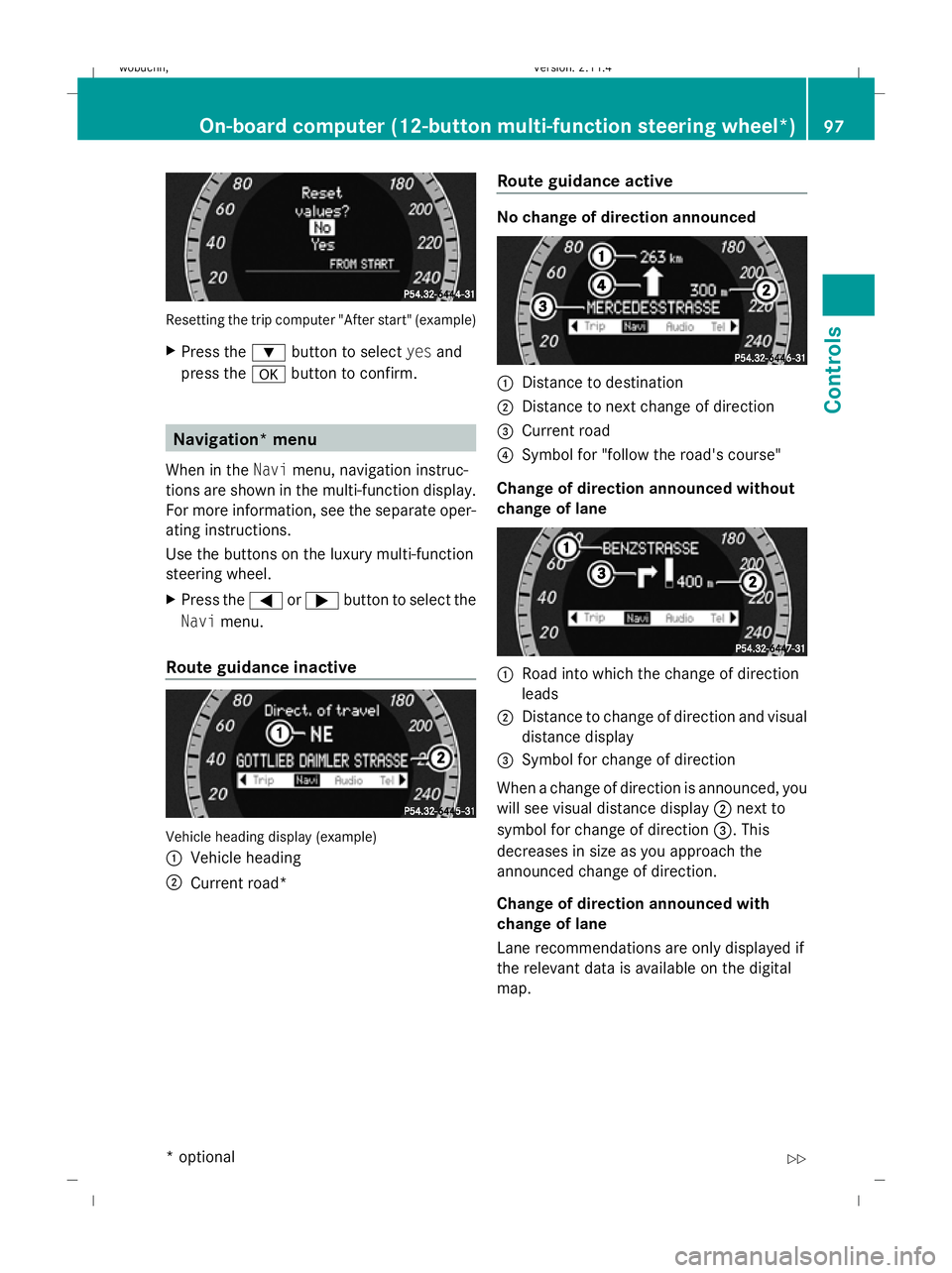
Resetting the trip computer "After start" (example)
X Press the :button to select yesand
press the abutton to confirm. Navigation* menu
When in the Navimenu, navigation instruc-
tions are shown in the multi-function display.
For more information, see the separate oper-
ating instructions.
Use the buttons on the luxury multi-function
steering wheel.
X Press the =or; button to select the
Navi menu.
Route guidance inactive Vehicle heading display (example)
: Vehicle heading
; Current road* Route guidance active No change of direction announced
:
Distance to destination
; Distance to next change of direction
= Current road
? Symbol for "follow the road's course"
Change of direction announced without
change of lane :
Road into which the change of direction
leads
; Distance to change of direction and visual
distance display
= Symbol for change of direction
When a change of direction is announced, you
will see visual distance display ;next to
symbol for change of direction =. This
decreases in size as you approach the
announced change of direction.
Change of direction announced with
change of lane
Lane recommendations are only displayed if
the relevant data is available on the digital
map. On-board computer (12-button multi-function steering wheel*)
97Cont
rols
* optional
X204_AKB; 1; 5, en-GB
wobuchh,
Version: 2.11.4 2008-10-15T13:20:56+02:00 - Seite 97 ZDateiname: 6515_0671_02_buchblock.pdf; preflight
Page 101 of 261
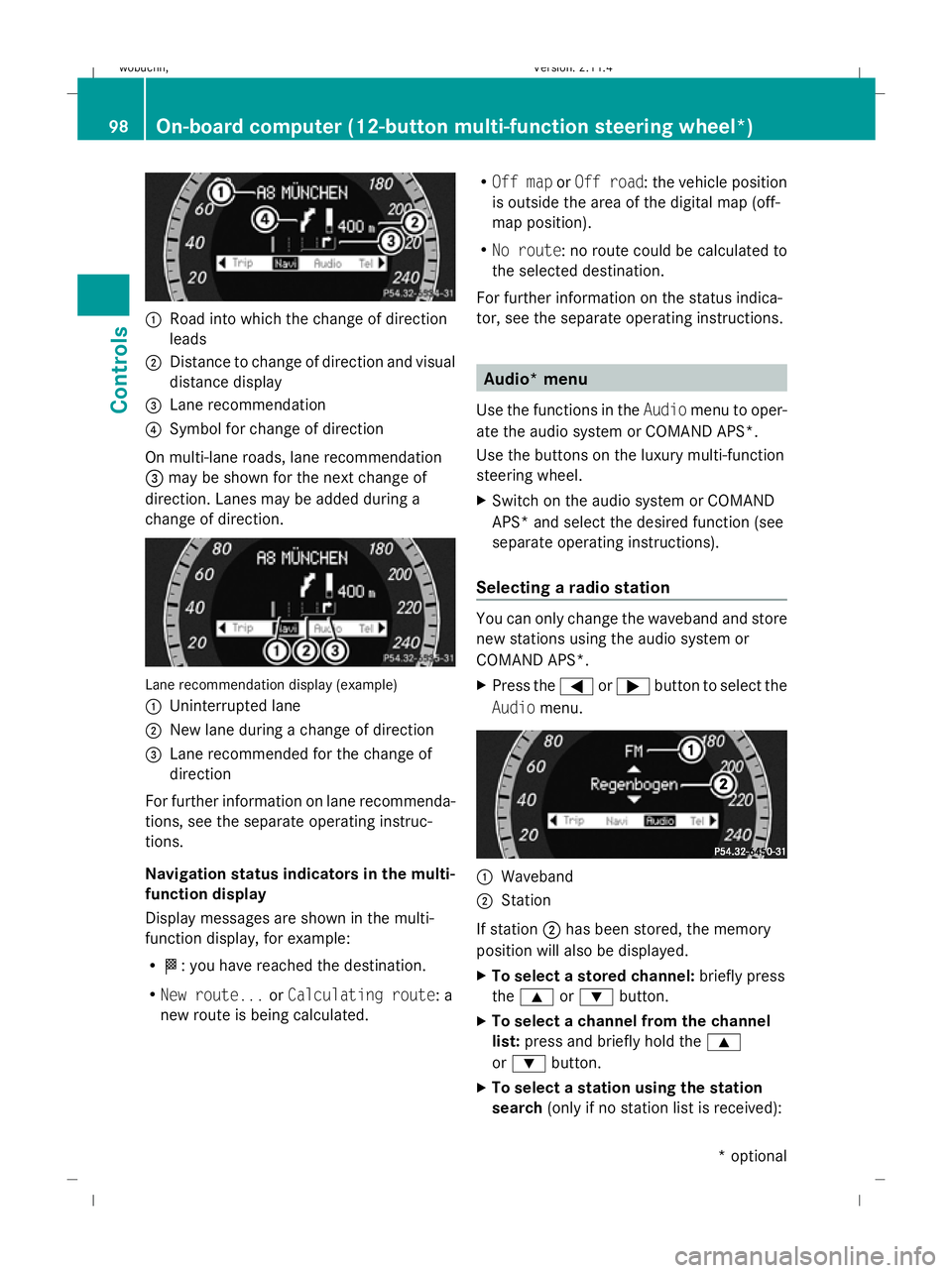
:
Road into which the change of direction
leads
; Distance to change of direction and visual
distance display
= Lane recommendation
? Symbol for change of direction
On multi-lane roads, lane recommendation
= may be shown for the next change of
direction. Lanes may be added during a
change of direction.Lane recommendation display (example)
: Uninterrupted lane
; New lane during a change of direction
= Lane recommended for the change of
direction
For further information on lane recommenda-
tions, see the separate operating instruc-
tions.
Navigation status indicators in the multi-
function display
Display messages are shown in the multi-
function display, for example:
R O: you have reached the destination.
R New route... orCalculating route: a
new route is being calculated. R
Off map orOff road : the vehicle position
is outside the area of the digital map (off-
map position).
R No route : no route could be calculated to
the selected destination.
For further information on the status indica-
tor, see the separate operating instructions.
Audio* menu
Use the functions in the Audiomenu to oper-
ate the audio system or COMAND APS*.
Use the buttons on the luxury multi-function
steering wheel.
X Switch on the audio system or COMAND
APS* and select the desired function (see
separate operating instructions).
Selecting a radio station
You can only change the waveband and store
new stations using the audio system or
COMAND APS*.
X Press the =or; button to select the
Audio menu.
:
Waveband
; Station
If station ;has been stored, the memory
position will also be displayed.
X To select a stored channel: briefly press
the 9 or: button.
X To select a channel from the channel
list: press and briefly hold the 9
or : button.
X To select a station using the station
search (only if no station list is received):
98On-board computer (12-button multi-function steering wheel*)
Controls
* optional
X204_AKB; 1; 5, en-GB
wobuchh,
Version: 2.11.4
2008-10-15T13:20:56+02:00 - Seite 98 Dateiname: 6515_0671_02_buchblock.pdf; preflight
Page 102 of 261
press and briefly hold the
9or:
button.
i DAB* radio mode 23
( Digital Audio Broad-
casting) (see the separate operating
instructions for the audio system* or
COMAND APS*).
Operating the audio player or audio
media* Audio data from various audio devices or
media can be played, depending on the equip-
ment fitted in the vehicle.
X Press the =or; button to select the
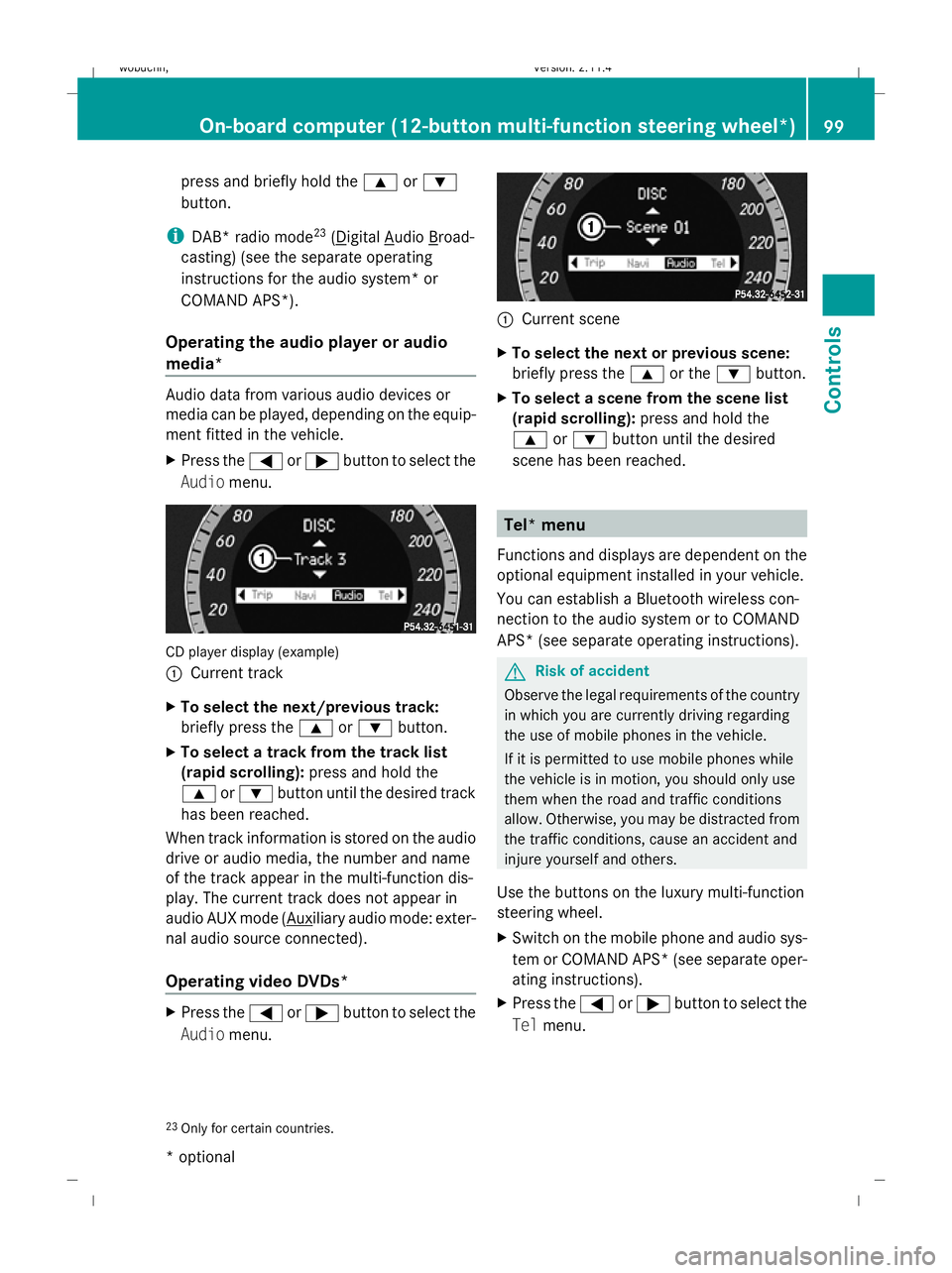
Audio menu. CD player display (example)
:
Current track
X To select the next/previous track:
briefly press the 9or: button.
X To select a track from the track list
(rapid scrolling): press and hold the
9 or: button until the desired track
has been reached.
When track information is stored on the audio
drive or audio media, the number and name
of the track appear in the multi-function dis-
play. The current track does not appear in
audio AUX mode ( Auxiliary audio mode: exter-
nal audio source connected).
Operating video DVDs* X
Press the =or; button to select the
Audio menu. :
Current scene
X To select the next or previous scene:
briefly press the 9or the :button.
X To select a scene from the scene list
(rapid scrolling): press and hold the
9 or: button until the desired
scene has been reached. Tel* menu
Functions and displays are dependent on the
optional equipment installed in your vehicle.
You can establish a Bluetooth wireless con-
nection to the audio system or to COMAND
APS* (see separate operating instructions). G
Risk of accident
Observe the legal requirements of the country
in which you are currently driving regarding
the use of mobile phones in the vehicle.
If it is permitted to use mobile phones while
the vehicle is in motion, you should only use
them when the road and traffic conditions
allow. Otherwise, you may be distracted from
the traffic conditions, cause an accident and
injure yourself and others.
Use the buttons on the luxury multi-function
steering wheel.
X Switch on the mobile phone and audio sys-
tem or COMAND APS *(see separate oper-
ating instructions).
X Press the =or; button to select the
Tel menu.
23 Only for certain countries. On-board computer (12-button multi-function steering wheel*)
99Controls
* optional
X204_AKB; 1; 5, en-GB
wobuchh,
Version: 2.11.4
2008-10-15T13:20:56+02:00 - Seite 99 ZDateiname: 6515_0671_02_buchblock.pdf; preflight
Page 103 of 261
Mobile phone on
PIN*not yet entered
The multi-function display shows the
Please
enter PIN display message.
X Enter the PIN using the mobile phone, Lin-
guatronic*, the audio system or COMAND
APS*.
The mobile phone will search for a network.
During this time, the Telephone No
Service message appears in the multi-
function display.
Mobile phone operational
The multi-function display shows the Tele-
phone ready message or the name of the
GSM network provider.
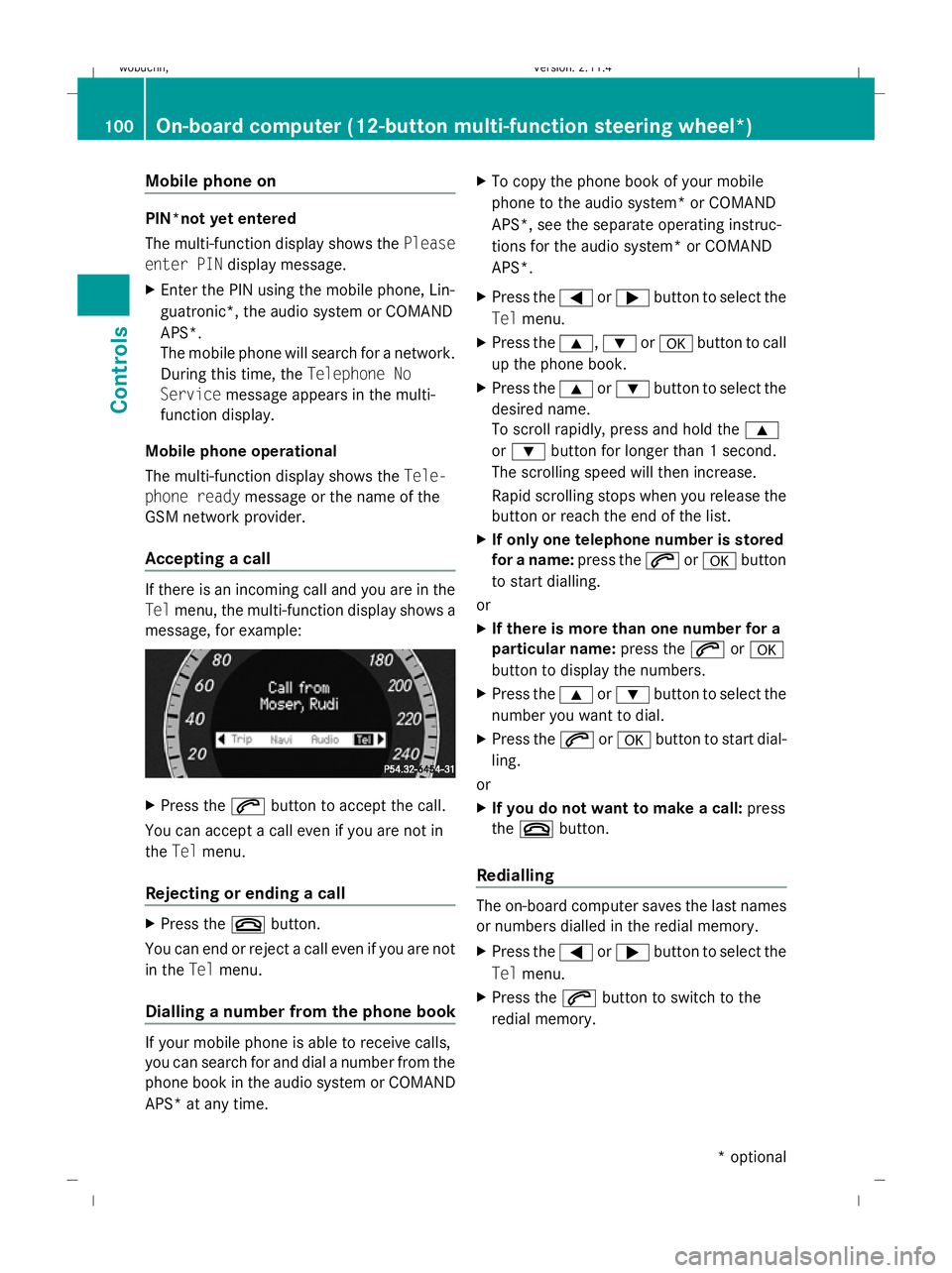
Accepting a call If there is an incoming call and you are in the
Tel menu, the multi-function display shows a
message, for example: X
Press the 6button to accept the call.
You can accept a call even if you are not in
the Tel menu.
Rejecting or ending a call X
Press the ~button.
You can end or reject a call even if you are not
in the Telmenu.
Dialling a number from the phone book If your mobile phone is able to receive calls,
you can search for and dial a number from the
phone book in the audio system or COMAND
APS* at any time. X
To copy the phone book of your mobile
phone to the audio system* or COMAND
APS*, see the separate operating instruc-
tions for the audio system* or COMAND
APS*.
X Press the =or; button to select the
Tel menu.
X Press the 9,:ora button to call
up the phone book.
X Press the 9or: button to select the
desired name.
To scroll rapidly, press and hold the 9
or : button for longer than 1 second.
The scrolling speed will then increase.
Rapid scrolling stops when you release the
button or reach the end of the list.
X If only one telephone number is stored
for a name: press the6ora button
to start dialling.
or
X If there is more than one number for a
particular name: press the6ora
button to display the numbers.
X Press the 9or: button to select the
number you want to dial.
X Press the 6ora button to start dial-
ling.
or
X If you do not want to make a call: press
the ~ button.
Redialling The on-board computer saves the last names
or numbers dialled in the redial memory.
X Press the =or; button to select the
Tel menu.
X Press the 6button to switch to the
redial memory. 100
On-board computer (12-button multi-function steering wheel*)Controls
* optional
X204_AKB; 1; 5, en-GB
wobuchh,
Version: 2.11.4 2008-10-15T13:20:56+02:00 - Seite 100Dateiname: 6515_0671_02_buchblock.pdf; preflight
Page 104 of 261
X
Press the 9or: button to select the
desired name or number.
X Press the 6ora button to start dial-
ling. Service menu
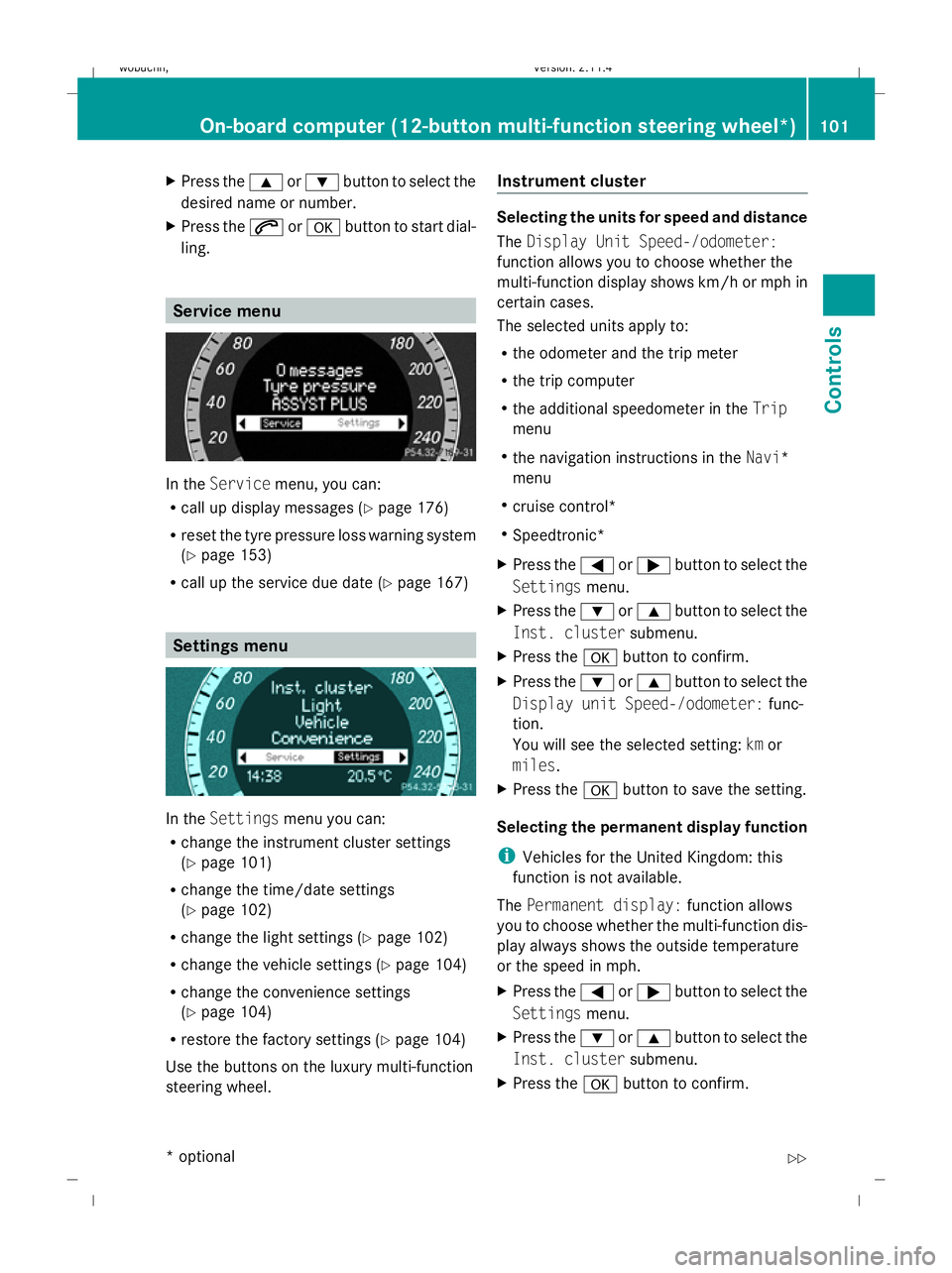
In the
Service menu, you can:
R call up display messages (Y page 176)
R reset the tyre pressure loss warning system
(Y page 153)
R call up the service due date (Y page 167)Settings menu
In the
Settings menu you can:
R change the instrument cluster settings
(Y page 101)
R change the time/date settings
(Y page 102)
R change the light settings (Y page 102)
R change the vehicle settings (Y page 104)
R change the convenience settings
(Y page 104)
R restore the factory settings (Y page 104)
Use the buttons on the luxury multi-function
steering wheel. Instrument cluster Selecting the units for speed and distance
The
Display Unit Speed-/odometer:
function allows you to choose whether the
multi-function display shows km/h or mph in
certain cases.
The selected units apply to:
R the odometer and the trip meter
R the trip computer
R the additional speedometer in the Trip
menu
R the navigation instructions in the Navi*
menu
R cruise control*
R Speedtronic*
X Press the =or; button to select the
Settings menu.
X Press the :or9 button to select the
Inst. cluster submenu.
X Press the abutton to confirm.
X Press the :or9 button to select the
Display unit Speed-/odometer: func-
tion.
You will see the selected setting: kmor
miles.
X Press the abutton to save the setting.
Selecting the permanent display function
i Vehicles for the United Kingdom: this
function is not available.
The Permanent display: function allows
you to choose whether the multi-function dis-
play always shows the outside temperature
or the speed in mph.
X Press the =or; button to select the
Settings menu.
X Press the :or9 button to select the
Inst. cluster submenu.
X Press the abutton to confirm. On-board computer (12-button multi-function steering wheel*)
101Controls
* optional
X204_AKB; 1; 5, en-GB
wobuchh, Version: 2.11.4
2008-10-15T13:20:56+02:00 - Seite 101 ZDateiname: 6515_0671_02_buchblock.pdf; preflight
Page 105 of 261
![MERCEDES-BENZ GLK SUV 2008 Owners Guide X
Press the :or9 button to select the
Permanent display: function.
You will see the selected setting: outside
temperature orDig. speedo [mph].
X Press the abutton to save the setting.
Time/date This s](/img/4/55572/w960_55572-104.png "MERCEDES-BENZ GLK SUV 2008 Owners Guide X
Press the :or9 button to select the
Permanent display: function.
You will see the selected setting: outside
temperature orDig. speedo [mph].
X Press the abutton to save the setting.
Time/date This s")
X
Press the :or9 button to select the
Permanent display: function.
You will see the selected setting: outside
temperature orDig. speedo [mph].
X Press the abutton to save the setting.
Time/date This submenu is only available on vehicles
with Audio 20.
Your vehicle may be equipped with one of the
following audio systems:
A: Audio 20
B: Audio 50 APS*
C: COMAND APS*
X You can see which audio system is fitted in
your vehicle by referring to the separate
operating instructions.
Depending on the audio system fitted, time
and date are received from GPS satellites and
therefore cannot be set using the on-board
computer. Refer to the following table. A B C
Set using the on-board com-
puter X
Automatic GPS satellite recep-
tion X X
Set the time zone just once (see
separate operating instructions) X X
In the
Time/date submenu, you can set the
time and date.
Setting the time
X Press the =or; button to select the
Settings menu.
X Press the :or9 button to select the
Time/date submenu.
X Press the abutton to confirm.
X Press the :or9 button to select the
Time: function.
You will see the time currently set. X
Press the abutton to change it.
X Press the =or; button to select the
display to be changed: hours, minutes.
X Press the :or9 button to set the
selected display.
X Press the abutton to store the entry.
Setting the date
X Press the =or; button to select the
Settings menu.
X Press the :or9 button to select the
Time/date submenu.
X Press the abutton to confirm.
X Press the :or9 button to select the
Date: function.
You will see the date currently set.
X Press the abutton to change it.
X Press the =or; button to select the
display to be changed: day, month, year.
X Press the :or9 button to set the
selected display.
X Press the abutton to store the entry.
Lights Switching the daytime driving lights on/
off
If you have activated the
Daytime driving
lights: function and the light switch is in the
$ orc position, the dipped-beam
headlamps are switched on automatically
when the engine is running.
In countries where daytime driving lights are
legally required, Onis the factory setting.
X Press the =or; button to select the
Settings menu.
X Press the :or9 button to select the
Light submenu.
X Press the abutton to confirm. 102
On-board computer (12-button multi-function steering wheel*)Controls
* optional
X204_AKB; 1; 5, en-GB
wobuchh,
Version: 2.11.4 2008-10-15T13:20:56+02:00 - Seite 102Dateiname: 6515_0671_02_buchblock.pdf; preflight
Page 108 of 261
submenu is only reset if the vehicle is sta-
tionary.
X Press the =or; button to select the
Settings menu.
X Press the :or9 button to select the
Factory setting submenu.
X Press the abutton to confirm.
The Reset all settings? message is
shown.
X Press the :or9 button to select
Yes orNo.
X Press the abutton to confirm the selec-
tion.
If you have selected Yes, the multi-function
display shows a confirmation message. Off-road driving
Overview of off-road driving systems
The systems which are relevant for off-road
driving are explained on the following pages:
R 4MATIC (permanent four-wheel drive), for
optimum traction
R DSR (Downhill Speed Regulation)* (vehi-
cles with Off-Road Pro engineering pack-
age*), which assists you when driving
downhill
R Off-road driving program* (vehicles with
Off-road Pro engineering package*), which
assists you when driving off-road
You will find further information about driving
off-road in the "Operation" section
(Y page 158). 4MATIC* (permanent four-wheel
drive)
4MATIC ensures that all four wheels are per-
manently driven. Together with ESP ®
and
ETS, it improves the traction of your vehicle
whenever a drive wheel spins due to insuffi-
cient grip. G
Risk of accident
4MATIC cannot reduce the risk of an accident
if you drive too fast.
If a drive wheel spins due to insufficient grip:
R only depress the accelerator pedal as far as
necessary when pulling away.
R accelerate less when driving.
R adapt your driving style to suit road and
traffic conditions.
i In wintry driving conditions, the maximum
effect of 4MATIC can only be achieved if
you use winter tyres (M+S tyres), with snow
chains if necessary.
! When testing the parking brake, operate
the vehicle only briefly (for a maximum of
ten seconds) on a brake test dynamometer.
When doing this, turn the key to position
0 or 1in the ignition. Failure to do this can
cause damage to the drive train or the
brake system.
! A function or performance test should
only be carried out on a twin-axle dyna-
mometer. If you wish to operate the vehicle
on such a dynamometer, please consult a
Mercedes-Benz Service Centre in advance.
You could otherwise damage the drive train
or the brake system. DSR (Downhill Speed Regulation)*
(vehicles with the off-road engineer-
ing package*)
You will find information about driving off-
road in the "Operation" section
(Y page 158).
DSR is an aid to assist you when driving down-
hill. It keeps the speed of travel at the speed
selected on the on-board computer. The
steeper the downhill gradient, the greater the
DSR braking effect on the vehicle. When driv-
ing on flat stretches of road or on an uphill Off-road driving
105Controls
* optional
X204_AKB; 1; 5, en-GB
wobuchh,
Version: 2.11.4 2008-10-15T13:20:56+02:00 - Seite 105 ZDateiname: 6515_0671_02_buchblock.pdf; preflight
Page 109 of 261
gradient, the DSR braking effect is minimal or
non-existent. G
Risk of accident
DSR is only an aid designed to assist you when
driving downhill. You are responsible for keep-
ing control of the vehicle and for assessing
whether the downhill gradient can be man-
aged.
When activating DSR the vehicle may brake
suddenly due to DSR intervening. This is
dependent on the downhill gradient and the
difference between the current speed and the
speed set. DSR may not always be able to
keep to the set speed, depending on road sur-
face and tyre conditions. You could lose con-
trol of the vehicle and cause an accident.
Select a set speed suitable for the prevailing
conditions and when necessary, apply the
brakes manually.
DSR controls the vehicle’s speed in the D,R
and Nselector lever positions. You can drive
at a higher or a lower speed than that set on
the on-board computer at any time by accel-
erating or braking. G
Risk of accident
If you depress the accelerator pedal with DSR
activated, then the set speed can be excee-
ded. Drive downhill with special care and
always keep in mind that DSR brakes the vehi-
cle as soon as you remove your foot from the
accelerator pedal. The vehicle may be heavily
braked by DSR depending on the gradient and
the difference between the vehicle's road
speed and the set speed. You could lose con-
trol of the vehicle and cause an accident.
Activating/deactivating DSR Activating
You can only activate DSR when driving at a
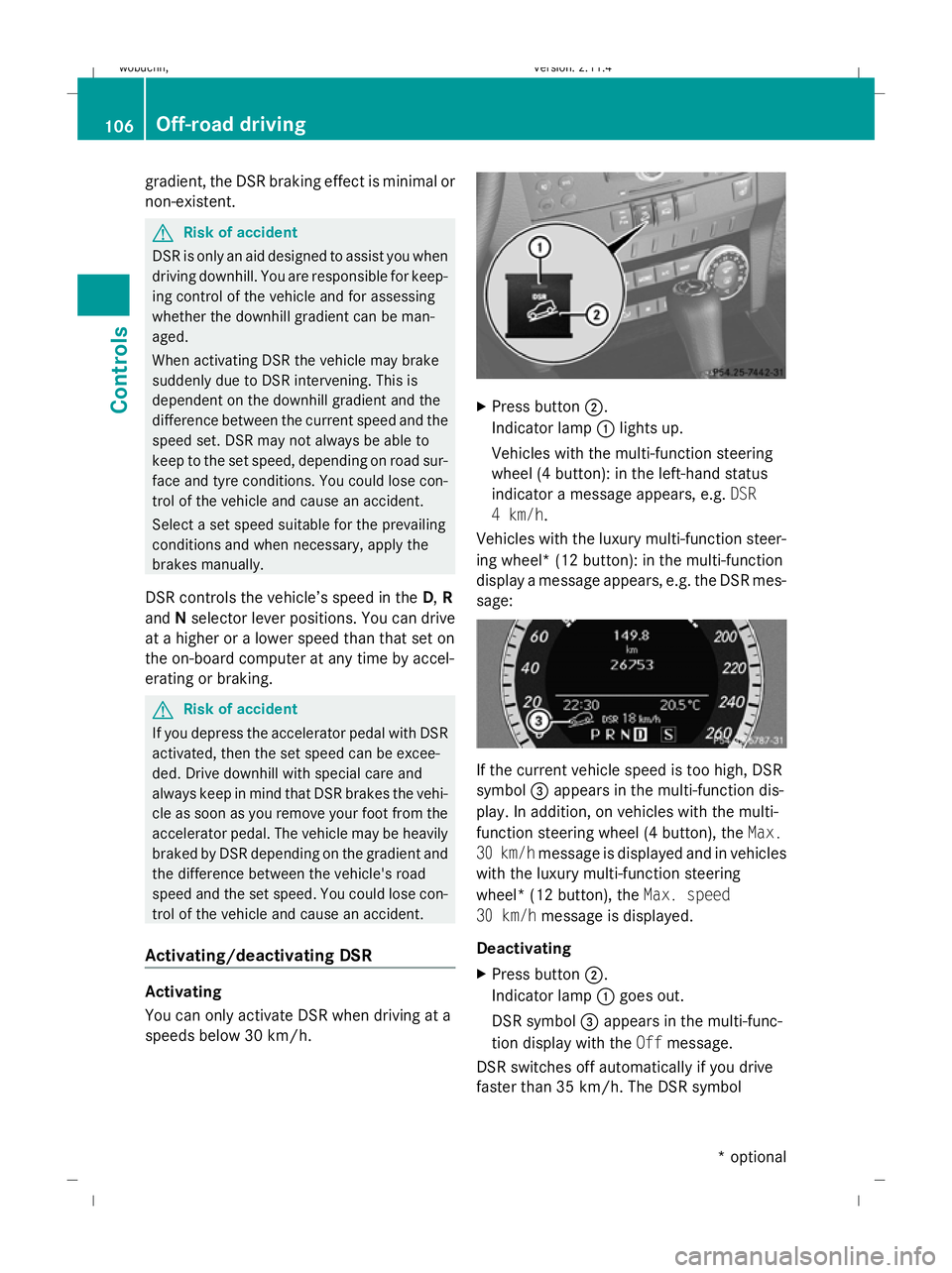
speeds below 30 km/h. X
Press button ;.
Indicator lamp :lights up.
Vehicles with the multi-function steering
wheel (4 button): in the left-hand status
indicator a message appears, e.g. DSR
4 km/h.
Vehicles with the luxury multi-function steer-
ing wheel* (12 button): in the multi-function
display a message appears, e.g. the DSR mes-
sage: If the current vehicle speed is too high, DSR
symbol =appears in the multi-function dis-
play. In addition, on vehicles with the multi-
function steering wheel (4 button), the Max.
30 km/h message is displayed and in vehicles
with the luxury multi-function steering
wheel* (12 button), the Max. speed
30 km/h message is displayed.
Deactivating
X Press button ;.
Indicator lamp :goes out.
DSR symbol =appears in the multi-func-
tion display with the Offmessage.
DSR switches off automatically if you drive
faster than 35 km/h. The DSR symbol 106 Off-road drivingControls
* optional
X204_AKB; 1; 5, en-GB
wobuchh,
Version: 2.11.4 2008-10-15T13:20:56+02:00 - Seite 106Dateiname: 6515_0671_02_buchblock.pdf; preflight