USB MERCEDES-BENZ GLS 2020 User Guide
[x] Cancel search | Manufacturer: MERCEDES-BENZ, Model Year: 2020, Model line: GLS, Model: MERCEDES-BENZ GLS 2020Pages: 682, PDF Size: 23.3 MB
Page 387 of 682
#
Select countryind icator1. #
Select thepr ov ider forth eonline service
fr om thecount ries list.
or #
Ifth eon- boar dsear chdeliv ersno results,
ent erthedes tinat ionintheinput line. The
ent ryorder isno tre leva nt, e.g.st re et and
cit y.Use thefunc tionsdescr ibedforth eon-
boar dsear ch.
The sear chresults aredispla yed. #
Select thedes tinat ioninthelis t.
The detailed viewforth ero uteis displ ayed.
Selecting prev ious destina tions
Re quirement s:
R Prev ious destination sar estor ed.
R Fordes tinatio nsug gestions: youha ve cre‐
at ed apr ofile (/ page 350) .
R The Allow Destinati onSugge stions option is
swi tched on(/ page355) .
R The multimedi asy stem has already gather ed
suf ficie ntdata inorder tosho wdes tination
sugg estions. Multimedia
system:
4 © 5
Navigation 5
ª Where to?
5 PREV. DESTINA TIONS
The follo wing entries can beselect edinthepr e‐
vious destinat ions:
R Des tinat ionsugg estion s(/ page404)
R Des tinat ions
R Routes #
Select thedes tinat ionorroute
The destinatio naddr essissho wn. The route
can becalc ulated.
% Youcan save apr ev ious destination orades‐
tin ation suggestion asafa vo rite
( / pag e404).
Using thefa vo rite s, yo uha ve quick acc ess to
th edes tinat ions (/page389).
Selecting aPOI
Re quirement s:
R Foruse ofper sonal POIs:a USB devic eis
conne cted with themultimedia system. R
Personal POIs withth eGPS Exch ang efo rm at
(.g px) have been save din the"P ersonalPOI"
fo lder ontheUSB device.
Multimedia system:
4 © 5
Navigation 5
ª Where to?
5 POIS
Sear ching using categor ies(no rout eguid‐
ance ) #
Select thecat egor y.
or #
Select AllCategories. #
Select thecat egor yand thesub-cat egory(if
av ailable).
The sear chtake splace inthevicin ityofthe
ve hicle's current positio n.The searchre sult
ar esor tedby distance inascend ingorder .
The POIssho wthefo llo wing informatio n:
R direct ion ofthelinear distance tothePOI
(ar row)
R nam eof POI
R linear distance tothePOI MBUX
multimedia system 385
Page 395 of 682
Using
carpool lanes
When usingcarpool lanes, observetheapplica‐
ble legalrequ iremen tsas wellas anycon dition s
per tainin gto when andwher esuc hlanes maybe
used. Carpool lanes mayonl ybe used ifcer tain
condi tions areme t.
Ca rpool lanes areno tav ailable inall coun tries. #
Select Avoid Options. #
Select Carpoo lLan es. #
Select For Two Occupan tsor For 3Oc cu-
pant sor Mor e·.
or #
Select OnRequest ·.
When this op tion isselec tedand acar pool
lane isavailable, apr om ptappear s.Yo ucan
co ntinue touse thecur rent routeor sele cta
ro utewit hth ecar pool lane.
% Ifth eAvoid option isselect ed,then no car‐
pool lanes willbeused forth ero ute.
Select ingnotificat ions forthe rout e
Re quirement s: R
Foran audi blein dic atio nwh en appr oach‐
in gaper sonal POI:th eUSB device contains
per son alPOIs .
R The USB device iscon nectedwit hth emulti‐
media system.
R The categor yin whic hth eper sonal POI
belongs isactiv ated.
Multimedia system:
4 © 5
Navigation 5
Z
5 Advan ced5
Announc ement s #
Switc hNo Drivin gRecomm. onoroff.
No naviga tio nanno unceme ntsareissu ed
wh en thedispla ybutt onisswitc hedon. #
Toselect ana vig ation announcement :
select anoption 003Bunder theDRIVIN GREC-
OMMEN DATION categor y.
The follo wing option sar eav ailable:
R Ton eOn ly
In place ofthespok ennavig ation
announ cementyo uhear agon g.The
gon gsign alsanupco mingdr ivin gman eu‐ ve
rand alsosounds during thedr iving
maneuv er.
R Reduced DrivingRecomm.
If ana vig ation announ cementis available,
yo uhear abr ief ann oun cem ent,e.g ."tur n
ri ght".
R Detailed DrivingRecomm.
If ana vig ation announc ementisavailable
and theAn nounc eSt reet Names option is
switc hedon,youhear aco mp lete
ann oun cem ent,e.g ."In 600ft (200 m)at
th eend ofthest re et tur nright intoSt a‐
tio nRo ad". #
Tohave stre et names announced during
a dr iving maneuv er:switc hon Announc e
St reet Names. #
Select Reduced DrivingRecomm. or
Det ailed Drivin gRecomm. .
The name ofthest re et intowhic hyo usho uld
tur nis ann oun ced.
% The optio ns intheDRIVIN GRECOMMEN DA-
TION categor yar eno tav ailable ineve ry
cou ntryand inallla ngua ges. MBUX
multimedia system 393
Page 399 of 682
#
Ifth erear ealr ead yfo ur intermediat edes‐
tinatio ns:sele ctYes inthepr om pt.
The gasst atio nis ent ered inthero uteov er‐
vie w. Intermedia tedes tination 4is dele ted.
Ro uteguidan cebegin s.
St arting theaut oma ticser vice station
sear ch
Re quirement s:
R ATTENTION ASSISTand theSuggest Rest
Area function areactiv ated (/ page288).
R Ther ear eser vice statio nsalon gth ero ute
sec tionahead.
Dr iving situatio n
The follo wing notificat ion issho wninthemedia
displa yATTE NTION ASSISTTap here tosearch
for rest areas. #
Conf irm theno tification .
The service statio nsear chstar ts.The availa‐
ble servicest atio nsalon gth ero uteor inthe
vicinity oftheve hicle's current positio nar e
di spl ayed. #
Select aser vice statio n.
The servicest atio naddr essisdispla yed. #
Calculat eth ero ute(/ page39 0).
The servicest atio nis setas thedes tinat ion
or thene xt int ermediat edes tinat ion. #
Ifth erear ealr ead yfo ur intermediat edes‐
tinatio ns:sele ctYes inthepr om pt.
The service statio nis ent ered inthero ute
ove rview. Intermedia tedes tination 4is
dele ted. Ro uteguidan cebegin s.
Sho wing ast or ed rout eon thema p
Re quirement s:
R AUSB device withstor ed routes isco nn ec‐
te dwit hth emultimedia system
(/ page460).
R The routeis stor ed inthe"R out es" folder
wit hth eGPS Exch ang efo rm at(.gpx) .
Mult imed iasystem:
4 © 5
Navigation 5
ª Where to?
5 SAVED ROUTES #
Select aro ute. #
Select Show onMap. #
Movethemap (/page41 0). St
arting asa ve dro ut e
Re quirement s:
R AUSB device withstor ed routes isco nn ec‐
te dwit hth emultimedia system
(/ page460).
R The routeis stor ed inthe"R out es" folder
wit hth eGPS Exch ang efo rm at(.gpx) .
Mult imed iasystem:
4 © 5
Navigation 5
ª Where to?
5 SAVED ROUTES #
Select aro ute. #
Select Start Rout eGuid. from Beginning of
Rout eor Start Rout eGuidan cefrom Curr .
Posi tion.
Ro uteguidan cestar ts.
% The routecan besave dwit hf inthe
menu (/page390) .
Re cor dingaro ute
Re quirement s:
R AUSB device iscon nectedwit hth emultime‐
dia system (/ page460). MBUX
multimedia system 39
7
Page 400 of 682
Multimedia
system:
4 © 5
Navigation 5
ª Where to?
5 SAVED ROUTES #
Tostar tre cor ding:selec tSt art Reco rdinga
New Route.
A redre cor ding symbo lis sho wn.
The routeis stor ed on theUSB device. #
Tosto pre cor ding:selec tEn dReco rding.
Sa ving are cor ded rout e
Re quirement s:
R AUSB device iscon nectedwit hth emultime‐
dia system (/ page460).
Multimedia system:
4 © 5
Navigation 5
ª Where to?
5 SAVED ROUTES #
Select aro ute. #
Select f. #
Select Savein "Pre vious Destinat ions".
The routeis stor ed inthe"Pr evious destina‐
tion s"memo ryand canbecalle dup from
th er efo rro uteguidan ce. Edit
ingasto redro ute
Re quirement s:
R AUSB device withstor ed routes isco nn ec‐
te dwit hth emultimedia system
(/ page460).
Multimedia system:
4 © 5
Navigation 5
ª Where to?
5 SAVED ROUTES #
Select aro utewit hV. #
Toent eranam e:selec tChang eName . #
Enterth ename. #
Select OK.
or #
When thename hasbeen chang ed, press the
G button. #
Select Yes. #
Todel etearo ut e: sele ctDelete. #
Select Yes. Ro
uteguidanc e No
teson rout eguidanc e &
WARNIN GRisk ofdist ra ction from oper‐
ati ng integr ated commu nication equip‐
ment whiletheve hicle isin mo tion
If yo uoper ateco mm unic ationeq uipme nt
int egrat edintheve hicle when driving, you
will bedistract edfrom thetra ffic situat ion.
This could alsocause youto lose control of
th eve hicle. #
Onlyoper ateth is eq uipmen twhen the
tr af fic situ ation per mits. #
Ifyo ucan notbe sur eof this, stop the
ve hicle whilstpa ying attention toroad
and traffic condi tions andoperate the
eq uipment withth eve hicle statio nary. Yo
umus tobse rveth eleg alrequ iremen tsforth e
cou ntryin whi chyouar ecur rentl ydr ivi ng when
op erati ng themultimedia system.
Ro uteguidan cebegin son ce aro utehas been
calc ulated. 398
MBUX mult imed iasystem
Page 413 of 682
Ro
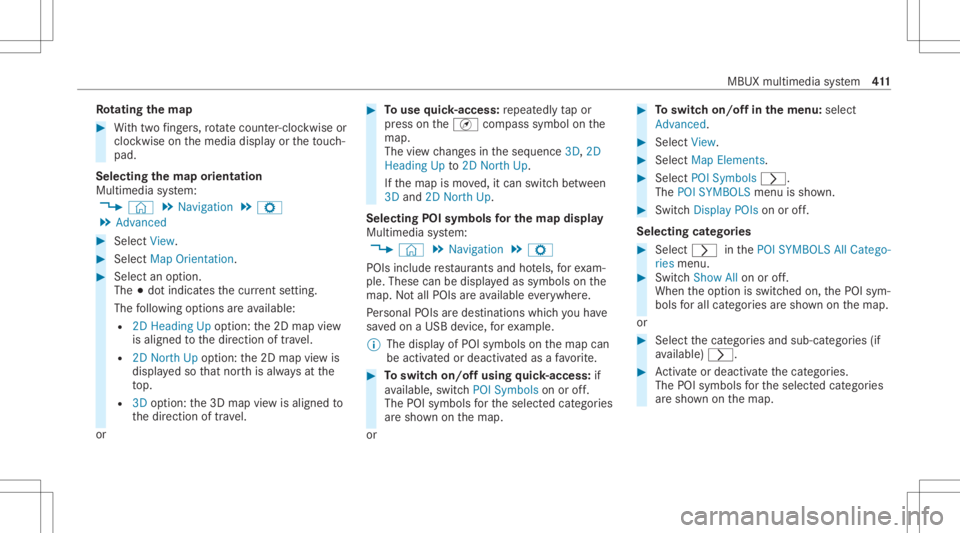
tat ing thema p #
With twofing ers, rotate cou nter-cloc kwiseor
cloc kwiseon themedia displayor theto uc h‐
pad.
Select ingthema por ientat ion
Multi media system:
4 © 5
Navigation 5
Z
5 Advan ced #
Select View. #
Select MapOrient ation. #
Select anoption .
The 003Bdo tindicat esthecur rent setting.
The follo wing option sar eav ailable:
R 2DHead ingUpoptio n:the2D map view
is aligned tothedir ect ion oftra vel.
R 2DNort hUp option :th e2D map viewis
displa yedso that north is alw aysat the
to p.
R 3Doption :th e3D map viewisaligned to
th edir ect ion oftrav el.
or #
Touse quick- acc ess:re peat edly tapor
pr ess ontheÄ compass symbol onthe
map.
The viewch ang esintheseq uence 3D,2D
Heading Upto2D North Up.
If th emap ismo ved, itcan switc hbe tween
3D and 2DNort hUp.
Selecting POIsymbols forthe map displa y
Mu ltimed iasystem:
4 © 5
Navigation 5
Z
POIs include restaur antsand hotels, forex am‐
ple. Thes ecan bedispla yedas symbols onthe
map. Notall POIs areav ailable everywher e.
Pe rsonal POIs aredes tinat ions whichyo uha ve
sa ve don aUSB device, forex am ple.
% The displa yof POI symbo lson themap can
be activ ated ordeactiv ated asafa vo rite . #
Toswitc hon/of fusing quick- acc ess:if
av ailable, switchPOI Symbols onoroff.
The POIsymbols forth eselect edcategor ies
ar esho wnonthemap.
or #
Toswitc hon/of fin themenu :selec t
Adv anced. #
Sele ctView. #
Sele ctMap Elements. #
Sele ctPOI Symb ols0048.
The POISYMB OLSmenuis sho wn. #
Swit chDis play POI son oroff.
Se lecti ng categor ies #
Selec t0048 inthePOI SYMBO LSAllCatego-
ries menu. #
Switc hShow Allon oroff.
When theop tion isswitc hedon,thePOI sym‐
bols forall cat egor iesaresho wnonthemap.
or #
Select thecat egor iesand sub-cat egories(if
av ailable) 0048. #
Activateor deacti vate thecat egor ies.
The POIsymbols forth eselect edcategor ies
ar esho wnonthemap. MBUX
multimedia system 41
1
Page 421 of 682
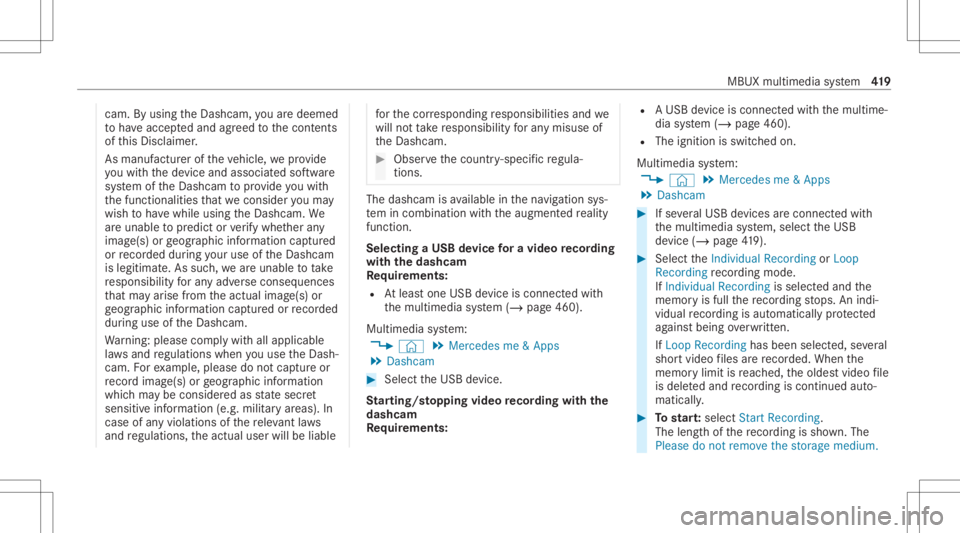
cam.
Byusing theDashc am,youar edeem ed
to have acc eptedand agreed tothecon tents
of this Disc laimer .
As manuf acturer oftheve hicle, weprov ide
yo uwit hth ede vice andassociat edsof tware
sy stem oftheDashc amtoprov ide youwit h
th efunc tionalities that we consi deryouma y
wish tohave while using theDashc am.We
ar eunabl eto predict orverify whe ther any
imag e(s)orgeogr aphic information captured
or recor ded during your use oftheDashc am
is legitimat e.As suc h,we areunabl eto take
re sponsibili tyforan yadv erse conseq uences
th at ma yar ise from theactual image(s)or
ge ogr aphic information captured orrecor ded
du ring useof theDashc am.
Wa rning: please complywithall applicable
la ws and regulations whenyouuse theDash‐
cam. Forex am ple, please donotcap tureor
re cor dima ge(s) orgeogr aphic information
whic hma ybe consider edasstat esec ret
sensitiv einf ormation (e.g.militaryar eas). In
case ofanyviolations ofthere leva nt laws
and regulations, theactual userwillbeliable fo
rth ecor responding responsibili tiesand we
will notta ke responsibili tyforan ymisu seof
th eDashc am. #
Obser vethecount ry-spe cificregula‐
tions. The
dashcam isavailable inthena vig ation sys‐
te m incombinati onwithth eaugment edrealit y
fun ction .
Select ingaUSB device fora video recor ding
wit hth eda shca m
Re quirement s:
R Atleas tone USB device iscon nectedwit h
th emultimedia system (/ page460).
Multimedia system:
4 © 5
Mercedes me&Apps
5 Dashc am #
Select theUSB device.
St arting/ stopping videore cor dingwit hth e
da shcam
Re quirement s: R
AUSB device iscon nectedwit hth emultime‐
dia system (/ page460).
R The ignition isswitc hedon.
Multimedia system:
4 © 5
Mercedes me&Apps
5 Dashc am #
Ifse veralUSB device sar econ nectedwit h
th emultimedia system, select theUSB
de vice (/page41 9). #
Select theIndividual Recording orLoop
Recording recor ding mod e.
If Indi vidualRe cord ingissel ect edand the
memor yis full there cor ding stops. Anindi‐
vidual recor ding isau tomatical lyprotect ed
ag ains tbeing overwritt en.
If Loo pRe cord inghasbe en select ed ,se veral
shor tvideo files arere cor ded .Whe nth e
memor ylimi tis reac hed, theoldes tvideo file
is dele tedand recor ding iscontinu edauto‐
matical ly. #
Tostar t:select StartRecording .
The lengt hof there cor ding issho wn. The
Ple ase donot remo vethe stora gemed ium. MBUX
multime diasy stem 41
9
Page 422 of 682
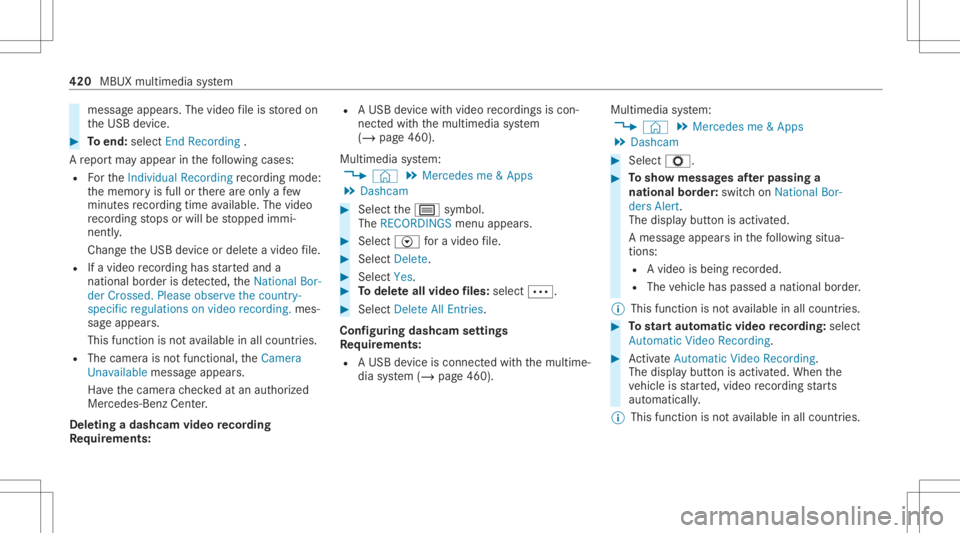
messa
geappear s.The videofile isstor ed on
th eUSB device. #
Toend: selectEn dRecor ding.
A repor tma yappear inthefo llo wing cases :
R Forth eIndividual Recording recor ding mod e:
th ememor yis full orther ear eonl ya fe w
minut esrecor ding time available. Thevideo
re cor ding stops orwill bestopped immi‐
nent ly.
Chan getheUSB device ordele teavide ofile.
R Ifavideo recor ding hasst ar tedand a
nation albor der isde tected, theNation alBor-
der Crossed. Pleaseobserve thecount ry-
specific regulations onvideo recording. mes‐
sag eappear s.
This function isno tav ailable inall coun tries.
R The cam erais no tfun ction al,theCamera
Unavailable messageappear s.
Ha ve thecamer ach eckedat an aut hor ized
Mer cedes- BenzCent er.
Dele ting adash camvideo recor ding
Re quirement s: R
AUSB device withvideo recordings iscon‐
nect edwith themultimedia system
(/ page460).
Multimedia system:
4 © 5
Mercedes me&Apps
5 Dashc am #
Select thep symbol.
The RECORDINGS menuappear s. #
Select Vfora video file. #
Selec tDelet e. #
Selec tYes. #
Todel eteall vid eofiles: select 0062. #
Selec tDelet eAll Entries .
Conf iguringdashcam settings
Re quirement s:
R AUSB device iscon nectedwit hth emultime‐
dia system (/ page460). Multimedia
system:
4 © 5
Mercedes me&Apps
5 Dashc am #
Select Z. #
Tosho wmessag esafte rpass inga
nati onalbo rder: swit chon National Bor-
ders Alert.
The displa ybutt onisactiv ated.
A messag eappear sin thefo llo wing situa‐
tion s:
R Avideo isbeing recor ded .
R The vehicle haspassed anational border.
% This funct ionisno tav ailable inall coun tries. #
Tostar taut omatic videore cor ding:selec t
Aut omat icVideo Recording. #
ActivateAuto matic Vide oRe cord ing.
Th edisp lay bu tton isacti vated. When the
ve hicle isstar ted, video recor ding star ts
aut omat ically.
% This funct ionisno tav ailable inall coun tries. 420
MBUXmult imed iasystem
Page 432 of 682
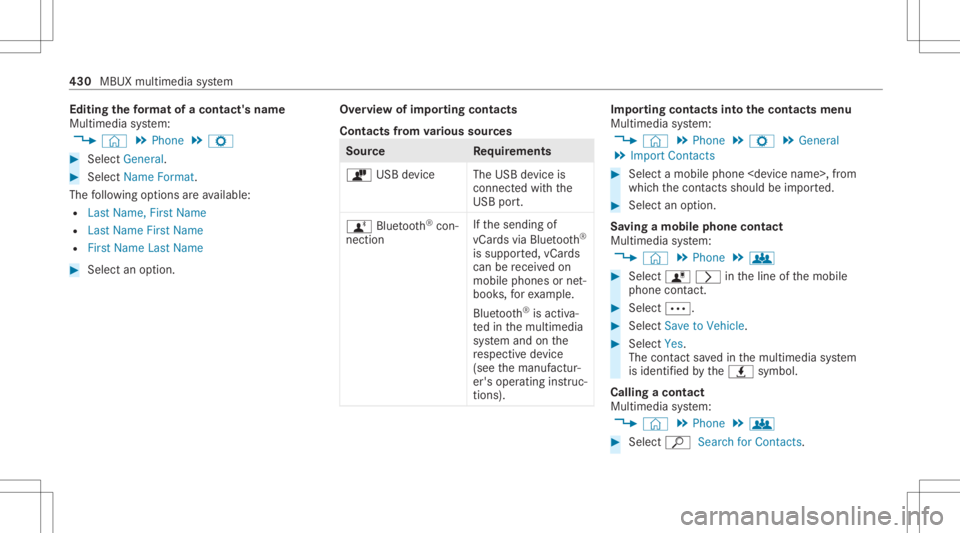
Edit
ingthefo rm atofaco ntact's name
Mul timedi asy stem:
4 © 5
Phone 5
Z #
Select General. #
Select NameFormat.
The follo wing option sar eav ailable:
R Last Name ,Fir stName
R Last Name FirstName
R FirstName LastName #
Select anoptio n. Ov
ervie wof impor tingcontact s
Contact sfrom various sour ces Sour
ce Requirement s
ò USBdevice TheUSB device is
con nectedwit hth e
USB port.
ñ Bluetooth®
con‐
nectio n If
th esendin gof
vCar dsvia Blue tooth®
is suppor ted, vCar ds
can berecei vedon
mobile phones ornet‐
book s,forex am ple.
Blue tooth®
is act iva‐
te din themultimedia
sy stem and onthe
re spectiv ede vice
(see themanuf actur‐
er's oper ating instruc‐
tion s). Im
por ting contacts intoth econtact smenu
Multi media system:
4 © 5
Phone 5
Z 5
General
5 Import Contacts #
Select amobile phone
whic hth econ tacts should be impor ted. #
Select anoption .
Sa ving amobile phonecontact
Multimedia system:
4 © 5
Phone 5
g #
Select ó0048intheline ofthemobile
phone contact. #
Sele ct0062. #
Sele ctSave toVeh icle. #
Sele ctYes .
The cont actsave din themultimedia system
is identif iedbytheq symbol.
Calling acontact
Multimedia system:
4 © 5
Phone 5
g #
Select ªSearch forContac ts. 430
MBUX multimedia system
Page 438 of 682
#
Ifyo ucan notbe sur eof this, stop the
ve hicle whilstpa ying attention toroad
and traffic condi tions andoperate the
eq uipment withth eve hicle statio nary. Yo
umus tobse rveth eleg alrequ iremen tsforth e
cou ntryin whi chyouar ecur rentl ydr ivi ng when
op erati ng themultimedia system.
Wi th Mer cedes-Ben zLink youcan usemob ile
phon efun ction svia themultimedia system. Itis
oper ated using theto uc hsc reen orthevo ice-
opera tedcon trol system. Youcan activat eth e
vo ice- opera tedcon trol system bypressing and
holding the£ buttononthemultifunc tion
st eer ing wheel.
When usingMercedes- BenzLinkviathevo ice-
opera tedcon trol system, themultimedia system
can still be oper ated via theVo ice Cont rolSy s‐
te m (/ page31 7).
The Mercedes -Benz Linkcontr olbo xsup plemen‐
ta ry equipment isrequ ired forth is. This isavaila‐
ble atan aut hor izedMer cedes-Ben zCent er. On
lyone mobile phoneatatime canbeconn ec‐
te dvia Mer cedes- BenzLink tothemultimedia
sy stem.
When amobile phoneiscon nect edwith
Mer cedes- BenzLink,onl yone additional mobile
phone canbecon nect edusing Bluetooth®
wit h
th emultimedia system when intwophone
mode.
% The Mercedes- BenzLinkcontrol bo xuses
th eAn droid oper ating system.
% The service prov ider isresponsible forth ese
apps andtheser vices andcontent conne c‐
te dto it.
No teson Mer cedes-Benz Link
If amobile phoneisused withMer cedes-B enz
Link ,USB access usingthemedia menuispossi‐
ble forth is mobile phone.
% Onlyone routeguidan cecan beact ive at a
tim e.Ifro uteguidan ceisact ive on themulti‐
media system, itis closed whenrouteguid‐
anc eis star tedon themobile phone. Connecting
Mercedes-Benz Linkwithth e
mu ltim edia system
Re quirement s:
R The vehicle iseq uipped withth eMer cedes-
Benz Linkcontrol bo x.
R The Mercedes- BenzLinkappisins talled on
th emobile phone.
R The mobile phoneisswitc hedon.
R Mer cedes- BenzLinkiscon nect edtothemul‐
timedia system viatheç USBportusing
a suit able cable (/page460).
% The firs tacti vatio nof Me rcedes-B enzLink
on themultimedia system mus tbe car ried
out when theve hicle isstatio naryfo rsaf ety
re ason s. 436
MBUXmult imed iasystem
Page 440 of 682
Con
trol or theSir i®
vo ice- oper ated con trol sys‐
te m. Youcan activat eth evo ice- opera tedcon trol
sy stem bypressing andholding the£ button
on themultifunc tionsteer ing wheel.
When usingApple CarPla y®
via thevo ice- oper‐
at ed con trol system, themultimedia system can
st ill be oper ated via theVo ice Cont rolSy stem
(/ page31 7).
On lyone iPho ne®
at atim ecan becon nectedvia
Apple CarPla y®
wit hth emultimedia system.
Also foruse ofApple CarPla y®
wit htw ophone
mode, onlyoneadditional mobilephone canbe
connect edusing Blue tooth®
wit hth emultimedia
sy stem.
The availabilit yof App leCarPla y®
ma yva ry
acc ordin gto thecount ry.
The service prov ider isresponsible forth is appli‐
cat ion and theser vices andcontent conne cted
to it.
Apple CarPla y®
is are gis tere dtra demar kof
Apple Inc. Inf
ormat iononApple CarPla y®
When Apple CarPla y®
is being used,theiPod ®
media sourceisno tav ailable forth ere spectiv e
iPhone ®
.
Onl yone routeguidan cecan beact ive at atim e.
If ro uteguidan ceisact ive on themultimedia sys‐
te m, itis closed whenrouteguidan ceisstar ted
on themobile phone.
Connecting aniPhone ®
via Apple CarPla y®
(cable)
Re quirement s:
R The current version ofyour devic e's operat‐
ing system isbeing used(seethemanuf ac‐
tur er's oper ating instruction s).
R Ther eis an Interne tcon nect ionforth efull
ra ng eof func tions forApple CarPla y®
.
R The iPho ne®
is connect edtothemultimedia
sy stem viatheUSB portç using asuit a‐
ble cable (/page460). Multimedia
system:
4 © 5
Mercedes me&Apps
5 Smart phone 5
Apple CarPlay
5 Start Apple CarPlay #
Alternativ e:Ifan Apple CarPla y®
application
is activ e(e.g. when music isbeing playedor
ro uteguidan ceisact ive), youcan callupthe
act ive applic ationusin gth e|, zor
002B application buttons (/page34 7).
% Contr olusing theapplication buttons canbe
switc hedonoroff(/ page439).
Ac cep ting/r eject ingtheda ta protection reg‐
ulat ions
Fo rth einitial star tof theapplication: amessag e
wit hth edat apr otect ion prov ision sappear s. #
Selec tAc cept &St art .
Exitin gApp leCar Play® #
Press the00E2 button. 438
MBUX multimedia system