light MERCEDES-BENZ GLS SUV 2019 Owners Manual
[x] Cancel search | Manufacturer: MERCEDES-BENZ, Model Year: 2019, Model line: GLS SUV, Model: MERCEDES-BENZ GLS SUV 2019Pages: 729, PDF Size: 12.03 MB
Page 327 of 729
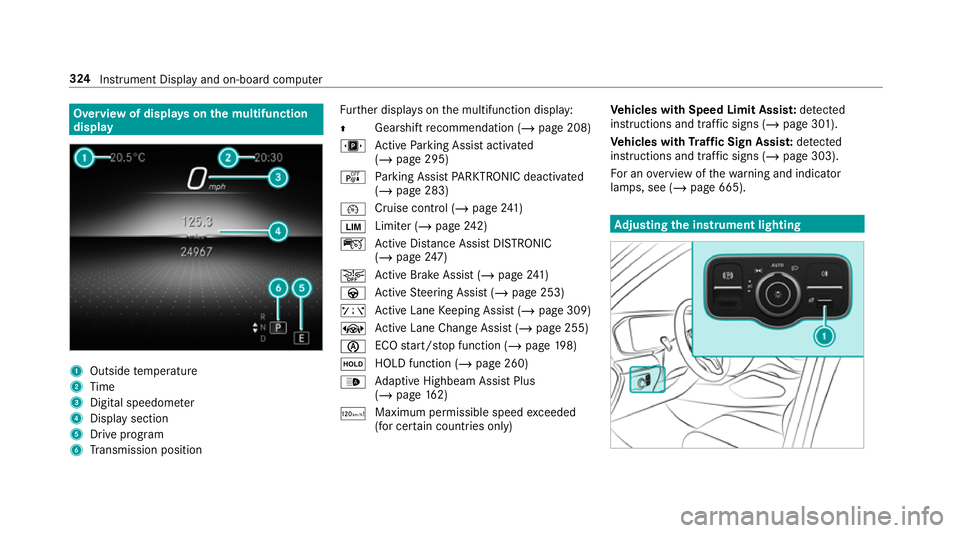
Overview of displa
yson the multifunction
display 1
Outside temp erature
2 Time
3 Digital speedome ter
4 Displ aysection
5 Drive program
6 Transmission position Fu
rther displa yson the multifunction display:
Z Gearshift
recommendation (/ page 208)
u Active Parking Assist activated
(/ page 295)
é Parking Assist PARKTRONIC deacti vated
( / page 283)
¯ Cruise control (/
page241)
È Limi
ter (/ page242)
ç Active Dis tance Assi stDISTRONIC
(/ page 247)
æ Ac
tive Brake Assi st (/ page 241)
à Active Steering Assist (/ page 253)
ê Active Lane Keeping Assist (/ page 309)
± Active Lane Change Assi st (/ page 255)
è ECO
start/ stop function (/ page198)
ë HOLD fu
nction (/ page 260)
_ Ad
aptive Highbeam Assist Plus
(/ page 162)
ð Ma
ximum pe rmissible speed exceeded
(for cer tain countries only) Ve
hicles with Speed Limit Assis t:de tected
instructions and traf fic signs (/ page 301).
Ve hicles with Traf fic Sign Assis t:de tected
instructions and traf fic signs (/ page 303).
Fo r an overview of thewa rning and indicator
lamps, see (/ page 665). Ad
justing the in stru ment lighting 324
Instrument Displ ayand on-board computer
Page 328 of 729
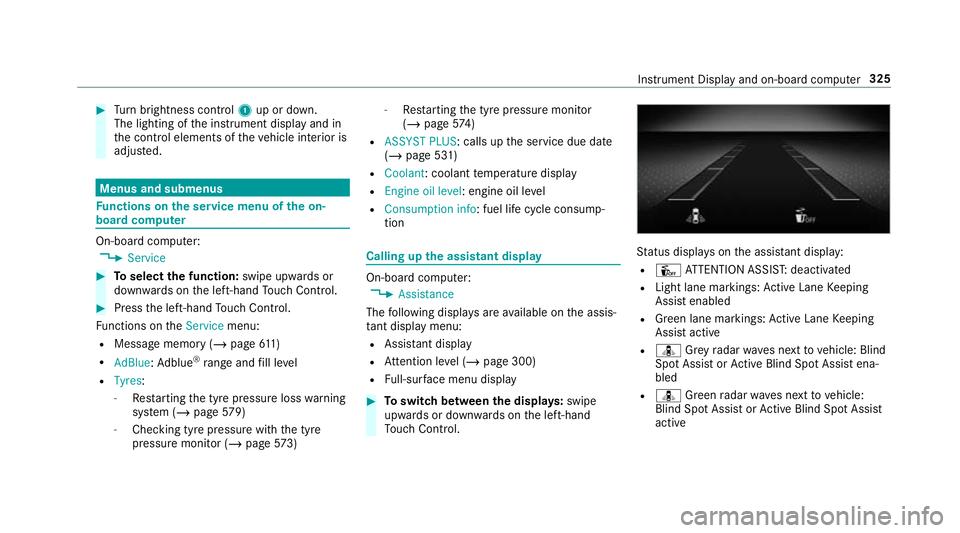
#
Turn brightness control 1up or down.
The lighting of the instrument display and in
th e control elements of theve hicle interior is
adjus ted. Menus and submenus
Fu
nctions on the service menu of the on-
board compu ter On-board computer:
4 Service #
Toselect the function: swipe upwards or
down wards on the left-hand Touch Control. #
Press the left-hand Touch Control.
Fu nctions on theService menu:
R Message memory (/ page611)
R AdBlue: Adblue ®
ra nge and fill le vel
R Tyres:
- Restarting the tyre pressure loss warning
sy stem (/ page579)
- Che cking tyre pressure with the tyre
pressure monitor (/ page573) -
Restarting the tyre pressure monitor
(/ page 574)
R ASSYST PLUS : calls upthe service due date
(/ page 531)
R Coolant: coolant temp erature display
R Engine oil level: engine oil le vel
R Consumption info: fuel life cycle consump‐
tion Calling up
the assistant display On-board computer:
4 Assistance
The following displa ysare available on the assis‐
ta nt displ aymenu:
R Assis tant displ ay
R Attention le vel (/ page 300)
R Full-sur face menu displ ay #
Toswitch between the displa ys:swipe
upwards or down wards on the left-hand
To uch Control. St
atus displa yson the assis tant displ ay:
R Û ATTENTION ASSIS T:deactivated
R Light lane markings: Active Lane Keeping
Assist enabled
R Green lane markings: Active Lane Keeping
Assist active
R ¸ Grey radar waves next tovehicle: Blind
Spot Assist or Active Blind Spot Assi stena‐
bled
R ¸ Green radar waves next tovehicle:
Blind Spot Assist or Active Blind Spot Assi st
active In
stru ment Display and on-board computer 325
Page 335 of 729
Head-up Display
Fu
nction of the head-up display The head-up display projects information from
th e navigation sy stem, the driver assis tance sys‐
te ms and some warning messages abo vethe
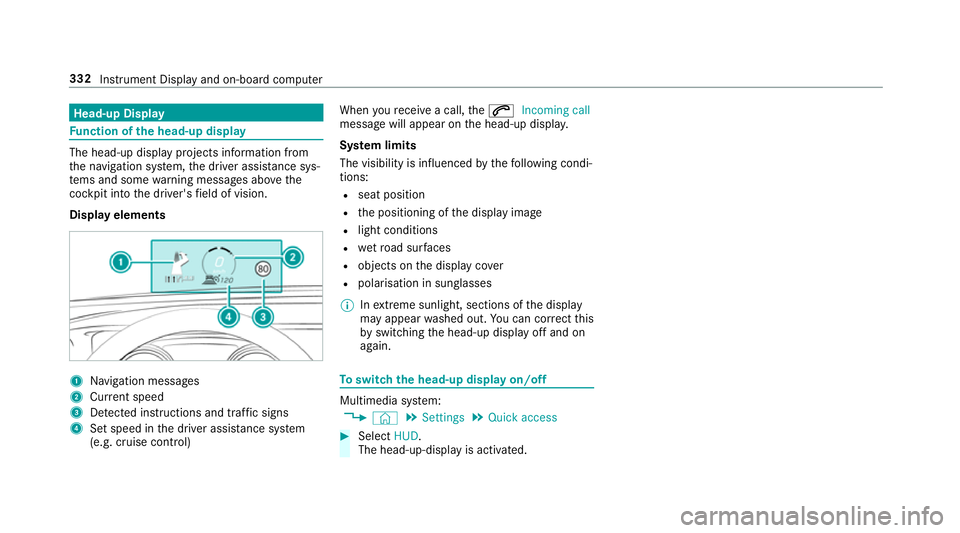
cockpit into the driver's field of vision.
Display elements 1
Navigation messa ges
2 Current speed
3 Detected instructions and traf fic signs
4 Set speed in the driver assis tance sy stem
(e.g. cruise control) When
youre cei vea call, the6 Incoming call
message will appear on the head-up displa y.
Sy stem limits
The visibility is influenced bythefo llowing condi‐
tions:
R seat position
R the positioning of the display image
R light conditions
R wetro ad sur faces
R objects on the display co ver
R polarisation in sunglasses
% Inextreme sunlight, sections of the display
may appear washed out. You can co rrect this
by switching the head-up display off and on
again. To
switch the head-up display on/off Multimedia sy
stem:
4 © 5
Settings 5
Quick access #
Select HUD.
The head-up-display is activated. 332
Instrument Display and on-board computer
Page 353 of 729
Vo
ice command Colloquialexample Function
Automatic climate control driver on I would like to switch on the auto- matic climate control for the driv-
er's seatSwitches on automatic climate cont
rolfo rth e driver's or front passenger
side
Ambient light blue Switch ambient light to blueSwitches ambient lighting, e.g.
toblue
Wave massage driver on I would like to switch on the wave
massage for the driver's seatSwitches on
thewav e massage forth e driver's or front passenger seat
Massage driver's seat off Switch the driver's side massage
offSwitches off
the massage function forth e driver's or front passenger seat
Seat heating driver on I would like to switch on the seat
heating for the driver's seatSwitches on
the seat heating forth e driver's or front passenger seat
Seat heating front passenger level
2 Seat heating front-passenger on
level 2 Sets
the seat heating forth e driver's or front passenger seat toleve l 2
Current speed limit I would like to hear the speed limitCalls up
the cur rent speed limit
Outside temperature I would like to find out what the
temperature outside is likeCalls up
the outside temp erature
Average consumption I would like to know the average
fuel consumptionCalls up
average consu mption 350
LINGU ATRO NIC
Page 354 of 729
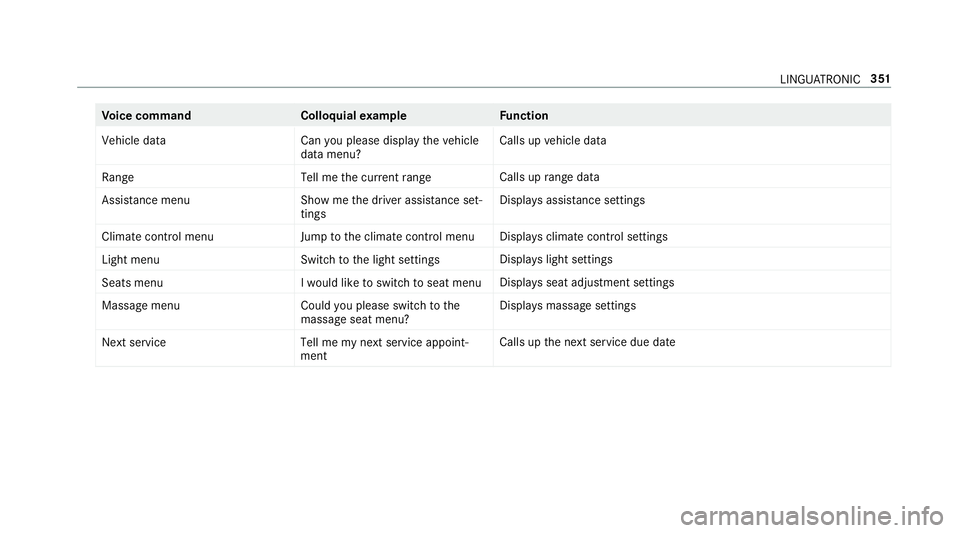
Vo
ice command Colloquialexample Function
Vehicle data Can you please display the vehicle
data menu?Calls up
vehicle data
Range Tell me the current rangeCalls up
range da ta
Assistance menu Show me the driver assistance set-
tingsDispl
ays assis tance settings
Climate control menu Jump to the climate control menuDispla
ysclimate control settings
Light menu Switch to the light settingsDispla
yslight settings
Seats men uI would like to switch to seat menu Displa
ysseat adjustment settings
Massage menu Could you please switch to the
massage seat menu?Displa
ysmassa gesettings
Next service Tell me my next service appoint-
mentCalls up
the next service due date LINGU
ATRO NIC 351
Page 356 of 729
%
Ifth eve hicle is fitted wi thgesture mode,
selected functions of the multimedia sy stem
can be operated conta ct-free aswell as turn‐
ing there ading light on or off (/ page 360).
Nu merous application, online services, services
and apps are available foryo u. You can call
th ese up using the home screen or using buttons
5 and 6next totheto uchpad.
Yo u can co nveniently call up and add favo urites
using theß rocker switch on thesteering
wheel or using theß button next tothe
to uchpad. Quic k-access in the home screen and
in the applications ser vetoselect functions
more quickl y.
If yo u use the learn function of the multimedia
sy stem, you will recei vesuggestions during oper‐
ation of the most probable navigation destina‐
tions, media sources, radio stations and con‐ ta
cts. The configu ration of the suggestions takes
place in your profile. You can co mpileyour pro‐
fi le from various vehicle settings and settings of
th e multimedia sy stem. You can create themes
fo rva rious driving situations in the home screen
as well as using theß rocker switch or the
ß button.
The Notifications Centre collects incoming notifi‐
cations, e.g. about an available software update.
Depending on the type of notification it of fers
va rious actions. You can call up the Notifications
Centre on the home screen and in the applica‐
tion menus.
Wi th th eglobal sear chintheve hicle you can
sear chon-board across many categories as well
as online in the Internet. You can use theglobal
sear chinthe home screen and in the notifica‐
tions. Anti-theft pr
otection
This device is equipped with tech nical pr ovisions
to protect it against theft. More de tailed informa‐
tion about anti-theft pr otection can be obtained
at a qualified specialist workshop. Note
s onthe media display Obser
vethe no tes on caring forth e interior
(/ page 547).
Au tomatic temperature-cont rolled switch-
off feature: ifth ete mp erature is too high, the
brightness is initially reduced automatically. The
media display may then switch off comple tely for
a while.
% Ifyo u are wearing polarised sun glasses, it
may be dif ficult toread the multimedia sys‐
te m displa y. MBUX multimedia sy
stem 353
Page 363 of 729
th
e beginning or end of the list is reached
yo u will hear ano ther clicking sound.
Selecting a station and track using the
to uchpad #
Swipe tothe left or right over the~ but‐
to n.
Ra dio: the pr evious or next station is set.
Media source: the pr evious or next track is
selec ted.
or #
Toshow the control menu: pressthe~
button on theto uchpad.
or #
Swipe upwards using two fingers on the
to uchpad.
The cont rol menu appears forth e audio
source that wa s last selected. #
Swipe left or right using one finger.
Ra dio: the pr evious or next station is set.
Media source: the pr evious or next track is
selec ted. #
Tohide the control menu: swipe down on
th eto uchpad using two fingers. MBUX in-car assistant
Note
s on lasers and laser classification &
WARNING Risk of inju ryfrom laser radi‐
ation from the camera
This product uses a laser sy stem. If the hous‐
ing is opened or damaged, invisible laser
beams can escape in an uncontrolled man‐
ner.
Laser radiation can damage your retina. #
Do not open the housing. #
Alw ays ha vemaintenance workand
re pairs car ried out byaqu alified spe‐
cialist workshop. This device is a class 1 laser product in accord‐
ance with DIN EN 60825-1:20
14
Overview of the MBUX in-car assistant
If th eve hicle is fitted wi th the MBUX in-car
assis tant, selected functions of the multimedia sy
stem can be operated conta ct-free aswell as
turning there ading light on or off.
The MBUX in-car assis tant can di fferentiate
between driver and front passenger interactions.
The MBUX in-car assis tant recognises cer tain
hand positions (poses).
The interaction area forth e MBUX in-car assis‐
ta nt is in front of the media displa y,up tothe
centre console including theto uchpad, between
th e driver and front passenger. 360
MBUX multimedia sy stem
Page 364 of 729
The MBUX in-car assistant suppo
rtsth efo l‐
lowing interactions: Interaction Description
Pr
ox imity of the
hand toa con‐
trol element:
R Touchsc reen
R Touchpad The MBUX in-car assis
tant
re cognises the approach of
th e hand towa rds a control
element.
Depending on the active
application, the display will
be adjus ted in the media
displa y.
No sp ecific hand position is
requ ired.
Defined poses With defined poses a func‐
tion is triggered depending
on the application active. Interaction Description
Brief
lytouching
th e underside of
th e inside rear‐
view mir ror or
grasping the
front passenger
seat By brief
lytouching the
underside of the inside
re arview mir rorth ere ading
light forth e driver or the
front passenger is switched
on and off. Operating functions
byprox imity of the hand
to theto uchscreen and touchpad
Re quirements:
R One of thefo llowing applications appears in
th e media display:
- Seat settings with displa ysforth e driver
and front passenger seat, e.g. Seat com-
fort
- Home screen
- Radio menu or media menu
- Map in the navigation
- Active Parking Assist Seat adju
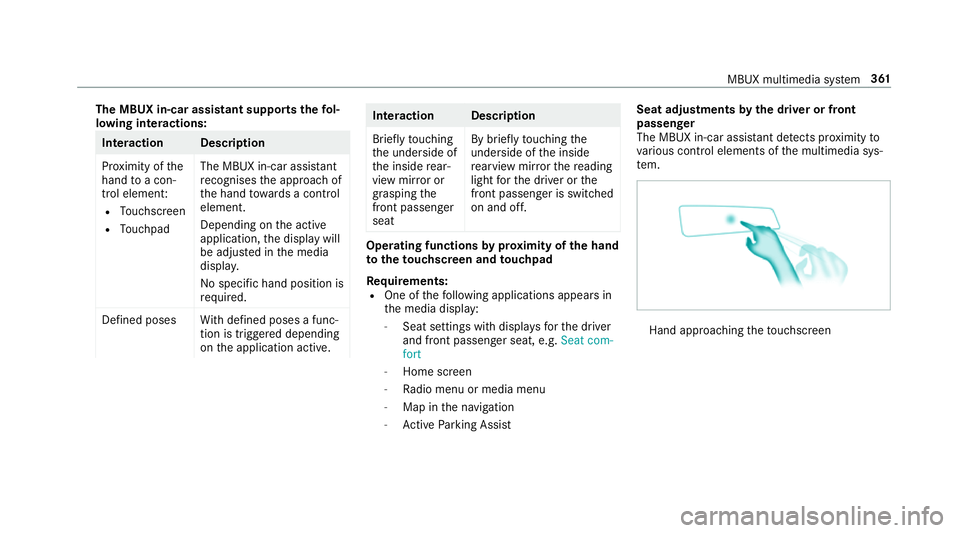
stments bythe driver or front
passenger
The MBUX in-car assis tant de tects pr oximity to
va rious contro l elements of the multimedia sys‐
te m. Hand appro
achingtheto uchsc reen MBUX multimedia sy
stem 361
Page 365 of 729
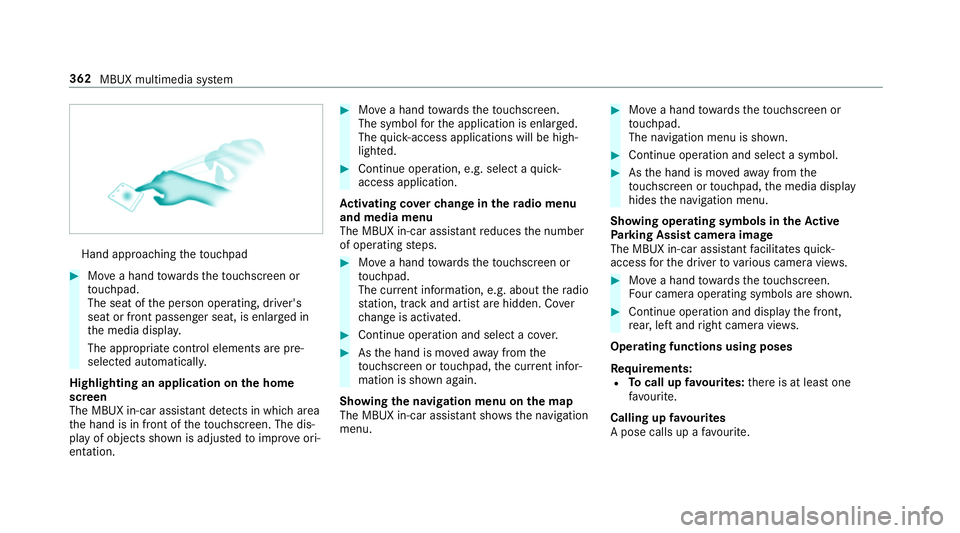
Hand approaching
theto uchpad #
Movea hand towa rdsth eto uchsc reen or
to uchpad.
The seat of the person operating, driver's
seat or front passenger seat, is enlar ged in
th e media displa y.
The appropriate contro l elements are pre-
selec ted automatically.
Highlighting an application on the home
screen
The MBUX in-car assis tant de tects in whi charea
th e hand is in front of theto uchsc reen. The dis‐
play of objects shown is adjus tedto impr oveori‐
entation. #
Movea hand towa rdsth eto uchsc reen.
The symbol forth e application is enlar ged.
The quick- access applications will be high‐
lighted. #
Continue operation, e.g. select a quick-
access application.
Ac tivating co verch ange in thera dio menu
and media menu
The MBUX in-car assis tant reduces the number
of operating steps. #
Movea hand towa rdsth eto uchsc reen or
to uchpad.
The cur rent information, e.g. about thera dio
st ation, track and artist are hidden. Co ver
ch ange is activated. #
Continue operation and select a co ver. #
Asthe hand is mo vedaw ay from the
to uchsc reen or touchpad, the cur rent infor‐
mation is shown again.
Showing the navi gation menu on the map
The MBUX in-car assi stant sho ws the navigation
menu. #
Movea hand towa rdsth eto uchsc reen or
to uchpad.
The navigation menu is shown. #
Continue operation and select a symbol. #
Asthe hand is mo vedaw ay from the
to uchsc reen or touchpad, the media display
hides the navigation menu.
Showing operating symbols in theAc tive
Pa rking Assist camera ima ge
The MBUX in-car assis tant facilitates quick-
access forth e driver tovarious camera vie ws. #
Movea hand towa rdsth eto uchsc reen.
Fo ur camera operating symbols are shown. #
Continue operation and displ aythe front,
re ar, left and right camera vie ws.
Operating functions using poses
Re quirements:
R Tocall up favo urites: there is at least one
fa vo urite.
Calling up favo urites
A pose calls up a favo urite. 362
MBUX multimedia sy stem
Page 366 of 729
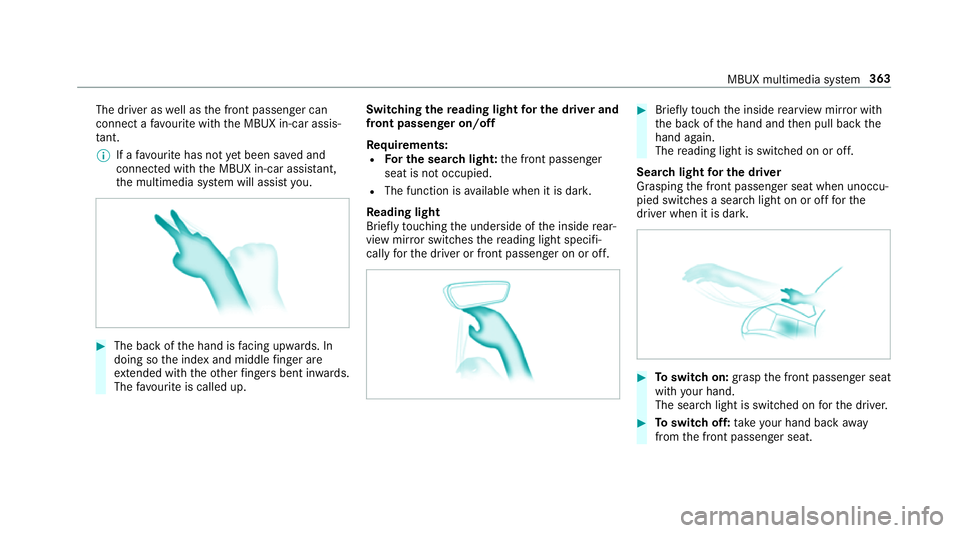
The driver as
well as the front passenger can
connect a favo urite with the MBUX in-car assis‐
ta nt.
% If afavo urite has not yet been sa ved and
connec ted with the MBUX in-car assis tant,
th e multimedia sy stem will assist you. #
The back of the hand is facing up wards. In
doing so the index and middle finger are
ex tended wi th theot her fingers bent in wards.
The favo urite is called up. Swit
ching there ading light for the driver and
front passen ger on/o ff
Re quirements:
R For the sear chlight: the front passenger
seat is not occupied.
R The function is available when it is dar k.
Re ading light
Briefly touching the underside of the inside rear‐
view mir ror switches there ading light specifi‐
cally forth e driver or front passenger on or off. #
Brief lytouch the inside rearview mir ror with
th e back of the hand and then pull back the
hand again.
The reading light is swit ched on or off.
Sear chlight for the driver
Grasping the front passenger seat when unoccu‐
pied switches a sear chlight on or off forthe
driver when it is dar k. #
Toswitch on: graspthe front passenger seat
with your hand.
The sear chlight is switched on forth e driver. #
Toswitch off: take your hand back away
from the front passenger seat. MBUX multimedia sy
stem 363