ESP MERCEDES-BENZ GLS SUV 2019 Manual Online
[x] Cancel search | Manufacturer: MERCEDES-BENZ, Model Year: 2019, Model line: GLS SUV, Model: MERCEDES-BENZ GLS SUV 2019Pages: 729, PDF Size: 12.03 MB
Page 312 of 729
Ac
tivating/deactivating Blind Spot Assi stor
Ac tive Blind Spot Assi st
Multimedia sy stem:
4 © 5
Settings 5
Assistance #
Activate or deacti vate Blind Spot Assist . Ac
tive Lane Keeping Assist Fu
nction of Active Lane Keeping Assist Ac
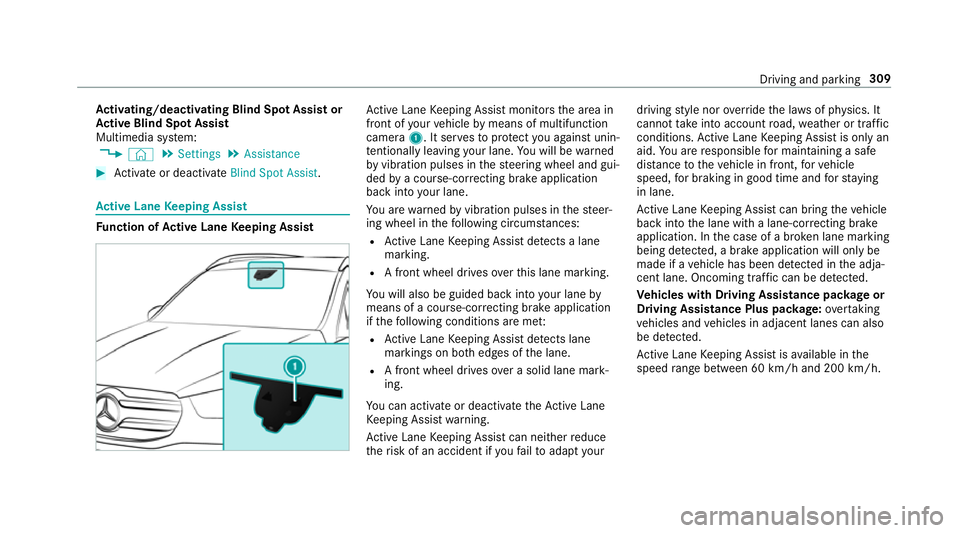
tive Lane Keeping Assist monitors the area in
front of your vehicle bymeans of multifunction
camera 1. It ser vesto protect you against unin‐
te ntional lyleaving your lane. You will be warned
by vibration pulses in thesteering wheel and gui‐
ded bya course-cor recting brake application
ba ck into your lane.
Yo u are warned byvibration pulses in thesteer‐
ing wheel in thefo llowing circums tances:
R Active Lane Keeping Assist de tects a lane
marking.
R A front wheel drives overth is lane marking.
Yo u will also be guided back into your lane by
means of a course-cor recting brake application
if th efo llowing conditions are me t:
R Active Lane Keeping Assist de tects lane
markings on bo thedges of the lane.
R A front wheel drives over a solid lane mark‐
ing.
Yo u can activate or deactivate theAc tive Lane
Ke eping Assist warning.
Ac tive Lane Keeping Assist can neither reduce
th erisk of an accident if youfa ilto adapt your driving
style nor override the la wsof ph ysics. It
cannot take into account road, weather or traf fic
conditions. Active Lane Keeping Assist is only an
aid. You are responsible for maintaining a safe
dis tance totheve hicle in front, forve hicle
speed, for braking in good time and forst ay ing
in lane.
Ac tive Lane Keeping Assist can bring theve hicle
back into the lane with a lane-cor recting brake
application. In the case of a broken lane marking
being de tected, a brake application will only be
made if a vehicle has been de tected in the adja‐
cent lane. Oncoming tra ffic can be de tected.
Ve hicles with Driving Assistance pac kage or
Driving Assistance Plus pa ckage: overtaking
ve hicles and vehicles in adjacent lanes can also
be de tected.
Ac tive Lane Keeping Assist is available in the
speed range between 60 km/h and 200 km/h. Driving and pa
rking 309
Page 313 of 729
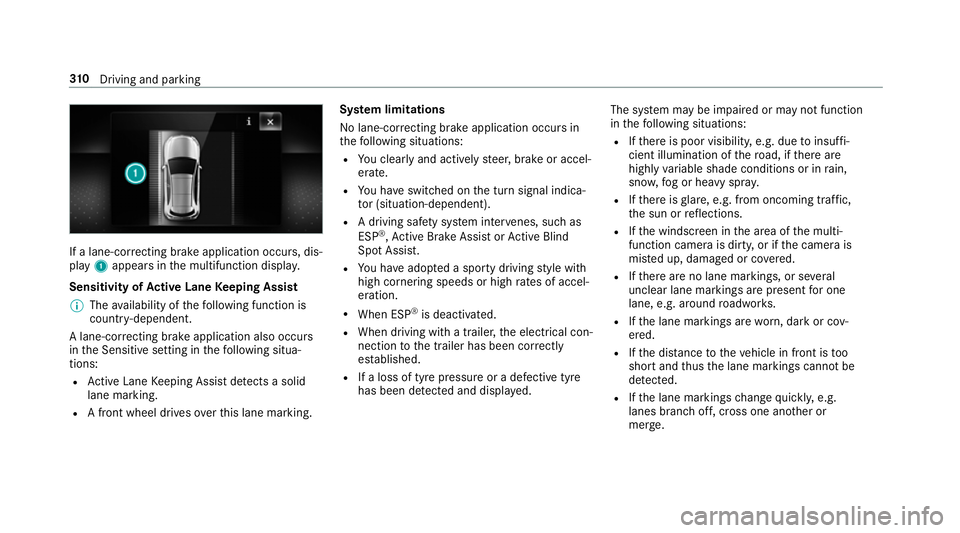
If a lane-cor
recting brake application occu rs, dis‐
play 1appears in the multifunction displa y.
Sensitivity of Active Lane Keeping Assist
% The availability of thefo llowing function is
countr y-dependent.
A lane-cor recting brake application also occu rs
in the Sensitive setting in thefo llowing situa‐
tions:
R Active Lane Keeping Assist de tects a solid
lane marking.
R A front wheel drives overth is lane marking. Sy
stem limitations
No lane-cor recting brake application occu rsin
th efo llowing situations:
R You clear lyand actively steer, brake or accel‐
erate.
R You ha veswitched on the turn signal indica‐
to r (situation-dependent).
R A driving saf ety sy stem inter venes, su chas
ESP ®
,Ac tive Brake Assi stor Active Blind
Spot Assi st.
R You ha veadop ted a sporty driving style with
high cornering speeds or high rates of accel‐
eration.
R When ESP ®
is deactivated.
R When driving with a trailer, the electrical con‐
nection tothe trailer has been cor rectly
es tablished.
R If a loss of tyre pressure or a defective tyre
has been de tected and displ ayed. The sy
stem may be impaired or may not function
in thefo llowing situations:
R Ifth ere is poor visibility, e.g. due toinsuf fi‐
cient illumination of thero ad, if there are
highly variable shade conditions or in rain,
sno w,fog or heavy spr ay.
R Ifth ere is glare, e.g. from oncoming traf fic,
th e sun or reflections.
R Ifth e windscreen in the area of the multi‐
function camera is dirty, or if the camera is
mis ted up, damaged or co vered.
R Ifth ere are no lane markings, or se veral
unclear lane markings are present for one
lane, e.g. around roadwor ks.
R Ifth e lane markings are worn, dark or cov‐
ered.
R Ifth e dis tance totheve hicle in front is too
short and thus the lane markings cann otbe
de tected.
R Ifth e lane markings change quickl y,e.g.
lanes branch off, cross one ano ther or
mer ge. 310
Driving and pa rking
Page 317 of 729
#
You do not initiate the le vel control sys‐
te m and do not operate theDY NA MIC
SELECT switch. #
Do not lock or unlock theve hicle. Re
quirements:
R the ball neck must be extended and engaged
in the securely loc ked position
Tr ailers with a 7-pin plug can be connec tedto
th eve hicle with thefo llowing adap ters:
R adap ter plug
R adapte r cable
The trailer will be cor rectly de tected bytheve hi‐
cle only if thefo llowing conditions are me t:
R the trailer is connected cor rectly
R the trailer lighting sy stem is in working order
The functions of thefo llowing sy stems are af fec‐
te dby a cor rectly connected traile r:
R Active Lane Keeping Assist
R ESP ®
trailer stabilisation
R Parking Assist PARKTRONIC R
Active Parking Assist
R Blind Spot Assist or Active Blind Spot Assi st
R Drive AwayAssi st
R Cross Traf fic Alert
R Trailer Manoeuv ring Assi st
R Reversing camera
R 360° camera
Coupling up a trailer
* NO
TEDama getotheve hicle battery due
to full discharge Charging
the trailer battery using the po wer
supply of the trailer can damage theve hicle
batter y. #
Do not use theve hicle's po wer supply
to charge the trailer batter y. #
Remo vethe co ver from the ball head and
st ore it in a safe place (/ page133). #
Position the trailer on a le vel sur face behind
th eve hicle and couple it up totheve hicle. #
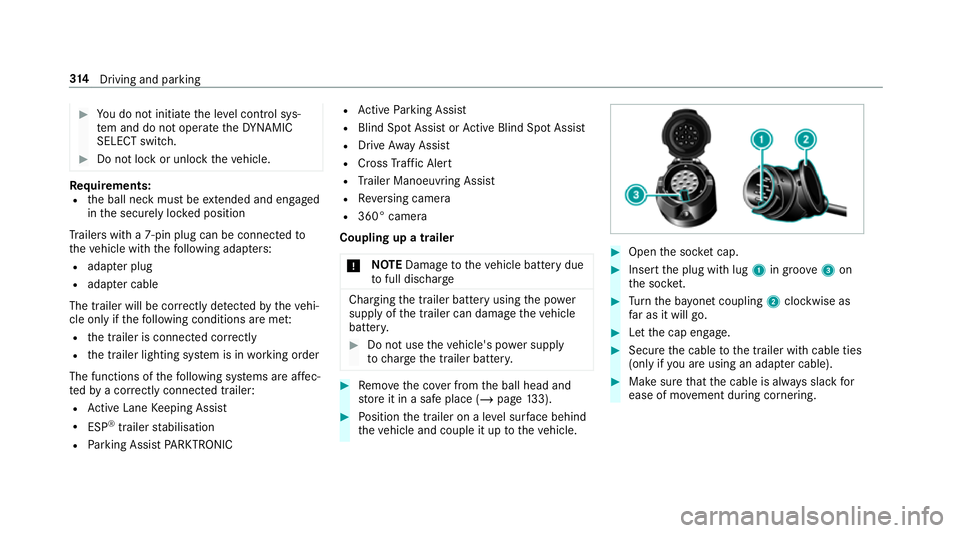
Open the soc ket cap. #
Inse rtthe plug with lug 1in groo ve3 on
th e soc ket. #
Turn the ba yonet coupling 2clockwise as
fa r as it will go. #
Let the cap engage. #
Secure the cable tothe trailer with cable ties
(only if you are using an adap ter cable). #
Make sure that the cable is alw ays slack for
ease of mo vement during cornering. 314
Driving and pa rking
Page 325 of 729
#
Toexit a submenu: pressthe back button
on the left 1.
Selecting the head-up display #
Ifth e head-up display is switched on: swipe
upwards on the left-hand Touch Control 2. #
Swipe upwards on the left-hand Touch Con‐
trol 2toswitch tothe head-up displa y.#
Ifth e head-up display is switched off: press
th e left-hand Touch Control 2.
Fu ll-sur face menu display
Yo u can displ aythefo llowing menus in full on
th e instrument display:
R Assistance
R Trip
R Navigation #
Inthe cor responding menu, use the left-hand
To uch Control 2toscroll tothe end of the
list. #
Press the left-hand Touch Control 2.
The selected menu will be displ ayed in full. Ad
justing the design of the in stru ment dis‐
play
On-boa rdcompu ter:
4 Styles & display
Setting the design #
Swipe up wards or down wards on the left-
hand Touch Control. #
Press the left-hand Touch Control.
The instrument displ ayis shown in the selec‐
te d design.
The following designs can be selec ted, depend‐
ing on theve hicle equipment:
R Classic
R Sport
R Progressive
R Understated
R Standard displays Showing display content on
the instrument
clus ter
Ad ditional display con tent can also be shown on
th e instrument clus ter. #
Toselect display content: swipetothe
ri ght on the left-hand Touch Control. #
Swipe upwards or down wards on the left-
hand Touch Control toselect there qu ired
display con tent.
When the display conte nt is selected1, it
will brie fly be highligh ted. 322
Instrument Display and on-board computer
Page 336 of 729
Note
s on operating saf ety &
WARNING Risk of di stra ction from infor‐
mation sy stems and communications
equipment
If yo u operate information and communica‐
tion equipment integ rated in theve hicle
when driving, you will be distracted from the
traf fic situation. This could also cause youto
lose control of theve hicle. #
Only operate this equipment when the
traf fic situation permits. #
Ifyo u cannot be sure of this, stop the
ve hicle whilst paying attention toroad
and traf fic conditions and ope rate the
equipment with theve hicle stationar y. &
WARNING Risk of an accident from
ope rating mobile communication equip‐
ment while theve hicle is in motion
Mobile communications devices distract the
driver from the traf fic situation. This could also cause
the driver tolose control of the
ve hicle. #
Asthe driver, only operate mobile com‐
munications devices when theve hicle is
st ationar y. #
As a vehicle occupant, only use mobile
communications devices in the areas
intended forth is purpose, e.g. in the
re ar passenger compartment. Fo
ryo ur ow n sa fety, al ways obser vethefo llow‐
ing points when operating mobile communica‐
tions equipment and especially your voice con‐
trol sy stem:
R Obser vethe legal requ irements forth e coun‐
try in which you are driving.
R While driving, on ly operate mobile communi‐
cations equipment and your voice control
sy stem when the tra ffic conditions permit it.
Yo u may otherwise be distracted from the
traf fic conditions and cause an accident,
inju ring yourself and others.
R Ifyo u use thevo ice control sy stem in an
emer gency your voice can change and your te
lephone call, e.g. an emer gency call, can
th ereby be unnecessarily dela yed.
R Familiarise yourself with thevo ice control
sy stem functions before starting the journe y. Operation
Overview of operating the multifunction
st
eering wheel LINGU
ATRO NIC is operational appr oximately
th irty seconds af terth e ignition is switched on. LINGU
ATRO NIC 333
Page 339 of 729
When
the function is active, the "Hi
Mercedes" voice command can activate the
dialogue.
Switching on voice inter ruption #
Select Voice barge-in.
If th e function is active, a command can be
interjecte d duringvoice output of the sys‐
te m.
Ac tivating/deactivating online voice control #
Activate Online recognition.
% Online voice control is activated at thefa c‐
to ry. #
Select Online recognition subscrip..
Yo u will be connected with the Mercedes me
por tal. #
Activate online voice control in the Mercedes
me por tal.
Ac tivating contacts for online use #
Select Contact upload for online recognition.
When the function is active, conta cts will be
fo und more easily and accurately using voice
input. The quality of the enunciation of con‐ ta
ct names bythe sy stem will also be
impr oved. Using LINGU
ATRO NIC ef fectively Help functions
Using
the cor responding voice commands you
re cei vethefo llowing information and assis tance
in thefo llowing cases:
R For optimal ope ration: saytheVoice con-
trol tutorial voice command or call up the
Digital Owner's Manual wi thCould you go to
the LINGUATRONIC tutorial please? ,for
ex ample. The full extent of the Digital Own‐
er's Manual is available when theve hicle is
st ationar y.Here you can also find explana‐
to ry videos which introduce youto the func‐
tions of LINGU ATRO NIC.
R Cur rent application: onthe multifunction
st eering wheel, press the£ rock er switch
up and say theHelp voice command. You will
re cei vesuggestions and information about
operation of LINGU ATRO NIC forth e cur rent
application. R
Continued dialogue: saytheHelp voice
command during a voice dialogue. Foreve ry
st ep of the dialogue youre cei vematching
information.
R Speci fic function: saythevo ice command
fo rth e desired function, e.g. with "Hello
Mercedes, I need help with thera dio" or af ter
pressing the£ rocker switch on the multi‐
function steering wheel up, say theHelp for
the telephone voice command, forex ample. Note
s on optimal use of LINGU ATRO NIC No
tes on how toimpr overecognition:
R Activate online voice control (/ page 335).
R Only operate LINGU ATRO NIC from the driv‐
er's seat.
R Say thevo ice commands cohe rently and
clear ly, but do not exaggerate thewo rds.
R Avoid loud noises that cause inter fere nce
while making a voice command ent ry, e.g.
th e enter tainment in there ar-passen ger
compa rtment.
R Forte lephone or add ress book entries: 336
LINGU ATRO NIC
Page 352 of 729
Vo
ice command Colloquialexample Function
Read out the last e-mail from
Jane JonesThe last e-mail from
the person mentioned is read out.
E-mail in English to
write an email in En glish tothe person called up Overview of
vehicle voice commands Yo
u can use theve hicle voice commands to
directly call up the cor responding menus forthe
ve hicle settings and operate vehicle functions. The
following list of fers just a small selection of
th e possible vehicle voice commands. You will
re cei veadditional suggestions if you say Help
for vehicle settings orHelp for vehicle functions.
% If no seat or side is mentioned for com‐
mands that relate toa seat or side of vehicle th
en all actions are car ried out automatically
fo rth e driver's seat.
Ve hicle voice commands Vo
ice command Colloquialexample Function
Temperature colder I would like to reduce the tempera-
tureRe
duces thete mp erature of the air conditioning sy stem
Air recirculation on I would like to activate the air circu-
lationSwitches on air
recirculation mode forth e air conditioning sy stem LINGU
ATRO NIC 349
Page 380 of 729
re
sults can be found af ter selecting there spec‐
tive categor y.
If yo u confirm an entry with OK, all categories
and the number of results will be shown in a
summar y.After selecting a category you can
select the sear chresults within the categor y.
When you select a sear chresult the de tailed
view opens. In the de tailed view you can choose
whe ther and which actions youwa nttocar ryout
with there spective sear chresult. Forex ample,
yo u can start route guidance or place a call to
somebody. The actions are named cor respond‐
ingly.
The sear chcan be car ried out with thefo llowing
input me thods:
R Entering characters using the on-screen key‐
pad
R Entering characters with handwriting recog‐
nition
R Dictation function Using the
global sear ch
Multimedia sy stem:
4 © #
Select ªSearch .
or #
Call up the notifications (/ page375). #
Select Search . #
Enter the sear chterm into the sear chfield.
During the entry process theth re e most
likely suggestions are of fere d beneath the
sear chfield.
In the list on theright, theto p two sear ch
re sults are shown for each categor y.
% Use thech aracter input function
Alternativel y,yo u can use thep dictation
function forth e sear ch. #
Toaccept a suggestion: selectthe sugges‐
tion.
The thre e most likely suggestions are
of fere d. #
Continue the sear chor accept a suggestion. #
Toaccept the second sear chresult: select
th e sear chresult.
An action starts or a list is shown. #
Select a sear chresult or an action in the list. #
Toshow all categories: selectOK. #
Toshow sear chresults for a ca tegor y:
select a categor y. #
Toshow details: select a searchresult. #
Tostart an action: select an action.
Af ter selection of an action, a track is pla yed
back or thero ute toa destination is calcula‐
te d, forex ample. MBUX multimedia sy
stem 377
Page 401 of 729
R
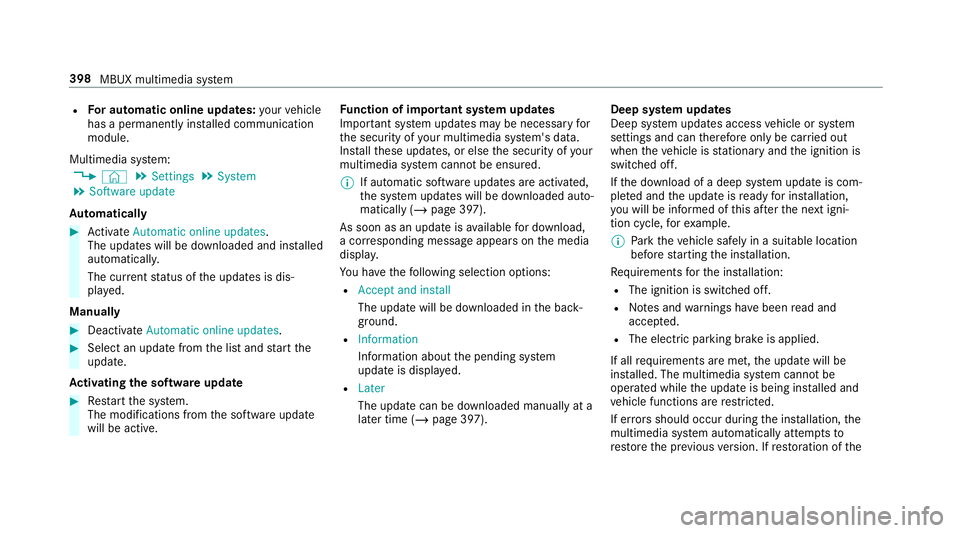
For automatic online updates: your vehicle
has a permanently ins talled communication
module.
Multimedia sy stem:
4 © 5
Settings 5
System
5 Software update
Au tomatically #
Activate Automatic online updates.
The upda tes will be downloaded and ins talled
automaticall y.
The cur rent status of the updates is dis‐
pla yed.
Manually #
Deactivate Automatic online updates. #
Select an update from the list and start the
update.
Ac tivating the so ftwa reupdate #
Restart the sy stem.
The modifications from the software update
will be active. Fu
nction of important sy stem upda tes
Impor tant sy stem updates may be necessary for
th e security of your multimedia sy stem's data.
Ins tallth ese updates, or else the security of your
multimedia sy stem cann otbe ensured.
% If automatic software updates are activated,
th e sy stem updates will be downloaded auto‐
matically (/ page 397).
As soon as an update is available for download,
a cor responding message appears onthe media
displa y.
Yo u ha vethefo llowing selection options:
R Accept and install
The update will be downloaded in the back‐
ground.
R Information
Information about the pending sy stem
update is displa yed.
R Later
The update can be downloaded manually at a
later time (/ page 397). Deep sy
stem upda tes
Deep sy stem updates access vehicle or sy stem
settings and can therefore only be car ried out
when theve hicle is stationary and the ignition is
switched off.
If th e download of a deep sy stem update is com‐
ple ted and the update is ready for ins tallation,
yo u will be informed of this af terth e next igni‐
tion cycle, forex ample.
% Park theve hicle safely in a suitable location
before starting the ins tallation.
Re quirements forth e ins tallation:
R The ignition is switched off.
R Notes and warnings ha vebeen read and
accep ted.
R The elect ric pa rking brake is applied.
If all requirements are met, the update will be
ins talled. The multimedia sy stem cann otbe
operated while the update is being ins talled and
ve hicle functions are restricted.
If er rors should occur during the ins tallation, the
multimedia sy stem automatically attem ptsto
re store the pr evious version. If restoration of the 398
MBUX multimedia sy stem
Page 406 of 729
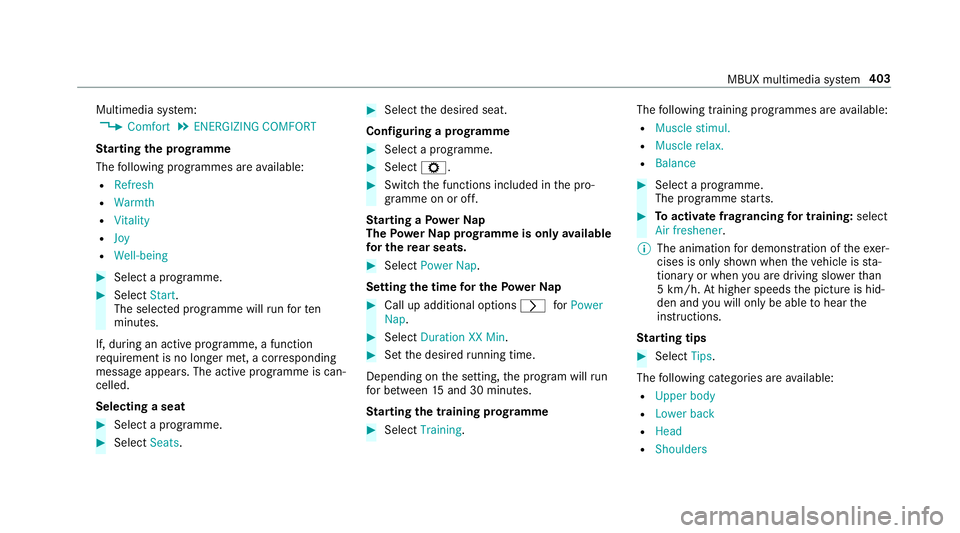
Multimedia sy
stem:
4 Comfort 5
ENERGIZING COMFORT
St arting the prog ramme
The following programmes are available:
R Refresh
R Warmth
R Vitality
R Joy
R Well-being #
Select a programme. #
Select Start.
The selec ted prog ramme will runfo rten
minutes.
If, during an active programme, a function
re qu irement is no longer met, a cor responding
message appears . The activeprog ramme is can‐
celled.
Selecting a seat #
Select a programme. #
Select Seats. #
Select the desired seat.
Configuring a prog ramme #
Select a prog ramme. #
Select Z. #
Switch the functions included in the pro‐
gramme on or off.
St arting a Powe rNap
The Powe rNa p prog ramme is on lyavailable
fo r the rear seats. #
Select Power Nap.
Setting the time for the Powe rNap #
Call up additional options rforPower
Nap. #
Select Duration XX Min. #
Set the desired running time.
Depending on the setting, the prog ram will run
fo r between 15and 30 minutes.
St arting the training prog ramme #
Select Training. The
following training prog rammes are available:
R Muscle stimul.
R Muscle relax.
R Balance #
Select a programme.
The programme starts. #
Toactivate frag rancing for training: select
Air freshener .
% The animation for demonstration of theexe r‐
cises is only shown when theve hicle is sta‐
tionary or when you are driving slo werth an
5 km/h. Athigher speeds the picture is hid‐
den and you will on lybe able tohear the
instructions.
St arting tips #
Select Tips.
The following categories are available:
R Upper body
R Lower back
R Head
R Shoulders MBUX multimedia sy
stem 403