AUX MERCEDES-BENZ M-Class 2011 W164 Comand Manual
[x] Cancel search | Manufacturer: MERCEDES-BENZ, Model Year: 2011, Model line: M-Class, Model: MERCEDES-BENZ M-Class 2011 W164Pages: 214, PDF Size: 4.69 MB
Page 152 of 214

X
Sel ect Aux us
ing the 9: buttons
and pressthe 9button toconfi rm.
The audioAUX menu appe ars .You will hear
the medium inthe exter nalaudio source if
it is conn ected andswitched toplayb ack. For
operation ofthe exter nalaudio source,
please seethecorrespon dingoperating
instr uctions.
You willfind details onvolume (Ypage 27)
and sound (Ypage 28)settings inthe "Ata
glance" section. G
War
ning!
Ext ernal audio sources mayhave different
volumes, whichcanmean thatsystem
messages suchastraffic announc ementsand
navigation systemannounc ementsare much
louder. Ifnecessary, pleasedeactivate the
system messages oradjust theirvolume
manually. 150
Audio
AUXmodeAudio
Page 153 of 214

Vehi
cle equi pmen t<0023002300230023002300230023002300230023002300230023002300230023
002300230023002300230023002300230023002300230023> 152
General information<0023002300230023002300230023002300230023002300230023002300230023
002300230023002300230023002300230023> 152
Basic settings .................. .................. 152
Video DVDmode <0023002300230023002300230023002300230023002300230023002300230023
002300230023002300230023002300230023002300230023002300230023> 152
Video AUXopera tion<0023002300230023002300230023002300230023002300230023002300230023
00230023002300230023002300230023> 158 151Vid
eo
Page 154 of 214
Vehi
cle equi pmen t
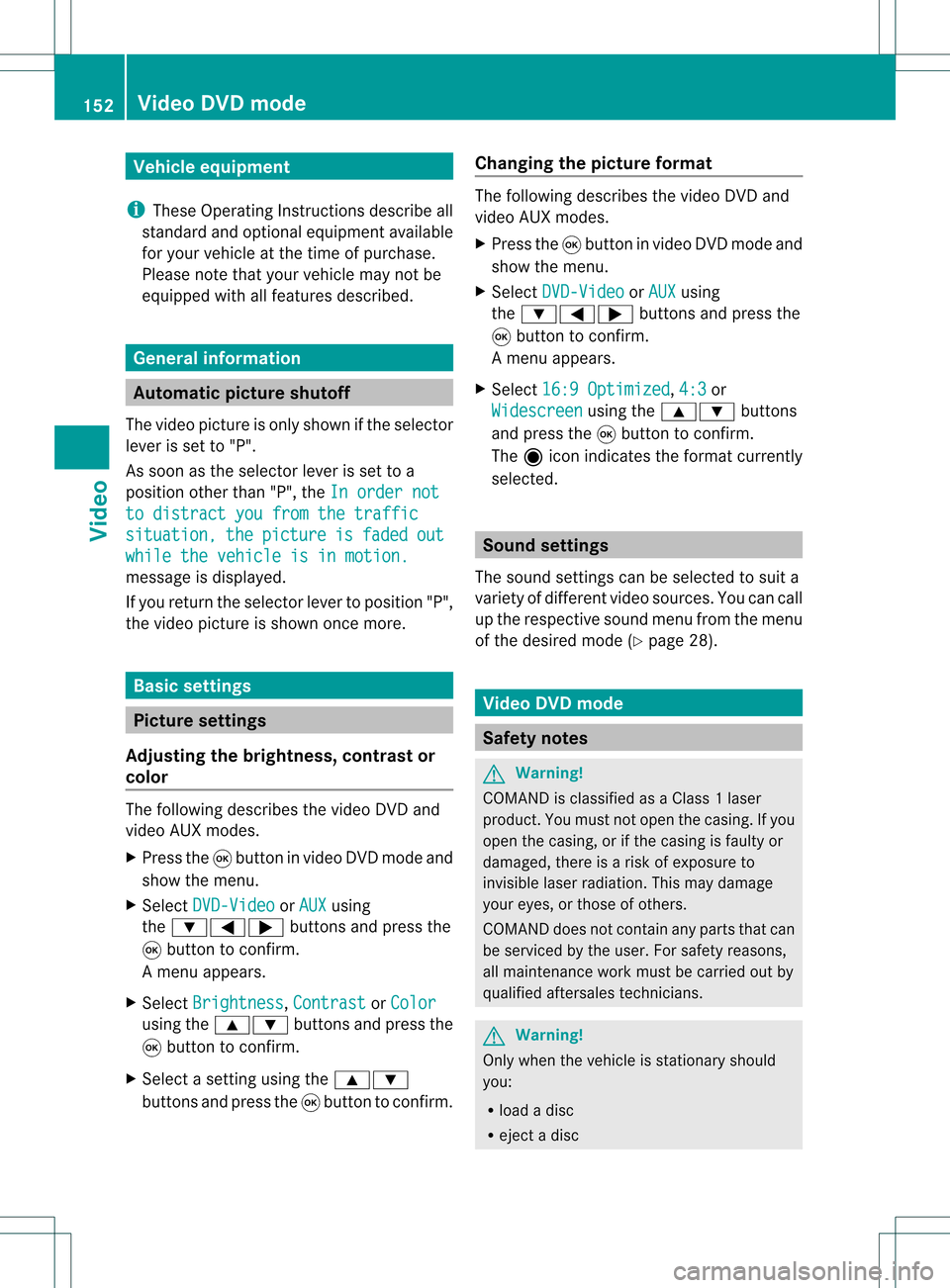
i TheseOpe rating Instru ctionsdescri beall
sta nda rdand optio nal equipme ntava ilab le
for your veh icleat the time ofpurcha se.
Pl ea se note thatyour vehicle maynotbe
equipped withallfeatures described. General
information Automa
ticpictur eshutoff
The video picture isonly shown ifthe selector
lever isset to"P".
As soon asthe selector leverisset toa
position otherthan"P",theInorder not to
distract youfrom thetraffic situation, the picture is faded out
while
thevehicle isinmotion. message
isdisplay ed.
If you return theselector levertoposition "P",
the video picture isshown oncemore. Basic
settings Picture
settings
Adjust ingthe brightness, contrastor
colo r The
following describes thevideo DVDand
video AUXmodes.
X Press the9button invideo DVDmode and
show themenu.
X Select DVD-Video or
AUX using
the :=; buttonsand press the
9 button toconf irm.
Am enu appears.
X Select Brightn ess ,
Contras t or
Color using
the9: buttonsand press the
9 button tocon firm.
X Select asett ingusing the9:
button sand press the9button tocon firm. Changing
thepictu reform at The
following describes thevideo DVDand
video AUXmodes.
X Press the9button invideo DVDmode and
show themenu.
X Select DVD-Vid eo or
AUX using
the :=; buttonsand press the
9 button tocon firm.
Am enu appears.
X Select 16:9Optimiz ed ,
4:3 or
Widescr een using
the9: buttons
and press the9button tocon firm.
The äicon indicat esthe format currently
select ed. Sound
settings
The sound settings canbeselect edtosuit a
variety ofdifferen tvideo sourc es.You cancall
up the respe ctive soun dmen ufro mt hemenu
of the desired mode(Ypage 28). Video
DVDmode Safety
notes G
Warning!
COMAND isclassified asaClass 1laser
prod uct.You must notopen thecasing. Ifyou
open thecasing, orifthe casing isfaulty or
damaged, thereisarisk ofexposure to
invisible laserradiation. Thismay damage
your eyes, orthose ofothers.
COMAND doesnotcont ainany parts thatcan
be serviced bythe user. Forsafety reasons,
all mainten ancework must becarried outby
quali fiedaftersales technicians. G
War
ning!
Only when thevehicle isstation aryshould
you:
R load adisc
R eject adisc 152
Video
DVDmodeVideo
Page 160 of 214
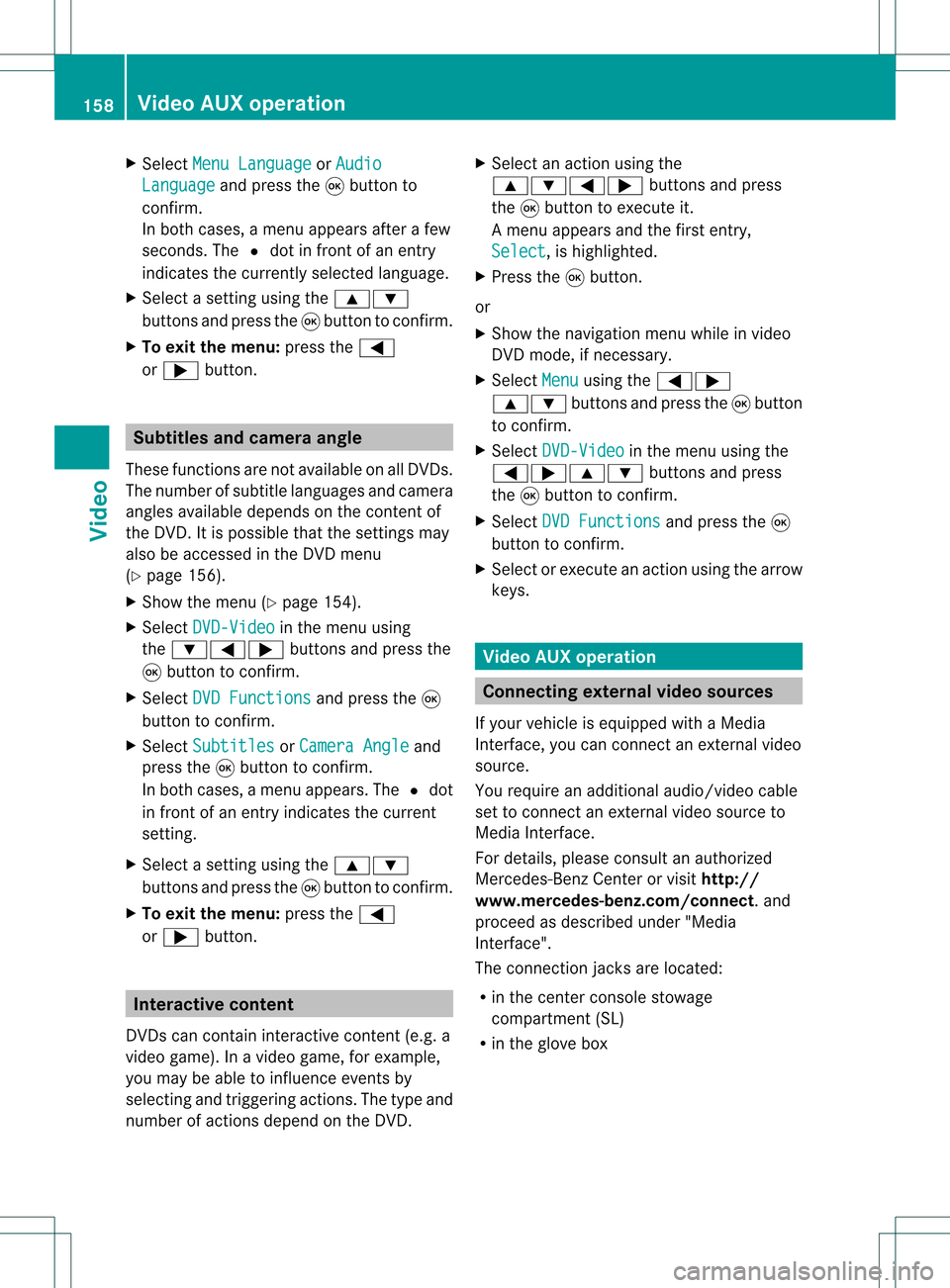
X
Sel ect MenuLan guage or
Aud io Lan
guage and
pressthe 9button to
confi rm.
In both cases, amenu appe ars afte rafew
seconds. The#dot infront ofan entry
indi cates thecurrently selected langua ge.
X Select asetting using the 9:
buttons andpress the9button toconfirm.
X To exitthe menu: pressthe=
or ; button. Subtitle
sand camera angle
These functions arenot available onallDVDs.
The numbe rofsubt itle lang uages andcam era
ang lesavailab ledepe ndson theco nten to f
the DVD. Itis po ssi ble tha tthe settin gsmay
also beaccessed inthe DVD menu
(Y page 156).
X Show themenu (Ypage 154).
X Select DVD-Video in
the menu using
the :=; buttonsandpress the
9 button toconfirm .
X Select DVDFunctions and
press the9
button toconfirm .
X Select Subtitles or
Camera Angle and
press the9button toconfirm .
In both cases, amenu appears.The #dot
in front ofan entr yindicates thecurrent
settin g.
X Select asettin gusing the9:
buttons andpress the9button toconfirm .
X To exit themenu: pressthe=
or ; button. Interactive
content
DVD scan cont aininteract ivecont ent(e.g. a
video game). Inavideo game, forexample,
you may beable toinfluence eventsby
selecting andtriggering actions.Thetype and
number ofactions depend onthe DVD . X
Select anaction usingthe
9:=; buttonsandpress
the 9button toexecute it.
A menu appearsand thefirst entry,
Select ,
is highlighted.
X Press the9button.
or
X Show thenavigation menuwhileinvideo
DVD mode, ifnecessary.
X Select Menu using
the=;
9: buttonsandpress the9button
to confirm .
X Select DVD-Video in
the menu usingthe
=;9: buttonsandpress
the 9button toconfirm .
X Select DVDFunctions and
press the9
button toconfirm .
X Select orexecute anaction usingthearrow
keys. Video
AUXoperation Conne
ctingexternal videosources
If your vehicle isequipp edwith aMedia
Int erface, youcan conn ectanextern alvideo
source.
You require anadditional audio/video cable
set toconn ectanextern alvideo source to
Media Interface.
For details, pleaseconsult anauthorized
Mercedes-Ben zCenter orvisit http://
www .mer<00030005000400050013002500020005000E001D00210003000F000D00220003
000FF nnect.and
proceed asdescribed under"Media
Int erface".
The conn ection jacksarelocated:
R in the cent erconsole stowage
compartmen t(SL)
R in the glove box 158
Video
AUXoperat ionVideo
Page 161 of 214

Aud
io/vid eosocke t
: Videopor t(V)
; Audio port(L)
= Audio port(R)
i Tofacilitate correctplayback, itmay be
necessary toset asuitab levideo standard
in the external videosource.
X Connect theexternal deviceto
corresponding port:,;or=.
COMAND activatesthedevice. Switchi
ngon video AUXmode
X Select Video in
the main function barusing
the 9=; buttonsandpress the
9 button toconfirm.
If video AUXmode wasthelast mode
selected, itwill now beactive.
If another videosource isswitched on,you
can now switch tovideo AUXmode inthe
video menu.
X Select Video and
press the9button to
confirm.
X Select Aux and
press the9button to
confirm.
The video AUXmenu appears.You willhear
and seetheconten tof the external video
source ifthis isconnect edand switched to
play back. Video
AUXmode
For detail son how tooperate theexternal
video source, seetherespective device's
operating instructions.
Ext ernal video sources mayhave different
aud iooutput volume. Youcanselect two
different inputvolume levelsforthe AUX
connect ion:
R Standard Ext
ernal sources withamediu mtohigh
audio output volume.
R Boost Ex
tern alsources withalow audio output
volume. X
Setting thedesired inputvolume:
Select Volume using
the
9:=; buttonsand press
the 9button toconf irm.
X Select Standard or
Boost and
press the
9 button toconf irm. Video
AUXoperat ion
159Video Z
Page 162 of 214
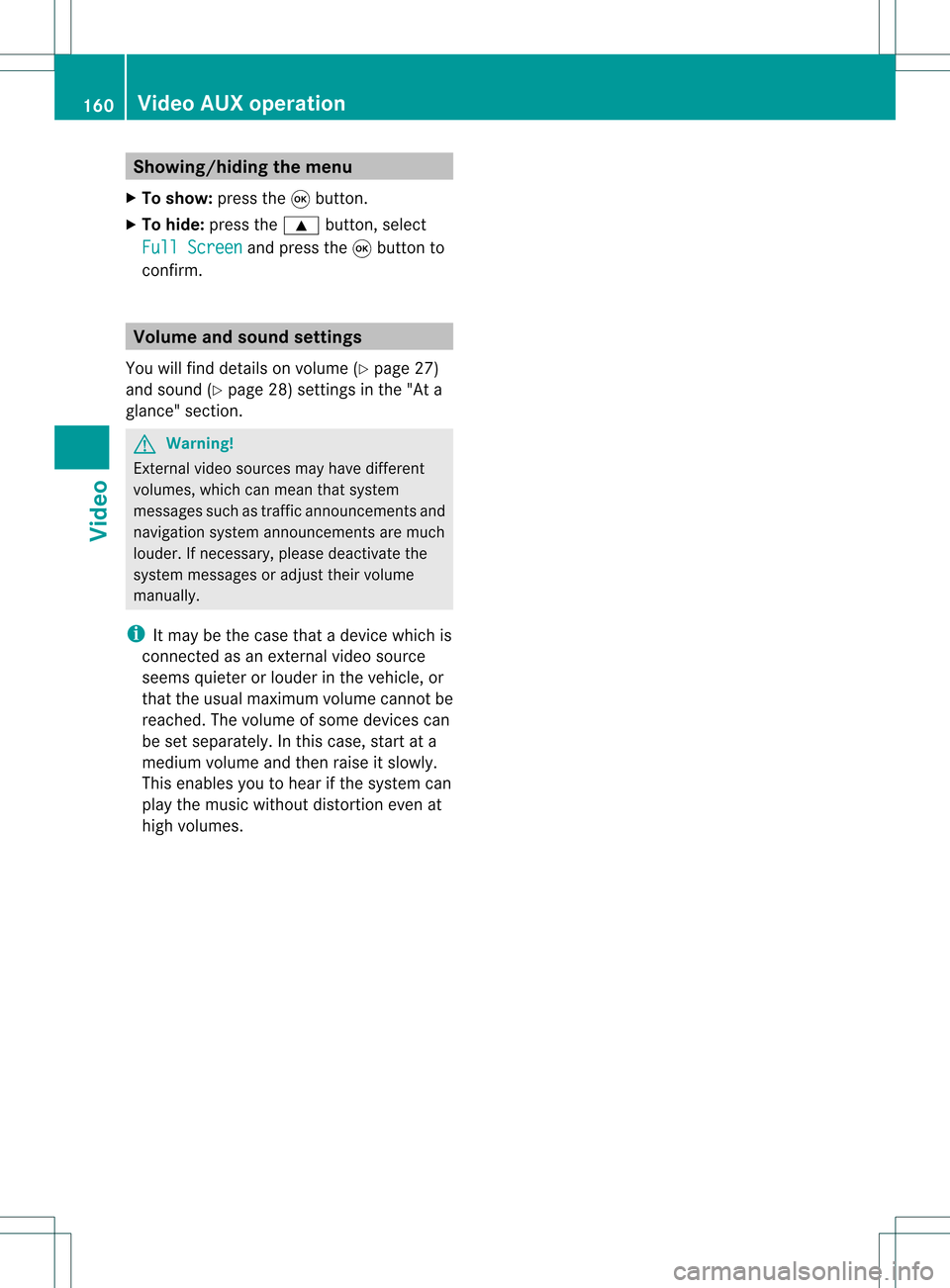
Showing/
hidingthemenu
X To show: pressthe9button.
X To hide: press the9 button, select
Full Screen and
press the9button to
conf irm. Volume
andsound settings
You willfind details onvolume (Ypage 27)
and sound (Ypage 28)settin gsinthe "Ata
glance" section. G
Warning!
Ext ernal video sources mayhave different
volumes, whichcanmean thatsystem
messages suchastraffic announcem entsand
navigation systemannouncem entsaremuch
louder. Ifnecessary, pleasedeactivate the
system messages oradjust theirvolume
manually .
i Itmay bethe case thatadevice whichis
conn ected asan extern alvideo source
seems quieter orlouder inthe vehicle, or
that theusua lmaximum volumecannotbe
reached. Thevolume ofsome devices can
be set separately. Inthis case, startata
medium volumeandthen raise itslowly .
This enables youtohear ifthe system can
play themusic without distortion evenat
high volumes. 160
Video
AUXoperat ionVideo
Page 163 of 214

Vehi
cle equi pmen t<0023002300230023002300230023002300230023002300230023002300230023
002300230023002300230023002300230023002300230023> 162
General information<0023002300230023002300230023002300230023002300230023002300230023
002300230023002300230023002300230023> 162
Basic functions <0023002300230023002300230023002300230023002300230023002300230023
0023002300230023002300230023002300230023002300230023002300230023
0023> 163
System settings <0023002300230023002300230023002300230023002300230023002300230023
0023002300230023002300230023002300230023002300230023002300230023> 165
CD/DVD audioand MP3 mode ........ 166
Video DVDmode <0023002300230023002300230023002300230023002300230023002300230023
002300230023002300230023002300230023002300230023002300230023> 171
AUX mode <0023002300230023002300230023002300230023002300230023002300230023
0023002300230023002300230023002300230023002300230023002300230023
0023002300230023002300230023002300230023> 175 161Rear
SeatEntert ainment
Page 166 of 214
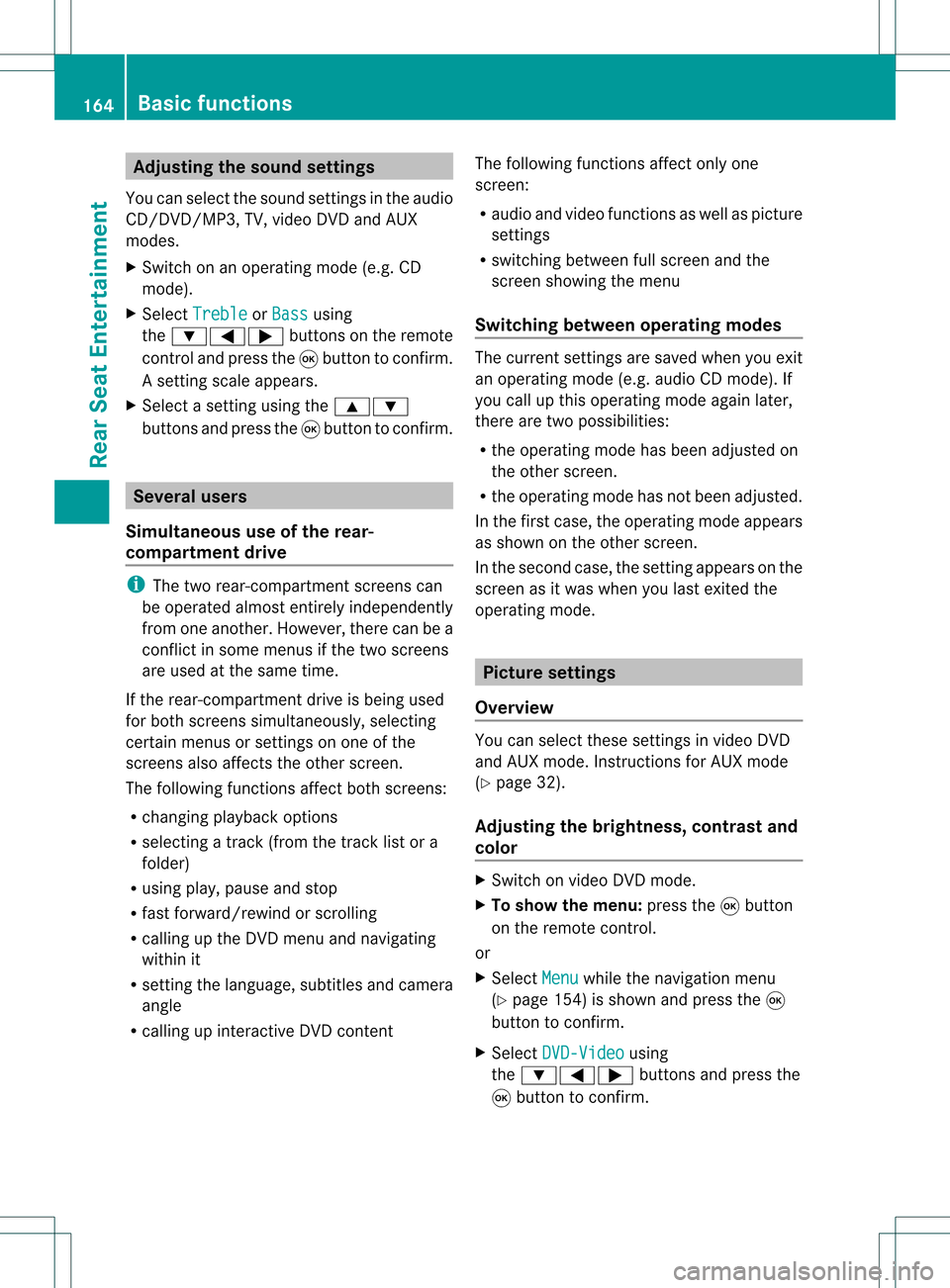
Adj
usting thesoun dsettings
You canselec tthe sound settingsinthe audi o
CD/DV D/MP3, TV,video DVDandAUX
modes.
X Switch onanoperating mode(e.g.CD
mode).
X Select Treble or
Bass using
the :=; buttonsonthe remote
cont roland press the9button toconfirm .
As etting scale appears.
X Select asett ingusing the9:
button sand press the9button tocon firm. Several
users
Simult aneous useofthe rear -
compa rtment drive i
The two rear-c ompartm entscreen scan
be operated almostentirely independen tly
from oneanoth er.However, therecan bea
con flict insome menus ifthe two screen s
are used atthe same time.
If the rear-c ompartm entdrive isbeing used
for both screen ssimultaneously, selecting
cert ainmenus orsett ings onone ofthe
screen salso affect sthe other screen .
The following functionsaffect bothscreen s:
R changin gplayback options
R select ingatrac k(from thetrac klist ora
folder)
R using play,pause andstop
R fast forward/r ewindorscrollin g
R calling upthe DVD menu andnavigatin g
within it
R sett ingthe language, subtitlesandcamera
angle
R calling upinteract iveDVD content The
following functionsaffect onlyone
screen :
R audio andvideo functionsas well aspicture
sett ings
R switch ingbetween fullscreen andthe
screen showing themenu
Switching betweenoperatingmodes The
curren tsett ings aresaved whenyouexit
an operatin gmode (e.g.audio CDmode). If
you callupthis operatin gmode againlater,
ther eare two possibilities:
R the operatin gmode hasbeen adjusted on
the other screen .
R the operatin gmode hasnotbeen adjusted.
In the first case, theoperatin gmode appears
as shown onthe other screen .
In the secon dcase, thesett ingappears onthe
screen asitwas when youlast exitedthe
operatin gmode. Pictur
esettings
Overview You
canselect thesesettings invideo DVD
and AUX mode. Instruct ions forAUX mode
(Y page 32).
Adju sting thebright ness,contra stand
color X
Switc hon video DVDmode.
X To show themenu: pressthe9button
on the remot econ trol.
or
X Select Menu while
thenavigation menu
(Y page 154)is shown andpress the9
button tocon firm.
X Select DVD-Vid eo using
the :=; buttonsand press the
9 button tocon firm. 164
Ba
sic functionsRear SeatEntert ainment
Page 177 of 214
Setting
theaudio format
This funct ionisnot availa bleonallDVD s.Ifit
is availa ble,youcan setthe audi olanguage
or the audi oformat. Thenumber ofsettin gs
is determined bythe DVD content. Itis
possible thatthesettin gsmay alsobe
accessed inthe DVD menu.
X Show themenu (Ypage 172).
X Select DVD-Video and
press the9button
on the remote controltoconf irm.
X Select DVDFunctions and
press the9
button toconf irm.
X Select Audio Language and
press the9
button toconf irm.
Am enu appears afterashort while. The
# dot infron tof an ent ryindicat esthe
curren tlyselect edlanguage.
X Select alanguage usingthe9:
button sand press the9button tocon firm.
X To exit themenu: pressthe=
or ; button . Subtit
lesand camer aangle
These functionsare not available onallDVD s.
The number ofsubtitle languages andcamera
angles available dependsonthe contentof
the DVD. Itis po ssi ble tha tthe settin gsmay
also beaccessed inthe DVD menu.
X Show themenu (Ypage 172).
X Select DVD-Video and
press the9button
on the remote controltoconfirm .
X Select DVDFunctions and
press the9
button toconfirm .
X Select Subtitles or
Camera Angle and
press the9button toconfirm .
In both cases, amenu appearsafter afew
seconds. The#dot infront ofan entr y
indicates thecurrent setting.
X Select asettin gusing the9:
buttons andpress the9button toconfirm .X
To exit themenu: pressthe=
or ; button. Interactive
content
DVD scan also containinteract ivecont ent
(e.g. avideo game). Inavideo game, youmay
be able toinfluence eventsbyselecting and
triggering actions.Thetype andnumber of
actions depend onthe DVD .
X Select anaction usingthe
9:=; buttonsandpress
the 9button toexecute it.
A menu appearsand thefirst entry,
Select ,
is highlighted.
X Press the9button. AUX
mode Introduction
You canconn ectone extern alvideo source to
each ofthe displa ysofthe Rear Seat
Ent ertainment System(AUXdispla y)and also
one extern alvideo source tothe rear-
compartmen tCD/DV Ddrive (AUX drive) with
a sound andpicture signal.
Please seethecorresponding operating
instruct ionsforinformation onhow to
operate theextern alvideo source.
For further detailsconcerning externalvideo
sources, pleaseconsult anauthorized
Mercedes-Ben zCent er. Connecting
auxiliaryequipme nt
AU Xdrive The
AUX drive jacks arelocate don the CD/
DVD drive next tothe CD/DVD ejectbutton
(Y page 32). AU
Xmode
175Rear Seat Entertain ment Z
Page 178 of 214
AUX
displa y The
AUXdisp layjacksare locate don theside
of thesc ree n(Y page 30).
Aud ioand videoconnect ion X
Inser tthe audi oplug forthe left and right
signals intothecorresponding Land R
jacks.
X Insert thevideo plugintotheVsocket . Switching
onAUX mode
AUX drive X
Select Aux in
the menu usingthe
9=; buttonsonthe remote
cont roland press the9button toconfirm .
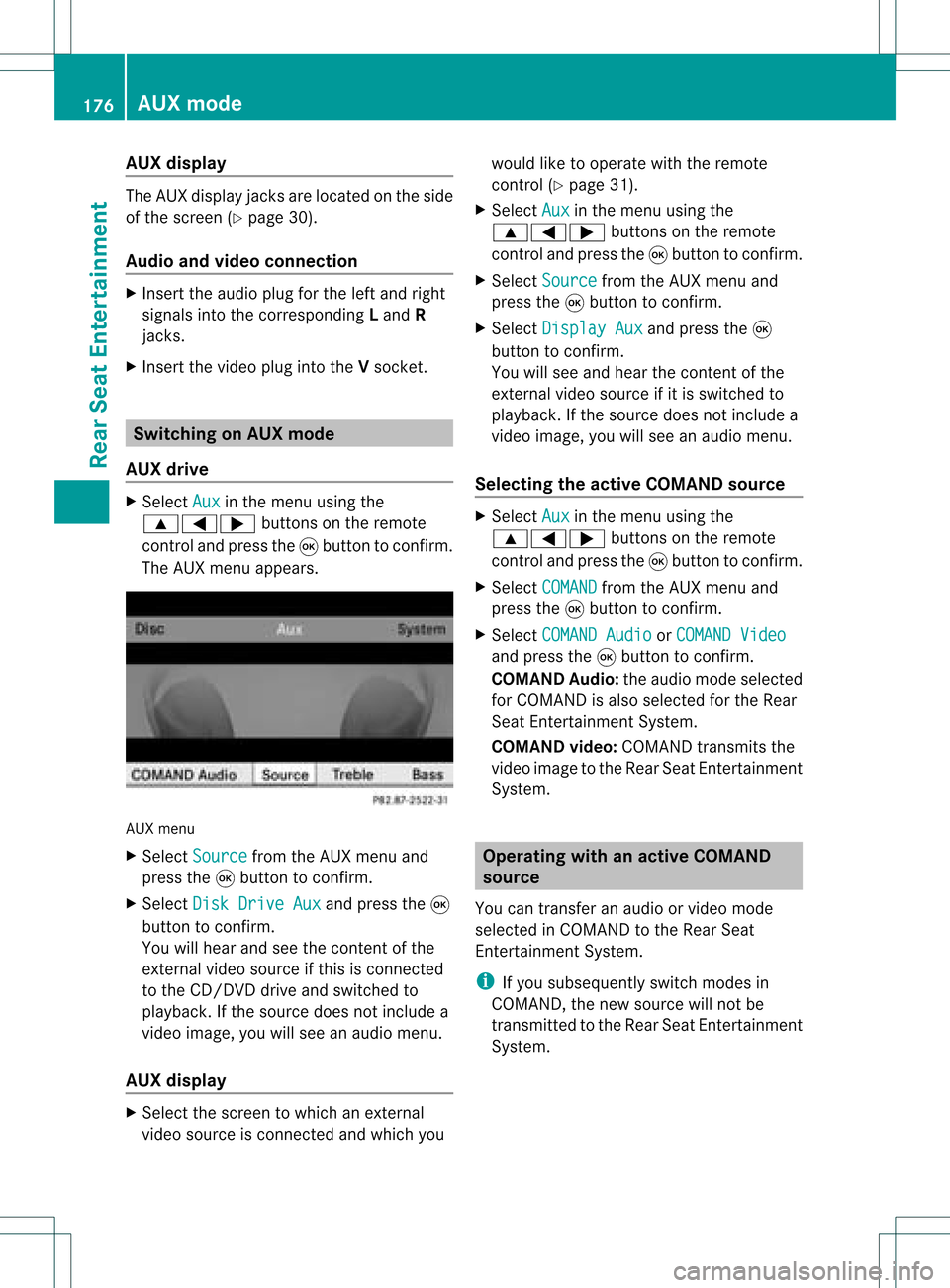
The AUX menu appears. AUX
menu
X Select Source from
theAUX menu and
press the9button toconfirm .
X Select DiskDrive Aux and
press the9
button toconfirm .
You willhear andseethecont entofthe
extern alvideo source ifthis isconn ected
to the CD/DV Ddrive andswitched to
play back. Ifthe source doesnotinclude a
video image, youwillsee anaudi omenu.
AUX display X
Select thescreen towhich anextern al
video source isconn ected andwhich you would
liketooperate withtheremote
cont rol(Ypage 31).
X Select Aux in
the menu usingthe
9=; buttonsonthe remote
cont roland press the9button toconfirm .
X Select Source from
theAUX menu and
press the9button toconfirm .
X Select Display Aux and
press the9
button toconfirm .
You willsee and hear thecont entofthe
extern alvideo source ifit is switched to
play back. Ifthe source doesnotinclude a
video image, youwillsee anaudi omenu.
Selec tingtheactive COMAND source X
Select Aux in
the menu usingthe
9=; buttonsonthe remote
cont roland press the9button toconfirm .
X Select COMAND from
theAUX menu and
press the9button toconfirm .
X Select COMAND Audio or
COMAND Video and
press the9button toconfirm .
COMAND Audio:theaudi omode selected
for COMAND isalso selected forthe Rear
Seat Entertainment System.
COMAND video:COMAND transmitsthe
video image tothe Rear SeatEntertainment
System. Operat
ingwith anactive COMAND
source
You cantransf eran audi oorvideo mode
selec tedinCOMA NDtothe Rear Seat
En ter tain men tSyst em.
i Ifyou subsequen tlyswitc hmodes in
COMA ND,the new sourc ewill notbe
tr ansm itted tothe Rear SeatEnter tain men t
Syst em. 176
AUX
modeRearSeat Enter tainment