phone MERCEDES-BENZ M-Class 2011 W164 Comand Manual
[x] Cancel search | Manufacturer: MERCEDES-BENZ, Model Year: 2011, Model line: M-Class, Model: MERCEDES-BENZ M-Class 2011 W164Pages: 214, PDF Size: 4.69 MB
Page 27 of 214
i
You willfindfurt her informat ioninthe
"Dest inationentry" sect ion(Ypage 48). Enter
ingchar acters inthead dress
and theph one book
Intr oduct ion The
followin gsect iondesc ribes howtoent er
char acters inthe phon ebook (Ypage 102)
and theaddress book(Ypage 110)when
cre atin ganew entry.
Creat inganew entr yint he phone book X
Ca llup the inpu tmenu with data fields
(Y page 105). Phone
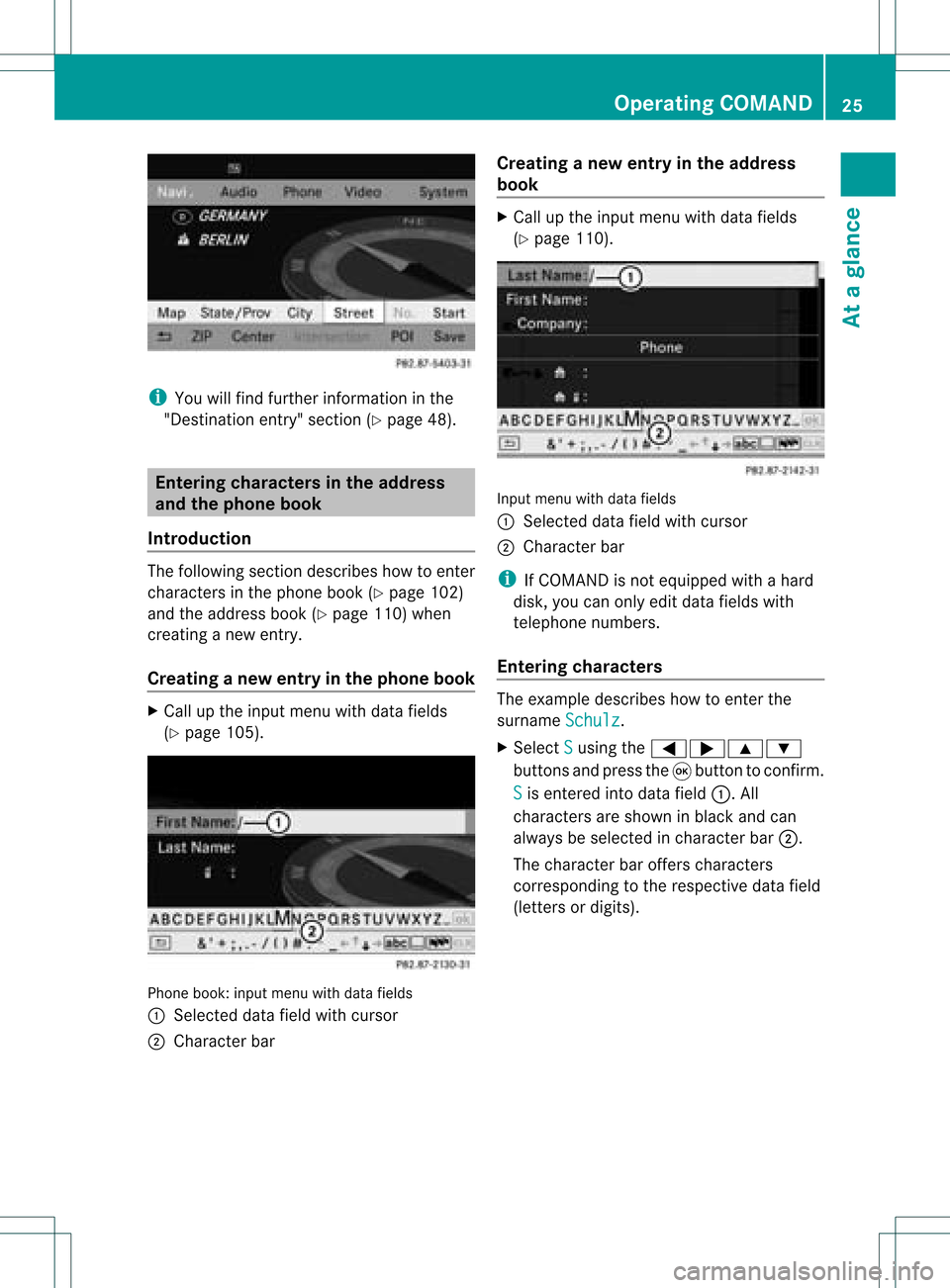
book:inputmenu withdata fields
: Select eddata fieldwithcursor
; Character bar Creat
inganew entry inthe address
book X
Call upthe input menu withdata fields
(Y page 110). Input
menu withdata fields
: Select eddata fieldwithcursor
; Character bar
i IfCOMAND isnot equipped withahard
disk, youcan only editdata fields with
telephon enumbers.
Entering character s The
example describes howtoent erthe
surname Schulz .
X Select S using
the=;9:
button sand press the9button tocon firm.
S is
ent ered intodata field:.All
charact ersare shown inblack andcan
alway sbe select edincharact erbar ;.
The charact erbar offer scharact ers
corr espondin gto the respect ivedata field
(lett ersordigits). Opera
tingCOMAND
25Ataglance Z
Page 28 of 214
:
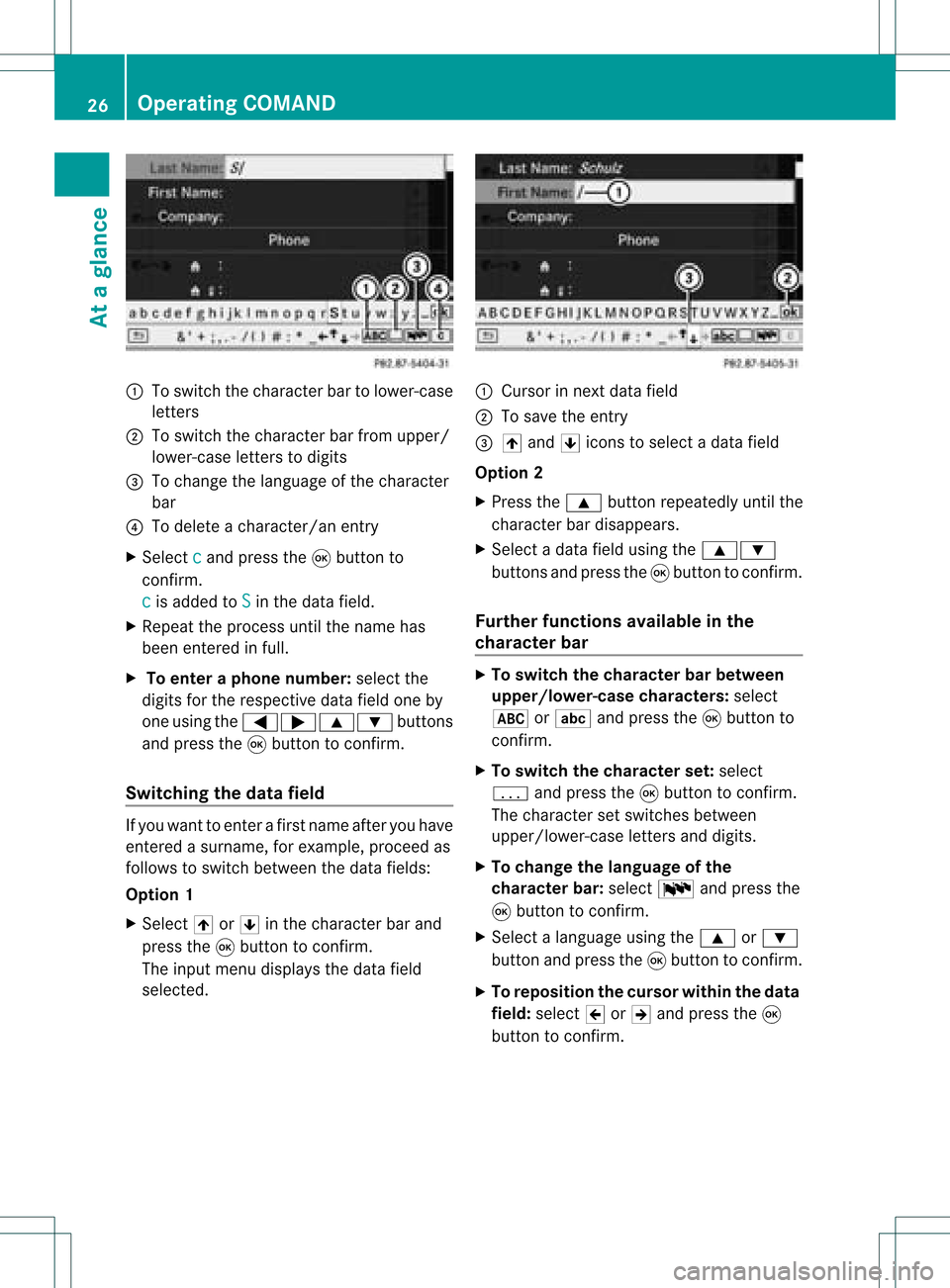
Toswitch thecharact erbar tolower-case
letter s
; Toswitch thecharact erbar from upper/
lower-case lettersto digits
= Tochange thelanguage ofthe charact er
bar
? Todelete acharact er/anentry
X Select c and
press the9button to
conf irm.
c is
added toS in
the data field.
X Repeat theprocess untilthename has
been entered infull.
X To enter aphone number :select the
digits forthe respect ivedata fieldoneby
one using the=;9: buttons
and press the9button toconf irm.
Switching thedatafield If
you want toent erafirst name afteryouhave
ent ered asurname, forexample, proceedas
follows toswitch between thedata fields:
Option 1
X Select 4or5 inthe charact erbar and
press the9button toconf irm.
The input menu display sthe data field
selected. :
Cursor innext data field
; Tosave theentry
= 4 and 5icons toselect adata field
Option 2
X Press the9 button repeatedly untilthe
charact erbar disappears.
X Select adata fieldusing the9:
button sand press the9button toconf irm.
Furt herfunctions availableinthe
chara cterbar X
To switch thechara cterbarbetween
upp er/lower-case characters: select
* orE andpress the9button to
conf irm.
X To switch thechara cterset:select
p andpress the9button toconf irm.
The charact erset switches between
upper/lower-case lettersand digits.
X To change thelanguage ofthe
chara cterbar:select Bandpress the
9 button toconf irm.
X Select alanguage usingthe9 or:
button andpress the9button toconf irm.
X To reposition thecursor withinthedata
field: select 2or3 and press the9
button toconf irm. 26
Opera
tingCOMANDAtaglance
Page 30 of 214
Adj
usting thev olum efor traf fic rep orts
and navigat ionannou ncemen ts i
You cansetthevolum eof traff icand
nav igat ionann ounc emen tsrelat ivetothe
volum eof theaudio orvideo source.
Dur ing traff icor nav igat ionann ounc emen ts:
X Turn orpres sth eq con trol kn ob.
or
X Pres sth eW orX buttononthe
mult ifunction steerin gwheel.
Adj usting thevolum efor telep hone
calls You
canadjus tthe volume forhands-free
mode during atelephone call.
X Turn orpress theqcont rolknob.
or
X Press theW orX button onthe
multifunction steeringwheel. Adjust
ingthe sound settings
Calling upthe sound menu You
canmake various soundsettingsfor the
different audioand video sources. Thismeans
that itis possible toset more bassforradio
mode thanforCD mode, forexample. Youcan
call upthe respective soundmenufromthe
menu ofthe desired mode.
The example describes howtocall upthe
sound menuinradio mode.
X Press the$ functionbutton.
The radio displa yappea rs.You willhear the
last station playedon the last waveba nd.
X Select Sound using
the:=;
buttons andpress the9button toconfirm .
You cannow setthe treble andbass orthe
bala nce and fader forradio mode. Adjust
ingtreble andbass X
Select Treble or
Bass in
the sound menu
using the:=; buttonsonthe
remote controland press the9button to
confirm .
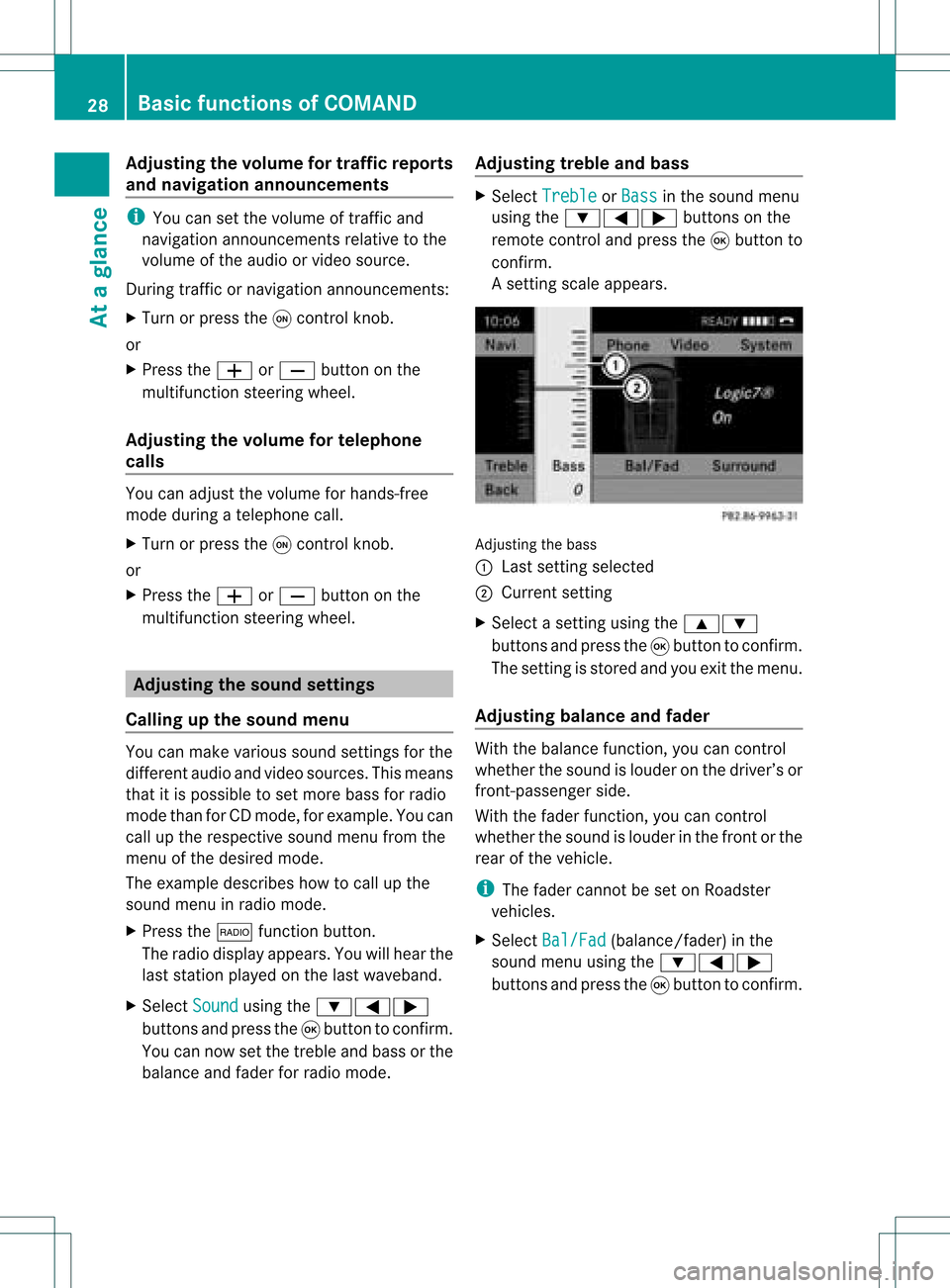
As etting scale appears. Adj
usting thebass
: Last settingselect ed
; Current setting
X Select asett ingusing the9:
button sand press the9button tocon firm.
The settingisstor edand youexit themenu.
Adju sting balance andfader With
thebalance function,you can control
whether thesound islouder onthe driver’s or
fron t-passenger side.
With thefader function,you can control
whether thesound islouder inthe fron torthe
rear ofthe vehicle.
i The fader cannot beset onRoadster
vehicles.
X Select Bal/Fad (bala
nce/ fader) inthe
sound menuusingthe:=;
buttons andpress the9button toconfirm . 28
Basic
functions ofCOMANDAt aglance
Page 32 of 214
Switching
surround sound on/off Example:
switching onsurround soundfor
radio mode
X Press the$ functionbutton.
The radio display appears. Youwillhear the
last station playedon the last waveband.
X Select Sound using
the:=;
buttons andpress the9button toconf irm.
X Select Surround and
press the9button
to conf irm. X
Select Logic7 ®
On or
Logic7 ®
Off using
the 9: buttonsandpress the9
button toconf irm.
Depending onyour selection, surround
sound isswitched onoroff and themenu
is exited.
X To exit themenu without storing:press
the % backbutton orthe = button.
i Please bearthefollowing inmind:
For anoptimum audioexperience onall
seats when Logic7 ®
is switched on,
bala nce and fader should beset tothe
cent erofthe passenger compartmen t.
You willachieve thebest sound results by
play inghigh-quali tyaudi oand video DVDs.
MP3 track sshould haveabitrat eof at least
128 kbit/s.
If radio receptio nispoor, e.g.inatunnel,
you should switchoffLogic 7®
,as itmay
otherwise switchbetween stereoand
mono andcause temporary sound
distortions. On
some stereo recordings, thesound
characteristics maydiffer from
conven tionalstereo playback. Rear
SeatEntertainment Components
Overview The
Rear SeatEntertainment System
comprises:
R two screens behindthefront -seat head
restraints
R the remote control
R aCD/DVD drive
R AUX jacks onboth screens (AUXdispla y)
and onthe CD/DVD drive(AUX drive)
R two sets ofwireless headphones Rear-comp
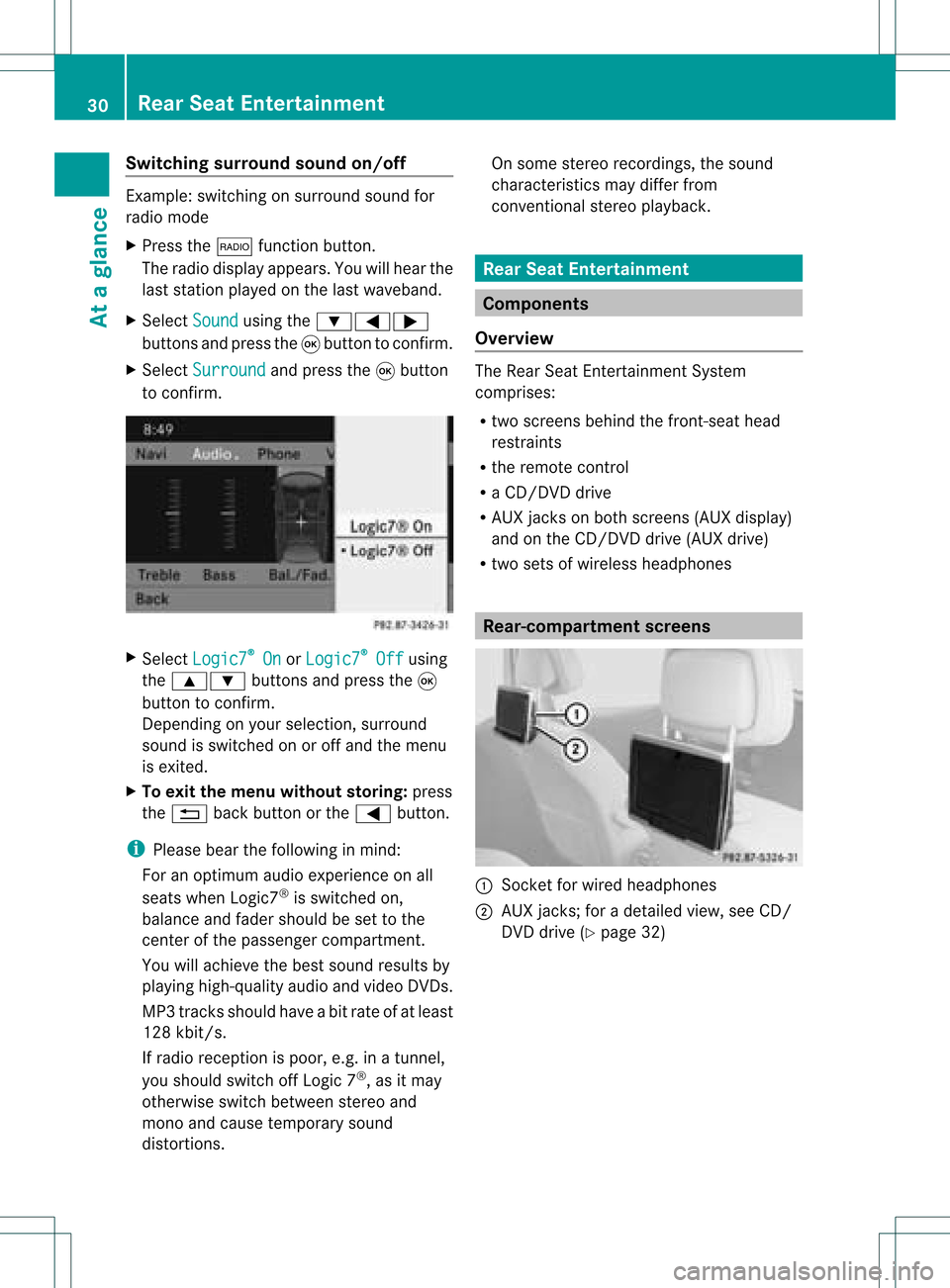
artment screens :
Sock etfor wired headphones
; AUX jacks; foradetailed view,seeCD/
DVD drive (Ypage 32) 30
Rear
SeatEntertainmentAtaglanc e
Page 35 of 214
Wirel
essheadphone s
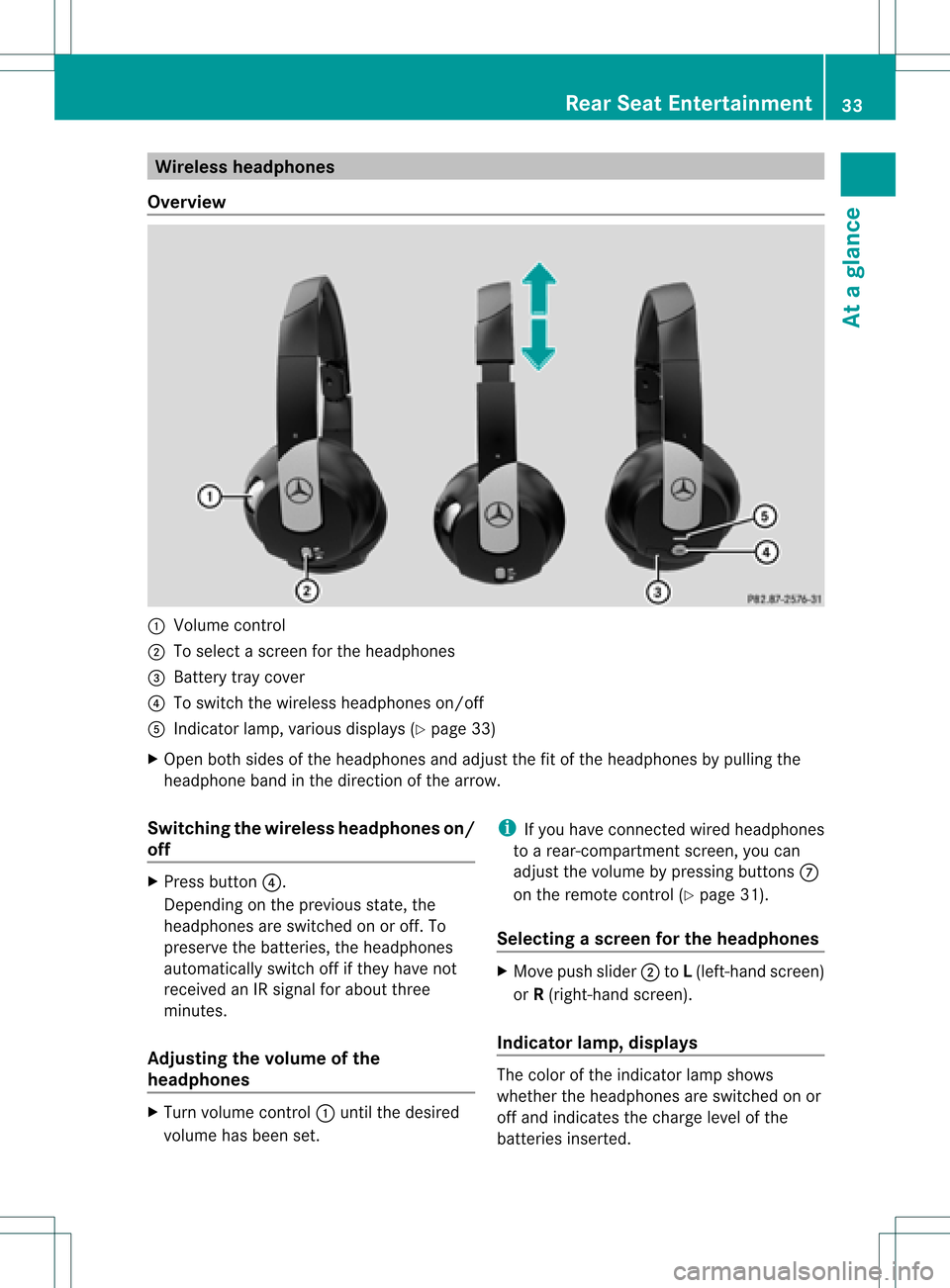
Ove rview :
Volu mecontrol
; Tosele ctascreen forthe headpho nes
= Battery traycover
? Toswi tch the wire less headpho neson/off
A Indica torlamp, various displays (Y pag e33)
X Open bothsidesof the headpho nesand adjustthe fitofthe headpho nesbypul ling the
hea dpho neband inthe direction ofthe arrow .
Swi tchin gthe wirele ssheadphone son/
off X
Press button ?.
Dependi ngon the previ ousstate, the
hea dpho nesareswitched onoroff. To
prese rvethe batteri es,the headpho nes
au tomatica llyswi tch offifthey have not
receive dan IRsigna lfor abo utthree
minutes .
Adjusting thevolume ofthe
headphone s X
Turn volumecontrol :until thedesi red
volu mehas been set. i
Ifyou have connected wiredhea dpho nes
to arear-comp artmentscreen,youcan
adju stthe volu mebypress ingbuttons C
on the remote control(Ypag e31).
Sel ecting ascree nfor thehea dphones X
Mov epush slider; toL(lef t-han dsc ree n)
or R(rig ht-hand scree n).
Ind icat orlam p,dis pla ys The
color oftheind icat orlamp shows
whet hertheheadp honesare swit ched on or
off and indicat esthech arge levelof the
bat teries inserted. Rea
rSea tEnt ertain men t
33Ataglan ce Z
Page 36 of 214
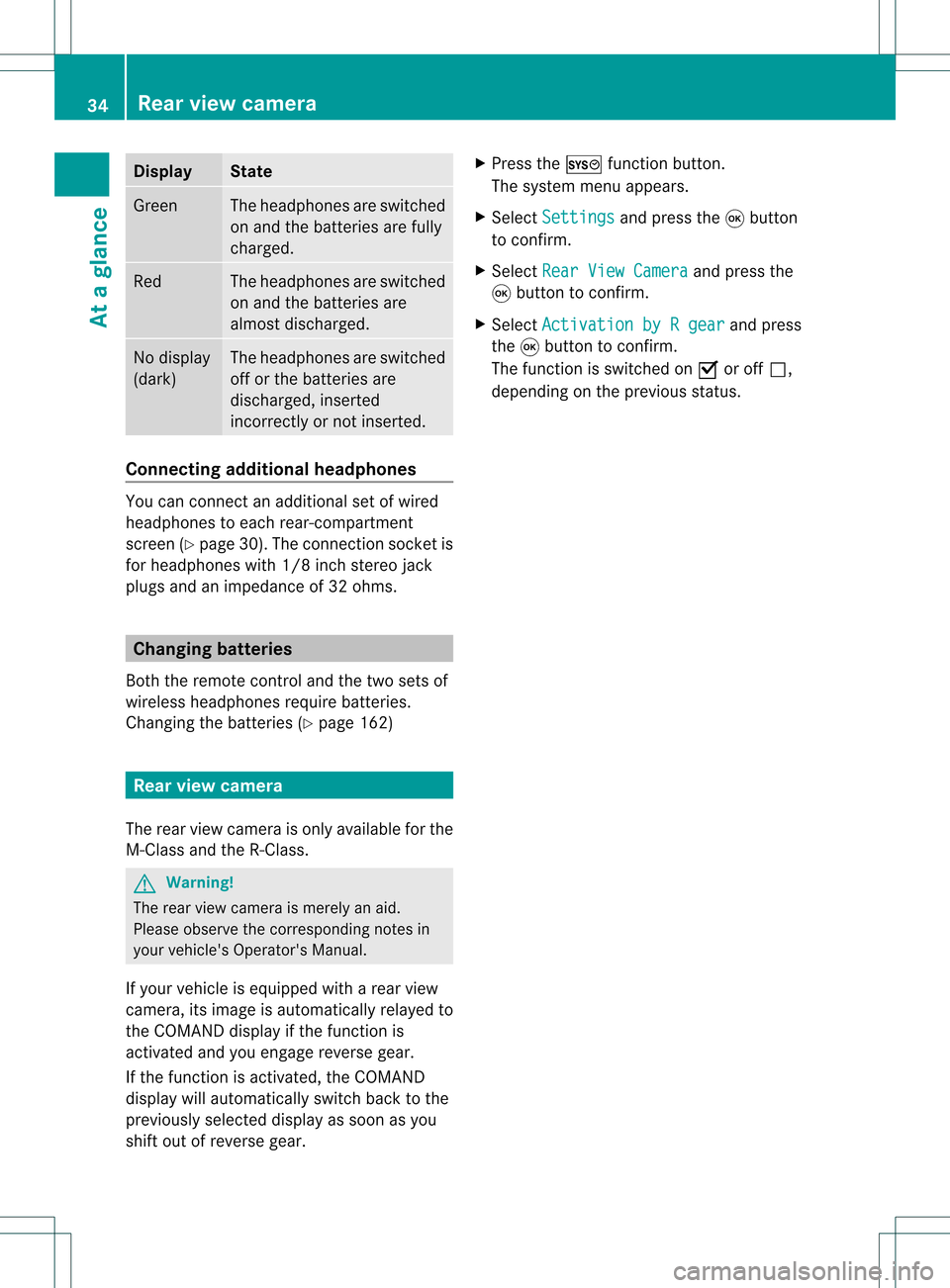
Disp
lay St
ate Gree
n The
head phonesare swit ched
on and thebat terie sare fully
ch arg ed. Red The
head phonesare swit ched
on and thebat terie sare
almo stdisc harged. No
disp lay
(dar k) The
head phonesare swit ched
of for thebat terie sare
disc harged, inser ted
in co rrec tly or notin ser ted. Connect
ingadditiona lhea dphon es You
canconn ecta na ddition alset ofwired
headphones toeach rear-compart ment
scre en(Ypage 30).Theconnection sock etis
for headphones with1/8inch stereojack
plugs andanimpedanc eof 32 ohms. Changing
batteries
Bot hthe remot econ troland thetwo sets of
wireless headphones requirebatteries.
Changing thebatt eries (Ypage 162) Rear
view camer a
The rear view camera isonly available forthe
M-Class andtheR-Class. G
War
ning!
The rear view camera ismerely anaid.
Please observe thecorr espondin gnotes in
your vehicle's Operator's Manual.
If your vehicle isequipped witharear view
camera, itsimage isautomatically relayedto
the COMAND displayifthe funct ionis
activated andyouengage reverse gear.
If the funct ionisactivated, theCOMAND
display willautomatically switchbacktothe
previously selecteddisplayassoon asyou
shift outofreverse gear. X
Press theW functionbutton .
The system menuappears.
X Select Settings and
press the9button
to conf irm.
X Select RearViewCamera and
press the
9 button toconf irm.
X Select Activation byRgear and
press
the 9button toconf irm.
The funct ionisswitched onO oroff ª,
depending onthe previous status. 34
Rear
view cameraAtaglance
Page 38 of 214
Vehi
cle equi pmen t
i TheseOpe rating Instru ctionsdescri beall
sta nda rdand optio nal equipme ntava ilab le
for your veh icleat the time ofpurcha se.
Pl ea se note thatyour vehicle maynotbe
equipped withallfeatures described. Display
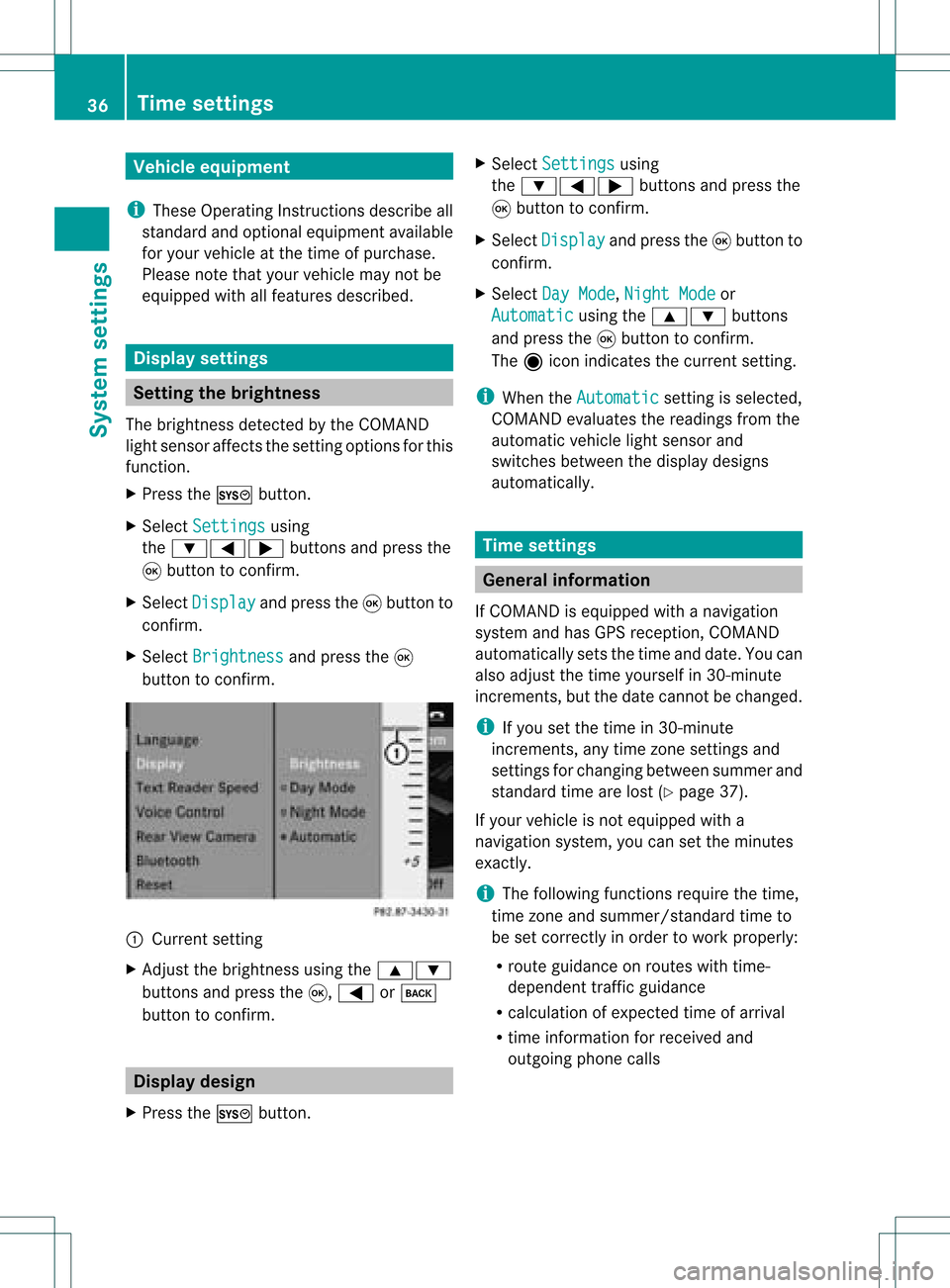
settings Setting
thebrightness
The brightn essdetect edbythe COMAND
light sensor affectsthe sett ingoptions forthis
funct ion.
X Press theW button .
X Select Settings using
the :=; buttonsand press the
9 button toconf irm.
X Select Display and
press the9button to
conf irm.
X Select Brightness and
press the9
button toconf irm. :
Current setting
X Adjust thebrightn essusing the9:
button sand press the9, = ork
button toconf irm. Display
design
X Press theW button . X
Select Settings using
the :=; buttonsand press the
9 button toconf irm.
X Select Display and
press the9button to
conf irm.
X Select DayMode ,
Night Mode or
Automatic using
the9: buttons
and press the9button toconf irm.
The äicon indicates thecurrent setting.
i When theAutomatic sett
ingisselected,
COMAND evaluatesthereadings fromthe
automatic vehiclelightsensor and
switches betweenthedisplay designs
automatically. Time
settings General
information
If COMAND isequipped withanavigation
system andhasGPS reception ,COMAND
automatically setsthetime anddate. Youcan
also adjust thetime yourself in30- minute
increm ents,but thedate cannotbe changed.
i Ifyou setthe time in30- minute
increm ents,any time zonesett ings and
sett ings forchanging betweensummerand
standard timearelost (Ypage 37).
If your vehicle isnot equipped witha
navigation system,youcan setthe minutes
exact ly.
i The following functionsrequire thetime,
time zoneand summer/st andardtimeto
be set correc tlyinorder towork properly:
R route guidance onroutes withtime-
dependent trafficguidance
R calculation ofexpect edtime ofarrival
R time informat ionforreceived and
outgoing phonecalls 36
Tim
esettingsSystem settings
Page 42 of 214
X
Sel ect Individualizationon and
press
the 9button toconfi rm.
Indi vidualizati onisacti vate dO or
de acti vate dª. Blue
tooth®
se tting s Gen
eral informati onabo ut
Blue tooth®
Blu etoo th®
techno logy isthe stand ardfor
sho rt-rang ewi rel ess data trans missiono fup
to appro xim ately10 mete rs.Blueto oth ®
can
be used toexch angevC ards ,for example.
Bluetooth ®
is aregistered trademark ofthe
Bluetooth SpecialInterest Group (SIG)Inc. Conditions
foraBluet ooth ®
connection
You canconnectmobile phones, laptopsand
PDA swith COMAND.
To do so, the following conditionsneed tobe
met:
R Bluetooth ®
-capable devices,e.g.mobile
phones, needtocomply withacert ain
profile inorder tobe conn ected to
COMAND (Ypage 95).Every Bluetooth ®
device hasitsown specific Bluetooth ®
name.
R Bluetooth ®
must beactivated inCOMAND
and onthe respect iveBluetooth ®
device;
see theseparate operating instructions.
R The Bluetooth ®
device mustbe"visible" to
COMAND inorder forCOMAND tofind and
display it.For thesettingprocedures,
please seetheoperating instructions for
the Bluetooth ®
device. i
Once amobile phonehasbeen
conn ected, reception andtrans mission
volume maychange.
i Further informat iononsuitable mobile
phones andonconn ectin gBluetooth ®
-
capable mobilephones toCOMAND is
availa bleonthe Internet at
htt p://www.mbusa- mobile.comorby
phone fromtheMercedes-B enzCustomer
Assist anceCenter under1-800-FOR-
MERCedes (1-800-367-6372 )(US) orfrom
Customer Relations under
1-800 -387-0100 (Canada). Activating/
deactivating Bluetooth®
X Press theW button.
The system menuappears.
X Select Settings in
the system menuusing
the :=; buttonsandpress the
9 button toconfirm.
X Select Bluetooth and
press the9button
to confirm.
X Select Activate Bluetooth and
press the
9 button toconfirm.
This switches Bluetooth ®
on O oroff ª. Conn
ecting Bluetooth ®
device s
Before usingyourBluetooth ®
device with
COMAND forthe first time, youwillneed to
conn ectit.
Connectin gcomprises:
R searching foraBluetooth ®
device
R authorizing theBluetooth ®
device
i You canconn ectuptoten devices to
COMAND.
You canobtain moredetailed information
abou tsuit able mobilephon esand about
co nn ecting Blue tooth®
-c apable mobile
phon estoCOMA NDfrom your authorized
Mer cedes- BenzCen teror on theIn te rn et 40
Bluetoot h®
set tingsSys tem settings
Page 43 of 214
(
http://ww w.mercedes-benz.com/
co nne ct).
Searchi ngfor Bluetoo th®
devic es X
Select Settin gs in
the syste mmenuusing
the =;9: buttonsand
press the9button tocon firm.
X Select Bluetoo th and
press the9button
to con firm.
X Select Bluetoo th Device List and
press
the 9button tocon firm.
X Select Update and
press the9button to
con firm.
COMAND searchesforBluetoot h®
devices
within range. Afterashort while, the
Bluetoot h®
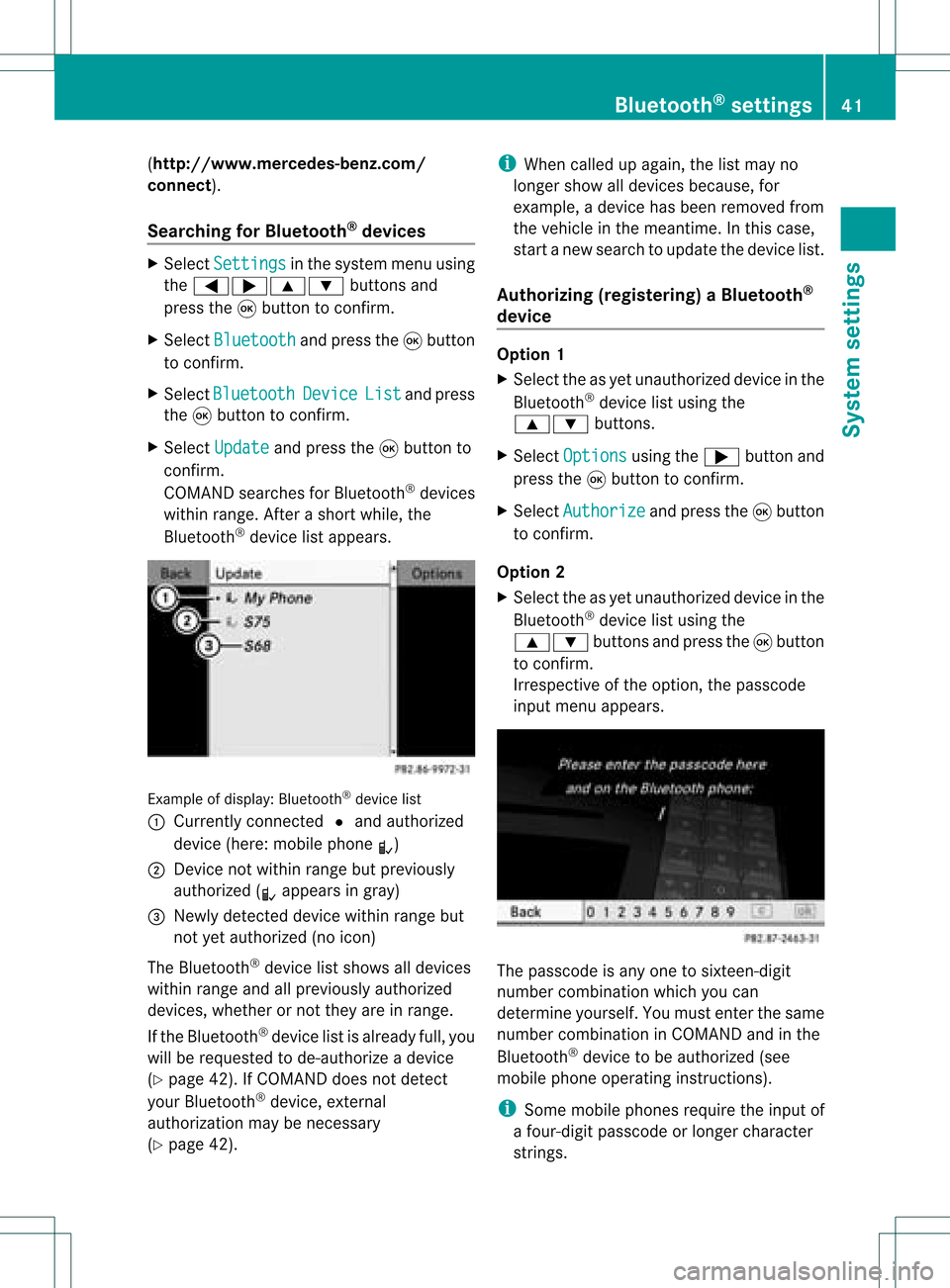
device listappears. Ex
ample ofdisplay: Bluetoot h®
device list
: Current lycon nected #and authoriz ed
device (here:mobile phoneL)
; Devic enot within rangebutpreviously
authoriz ed(L appears ingray)
= Newly detecteddevice withinrangebut
not yetauthoriz ed(no icon)
The Bluetoot h®
device listshows alldevices
within rangeandallpreviously authorized
devices, whether ornot they areinrange.
If the Bluetoot h®
device listisalready full,you
will berequested tode-author izeadevice
(Y page 42).IfCOMAND doesnotdetec t
your Bluetoot h®
device, external
authoriz ationmaybenec essary
(Y page 42). i
When called upagain, thelistmay no
longer showalldevices because, for
example, adevice hasbeen removed from
the vehicle inthe meant ime.Inthis case,
start anew search toupdate thedevice list.
Author izing(register ing)aBluet ooth ®
device Opt
ion 1
X Selec tthe asyet unauthorized deviceinthe
Bluetooth ®
device listusing the
9: buttons.
X Select Options using
the; button and
press the9button toconfirm .
X Select Authorize and
press the9button
to confirm .
Option 2
X Select theasyet unauthorized deviceinthe
Bluetooth ®
device listusing the
9: buttonsandpress the9button
to confirm .
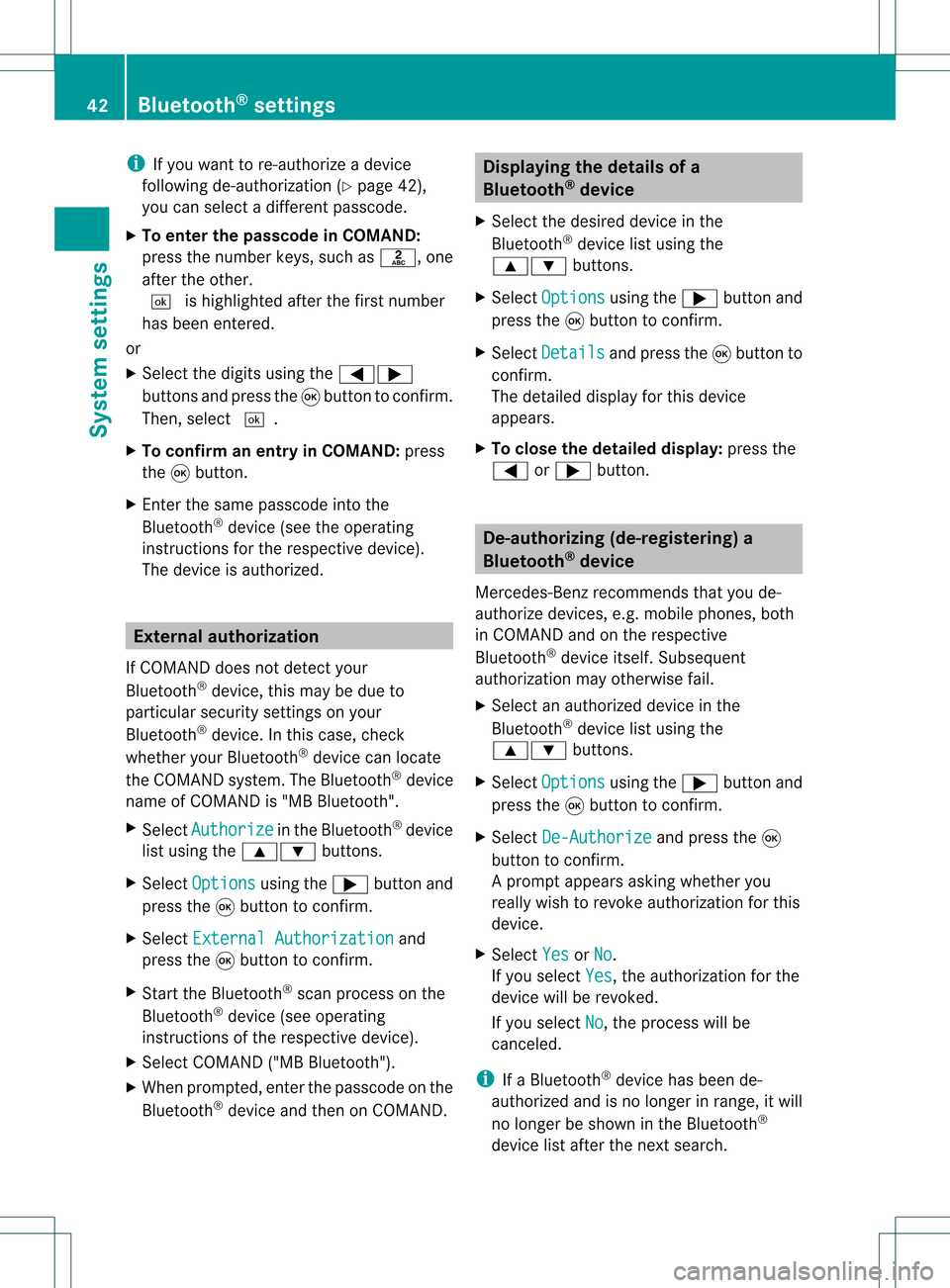
Irrespect iveofthe option, thepasscode
input menu appears. The
passcode isany one tosixteen- digit
number combination whichyoucan
determine yourself.Youmust enter thesame
number combination inCOMAND andinthe
Bluetooth ®
device tobe authorized (see
mobile phoneoperating instructions).
i Some mobile phones requiretheinput of
a four-digit passcode orlonger character
strings. Bluetooth
®
settings 41System
settings
Page 44 of 214
i
Ifyou want tore-authori zeadevice
follo wing de-au thorization (Ypage 42),
you can select adifferent passcode.
X To enter thepassco deinCOMA ND:
press thenumber keys,suchasl, one
after theother.
¬ ishighl ighted afterthefirst number
has been entered.
or
X Select thedigitsusing the=;
buttons andpress the9button toconfirm.
Then, select ¬.
X To con firm anentry inCOMA ND:press
the 9button.
X Ent erthe same passcod einto the
Bluetooth ®
device (seetheopera ting
instructions forthe respective device).
The device isauthori zed. External
authorization
If COMAND doesnotdetect your
Bluetooth ®
device, thismay bedue to
particul arsecurity settings onyou r
Bluetooth ®
device. Inthis case, check
whether yourBluetoo th®
devic ecan locat e
the COMA NDsyst em. TheBluet ooth®
devic e
name ofCOMA NDis"MB Bluet ooth".
X Selec tAuth orize in
the Bluet ooth®
devic e
list using the9: buttons.
X Selec tOpti ons using
the; buttonand
press the9butt ontocon firm .
X Selec tExte rnal Authorization and
press the9butt ontocon firm .
X Start the Bluet ooth®
scan processonthe
Bluet ooth®
devic e(see operat ing
inst ruct ions ofthe respe ctive devic e).
X Selec tCOMAND ("MBBluetooth").
X When prompted, enterthepasscode onthe
Bluetooth ®
device andthen onCOMAND. Displaying
thedetails ofa
Bluetooth ®
device
X Select thedesired deviceinthe
Bluetooth ®
device listusing the
9: buttons.
X Select Options using
the; button and
press the9button toconfirm.
X Select Details and
press the9button to
confirm.
The detailed displayfor this device
appea rs.
X To clos ethe detailed display:pressthe
= or; button. De-authorizing
(de-registering) a
Bluetooth ®
device
Mercedes-Benz recommendsthatyoude-
authorize devices,e.g.mobile phones, both
in COMAND andonthe respective
Bluetooth ®
device itself.Subseque nt
authorization mayotherwise fail.
X Select anauthorized deviceinthe
Bluetooth ®
device listusing the
9: buttons.
X Select Options using
the; button and
press the9button toconfirm.
X Select De-Authorize and
press the9
button toconfirm.
Ap rompt appears asking whethe ryou
really wishtorevoke authorization forthis
device.
X Select Yes or
No .
If you select Yes ,
the authorization forthe
device willberevoked.
If you select No ,
the process willbe
canceled.
i IfaBluetooth ®
device hasbeen de-
authorized andisno longer inrange, itwill
no longer beshown inthe Bluetooth ®
device listafter thenext search. 42
Bluetooth ®
settingsSystem settings