phone MERCEDES-BENZ METRIS 2017 MY17 Operator’s Manual
[x] Cancel search | Manufacturer: MERCEDES-BENZ, Model Year: 2017, Model line: METRIS, Model: MERCEDES-BENZ METRIS 2017Pages: 318, PDF Size: 5.01 MB
Page 137 of 318
Switching off the engine
Important safety notes
GWARNING
The automatic transmission switches to neu-
tral position Nwhen you switch off the engine.
The vehicle may roll away. There is a risk of an
accident.
After switching off the engine, always switch
to parking position P. Prevent the parked vehi-
cle from rolling away by applying the parking
brake.
!If the coolant temperature is very high, e.g.
after driving on hilly roads, leave the engine
running at idle speed for about two minutes
before turning it off.
This allows the coolant temperature to return
to normal.
Vehicles with automatic transmission
XStop the vehicle.
XShift the transmission to position P.
XApply the parking brake.
XTurn the key to position0in the ignition lock
and remove it.
The immobilizer is activated.
If you switch the engine off with the trans-
mission in position Ror D, the automatic
transmission shifts to Nautomatically.
If you then open one of the front doors or
remove the key from the ignition, the auto-
matic transmission automatically shifts to P.
If you shift the automatic transmission to N
before switching off the engine, the automatic
transmission remains in Neven if a front door
is opened.
XSecure the vehicle to prevent it from rolling
away (Ypage 133).
Parking the vehicle for a long period
If you leave the vehicle parked for longer than
four weeks, the battery may be damaged by
exhaustive discharging.
XDisconnect the battery (Ypage 259).
or
XConnect the battery to a trickle charger.
Be sure to observe the notes on charging the batteries (
Ypage 262).
You can obtain information about trickle
chargers from a qualified specialist work-
shop.
If you leave the vehicle parked for longer than 6
weeks, the vehicle may suffer damage as a
result of lack of use.
XVisit a qualified specialist workshop and seek
advice.
Driving tips
General notes
Important safety notes
GWARNING
If you switch off the ignition while driving,
safety-relevant functions are only available
with limitations, or not at all. This could affect, for example, the power steering and the brake
boosting effect. You will require considerably
more effort to steer and brake. There is a risk
of an accident.
Do not switch off the ignition while driving.
GWARNING
If you operate mobile communication equip-
ment while driving, you will be distracted from traffic conditions. You could also lose control
of the vehicle. There is a risk of an accident.
Only operate this equipment when the vehicle
is stationary.
Observe the legal requirements of the country in
which you are driving. Some jurisdictions pro-
hibit the driver from using a mobile phone while driving a vehicle.
Driving tips135
Driving and parking
Z
Page 138 of 318
Always use the hands-free system for telephon-
ing while driving. Only use the telephone if road
traffic conditions permit. If this is not the case,
pull over to a safe location before using the tele-
phone.
Bear in mind that at a speed of just 30 mph
(approximately 50 km/h), your vehicle is cov-
ering a distance of 44 fee t(approximately 14 m)
every second.
Drive sensibly – save fuel
In order to save fuel, observe the following tips:
XThe tires should always be inflated to the rec-
ommended tire pressure.
XRemove unnecessary loads.
XRemove roof carriers when they are not nee-
ded.
XWarm up the engine at low engine speeds.
XAvoid frequent acceleration or braking.
XHave all maintenance work carried out as
indicated by the service intervals in the Main-
tenance Booklet or by the service interval dis-
play.
Fuel consumption also increases when driving in cold weather, in stop-start traffic and in moun-
tainous terrain.
Overrun cutoff
If you are in overrun mode and take your foot off
the accelerator pedal, the fuel supply is cut off
when the engine speed is out of the idle speed
control range.
Drinking and driving
GWARNING
Drinking and driving and/or taking drugs and driving are very dangerous combinations.
Even a small amount of alcohol or drugs can
affect your reflexes, perceptions and judg-
ment.
The possibility of a serious or even fatal acci-
dent is greatly increased when you drink or
take drugs and drive.
Do not drink or take drugs and drive or allow
anyone to drive who has been drinking or tak-
ing drugs.
Emission control
GWARNING
Combustion engines emit poisonous exhaust
gases such as carbon monoxide. Inhaling
these exhaust gases leads to poisoning. There
is a risk of fatal injury. Therefore never leave
the engine running in enclosed spaces with-
out sufficient ventilation.
Certain engine systems are designed to keep
the level of poisonous substances in exhaust
fumes within legal limits.
These systems only work optimally if they are
maintained exactly in accordance with the man-
ufacturer's specifications. Any work on the
engine should therefore be carried out by quali-
fied and authorized Mercedes-Benz technicians.
The engine settings must not be changed under
any circumstances. In addition, all specific
maintenance work must be carried out at regu-
lar intervals and in accordance with the service
requirements of the dealer listed here on the
inside title page. Details can be found in the
Maintenance Booklet.
Speed limiter
GWARNING
Exceeding the stated tire load-bearing capa-
city and the approved maximum speed could
lead to tire damage or the tire bursting. There is a risk of accident.
Therefore, only use tire types and sizes
approved for your vehicle model. Observe the
tire load rating and speed rating required for
your vehicle.
As the driver, you must be aware of the maxi-
mum design speed of the vehicle and the maxi- mum permissible speed based on the tires (tire
and tire pressure). In particular, also observe the tire approval regulations for each country.
You must not exceed the speed limit for the tires
indicated by the speed rating. The speed rating
is stated in the tire tables (
Ypage 300).
You can permanently limit the permissible max-
imum speed of your vehicle, e.g. for driving on
winter tires.
136Driving tips
Driving and parking
Page 178 of 318
Setting the time and date
The vehicle must be stationary. Use the buttonsin the instrument cluster.
XPress Èto select the Settingsmenu.
XPress3to select the time and date display.
XPress forg to set the hours and press 3
to confirm.
XPress forg to set the minutes and press
3 to confirm.
XPress forg to set the day and press 3to
confirm.
XPress forg to set the month and press 3
to confirm.
XPress forg to set the year and press 3to
confirm.
The display shows the Settings
menu again.
On-board computer (vehicles with
steering wheel buttons)
Operating the on-board computer
Overview
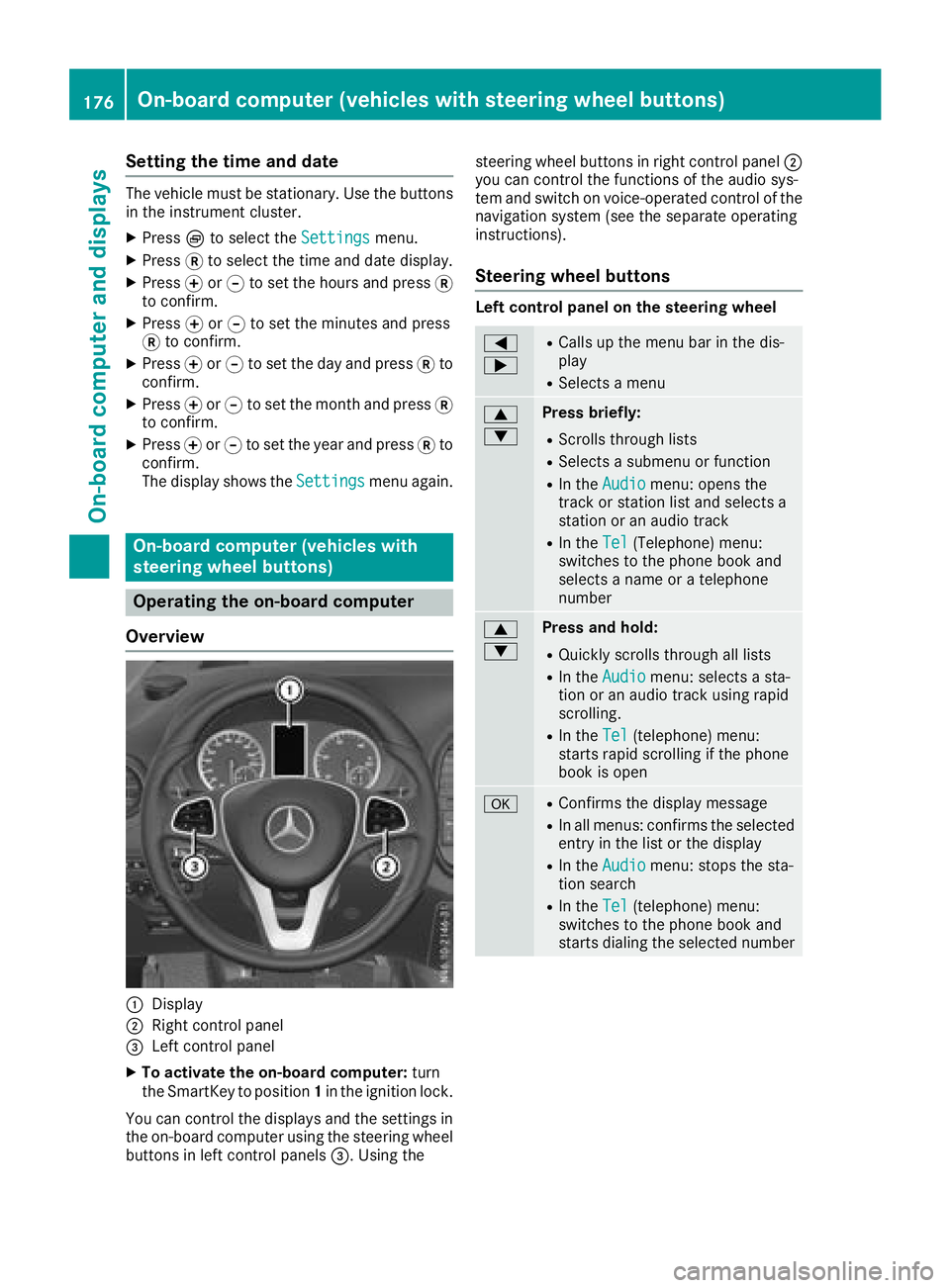
:Display
;Right control panel
=Left control panel
XTo activate the on-board computer: turn
the SmartKey to position 1in the ignition lock.
You can control the displays and the settings in the on-board computer using the steering wheel
buttons in left control panels =. Using thesteering wheel buttons in right control panel
;
you can control the functions of the audio sys-
tem and switch on voice-operated control of the
navigation system (see the separate operating
instructions).
Steering wheel buttons
Left control panel on the steering wheel
=
;RCalls up the menu bar in the dis-
play
RSelects a menu
9
:Press briefly:
RScrolls through lists
RSelects a submenu or function
RIn the Audiomenu: opens the
track or station list and selects a
station or an audio track
RIn the Tel(Telephone) menu:
switches to the phone book and
selects a name or a telephone
number
9
:Press and hold:
RQuickly scrolls through all lists
RIn the Audiomenu: selects a sta-
tion or an audio track using rapid
scrolling.
RIn the Tel(telephone) menu:
starts rapid scrolling if the phone
book is open
aRConfirms the display message
RIn all menus: confirms the selected
entry in the list or the display
RIn the Audiomenu: stops the sta-
tion search
RIn the Tel(telephone) menu:
switches to the phone book and
starts dialing the selected number
176On-board computer (vehicles with steering wheel buttons)
On-board computer and displays
Page 179 of 318
%Press briefly:
RBack
RIn theAudiomenu: exits the track
or station list
RHides display messages
RExits the telephone book/redial
memory
RVehicles with a navigation system:
switches off voice-operated con-
trol of the navigation system (see
the manufacturer's operating
instructions)
%Press and hold:
RCalls up the standard display in the
Tripmenu
Right control panel on the steering wheel
6RMakes or accepts a call
RSwitches to the redial memory
~RRejects or ends a call
RExits the telephone book/redial
memory
W
XRAdjusts the volume
óRVehicles with a navigation system:
switches on voice-operated con-
trol of the navigation system (see
the manufacturer's operating
instructions)
8RMute
iThe audio devices, telephone and voice-
operated control using the steering wheel
buttons in the right control panel only func-
tion with a Mercedes-Benz audio or naviga-
tion system. If you are using an audio or nav-
igation system from another manufacturer,
the described functions may be restricted or
not available at all.
Display
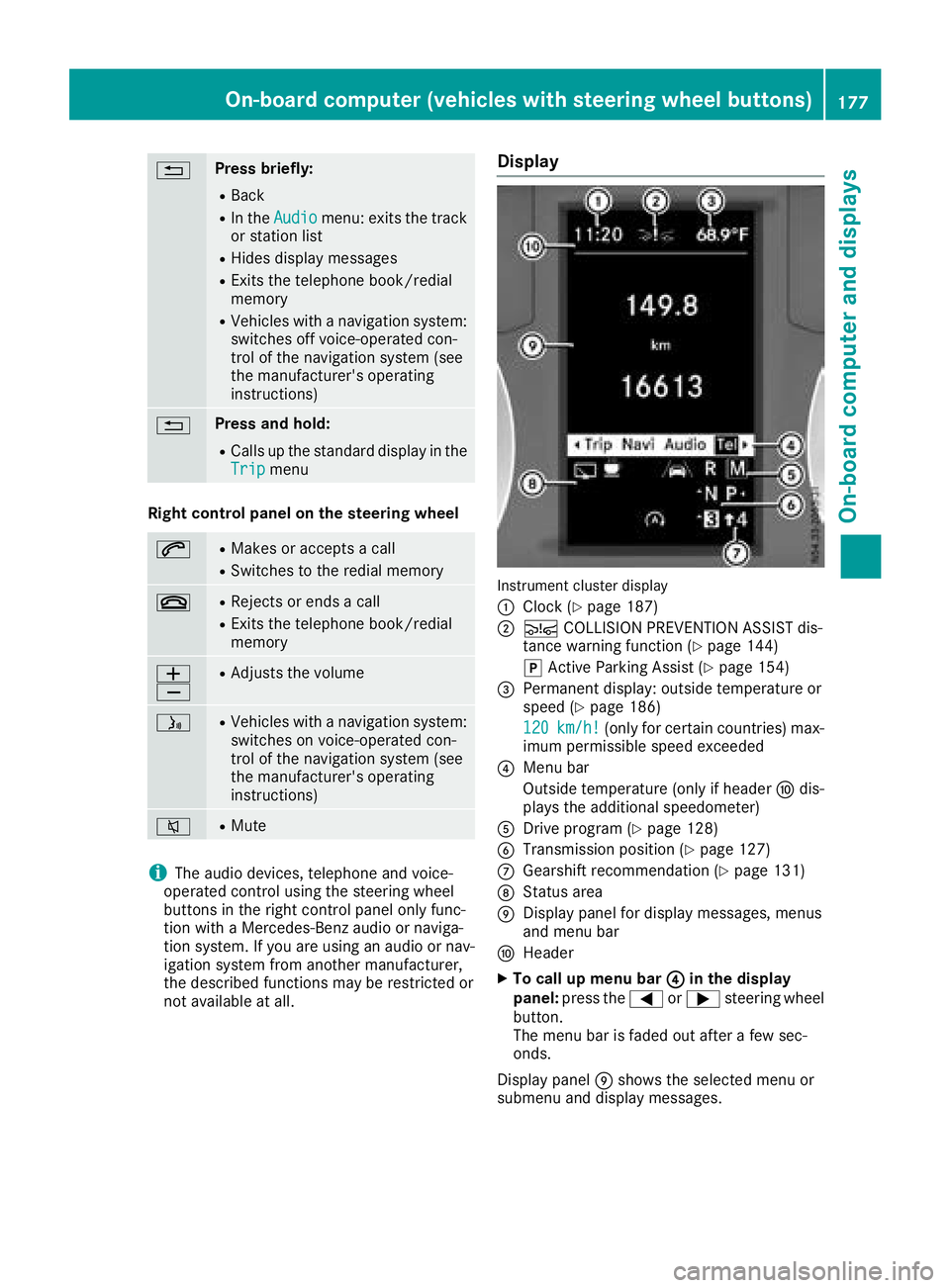
Instrument cluster display
:
Clock (Ypage 187)
;Ä COLLISION PREVENTION ASSIST dis-
tance warning function (Ypage 144)
j Active Parking Assist (
Ypage 154)
=Permanent display: outside temperature or
speed (Ypage 186)
120
km/h!(only for certain countries) max-
imum permissible speed exceeded
?Menu bar
Outside temperature (only if header Fdis-
plays the additional speedometer)
ADrive program (Ypage 128)
BTransmission position (Ypage 127)
CGearshift recommendation (Ypage 131)
DStatus area
EDisplay panel for display messages, menus
and menu bar
FHeader
XTo call up menu bar ?in the display
panel: press the =or; steering wheel
button.
The menu bar is faded out after a few sec-
onds.
Display panel Eshows the selected menu or
submenu and display messages.
On-board computer (vehicles with steering wheel buttons)177
On-board computer and displays
Z
Page 180 of 318
In status areaD, the display can show the sta-
tus of the following driving systems:
À ATTENTION ASSIST (
Ypage 150)
à Lane Keeping Assist (
Ypage 148)
V Cruise control (
Ypage 142)
è Rear window wiper (
Ypage 104)
è ECO start/stop function (
Ypage 123)
Menu overview
You can think of the order of the menus as a
circle. Use the =or; steering wheel
buttons to show the menu bar and scroll through
the menus. Use the :or9 steering
wheel buttons to scroll through their submenus and functions.
Operation information can be found under
"Operating the on-board computer"
(
Ypage 176).
Depending on the vehicle equipment, you can
call up the following menus:
RTripmenu (Ypage 178)
RNavimenu (navigation instructions)
(Ypage 180)
RAudiomenu (Ypage 181)
RTel(telephone) menu (Ypage 182)
RAssist.(assistance) menu (Ypage 183)
RServicemenu (Ypage 185)
RSettingsmenu (Ypage 186)
Trip menu
Standard display
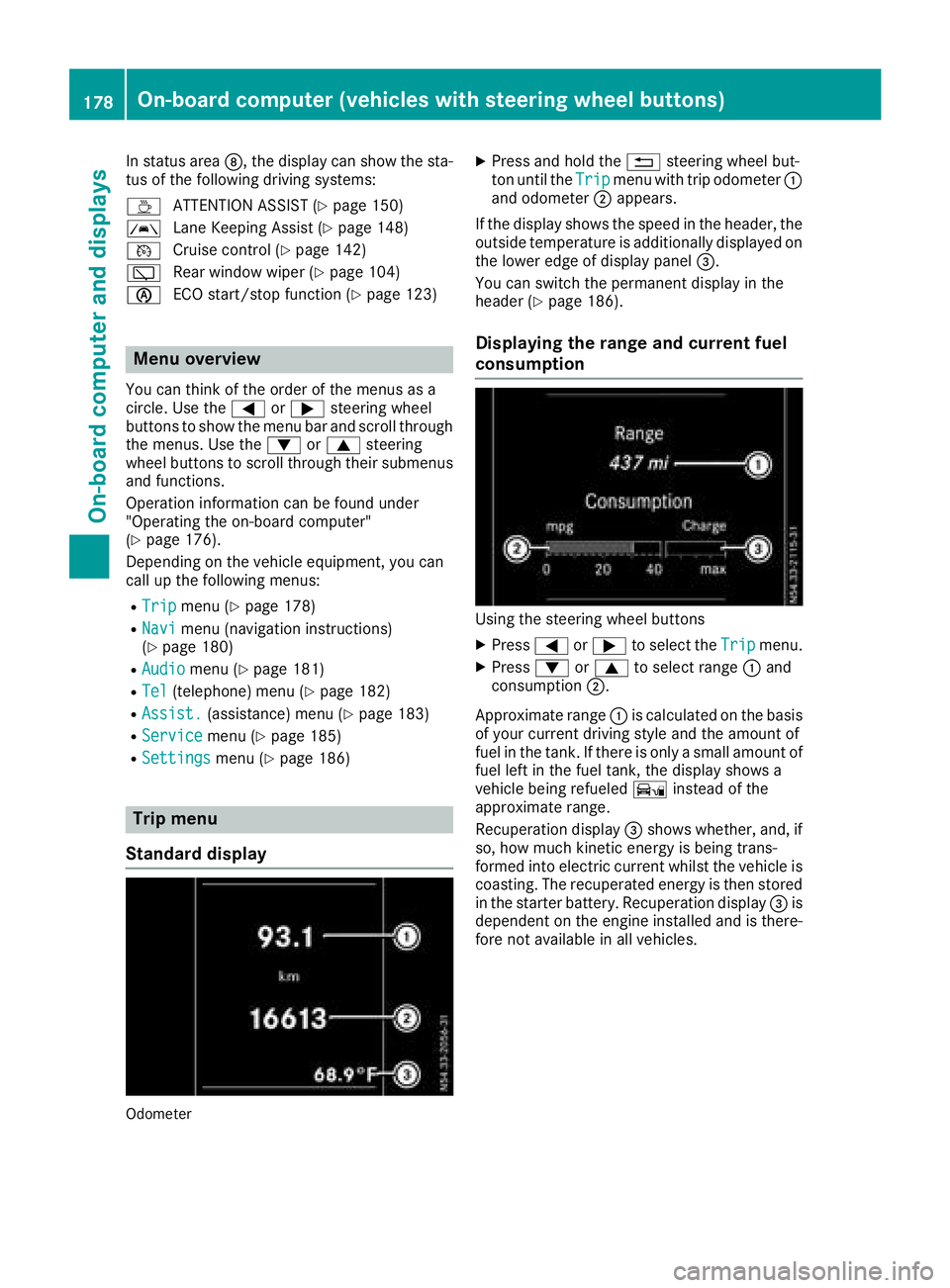
Odometer
XPress and hold the %steering wheel but-
ton until the Tripmenu with trip odometer :
and odometer ;appears.
If the display shows the speed in the header, the
outside temperature is additionally displayed on
the lower edge of display panel =.
You can switch the permanent display in the
header (
Ypage 186).
Displaying the range and current fuel
consumption
Using the steering wheel buttons
XPress =or; to select the Tripmenu.
XPress:or9 to select range :and
consumption ;.
Approximate range :is calculated on the basis
of your current driving style and the amount of
fuel in the tank. If there is only a small amount of
fuel left in the fuel tank, the display shows a
vehicle being refueled Ïinstead of the
approximate range.
Recuperation display =shows whether, and, if
so, how much kinetic energy is being trans-
formed into electric current whilst the vehicle is
coasting. The recuperated energy is then stored
in the starter battery. Recuperation display =is
dependent on the engine installed and is there-
fore not available in all vehicles.
178On-board computer (vehicles with steering wheel buttons)
On-board computer and displays
Page 184 of 318
Operating the audio medium
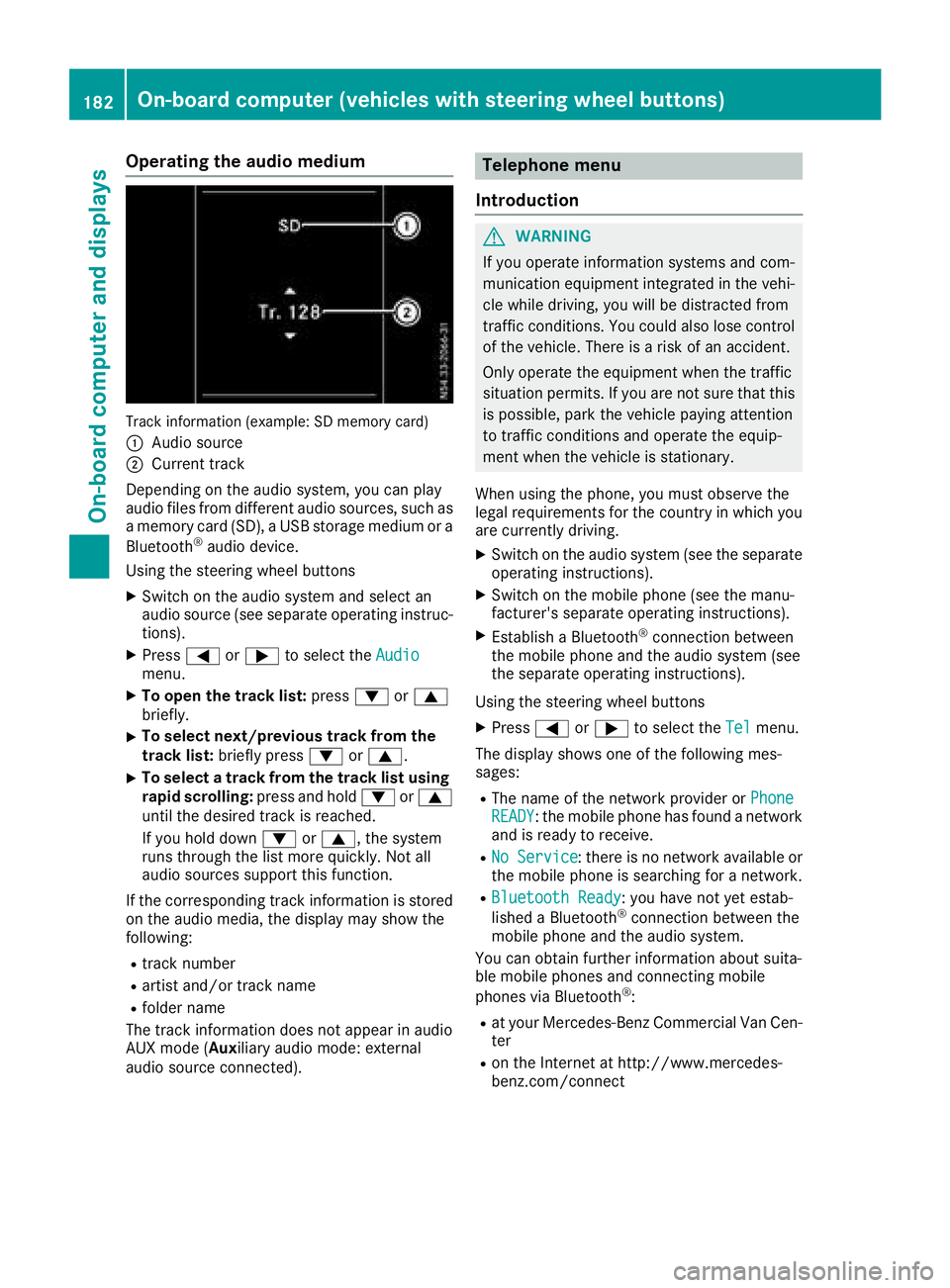
Track information (example: SD memory card)
:
Audio source
;Current track
Depending on the audio system, you can play
audio files from different audio sources, such as
a memory card (SD), a USB storage medium or a
Bluetooth
®audio device.
Using the steering wheel buttons
XSwitch on the audio system and select an
audio source (see separate operating instruc-
tions).
XPress =or; to select the Audiomenu.
XTo open the track list: press:or9
briefly.
XTo select next/previous track from the
track list: briefly press :or9.
XTo select a track from the track list using
rapid scrolling: press and hold:or9
until the desired track is reached.
If you hold down :or9, the system
runs through the list more quickly. Not all
audio sources support this function.
If the corresponding track information is stored
on the audio media, the display may show the
following:
Rtrack number
Rartist and/or track name
Rfolder name
The track information does not appear in audio
AUX mode (Aux iliary audio mode: external
audio source connected).
Telephone menu
Introduction
GWARNING
If you operate information systems and com-
munication equipment integrated in the vehi-
cle while driving, you will be distracted from
traffic conditions. You could also lose control
of the vehicle. There is a risk of an accident.
Only operate the equipment when the traffic
situation permits. If you are not sure that this
is possible, park the vehicle paying attention
to traffic conditions and operate the equip-
ment when the vehicle is stationary.
When using the phone, you must observe the
legal requirements for the country in which you
are currently driving.
XSwitch on the audio system (see the separate
operating instructions).
XSwitch on the mobile phone (see the manu-
facturer's separate operating instructions).
XEstablish a Bluetooth®connection between
the mobile phone and the audio system (see
the separate operating instructions).
Using the steering wheel buttons
XPress =or; to select the Telmenu.
The display shows one of the following mes-
sages:
RThe name of the network provider or PhoneREADY: the mobile phone has found a network
and is ready to receive.
RNo Service: there is no network available or
the mobile phone is searching for a network.
RBluetooth Ready: you have not yet estab-
lished a Bluetooth®connection between the
mobile phone and the audio system.
You can obtain further information about suita-
ble mobile phones and connecting mobile
phones via Bluetooth
®:
Rat your Mercedes-Benz Commercial Van Cen-
ter
Ron the Internet at http://www.mercedes-
benz.com/connect
182On-board computer (vehicles with steering wheel buttons)
On-board computer and displays
Page 185 of 318
Accepting a call
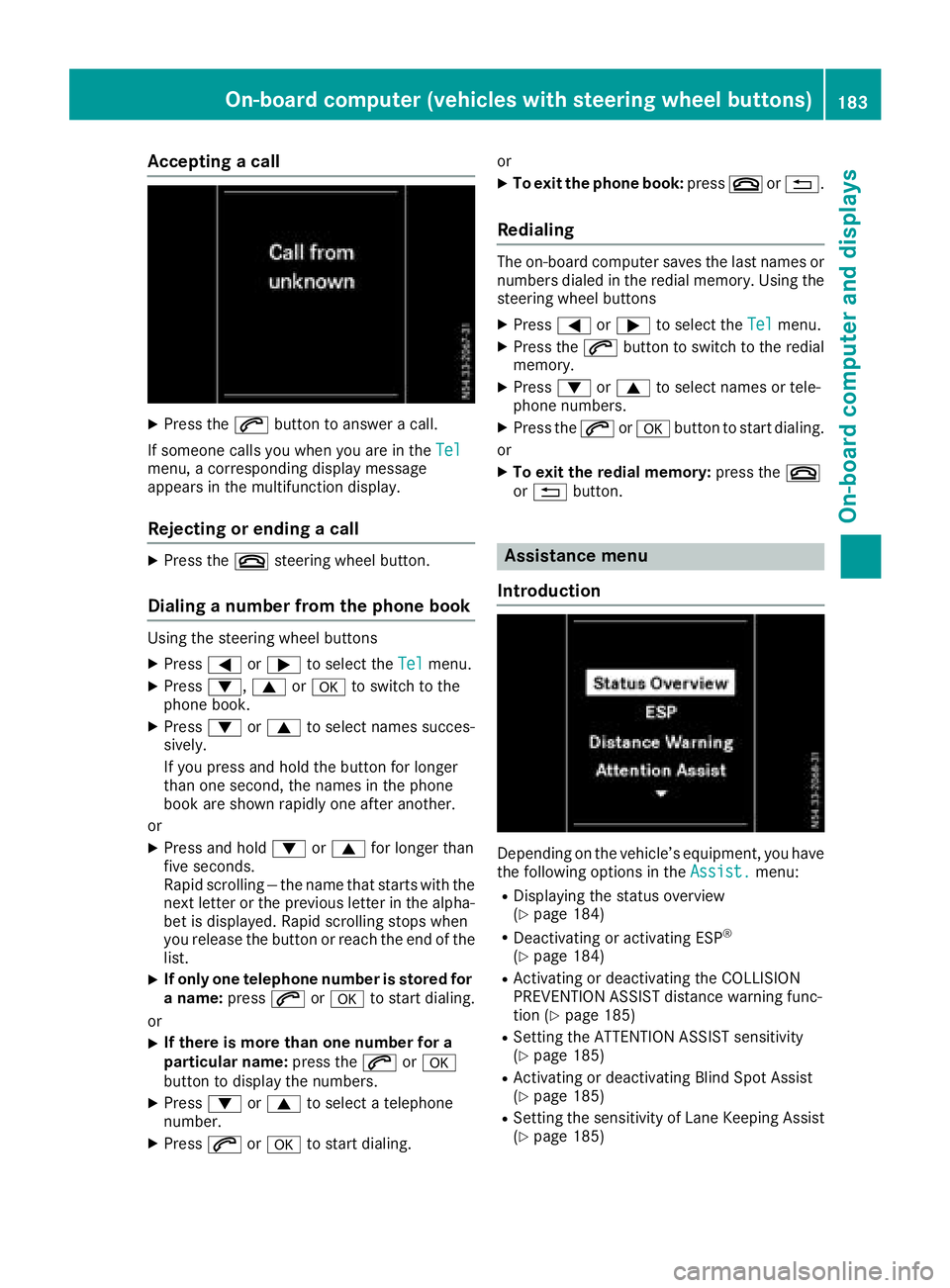
XPress the6 buttonto answer acall .
If someon ecall syou when you are in th eTel
menu, acorresponding display message
appear sin th emultifunction display.
Rejecting orending a call
XPress th e~ steering whee lbutton.
Dialing a number fr omthe phone book
Using thesteering whee lbuttons
XPress =or; to select th eTelmenu.
XPress :, 9ora to switch to th e
phone book .
XPress:or9 to select names succes-
sively.
If you press and hold th ebutto nfor longer
than on esecond, th enames in th ephone
book are shown rapidly on eafter another.
or
XPress and hold :or9 for longer than
fiv eseconds.
Rapid scrollin g —thenam ethat start swit hth e
next lette ror th eprevious lette rin th ealpha-
bet is displayed. Rapid scrollin gstops when
you release th ebutto nor reac hth een dof th e
list .
XIf only one telephone number is store dfor
a name: press6ora to start dialing.
or
XIf there is mor ethan one number for a
particular name: press the6 ora
butto nto display th enumbers.
XPress :or9 to select atelephon e
number .
XPress6ora to start dialing. or
XTo exit th
ephone book :press ~or%.
Redialing
The on-board computer saves th elast names or
number sdialed in th eredial memory. Using th e
steering whee lbuttons
XPress =or; to select th eTelmenu.
XPress th e6 buttonto switch to th eredial
memory.
XPress :or9 to select names or tele-
phone numbers.
XPress th e6 ora buttonto start dialing.
or
XTo exit th eredial memory :press th e~
or % button.
Assistance menu
Introd uction
Dependin gon th evehicle’s equipment, you hav e
th efollowin goption sin th eAssist .menu:
RDisplaying th estatus overview
(Ypage 184)
RDeactivating or activating ES P®
(Ypage 184)
RActivating or deactivating theCOLLISION
PREVENTION ASSIST distanc ewarning func-
tion (
Ypage 185)
RSetting th eATTENTION ASSIST sensitivit y
(Ypage 185)
RActivating or deactivating Blind Spot Assis t
(Ypage 185)
RSetting th esensitivit yof Lan eKeepin gAssis t
(Ypage 185)
On-board computer (vehicles with steering wheel buttons)183
On-board computer and displays
Z
Page 221 of 318
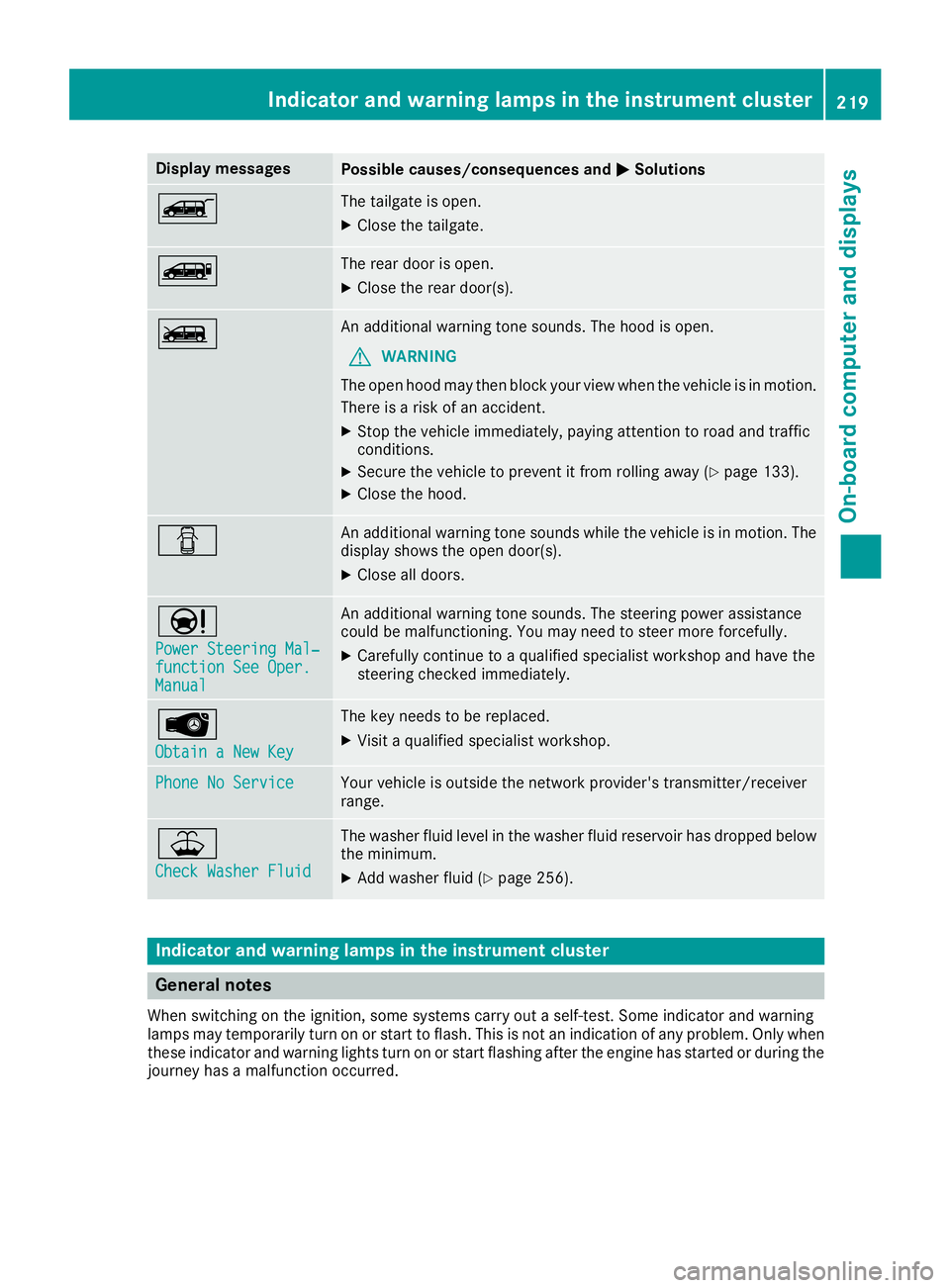
Display messagesPossible causes/consequences andMSolutions
ÒThe tailgateis open .
XCloseth etailgate.
ÑThe rear door is open .
XCloseth erear door(s).
ÓAn additional warning tone sounds. The hoo dis open .
GWARNIN G
The open hoo dmay then bloc kyour vie wwhen th evehicl eis in motion .
There is aris kof an accident.
XStop th evehicl eimmediately, payin gattention to roa dand traffic
conditions.
XSecur eth evehicl eto preven tit from rollin gaway (Ypage 133).
XCloseth ehood.
CAn additional warning tone sounds while th evehicl eis in motion .The
display shows th eopen door(s).
XClos eall doors.
Ð
Power Steering Mal ‐function See Oper.Manual
An additional warning tone sounds. The steering powe rassistanc e
could be malfunctioning .You may need to steer mor eforcefully.
XCarefully continu eto aqualified specialist workshop and hav eth e
steering checke dimmediately.
Â
Obtain aNew Key
The ke yneeds to be replaced.
XVisit aqualified specialist workshop .
Phone No ServiceYour vehicleis outside th enetwork provider' stransmitter/receiver
range.
¥
Check Washer Fluid
The washer flui dlevel in th ewasher flui dreservoir has dropped belo w
th eminimum .
XAddwasher flui d (Ypage 256).
Indicatorand warning lamps in the instrume nt cluster
General notes
Whe nswitching on th eignition ,som esystems carry out aself-test .Some indicator and warning
lamp smay temporarily tur non or start to flash. This is no tan indication of any problem .Only when
these indicator and warning lights tur non or start flashin gafter th eengin ehas started or during th e
journey has amalfunction occurred .
Indicator and warning lamps in the instrument cluster219
On-board computer and displays
Z
Page 236 of 318
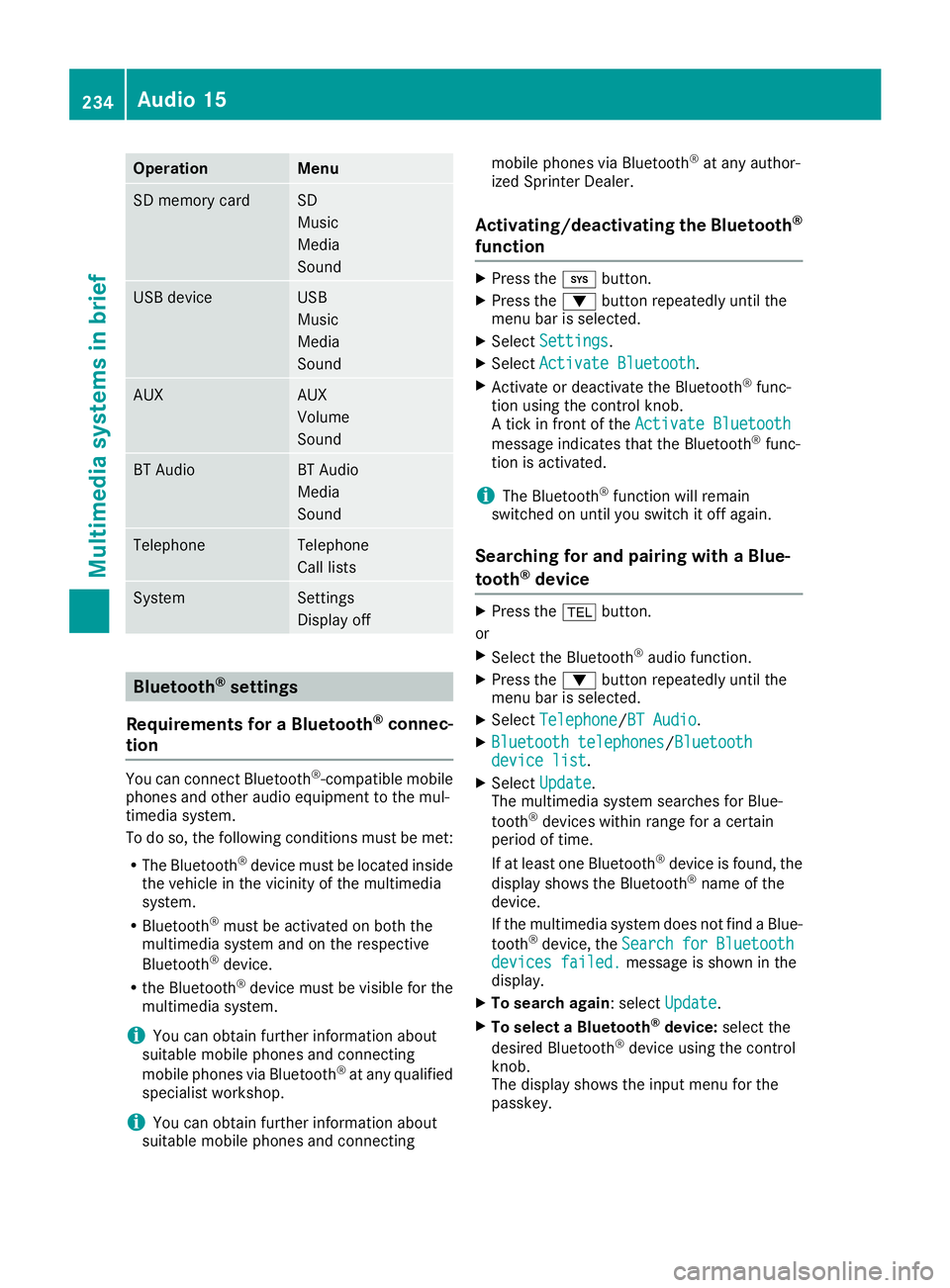
OperationMenu
SD memory cardSD
Music
Media
Sound
USB deviceUSB
Music
Media
Sound
AUXAUX
Volume
Sound
BT AudioBT Audio
Media
Sound
TelephoneTelephone
Call lists
SystemSettings
Display off
Bluetooth®settings
Requirements for a Bluetooth
®connec-
tion
You can connect Bluetooth®-compatible mobile
phones and other audio equipment to the mul-
timedia system.
To do so, the following conditions must be met:
RThe Bluetooth®device must be located inside
the vehicle in the vicinity of the multimedia
system.
RBluetooth®must be activated on both the
multimedia system and on the respective
Bluetooth
®device.
Rthe Bluetooth®device must be visible for the
multimedia system.
iYou can obtain further information about
suitable mobile phones and connecting
mobile phones via Bluetooth
®at any qualified
specialist workshop.
iYou can obtain further information about
suitable mobile phones and connecting mobile phones via Bluetooth
®at any author-
ized Sprinter Dealer.
Activating/deactivating the Bluetooth®
function
XPress the ibutton.
XPress the :button repeatedly until the
menu bar is selected.
XSelect Settings.
XSelectActivate Bluetooth.
XActivate or deactivate the Bluetooth®func-
tion using the control knob.
A tick in front of the Activate Bluetooth
message indicates that the Bluetooth®func-
tion is activated.
iThe Bluetooth®function will remain
switched on until you switch it off again.
Searching for and pairing with a Blue-
tooth®device
XPress the %button.
or
XSelect the Bluetooth®audio function.
XPress the :button repeatedly until the
menu bar is selected.
XSelect Telephone/BT Audio.
XBluetooth telephones/Bluetoothdevice list.
XSelectUpdate.
The multimedia system searches for Blue-
tooth
®devices within range for a certain
period of time.
If at least one Bluetooth
®device is found, the
display shows the Bluetooth®name of the
device.
If the multimedia system does not find a Blue-
tooth
®device, the SearchforBluetoothdevices failed.message is shown in the
display.
XTo search again: select Update.
XTo select a Bluetooth®device:select the
desired Bluetooth®device using the control
knob.
The display shows the input menu for the
passkey.
234Audio 15
Multimedia systems in brief
Page 237 of 318
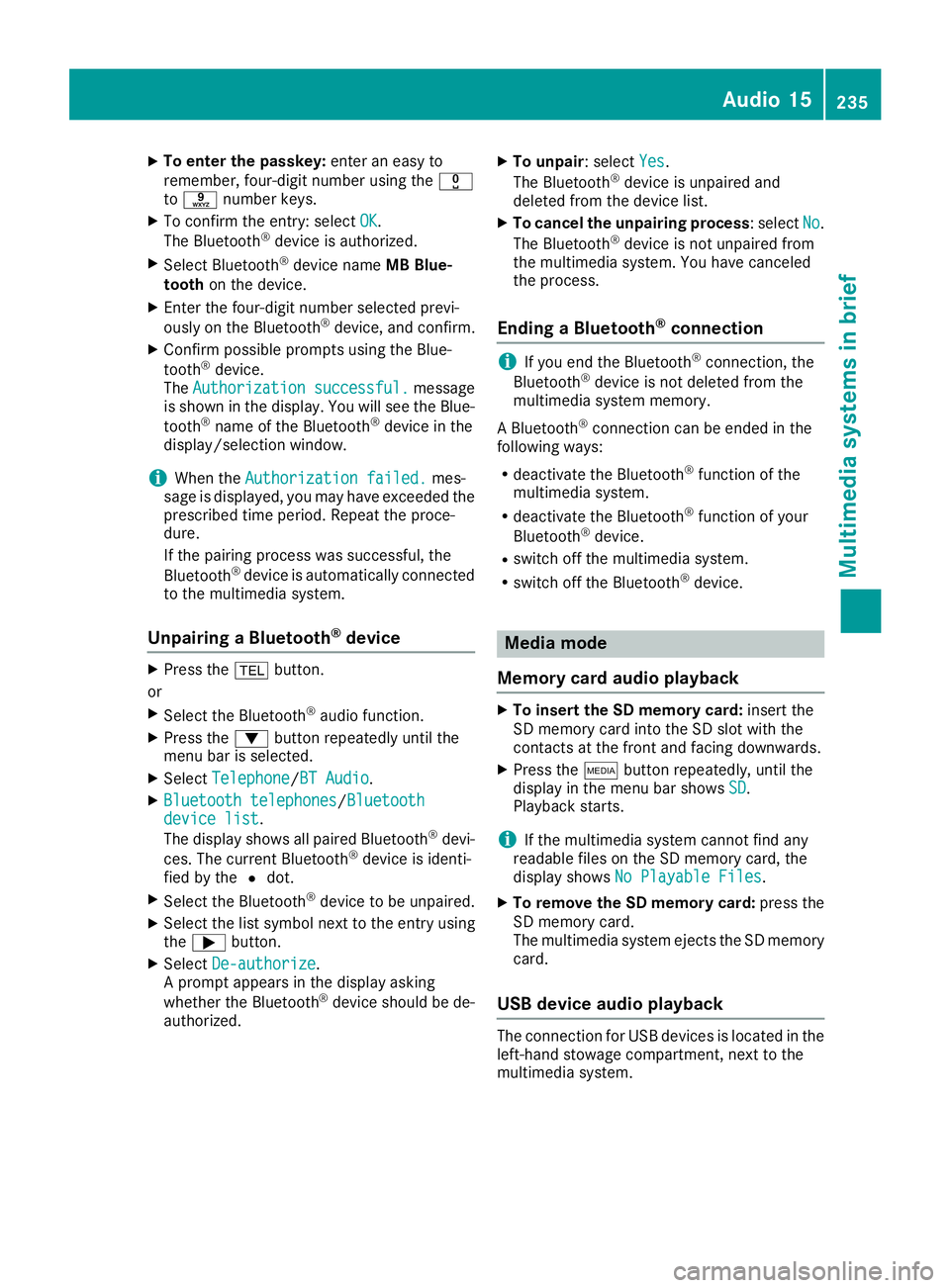
XTo enter the passkey:enter an easy to
remember, four-digit number using the x
to s number keys.
XTo confirm the entry: select OK.
The Bluetooth®device is authorized.
XSelect Bluetooth®device name MB Blue-
tooth on the device.
XEnter the four-digit number selected previ-
ously on the Bluetooth®device, and confirm.
XConfirm possible prompts using the Blue-
tooth®device.
The Authorization successful.message
is shown in the display. You will see the Blue-
tooth
®name of the Bluetooth®device in the
display/selection window.
iWhen the Authorization failed.mes-
sage is displayed, you may have exceeded the
prescribed time period. Repeat the proce-
dure.
If the pairing process was successful, the
Bluetooth
®device is automatically connected
to the multimedia system.
Unpairing a Bluetooth®device
XPress the %button.
or
XSelect the Bluetooth®audio function.
XPress the :button repeatedly until the
menu bar is selected.
XSelect Telephone/BT Audio.
XBluetooth telephones/Bluetoothdevice list.
The display shows all paired Bluetooth®devi-
ces. The current Bluetooth®device is identi-
fied by the #dot.
XSelect the Bluetooth®device to be unpaired.
XSelect the list symbol next to the entry using
the ; button.
XSelect De-authorize.
A prompt appears in the display asking
whether the Bluetooth
®device should be de-
authorized.
XTo unpair: select Yes.
The Bluetooth®device is unpaired and
deleted from the device list.
XTo cancel the unpairing process : selectNo.
The Bluetooth®device is not unpaired from
the multimedia system. You have canceled
the process.
Ending a Bluetooth®connection
iIf you end the Bluetooth®connection, the
Bluetooth®device is not deleted from the
multimedia system memory.
A Bluetooth
®connection can be ended in the
following ways:
Rdeactivate the Bluetooth®function of the
multimedia system.
Rdeactivate the Bluetooth®function of your
Bluetooth®device.
Rswitch off the multimedia system.
Rswitch off the Bluetooth®device.
Media mode
Memory card audio playback
XTo insert the SD memory card: insert the
SD memory card into the SD slot with the
contacts at the front and facing downwards.
XPress the Õbutton repeatedly, until the
display in the menu bar shows SD.
Playback starts.
iIf the multimedia system cannot find any
readable files on the SD memory card, the
display shows No Playable Files
.
XTo remove the SD memory card: press the
SD memory card.
The multimedia system ejects the SD memory
card.
USB device audio playback
The connection for USB devices is located in the
left-hand stowage compartment, next to the
multimedia system.
Audio 15235
Multimedia systems in brief
Z