ESP MERCEDES-BENZ METRIS 2018 MY18 Operator’s Manual
[x] Cancel search | Manufacturer: MERCEDES-BENZ, Model Year: 2018, Model line: METRIS, Model: MERCEDES-BENZ METRIS 2018Pages: 318, PDF Size: 5.07 MB
Page 162 of 318
XTo cancel the process:press the%but-
ton on the steering wheel or drive off.
or
XTo exit the parking space using active
parking assistance: press theabutton
on the steering wheel.
The display shows the Park Assist
Active: Accelerate and BrakeObs.Surroundingsmessage.
XLet go of the steering wheel.
XPull away, being ready to brake at all times.
Exit the parking space slowly and do not drive
faster than 6 mph (10 km/h). Otherwise park-
ing assistance is canceled and Active Parking
Assist is stopped.
Active Parking Assist brakes the vehicle to a
standstill when the vehicle approaches a bor-
der of the parking space.
XWhile the vehicle is stationary, shift the trans-
mission to position hork as required or
according to the message.
Active Parking Assist immediately steers in
the other direction. The display shows the
Park Assist Active: Accelerate and
BrakeObs. Surroundingsmessage.
iYou will achieve the best results by waiting
for the steering procedure to complete before
pulling away.
If you back up after activation, the steering
wheel is moved to the straight-ahead posi-
tion.
XDrive forwards and reverse as prompted by
the PARKTRONIC warning displays, several
times if necessary.
Once you have exited the parking space com-
pletely:
RThe display shows the Park Assist Fin‐ishedmessage.
RA tone sounds.
RThe steering wheel is moved to the straight-
ahead position
The parking assistance function of Active Park-
ing Assist is stopped. You will then have to steer
and merge into traffic on your own.
PARKTRONIC is still available.
You can take over the steering before the vehi-
cle has exited the parking space completely.
This is useful, for example when you recognize
that it is already possible to pull out of the park-
ing space.
Canceling active parking assistance
XStop the movement of the steering wheel or
steer yourself.
or
XPress the fbutton and deactivate
PARKTRONIC (Ypage 155).
Parking assistance is canceled immediately
and Active Parking Assist is stopped. The dis-
play shows the Park
AssistCanceledmes-
sage.
Active parking assistance is canceled automat-
ically if:
Ryou apply the parking brake.
Rparking using Active Parking Assist is no lon-
ger possible.
Ryou are driving faster than 6 mph (10 km/h).
Ra wheel spins and ESP®intervenes or fails.
The ÷ warning lamp in the instrument
cluster then lights up.
Ryou unfasten your seat belt.
Ryou open a door or the tailgate/rear door.
Ryou shift the automatic transmission to posi-
tion P.
A warning tone sounds, the parking symbol in
the display goes out and the Park Assist
Canceledmessage appears.
Once active Parking Assist has been canceled,
you must steer and brake again yourself.
If a system malfunction occurs, vehicles are
automatically braked down to a standstill. To
continue driving, you must depress the acceler-
ator pedal again.
Rear view camera
General notes
On vehicles with a tailgate, the rear view camera
is next to the tailgate handle (Ypage 269).
On vehicles with rear doors, the rear view cam-
era is in the top of the license plate molding
(
Ypage 269).
The rear view camera is a visual parking aid. It
shows you the area behind the vehicle in the
audio display.
The area behind the vehicle is displayed in a
mirrored fashion, as in the rear-view mirror or
the exterior mirrors. The guide lines displayed
assist you in backing up.
160Driving systems
Driving an d parking
Page 163 of 318
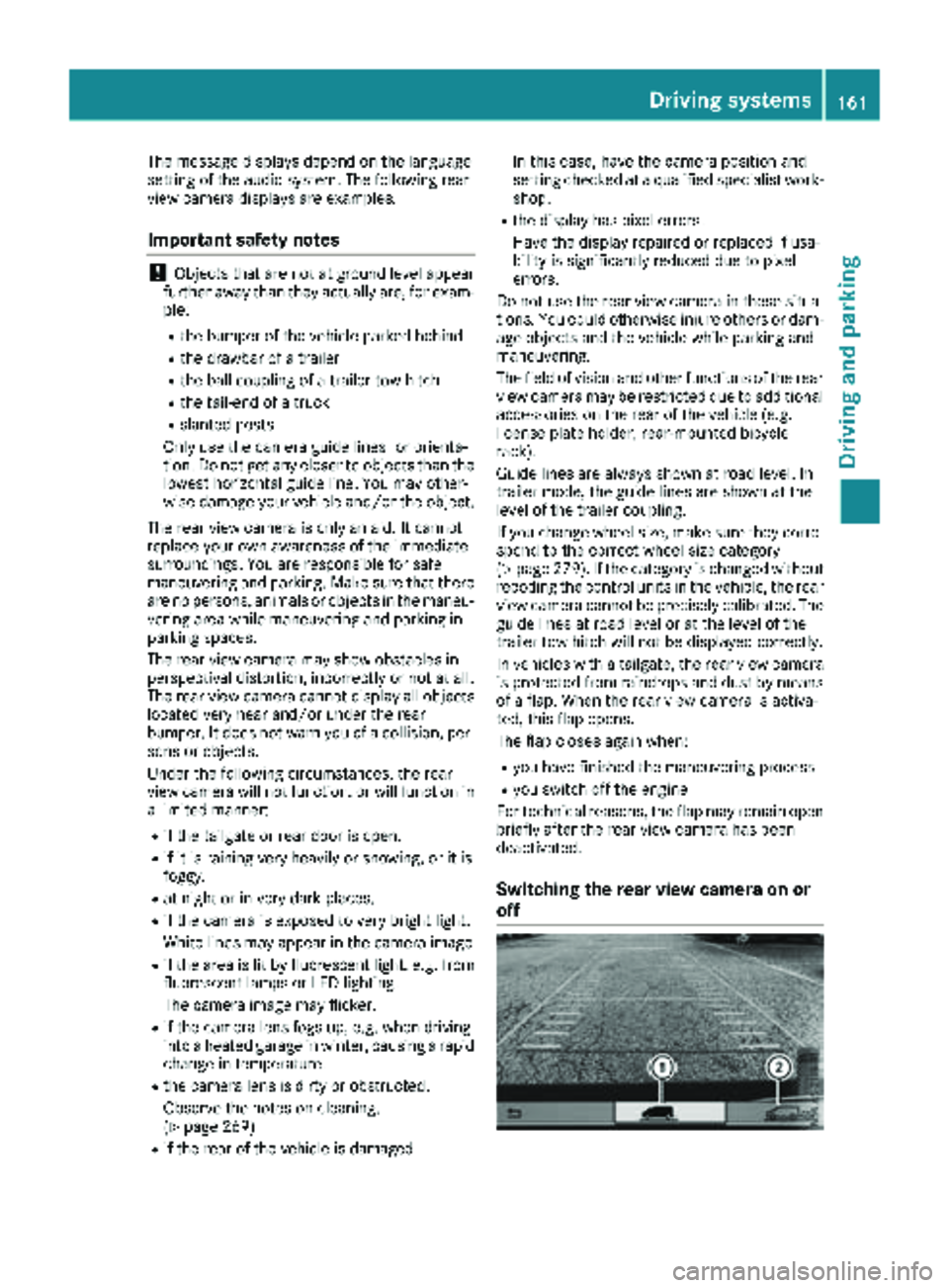
The message displays depend on the language
setting of the audio system. The following rear
view camera displays are examples.
Important safety notes
!Objects that are not at ground level appear
further away than they actually are, for exam-
ple:
Rthe bumper of the vehicle parked behind
Rthe drawbar of a trailer
Rthe ball coupling of a trailer tow hitch
Rthe tail-end of a truck
Rslanted posts
Only use the camera guide lines for orienta-
tion. Do not get any closer to objects than the
lowest horizontal guide line. You may other-
wise damage your vehicle and/or the object.
The rear view camera is only an aid. It cannot
replace your own awareness of the immediate
surroundings. You are responsible for safe
maneuvering and parking. Make sure that there
are no persons, animals or objects in the maneu- vering area while maneuvering and parking in
parking spaces.
The rear view camera may show obstacles in
perspectival distortion, incorrectly or not at all.
The rear view camera cannot display all objects
located very near and/or under the rear
bumper. It does not warn you of a collision, per-
sons or objects.
Under the following circumstances, the rear
view camera will not function, or will function in
a limited manner:
Rif the tailgate or rear door is open.
Rif it is raining very heavily or snowing, or it is
foggy.
Rat night or in very dark places.
Rif the camera is exposed to very bright light.
White lines may appear in the camera image
Rif the area is lit by fluorescent light, e.g. from fluorescent lamps or LED lighting.
The camera image may flicker.
Rif the camera lens fogs up, e.g. when driving
into a heated garage in winter, causing a rapid
change in temperature.
Rthe camera lens is dirty or obstructed.
Observe the notes on cleaning.
(
Ypage 269)
Rif the rear of the vehicle is damaged. In this case, have the camera position and
setting checked at a qualified specialist work-
shop.
Rthe display has pixel errors.
Have the display repaired or replaced if usa-
bility is significantly reduced due to pixel
errors.
Do not use the rear view camera in these situa-
tions. You could otherwise injure others or dam-
age objects and the vehicle while parking and
maneuvering.
The field of vision and ot
her functions of the rear
view camera may be restricted due to additional accessories on the rear of the vehicle (e.g.
license plate holder, rear-mounted bicycle
rack).
Guide lines are always shown at road level. In
trailer mode, the guide lines are shown at the
level of the trailer coupling.
If you change wheel size, make sure they corre-
spond to the correct wheel size category
(
Ypage 279). If the category is changed without
recoding the control units in the vehicle, the rear
view camera cannot be precisely calibrated. The
guide lines at road level or at the level of the
trailer tow hitch will not be displayed correctly.
In vehicles with a tailgate, the rear view camera
is protected from raindrops and dust by means
of a flap. When the rear view camera is activa-
ted, this flap opens.
The flap closes again when:
Ryou have finished the maneuvering process
Ryou switch off the engine
For technical reasons, the flap may remain open briefly after the rear view camera has been
deactivated.
Switching the rear view camera on or
off
Driving systems161
Driving and parking
Z
Page 167 of 318
Information on the audio system control knob
can be found in the separate operating
instructions.
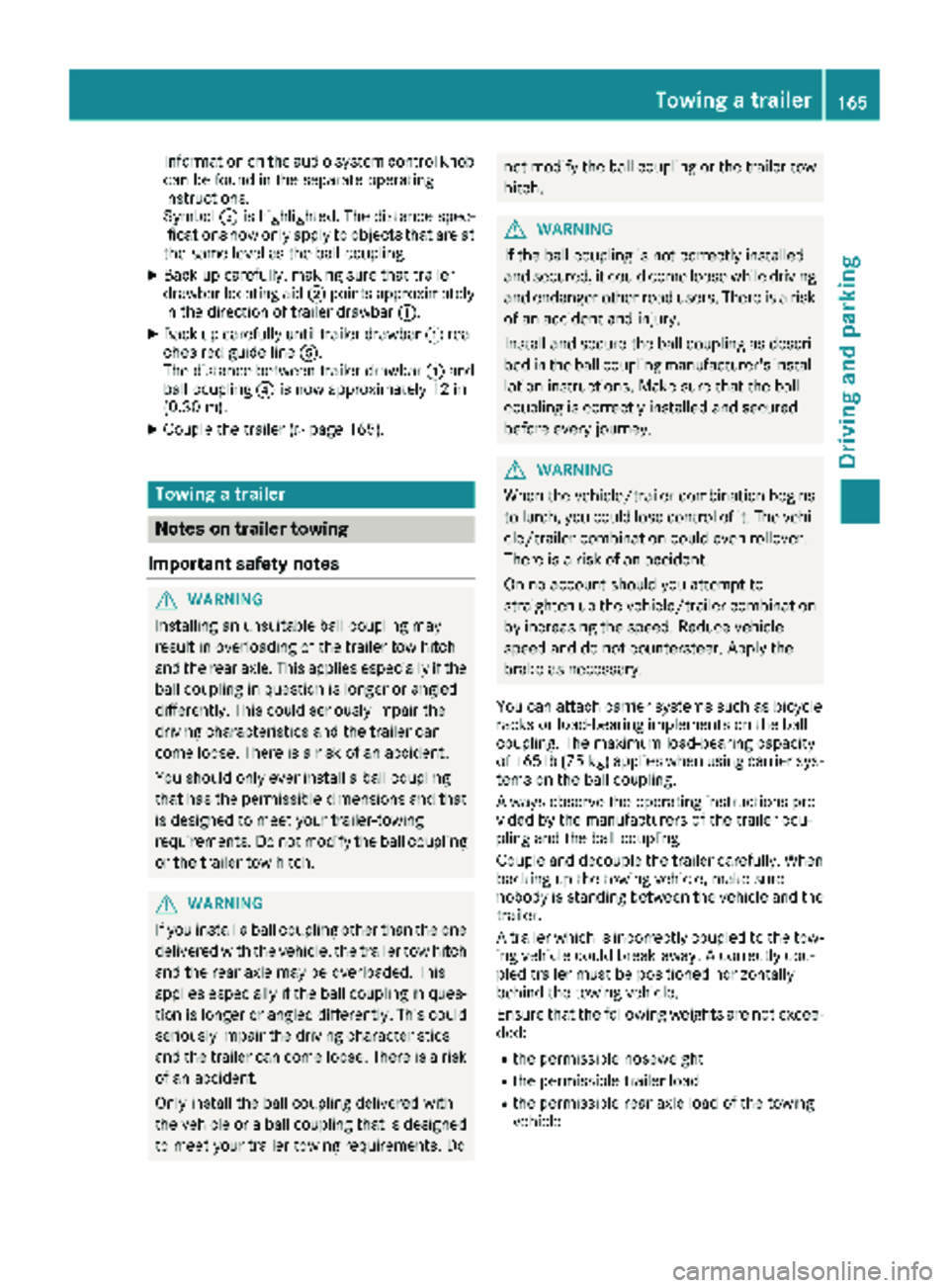
Symbol=is highlighted. The distance spec-
ifications now only apply to objects that are at
the same level as the ball coupling.
XBack up carefully, making sure that trailer
drawbar locating aid ;points approximately
in the direction of trailer drawbar :.
XBack up carefully until trailer drawbar :rea-
ches red guide line A.
The distance between trailer drawbar :and
ball coupling ?is now approximately 12 in
(0.30 m).
XCouple the trailer (Ypage 165).
Towing a trailer
Notes on trailer towing
Important safety notes
GWARNING
Installing an unsuitable ball coupling may
result in overloading of the trailer tow hitch
and the rear axle. This applies especially if the ball coupling in question is longer or angled
differently. This could seriously impair the
driving characteristics and the trailer can
come loose. There is a risk of an accident.
You should only ever install a ball coupling
that has the permissible dimensions and that
is designed to meet your trailer-towing
requirements. Do not modify the ball coupling
or the trailer tow hitch.
GWARNING
If you install a ball coupling other than the one
delivered with the vehicle, the trailer tow hitch
and the rear axle may be overloaded. This
applies especially if the ball coupling in ques-
tion is longer or angled differently. This could
seriously impair the driving characteristics
and the trailer can come loose. There is a risk
of an accident.
Only install the ball coupling delivered with
the vehicle or a ball coupling that is designed
to meet your trailer towing requirements. Do
not modify the ball coupling or the trailer tow
hitch.
GWARNING
If the ball coupling is not correctly installed
and secured, it could come loose while driving and endanger other road users. There is a risk
of an accident and injury.
Install and secure the ball coupling as descri-
bed in the ball coupling manufacturer's instal-
lation instructions. Make sure that the ball
coupling is correctly installed and secured
before every journey.
GWARNING
When the vehicle/trailer combination begins
to lurch, you could lose control of it. The vehi- cle/trailer combination could even rollover.
There is a risk of an accident.
On no account should you attempt to
straighten up the vehicle/trailer combination
by increasing the speed. Reduce vehicle
speed and do not countersteer. Apply the
brake as necessary.
You can attach carrier systems such as bicycle
racks or load-bearing implements on the ball
coupling. The maximum load-bearing capacity
of 165 lb (75 kg) applies when using carrier sys-
tems on the ball coupling.
Always observe the operating instructions pro-
vided by the manufacturers of the trailer cou-
pling and the ball coupling.
Couple and decouple the trailer carefully. When
backing up the towing vehicle, make sure
nobody is standing between the vehicle and the trailer.
A trailer which is incorrectly coupled to the tow-
ing vehicle could break away. A correctly cou-
pled trailer must be positioned horizontally
behind the towing vehicle.
Ensure that the following weights are not excee-
ded:
Rthe permissible noseweight
Rthe permissible trailer load
Rthe permissible rear axle load of the towing
vehicle
Towing a trailer165
Driving and parking
Z
Page 168 of 318
Rthe maximum permissible gross vehicle
weight of both the towing vehicle and the
trailer
Rthe maximum permissible gross weight of
vehicle/trailer combination
The applicable permissible values that may not
be exceeded can be found:
Rin your vehicle documents
Ron the type plates for the trailer tow hitch
Ron the type plates for the trailer
Ron the vehicle identification plate
(Ypage 305)
Where the values differ, the lowest is valid.
You will find the values approved by the manu-
facturer on the vehicle identification plates and
those for the towing vehicle in the "Technical
data" section (
Ypage 316).
Your vehicle behaves differently with a trailer
than without one.
The vehicle/trailer combination:
Ris heavier
Ris restricted in its acceleration and gradient-
climbing capability
Rhas an increased braking distance
Ris more susceptible to strong crosswinds
Rrequires more sensitive steering
Rhas a larger turning circle
This may impair the handling characteristics.
When towing a trailer, always adjust your speed
to suit the road and weather conditions. Drive
carefully. Maintain a safe dista nce.
If y
ou require any further explanation regarding
the information contained in the Operating
Instructions, please contact a Mercedes-Benz
Commercial Van Center.
General notes
RObserve the legally permitted maximum
speed for vehicle/trailer combinations in the
relevant country, state or Canadian province.
Before beginning the journey, check the trail-
er's documents for the maximum permitted
speed of your trailer.
This reduces the risk of accidents.
RInstall only an approved trailer coupling on
your vehicle. Only use a ball coupling for your Metris trailer tow hitch if it has been approved
for your vehicle. More information on the
availability, mounting and installation of the trailer electrics is available at any qualified
specialist workshop.
RThe trailer coupling is one of the most impor-
tant vehicle parts with regard to road safety.
Observe the notes on operation, care and
maintenance of the trailer tow hitch (see the
manufacturer's operating instructions).
RThe bumpers of your vehicle are not suitable
for installing detachable trailer couplings.
RDo not attach rented trailer tow hitches or
other detachable trailer tow hitches to the
bumper.
RMinimize the risk of damage to the ball cou-
pling. If you do not require the ball coupling,
remove it from the ball coupling recess.
Yo u w
ill find weight information under "Techni-
cal data" (Ypage 316).
The height of the ball neck changes according to
the load on the vehicle. If this is case, use a
trailer with a height-adjustable trailer drawbar.
Driving tips
The maximum permissible speed for vehicle/
trailer combination depends on the type of
trailer. Before beginning the journey, check the
trailer's documents for the maximum permitted
speed of your trailer. Observe the legally per-
mitted maximum speed in the relevant country, state or Canadian province.
When towing a trailer, your vehicle's handling
characteristics will be different in comparison to
when driving without a trailer and it will con-
sume more fuel.
On long and steep downhill gradients, select a
lower gear.
iThis also applies if cruise control is activa-
ted.
This enables you to utilize the engine's braking
effect and you do not need to brake so heavily to keep the correct speed. This relieves the load on
the brake system and prevents the brakes from overheating and wearing too quickly. If you need
to brake additionally, to not depress the brake
pedal constantly, but periodically.
Observe the notes on ESP
®trailer stabilization
(Ypage 67).
166Towing a trailer
Driving an d parking
Page 169 of 318
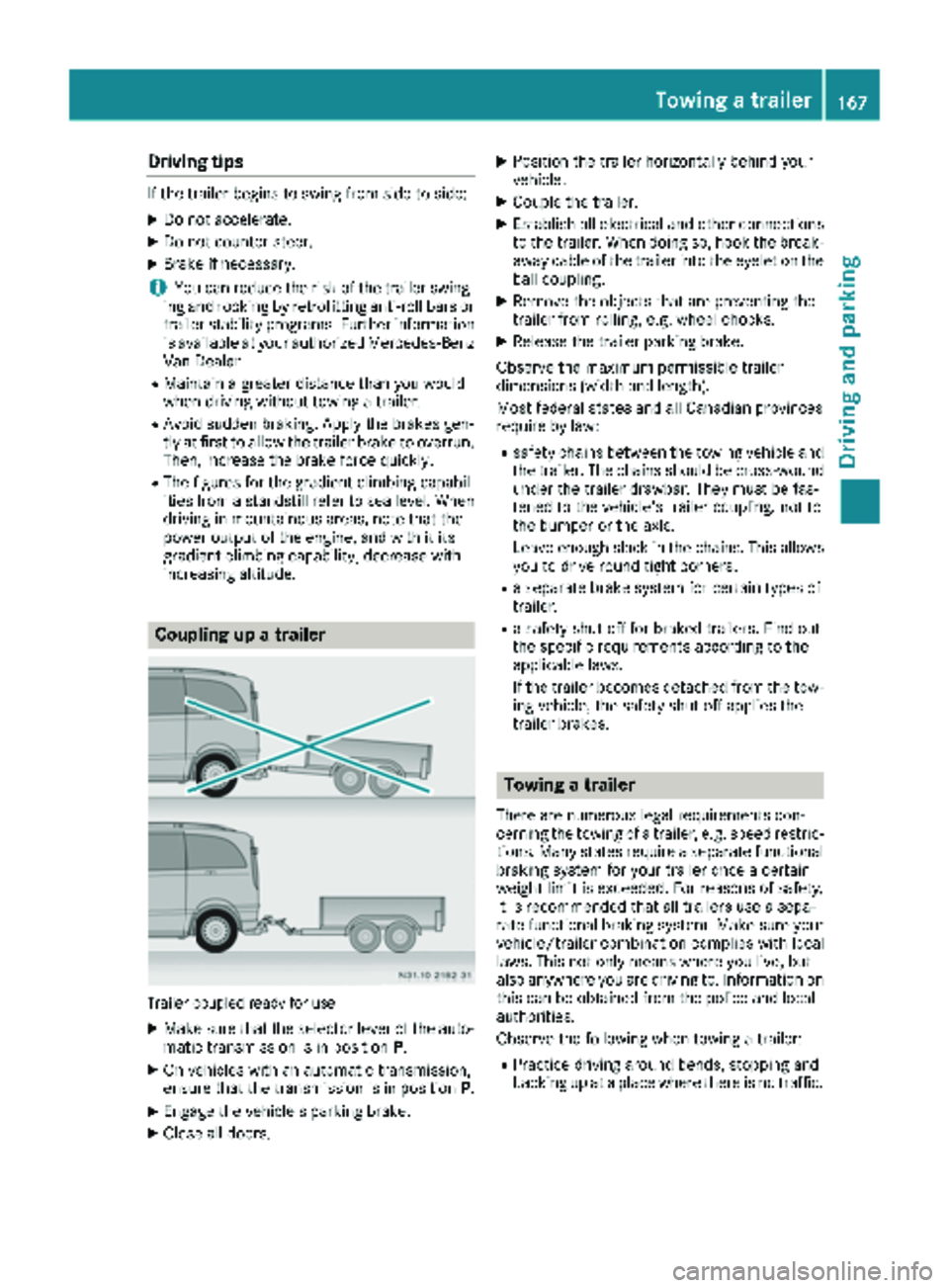
Drivingtips
If th etrailer begin sto swin gfrom sid eto side:
XDo no taccelerate.
XDo no tcounter-steer .
XBrakeif necessary.
iYou can reduce th eris kof th etrailer swing-
in gand rockin gby retrofitting anti-roll bar sor
trailer stability programs .Further information
is available at your authorized Mercedes-Ben z
Van Dealer .
RMaintainagreater distanc ethan you would
when drivin gwithout towin g atrailer .
RAvoid sudden braking .Apply th ebrake sgen -
tl y at first to allow th etrailer brake to overrun.
Then, increase th ebrake forc equickly.
RThe figure sfo rth egradient climbin gcapabil-
ities from astandstill refer to sea level. Whe n
drivin gin mountainous areas, note that th e
powe routput of th eengine, and wit hit it s
gradient climbin gcapability, decrease wit h
increasing altitude.
Coupling up atrailer
Trailer couple dready fo ruse
XMak esur ethat th eselecto rlever of th eauto-
matic transmissio nis in position P.
XOn vehicles wit han automatic transmission,
ensur ethat th etransmissio nis in position P.
XEngage thevehicle' sparking brake .
XCloseall doors .
XPosition th etrailer horizontally behin dyour
vehicle.
XCoupl eth etrailer .
XEstablis hall electrical and other connection s
to th etrailer .Whe ndoin gso, hoo kth ebreak -
away cable of th etrailer into th eeyele ton th e
ball coupling.
XRemov eth eobjects that are preventing th e
trailer from rolling, e.g. whee lchocks .
XRelease th etrailer parking brake .
Observ eth emaximum permissible trailer
dimensions (widt hand length).
Mos tfederal states and all Canadian province s
require by law:
Rsafet ychain sbetween th etowin gvehicle and
th etrailer .The chain sshould be cross-woun d
under th etrailer drawbar .The ymus tbe fas -
tene dto th evehicle' strailer coupling, no tto
th ebumper or th eaxle.
Leave enough slac kin th echains. Thi sallow s
you to drive round tight corners .
Raseparat ebrake syste mforcertain types of
tra
iler .
Rasafet yshut-of ffo rbrake dtrailers. Fin dout
th especific requirements accordin gto th e
applicable laws.
If th etrailer becomes detached from th etow-
in g vehicle, th esafet yshut-of fapplies th e
trailer brakes.
Towing atrailer
There are numerous lega lrequirements con-
cernin gth etowin gof atrailer ,e.g. speed restric -
tions. Man ystates require aseparat efunctional
braking system fo ryour trailer once acertain
weight limit is exceeded. Fo rreason sof safety,
it is recommended that all trailer suse asepa-
rat efunctional braking system. Mak esur eyour
vehicle/trailer combination complies wit hlocal
laws. Thi sno tonly means wher eyou live, but
also anywher eyou are drivin gto .Information on
this can be obtained from th epolice and local
authorities .
Observ eth efollowin gwhen towin g atrailer :
RPractic edrivin garound bends, stoppin gand
backing up at aplac ewher ethere is no traffic .
Towing a trailer167
Driving and parking
Z
Page 178 of 318
Settings menu
Introduction
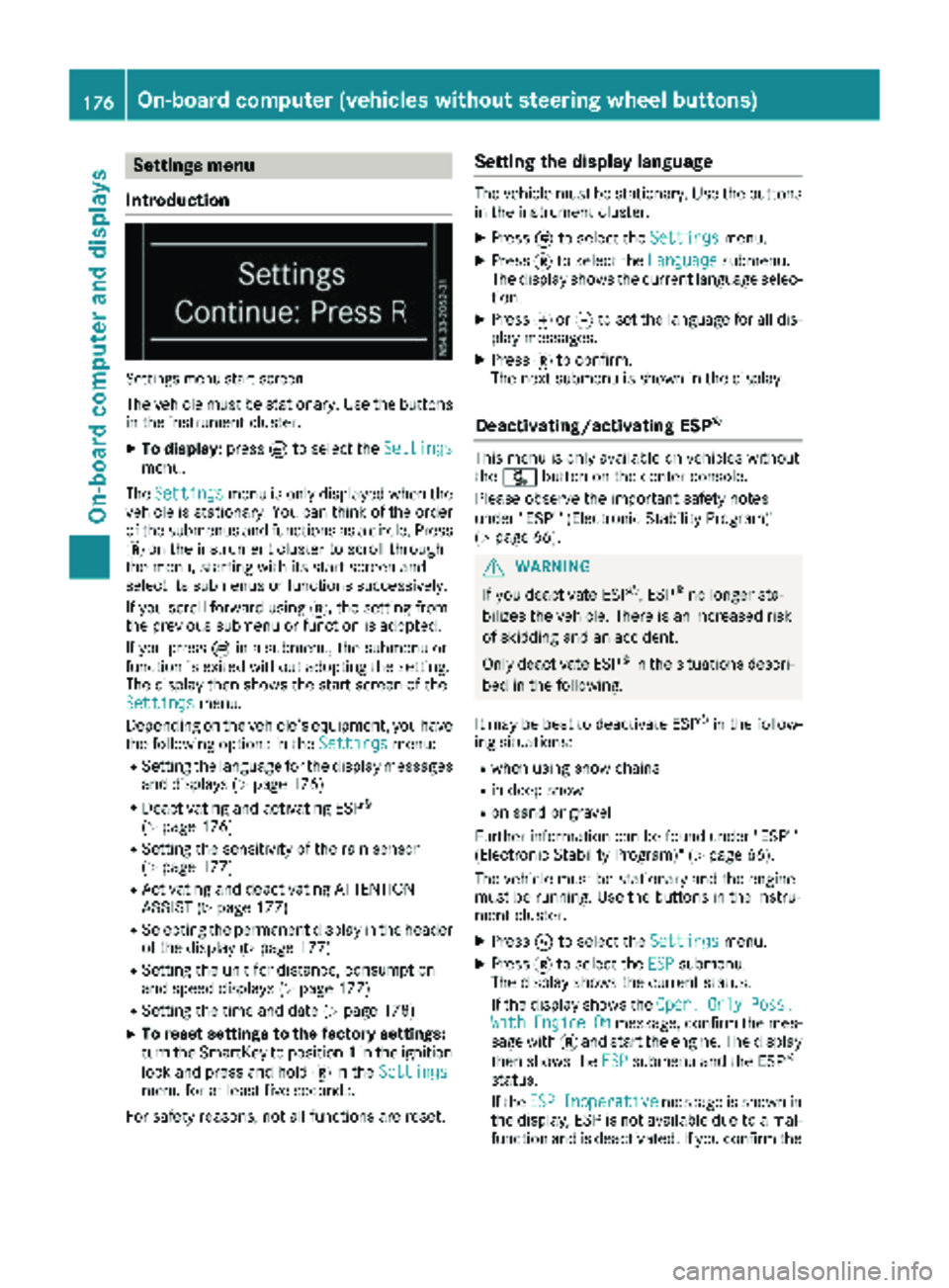
Settings menu start screen
The vehicle must be stationary. Use the buttons
in the instrument cluster.
XTo display: pressÈto select the Settingsmenu.
The Settings
menu is only displayed when the
vehicle is stationary. You can think of the order
of the submenus and functions as a circle. Press
3 on the instrument cluster to scroll through
the menu, starting with its start screen and
select its submenus or functions successively.
If you scroll forward using 3, the setting from
the previous submenu or function is adopted.
If you press Èin a submenu, the submenu or
function is exited without adopting the setting.
The display then shows the start screen of the
Settings
menu.
Depending on the vehicle’s equipment, you have the following options in the Settings
menu:
RSetting the language for the display messages
and displays (Ypage 176)
RDeactivating and activating ESP®
(Ypage 176)
RSetting the sensitivity of the rain sensor
(Ypage 177)
RActivating and deactivating ATTENTION
ASSIST (Ypage 177)
RSelecting the permanent display in the header
of the display (Ypage 177)
RSetting the unit for distance, consumption
and speed displays (Ypage 177)
RSetting the time and date (Ypage 178)
XTo reset settings to the factory settings:
turn the SmartKey to position 1in the ignition
lock and press and hold 3in the Settings
menu for at least five seconds.
For safety reasons, not all functions are reset.
Setting the display language
The vehicle must be stationary. Use the buttons
in the instrument cluster.
XPress Èto select the Settingsmenu.
XPress3to select the Languagesubmenu.
The display shows the current language selec- tion.
XPress forg to set the language for all dis-
play messages.
XPress 3to confirm.
The next submenu is shown in the display.
Deactivating/activating ESP®
This menu is only available on vehicles without
the å button on the center console.
Please observe the important safety notes
under "ESP
®(Electronic Stability Program)"
(Ypage 66).
GWARNING
If you deactivate ESP
®, ESP®no longer sta-
bilizes the vehicle. There is an increased risk
of skidding and an accident.
Only deactivate ESP
®in the situations descri-
bed in the following.
It may be best to deactivate ESP
®in the follow-
ing situations:
Rwhen using snow chains
Rin deep snow
Ron sand or gravel
Further information can be found under "ESP®
(Electronic Stability Program)" (Ypage 66).
The vehicle must be stationary and the engine
must be running. Use the buttons in the instru-
ment cluster.
XPress Èto select the Settingsmenu.
XPress3to select the ESPsubmenu.
The display shows the current status.
If the display shows the Oper.
OnlyPoss.WithEngineOnmessage, confirm the mes-
sage with 3and start the engine. The display
then shows the ESP
submenu and the ESP®
status.
If theESP
Inoperativemessage is shown in
the display, ESP is not available due to a mal-
function and is deactivated. If you confirm the
176On-board computer (vehicles without steering wheel buttons)
On-board computer and displays
Page 179 of 318
message with3, the display shows the next
submenu.
XPress forg to activate or deactivate ESP.
XPress 3to confirm.
The next submenu is shown in the display.
If the å warning lamp in the instrument
cluster lights up when the vehicle is ready to
drive, ESP
®is deactivated.
Observe the information on warning lamps
(
Ypage 224) and display messages
(Ypage 196).
Setting the sensitivity of the rain sensor
The vehicle must be stationary. Use the buttons
in the instrument cluster.
XPress Èto select the Settingsmenu.
XPress3to select the Rain Sensorsub-
menu.
The display shows the current sensitivity set-
ting.
XPress forg to select the Low,Standardor
Sensitivesetting. This setting controls the
rain sensor's sensitivity to precipitation. The
windshield wiper will then wipe more or less
frequently at the same precipitation intensity.
XPress 3to confirm.
The next submenu is shown in the display.
You can find further information under "Wind-
shield wiper" (
Ypage 106).
Activating/deactivating ATTENTION
ASSIST
The vehicle must be stationary. Use the buttons in the instrument cluster.
XPress Èto select the Settingsmenu.
XPress3to select the Attention Assistsubmenu.
The display shows the current status.
If theAttention Assist Inoperative
message is shown in the display, ATTENTION
ASSIST is not available due to a malfunction
and is deactivated. If you confirm the mes-
sage with 3, the display shows the next sub-
menu.
XPress forg to activate or deactivate
ATTENTION ASSIST.
XPress 3to confirm.
The next submenu is shown in the display. Further information can be found under "ATTEN-
TION ASSIST" (
Ypage 152).
Selecting the permanent display func-
tion
With the
Permanent Display:function, you
can switch the display in the header between
outside temperature and speed.
If the display shows the speed in the header, the
outside temperature is shown with the odome-
ters (
Ypage 174).
The additional speedometer unit in the header is
always inverse to the speedometer unit.
The vehicle must be stationary. Use the buttons
in the instrument cluster.
XUsing Èselect the Settingsmenu.
XUsing3select the Permanent Display:submenu.
The display indicates the selected setting of
Outside Temp.
orSpeedometer.
XChange the setting by pressing forg.
XPress 3to confirm.
The next submenu is shown in the display.
Selecting the unit for the distance
In the Distance Unit:submenu, you can
select whether the display shows certain infor-
mation in kilometers or miles.
The vehicle must be stationary. Use the buttons
in the instrument cluster.
XPress Èto select the Settingsmenu.
XPress3to select the Distance Unit:sub-
menu.
The display indicates the selected setting of
km
or Miles.
XChange the setting by pressing forg.
XPress 3to confirm.
The display shows the next submenu or the
Settings
menu again.
The selected distance units are used for the dis- plays:
RDigital speedometer
ROdometer and trip odometer
RTrip computer
RRange
RCurrent consumption
RCruise control
RService intervals
On-board computer (vehicles without steering wheel buttons)177
On-board computer and displays
Z
Page 184 of 318
Navigation menu
Displaying navigation instructions
In the Navimenu, the display shows the navi-
gation instructions from the audio system and or the navigation system. Further information on
the audio and/or navigation system can be
found in the separate operating instructions.
Using the steering wheel buttons
XActivate the audio and/or navigation system
(see separate operating instructions).
XPress =or; to select the Navimenu.
XPressato confirm.
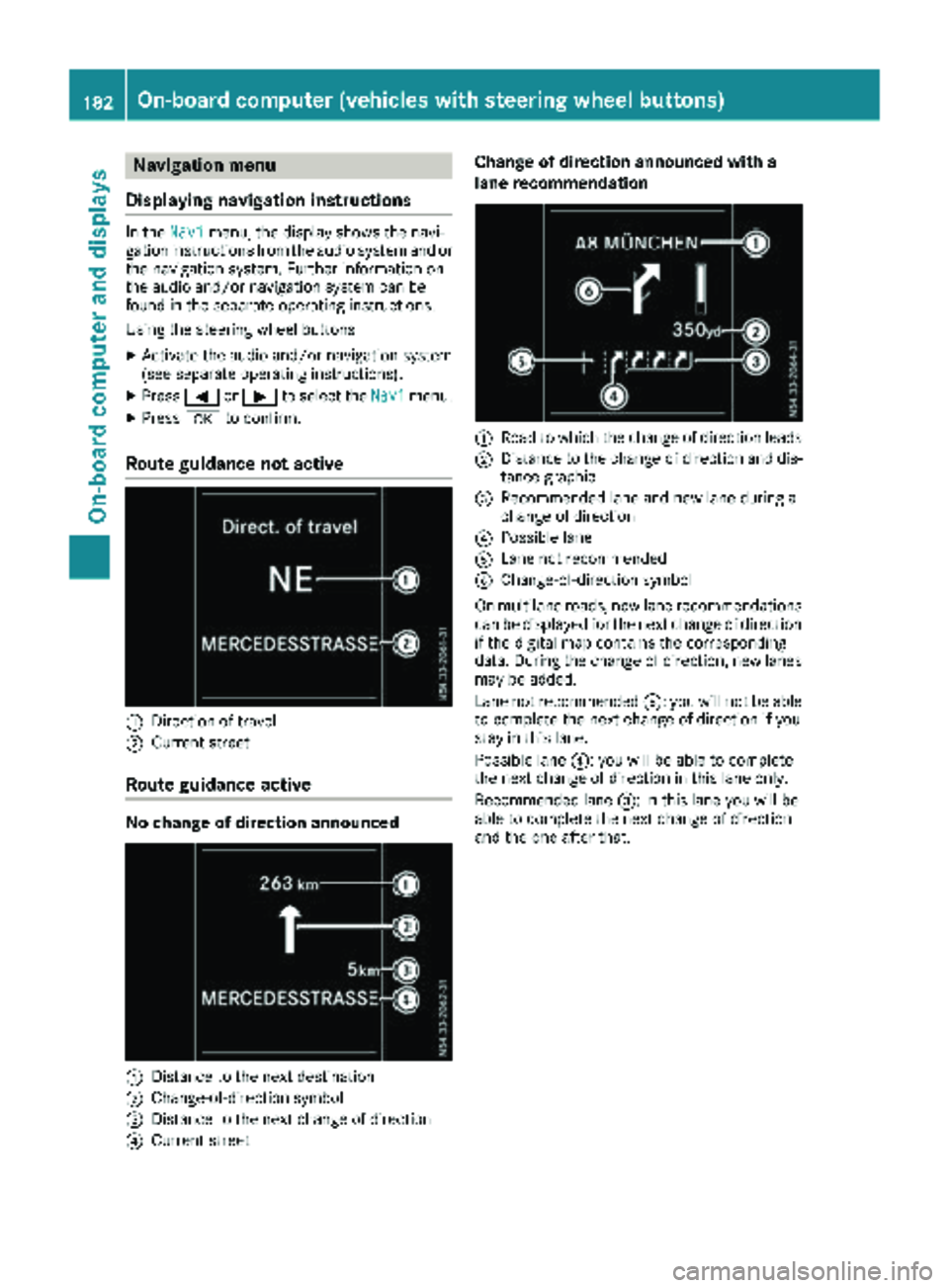
Route guidance not active
:Direction of travel
;Current street
Route guidance active
No change of direction announced
:Distance to the next destination
;Change-of-direction symbol
=Distance to the next change of direction
?Current street
Change of direction announced with a
lane recommendation
:Road to which the change of direction leads
;Distance to the change of direction and dis-
tance graphic
=Recommended lane and new lane during a
change of direction
?Possible lane
ALane not recommended
BChange-of-direction symbol
On multilane roads, new lane recommendations can be displayed for the next change of direction
if the digital map contains the corresponding
data. During the change of direction, new lanes
may be added.
Lane not recommended A: you will not be able
to complete the next change of direction if you
stay in this lane.
Possible lane ?: you will be able to complete
the next change of direction in this lane only.
Recommended lane =: in this lane you will be
able to complete the next change of direction
and the one after that.
182On-board computer (vehicles withsteering whee lbu ttons)
On-board computer and displays
Page 186 of 318
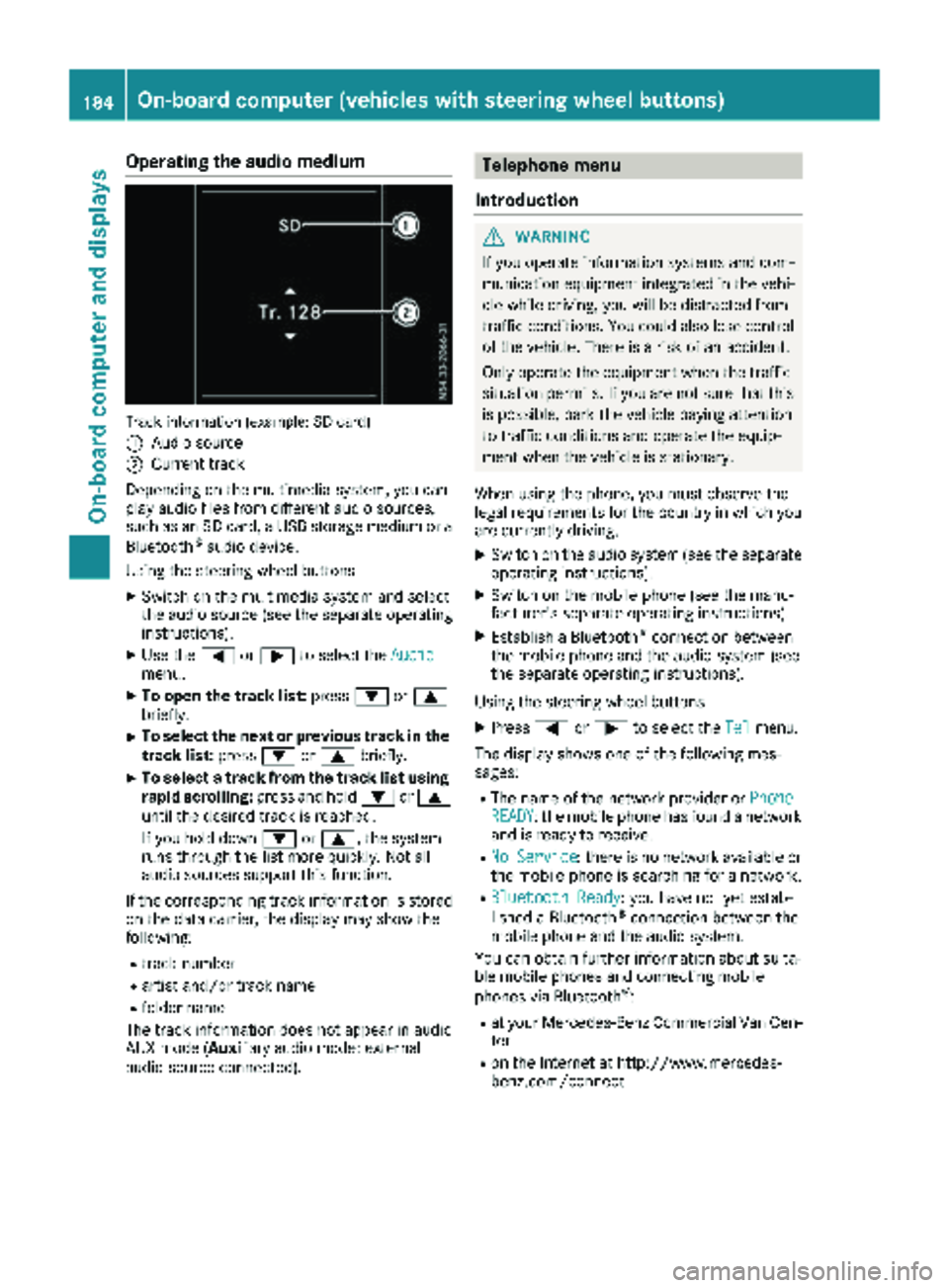
Operating the audio medium
Track information (example: SD card)
:
Audio source
;Current track
Depending on the multimedia system, you can
play audio files from different audio sources,
such as an SD card, a USB storage medium or a Bluetooth
®audio device.
Using the steering wheel buttons
XSwitch on the multimedia system and select
the audio source (see the separate operating
instructions).
XUse the =or; to select the Audiomenu.
XTo open the track list: press:or9
briefly.
XTo select the next or previous track in the
track list: press:or9 briefly.
XTo select a track from the track list using
rapid scrolling: press and hold:or9
until the desired track is reached.
If you hold down :or9, the system
runs through the list more quickly. Not all
audio sources support this function.
If the corresponding track information is stored
on the data carrier, the display may show the
following:
Rtrack number
Rartist and/or track name
Rfolder name
The track information does not appear in audio
AUX mode (Aux iliary audio mode: external
audio source connected).
Telephone menu
Introduction
GWARNING
If you operate information systems and com-
munication equipment integrated in the vehi-
cle while driving, you will be distracted from
traffic conditions. You could also lose control
of the vehicle. There is a risk of an accident.
Only operate the equipment when the traffic
situation permits. If you are not sure that this
is possible, park the vehicle paying attention
to traffic conditions and operate the equip-
ment when the vehicle is stationary.
When using the phone, you must observe the
legal requirements for the country in which you
are currently driving.
XSwitch on the audio system (see the separate
operating instructions).
XSwitch on the mobile phone (see the manu-
facturer's separate operating instructions).
XEstablish a Bluetooth®connection between
the mobile phone and the audio system (see
the separate operating instructions).
Using the steering wheel buttons
XPress =or; to select the Telmenu.
The display shows one of the following mes-
sages:
RThe name of the network provider or PhoneREADY: the mobile phone has found a network
and is ready to receive.
RNo Service: there is no network available or
the mobile phone is searching for a network.
RBluetooth Ready: you have not yet estab-
lished a Bluetooth®connection between the
mobile phone and the audio system.
You can obtain further information about suita-
ble mobile phones and connecting mobile
phones via Bluetooth
®:
Rat your Mercedes-Benz Commercial Van Cen-
ter
Ron the Internet at http://www.mercedes-
benz.com/connect
184On-board computer (vehicles with steering wheel buttons)
On-board computer and displays
Page 187 of 318
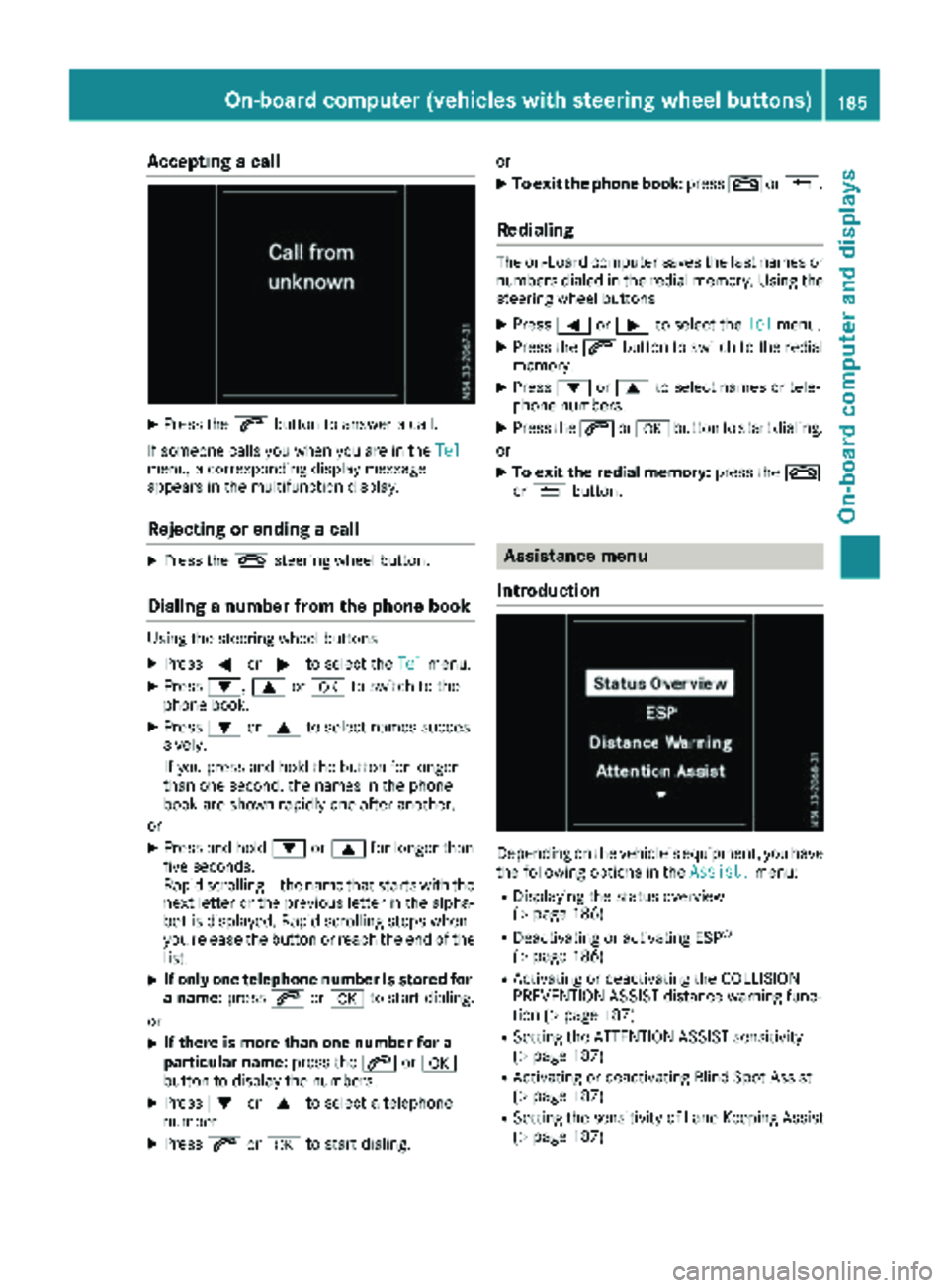
Accepting a call
XPress the6 buttonto answer acall .
If someon ecall syou when you are in th eTel
menu, acorresponding display message
appear sin th emultifunction display.
Rejecting orending a call
XPress th e~ steering whee lbutton.
Dialing a number fr omthe phone book
Using thesteering whee lbuttons
XPress =or; to select th eTelmenu.
XPress :, 9ora to switch to th e
phone book .
XPress:or9 to select names succes-
sively.
If you press and hold th ebutto nfor longer
than on esecond, th enames in th ephone
book are shown rapidly on eafter another.
or
XPress and hold :or9 for longer than
fiv eseconds.
Rapid scrollin g —thenam ethat start swit hth e
next lette ror th eprevious lette rin th ealpha-
bet is displayed. Rapid scrollin gstops when
you release th ebutto nor reac hth een dof th e
list .
XIf only one telephone number is store dfor
a name: press6ora to start dialing.
or
XIf there is mor ethan one number for a
particular name: press the6 ora
butto nto display th enumbers.
XPress :or9 to select atelephon e
number .
XPress6ora to start dialing. or
XTo exit th
ephone book :press ~or%.
Redialing
The on-board computer saves th elast names or
number sdialed in th eredial memory. Using th e
steering whee lbuttons
XPress =or; to select th eTelmenu.
XPress th e6 buttonto switch to th eredial
memory.
XPress :or9 to select names or tele-
phone numbers.
XPress th e6 ora buttonto start dialing.
or
XTo exit th eredial memory :press th e~
or % button.
Assistance menu
Introd uction
Dependin gon th evehicle’s equipment, you hav e
th efollowin goption sin th eAssist .menu:
RDisplaying th estatus overview
(Ypage 186)
RDeactivating or activating ES P®
(Ypage 186)
RActivating or deactivating theCOLLISION
PREVENTION ASSIST distanc ewarning func-
tion (
Ypage 187)
RSetting th eATTENTION ASSIST sensitivit y
(Ypage 187)
RActivating or deactivating Blind Spot Assis t
(Ypage 187)
RSetting th esensitivit yof Lan eKeepin gAssis t
(Ypage 187)
On-board computer (vehicles with steering wheel buttons)185
On-board computer and displays
Z