display MERCEDES-BENZ S CLASS 2010 Owners Manual
[x] Cancel search | Manufacturer: MERCEDES-BENZ, Model Year: 2010, Model line: S CLASS, Model: MERCEDES-BENZ S CLASS 2010Pages: 548, PDF Size: 11.45 MB
Page 244 of 548
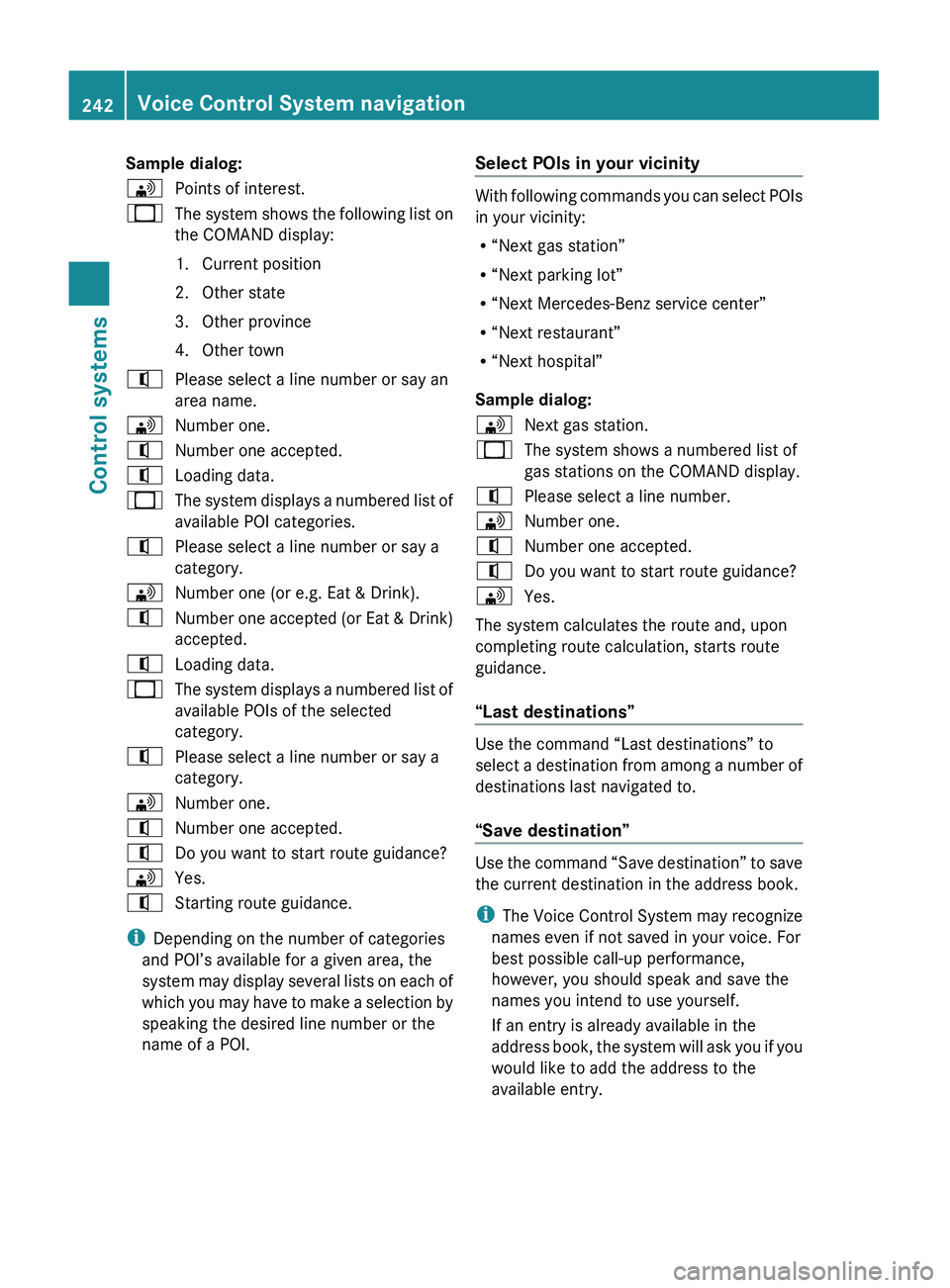
Sample dialog:009DPoints of interest.009BThe system shows the following list on
the COMAND display:
1. Current position
2. Other state
3. Other province
4. Other town009CPlease select a line number or say an
area name.009DNumber one.009CNumber one accepted.009CLoading data.009BThe system displays a numbered list of
available POI categories.009CPlease select a line number or say a
category.009DNumber one (or e.g. Eat & Drink).009CNumber one accepted (or Eat & Drink)
accepted.009CLoading data.009BThe system displays a numbered list of
available POIs of the selected
category.009CPlease select a line number or say a
category.009DNumber one.009CNumber one accepted.009CDo you want to start route guidance?009DYes.009CStarting route guidance.
i Depending on the number of categories
and POI’s available for a given area, the
system may display several lists on each of
which you may have to make a selection by
speaking the desired line number or the
name of a POI.
Select POIs in your vicinity
With following commands you can select POIs
in your vicinity:
R “Next gas station”
R “Next parking lot”
R “Next Mercedes-Benz service center”
R “Next restaurant”
R “Next hospital”
Sample dialog:
009DNext gas station.009BThe system shows a numbered list of
gas stations on the COMAND display.009CPlease select a line number.009DNumber one.009CNumber one accepted.009CDo you want to start route guidance?009DYes.
The system calculates the route and, upon
completing route calculation, starts route
guidance.
“Last destinations”
Use the command “Last destinations” to
select a destination from among a number of
destinations last navigated to.
“Save destination”
Use the command “Save destination” to save
the current destination in the address book.
i The Voice Control System may recognize
names even if not saved in your voice. For
best possible call-up performance,
however, you should speak and save the
names you intend to use yourself.
If an entry is already available in the
address book, the system will ask you if you
would like to add the address to the
available entry.
242Voice Control System navigationControl systems
221_AKB; 6; 20, en-USd2ugruen,Version: 2.11.8.12009-09-24T13:28:17+02:00 - Seite 242
Page 246 of 548
“Cancel route guidance”
Use the command “Cancel route guidance”
to cancel route guidance.
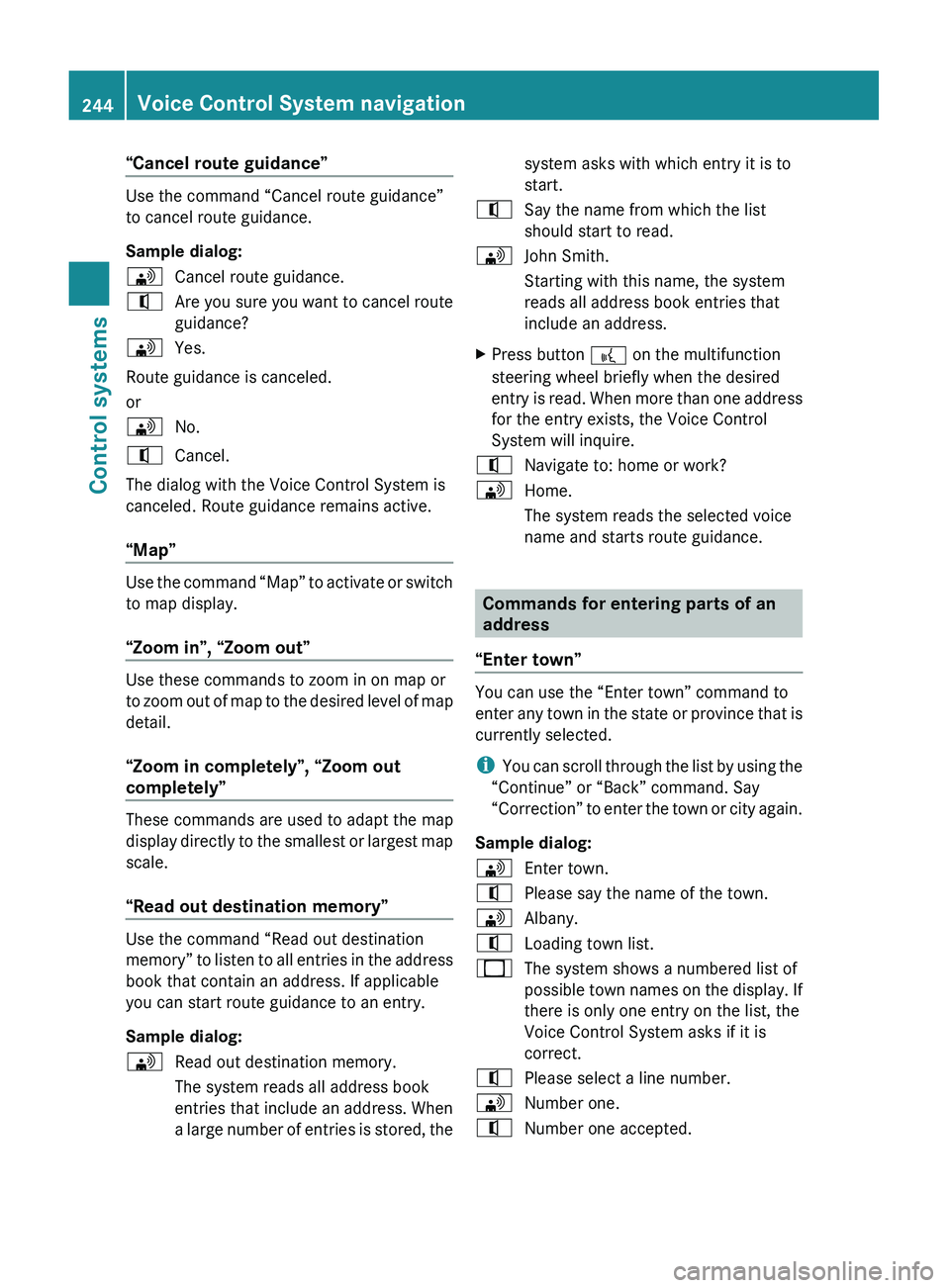
Sample dialog:
009DCancel route guidance.009CAre you sure you want to cancel route
guidance?009DYes.
Route guidance is canceled.
or
009DNo.009CCancel.
The dialog with the Voice Control System is
canceled. Route guidance remains active.
“Map”
Use the command “Map” to activate or switch
to map display.
“Zoom in”, “Zoom out”
Use these commands to zoom in on map or
to zoom out of map to the desired level of map
detail.
“Zoom in completely”, “Zoom out
completely”
These commands are used to adapt the map
display directly to the smallest or largest map
scale.
“Read out destination memory”
Use the command “Read out destination
memory” to listen to all entries in the address
book that contain an address. If applicable
you can start route guidance to an entry.
Sample dialog:
009DRead out destination memory.
The system reads all address book
entries that include an address. When
a large number of entries is stored, thesystem asks with which entry it is to
start.009CSay the name from which the list
should start to read.009DJohn Smith.
Starting with this name, the system
reads all address book entries that
include an address.XPress button 0062 on the multifunction
steering wheel briefly when the desired
entry is read. When more than one address
for the entry exists, the Voice Control
System will inquire.009CNavigate to: home or work?009DHome.
The system reads the selected voice
name and starts route guidance.
Commands for entering parts of an
address
“Enter town”
You can use the “Enter town” command to
enter any town in the state or province that is
currently selected.
i You can scroll through the list by using the
“Continue” or “Back” command. Say
“Correction” to enter the town or city again.
Sample dialog:
009DEnter town.009CPlease say the name of the town.009DAlbany.009CLoading town list.009BThe system shows a numbered list of
possible town names on the display. If
there is only one entry on the list, the
Voice Control System asks if it is
correct.009CPlease select a line number.009DNumber one.009CNumber one accepted.244Voice Control System navigationControl systems
221_AKB; 6; 20, en-USd2ugruen,Version: 2.11.8.12009-09-24T13:28:17+02:00 - Seite 244
Page 247 of 548
The city selected is adopted for route
guidance.
“Enter district”, “Enter center”
You can use the “Enter district” or “Enter
center” command to enter an area in a city
which you have selected previously.
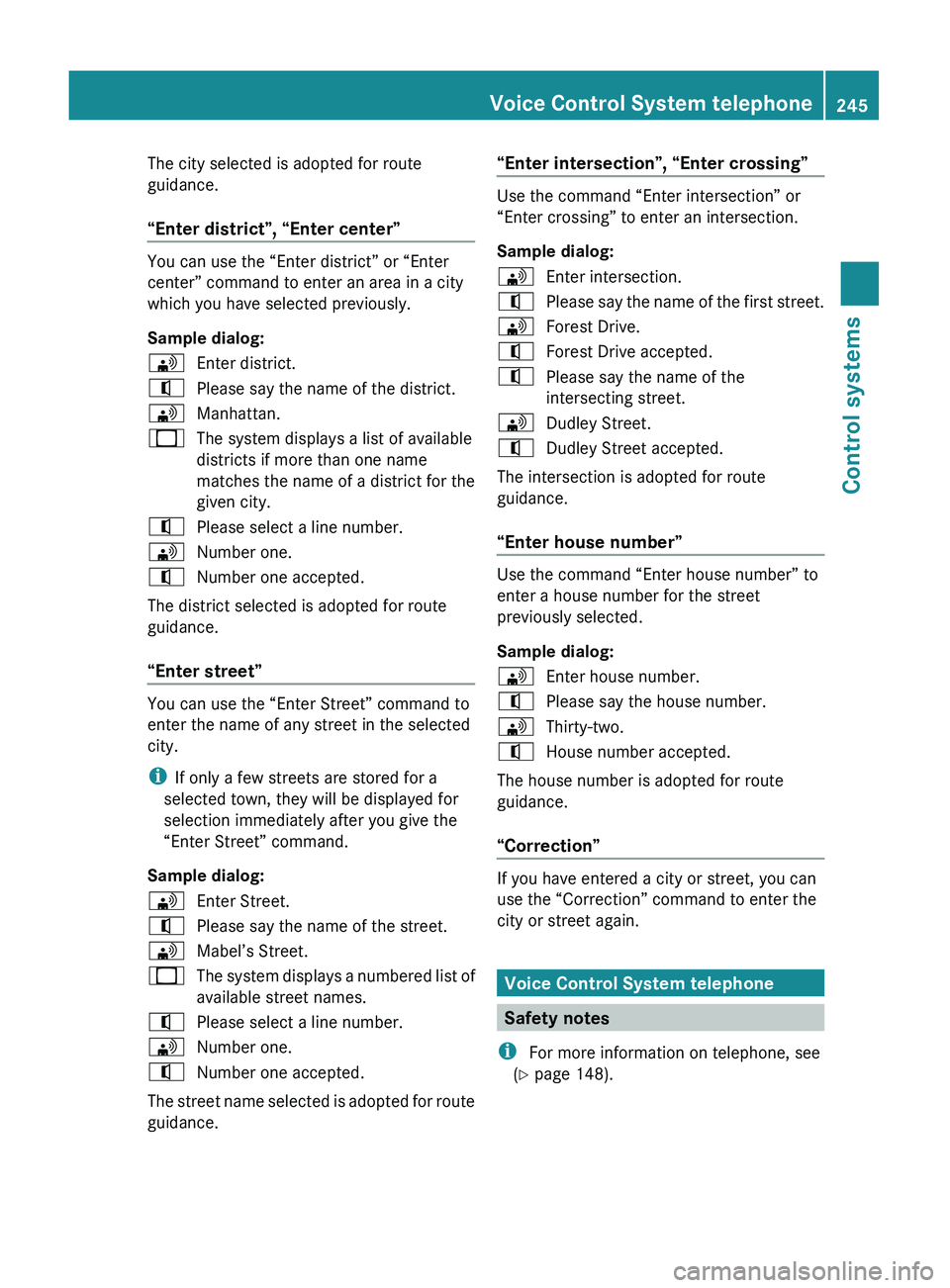
Sample dialog:
009DEnter district.009CPlease say the name of the district.009DManhattan.009BThe system displays a list of available
districts if more than one name
matches the name of a district for the
given city.009CPlease select a line number.009DNumber one.009CNumber one accepted.
The district selected is adopted for route
guidance.
“Enter street”
You can use the “Enter Street” command to
enter the name of any street in the selected
city.
i If only a few streets are stored for a
selected town, they will be displayed for
selection immediately after you give the
“Enter Street” command.
Sample dialog:
009DEnter Street.009CPlease say the name of the street.009DMabel’s Street.009BThe system displays a numbered list of
available street names.009CPlease select a line number.009DNumber one.009CNumber one accepted.
The street name selected is adopted for route
guidance.
“Enter intersection”, “Enter crossing”
Use the command “Enter intersection” or
“Enter crossing” to enter an intersection.
Sample dialog:
009DEnter intersection.009CPlease say the name of the first street.009DForest Drive.009CForest Drive accepted.009CPlease say the name of the
intersecting street.009DDudley Street.009CDudley Street accepted.
The intersection is adopted for route
guidance.
“Enter house number”
Use the command “Enter house number” to
enter a house number for the street
previously selected.
Sample dialog:
009DEnter house number.009CPlease say the house number.009DThirty-two.009CHouse number accepted.
The house number is adopted for route
guidance.
“Correction”
If you have entered a city or street, you can
use the “Correction” command to enter the
city or street again.
Voice Control System telephone
Safety notes
i For more information on telephone, see
( Y page 148).
Voice Control System telephone245Control systems221_AKB; 6; 20, en-USd2ugruen,Version: 2.11.8.12009-09-24T13:28:17+02:00 - Seite 245Z
Page 248 of 548
Safety notes for using the Voice Control
SystemGObserve Safety notes, see page 237.
Safety notes for using the telephone
GObserve Safety notes, see page 148.
Telephone operation
You can use the Voice Control System to
R dial phone number
R store names and numbers in the COMAND
address book
R dial a phone number directly from the
COMAND address book
R delete the voice name of an address book
entry
R have the system read out the phone book
of the address book entry by entry
R manage and access an automated
answering system/voice mail box 36
R redial
The Voice Control System detects whether
R your telephone is switched on
R your telephone is connected via Bluetooth ®
R the corresponding mobile network is
logged in
R it is possible to dial
If dialing is not possible, the Voice Control
System will advise you accordingly.
i You can continue operating your mobile
phone using the telephone keypad or the
keypad on your phone.
Telephone commands
For a list of commands, see ( Y page 257).
“Telephone”
Use the command “Telephone” to activate
the telephone main menu. Use this command
if you want the digits you are entering to
appear on the COMAND display.
“Help telephone”
The Voice Control System features a
comprehensive help function.
Use the command “Help telephone” and the
Voice Control System will read out an option
list of available functions and commands that
can be used in conjunction with the telephone
( Y page 93).
“Dial number”
You can dial a phone number using the
command “Dial number”.
The digits 0 to 9 and the word “Plus” are
permitted. “Plus” replaces the international
dialing code “00”.
Speak the telephone number
R as a continuous string
or, with longer phone numbers,
R in digit blocks (three to five digits in each
block).
After each digit block (separate the digit
blocks by using an approximately 0.5 second
pause), the Voice Control System repeats the
recognized digits and waits until you continue
speaking.
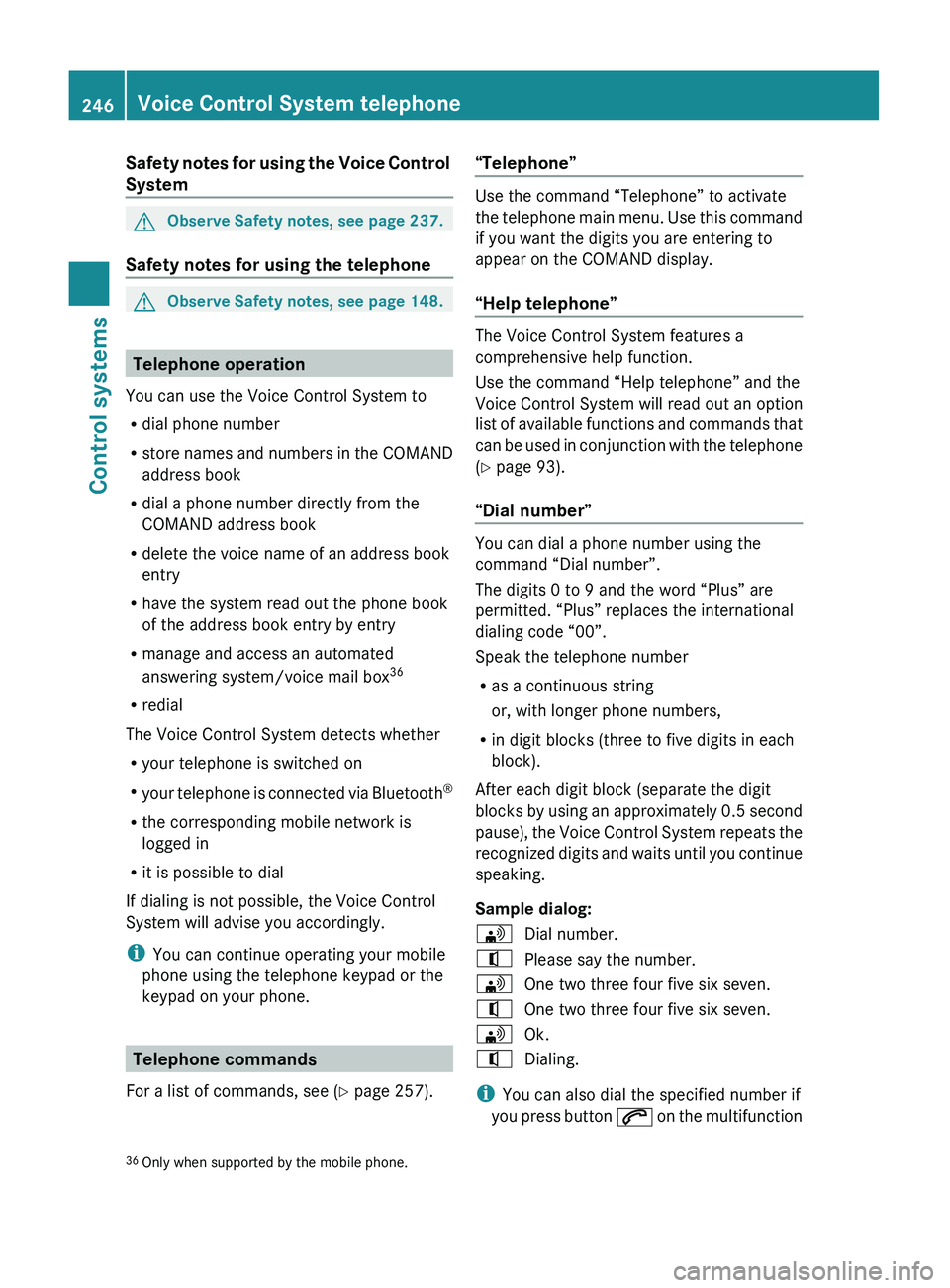
Sample dialog:
009DDial number.009CPlease say the number.009DOne two three four five six seven.009COne two three four five six seven.009DOk.009CDialing.
i You can also dial the specified number if
you press button 006A on the multifunction
36
Only when supported by the mobile phone.246Voice Control System telephoneControl systems
221_AKB; 6; 20, en-USd2ugruen,Version: 2.11.8.12009-09-24T13:28:17+02:00 - Seite 246
Page 251 of 548
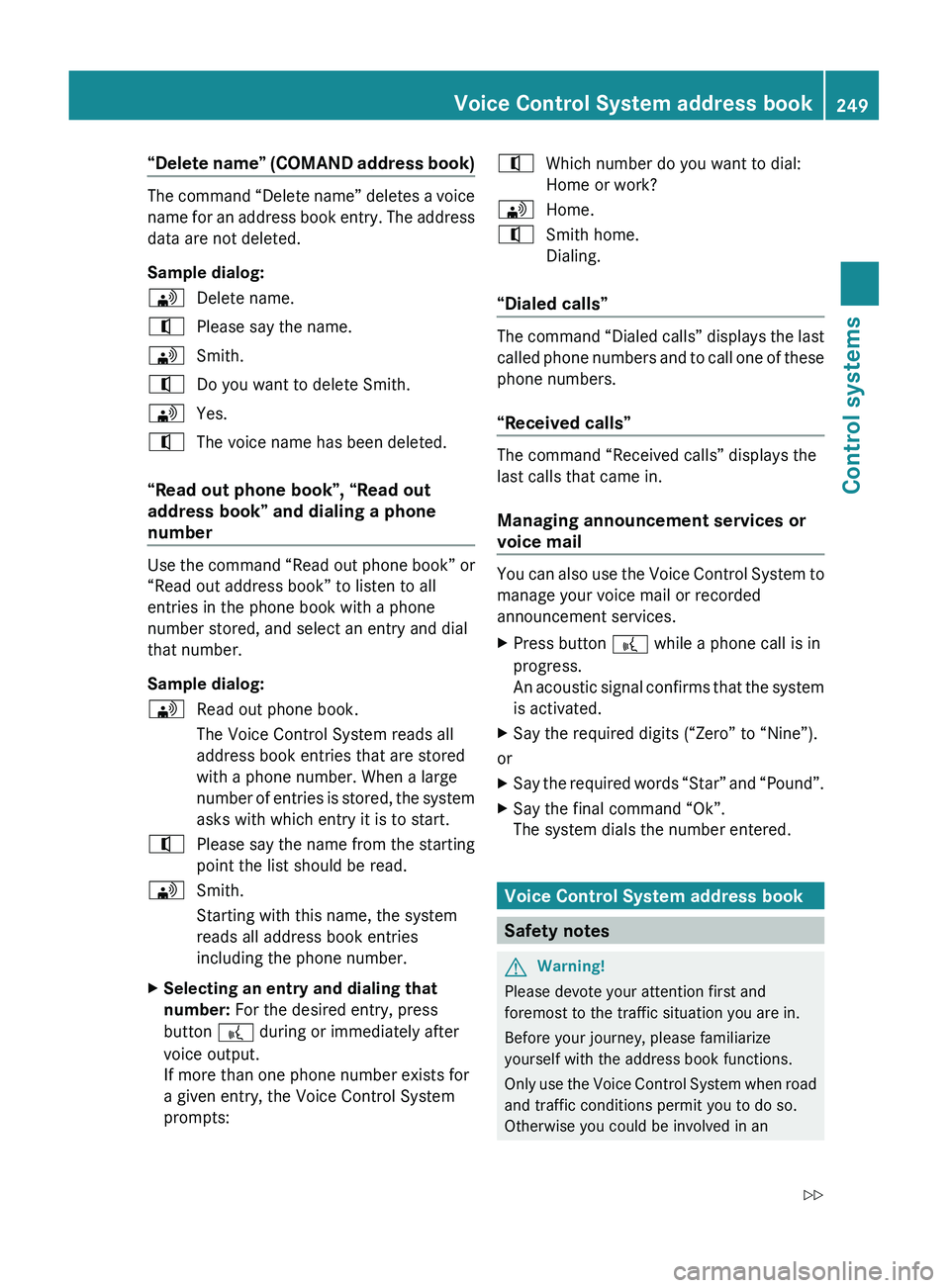
“Delete name” (COMAND address book)
The command “Delete name” deletes a voice
name for an address book entry. The address
data are not deleted.
Sample dialog:
009DDelete name.009CPlease say the name.009DSmith.009CDo you want to delete Smith.009DYes.009CThe voice name has been deleted.
“Read out phone book”, “Read out
address book” and dialing a phone
number
Use the command “Read out phone book” or
“Read out address book” to listen to all
entries in the phone book with a phone
number stored, and select an entry and dial
that number.
Sample dialog:
009DRead out phone book.
The Voice Control System reads all
address book entries that are stored
with a phone number. When a large
number of entries is stored, the system
asks with which entry it is to start.009CPlease say the name from the starting
point the list should be read.009DSmith.
Starting with this name, the system
reads all address book entries
including the phone number.XSelecting an entry and dialing that
number: For the desired entry, press
button 0062 during or immediately after
voice output.
If more than one phone number exists for
a given entry, the Voice Control System
prompts:009CWhich number do you want to dial:
Home or work?009DHome.009CSmith home.
Dialing.
“Dialed calls”
The command “Dialed calls” displays the last
called phone numbers and to call one of these
phone numbers.
“Received calls”
The command “Received calls” displays the
last calls that came in.
Managing announcement services or
voice mail
You can also use the Voice Control System to
manage your voice mail or recorded
announcement services.
XPress button 0062 while a phone call is in
progress.
An acoustic signal confirms that the system
is activated.XSay the required digits (“Zero” to “Nine”).
or
XSay the required words “Star” and “Pound”.XSay the final command “Ok”.
The system dials the number entered.
Voice Control System address book
Safety notes
GWarning!
Please devote your attention first and
foremost to the traffic situation you are in.
Before your journey, please familiarize
yourself with the address book functions.
Only use the Voice Control System when road
and traffic conditions permit you to do so.
Otherwise you could be involved in an
Voice Control System address book249Control systems221_AKB; 6; 20, en-USd2ugruen,Version: 2.11.8.12009-09-24T13:28:17+02:00 - Seite 249Z
Page 253 of 548
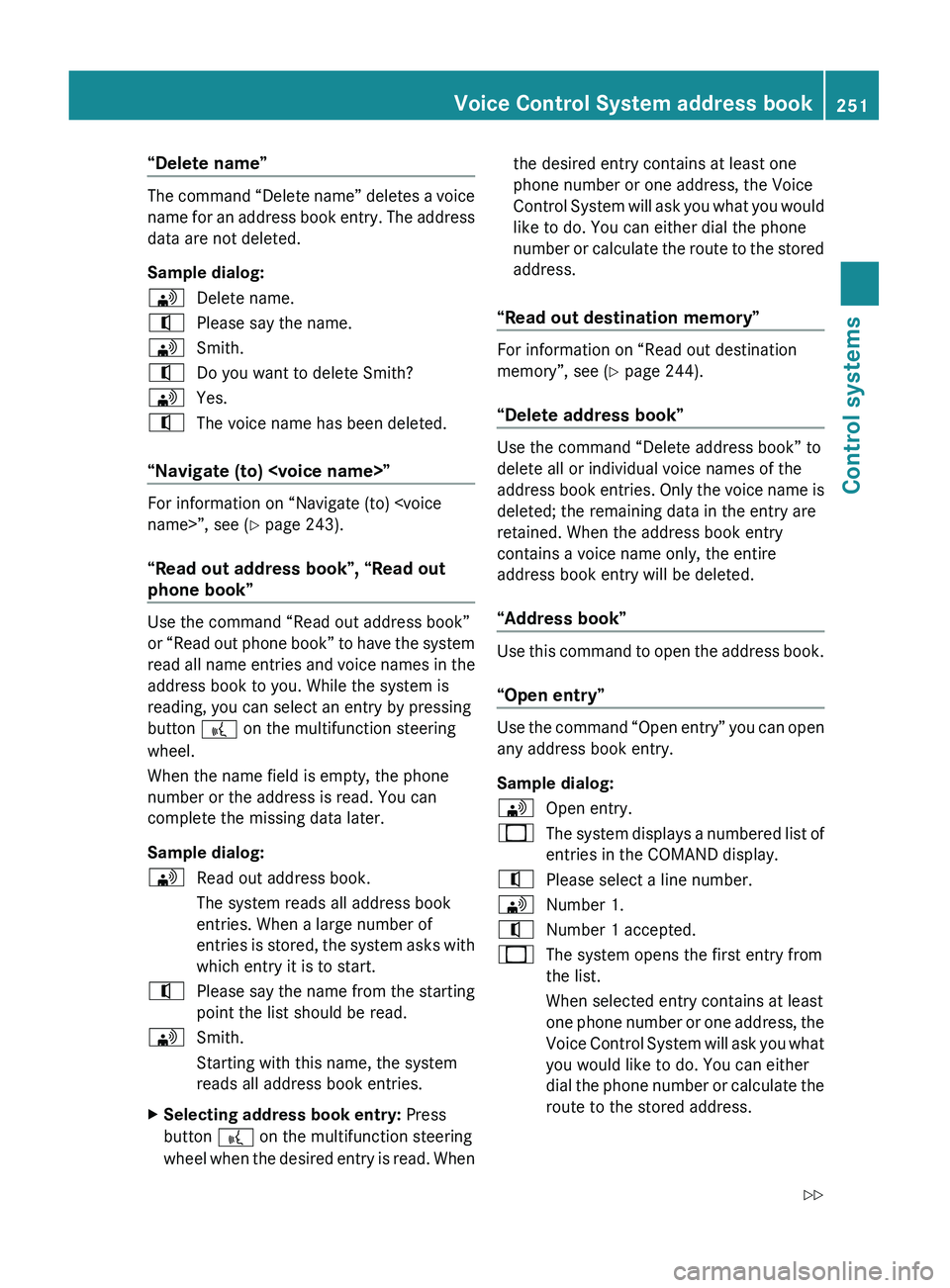
“Delete name”
The command “Delete name” deletes a voice
name for an address book entry. The address
data are not deleted.
Sample dialog:
009DDelete name.009CPlease say the name.009DSmith.009CDo you want to delete Smith?009DYes.009CThe voice name has been deleted.
“Navigate (to)
For information on “Navigate (to)
“Read out address book”, “Read out
phone book”
Use the command “Read out address book”
or “Read out phone book” to have the system
read all name entries and voice names in the
address book to you. While the system is
reading, you can select an entry by pressing
button 0062 on the multifunction steering
wheel.
When the name field is empty, the phone
number or the address is read. You can
complete the missing data later.
Sample dialog:
009DRead out address book.
The system reads all address book
entries. When a large number of
entries is stored, the system asks with
which entry it is to start.009CPlease say the name from the starting
point the list should be read.009DSmith.
Starting with this name, the system
reads all address book entries.XSelecting address book entry: Press
button 0062 on the multifunction steering
wheel when the desired entry is read. Whenthe desired entry contains at least one
phone number or one address, the Voice
Control System will ask you what you would
like to do. You can either dial the phone
number or calculate the route to the stored
address.
“Read out destination memory”
For information on “Read out destination
memory”, see ( Y page 244).
“Delete address book”
Use the command “Delete address book” to
delete all or individual voice names of the
address book entries. Only the voice name is
deleted; the remaining data in the entry are
retained. When the address book entry
contains a voice name only, the entire
address book entry will be deleted.
“Address book”
Use this command to open the address book.
“Open entry”
Use the command “Open entry” you can open
any address book entry.
Sample dialog:
009DOpen entry.009BThe system displays a numbered list of
entries in the COMAND display.009CPlease select a line number.009DNumber 1.009CNumber 1 accepted.009BThe system opens the first entry from
the list.
When selected entry contains at least
one phone number or one address, the
Voice Control System will ask you what
you would like to do. You can either
dial the phone number or calculate the
route to the stored address.Voice Control System address book251Control systems221_AKB; 6; 20, en-USd2ugruen,Version: 2.11.8.12009-09-24T13:28:17+02:00 - Seite 251Z
Page 254 of 548
iThe list is displayed only when the
address book contains a very small number
of entries. When the address book contains
several entries, the Voice Control System
prompts you to speak a name.
You can also use the commands “Open
John Smith”, “Open Smith John”, or “Open
entry directly.
Voice Control System radio
Safety notes
GWarning!
Please devote your attention first and
foremost to the traffic situation you are in.
Before your journey, please familiarize
yourself with the radio functions.
Only use the Voice Control System when road
and traffic conditions permit you to do so.
Otherwise you could be involved in an
accident in which you or others could be
injured.
Radio operation
You can use the Voice Control System to
R select a station
R find a station
R select a frequency (FM, AM)
R select a category (satellite radio)
R select the wave band (FM, AM or weather
band)
R reading out the Presets
R switch to satellite radio
R switch to HD Radio™
R save a voice name for a station
R delete a station list (voice names only)
R delete a station (voice name only)
R select a channel number (satellite radio)
The names of all received and stored stations
are available for voice recognition. To
improve voice recognition, you can store a
voice name for a specific speaker.XTo select the radio or satellite radio
application: Press button 0062 button on
the multifunction steering wheel.XSay the command “Radio” or “Satellite
Radio”.XPress button 0062.XSay one of the radio or satellite radio
commands explained below.
Radio commands
For a list of commands, see ( Y page 257).
You can always give the commands for the
radio when you are listening to the radio, even
if a different application is shown on the
display.
“Help Radio”
Using the “Help Radio” command, the Voice
Control System asks “For which radio
functions do you want help?”. It then reads
out a list of topics.
“Help Satellite Radio”
Using the “Help Satellite Radio” command,
the Voice Control System asks “For which
radio functions do you want help?”. It then
reads out a list of topics.
“Help HD Radio”
Using the “Help HD Radio” command, you can
have all the commands for the HD Radio™
read out.
252Voice Control System radioControl systems
221_AKB; 6; 20, en-USd2ugruen,Version: 2.11.8.12009-09-24T13:28:17+02:00 - Seite 252
Page 270 of 548
Help window
You can use the help window to view a
selection of valid commands on the COMAND
display.
The help functions can be switched on or off
via COMAND in the System menu
( Y page 93).
Entering digits and spelling
Entering digits
R Digits from “Zero” to “Nine” may be used.
R Speaking phone numbers in digit blocks of
3 to 5 digits has proven a very reliable
method for the input of phone numbers.
Spelling
R The letters of the English alphabet and the
digits 0 - 9 may be used.
R Speak the letters in blocks of 5 - 7 letters
at a time.
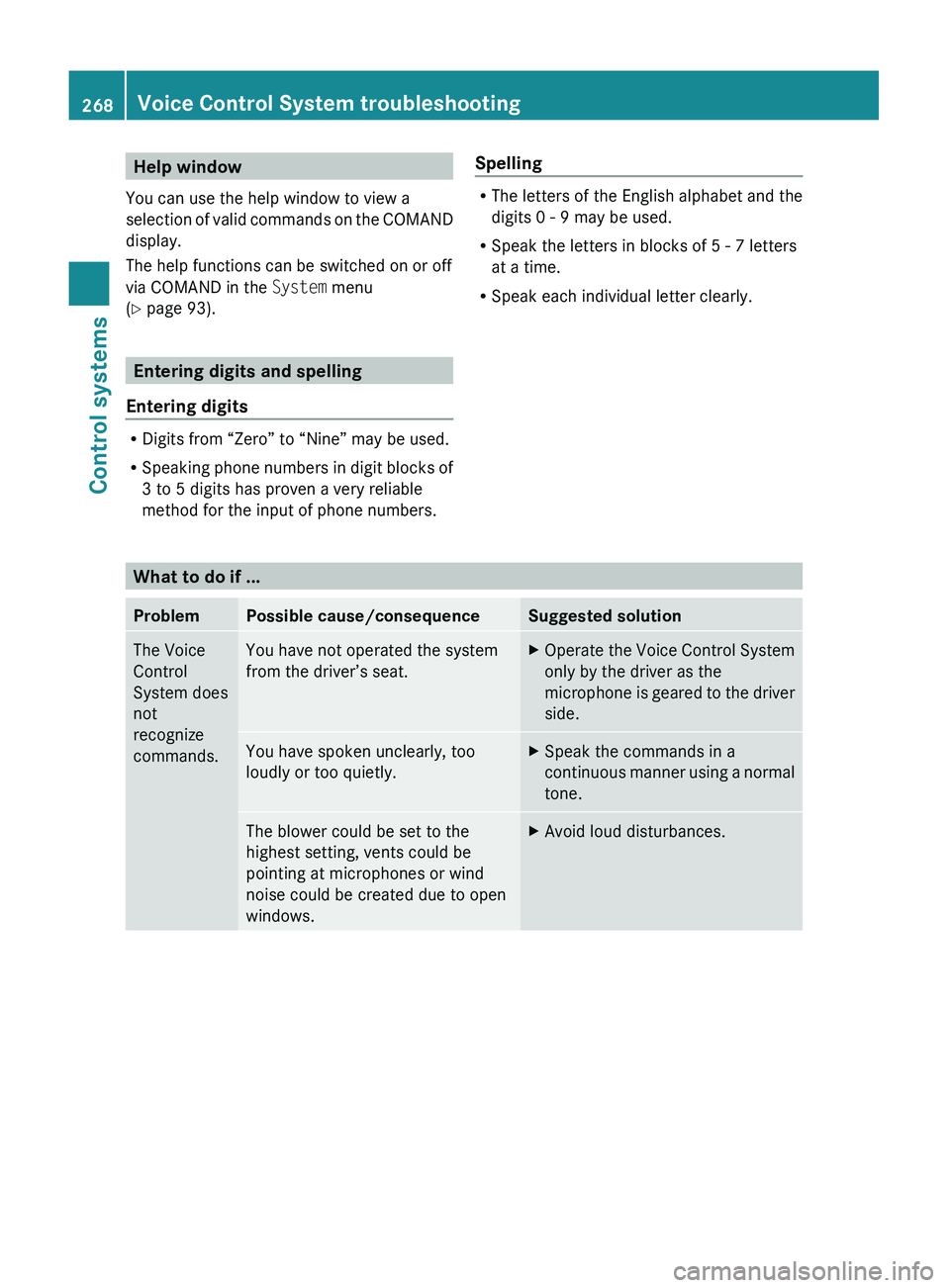
R Speak each individual letter clearly.What to do if ...
ProblemPossible cause/consequenceSuggested solutionThe Voice
Control
System does
not
recognize
commands.You have not operated the system
from the driver’s seat.XOperate the Voice Control System
only by the driver as the
microphone is geared to the driver
side.You have spoken unclearly, too
loudly or too quietly.XSpeak the commands in a
continuous manner using a normal
tone.The blower could be set to the
highest setting, vents could be
pointing at microphones or wind
noise could be created due to open
windows.XAvoid loud disturbances.268Voice Control System troubleshootingControl systems
221_AKB; 6; 20, en-USd2ugruen,Version: 2.11.8.12009-09-24T13:28:17+02:00 - Seite 268
Page 273 of 548
Voice Control System
individualization
i The individualization can only be
performed when the vehicle is stationary.
If you drive off, the individualization will be
canceled.
After starting the session, the system will
guide you through the individualization by
means of acoustic instructions.
The individualization is used to adapt the
Voice Control System to your own voice and
to therefore improve speech recognition. This
does not affect the speech recognition of
other users.
Individualization consists of two stages:
R Digits
R Commands
You can activate individualization in the
COMAND system settings ( Y page 93). A
dialog and screen displays will guide you
through the individualization process.
The system can be reset to the factory
settings at any time.
i You may wish to complete only a portion
of the individualization process.
Completing the digits portion alone may
result in an improved recognition rate.
Individualization can be exited at any time.
The data trained, however, will only be
retained if a given individualization portion
is completed and the data is stored when
prompted to do so by the system.Voice Control System individualization271Control systems221_AKB; 6; 20, en-USd2ugruen,Version: 2.11.8.12009-09-24T13:28:17+02:00 - Seite 271Z
Page 278 of 548
iCanada only:
This device complies with RSS-210 of
Industry Canada. Operation is subject to
the following two conditions:
1. This device may not cause interference,
and
2. this device must accept any interference received, including
interference that may cause undesired
operation of the device.
Any unauthorized modification to this
device could void the user’s authority to
operate the equipment.
Important notes on using KEYLESS-GO
R You can also use the SmartKey with
KEYLESS-GO like a normal SmartKey
( Y page 274).
R You can combine KEYLESS-GO functions
with normal SmartKey functions (e.g.
unlocking with KEYLESS-GO and locking
with button 0037).
R Always carry the SmartKey with you.
R Never store the SmartKey together with
- electronic items such as a mobile phone
or another SmartKey
- metallic objects such as coins or metal
foil
Doing so could impair the function of the
KEYLESS-GO system.
R To lock or unlock the vehicle, the SmartKey
must be located outside the vehicle within
approximately 3 ft (1 m) of a door or the
trunk.
R When the vehicle has been parked for more
than 72 hours, the KEYLESS-GO function is
deactivated. Pull an outside door handle
and switch on the ignition once to activate
the KEYLESS-GO function.
R If the SmartKey is positioned farther away
from the vehicle, the system may no longer
recognize the SmartKey. The vehicle
cannot be locked or the engine started via
the KEYLESS-GO system.
R If the SmartKey is removed from the vehicle
(e.g. if a passenger exits the vehicle with
the SmartKey)
- when pressing the KEYLESS-GO start/
stop button or trying to lock the vehicle
with the outside door handle the
message Key Not Detected appears in
the multifunction display
- with the engine running, the red message
Key Not Detected appears in the
multifunction display while driving off
Find the SmartKey or change its present
location immediately (e.g. place it on the
front passenger seat or insert it in shirt
pocket).
R If you have started the engine with the
KEYLESS-GO start/stop button, you can
turn it off again by
- pressing the KEYLESS-GO start/stop
button
- inserting the SmartKey into the starter
switch when the vehicle is at a standstill
and the automatic transmission is in park
position P
R The vehicle could be inadvertently
unlocked if the SmartKey is within 3 ft (1 m)
of the vehicle and
- an outside door handle is splashed with
water
or
- you attempt to clean an outside door
handle
R Remember that the engine can be started
by anyone with a SmartKey that is left
inside the vehicle.
Possibility 1 (One SmartKey in the vehicle,
one SmartKey outside the vehicle):
If you leave the SmartKey behind when
exiting and locking the vehicle, no message
appears in the multifunction display.276Locking and unlockingControls in detail
221_AKB; 6; 20, en-USd2ugruen,Version: 2.11.8.12009-09-24T13:28:17+02:00 - Seite 276