radio MERCEDES-BENZ S CLASS 2010 User Guide
[x] Cancel search | Manufacturer: MERCEDES-BENZ, Model Year: 2010, Model line: S CLASS, Model: MERCEDES-BENZ S CLASS 2010Pages: 548, PDF Size: 11.45 MB
Page 87 of 548
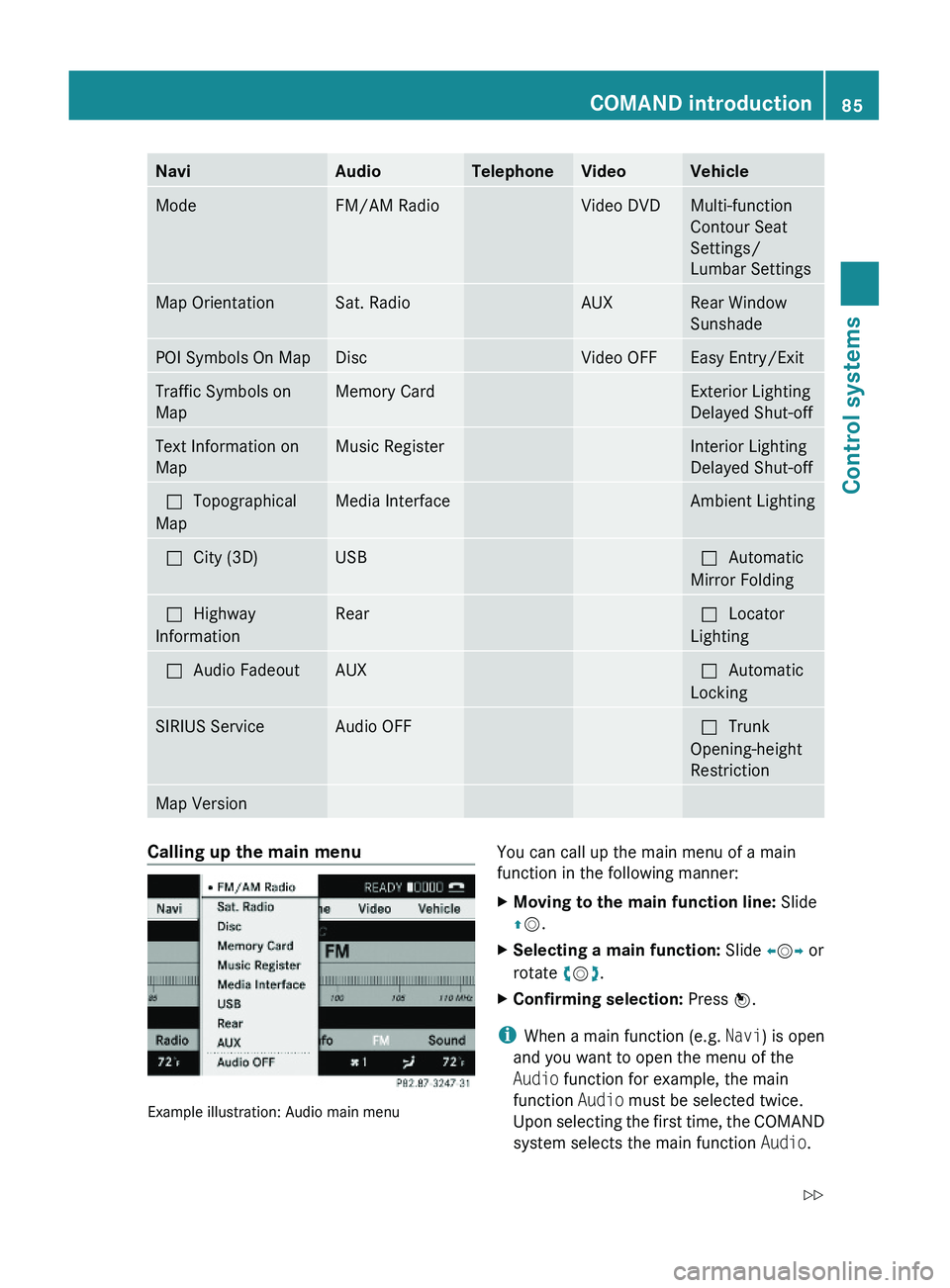
NaviAudioTelephoneVideoVehicleModeFM/AM RadioVideo DVDMulti-function
Contour Seat
Settings/
Lumbar Settings
Map OrientationSat. RadioAUXRear Window
Sunshade
POI Symbols On MapDiscVideo OFFEasy Entry/ExitTraffic Symbols on
Map
Memory CardExterior Lighting
Delayed Shut-off
Text Information on
Map
Music RegisterInterior Lighting
Delayed Shut-off
\000?Topographical
Map
Media InterfaceAmbient Lighting\000?City (3D)USB\000?Automatic
Mirror Folding
\000?Highway
Information
Rear\000?Locator
Lighting
\000?Audio FadeoutAUX\000?Automatic
Locking
SIRIUS ServiceAudio OFF\000?Trunk
Opening-height
Restriction
Map VersionCalling up the main menu
Example illustration: Audio main menu
You can call up the main menu of a main
function in the following manner:
XMoving to the main function line: Slide
\000
Page 90 of 548
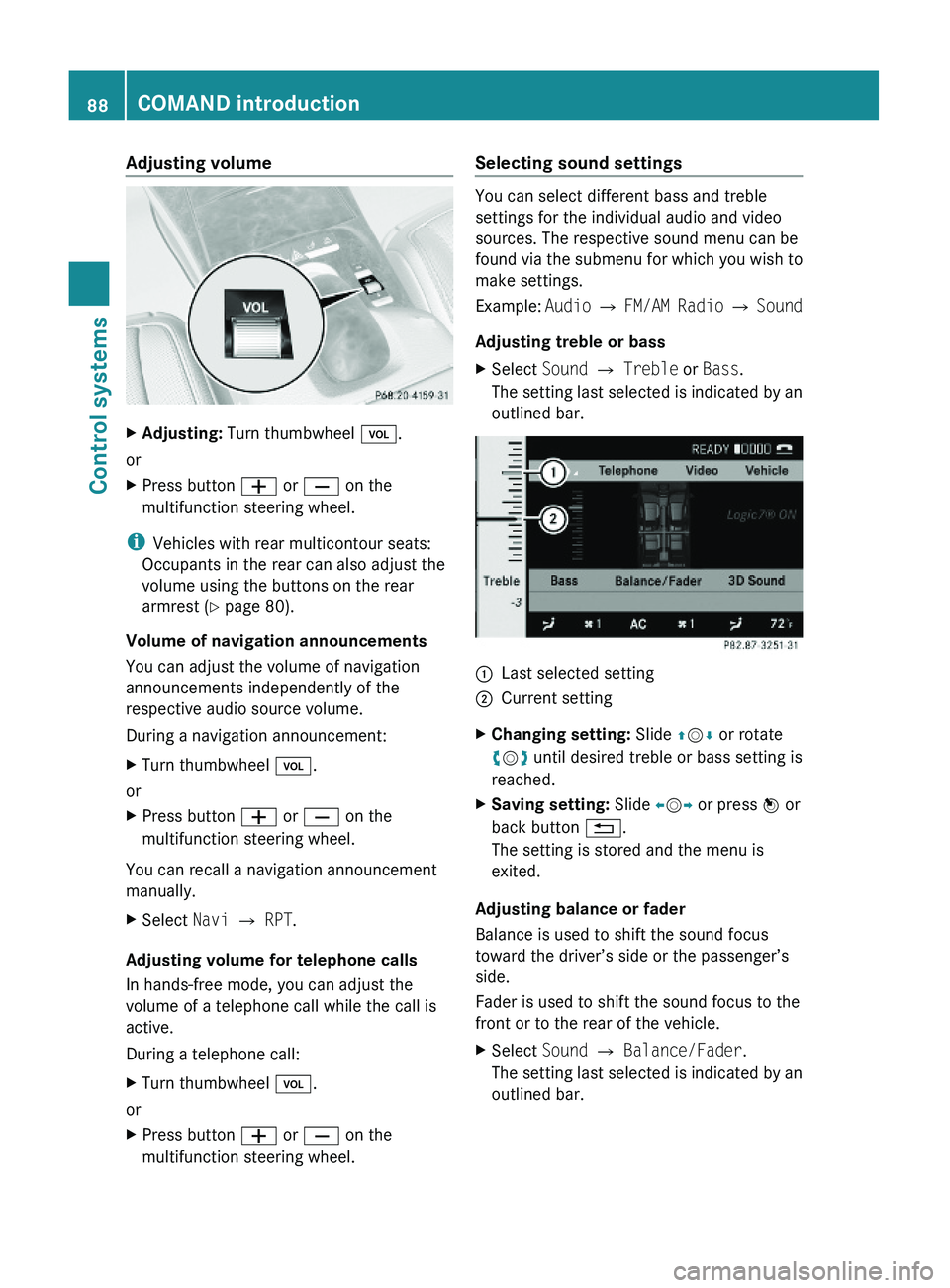
Adjusting volumeXAdjusting: Turn thumbwheel \000M.
or
XPress button \000Z or \000[ on the
multifunction steering wheel.
iVehicles with rear multicontour seats:
Occupants in the rear can also adjust the
volume using the buttons on the rear
armrest (Y page 80).
Volume of navigation announcements
You can adjust the volume of navigation
announcements independently of the
respective audio source volume.
During a navigation announcement:
XTurn thumbwheel \000M.
or
XPress button \000Z or \000[ on the
multifunction steering wheel.
You can recall a navigation announcement
manually.
XSelect Navi \000T RPT.
Adjusting volume for telephone calls
In hands-free mode, you can adjust the
volume of a telephone call while the call is
active.
During a telephone call:
XTurn thumbwheel \000M.
or
XPress button \000Z or \000[ on the
multifunction steering wheel.
Selecting sound settings
You can select different bass and treble
settings for the individual audio and video
sources. The respective sound menu can be
found via the submenu for which you wish to
make settings.
Example: Audio \000T FM/AM Radio \000T Sound
Adjusting treble or bass
XSelect Sound \000T Treble or Bass.
The setting last selected is indicated by an
outlined bar.
\000FLast selected setting\000GCurrent settingXChanging setting: Slide \000
Page 92 of 548
R3-D sound does not work for mono-signal
sources, such as on analog AM radio or
in Weather Band.
R In the event of poor radio reception
quality, e.g. inside a tunnel, you should
switch off Logic 7 ®
, as a dynamic switch
from Stereo to Mono could occur,
resulting in temporary sound distortion.
R With some stereo recordings, the
resulting sound may deviate from
conventional stereo playback.
Switching the audio/video source off/
on
i When you load a CD or DVD, the audio or
video source is activated automatically.
Active audio source
XSwitching off: Select Audio 0054 Audio
OFF .
Playback is paused and the audio source is
switched off; Audio OFF appears in the
COMAND display.XSwitching on: Select Audio, then the
desired audio source.
or
XLoad a CD/DVD ( Y page 179) or an SD
card ( Y page 180).
or
XConnect a USB storage device
( Y page 80) or media interface device
( Y page 200) to COMAND.
Active video source
XSwitching off: Select Video 0054 Video
OFF .
The audio source is switched off; Video
OFF appears in the COMAND display.XSwitching on: Select Video, then the
desired video source.
or
XLoad a DVD ( Y page 179).SPLITVIEW
SPLITVIEW enables the driver and front
passenger to use separate COMAND
functions at the same time. Two different
displays appear in the COMAND screen. For
example, a Navigation display is only viewable
form the driver’s seat while a DVD Video
display is only viewable from the front
passenger’s seat.
COMAND is operated via SPLITVIEW from the
front passenger seat using the SPLITVIEW
remote control and the special wireless,
infrared headphone. You may also use a wired
headphone via the 3.5 mm socket in the front
passenger footwell.
For information about using the remote
control, see ( Y page 81).
For information about using the headphone,
see ( Y page 82).
Depending on the production date of your
vehicle, it may be equipped with SPLITVIEW.
At the time of this printing, the use of
SPLITVIEW is NOT allowed in the following US
states (AL, AZ, CO, IL, LA, MA, MD, NH, PA,
VA, VT, WA, WI, and WV) or Canadian
provinces (Manitoba, Newfoundland, New
Brunswick, and Prince Edward Island).
SPLITVIEW must NOT be operated in these
states or provinces. The driver is responsible
for observing ALL local statutory provisions.
If your vehicle is registered in a non-approved
state or province, then the feature will need
to be deactivated. Contact your authorized
Mercedes-Benz dealer to verify if SPLITVIEW
is allowed in your state or province.
Notes
R The audio volume of the wireless
headphone for the front passenger side
must be adjusted on the headphone
directly. The audio volume of a wired
headphone can be adjusted via the remote
90COMAND introductionControl systems
221_AKB; 6; 20, en-USd2ugruen,Version: 2.11.8.12009-09-24T13:28:17+02:00 - Seite 90
Page 93 of 548
control. Make sure the volume is not set
too high before putting on a headphone.
RThe DVD changer can playback only one
media source at a time. Example: if the
driver is playing an audio CD, the front
passenger can not play a different medium
(e.g. DVD video) from the DVD changer.
However, it is possible for the front
passenger to play media from radio,
memory card, MUSIC REGISTER, media
interface, USB, AUX or Rear Seat
Entertainment System.
RWhen driver and front passenger are using
the same medium, each can select
individual settings for that medium.
RCOMAND transmits music and voice to the
wireless headphone for the front passenger
side via infrared signal. The headphone and
the display must have visual contact. This
provides best possible transmission of the
infrared signal to the headphone. Please
note that the headphone has a left and right
side and must be used accordingly.
RWhen SPLITVIEW is on, the front passenger
can operate audio or video functions only.
RThe multifunction steering wheel lets you
operate functions for the driver’s side only.
Switching SPLITVIEW on/off
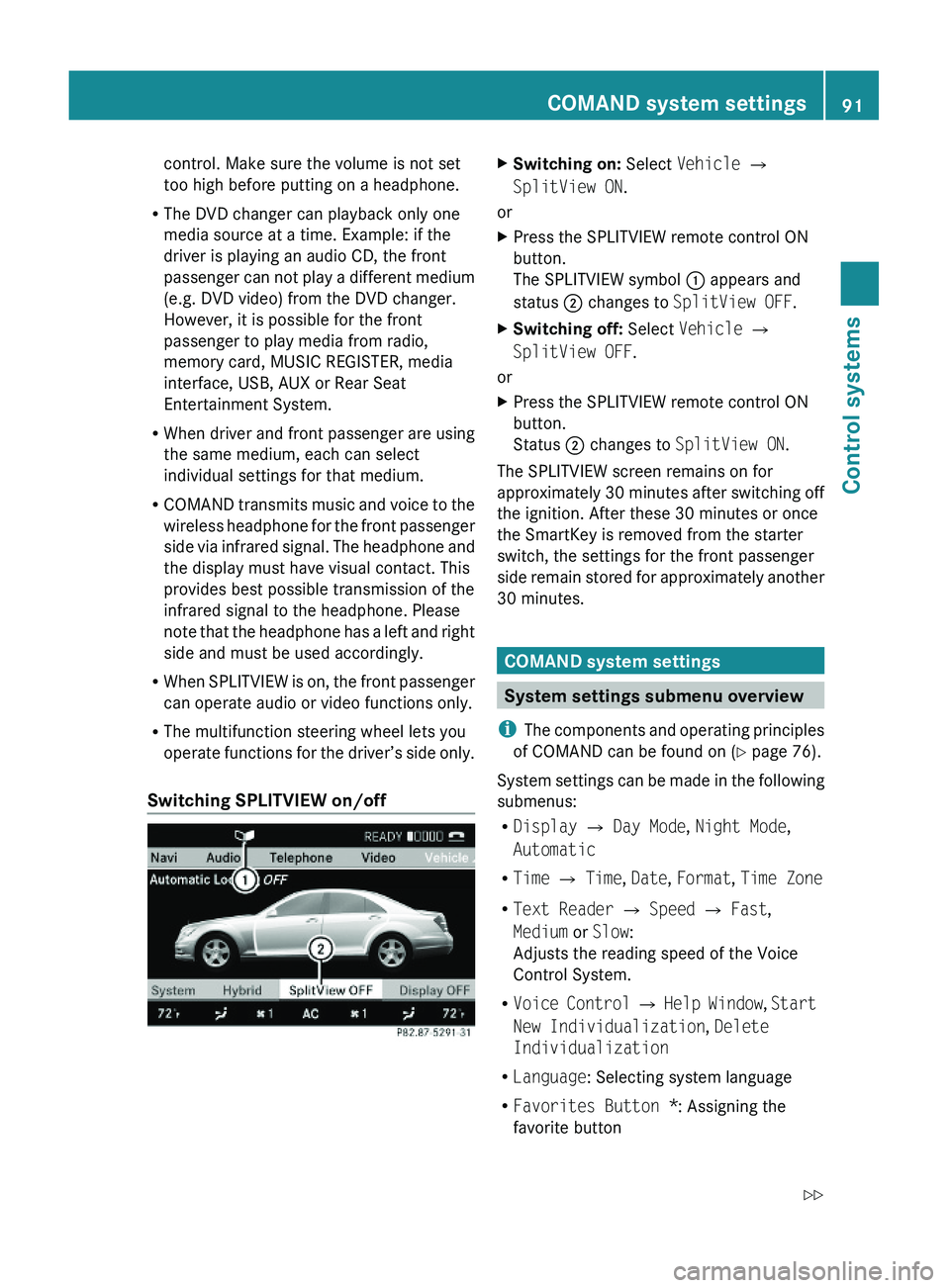
XSwitching on: Select Vehicle \000T
SplitView ON.
or
XPress the SPLITVIEW remote control ON
button.
The SPLITVIEW symbol \000F appears and
status \000G changes to SplitView OFF.
XSwitching off: Select Vehicle \000T
SplitView OFF.
or
XPress the SPLITVIEW remote control ON
button.
Status \000G changes to SplitView ON.
The SPLITVIEW screen remains on for
approximately 30 minutes after switching off
the ignition. After these 30 minutes or once
the SmartKey is removed from the starter
switch, the settings for the front passenger
side remain stored for approximately another
30 minutes.
COMAND system settings
System settings submenu overview
iThe components and operating principles
of COMAND can be found on (Y page 76).
System settings can be made in the following
submenus:
RDisplay \000T Day Mode, Night Mode,
Automatic
RTime \000T Time, Date, Format, Time Zone
RText Reader \000T Speed \000T Fast,
Medium or Slow:
Adjusts the reading speed of the Voice
Control System.
RVoice Control \000T Help Window, Start
New Individualization, Delete
Individualization
RLanguage: Selecting system language
RFavorites Button *: Assigning the
favorite button
COMAND system settings 91Control systems221_AKB; 6; 20, en-USd2ugruen,Version: 2.11.8.12009-09-24T13:28:17+02:00 - Seite 91Z
Page 98 of 548
COMAND may give incorrect navigation
commands if the data in the digital map does
not correspond with the actual road or traffic
situation. Maps do not cover all areas nor all
routes within an area. For example, if the
traffic routing has been changed or the
direction of a one-way road has been
reversed.
For this reason, you must always observe
applicable road and traffic rules and
regulations during your journey. Road and
traffic rules and regulations always have
priority over the navigation commands
generated by the system.GWarning!
Navigation announcements are intended to
direct you while driving without diverting your
attention from the road and driving.
Please always use navigation announcements
instead of consulting the map display for
directions. Consulting the symbols or map
display for directions may cause you to divert
your attention from driving and increase your
risk of an accident.
Map software
The digital maps generated by the map
software become outdated in the same way
as conventional road maps. Optimum route
guidance can only be provided by the
navigation system in conjunction with the
latest map software. Information about new
map software versions can be obtained from
an authorized Mercedes-Benz Center.
Displaying installed map version
XNavi 0054 Map Version
The installed map version is displayed.
For information on installing new map
software see ( Y page 96).
Installing the map software
Your vehicle is factory-equipped with map
software for the USA (including Alaska and
Hawaii), Canada, the U.S. Virgin Islands, and
Puerto Rico.
You can install new map software from one or
more DVDs, depending on the size of the map
software.
Copy protection of map software
COMAND map software is subject to charges.
The map software requires an activation
code. The map software can be used for one
individual vehicle only and is
non-transferrable. The six-digit activation
code is available at any authorized Mercedes-
Benz Center. Contact an authorized
Mercedes-Benz Center in case you have lost
your activation code or when the COMAND
system does not accept the activation code
you have received.
When reinstalling a map software that has
been installed in that vehicle already, an
activation code is not required.
Installation process
i The installation process can take
between 10 and 120 minutes, depending
on the size of the map software. If the radio
is switched on when you start the
installation process, you can still adjust the
volume. During the installation process,
some COMAND functions are suspended.
Still available are the COMAND functions
for automatic air conditioning operation
and canceling the installation process.
If possible, carry out the installation when
the vehicle is stationary. When the vehicle
is stationary, the reading rate of the DVD
drive is higher than in a moving vehicle and
the installation process requires less time.
GObserve Safety notes, see page 76.
i COMAND may switch off during the
installation process automatically in order
96COMAND navigation (introduction)Control systems
221_AKB; 6; 20, en-USd2ugruen,Version: 2.11.8.12009-09-24T13:28:17+02:00 - Seite 96
Page 143 of 548
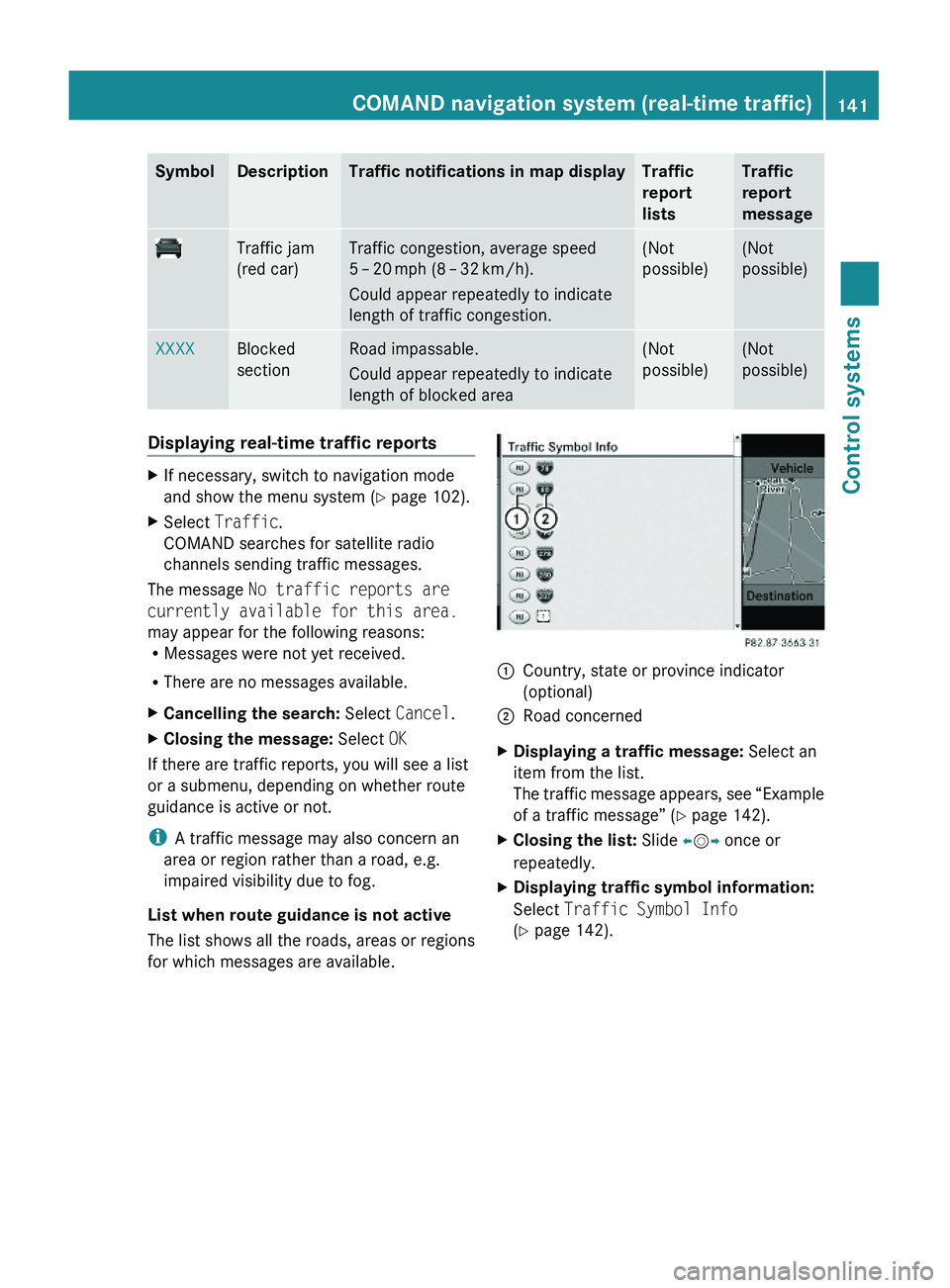
SymbolDescriptionTraffic notifications in map displayTraffic
report
lists
Traffic
report
message
Traffic jam
(red car)
Traffic congestion, average speed
5 – 20 mph (8 – 32 km/h).
Could appear repeatedly to indicate
length of traffic congestion.
(Not
possible)
(Not
possible)
XXXXBlocked
section
Road impassable.
Could appear repeatedly to indicate
length of blocked area
(Not
possible)
(Not
possible)
Displaying real-time traffic reportsXIf necessary, switch to navigation mode
and show the menu system (Y page 102).
XSelect Traffic.
COMAND searches for satellite radio
channels sending traffic messages.
The message No traffic reports are
currently available for this area.
may appear for the following reasons:RMessages were not yet received.
RThere are no messages available.
XCancelling the search: Select Cancel.XClosing the message: Select OK
If there are traffic reports, you will see a list
or a submenu, depending on whether route
guidance is active or not.
iA traffic message may also concern an
area or region rather than a road, e.g.
impaired visibility due to fog.
List when route guidance is not active
The list shows all the roads, areas or regions
for which messages are available.
1Country, state or province indicator
(optional)
2Road concernedXDisplaying a traffic message: Select an
item from the list.
The traffic message appears, see “Example
of a traffic message” (Y page 142).
XClosing the list: Slide \000
Page 168 of 548
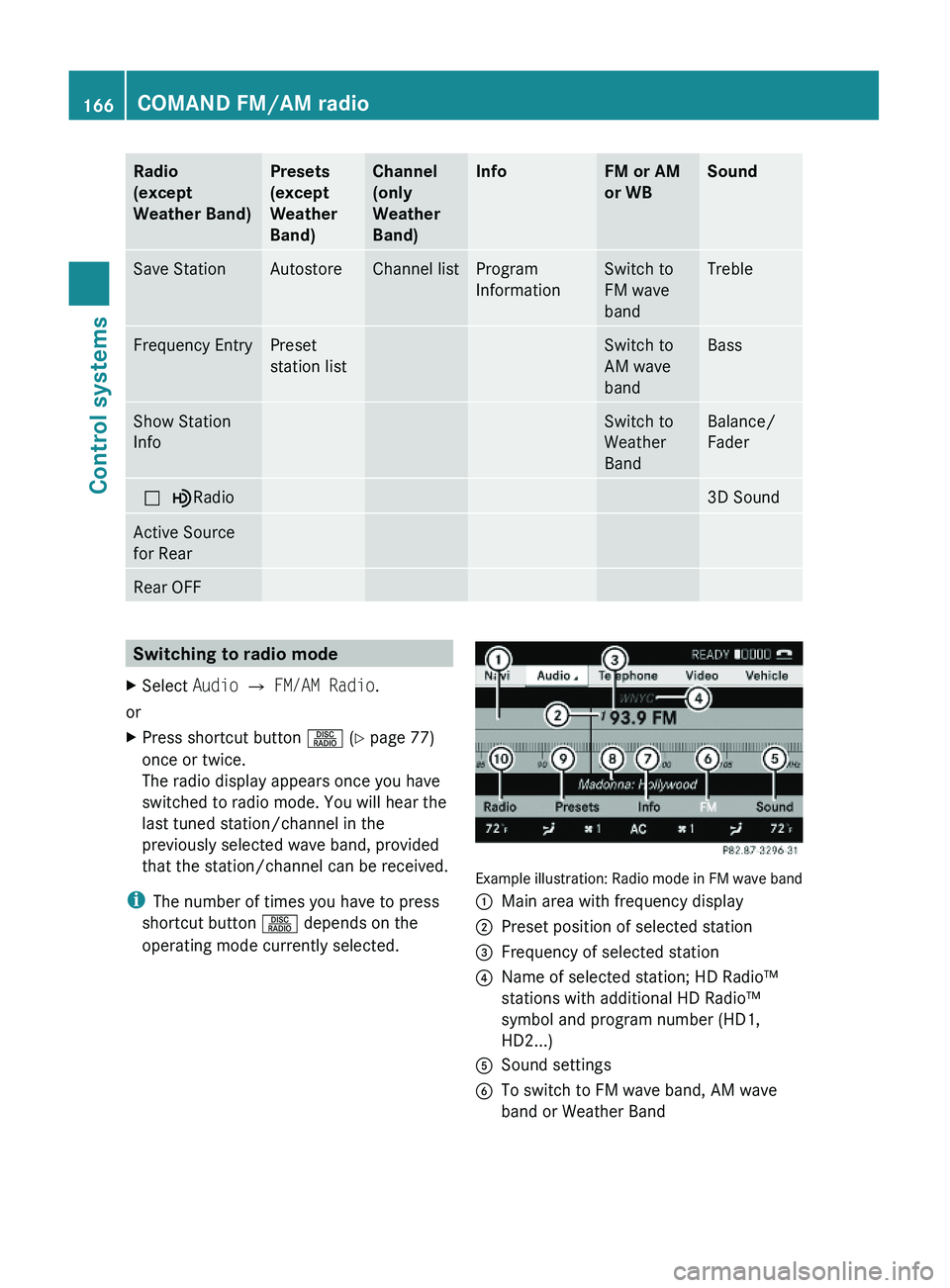
Radio
(except
Weather Band)
Presets
(except
Weather
Band)
Channel
(only
Weather
Band)
InfoFM or AM
or WB
SoundSave StationAutostoreChannel listProgram
Information
Switch to
FM wave
band
TrebleFrequency EntryPreset
station list
Switch to
AM wave
band
BassShow Station
Info
Switch to
Weather
Band
Balance/
Fader
\000?\000}Radio3D SoundActive Source
for Rear
Rear OFFSwitching to radio modeXSelect Audio \000T FM/AM Radio.
or
XPress shortcut button \000W (Y page 77)
once or twice.
The radio display appears once you have
switched to radio mode. You will hear the
last tuned station/channel in the
previously selected wave band, provided
that the station/channel can be received.
iThe number of times you have to press
shortcut button \000W depends on the
operating mode currently selected.
Example illustration: Radio mode in FM wave band
\000FMain area with frequency display\000GPreset position of selected station\000
Page 169 of 548
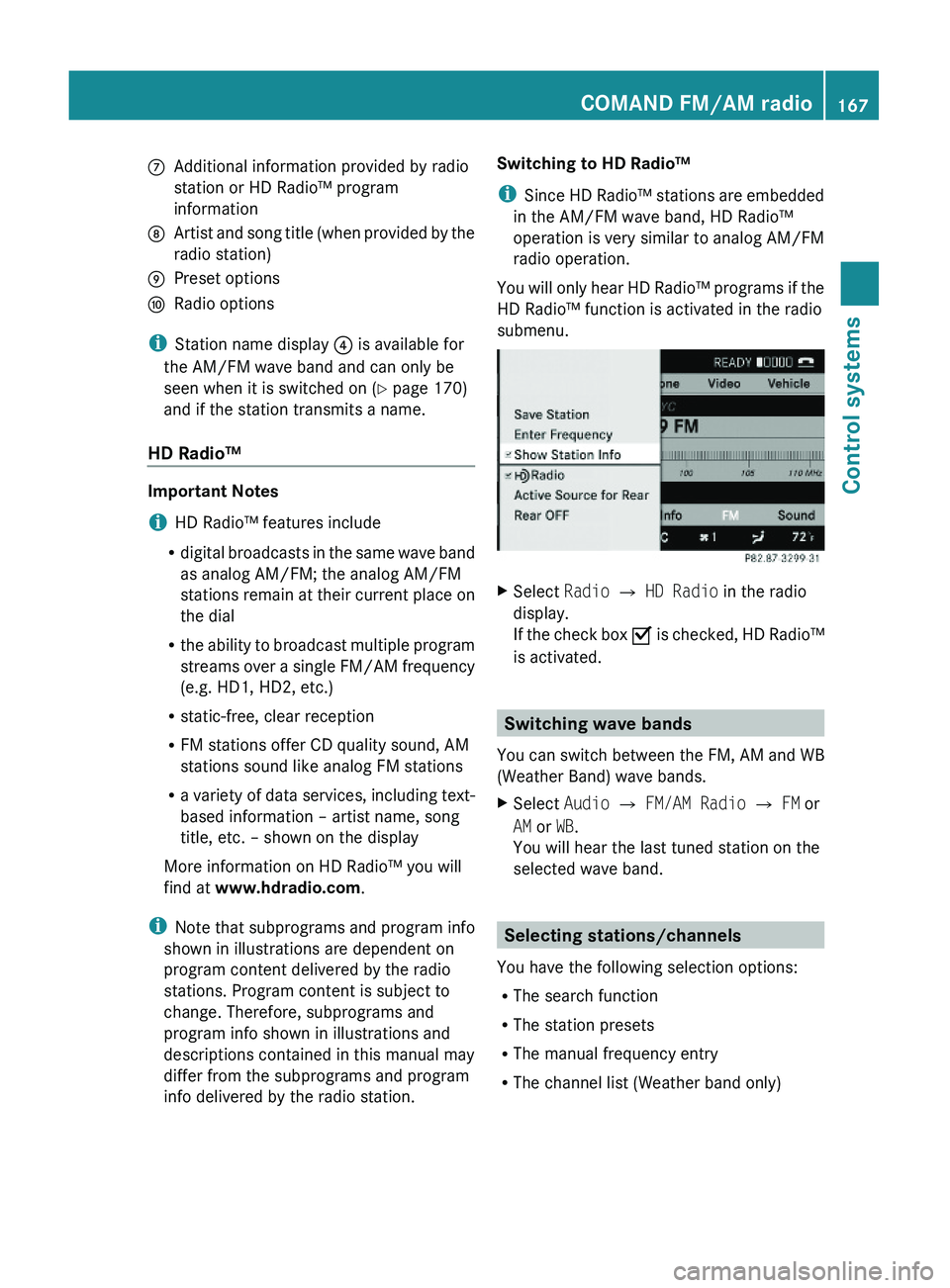
\000nAdditional information provided by radio
station or HD Radio™ program
information
\000oArtist and song title (when provided by the
radio station)
\000pPreset options\000qRadio options
iStation name display \000
Page 170 of 548
Selecting stations/channels using the
search functionXSlide 009E005B 009F or rotate 0082005B 0083 when the main
area is selected.
Depending on the direction in which the
controller is being slid or rotated, the
system searches upward or downward and
stops at the next receivable station/
channel.
or
XPress and hold button 003C or 003D on the
multifunction steering wheel 24
.
Selecting stations using station presets
i This function is not available for Weather
Band.
XSelect Audio 0054 FM/AM Radio 0054 FM or
AM .XSelect Presets .
or
XPress 00A1 when the main area is selected.
The preset menu appears. The dot 003F in
front of a preset position indicates that the
currently selected station is saved there.XSelect station preset by rotating 0082005B 0083 or
sliding 00A0005B 0050 and press 00A1.
or
XEnter a position number with the telephone
keypad using buttons 0101 - 0109
( Y page 79).
or
XPress button 003C or 003D on the
multifunction steering wheel briefly 24
.
i Vehicles with rear multicontour seats:
Rear occupants can also select a station
using the buttons on the rear armrest
( Y page 80).
Selecting stations by entering the
frequency manually
i This function is not available for Weather
Band.
XSelect Audio 0054 FM/AM Radio 0054 FM or
AM .
Entering the frequency using the
COMAND controller
XSelect Radio 0054 Enter Frequency .
The menu for manual frequency entry
appears.XExiting menu without making an entry:
Press back button 0041 in the center
console ( Y page 87).XIncreasing or decreasing number: Slide
00A0 005B 0050 or rotate 0082005B 0083.
i
You can only select available frequencies.
XSelecting the next number: Slide 005B009F.XConfirming frequency entry: Press 00A1.
COMAND tunes in to the frequency
entered.
i If you enter a frequency which is outside
the frequency range, COMAND tunes in to
the next lowest frequency.
Entering the frequency using the
telephone keypad
XPress button 004D on the telephone
keypad ( Y page 79).XEnter frequency using buttons 010B -
0109 .
COMAND tunes in to the frequency
entered.
Selecting channels using the WB
channel
i This function is only available for Weather
Band.
24 Function is only available if the Audio menu is selected in the instrument cluster.168COMAND FM/AM radioControl systems
221_AKB; 6; 20, en-USd2ugruen,Version: 2.11.8.12009-09-24T13:28:17+02:00 - Seite 168
Page 171 of 548
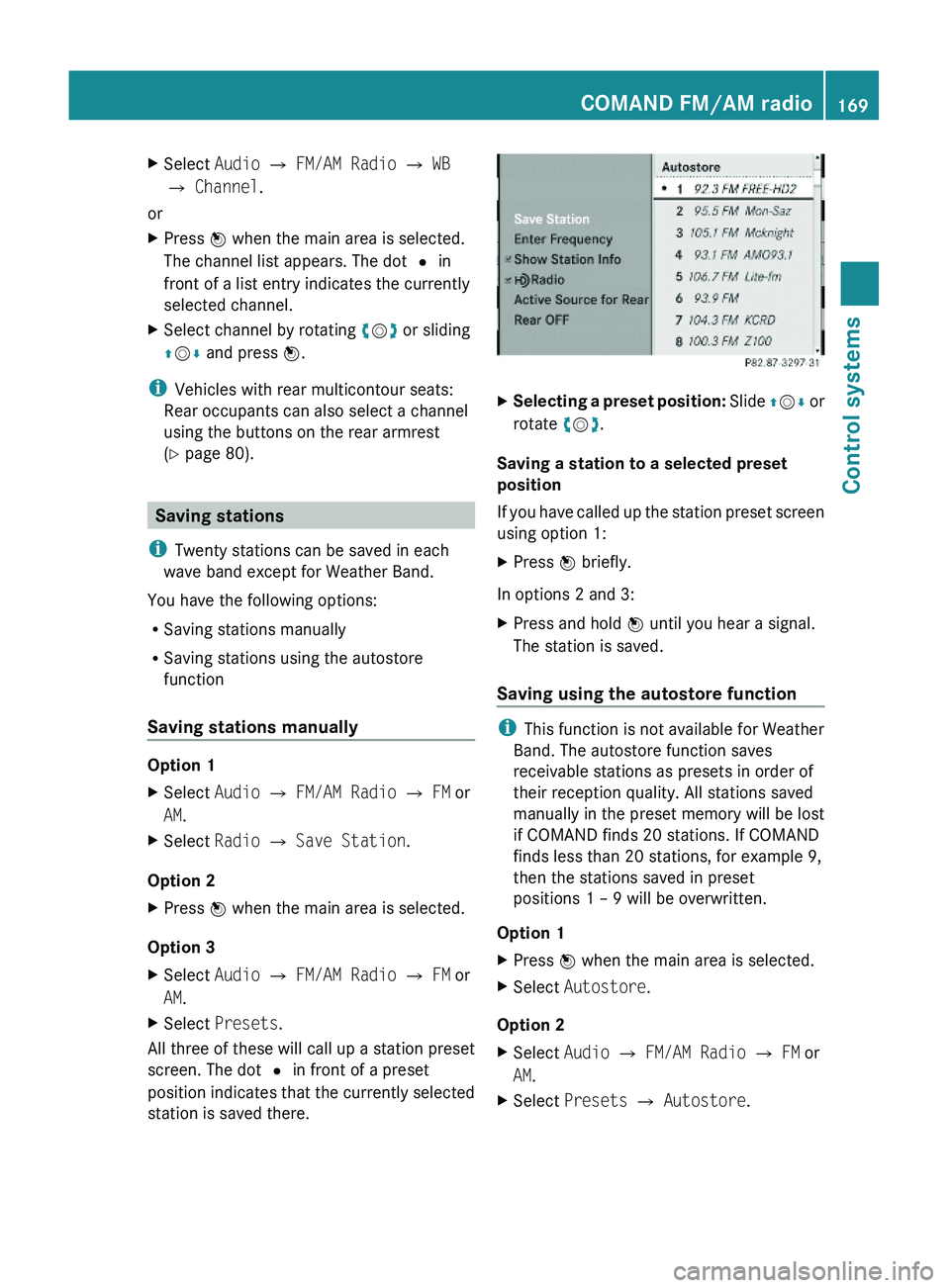
XSelect Audio \000T FM/AM Radio \000T WB
\000T Channel.
or
XPress \000