radio MERCEDES-BENZ S CLASS 2010 Owner's Guide
[x] Cancel search | Manufacturer: MERCEDES-BENZ, Model Year: 2010, Model line: S CLASS, Model: MERCEDES-BENZ S CLASS 2010Pages: 548, PDF Size: 11.45 MB
Page 254 of 548
iThe list is displayed only when the
address book contains a very small number
of entries. When the address book contains
several entries, the Voice Control System
prompts you to speak a name.
You can also use the commands “Open
John Smith”, “Open Smith John”, or “Open
entry directly.
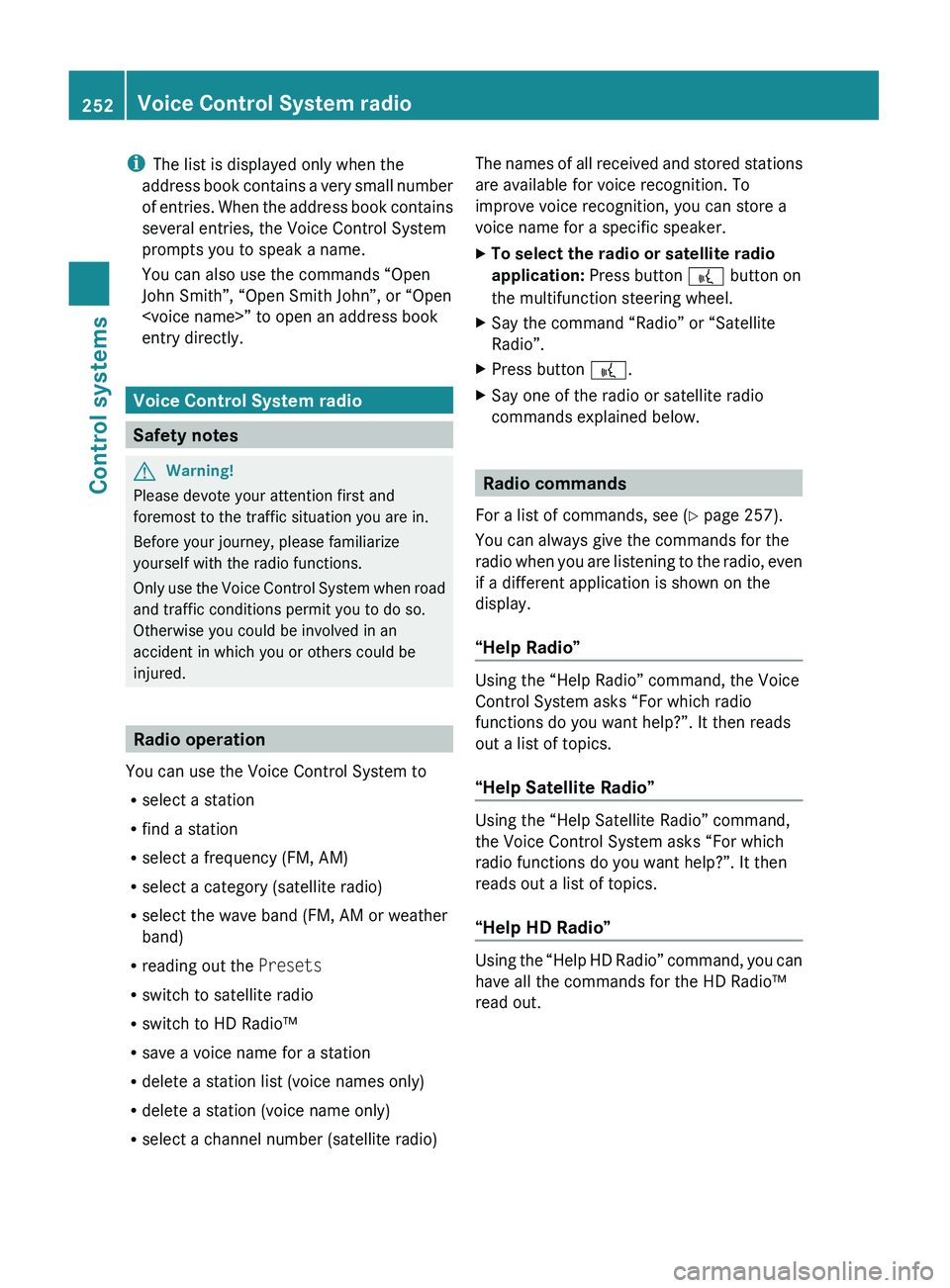
Voice Control System radio
Safety notes
GWarning!
Please devote your attention first and
foremost to the traffic situation you are in.
Before your journey, please familiarize
yourself with the radio functions.
Only use the Voice Control System when road
and traffic conditions permit you to do so.
Otherwise you could be involved in an
accident in which you or others could be
injured.
Radio operation
You can use the Voice Control System to
R select a station
R find a station
R select a frequency (FM, AM)
R select a category (satellite radio)
R select the wave band (FM, AM or weather
band)
R reading out the Presets
R switch to satellite radio
R switch to HD Radio™
R save a voice name for a station
R delete a station list (voice names only)
R delete a station (voice name only)
R select a channel number (satellite radio)
The names of all received and stored stations
are available for voice recognition. To
improve voice recognition, you can store a
voice name for a specific speaker.XTo select the radio or satellite radio
application: Press button 0062 button on
the multifunction steering wheel.XSay the command “Radio” or “Satellite
Radio”.XPress button 0062.XSay one of the radio or satellite radio
commands explained below.
Radio commands
For a list of commands, see ( Y page 257).
You can always give the commands for the
radio when you are listening to the radio, even
if a different application is shown on the
display.
“Help Radio”
Using the “Help Radio” command, the Voice
Control System asks “For which radio
functions do you want help?”. It then reads
out a list of topics.
“Help Satellite Radio”
Using the “Help Satellite Radio” command,
the Voice Control System asks “For which
radio functions do you want help?”. It then
reads out a list of topics.
“Help HD Radio”
Using the “Help HD Radio” command, you can
have all the commands for the HD Radio™
read out.
252Voice Control System radioControl systems
221_AKB; 6; 20, en-USd2ugruen,Version: 2.11.8.12009-09-24T13:28:17+02:00 - Seite 252
Page 255 of 548
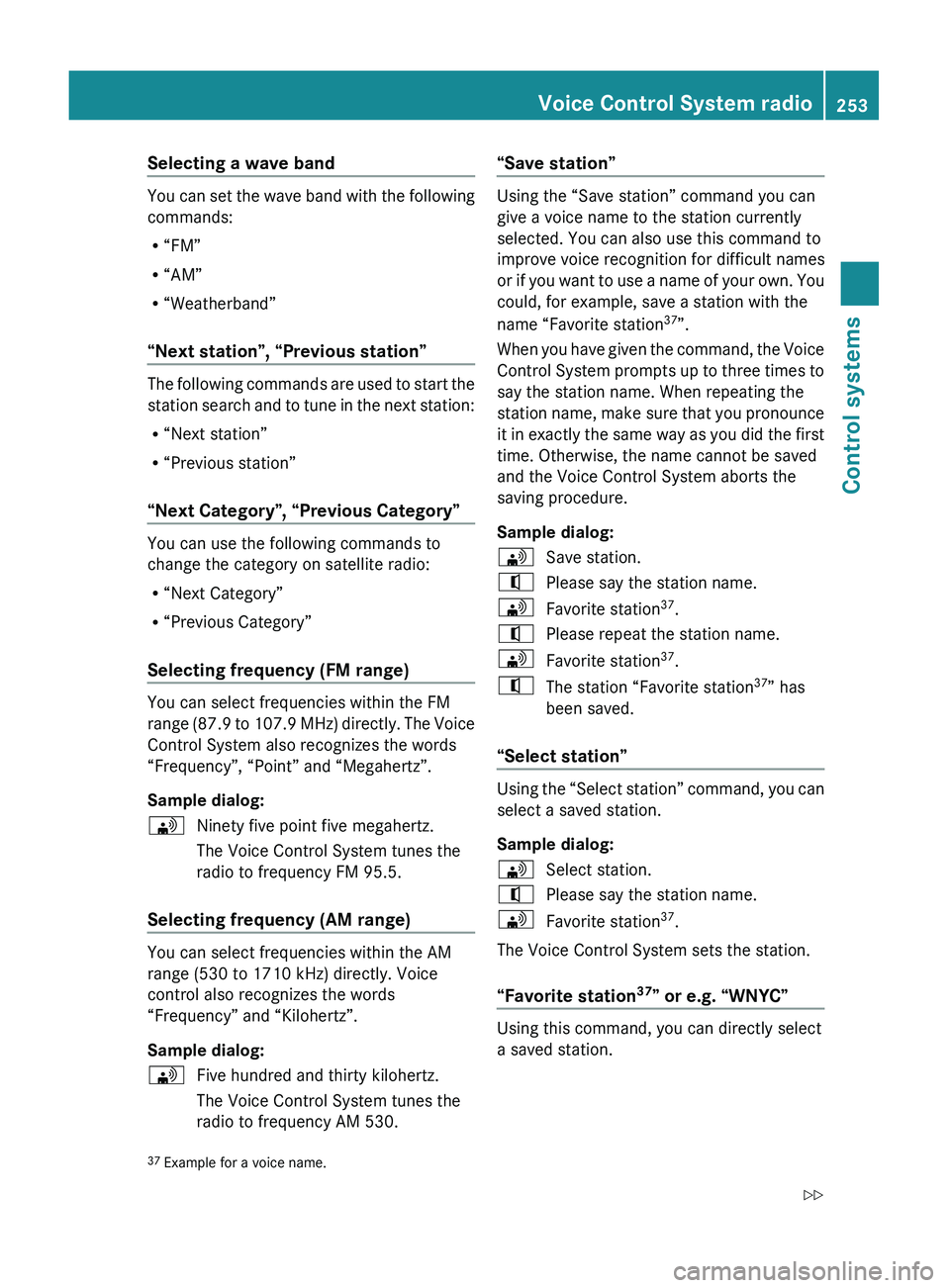
Selecting a wave band
You can set the wave band with the following
commands:
R “FM”
R “AM”
R “Weatherband”
“Next station”, “Previous station”
The following commands are used to start the
station search and to tune in the next station:
R “Next station”
R “Previous station”
“Next Category”, “Previous Category”
You can use the following commands to
change the category on satellite radio:
R “Next Category”
R “Previous Category”
Selecting frequency (FM range)
You can select frequencies within the FM
range (87.9 to 107.9 MHz) directly. The Voice
Control System also recognizes the words
“Frequency”, “Point” and “Megahertz”.
Sample dialog:
009DNinety five point five megahertz.
The Voice Control System tunes the
radio to frequency FM 95.5.
Selecting frequency (AM range)
You can select frequencies within the AM
range (530 to 1710 kHz) directly. Voice
control also recognizes the words
“Frequency” and “Kilohertz”.
Sample dialog:
009DFive hundred and thirty kilohertz.
The Voice Control System tunes the
radio to frequency AM 530.“Save station”
Using the “Save station” command you can
give a voice name to the station currently
selected. You can also use this command to
improve voice recognition for difficult names
or if you want to use a name of your own. You
could, for example, save a station with the
name “Favorite station 37
”.
When you have given the command, the Voice
Control System prompts up to three times to
say the station name. When repeating the
station name, make sure that you pronounce
it in exactly the same way as you did the first
time. Otherwise, the name cannot be saved
and the Voice Control System aborts the
saving procedure.
Sample dialog:
009DSave station.009CPlease say the station name.009DFavorite station 37
.009CPlease repeat the station name.009DFavorite station 37
.009CThe station “Favorite station 37
” has
been saved.
“Select station”
Using the “Select station” command, you can
select a saved station.
Sample dialog:
009DSelect station.009CPlease say the station name.009DFavorite station 37
.
The Voice Control System sets the station.
“Favorite station 37
” or e.g. “WNYC”
Using this command, you can directly select
a saved station.
37 Example for a voice name.Voice Control System radio253Control systems221_AKB; 6; 20, en-USd2ugruen,Version: 2.11.8.12009-09-24T13:28:17+02:00 - Seite 253Z
Page 256 of 548
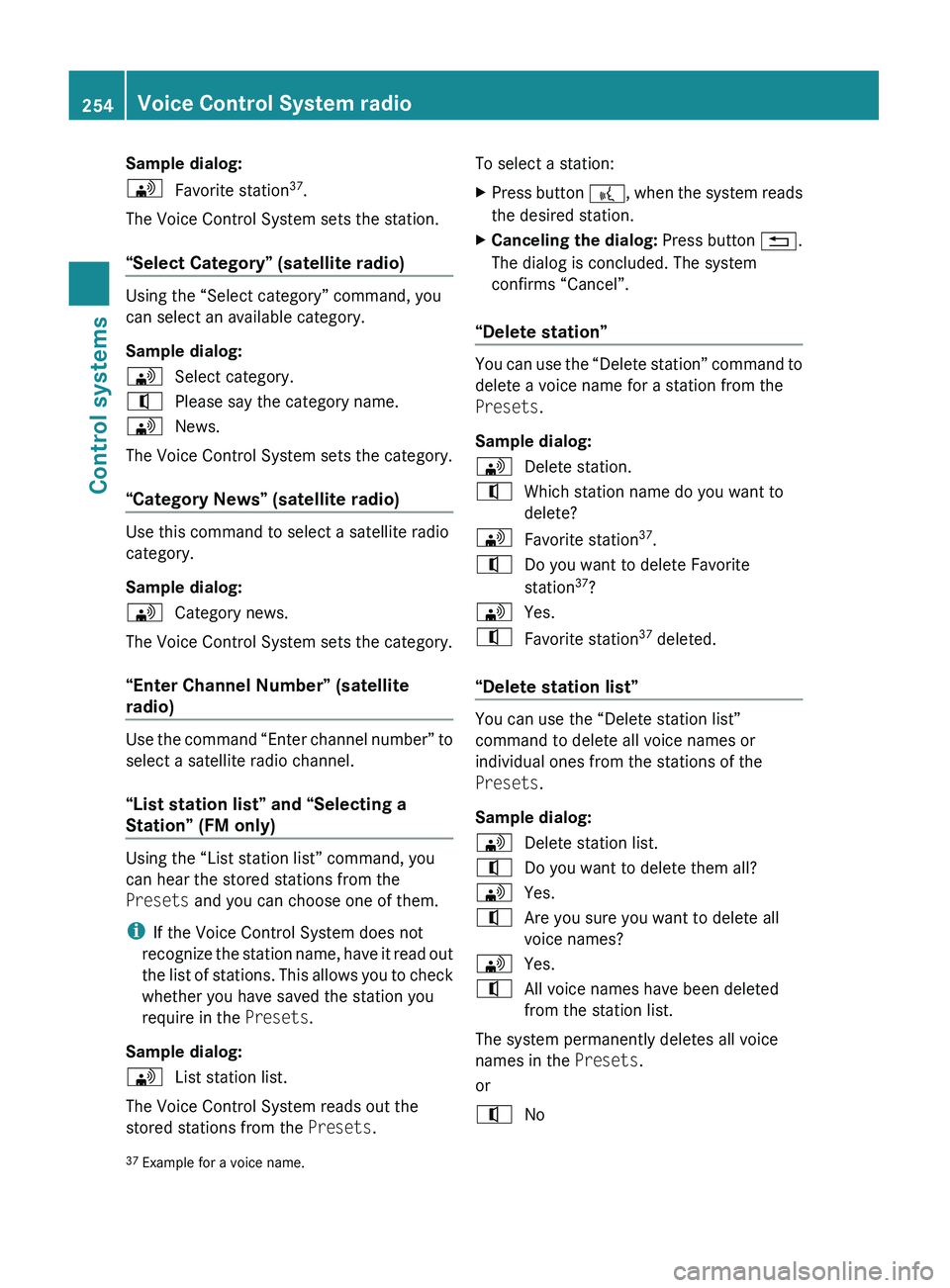
Sample dialog:009DFavorite station37
.
The Voice Control System sets the station.
“Select Category” (satellite radio)
Using the “Select category” command, you
can select an available category.
Sample dialog:
009DSelect category.009CPlease say the category name.009DNews.
The Voice Control System sets the category.
“Category News” (satellite radio)
Use this command to select a satellite radio
category.
Sample dialog:
009DCategory news.
The Voice Control System sets the category.
“Enter Channel Number” (satellite
radio)
Use the command “Enter channel number” to
select a satellite radio channel.
“List station list” and “Selecting a
Station” (FM only)
Using the “List station list” command, you
can hear the stored stations from the
Presets and you can choose one of them.
i If the Voice Control System does not
recognize the station name, have it read out
the list of stations. This allows you to check
whether you have saved the station you
require in the Presets.
Sample dialog:
009DList station list.
The Voice Control System reads out the
stored stations from the Presets.
To select a station:XPress button 0062, when the system reads
the desired station.XCanceling the dialog: Press button 0041.
The dialog is concluded. The system
confirms “Cancel”.
“Delete station”
You can use the “Delete station” command to
delete a voice name for a station from the
Presets .
Sample dialog:
009DDelete station.009CWhich station name do you want to
delete?009DFavorite station 37
.009CDo you want to delete Favorite
station 37
?009DYes.009CFavorite station 37
deleted.
“Delete station list”
You can use the “Delete station list”
command to delete all voice names or
individual ones from the stations of the
Presets .
Sample dialog:
009DDelete station list.009CDo you want to delete them all?009DYes.009CAre you sure you want to delete all
voice names?009DYes.009CAll voice names have been deleted
from the station list.
The system permanently deletes all voice
names in the Presets.
or
009CNo37 Example for a voice name.254Voice Control System radioControl systems
221_AKB; 6; 20, en-USd2ugruen,Version: 2.11.8.12009-09-24T13:28:17+02:00 - Seite 254
Page 257 of 548
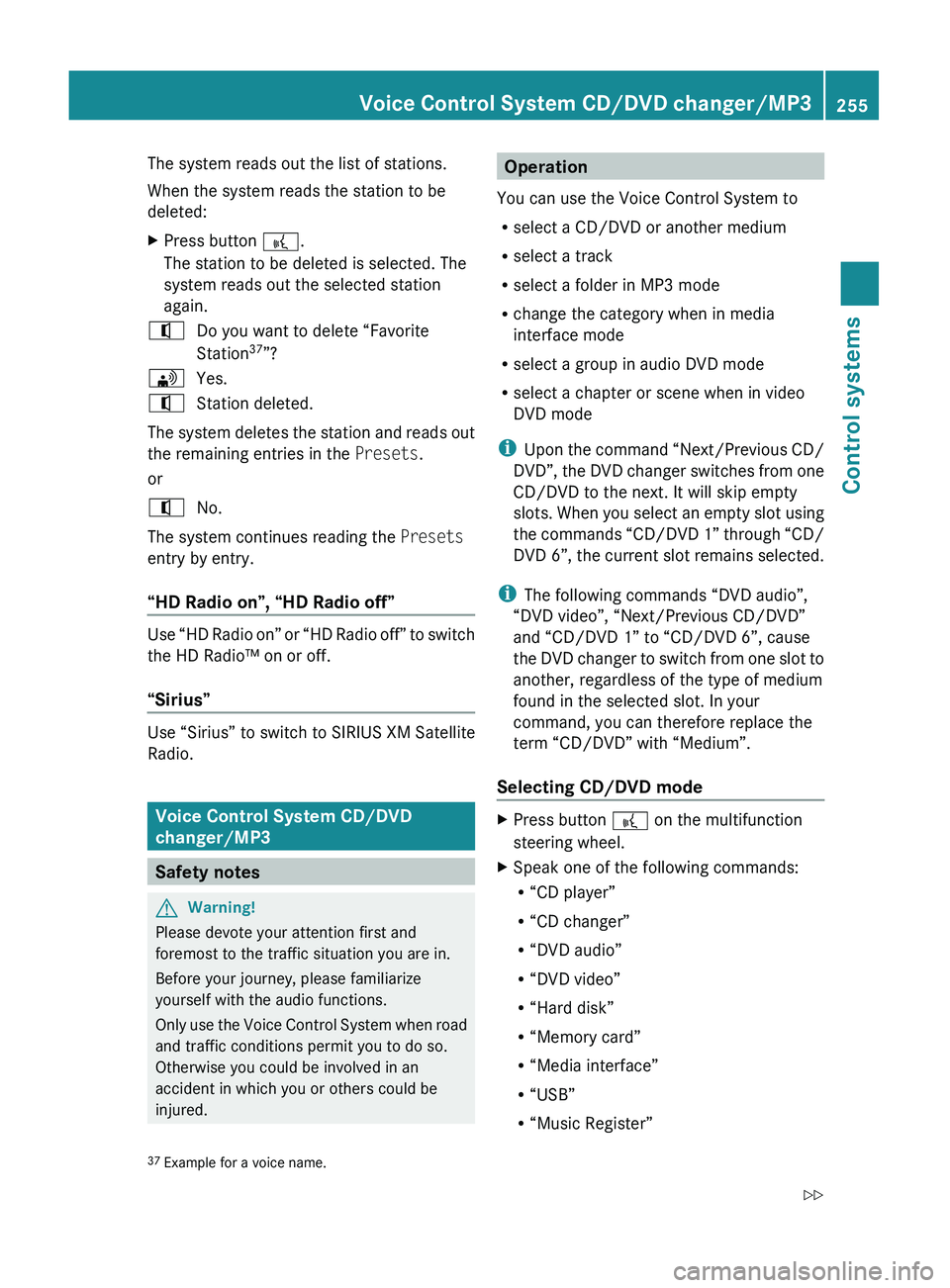
The system reads out the list of stations.
When the system reads the station to be
deleted:XPress button 0062.
The station to be deleted is selected. The
system reads out the selected station
again.009CDo you want to delete “Favorite
Station 37
”?009DYes.009CStation deleted.
The system deletes the station and reads out
the remaining entries in the Presets.
or
009CNo.
The system continues reading the Presets
entry by entry.
“HD Radio on”, “HD Radio off”
Use “HD Radio on” or “HD Radio off” to switch
the HD Radio™ on or off.
“Sirius”
Use “Sirius” to switch to SIRIUS XM Satellite
Radio.
Voice Control System CD/DVD
changer/MP3
Safety notes
GWarning!
Please devote your attention first and
foremost to the traffic situation you are in.
Before your journey, please familiarize
yourself with the audio functions.
Only use the Voice Control System when road
and traffic conditions permit you to do so.
Otherwise you could be involved in an
accident in which you or others could be
injured.
Operation
You can use the Voice Control System to
R select a CD/DVD or another medium
R select a track
R select a folder in MP3 mode
R change the category when in media
interface mode
R select a group in audio DVD mode
R select a chapter or scene when in video
DVD mode
i Upon the command “Next/Previous CD/
DVD”, the DVD changer switches from one
CD/DVD to the next. It will skip empty
slots. When you select an empty slot using
the commands “CD/DVD 1” through “CD/
DVD 6”, the current slot remains selected.
i The following commands “DVD audio”,
“DVD video”, “Next/Previous CD/DVD”
and “CD/DVD 1” to “CD/DVD 6”, cause
the DVD changer to switch from one slot to
another, regardless of the type of medium
found in the selected slot. In your
command, you can therefore replace the
term “CD/DVD” with “Medium”.
Selecting CD/DVD modeXPress button 0062 on the multifunction
steering wheel.XSpeak one of the following commands:
R “CD player”
R “CD changer”
R “DVD audio”
R “DVD video”
R “Hard disk”
R “Memory card”
R “Media interface”
R “USB”
R “Music Register”37Example for a voice name.Voice Control System CD/DVD changer/MP3255Control systems221_AKB; 6; 20, en-USd2ugruen,Version: 2.11.8.12009-09-24T13:28:17+02:00 - Seite 255Z
Page 260 of 548
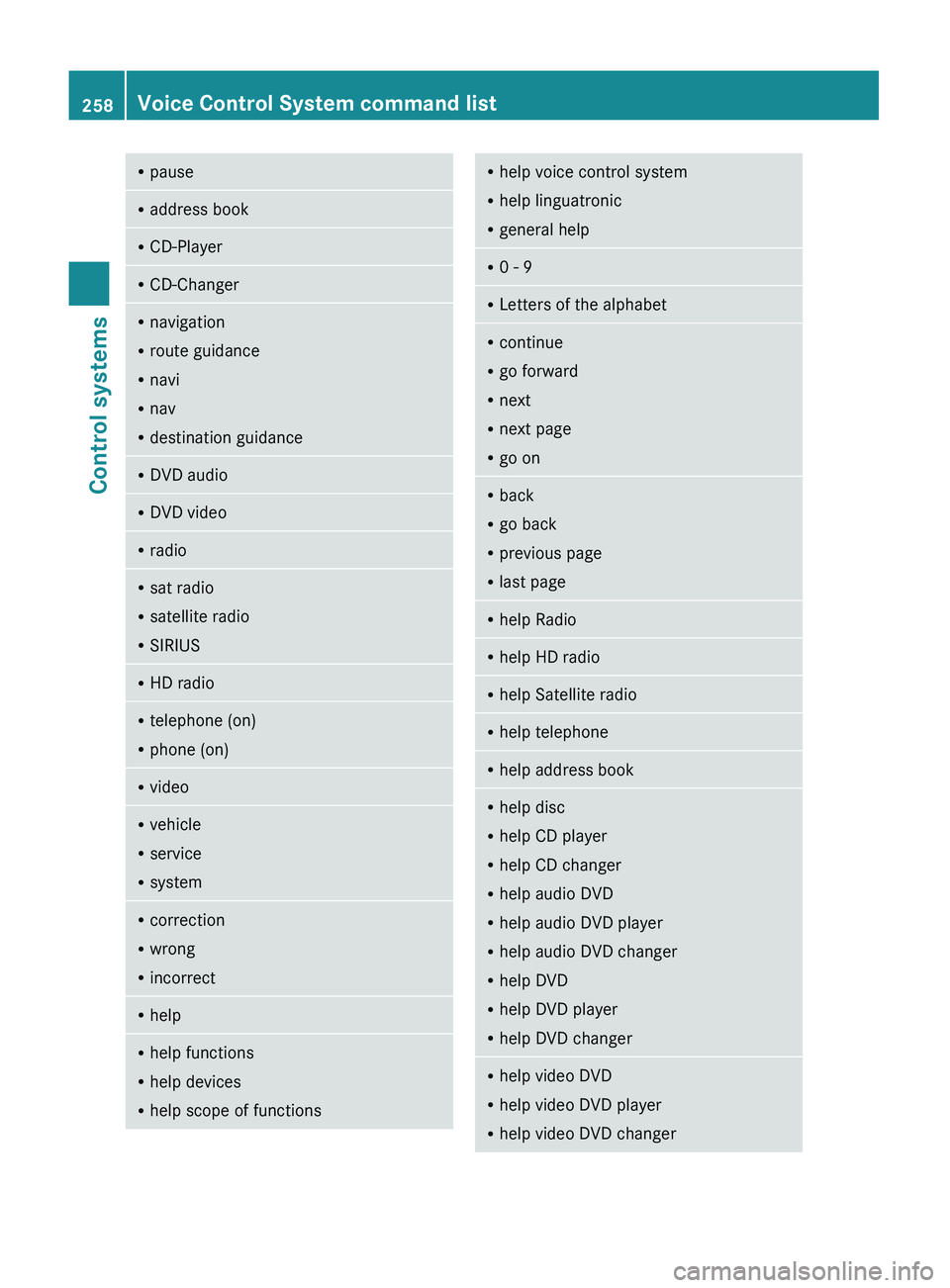
RpauseRaddress bookRCD-PlayerRCD-ChangerRnavigation
R route guidance
R navi
R nav
R destination guidanceR
DVD audioRDVD videoRradioRsat radio
R satellite radio
R SIRIUSRHD radioRtelephone (on)
R phone (on)RvideoRvehicle
R service
R systemRcorrection
R wrong
R incorrectRhelpRhelp functions
R help devices
R help scope of functionsRhelp voice control system
R help linguatronic
R general helpR0 - 9RLetters of the alphabetRcontinue
R go forward
R next
R next page
R go onR
back
R go back
R previous page
R last pageRhelp RadioRhelp HD radioRhelp Satellite radioRhelp telephoneRhelp address bookRhelp disc
R help CD player
R help CD changer
R help audio DVD
R help audio DVD player
R help audio DVD changer
R help DVD
R help DVD player
R help DVD changerRhelp video DVD
R help video DVD player
R help video DVD changer258Voice Control System command listControl systems
221_AKB; 6; 20, en-USd2ugruen,Version: 2.11.8.12009-09-24T13:28:17+02:00 - Seite 258
Page 266 of 548
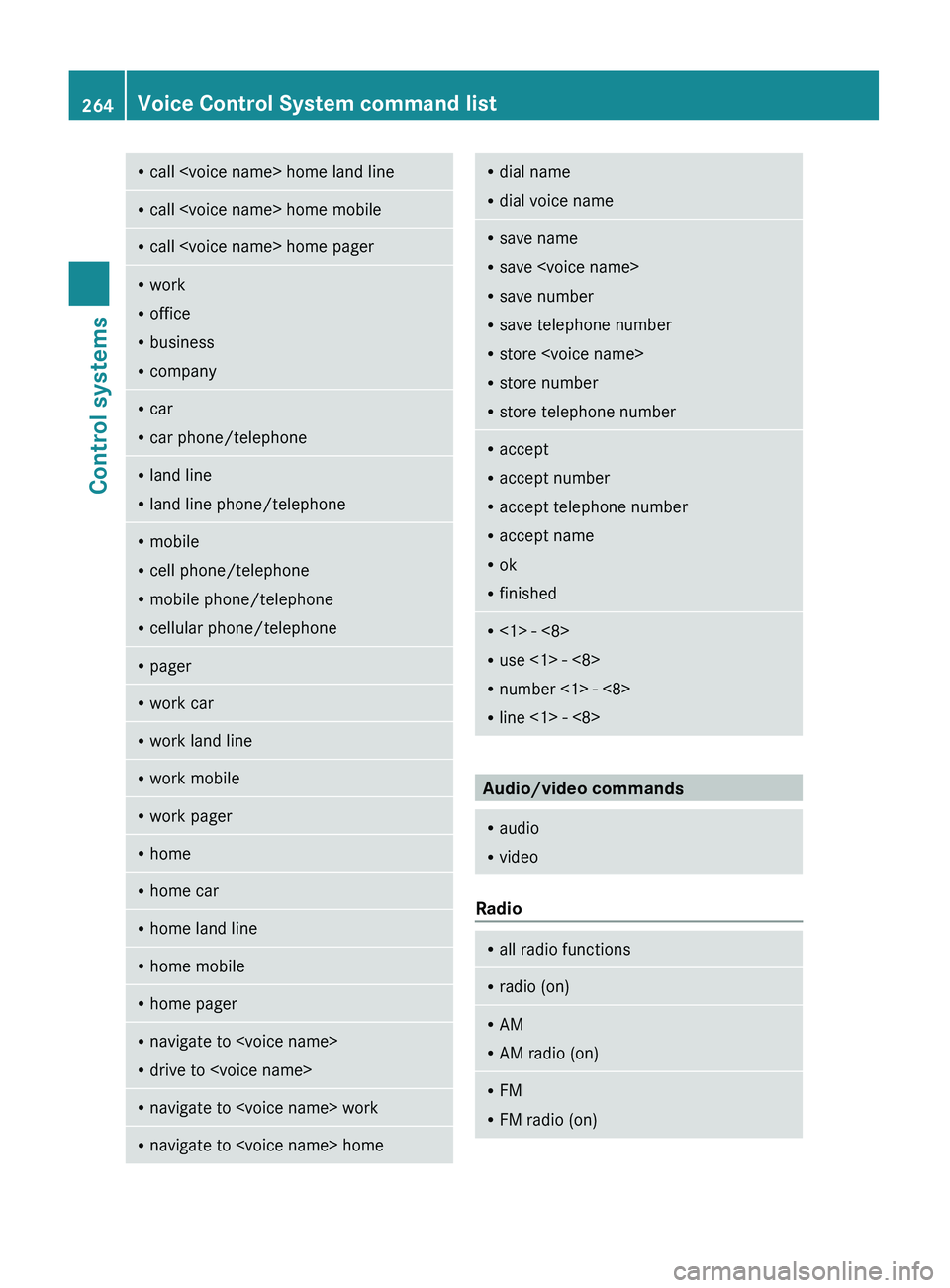
Rcall
R office
R business
R companyRcar
R car phone/telephoneRland line
R land line phone/telephoneRmobile
R cell phone/telephone
R mobile phone/telephone
R cellular phone/telephoneRpagerRwork carRwork land lineRwork mobileRwork pagerRhomeRhome carRhome land lineRhome mobileRhome pagerRnavigate to
R drive to
R dial voice nameRsave name
R save
R save number
R save telephone number
R store
R store number
R store telephone numberRaccept
R accept number
R accept telephone number
R accept name
R ok
R finishedR<1> - <8>
R use <1> - <8>
R number <1> - <8>
R line <1> - <8>
Audio/video commands
R
audio
R video
Radio
R
all radio functionsRradio (on)RAM
R AM radio (on)RFM
R FM radio (on)264Voice Control System command listControl systems
221_AKB; 6; 20, en-USd2ugruen,Version: 2.11.8.12009-09-24T13:28:17+02:00 - Seite 264
Page 267 of 548
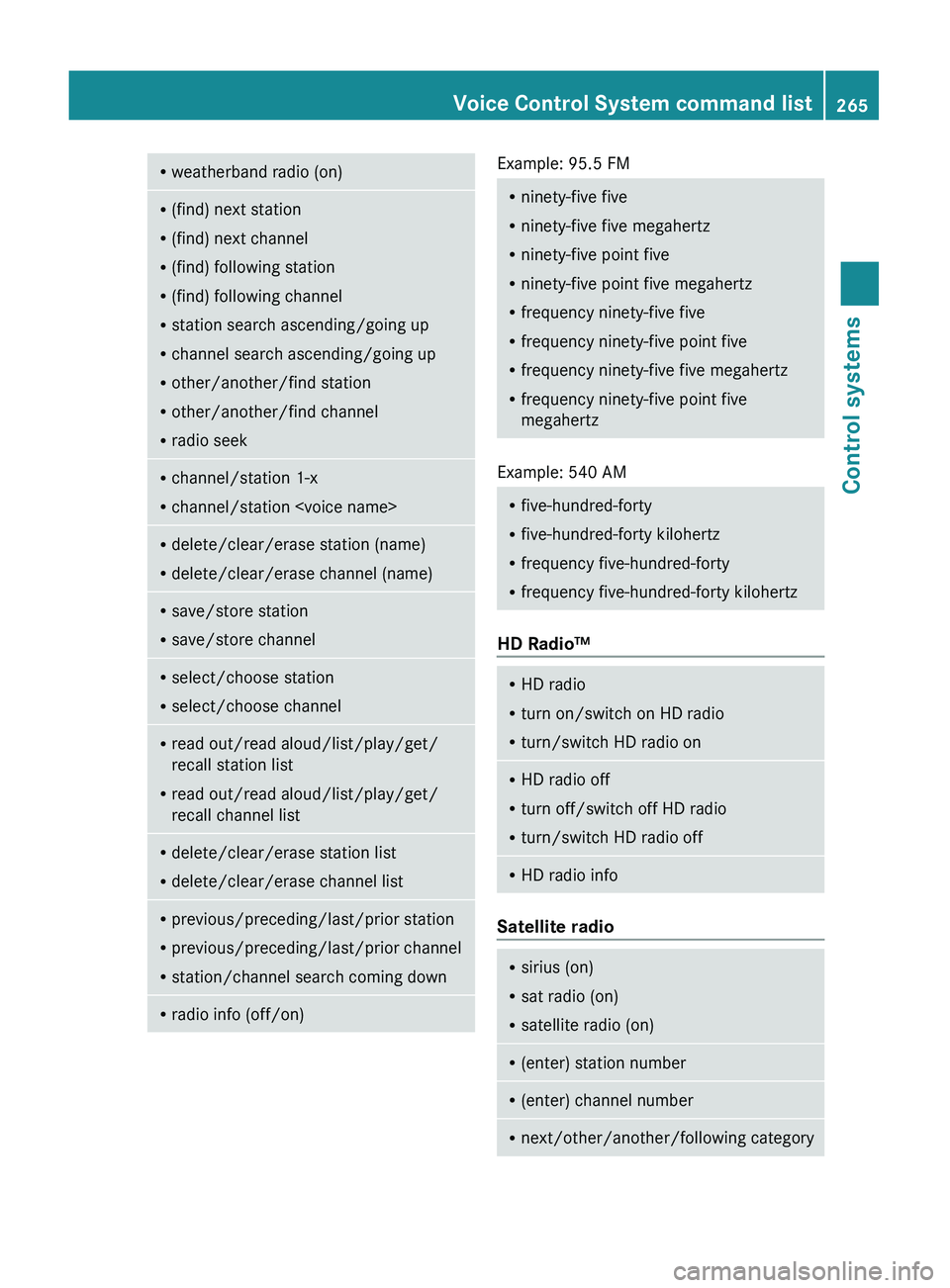
Rweatherband radio (on)R(find) next station
R (find) next channel
R (find) following station
R (find) following channel
R station search ascending/going up
R channel search ascending/going up
R other/another/find station
R other/another/find channel
R radio seekRchannel/station 1-x
R channel/station
R delete/clear/erase channel (name)Rsave/store station
R save/store channelRselect/choose station
R select/choose channelRread out/read aloud/list/play/get/
recall station list
R read out/read aloud/list/play/get/
recall channel listR delete/clear/erase station list
R delete/clear/erase channel listRprevious/preceding/last/prior station
R previous/preceding/last/prior channel
R station/channel search coming downRradio info (off/on)Example: 95.5 FMRninety-five five
R ninety-five five megahertz
R ninety-five point five
R ninety-five point five megahertz
R frequency ninety-five five
R frequency ninety-five point five
R frequency ninety-five five megahertz
R frequency ninety-five point five
megahertz
Example: 540 AM
R five-hundred-forty
R five-hundred-forty kilohertz
R frequency five-hundred-forty
R frequency five-hundred-forty kilohertz
HD Radio™
RHD radio
R turn on/switch on HD radio
R turn/switch HD radio onRHD radio off
R turn off/switch off HD radio
R turn/switch HD radio offRHD radio info
Satellite radio
R
sirius (on)
R sat radio (on)
R satellite radio (on)R(enter) station numberR(enter) channel numberRnext/other/another/following categoryVoice Control System command list265Control systems221_AKB; 6; 20, en-USd2ugruen,Version: 2.11.8.12009-09-24T13:28:17+02:00 - Seite 265Z
Page 268 of 548
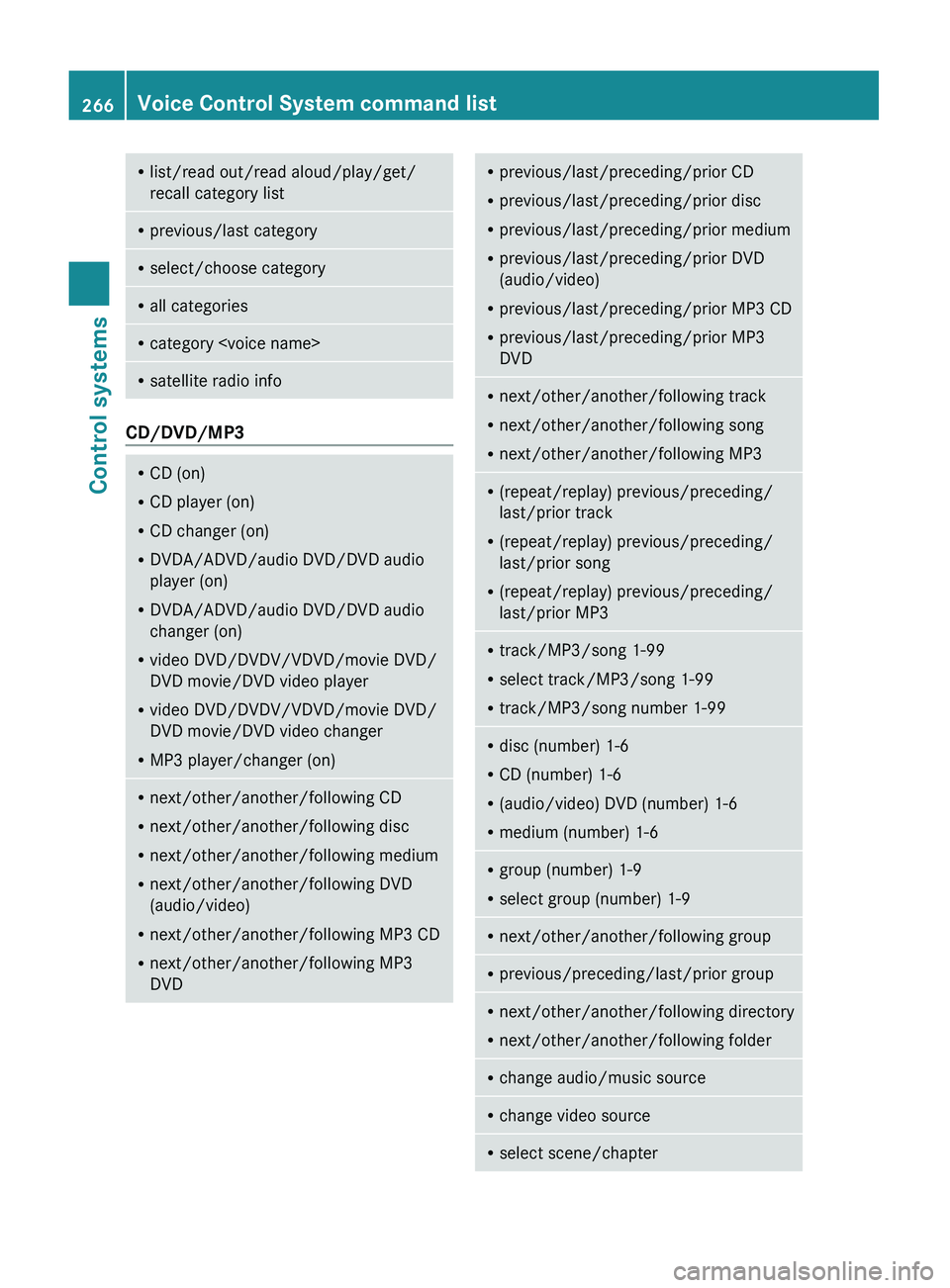
Rlist/read out/read aloud/play/get/
recall category listR previous/last categoryRselect/choose categoryRall categoriesRcategory
CD/DVD/MP3
RCD (on)
R CD player (on)
R CD changer (on)
R DVDA/ADVD/audio DVD/DVD audio
player (on)
R DVDA/ADVD/audio DVD/DVD audio
changer (on)
R video DVD/DVDV/VDVD/movie DVD/
DVD movie/DVD video player
R video DVD/DVDV/VDVD/movie DVD/
DVD movie/DVD video changer
R MP3 player/changer (on)Rnext/other/another/following CD
R next/other/another/following disc
R next/other/another/following medium
R next/other/another/following DVD
(audio/video)
R next/other/another/following MP3 CD
R next/other/another/following MP3
DVDR previous/last/preceding/prior CD
R previous/last/preceding/prior disc
R previous/last/preceding/prior medium
R previous/last/preceding/prior DVD
(audio/video)
R previous/last/preceding/prior MP3 CD
R previous/last/preceding/prior MP3
DVDR next/other/another/following track
R next/other/another/following song
R next/other/another/following MP3R(repeat/replay) previous/preceding/
last/prior track
R (repeat/replay) previous/preceding/
last/prior song
R (repeat/replay) previous/preceding/
last/prior MP3R track/MP3/song 1-99
R select track/MP3/song 1-99
R track/MP3/song number 1-99Rdisc (number) 1-6
R CD (number) 1-6
R (audio/video) DVD (number) 1-6
R medium (number) 1-6Rgroup (number) 1-9
R select group (number) 1-9Rnext/other/another/following groupRprevious/preceding/last/prior groupRnext/other/another/following directory
R next/other/another/following folderRchange audio/music sourceRchange video sourceRselect scene/chapter266Voice Control System command listControl systems
221_AKB; 6; 20, en-USd2ugruen,Version: 2.11.8.12009-09-24T13:28:17+02:00 - Seite 266
Page 314 of 548
children unattended in the vehicle, as they
could otherwise accidentally start the engine.
When leaving the vehicle, always take the
SmartKey with you and lock the vehicle. Do
not leave children unattended in the vehicle,
or with access to an unlocked vehicle. A
child’s unsupervised access to a vehicle could
result in an accident and/or serious personal
injury.
You can start your vehicle without the
SmartKey in the starter switch using the
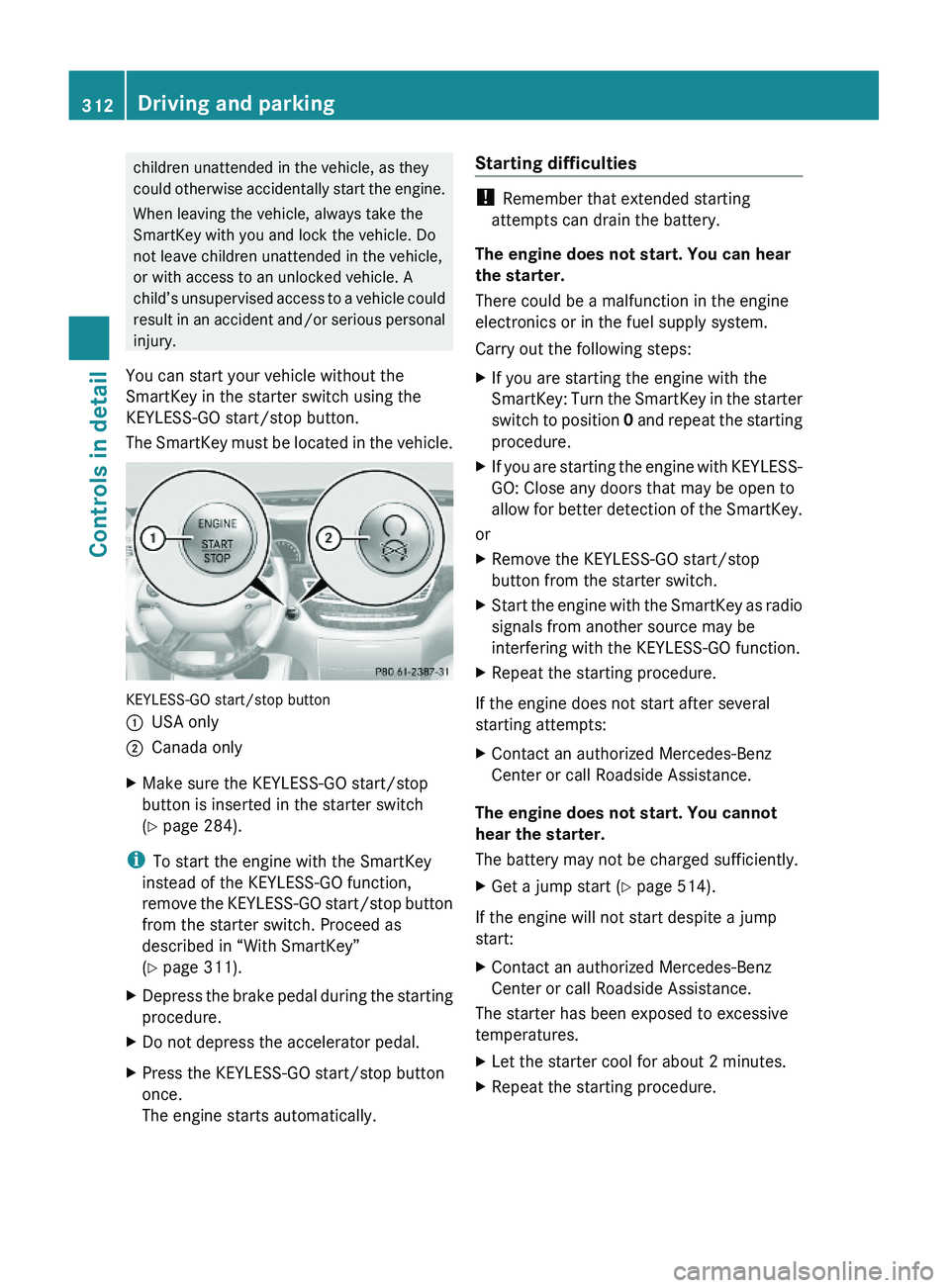
KEYLESS-GO start/stop button.
The SmartKey must be located in the vehicle.
KEYLESS-GO start/stop button
\000FUSA only\000GCanada onlyXMake sure the KEYLESS-GO start/stop
button is inserted in the starter switch
(Y page 284).
iTo start the engine with the SmartKey
instead of the KEYLESS-GO function,
remove the KEYLESS-GO start/stop button
from the starter switch. Proceed as
described in “With SmartKey”
(Y page 311).
XDepress the brake pedal during the starting
procedure.
XDo not depress the accelerator pedal.XPress the KEYLESS-GO start/stop button
once.
The engine starts automatically.
Starting difficulties
! Remember that extended starting
attempts can drain the battery.
The engine does not start. You can hear
the starter.
There could be a malfunction in the engine
electronics or in the fuel supply system.
Carry out the following steps:
XIf you are starting the engine with the
SmartKey: Turn the SmartKey in the starter
switch to position 0 and repeat the starting
procedure.
XIf you are starting the engine with KEYLESS-
GO: Close any doors that may be open to
allow for better detection of the SmartKey.
or
XRemove the KEYLESS-GO start/stop
button from the starter switch.
XStart the engine with the SmartKey as radio
signals from another source may be
interfering with the KEYLESS-GO function.
XRepeat the starting procedure.
If the engine does not start after several
starting attempts:
XContact an authorized Mercedes-Benz
Center or call Roadside Assistance.
The engine does not start. You cannot
hear the starter.
The battery may not be charged sufficiently.
XGet a jump start (Y page 514).
If the engine will not start despite a jump
start:
XContact an authorized Mercedes-Benz
Center or call Roadside Assistance.
The starter has been exposed to excessive
temperatures.
XLet the starter cool for about 2 minutes.XRepeat the starting procedure.312Driving and parkingControls in detail
221_AKB; 6; 20, en-USd2ugruen,Version: 2.11.8.12009-09-24T13:28:17+02:00 - Seite 312
Page 352 of 548
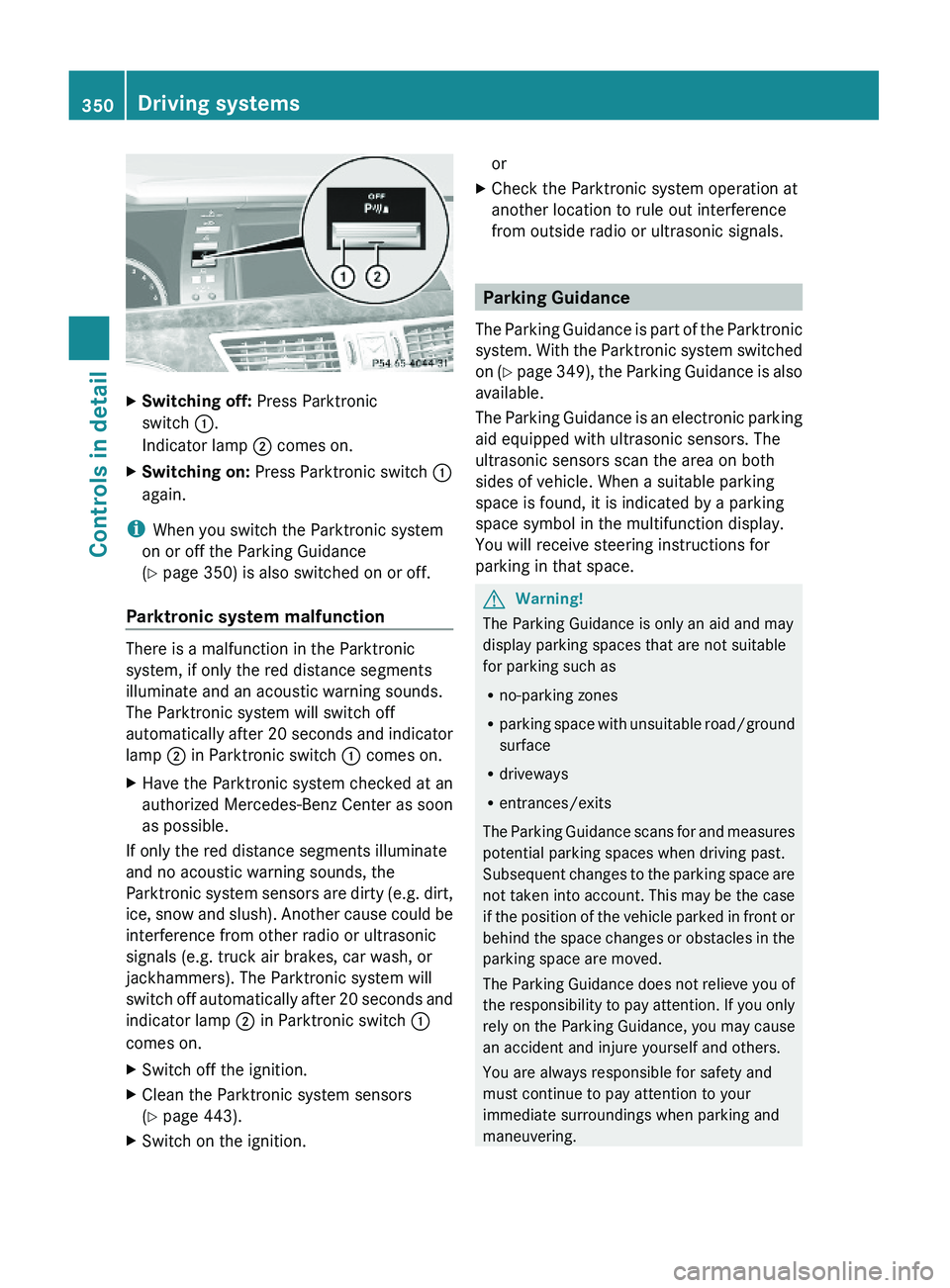
XSwitching off: Press Parktronic
switch \000F.
Indicator lamp \000G comes on.
XSwitching on: Press Parktronic switch \000F
again.
iWhen you switch the Parktronic system
on or off the Parking Guidance
(Y page 350) is also switched on or off.
Parktronic system malfunction
There is a malfunction in the Parktronic
system, if only the red distance segments
illuminate and an acoustic warning sounds.
The Parktronic system will switch off
automatically after 20 seconds and indicator
lamp \000G in Parktronic switch \000F comes on.
XHave the Parktronic system checked at an
authorized Mercedes-Benz Center as soon
as possible.
If only the red distance segments illuminate
and no acoustic warning sounds, the
Parktronic system sensors are dirty (e.g. dirt,
ice, snow and slush). Another cause could be
interference from other radio or ultrasonic
signals (e.g. truck air brakes, car wash, or
jackhammers). The Parktronic system will
switch off automatically after 20 seconds and
indicator lamp \000G in Parktronic switch \000F
comes on.
XSwitch off the ignition.XClean the Parktronic system sensors
(Y page 443).
XSwitch on the ignition.orXCheck the Parktronic system operation at
another location to rule out interference
from outside radio or ultrasonic signals.
Parking Guidance
The Parking Guidance is part of the Parktronic
system. With the Parktronic system switched
on (Y page 349), the Parking Guidance is also
available.
The Parking Guidance is an electronic parking
aid equipped with ultrasonic sensors. The
ultrasonic sensors scan the area on both
sides of vehicle. When a suitable parking
space is found, it is indicated by a parking
space symbol in the multifunction display.
You will receive steering instructions for
parking in that space.
GWarning!
The Parking Guidance is only an aid and may
display parking spaces that are not suitable
for parking such as
Rno-parking zones
Rparking space with unsuitable road/ground
surface
Rdriveways
Rentrances/exits
The Parking Guidance scans for and measures
potential parking spaces when driving past.
Subsequent changes to the parking space are
not taken into account. This may be the case
if the position of the vehicle parked in front or
behind the space changes or obstacles in the
parking space are moved.
The Parking Guidance does not relieve you of
the responsibility to pay attention. If you only
rely on the Parking Guidance, you may cause
an accident and injure yourself and others.
You are always responsible for safety and
must continue to pay attention to your
immediate surroundings when parking and
maneuvering.
350Driving systemsControls in detail
221_AKB; 6; 20, en-USd2ugruen,Version: 2.11.8.12009-09-24T13:28:17+02:00 - Seite 350