radio MERCEDES-BENZ S CLASS 2010 Owner's Manual
[x] Cancel search | Manufacturer: MERCEDES-BENZ, Model Year: 2010, Model line: S CLASS, Model: MERCEDES-BENZ S CLASS 2010Pages: 548, PDF Size: 11.45 MB
Page 172 of 548
Option 3XSelect Audio \000T FM/AM Radio \000T
Radio \000T Save Station \000T Autostore.
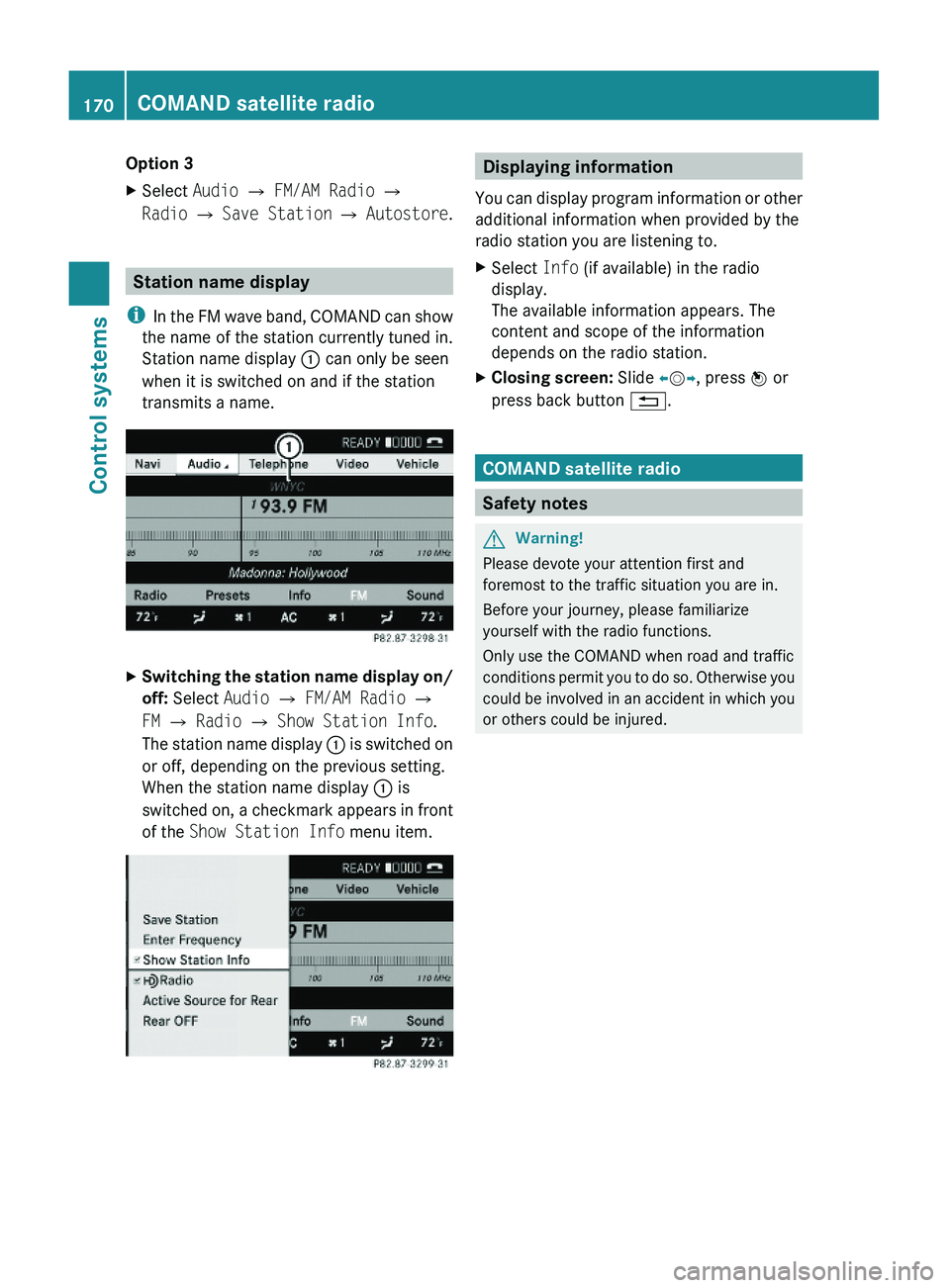
Station name display
iIn the FM wave band, COMAND can show
the name of the station currently tuned in.
Station name display \000F can only be seen
when it is switched on and if the station
transmits a name.
XSwitching the station name display on/
off: Select Audio \000T FM/AM Radio \000T
FM \000T Radio \000T Show Station Info.
The station name display \000F is switched on
or off, depending on the previous setting.
When the station name display \000F is
switched on, a checkmark appears in front
of the Show Station Info menu item.
Displaying information
You can display program information or other
additional information when provided by the
radio station you are listening to.
XSelect Info (if available) in the radio
display.
The available information appears. The
content and scope of the information
depends on the radio station.
XClosing screen: Slide \000
Page 173 of 548
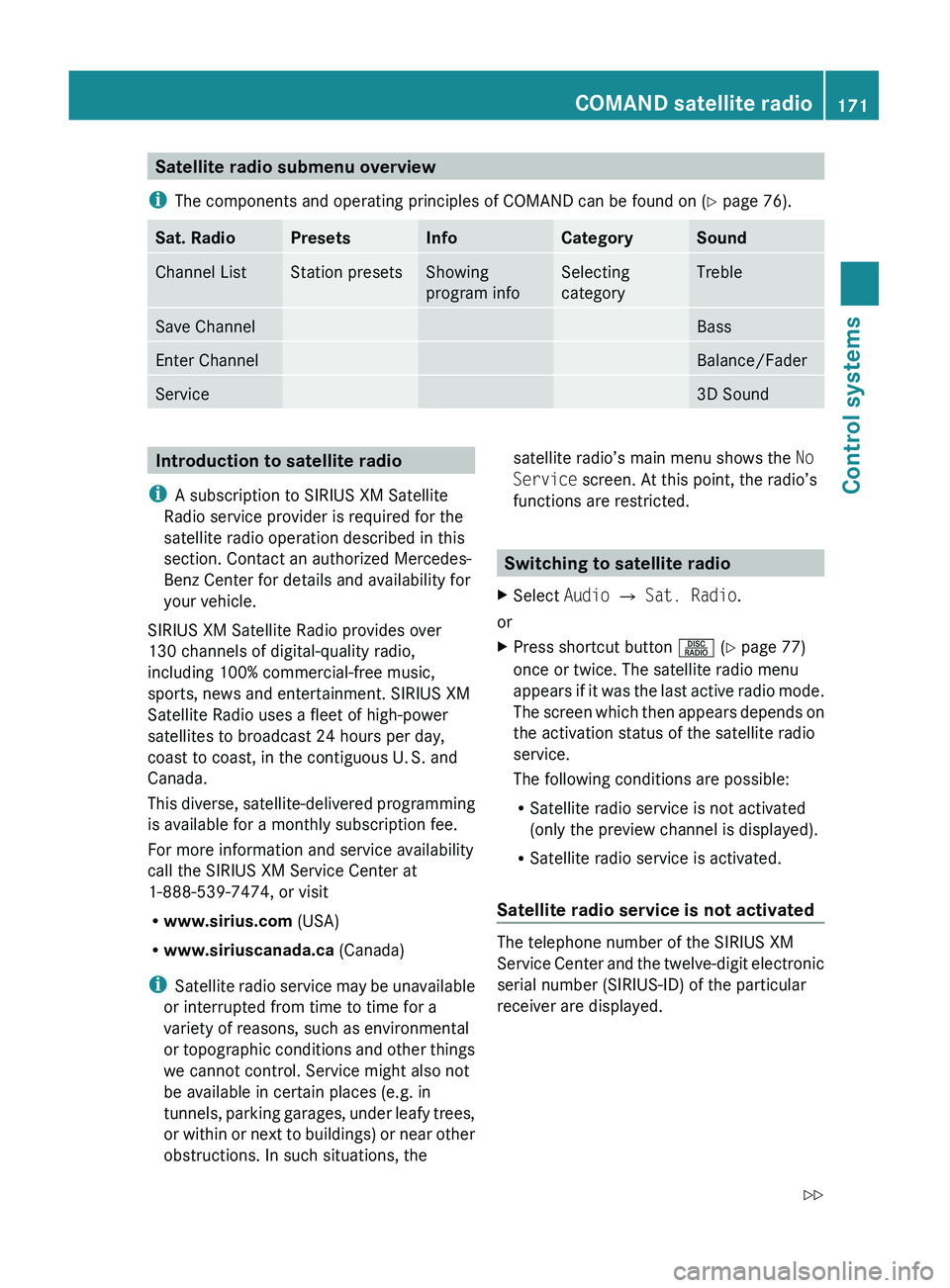
Satellite radio submenu overview
i The components and operating principles of COMAND can be found on ( Y page 76).Sat. RadioPresetsInfoCategorySoundChannel ListStation presetsShowing
program infoSelecting
categoryTrebleSave ChannelBassEnter ChannelBalance/FaderService3D SoundIntroduction to satellite radio
i A subscription to SIRIUS XM Satellite
Radio service provider is required for the
satellite radio operation described in this
section. Contact an authorized Mercedes-
Benz Center for details and availability for
your vehicle.
SIRIUS XM Satellite Radio provides over
130 channels of digital-quality radio,
including 100% commercial-free music,
sports, news and entertainment. SIRIUS XM
Satellite Radio uses a fleet of high-power
satellites to broadcast 24 hours per day,
coast to coast, in the contiguous U. S. and
Canada.
This diverse, satellite-delivered programming
is available for a monthly subscription fee.
For more information and service availability
call the SIRIUS XM Service Center at
1-888-539-7474, or visit
R www.sirius.com (USA)
R www.siriuscanada.ca (Canada)
i Satellite radio service may be unavailable
or interrupted from time to time for a
variety of reasons, such as environmental
or topographic conditions and other things
we cannot control. Service might also not
be available in certain places (e.g. in
tunnels, parking garages, under leafy trees,
or within or next to buildings) or near other
obstructions. In such situations, thesatellite radio’s main menu shows the No
Service screen. At this point, the radio’s
functions are restricted.
Switching to satellite radio
XSelect Audio 0054 Sat. Radio .
or
XPress shortcut button 0057 (Y page 77)
once or twice. The satellite radio menu
appears if it was the last active radio mode.
The screen which then appears depends on
the activation status of the satellite radio
service.
The following conditions are possible:
R Satellite radio service is not activated
(only the preview channel is displayed).
R Satellite radio service is activated.
Satellite radio service is not activated
The telephone number of the SIRIUS XM
Service Center and the twelve-digit electronic
serial number (SIRIUS-ID) of the particular
receiver are displayed.
COMAND satellite radio171Control systems221_AKB; 6; 20, en-USd2ugruen,Version: 2.11.8.12009-09-24T13:28:17+02:00 - Seite 171Z
Page 174 of 548
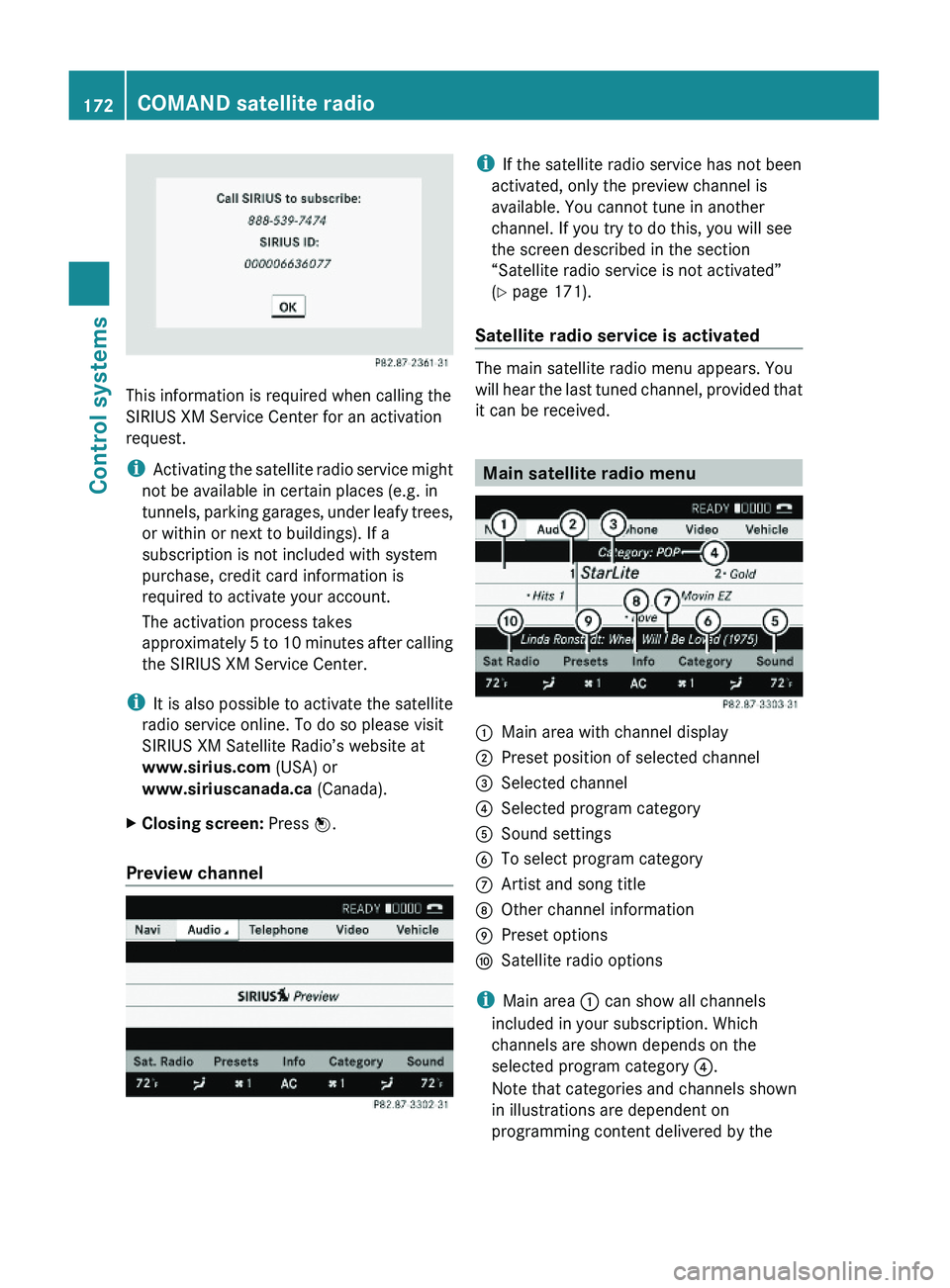
This information is required when calling the
SIRIUS XM Service Center for an activation
request.
iActivating the satellite radio service might
not be available in certain places (e.g. in
tunnels, parking garages, under leafy trees,
or within or next to buildings). If a
subscription is not included with system
purchase, credit card information is
required to activate your account.
The activation process takes
approximately 5 to 10 minutes after calling
the SIRIUS XM Service Center.
iIt is also possible to activate the satellite
radio service online. To do so please visit
SIRIUS XM Satellite Radio’s website at
www.sirius.com (USA) or
www.siriuscanada.ca (Canada).
XClosing screen: Press \000
Page 175 of 548
service provider. Programming content is
subject to change.
Therefore, channel and categories shown
in illustrations and descriptions contained
in this manual may differ from the channels
and categories delivered by the service
provider.
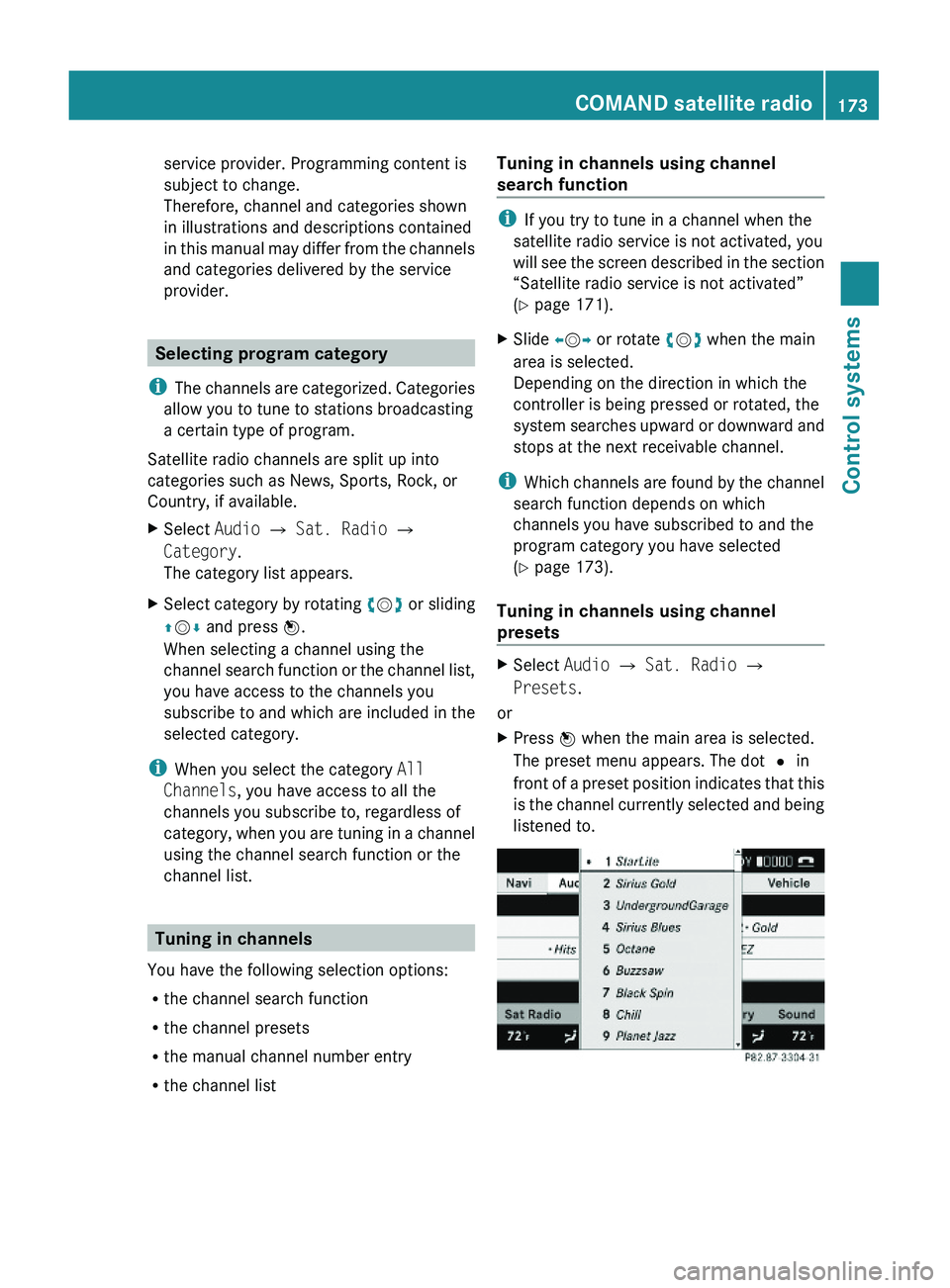
Selecting program category
iThe channels are categorized. Categories
allow you to tune to stations broadcasting
a certain type of program.
Satellite radio channels are split up into
categories such as News, Sports, Rock, or
Country, if available.
XSelect Audio \000T Sat. Radio \000T
Category.
The category list appears.
XSelect category by rotating \000
Page 176 of 548
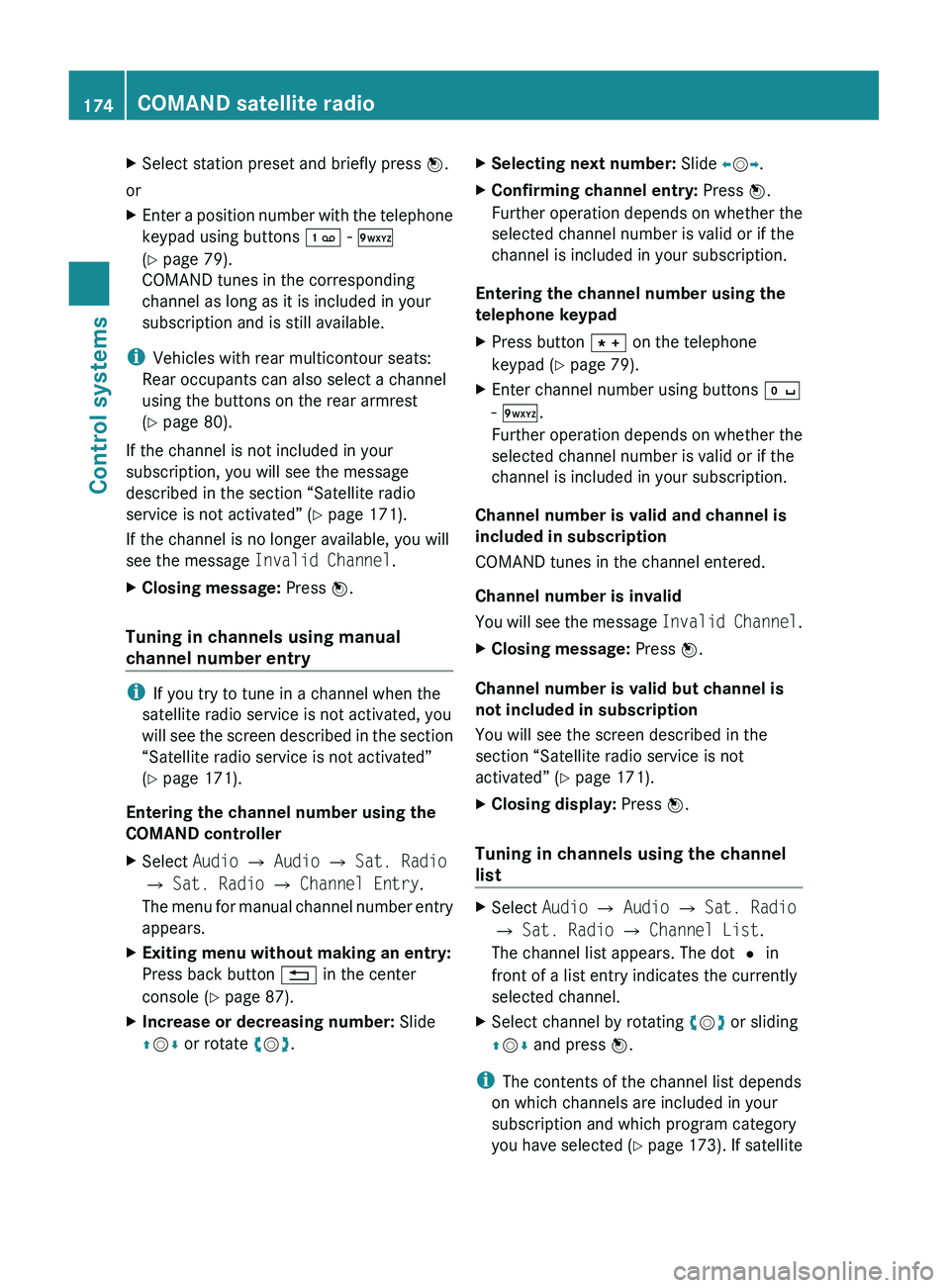
XSelect station preset and briefly press 00A1.
or
XEnter a position number with the telephone
keypad using buttons 0101 - 0109
( Y page 79).
COMAND tunes in the corresponding
channel as long as it is included in your
subscription and is still available.
i Vehicles with rear multicontour seats:
Rear occupants can also select a channel
using the buttons on the rear armrest
( Y page 80).
If the channel is not included in your
subscription, you will see the message
described in the section “Satellite radio
service is not activated” ( Y page 171).
If the channel is no longer available, you will
see the message Invalid Channel .
XClosing message: Press 00A1.
Tuning in channels using manual
channel number entry
i If you try to tune in a channel when the
satellite radio service is not activated, you
will see the screen described in the section
“Satellite radio service is not activated”
( Y page 171).
Entering the channel number using the
COMAND controller
XSelect Audio 0054 Audio 0054 Sat. Radio
0054 Sat. Radio 0054 Channel Entry .
The menu for manual channel number entry
appears.XExiting menu without making an entry:
Press back button 0041 in the center
console ( Y page 87).XIncrease or decreasing number: Slide
00A0 005B 0050 or rotate 0082005B 0083.XSelecting next number: Slide 009E005B 009F.XConfirming channel entry: Press 00A1.
Further operation depends on whether the
selected channel number is valid or if the
channel is included in your subscription.
Entering the channel number using the
telephone keypad
XPress button 004D on the telephone
keypad ( Y page 79).XEnter channel number using buttons 010B
- 0109 .
Further operation depends on whether the
selected channel number is valid or if the
channel is included in your subscription.
Channel number is valid and channel is
included in subscription
COMAND tunes in the channel entered.
Channel number is invalid
You will see the message Invalid Channel.
XClosing message: Press 00A1.
Channel number is valid but channel is
not included in subscription
You will see the screen described in the
section “Satellite radio service is not
activated” ( Y page 171).
XClosing display: Press 00A1.
Tuning in channels using the channel
list
XSelect Audio 0054 Audio 0054 Sat. Radio
0054 Sat. Radio 0054 Channel List .
The channel list appears. The dot 003F in
front of a list entry indicates the currently
selected channel.XSelect channel by rotating 0082005B 0083 or sliding
00A0 005B 0050 and press 00A1.
i
The contents of the channel list depends
on which channels are included in your
subscription and which program category
you have selected (Y page 173). If satellite
174COMAND satellite radioControl systems
221_AKB; 6; 20, en-USd2ugruen,Version: 2.11.8.12009-09-24T13:28:17+02:00 - Seite 174
Page 177 of 548
radio service is not activated, the channel
list contains only the preview channel.
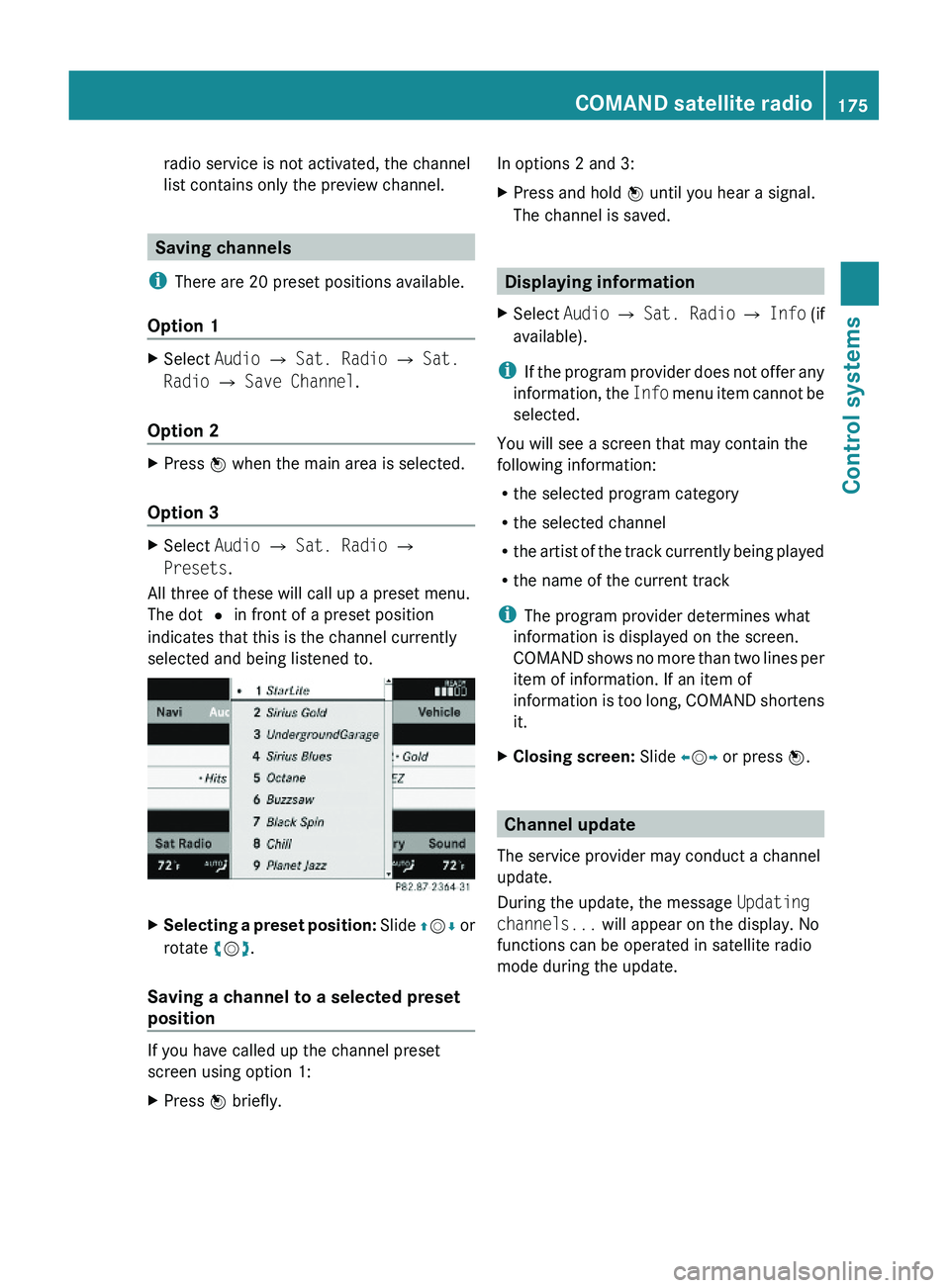
Saving channels
iThere are 20 preset positions available.
Option 1
XSelect Audio \000T Sat. Radio \000T Sat.
Radio \000T Save Channel.
Option 2
XPress \000
Page 178 of 548
Calling SIRIUS XM Service Center
i It may be necessary to call the SIRIUS XM
Service Center if, for example:
R You want to cancel the subscription or
resubscribe at a later date.
R You have forgotten to pay the bill.
R You sell the vehicle.XSelect Audio 0054 Sat. Radio 0054 Sat.
Radio 0054 Service .
The telephone number of the SIRIUS XM
Service Center and the twelve-digit
electronic serial number (SIRIUS-ID) of the
particular receiver are displayed.XClosing screen: Slide 009E005B 009F or press 00A1.
COMAND audio CD/audio DVD/MP3
Safety notes
GWarning!
COMAND and the CD/DVD drive in the rear
are classified as Class 1 laser products. You
must not open the casing. There is a risk of
exposure to invisible laser radiation if you
open the casing, or if the casing is faulty or
damaged.
COMAND and the CD/DVD drive in the rear
do not contain any parts that you are able to
maintain yourself. For safety reasons, all
maintenance work must be carried out by
qualified technicians.
GWarning!
Only carry out the following when the vehicle
is stationary:
R Inserting a disc/device
R Ejecting a disc/device
There is a risk of accident by being distracted
from road and traffic conditions if you load a
disc/device while the vehicle is in motion.
Bear in mind that at a speed of just 30 mph
(approximately 50 km/h), your vehicle is
covering a distance of 44 feet (approximately
14 m) every second.
Notes about MP3 mode
Permissible media for MP3/WMA files
R CD-R and CD-RW
R DVD-R and DVD-RW
R DVD+R and DVD+RW
R SD cards
R USB flash drives
R iPod ®
R MP3 players
Permissible file systems
R ISO9660/Joliet for CDs
R UDF for DVDs
R FAT16 or FAT32 for storage media
Multisession CDs
For multisession CDs, the first session type
of the CD determines how COMAND will
process the CD.
For example, if the first session type is
according to the audio CD standard and the
second session type is according to the data
CD standard containing MP3/WMA tracks,
COMAND will treat the CD as a conventional
audio CD. This means that it is only possible
to access the audio CD tracks. Access to the
MP3/WMA tracks is not possible.
Similarly, if the first session type is according
to the data CD standard containing MP3/
WMA tracks and the second session type is
according to the audio CD standard,
COMAND will treat the CD as a data CD. This
means that it is only possible to access the
MP3/WMA tracks. Access to the audio CD
tracks is not possible.
176COMAND audio CD/audio DVD/MP3Control systems
221_AKB; 6; 20, en-USd2ugruen,Version: 2.11.8.12009-09-24T13:28:17+02:00 - Seite 176
Page 228 of 548
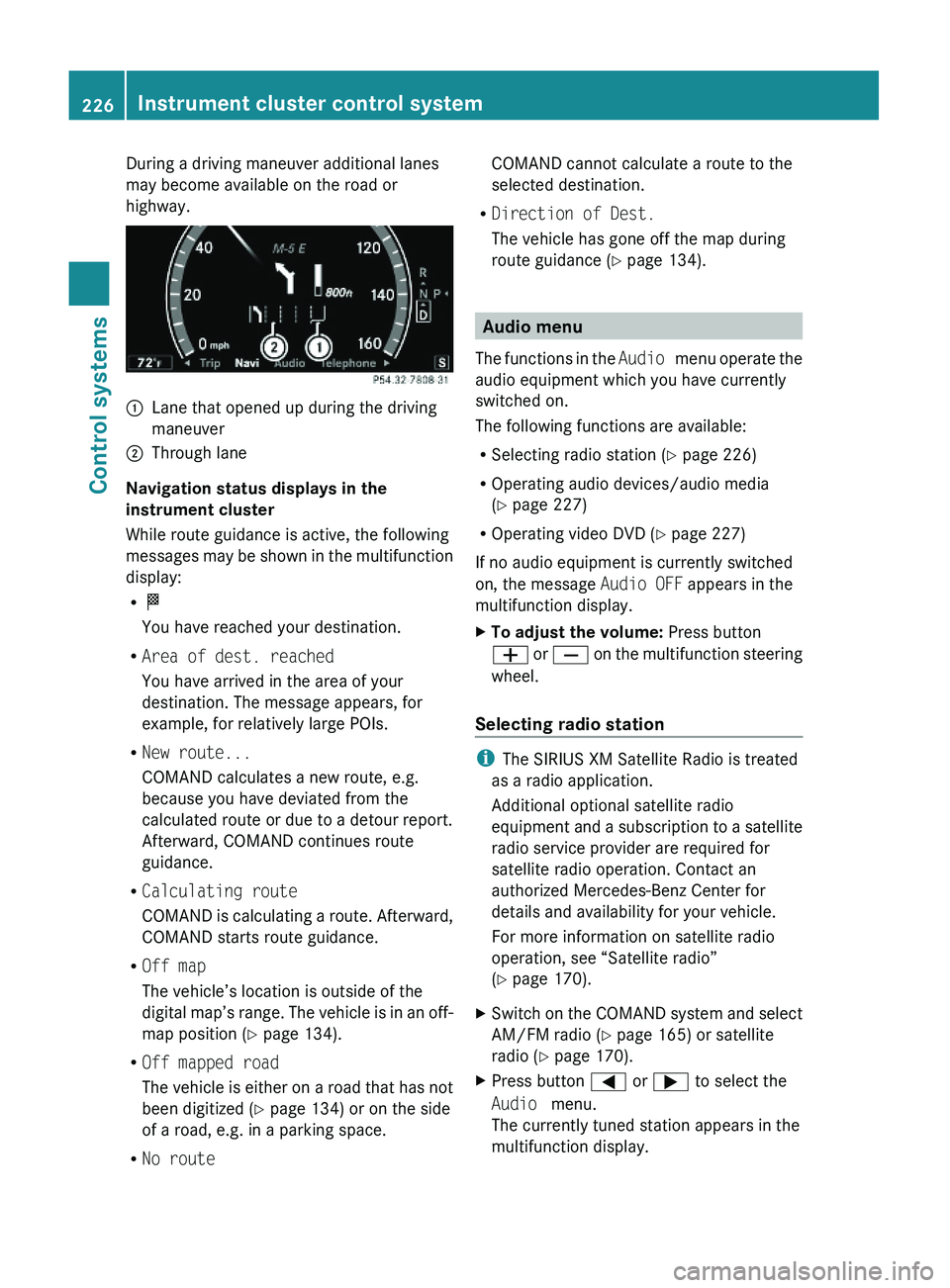
During a driving maneuver additional lanes
may become available on the road or
highway.
\000FLane that opened up during the driving
maneuver
\000GThrough lane
Navigation status displays in the
instrument cluster
While route guidance is active, the following
messages may be shown in the multifunction
display:
R\000T
You have reached your destination.
RArea of dest. reached
You have arrived in the area of your
destination. The message appears, for
example, for relatively large POIs.
RNew route...
COMAND calculates a new route, e.g.
because you have deviated from the
calculated route or due to a detour report.
Afterward, COMAND continues route
guidance.
RCalculating route
COMAND is calculating a route. Afterward,
COMAND starts route guidance.
ROff map
The vehicle’s location is outside of the
digital map’s range. The vehicle is in an off-
map position (Y page 134).
ROff mapped road
The vehicle is either on a road that has not
been digitized (Y page 134) or on the side
of a road, e.g. in a parking space.
RNo route
COMAND cannot calculate a route to the
selected destination.
RDirection of Dest.
The vehicle has gone off the map during
route guidance (Y page 134).
Audio menu
The functions in the Audio menu operate the
audio equipment which you have currently
switched on.
The following functions are available:
RSelecting radio station (Y page 226)
ROperating audio devices/audio media
(Y page 227)
ROperating video DVD (Y page 227)
If no audio equipment is currently switched
on, the message Audio OFF appears in the
multifunction display.
XTo adjust the volume: Press button
\000Z or \000[ on the multifunction steering
wheel.
Selecting radio station
iThe SIRIUS XM Satellite Radio is treated
as a radio application.
Additional optional satellite radio
equipment and a subscription to a satellite
radio service provider are required for
satellite radio operation. Contact an
authorized Mercedes-Benz Center for
details and availability for your vehicle.
For more information on satellite radio
operation, see “Satellite radio”
(Y page 170).
XSwitch on the COMAND system and select
AM/FM radio (Y page 165) or satellite
radio (Y page 170).
XPress button \000@ or \000> to select the
Audio menu.
The currently tuned station appears in the
multifunction display.
226Instrument cluster control systemControl systems
221_AKB; 6; 20, en-USd2ugruen,Version: 2.11.8.12009-09-24T13:28:17+02:00 - Seite 226
Page 229 of 548
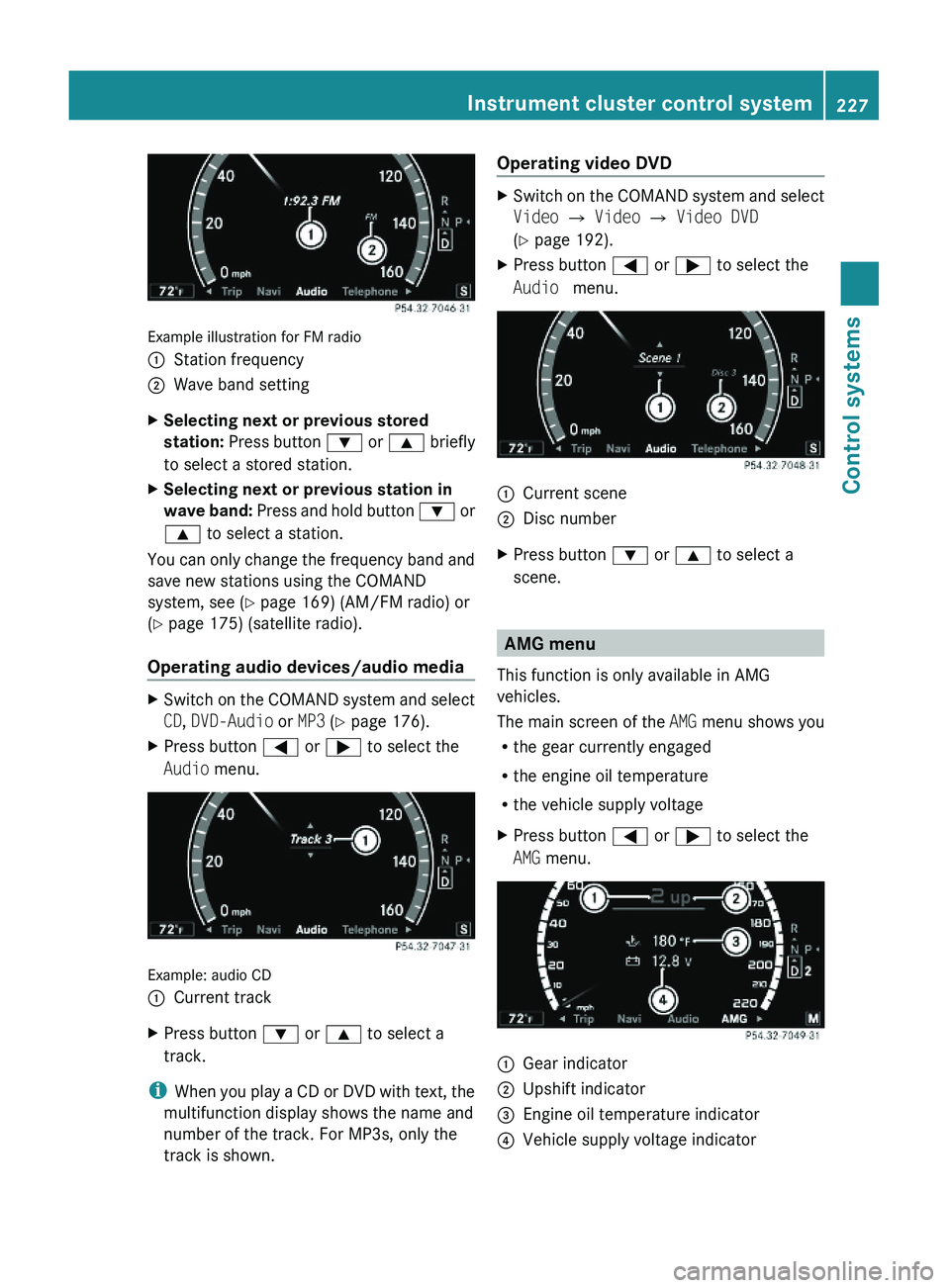
Example illustration for FM radio
\000FStation frequency\000GWave band settingXSelecting next or previous stored
station: Press button \000= or \000< briefly
to select a stored station.
XSelecting next or previous station in
wave band: Press and hold button \000= or
\000< to select a station.
You can only change the frequency band and
save new stations using the COMAND
system, see (Y page 169) (AM/FM radio) or
(Y page 175) (satellite radio).
Operating audio devices/audio media
XSwitch on the COMAND system and select
CD, DVD-Audio or MP3 (Y page 176).
XPress button \000@ or \000> to select the
Audio menu.
Example: audio CD
\000FCurrent trackXPress button \000= or \000< to select a
track.
iWhen you play a CD or DVD with text, the
multifunction display shows the name and
number of the track. For MP3s, only the
track is shown.
Operating video DVDXSwitch on the COMAND system and select
Video \000T Video \000T Video DVD
(Y page 192).
XPress button \000@ or \000> to select the
Audio menu.
\000FCurrent scene\000GDisc numberXPress button \000= or \000< to select a
scene.
AMG menu
This function is only available in AMG
vehicles.
The main screen of the AMG menu shows you
Rthe gear currently engaged
Rthe engine oil temperature
Rthe vehicle supply voltage
XPress button \000@ or \000> to select the
AMG menu.
\000FGear indicator\000GUpshift indicator\000
Page 240 of 548
GWarning!
Please do not use the Voice Control System
in an emergency, as the tone of your voice
may change in a stressful situation. This could
cause a delay in completing your phone call
in a timely manner. This could distract you in
an emergency situation and cause you to be
involved in an accident.
General information
Depending on vehicle equipment, you can
operate the following systems via the Voice
Control System:
RTelephone (Y page 245)
RNavigation (Y page 240)
RAddress book (Y page 249)
RAudio (Y page 252) (AM/FM radio,
Satellite radio, CD/DVD changer, MP3
mode (SD card, USB, Music Register, Media
Interface), AUX)
RVideo
You control these systems using spoken
commands. Moreover, controls such as the
buttons on the multifunction steering wheel
(Y page 238) allow you to keep your hands
on the steering wheel.
The Voice Control System recognizes
commands and number sequences,
irrespective of the speaker. To optimize
speech recognition for your voice follow the
individualization process (Y page 271).
You can use the Voice Control System to call
up all of COMAND’s main menu items.
The commands can be spoken without
pausing between the individual words. If an
unavailable or incorrect command is used,
the Voice Control System will prompt you for
a new command by asking “Please repeat” or
“Please repeat your entry”.
The Voice Control System will confirm
important commands and inform you in case
of incorrect entries.
iTo support the user, the Voice Control
System contains an extensive help function
(Y page 267).
You can use the commands “Continue” or
“Back” to scroll up or down in lists.
The command “Correction” lets you repeat
the entry.
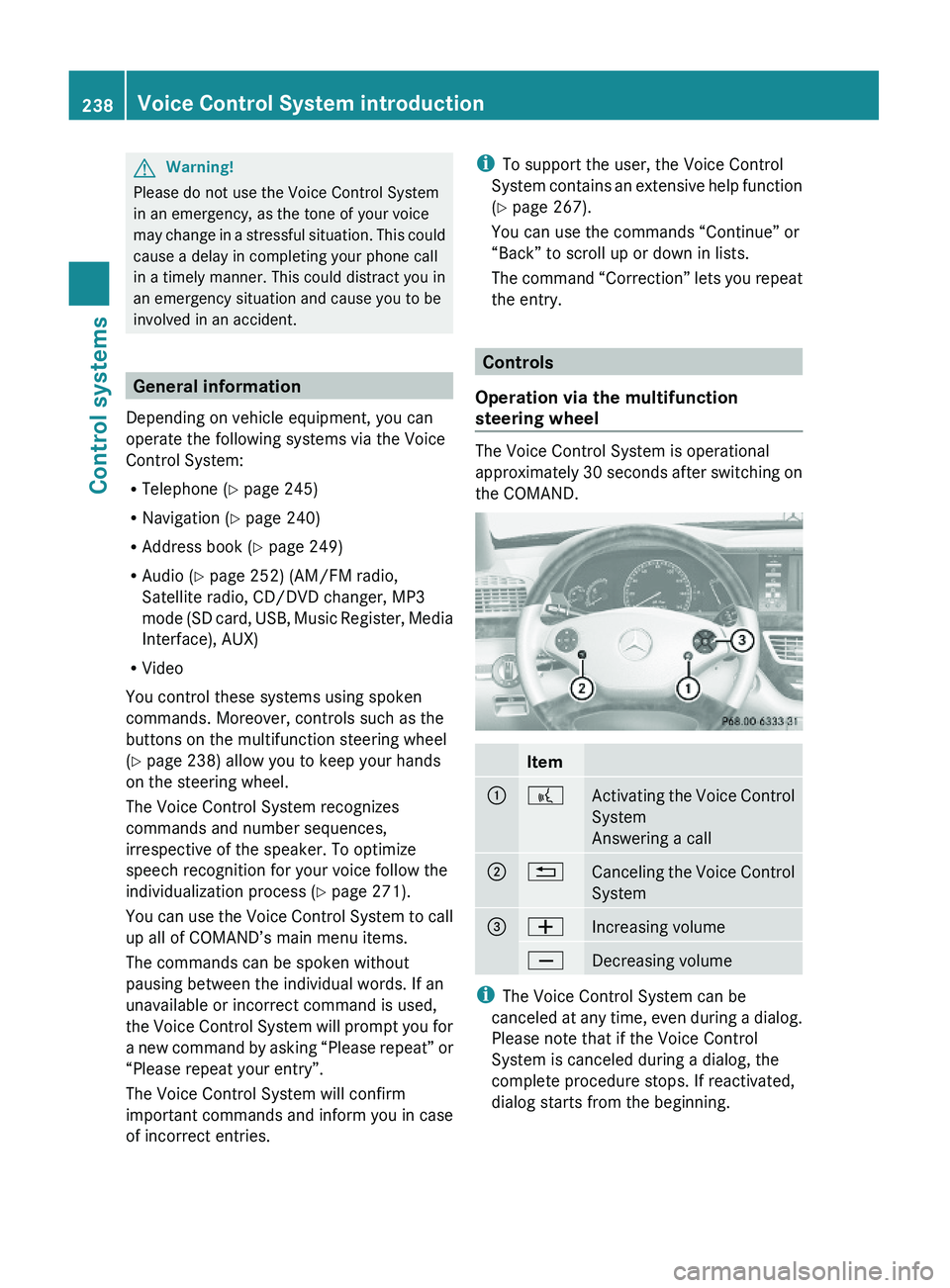
Controls
Operation via the multifunction
steering wheel
The Voice Control System is operational
approximately 30 seconds after switching on
the COMAND.
Item\000F\000bActivating the Voice Control
System
Answering a call
\000G\000ACanceling the Voice Control
System
\000