navigation system MERCEDES-BENZ S CLASS 2010 Owner's Manual
[x] Cancel search | Manufacturer: MERCEDES-BENZ, Model Year: 2010, Model line: S CLASS, Model: MERCEDES-BENZ S CLASS 2010Pages: 548, PDF Size: 11.45 MB
Page 126 of 548
XSelect Navi \000T Destination \000T
Stopover \000T Change Stopover.
XEnter another destination as a stopover.
Deleting the stopover
If a stopover has already been entered, you
can delete it.
XSelect Navi \000T Destination \000T
Stopover \000T Delete Stopover.
COMAND deletes the stopover and
calculates the route to the main
destination.
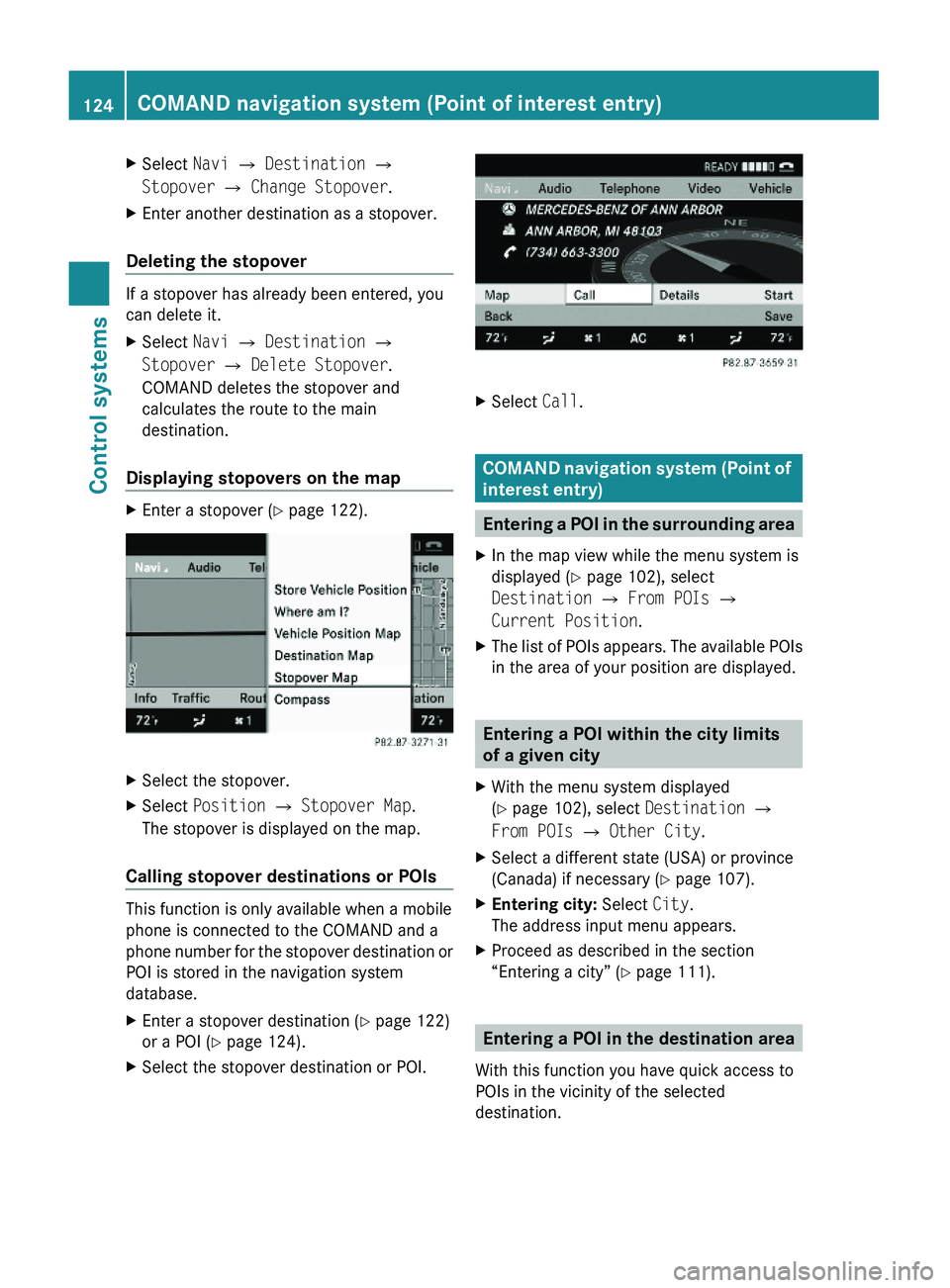
Displaying stopovers on the map
XEnter a stopover (Y page 122).XSelect the stopover.XSelect Position \000T Stopover Map.
The stopover is displayed on the map.
Calling stopover destinations or POIs
This function is only available when a mobile
phone is connected to the COMAND and a
phone number for the stopover destination or
POI is stored in the navigation system
database.
XEnter a stopover destination (Y page 122)
or a POI (Y page 124).
XSelect the stopover destination or POI.XSelect Call.
COMAND navigation system (Point of
interest entry)
Entering a POI in the surrounding area
XIn the map view while the menu system is
displayed (Y page 102), select
Destination \000T From POIs \000T
Current Position.
XThe list of POIs appears. The available POIs
in the area of your position are displayed.
Entering a POI within the city limits
of a given city
XWith the menu system displayed
(Y page 102), select Destination \000T
From POIs \000T Other City.
XSelect a different state (USA) or province
(Canada) if necessary (Y page 107).
XEntering city: Select City.
The address input menu appears.
XProceed as described in the section
“Entering a city” (Y page 111).
Entering a POI in the destination area
With this function you have quick access to
POIs in the vicinity of the selected
destination.
124COMAND navigation system (Point of interest entry)Control systems
221_AKB; 6; 20, en-USd2ugruen,Version: 2.11.8.12009-09-24T13:28:17+02:00 - Seite 124
Page 127 of 548
XWith the menu system displayed
( Y page 102), select Destination 0054
From POIs 0054 Destination area .
The list of POIs appears. The available POIs
in the vicinity of destination are displayed.
Entering a POI by name
With this function you can enter or select POIs
by the name of the POI.
XWith the menu system displayed
( Y page 102), select Destination 0054
From POIs 0054 By Name 0054 All POIs .
When selecting All POIs all POIs in the
navigation database are displayed sorted
by name.
You can also search for POIs in the vicinity of
your current position or a particular city.
XWith the menu system displayed
( Y page 102), select Destination 0054
From POIs 0054 By Name 0054 Current
Position or Other City .
Entering a POI by telephone number
With this function you can enter or select POIs
by the telephone number of the POI.
XWith the menu system displayed
( Y page 102), select Destination 0054
From POIs 0054 By Telephone Number .
The telephone numbers of all POIs that are
stored in the navigation database are
displayed.
Choosing a POI category and
selecting a POI
The available categories or POIs depend on
the selected search method.
R POI in the surrounding area:
categories sorted alphabetically and POIs
sorted by distance around the vehicle
position are available.
R POI within the city limits of a given city:
If you have only entered the state (USA) or
province (Canada) and the city,
alphabetically sorted categories and
alphabetically sorted POIs within the city
are available.
If you have entered more than the state
(USA) or province (Canada) and the city,
alphabetically sorted categories and POIs
sorted by distance around the address
entered are available.
R POI in the destination area:
categories sorted alphabetically and POIs
sorted by distance around the destination
area are available.
R POIs via name search:
Alphabetically sorted POIs are available.
R POIs via phone number:
Numerically sorted POIs are available.
Some search methods display a list of
available main categories. After selecting a
main category and, if available, a subcategory
a list of POIs appears.
i The main categories can have up to three
subcategories.
Other search methods provide a list of POIs
immediately.COMAND navigation system (Point of interest entry)125Control systems221_AKB; 6; 20, en-USd2ugruen,Version: 2.11.8.12009-09-24T13:28:17+02:00 - Seite 125Z
Page 136 of 548
Off-road and off-map
Route guidance to an off-road
destination
GWarning!
The COMAND navigation system may direct
you to off-road routes that your vehicle may
not be capable of traversing through without
damaging your tires, wheels or vehicle. It is
the driver’s sole responsibility to determine
the suitability of the route. Off-road routes
may be of varying conditions and their
appropriateness for use may be affected by
various factors such as time of day, time of
year and immediate weather conditions that
cannot be judged or taken into consideration
by the COMAND system.
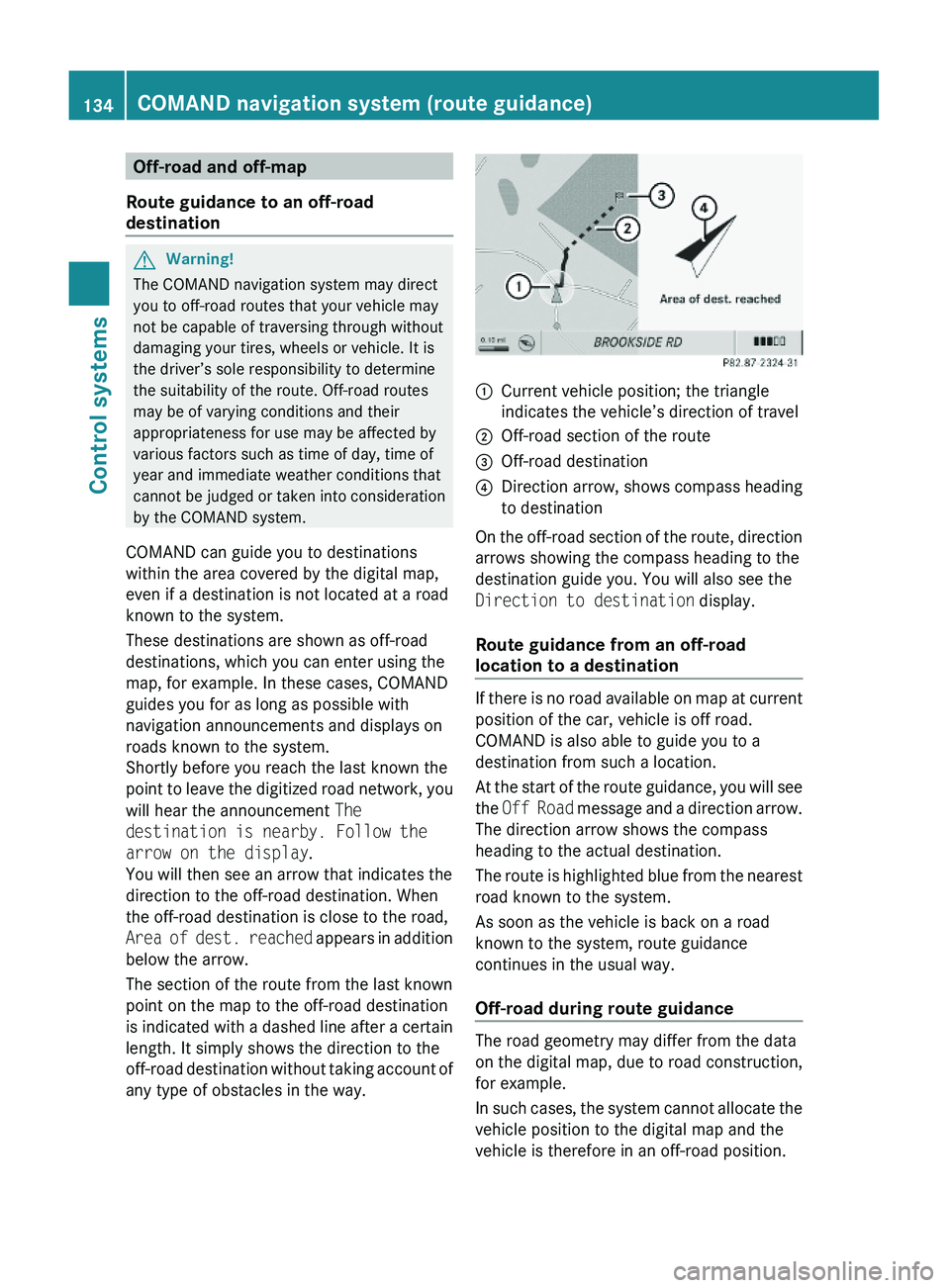
COMAND can guide you to destinations
within the area covered by the digital map,
even if a destination is not located at a road
known to the system.
These destinations are shown as off-road
destinations, which you can enter using the
map, for example. In these cases, COMAND
guides you for as long as possible with
navigation announcements and displays on
roads known to the system.
Shortly before you reach the last known the
point to leave the digitized road network, you
will hear the announcement The
destination is nearby. Follow the
arrow on the display.
You will then see an arrow that indicates the
direction to the off-road destination. When
the off-road destination is close to the road,
Area of dest. reached appears in addition
below the arrow.
The section of the route from the last known
point on the map to the off-road destination
is indicated with a dashed line after a certain
length. It simply shows the direction to the
off-road destination without taking account of
any type of obstacles in the way.
\000FCurrent vehicle position; the triangle
indicates the vehicle’s direction of travel
\000GOff-road section of the route\000
Page 137 of 548
The Off Road message and an arrow showing
the compass heading to the destination
appear on the display.
As soon as the system can allocate the
vehicle position to the map again, route
guidance continues in the usual way.
Navigation announcements
GWarning!
Navigation announcements are intended to
direct you while driving without diverting your
attention from the road and driving.
Please always use navigation announcements
instead of consulting the map display for
directions. Consulting the symbols or map
display for directions may cause you to divert
your attention from driving and increase your
risk of an accident.
i If Chinese is set as the system language,
the navigation announcements are in
English. For information on how to set the
system language see ( Y page 94).
Navigation announcements are muted
during telephone calls. You can, however,
call up a current announcement at any
time. You can also call up a current
announcement at any time if you have
missed an announcement.
Route guidance is active already.
XCalling up a current announcement:
Select Navi 0054 RPT .
or
XPress favorite button 0087 if the button has
been programmed with this function
( Y page 94).XSwitching off navigation messages:
Press button 006C during an
announcement.
You will see the message The driving
instructions have been muted. for a
short while.
i The announcements remain switched off
even if you start a new route guidance or if
COMAND is switched off/on with button
0094 .
If you switch COMAND off by removing the
SmartKey from the starter switch and then
switch the ignition back on after more than
3 minutes, the announcements are
automatically switched back on.
XSwitching navigation announcements
back on manually: Select Navi 0054 RPT .XAdjusting volume of the messages:
Adjust the volume during an automatic
announcement ( Y page 87).
or
XCall up an announcement manually using
Navi 0054 RPT and adjust the volume
( Y page 87).
i
You can use the function Audio
Fadeout (Y page 106) to reduce the
volume of audio sources during navigation
announcements.
COMAND navigation system (during
route guidance)
Cancel route guidance
XSelect Destination 0054 Cancel Route
Guidance in map view with the menu
system displayed ( Y page 102).
Continuing canceled route guidance
XSelect Destination 0054 Continue
Route Guidance in map view with the
menu system displayed ( Y page 102).
COMAND calculates the route.COMAND navigation system (during route guidance)135Control systems221_AKB; 6; 20, en-USd2ugruen,Version: 2.11.8.12009-09-24T13:28:17+02:00 - Seite 135Z
Page 142 of 548
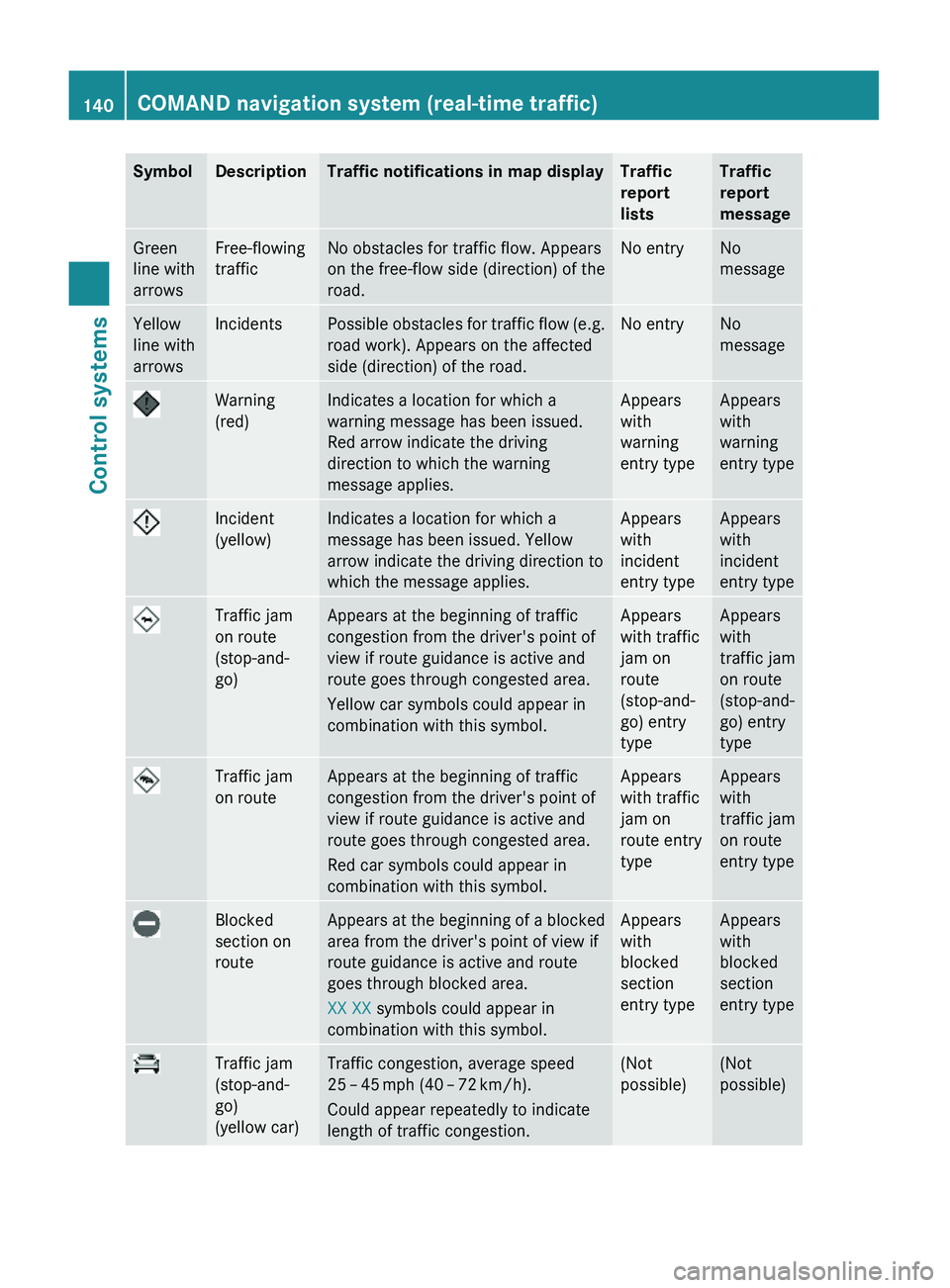
SymbolDescriptionTraffic notifications in map displayTraffic
report
lists
Traffic
report
message
Green
line with
arrows
Free-flowing
traffic
No obstacles for traffic flow. Appears
on the free-flow side (direction) of the
road.
No entryNo
message
Yellow
line with
arrows
IncidentsPossible obstacles for traffic flow (e.g.
road work). Appears on the affected
side (direction) of the road.
No entryNo
message
Warning
(red)
Indicates a location for which a
warning message has been issued.
Red arrow indicate the driving
direction to which the warning
message applies.
Appears
with
warning
entry type
Appears
with
warning
entry type
Incident
(yellow)
Indicates a location for which a
message has been issued. Yellow
arrow indicate the driving direction to
which the message applies.
Appears
with
incident
entry type
Appears
with
incident
entry type
Traffic jam
on route
(stop-and-
go)
Appears at the beginning of traffic
congestion from the driver's point of
view if route guidance is active and
route goes through congested area.
Yellow car symbols could appear in
combination with this symbol.
Appears
with traffic
jam on
route
(stop-and-
go) entry
type
Appears
with
traffic jam
on route
(stop-and-
go) entry
type
Traffic jam
on route
Appears at the beginning of traffic
congestion from the driver's point of
view if route guidance is active and
route goes through congested area.
Red car symbols could appear in
combination with this symbol.
Appears
with traffic
jam on
route entry
type
Appears
with
traffic jam
on route
entry type
Blocked
section on
route
Appears at the beginning of a blocked
area from the driver's point of view if
route guidance is active and route
goes through blocked area.
XX XX symbols could appear in
combination with this symbol.
Appears
with
blocked
section
entry type
Appears
with
blocked
section
entry type
Traffic jam
(stop-and-
go)
(yellow car)
Traffic congestion, average speed
25 – 45 mph (40 – 72 km/h).
Could appear repeatedly to indicate
length of traffic congestion.
(Not
possible)
(Not
possible)
140COMAND navigation system (real-time traffic)Control systems
221_AKB; 6; 20, en-USd2ugruen,Version: 2.11.8.12009-09-24T13:28:17+02:00 - Seite 140
Page 143 of 548
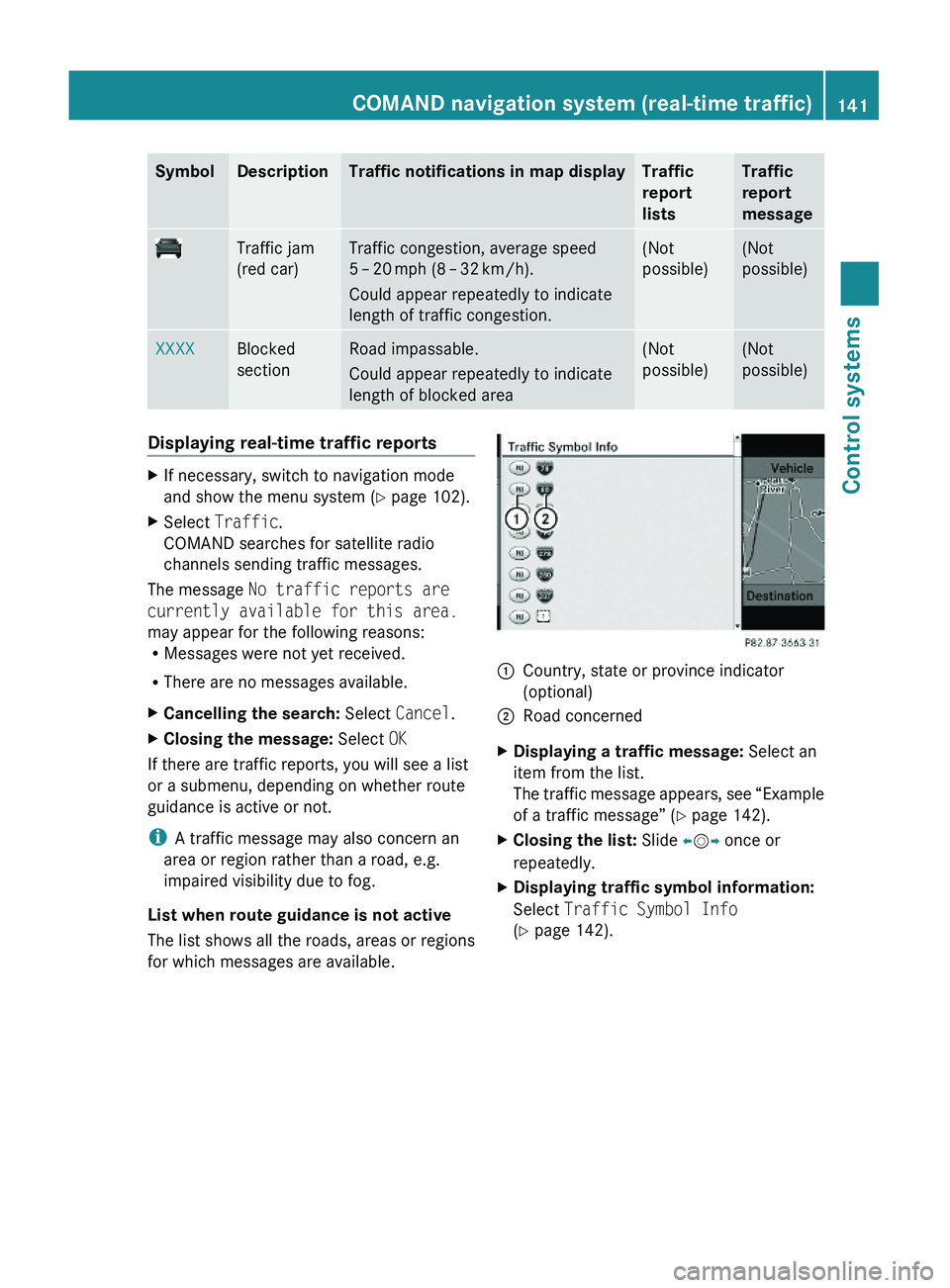
SymbolDescriptionTraffic notifications in map displayTraffic
report
lists
Traffic
report
message
Traffic jam
(red car)
Traffic congestion, average speed
5 – 20 mph (8 – 32 km/h).
Could appear repeatedly to indicate
length of traffic congestion.
(Not
possible)
(Not
possible)
XXXXBlocked
section
Road impassable.
Could appear repeatedly to indicate
length of blocked area
(Not
possible)
(Not
possible)
Displaying real-time traffic reportsXIf necessary, switch to navigation mode
and show the menu system (Y page 102).
XSelect Traffic.
COMAND searches for satellite radio
channels sending traffic messages.
The message No traffic reports are
currently available for this area.
may appear for the following reasons:RMessages were not yet received.
RThere are no messages available.
XCancelling the search: Select Cancel.XClosing the message: Select OK
If there are traffic reports, you will see a list
or a submenu, depending on whether route
guidance is active or not.
iA traffic message may also concern an
area or region rather than a road, e.g.
impaired visibility due to fog.
List when route guidance is not active
The list shows all the roads, areas or regions
for which messages are available.
1Country, state or province indicator
(optional)
2Road concernedXDisplaying a traffic message: Select an
item from the list.
The traffic message appears, see “Example
of a traffic message” (Y page 142).
XClosing the list: Slide \000
Page 145 of 548
XBack to list: Select Back.XDisplaying previous or next traffic
message: Select Previous or Next.
XDisplaying details for selected traffic
message: Select Details.
XSwitching to map view: Select Map.
COMAND navigation system
(destination memory)
My address
iThe destination memory always contains
an entry called My Address. You can save
your home address, for example, under this
entry.
Assigning your address for the first
time or changing your own address
Assigning and/or changing your own
address
XSelect Navi \000T Destination \000T From
Memory.
Depending on the number of entries in the
destination memory, you will see the
destination memory list with or without
predictive speller.
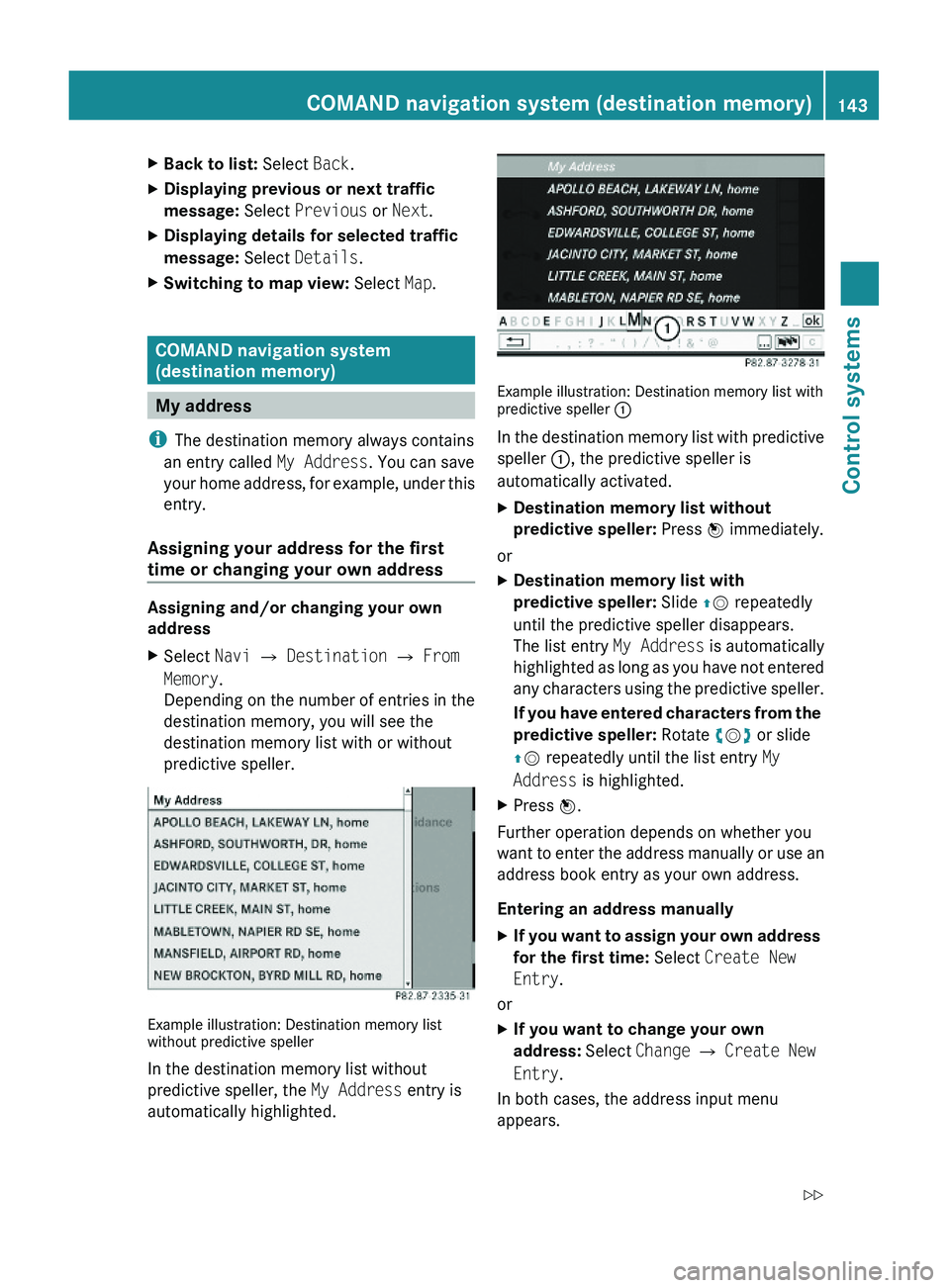
Example illustration: Destination memory listwithout predictive speller
In the destination memory list without
predictive speller, the My Address entry is
automatically highlighted.
Example illustration: Destination memory list withpredictive speller \000F
In the destination memory list with predictive
speller \000F, the predictive speller is
automatically activated.
XDestination memory list without
predictive speller: Press \000
Page 146 of 548
XEnter the address. Proceed as described
for destination entry in the “Entering a
destination by address” section
( Y page 107).XSelect Save after entering the address.
Your address is saved.
Using the address book entry as your own
address
XIf you want to assign your own address
for the first time: Select Assign
Address Book Entry .
or
XIf you want to change your own
address: Select Change 0054 Assign
Address Book Entry 0054 Home or Work .
In both cases, the menu appears for
searching for an address book entry.
XSelect desired address book entry.
Proceed as described in the “Searching for
an address book entry” section
( Y page 160).
Once the address data is complete and if it
matches the digital map data, COMAND
saves the entry as your own address in the
destination memory.
If address data is still missing or if it cannot
be found on the digital map, a message
appears indicating that the address is
incomplete.XClosing message: Select OK.
i
In the address book entry, the city and
street must be spelled in the same way as
the destination entry so that the data
matches the digital map data.
In order for the state (USA) or province
(Canada) to match the map data, you may
either enter the entire name or the
abbreviation in the address book.
Examples:
R Florida or FL
R Colorado or CO
RAlberta or AB
R Ontario or ON
Depending on which data is missing or cannot
be found on the digital map, you must now
either:
R select a state (USA) or province (Canada)
R or enter a city
R or enter a street
R or enter a house numberXSelecting a state (USA) or province
(Canada): Select desired state (USA) or
province (Canada) from the list.XEntering a city: Proceed as described for
destination entry in the “Entering a city”
section ( Y page 111).XEntering a street: Proceed as described
for destination entry in the “Entering a
street” section ( Y page 114).XEntering a house number: Proceed as
described for destination entry in the
“Entering a house number” section
( Y page 117).
If all data is available and matches the
digital map data, you can save the address.XSaving: Select Save.
Selecting your own address for route
guidance
XSelect Navi 0054 Destination 0054 From
Memory .
The destination memory list appears either
with or without the predictive speller.
Whether the predictive speller appears
depends on the number of entries in the
destination memory.144COMAND navigation system (destination memory)Control systems
221_AKB; 6; 20, en-USd2ugruen,Version: 2.11.8.12009-09-24T13:28:17+02:00 - Seite 144
Page 148 of 548
Saving a destination from the list of last
destinations
XSelect Navi \000T Destination \000T From
Last Destinations.
The list of last destinations appears.
XSelect desired destination.
The address of the destination is displayed.
XSelect Save.
You can now select save options.
Selecting save options
Saving a destination without a name
XSelect Save without Name.
COMAND saves the destination in the
destination memory and uses the address
as the destination name.
or
XSelect Save as "My Address".
COMAND saves the destination in the
destination memory as your own address.
Saving a destination with a name
XSelect Save with Name.XSelect desired category, e.g. Home or
Work.
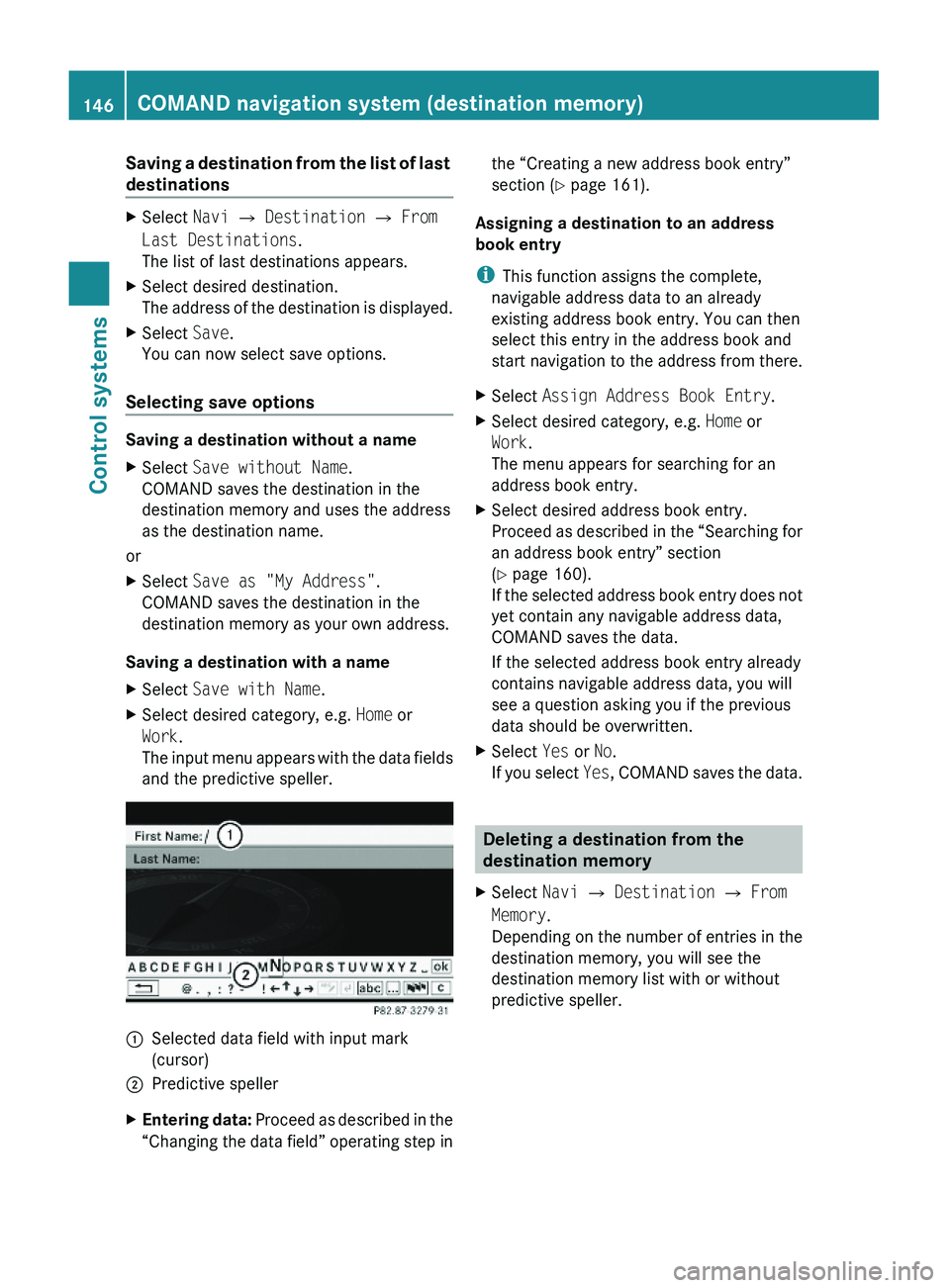
The input menu appears with the data fields
and the predictive speller.
\000FSelected data field with input mark
(cursor)
\000GPredictive spellerXEntering data: Proceed as described in the
“Changing the data field” operating step in
the “Creating a new address book entry”
section (Y page 161).
Assigning a destination to an address
book entry
iThis function assigns the complete,
navigable address data to an already
existing address book entry. You can then
select this entry in the address book and
start navigation to the address from there.
XSelect Assign Address Book Entry.XSelect desired category, e.g. Home or
Work.
The menu appears for searching for an
address book entry.
XSelect desired address book entry.
Proceed as described in the “Searching for
an address book entry” section
(Y page 160).
If the selected address book entry does not
yet contain any navigable address data,
COMAND saves the data.
If the selected address book entry already
contains navigable address data, you will
see a question asking you if the previous
data should be overwritten.
XSelect Yes or No.
If you select Yes, COMAND saves the data.
Deleting a destination from the
destination memory
XSelect Navi \000T Destination \000T From
Memory.
Depending on the number of entries in the
destination memory, you will see the
destination memory list with or without
predictive speller.
146COMAND navigation system (destination memory)Control systems
221_AKB; 6; 20, en-USd2ugruen,Version: 2.11.8.12009-09-24T13:28:17+02:00 - Seite 146
Page 149 of 548
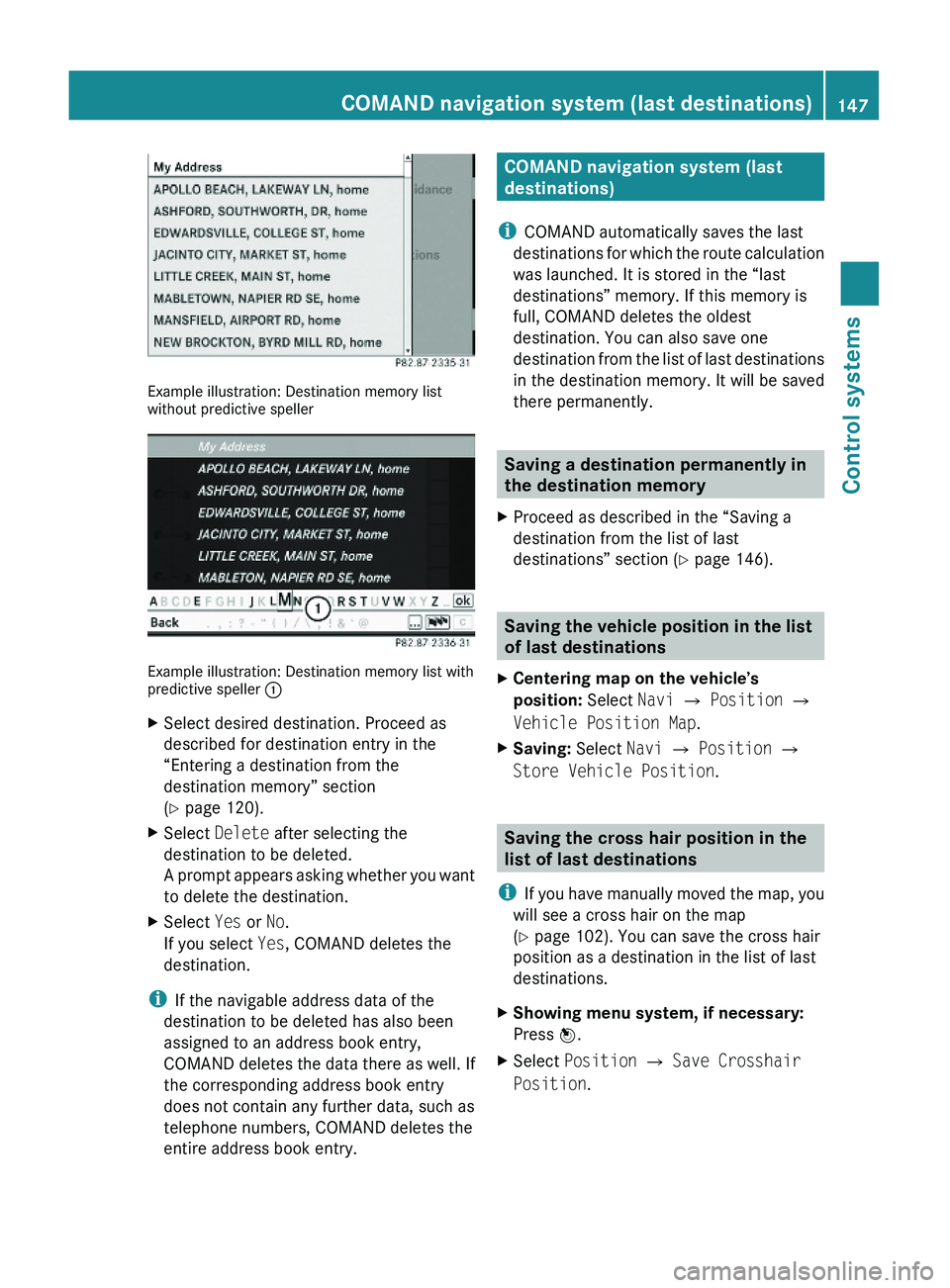
Example illustration: Destination memory listwithout predictive speller
Example illustration: Destination memory list withpredictive speller \000F
XSelect desired destination. Proceed as
described for destination entry in the
“Entering a destination from the
destination memory” section
(Y page 120).
XSelect Delete after selecting the
destination to be deleted.
A prompt appears asking whether you want
to delete the destination.
XSelect Yes or No.
If you select Yes, COMAND deletes the
destination.
iIf the navigable address data of the
destination to be deleted has also been
assigned to an address book entry,
COMAND deletes the data there as well. If
the corresponding address book entry
does not contain any further data, such as
telephone numbers, COMAND deletes the
entire address book entry.
COMAND navigation system (last
destinations)
iCOMAND automatically saves the last
destinations for which the route calculation
was launched. It is stored in the “last
destinations” memory. If this memory is
full, COMAND deletes the oldest
destination. You can also save one
destination from the list of last destinations
in the destination memory. It will be saved
there permanently.
Saving a destination permanently in
the destination memory
XProceed as described in the “Saving a
destination from the list of last
destinations” section (Y page 146).
Saving the vehicle position in the list
of last destinations
XCentering map on the vehicle’s
position: Select Navi \000T Position \000T
Vehicle Position Map.
XSaving: Select Navi \000T Position \000T
Store Vehicle Position.
Saving the cross hair position in the
list of last destinations
iIf you have manually moved the map, you
will see a cross hair on the map
(Y page 102). You can save the cross hair
position as a destination in the list of last
destinations.
XShowing menu system, if necessary:
Press \000