navigation system MERCEDES-BENZ S CLASS 2010 Owner's Guide
[x] Cancel search | Manufacturer: MERCEDES-BENZ, Model Year: 2010, Model line: S CLASS, Model: MERCEDES-BENZ S CLASS 2010Pages: 548, PDF Size: 11.45 MB
Page 227 of 548
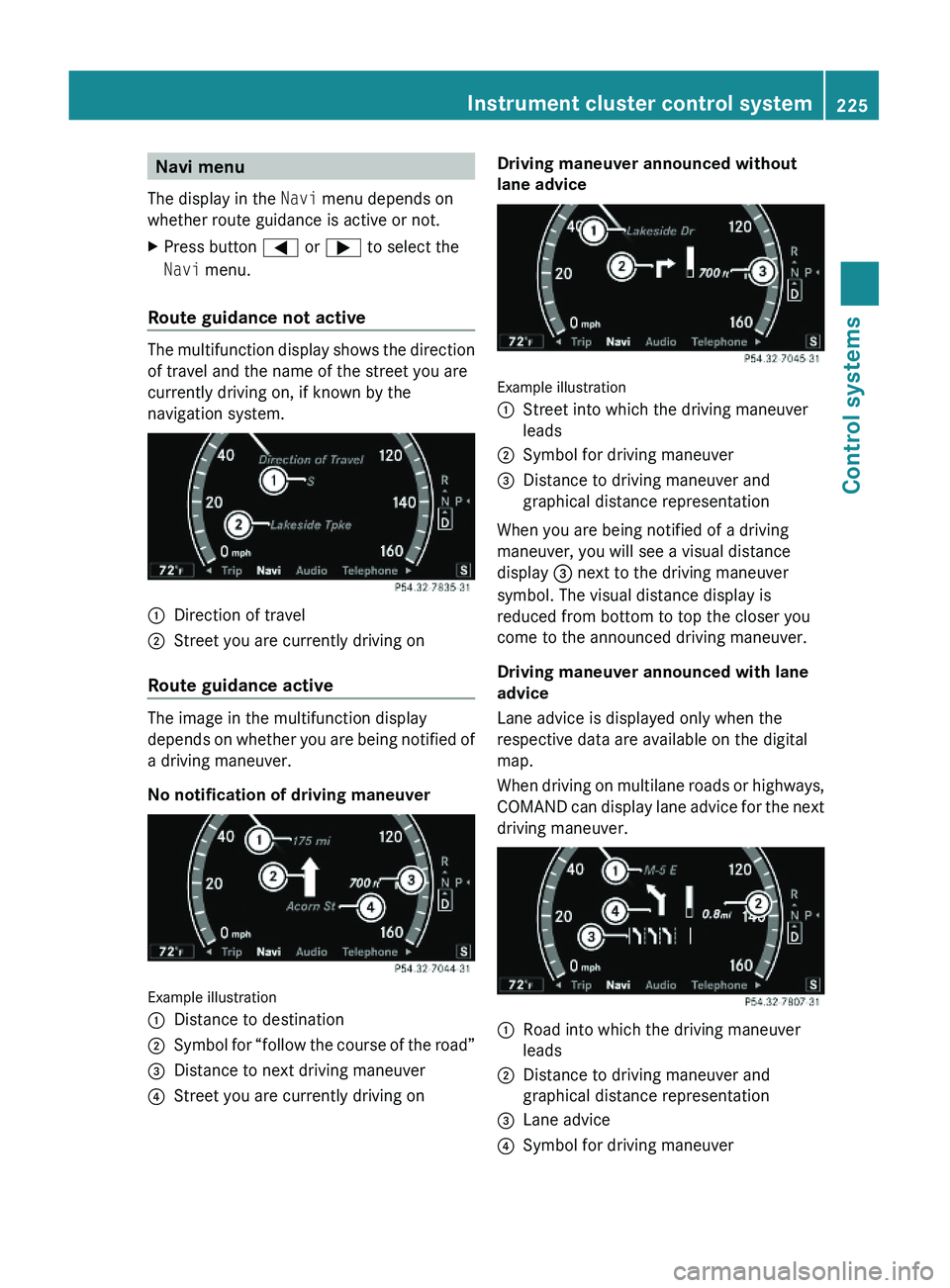
Navi menu
The display in the Navi menu depends on
whether route guidance is active or not.
XPress button \000@ or \000> to select the
Navi menu.
Route guidance not active
The multifunction display shows the direction
of travel and the name of the street you are
currently driving on, if known by the
navigation system.
\000FDirection of travel\000GStreet you are currently driving on
Route guidance active
The image in the multifunction display
depends on whether you are being notified of
a driving maneuver.
No notification of driving maneuver
Example illustration
\000FDistance to destination\000GSymbol for “follow the course of the road”\000
Page 228 of 548
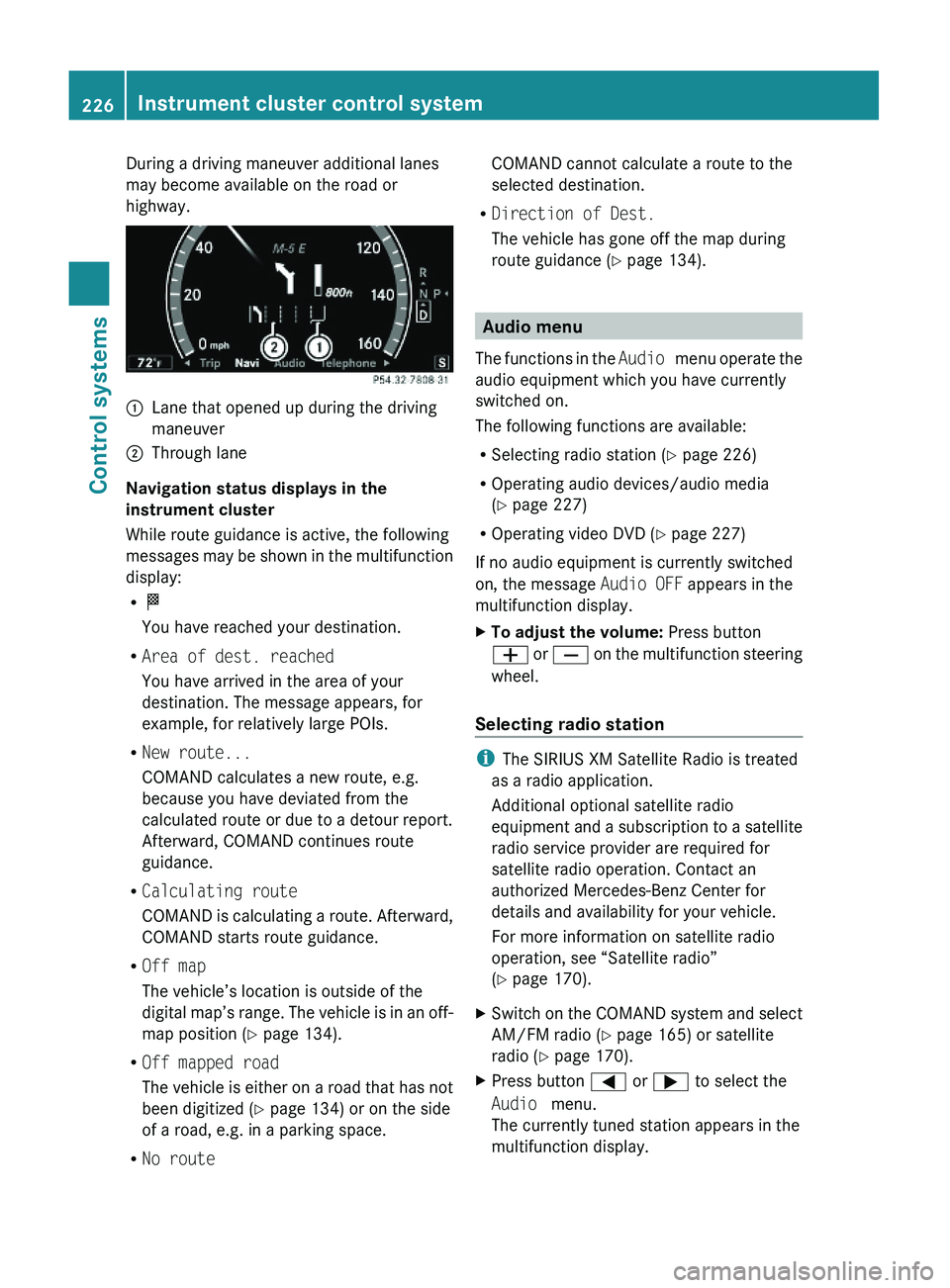
During a driving maneuver additional lanes
may become available on the road or
highway.
\000FLane that opened up during the driving
maneuver
\000GThrough lane
Navigation status displays in the
instrument cluster
While route guidance is active, the following
messages may be shown in the multifunction
display:
R\000T
You have reached your destination.
RArea of dest. reached
You have arrived in the area of your
destination. The message appears, for
example, for relatively large POIs.
RNew route...
COMAND calculates a new route, e.g.
because you have deviated from the
calculated route or due to a detour report.
Afterward, COMAND continues route
guidance.
RCalculating route
COMAND is calculating a route. Afterward,
COMAND starts route guidance.
ROff map
The vehicle’s location is outside of the
digital map’s range. The vehicle is in an off-
map position (Y page 134).
ROff mapped road
The vehicle is either on a road that has not
been digitized (Y page 134) or on the side
of a road, e.g. in a parking space.
RNo route
COMAND cannot calculate a route to the
selected destination.
RDirection of Dest.
The vehicle has gone off the map during
route guidance (Y page 134).
Audio menu
The functions in the Audio menu operate the
audio equipment which you have currently
switched on.
The following functions are available:
RSelecting radio station (Y page 226)
ROperating audio devices/audio media
(Y page 227)
ROperating video DVD (Y page 227)
If no audio equipment is currently switched
on, the message Audio OFF appears in the
multifunction display.
XTo adjust the volume: Press button
\000Z or \000[ on the multifunction steering
wheel.
Selecting radio station
iThe SIRIUS XM Satellite Radio is treated
as a radio application.
Additional optional satellite radio
equipment and a subscription to a satellite
radio service provider are required for
satellite radio operation. Contact an
authorized Mercedes-Benz Center for
details and availability for your vehicle.
For more information on satellite radio
operation, see “Satellite radio”
(Y page 170).
XSwitch on the COMAND system and select
AM/FM radio (Y page 165) or satellite
radio (Y page 170).
XPress button \000@ or \000> to select the
Audio menu.
The currently tuned station appears in the
multifunction display.
226Instrument cluster control systemControl systems
221_AKB; 6; 20, en-USd2ugruen,Version: 2.11.8.12009-09-24T13:28:17+02:00 - Seite 226
Page 239 of 548
permitted. Do not tamper with, alter, or use
in any non-approved way.
Any unauthorized modification to this
device could void the user’s authority to
operate the equipment.
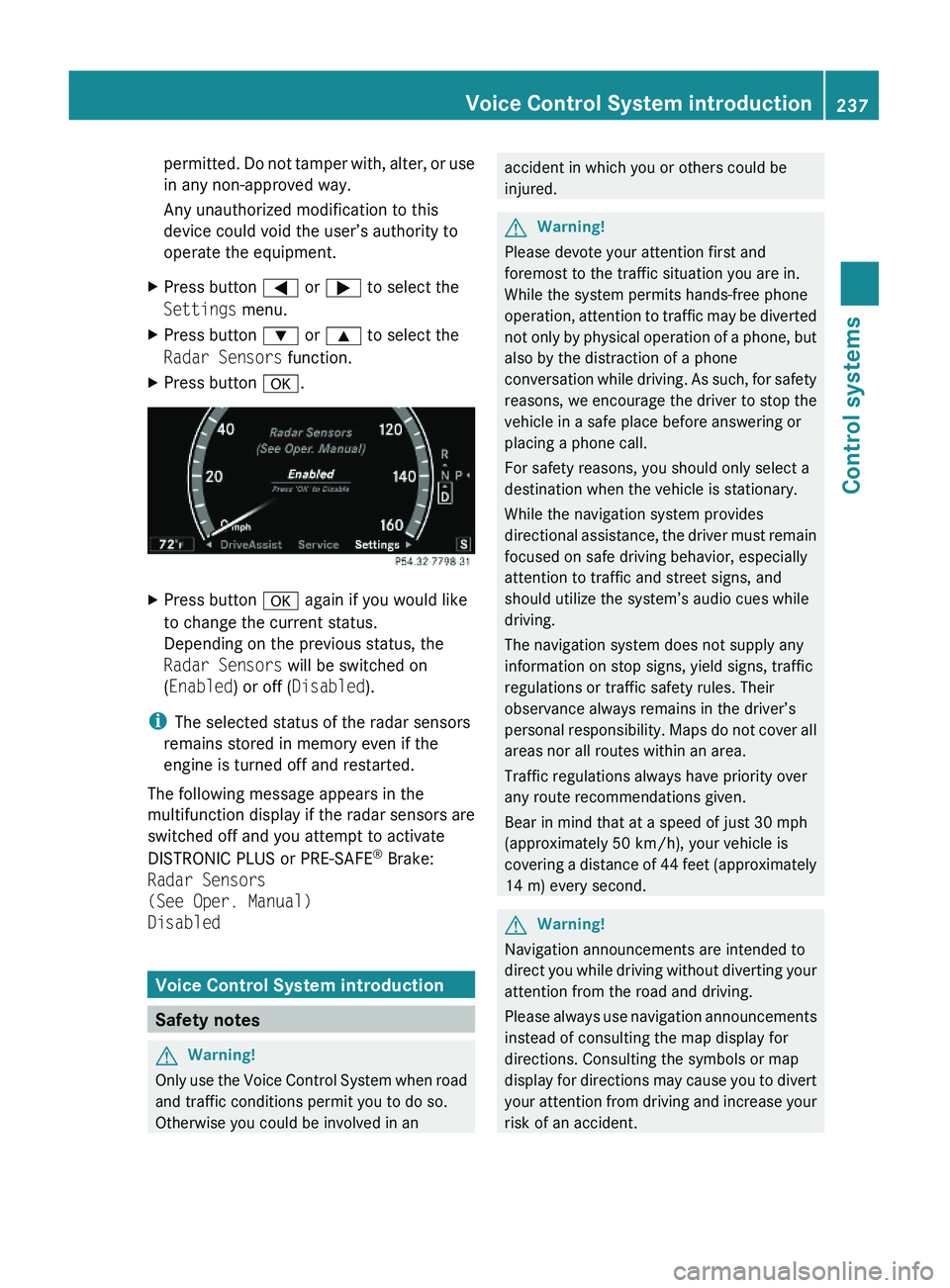
XPress button \000@ or \000> to select the
Settings menu.
XPress button \000= or \000< to select the
Radar Sensors function.
XPress button \000d.XPress button \000d again if you would like
to change the current status.
Depending on the previous status, the
Radar Sensors will be switched on
(Enabled) or off (Disabled).
iThe selected status of the radar sensors
remains stored in memory even if the
engine is turned off and restarted.
The following message appears in the
multifunction display if the radar sensors are
switched off and you attempt to activate
DISTRONIC PLUS or PRE-SAFE® Brake:
Radar Sensors
(See Oper. Manual)
Disabled
Voice Control System introduction
Safety notes
GWarning!
Only use the Voice Control System when road
and traffic conditions permit you to do so.
Otherwise you could be involved in an
accident in which you or others could be
injured.
GWarning!
Please devote your attention first and
foremost to the traffic situation you are in.
While the system permits hands-free phone
operation, attention to traffic may be diverted
not only by physical operation of a phone, but
also by the distraction of a phone
conversation while driving. As such, for safety
reasons, we encourage the driver to stop the
vehicle in a safe place before answering or
placing a phone call.
For safety reasons, you should only select a
destination when the vehicle is stationary.
While the navigation system provides
directional assistance, the driver must remain
focused on safe driving behavior, especially
attention to traffic and street signs, and
should utilize the system’s audio cues while
driving.
The navigation system does not supply any
information on stop signs, yield signs, traffic
regulations or traffic safety rules. Their
observance always remains in the driver’s
personal responsibility. Maps do not cover all
areas nor all routes within an area.
Traffic regulations always have priority over
any route recommendations given.
Bear in mind that at a speed of just 30 mph
(approximately 50 km/h), your vehicle is
covering a distance of 44 feet (approximately
14 m) every second.
GWarning!
Navigation announcements are intended to
direct you while driving without diverting your
attention from the road and driving.
Please always use navigation announcements
instead of consulting the map display for
directions. Consulting the symbols or map
display for directions may cause you to divert
your attention from driving and increase your
risk of an accident.
Voice Control System introduction237Control systems221_AKB; 6; 20, en-USd2ugruen,Version: 2.11.8.12009-09-24T13:28:17+02:00 - Seite 237Z
Page 240 of 548
GWarning!
Please do not use the Voice Control System
in an emergency, as the tone of your voice
may change in a stressful situation. This could
cause a delay in completing your phone call
in a timely manner. This could distract you in
an emergency situation and cause you to be
involved in an accident.
General information
Depending on vehicle equipment, you can
operate the following systems via the Voice
Control System:
RTelephone (Y page 245)
RNavigation (Y page 240)
RAddress book (Y page 249)
RAudio (Y page 252) (AM/FM radio,
Satellite radio, CD/DVD changer, MP3
mode (SD card, USB, Music Register, Media
Interface), AUX)
RVideo
You control these systems using spoken
commands. Moreover, controls such as the
buttons on the multifunction steering wheel
(Y page 238) allow you to keep your hands
on the steering wheel.
The Voice Control System recognizes
commands and number sequences,
irrespective of the speaker. To optimize
speech recognition for your voice follow the
individualization process (Y page 271).
You can use the Voice Control System to call
up all of COMAND’s main menu items.
The commands can be spoken without
pausing between the individual words. If an
unavailable or incorrect command is used,
the Voice Control System will prompt you for
a new command by asking “Please repeat” or
“Please repeat your entry”.
The Voice Control System will confirm
important commands and inform you in case
of incorrect entries.
iTo support the user, the Voice Control
System contains an extensive help function
(Y page 267).
You can use the commands “Continue” or
“Back” to scroll up or down in lists.
The command “Correction” lets you repeat
the entry.
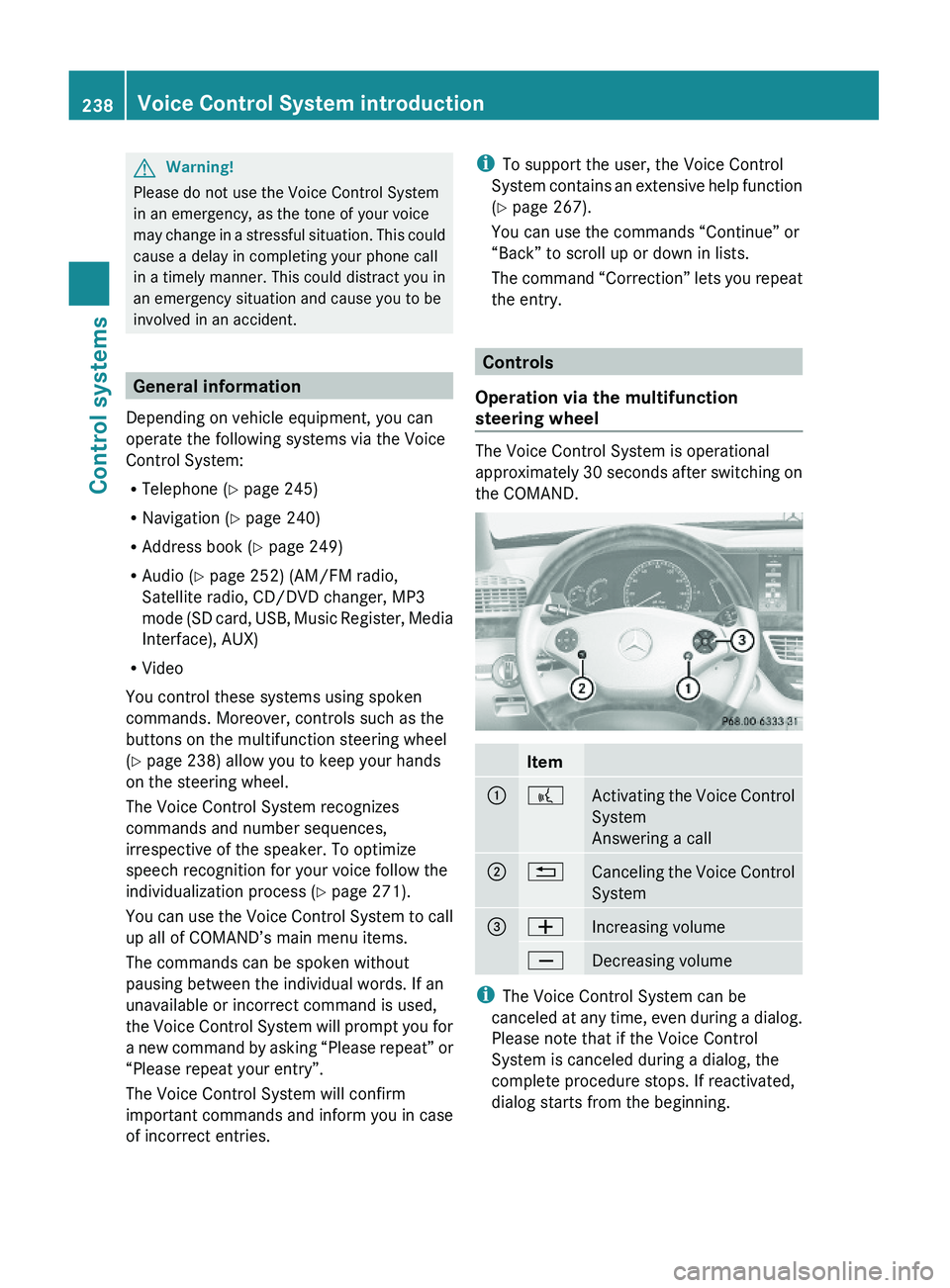
Controls
Operation via the multifunction
steering wheel
The Voice Control System is operational
approximately 30 seconds after switching on
the COMAND.
Item\000F\000bActivating the Voice Control
System
Answering a call
\000G\000ACanceling the Voice Control
System
\000
Page 241 of 548
Starting the dialog with the Voice
Control System
XSwitch on the ignition (Y page 284).XPress button \000b on the multifunction
steering wheel.
An acoustic signal sounds. The dialog is
started.
XSpeak a command.
Pausing and resuming a dialog
Pausing
You can pause the dialog when a selection list
is displayed in COMAND.
XSpeak the command “Pause”.
Continue With Push-to-talk appears
at the top of the selection list. You can
select an entry using the COMAND
controller.
Resuming
XPress button \000b on the multifunction
steering wheel.
The dialog is resumed.
Aborting dialog
XPress button \000A on the multifunction
steering wheel.
or
XSpeak one of the commands “Stop”, “Quit”,
“Abort”, “Terminate”, “Cancel” or “Exit”.
This does not apply when entering voice
names or during the individualization
process.
or
XPress any COMAND button.
Setting volume level
XActivate the Voice Control System.XSpeak a command, for example “Help”.XPress button \000Z or \000[. The volume is
increased or decreased during voice
output.
or
XSet volume for voice output using the
COMAND volume thumbwheel on the lower
part of the front center console
(Y page 88).
iYou can also set the text reader speed
(Y page 91).
Displays
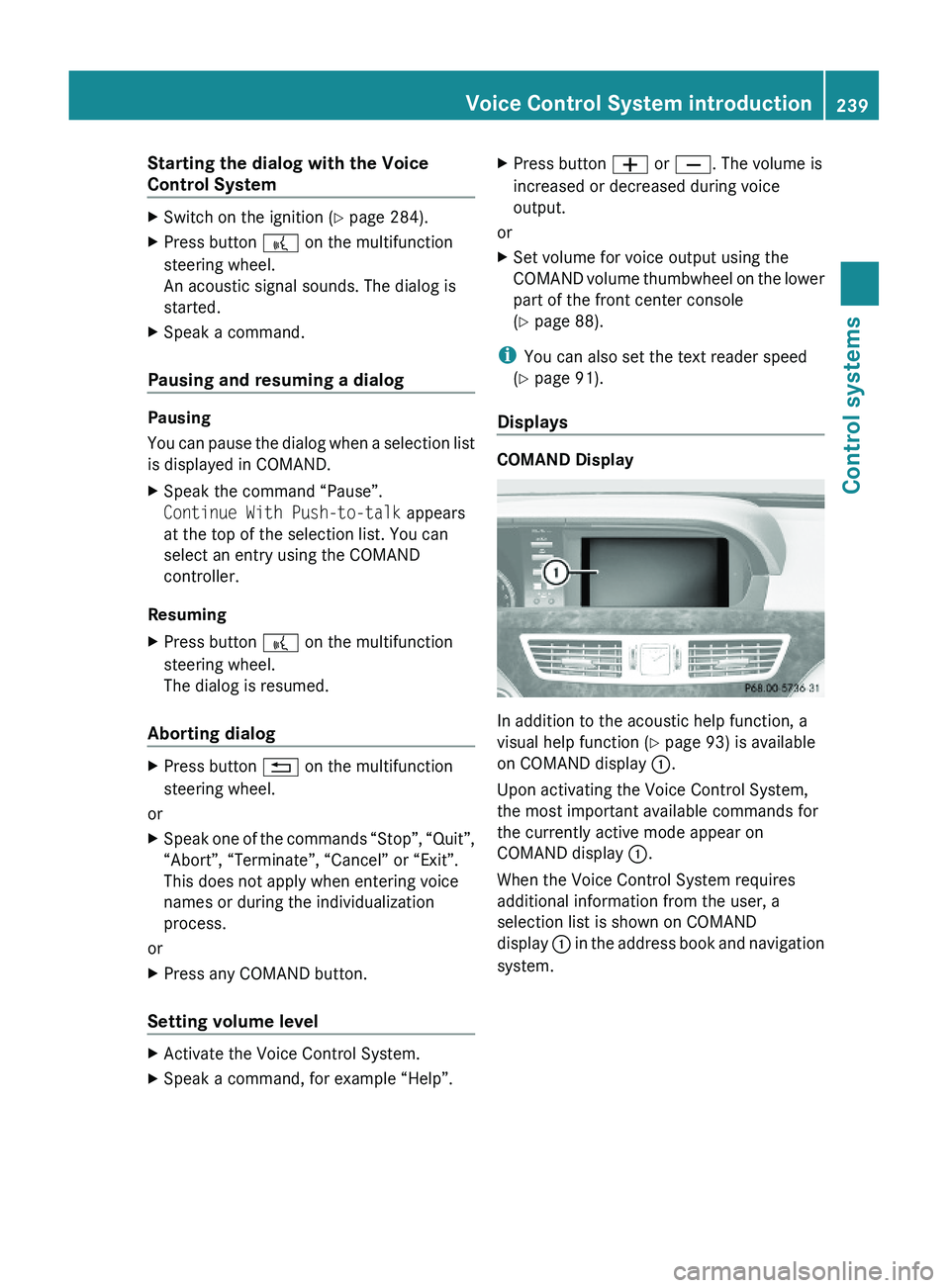
COMAND Display
In addition to the acoustic help function, a
visual help function (Y page 93) is available
on COMAND display \000F.
Upon activating the Voice Control System,
the most important available commands for
the currently active mode appear on
COMAND display \000F.
When the Voice Control System requires
additional information from the user, a
selection list is shown on COMAND
display \000F in the address book and navigation
system.
Voice Control System introduction239Control systems221_AKB; 6; 20, en-USd2ugruen,Version: 2.11.8.12009-09-24T13:28:17+02:00 - Seite 239Z
Page 243 of 548
For a list of commands, see (Y page 257).
“Help navigation”
Use the command “Help navigation” to read
out an option list of available functions and
commands that can be used in conjunction
with the navigation system.
Entering an address
Speak the commands and address data in
whole words.
The system guides you completely through
the dialog to route guidance. As soon as a
valid address is entered (at least the town),
you can use the “Start route guidance”
command to start the route guidance.
When multiple choices for an entry are
available, the system offers a numbered list
of possible entries in the COMAND display.
You will then have to select a line number.
This number is taken over by the system.
i You can use the commands “Continue” or
“Back” to scroll up or down in lists.
The command “Correction” lets you repeat
the entry.
Sample dialog:
009BThe system shows a numbered list of
states recognized by the system.009CPlease select a line number.009DNumber two.009CNumber two accepted.
The selected entry is adopted from the list.
i Address entries for Puerto Rico must be
spelled. For information on spelling, see
( Y page 268).
“Enter state”, “Enter province”
Use the command “Enter state” or “Enter
province” to select a different state or
province on the navigation system.
Sample dialog:009DEnter state.009CPlease say the name of the state.009DNew York.009CNew York accepted.
“Enter destination”
Use the command “Enter destination” to
enter a complete destination address.
The system guides you completely through
the dialog to route guidance. As soon as a
valid address is entered (at least the town),
you can use the “Start route guidance”
command to start the route guidance.
Sample dialog:
009DEnter destination.009CPreselected state is New York. Do you
want to enter town first or street first?009DTown first.009CPlease say the name of the town.009DNanuet.009CNanuet accepted.009CPlease say the name of the street.009DMain Street.009CMain Street accepted.009CDo you want to start route guidance?009DYes.009CStart route guidance.
The system calculates the route and, upon
completing route calculation, starts route
guidance.
“Points of interest”
Use the command “Points of interest” to
select a point of interest (POI) such as
airports, railroad stations, gas stations etc.
Voice Control System navigation241Control systems221_AKB; 6; 20, en-USd2ugruen,Version: 2.11.8.12009-09-24T13:28:17+02:00 - Seite 241Z
Page 244 of 548
Sample dialog:009DPoints of interest.009BThe system shows the following list on
the COMAND display:
1. Current position
2. Other state
3. Other province
4. Other town009CPlease select a line number or say an
area name.009DNumber one.009CNumber one accepted.009CLoading data.009BThe system displays a numbered list of
available POI categories.009CPlease select a line number or say a
category.009DNumber one (or e.g. Eat & Drink).009CNumber one accepted (or Eat & Drink)
accepted.009CLoading data.009BThe system displays a numbered list of
available POIs of the selected
category.009CPlease select a line number or say a
category.009DNumber one.009CNumber one accepted.009CDo you want to start route guidance?009DYes.009CStarting route guidance.
i Depending on the number of categories
and POI’s available for a given area, the
system may display several lists on each of
which you may have to make a selection by
speaking the desired line number or the
name of a POI.
Select POIs in your vicinity
With following commands you can select POIs
in your vicinity:
R “Next gas station”
R “Next parking lot”
R “Next Mercedes-Benz service center”
R “Next restaurant”
R “Next hospital”
Sample dialog:
009DNext gas station.009BThe system shows a numbered list of
gas stations on the COMAND display.009CPlease select a line number.009DNumber one.009CNumber one accepted.009CDo you want to start route guidance?009DYes.
The system calculates the route and, upon
completing route calculation, starts route
guidance.
“Last destinations”
Use the command “Last destinations” to
select a destination from among a number of
destinations last navigated to.
“Save destination”
Use the command “Save destination” to save
the current destination in the address book.
i The Voice Control System may recognize
names even if not saved in your voice. For
best possible call-up performance,
however, you should speak and save the
names you intend to use yourself.
If an entry is already available in the
address book, the system will ask you if you
would like to add the address to the
available entry.
242Voice Control System navigationControl systems
221_AKB; 6; 20, en-USd2ugruen,Version: 2.11.8.12009-09-24T13:28:17+02:00 - Seite 242
Page 245 of 548
Sample dialog:009DSave destination.009CPlease say the name.009DJohn Smith.009CPlease repeat the name.009DJohn Smith.009CWhere do you want to save: home or
work?009DWork.009CThe destination has been saved.
“Find address”
Use the command “Find address” to call up
an address from memory and to start route
guidance.
“Navigate (to)
book)
Use the command “Navigate (to)
voice name with a saved destination address
from the COMAND address book.
A voice name may have two different
destination addresses associated with it
(home or work).
The system confirms your command,
calculates the route, and begins route
guidance. If only one address is stored, you
can use the command “Navigate (to)
address for that name.
If two addresses are stored, you can use the
commands
R “Navigate (to)
or
R “Navigate (to)
to directly select between home or work
address for that name. The system
confirms your selection, calculates the
route, and begins route guidance.
i You can also navigate to address book
entries without voice names.
Speak the command “Navigate (to)” and
the first and last name in any order. This
applies to other functions of address book
entries also.
Sample dialog:009DNavigate to John Smith.
If more than one address exists for this
voice name, the Voice Control System
will prompt you:009CNavigate to home or work?009DWork.009CJohn Smith work.
Starting route guidance.
“Start route guidance”
Use the command “Start route guidance” to
start route guidance after entering a valid
destination.
Sample dialog:
009DStart route guidance.009CStarting route guidance.
Route guidance begins.
“Route Information”
You can use the “Route Information”
command to get the following information on
your currently planned route read out:
R Distance to destination
R Remaining driving time
R Expected arrival time
“Guidance instructions on”
Use the command “Guidance instructions on”
to enable the system’s guidance voice output.
The Voice Control System repeats the current
guidance instructions.
“Guidance instructions off”
Use the command “Guidance instructions
off” to mute the system’s guidance voice
output.
Voice Control System navigation243Control systems221_AKB; 6; 20, en-USd2ugruen,Version: 2.11.8.12009-09-24T13:28:17+02:00 - Seite 243Z
Page 246 of 548
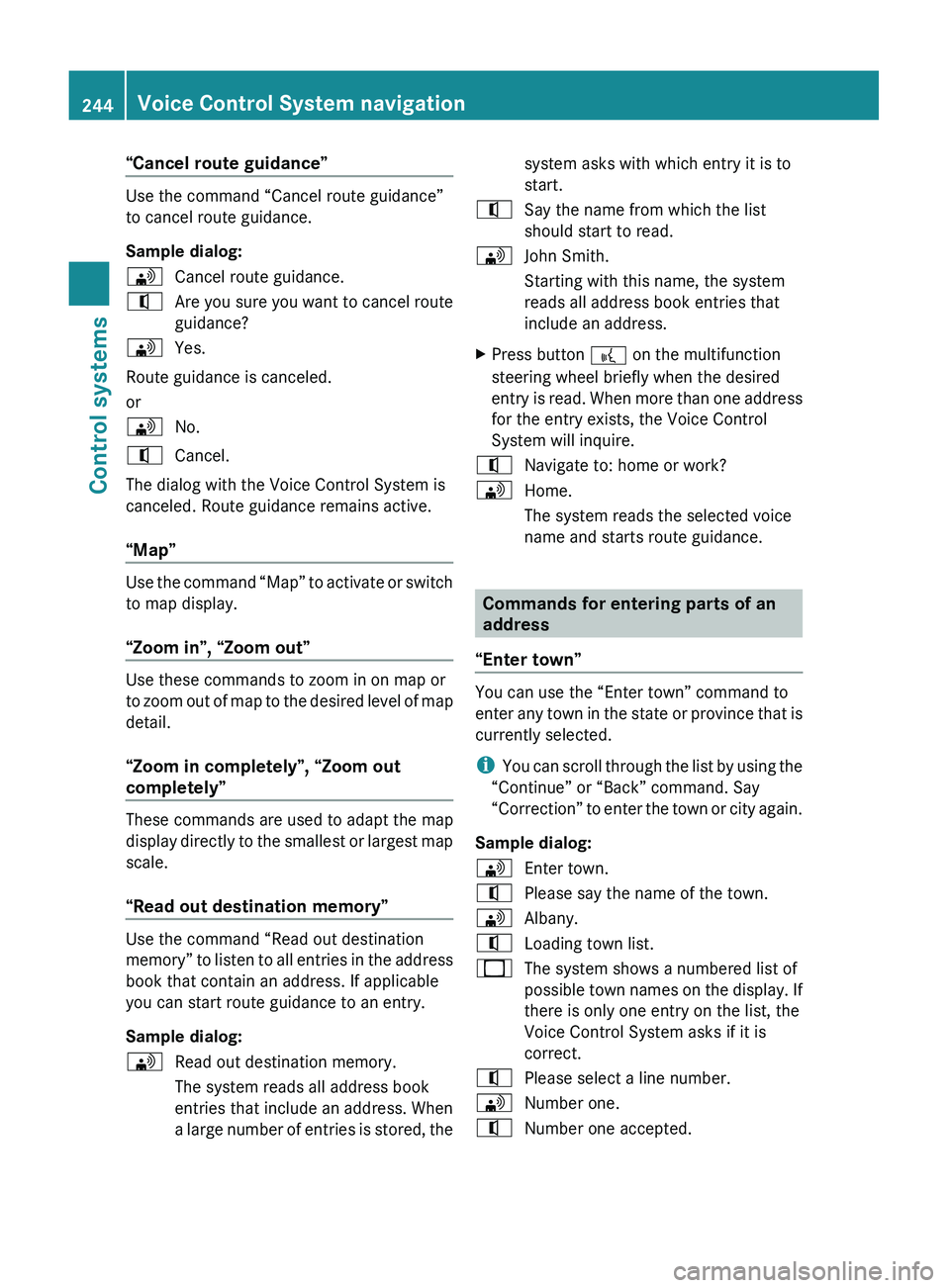
“Cancel route guidance”
Use the command “Cancel route guidance”
to cancel route guidance.
Sample dialog:
009DCancel route guidance.009CAre you sure you want to cancel route
guidance?009DYes.
Route guidance is canceled.
or
009DNo.009CCancel.
The dialog with the Voice Control System is
canceled. Route guidance remains active.
“Map”
Use the command “Map” to activate or switch
to map display.
“Zoom in”, “Zoom out”
Use these commands to zoom in on map or
to zoom out of map to the desired level of map
detail.
“Zoom in completely”, “Zoom out
completely”
These commands are used to adapt the map
display directly to the smallest or largest map
scale.
“Read out destination memory”
Use the command “Read out destination
memory” to listen to all entries in the address
book that contain an address. If applicable
you can start route guidance to an entry.
Sample dialog:
009DRead out destination memory.
The system reads all address book
entries that include an address. When
a large number of entries is stored, thesystem asks with which entry it is to
start.009CSay the name from which the list
should start to read.009DJohn Smith.
Starting with this name, the system
reads all address book entries that
include an address.XPress button 0062 on the multifunction
steering wheel briefly when the desired
entry is read. When more than one address
for the entry exists, the Voice Control
System will inquire.009CNavigate to: home or work?009DHome.
The system reads the selected voice
name and starts route guidance.
Commands for entering parts of an
address
“Enter town”
You can use the “Enter town” command to
enter any town in the state or province that is
currently selected.
i You can scroll through the list by using the
“Continue” or “Back” command. Say
“Correction” to enter the town or city again.
Sample dialog:
009DEnter town.009CPlease say the name of the town.009DAlbany.009CLoading town list.009BThe system shows a numbered list of
possible town names on the display. If
there is only one entry on the list, the
Voice Control System asks if it is
correct.009CPlease select a line number.009DNumber one.009CNumber one accepted.244Voice Control System navigationControl systems
221_AKB; 6; 20, en-USd2ugruen,Version: 2.11.8.12009-09-24T13:28:17+02:00 - Seite 244
Page 260 of 548
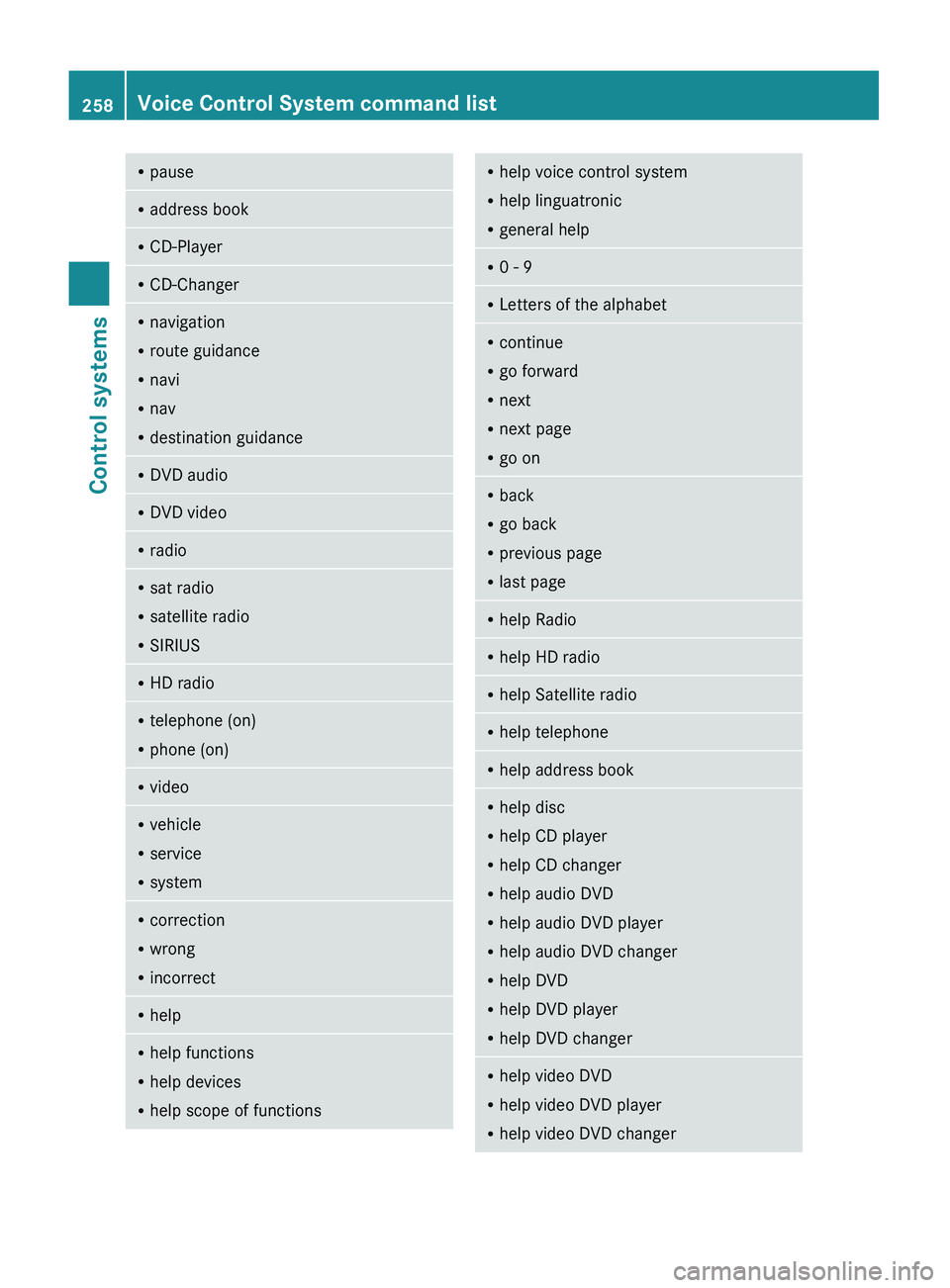
RpauseRaddress bookRCD-PlayerRCD-ChangerRnavigation
R route guidance
R navi
R nav
R destination guidanceR
DVD audioRDVD videoRradioRsat radio
R satellite radio
R SIRIUSRHD radioRtelephone (on)
R phone (on)RvideoRvehicle
R service
R systemRcorrection
R wrong
R incorrectRhelpRhelp functions
R help devices
R help scope of functionsRhelp voice control system
R help linguatronic
R general helpR0 - 9RLetters of the alphabetRcontinue
R go forward
R next
R next page
R go onR
back
R go back
R previous page
R last pageRhelp RadioRhelp HD radioRhelp Satellite radioRhelp telephoneRhelp address bookRhelp disc
R help CD player
R help CD changer
R help audio DVD
R help audio DVD player
R help audio DVD changer
R help DVD
R help DVD player
R help DVD changerRhelp video DVD
R help video DVD player
R help video DVD changer258Voice Control System command listControl systems
221_AKB; 6; 20, en-USd2ugruen,Version: 2.11.8.12009-09-24T13:28:17+02:00 - Seite 258