Time MERCEDES-BENZ S-Class 2011 W221 Repair Manual
[x] Cancel search | Manufacturer: MERCEDES-BENZ, Model Year: 2011, Model line: S-Class, Model: MERCEDES-BENZ S-Class 2011 W221Pages: 524, PDF Size: 22.53 MB
Page 190 of 524
While the installation is running, a
corresponding message and a progress bar
appear.XTo cancel the installation process: eject
the DVD.XTake the DVD out of the slot.
i If you cancel the installation process, the
navigation system is no longer operational.
An installation process that has been
canceled can be continued at a later point
in time.
XInstallation process for multi-DVD map
data: after the first DVD has been installed,
a message appears asking you to insert the
second DVD. Follow the instructions on the
display.XTo leave the installation process
running to the end without canceling: do
not carry out any further operations.
If the installation process has been
completed successfully, you will see a
message to this effect.XTo confirm the message: press W.
COMAND ejects the DVD.XTake the DVD out of the slot.
The installation process is completed.
If the installation process has not been
completed successfully, you will see a
message to this effect.
XTo confirm the message: press W.
COMAND ejects the DVD.XTake the DVD out of the slot.188NavigationCOMAND
Page 191 of 524
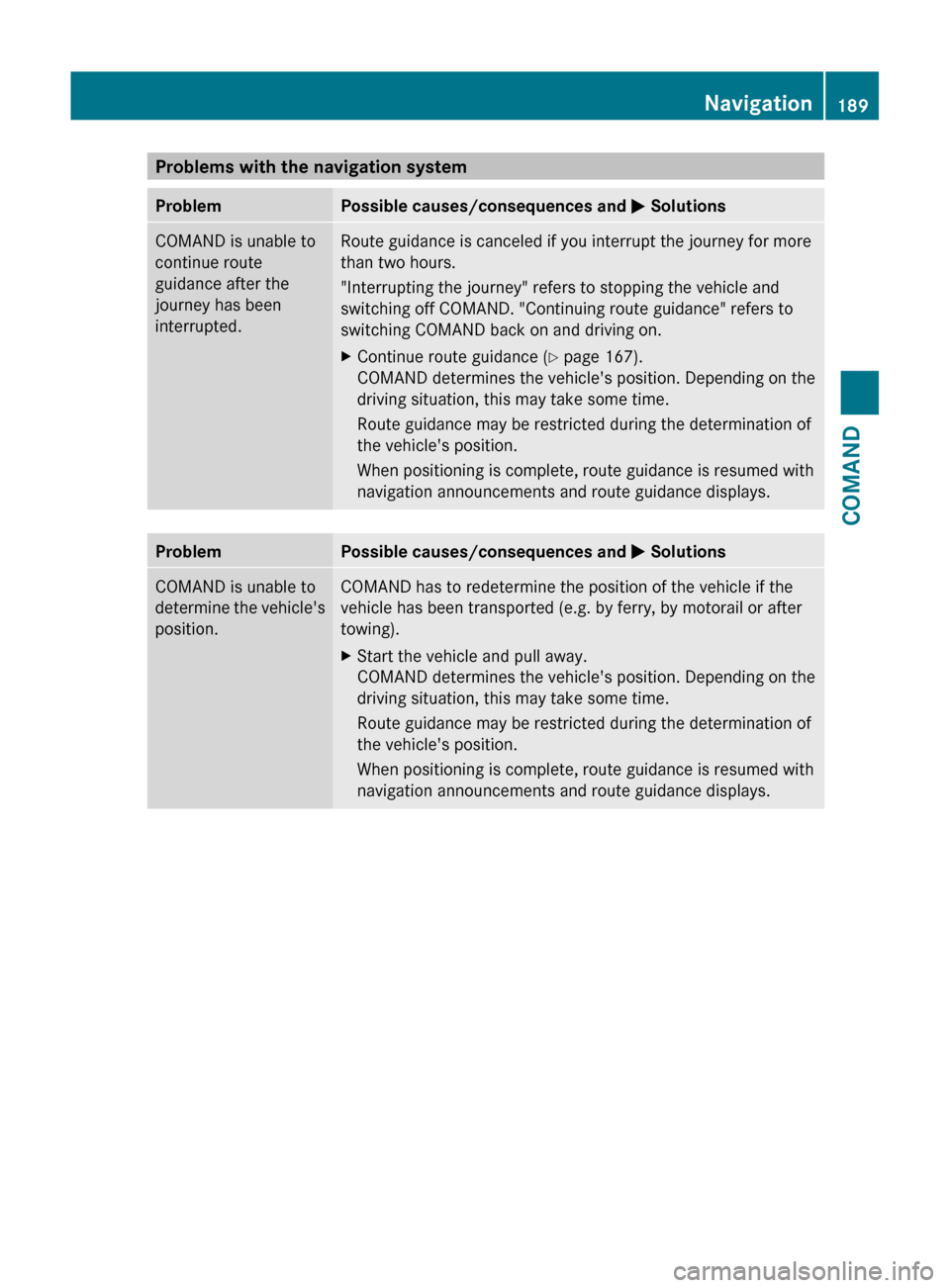
Problems with the navigation systemProblemPossible causes/consequences and M SolutionsCOMAND is unable to
continue route
guidance after the
journey has been
interrupted.Route guidance is canceled if you interrupt the journey for more
than two hours.
"Interrupting the journey" refers to stopping the vehicle and
switching off COMAND. "Continuing route guidance" refers to
switching COMAND back on and driving on.XContinue route guidance ( Y page 167).
COMAND determines the vehicle's position. Depending on the
driving situation, this may take some time.
Route guidance may be restricted during the determination of
the vehicle's position.
When positioning is complete, route guidance is resumed with
navigation announcements and route guidance displays.ProblemPossible causes/consequences and M SolutionsCOMAND is unable to
determine the vehicle's
position.COMAND has to redetermine the position of the vehicle if the
vehicle has been transported (e.g. by ferry, by motorail or after
towing).XStart the vehicle and pull away.
COMAND determines the vehicle's position. Depending on the
driving situation, this may take some time.
Route guidance may be restricted during the determination of
the vehicle's position.
When positioning is complete, route guidance is resumed with
navigation announcements and route guidance displays.Navigation189COMANDZ
Page 193 of 524
Telephone
Vehicle equipment
i These Operating Instructions describe all
standard and optional equipment available
for your vehicle at the time of purchase.
Please note that your vehicle may not be
equipped with all features described.
General information
Introduction
The telephone function, in conjunction with a
Bluetooth ®
-capable mobile phone, offers
Bluetooth ®
interface telephony.
Using theBluetooth ®
interface and a suitable
mobile phone, you can receive vCards.
For more information on suitable mobile
phones and on connecting a Bluetooth ®
-
capable mobile phone to COMAND, visit
http://www.mbusa-mobile.com or call
the Mercedes-Benz Customer Assistance
Center under
1-800-FOR-MERCedes(1-800-367-6372)
(US) or Customer Relations under
1-800-387-0100 (Canada).
Important safety notes
GWarning
A driver's attention to the road must always
be his/her primary focus when driving. For
your safety and the safety of others, we
recommend that you pull over to a safe
location and stop before placing or taking a
telephone call. If you choose to use the mobile
phone while driving, please use the handsfree
device and only use the mobile phone when
weather, road, and traffic conditions permit.
Some jurisdictions prohibit the driver from
using a cellular mobile phone while driving a
vehicle.
Bear in mind that at a speed of just 30 mph
(approximately 50 km/h), your vehicle is
covering a distance of 44 feet (approximately
14 m) every second.GWarning
You and others may damage your health due
to excessive electromagnetic radiation. By
using an external antenna, the possible health
risks of electromagnetic fields, which are
under discussion among the scientific
community, should be largely prevented.
Calls disconnected while the vehicle is
in motion
A call may be disconnected if:
R there is insufficient network coverage in
certain areas.
R you move from one transmitter/receiver
area (cell) into another and no channels are
free.
R you use a SIM card which is not compatible
with the network available.
R when using a mobile phone with
"Twincard", the second SIM card is
registered on the network at the same time.
Operating options
You can operate the telephone by using:
R the = and ; button or the 9 button
on COMAND
R the 6 or ~ button and the number
keypad on COMAND
R using the 6 or ~ button on the
multifunction steering wheel
R voice commands via the Voice Control
System
Unless stated otherwise, the descriptions and
illustrations in this section refer to COMAND.
Function restrictions
You will not yet be able to use the telephone
in the following situations:
R when the mobile phone is not yet
connected to a network The telephone
Telephone191COMANDZ
Page 195 of 524
On COMANDXActivate the Bluetooth® function in
COMAND (Y page 145).
Connecting a mobile phone
General information
Before using your mobile phone with
COMAND for the first time, you will need to
connect it.
When you authorize a new mobile phone, it is
connected automatically.
Connecting is comprised of:
Rsearching for a Bluetooth®-capable mobile
phone
Rsubsequently authorizing it
You can connect up to ten mobile phones.
Searching for a mobile phone
XTo call up the telephone menu: press the
S function button once or twice.
XSelect Data/connections in the
telephone basic menu by sliding VÆ and
turning cVd the COMAND controller and
press W to confirm.
XSelect Bluetooth telephones and press
W to confirm.
XSelect Update and press W to confirm.
COMAND searches for Bluetooth®
telephones within range and adds them to
the Bluetooth® telephone list.
The duration of the search depends on the
number of Bluetooth® telephones within
range and their characteristics.
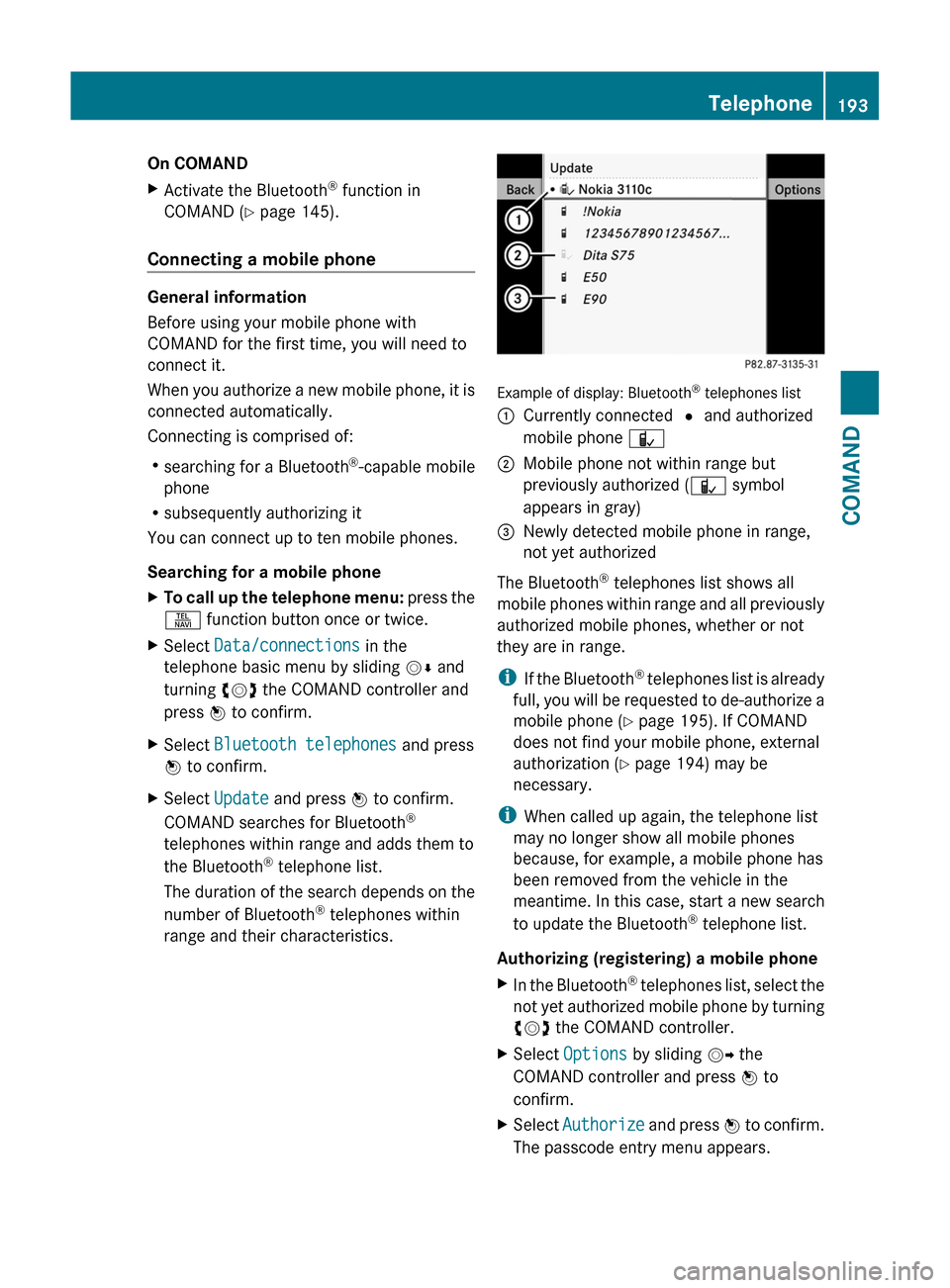
Example of display: Bluetooth® telephones list
:Currently connected # and authorized
mobile phone Ñ
;Mobile phone not within range but
previously authorized (Ñ symbol
appears in gray)
=Newly detected mobile phone in range,
not yet authorized
The Bluetooth® telephones list shows all
mobile phones within range and all previously
authorized mobile phones, whether or not
they are in range.
iIf the Bluetooth® telephones list is already
full, you will be requested to de-authorize a
mobile phone (Y page 195). If COMAND
does not find your mobile phone, external
authorization (Y page 194) may be
necessary.
iWhen called up again, the telephone list
may no longer show all mobile phones
because, for example, a mobile phone has
been removed from the vehicle in the
meantime. In this case, start a new search
to update the Bluetooth® telephone list.
Authorizing (registering) a mobile phone
XIn the Bluetooth® telephones list, select the
not yet authorized mobile phone by turning
cVd the COMAND controller.
XSelect Options by sliding VY the
COMAND controller and press W to
confirm.
XSelect Authorize and press W to confirm.
The passcode entry menu appears.
Telephone193COMANDZ
Page 196 of 524
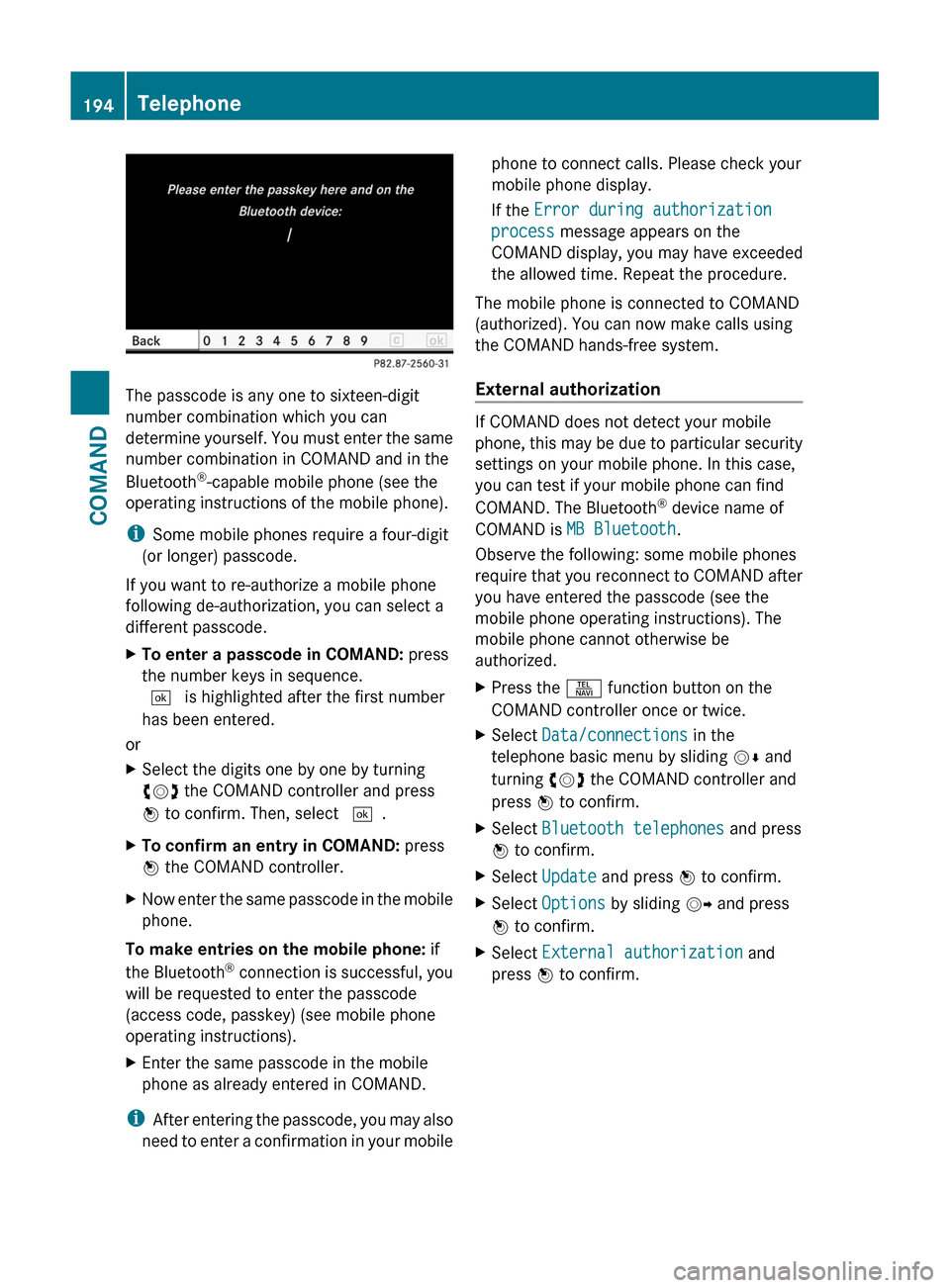
The passcode is any one to sixteen-digit
number combination which you can
determine yourself. You must enter the same
number combination in COMAND and in the
Bluetooth®-capable mobile phone (see the
operating instructions of the mobile phone).
iSome mobile phones require a four-digit
(or longer) passcode.
If you want to re-authorize a mobile phone
following de-authorization, you can select a
different passcode.
XTo enter a passcode in COMAND: press
the number keys in sequence.
¬ is highlighted after the first number
has been entered.
or
XSelect the digits one by one by turning
cVd the COMAND controller and press
W to confirm. Then, select ¬.
XTo confirm an entry in COMAND: press
W the COMAND controller.
XNow enter the same passcode in the mobile
phone.
To make entries on the mobile phone: if
the Bluetooth® connection is successful, you
will be requested to enter the passcode
(access code, passkey) (see mobile phone
operating instructions).
XEnter the same passcode in the mobile
phone as already entered in COMAND.
iAfter entering the passcode, you may also
need to enter a confirmation in your mobile
phone to connect calls. Please check your
mobile phone display.
If the Error during authorization
process message appears on the
COMAND display, you may have exceeded
the allowed time. Repeat the procedure.
The mobile phone is connected to COMAND
(authorized). You can now make calls using
the COMAND hands-free system.
External authorization
If COMAND does not detect your mobile
phone, this may be due to particular security
settings on your mobile phone. In this case,
you can test if your mobile phone can find
COMAND. The Bluetooth® device name of
COMAND is MB Bluetooth.
Observe the following: some mobile phones
require that you reconnect to COMAND after
you have entered the passcode (see the
mobile phone operating instructions). The
mobile phone cannot otherwise be
authorized.
XPress the S function button on the
COMAND controller once or twice.
XSelect Data/connections in the
telephone basic menu by sliding VÆ and
turning cVd the COMAND controller and
press W to confirm.
XSelect Bluetooth telephones and press
W to confirm.
XSelect Update and press W to confirm.XSelect Options by sliding VY and press
W to confirm.
XSelect External authorization and
press W to confirm.
194TelephoneCOMAND
Page 197 of 524
XStart the Bluetooth®
search on the mobile
phone (see the mobile phone operating
instructions).XSelect COMAND ( MB Bluetooth) on the
mobile phone.XEnter the passkey on the mobile phone
when requested to and then enter it in
COMAND.
Connecting another mobile phone
If you have authorized more than one mobile
phone, you can switch between the individual
phones.
i You can only switch to another authorized
mobile phone if no phone call is active.
XSelect the mobile phone in the Bluetooth ®
telephones list by turning cVd the
COMAND controller and press W to
confirm.
The selected mobile phone is searched for
and connected if it is within Bluetooth ®
range and if Bluetooth ®
is activated.
Only one mobile phone can be connected
at any one time. The currently connected
mobile phone is indicated by the # dot in
the Bluetooth ®
telephones list
( Y page 193).
Displaying details
XSelect Data/connections in the
telephone basic menu by sliding VÆ and
turning cVd the COMAND controller and
press W to confirm.XSelect Bluetooth telephones and press
W to confirm.XSelect the desired mobile phone in the
Bluetooth ®
telephones list.XSelect Options by sliding VY and press
W to confirm.XSelect Details and press W to confirm.
The following information concerning the
selected mobile phone is shown:R Bluetooth ®
name
R Bluetooth ®
address
R availability
R authorization statusXTo close the detailed view: turn cVd or
slide XVY the COMAND controller.
De-registering (de-authorizing) a mobile
phone
Mercedes-Benz USA, LLC recommends de-
authorization in COMAND and on the mobile
phone. Subsequent authorization may
otherwise fail.
XTo call up the telephone menu: press the
S function button once or twice.XSelect Data/connections in the
telephone basic menu by sliding VÆ and
turning cVd the COMAND controller and
press W to confirm.XSelect Bluetooth telephones and press
W to confirm.XSelect the desired mobile phone in the
Bluetooth ®
telephones list.XSelect Options by sliding VY and press
W to confirm.XSelect De-authorize and press W to
confirm.
A prompt appears asking whether you
really wish to revoke authorization for this
device.XSelect Yes or No.
If you select Yes, the device will be deleted
from the Bluetooth ®
telephones list.
If you select No, the process will be aborted.
i
Before re-authorizing the mobile phone,
you should also delete the device name MB
Bluetooth from your mobile phone's
Bluetooth ®
list.
Telephone195COMANDZ
Page 203 of 524
Depending on the mobile phone, this process
may take some time. Depending on the
mobile phone used, only the phone book
entries in the mobile phone or these entries
and the phone book entries in the SIM card
are imported.
You can recognize the automatically imported
contacts (phone book entries) in COMAND by
the icon Ã/0. These are only available
in COMAND when a mobile phone is
connected to COMAND via the Bluetooth®
interface.
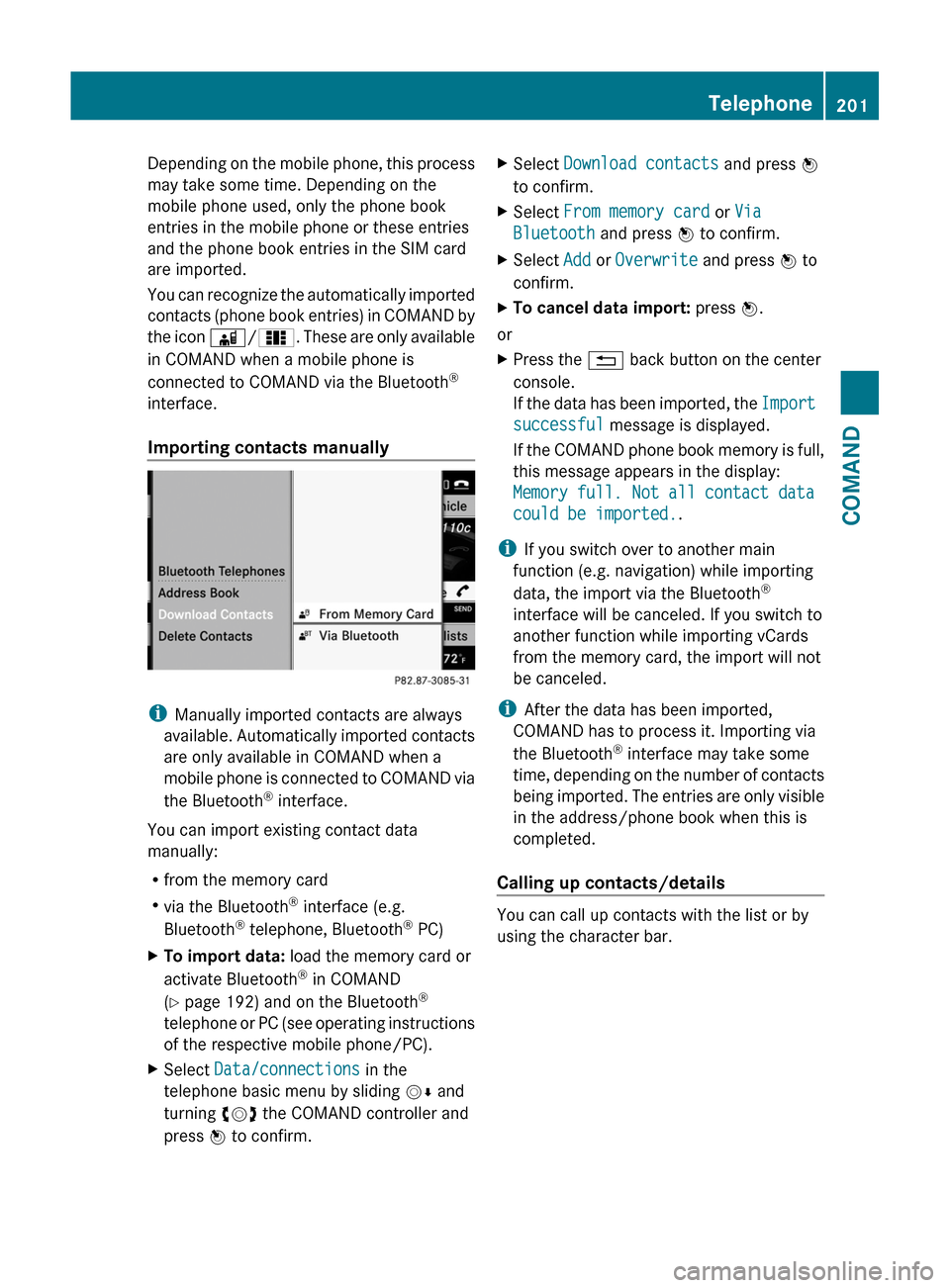
Importing contacts manually
iManually imported contacts are always
available. Automatically imported contacts
are only available in COMAND when a
mobile phone is connected to COMAND via
the Bluetooth® interface.
You can import existing contact data
manually:
Rfrom the memory card
Rvia the Bluetooth® interface (e.g.
Bluetooth® telephone, Bluetooth® PC)
XTo import data: load the memory card or
activate Bluetooth® in COMAND
(Y page 192) and on the Bluetooth®
telephone or PC (see operating instructions
of the respective mobile phone/PC).
XSelect Data/connections in the
telephone basic menu by sliding VÆ and
turning cVd the COMAND controller and
press W to confirm.
XSelect Download contacts and press W
to confirm.
XSelect From memory card or Via
Bluetooth and press W to confirm.
XSelect Add or Overwrite and press W to
confirm.
XTo cancel data import: press W.
or
XPress the % back button on the center
console.
If the data has been imported, the Import
successful message is displayed.
If the COMAND phone book memory is full,
this message appears in the display:
Memory full. Not all contact data
could be imported..
iIf you switch over to another main
function (e.g. navigation) while importing
data, the import via the Bluetooth®
interface will be canceled. If you switch to
another function while importing vCards
from the memory card, the import will not
be canceled.
iAfter the data has been imported,
COMAND has to process it. Importing via
the Bluetooth® interface may take some
time, depending on the number of contacts
being imported. The entries are only visible
in the address/phone book when this is
completed.
Calling up contacts/details
You can call up contacts with the list or by
using the character bar.
Telephone201COMANDZ
Page 210 of 524
Audio
Vehicle equipment
iThis manual describes all the standard
and optional equipment of your vehicle
which was available at the time of
purchase. Country-specific differences are
possible. Bear in mind that your vehicle
may not feature all functions described
here. This also refers to safety-related
systems and functions.
Radio mode
General information
iPortable electronic devices in the vehicle
may seriously impair radio reception.
Switching to radio mode
Option 1
XPress the R function button.
The radio display appears. You will hear the
last station selected on the last waveband
set.
Option 2
XSelect Audio in the main function bar by
sliding ZV and turning cVd the COMAND
controller and press W to confirm.
If radio mode was the last mode selected,
it will now be active.
If another audio mode is switched on, you
can now switch to radio mode in the audio
menu.
XSelect Audio by sliding ZV the COMAND
controller and press W to confirm.
The audio menu appears.
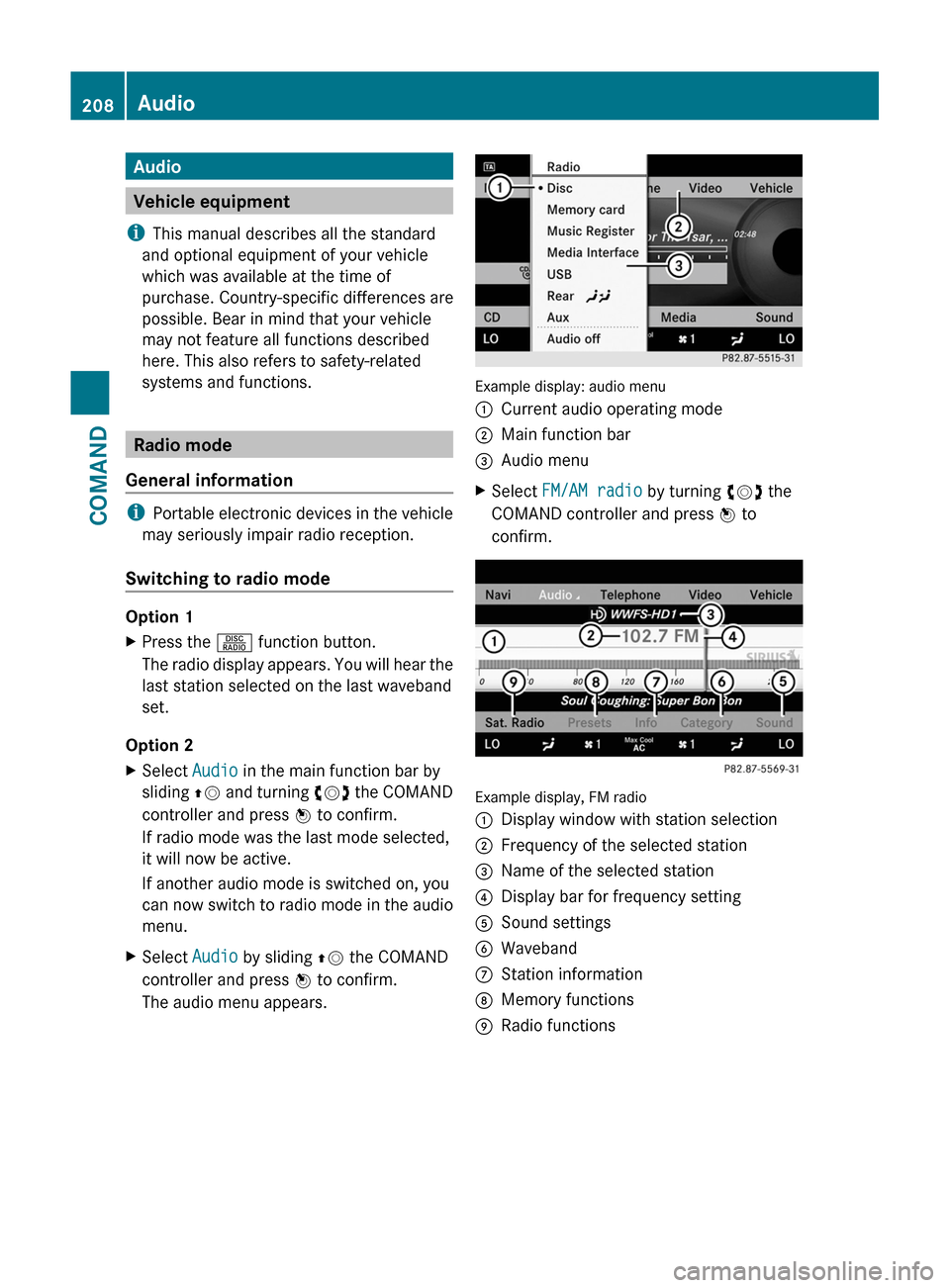
Example display: audio menu
:Current audio operating mode;Main function bar=Audio menuXSelect FM/AM radio by turning cVd the
COMAND controller and press W to
confirm.
Example display, FM radio
:Display window with station selection;Frequency of the selected station=Name of the selected station?Display bar for frequency settingASound settingsBWavebandCStation informationDMemory functionsERadio functions208AudioCOMAND
Page 213 of 524
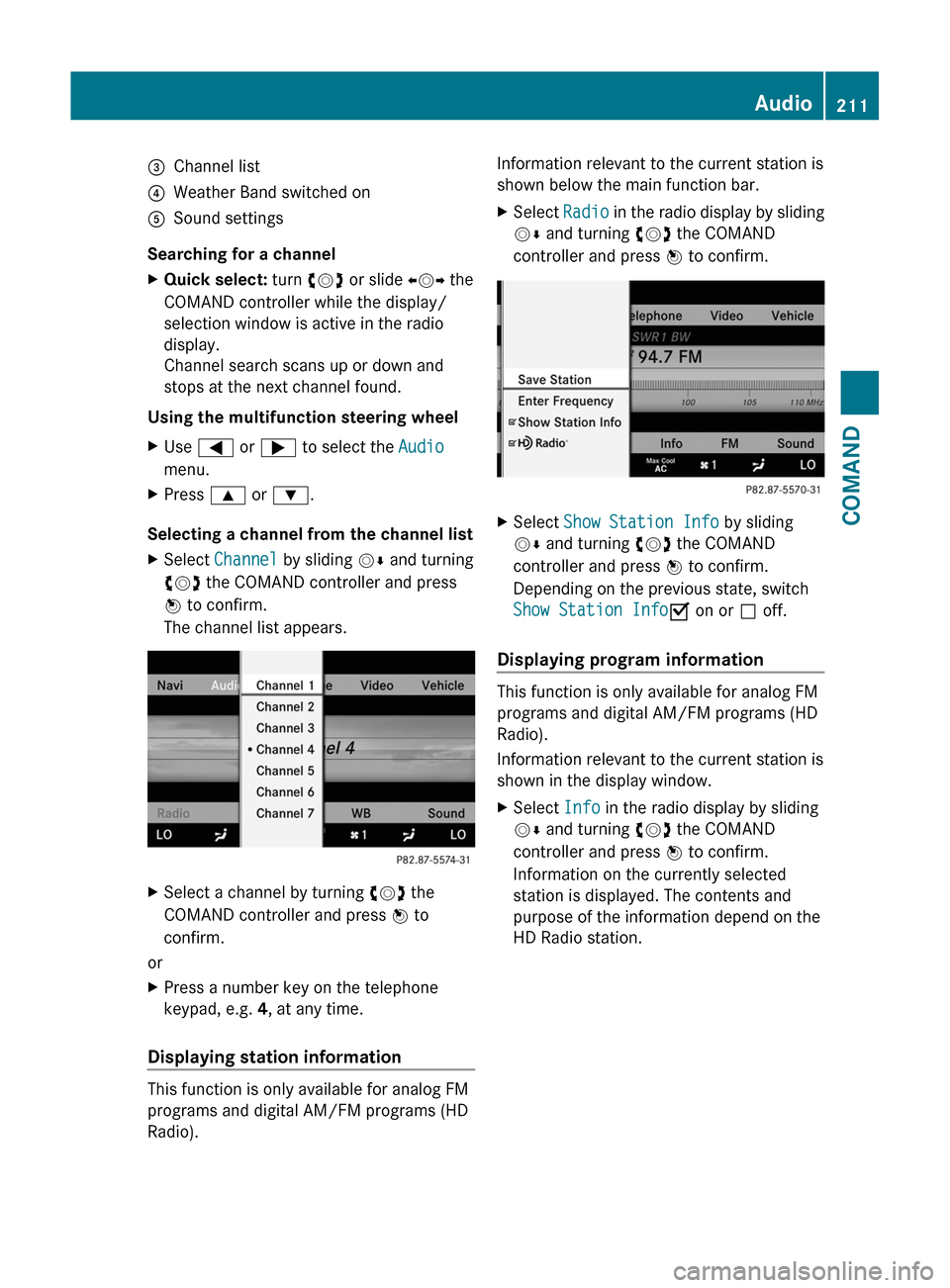
=Channel list?Weather Band switched onASound settings
Searching for a channel
XQuick select: turn cVd or slide XVY the
COMAND controller while the display/
selection window is active in the radio
display.
Channel search scans up or down and
stops at the next channel found.
Using the multifunction steering wheel
XUse = or ; to select the Audio
menu.
XPress 9 or :.
Selecting a channel from the channel list
XSelect Channel by sliding VÆ and turning
cVd the COMAND controller and press
W to confirm.
The channel list appears.
XSelect a channel by turning cVd the
COMAND controller and press W to
confirm.
or
XPress a number key on the telephone
keypad, e.g. 4, at any time.
Displaying station information
This function is only available for analog FM
programs and digital AM/FM programs (HD
Radio).
Information relevant to the current station is
shown below the main function bar.
XSelect Radio in the radio display by sliding
VÆ and turning cVd the COMAND
controller and press W to confirm.
XSelect Show Station Info by sliding
VÆ and turning cVd the COMAND
controller and press W to confirm.
Depending on the previous state, switch
Show Station InfoO on or ª off.
Displaying program information
This function is only available for analog FM
programs and digital AM/FM programs (HD
Radio).
Information relevant to the current station is
shown in the display window.
XSelect Info in the radio display by sliding
VÆ and turning cVd the COMAND
controller and press W to confirm.
Information on the currently selected
station is displayed. The contents and
purpose of the information depend on the
HD Radio station.
Audio211COMANDZ
Page 219 of 524
Using the multifunction steering wheelXUse = or ; to select the Audio
menu.
XPress 9 or : briefly.
Displaying information
XSelect Info in the submenu bar by turning
cVd the COMAND controller and press
W to confirm.
Information on the currently received
program is displayed.
XTo return to the SatRadio main display:
slide XVY the COMAND controller.
Displaying service information
If you have any questions or require version
information, you can call the provider's
customer service center at any time.
XSelect Sat. Radio in the submenu bar by
turning cVd the COMAND controller and
press W to confirm.
XSelect Service and press W to confirm.
The provider's details appear.
XTo return to the SatRadio main display:
slide XVY the COMAND controller.
Updating the channel list
When receiving a new channel list, the display
shows the Updating channel... message.
The station last selected is muted until the
update has been completed. Satellite radio
mode is not available during the update
process.
When the update has been completed, the
satellite radio main menu appears. The
station last selected is played.
Sound settings
You will find details on the sound settings in
the "At a glance" section (Y page 133).
Audio CD/DVD and MP3 mode
Important safety notes
GWarning!
COMAND is classified as a Class 1 laser
product. You must not open the casing. If you
open the casing, or if the casing is faulty or
damaged, there is a risk of exposure to
invisible laser radiation. This may damage
your eyes, or those of others.
COMAND does not contain any parts that can
be serviced by the user. For safety reasons,
all maintenance work must be carried out by
qualified aftersales technicians.
GWarning!
Only when the vehicle is stationary should
you:
Rload a disc
Reject a disc
There is a risk of being distracted from the
road and traffic conditions if this is done while
the vehicle is in motion.
Inserting/ejecting CDs/DVDs
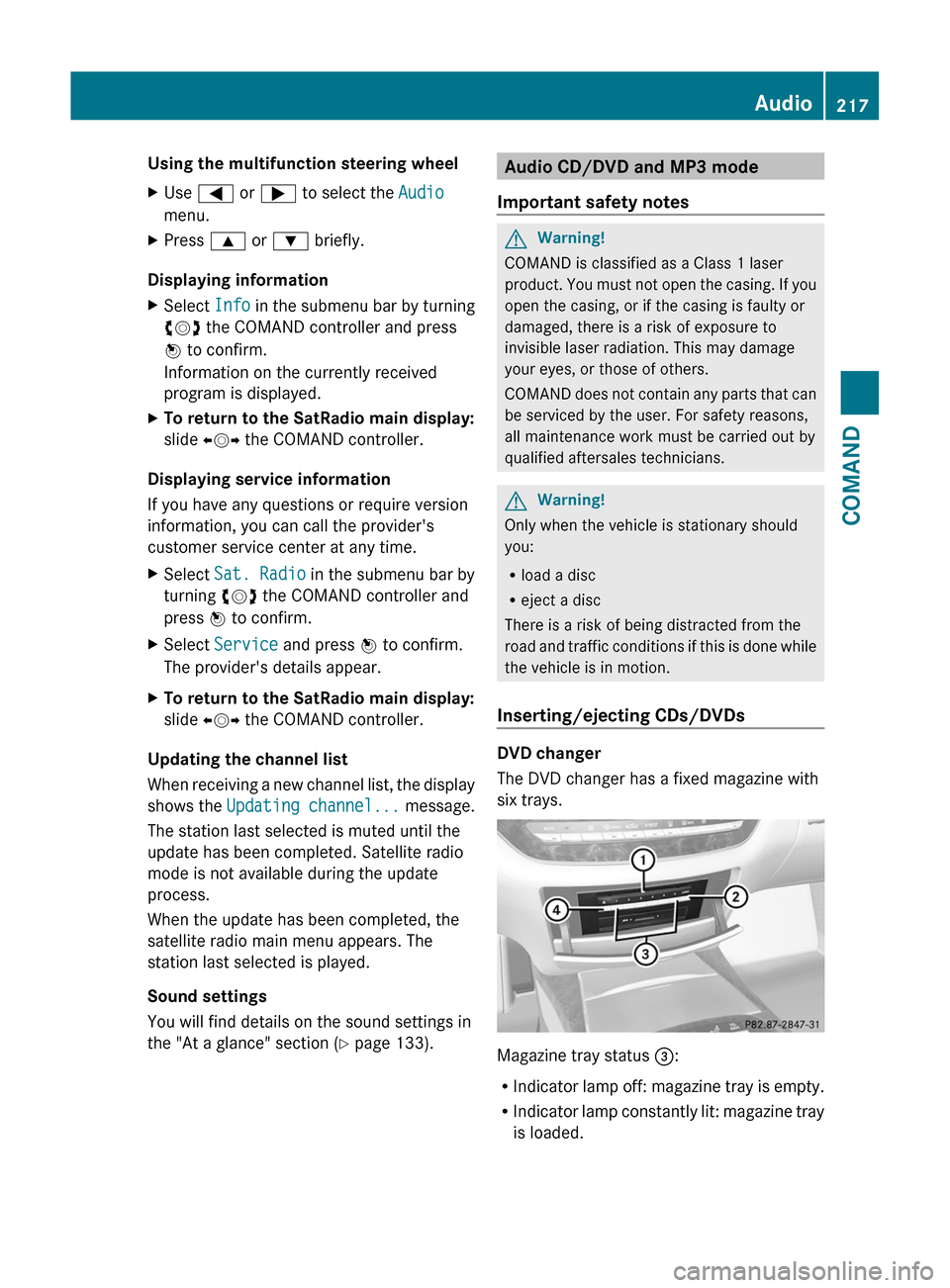
DVD changer
The DVD changer has a fixed magazine with
six trays.
Magazine tray status =:
RIndicator lamp off: magazine tray is empty.
RIndicator lamp constantly lit: magazine tray
is loaded.
Audio217COMANDZ