Time MERCEDES-BENZ S-Class 2011 W221 Workshop Manual
[x] Cancel search | Manufacturer: MERCEDES-BENZ, Model Year: 2011, Model line: S-Class, Model: MERCEDES-BENZ S-Class 2011 W221Pages: 524, PDF Size: 22.53 MB
Page 171 of 524
XSelect Route in the navigation menu bar by
turning cVd the COMAND controller and
press W to confirm.
XSelect Detour and press W to confirm.XTo block a section of the route: select
More or Less repeatedly and confirm using
the W button until the desired section has
been selected.
iThe length of the blockable route section
is predetermined by the digital map. The
menu items are available accordingly.
XTo start route calculation: select Start
and press W to confirm.
XTo delete the blocked section: select
Delete while the message is shown and
press W to confirm.
COMAND calculates the route without the
block.
Selecting an alternative route
With the "Alternative route" function, routes
other than the original one can be calculated.
XTo switch on navigation mode: press the
S function button once or twice.
XTo show the menu: press W the COMAND
controller.
XSelect Route in the navigation menu bar by
turning cVd the COMAND controller and
press W to confirm.
XSelect Alternative Route and press W
to confirm.
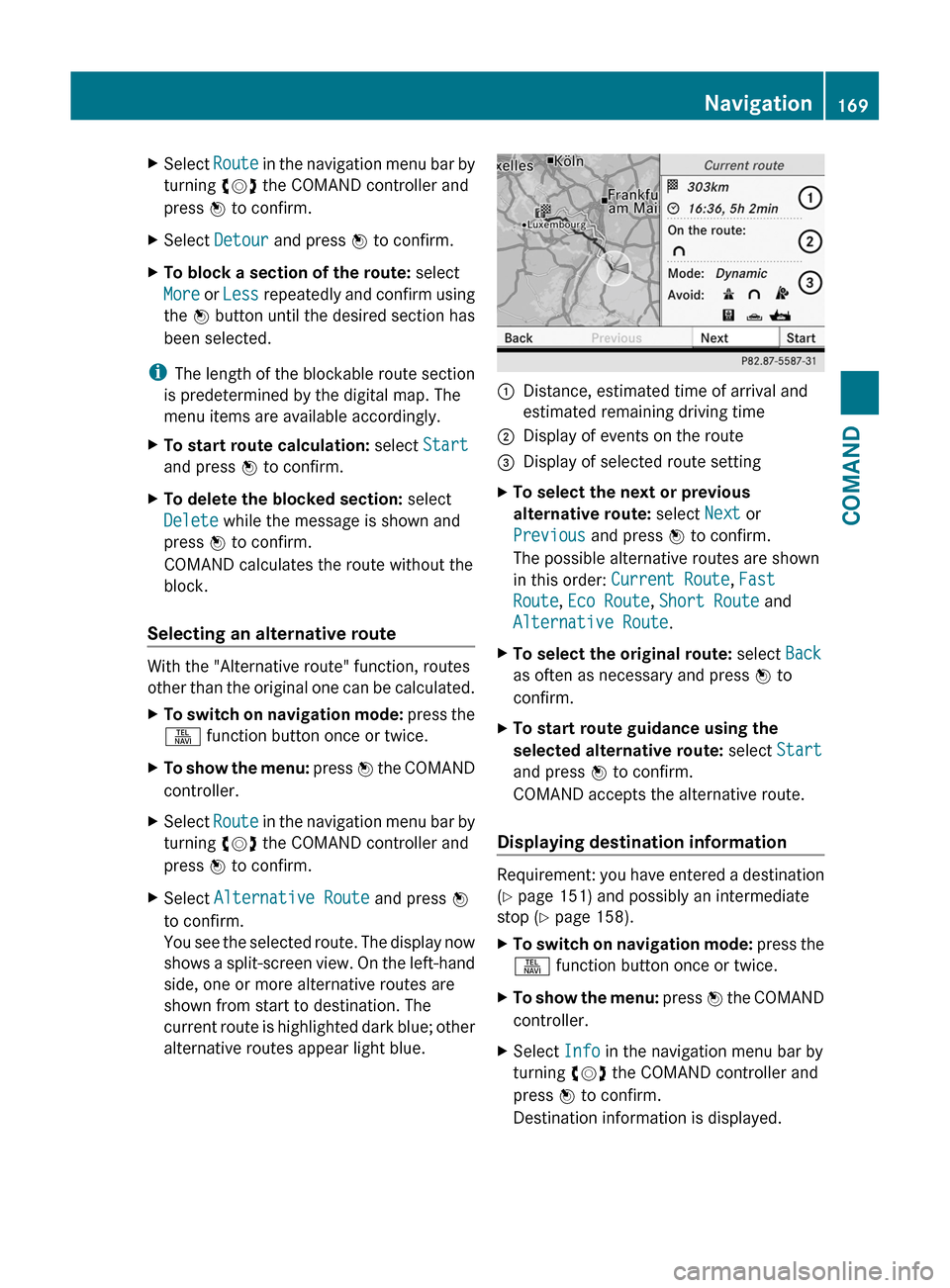
You see the selected route. The display now
shows a split-screen view. On the left-hand
side, one or more alternative routes are
shown from start to destination. The
current route is highlighted dark blue; other
alternative routes appear light blue.
:Distance, estimated time of arrival and
estimated remaining driving time
;Display of events on the route=Display of selected route settingXTo select the next or previous
alternative route: select Next or
Previous and press W to confirm.
The possible alternative routes are shown
in this order: Current Route, Fast
Route, Eco Route, Short Route and
Alternative Route.
XTo select the original route: select Back
as often as necessary and press W to
confirm.
XTo start route guidance using the
selected alternative route: select Start
and press W to confirm.
COMAND accepts the alternative route.
Displaying destination information
Requirement: you have entered a destination
(Y page 151) and possibly an intermediate
stop (Y page 158).
XTo switch on navigation mode: press the
S function button once or twice.
XTo show the menu: press W the COMAND
controller.
XSelect Info in the navigation menu bar by
turning cVd the COMAND controller and
press W to confirm.
Destination information is displayed.
Navigation169COMANDZ
Page 172 of 524
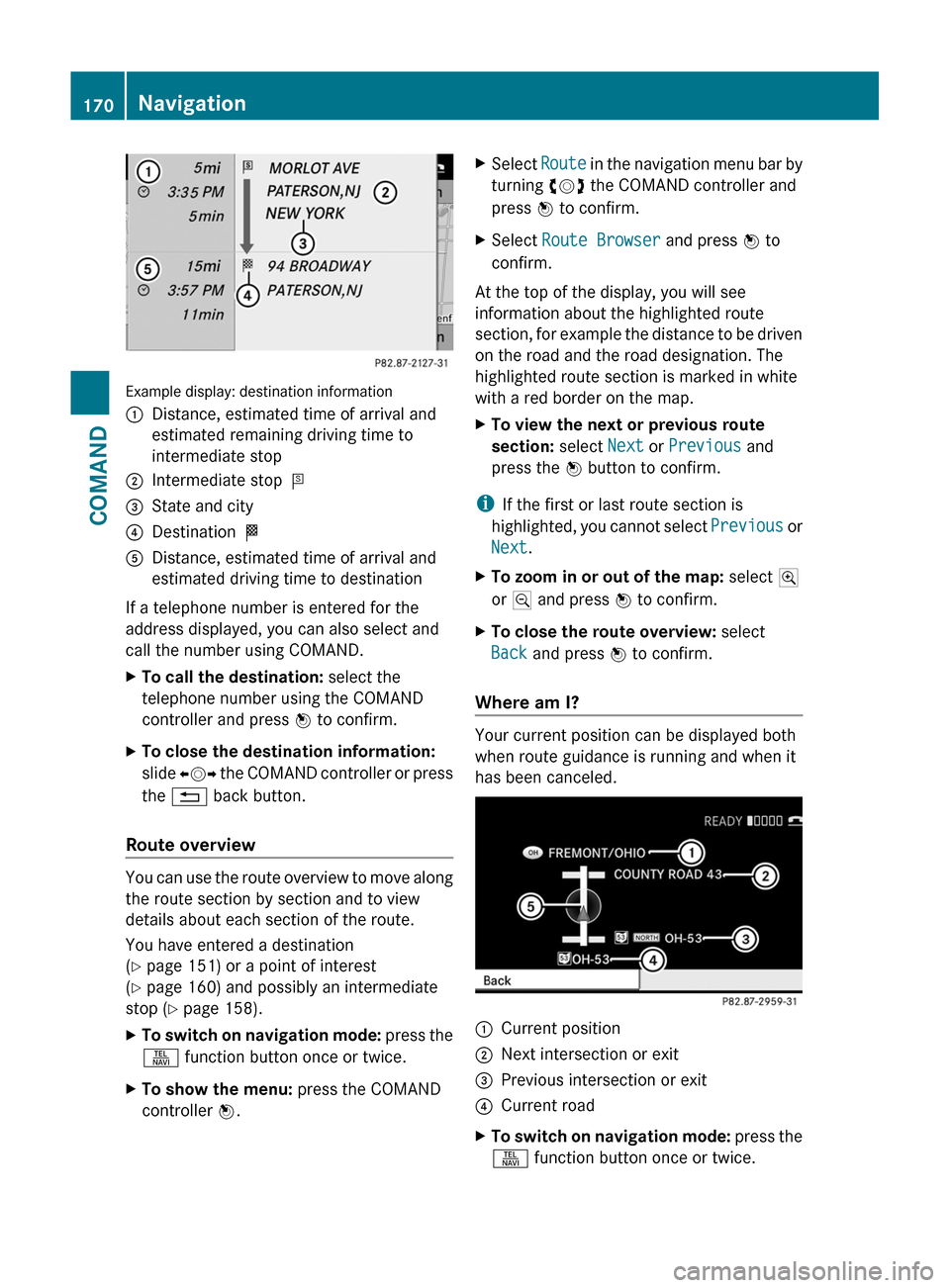
Example display: destination information
:Distance, estimated time of arrival and
estimated remaining driving time to
intermediate stop
;Intermediate stop P=State and city?Destination OADistance, estimated time of arrival and
estimated driving time to destination
If a telephone number is entered for the
address displayed, you can also select and
call the number using COMAND.
XTo call the destination: select the
telephone number using the COMAND
controller and press W to confirm.
XTo close the destination information:
slide XVY the COMAND controller or press
the % back button.
Route overview
You can use the route overview to move along
the route section by section and to view
details about each section of the route.
You have entered a destination
(Y page 151) or a point of interest
(Y page 160) and possibly an intermediate
stop (Y page 158).
XTo switch on navigation mode: press the
S function button once or twice.
XTo show the menu: press the COMAND
controller W.
XSelect Route in the navigation menu bar by
turning cVd the COMAND controller and
press W to confirm.
XSelect Route Browser and press W to
confirm.
At the top of the display, you will see
information about the highlighted route
section, for example the distance to be driven
on the road and the road designation. The
highlighted route section is marked in white
with a red border on the map.
XTo view the next or previous route
section: select Next or Previous and
press the W button to confirm.
iIf the first or last route section is
highlighted, you cannot select Previous or
Next.
XTo zoom in or out of the map: select N
or M and press W to confirm.
XTo close the route overview: select
Back and press W to confirm.
Where am I?
Your current position can be displayed both
when route guidance is running and when it
has been canceled.
:Current position;Next intersection or exit=Previous intersection or exit?Current roadXTo switch on navigation mode: press the
S function button once or twice.
170NavigationCOMAND
Page 173 of 524
XTo show the menu: press the COMAND
controller W.
XSelect Position in the navigation menu
bar by turning cVd the COMAND
controller and press W to confirm.
XSelect Where am I? and press W to
confirm.
Off-road and off-map
Important safety notes
GWarning
The COMAND navigation system may direct
you to off-road routes that your vehicle may
not be capable of traversing through without
damaging your tires, wheels or vehicle. It is
the driver’s sole responsibility to determine
the suitability of the route. Off-road routes
may be of varying conditions and their
appropriateness for use may be affected by
various factors such as time of day, time of
year and immediate weather conditions that
cannot be judged or taken into consideration
by the COMAND system.
Route guidance to a destination that is on
a non-digitized road
COMAND can guide you to destinations
which are within the area covered by the
digital map, but which are not themselves
recorded on the map.
These destinations are known as off-road
destinations, which you can enter using the
map, for example. In these cases, COMAND
guides you for as long as possible with
navigation announcements and displays on
roads known to the system.
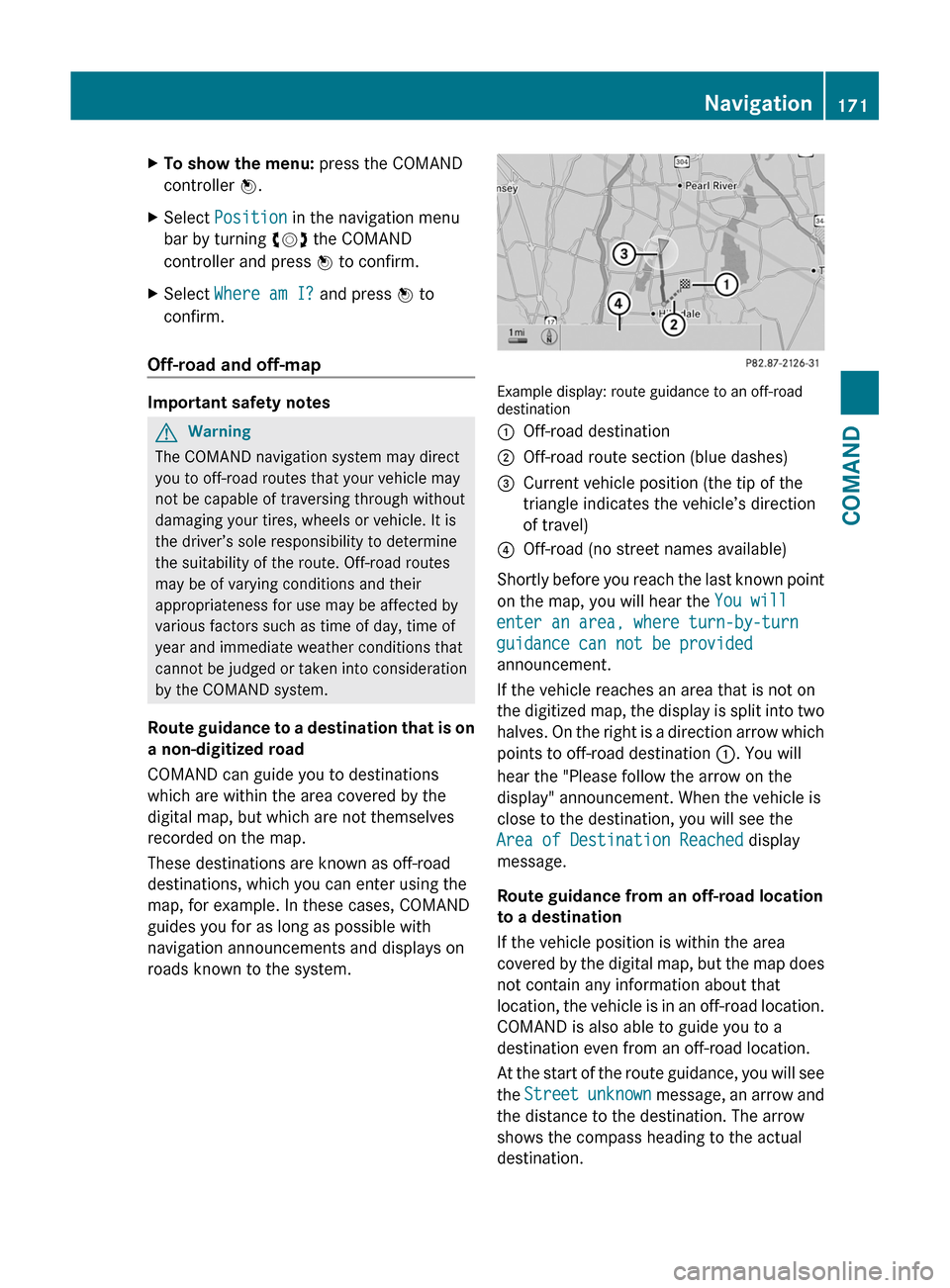
Example display: route guidance to an off-roaddestination
:Off-road destination;Off-road route section (blue dashes)=Current vehicle position (the tip of the
triangle indicates the vehicle’s direction
of travel)
?Off-road (no street names available)
Shortly before you reach the last known point
on the map, you will hear the You will
enter an area, where turn-by-turn
guidance can not be provided
announcement.
If the vehicle reaches an area that is not on
the digitized map, the display is split into two
halves. On the right is a direction arrow which
points to off-road destination :. You will
hear the "Please follow the arrow on the
display" announcement. When the vehicle is
close to the destination, you will see the
Area of Destination Reached display
message.
Route guidance from an off-road location
to a destination
If the vehicle position is within the area
covered by the digital map, but the map does
not contain any information about that
location, the vehicle is in an off-road location.
COMAND is also able to guide you to a
destination even from an off-road location.
At the start of the route guidance, you will see
the Street unknown message, an arrow and
the distance to the destination. The arrow
shows the compass heading to the actual
destination.
Navigation171COMANDZ
Page 174 of 524
The continuous blue route on the map starts
from the nearest road known to the system.
As soon as the vehicle is back on a road
known to the system, route guidance
continues in the usual way.
Route guidance from an off-map location
to a destination
If the vehicle position is outside the area
covered by the digital map, then the vehicle
is in an off-map location. COMAND is also
able to guide you to a destination even from
an off-map location.
At the start of the route guidance, you will see
the Street unknown message, an arrow and
the distance to the destination. The arrow
shows the compass heading to the road left
last.
The route is highlighted in blue from the
nearest road known to the system.
As soon as the vehicle is back on a road
known to the system, route guidance
continues in the usual way.
Off-road during route guidance
Due to road construction work, for example,
there may be differences between the data
on the digital map and the actual course of
the road.
In such cases, the system will temporarily be
unable to locate the vehicle position on the
digital map and thus considers the vehicle to
be in an off-road position.
In the display, you will see the Street
unknown message, an arrow and the distance
to the destination. The arrow shows the
compass heading to the actual destination.
As soon as the system can assign the vehicle
position to the map again, route guidance
continues in the usual way.Traffic reports
Conditions
i The SatRadio reception described below
requires optionally available SatRadio
equipment as well as a subscription to
SIRIUS XM SatRadio Traffic Message
Service. Further details on SatRadio are
available in the "SatRadio" chapter
( Y page 213).
COMAND can receive traffic reports via
SatRadio and incorporate them in the
navigation system. Traffic reports and map
icons can then be shown in the COMAND
display.
Real-time traffic reports on the map
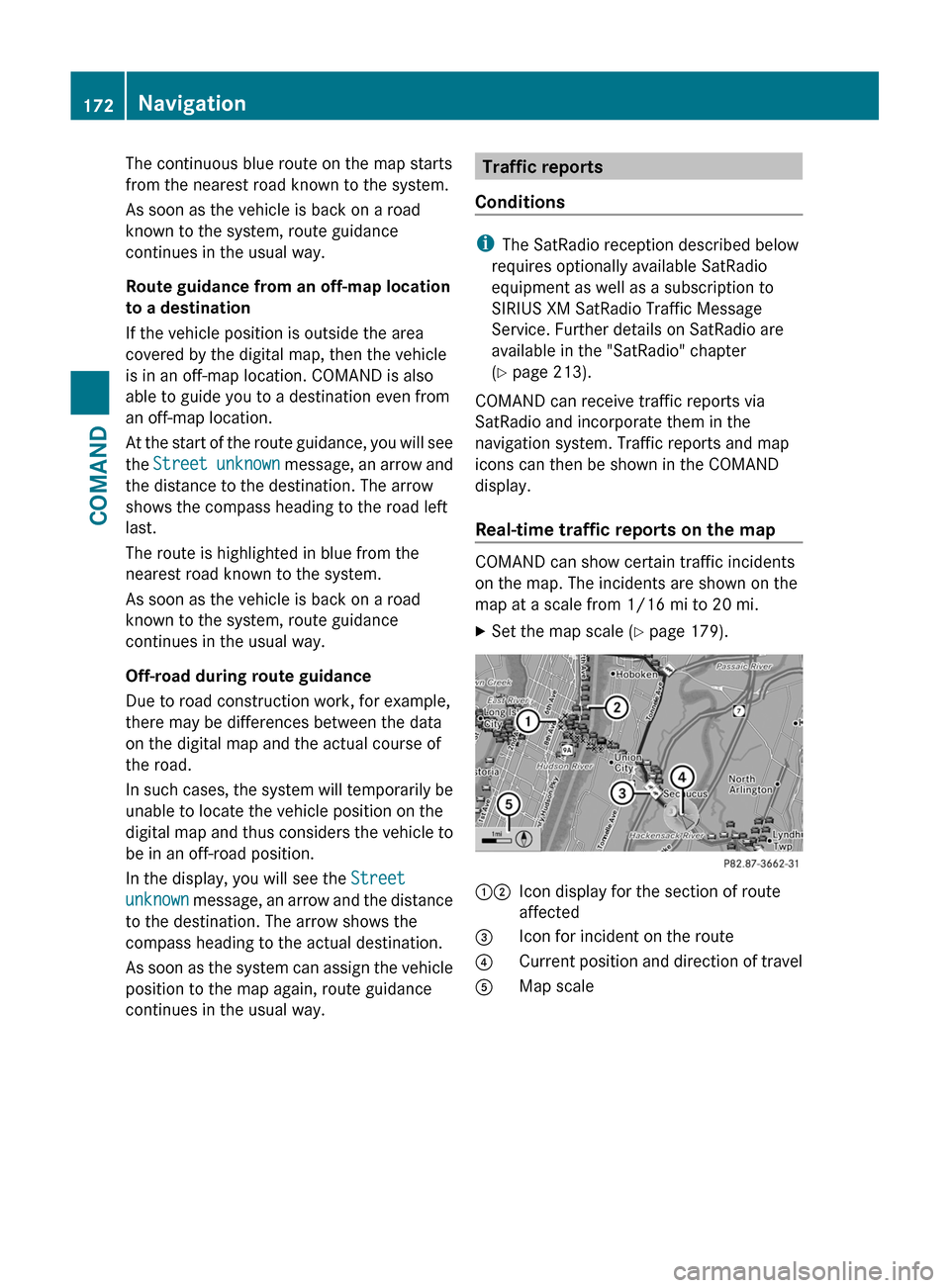
COMAND can show certain traffic incidents
on the map. The incidents are shown on the
map at a scale from 1/16 mi to 20 mi.
XSet the map scale ( Y page 179).12Icon display for the section of route
affected3Icon for incident on the route4Current position and direction of travel5Map scale172NavigationCOMAND
Page 175 of 524
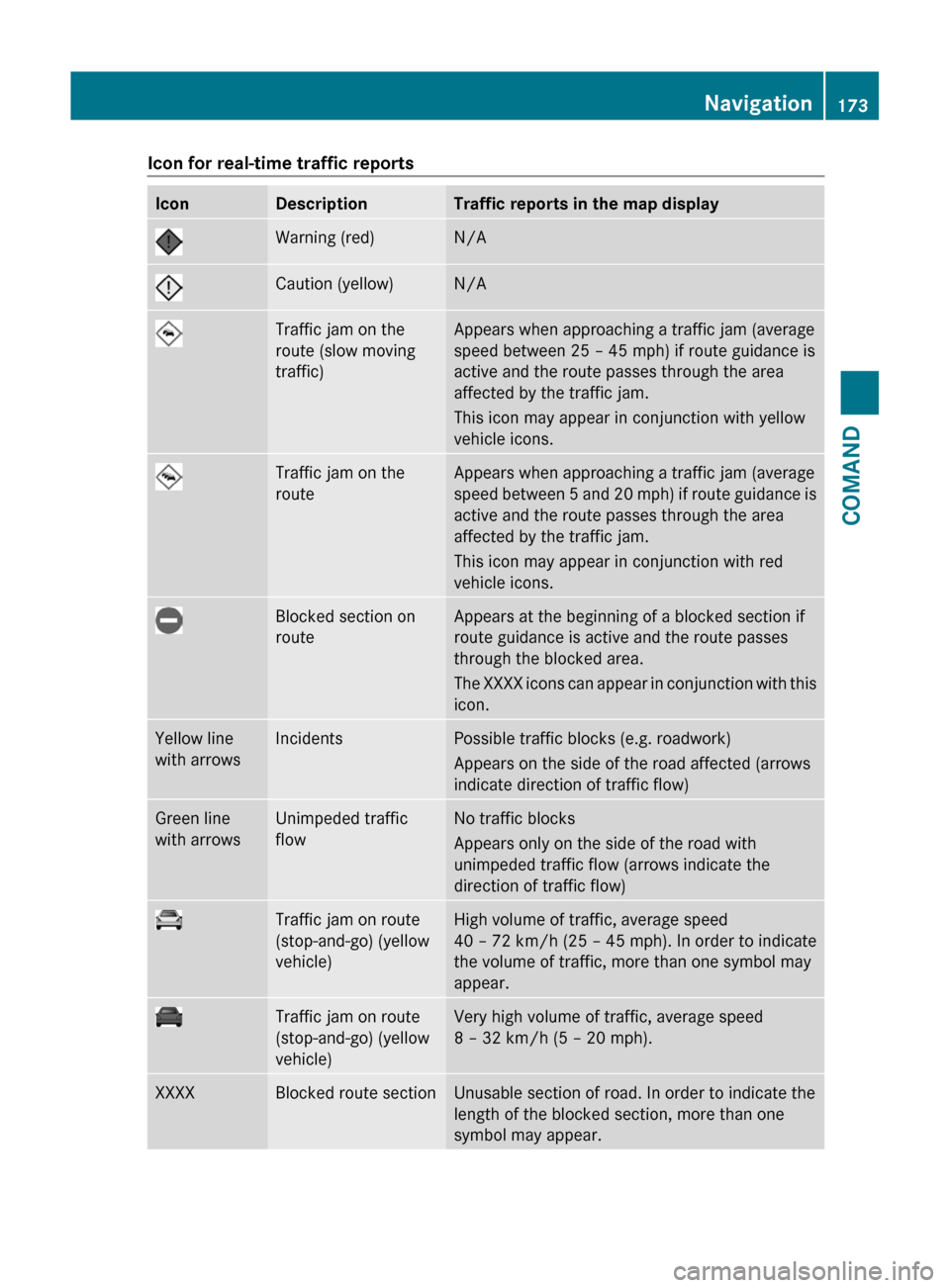
Icon for real-time traffic reportsIconDescriptionTraffic reports in the map displayWarning (red)N/ACaution (yellow)N/ATraffic jam on the
route (slow moving
traffic)
Appears when approaching a traffic jam (average
speed between 25 – 45 mph) if route guidance is
active and the route passes through the area
affected by the traffic jam.
This icon may appear in conjunction with yellow
vehicle icons.
Traffic jam on the
route
Appears when approaching a traffic jam (average
speed between 5 and 20 mph) if route guidance is
active and the route passes through the area
affected by the traffic jam.
This icon may appear in conjunction with red
vehicle icons.
Blocked section on
route
Appears at the beginning of a blocked section if
route guidance is active and the route passes
through the blocked area.
The XXXX icons can appear in conjunction with this
icon.
Yellow line
with arrows
IncidentsPossible traffic blocks (e.g. roadwork)
Appears on the side of the road affected (arrows
indicate direction of traffic flow)
Green line
with arrows
Unimpeded traffic
flow
No traffic blocks
Appears only on the side of the road with
unimpeded traffic flow (arrows indicate the
direction of traffic flow)
Traffic jam on route
(stop-and-go) (yellow
vehicle)
High volume of traffic, average speed
40 – 72 km/h (25 – 45 mph). In order to indicate
the volume of traffic, more than one symbol may
appear.
Traffic jam on route
(stop-and-go) (yellow
vehicle)
Very high volume of traffic, average speed
8 – 32 km/h (5 – 20 mph).
XXXXBlocked route sectionUnusable section of road. In order to indicate the
length of the blocked section, more than one
symbol may appear.
Navigation173COMANDZ
Page 176 of 524
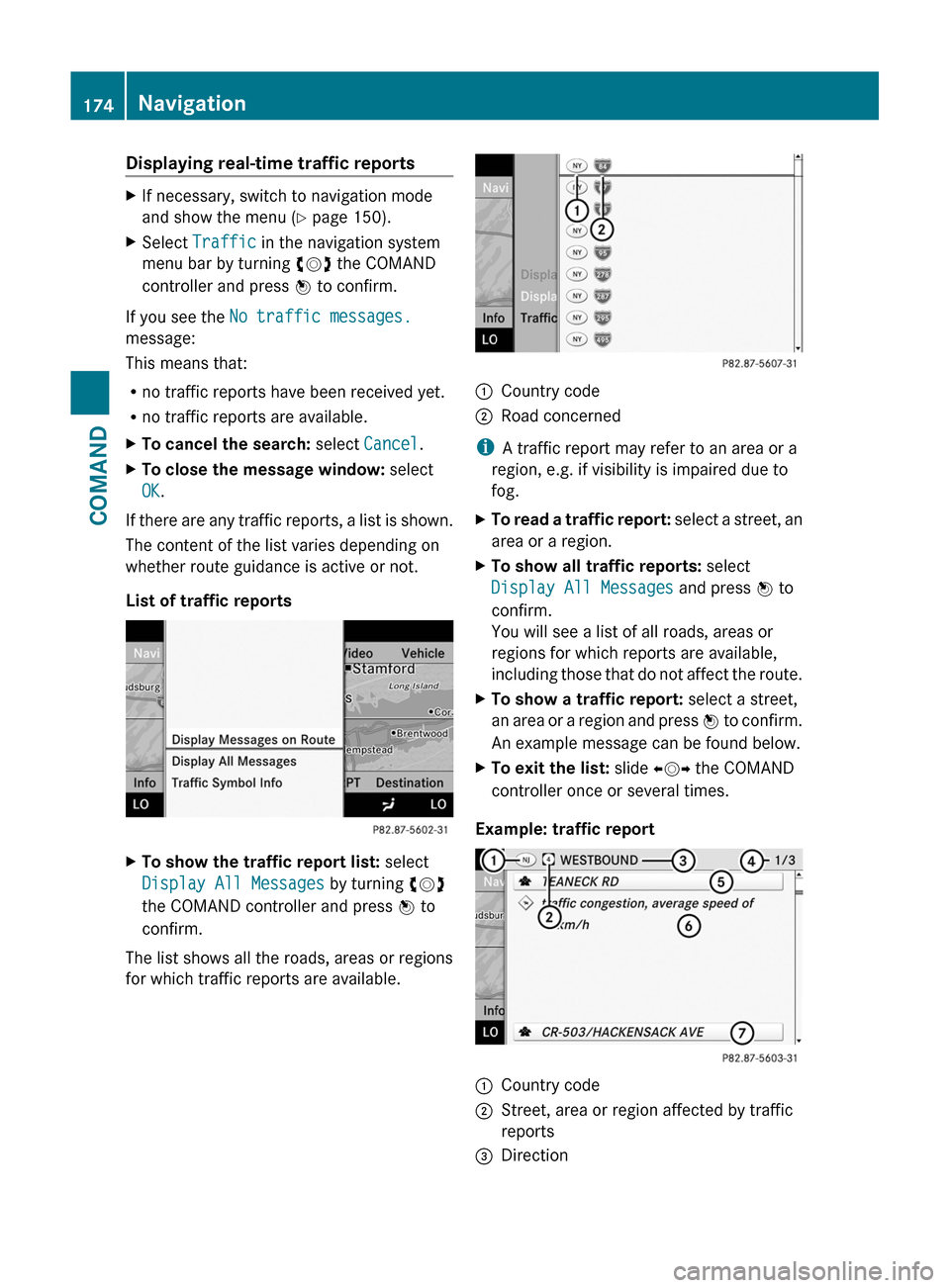
Displaying real-time traffic reportsXIf necessary, switch to navigation mode
and show the menu (Y page 150).
XSelect Traffic in the navigation system
menu bar by turning cVd the COMAND
controller and press W to confirm.
If you see the No traffic messages.
message:
This means that:
Rno traffic reports have been received yet.
Rno traffic reports are available.
XTo cancel the search: select Cancel.XTo close the message window: select
OK.
If there are any traffic reports, a list is shown.
The content of the list varies depending on
whether route guidance is active or not.
List of traffic reports
XTo show the traffic report list: select
Display All Messages by turning cVd
the COMAND controller and press W to
confirm.
The list shows all the roads, areas or regions
for which traffic reports are available.
1Country code2Road concerned
iA traffic report may refer to an area or a
region, e.g. if visibility is impaired due to
fog.
XTo read a traffic report: select a street, an
area or a region.
XTo show all traffic reports: select
Display All Messages and press W to
confirm.
You will see a list of all roads, areas or
regions for which reports are available,
including those that do not affect the route.
XTo show a traffic report: select a street,
an area or a region and press W to confirm.
An example message can be found below.
XTo exit the list: slide XVY the COMAND
controller once or several times.
Example: traffic report
1Country code2Street, area or region affected by traffic
reports
3Direction174NavigationCOMAND
Page 178 of 524
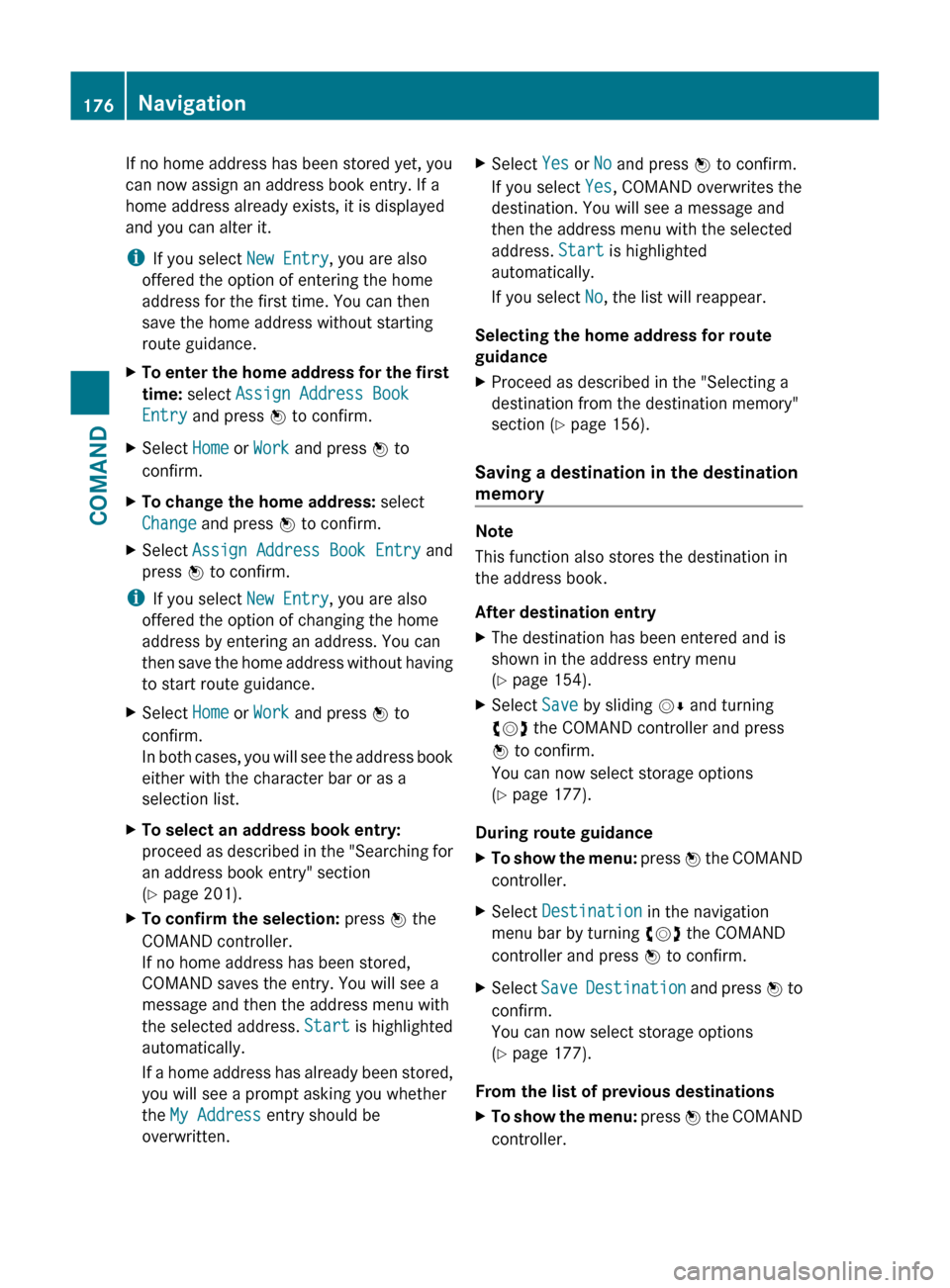
If no home address has been stored yet, you
can now assign an address book entry. If a
home address already exists, it is displayed
and you can alter it.
i If you select New Entry, you are also
offered the option of entering the home
address for the first time. You can then
save the home address without starting
route guidance.XTo enter the home address for the first
time: select Assign Address Book
Entry and press W to confirm.XSelect Home or Work and press W to
confirm.XTo change the home address: select
Change and press W to confirm.XSelect Assign Address Book Entry and
press W to confirm.
i
If you select New Entry, you are also
offered the option of changing the home
address by entering an address. You can
then save the home address without having
to start route guidance.
XSelect Home or Work and press W to
confirm.
In both cases, you will see the address book
either with the character bar or as a
selection list.XTo select an address book entry:
proceed as described in the "Searching for
an address book entry" section
( Y page 201).XTo confirm the selection: press W the
COMAND controller.
If no home address has been stored,
COMAND saves the entry. You will see a
message and then the address menu with
the selected address. Start is highlighted
automatically.
If a home address has already been stored,
you will see a prompt asking you whether
the My Address entry should be
overwritten.XSelect Yes or No and press W to confirm.
If you select Yes, COMAND overwrites the
destination. You will see a message and
then the address menu with the selected
address. Start is highlighted
automatically.
If you select No, the list will reappear.
Selecting the home address for route
guidance
XProceed as described in the "Selecting a
destination from the destination memory"
section ( Y page 156).
Saving a destination in the destination
memory
Note
This function also stores the destination in
the address book.
After destination entry
XThe destination has been entered and is
shown in the address entry menu
( Y page 154).XSelect Save by sliding VÆ and turning
cVd the COMAND controller and press
W to confirm.
You can now select storage options
( Y page 177).
During route guidance
XTo show the menu: press W the COMAND
controller.XSelect Destination in the navigation
menu bar by turning cVd the COMAND
controller and press W to confirm.XSelect Save Destination and press W to
confirm.
You can now select storage options
( Y page 177).
From the list of previous destinations
XTo show the menu: press W the COMAND
controller.176NavigationCOMAND
Page 184 of 524
interest are, for example, gas stations, hotels,
cinemas and restaurants.
The following settings are possible:
RStandard Symbols
Icon display determined by the factory
settings
RPersonal Symbols
You can determine the icons yourself
RNo Symbols
No icons are shown on the map.
XTo show the menu: press the COMAND
controller W.
XSelect Navi in the main function bar by
sliding ZV and turning cVd the COMAND
controller and press W to confirm.
XSelect POI Symbols on Map and press
W to confirm.
XSelect Standard Symbols, Personal
Symbols or No Symbols.
If you select Personal Symbols, the list of
points of interest appears.
XTo switch the icon display on/off: select
the point of interest by turning cVd the
COMAND controller and press W to
confirm.
Depending on the previous setting, the
icons will be switched on O or off ª. You
can switch on the icon displays for more
than one point of interest.
iThe list shows all icons that are contained
on the digital map across all countries.
However, not all points of interest are
available in all countries. As a result, certain
point of interest icons may not be displayed
on the map, even if the icon display is
switched on.
XTo exit the menu: press the % back
button.
Map information in the display
Displaying text messages
During route guidance, you can have map
information displayed at the bottom edge of
the display.
XTo show the menu: press the COMAND
controller W.
XSelect Navi in the main function bar by
sliding ZV and turning cVd the COMAND
controller and press W to confirm.
The main area is active.
XSelect Navi again and press W to confirm.
The navigation menu opens.
XSelect Text Information on Map and
press W to confirm.
The # dot indicates the current setting.
XSelect Arrival Time/Distance,
Current Street, Geo Coordinates or
None, and press W to confirm.
XTo exit the menu: slide XVY the COMAND
controller.
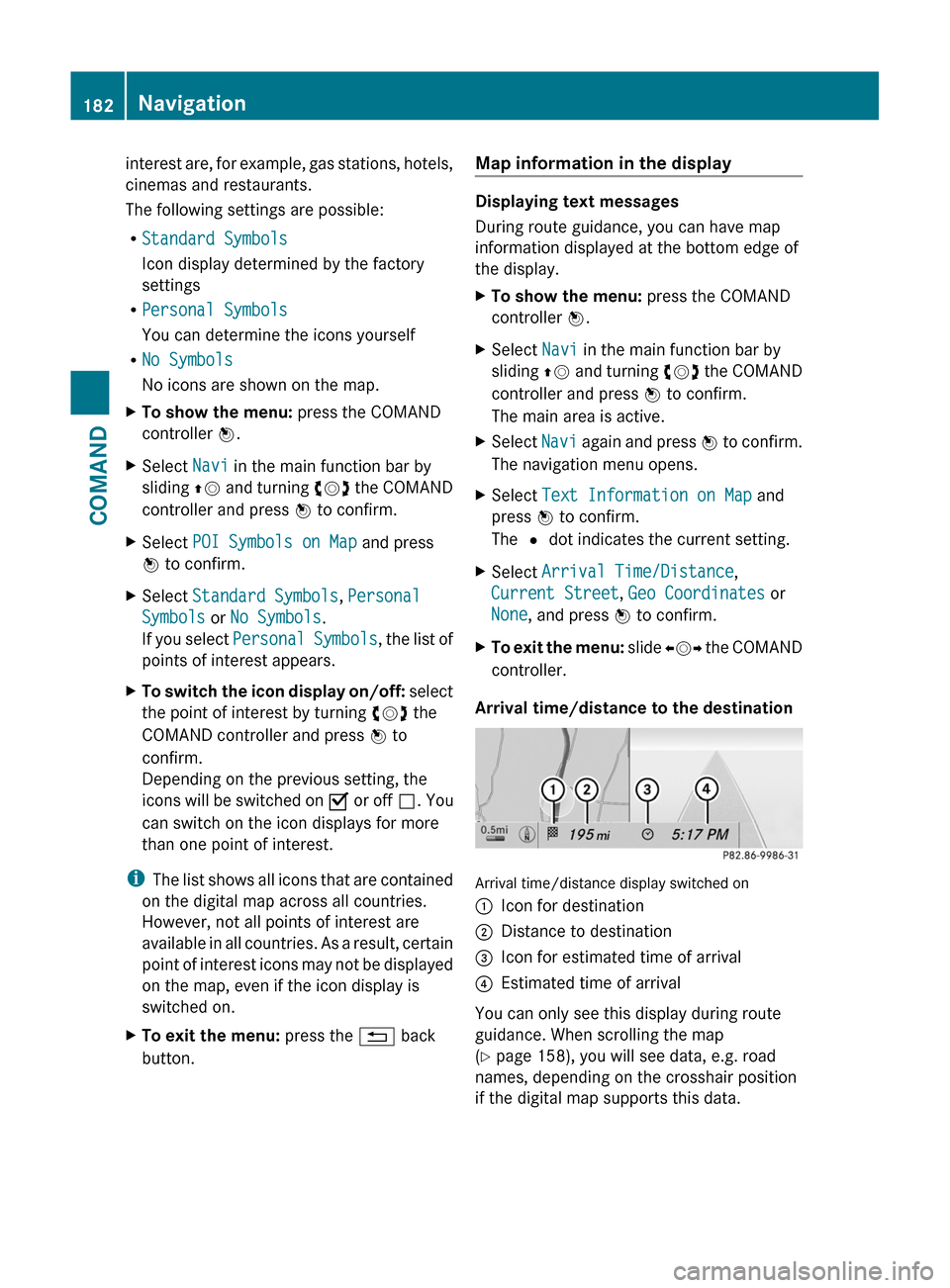
Arrival time/distance to the destination
Arrival time/distance display switched on
:Icon for destination;Distance to destination=Icon for estimated time of arrival?Estimated time of arrival
You can only see this display during route
guidance. When scrolling the map
(Y page 158), you will see data, e.g. road
names, depending on the crosshair position
if the digital map supports this data.
182NavigationCOMAND
Page 188 of 524
You can view the current direction of travel,
the current height and the coordinates of the
current vehicle position in the compass view.XTo switch on navigation mode: press the
S function button once or twice.XTo show the menu: press the COMAND
controller W.XSelect Position in the navigation menu by
sliding VÆ and turning cVd the COMAND
controller and press W to confirm.XSelect Compass and press W to confirm.XTo exit the display: confirm Back by
pressing W or press the % button.
Installing new map software
The digital data generated by the map
software becomes outdated in the same way
as conventional road maps. Optimal route
guidance can only be provided by the
navigation system in conjunction with the
most up-to-date map software. Information
about new map software versions can be
obtained from an authorized Mercedes-Benz
Center.
You can install new map software yourself
using one or more DVDs, depending on the
size.
The installation process can take between 10
and 120 minutes depending on the size of the
map software. If radio mode is selected
before you start the installation process, you
can still adjust the volume. It is also still
possible to operate the automatic climate
control and cancel the process on COMAND.
Other functions are not operational. If
possible, carry out the installation process
when the vehicle is stationary. This takes less
time, since the DVD read speed is higher
when the vehicle is stationary than when it is
in motion. If the starter battery is not
sufficiently charged, COMAND may end the
process automatically in order to preserve
the battery. Therefore, keep the engine
running during the installation process.
GWarning
Never leave the engine running in enclosed
spaces. The exhaust gases contain toxic
carbon monoxide. Breathing in exhaust fumes
is a health hazard and can lead to
unconsciousness or death.
Displaying information about the
currently used map version
XTo switch on navigation mode: press the
S function button once or twice.XTo show the menu: press the COMAND
controller W.XSelect Navi in the main function bar by
sliding VÆ and turning cVd the COMAND
controller and press W to confirm.XSelect Map Version and press W to
confirm.
Notes on handling DVDs
R Only touch the edges of DVDs.
R Handle DVDs carefully to avoid read errors.
R Avoid scratching DVDs or getting
fingerprints or dust on them.
R Use a conventional cleaning cloth to clean
DVDs. Never wipe in a circle, but instead in
straight lines from the inside to the outside.
R Place DVDs back in their cases after use.
R Do not expose DVDs to heat or direct
sunlight.
Map software copy protection
Map software for COMAND is subject to a fee.
Map software can only be used on one vehicle
with an activation code and is not
transferable. The six-digit activation code is
available at your authorized Mercedes-Benz
Center. Contact your authorized Mercedes-
Benz Center if you lose the activation code or
if COMAND does not accept the code that you
received.
Your vehicle is delivered from the factory with
map software. Depending on the country,
map software for your region is either pre-
installed (Europe/USA) or the map software
186NavigationCOMAND
Page 189 of 524
is supplied on a DVD (all other countries). You
do not need an activation code for the map
software that is delivered with your vehicle.
You also do not need to enter an activation
code if map software has already been
installed in the vehicle and must be installed
again.
Installation processXLoad the map software DVD in the DVD
drive ( Y page 217).
COMAND checks the DVD and shows a
corresponding message in the display.
The map software is not compatible with
the navigation system
A message appears informing you that it is
not possible to install the map software.
XTo confirm the message: press W.
COMAND ejects the DVD.XTake the DVD out of the slot.XLoad a DVD that is compatible with the
vehicle's navigation system.
The map software is not compatible with
the current system software
A message appears informing you that the
system software and the map software are
not compatible.
XTo confirm the message: press W.
COMAND ejects the DVD.XTake the DVD out of the slot.XHave the system software updated at an
authorized Mercedes-Benz Center.
It is only possible to install the map software
after the system software has been updated.
The map software is compatible with the
navigation system and the current
system software
COMAND checks whether the DVD map data
has already been installed.
The map data has already been installed
A message appears informing you that the
map data has already been installed, and a
prompt asks you whether the map software
should be installed anyway.XSelect Yes or No.
If you select Yes, the existing map data is
overwritten.
If you select No, COMAND ejects the DVD
automatically and the installation of the
map software is canceled.XTake the DVD out of the slot.
Map data is not yet installed
The version data of the map software DVD
and the map software installed on COMAND
are shown in the display for comparison. A
prompt then appears, asking whether the
map software should be installed.
XSelect Yes or No.
If you select Yes, the map data is saved.
If you select No, COMAND ejects the DVD
automatically and the installation of the
map software is not continued.XTake the DVD out of the slot.
If an activation code is required for the map
software, a prompt appears in the display
asking you to enter it.
XEnter the activation code and press ! to
confirm.
The software is installed.
If you enter an incorrect activation code, a
prompt appears asking you to enter the
activation code again. After the activation
code has been entered incorrectly three
times, there is a time-delay before the prompt
to enter the activation code appears again.
The time delay increases every time the
activation code is entered incorrectly, from
five minutes up to a maximum of five hours.
Installing map data
COMAND restarts the system immediately
before copying the data.
Navigation187COMANDZ