tail MERCEDES-BENZ S-Class 2012 W221 User Guide
[x] Cancel search | Manufacturer: MERCEDES-BENZ, Model Year: 2012, Model line: S-Class, Model: MERCEDES-BENZ S-Class 2012 W221Pages: 536, PDF Size: 25.27 MB
Page 98 of 536
term "sliding sunroof" refers to both types of
sliding sunroof.GWARNING
When opening or closing the sliding sunroof,
make sure that there is no danger of anyone
being harmed by the opening/closing
procedure.
The sliding sunroof is equipped with
automatic operation and the anti-entrapment
feature. If the movement of the sliding sunroof
is blocked during the closing procedure, the
sliding sunroof will stop and open slightly.
The sliding sunroof operates differently when
the sliding sunroof switch is pressed and held.
See the "Problems with the sliding sunroof"
section for more details.
The opening/closing procedure of the sliding
sunroof can be immediately halted by
releasing the sliding sunroof switch or, if the
sliding sunroof switch was moved past the
resistance point and released, by moving the
sliding sunroof switch in any direction.
GWARNING
The sliding sunroof is made out of glass. In the
event of an accident, the glass may shatter.
This may result in an opening in the roof.
In a vehicle rollover, occupants not wearing
their seat belts or not wearing them properly
may be thrown out of the opening. Such an
opening also presents a potential for injury for
occupants wearing their seat belts properly,
as entire body parts or portions of them may
protrude from the passenger compartment.
! Only open the sliding sunroof if it is free
of snow and ice. Otherwise, malfunctions
may occur.
Do not allow anything to protrude from the
sliding sunroof. Otherwise, the seals could
be damaged.
! The weather can change abruptly. It could
start to rain or snow. Make sure that the
sliding sunroof is closed when you leave the
vehicle. The vehicle electronics can be
damaged if water enters the vehicle
interior.
i Resonance noises can occur in addition
to the usual airflow noises when the sliding
sunroof is open. They are caused by minor
pressure fluctuations in the vehicle interior.
Change the position of the sliding sunroof
or open a side window slightly to reduce or
eliminate these noises.
Operating the sliding sunroof
Opening and closing
i You can continue to operate the sliding
sunroof after switching off the engine or
removing the SmartKey from the ignition
lock. This function is available for up to five
minutes or until the driver's or front-
passenger door is opened.
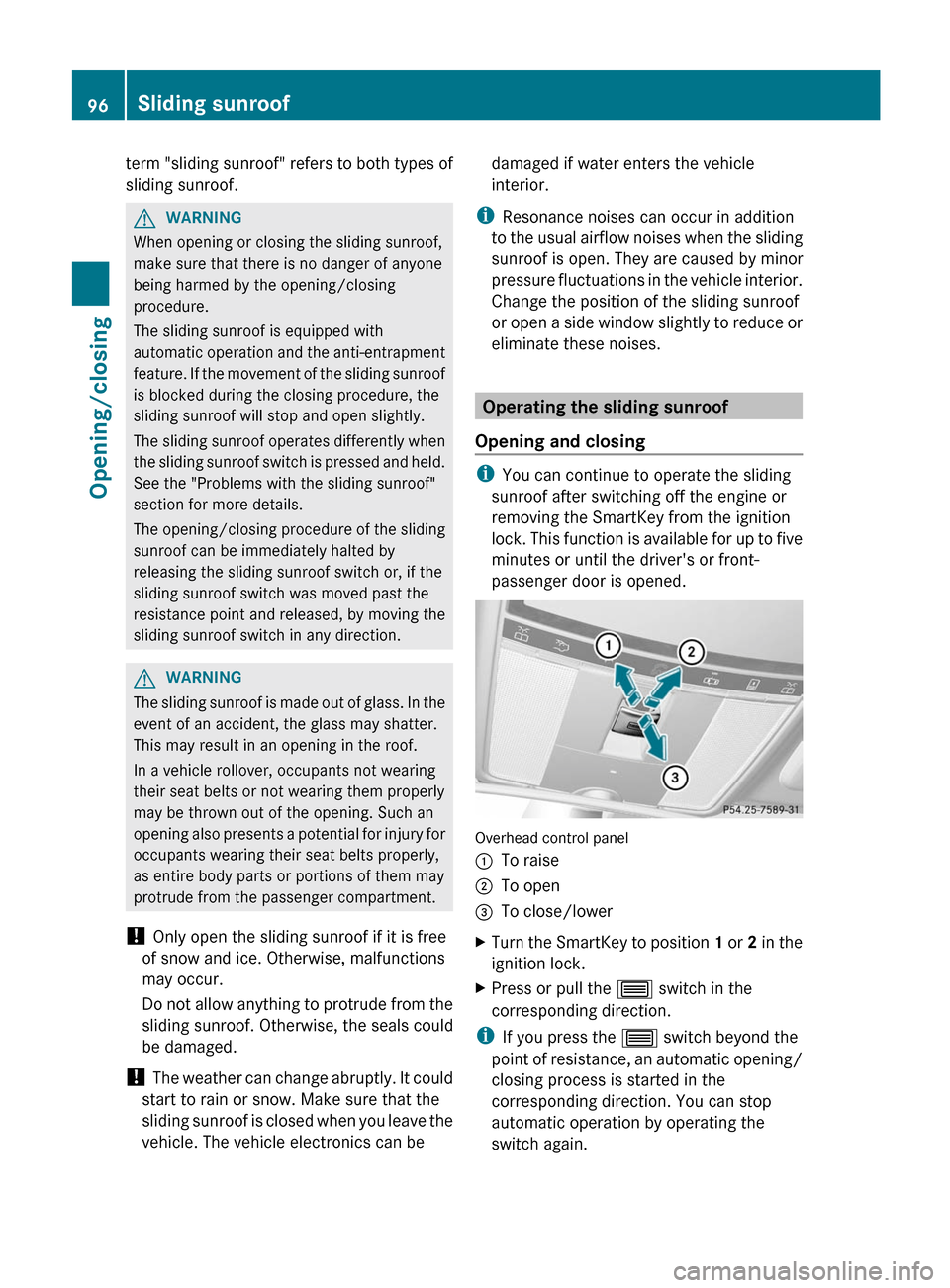
Overhead control panel
:To raise;To open=To close/lowerXTurn the SmartKey to position 1 or 2 in the
ignition lock.XPress or pull the 3 switch in the
corresponding direction.
i If you press the 3 switch beyond the
point of resistance, an automatic opening/
closing process is started in the
corresponding direction. You can stop
automatic operation by operating the
switch again.
96Sliding sunroofOpening/closing
Page 149 of 536
XSelect Yes or No and press W to confirm.
If you select No, the process will be aborted.
If you select Yes, the individualization is
deleted. You will see a message to this
effect.
Bluetooth ®
settings
General information about Bluetooth ®
Bluetooth
®
technology is the standard for
short-range wireless data transmission of up
to approximately 10 meters. Bluetooth ®
allows, for example, the exchange of vCards.
Bluetooth ®
is a registered trademark of
Bluetooth Special Interest Group (SIG) Inc.
Requirements for a Bluetooth ®
connection
You can connect mobile phones and
notebooks to COMAND.
To do so, the following conditions need to be
met:
R Bluetooth ®
-capable devices, e.g. mobile
phones, must comply with a certain profile
in order to be connected to COMAND.
Every Bluetooth ®
device has its own
specific Bluetooth ®
name.
R Bluetooth ®
must be activated in COMAND
and on the respective Bluetooth ®
device;
see the separate operating instructions.
R the Bluetooth ®
device must be "visible" to
COMAND in order for COMAND to find and
display it. For the setting procedures,
please see the operating instructions for
the Bluetooth ®
device.
i Once a mobile phone has been
connected, reception and transmission
volume may change.
Activating/deactivating Bluetooth ®XSelect
Vehicle in the main function bar by
turning cVd the COMAND controller and
press W to confirm.XSelect System by turning cVd the
COMAND controller and press W to
confirm.XSelect Bluetooth by turning cVd the
COMAND controller and press W to
confirm.XSelect Bluetooth activated and press
W to confirm.
This switches Bluetooth ®
on O or off ª.
Connecting Bluetooth ®
devices
General information
Before using your Bluetooth ®
device with
COMAND for the first time, you will need to
connect it.
Connecting comprises:
R searching for a Bluetooth ®
device
R subsequently authorizing it
i A maximum of 15 devices can be available
for selection from the device list.
More detailed information on suitable mobile
phones and on connecting Bluetooth ®
-
capable mobile phones to COMAND can be
found on the Internet at http://
www.mbusa-mobile.com . Or call the
Mercedes-Benz Customer Assistance Center
on 1-800-FOR-MERCedes(1-800-367-6372)
(for the USA) or Customer Relations on
1-800-387-0100 (for Canada).
System settings147COMANDZ
Page 151 of 536
XTo confirm an entry in COMAND: select
¬ using the COMAND controller and
press W to confirm.
or
XSelect SEND on the telephone keypad.XEnter the same passcode into the
Bluetooth ®
device (see the operating
instructions for the respective device).
The device is authorized.
External authorization
If COMAND does not detect your
Bluetooth ®
device, this may be due to
particular security settings on your
Bluetooth ®
device. In this case, you can test
if your Bluetooth ®
device can find COMAND.
The Bluetooth ®
device name of COMAND is
"MB Bluetooth".
XSelect Update .XSelect Options by sliding VY the
COMAND controller and press W to
confirm.XSelect External Authorization and
press W to confirm.XStart the Bluetooth ®
scan process on the
Bluetooth ®
device (see separate operating
instructions of the respective device).XSelect COMAND ("MB Bluetooth").
i The order in which the passkey is entered
depends on the mobile phone.
XEnter the passkey on the Bluetooth ®
device
when prompted.XConfirm the Do you want to authorize
XX? question in COMAND with Yes.XEnter the passkey in COMAND.
Displaying the details of a Bluetooth ®
device
XIn the Bluetooth ®
device list, select the
desired device by turning cVd the
COMAND controller.XSelect Options by sliding VY the
COMAND controller and press W to
confirm.XSelect Details and press W to confirm.
The detailed display for this device
appears.XTo close the detailed view: turn cVd or
slide XVY the COMAND controller.
De-authorizing (de-registering) a
Bluetooth ®
device
Mercedes-Benz USA, LLC recommends de-
authorization in both COMAND and the
Bluetooth ®
device, e.g. the mobile phone.
Subsequent authorization may otherwise fail.
XIn the Bluetooth ®
device list, select the
authorized device by turning cVd the
COMAND controller.XSelect Options by sliding VY the
COMAND controller and press W to
confirm.XSelect De-authorize and press W to
confirm.
A prompt appears asking whether you
really wish to de-authorize this device.XSelect Yes or No and press W to confirm.
If you select Yes, the authorization for the
device will be revoked.
If you select No, the process will be aborted.
i
If a Bluetooth ®
device has been de-
authorized and is out of range, when a new
search is carried out it will not appear in the
Bluetooth ®
device list.
System language settings
This function allows you to determine the
language for the menu displays and the
navigation messages. The selected language
affects the characters available for entry.
When you set the system language, the
language of the Voice Control System will
System settings149COMANDZ
Page 162 of 536
on the same street: call up an address
destination from the last destinations.XSelect Change by turning cVd and sliding
ZV Æ the COMAND controller and press
W to confirm.
All destination entry functions are
available.XEdit/enter the destination as described for
destination entry ( Y page 153).
Entering a destination using the map
Calling up the map
XTo activate navigation mode: press the
S function button once or twice.XTo show the menu: press W the COMAND
controller.XSelect Destination in the navigation
system menu bar by turning cVd the
COMAND controller and pressing W to
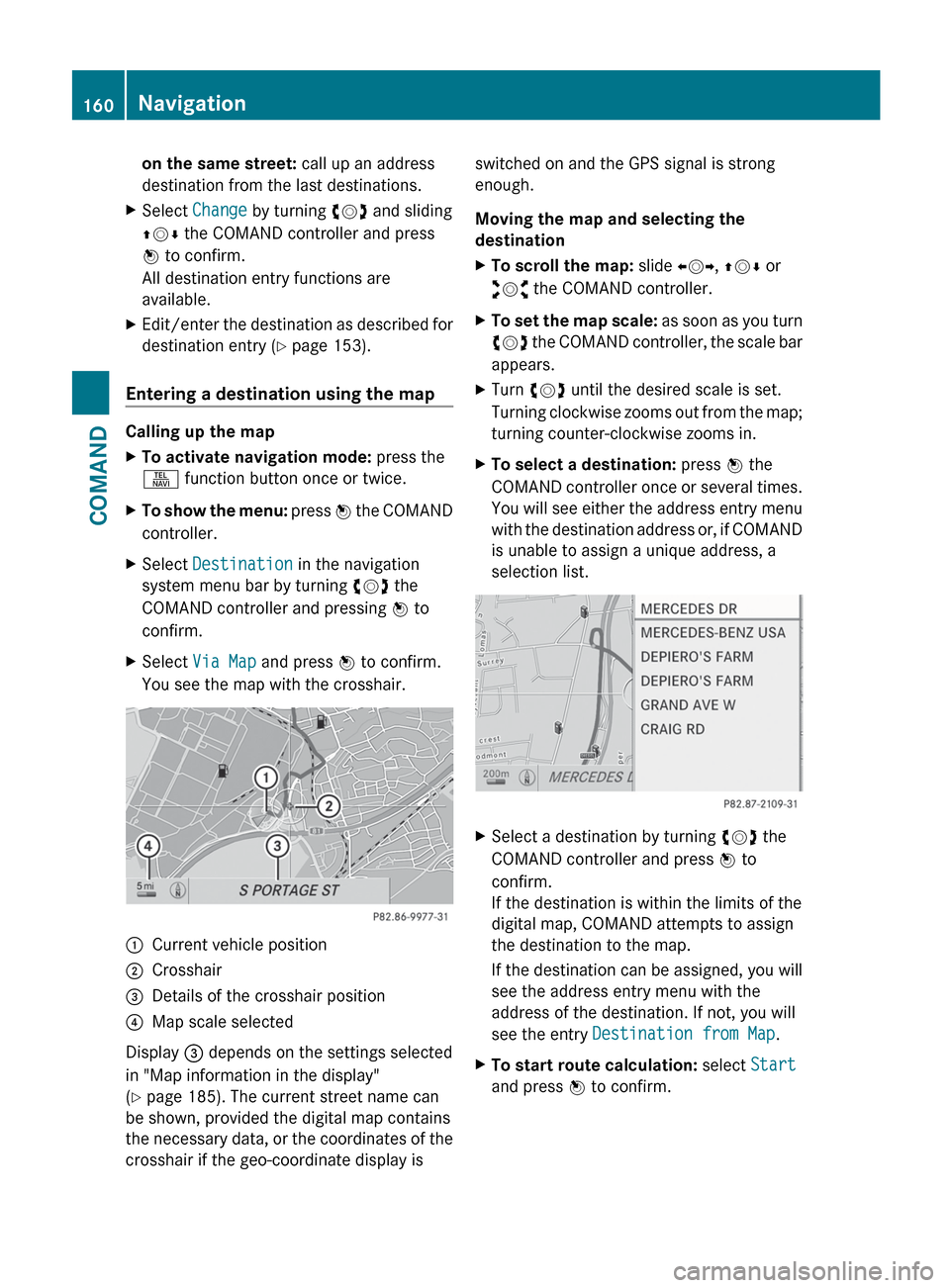
confirm.XSelect Via Map and press W to confirm.
You see the map with the crosshair.:Current vehicle position;Crosshair=Details of the crosshair position?Map scale selected
Display = depends on the settings selected
in "Map information in the display"
( Y page 185). The current street name can
be shown, provided the digital map contains
the necessary data, or the coordinates of the
crosshair if the geo-coordinate display is
switched on and the GPS signal is strong
enough.
Moving the map and selecting the
destinationXTo scroll the map: slide XVY, ZV Æ or
aVb the COMAND controller.XTo set the map scale: as soon as you turn
cVd the COMAND controller, the scale bar
appears.XTurn cVd until the desired scale is set.
Turning clockwise zooms out from the map;
turning counter-clockwise zooms in.XTo select a destination: press W the
COMAND controller once or several times.
You will see either the address entry menu
with the destination address or, if COMAND
is unable to assign a unique address, a
selection list.XSelect a destination by turning cVd the
COMAND controller and press W to
confirm.
If the destination is within the limits of the
digital map, COMAND attempts to assign
the destination to the map.
If the destination can be assigned, you will
see the address entry menu with the
address of the destination. If not, you will
see the entry Destination from Map .XTo start route calculation: select Start
and press W to confirm.160NavigationCOMAND
Page 166 of 536
XConfirm the entry with W.
If the selected main category does not
contain any sub-categories, the point of
interest list appears.
If the selected main category contains
subcategories, a list of the subcategories
appears with the input speller.XSelect a category by turning cVd the
COMAND controller.XConfirm the entry with W.
The point of interest list appears. It
contains the points of interest available in
the sub-category that are within the search
radius.
i Search radius means: COMAND searches
within a radius of 100 km.
If COMAND does not find any points of
interest within this radius, it extends its
search range to approximately 200 km. If
COMAND finds one point of interest within
this radius, it finishes the search.
i If you select the ALL list item, the point of
interest list contains all points of interest
for all subcategories in the Restaurant
main category which lie within the search
radius.
Point of interest list
Introduction
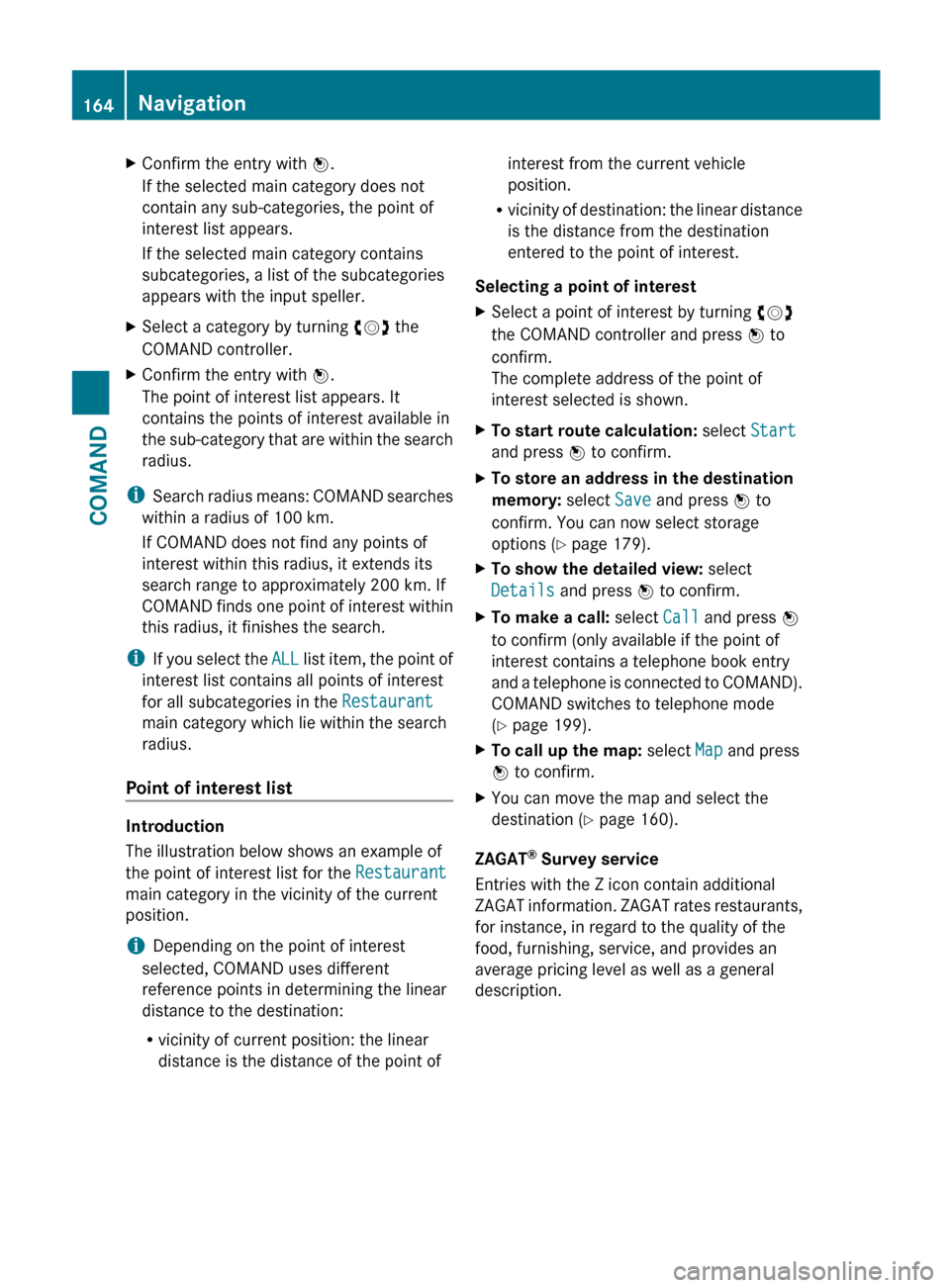
The illustration below shows an example of
the point of interest list for the Restaurant
main category in the vicinity of the current
position.
i Depending on the point of interest
selected, COMAND uses different
reference points in determining the linear
distance to the destination:
R vicinity of current position: the linear
distance is the distance of the point of
interest from the current vehicle
position.
R vicinity of destination: the linear distance
is the distance from the destination
entered to the point of interest.
Selecting a point of interestXSelect a point of interest by turning cVd
the COMAND controller and press W to
confirm.
The complete address of the point of
interest selected is shown.XTo start route calculation: select Start
and press W to confirm.XTo store an address in the destination
memory: select Save and press W to
confirm. You can now select storage
options ( Y page 179).XTo show the detailed view: select
Details and press W to confirm.XTo make a call: select Call and press W
to confirm (only available if the point of
interest contains a telephone book entry
and a telephone is connected to COMAND).
COMAND switches to telephone mode
( Y page 199).XTo call up the map: select Map and press
W to confirm.XYou can move the map and select the
destination ( Y page 160).
ZAGAT ®
Survey service
Entries with the Z icon contain additional
ZAGAT information. ZAGAT rates restaurants,
for instance, in regard to the quality of the
food, furnishing, service, and provides an
average pricing level as well as a general
description.
164NavigationCOMAND
Page 167 of 536
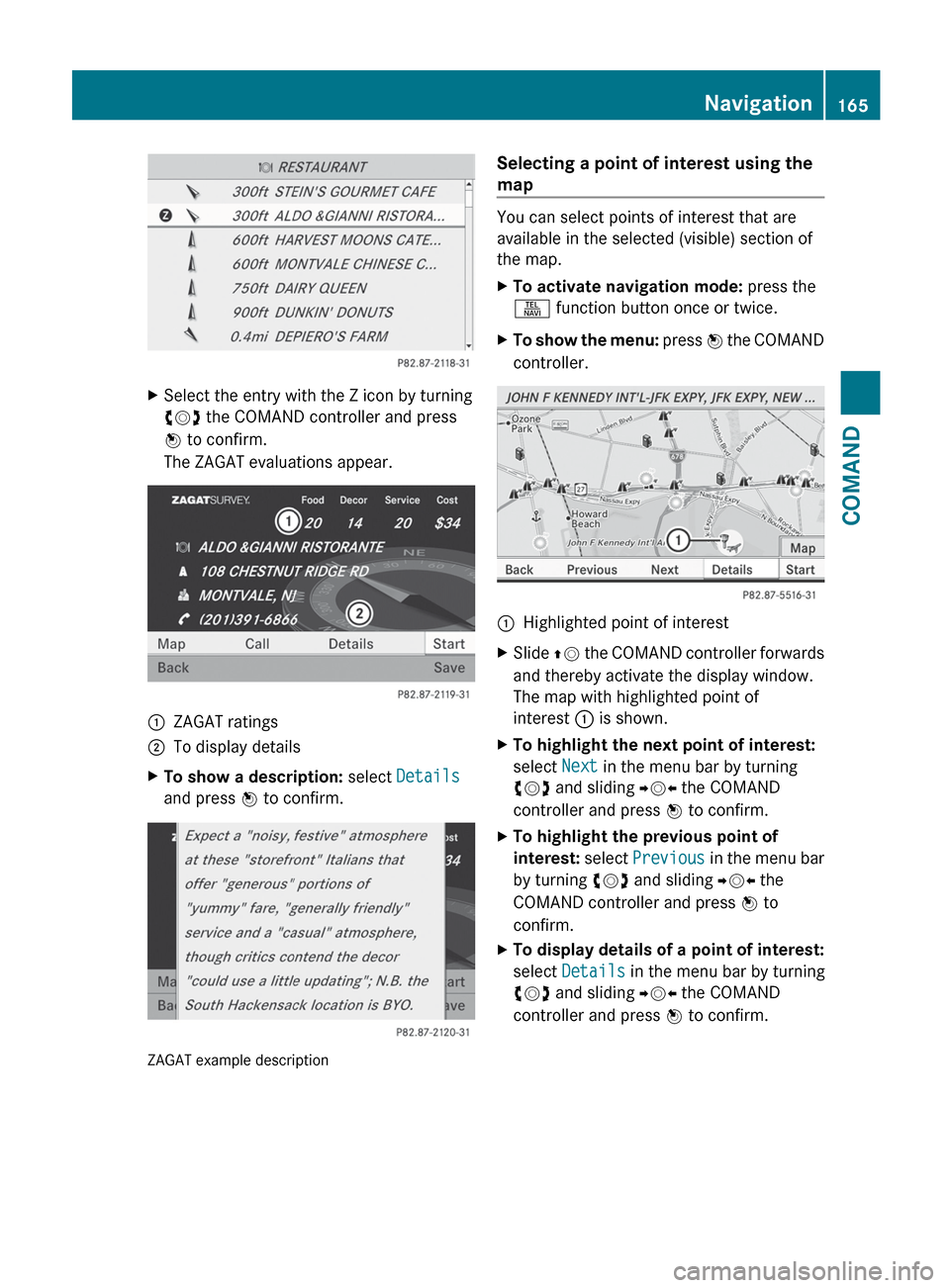
XSelect the entry with the Z icon by turning
cVd the COMAND controller and press
W to confirm.
The ZAGAT evaluations appear.1ZAGAT ratings2To display detailsXTo show a description: select Details
and press W to confirm.
ZAGAT example description
Selecting a point of interest using the
map
You can select points of interest that are
available in the selected (visible) section of
the map.
XTo activate navigation mode: press the
S function button once or twice.XTo show the menu: press W the COMAND
controller.:Highlighted point of interestXSlide ZV the COMAND controller forwards
and thereby activate the display window.
The map with highlighted point of
interest : is shown.XTo highlight the next point of interest:
select Next in the menu bar by turning
cVd and sliding YVX the COMAND
controller and press W to confirm.XTo highlight the previous point of
interest: select Previous in the menu bar
by turning cVd and sliding YVX the
COMAND controller and press W to
confirm.XTo display details of a point of interest:
select Details in the menu bar by turning
cVd and sliding YVX the COMAND
controller and press W to confirm.Navigation165COMANDZ
Page 174 of 536
Displaying destination information
Prerequisite: you have entered a destination
( Y page 153) and possibly an intermediate
stop ( Y page 161).
XTo activate navigation mode: press the
S function button once or twice.XTo show the menu: press W the COMAND
controller.XSelect Info in the menu bar by turning
cVd the COMAND controller and press
W to confirm.
Destination information is displayed.
If a telephone number is entered for the
address displayed, you can also select and
call the number using COMAND.
XTo call the destination: select the
telephone number using the COMAND
controller and press W to confirm.XTo close the destination information:
slide XVY the COMAND controller or press
the % back button.
Route overview
You can use the overview of the route to move
along the route section by section and to see
details of the route sections.
You have entered a destination
( Y page 153) or a point of interest
( Y page 162) and possibly an intermediate
stop ( Y page 161).
XTo activate navigation mode: press the
S function button once or twice.XTo show the menu: press W the COMAND
controller.XSelect Route in the navigation system
menu bar by turning cVd the COMAND
controller and press W to confirm.XSelect Route Info and press W to
confirm.
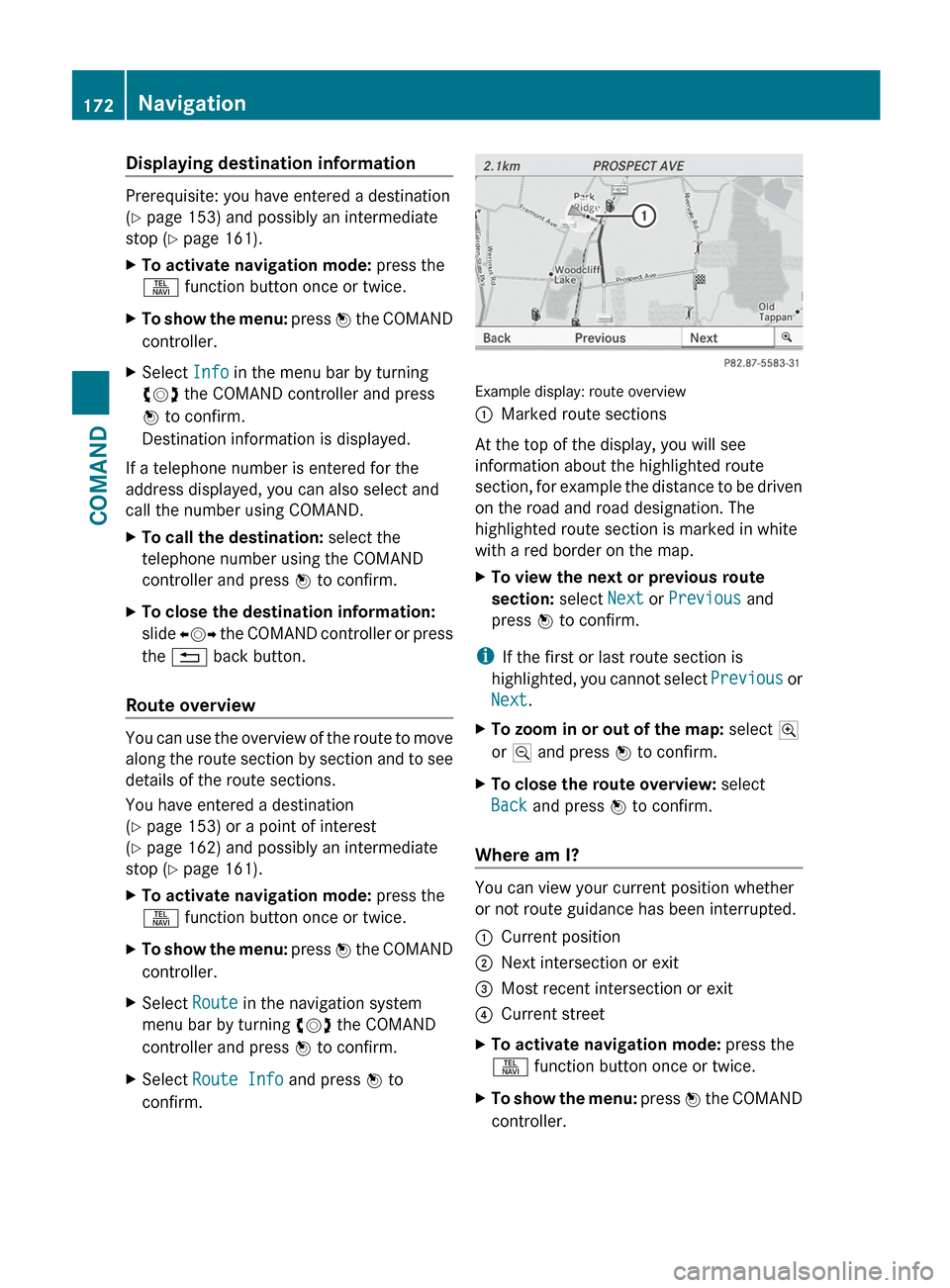
Example display: route overview
:Marked route sections
At the top of the display, you will see
information about the highlighted route
section, for example the distance to be driven
on the road and road designation. The
highlighted route section is marked in white
with a red border on the map.
XTo view the next or previous route
section: select Next or Previous and
press W to confirm.
i
If the first or last route section is
highlighted, you cannot select Previous or
Next .
XTo zoom in or out of the map: select N
or M and press W to confirm.XTo close the route overview: select
Back and press W to confirm.
Where am I?
You can view your current position whether
or not route guidance has been interrupted.
:Current position;Next intersection or exit=Most recent intersection or exit?Current streetXTo activate navigation mode: press the
S function button once or twice.XTo show the menu: press W the COMAND
controller.172NavigationCOMAND
Page 176 of 536
Off-road during route guidance
Due to roadworks, for example, there may be
differences between the data on the digital
map and the actual course of the road.
In such cases, the system will temporarily be
unable to locate the vehicle position on the
digital map and thus considers the vehicle to
be in an off-road position.
In the display, you will see the Street
unknown message, an arrow and the distance
to the destination. The arrow shows the
compass heading to the last road you were
driving on.
As soon as the system can assign the vehicle
position to the map again, route guidance
continues in the usual way.
Route guidance on roads that are not
completely digitalized
COMAND attempts to avoid roads that have
not been completely digitalized. If the
vehicle's position or the destination is located
in an area that has not been completely
digitalized, then no active route guidance is
performed. Instead, the map shows a dashed
route along the roads and the target direction
is shown with an arrow. You hear the
announcement: "You will enter an area,
where turn-by-turn guidance can not be
provided. Please follow the arrow on the
display". Once these roads have been left,
regular route guidance is resumed.
Traffic reports
Prerequisite
i The SatRadio mode described below
requires optional satellite radio equipment
and a subscription to SIRIUS XM Satellite
Radio Traffic Message Service. Further
details on SatRadio are available in the
"SatRadio" section ( Y page 216).
COMAND can receive traffic reports via
SatRadio and incorporate them in the
navigation system. Traffic messages and map
symbols can then be shown in the COMAND
display.
COMAND uses high quality traffic data.
Nevertheless, there may be differences
between the traffic reports received and the
actual road and traffic conditions.
Switching traffic reports on/offXTo switch on: set the route type to
Dynamic Route 7
(Y page 152).XTo switch off: select the Fast Route or
Short Route route type (Y page 152).
i
COMAND calculates a new route if you
change the route type setting with route
guidance active. If you change the route
type setting when route guidance is
inactive, COMAND uses the new setting for
the next route guidance.
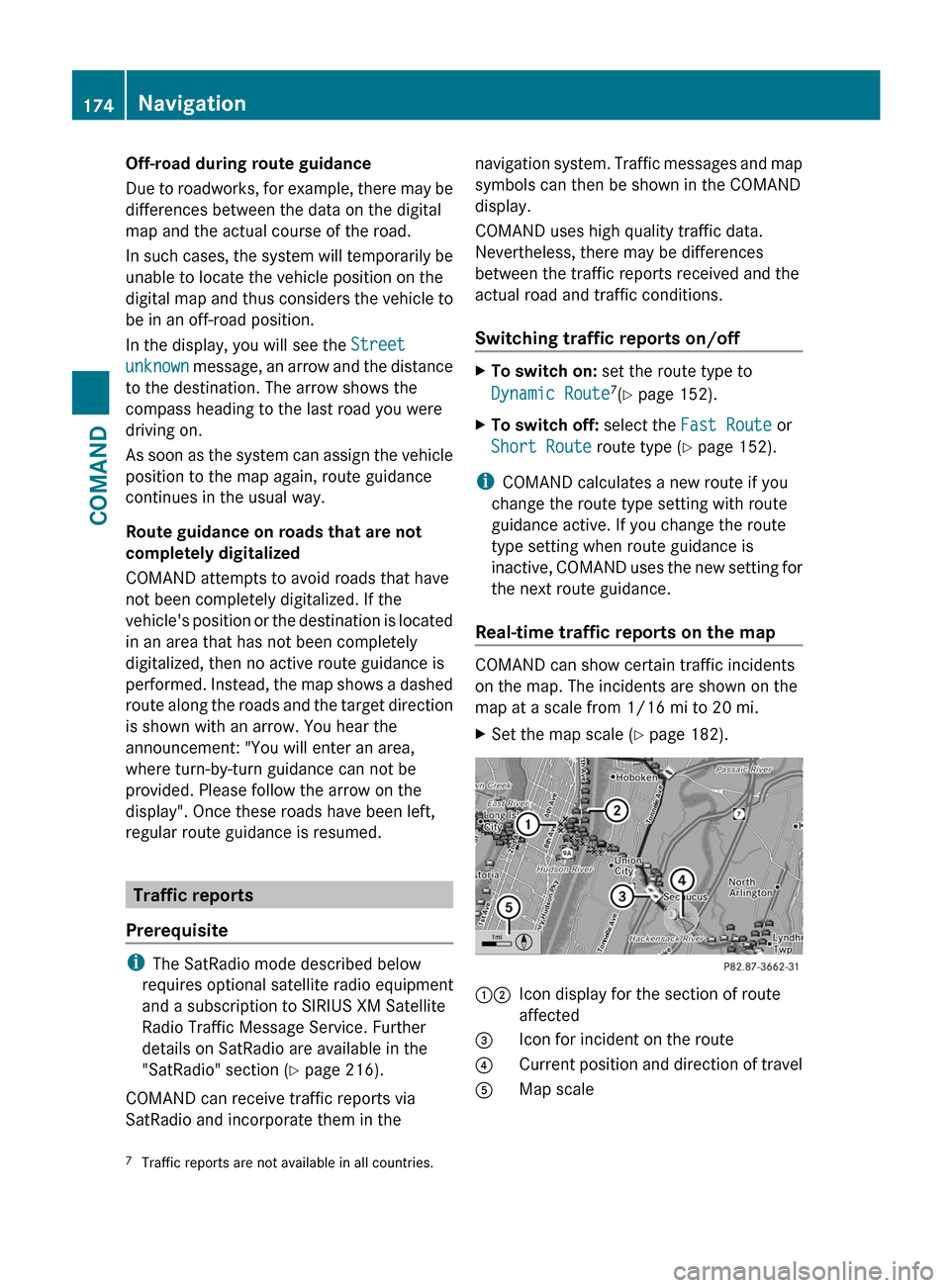
Real-time traffic reports on the map
COMAND can show certain traffic incidents
on the map. The incidents are shown on the
map at a scale from 1/16 mi to 20 mi.
XSet the map scale ( Y page 182).12Icon display for the section of route
affected3Icon for incident on the route4Current position and direction of travel5Map scale7 Traffic reports are not available in all countries.174NavigationCOMAND
Page 180 of 536
6Report textCFirst exit/intersection after the affected
route section endsXTo scroll within a report or to access
the next report: turn cVd the COMAND
controller.XTo return to the list of messages: press
W or slide XVY the COMAND controller.
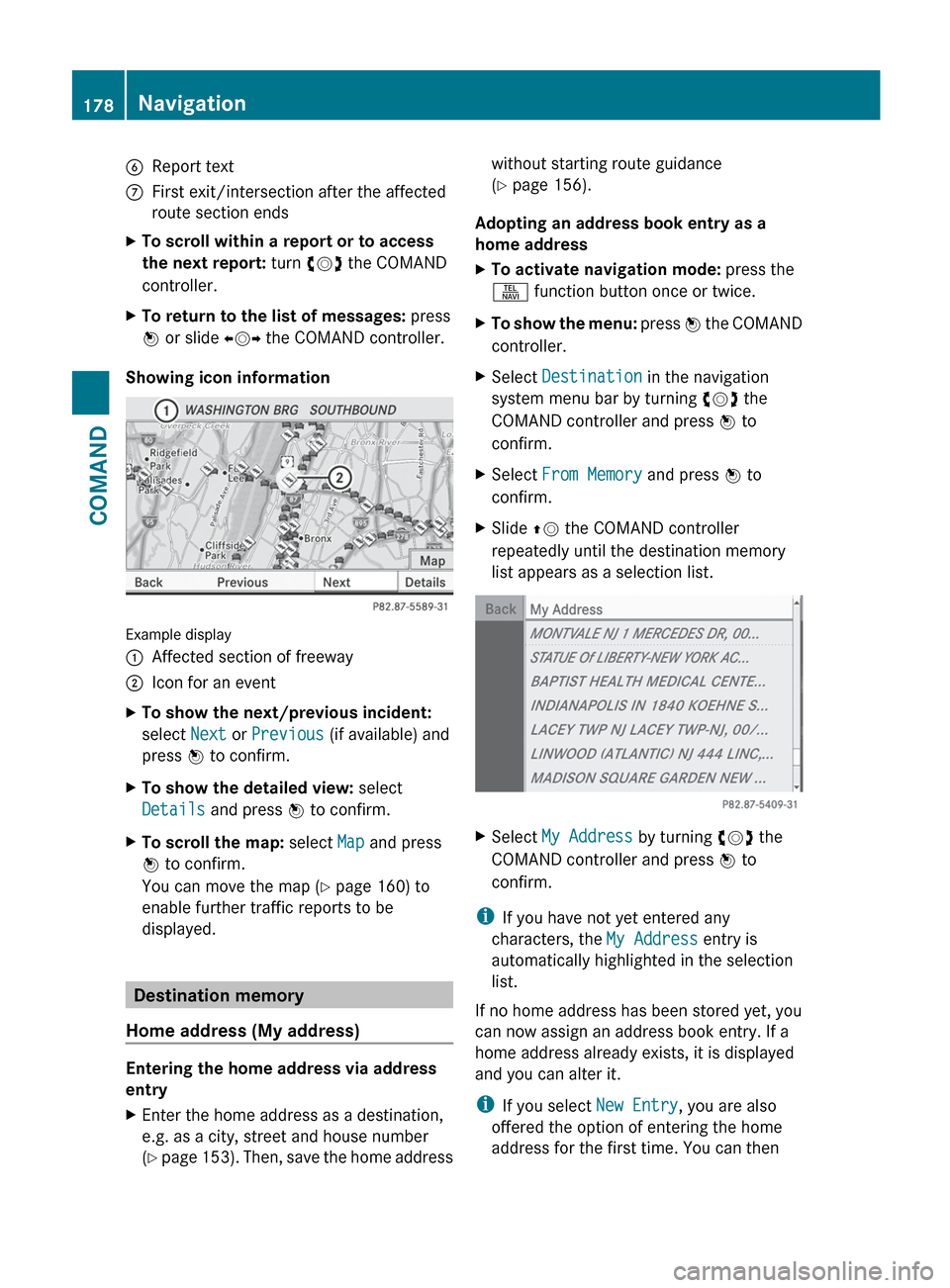
Showing icon information
Example display
:Affected section of freeway;Icon for an eventXTo show the next/previous incident:
select Next or Previous (if available) and
press W to confirm.XTo show the detailed view: select
Details and press W to confirm.XTo scroll the map: select Map and press
W to confirm.
You can move the map ( Y page 160) to
enable further traffic reports to be
displayed.
Destination memory
Home address (My address)
Entering the home address via address
entry
XEnter the home address as a destination,
e.g. as a city, street and house number
( Y page 153). Then, save the home addresswithout starting route guidance
( Y page 156).
Adopting an address book entry as a
home address
XTo activate navigation mode: press the
S function button once or twice.XTo show the menu: press W the COMAND
controller.XSelect Destination in the navigation
system menu bar by turning cVd the
COMAND controller and press W to
confirm.XSelect From Memory and press W to
confirm.XSlide ZV the COMAND controller
repeatedly until the destination memory
list appears as a selection list.XSelect My Address by turning cVd the
COMAND controller and press W to
confirm.
i If you have not yet entered any
characters, the My Address entry is
automatically highlighted in the selection
list.
If no home address has been stored yet, you
can now assign an address book entry. If a
home address already exists, it is displayed
and you can alter it.
i If you select New Entry, you are also
offered the option of entering the home
address for the first time. You can then
178NavigationCOMAND
Page 185 of 536
Moving the map
Showing the crosshair
XTo hide the menu: slide ZV the COMAND
controller and, when the Full screen
menu item is shown, press W.XTo move the map: slide XVY, ZV Æ or
aVb the COMAND controller.
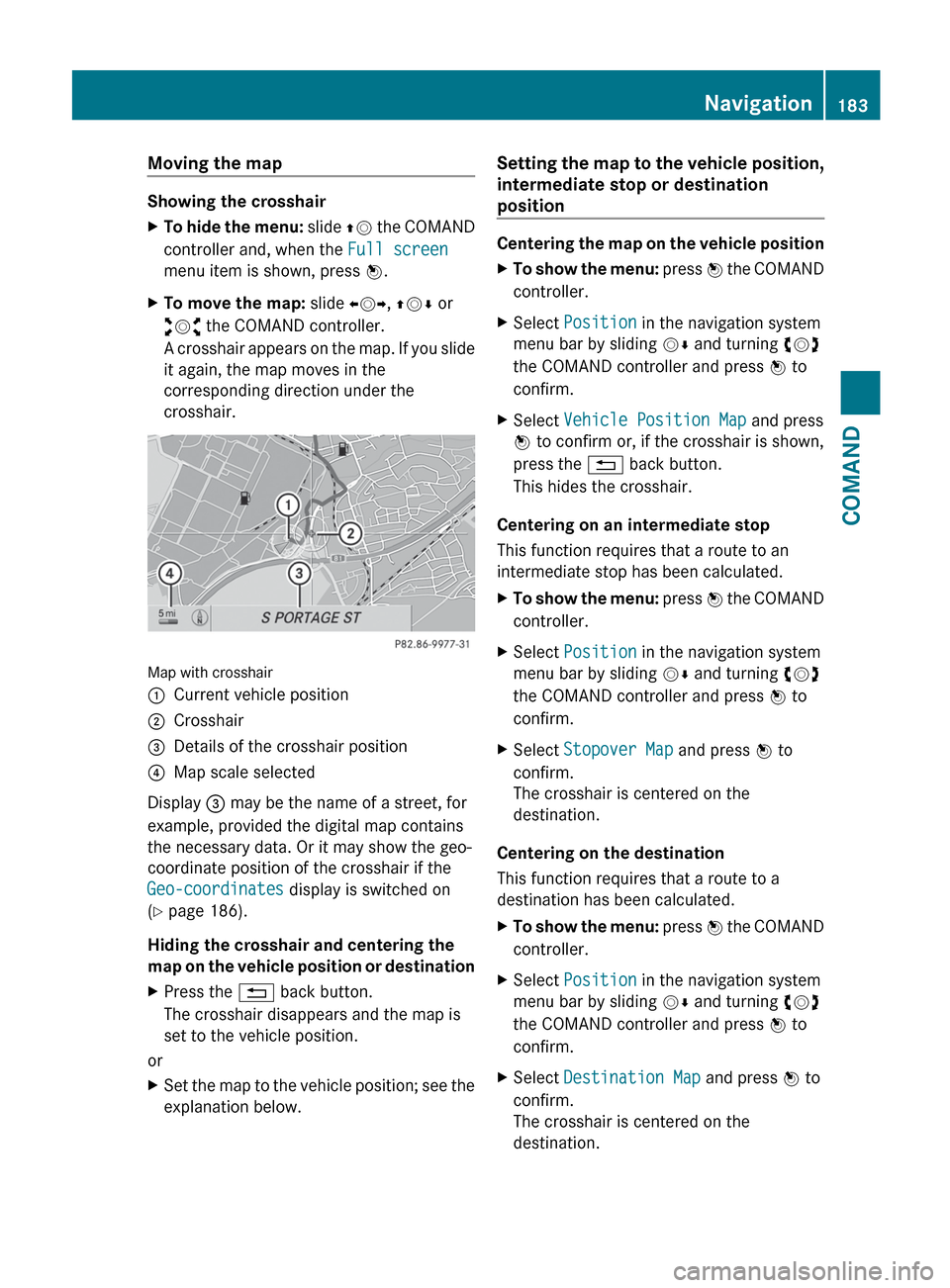
A crosshair appears on the map. If you slide
it again, the map moves in the
corresponding direction under the
crosshair.
Map with crosshair
:Current vehicle position;Crosshair=Details of the crosshair position?Map scale selected
Display = may be the name of a street, for
example, provided the digital map contains
the necessary data. Or it may show the geo-
coordinate position of the crosshair if the
Geo-coordinates display is switched on
( Y page 186).
Hiding the crosshair and centering the
map on the vehicle position or destination
XPress the % back button.
The crosshair disappears and the map is
set to the vehicle position.
or
XSet the map to the vehicle position; see the
explanation below.Setting the map to the vehicle position,
intermediate stop or destination
position
Centering the map on the vehicle position
XTo show the menu: press W the COMAND
controller.XSelect Position in the navigation system
menu bar by sliding VÆ and turning cVd
the COMAND controller and press W to
confirm.XSelect Vehicle Position Map and press
W to confirm or, if the crosshair is shown,
press the % back button.
This hides the crosshair.
Centering on an intermediate stop
This function requires that a route to an
intermediate stop has been calculated.
XTo show the menu: press W the COMAND
controller.XSelect Position in the navigation system
menu bar by sliding VÆ and turning cVd
the COMAND controller and press W to
confirm.XSelect Stopover Map and press W to
confirm.
The crosshair is centered on the
destination.
Centering on the destination
This function requires that a route to a
destination has been calculated.
XTo show the menu: press W the COMAND
controller.XSelect Position in the navigation system
menu bar by sliding VÆ and turning cVd
the COMAND controller and press W to
confirm.XSelect Destination Map and press W to
confirm.
The crosshair is centered on the
destination.Navigation183COMANDZ