display message MERCEDES-BENZ S-Class 2012 W221 Repair Manual
[x] Cancel search | Manufacturer: MERCEDES-BENZ, Model Year: 2012, Model line: S-Class, Model: MERCEDES-BENZ S-Class 2012 W221Pages: 536, PDF Size: 25.27 MB
Page 232 of 536
If you insert thicker discs, e.g. those that
contain data on both sides (DVD on one
side and audio data on the other), they
cannot be ejected and can damage the
drive.
Do not use discs with a diameter of 8 cm,
even with an adapter. Only use round discs
with a diameter of 12 cm.
i COMAND is able to play back audio CDs
in multichannel audio format.
MUSIC REGISTER
General notes
You can store music files in MP3 or WMA
format in the MUSIC REGISTER. The memory
has a capacity of approximately 7 GB.
! Retain the original music files in a secure
location. An error in COMAND might result
in the loss of the music files stored in the
MUSIC REGISTER. Mercedes-Benz is not
liable for any loss of data.
Switching to MUSIC REGISTER
XSelect Audio in the main function bar by
sliding ZV and turning cVd the COMAND
controller and press W to confirm.
If MUSIC REGISTER was the last mode
selected, it is now switched on.
If another audio source is switched on, you
can now switch on the MUSIC REGISTER in
the audio menu.XSelect Music Register and press W to
confirm.
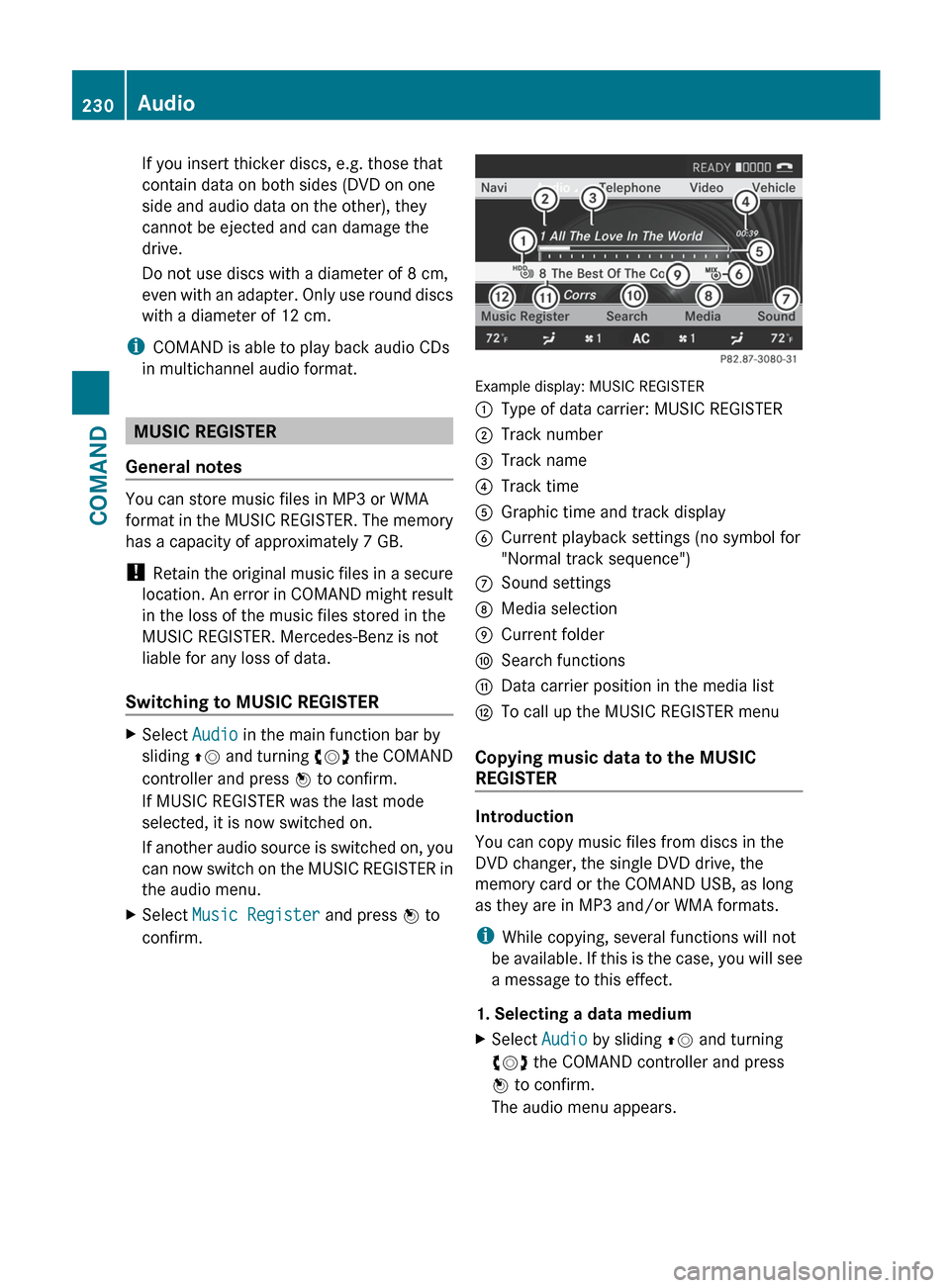
Example display: MUSIC REGISTER
:Type of data carrier: MUSIC REGISTER;Track number=Track name?Track timeAGraphic time and track displayBCurrent playback settings (no symbol for
"Normal track sequence")CSound settingsDMedia selectionECurrent folderFSearch functionsGData carrier position in the media listHTo call up the MUSIC REGISTER menu
Copying music data to the MUSIC
REGISTER
Introduction
You can copy music files from discs in the
DVD changer, the single DVD drive, the
memory card or the COMAND USB, as long
as they are in MP3 and/or WMA formats.
i While copying, several functions will not
be available. If this is the case, you will see
a message to this effect.
1. Selecting a data medium
XSelect Audio by sliding ZV and turning
cVd the COMAND controller and press
W to confirm.
The audio menu appears.230AudioCOMAND
Page 234 of 536
amount of data. The time required may vary
depending on the data source. If there is
not enough memory space, you will see a
message to this effect.XTo cancel copying: select Cancel .
Music files are stored in the MUSIC
REGISTER up until the point of cancellation.
Deleting all music files
This function deletes all music files from the
MUSIC REGISTER.
! The deletion procedure may take several
minutes. In order to prevent malfunctions,
do not use COMAND during this period.
XSelect Music Register by sliding VÆ and
turning cVd the COMAND controller and
press W to confirm.XSelect Delete All Music Files and
press W to confirm.
A query appears. No is highlighted.
If you select Yes, all music files are deleted.
You see the Please wait... message.
Then, you see the Deletion successful
message.
If you select No, the process will be aborted.
Calling up memory space info
XSelect Music Register by sliding VÆ and
turning cVd the COMAND controller and
press W to confirm.XSelect Memory Information and press
W to confirm.
The following is displayed:
R storage capacity
R available memory
R occupied memory
R content (folders, tracks)Folder functions
Introduction
You can view the content of the MUSIC
REGISTER, change folder or track names and
delete individual folders or tracks.
Calling up a folder
XSelect Search by sliding VÆ and turning
cVd the COMAND controller and press
W to confirm.XSelect Folder and press W to confirm.
You see the contents of the current folder.XTo switch to the superordinate folder:
select the U icon and press W to
confirm.
The display changes to the next folder up.
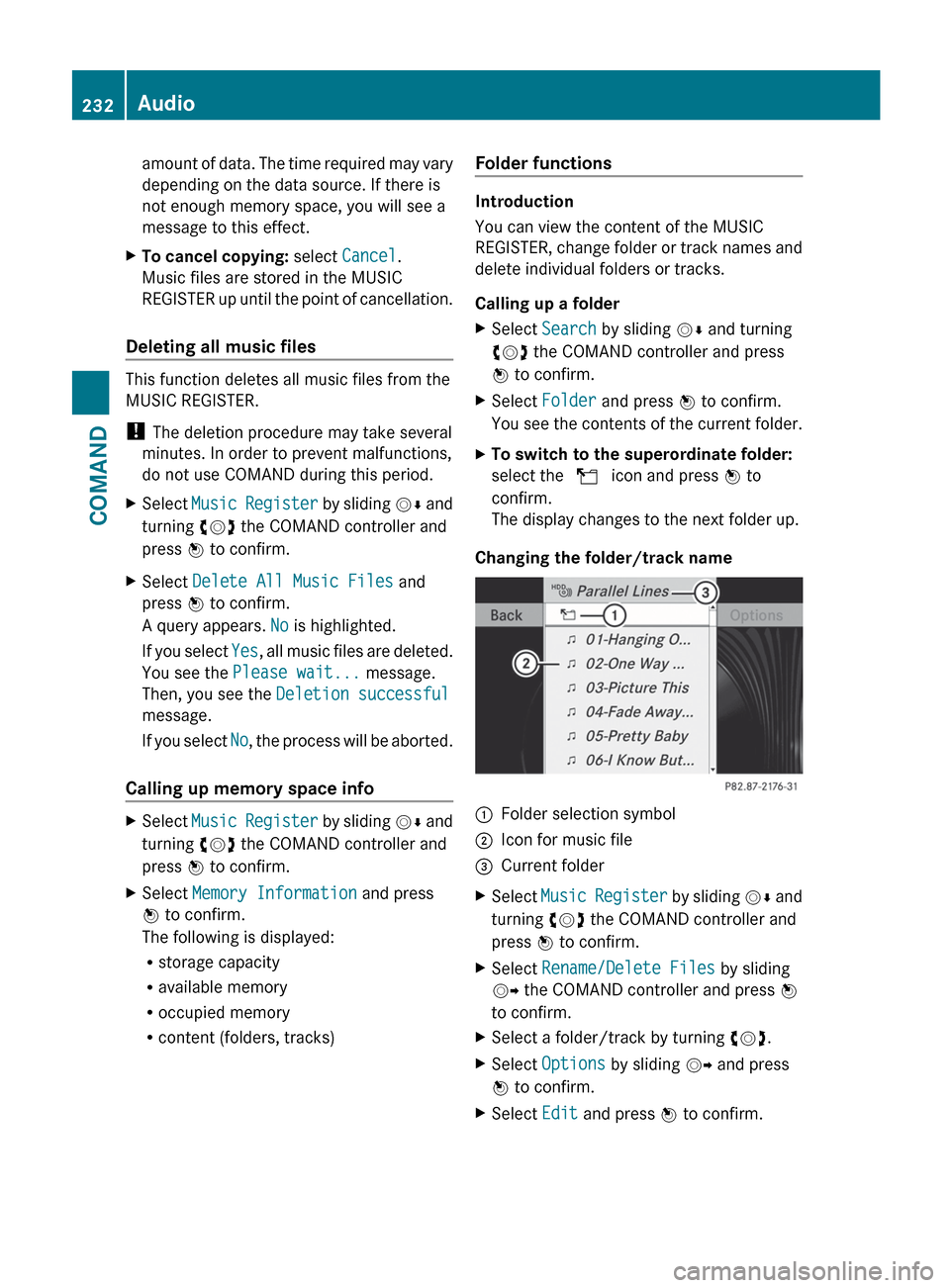
Changing the folder/track name
:Folder selection symbol;Icon for music file=Current folderXSelect Music Register by sliding VÆ and
turning cVd the COMAND controller and
press W to confirm.XSelect Rename/Delete Files by sliding
VY the COMAND controller and press W
to confirm.XSelect a folder/track by turning cVd.XSelect Options by sliding VY and press
W to confirm.XSelect Edit and press W to confirm.232AudioCOMAND
Page 235 of 536
XEnter a name for the folder/track.XTo save the changes: select ¬ and
press W to confirm.
Deleting folders/tracks
XSelect Rename/Delete Files by sliding
V Æ and turning cVd the COMAND
controller and press W to confirm.XSelect the folder/track by turning cVd.XSelect Options by sliding VY and press
W to confirm.XSelect Delete and press W to confirm.
A query appears. No is highlighted.
If you select Yes, the folders/tracks are
deleted. You see the Please wait...
message. Then, you see the Deletion
Successful message.
If you select No, the process will be aborted.
Playback options
The following options are available:
R Normal Track Sequence
The tracks are played in the normal order
(e.g. track 1, 2, 3, etc.).
R Medium Mix
All the tracks on the medium are played in
random order.
R Track List Mix (MP3 mode only)
All the tracks that are listed in the current
track list are played in random order.
XTo select options: switch on the MUSIC
REGISTER ( Y page 230).XSelect Music Register by sliding VÆ and
turning cVd the COMAND controller and
press W to confirm.
The options list appears. The # dot
indicates the option selected.XSelect an option and press W to confirm.
The option is switched on. All options
except Normal Track Sequence will be
indicated by a corresponding icon in the
display/selection window.i The Normal Track Sequence option is
automatically selected when you change
the disc you are currently listening to or
when you select a different medium. If an
option is selected, it remains selected after
COMAND is switched on or off.
Media Interface mode
Connection options
Overview
You will find the connection sockets in the
glove box.
Device-specific adapter cables are required
to connect external devices to the Media
Interface. These cables are included in the
Media Interface scope of delivery.
i Store individual parts in a safe place.
Only use genuine Mercedes-Benz
connection cables.
You can connect the following data carriers
to COMAND via the Media Interface:
R iPod ®
R USB devices (USB sticks, USB hard drives,
MP3 players)
i iPod ®
is a registered trademark of Apple
Inc., Cupertino, California, USA.
Supported iPod ®
variants
The following are examples of supported
iPod ®
variants:
R iPod ®
nano
R iPod ®
classic
R iPod ®
touch
R iPhone ®
Supported USB devices
The following USB devices are supported:
R USB sticks (flash memory)
R USB hard drives requiring a startup/
permanent current of a maximum of
Audio233COMANDZ
Page 237 of 536
Switching to Media Interface mode
General notes
In extreme cases, starting up individual
functions can take up to several minutes –
this depends on the external device and its
content (e.g. video podcasts).
Only use the original software to save files on
iPods or MP3 players. Otherwise, some or all
functions may not be available.
Option 1
XConnect an external device ( Y page 234).
COMAND activates the device. Following
this, the basic display appears if there are
any playable files on the data carrier.
or
XSelect Audio in the main function bar by
sliding ZV and turning cVd the COMAND
controller and press W to confirm.
If you had previously selected Media
Interface mode, this will now be activated.
If another audio source is switched on, you
can now switch to Media Interface mode in
the audio menu.XSelect Audio by sliding ZV and turning
cVd the COMAND controller and press
W to confirm.
The audio menu appears.XSelect Media Interface and press W to
confirm.
Option 2
XSelect Audio by sliding ZV and turning
cVd the COMAND controller and press
W to confirm.
The audio menu appears.XSelect Media Interface and press W to
confirm.
Option 3
XIn the media list, ( Y page 224) turn cVd
the COMAND controller to select the entryunder the corresponding position and
press W to confirm.
COMAND activates the connected device.
You will see a message to this effect. The
basic display then appears.
If no device is connected, you will see the
Media Interface entry instead of a
device name.
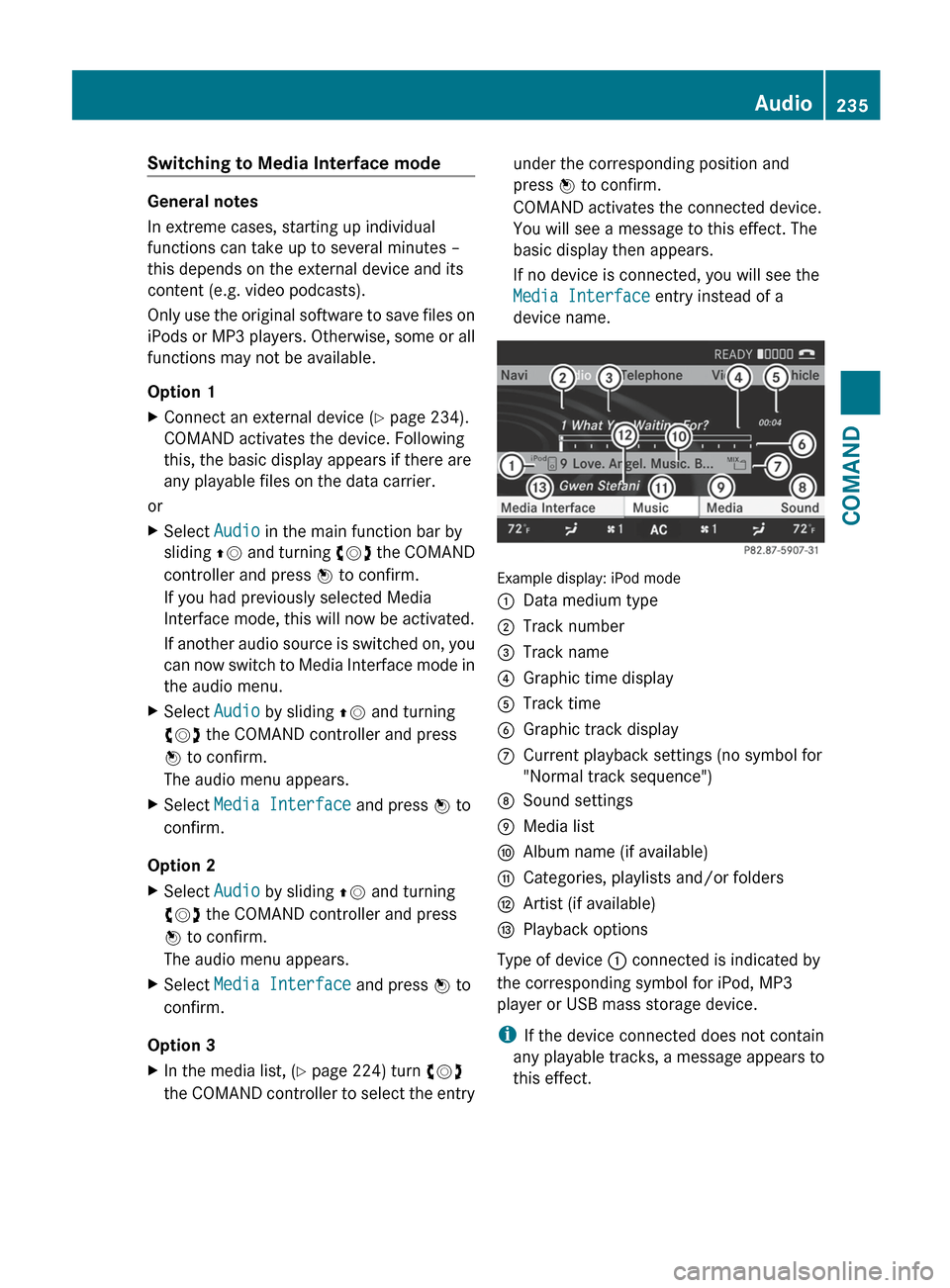
Example display: iPod mode
:Data medium type;Track number=Track name?Graphic time displayATrack timeBGraphic track displayCCurrent playback settings (no symbol for
"Normal track sequence")DSound settingsEMedia listFAlbum name (if available)GCategories, playlists and/or foldersHArtist (if available)IPlayback options
Type of device : connected is indicated by
the corresponding symbol for iPod, MP3
player or USB mass storage device.
i If the device connected does not contain
any playable tracks, a message appears to
this effect.
Audio235COMANDZ
Page 239 of 536
For USB mass storage devices, you can
choose to display the metadata contained in
the tags of the encoded music data, or to
display the file and directory names during
playback.XTo display the album and artist name:
select Media Interface in the basic
display by sliding VÆ and turning cVd the
COMAND controller and press W to
confirm.XSelect Display Metadata and press W to
confirm.
Selecting a category and opening a folder
XPress W the COMAND controller when the
display/selection window is active.XSelect Folder by sliding VÆ and turning
cVd the COMAND controller and press
W to confirm.
You will see the available categories or the
folder content (e.g. other folders). The
display's status bar shows the selected
category or the folder name.
i The Music menu item is not available until
the device has been activated.
XSelect the category/folder by turning
cVd the COMAND controller and press
W to confirm.
You will see the content of the selected
category or selected folder.
i If the data needs to be read from the
connected device, the Please wait...
message appears.
XIf necessary, repeat this step until the
tracks in the desired folder/album appear.XSelect the track by turning cVd the
COMAND controller and press W to
confirm.
The track is played.XTo select one folder higher: select the
U icon and confirm with W.
i
The U icon is always shown at the top
of the respective folder.
Playing back the contents of a category
or folderXSelect the category or folder by turning
cVd the COMAND controller.XPress W the COMAND controller for longer
than two seconds.
The content of the category or folder
selected is played in accordance with the
playback option ( Y page 238) selected.
Alphabetical track selection
iPod ®
and MP3 players
This function is available for alphabetically
sorted categories and folders. This function
is not available for albums or playlists, for
example.
XSelect a category, e.g. Artists, by turning
cVd the COMAND controller and press
W to confirm.
The available artists are displayed.XPress the corresponding number key once
or several times to select the first letter of
the artist's name (e.g. for an artist
beginning with the letter "C", press number
key l three times).
The available letters are listed at the lower
edge of the display.
After a message, the first entry in the list
which matches the letter entered is
highlighted.
i If no corresponding entry exists, the last
entry corresponding to a previous letter is
highlighted instead.
i For iPods ®
and MP3 players, the quality
of the search results is highly dependent on
the version and language variant of the
software (e.g. iTunes ®
version) used to
populate the device.
USB mass storage device
This function is available for alphabetically
sorted directories. This function is not
available for albums or playlists, for example.
Audio237COMANDZ
Page 240 of 536
XIn a directory, press the corresponding
number key once or several times to select
the first letter of the artist's name (e.g. for
an artist beginning with the letter "C", press
number key l three times).
The available letters are listed at the lower
edge of the display.
If the directory only contains folders,
COMAND searches for folders. After a
message, the first entry which matches the
letter entered is shown at the top of the list.
If no entry matches the entered letter, the
first item in the list is the last entry to
correspond to a selection.
Selecting an active partition (USB mass
storage devices only)
You can select this function for USB mass
storage devices when the storage device is
partitioned. Up to four partitions (primary or
logical; FAT format) are supported.
i The Windows formatting program
supports FAT partitioning up to 32 GB as
standard.
XSelect Media Interface in the basic
display by sliding VÆ and turning cVd the
COMAND controller and press W to
confirm.XSelect Select Active Partition and
press W to confirm.
Playback options
The following options are available:
R Normal Track Sequence
Normal track sequence: you hear the
tracks in their normal order (e.g. numerical
or alphabetical).
R Random Tracks
All the tracks on the medium are played in
random order.
R Category Mix or Random Folder (for USB
devices if Folder has been selected)
The tracks in the currently active category
or folder, including any subfolders, are
played in random order.
i For USB devices, the random playlists
offer a maximum of 300 tracks chosen at
random.XTo select a playback option: select
Media Interface in the basic display by
sliding VÆ and turning cVd the COMAND
controller and press W to confirm.
The options list appears. The # dot
indicates the option selected.XSelect an option and press W to confirm.
Separate USB connection
In addition to the USB connection on the
Media Interface, there is another USB
connection in the glove box. This connection
can also be used to play audio files.
Electrical consumption at this connection
must not exceed a continuous current of
500 mA. If the electrical consumption is
higher, use a separate source to provide
power for the USB device (e.g.
12 V power supply).
XTo select music from the USB port as
the audio source: select Audio by sliding
ZV and turning cVd the COMAND
controller and press W to confirm.
The audio menu appears.XSelect USB and press W to confirm.
Notes on USB devices
Data formats
The following data formats are supported:
R MP3: CBR, VBR (up to 320 kbit/s)
R WMA: CBR, VBR (up to 320 kbit/s)
238AudioCOMAND
Page 243 of 536
! Do not affix stickers or labels to the discs,
as they could peel off and damage
COMAND. Stickers can cause the disc to
bend, which can result in read errors and
disc recognition problems.
! COMAND is designed to accommodate
discs which comply with the EN 60908
standard. You can therefore only use discs
with a maximum thickness of 1.3 mm.
If you insert thicker discs, e.g. those that
contain data on both sides (DVD on one
side and audio data on the other), they
cannot be ejected and can damage
COMAND.
Use round discs with a diameter of 12 cm.
Do not use discs with a diameter of 8 cm,
even with an adapter.
DVD playback conditions
If video DVDs do not conform to the NTSC or
PAL TV standards, they may create picture,
sound or other problems during playback.
COMAND can play back video DVDs
produced according to the following
standards:
R region code 1 or region code 0 (no region
code)
i If you insert a video DVD with a different
region code, you will see a message to this
effect.
R PAL or NTSC standard
You will generally find the relevant details
either on the DVD itself or on the DVD case.
i COMAND is set to region code 1 at the
factory. This setting can be changed at an
authorized Mercedes-Benz Center. This will
allow you to play video DVDs with a
different region code, provided that they
are produced in accordance with the PAL
or NTSC standard. The region code can be
changed up to five times.
Function restrictions
Depending on the DVD, it is possible that
certain functions or actions will be
temporarily blocked or may not function at all.
As soon as you try to activate these functions
or actions, you will see the K symbol in the
display.
Inserting and removing DVDs
XProceed as described in the "Inserting and
ejecting CDs and DVDs" section
( Y page 220).
Activating video DVD mode
Option 1
XInsert a video DVD.
COMAND loads the medium inserted and
starts to play it.
Option 2
XSelect Video in the main function bar by
sliding ZV and turning cVd the COMAND
controller and press W to confirm.
Video DVD mode is switched on.
Hiding/showing the navigation menu
XTo show: turn cVd or slide ZVÆ the
COMAND controller.
i This function is not available while the
DVD's own menu ( Y page 244) is being
displayed.
XTo hide: slide ZVÆ the COMAND
controller.
or
XWait for approximately eight seconds.Video241COMANDZ
Page 309 of 536
or yellow. Always secure the vehicle against
rolling away before leaving it.
! Always switch the ignition off and take the
key with you when leaving the vehicle.
Automatic engine switch-off
The ECO start/stop function switches the
engine off automatically if the vehicle is
braked to a standstill and the brake remains
depressed with the transmission in position
D or N.
i You can still activate the HOLD function
when the vehicle is stationary, even if the
engine has been switched off
automatically. It is then not necessary to
continue applying the brakes during the
automatic stop phase. When you depress
the accelerator pedal, the engine starts
automatically and the braking effect of the
HOLD function is deactivated. Depress the
accelerator pedal carefully, as the engine
must be started first.
The engine is only switched off if:
R the outside temperature is within the range
which is suitable for the system.
R the engine is at normal operating
temperature.
R the set temperature for the vehicle interior
has been reached.
R the battery is sufficiently charged.
R the system detects that the windshield is
not fogged up when the air-conditioning
system is switched on.
R the hood is closed.
R no engine-relevant diagnostics are active.
R the driver's door is closed and the seat belt
is fastened.
Automatic engine start
The engine is started automatically if you:
R release the brake pedal when HOLD is not
activated and the transmission is in
position D or N
R shift the transmission to position R
R depress the accelerator pedal
R switch off the ECO start/stop function or
switch to drive program S or M
R unfasten your seat belt or open the driver's
door
The engine is also started automatically if:
R the vehicle starts to roll.
R the brake system requires this.
R the system detects moisture on the
windshield when the air-conditioning
system is switched on.
R the temperature in the vehicle interior
deviates from the set range.
R the charge level of the battery is too low.
Deactivating/activating the ECO start/
stop function
General information
You can deactivate and activate the ECO
start/stop function using COMAND
( Y page 261).
i You can also use the programmable
button ( Y page 120) to activate and
deactivate the ECO start/stop function if
you have assigned this function to the
button.
Deactivating
XDeactivate the ECO start/stop function
using COMAND ( Y page 261):
The ¤ ECO symbol goes out and the
Stop/Start deactivated display
message is shown in the multifunction
display.
i If drive program S or M has been selected,
the ECO start/stop function is always
deactivated.
Driving307Driving and parkingZ
Page 310 of 536
ActivatingXActivate the ECO start/stop function using
COMAND ( Y page 261).
The ¤ ECO symbol and the Stop/
Start active display message are shown
in the multifunction display.
If not all conditions for automatic engine
switch-off are fulfilled ( Y page 307), the
Stop/Start inactive message appears.
i
If you activate the ECO start/stop
function in drive program S or M, drive
program C is selected automatically.
308DrivingDriving and parking
Page 321 of 536
Low outside temperatures
! Do not use gasoline to refuel vehicles with
a diesel engine. Never mix diesel with
gasoline or kerosene, as this may result in
damage to the engine or fuel system.
Diesel fuel with improved cold flow properties
is available during the winter months. Further
information on fuel properties can be
obtained from oil companies, e.g. at gas
stations.
Refueling
Fuel filler flap
The fuel filler flap is unlocked or locked
automatically when you open or close the
vehicle with the SmartKey or using KEYLESS-
GO.
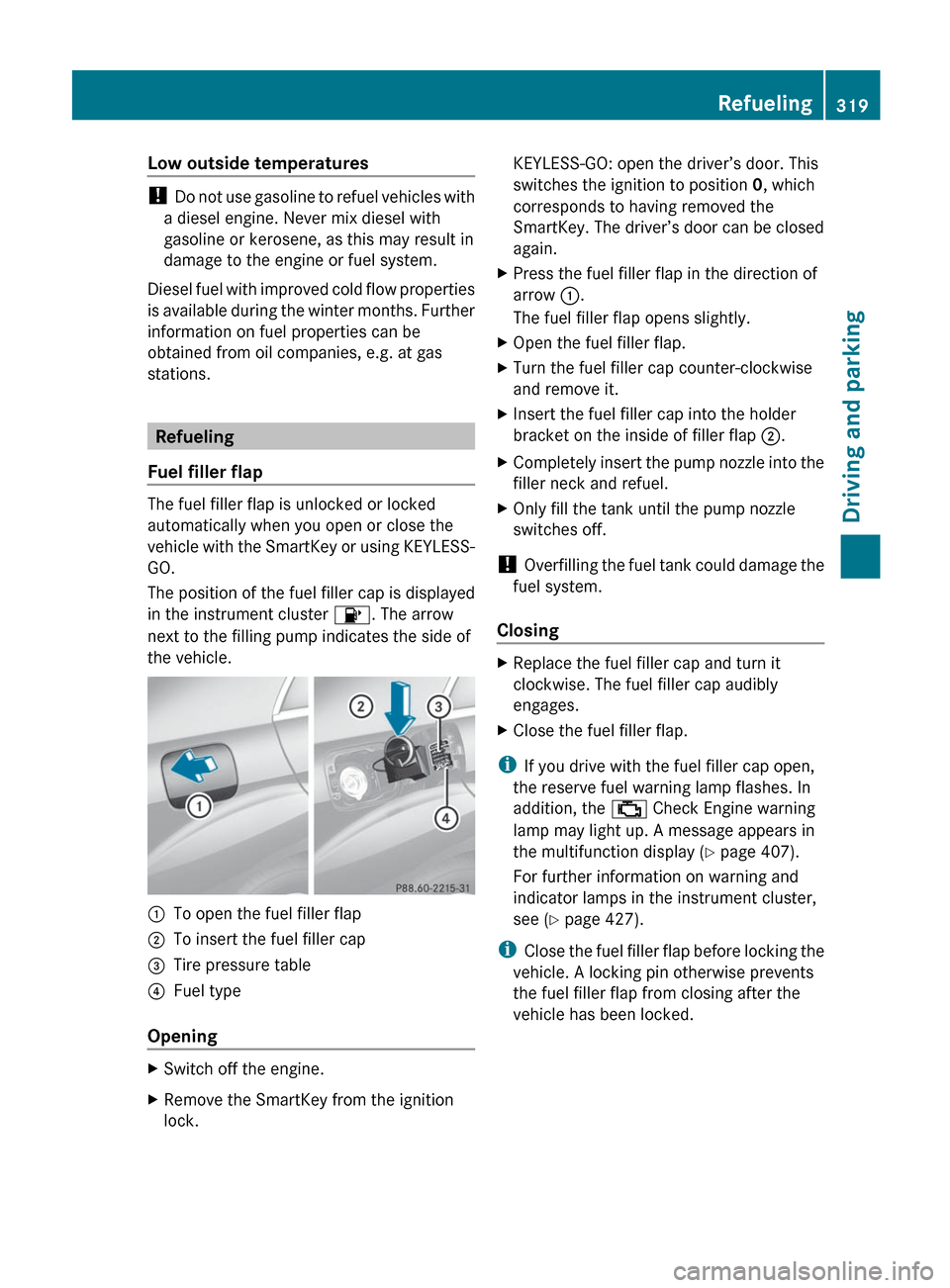
The position of the fuel filler cap is displayed
in the instrument cluster 8. The arrow
next to the filling pump indicates the side of
the vehicle.
:To open the fuel filler flap;To insert the fuel filler cap=Tire pressure table?Fuel type
Opening
XSwitch off the engine.XRemove the SmartKey from the ignition
lock.KEYLESS-GO: open the driver’s door. This
switches the ignition to position 0, which
corresponds to having removed the
SmartKey. The driver’s door can be closed
again.XPress the fuel filler flap in the direction of
arrow :.
The fuel filler flap opens slightly.XOpen the fuel filler flap.XTurn the fuel filler cap counter-clockwise
and remove it.XInsert the fuel filler cap into the holder
bracket on the inside of filler flap ;.XCompletely insert the pump nozzle into the
filler neck and refuel.XOnly fill the tank until the pump nozzle
switches off.
! Overfilling the fuel tank could damage the
fuel system.
Closing
XReplace the fuel filler cap and turn it
clockwise. The fuel filler cap audibly
engages.XClose the fuel filler flap.
i If you drive with the fuel filler cap open,
the reserve fuel warning lamp flashes. In
addition, the ; Check Engine warning
lamp may light up. A message appears in
the multifunction display ( Y page 407).
For further information on warning and
indicator lamps in the instrument cluster,
see ( Y page 427).
i Close the fuel filler flap before locking the
vehicle. A locking pin otherwise prevents
the fuel filler flap from closing after the
vehicle has been locked.
Refueling319Driving and parkingZ