sd card MERCEDES-BENZ S-Class 2012 W221 Owner's Manual
[x] Cancel search | Manufacturer: MERCEDES-BENZ, Model Year: 2012, Model line: S-Class, Model: MERCEDES-BENZ S-Class 2012 W221Pages: 536, PDF Size: 25.27 MB
Page 8 of 536
BAS (Brake Assist System) ................. 70
Basic settings see Settings
BAS PLUS (Brake Assist System
PLUS) .................................................... 70
Bass, setting ...................................... 135
Battery (SmartKey) Checking .......................................... 82
Important safety notes ....................82
Replacing ......................................... 82
Battery (vehicle)
Charging ........................................ 480
Display message ............................ 406
Important safety notes ..................478
Jump starting ................................. 481
Belt
see Seat belts
Bird's-eye view (navigation) ............. 184
Blind see Roller sunblind
Blind Spot Assist
Activating/deactivating .................385
Notes/function .............................. 360
see Active Blind Spot Assist
BlueTEC (DEF) .................................... 527
Bluetooth ®
Activating/deactivating .................147
Authorizing a device (registering) ..148
Conditions (general) ......................147
Conditions (telephone) ..................195
Connecting another mobile phone . 197
Connecting devices .......................147
De-authorizing (de-registering) a
device ............................................ 149
External authorization (general) .....149
External authorization (telephone) . 197
General information .......................147
Introduction ................................... 193
Receiving vCards ........................... 204
Searching for devices ....................148
Settings ......................................... 147
Telephone basic menu ...................198
Telephony ...................................... 195
Telephony notes ............................ 193
Bluetooth ®
interface
Telephony ...................................... 193Brake Assist System
see BAS (Brake Assist System)
Brake fluid
Display message ............................ 396
Notes ............................................. 528
Brake fluid level ................................ 461
Brake lamps Display message ............................ 402
Brakes
ABS .................................................. 69
BAS .................................................. 70
BAS PLUS ........................................ 70
Brake fluid (notes) .........................528
Display message ............................ 389
Driving tips .................................... 327
High-performance brake system ....329
Important safety notes ..................327
Maintenance .................................. 328
Warning lamp ................................. 422
Breakdown
see Flat tire
see Towing away
Breakdown assistance
see Mercedes-Benz Contact
Brightness, setting (TV, video) ......... 240
Bulbs see Changing bulbs
C
California Important notice for retail
customers and lessees ....................29
Call
Accepting/ending/rejecting .......... 199
see Telephone
Calling up a malfunction
see Display messages
Calling voicemail ............................... 201
Call lists Displaying details ........................... 205
Introduction ................................... 209
Opening and selecting an entry .....209
Saving an entry in the address
book .............................................. 210
Capacities
see Technical data
6Index
Page 17 of 536
Low-beam headlampsDisplay message ............................ 401
Setting for driving abroad
(symmetrical) ................................. 276
Switching on/off ........................... 277
Lubricant additives
see Additives
Lumbar support
Adjusting ....................................... 108
Lumbar support (COMAND) .............. 269
M
M+S tires ............................................ 492
Maintenance see ASSYST PLUS service interval
display
Malfunction message
see Display messages
Malfunctions relevant to safety
Reporting ......................................... 31
Map (navigation)
Adjusting the scale ........................182
Arrival time/distance to the
destination ..................................... 185
City model ..................................... 186
Display ........................................... 184
Geo-coordinate display ..................186
Heading ......................................... 184
Information in the display ..............185
Map settings .................................. 182
Moving ........................................... 183
North orientation ........................... 184
Notes ............................................. 182
Point of interest symbols ...............184
Road display .................................. 185
Saving the crosshair position .........183
Setting to the vehicle destination ..183
Topographical map ........................186
Map display (also see navigation)
Traffic reports ................................ 174
Massage function (PULSE) ............... 272
Matte finish (cleaning
instructions) ...................................... 465
mbrace Automatic retrieval of vehicle data
(service due date) ..........................449
Call priority .................................... 447
Display message ............................ 396
Downloading destinations
(COMAND) ..................................... 447
Emergency call .............................. 444
Important safety notes ..................443
Locating a stolen vehicle ...............450
MB info call button ........................446
Remote vehicle locking ..................449
Roadside Assistance button ..........445
Search & Send ............................... 448
Self-test ......................................... 444
System .......................................... 443
Vehicle remote unlocking ..............449
Mechanical key
Function/notes ................................ 81
Unlocking the driver's door ..............87
Media Interface
Active partition .............................. 238
Alphabetical track selection ..........237
Connecting an external audio
source ............................................ 234
Connection options .......................233
iPod ®
............................................. 233
Mode ............................................. 233
Notes on USB devices ...................238
Playback options ........................... 238
Selecting categories ......................236
Selecting folders ............................ 236
Selecting music files ......................236
Selecting playlists ..........................236
Switching to ................................... 234
USB mass storage device ..............233
Media list
Audio mode (CD, DVD, MP3) .........224
Video DVD ..................................... 242
Memory card (audio) ......................... 379
Memory function ............................... 113
Menu item Selecting ........................................ 126
Message memory (on-board
computer) .......................................... 388
Messages see Display messages
Microphone, switching on/off ......... 201Index15
Page 22 of 536
Roof load (maximum) ........................ 530
Route see Route guidance (navigation)
Route (navigation)
Displaying the distance to the
destination ..................................... 172
Route overview .............................. 172
Selecting an alternative route ........171
Setting route options (avoiding:
highways, toll roads, tunnels,
ferries) ........................................... 152
Setting the route type (short
route, fast route, dynamic route or
economic route) ............................ 152
Starting calculation ........................156
Route guidance
Canceling ....................................... 169
Continuing ..................................... 169
Destination reached ......................170
Lane recommendations .................167
Off-road ......................................... 173
Traffic reports ................................ 174
Route guidance (navigation) ............ 377
Route guidance (on-board
computer) .......................................... 377
Route information see Dynamic route guidance/TMC
S
Safety Children in the vehicle .....................62
Child restraint systems ....................62
Occupant Classification System
(OCS) ............................................... 50
Overview of occupant safety
systems ........................................... 44
Safety notes
Audio CD/DVD and MP3 mode .....220
Operating safety ............................ 116
Video DVD mode ........................... 240
Safety systems
see Driving safety systems
SatRadio ............................................. 216
Displaying information ...................220
Registering .................................... 217
Selecting a category ......................218
Screen
Selecting for remote control (Rear
Seat Entertainment System) ..........140
Switching on/off (Rear Seat
Entertainment System) ..................126
see Display
SD memory card
Loading .......................................... 221
Seat belts
Adjusting the driver's and front-
passenger seat belt .........................60
Adjusting the height ......................... 60
Automatic comfort-fit feature ..........62
Belt force limiters ............................ 61
Cleaning ......................................... 469
Correct usage .................................. 58
Emergency Tensioning Devices ........ 61
Fastening ......................................... 59
Important safety guidelines .............57
Releasing ......................................... 60
Safety guidelines ............................. 45
Special seat belt retractor ...............64
Switching belt adjustment on/off
(on-board computer) ......................386
Warning lamp ................................. 420
Warning lamp (function) ................... 61
Seats
Active multicontour seat ........ 108, 272
Adjusting (electrically) ...................104
Adjusting (rear compartment) ........104
Adjusting lumbar support ..............108
Adjusting the head restraint ..........106
Cleaning the cover .........................469
Correct driver's seat position ........102
Important safety notes ..................103
Multicontour seat .......................... 108
Seat heating problem ....................109
Seat ventilation problem ................109
Selecting (COMAND) .....................270
Storing settings (memory
function) ........................................ 113
Switching seat heating on/off .......108
Switching seat ventilation on/off ..109
Selecting stations (radio)
Using station presets .....................212
Using station search ......................212
Sending DTMF tones ......................... 203
Sensors (cleaning instructions) ....... 46720Index
Page 40 of 536
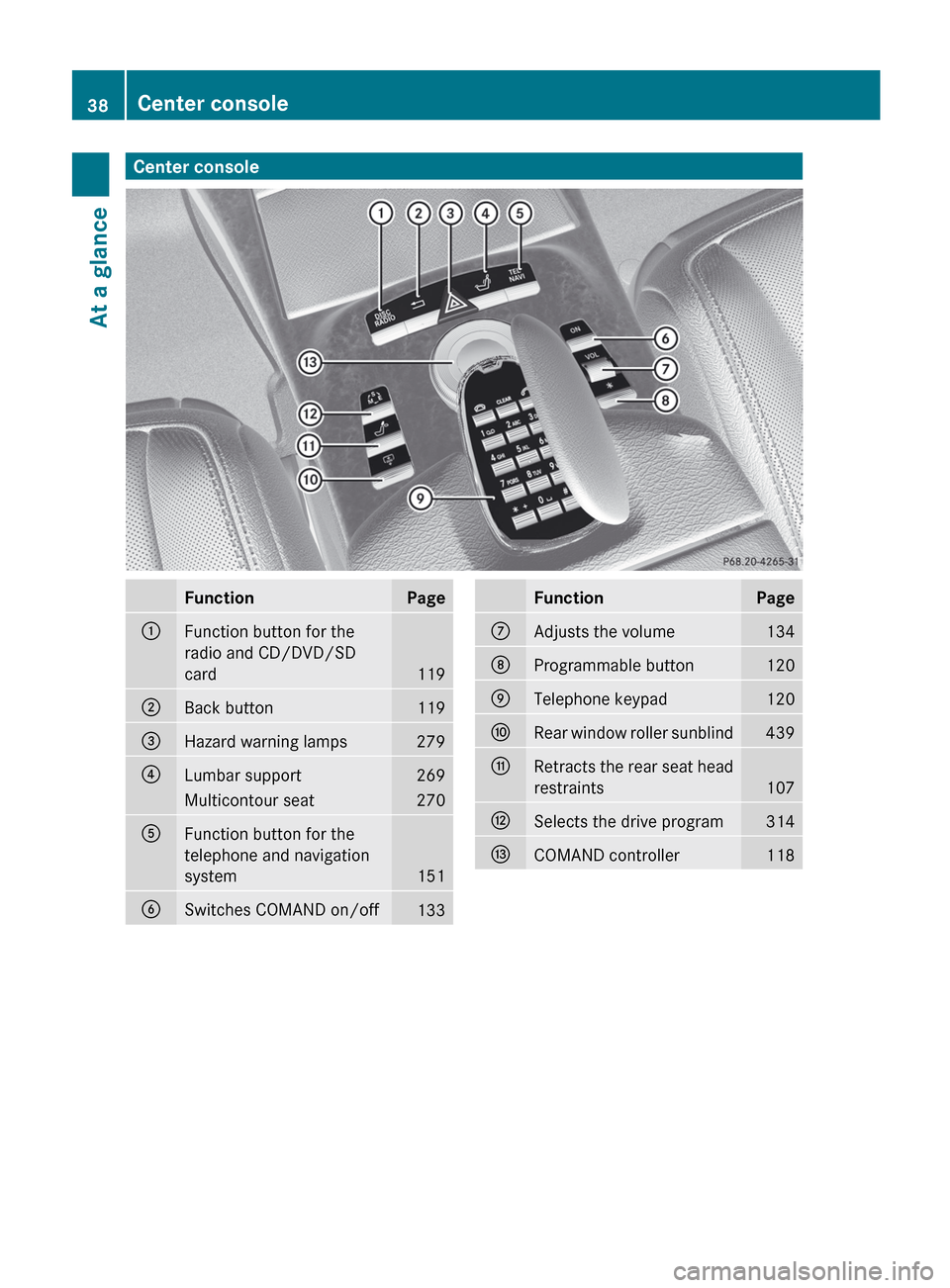
Center consoleFunctionPage:Function button for the
radio and CD/DVD/SD
card
119
;Back button119=Hazard warning lamps279?Lumbar support269Multicontour seat270AFunction button for the
telephone and navigation
system
151
BSwitches COMAND on/off133FunctionPageCAdjusts the volume134DProgrammable button120ETelephone keypad120FRear window roller sunblind439GRetracts the rear seat head
restraints
107
HSelects the drive program314ICOMAND controller11838Center consoleAt a glance
Page 120 of 536
At a glance
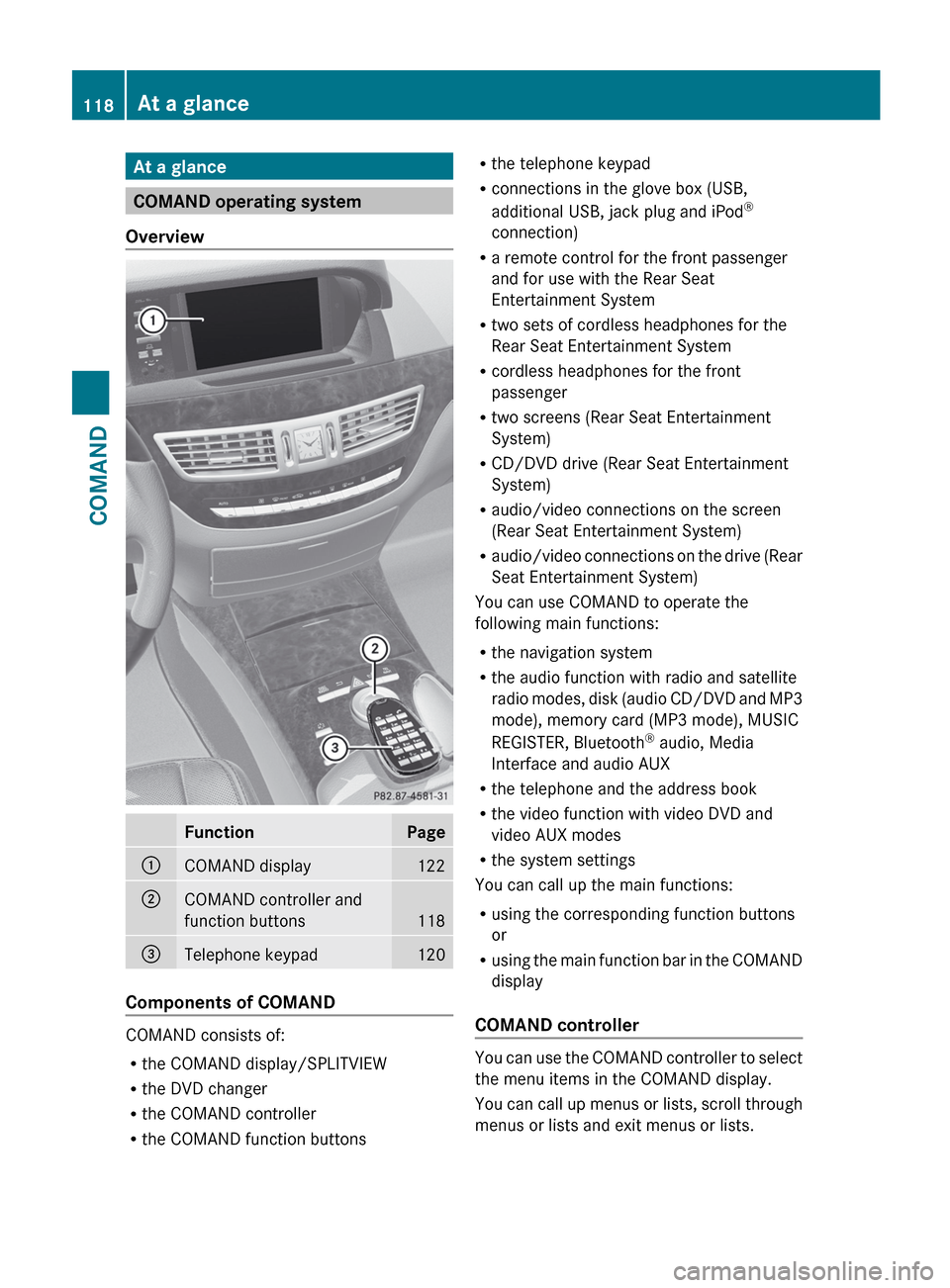
COMAND operating system
Overview
FunctionPage:COMAND display122;COMAND controller and
function buttons
118
=Telephone keypad120
Components of COMAND
COMAND consists of:
R the COMAND display/SPLITVIEW
R the DVD changer
R the COMAND controller
R the COMAND function buttons
R
the telephone keypad
R connections in the glove box (USB,
additional USB, jack plug and iPod ®
connection)
R a remote control for the front passenger
and for use with the Rear Seat
Entertainment System
R two sets of cordless headphones for the
Rear Seat Entertainment System
R cordless headphones for the front
passenger
R two screens (Rear Seat Entertainment
System)
R CD/DVD drive (Rear Seat Entertainment
System)
R audio/video connections on the screen
(Rear Seat Entertainment System)
R audio/video connections on the drive (Rear
Seat Entertainment System)
You can use COMAND to operate the
following main functions:
R the navigation system
R the audio function with radio and satellite
radio modes, disk (audio CD/DVD and MP3
mode), memory card (MP3 mode), MUSIC
REGISTER, Bluetooth ®
audio, Media
Interface and audio AUX
R the telephone and the address book
R the video function with video DVD and
video AUX modes
R the system settings
You can call up the main functions:
R using the corresponding function buttons
or
R using the main function bar in the COMAND
display
COMAND controller
You can use the COMAND controller to select
the menu items in the COMAND display.
You can call up menus or lists, scroll through
menus or lists and exit menus or lists.
118At a glanceCOMAND
Page 121 of 536
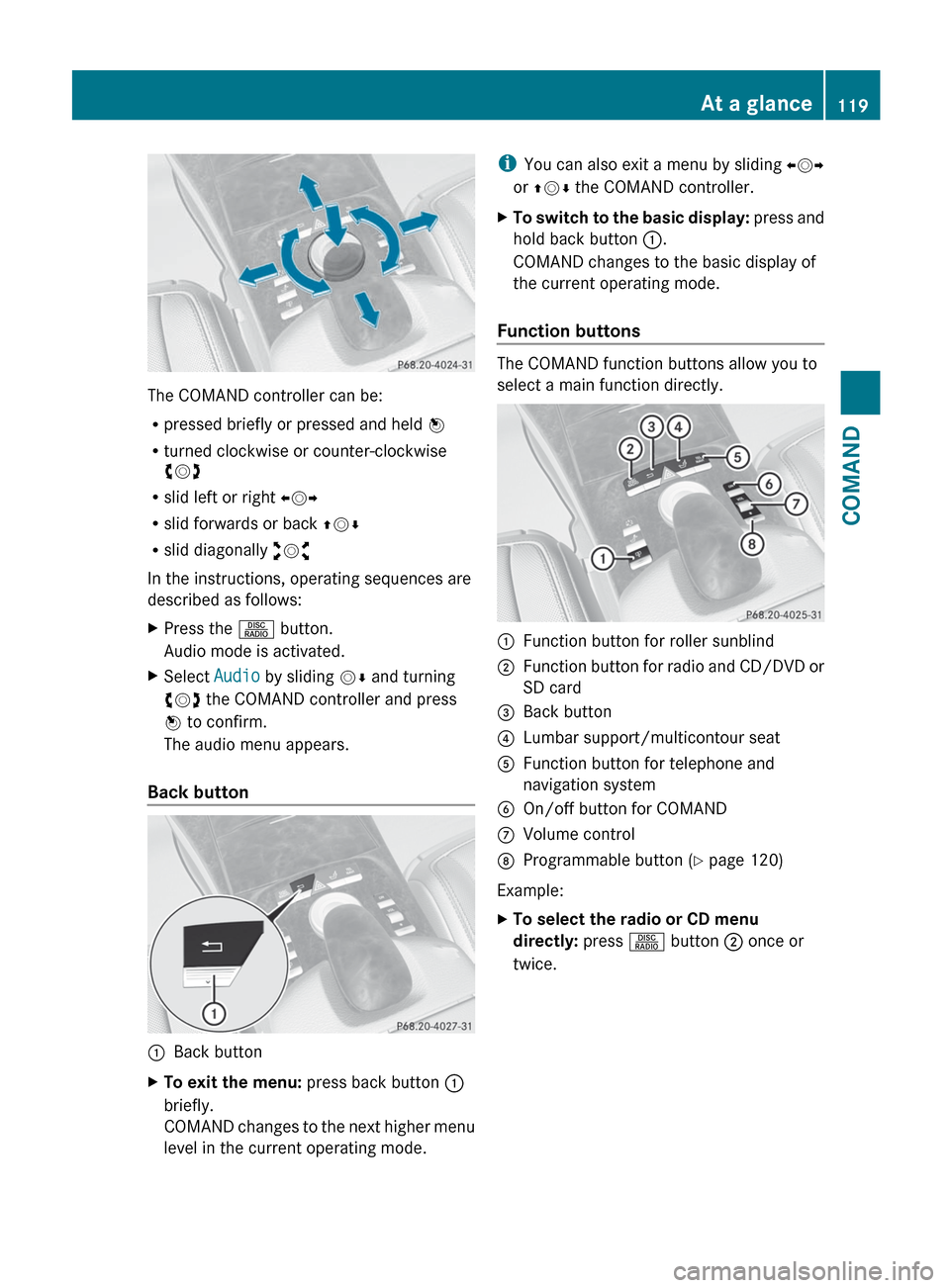
The COMAND controller can be:
R pressed briefly or pressed and held W
R turned clockwise or counter-clockwise
cVd
R slid left or right XVY
R slid forwards or back ZVÆ
R slid diagonally aVb
In the instructions, operating sequences are
described as follows:
XPress the R button.
Audio mode is activated.XSelect Audio by sliding VÆ and turning
cVd the COMAND controller and press
W to confirm.
The audio menu appears.
Back button
:Back buttonXTo exit the menu: press back button :
briefly.
COMAND changes to the next higher menu
level in the current operating mode.i You can also exit a menu by sliding XVY
or ZV Æ the COMAND controller.XTo switch to the basic display: press and
hold back button :.
COMAND changes to the basic display of
the current operating mode.
Function buttons
The COMAND function buttons allow you to
select a main function directly.
:Function button for roller sunblind;Function button for radio and CD/DVD or
SD card=Back button?Lumbar support/multicontour seatAFunction button for telephone and
navigation systemBOn/off button for COMANDCVolume controlDProgrammable button ( Y page 120)
Example:
XTo select the radio or CD menu
directly: press R button ; once or
twice.At a glance119COMANDZ
Page 124 of 536
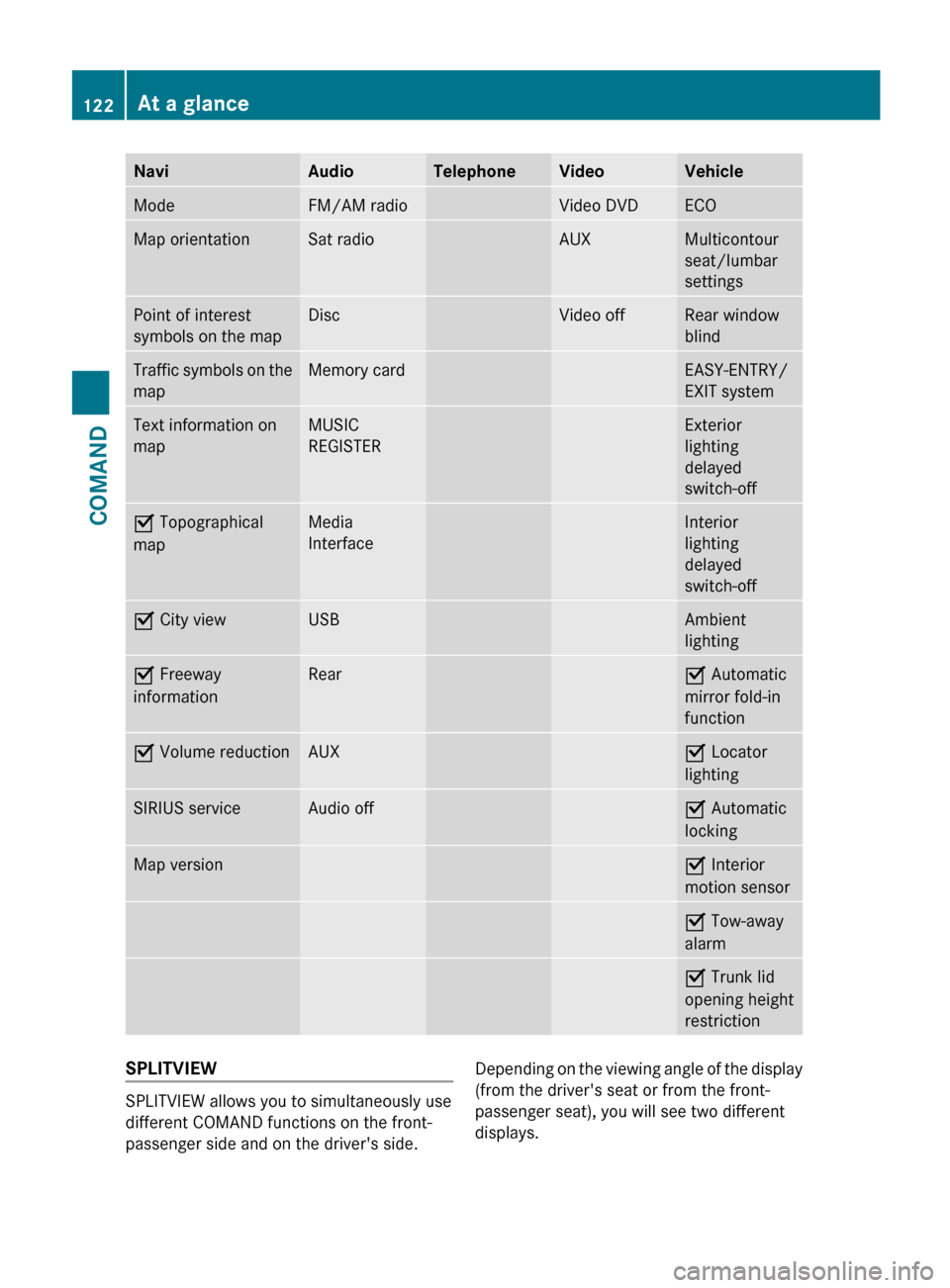
NaviAudioTelephoneVideoVehicleModeFM/AM radioVideo DVDECOMap orientationSat radioAUXMulticontour
seat/lumbar
settingsPoint of interest
symbols on the mapDiscVideo offRear window
blindTraffic symbols on the
mapMemory cardEASY-ENTRY/
EXIT systemText information on
mapMUSIC
REGISTERExterior
lighting
delayed
switch-offO Topographical
mapMedia
InterfaceInterior
lighting
delayed
switch-offO City viewUSBAmbient
lightingO Freeway
informationRearO Automatic
mirror fold-in
functionO Volume reductionAUXO Locator
lightingSIRIUS serviceAudio offO Automatic
lockingMap versionO Interior
motion sensorO Tow-away
alarmO Trunk lid
opening height
restrictionSPLITVIEW
SPLITVIEW allows you to simultaneously use
different COMAND functions on the front-
passenger side and on the driver's side.
Depending on the viewing angle of the display
(from the driver's seat or from the front-
passenger seat), you will see two different
displays.122At a glanceCOMAND
Page 125 of 536
For example, the "Navi" function can be used
from the driver's side while the "Video"
function is used on the front-passenger side.
Use the remote control to operate COMAND
from the front-passenger side with
SPLITVIEW.
Please bear the following in mind
R Your vehicle may be equipped with
SPLITVIEW, depending on its date of
production. The use of SPLITVIEW is
currently not permitted in the following
states: AL, AZ, CO, IL, LA, MA, MD, NH, PA,
VA, VT, WA, WI, and WV or in the Canadian
provinces of Manitoba, Newfoundland,
New Brunswick, and Prince Edward Island.
It is the driver's responsibility to observe
ALL regional legally prescribed regulations.
If your vehicle is registered in a state or
province in which SPLITVIEW is not
approved, this function must be
deactivated. Please contact an authorized
specialist dealer to check whether
SPLITVIEW is approved in your state or
province.
R Volume adjustment for the cordless
headphones can be carried out on the
headphones. Before putting on the
headphones, make sure that the volume
has not been set too high.
R The remote control can be used for the
volume adjustment of corded headphones.
R You can only use media from the driver's
and front-passenger sides separately if the
media are from different sources. Example:
on the driver's side, an audio CD is being
played by the DVD changer. This means
that on the front-passenger side, the DVD
changer cannot be used to play a different
disc type, for instance a video DVD.
However, other media can be used at the
same time on the front-passenger side,
including radio, memory card, MUSIC
REGISTER, Media Interface, USB or AUX.
R If you use the same medium on both sides,
settings for this medium can be carried out
from either side.R There must be intervisibility between the
headphones and the display so that
COMAND can optimally transmit music and
speech via the infrared signal on the front-
passenger's headphones. For this reason,
please also observe that the headphones
have left and right sides, and use them
correctly.
R Only entertainment functions, i.e. audio
and video, can be used separately via
SPLITVIEW.
R The multifunction steering wheel can only
be used for functions which relate to the
driver's side.
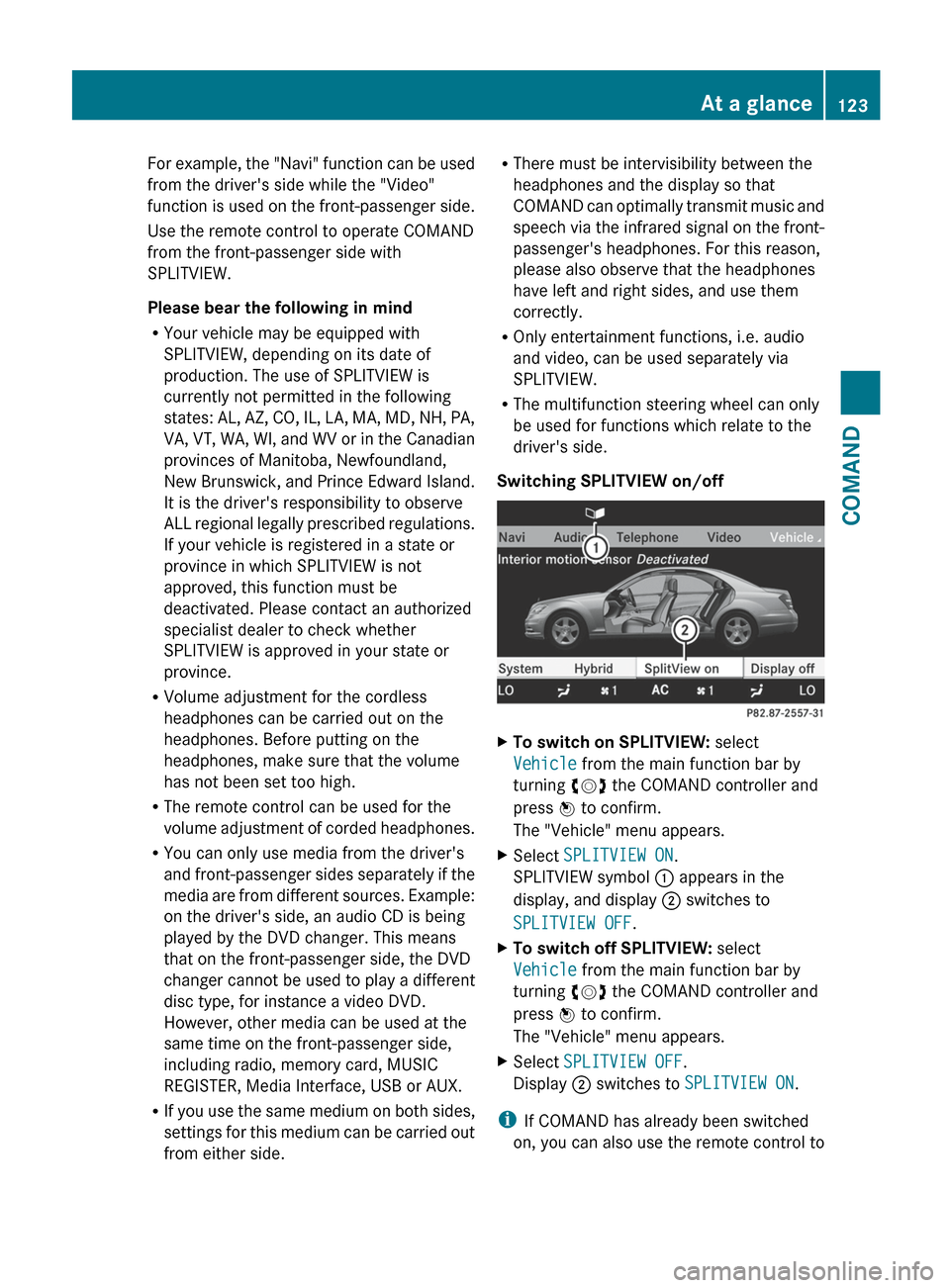
Switching SPLITVIEW on/offXTo switch on SPLITVIEW: select
Vehicle from the main function bar by
turning cVd the COMAND controller and
press W to confirm.
The "Vehicle" menu appears.XSelect SPLITVIEW ON .
SPLITVIEW symbol : appears in the
display, and display ; switches to
SPLITVIEW OFF .XTo switch off SPLITVIEW: select
Vehicle from the main function bar by
turning cVd the COMAND controller and
press W to confirm.
The "Vehicle" menu appears.XSelect SPLITVIEW OFF .
Display ; switches to SPLITVIEW ON .
i
If COMAND has already been switched
on, you can also use the remote control to
At a glance123COMANDZ
Page 138 of 536
Surround sound
General information
If your vehicle is equipped with the harman/
kardon ®
Logic 7 ®
surround sound system,
you can set the optimum surround sound for
every passenger.
The harman/kardon ®
Logic 7 ®
surround
sound system is available for the following
operating modes:
R radio (FM only)
R satellite radio
R audio CD
R audio DVD (MLP, dts, PCM and Dolby
Digital audio formats)
R MP3 (including SD memory card)
R Media Interface
R video DVD (PCM, dts and Dolby Digital
audio formats)
R AUX
Because some DVDs contain both stereo and
multichannel audio formats, it may be
necessary to set the audio format
( Y page 227).
i The Logic7 ®
ON function enables
playback of, e.g. stereo recordings with a
surround sound experience for every
passenger. It enables optimum playback of
music and films on CD, audio DVD or video
DVD with multichannel audio formats, such
as MLP, dts or Dolby Digital. This results in
sound characteristics like those intended
by the sound engineer when the original
was recorded.
i If you select LOGIC7®
OFF , the sound
system plays the tracks as stored on the
medium. Due to the design of the
passenger compartment, an optimum
audio experience cannot be guaranteed for
all passengers.
i Discs which support the audio formats
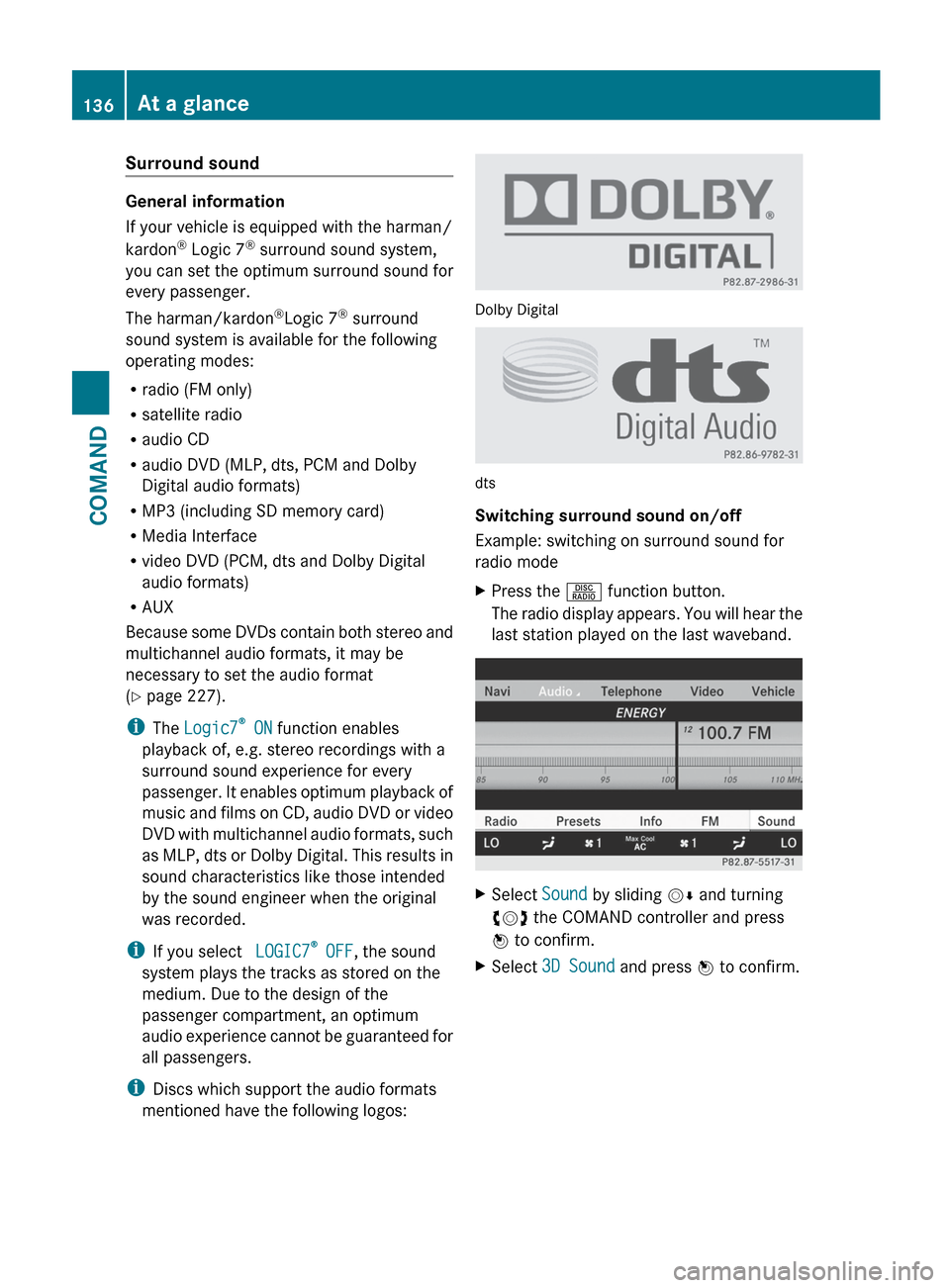
mentioned have the following logos:
Dolby Digital
dts
Switching surround sound on/off
Example: switching on surround sound for
radio mode
XPress the R function button.
The radio display appears. You will hear the
last station played on the last waveband.XSelect Sound by sliding VÆ and turning
cVd the COMAND controller and press
W to confirm.XSelect 3D Sound and press W to confirm.136At a glanceCOMAND
Page 149 of 536
XSelect Yes or No and press W to confirm.
If you select No, the process will be aborted.
If you select Yes, the individualization is
deleted. You will see a message to this
effect.
Bluetooth ®
settings
General information about Bluetooth ®
Bluetooth
®
technology is the standard for
short-range wireless data transmission of up
to approximately 10 meters. Bluetooth ®
allows, for example, the exchange of vCards.
Bluetooth ®
is a registered trademark of
Bluetooth Special Interest Group (SIG) Inc.
Requirements for a Bluetooth ®
connection
You can connect mobile phones and
notebooks to COMAND.
To do so, the following conditions need to be
met:
R Bluetooth ®
-capable devices, e.g. mobile
phones, must comply with a certain profile
in order to be connected to COMAND.
Every Bluetooth ®
device has its own
specific Bluetooth ®
name.
R Bluetooth ®
must be activated in COMAND
and on the respective Bluetooth ®
device;
see the separate operating instructions.
R the Bluetooth ®
device must be "visible" to
COMAND in order for COMAND to find and
display it. For the setting procedures,
please see the operating instructions for
the Bluetooth ®
device.
i Once a mobile phone has been
connected, reception and transmission
volume may change.
Activating/deactivating Bluetooth ®XSelect
Vehicle in the main function bar by
turning cVd the COMAND controller and
press W to confirm.XSelect System by turning cVd the
COMAND controller and press W to
confirm.XSelect Bluetooth by turning cVd the
COMAND controller and press W to
confirm.XSelect Bluetooth activated and press
W to confirm.
This switches Bluetooth ®
on O or off ª.
Connecting Bluetooth ®
devices
General information
Before using your Bluetooth ®
device with
COMAND for the first time, you will need to
connect it.
Connecting comprises:
R searching for a Bluetooth ®
device
R subsequently authorizing it
i A maximum of 15 devices can be available
for selection from the device list.
More detailed information on suitable mobile
phones and on connecting Bluetooth ®
-
capable mobile phones to COMAND can be
found on the Internet at http://
www.mbusa-mobile.com . Or call the
Mercedes-Benz Customer Assistance Center
on 1-800-FOR-MERCedes(1-800-367-6372)
(for the USA) or Customer Relations on
1-800-387-0100 (for Canada).
System settings147COMANDZ