change time MERCEDES-BENZ S-Class 2014 W222 Comand Manual
[x] Cancel search | Manufacturer: MERCEDES-BENZ, Model Year: 2014, Model line: S-Class, Model: MERCEDES-BENZ S-Class 2014 W222Pages: 278, PDF Size: 6.65 MB
Page 64 of 278
distribution set. The setting is only active
when the air-conditioning system is set to
"AUTO".
X Call up the climate control menu
(Y page 59).
X To select Climate Mode Climate Mode: turn and press
the controller.
X If necessary, change sides: slide 009500520096the
controller.
X To change the setting: turn and press the
controller.
Exiting a menu
X Press the 0038button.
i The current climate mode setting is set in
the climate control bar: DIFFUSE, MEDIUM
or FOCUS (Y page 59).
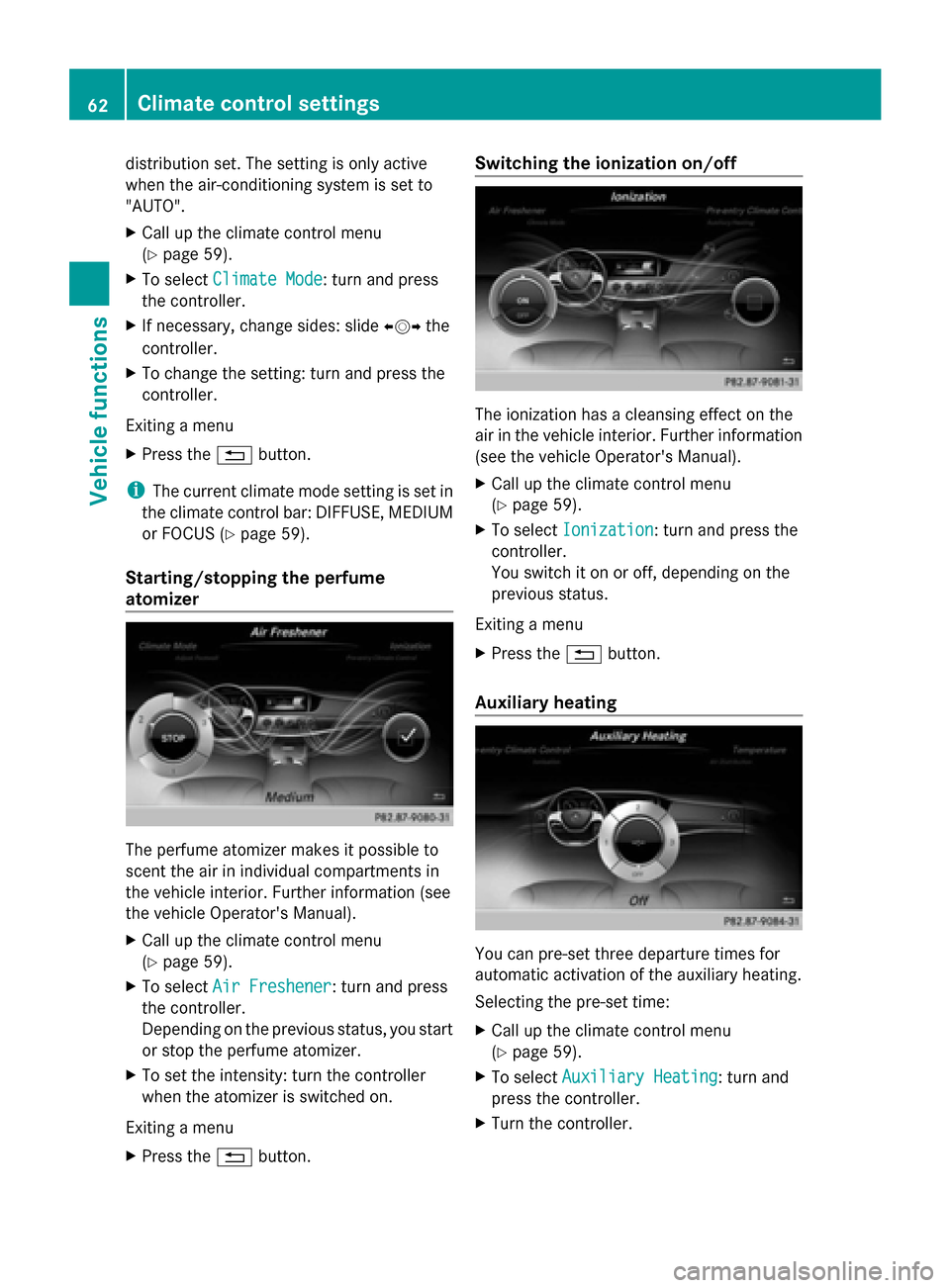
Starting/stopping the perfume
atomizer The perfume atomizer makes it possible to
scent the air in individual compartments in
the vehicle interior. Further information (see
the vehicle Operator's Manual).
X Call up the climate control menu
(Y page 59).
X To select Air Freshener
Air Freshener: turn and press
the controller.
Depending on the previous status, you start
or stop the perfume atomizer.
X To set the intensity: turn the controller
when the atomizer is switched on.
Exiting a menu
X Press the 0038button. Switching the ionization on/off
The ionization has a cleansing effect on the
air in the vehicle interior. Further information
(see the vehicle Operator's Manual).
X
Call up the climate control menu
(Y page 59).
X To select Ionization Ionization: turn and press the
controller.
You switch it on or off, depending on the
previous status.
Exiting a menu
X Press the 0038button.
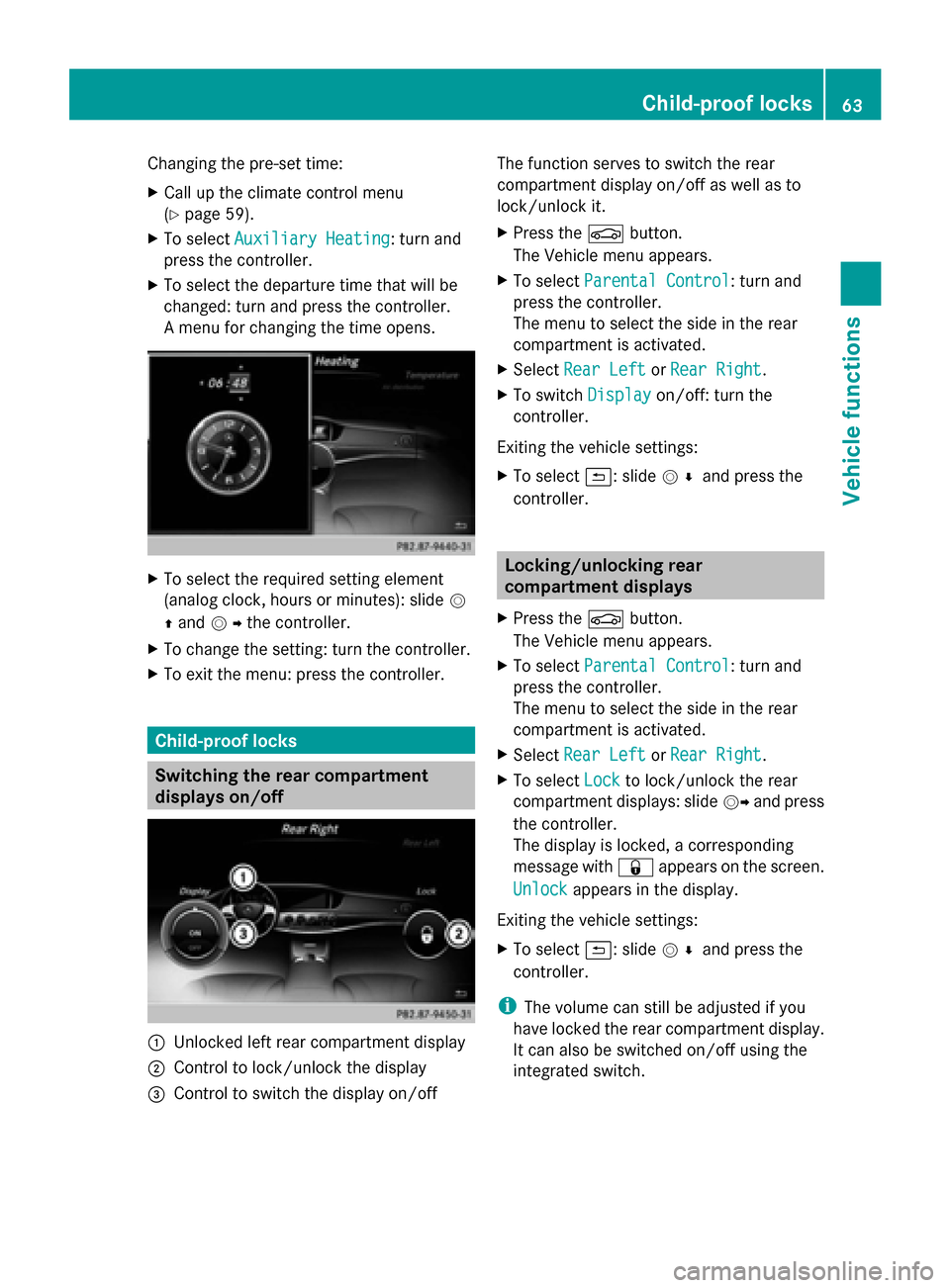
Auxiliary heating You can pre-set three departure times for
automatic activation of the auxiliary heating.
Selecting the pre-set time:
X
Call up the climate control menu
(Y page 59).
X To select Auxiliary Heating Auxiliary Heating: turn and
press the controller.
X Turn the controller. 62
Climate control settingsVehicle functions
Page 65 of 278
Changing the pre-set time:
X
Call up the climate control menu
(Y page 59).
X To select Auxiliary Heating Auxiliary Heating: turn and
press the controller.
X To select the departure time that will be
changed: turn and press the controller.
A menu for changing the time opens. X
To select the required setting element
(analog clock, hours or minutes): slide 0052
0097 and 00520096the controller.
X To change the setting: turn the controller.
X To exit the menu: press the controller. Child-proof locks
Switching the rear compartment
displays on/off 0043
Unlocked left rear compartment display
0044 Control to lock/unlock the display
0087 Control to switch the display on/off The function serves to switch the rear
compartment display on/off as well as to
lock/unlock it.
X
Press the 00D4button.
The Vehicle menu appears.
X To select Parental Control
Parental Control: turn and
press the controller.
The menu to select the side in the rear
compartment is activated.
X Select Rear Left Rear Left orRear Right
Rear Right.
X To switch Display
Displayon/off: turn the
controller.
Exiting the vehicle settings:
X To select 0039: slide 005200C5and press the
controller. Locking/unlocking rear
compartment displays
X Press the 00D4button.
The Vehicle menu appears.
X To select Parental Control
Parental Control: turn and
press the controller.
The menu to select the side in the rear
compartment is activated.
X Select Rear Left Rear Left orRear Right
Rear Right.
X To select Lock
Lockto lock/unlock the rear
compartment displays: slide 00520096and press
the controller.
The display is locked, a corresponding
message with 0037appears on the screen.
Unlock Unlock appears in the display.
Exiting the vehicle settings:
X To select 0039: slide 005200C5and press the
controller.
i The volume can still be adjusted if you
have locked the rear compartment display.
It can also be switched on/off using the
integrated switch. Child-proof locks
63Vehicle functions
Page 70 of 278
Your COMAND equipment
These operating instructions describe all
standard and optional equipment available
for your COMAND system at the time of
purchase. Country-specific differences are
possible. Please note that your
COMAND system may not be equipped with
all the features described. This also applies to
safety-relevant systems and functions.
Therefore, the equipment on your COMAND
system may differ from that in the
descriptions and illustrations. Should you
have any questions concerning equipment
and operation, please consult an authorized
Mercedes-Benz Center. Introduction
Important safety notes
G
WARNING
If you operate information systems and
communication equipment integrated in the
vehicle while driving, you will be distracted
from traffic conditions. You could also lose
control of the vehicle. There is a risk of an
accident.
Only operate the equipment when the traffic
situation permits. If you are not sure that this
is possible, park the vehicle paying attention
to traffic conditions and operate the
equipment when the vehicle is stationary.
You must observe the legal requirements for
the country in which you are currently driving
when operating COMAND.
COMAND calculates the route to the
destination without taking account of the
following, for example:
R traffic lights
R stop and give way signs
R merging lanes
R parking or stopping in a no parking/no
stopping zone R
other road and traffic rules and regulations
R narrow bridges
COMAND can give incorrect navigation
commands if the actual street/traffic
situation does not correspond with the digital
map's data. Digital maps do not cover all
areas nor all routes in an area. For example,
a route may have been diverted or the
direction of a one-way street may have
changed.
For this reason, you must always observe
road and traffic rules and regulations during
your journey. Road and traffic rules and
regulations always have priority over the
system's driving recommendations.
Navigation announcements are intended to
direct you while driving without diverting your
attention from the road and driving.
Please always use this feature instead of
consulting the map display for directions.
Looking at the icons or map display can
distract you from traffic conditions and
driving, and increase the risk of an accident. General notes
Operational readiness of the navigation
system The navigation system must determine the
position of the vehicle before first use or
whenever operational status is restored.
Therefore, you may have to drive for a while
before precise route guidance is possible.
GPS reception Among other things, correct functioning of
the navigation system depends on GPS
reception. In certain situations, GPS
reception may be impaired, there may be
interference or there may be no reception at
all, e.g. in tunnels or parking garages.
i Using roof carriers may impair the correct
functioning of a roof antenna (phone,
satellite radio, GPS). 68
Int
roductionNavigation
Page 87 of 278

Using map
0043
Crosshair
0044 Distance of crosshair position from current vehicle position
X To switch to navigation mode: press the00CBbutton.
X To show the menu: press the controller.
X To select Destination
Destination: turn and press the controller.
X Select Using Map
Using Map.
The map with crosshair is shown.
X To move the map: slide009500520096, 009700520064or009100520078 the controller.
X To change the map scale: turn the controller until the desired map scale is selected.
The scale is displayed at the bottom. Turning clockwise zooms out from the map; turning
counter-clockwise zooms in.
X To select a destination: press the controller.
If the digital map provides navigable address data, you will see the destination address in
the address entry menu. If not, the Destination from Map
Destination from Map entry is shown.
If there are multiple destinations around the crosshair, a selection list will appear.
X To select a destination from the selection list: turn and press the controller.
X To start route calculation: selectStart
Start. Entering way points
Introduction You can also map the route to the destination
yourself by entering up to four way points. The
sequence of the way points can be changed
at any time.
COMAND provides a selection of predefined
destinations in eight categories for this
purpose, e.g. GAS STATION GAS STATION orCOFFEE SHOP
COFFEE SHOP .You can also use the destination entry
options to enter way points. Destination input
85Navigation Z
Page 91 of 278
regulations always have priority over system
driving recommendations.
COMAND calculates the route to the
destination without taking account of the
following, for example:
R traffic lights
R stop and give way signs
R merging lanes
R parking or stopping in a no parking/no
stopping zone
R other road and traffic rules and regulations
R narrow bridges
COMAND may give differing navigation
commands if the actual street/traffic
situation does not correspond with the digital
map's data. For example, if the road layout or
the direction of a one-way street has been
changed.
For this reason, you must always observe
road and traffic rules and regulations during
your journey. Road and traffic rules and
regulations always have priority over the
system's driving recommendations.
Route guidance begins once a route has been
calculated (Y page 78).
COMAND guides you to your destination by
means of navigation announcements in the
form of audible navigation announcements
and route guidance displays.
The route guidance displays can be seen if the
display is switched to navigation mode.
If you do not follow the navigation
announcements or if you leave the calculated
route, COMAND automatically calculates a
new route to the destination.
If the digital map contains the corresponding
information, the following applies:
R during route guidance, COMAND tries to
avoid roads with restricted access. Those
roads, for example, that are closed to
through-traffic.
R roads that have time restrictions (e.g.
closed on Sundays and public holidays) are
considered for route guidance on days when they are open. For this purpose, the
relevant times must be correctly stored in
the database. Route guidance
89Navigation Z
Page 92 of 278
Displays during route guidance
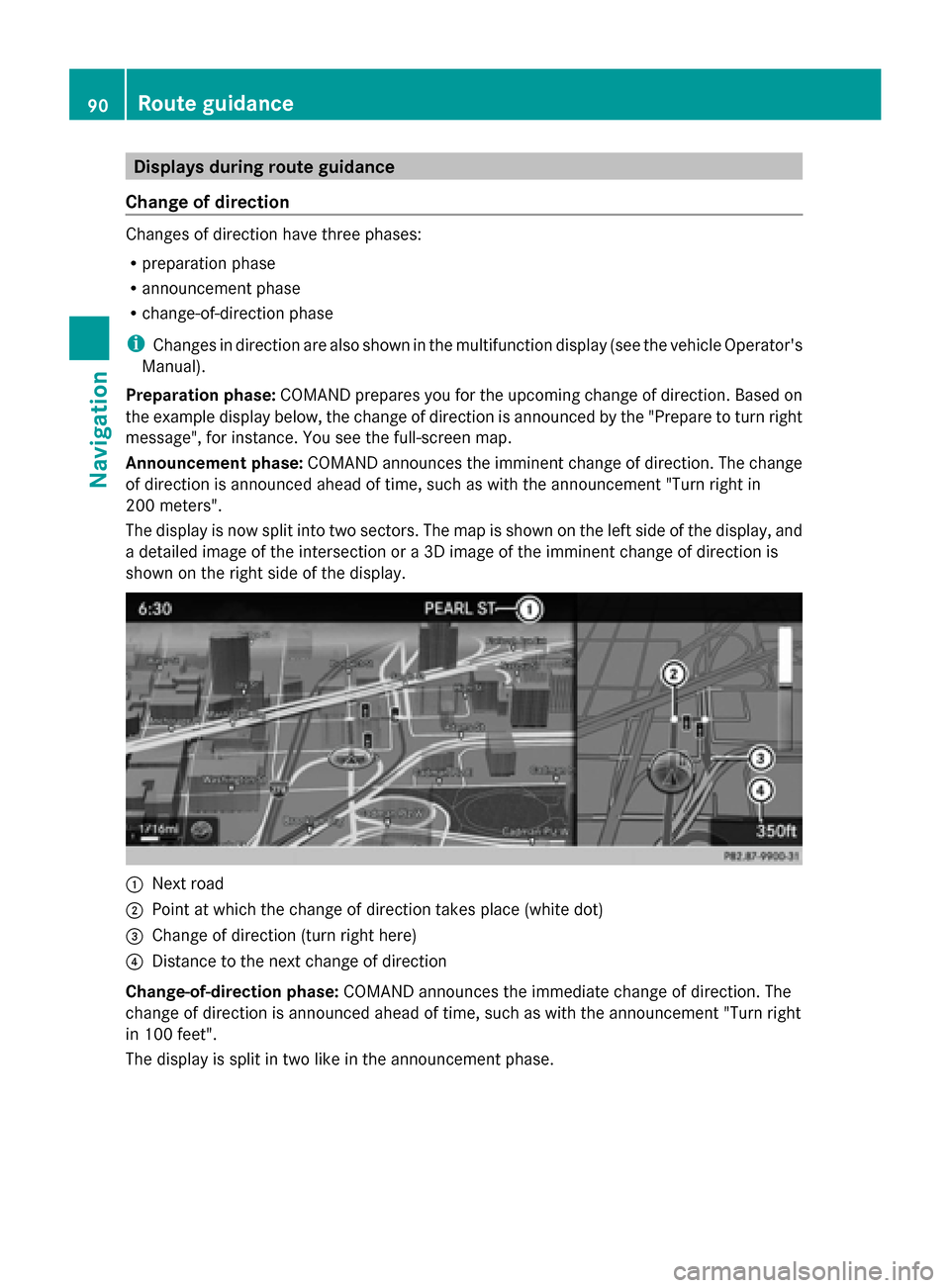
Change of direction Changes of direction have three phases:
R preparation phase
R announcement phase
R change-of-direction phase
i Changes in direction are also shown in the multifunction display (see the vehicle Operator's
Manual).
Preparation phase: COMAND prepares you for the upcoming change of direction. Based on
the example display below, the change of direction is announced by the "Prepare to turn right
message", for instance. You see the full-screen map.
Announcement phase: COMAND announces the imminent change of direction. The change
of direction is announced ahead of time, such as with the announcement "Turn right in
200 meters".
The display is now split into two sectors. The map is shown on the left side of the display, and
a detailed image of the intersection or a 3D image of the imminent change of direction is
shown on the right side of the display. 0043
Next road
0044 Point at which the change of direction takes place (white dot)
0087 Change of direction (turn right here)
0085 Distance to the next change of direction
Change-of-direction phase: COMAND announces the immediate change of direction. The
change of direction is announced ahead of time, such as with the announcement "Turn right
in 100 feet".
The display is split in two like in the announcement phase. 90
Route guidanceNavigation
Page 99 of 278
Route information
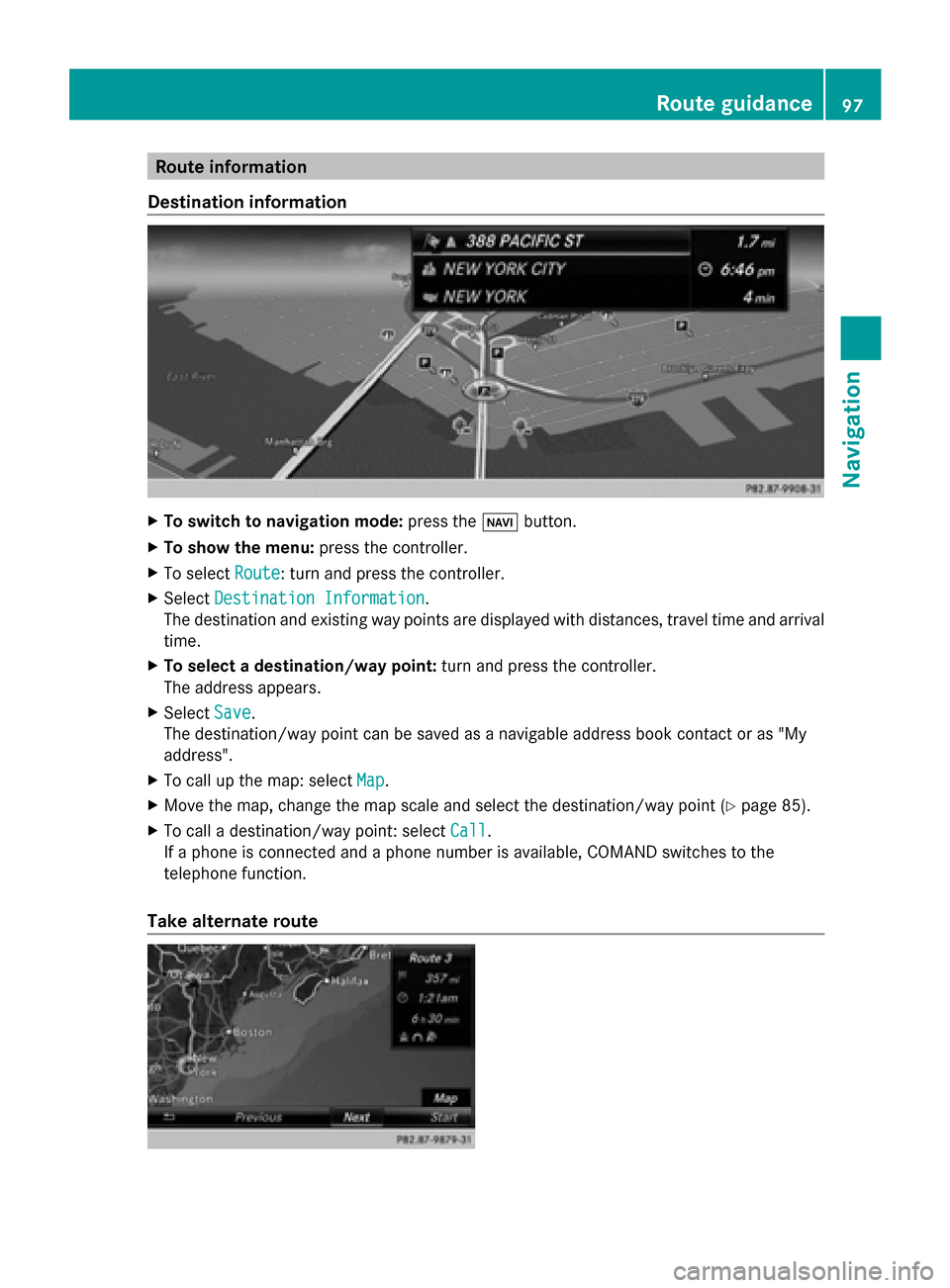
Destination information X
To switch to navigation mode: press the00BEbutton.
X To show the menu: press the controller.
X To select Route
Route: turn and press the controller.
X Select Destination Information
Destination Information.
The destination and existing way points are displayed with distances, travel time and arrival
time.
X To select a destination/way point: turn and press the controller.
The address appears.
X Select Save
Save .
The destination/way point can be saved as a navigable address book contact or as "My
address".
X To call up the map: select Map Map.
X Move the map, change the map scale and select the destination/way point (Y page 85).
X To call a destination/way point: select Call
Call .
If a phone is connected and a phone number is available, COMAND switches to the
telephone function.
Take alternate route Route guidance
97Navigation Z
Page 100 of 278
If the
Calculate
Calculate Alternative
Alternative Routes
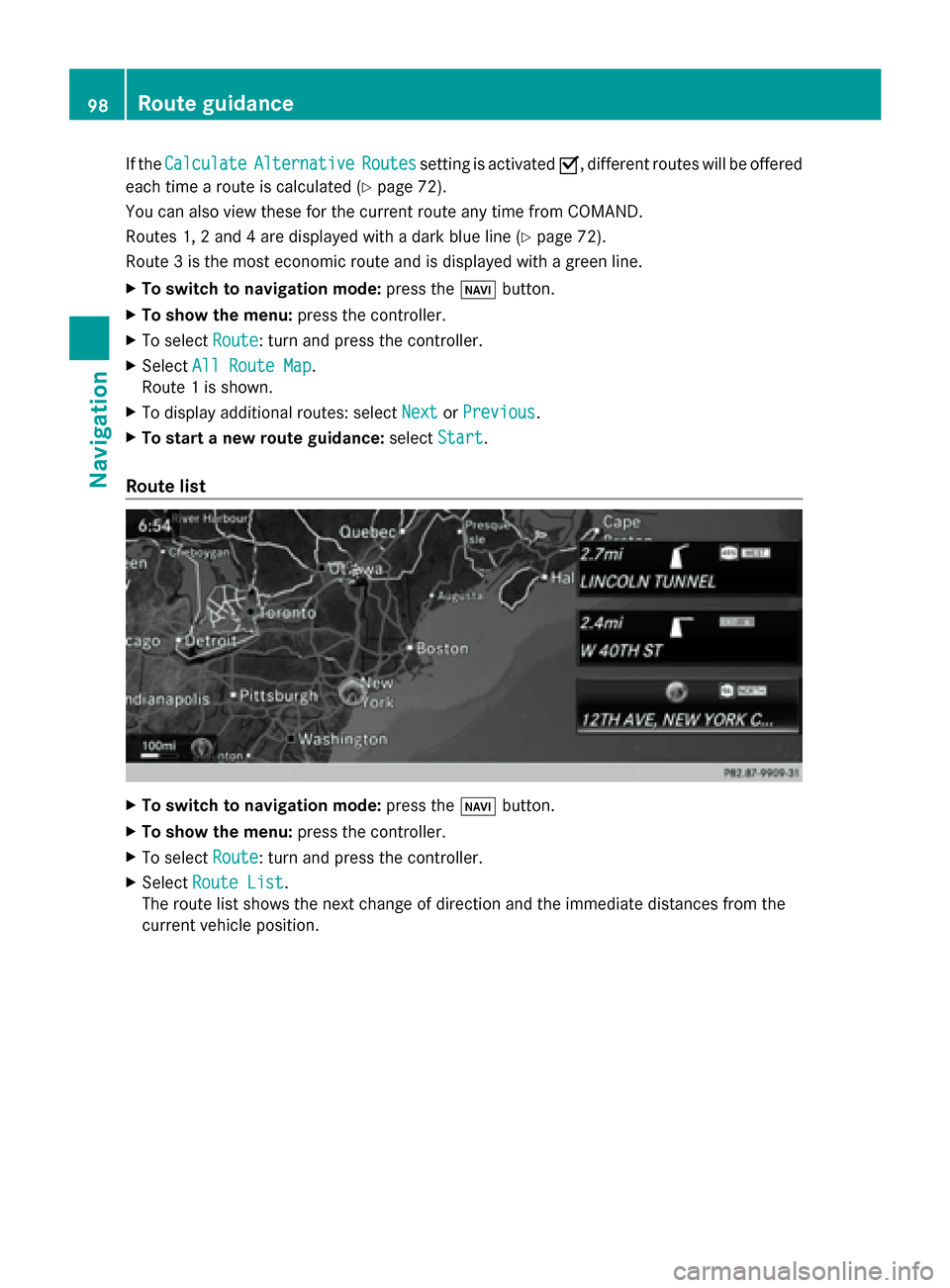
Routessetting is activated 0073, different routes will be offered
each time a route is calculated (Y page 72).
You can also view these for the current route any time from COMAND.
Routes 1, 2 and 4 are displayed with a dark blue line (Y page 72).
Route 3 is the most economic route and is displayed with a green line.
X To switch to navigation mode: press the00BEbutton.
X To show the menu: press the controller.
X To select Route
Route: turn and press the controller.
X Select All Route Map
All Route Map.
Route 1 is shown.
X To display additional routes: select Next NextorPrevious
Previous.
X To start a new route guidance: selectStart
Start.
Route list X
To switch to navigation mode: press the00BEbutton.
X To show the menu: press the controller.
X To select Route
Route: turn and press the controller.
X Select Route List
Route List.
The route list shows the next change of direction and the immediate distances from the
current vehicle position. 98
Route guidanceNavigation
Page 126 of 278
mobile phone (see the manufacturer's
operating instructions).
The battery of the mobile phone should
always be kept sufficiently charged in order
to prevent malfunctions.
Preparing for telephony via the Bluetooth ®
interface:
R Hands-Free Profile
The mobile phone must support Hands-
Free Profile 1.0 or above.
R Bluetooth ®
visibility
Bluetooth ®
must be activated on the
mobile phone and must be made visible to
other devices (see the manufacturer's
operating instructions).
This visibility is for restricted periods of
time on some mobile phones.
R Bluetooth ®
device name
Every Bluetooth ®
device has its own
Bluetooth ®
device name. This device name
is freely definable, but can be identical for
all devices from the same manufacturer. It
is therefore recommended that you change
this name so that you can easily recognize
your mobile phone (see the manufacturer's
operating instructions).
i Not all mobile phones available on the
market are equally suitable. You can obtain
more detailed information about suitable
mobile phones and about the connection
between the mobile phone and COMAND
on the Internet at
http://www.mbusa-mobile.com.
Or call:
R the Mercedes-Benz Customer
Assistance Center on
1-800-FOR-MERCedes
(1-800-367-6372) (for the USA)
R the Customer Relations Center on
1-800-387-0100 (for Canada)
i Some displays (e.g. the signal strength)
depend on the supported version of the
Hands-Free Profile. Connecting a mobile phone
General information Before using your mobile phone with
COMAND for the first time, you will need to
search (Y
page 124) for the phone and then
authorize it (log in) (Y page 125).
Device-specific information on authorizing
and connecting Bluetooth ®
-capable mobile
phones can be found on the Internet at
http://www.mercedes-benz.com/
connect .
When you authorize a new mobile phone, it is
connected automatically.
You can authorize up to 15 mobile phones.
Only one mobile phone can be connected to
COMAND at any one time.
If the mobile phone supports the PBAP
(Phone BookAccess Profile) and MAP
(Message AccessProfile) profiles, the
following information will be displayed on
COMAND when you connect:
R phone book
R call lists
R the messages (text and e-mail)
Further information on the conditions for
connecting (Y page 123).
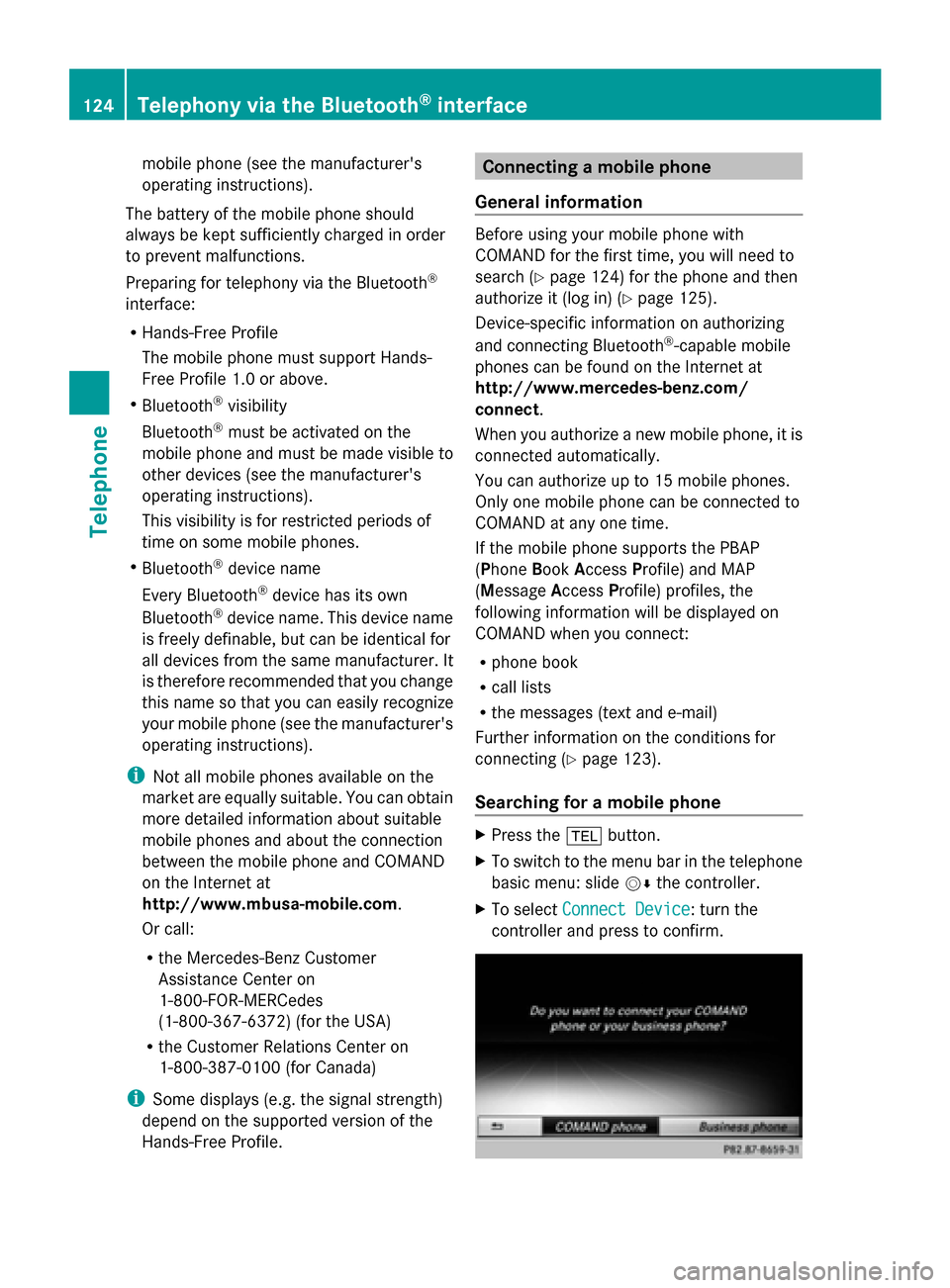
Searching for a mobile phone X
Press the 002Bbutton.
X To switch to the menu bar in the telephone
basic menu: slide 00520064the controller.
X To select Connect Device Connect Device: turn the
controller and press to confirm. 124
Telephony via the Bluetooth ®
interfaceTelephone
Page 137 of 278
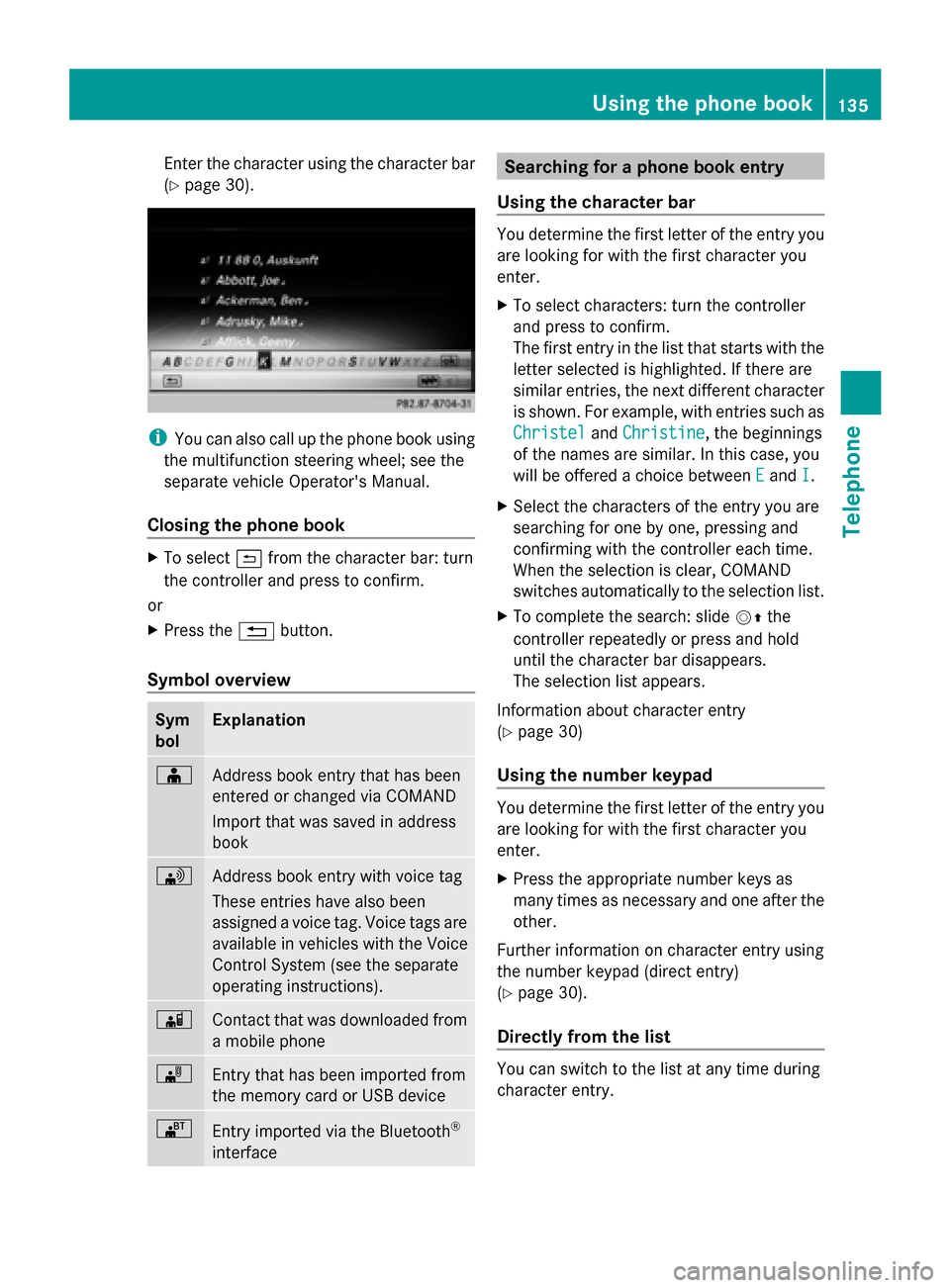
Enter the character using the character bar
(Y
page 30). i
You can also call up the phone book using
the multifunction steering wheel; see the
separate vehicle Operator's Manual.
Closing the phone book X
To select 0039from the character bar: turn
the controller and press to confirm.
or
X Press the 0038button.
Symbol overview Sym
bol Explanation
00D8
Address book entry that has been
entered or changed via COMAND
Import that was saved in address
book 0094
Address book entry with voice tag
These entries have also been
assigned a voice tag. Voice tags are
available in vehicles with the Voice
Control System (see the separate
operating instructions).
00D7
Contact that was downloaded from
a mobile phone
00BB
Entry that has been imported from
the memory card or USB device
00BA
Entry imported via the Bluetooth
®
interface Searching for a phone book entry
Using the character bar You determine the first letter of the entry you
are looking for with the first character you
enter.
X
To select characters: turn the controller
and press to confirm.
The first entry in the list that starts with the
letter selected is highlighted. If there are
similar entries, the next different character
is shown. For example, with entries such as
Christel Christel andChristine
Christine , the beginnings
of the names are similar. In this case, you
will be offered a choice between E
Eand I
I.
X Select the characters of the entry you are
searching for one by one, pressing and
confirming with the controller each time.
When the selection is clear, COMAND
switches automatically to the selection list.
X To complete the search: slide 00520097the
controller repeatedly or press and hold
until the character bar disappears.
The selection list appears.
Information about character entry
(Y page 30)
Using the number keypad You determine the first letter of the entry you
are looking for with the first character you
enter.
X
Press the appropriate number keys as
many times as necessary and one after the
other.
Further information on character entry using
the number keypad (direct entry)
(Y page 30).
Directly from the list You can switch to the list at any time during
character entry. Using the phone book
135Telephone Z