light MERCEDES-BENZ S-Class 2014 W222 Comand Manual
[x] Cancel search | Manufacturer: MERCEDES-BENZ, Model Year: 2014, Model line: S-Class, Model: MERCEDES-BENZ S-Class 2014 W222Pages: 278, PDF Size: 6.65 MB
Page 40 of 278
Your COMAND equipment
These operating instructions describe all
standard and optional equipment available
for your COMAND system at the time of
purchase. Country-specific differences are
possible. Please note that your
COMAND system may not be equipped with
all the features described. This also applies to
safety-relevant systems and functions.
Therefore, the equipment on your COMAND
system may differ from that in the
descriptions and illustrations. Should you
have any questions concerning equipment
and operation, please consult an authorized
Mercedes-Benz Center. Display settings
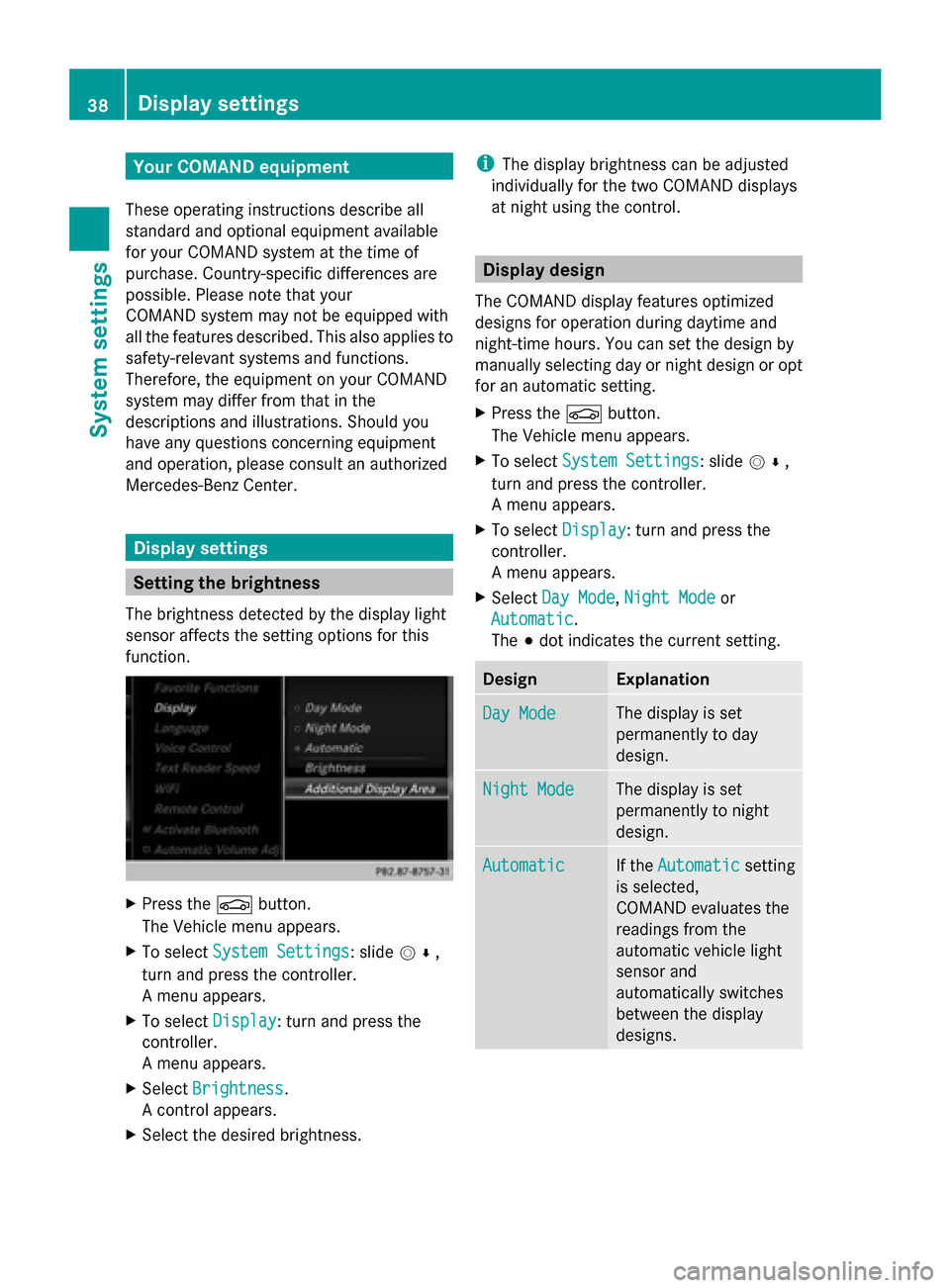
Setting the brightness
The brightness detected by the display light
sensor affects the setting options for this
function. X
Press the 00D4button.
The Vehicle menu appears.
X To select System Settings System Settings : slide005200C5,
turn and press the controller.
A menu appears.
X To select Display
Display : turn and press the
controller.
A menu appears.
X Select Brightness
Brightness .
A control appears.
X Select the desired brightness. i
The display brightness can be adjusted
individually for the two COMAND displays
at night using the control. Display design
The COMAND display features optimized
designs for operation during daytime and
night-time hours. You can set the design by
manually selecting day or night design or opt
for an automatic setting.
X Press the 00D4button.
The Vehicle menu appears.
X To select System Settings System Settings : slide005200C5,
turn and press the controller.
A menu appears.
X To select Display Display: turn and press the
controller.
A menu appears.
X Select Day Mode Day Mode ,Night Mode
Night Mode or
Automatic
Automatic.
The 003Bdot indicates the current setting. Design Explanation
Day Mode Day Mode The display is set
permanently to day
design.
Night Mode Night Mode The display is set
permanently to night
design.
Automatic Automatic If the
Automatic
Automatic setting
is selected,
COMAND evaluates the
readings from the
automatic vehicle light
sensor and
automatically switches
between the display
designs. 38
Display set
tingsSystem settings
Page 43 of 278
Adjusting the time zone and switching
to Daylight Savings Time (Summer)
X Press the 00D4button.
The Vehicle menu appears.
X To select Time
Time: slide 005200C5, turn and press
the controller.
A menu appears.
X To select Time Zone Time Zone: turn and press the
controller.
A list of countries or time zones appears.
The 003Bdot indicates the current setting.
X Select a country or a time zone.
A time zone list may also be displayed,
depending on the country selected.
X Select the desired time zone.
The entry for the Automatic Time
Automatic Time is
accepted.
To activate/deactivate automatic time:
X Press the 00D4button.
X To select Time Time: slide 005200C5, turn and press
the controller.
A menu appears.
X To select Automatic Time Automatic Time: press the
controller.
Checking the box switches the function on
0073 or off 0053.
To switch on: the menu item is switched
on as the default setting. If Automatic Automatic
Time
Time is reactivated, the previous settings
for time zone and summer time changeover
are selected.
To switch off: the time zone is deselected
and the summer time is switched off. If
Automatic Automatic is set for the summer time
changeover, a prompt will appear asking
whether this should be maintained.
X To select Yes
Yes orNo No: turn the controller and
press to confirm.
If you select Yes Yes, the settings will not be
changed.
If you select No
No, the settings will be
switched Off Off.
i You can set the time manually using
Format
Format andSet Time Manually
Set Time Manually. Subsequent operation depends on whether
the navigation system has GPS reception and
whether the changeover function to summer
time is available.
To switch manually:
X
To select On
On orOff Off : turn and press the
controller.
The 003Bdot indicates the current setting.
To switch automatically:
X Select Automatic
Automatic .
The entry for the Automatic Time Automatic Time is
accepted. Text reader settings
X Press the 00D4button.
The Vehicle menu appears.
X To select System Settings
System Settings: slide 005200C5,
turn and press the controller.
A menu appears.
X To select Text Reader Speed Text Reader Speed: turn the
controller and press to confirm.
A list appears.
X Select Fast
Fast, Medium
Medium orSlow
Slow.
The 003Bdot indicates the current setting. Voice Control System settings
Opening/closing the help window
The help window also shows you information
on audible instructions:
R during individualization
R during subsequent operation of the Voice
Control System.
X Press the 00D4button.
The Vehicle menu appears.
X To select System Settings System Settings: slide 005200C5,
turn and press the controller.
A menu appears.
X To select Voice Control Voice Control: turn the
controller and press to confirm. Voice Control System settings
41System settings
Page 48 of 278
Overview of all current favorites:
X
Press the 00D4button.
The system menu appears.
X To select System Settings System Settings : slide005200C5
and press the controller.
A menu appears.
X To select Favorite Functions
Favorite Functions: turn and
press the controller.
A menu appears.
X Select Overview of all current
Overview of all current
favorites favorites.
An overview of all the current favorites
appears.
To change the alias:
X Press the 00D4button.
The system menu appears.
X To select System Settings System Settings : slide005200C5
and press the controller.
A menu appears.
X To select Favorite Functions
Favorite Functions: turn and
press the controller.
A menu appears.
X Select Change Alias
Change Alias.
A menu with the prompt Please select Please select
a favorites button:
a favorites button: appears.
X Select the desired favorites, e.g. 0084.
X Enter the desired alias and select 0070.
The alias is changed.
i Up to six characters are available for the
alias. An entry with fewer characters is also
possible.
To call up a favorite:
X Press the 007Dbutton.
You call up the favorites functions menu.
The 007D symbol lights up.
X Press a favorites button, e.g. 0084.
This calls up the predefined function.
X To exit the favorites function menu:
press the 007Dbutton.
The favorite functions menu is closed.
i If you have pressed the 007Dbutton and
do not press any other buttons, the favorites functions menu is exited
automatically after 16 seconds.
To reset favorite(s):
X Press the 00D4button.
The system menu appears.
X To select System Settings
System Settings : slide005200C5
and press the controller.
A menu appears.
X To select Favorite Functions Favorite Functions: turn and
press the controller.
A menu appears.
X Select Reset Favorite(s) Reset Favorite(s).
A menu with the prompt Please select
Please select
a favorites button:
a favorites button: appears.
X Select the desired favorites, e.g. 0086or
Reset All
Reset All.
A prompt appears asking whether you wish
to reset.
X Select Yes YesorNo
No.
If you select Yes
Yes, the favorite is reset to its
pre-installed favorite function.
If you select No No, the process will be
canceled.
You can select the following predefined
functions in a menu, for example:
R Off - Spoken Driving
Off - Spoken Driving
Recommendations On/Off Recommendations On/Off: you can
switch the current driving
recommendations on/off.
R Sound - Sound Menu Sound - Sound Menu : you can call up the
sound settings.
R Apps - Mercedes-Benz Apps
Apps - Mercedes-Benz Apps: you can
call up the apps for online and Internet
functions.
i You can also assign the favorites button
directly from a relevant function, such as in
the address book (Y page 152) or from the
radio menu (Y page 181).46
Assigning a favorites buttonSystem settings
Page 52 of 278
Your COMAND equipment
These operating instructions describe all
standard and optional equipment available
for your COMAND system at the time of
purchase. Country-specific differences are
possible. Please note that your
COMAND system may not be equipped with
all the features described. This also applies to
safety-relevant systems and functions.
Therefore, the equipment on your COMAND
system may differ from that in the
descriptions and illustrations. Should you
have any questions concerning equipment
and operation, please consult an authorized
Mercedes-Benz Center. Vehicle settings
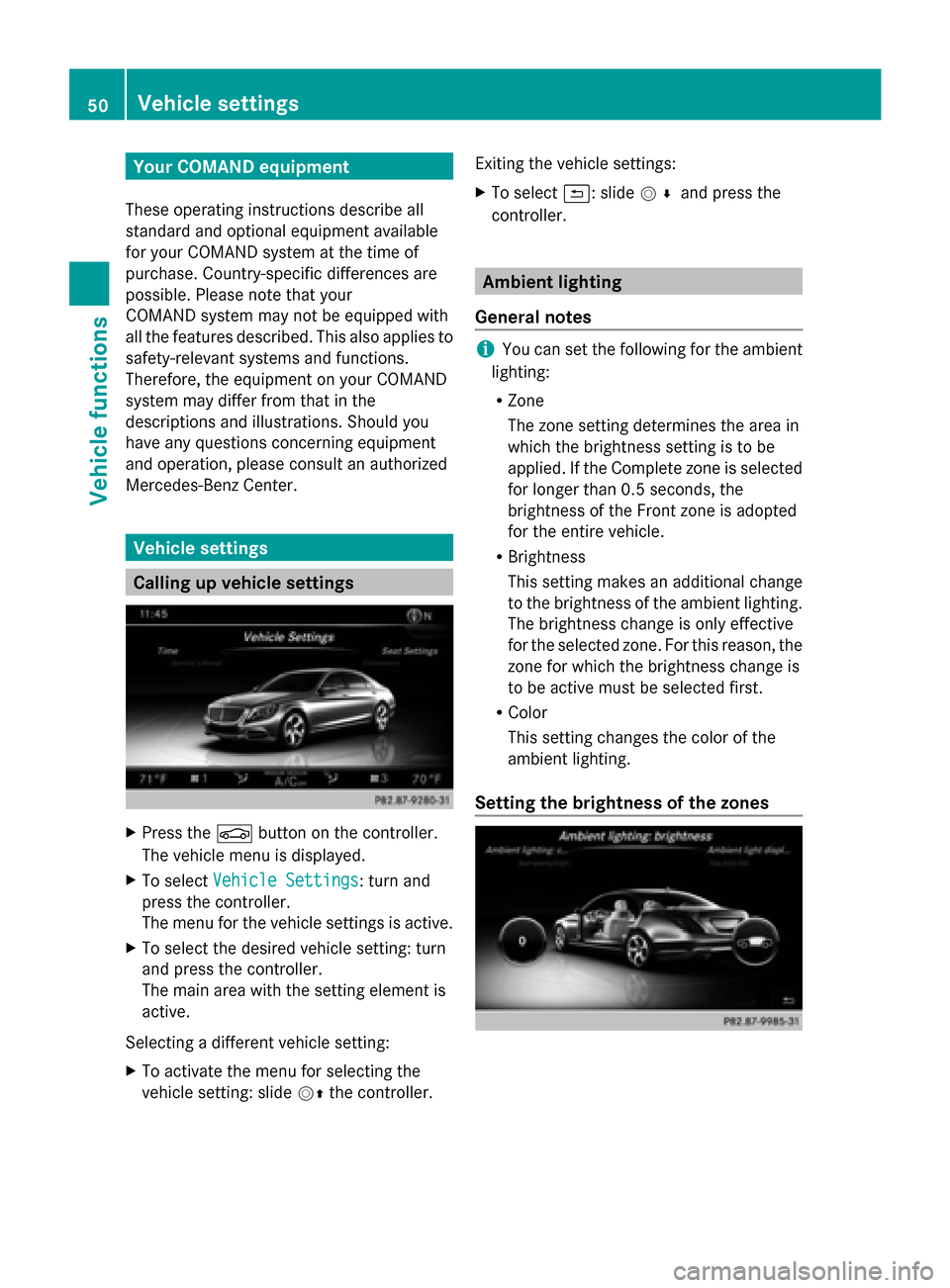
Calling up vehicle settings
X
Press the 00D4button on the controller.
The vehicle menu is displayed.
X To select Vehicle Settings
Vehicle Settings : turn and
press the controller.
The menu for the vehicle settings is active.
X To select the desired vehicle setting: turn
and press the controller.
The main area with the setting element is
active.
Selecting a different vehicle setting:
X To activate the menu for selecting the
vehicle setting: slide 00520097the controller. Exiting the vehicle settings:
X
To select 0039: slide 005200C5and press the
controller. Ambient lighting
General notes i
You can set the following for the ambient
lighting:
R Zone
The zone setting determines the area in
which the brightness setting is to be
applied. If the Complete zone is selected
for longer than 0.5 seconds, the
brightness of the Front zone is adopted
for the entire vehicle.
R Brightness
This setting makes an additional change
to the brightness of the ambient lighting.
The brightness change is only effective
for the selected zone. For this reason, the
zone for which the brightness change is
to be active must be selected first.
R Color
This setting changes the color of the
ambient lighting.
Setting the brightness of the zones 50
Vehicle set
tingsVehicle fun ctions
Page 53 of 278
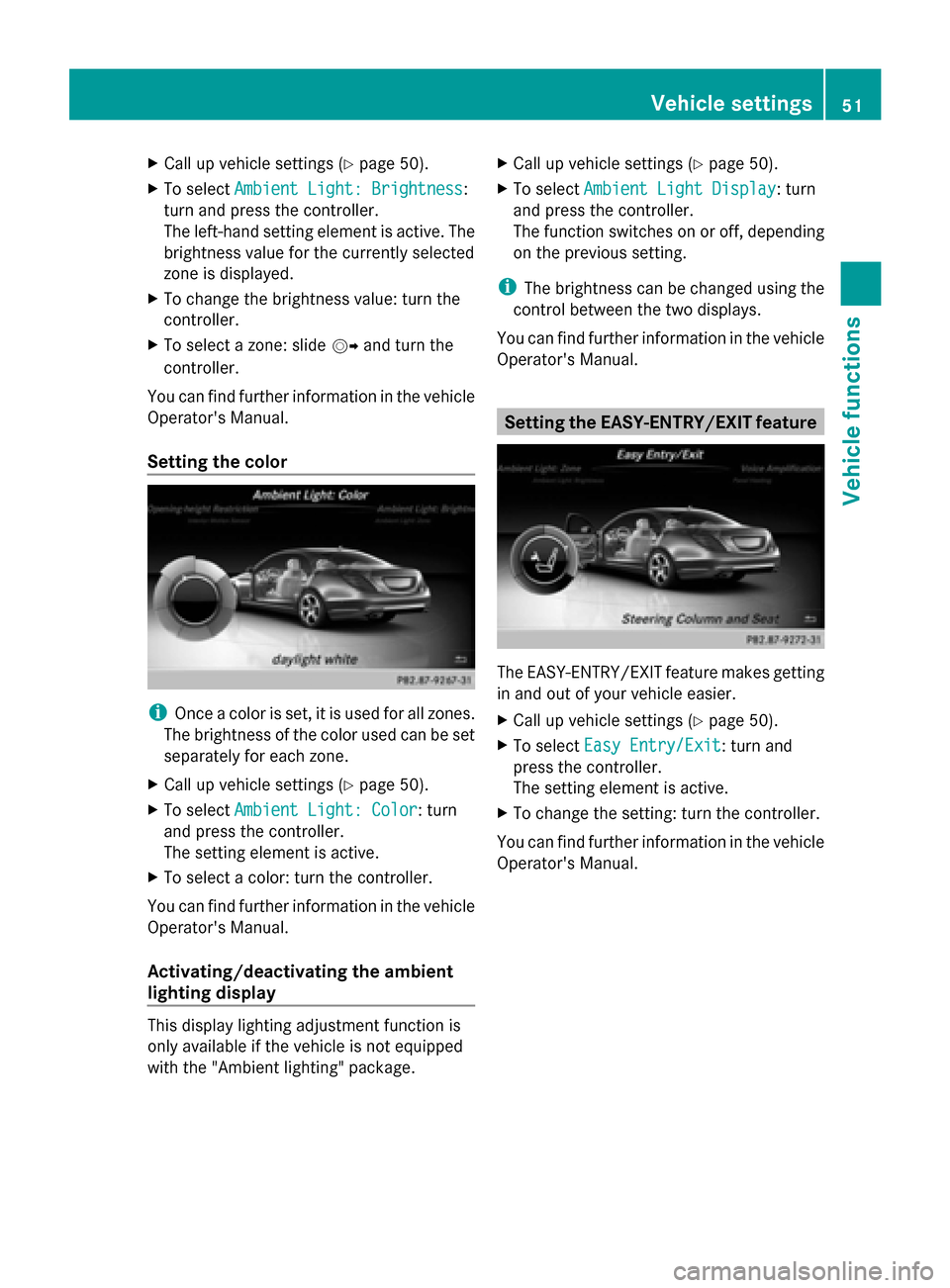
X
Call up vehicle settings ( Ypage 50).
X To select Ambient Light: Brightness
Ambient Light: Brightness:
turn and press the controller.
The left-hand setting element is active. The
brightness value for the currently selected
zone is displayed.
X To change the brightness value: turn the
controller.
X To select a zone: slide 00520096and turn the
controller.
You can find further information in the vehicle
Operator's Manual.
Setting the color i
Once a color is set, it is used for all zones.
The brightness of the color used can be set
separately for each zone.
X Call up vehicle settings ( Ypage 50).
X To select Ambient Light: Color
Ambient Light: Color: turn
and press the controller.
The setting element is active.
X To select a color: turn the controller.
You can find further information in the vehicle
Operator's Manual.
Activating/deactivating the ambient
lighting display This display lighting adjustment function is
only available if the vehicle is not equipped
with the "Ambient lighting" package. X
Call up vehicle settings ( Ypage 50).
X To select Ambient Light Display
Ambient Light Display: turn
and press the controller.
The function switches on or off, depending
on the previous setting.
i The brightness can be changed using the
control between the two displays.
You can find further information in the vehicle
Operator's Manual. Setting the EASY-ENTRY/EXIT feature
The EASY-ENTRY/EXIT feature makes getting
in and out of your vehicle easier.
X
Call up vehicle settings ( Ypage 50).
X To select Easy Entry/Exit Easy Entry/Exit: turn and
press the controller.
The setting element is active.
X To change the setting: turn the controller.
You can find further information in the vehicle
Operator's Manual. Vehicle settings
51Vehicle functions
Page 55 of 278
automatically again as soon as you unlock the
vehicle.
X Call up vehicle settings ( Ypage 50).
X To select Automatic Mirror Folding Automatic Mirror Folding:
turn and press the controller.
The function switches on or off, depending
on the previous setting.
You can find further information in the vehicle
Operator's Manual. Switching locator lighting on/off
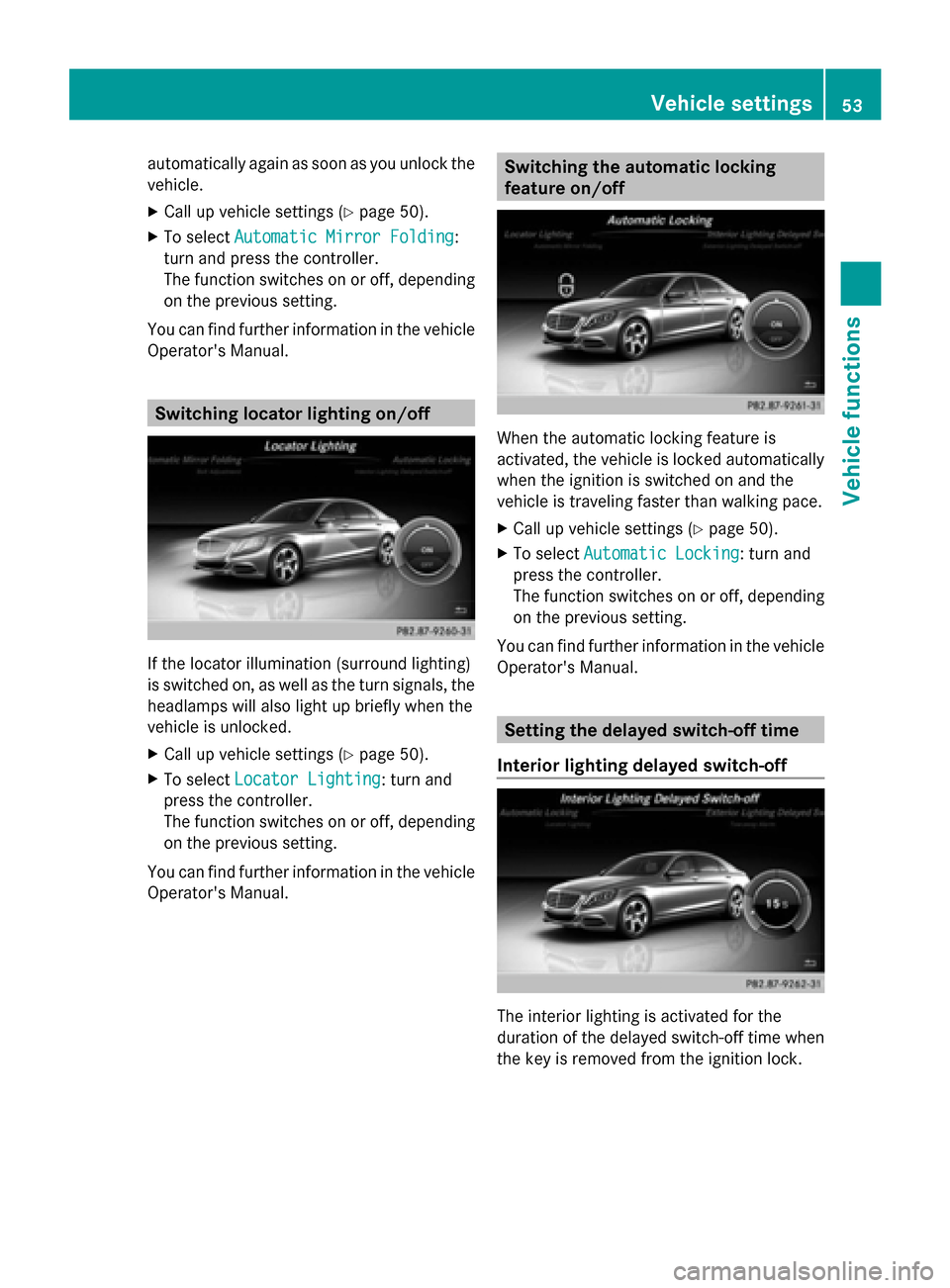
If the locator illumination (surround lighting)
is switched on, as well as the turn signals, the
headlamps will also light up briefly when the
vehicle is unlocked.
X Call up vehicle settings ( Ypage 50).
X To select Locator Lighting
Locator Lighting: turn and
press the controller.
The function switches on or off, depending
on the previous setting.
You can find further information in the vehicle
Operator's Manual. Switching the automatic locking
feature on/off
When the automatic locking feature is
activated, the vehicle is locked automatically
when the ignition is switched on and the
vehicle is traveling faster than walking pace.
X
Call up vehicle settings ( Ypage 50).
X To select Automatic Locking Automatic Locking: turn and
press the controller.
The function switches on or off, depending
on the previous setting.
You can find further information in the vehicle
Operator's Manual. Setting the delayed switch-off time
Interior lighting delayed switch-off The interior lighting is activated for the
duration of the delayed switch-off time when
the key is removed from the ignition lock. Vehicle settings
53Vehicle functions
Page 56 of 278
X
Call up vehicle settings ( Ypage 50).
X To select Interior Lighting Delayed
Interior Lighting Delayed
Switch-off
Switch-off: turn and press the controller.
The setting element is active.
X To change the delayed switch-off time: turn
the controller.
You can find further information in the vehicle
Operator's Manual.
Exterior lighting delayed switch-off The surround lighting is activated for the
duration of the delayed switch-off time when
the vehicle is unlocked using the remote
control key.
X Call up vehicle settings ( Ypage 50).
X To select Exterior Lighting Delayed
Exterior Lighting Delayed
Switch-off
Switch-off: turn and press the controller.
The setting element is active.
X To change the delayed switch-off time: turn
the controller.
You can find further information in the vehicle
Operator's Manual. Arming/deactivating the tow-away
alarm
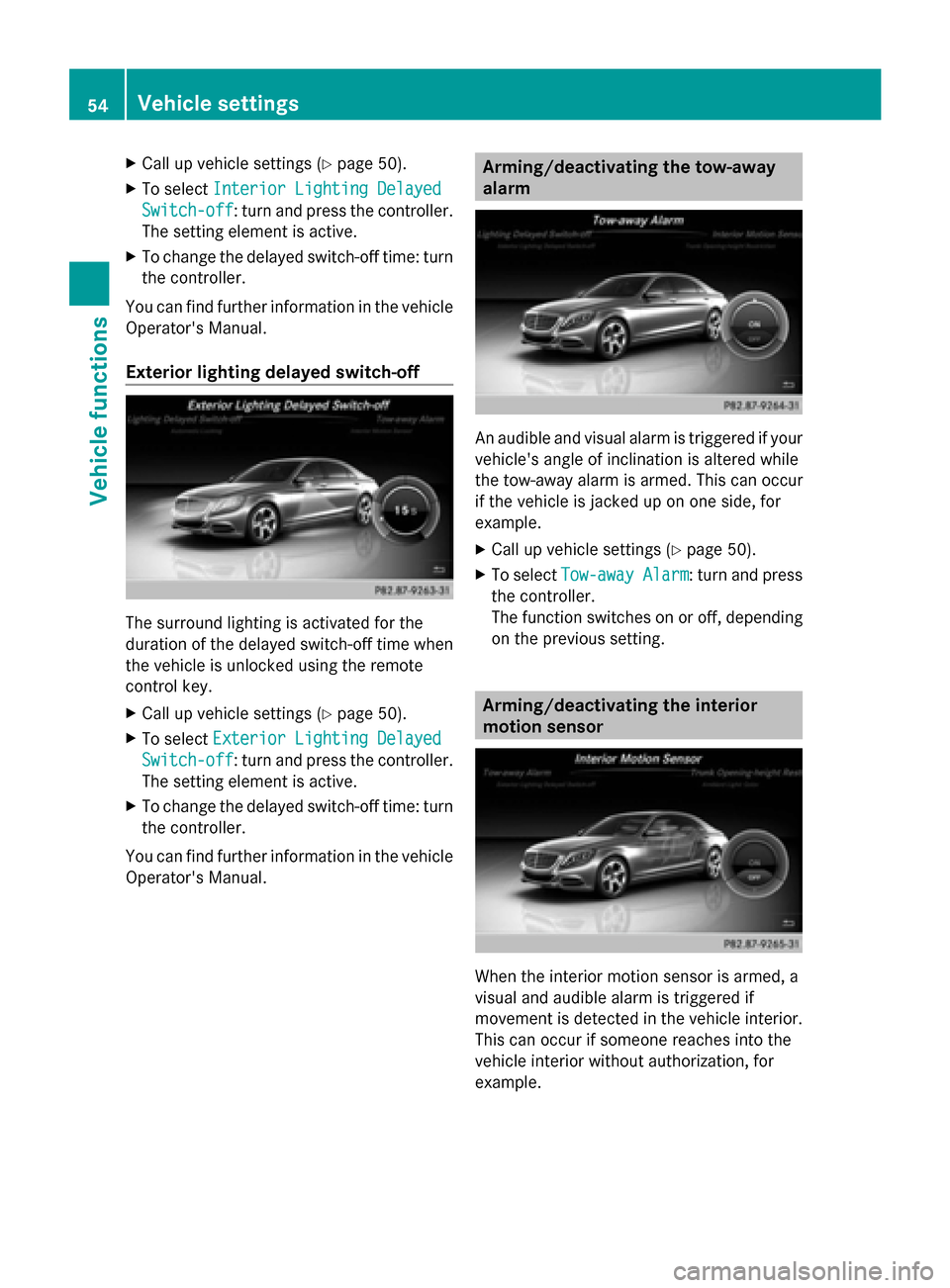
An audible and visual alarm is triggered if your
vehicle's angle of inclination is altered while
the tow-away alarm is armed. This can occur
if the vehicle is jacked up on one side, for
example.
X Call up vehicle settings ( Ypage 50).
X To select Tow-away Alarm Tow-away Alarm : turn and press
the controller.
The function switches on or off, depending
on the previous setting. Arming/deactivating the interior
motion sensor
When the interior motion sensor is armed, a
visual and audible alarm is triggered if
movement is detected in the vehicle interior.
This can occur if someone reaches into the
vehicle interior without authorization, for
example. 54
Vehicle settingsVehicle functions
Page 70 of 278
Your COMAND equipment
These operating instructions describe all
standard and optional equipment available
for your COMAND system at the time of
purchase. Country-specific differences are
possible. Please note that your
COMAND system may not be equipped with
all the features described. This also applies to
safety-relevant systems and functions.
Therefore, the equipment on your COMAND
system may differ from that in the
descriptions and illustrations. Should you
have any questions concerning equipment
and operation, please consult an authorized
Mercedes-Benz Center. Introduction
Important safety notes
G
WARNING
If you operate information systems and
communication equipment integrated in the
vehicle while driving, you will be distracted
from traffic conditions. You could also lose
control of the vehicle. There is a risk of an
accident.
Only operate the equipment when the traffic
situation permits. If you are not sure that this
is possible, park the vehicle paying attention
to traffic conditions and operate the
equipment when the vehicle is stationary.
You must observe the legal requirements for
the country in which you are currently driving
when operating COMAND.
COMAND calculates the route to the
destination without taking account of the
following, for example:
R traffic lights
R stop and give way signs
R merging lanes
R parking or stopping in a no parking/no
stopping zone R
other road and traffic rules and regulations
R narrow bridges
COMAND can give incorrect navigation
commands if the actual street/traffic
situation does not correspond with the digital
map's data. Digital maps do not cover all
areas nor all routes in an area. For example,
a route may have been diverted or the
direction of a one-way street may have
changed.
For this reason, you must always observe
road and traffic rules and regulations during
your journey. Road and traffic rules and
regulations always have priority over the
system's driving recommendations.
Navigation announcements are intended to
direct you while driving without diverting your
attention from the road and driving.
Please always use this feature instead of
consulting the map display for directions.
Looking at the icons or map display can
distract you from traffic conditions and
driving, and increase the risk of an accident. General notes
Operational readiness of the navigation
system The navigation system must determine the
position of the vehicle before first use or
whenever operational status is restored.
Therefore, you may have to drive for a while
before precise route guidance is possible.
GPS reception Among other things, correct functioning of
the navigation system depends on GPS
reception. In certain situations, GPS
reception may be impaired, there may be
interference or there may be no reception at
all, e.g. in tunnels or parking garages.
i Using roof carriers may impair the correct
functioning of a roof antenna (phone,
satellite radio, GPS). 68
Int
roductionNavigation
Page 72 of 278
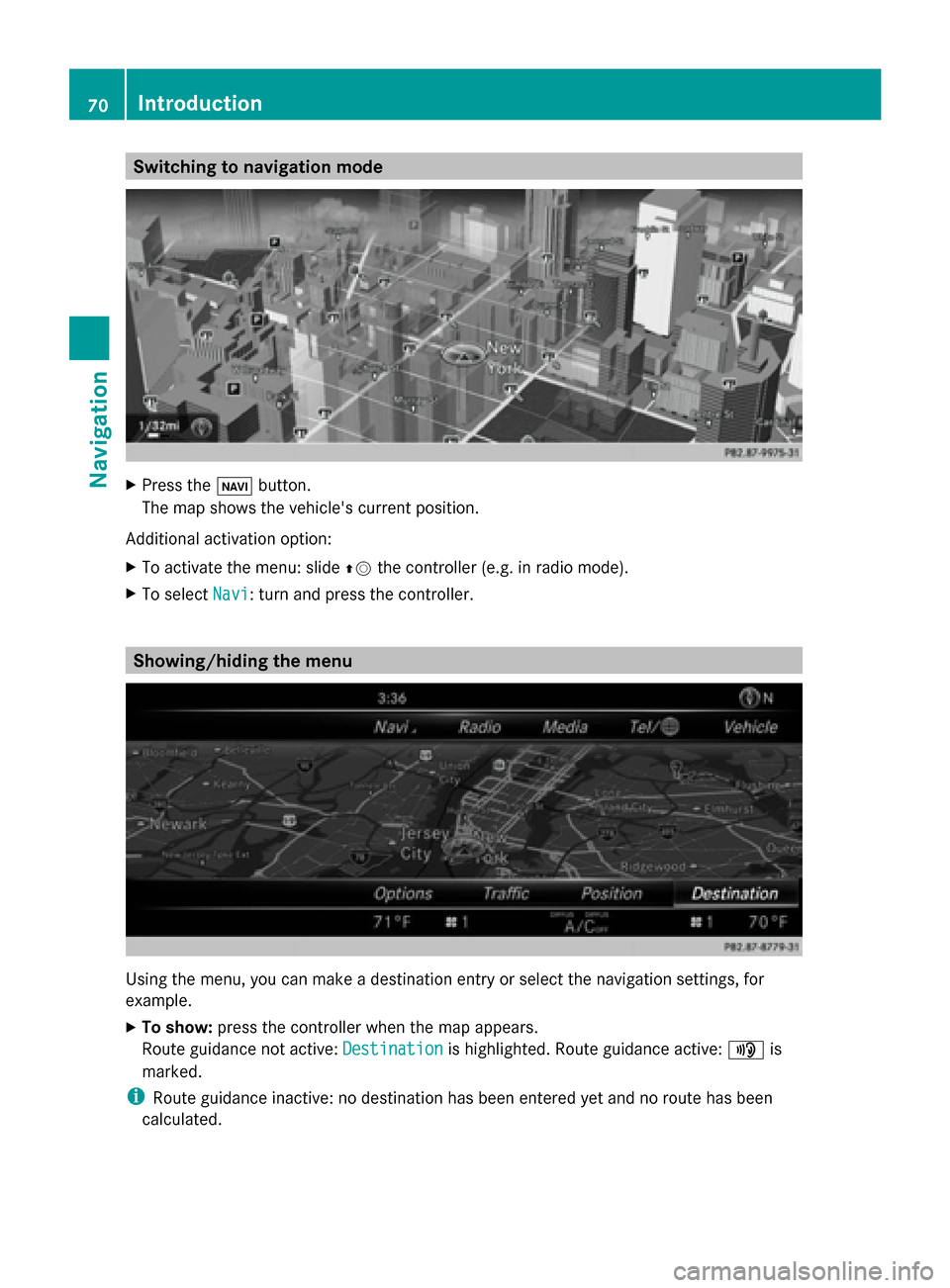
Switching to navigation mode
X
Press the 00CBbutton.
The map shows the vehicle's current position.
Additional activation option:
X To activate the menu: slide 00970052the controller (e.g. in radio mode).
X To select Navi
Navi: turn and press the controller. Showing/hiding the menu
Using the menu, you can make a destination entry or select the navigation settings, for
example.
X To show: press the controller when the map appears.
Route guidance not active: Destination
Destination is highlighted. Route guidance active: 008Fis
marked.
i Route guidance inactive: no destination has been entered yet and no route has been
calculated. 70
IntroductionNavigation
Page 74 of 278
Basic settings
Setting route type and route options
X To switch to navigation mode: press the
00BE button.
X To show the menu: press the controller.
X Select Settings
Settings: turn and press the
controller.
X Select Route Settings
Route Settings.
X Select a route type.
A filled circle indicates the current
selection.
R
Active route guidance: COMAND
calculates a new route.
R Inactive route guidance: COMAND uses
the selection as the new setting.
i Route guidance active: a destination has
been entered and the route has been
calculated.
Route guidance inactive: no destination
has been entered yet and no route has been
calculated yet. Fast Route Fast Route COMAND calculates a route
with a short journey time.
Dynamic Dynamic
Traffic Traffic
Route Route Based on the
Fast Route
Fast Route
route type and includes
traffic reports on the route
for the route guidance. Economic Economic
Route Route COMAND calculates an
economical route. The
journey may take slightly
longer compared to taking
the fast route.
Short Short
Route Route COMAND calculates a
shorter route.
X
To calculate alternative routes: select
Calculate Alternative Routes Calculate Alternative Routes .
Switch the function on 0073or off 0053.
Function activated: after each route
calculation, route alternatives are offered that correspond to the local conditions
(Y
page 97).
i If desired, you can have COMAND
calculate alternative routes even during
route guidance (Y page 97). X
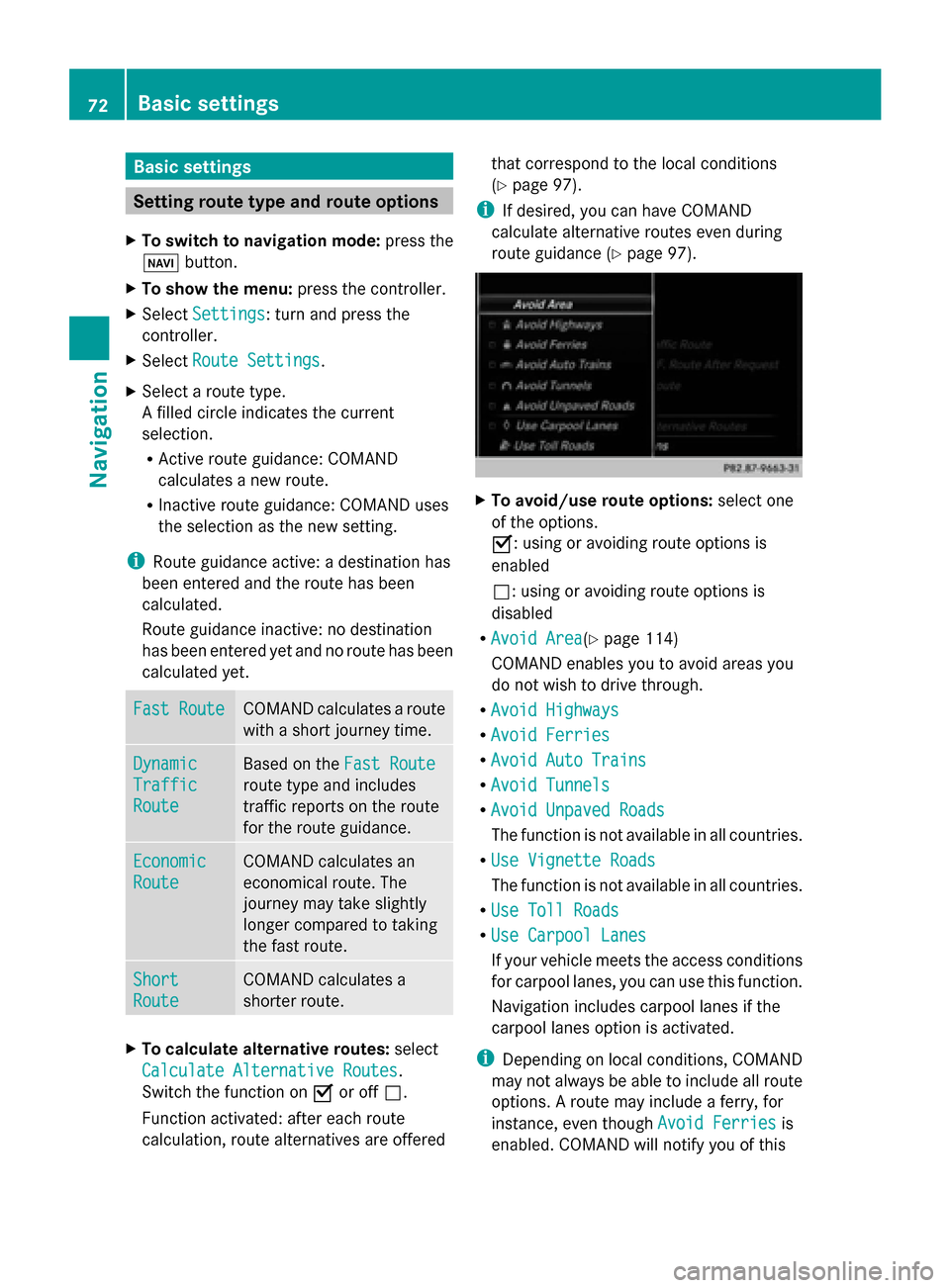
To avoid/use route options: select one
of the options.
0073: using or avoiding route options is
enabled
0053: using or avoiding route options is
disabled
R Avoid Area Avoid Area(Y page 114)
COMAND enables you to avoid areas you
do not wish to drive through.
R Avoid Highways Avoid Highways
R Avoid Ferries
Avoid Ferries
R Avoid Auto Trains
Avoid Auto Trains
R Avoid Tunnels
Avoid Tunnels
R Avoid Unpaved Roads
Avoid Unpaved Roads
The function is not available in all countries.
R Use Vignette Roads Use Vignette Roads
The function is not available in all countries.
R Use Toll Roads Use Toll Roads
R Use Carpool Lanes
Use Carpool Lanes
If your vehicle meets the access conditions
for carpool lanes, you can use this function.
Navigation includes carpool lanes if the
carpool lanes option is activated.
i Depending on local conditions, COMAND
may not always be able to include all route
options. A route may include a ferry, for
instance, even though Avoid Ferries Avoid Ferriesis
enabled. COMAND will notify you of this 72
Basic settingsNavigation