light MERCEDES-BENZ S-Class 2014 W222 Comand Manual
[x] Cancel search | Manufacturer: MERCEDES-BENZ, Model Year: 2014, Model line: S-Class, Model: MERCEDES-BENZ S-Class 2014 W222Pages: 278, PDF Size: 6.65 MB
Page 244 of 278
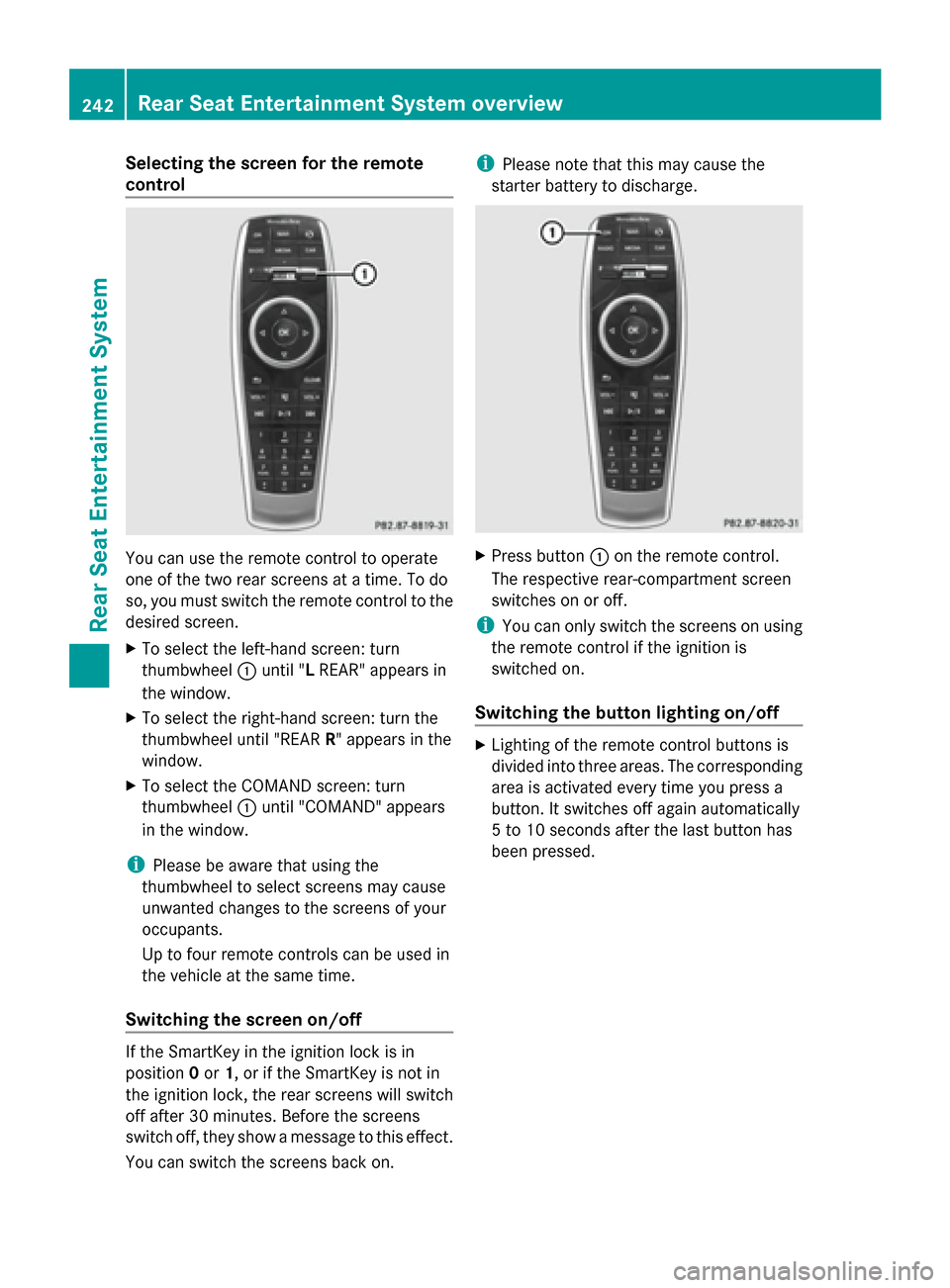
Selecting the screen for the remote
control
You can use the remote control to operate
one of the two rear screens at a time. To do
so, you must switch the remote control to the
desired screen.
X To select the left-hand screen: turn
thumbwheel 0043until "L REAR" appears in
the window.
X To select the right-hand screen: turn the
thumbwheel until "REAR R" appears in the
window.
X To select the COMAND screen: turn
thumbwheel 0043until "COMAND" appears
in the window.
i Please be aware that using the
thumbwheel to select screens may cause
unwanted changes to the screens of your
occupants.
Up to four remote controls can be used in
the vehicle at the same time.
Switching the screen on/off If the SmartKey in the ignition lock is in
position 0or 1, or if the SmartKey is not in
the ignition lock, the rear screens will switch
off after 30 minutes. Before the screens
switch off, they show a message to this effect.
You can switch the screens back on. i
Please note that this may cause the
starter battery to discharge. X
Press button 0043on the remote control.
The respective rear-compartment screen
switches on or off.
i You can only switch the screens on using
the remote control if the ignition is
switched on.
Switching the button lighting on/off X
Lighting of the remote control buttons is
divided into three areas. The corresponding
area is activated every time you press a
button. It switches off again automatically
5 to 10 seconds after the last button has
been pressed. 242
Rear Seat Entertainment System overviewRear Seat Entertainment System
Page 250 of 278
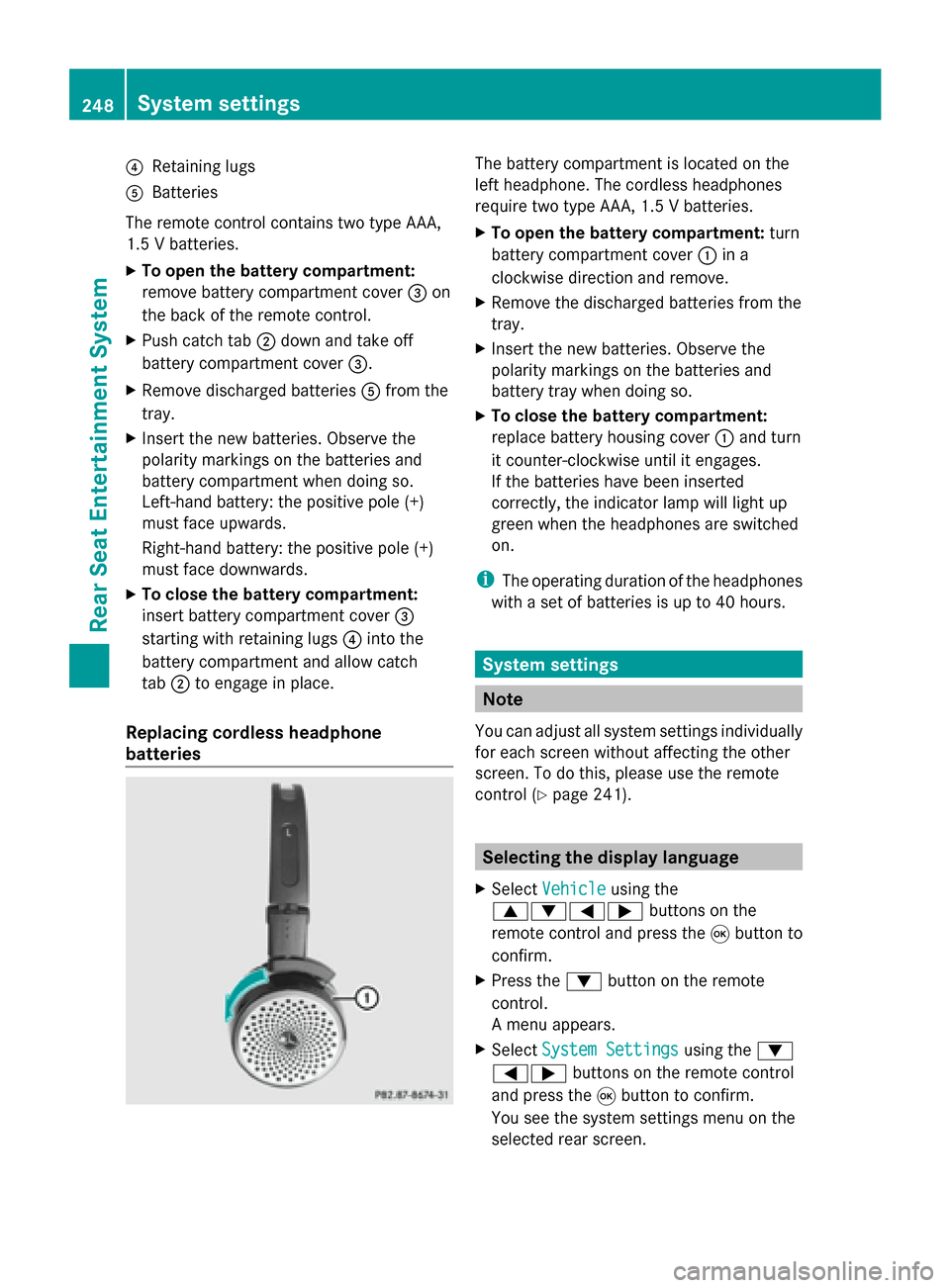
0085
Retaining lugs
0083 Batteries
The remote control contains two type AAA,
1.5 V batteries.
X To open the battery compartment:
remove battery compartment cover 0087on
the back of the remote control.
X Push catch tab 0044down and take off
battery compartment cover 0087.
X Remove discharged batteries 0083from the
tray.
X Insert the new batteries. Observe the
polarity markings on the batteries and
battery compartment when doing so.
Left-hand battery: the positive pole (+)
must face upwards.
Right-hand battery: the positive pole (+)
must face downwards.
X To close the battery compartment:
insert battery compartment cover 0087
starting with retaining lugs 0085into the
battery compartment and allow catch
tab 0044to engage in place.
Replacing cordless headphone
batteries The battery compartment is located on the
left headphone. The cordless headphones
require two type AAA, 1.5 V batteries.
X To open the battery compartment: turn
battery compartment cover 0043in a
clockwise direction and remove.
X Remove the discharged batteries from the
tray.
X Insert the new batteries. Observe the
polarity markings on the batteries and
battery tray when doing so.
X To close the battery compartment:
replace battery housing cover 0043and turn
it counter-clockwise until it engages.
If the batteries have been inserted
correctly, the indicator lamp will light up
green when the headphones are switched
on.
i The operating duration of the headphones
with a set of batteries is up to 40 hours. System settings
Note
You can adjust all system settings individually
for each screen without affecting the other
screen. To do this, please use the remote
control (Y page 241). Selecting the display language
X Select Vehicle Vehicle using the
006300640059 buttons on the
remote control and press the 008Bbutton to
confirm.
X Press the 0064button on the remote
control.
A menu appears.
X Select System Settings System Settings using the0064
00590065 buttons on the remote control
and press the 008Bbutton to confirm.
You see the system settings menu on the
selected rear screen. 248
System settingsRea
r Seat Entertainment System
Page 251 of 278
X
Select Language
Language using the00630064
buttons and press the 008Bbutton to confirm.
The list of languages appears. A 0036dot
indicates the current setting.
X Select the language using the 00630064
buttons and press the 008Bbutton to confirm.
The system activates the corresponding
language. Switching the display design
X Select Vehicle
Vehicle using the
006300640059 buttons on the
remote control and press the 008Bbutton to
confirm.
X Select System Settings
System Settings using the0064
00590065 buttons on the remote control
and press the 008Bbutton to confirm.
You see the system settings menu on the
selected rear screen.
X Select Display
Display using the 00630064
buttons on the remote control and press
the 008Bbutton to confirm.
X Select Day Mode
Day Mode, Night Mode Night Mode or
Automatic
Automatic using the00630064 buttons
and press the 008Bbutton to confirm.
The dot indicates the current setting. Design Explanation
Day Mode Day Mode The display is set
permanently to day
design. Night Mode
Night Mode The display is set
permanently to night
design. Automatic Automatic The display design
changes depending on
the vehicle instrument
cluster illumination. Setting the brightness
X Select Vehicle Vehicle using the
006300640059 buttons on the
remote control and press the 008Bbutton to
confirm.
X Select System Settings
System Settings using the0064
00590065 buttons on the remote control
and press the 008Bbutton to confirm.
You see the system settings menu on the
selected rear screen.
X Select Display
Display using the 00630064
buttons on the remote control and press
the 008Bbutton to confirm.
X Select Brightness Brightness using the00630064
buttons and press the 008Bbutton to confirm.
A scale appears.
X Adjust the brightness using the 00630064
buttons and press the 008Bbutton to confirm.
The brightness bar moves up or down. The
picture becomes lighter or darker in
accordance with the scale. Showing/hiding the picture
X Select Vehicle Vehicle using the
006300640059 buttons on the
remote control and press the 008Bbutton to
confirm.
X Press button 0064on the remote control.
A menu appears.
X Select Display Off
Display Off using the
006300640059 buttons and press
the 008Bbutton to confirm.
X To display the picture: press the008B
button. Adjusting sound settings
You can select the sound settings in the radio,
audio CD/audio DVD/MP3, video DVD and
AUX modes. System settings
249Rear Seat Entertainment System Z
Page 259 of 278
0087
Shows the menu bars for the DVD basic
display
0085 Current scene
0083 Track time
X To show: press the0063or0064 button
on the remote control.
X To hide: press the 0063or0064 button.
or
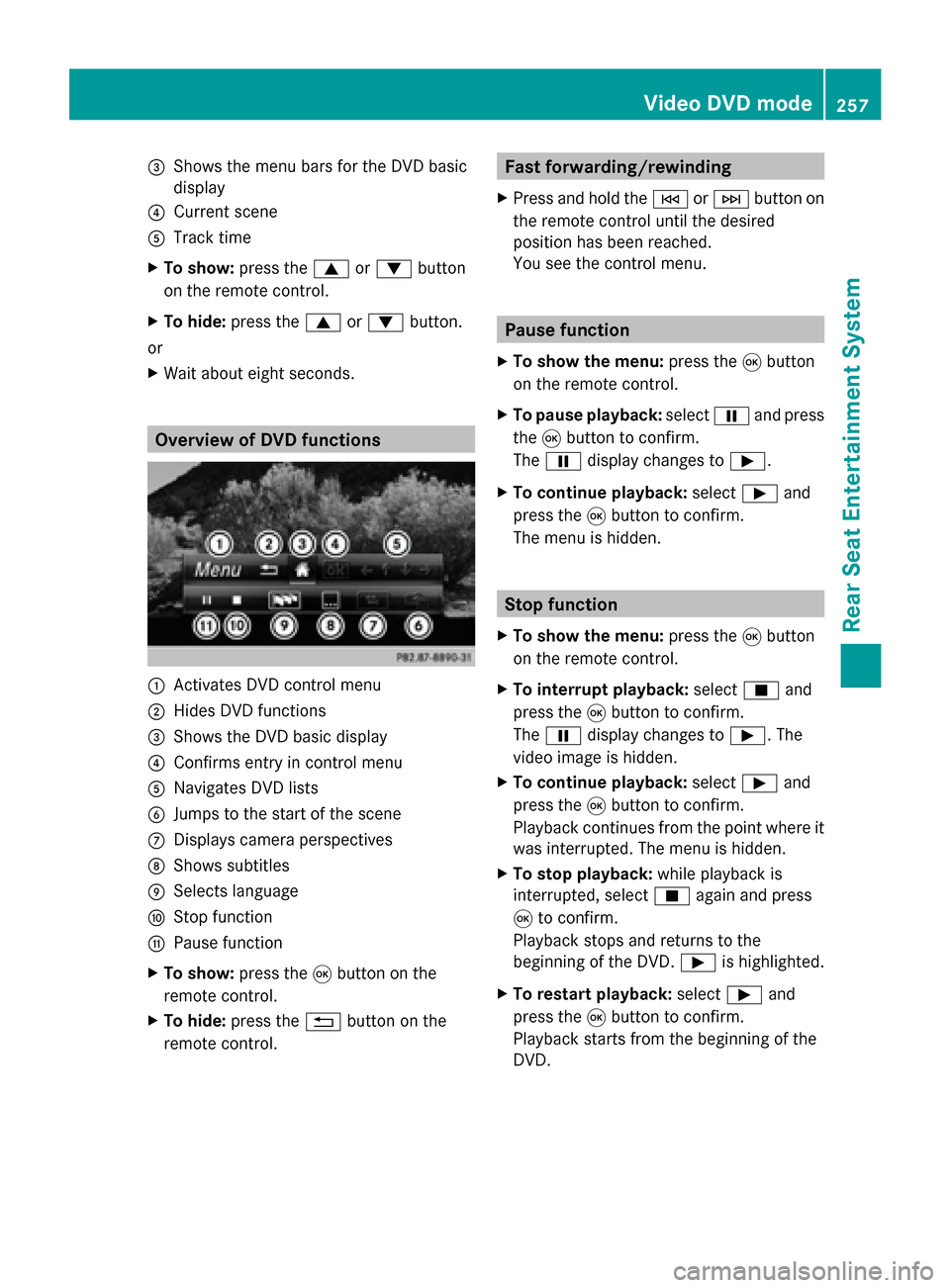
X Wait about eight seconds. Overview of DVD functions
0043
Activates DVD control menu
0044 Hides DVD functions
0087 Shows the DVD basic display
0085 Confirms entry in control menu
0083 Navigates DVD lists
0084 Jumps to the start of the scene
006B Displays camera perspectives
006C Shows subtitles
006D Selects language
006E Stop function
006F Pause function
X To show: press the008Bbutton on the
remote control.
X To hide: press the 0038button on the
remote control. Fast forwarding/rewinding
X Press and hold the 0048or0049 button on
the remote control until the desired
position has been reached.
You see the control menu. Pause function
X To show the menu: press the008Bbutton
on the remote control.
X To pause playback: select00CFand press
the 008Bbutton to confirm.
The 00CF display changes to 00D0.
X To continue playback: select00D0and
press the 008Bbutton to confirm.
The menu is hidden. Stop function
X To show the menu: press the008Bbutton
on the remote control.
X To interrupt playback: select00DBand
press the 008Bbutton to confirm.
The 00CF display changes to 00D0. The
video image is hidden.
X To continue playback: select00D0and
press the 008Bbutton to confirm.
Playback continues from the point where it
was interrupted. The menu is hidden.
X To stop playback: while playback is
interrupted, select 00DBagain and press
008B to confirm.
Playback stops and returns to the
beginning of the DVD. 00D0is highlighted.
X To restart playback: select00D0and
press the 008Bbutton to confirm.
Playback starts from the beginning of the
DVD. Video DVD mode
257Rear Seat Entertainment System Z
Page 262 of 278
X
Select DVD Functions
DVD Functions and press the008B
button to confirm.
X Select Subtitles
Subtitles orCamera Angle
Camera Angle and
press the 008Bbutton to confirm.
In both cases, a menu appears after a few
seconds. The 0036dot in front of an entry
indicates the current setting.
X Select the setting using the 00630064
buttons and press the 008Bbutton to confirm.
X To exit the menu: press the0059
or 0065 button. Interactive content
DVDs can also contain interactive content
(e.g. a video game). In a video game, you may
be able to influence events by selecting and
triggering actions. The type and number of
actions depend on the DVD.
X Select an action using the
006300650064 buttons on the
remote control and press the 008Bbutton to
execute it.
A menu appears and the first entry,
Select
Select , is highlighted.
X Press the 008Bbutton. AUX mode
General information
You can connect an external video source in
the rear compartment.
Depending on the vehicle model and
equipment level, the AUX jacks are found:
R in the stowage box between the rear seats
or
R in the rear-compartment armrest
(Y page 245).
Please see the corresponding operating
instructions for information on how to
operate the external video source. For further details about external video
sources, please consult an authorized
Mercedes-Benz Center. Connecting AUX equipment
Audio and video connection X
Insert the audio plugs for the left and right
signals into the corresponding Land R
jacks.
X Insert the video plug into the Vjack. Activating AUX mode
AUX drive X
Select Aux Auxusing the 006300590065
buttons on the remote control and press
the 008Bbutton to confirm.
The AUX source is switched on once the
AUX device is active. 260
AUX modeRear Seat Entertainment System
Page 273 of 278
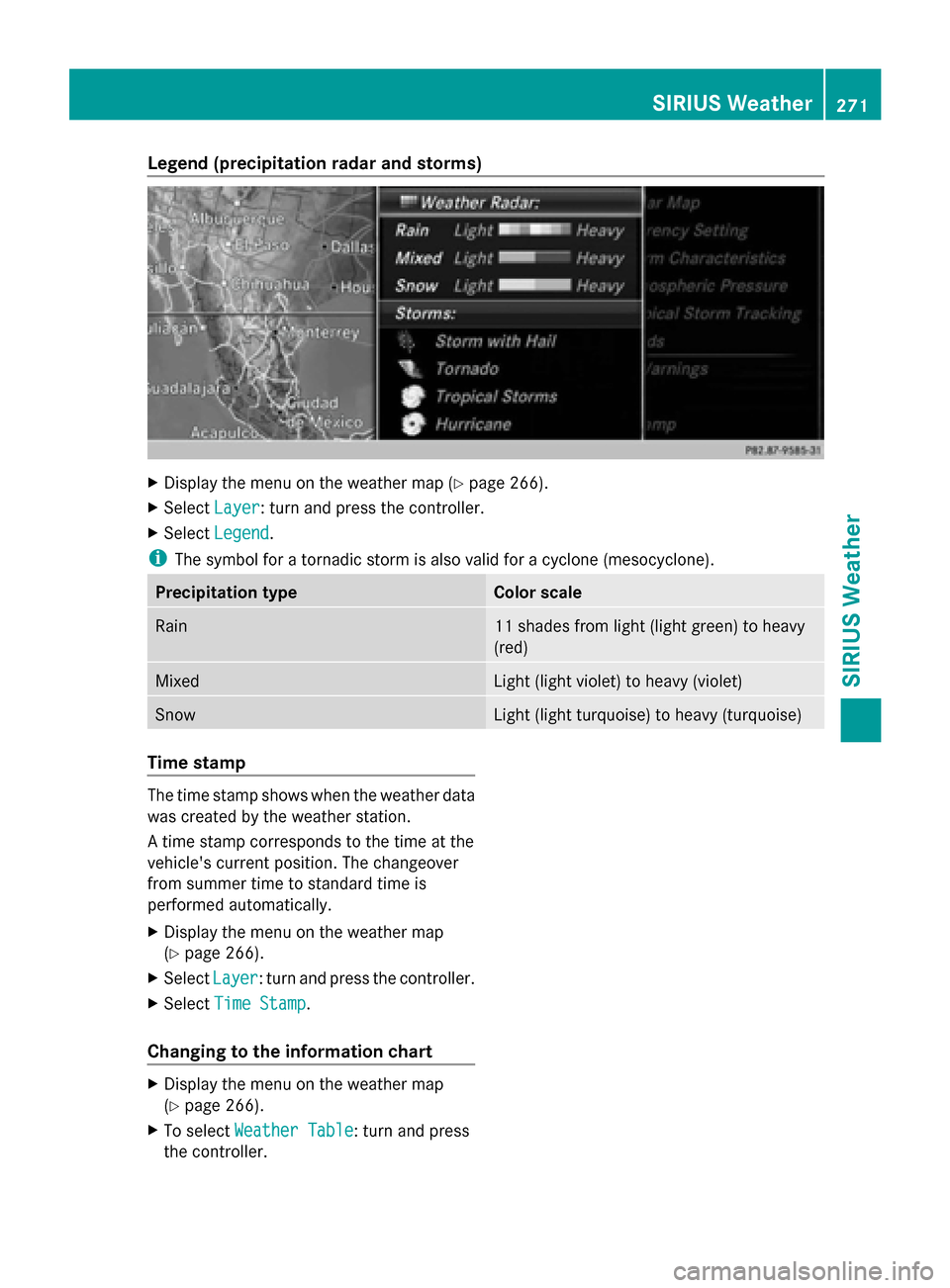
Legend (precipitation radar and storms)
X
Display the menu on the weather map (Y page 266).
X Select Layer Layer: turn and press the controller.
X Select Legend Legend .
i The symbol for a tornadic storm is also valid for a cyclone (mesocyclone). Precipitation type Color scale
Rain 11 shades from light (light green) to heavy
(red)
Mixed Light (light violet) to heavy (violet)
Snow Light (light turquoise) to heavy (turquoise)
Time stamp
The time stamp shows when the weather data
was created by the weather station.
A time stamp corresponds to the time at the
vehicle's current position. The changeover
from summer time to standard time is
performed automatically.
X Display the menu on the weather map
(Y page 266).
X Select Layer Layer: turn and press the controller.
X Select Time Stamp
Time Stamp.
Changing to the information chart X
Display the menu on the weather map
(Y page 266).
X To select Weather Table Weather Table: turn and press
the controller. SIRIUS Weather
271SIRIUS Weather
Page 274 of 278
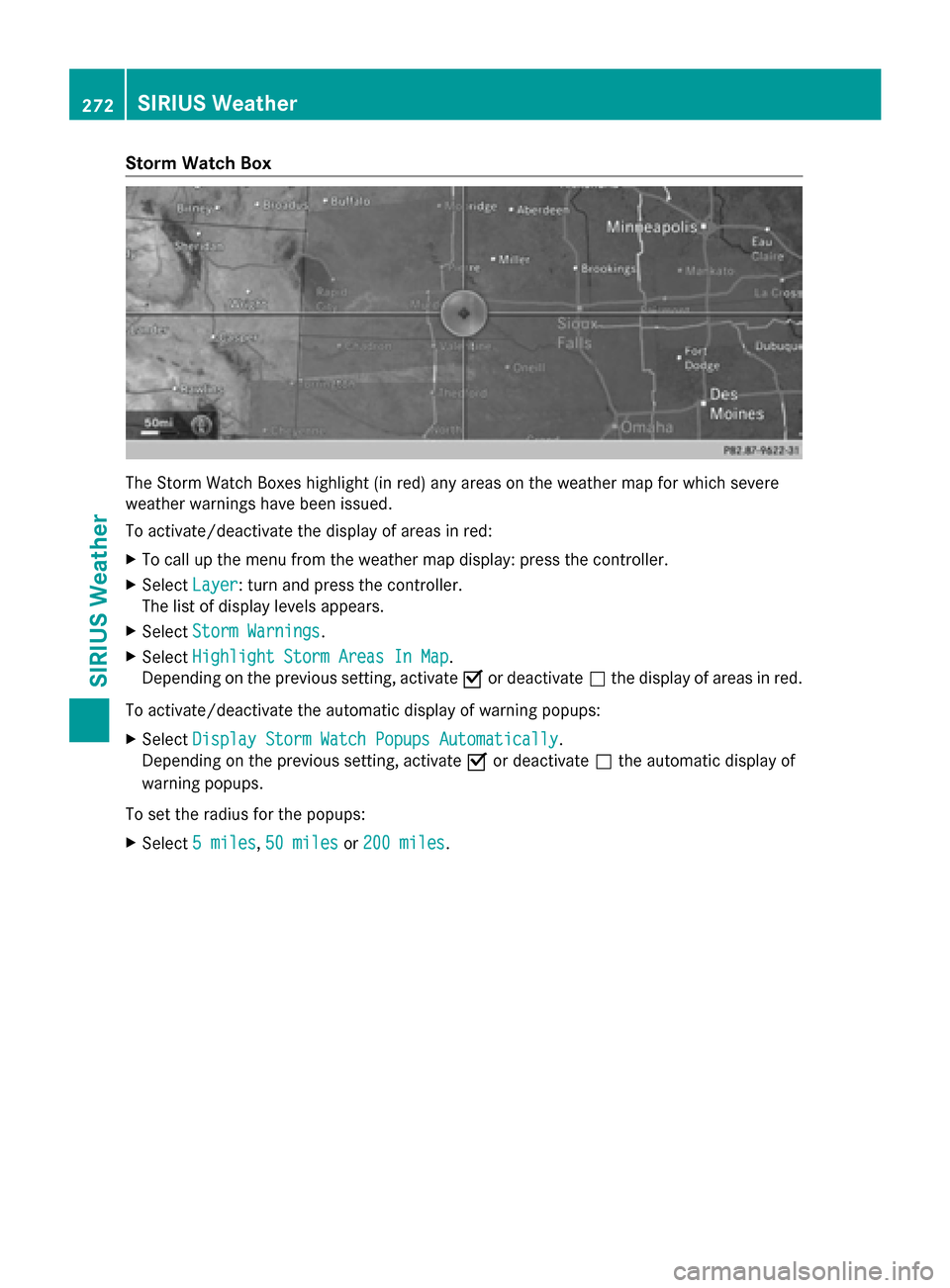
Storm Watch Box
The Storm Watch Boxes highlight (in red) any areas on the weather map for which severe
weather warnings have been issued.
To activate/deactivate the display of areas in red:
X To call up the menu from the weather map display: press the controller.
X Select Layer
Layer: turn and press the controller.
The list of display levels appears.
X Select Storm Warnings
Storm Warnings.
X Select Highlight Storm Areas In Map Highlight Storm Areas In Map.
Depending on the previous setting, activate 0073or deactivate 0053the display of areas in red.
To activate/deactivate the automatic display of warning popups:
X Select Display Storm Watch Popups Automatically
Display Storm Watch Popups Automatically.
Depending on the previous setting, activate 0073or deactivate 0053the automatic display of
warning popups.
To set the radius for the popups:
X Select 5 miles
5 miles, 50 miles 50 miles or200 miles
200 miles. 272
SIRIUS WeatherSIRIUS Weather
Page 275 of 278
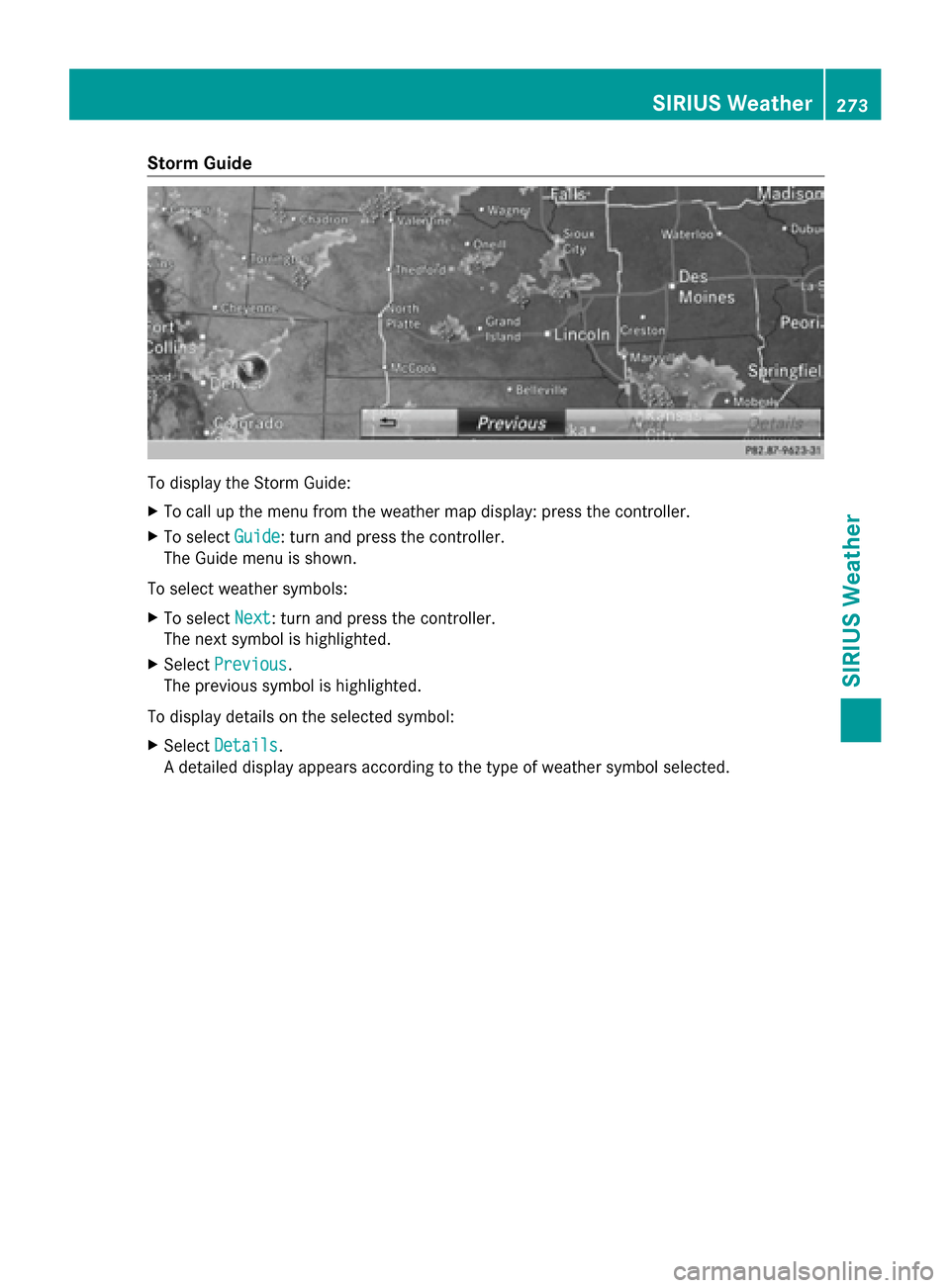
Storm Guide
To display the Storm Guide:
X
To call up the menu from the weather map display: press the controller.
X To select Guide
Guide: turn and press the controller.
The Guide menu is shown.
To select weather symbols:
X To select Next
Next: turn and press the controller.
The next symbol is highlighted.
X Select Previous
Previous.
The previous symbol is highlighted.
To display details on the selected symbol:
X Select Details
Details.
A detailed display appears according to the type of weather symbol selected. SIRIUS Weather
273SIRIUS Weather