light MERCEDES-BENZ S-Class 2014 W222 Comand Manual
[x] Cancel search | Manufacturer: MERCEDES-BENZ, Model Year: 2014, Model line: S-Class, Model: MERCEDES-BENZ S-Class 2014 W222Pages: 278, PDF Size: 6.65 MB
Page 81 of 278

Keyword search
Entering keywords The keyword search is used to help find
destinations using fragments of words. The
keyword search is tolerant of errors. It can be
used for an address or a POI. For example,
you can search for the Houses of Parliament
or Big Ben. The keyword search finds
geotolerant hits. If, for example, you are
searching for a street located on the edge of
a city, the search will also cover adjacent
smaller cities. The keyword search supports
languages using Latin characters.
X To switch to navigation mode: press the
00BE button.
X To show the menu: press the controller.
X To select Destination
Destination: turn and press the
controller.
X Select Keyword Search
Keyword Search .
X Enter the first few letters of the city and
street, e.g. STUT
STUT andKÖN KÖN.
While entering the information, the number
of exact matches/all hits is shown.
---/--- ---/--- is displayed if fewer than three
characters have been entered.
999+
999+ is displayed if there are too many hits.
X Select OK
OK. The search results are divided into
categories, such as addresses. The number
of exact/total hits is shown in brackets.
The search results will be displayed if
POI POI
Search
Search and/orAutomatic Online Search
Automatic Online Search
are enabled in the search options.
Selecting an address
X To select Addresses
Addresses : press the controller. Exact hits are shown at the very top of the list.
Hits are listed alphabetically. The search term
that you entered is highlighted in orange in
the entries.
X
Select an entry: turn and press the
controller.
The address entry menu appears, showing
the destination address.
X To start route calculation: selectStart
Start.
Selecting a point of interest
X To select POI in the vicinity
POI in the vicinity orAll All
POIs
POIs: turn and press the controller.
A list appears.
X Selecting a point of interest.
The POI is shown.
X To start route calculation: select Start
Start. Destination input
79Navigation Z
Page 88 of 278
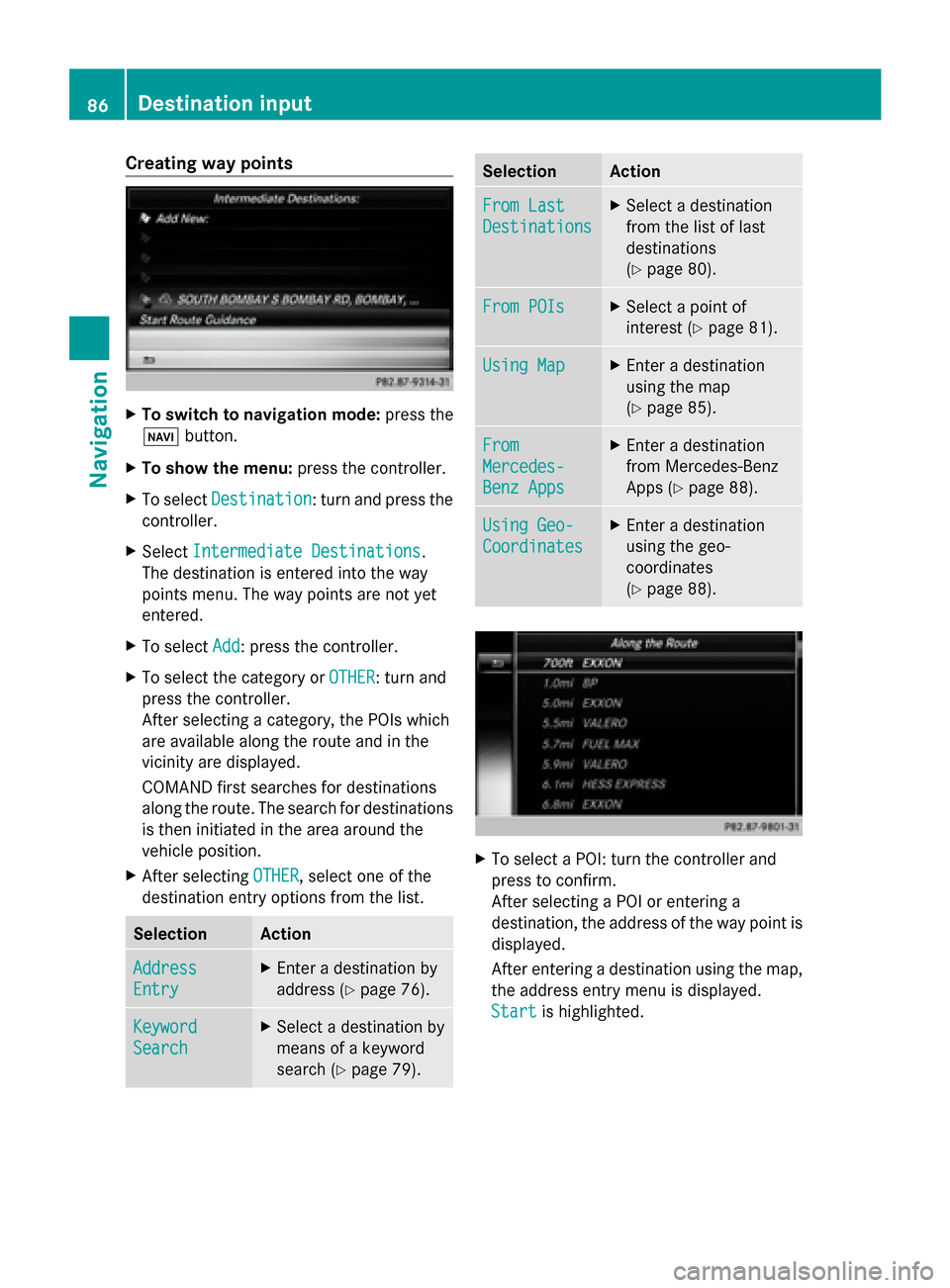
Creating way points
X
To switch to navigation mode: press the
00BE button.
X To show the menu: press the controller.
X To select Destination
Destination: turn and press the
controller.
X Select Intermediate Destinations
Intermediate Destinations .
The destination is entered into the way
points menu. The way points are not yet
entered.
X To select Add
Add : press the controller.
X To select the category or OTHER OTHER: turn and
press the controller.
After selecting a category, the POIs which
are available along the route and in the
vicinity are displayed.
COMAND first searches for destinations
along the route. The search for destinations
is then initiated in the area around the
vehicle position.
X After selecting OTHER
OTHER, select one of the
destination entry options from the list. Selection Action
Address Address
Entry Entry X
Enter a destination by
address ( Ypage 76). Keyword Keyword
Search Search X
Select a destination by
means of a keyword
search (Y page 79). Selection Action
From Last From Last
Destinations Destinations X
Select a destination
from the list of last
destinations
(Y page 80). From POIs From POIs X
Select a point of
interest (Y page 81). Using Map Using Map X
Enter a destination
using the map
(Y page 85). From From
Mercedes- Mercedes-
Benz Apps Benz Apps X
Enter a destination
from Mercedes-Benz
Apps (Y page 88). Using Geo- Using Geo-
Coordinates Coordinates X
Enter a destination
using the geo-
coordinates
(Y page 88). X
To select a POI: turn the controller and
press to confirm.
After selecting a POI or entering a
destination, the address of the way point is
displayed.
After entering a destination using the map,
the address entry menu is displayed.
Start Start is highlighted. 86
Destination inputNavigation
Page 91 of 278
regulations always have priority over system
driving recommendations.
COMAND calculates the route to the
destination without taking account of the
following, for example:
R traffic lights
R stop and give way signs
R merging lanes
R parking or stopping in a no parking/no
stopping zone
R other road and traffic rules and regulations
R narrow bridges
COMAND may give differing navigation
commands if the actual street/traffic
situation does not correspond with the digital
map's data. For example, if the road layout or
the direction of a one-way street has been
changed.
For this reason, you must always observe
road and traffic rules and regulations during
your journey. Road and traffic rules and
regulations always have priority over the
system's driving recommendations.
Route guidance begins once a route has been
calculated (Y page 78).
COMAND guides you to your destination by
means of navigation announcements in the
form of audible navigation announcements
and route guidance displays.
The route guidance displays can be seen if the
display is switched to navigation mode.
If you do not follow the navigation
announcements or if you leave the calculated
route, COMAND automatically calculates a
new route to the destination.
If the digital map contains the corresponding
information, the following applies:
R during route guidance, COMAND tries to
avoid roads with restricted access. Those
roads, for example, that are closed to
through-traffic.
R roads that have time restrictions (e.g.
closed on Sundays and public holidays) are
considered for route guidance on days when they are open. For this purpose, the
relevant times must be correctly stored in
the database. Route guidance
89Navigation Z
Page 93 of 278
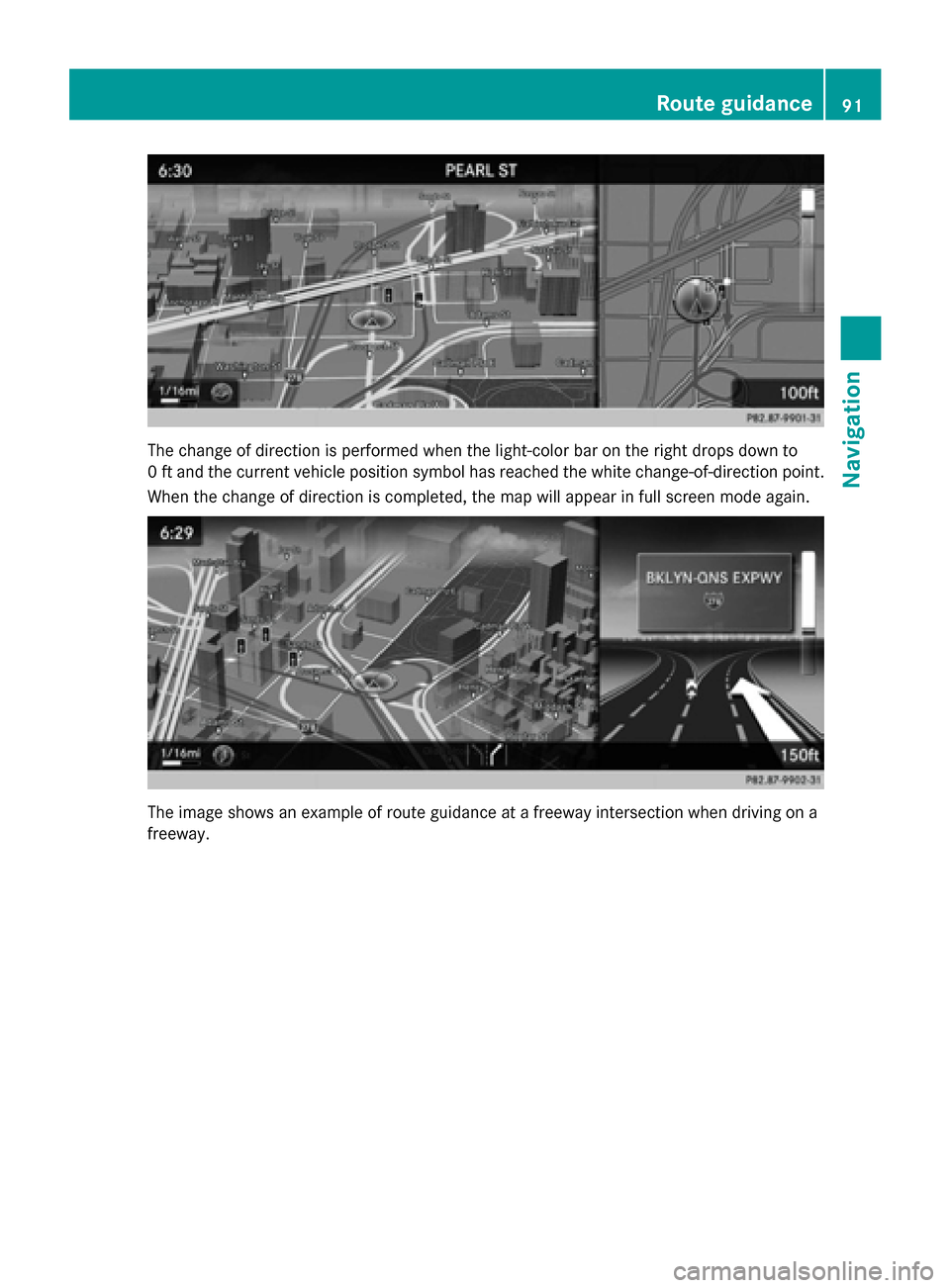
The change of direction is performed when the light-color bar on the right drops down to
0 ft and the current vehicle position symbol has reached the white change-of-direction point.
When the change of direction is completed, the map will appear in full screen mode again. The image shows an example of route guidance at a freeway intersection when driving on a
freeway. Route guidance
91Navigation Z
Page 94 of 278
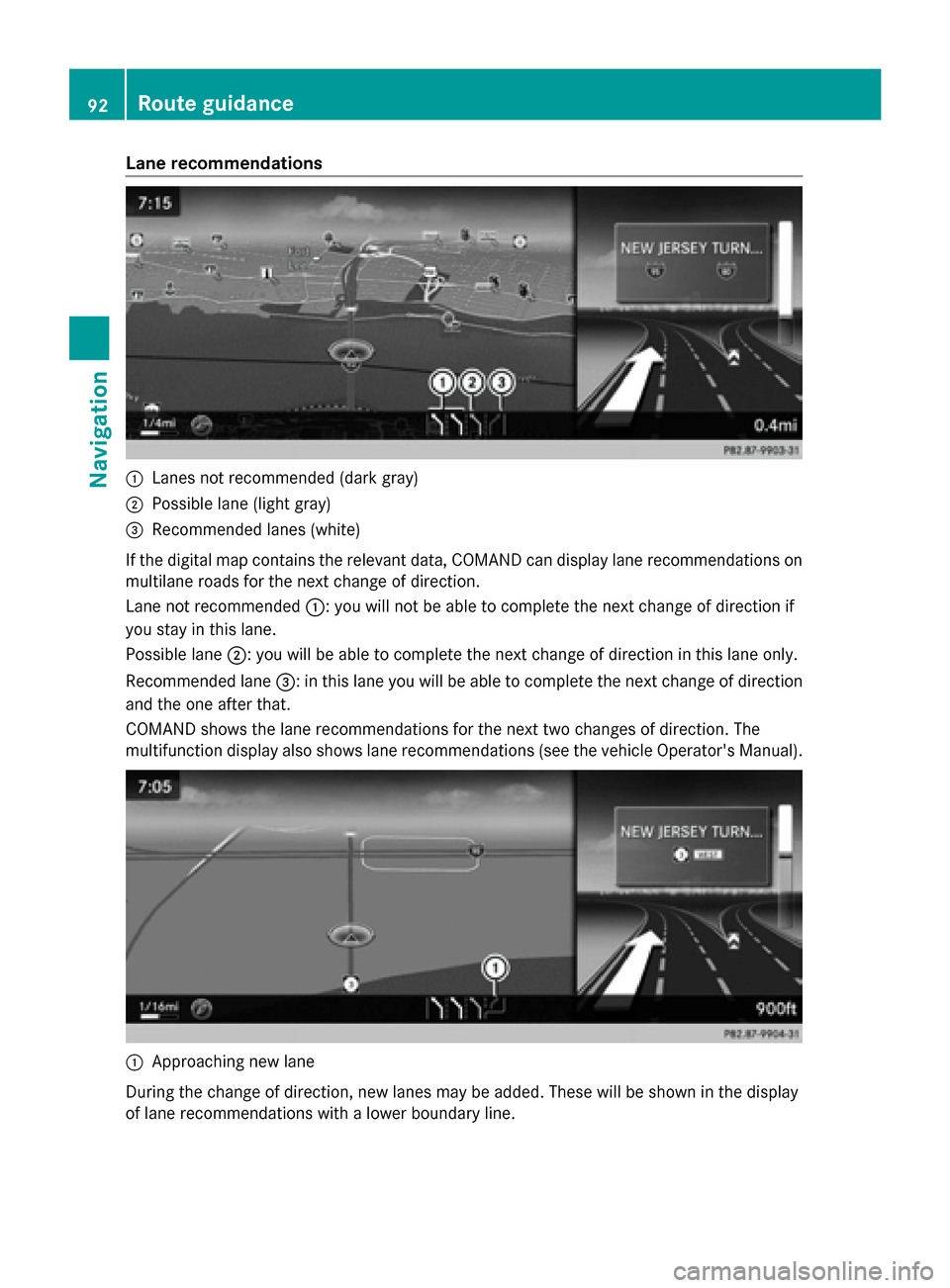
Lane recommendations
0043
Lanes not recommended (dark gray)
0044 Possible lane (light gray)
0087 Recommended lanes (white)
If the digital map contains the relevant data, COMAND can display lane recommendations on
multilane roads for the next change of direction.
Lane not recommended 0043: you will not be able to complete the next change of direction if
you stay in this lane.
Possible lane 0044: you will be able to complete the next change of direction in this lane only.
Recommended lane 0087: in this lane you will be able to complete the next change of direction
and the one after that.
COMAND shows the lane recommendations for the next two changes of direction. The
multifunction display also shows lane recommendations (see the vehicle Operator's Manual). 0043
Approaching new lane
During the change of direction, new lanes may be added. These will be shown in the display
of lane recommendations with a lower boundary line. 92
Route guidanceNavigation
Page 105 of 278
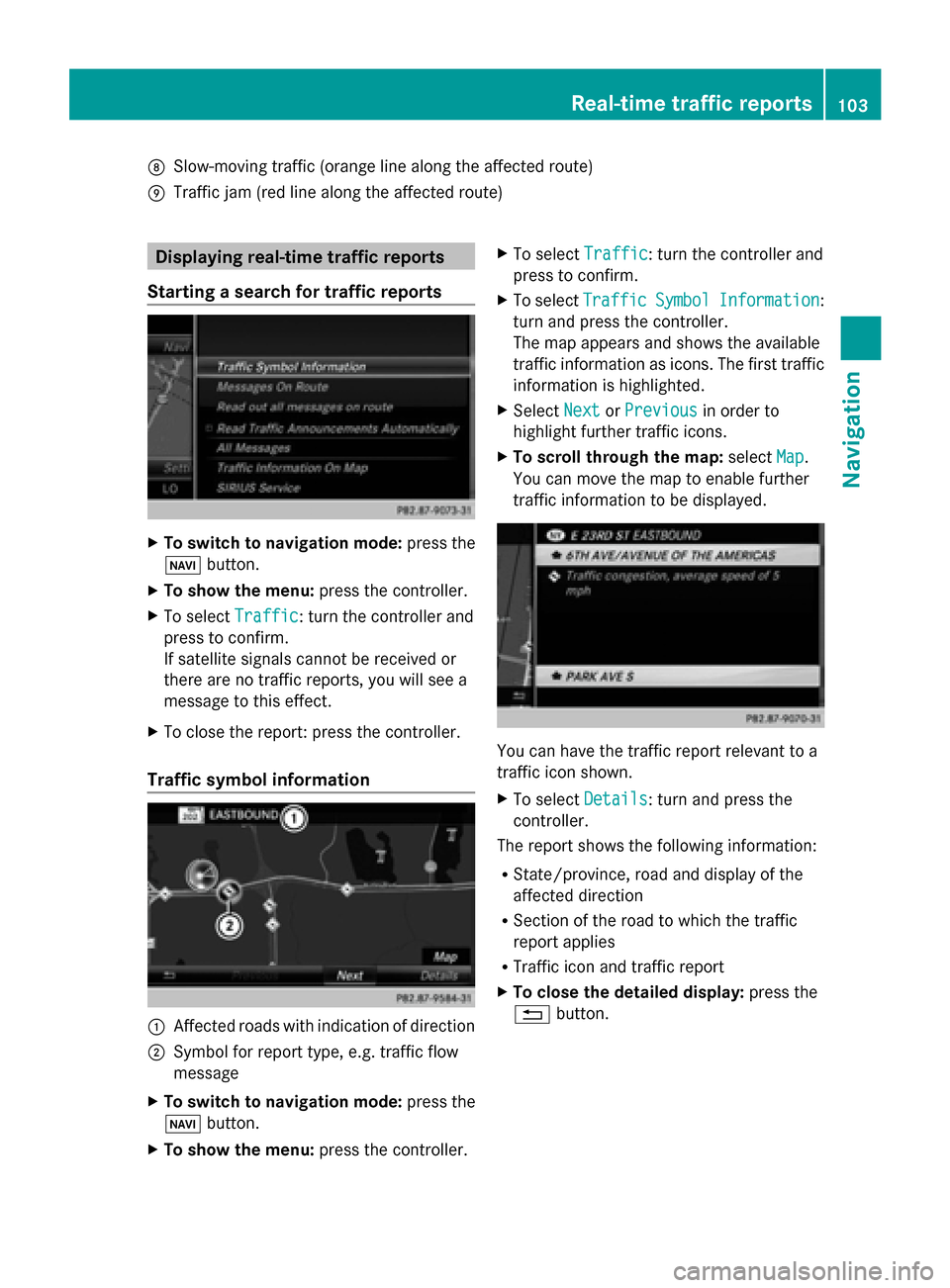
006C
Slow-moving traffic (orange line along the affected route)
006D Traffic jam (red line along the affected route) Displaying real-time traffic reports
Starting a search for traffic reports X
To switch to navigation mode: press the
00BE button.
X To show the menu: press the controller.
X To select Traffic
Traffic: turn the controller and
press to confirm.
If satellite signals cannot be received or
there are no traffic reports, you will see a
message to this effect.
X To close the report: press the controller.
Traffic symbol information 0043
Affected roads with indication of direction
0044 Symbol for report type, e.g. traffic flow
message
X To switch to navigation mode: press the
00BE button.
X To show the menu: press the controller. X
To select Traffic
Traffic: turn the controller and
press to confirm.
X To select Traffic Traffic Symbol
SymbolInformation
Information:
turn and press the controller.
The map appears and shows the available
traffic information as icons. The first traffic
information is highlighted.
X Select Next NextorPrevious
Previous in order to
highlight further traffic icons.
X To scroll through the map: selectMap
Map.
You can move the map to enable further
traffic information to be displayed. You can have the traffic report relevant to a
traffic icon shown.
X
To select Details Details: turn and press the
controller.
The report shows the following information:
R State/province, road and display of the
affected direction
R Section of the road to which the traffic
report applies
R Traffic icon and traffic report
X To close the detailed display: press the
0038 button. Real-time traffic reports
103Navigation Z
Page 109 of 278
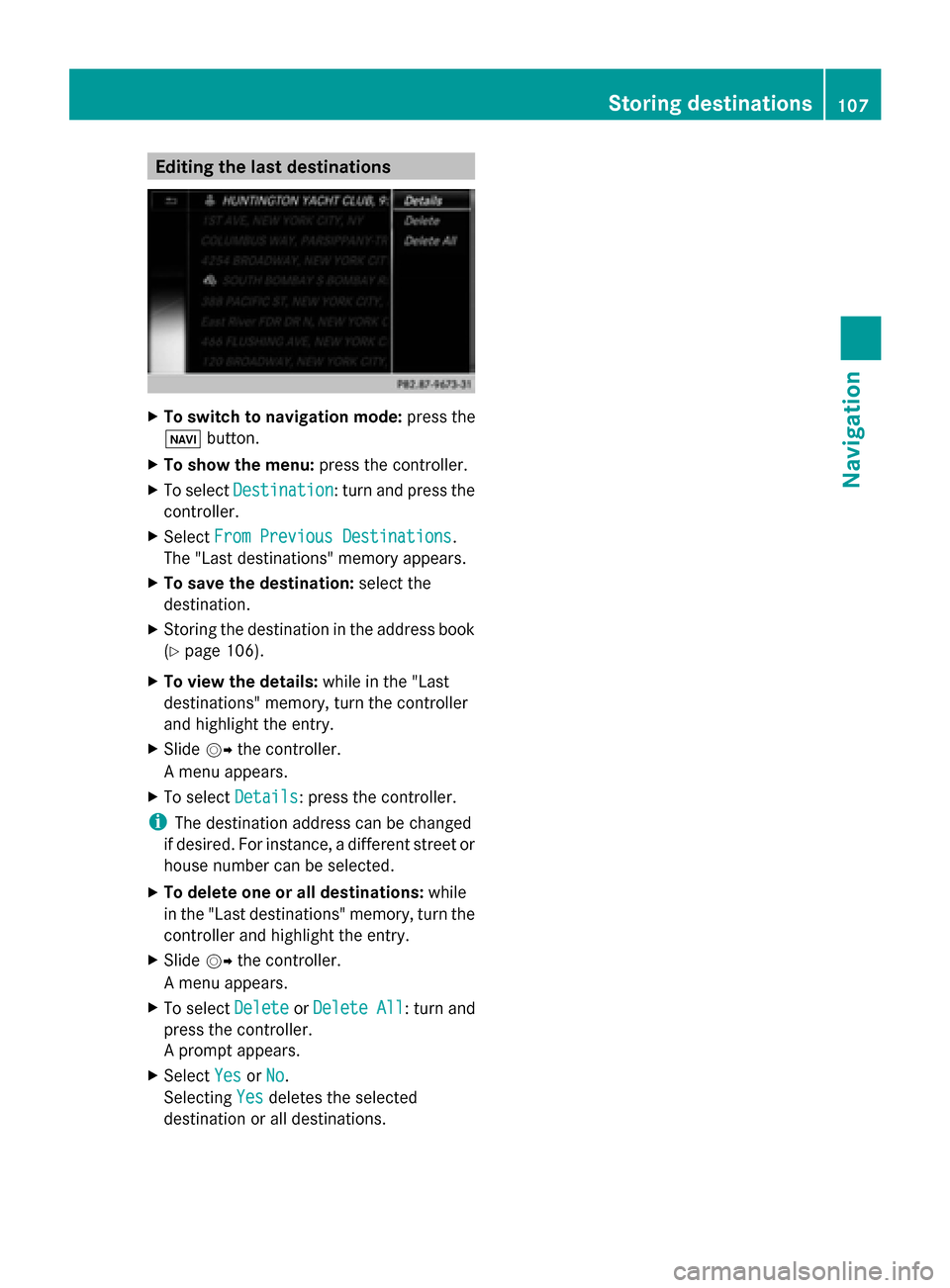
Editing the last destinations
X
To switch to navigation mode: press the
00CB button.
X To show the menu: press the controller.
X To select Destination
Destination: turn and press the
controller.
X Select From Previous Destinations
From Previous Destinations .
The "Last destinations" memory appears.
X To save the destination: select the
destination.
X Storing the destination in the address book
(Y page 106).
X To view the details: while in the "Last
destinations" memory, turn the controller
and highlight the entry.
X Slide 00520096the controller.
A menu appears.
X To select Details
Details: press the controller.
i The destination address can be changed
if desired. For instance, a different street or
house number can be selected.
X To delete one or all destinations: while
in the "Last destinations" memory, turn the
controller and highlight the entry.
X Slide 00520096the controller.
A menu appears.
X To select Delete
DeleteorDelete All
Delete All : turn and
press the controller.
A prompt appears.
X Select Yes YesorNo
No.
Selecting Yes
Yesdeletes the selected
destination or all destinations. Storing destinations
107Navigation Z
Page 118 of 278
Deleting all areas:
X
Slide 00520096and press the controller while the list is shown.
X Select Delete All Delete All .
A prompt appears asking whether you wish to delete all areas.
X Select Yes
Yes orNo
No.
After selecting Yes
Yes , all areas are deleted. SIRIUS XM service
Displaying SIRIUS XM service
information You can display the SIRIUS XM service
information.
X To switch to navigation mode: press the
00BE button.
X To show the menu: press the controller.
X To select Traffic
Traffic: turn the controller and
press to confirm.
X Select SIRIUS Service SIRIUS Service.
The window on the right half of the display
shows the telephone number of the
provider (SIRIUS XM) and the serial number
of your service module.
Registering for the SIRIUS XM traffic
report service X
Call the provider telephone number shown
on the COMAND display.
i You can also have the satellite service
activated online. To do so, visit the SIRIUS
XM Radio website at
http://www.sirius.com (USA).
Once the connection has been established:
X Follow the service employee's instructions.
The activation process may take up to ten
minutes.
If registration is not included when
purchasing the system, your credit card
details will be required to activate your
account. Updating the digital map
Introduction The digital maps generated by the map
software become outdated in the same way
as conventional road maps. Optimal route
guidance can only be provided by
the navigation system in conjunction with the
most up-to-date map software.
Information about new versions of the digital
map can be obtained from an authorized
Mercedes-Benz Center. You can have the
digital map updated there using a data
medium, or you can update it yourself. Navigation functions
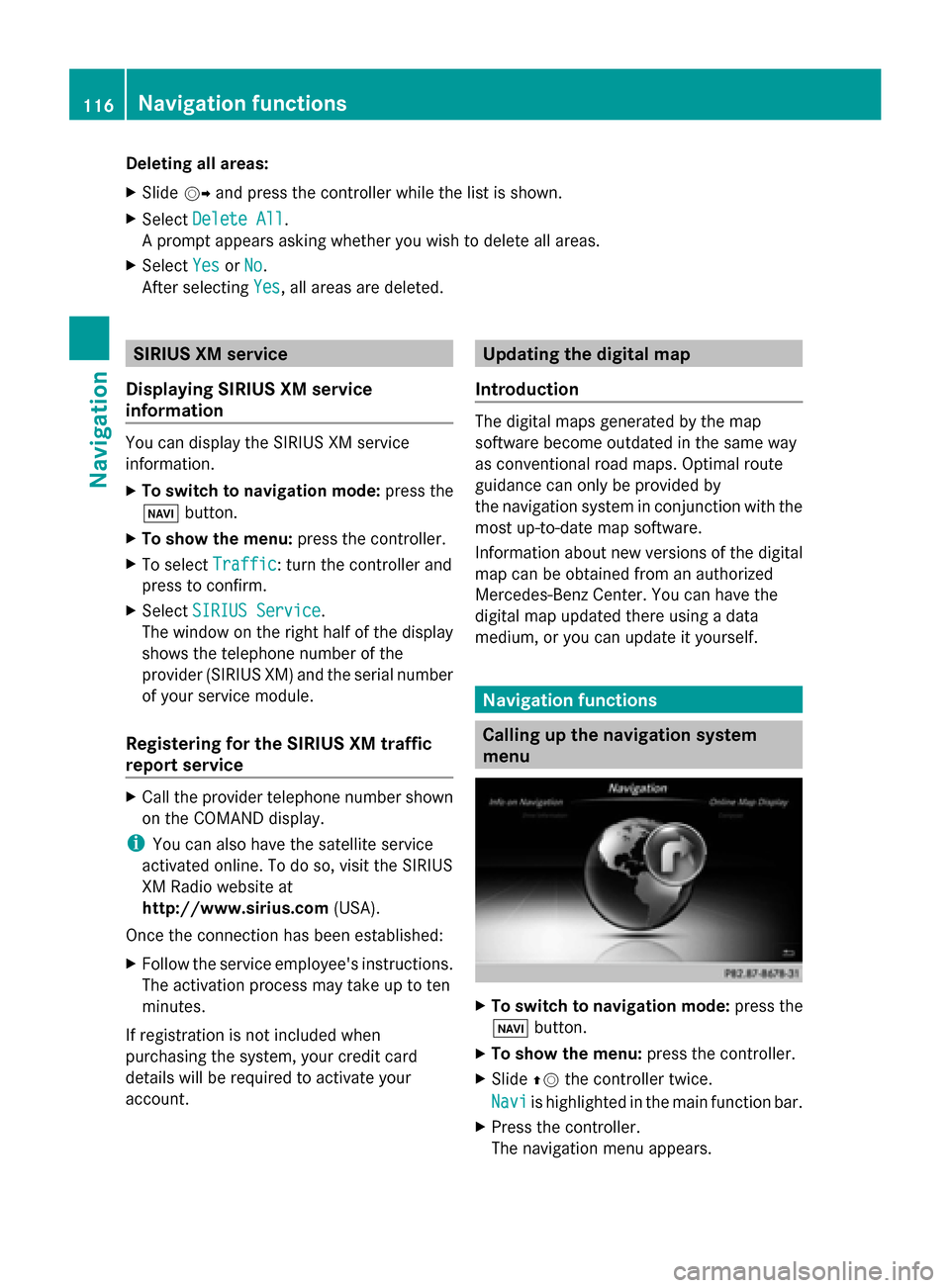
Calling up the navigation system
menu
X
To switch to navigation mode: press the
00CB button.
X To show the menu: press the controller.
X Slide 00970052the controller twice.
Navi Navi is highlighted in the main function bar.
X Press the controller.
The navigation menu appears. 116
Navigation fun
ctionsNavigation
Page 128 of 278
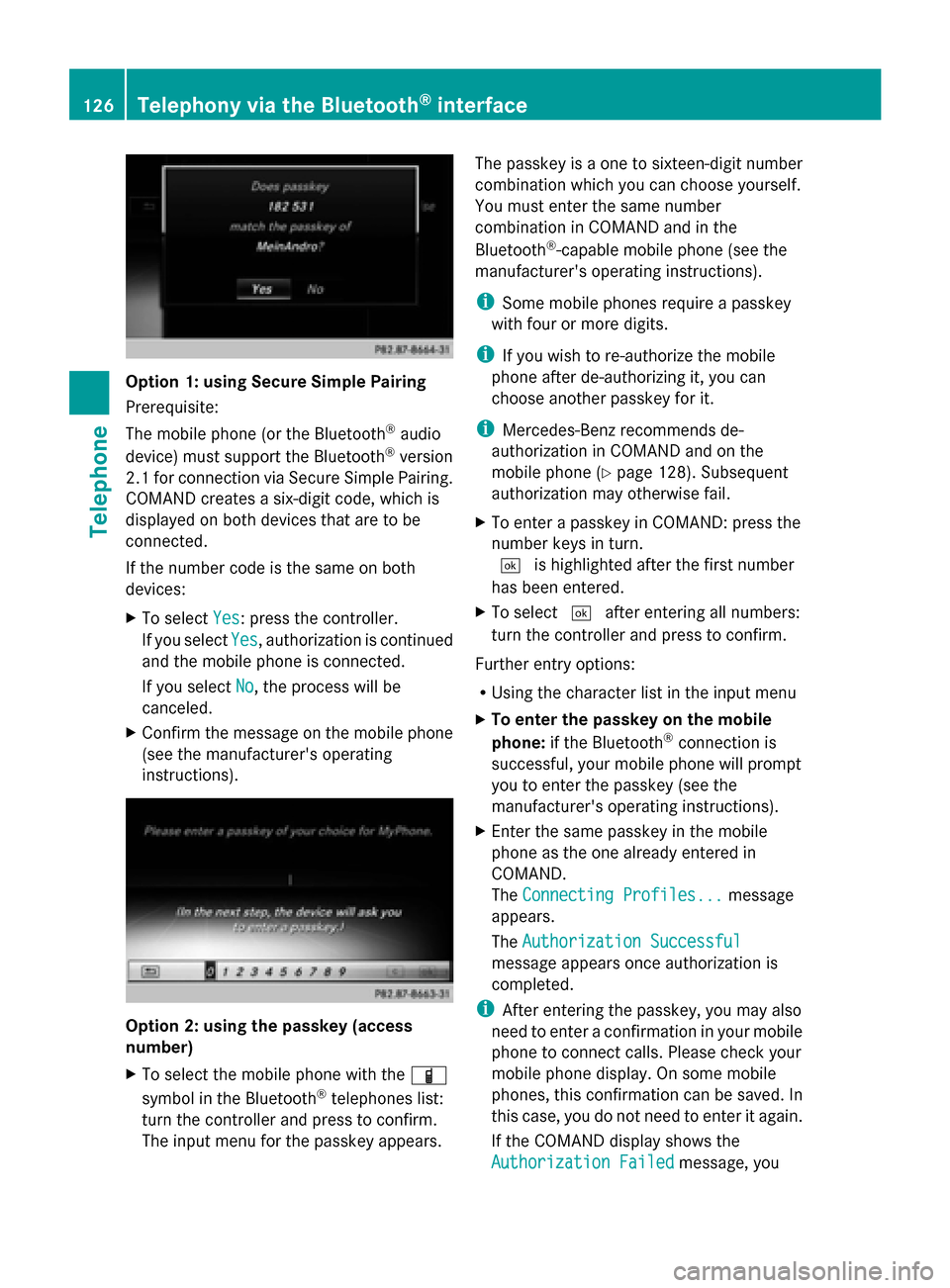
Option 1: using Secure Simple Pairing
Prerequisite:
The mobile phone (or the Bluetooth
®
audio
device) must support the Bluetooth ®
version
2.1 for connection via Secure Simple Pairing.
COMAND creates a six-digit code, which is
displayed on both devices that are to be
connected.
If the number code is the same on both
devices:
X To select Yes Yes: press the controller.
If you select Yes
Yes, authorization is continued
and the mobile phone is connected.
If you select No
No, the process will be
canceled.
X Confirm the message on the mobile phone
(see the manufacturer's operating
instructions). Option 2: using the passkey (access
number)
X
To select the mobile phone with the 00D3
symbol in the Bluetooth ®
telephones list:
turn the controller and press to confirm.
The input menu for the passkey appears. The passkey is a one to sixteen-digit number
combination which you can choose yourself.
You must enter the same number
combination in COMAND and in the
Bluetooth
®
-capable mobile phone (see the
manufacturer's operating instructions).
i Some mobile phones require a passkey
with four or more digits.
i If you wish to re-authorize the mobile
phone after de-authorizing it, you can
choose another passkey for it.
i Mercedes-Benz recommends de-
authorization in COMAND and on the
mobile phone ( Ypage 128). Subsequent
authorization may otherwise fail.
X To enter a passkey in COMAND: press the
number keys in turn.
0054 is highlighted after the first number
has been entered.
X To select 0054after entering all numbers:
turn the controller and press to confirm.
Further entry options:
R Using the character list in the input menu
X To enter the passkey on the mobile
phone: if the Bluetooth ®
connection is
successful, your mobile phone will prompt
you to enter the passkey (see the
manufacturer's operating instructions).
X Enter the same passkey in the mobile
phone as the one already entered in
COMAND.
The Connecting Profiles...
Connecting Profiles... message
appears.
The Authorization Successful Authorization Successful
message appears once authorization is
completed.
i After entering the passkey, you may also
need to enter a confirmation in your mobile
phone to connect calls. Please check your
mobile phone display. On some mobile
phones, this confirmation can be saved. In
this case, you do not need to enter it again.
If the COMAND display shows the
Authorization Failed
Authorization Failed message, you126
Telephony via the Bluetooth ®
interfaceTelephone
Page 133 of 278
i
You can also accept a call as described
above when another main function is
switched on in COMAND. Once you have
accepted the call, the display switches to
the telephone display. After the call is
finished, you see the display of the previous
main application again.
The display does not switch to telephone
mode if you:
R accept the call via the Voice Control
System (see the separate operating
instructions).
R accept the call using the 0061button on
the multifunction steering wheel
Rejecting a call X
Press the 0076button on COMAND or on
the multifunction steering wheel. Making a call
Using the number keypad X
Call up the telephone basic menu
(Y page 129).
X Enter the digits using the number keypad.
i As soon as one of the numbers is touched,
the corresponding button is highlighted in
the display.
X To connect the call: press the0061
button on COMAND or on the multifunction
steering wheel.
Using the telephone basic menu X
Call up the telephone basic menu
(Y page 129).
X To select all numbers one after the other:
turn and press the controller each time.
Dialing a number:
X Press the 0061button on COMAND or on
the multifunction steering wheel. Redial X
Call up the telephone basic menu
(Y page 129).
X To select °from the character list: turn
the controller and press to confirm.
or
X If the telephone basic menu is displayed,
press the 0061button on COMAND.
The list of dialed numbers appears. The
most recently dialed number is at the top.
X To select a call: turn the controller.
X To make a call: press the controller.
Using the call list or COMAND phone
book X
Open a call list and select an entry
(Y page 138).
or
X Call up the COMAND phone book and
select an entry (Y page 135).
X To make a call: press the controller or the
0061 button.
Making a call via speed dial You can save entries from the phone book in
the speed dial list and call them using speed
dial numbers (Y
page 141).
Option 1:
X Hold down one of the number keys for
longer than two seconds.
The telephone basic menu displays the
selected entry. This initiates dialing.
Option 2:
X To select a digit from the digit bar in the
basic telephone menu: turn the controller.
X Press the controller for longer than two
seconds.
The telephone basic menu displays the
selected entry. This initiates dialing. Using the telephone
131Telephone Z