radio MERCEDES-BENZ S-Class 2014 W222 Comand Manual
[x] Cancel search | Manufacturer: MERCEDES-BENZ, Model Year: 2014, Model line: S-Class, Model: MERCEDES-BENZ S-Class 2014 W222Pages: 278, PDF Size: 6.65 MB
Page 159 of 278
Your COMAND equipment
................158
General notes .................................... 158
Establishing/ending the connection 159
Google™ local search .......................161
Destination/route download ...........164
Options .............................................. 166
Mercedes-Benz Apps ........................167
Internet radio .................................... 168
Internet .............................................. 170 157Online and Internet
Page 161 of 278
To use COMAND Online Mercedes-Benz Apps
and Internet access, the following conditions
must be fulfilled:
R mbrace is activated and operational
R mbrace is activated for COMAND Online
Mercedes-Benz Apps and Internet access
Priority of connections: an emergency call
has the highest priority. When a service call,
e.g. a breakdown service call or the MB Info
Call, is active, an emergency call can still be
initiated.
A service call, on the other hand, has priority
over a current Internet connection. Therefore,
you cannot establish an Internet connection
during a service call.
i The availability of individual COMAND
Mercedes-Benz Apps may vary depending
on the country.
i The terms of use are shown when
COMAND is used for the first time and then
once a year thereafter. Only read and
accept the terms of use when the vehicle
is stationary.
i The driver is not permitted to call up
websites while driving and use of the
Mercedes-Benz Apps is restricted. Establishing/ending the connection
Establishing the connection
Preconditions for establishing a connection
can be found under "General notes"
(Y page 158).
A connection can be established by:
R entering a web address (Y page 170).
R calling up the Mercedes-Benz Mobile
Website (Y page 167).
R calling up a Mercedes-Benz App
(Y page 167).
R calling up a Favorite (Y page 170).
R calling up the Internet radio (Y page 168).Ending the connection
X
Press Cancel Cancel in the connections window. Establishing/ending the connection
159Online and Internet Z
Page 170 of 278
You can call up additional Mercedes-Benz
Apps, such as Facebook, Google™ Street
View, Google™ Panoramio or country
information such as maximum speed here.
The following examples show how to call up
a Mercedes-Benz App, for example Facebook,
and generally how to call up Google™
services.
To call up Facebook:
X Press the 002Bbutton.
The last function called up appears.
X Select TEL/
TEL/ 00A7in the main function bar by
sliding 00970052, turning and pressing the
controller.
A menu appears.
X To select Internet Internet: turn and press the
controller.
The menu for the Internet functions
appears.
X Select the Mercedes-Benz Apps
Mercedes-Benz Apps menu.
The Mercedes-Benz Apps menu is
displayed.
X Select Facebook from the list.
The Facebook home page appears.
i Facebook is a social network. This App
allows you to log in from your vehicle and
use Facebook's many functions.
To call up Google™ services:
X This is done through Google™ Local Search
(Y page 162).
i Google™ Street View allows you to view
streets in 360-degree panoramas.
Google™ Panoramio expands Google Local
Search to include photos at the selected
position.
To exit Mercedes-Benz Apps:
X Press the 0038button.
The Internet menu appears.
i Additional Mercedes-Benz Apps can be
purchased on the Mercedes-Benz website.
You can find further information under:
http://apps.mercedes-benz.com/apps/
The available features are country-
dependent. Internet radio
General notes
A good Internet connection is required to
transmit audio data efficiently. To ensure the
best-possible reception, your mobile phone
should be connected to the vehicle's exterior
antenna via the phone bracket (optional).
i Bear in mind that a relatively large volume
of data can be transmitted when using
Internet radio. An average 128 kbit per
second data transfer rate can transfer
56 MB of data in one hour.
The data transfer rate of a station is
displayed while receiving data. Calling up the Internet radio
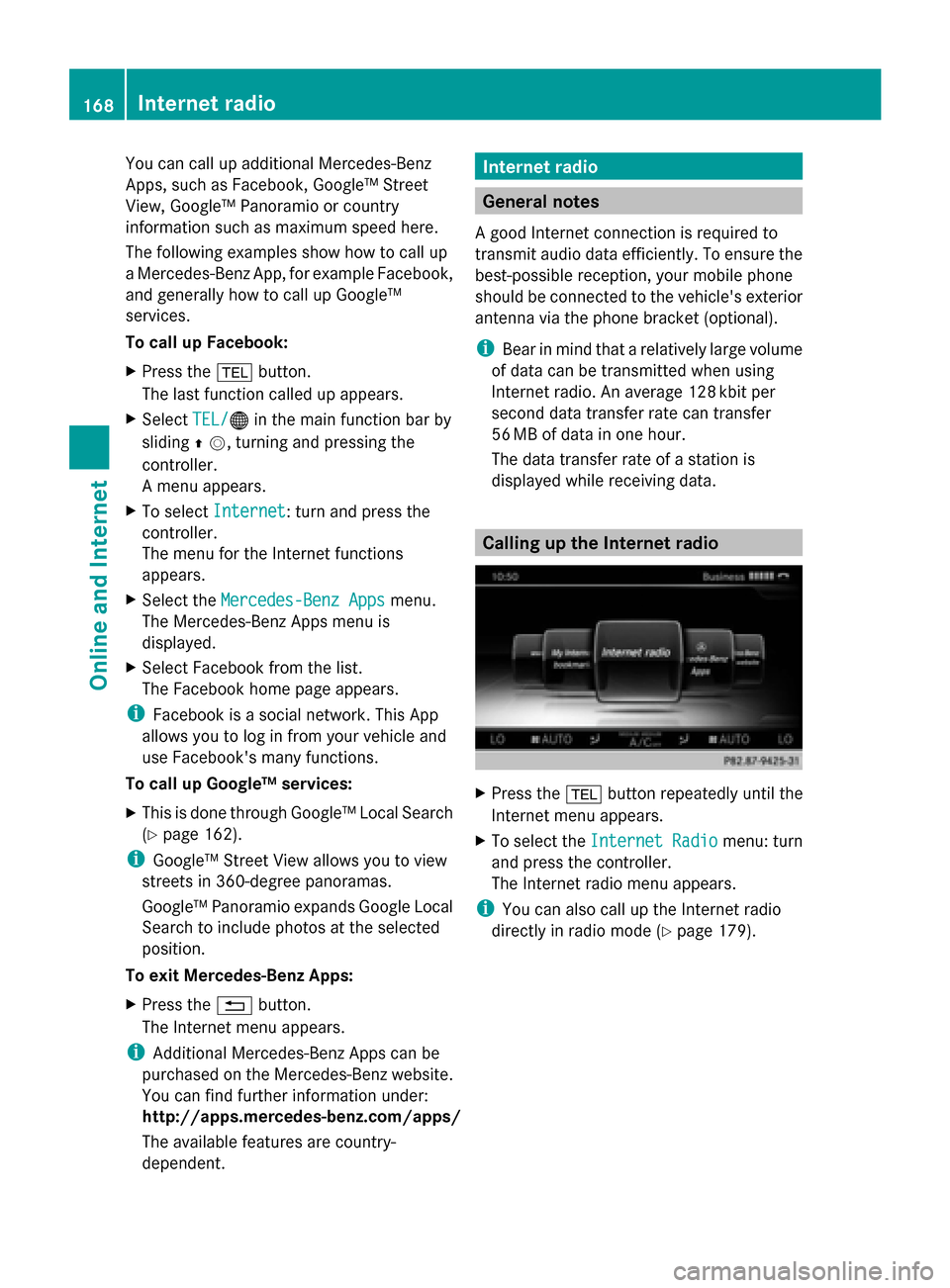
X
Press the 002Bbutton repeatedly until the
Internet menu appears.
X To select the Internet Radio Internet Radio menu: turn
and press the controller.
The Internet radio menu appears.
i You can also call up the Internet radio
directly in radio mode (Y page 179).168
Internet radioOnline and Internet
Page 171 of 278
Searching for stations
X
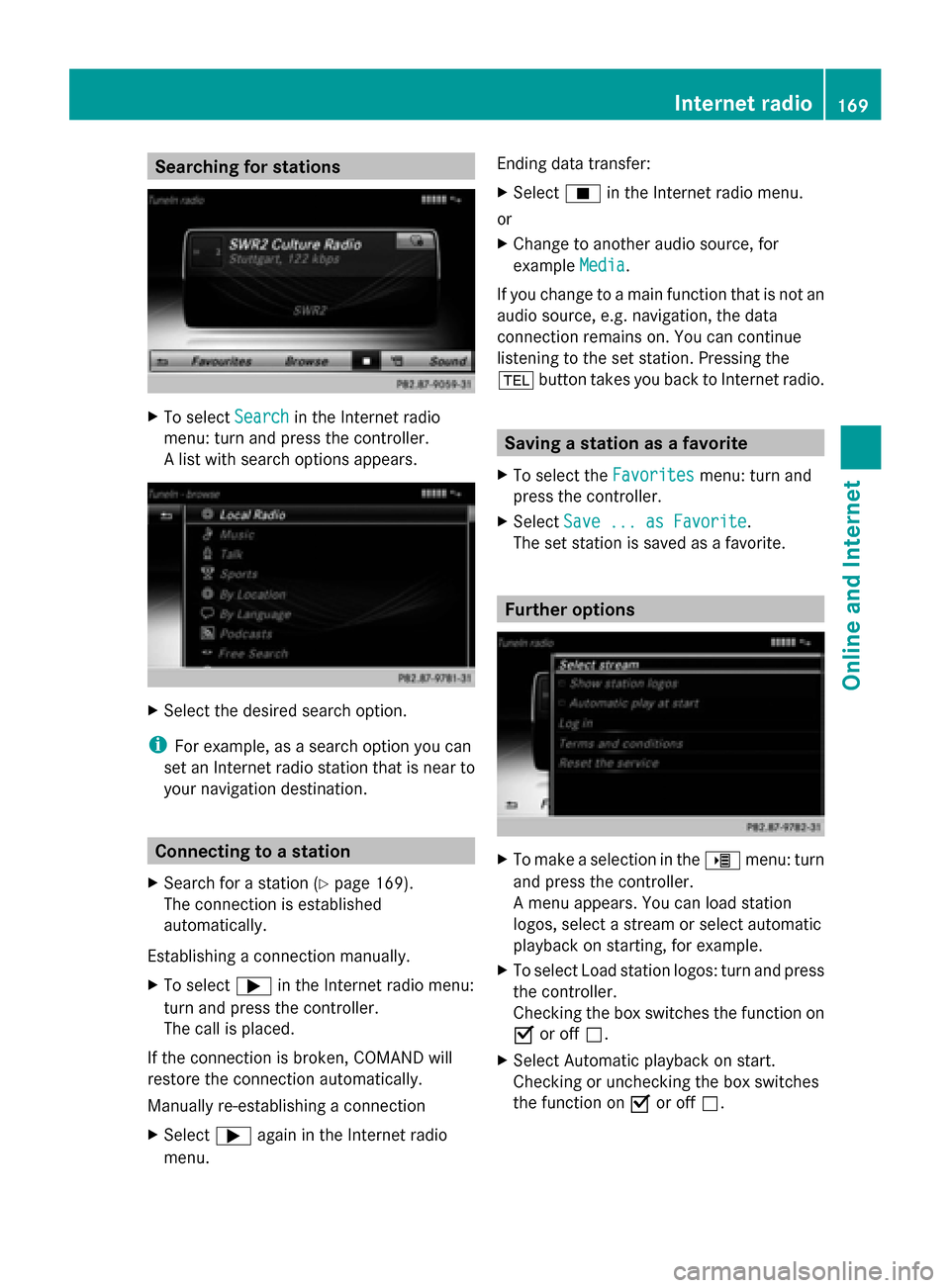
To select Search
Searchin the Internet radio
menu: turn and press the controller.
A list with search options appears. X
Select the desired search option.
i For example, as a search option you can
set an Internet radio station that is near to
your navigation destination. Connecting to a station
X Search for a station (Y page 169).
The connection is established
automatically.
Establishing a connection manually.
X To select 0065in the Internet radio menu:
turn and press the controller.
The call is placed.
If the connection is broken, COMAND will
restore the connection automatically.
Manually re-establishing a connection
X Select 0065again in the Internet radio
menu. Ending data transfer:
X
Select 00DBin the Internet radio menu.
or
X Change to another audio source, for
example Media Media.
If you change to a main function that is not an
audio source, e.g. navigation, the data
connection remains on. You can continue
listening to the set station. Pressing the
002B button takes you back to Internet radio. Saving a station as a favorite
X To select the Favorites Favoritesmenu: turn and
press the controller.
X Select Save ... as Favorite
Save ... as Favorite.
The set station is saved as a favorite. Further options
X
To make a selection in the 00DEmenu: turn
and press the controller.
A menu appears. You can load station
logos, select a stream or select automatic
playback on starting, for example.
X To select Load station logos: turn and press
the controller.
Checking the box switches the function on
0073 or off 0053.
X Select Automatic playback on start.
Checking or unchecking the box switches
the function on 0073or off 0053. Internet radio
169Online and Internet Z
Page 179 of 278
Radio mode
........................................ 178
Satellite radio .................................... 182 177Radio
Page 180 of 278
Radio mode
Radio overview
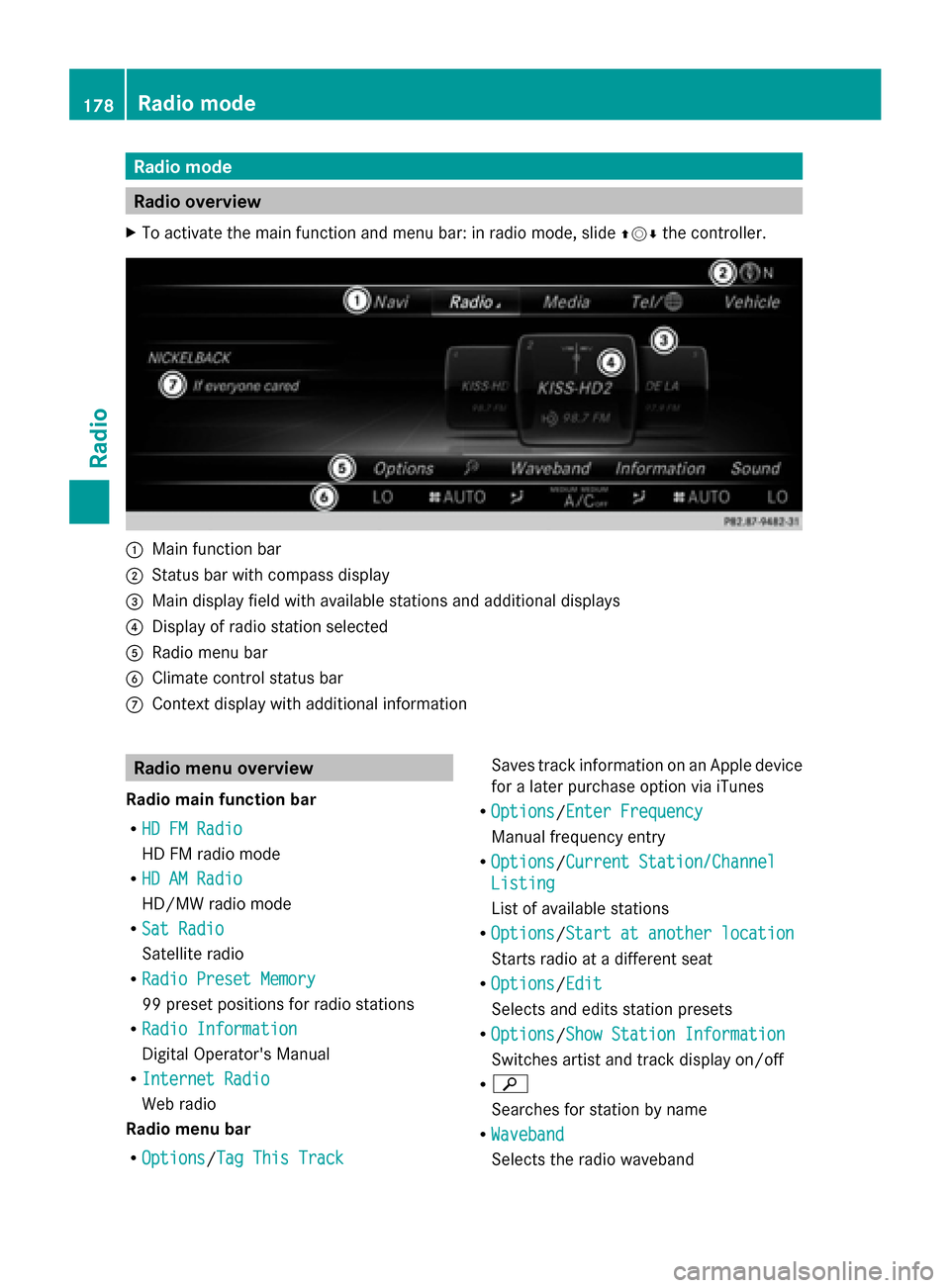
X To activate the main function and menu bar: in radio mode, slide 009700520064the controller. 0043
Main function bar
0044 Status bar with compass display
0087 Main display field with available stations and additional displays
0085 Display of radio station selected
0083 Radio menu bar
0084 Climate control status bar
006B Context display with additional information Radio menu overview
Radio main function bar
R HD FM Radio HD FM Radio
HD FM radio mode
R HD AM Radio HD AM Radio
HD/MW radio mode
R Sat Radio Sat Radio
Satellite radio
R Radio Preset Memory Radio Preset Memory
99 preset positions for radio stations
R Radio Information
Radio Information
Digital Operator's Manual
R Internet Radio Internet Radio
Web radio
Radio menu bar
R Options Options/ Tag This Track
Tag This Track Saves track information on an Apple device
for a later purchase option via iTunes
R Options Options/ Enter Frequency
Enter Frequency
Manual frequency entry
R Options
Options/ Current Station/Channel
Current Station/Channel
Listing
Listing
List of available stations
R Options Options/ Start at another location
Start at another location
Starts radio at a different seat
R Options
Options/ Edit
Edit
Selects and edits station presets
R Options
Options/ Show Station Information
Show Station Information
Switches artist and track display on/off
R 00D3
Searches for station by name
R Waveband Waveband
Selects the radio waveband 178
Radio modeRadio
Page 181 of 278
R
Info
Info
Displays additional information about the
current station/channel (radio text)
R Sound
Sound
Sound settings Switching on HD FM or HD AM radio
mode
Using the function button
X Press the 002Abutton.
The radio display appears.
You will hear the last station played on the
last waveband. Setting the waveband
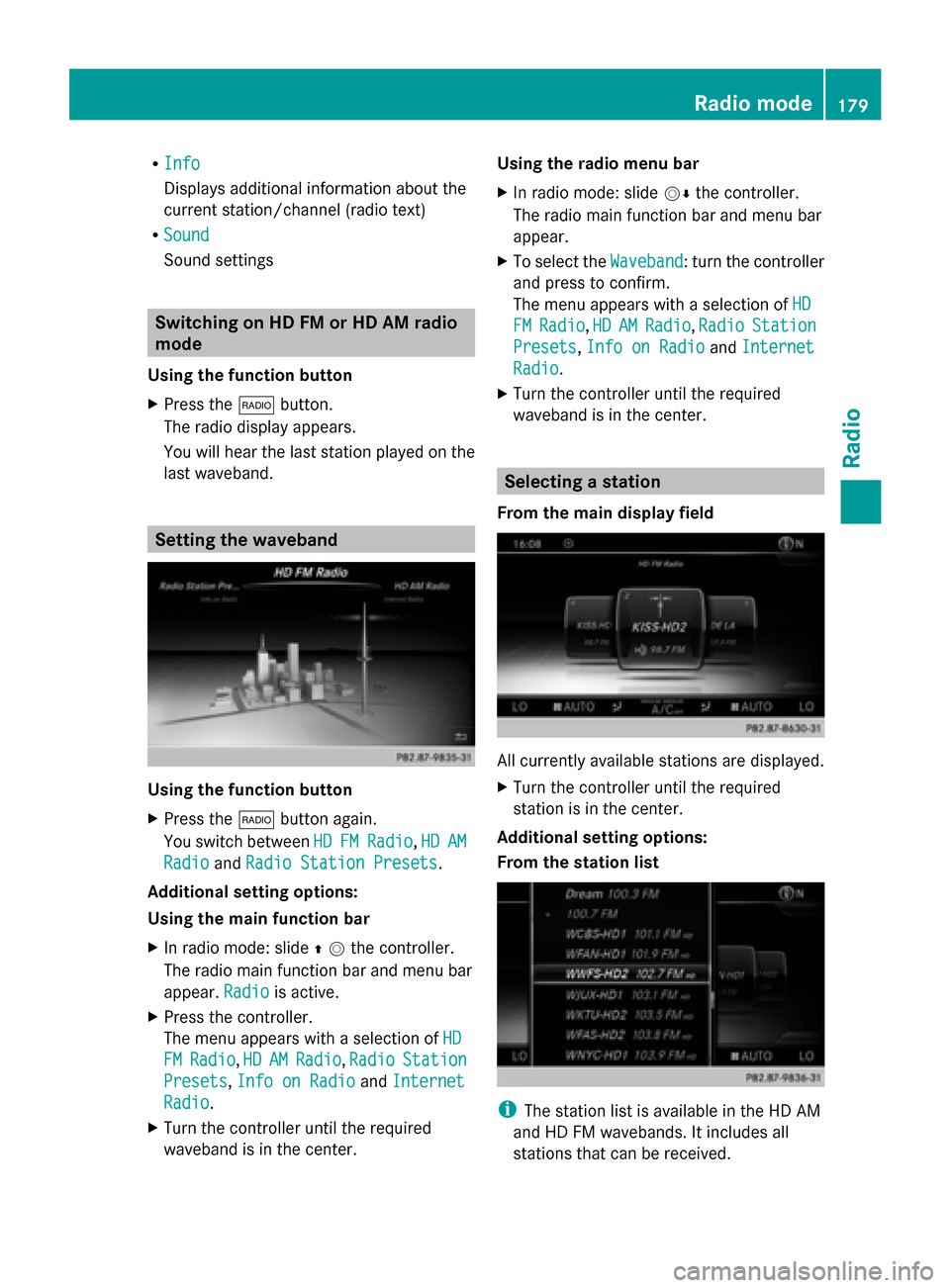
Using the function button
X
Press the 002Abutton again.
You switch between HD HDFM FMRadio
Radio ,HD
HD AM
AM
Radio
Radio andRadio Station Presets
Radio Station Presets.
Additional setting options:
Using the main function bar
X In radio mode: slide 00970052the controller.
The radio main function bar and menu bar
appear. Radio Radiois active.
X Press the controller.
The menu appears with a selection of HD HD
FM
FM Radio
Radio, HD
HDAM
AMRadio
Radio, Radio
Radio Station
Station
Presets
Presets, Info on Radio
Info on Radio andInternet
Internet
Radio
Radio.
X Turn the controller until the required
waveband is in the center. Using the radio menu bar
X
In radio mode: slide 00520064the controller.
The radio main function bar and menu bar
appear.
X To select the Waveband
Waveband: turn the controller
and press to confirm.
The menu appears with a selection of HD HD
FM
FM Radio
Radio, HD
HDAM
AM Radio
Radio, Radio
Radio Station
Station
Presets
Presets, Info on Radio
Info on Radio andInternet
Internet
Radio
Radio.
X Turn the controller until the required
waveband is in the center. Selecting a station
From the main display field All currently available stations are displayed.
X
Turn the controller until the required
station is in the center.
Additional setting options:
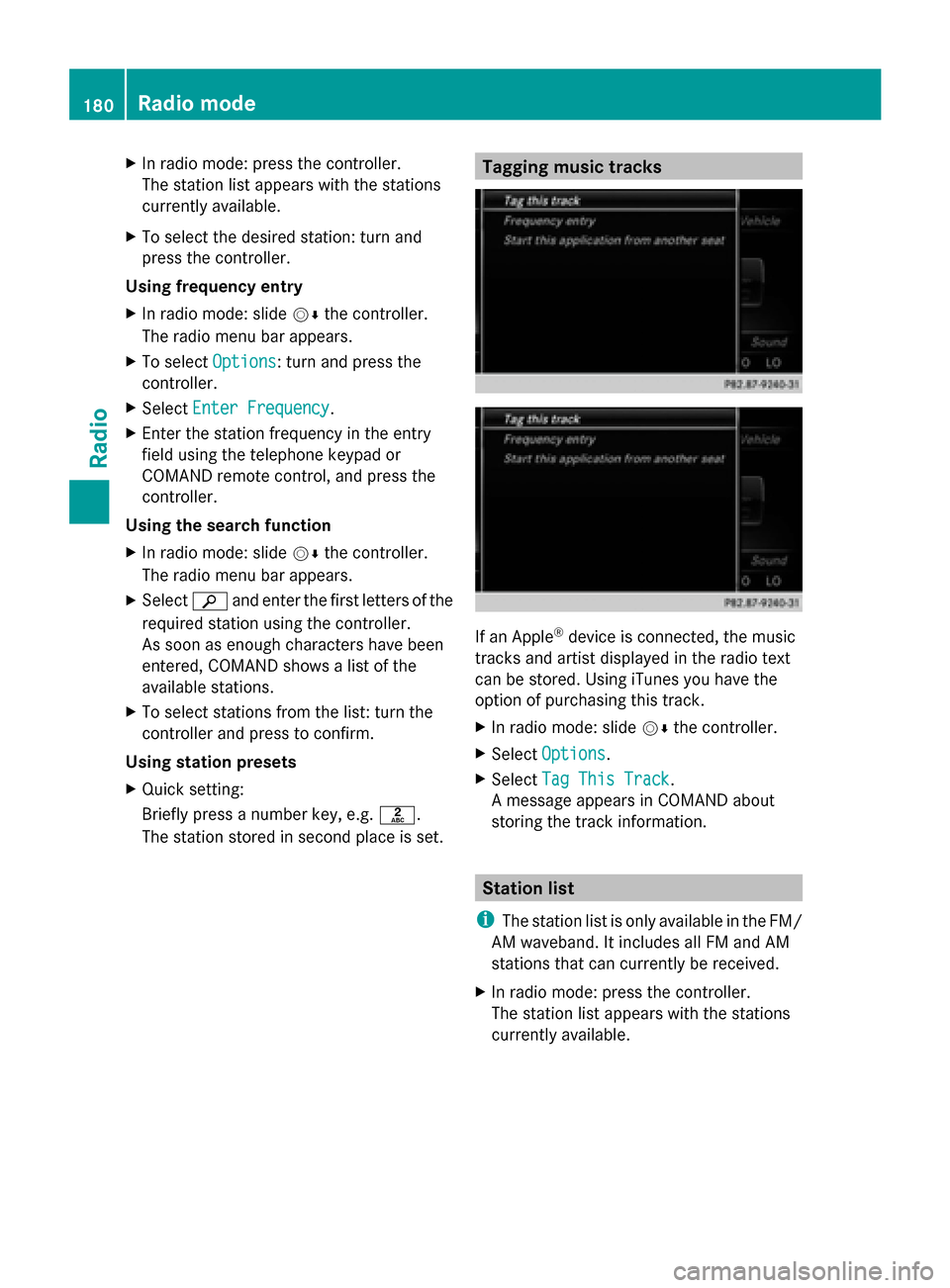
From the station list i
The station list is available in the HD AM
and HD FM wavebands. It includes all
stations that can be received. Radio mode
179Radio
Page 182 of 278
X
In radio mode: press the controller.
The station list appears with the stations
currently available.
X To select the desired station: turn and
press the controller.
Using frequency entry
X In radio mode: slide 00520064the controller.
The radio menu bar appears.
X To select Options
Options: turn and press the
controller.
X Select Enter Frequency
Enter Frequency.
X Enter the station frequency in the entry
field using the telephone keypad or
COMAND remote control, and press the
controller.
Using the search function
X In radio mode: slide 00520064the controller.
The radio menu bar appears.
X Select 00D3and enter the first letters of the
required station using the controller.
As soon as enough characters have been
entered, COMAND shows a list of the
available stations.
X To select stations from the list: turn the
controller and press to confirm.
Using station presets
X Quick setting:
Briefly press a number key, e.g. 0082.
The station stored in second place is set. Tagging music tracks
If an Apple
®
device is connected, the music
tracks and artist displayed in the radio text
can be stored. Using iTunes you have the
option of purchasing this track.
X In radio mode: slide 00520064the controller.
X Select Options Options.
X Select Tag This Track
Tag This Track.
A message appears in COMAND about
storing the track information. Station list
i The station list is only available in the FM/
AM waveband. It includes all FM and AM
stations that can currently be received.
X In radio mode: press the controller.
The station list appears with the stations
currently available. 180
Radio modeRadio
Page 183 of 278
Storing a station
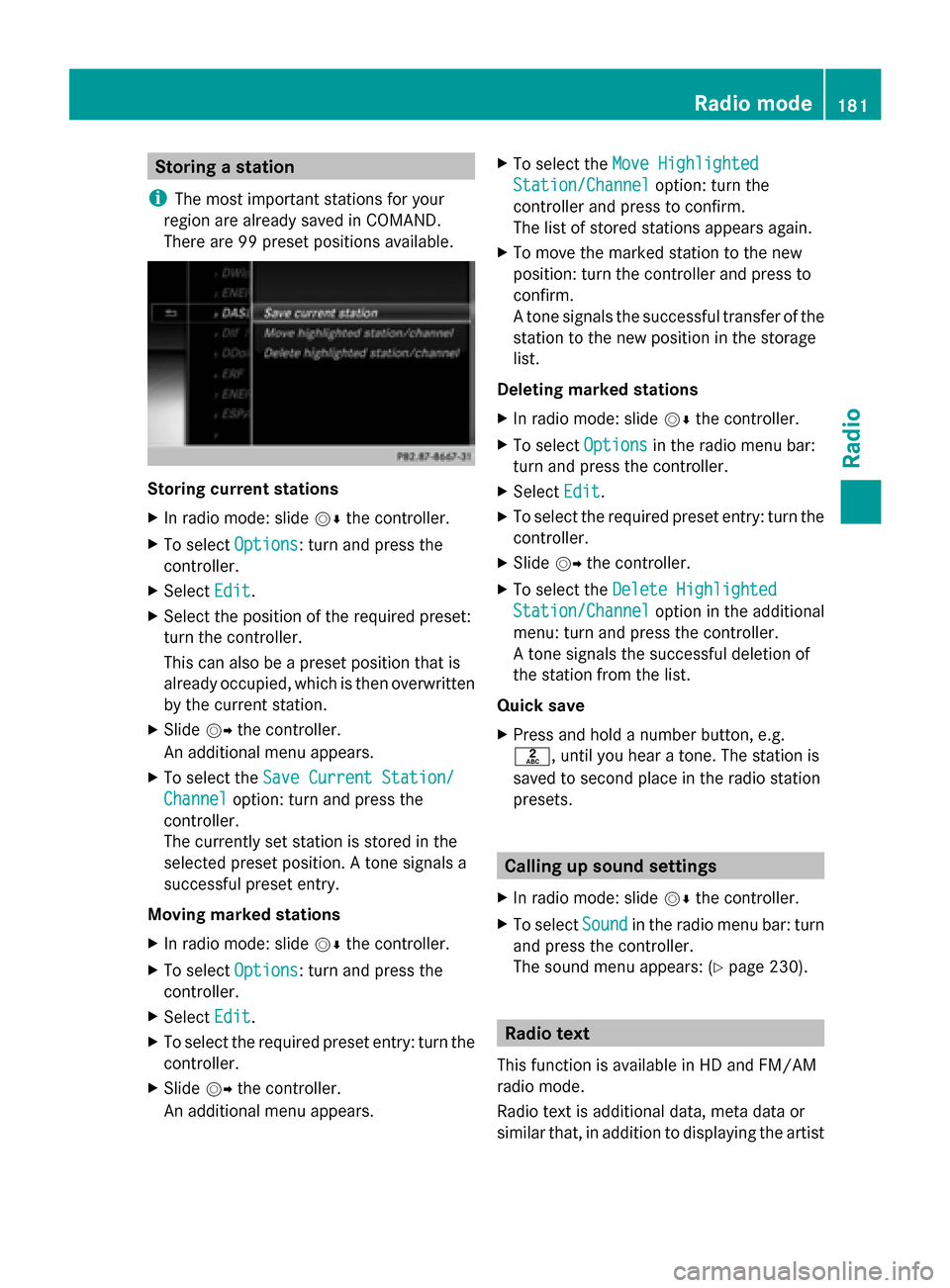
i The most important stations for your
region are already saved in COMAND.
There are 99 preset positions available. Storing current stations
X
In radio mode: slide 00520064the controller.
X To select Options
Options: turn and press the
controller.
X Select Edit Edit.
X Select the position of the required preset:
turn the controller.
This can also be a preset position that is
already occupied, which is then overwritten
by the current station.
X Slide 00520096the controller.
An additional menu appears.
X To select the Save Current Station/
Save Current Station/
Channel Channel option: turn and press the
controller.
The currently set station is stored in the
selected preset position. A tone signals a
successful preset entry.
Moving marked stations
X In radio mode: slide 00520064the controller.
X To select Options
Options: turn and press the
controller.
X Select Edit Edit.
X To select the required preset entry: turn the
controller.
X Slide 00520096the controller.
An additional menu appears. X
To select the Move Highlighted
Move Highlighted
Station/Channel
Station/Channel option: turn the
controller and press to confirm.
The list of stored stations appears again.
X To move the marked station to the new
position: turn the controller and press to
confirm.
A tone signals the successful transfer of the
station to the new position in the storage
list.
Deleting marked stations
X In radio mode: slide 00520064the controller.
X To select Options
Options in the radio menu bar:
turn and press the controller.
X Select Edit Edit.
X To select the required preset entry: turn the
controller.
X Slide 00520096the controller.
X To select the Delete Highlighted
Delete Highlighted
Station/Channel Station/Channel option in the additional
menu: turn and press the controller.
A tone signals the successful deletion of
the station from the list.
Quick save
X Press and hold a number button, e.g.
0082, until you hear a tone. The station is
saved to second place in the radio station
presets. Calling up sound settings
X In radio mode: slide 00520064the controller.
X To select Sound Soundin the radio menu bar: turn
and press the controller.
The sound menu appears: (Y page 230). Radio text
This function is available in HD and FM/AM
radio mode.
Radio text is additional data, meta data or
similar that, in addition to displaying the artist Radio mode
181Radio
Page 184 of 278
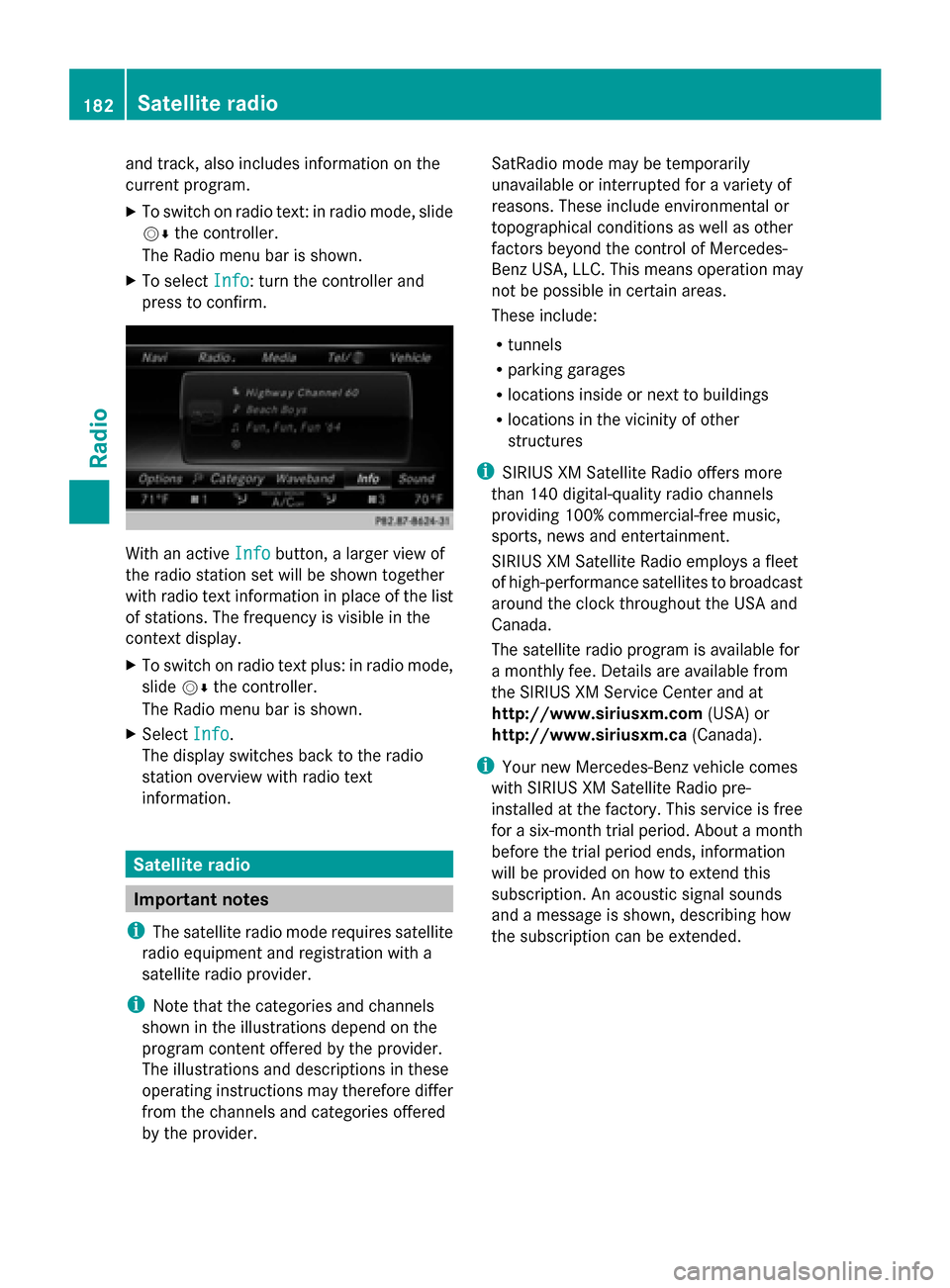
and track, also includes information on the
current program.
X To switch on radio text: in radio mode, slide
00520064 the controller.
The Radio menu bar is shown.
X To select Info Info: turn the controller and
press to confirm. With an active
Info
Infobutton, a larger view of
the radio station set will be shown together
with radio text information in place of the list
of stations. The frequency is visible in the
context display.
X To switch on radio text plus: in radio mode,
slide 00520064the controller.
The Radio menu bar is shown.
X Select Info
Info.
The display switches back to the radio
station overview with radio text
information. Satellite radio
Important notes
i The satellite radio mode requires satellite
radio equipment and registration with a
satellite radio provider.
i Note that the categories and channels
shown in the illustrations depend on the
program content offered by the provider.
The illustrations and descriptions in these
operating instructions may therefore differ
from the channels and categories offered
by the provider. SatRadio mode may be temporarily
unavailable or interrupted for a variety of
reasons. These include environmental or
topographical conditions as well as other
factors beyond the control of Mercedes-
Benz USA, LLC. This means operation may
not be possible in certain areas.
These include:
R tunnels
R parking garages
R locations inside or next to buildings
R locations in the vicinity of other
structures
i SIRIUS XM Satellite Radio offers more
than 140 digital-quality radio channels
providing 100% commercial-free music,
sports, news and entertainment.
SIRIUS XM Satellite Radio employs a fleet
of high-performance satellites to broadcast
around the clock throughout the USA and
Canada.
The satellite radio program is available for
a monthly fee. Details are available from
the SIRIUS XM Service Center and at
http://www.siriusxm.com (USA) or
http://www.siriusxm.ca (Canada).
i Your new Mercedes-Benz vehicle comes
with SIRIUS XM Satellite Radio pre-
installed at the factory. This service is free
for a six-month trial period. About a month
before the trial period ends, information
will be provided on how to extend this
subscription. An acoustic signal sounds
and a message is shown, describing how
the subscription can be extended. 182
Satellite radioRadio