light MERCEDES-BENZ S-CLASS CABRIOLET 2017 Owners Manual
[x] Cancel search | Manufacturer: MERCEDES-BENZ, Model Year: 2017, Model line: S-CLASS CABRIOLET, Model: MERCEDES-BENZ S-CLASS CABRIOLET 2017Pages: 521, PDF Size: 10.48 MB
Page 280 of 521
Yo
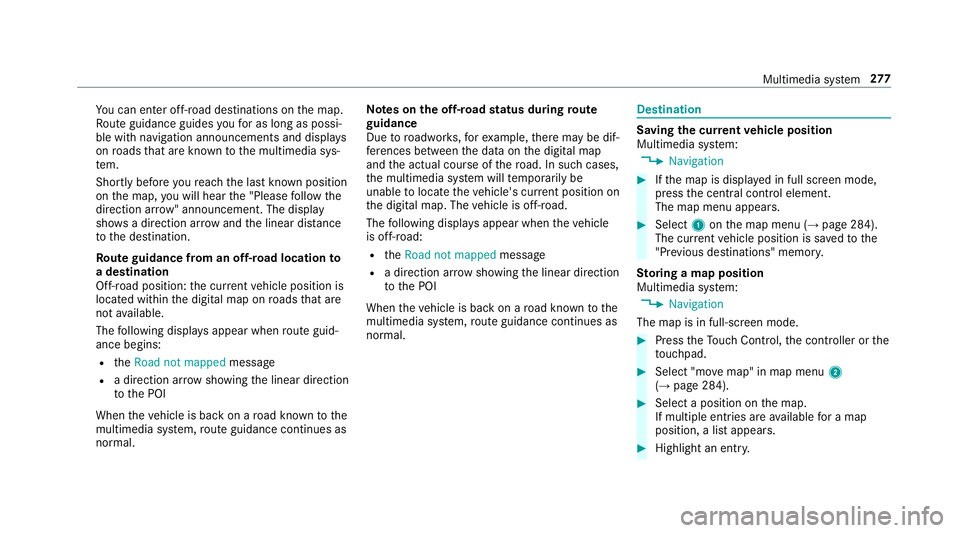
uc an en tero ff-road destinations on them ap.
Ro uteg uidance guides youf or as long as possi‐
ble wit hnavigation announcements and displa ys
on roads that ar eknown tothem ultimedia sys‐
te m.
Shortly befor eyou reac ht he las tknown position
on them ap,youw ill hear the" Please follo wt he
direction ar row"announcement. The displ ay
sho wsadirection ar rowand thel inear dis tance
to thed estination.
Ro uteg uidanc efromano ff-road location to
ad estination
Off-road position: thec urrent vehicle position is
located within thed igital map on roads that are
no ta vailable.
The following displa ysappear when routeg uid‐
anc ebegins:
R the Road not mapped message
R adirection ar rows howing thel inear direction
to theP OI
When thev ehicle is bac konaroad known tothe
multimedia sy stem, routeg uidance continue sas
no rm al. Note
sont he off-road status during route
guidance
Due toroadwor ks,for example, ther em aybe dif‐
fe re nces betwee nthe dat aonthe digital map
and thea ctual course of ther oad. In suc hcases,
th em ultimedia sy stem will temp orarily be
unable tolocat ethe vehicle's cur rent positio non
th ed igital map. The vehicle is off-road.
The following displa ysappear when thev ehicle
is off-road:
R the Road not mapped message
R adirection ar rowshowing thel inear direction
to theP OI
When thev ehicle is bac konaroad known tothe
multimedia sy stem, routeg uidance continue sas
no rm al. Destination
Saving
thec urrent vehicl eposition
Multimedi asystem:
, Navigation #
Ifth em ap is displa yedinf ull screen mode,
press thec ent ralc ontrol element.
The map men uappears. #
Select 1onthem ap menu (→ page284).
The cur rent vehicle position is sa vedtot he
"Pr evious destinations" memo ry.
St oring amapposition
Multimedia sy stem:
, Navigation
The map is in full-screen mode. #
Press theT ouc hControl, thec ontroller or the
to uchpad. #
Select "mo vemap" in map menu 2
(→ pag e284). #
Select aposition on them ap.
If multiple entri es areavailable foram ap
position, alista ppears. #
Highlight an entr y. Multimedia sy
stem 277
Page 281 of 521
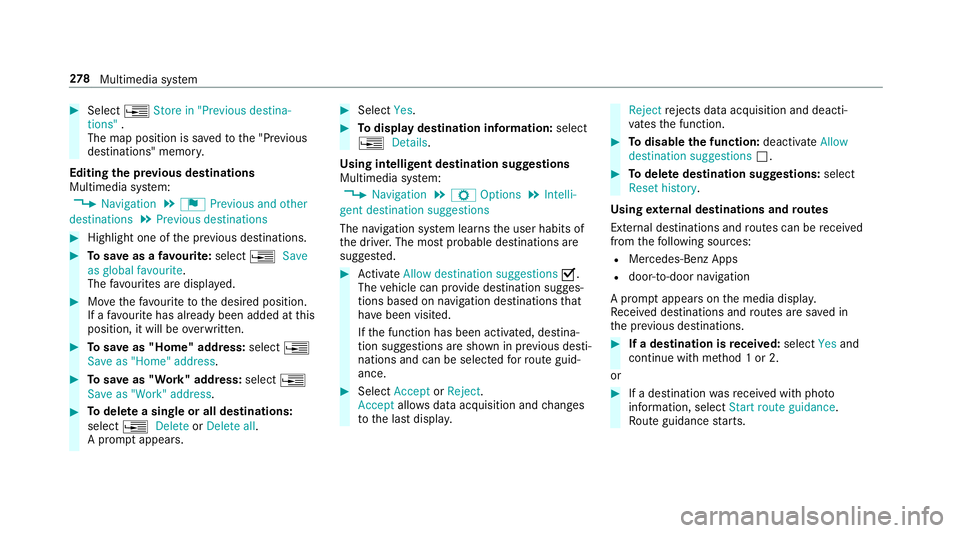
#
Select ¥Store in "Previou sdestina-
tions" .
The map position is sa vedtot he "Pr evious
destinations" memo ry.
Editing thep revious destinations
Multimedia sy stem:
, Navigation .
¬ Previous and other
destinations .
Previous destinations #
Highlight one of thep reviou sdestinations. #
Tosave asafavo urite: select ¥Save
as global favourite .
The favo urites ar edispl ayed. #
Movethef avo uritetot he desired position.
If af avo uritehas already been added at this
position, it will be overwritten. #
Tosave as "Home "address: select¥
Save as "Home "address . #
Tosave as "Work" address: select¥
Save as "Work" address .#
Todel eteas ingle or all destinations:
select ¥Delete orDelete all.
Ap romp tappears. #
Select Yes. #
Todispl aydestinatio ninformation: select
¥ Details.
Using intelli gent destination suggestions
Multimedia sy stem:
, Navigation .
Z Options .
Intelli-
gent destination suggestions
The navigation sy stem learns theu ser habits of
th ed rive r.The mos tprobable destinations are
sugges ted. #
Activate Allow destination suggestions O.
The vehicle can pr ovide destination sugges‐
tion sbased on navigation destination sthat
ha ve been visited.
If th ef unction has been activated, destina‐
tion suggestion sareshown in pr evious desti‐
nations and can be selec tedf or routeg uid‐
ance. #
Select Accept orReject .
Accept allowsdataacquisition and changes
to thel astd ispla y. Reject
rejects da taacquisition and deacti‐
va test he function. #
Todisable the function: deactivateAllow
destination suggestions ª. #
Todel eted estination suggestions: select
Reset history .
Using extern al destinations and routes
External destinations and routes can be recei ved
from thef ollowing sources:
R Mercedes-Benz Apps
R door-to-door navigation
Ap romp tappear sonthe media displa y.
Re cei vedd estinations and routes ar esaved in
th ep reviou sdestinations. #
Ifad estination is received: selectYesand
continue wit hmethod 1or2.
or #
Ifad estination wasreceived wit hphoto
information, select Start routeguidance.
Ro uteg uidance starts. 278
Multimedia sy stem
Page 289 of 521
#
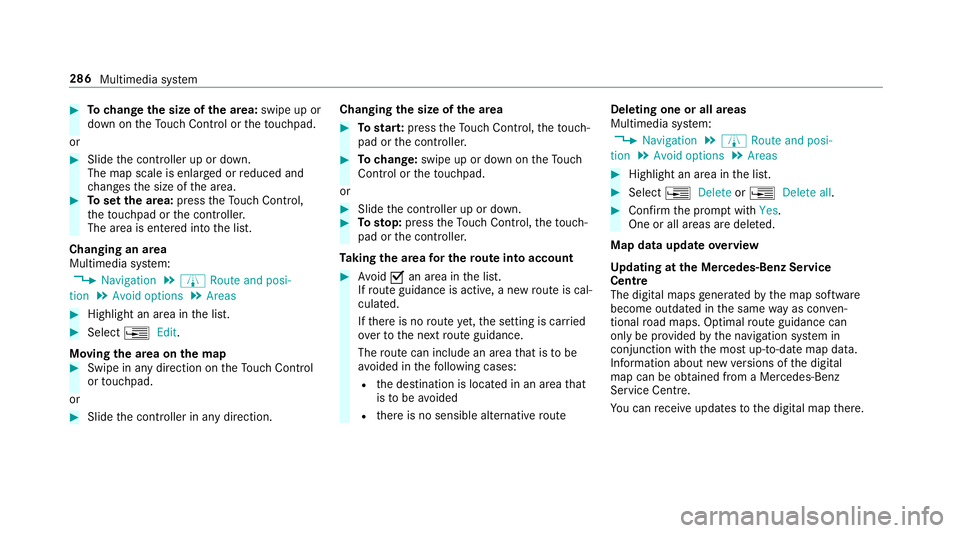
Tochang ethe siz eofthe area: swipe up or
down on theT ouc hControl or thet ouchpad.
or #
Slide thec ontroller up or down.
The map scale is enlar gedorr educed and
ch anges thes ize of thea rea. #
Tosetthe area: presstheT ouc hControl,
th et ouchpad or thec ontroller.
The area is entered int othe list.
Changing an area
Multimedia sy stem:
, Navigation .
À Route and posi-
tion .
Avoid options .
Areas #
Highlight an area in thel ist. #
Select ¥Edit.
Moving thea reaont he map #
Swipe in an ydirection on theT ouc hControl
or touchpad.
or #
Slid ethe controller in an ydirection. Changing
thes ize of thea rea #
Tostar t:press theT ouc hControl, thet ouch‐
pad or thec ontroller. #
Tochange: swipe up or down on theT ouch
Control or thet ouchpad.
or #
Slide thec ontroller up or down. #
Tosto p:press theT ouc hControl, thet ouch‐
pad or thec ontroller.
Ta king thea reaf or th erout eintoa ccount #
Avoid Oan area in thel ist.
If ro uteg uidance is active, anew routeisc al‐
culated.
If th er eisnor outeyet,t he setting is car ried
ove rtot he next routeg uidance.
The routec an include an area that is tobe
av oided in thef ollowing cases:
R thed estination is located in an area that
is to be avo ided
R ther eisnos ensible alternativ eroute Deleting one or all areas
Multimedia sy
stem:
, Navigation .
À Route and posi-
tion .
Avoid options .
Areas #
Highlight an area in thel ist. #
Select ¥Delete or¥ Deleteall. #
Confir mthe prom ptwith Yes.
On eora ll areas ar edeleted.
Map data updat eoverview
Up datin gatt he Mercedes-Ben zService
Centre
The digital map sgene ratedbyt he map software
become outdated in thes ame wayasc onven‐
tional road maps .Optimal routeg uidance can
on ly be pr ovided bythen avigation sy stem in
conjunction wit hthe mos tup-to-dat emap data.
Information about ne wversions of thed igital
map can be obtained from aMercedes-Benz
Service Centre.
Yo uc an recei veupdates tothed igital map there. 286
Multimedia sy stem
Page 294 of 521
Multimedia sy
stem:
, Telephone .
á Connec tdevice
Sear ching foram obilephone #
Select Use Bluetooth telephon yonly. #
Select Connect new device .#
Select Startsearch on the system .
The available mobile phones ar edispla yed. If
an ew mobile phone is found ,itisi ndicated
by the á symbol.
Connecting amobile phone (authorisation
using Secur eSimple Pairing) #
Selec tthe mobile phone.
Ac ode is displa yedint he multimedia sy stem
and on them obile phone. #
Ifth ec odes match: confirm thec ode on
th em obile phone.
Connecting amobile phone (authorisation by
entering apassk ey) #
Select them obile phone. #
Choose aone tosixteen-digit number combi‐
nation as apassk ey. #
On them ultimedia sy stem: enter thep ass‐
ke ya nd select a. #
On them obil ephone: enter thep assk ey
again and con firm.
% Upto15 mobil ephones can be auth orised
on them ultimedia sy stem.
Auth orised mobile phones ar ereconnec ted
au tomatical ly. Using
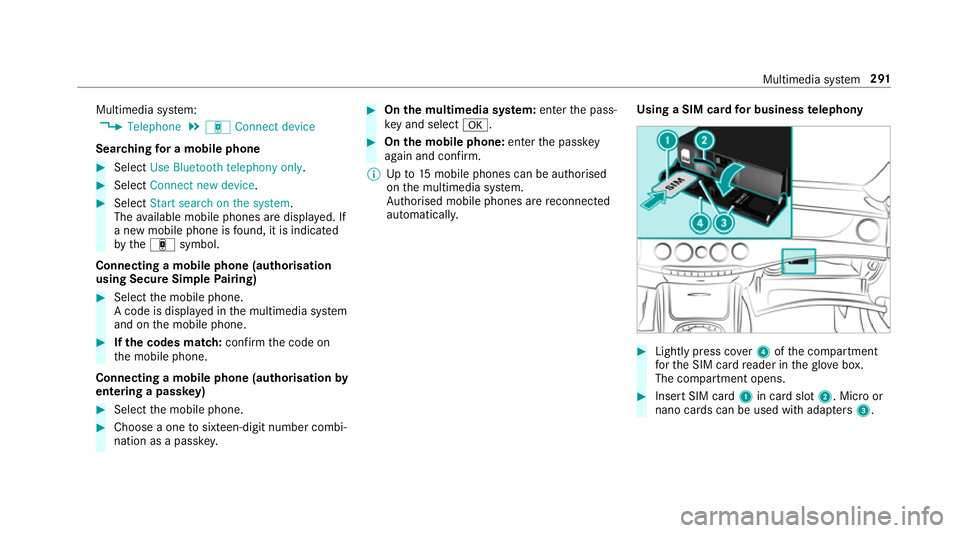
aSIM car dfor business telephony #
Light lypress co ver4ofthec ompartment
fo rt he SIM car dreader in theg love box.
The compartmen topens. #
Inser tSIM card 1in car dslot 2.M icroor
nano cards can be used wit hadap ters 3 . Multimedia sy
stem 291
Page 297 of 521
R
Setting up thev ehicle's Wi-Fi access da tavia
th es ystems ettings (→ page253).
Fu rther information can be found at :http://
www.mercedes-benz.com/connect
Using them obil ephone wit hNear Field Com‐
munication (NFC)
Requ irements:
R NFC is activated on them obile phone (see
th em anufacturer's operating instructions)
R The mobile phone's screen is switched on
and unloc ked( see them anufacturer's oper‐
ating instructions)
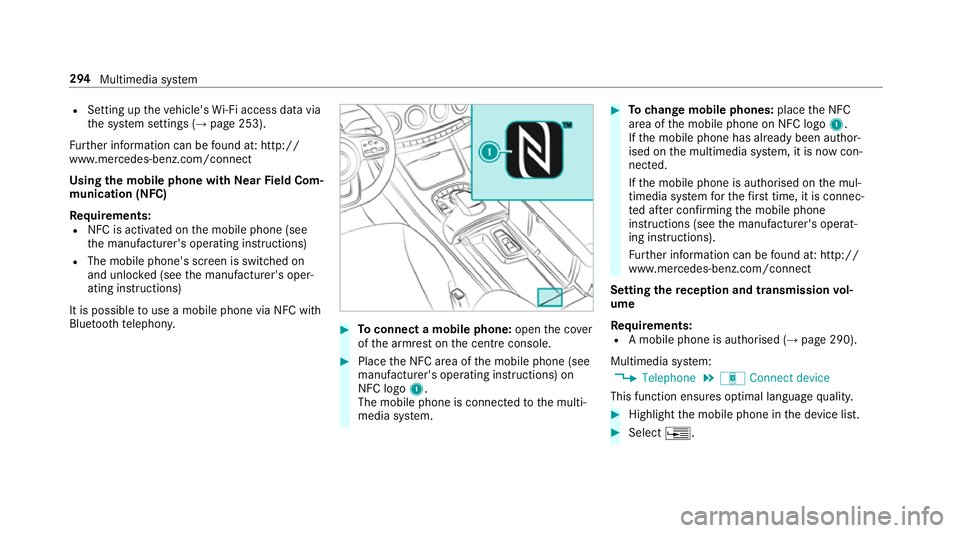
It is possible touse amobile phon evia NF Cwith
Blue tootht elephon y. #
Toconnect amobile phone: openthec over
of thea rmrest on thec ent reconsole. #
Place theN FC area of them obile phone (see
manufacturer's operating instructions) on
NFC logo 1.
The mobile phone is connected tothem ulti‐
media sy stem. #
Tochang em obile phones: placetheN FC
area of them obile phone on NFC logo 1.
If th em obile phone has already been author‐
ised on them ultimedia sy stem, it is no wcon‐
nected.
If th em obile phone is authorised on them ul‐
timedia sy stem fort he firs tt ime, it is connec‐
te da fter confirming them obile phone
instruction s(see them anufacturer's operat‐
ing instructions).
Fu rther information can be found at :http://
www.mercedes-benz.com/connect
Setting ther eception and transmission vol‐
ume
Re quirements:
R Am obile phon eisauthorised (→ page290).
Multimedia sy stem:
, Telephone .
á Connec tdevice
This function ensures optimal languag equalit y. #
Highlight them obile phone in thed evice list. #
Select ¥. 294
Multimedia sy stem
Page 302 of 521
Options in
thec all list
Multimedia sy stem:
, Telephone .
ø Call list -
Mobile phone #
Highlight an entry. #
Select ¥.
The following option sareavailable:
R Sen dtextm essage
R Open contact #
Select an option. Te
xt messages Overvie
woftextm essag efunctions
If th ec onnected mobile phone supports the
MAP Blue tooth®
profile, thet extm essa gefunc‐
tions can be use donthe multimedia sy stem.
Yo uc an obtain fur ther information about set‐
ting sand suppor tedf unction sofBluetooth ®
-
capable mobil ephones from aMercedes-Benz
Service Centr eorat:http://www.mercedes-
benz.com/connect Some mobil
ephones requiref urther settings
af te rb eing connected tothem ultimedia sy stem
(see manufacturer's operating instructions).
Ne wm essages ar eidentified bythe 1 symbol
in them ultimedia sy stem's displa yand an audi‐
ble signal.
Depending on them obile phone, them ultimedia
sy stem onl ydispla ysnewi ncoming text mes‐
sa ge sort he100n ewesttex tm essa ges.
The ú symbol is displa yedw hen them obile
phone's messag ememor yisfull.
Configuring thed ispla yedt extm essages
Multimedia sy stem:
, Telephone .
Z Options .
Message
display #
Select ¥.
Am enu wit hthe following option sisshown:
R All messages
R New and unread messages
R New messages
R Off (The text messa gesa renotd ispla yed
automaticall y.) #
Select an option.
Re ading text messages
Multimedia sy stem:
, Telephone .
i Text message
Re ading atextm essage #
Select atextm essa ge.
The messag etextisd ispl ay ed.
Using ther ead-aloud function #
Select atextm essa ge. #
Select Read aloud .
The text messa geisread aloud.
Composing and sending atextm essage
Multimedia sy stem:
, Telephone .
i Text message #
Navigat etot he lef ttwice. #
Select Write new textm essage.
Ad ding arecipient #
Select Press to add recipient. #
Select thec ontact. Multimedia sy
stem 299
Page 317 of 521
#
Con figuring theI nterne tconnection using
prese torm anual access dat a(→pag e312).
% While usin gbusines stelephon y,it is no tpos‐
sible toswitc hBluetooth ®
profiles.
Editing access data
Requ irements:
R The mobile phon esupports theB luetooth ®
DUN profile.
Multimedia sy stem:
, System .
ö Connectivity .
Inter-
net settings #
Highlight them obile phone. #
Select ¥. #
Select Change configuration .#
Form obil ephone swithP AN an dDUN:
select Configur esettings using COMAND. #
Configur ethe Interne tconnection using pre‐
se torm anual access dat a(→pag e312). Cancelling Interne
tacces spermission fora
mobil ephone
Multimedia sy stem:
, System .
ö Connectivity .
Inter-
net settings #
Highlight them obile phone. #
Select ¥. #
Select Deleteconfiguration. #
Select Yes.
Displaying mobile phone details
Multimedia sy stem:
, System .
ö Connectivity .
Inter-
net settings #
Highlight them obile phone. #
Select ¥. #
Select Details.
Establishing an Interne tconnection
Multimedia sy stem:
, Connect #
Fore xamp le, select zBrowser . %
The multimedia sy stem usually es tablishes
th eI nterne tconnection automaticall y.Ifthe
multimedia sy stem is no tconnected tothe
Internet, theI nterne tconnection is es tab‐
lished when an Interne tapplication is used. Connection
status Connectio
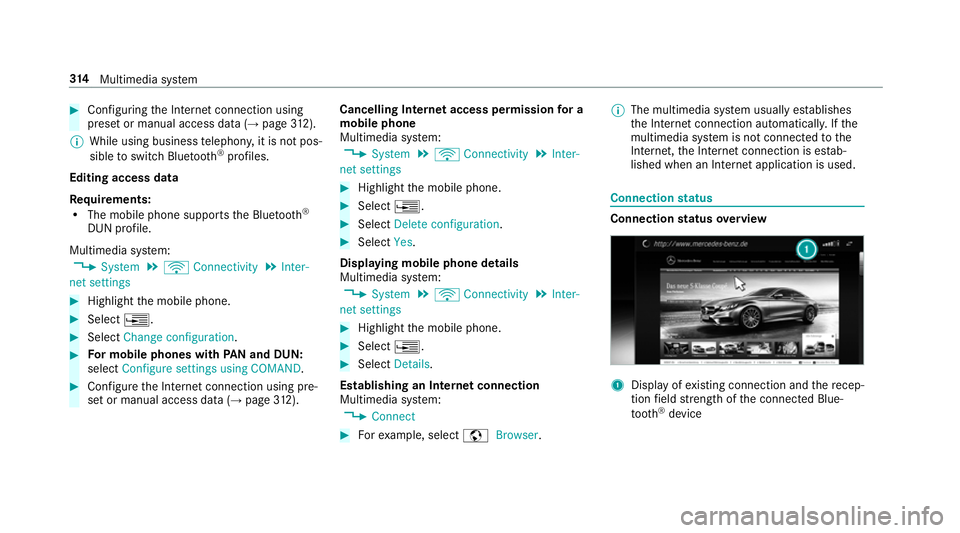
nstatus overview 1
Displa yofexisting connection an dthe recep‐
tion field stre ngt hoft he connected Blue‐
tooth ®
device 314
Multimedia sy stem
Page 320 of 521
Creating
abookmark #
Select Add new bookmark. #
EnteraU RL and aname. #
Select ¡.
Editin gabookmark #
Highlight abookmar k. #
Select ¥. #
Select Edit. #
Enter aURLand aname. #
Select ¡.
Deleting abookmark #
Highlight abookmar k. #
Select ¥. #
Select Delete. #
Select Yes.
Closin gthe br owser
Multimedia sy stem:
, Connect .
z Browser #
Select åClose browser . Interne
tradio Calling up the Interne
tradio
Re quirements:
R Ther eisana ccount on http://
www.me rcedes.me.
R The Interne tradio service is activated.
R The dat avolume is available.
Dependin gonthe countr y,dat avolume may
need tobe pur chased.
R AfastInterne tconnection ford atat ransmis‐
sion free of inter fere nce.
The service sarecountr y-dependent.
Fo rm orei nformation, consult aMercedes-
Benz Service Centre.
Multimedi asystem:
, Radio .
Þ Radio source #
Select TuneIn radio.
The Interne tradio displ ayappears. The last
st atio nsetstarts playing.
% The connectio nqualit ydepends on thel ocal
mobile phone reception. In
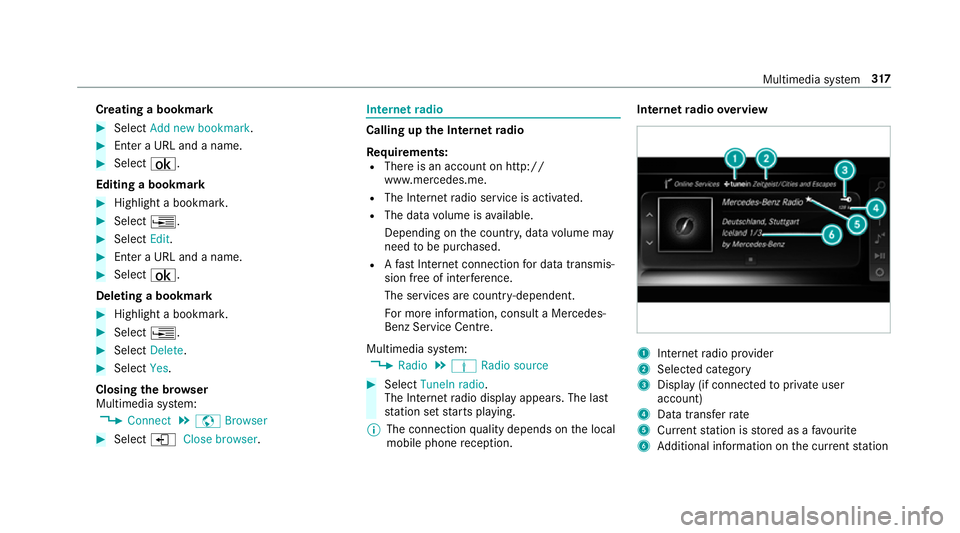
tern etradio overview 1
Inte rn et radio pr ovider
2 Selec tedc ategory
3 Displa y(if connec tedtop riva te user
account)
4 Datatransfer rate
5 Current statio niss tore dasaf avourite
6 Additional information on thec urrent station Multimedia sy
stem 317
Page 333 of 521
Ac
tivatin gBluetooth ®
audio
Multimedi asystem:
, Media .
à Media sources #
Select áBluetoot haudio.
The multimedia sy stem activates thec onnec‐
te dB luetooth ®
audio equipment.
Selecting amusic pla yer
Multimedia sy stem:
, Media .
à Media sour-
ces .
á Bluetoot haudio #
Select aBluetooth ®
audio device.
If multiple music pla yers arep resen tont he
Blue tooth ®
audio equipment alista ppears. #
Select amusic pla yer.
Playbac kstarts.
Sear ching forat rack
Multimedia sy stem:
, Media .
à Media sour-
ces .
á Bluetoot haudio #
Select ª. #
Select acategor y.
At rack list appears. #
Select atrac k.
% The function is onl yavailable when the
mobil ephone and them usic pla yers elected
on them obile phone suppor tthis function.
Switching Blue tooth ®
audio equipment via
NFC
Requ irements:
R Obser vethen otes on using NFC
(→ pag e294).
R The Blue tooth®
audio overviewisd isplayed
( → pag e330). #
Lightl ypress theN FC area on them obile
phone (see them anufacturer's operating
instructions).
If th em obile phone has already been author‐
ised on them ultimedia sy stem as Blue tooth®
audio equipment ,itisnowconnec ted.
If th em obile phone is authorised on them ul‐
timedia sy stem as Blue tooth ®
audio equip‐ men
tfor thef irst time ,itisc onnected af ter
confirming thei nstruction sfor them obile
phone (see them anufacturer's operating
instructions).
Disconnecting Blue tooth ®
audio equipment
Multimedi asystem:
, Telephone .
á Media sources #
Select aBluetooth ®
audio device. #
Select ¥Deauthorise. #
Select Yes. Ra
dio Switchin
gontheradio Multimedia sy
stem:
, Radio #
Alternatively: press the$ button.
The radio displa yappears. Youw ill hear the
las tstatio np laye dont he las tfrequ ency
band selected. 330
Multimedia sy stem
Page 335 of 521
Setting
thef requ ency band Multimedia sy
stem:
, Radio .
Þ Radio source #
Select afrequ ency band. Selecting
aradio station Multimedi
asystem:
, Radio #
Navigat eupord own. Calling up
ther adio station list Multimedi
asystem:
, Radio .
è #
Select astation. Sear
ching forr adio station susin gstation
name sord irectf requencyentry Multimedi
asystem:
, Radio .
è .
è #
Ente rastatio nn ameorf requency. #
Select a.
The sea rchr esults ar edispla yed. #
Select astation. St
oring radio stations Multimedi
asystem:
, Radio .
ß Presets #
Select Store curren tstation in the presets . Editing
radio station presets Multimedi
asystem:
, Radio .
ß Presets
Moving stations: #
Highlight aprese te ntr yand navigat etothe
left. #
Select Move highlighted station. #
Select apreset.
Deleting stations: #
Highlight aprese te ntr yand navigat etothe
left. #
Select Delete highlighted station. #
Select Yes. Calling up
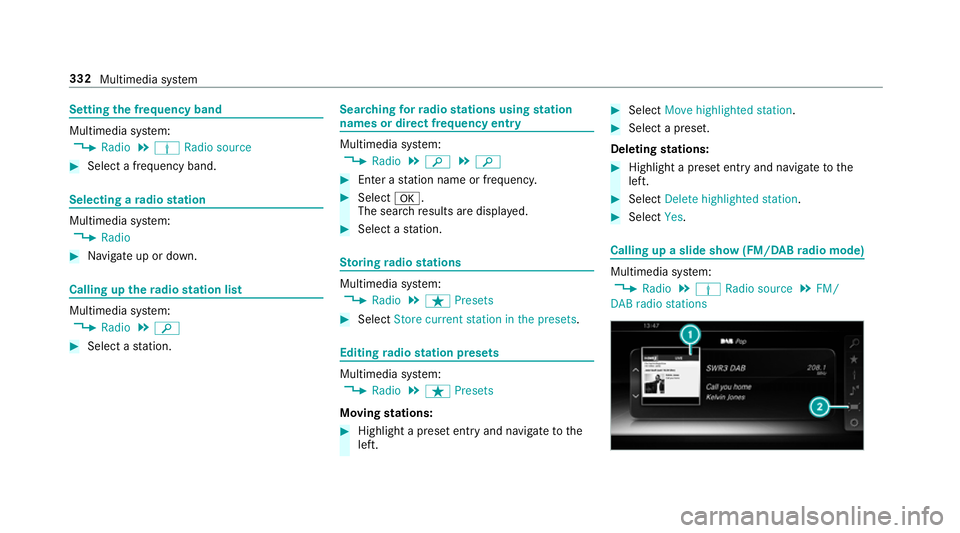
aslide sho w(FM/DAB radio mode) Multimedia sy
stem:
, Radio .
Þ Radio source .
FM/
DABr adio stations 332
Multimedia sy stem