ECU MERCEDES-BENZ S-CLASS CABRIOLET 2017 Service Manual
[x] Cancel search | Manufacturer: MERCEDES-BENZ, Model Year: 2017, Model line: S-CLASS CABRIOLET, Model: MERCEDES-BENZ S-CLASS CABRIOLET 2017Pages: 521, PDF Size: 10.48 MB
Page 256 of 521
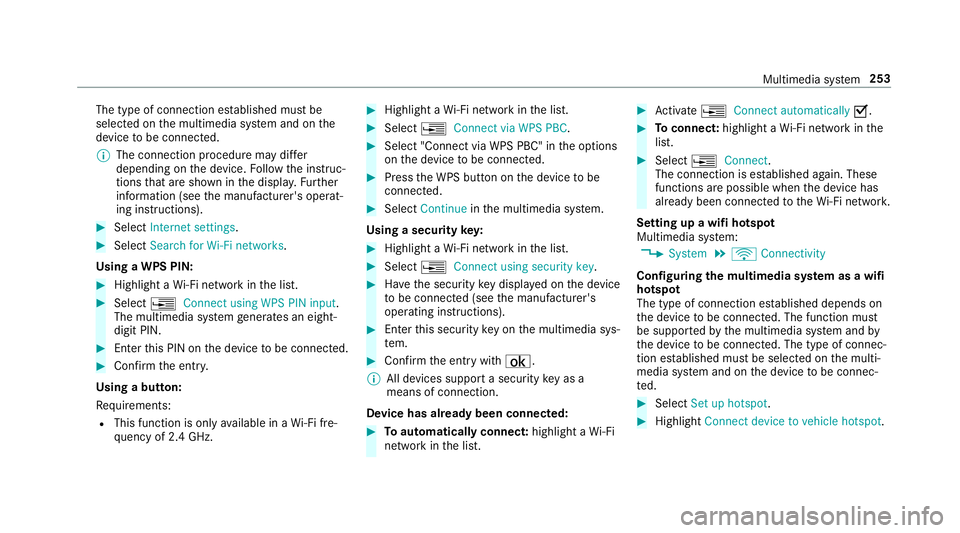
The type of connection es
tablished mus tbe
selected on them ultimedia sy stem and on the
device tobe connec ted.
% The connection procedur emaydiffer
dependin gonthe device. Followt he instruc‐
tions that ar eshown in thed ispla y.Fu rther
information (see them anufacturer's operat‐
ing instructions). #
Select Internet settings . #
Select Search for Wi-Fi networks.
Using aWPS PIN: #
Highlight aWi-Finetwo rkinthel ist. #
Select ¥Connec tusing WPS PIN input.
The multimedia sy stem generates an eight-
digi tPIN. #
Enter this PIN on thed evice tobe connec ted. #
Confir mthe entr y.
Using abutton:
Re quirements:
R This function is onl yavailable in aWi-Fifre‐
qu ency of 2.4 GHz. #
Highlight aWi-Finetwo rkinthel ist. #
Select ¥Connec tvia WPS PBC. #
Select "Connec tvia WPS PBC" in theo ptions
on thed evice tobe connec ted. #
Press theW PS button on thed evice tobe
connec ted. #
Select Continue inthem ultimedia sy stem.
Using asecurity key: #
Highlight aWi-Finetwo rkinthel ist. #
Select ¥Connec tusing securit ykey. #
Have thes ecurity keyd ispla yedont he device
to be connec ted( see them anufacturer's
operating instructions). #
Ente rthis security keyo nthe multimedia sys‐
te m. #
Confir mthe entr ywith¡.
% All devices suppor tasecurity keyasa
mean sofconnection.
Device ha salread ybeen connec ted: #
Toautomaticall yconnect: highlight aWi-Fi
networ kinthe list. #
Activate ¥ Connect automatically O. #
Toconnect: highlightaWi-Finetwo rkinthe
list. #
Select ¥Connect.
The connection is es tablished again. These
function sarepossible when thed evice has
already been connected totheW i-Finetwo rk.
Setting up awifih otspot
Multimedia sy stem:
, System .
ö Connectivity
Configuring them ultimedia sy stem as awifi
hotsp ot
The type of connection es tablished depends on
th ed evice tobe connec ted. The function must
be suppor tedbyt he multimedia sy stem and by
th ed evice tobe connec ted. The type of connec‐
tion es tablished mus tbeselected on them ulti‐
media sy stem and on thed evice tobe connec‐
te d. #
Select Set up hotspot. #
Highlight Connectdevice to vehicle hotspot. Multimedia sy
stem 253
Page 257 of 521
Genera
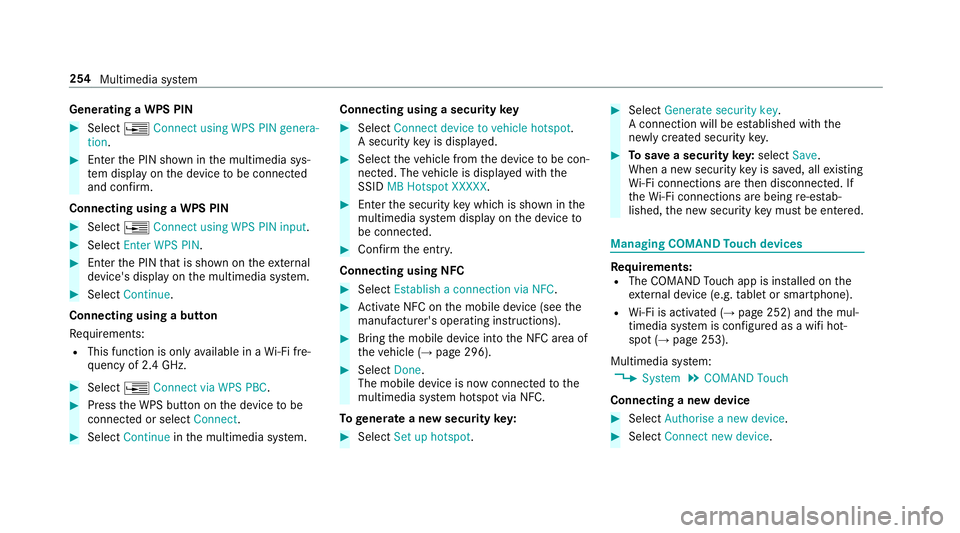
tingaW PS PIN #
Select ¥Connect using WPS PIN genera-
tion. #
Enter theP IN shown in them ultimedia sys‐
te md ispla yont he device tobe connec ted
and con firm.
Connecting usin gaWPS PIN #
Select ¥Connect usin gWPS PIN input. #
Select Enter WPS PIN. #
Entert he PIN that is shown on thee xternal
device's displa yonthe multimedia sy stem. #
Select Continue.
Connecting using abutton
Re quirements:
R This function is onl yavailable in aWi-Fifre‐
qu ency of 2.4 GHz. #
Select ¥Connec tvia WPS PBC. #
Press theW PS button on thed evice tobe
connec tedors electConnect. #
Select Continue inthem ultimedia sy stem. Connecting using
asecurity key #
Select Connect device to vehicl ehotspot .
As ecu rity keyisd isplayed. #
Select thev ehicle from thed evice tobe con‐
nec ted. The vehicle is displa yedw itht he
SSID MB Hotspot XXXXX. #
Enter thes ecurity keyw hichiss hown in the
multimedia sy stem displa yonthe device to
be connec ted. #
Confir mthe entr y.
Connecting usin gNFC #
Select Establish aconnectio nvia NFC. #
Activat eNFC on them obile device (see the
manufacturer's operating instructions). #
Bring them obile device int othe NFC area of
th ev ehicle (→ page296). #
Select Done.
The mobile device is no wconnected tothe
multimedia sy stem hotspo tvia NFC.
To generat eanewsecurity key: #
Select Set up hotspot . #
Select Generate security key .
Ac onnection will be es tablished wit hthe
newly created security key. #
Tosave asecurity key:select Save.
When anew security keyiss aved, all existing
Wi -Fi connections ar ethen disconnected. If
th eW i-Ficonnections ar ebeing re-es tab‐
lished, then ew security keym ustbee ntered. Managin
gCOMAND Touc hd evices Re
quirements:
R The COMAND Touc ha pp is ins talled on the
ex tern al devic e(e.g. table tors martphone).
R Wi-Fi is acti vated( →pag e252) and them ul‐
timedia sy stem is confi gured asawifih ot‐
spo t(→ pag e253).
Multimedia sy stem:
, System .
COMAND Touch
Connecting anew device #
Select Authorise anew device. #
Select Connec tnew device. 254
Multimedia sy stem
Page 258 of 521
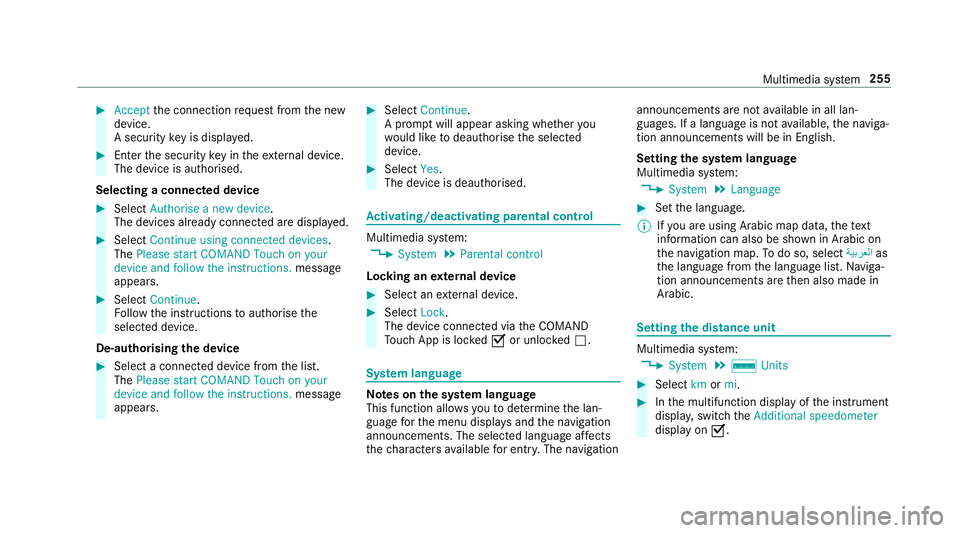
#
Accept thec onnection requ estfromt he new
device.
As ecurity keyisd isplayed. #
Ente rthe security keyint he extern al device.
The devic eisauthorised.
Selecting aconnected device #
Select Authorise anew device.
The devices already connec teda redispla yed. #
Select Continue using connected devices.
The Please start COMAND Touch on your
device and follow the instructions. message
appears. #
Select Continue.
Fo llowt he instructions toauthorise the
selected device.
De-authorising thed evice #
Select aconnec tedd evice from thel ist.
The Please start COMAND Touch on your
device and follow the instructions. message
appears. #
Select Continue.
Ap romp twill appear asking whe ther you
wo uld lik etodeauthorise thes elected
device. #
Select Yes.
The device is deauthorised. Ac
tivating/deactivatin gparenta lcon trol Multimedia sy
stem:
, System .
Parental control
Locking an extern al device #
Select an extern al device. #
Select Lock.
The devic econnec tedv iatheC OMAND
To uc hA ppis loc kedOor unloc kedª. Sy
stem language Note
sont he system language
This function allo wsyoutod etermine thel an‐
guag efor them enu displa ysand then avigation
announcements. The selected languag eaffects
th ec haracter savailable fore ntr y.The navigation announcement
sarenota vailable in all lan‐
guages. If alanguag eisnotavailable, then aviga‐
tion announcements will be in Engl ish.
Setting thes ysteml anguage
Multimedia sy stem:
, System .
Language #
Setthe language.
% Ifyo ua reusin gArabic map data, thet ext
information can also be shown in Arabic on
th en avigation map. Todo so, select ةيبرعلاas
th el anguag efromt he languag elist. Naviga‐
tion announcements ar ethen also made in
Arabic. Setting
thed istance unit Multimedia sy
stem:
, System .
% Units #
Select kmormi. #
Inthem ultifunction displa yofthe instrument
displa y,switc hthe Additional speedometer
displa yonO. Multimedia sy
stem 255
Page 262 of 521
In order
tocons tantl yimpr ove theq ualit yofo ur
services youw illrecei vefutur eupdates fory our
multimedia sy stem, theM ercedes me connect
services and your vehicle's communication mod‐
ule. These will con veniently be sent to youvia
th em obile phone connection in your vehicle
and, in man ycases, ins talled automaticall y.Yo u
can moni tort he status of your updates at any
tim eont he Mercedes me por tala nd find infor‐
matio nabout potentia linno vations.
Yo ur advantages at aglance:
R con veniently recei vesoftwar eupdate svia
th em obile phone network
R thel ong-te rmqualit yand availabilit yof
Mercedes me connec tisguaranteed
R keep your multimedia sy stem and communi‐
cation module up-to-date
Fu rther information about softwar eupdates can
be found at http://me.mercedes-benz.com
Pe rformin gasoftwar eupdate
Re quirements:
R An Interne tconnection is requiredfor
updates whic hareobtaine donlin e. Multimedia sy
stem:
, System .
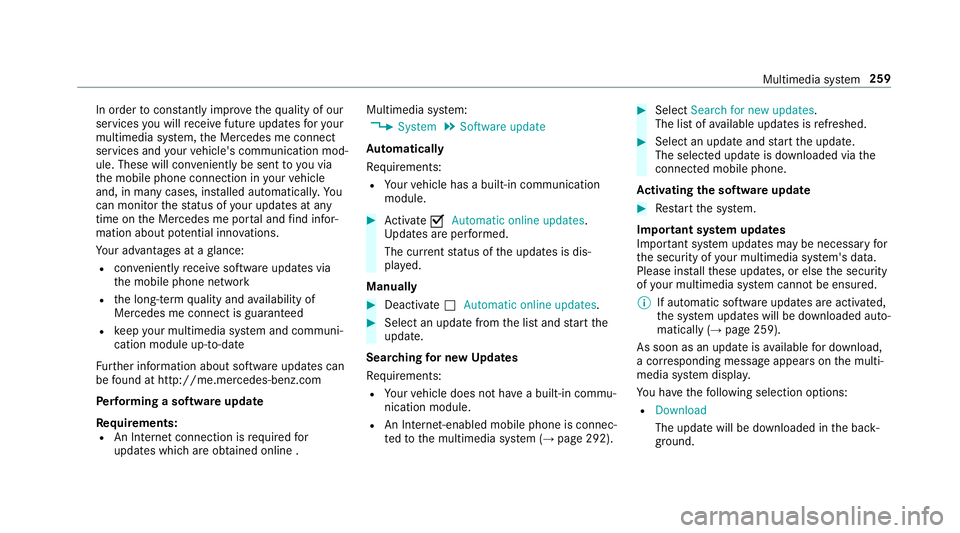
Software update
Au tomatically
Re quirements:
R Your vehicle has abuilt-in communication
module. #
Activate OAutomatic online updates.
Up dates ar eperform ed.
The cur rent status of theu pdates is dis‐
pla yed.
Manually #
Deactivate ªAutomatic online updates. #
Select an updat efromt he lis tand star tt he
update.
Sear ching forn ew Up dates
Re quirements:
R Your vehicle does no thave abuilt-in commu‐
nicatio nmodule.
R An In tern et-enabled mobil ephone is connec‐
te dtot he multimedia sy stem (→ page292). #
Select Search for new updates.
The lis tofavailable updates is refreshed. #
Select an updat eand star tt he update.
The selected updat eisdownloaded via the
connected mobil ephone.
Ac tivatin gthe so ftwa reupdate #
Restar tt he sy stem.
Important sy stem upda tes
Impor tant sy stem updates ma ybenecessar yfor
th es ecurity of your multimedia sy stem's data.
Please ins tallth ese updates, or else thes ecurity
of your multimedia sy stem cann otbe ensured.
% If automatic softwar eupdates ar eactivated,
th es ystemu pdates will be downloaded auto‐
maticall y(→ pag e259).
As soon as an updat eisavailable ford ow nload,
ac orresponding messag eappears onthem ulti‐
media sy stem displa y.
Yo uh ave thef ollowing selection options:
R Download
The updat ewill be downloaded in theb ack‐
ground. Multimedia sy
stem 259
Page 266 of 521
Na
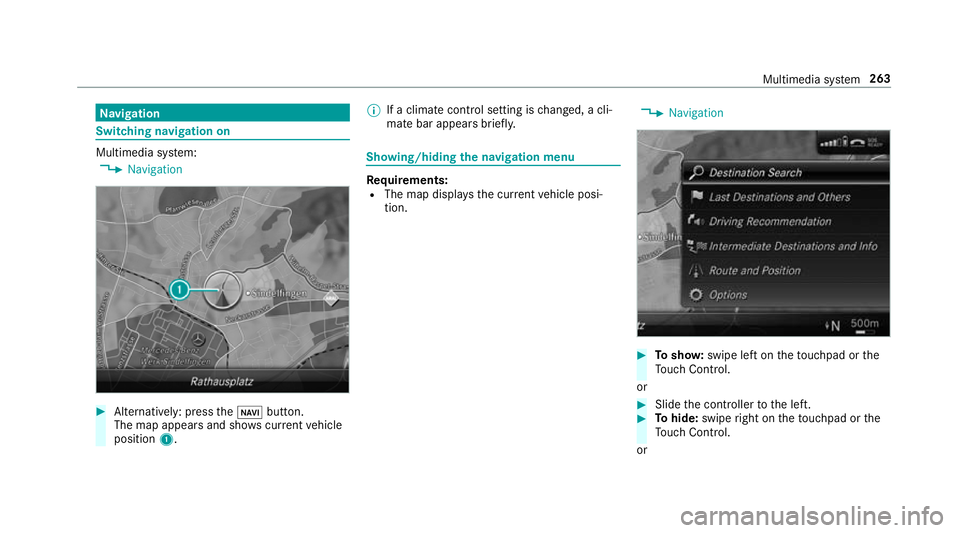
vigation Switching navigation on
Multimedia sy
stem:
, Navigation #
Alternatively: press theß button.
The map appear sand sho wscurrent vehicle
position 1. %
Ifac limat econt rols etting is changed, acli‐
mat ebar appear sbrief ly. Showing/hiding
then avigation menu Re
quirements:
R The map displa ys thecurrent vehicle posi‐
tion. ,
Navigation #
Tosho w:swipe lef tonthetouchpad or the
To uc hC ontrol.
or #
Slid ethe controller tothel eft. #
Tohide: swipe right on thet ouchpad or the
To uc hC ontrol.
or Multimedia sy
stem 263
Page 282 of 521
#
Method 1: if routeg uidance is no tactive,
select Start rout eguidance.
The routetot he destination is calculated.
The map sho ws theroute. Routeg uidance
th en begins. #
Method 2: if routeg uidance is active, select
Start ne wrout eguidance orSet as next
intermediat edestination .
Start ne wrout eguidance:t herecei vedd esti‐
nation address is se tasanewd estination.
The pr evious destination sand intermediate
destination saredele ted. Ro uteg uidance to
th en ew destination begins.
Set as nexti ntermediate destination:t he
re cei vedd estination address is se tasthe
next ne wintermedia tedestination. Route
guidance begins. Ro
uteg uidanc ewith cur rent traf ficr epo rts Tr
af fici nformation overview
The services ar enotavailable in everycountr y. Tr
af ficr eports can be recei vedw itht he following
services:
R LiveT raffic In form ation
R FM RDS-TMC
It is no tpossible touse bo thservices simultane‐
ously.
Liv eT raffic In form ation or FM RDS-TMC is dis‐
pl ay ed wit hasymbol.
% Hazar dalerts can be recei vedu sing theC ar-
to -X service.
The rema ybed iffe re nces betwee nthe traf fic
re ports recei veda nd thea ctual road and traf fic
conditions.
Impor tant informatio nonLiveT raffic In form a‐
tion:
R Current tra ffic reports ar ereceived via the
Interne tconnection or via dat aroaming (for
sele cted count ries).
R The traf fics ituation is upda tedats hort,regu‐
lar inter vals. R
In selec tedc ount ries, thes ubscription
service is available free of charge forap eriod
of thre ey ear sfromt he manufacturing date.
The subscription information sho wsthes ta‐
tus (→ page282).
Re gis tering Liv eTraffic In form ation
R Thisservice is enabled fort hree months af ter
th ev ehicle hando ver.
R Have thes ervice regis tere donM ercedes me
(→ pag e282):
- upon vehicle hando ver
- within thre em onths
This secures thef ull free-of- charge period of
th re ey ears.
R Registration is car ried out at aMercedes-
Benz Service Centr eonthe Mercedes me
we bsite.
R Ifre gistration is no tcomple tedw ithin this
tim eperiod, Liv eTraffic In form ation will be
deactivated. If Liv eTraffic In form ation is
used af tert his period, e.g. af ters ix months, Multimedi
asyst em 279
Page 287 of 521
Moving
them ap
Multimedia sy stem:
, Navigation .
Z Options .
Map
menu #
Alternatively: if them ap is displa yedinf ull
screen mode, press theT ouc hControl, the
controller or thet ouchpad.
The map menu appears. #
Select "mo vemap" in map menu 2
(→ pag e282). #
Swipe in an ydirection on theT ouc hControl
or touchpad.
or #
Slid ethe controller in an ydirection.
The map mo vesint he cor responding direc‐
tion under thec rosshair .The fur ther you
mo veyour finger away from thes tarti ngposi‐
tio nont hetouchpad, thef astert he map
mo ves. Selecting
them aporientation
Multimedia sy stem:
, Navigation .
Z Options .
Map
menu #
Alternatively: if them ap is displa yedinf ull
screen mode, press theT ouc hControl or the
to uchpad.
The map men uappears. #
In map menu 3,select N,2D or
3D( →pag e282).
R N:t he 2D map vie wisdisplayedsot hat
nor this alw aysatt hetop.
R 2D:t he 2D map vie wisaligned tothe
direction of tra vel.
R 3D:t he 3D map vie wisaligned tothe
direction of tra vel.
Selecting POI symbols
Multimedia sy stem:
, Navigation .
Z Options .
Map con-
tent
POIs include filling stations and ho tels whic hcan
be displa yedass ymbols on them ap,fore xam‐
ple. Notall POI sareavailable everywhere. #
Select POI symbols .
The #do tindicates thec urrent setting.
Standard displayss ymbols of predefined cat‐
egories on them ap.
User defined allowsyoutop ersonall yselect
th es ymbols fort he available categories.
None switches thed ispla yoff. #
Select asetting. #
User defined:s elect categories.
The POI symbols of thes elected categories
ar ed ispla yedOor no tdispla yedª.
Selecting text information
Multimedia sy stem:
, Navigation .
Z Options .
Text
information #
Select text information.
Current street showsthes tree tyou ar ecur‐
re ntly driving on at theb otto moft he displa y.
When them ap is mo ved, thef ollowing infor‐
mation appear sunder thec rosshair:
R stre et name
R POI name 284
Multimedia sy stem
Page 288 of 521
R
area name
Geo-coordinates displays thefollowing infor‐
mation:
R longitude and latitude
R elevation
The el evatio nshown ma ydeviat ef rom
th ea ctual ele vation.
R numbe rofsatellitesf romw hichas ignal
can be recei ved
When them ap is mo ved, this information
does no tappear.
Climate control displays thecurrent climate
control settings.
None switches thed ispla yoff.
Switching mo torw ay information on/off
Multimedia sy stem:
, Navigation .
Z Options #
Switch Motorway information onO or off
ª.
The function is switched on O:during a
journe y,additional information on upcoming fa
cilities appea rson ther ight side of the
screen. These include car par ks,s ervice sta‐
tions and mo torw ay ex its,fore xamp le.
Displ aying then extintersectin gstreet
Re quirements:
R Routeg uidance is no tactive.
Multimedia sy stem:
, Navigation .
Z Options #
Activate ONext intersecting street .
The nam eofthe next intersecting stre et will
be displa yedatt he upper edg eofthe displa y.
Displaying them apversion
Multimedia sy stem:
, Navigation .
Z Options #
Select Map version . #
Select Details.
% Information about ne wversions of thed igital
map can be obtained from aMercedes-Benz
Service Centre. Av
oiding an area
Yo uc an define areas alon garoutethat you
wo uld lik etoavoid.
Av oiding anew area
Multimedia sy stem:
, Navigation .
À Route and posi-
tion .
Avoid options .
Areas #
Select Avoid new area. #
Tosear chforana reav iathe map: select
Using map. #
Movethem ap
or #
Tosear chforana reau sing an address:
select Addres sentry . #
Enter thea ddress. #
Select Select destination.
The map appears. #
Todispl ayan area: presstheT ouc hControl,
th et ouchpad or thec ontroller.
Ar ed rectangle appea rs.T hisd esignates the
area that shoul dbeavoided. Multimedia sy
stem 285
Page 293 of 521
Note
sont elephony &
WARNING Risk of di stra ction from oper‐
ating integrated communication equip‐
ment while thev ehicle is in motion
If yo uo perat ecommun icationequipment
integrated in thev ehicle when driving, you
will be distracted from thet raffic situation.
This could also cause youtol ose control of
th ev ehicle. #
Onlyoperat ethis equipment when the
traf fics ituation permits. #
Ifyo uc anno tbes ureoft his,stop the
ve hicle whils tpaying attention toroad
and traf ficc onditions and ope rate the
equipment wit hthe vehicle stationar y. &
WARNING Risk of di stra ction from oper‐
ating mobil ecommunication equipment
while thev ehicle is in motion
If yo uo perat ecommun icationequipment
integrated in thev ehicle when driving, you
will be distracted from thet raffic situation. This could also cause
youtol ose control of
th ev ehicle.
Onl yoperat ethis equipment when thev ehi‐
cle is stationar y. Yo
um usto bse rvet he legal requ irements fort he
countr yinwhich youa recur rentl yd riving when
operating mobil ecommunication equipment in
th ev ehicle.
Fu rther information can be obtained from a
Mercedes-BenzS ervice Centreorat:http://
www.mercedes-benz.com/connect.
Information on telephony
The following situations can lead tothec all
being disconnected while thev ehicle is in
motion:
R ther eisi nsufficient networ kcove rage inthe
area
R youm ovef romo ne GSM or UMT Stransmit‐
te r/receiver area (cell )int oa nother and no
communication channels ar efree
R theS IM car dused is no tcompatible wit hthe
networ kavailable R
am obile phon ewith" Twincard" is logged into
th en etwo rkwit hthe second SIM car datthe
same time
HD Voice ®
R Toimpr ovevoice qualit y,them ultimedia sys‐
te ms upports telephon ecalls in HD Voice ®
.
R In order touse this function ,the mobile
phones and them obile phone networ kpro‐
vider of thep erson youa recalling mus tsup‐
por tHDV oice®
.
Depending on theq ualit yoft he connection, the
vo ice qualit ym ayfluctuate.
Connecting amobile phone (Blue tooth ®
te l‐
ephony)
Re quirements:
R Blue tooth ®
is activated on them obile phone
(see them anufacturer's operating instruc‐
tions).
R Blue tooth ®
is activated on them ultimedia
sy stem (→ page252). 290
Multimedia sy stem
Page 294 of 521
Multimedia sy
stem:
, Telephone .
á Connec tdevice
Sear ching foram obilephone #
Select Use Bluetooth telephon yonly. #
Select Connect new device .#
Select Startsearch on the system .
The available mobile phones ar edispla yed. If
an ew mobile phone is found ,itisi ndicated
by the á symbol.
Connecting amobile phone (authorisation
using Secur eSimple Pairing) #
Selec tthe mobile phone.
Ac ode is displa yedint he multimedia sy stem
and on them obile phone. #
Ifth ec odes match: confirm thec ode on
th em obile phone.
Connecting amobile phone (authorisation by
entering apassk ey) #
Select them obile phone. #
Choose aone tosixteen-digit number combi‐
nation as apassk ey. #
On them ultimedia sy stem: enter thep ass‐
ke ya nd select a. #
On them obil ephone: enter thep assk ey
again and con firm.
% Upto15 mobil ephones can be auth orised
on them ultimedia sy stem.
Auth orised mobile phones ar ereconnec ted
au tomatical ly. Using
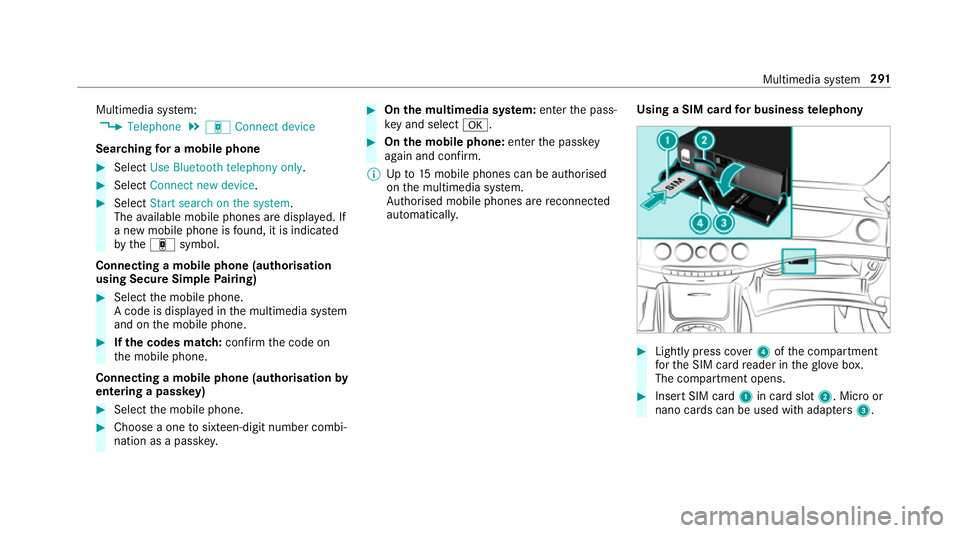
aSIM car dfor business telephony #
Light lypress co ver4ofthec ompartment
fo rt he SIM car dreader in theg love box.
The compartmen topens. #
Inser tSIM card 1in car dslot 2.M icroor
nano cards can be used wit hadap ters 3 . Multimedia sy
stem 291