change time MERCEDES-BENZ S-CLASS COUPE 2017 User Guide
[x] Cancel search | Manufacturer: MERCEDES-BENZ, Model Year: 2017, Model line: S-CLASS COUPE, Model: MERCEDES-BENZ S-CLASS COUPE 2017Pages: 533, PDF Size: 10.75 MB
Page 241 of 533
%
This is ho wtochangethe channel on the
media sourc eTV.
Changing them edia source #
Press thel eft-hand Touc hC ontrol. #
Toselect amedia source: swipe upwards
or down wardsont he left-hand Touc hC on‐
trol. #
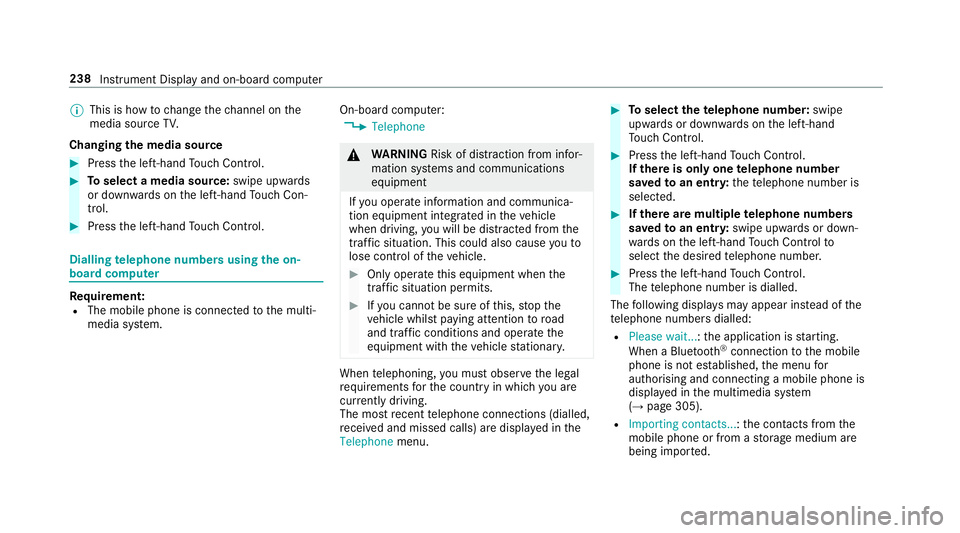
Press thel eft-hand Touc hC ontrol. Dialling
telephone number susing theo n-
boar dcompu ter Re
quirement:
R The mobile phon eisconnec tedtot he multi‐
media sy stem. On-boar
dcomputer:
, Telephone &
WARNING Risk of di stra ction from infor‐
mation sy stems and communications
equipment
If yo uo perat einformation and communica‐
tio ne quipment integrated in thev ehicle
when driving, youw ill be distracted from the
traf fics ituation. Thi scould also cause youto
lose control of thev ehicle. #
Onlyoperat ethis equipment when the
traf fics ituation permits. #
Ifyo uc anno tbes ureoft his,stop the
ve hicle whils tpaying attention toroad
and traf ficc onditions and ope rate the
equipment wit hthe vehicle stationar y. When
telephoning, youm usto bse rvet he legal
re qu irements fort he countr yinwhichyou are
cur rentl yd riving.
The mos trecen ttelephone connection s(dialled,
re cei veda nd missed calls) ar edispla yedint he
Telephone menu. #
Toselect thet elephone number: swipe
upwards or down wardsont he left-hand
To uc hC ontrol. #
Press thel eft-hand Touc hC ontrol.
If th ereiso nlyo ne telephone number
sa ve dtoane ntry:thet elephone number is
selected. #
Ifth erea remultiple telephone numbers
sa ve dtoane ntry:swipe upwards or down‐
wa rdsont he left-hand Touc hC ontrol to
select thed esired telephon enumber. #
Press thel eft-hand Touc hC ontrol.
The telephon enumber is dialled.
The following displa ysma yappear ins tead of the
te lephon enumber sdialled:
R Please wait... :the applicationiss tarting.
When aBluetooth ®
connection tothem obile
phone is no testablished, them enu for
authorisin gand connectin gamobile phon eis
displa yedint he multimedia sy stem
(→ pag e305).
R Importing contacts... :the contacts from the
mobil ephone or from astorage medium are
being impor ted. 238
Instrument Displa yand on-boar dcomputer
Page 264 of 533
The
volume of then avigation announce‐
ment changes in accordanc ewitht he vol‐
ume of thec urrent media sou rce.
R during atelephone call
R when entering or exitin gap arkin gspace
while using ActiveP arking Assist
or #
Select System. #
Select Audio. #
Selec tavolume setting. #
Setthe volume. Entering
characters Using
thec haracter input function
Use thec haracter input function in thef ollowing
situations, fore xamp le:
R Torenam eafavourite
R Toenter aPOI or address
R Tomak eap hone call The
following function sareavailable:
R Selecting acharacter in thec haracter bar
R Writin gac haracter on thet ouchpad
Character input can be star tedw ithac ontrol
element and resumed wit hanother. #
On theT ouc hControl and controller:
select acharacter in thec haracter bar.
Depending on thet arge te ntry ,the following
ch aracter sareavailable:
R The full se tofcharacter sisshown
R Onlythose character swhicha reuseful
fo rt he cur rent inpu tstring are shown
Other character saregrey ed out. #
On thet ouchpad: selectacharacter in the
ch aracter bar.
or #
Writet he character sonthetouch-sensitive
sur face of thet ouchpad.
Handwriting recognition suppo rtsy ou by
means of character suggestions and aread-
aloud function. Examples of
character ent ry:
R Renam eafavourite
R EnteraP OI or an addre ss using free or step-
by -ste ps ear ch
R Enter aweb address
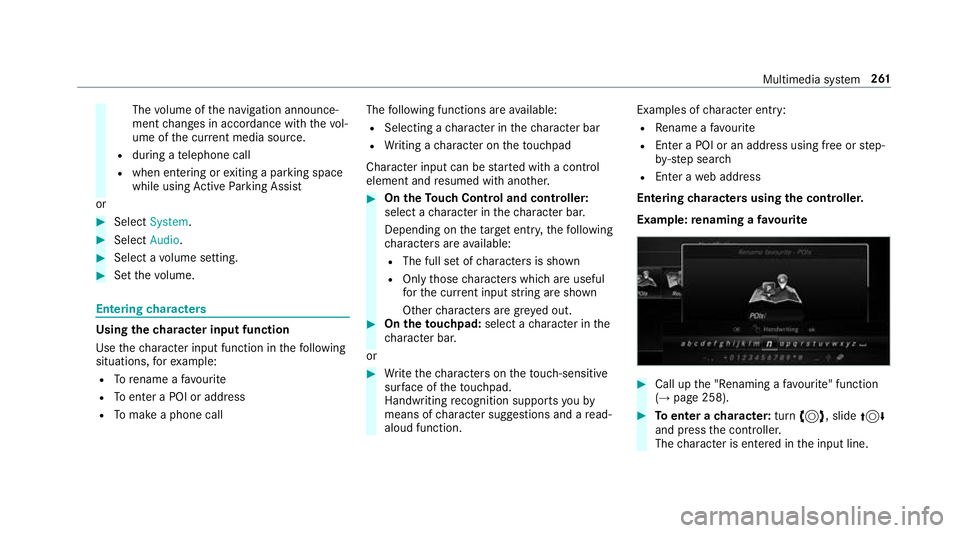
Entering character susin gthe controller.
Example :renaming afavourite #
Call up the" Renaming afavo urite" function
(→ pag e258). #
Toenter acharacter: turn3,s lide4
and press thec ontroller.
The character is entered in thei np ut line. Multimedia sy
stem 261
Page 267 of 533
#
Select Summer Time. #
Select OnorOff.
Setting the time and dat eformat
Multimedia sy stem:
, System .
& Time and date .
Set
format #
Setthe dat eand time form at#.
Setting thet imem anually
Re quirement:
R The Manual time adjustment function is
switched on.
Multimedia sy stem:
, System .
& Time and date .
Set
time #
Setthe hours. #
Navigat etot heright tosetthe minutes. #
Setthe minutes. #
Confir mchanges when exitin gthe menu.
The dat eissetautomaticall yvia GPS. Connectivity
Setting up
ahotspo tvia business telephony
Multimedia sy stem:
, System .
ö Connectivity .
Set up
hotspot #
Select Select the vehicle's mobile hotspot . #
Select Business phone.
The hotspo tisactive.
Exte rnal devices (e.g. tablets) can be connec‐
te dtot he multimedia sy stem via business
te lephon y.
% Information abouts etting up ahotspot
(→ pag e326).
Switching transmission of thev ehicle posi‐
tio no n/off
Multimedi asystem:
, System .
ö Connectivity #
Select Transmit vehicle position . #
Switc hthe function on Oor off ª. Blue
tooth ® Information abou
tBluet oo th®
Bl ue tooth ®
tech nology is astandar dfor short-
ra ng ew ireles sdatat ransfer up toappr oximately
10 m.Youc an use Blue tooth®
to connect your
mobile phon etothe multimedia sy stem and use
th ef ollowing functions, fore xamp le:
R hands-free sy stem wit haccess tothef ollow‐
ing options:
- contacts (→ page311 )
- call lists (→ page313 )
- text messa ges
R Interne tconnection
R listening tomusi cvia Blue tooth®
audio
(→ pag e342)
R trans ferring business cards (vCards) int othe
ve hicle
Blue tooth ®
is ar egis tere dt rademar kofBlue‐
toot hSpecial Interes tGroup (SIG) Inc.
% Interne tconnection via Blue tooth®
is not
av ailable in all countries. 264
Multimedia sy stem
Page 272 of 533
Data impor
tand export Dat
aimp ort/expor tfunction
The following function sarepossible:
R transfer ring da tafrom one sy stem or vehicle
to ano ther sy stem or vehicle.
R creating abacku pc opyofy our personal data
and loading it again.
R protecting your personal dat aagains tunw an‐
te de xpo rtwit hP IN pr otection.
% Please no tethat theN TFS file sy stem is not
suppor ted. The FAT32 file sy stem is recom‐
mended.
Importing/exporting data
* NO
TEDat aloss #
Do no tremo vethed atas tora ge
medium when dat aisbeingexpor ted.
Mercedes-Ben zisnotliable fora ny loss of
data. Re
quirements:
R The vehicle is stationar y. R
The ignition is switched on or thev ehicle has
been star ted.
R The SD car disinserted( →pag e335) or the
USB device is connecte d(→ pag e337).
Multimedia sy stem:
, System .
System backup #
Select Import data orExport data.
Importing #
Select adatas torage medium.
Ap romp tappear sasking whe ther your eally
wish to overwrit ethe cur rent da ta.Ifd ata
originates from an other vehicle, this is recog‐
nise ddurin gdatar eading.
The multimedia sy stem is restar tedo ncet he
dat ahas been impor ted.
% Current vehicle settings can be edited af ter
th ei mp ort.
Exporting
If PIN pr otection is activated, your PIN is reques‐
te d. #
Ente rthe four-digit PIN. #
Select adatas torage medium.
The dat aisexported. The dat aexpo rtmay
ta ke severalm inutes. Ac
tivating/deactivatin gPINprotection Multimedia sy
stem:
, System .
PIN protection
Setting theP IN #
Select Set PIN. #
Enteraf our-digit PIN. #
Enter thef our-digit PIN again.
If bo thPINs match, PIN pr otection is active.
Changing theP IN
Re quiremen t:
R Acurrent PIN mu stbe set. #
Select Change settings. #
Ente rthe cur rent PIN. #
Select ChangePIN. #
Setan ewPIN. Multimedia sy
stem 269
Page 273 of 533
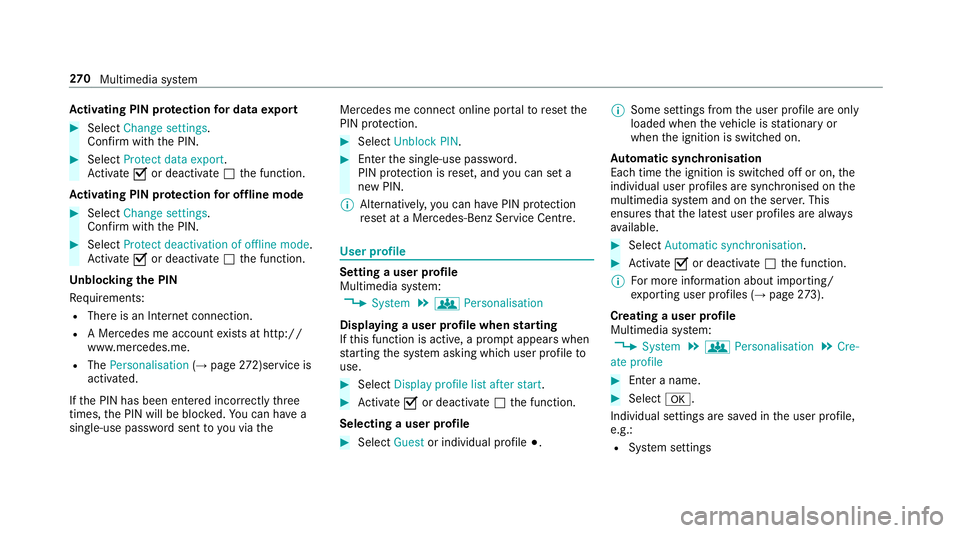
Ac
tivatin gPINprotection ford atae xport #
Select Change settings .
Confir mwitht he PIN. #
Select Protect data export.
Ac tivate Oor deacti vate ª thef unction.
Ac tivatin gPINprotection foro ffline mode #
Select Changesettings .
Confir mwitht he PIN. #
Select Protect deactivation of offline mode.
Ac tivate Oor deacti vate ª thef unction.
Un blocking theP IN
Re quirements:
R Ther eisanI nternetconnection.
R AM ercedes me account exists at http://
www.me rcedes.me.
R The Personalisation (→pag e272)servi ce is
acti vated.
If th eP IN has been entered incor rectly three
times ,the PIN will be bloc ked. Youc an ha ve a
single-use passwor dsent to yo uviathe Mercedes me connect online por
taltor esetthe
PIN pr otection. #
Select Unbloc kPIN. #
Ente rthe single-use password.
PIN pr otection is reset, and youc an se ta
ne wP IN.
% Alternativel y,yo uc an ha vePIN pr otection
re se tata Mercedes-Benz Service Centre. User profile
Setting
auser profile
Multimedia sy stem:
, System .
g Personalisation
Displaying auser profile when starting
If th is function is active, apromp tappear swhen
st artin gthe sy stem asking whic huser profile to
use. #
Select Display profile list after start . #
Activate Oor deacti vate ª thef unction.
Selecting auser profile #
Select Guestor individual profile #.%
Some settings from theu ser profile ar eonly
loaded when thev ehicle is stationar yor
when thei gnition is switched on.
Au tomatic syn chronisation
Eac htime thei gnition is switched of foron,the
individual user profiles ar esynchronised on the
multimedia sy stem and on thes erve r.This
ensures that thel ates tuser profiles ar ealways
av ailable. #
Select Automatic synchronisation. #
Activate Oor deacti vate ª thef unction.
% Form orei nformation about importing/
ex portin guser profiles (→ page273).
Crea tingau serp rofile
Multimedia sy stem:
, System .
g Personalisation .
Cre-
ate profile #
Ente ran ame. #
Select a.
Individuals ettings ar esave dint he user profile,
e.g.:
R System settings 270
Multimedia sy stem
Page 277 of 533
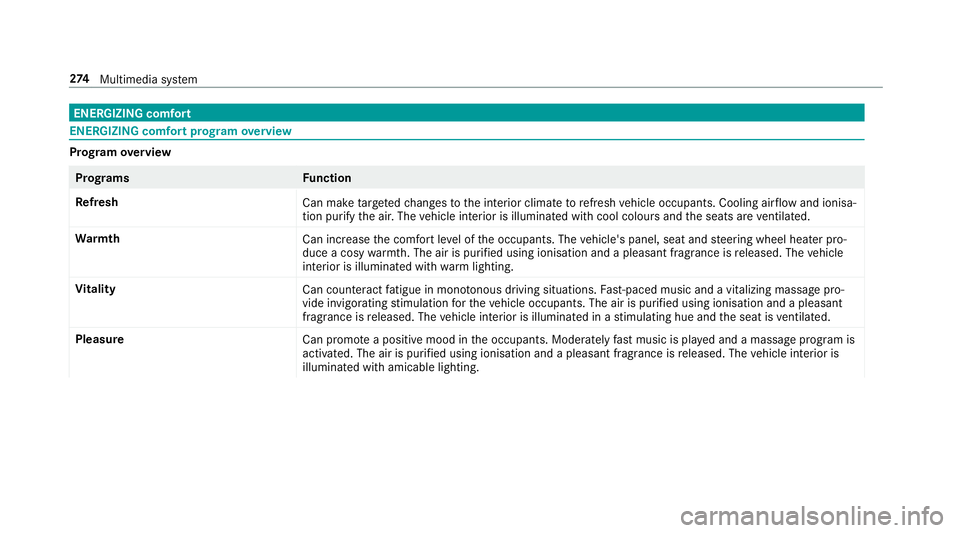
ENERGIZIN
Gcomfort ENERGIZIN
Gcomfor tprogram overview Prog
ramo verview Prog
rams Function
Re fresh
Can maketarget ed changes tothei nterior climat etorefresh vehicle occupants. Cooling air flow and ionisa‐
tio np urify thea ir.T he vehicle interior is illuminated wit hcool colour sand thes eats ar eventilated.
Wa rmth
Can increase thec omfor tleve loft he occupants. The vehicle's panel, seat and steering wheel heater pro‐
duce acosy warmth.T he ai risp urifie dusing ionisation and apleasant fragrance is released. The vehicle
interior is illuminated wit hwarml ighting.
Vi tality
Can countera ct fatigue in mono tonou sdriving situations. Fast-paced musi cand avitalizing massa gepro‐
vide invigorating stimulatio nfor thev ehicle occupants. The air is purified using ionisation and apleasant
fragrance is released. The vehicle interior is illuminated in astimulating hu eand thes eat is ventilated.
Pleasure Canp romo teap ositiv emoodint he occupants. Moderatel yfastm usicisp laye da nd am assag eprogram is
activated. The air is purified using ionisation and apleasant fragrance is released. The vehicle interior is
illuminated wit hamicable lighting. 274
Multimedia sy stem
Page 279 of 533
Na
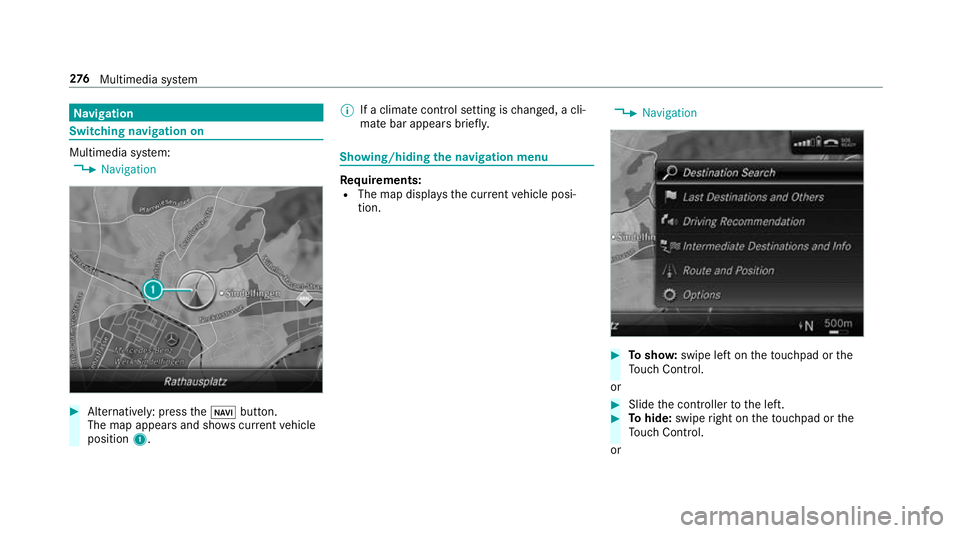
vigation Switching navigation on
Multimedia sy
stem:
, Navigation #
Alternatively: press theß button.
The map appear sand sho wscurrent vehicle
position 1. %
Ifac limat econt rols etting is changed, acli‐
mat ebar appear sbrief ly. Showing/hiding
then avigation menu Re
quirements:
R The map displa ys thecurrent vehicle posi‐
tion. ,
Navigation #
Tosho w:swipe lef tonthetouchpad or the
To uc hC ontrol.
or #
Slid ethe controller tothel eft. #
Tohide: swipe right on thet ouchpad or the
To uc hC ontrol.
or 276
Multimedia sy stem
Page 280 of 533
#
Slide thec ontroller tother ight.
% Tosho worh ide lowerm enu le vels, swipe or
slide tothel eftorr ight as man ytimes as
necessar y. Destination ent
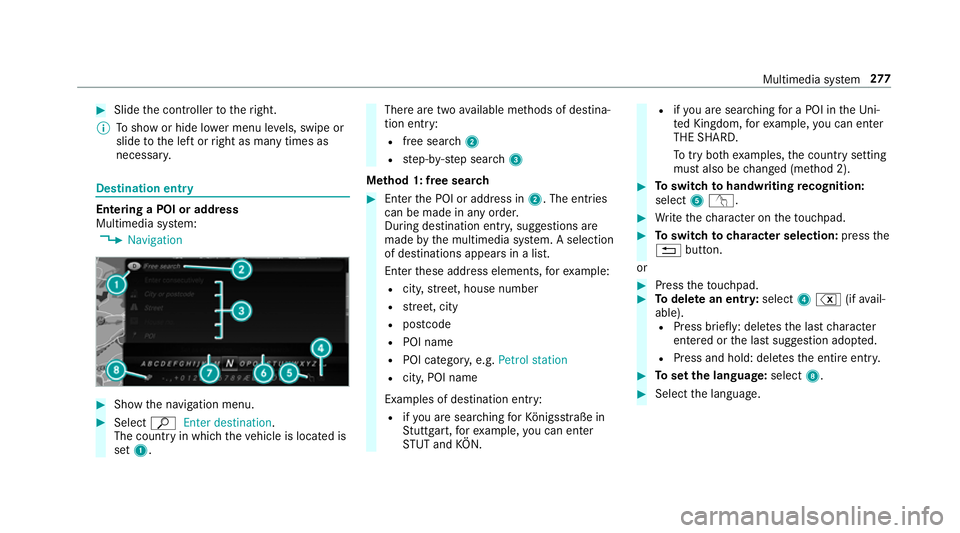
ry Entering
aPOI or address
Multimedia sy stem:
, Navigation #
Sho wthe navigation menu. #
Select ªEnter destination .
The countr yinwhichthe vehicle is located is
set 1. Ther
earetwoa vailable me thods of destina‐
tion entry:
R free sear ch2
R step-b y-step sear ch3
Me thod 1: free sear ch #
Enter theP OI or address in 2.The entri es
can be made in an yorder.
During destination entry ,suggestion sare
made bythem ultimedia sy stem. Aselection
of destinations appear sinalist.
Ente rthese address elements, fore xamp le:
R city,stre et,h ouse number
R stre et,c ity
R postcode
R POI name
R POI categor y,e.g. Petrol station
R city,POI name
Examples of destination entry: R ifyo ua resear ching forK önigsstraße in
St utt gart,f or example, youc an en ter
ST UT and KÖN. R
ifyo ua resear ching foraP OI in theU ni‐
te dK ingdom ,for example, youc an en ter
THE SHARD.
To tryb othe xamp les,thec ount rysetting
mus talso be changed (me thod 2). #
Toswitc htoh andwriting recognition:
select 5v. #
Writet he character on thet ouchpad. #
Toswitc htoc harac ters election: pressthe
% button.
or #
Press thet ouchpad. #
Todel eteane ntry:select 4% (ifavail‐
able). R Press brief ly:delet es thel astc haracter
entered or thel asts uggestion adop ted.
R Press and hold: dele test he entir eentry. #
Tosetthe language: select8. #
Select thel anguage. Multimedia sy
stem 277
Page 290 of 533
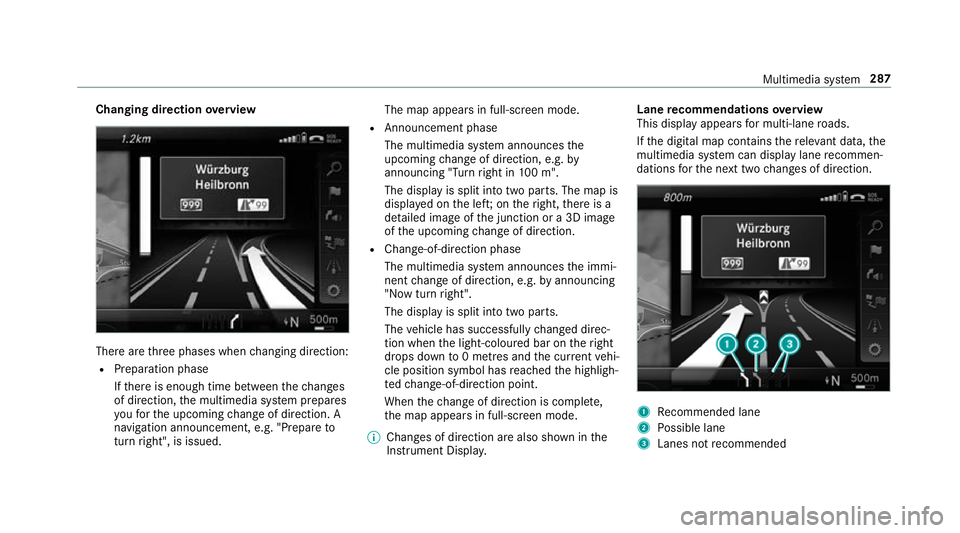
Changing direction
overview Ther
earethre ep hases when changing direction:
R Preparation phase
Ifth er eise nough time between thec hanges
of direction, them ultimedia sy stem prepares
yo uf or theu pcoming chang eofd irection .A
navigatio nannouncement ,e.g." Prepar eto
tur nright", is issued. The map appear
sinfull-screen mode.
R Announcemen tphase
The multimedia sy stem announces the
upcomin gchang eofd irection ,e.g.by
announcin g"Turn right in 100m ".
The displa yissplitint ot wo parts. The map is
displa yedont he left;on ther ight, ther eisa
de tailed imag eofthe junction or a3Dimage
of theu pcoming chang eofd irection.
R Chan ge-of-direction phase
The multimedia sy stem announces thei mmi‐
nentc hangeofd irection ,e.g.bya nnouncing
"N ow turnright".
The displa yissplit int otwo parts.
The vehicle has successfull ychanged direc‐
tion when thel ight-coloured bar on ther ight
drops down to0m etre sa nd thec urrent vehi‐
cle position symbol has reached theh ighligh‐
te dc hange-of-direction point.
When thec hang eofd irection is comple te,
th em ap appear sinfull-screen mode.
% Changes of direction ar ealso shown in the
Instrument Displa y. Lane
recommendation soverview
This displa yappear sfor multi-lane roads.
If th ed igital map conta insther ele vant da ta,t he
multimedia sy stem can displa ylane recommen‐
dations fort he next tw ochanges of direction. 1
Recommended lane
2 Possible lane
3 Lanes no trecommended Multimedia sy
stem 287
Page 291 of 533
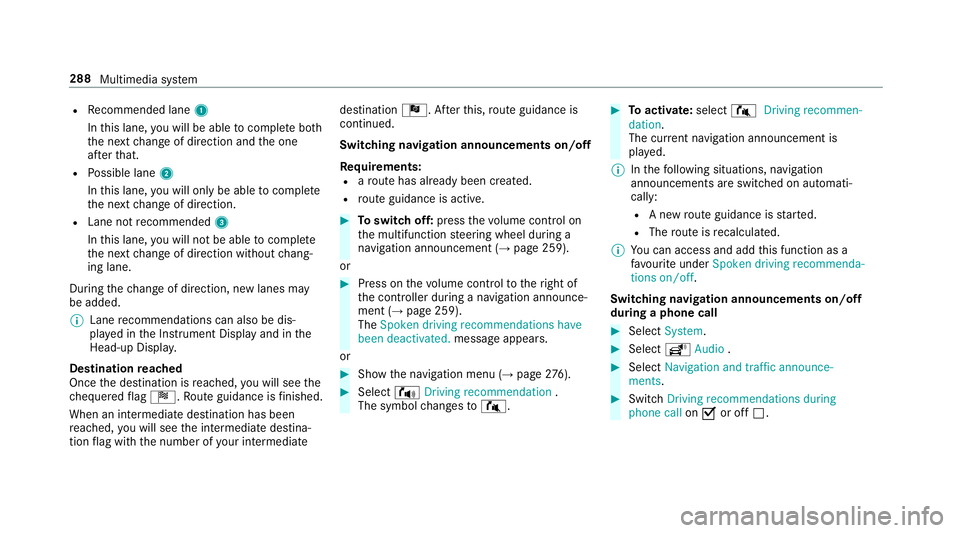
R
Recommended lane 1
In this lane, youw ill be able tocompl eteb oth
th en extc hang eofd irection and theo ne
af te rt hat.
R Possible lane 2
In this lane, youw ill on lybe able tocompl ete
th en extc hang eofd irection.
R Lan enotrecommended 3
In this lane, youw ill no tbea bletocompl ete
th en extc hang eofd irection without chang‐
ing lane.
During thec hang eofd irection ,new lane smay
be added.
% Lanerecommendations can also be dis‐
pla yedint he Instrument Displa yand in the
Head-up Displa y.
Destination reached
Once thed estination is reached, youw ill see the
ch equered flag Í.R outeguidance is finished.
Whe nani ntermedia tedestination has been
re ached, youw ill see thei ntermediat edestina‐
tion flag wit hthe number of your intermediate destination
Î.After this, routeg uidance is
continued.
Swit ching navigation announcement son/off
Re quirements:
R arout ehas already been created.
R routeg uidance is active. #
Toswitc hoff:press thev olume control on
th em ultifunction steering wheel during a
navigation announcemen t(→ pag e259).
or #
Press on thev olume control tother ight of
th ec ontroller during anavigation announce‐
ment (→ page259).
The Spoken driving recommendations have
been deactivated. messageappears.
or #
Sho wthe navigation menu (→ page276). #
Select !Driving recommendation .
The symbol changes to# . #
Toactivate: select#Driving recommen-
dation.
The cur rent navigation announcement is
pl ay ed.
% Inthef ollowing situations, navigation
announcements ar eswitched on automati‐
cally:
R Anew routeg uidance is star ted.
R The routeisr ecalculated.
% Youc an access and add this function as a
fa vo urit eunder Spoke ndriving recommenda-
tions on/off.
Swit ching navigation announcement son/off
during aphone call #
Select System. #
Select õAudio . #
Select Navigation and traffic announce-
ments. #
Swit chDriving recommendations during
phone call onO or off ª. 288
Multimedia sy stem