reset MERCEDES-BENZ S-CLASS COUPE 2018 User Guide
[x] Cancel search | Manufacturer: MERCEDES-BENZ, Model Year: 2018, Model line: S-CLASS COUPE, Model: MERCEDES-BENZ S-CLASS COUPE 2018Pages: 502, PDF Size: 6.29 MB
Page 213 of 502
RRoad Not Mapped:th ero ad is unknown, e.g.
newly built roads.
RNo Route : noroute could becalculated to
th e selected destination.
RO: you ha vereached the destination or an
intermediate destination.
#To exitth e menu: pressthe back button on
th e left.
In theNavigation menu,you can also start navi‐
ga tion toone of the pr evious destinations:
#Press the left-hand Touch Control.
#To select the destination: swipe upwards or
down wards on the left-hand Touch Control.
#Press the left-hand Touch Control.
Ro ute guidance isstar ted.
If ro ute guidance has already been act ivated,
a re qu est will appear asking whe ther you
wish toend the cur rent route guidance.
#Select Yes.
#Pressthe left-hand Touch Control.
Ro ute guidance isstar ted.
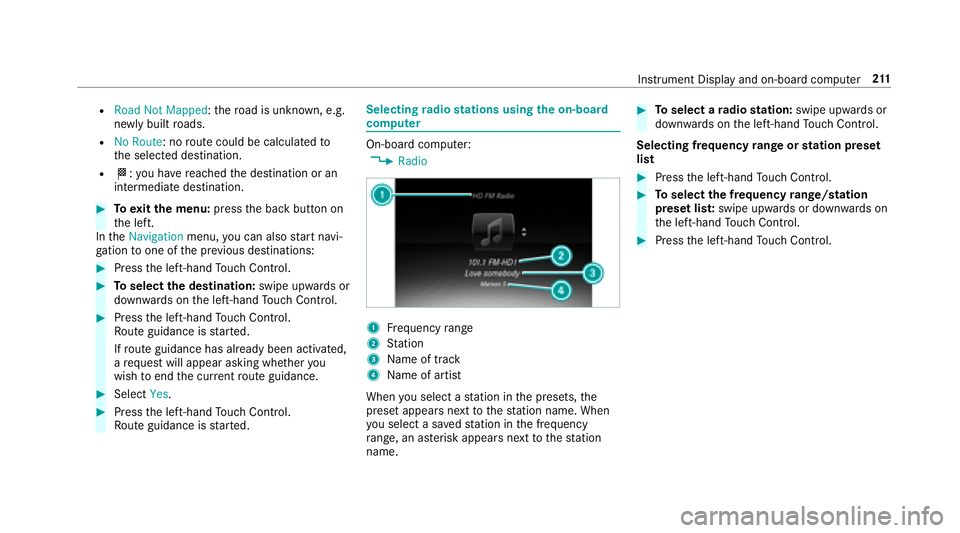
Selecting radio stations using the on-boa rd
compu ter
On-board computer:
,Radio
1Frequency range
2St ation
3Na me of track
4Name of artist
When you select a station in the presets, the
preset appears next tothest ation name. When
yo u select a sa vedstation in the frequency
ra nge, an as terisk appears nexttothest ation
name.
#To select a radio station: swipe upwards or
down wards on the left-hand Touch Control.
Selecting frequency range or station preset
list
#Press the left-hand Touch Control.
#To select the frequency range/station
preset lis t:swipe upwards or down wards on
th e left-hand Touch Control.
#Press the left-hand Touch Control.
Inst rument Display and on-board computer 21
1
Page 235 of 502
#Tohide the control menu: swipe down on
th eto uchpad using two fingers.
Main functions
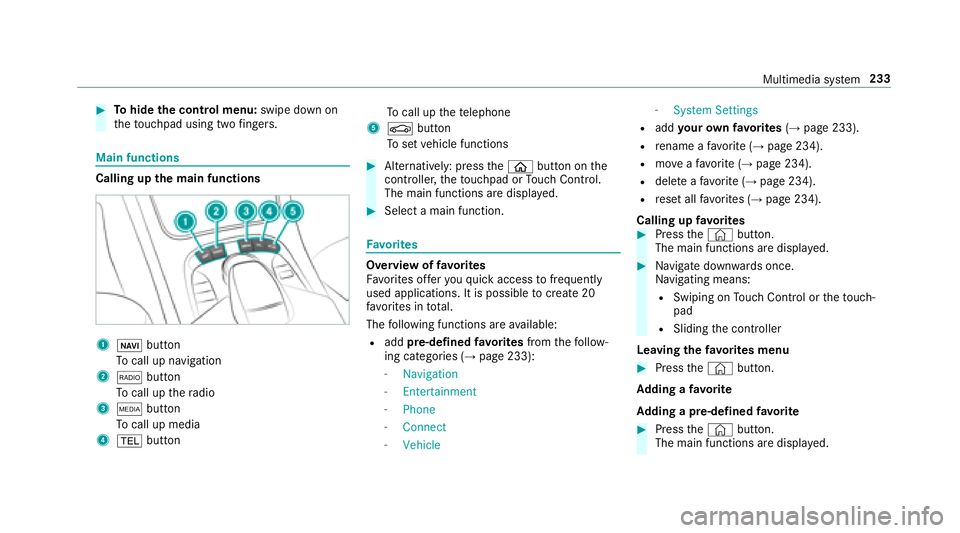
Calling up the main functions
1ß button
To call up navigation
2$ button
To call up thera dio
3Õ button
To call up media
4% button To
call up thete lephone
5Ø button
To set vehicle functions
#Alternatively: press theò button on the
controller, theto uchpad or Touch Control.
The main functions are display ed.
#Select a main function.
Favorite s
Overview of favo rite s
Fa vorite s of feryo uqu ick access tofrequently
used applications. It is possible tocreate 20
fa vo rite s in tota l.
The following functions are available:
Radd pre-defined favo rite sfrom thefo llow‐
ing categories (→page 233):
-Navigation
-Entertainment
-Phone
-Connect
-Vehicle
-System Settings
Radd your ow nfa vo rite s(→page 233).
Rre name a favo rite (→page 234).
Rmo veafa vo rite (→page 234).
Rdele teafa vo rite (→page 234).
Rreset all favo rite s (→page 234).
Calling up favo rite s
#Press the© button.
The main functions are displa yed.
#Na vigate down wards once.
Na vigating means:
RSwiping on Touch Control or theto uch‐
pad
RSlid ingthe controller
Leaving thefa vo rite s menu
#Press the© button.
Ad ding a favo rite
Ad ding a pre-de fined favo rite
#Press the© button.
The main functions are displa yed.
Multimedia sy stem 233
Page 236 of 502
#Navigate down wards twice.
The Favorite s menu appears .
#SelectNew Favorite .
The catego ries are displa yed.
#Select a categor y.
The favo rite s are displa yed.
#Select a favo rite .
#St ore thefa vo rite atthe desired position.
If a favo rite has already been added at this
position, it will be overwritten.
Example: adding your ow nfa vo rite
#Select Vehicle .
#SelectFull Screen: Consumption .
#Press and holdthe© button until the
fa vo rite s are displa yed.
#Store thefa vo rite atthe desired position.
Re naming a favo rite
#Press the© button.
The main functions are displa yed.
#Na vigate down wards once.
#Select a favo rite .
#Na vigate down wards once.
The Favorite s menu appears .
#SelectRename .
#Enterthech aracters.
#To confirm the entr y:select ¡.
Moving a favo rite
#Press the© button.
The main functions are displa yed.
#Na vigate down wards once.
#Select a favo rite .
#Na vigate down wards once.
The Favorite s menu appears .
#SelectMove.
#Movethefa vo rite to the desired position.
If a favo rite has already been added at this
position, it will be overwritten.
Deleting a favo rite
#Press the© button.
The main functions are displa yed.
#Na vigate down wards once.
#Select a favo rite .
#Na vigate down wards once.
The Favorite s menu appears .
#Todel ete: select Delete.
#Select Yes.
#Toresto reall favo rite s: select Reset All.
A prom ptappears.
#Select Yes.
The favo rite s are reset tothefa ctory set‐
tings.
234 Multimedia sy stem
Page 247 of 502
RThe ignition is switched on ortheve hicle has
been star ted.
RThe SD card is inser ted (→page 301) or the
USB device is connecte d (→page 304).
Multimedia sy stem:
,System.System Backup
#Select Import Data orExport Data .
Importing
#Select a data storage medium.
A prom ptappears asking whe ther youre ally
wish to overwrite the cur rent da ta. If da ta
originates from ano ther vehicle, this is recog‐
nized duri ng datareading.
The multimedia sy stem is restar ted once the
data has been impor ted.
% Current vehicle settings can be edited af ter
th e import.
Exporting
If PIN pr otection is activated, your PIN isrequ es‐
te d.
#En terth efo ur-digit PIN.
#Select a data storage medium.
The data is expor ted. The data export may
ta ke several minutes.
Ac tivating/deactivating PIN pr otection
Multimedia sy stem:
,System.PIN Protection
Setting the PIN
#Select Set PIN.
#Enter a four-digit PIN.
#En terth efo ur-digit PIN again.
If bo th PINs match, PIN pr otection is active.
Changing the PIN
Re quirement:
RA cur rent PIN must be set.
#SelectChange Settings.
#Enterth e cur rent PIN.
#Select Change PIN.
#Set a new PIN. Ac
tivating PIN pr otection for data export
#Select Change Settings .
Confirm wi th the PIN.
#Select Protect Data Export .
Ac tivate Oor deacti vate ª the function.
Un blocking the PIN
Re quirements:
RThere is an Internet connection.
RA Mercedes me account exists at http://
www.me rcedes.me.
RThe Personalization service is active
(→page 246).
If th e PIN has been entered incor rectly thre e
times, the PIN will be bloc ked. You can ha vea
single-use password sent to you via the
Mercedes me connect online por talto reset the
PIN pr otection.
#Select Unblock PIN.
#Enterth e single-use password.
PIN pr otection is reset, and you can set a
new PIN.
Multimedia sy stem 24
5
Page 249 of 502
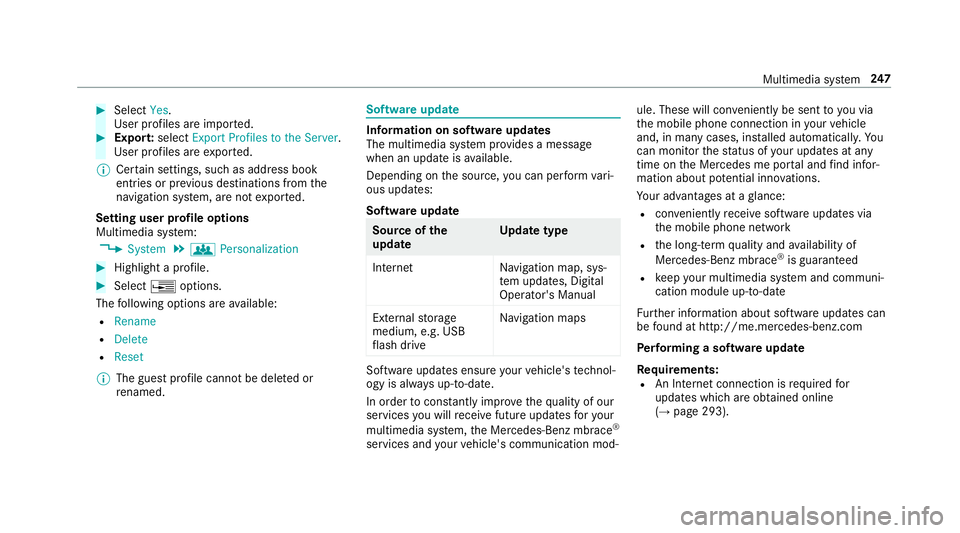
#SelectYes.
User profiles are impor ted.
#Expor t:select Export Profiles to the Server.
User profiles are expor ted.
% Certain settings, such as address book
ent ries or pr evious destinations from the
navigation sy stem, are not expor ted.
Setting user profile options
Multimedia sy stem:
,System.g Personalization
#Highlight a profile.
#Select ¥options.
The following options are available:
RRename
RDelete
RReset
% The guest profile cannot be dele ted or
re named.
Soft wareupdate
Information on software updates
The multimedia sy stem pr ovides a message
when an update is available.
Depending on the source, you can per form vari‐
ous updates:
Software update
Source of the
update Up
date type
Interne tN avigation map, sys‐
te m updates, Digital
Operator's Manual
External storage
medium, e.g. USB
fl ash drive Na
vigation maps
Software updates ensure your vehicle's tech nol‐
ogy is al ways up-to-date.
In order tocons tantly impr ovethequ ality of our
services youwill receive future updates foryo ur
multimed iasystem, the Mercedes-Benz mbrace
®
services and your vehicle's communication mod‐ ule. These will con
veniently be sent to you via
th e mobile phone connection in your vehicle
and, in many cases, ins talled automaticall y.Yo u
can monito rth est atus of your updates at any
time on the Mercedes me por tal and find infor‐
mation about po tential inno vations.
Yo ur advantages at a glance:
Rcon veniently receive software update s via
th e mobile phone network
Rthe long- term quality and availability of
Mercedes-Benz mbrace®is guaranteed
Rke ep your multimedia sy stem and communi‐
cation module up-to-date
Fu rther information about software updates can
be found at http ://me.mercedes-benz.com
Pe rforming a software upda te
Re quirements:
RAn Internet connection is requiredfor
updates which are obtained online
(
→page 293).
Multimedia sy stem 24
7
Page 251 of 502
restore the pr evious version. If restoration of the
pr ev ious version is not possible, a symbol
appears on the center console displa y.Please
consult a qualified specialist workshop to
re sol vethe problem.
Re set function
Multimedia sy stem:
,System.Reset
Pe rsonal data is dele ted, forex ample:
Rstation presets
Rconnec ted mobile phones
#Select Yes.
If PIN pr otection is activated, a prom ptappears
asking if you also wishtorestore this to thefa c‐
to ry settings during a reset.
#Select Yes
#Enterthe cur rent PIN.
The PIN is reset.
Or
#Select No.
The cur rent PIN stay sth e same af terre set‐
ting.
% Ifyo u ha veforg ottenyo ur PIN, an authorized
Mercedes-Benz Cente r can deactivateyour
PIN pr otection foryo u.
A pr om ptappears again asking whe ther you
re ally wish toreset.
#Select Yes.
The multimedia sy stem is reset tothefa ctory
settings.
Multimedia sy stem 24
9
Page 269 of 502
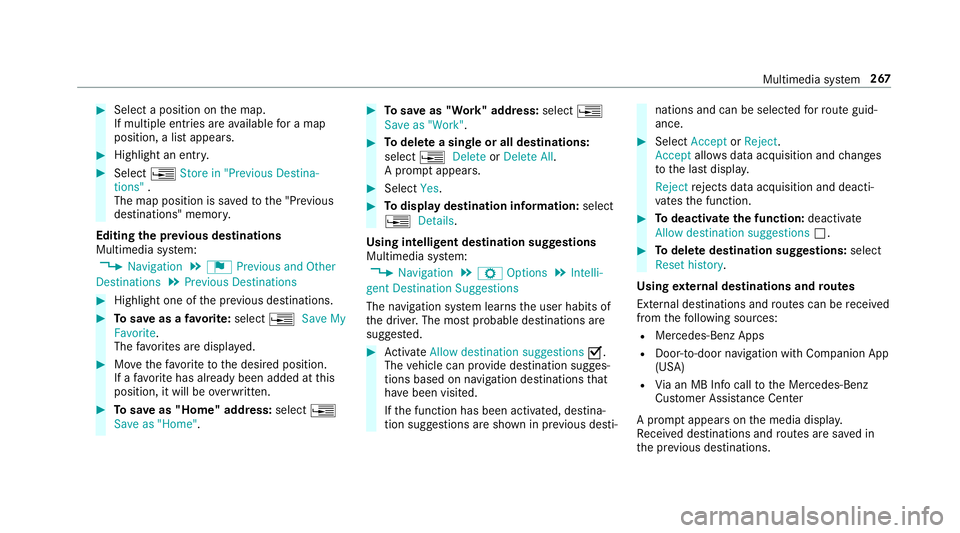
#Select a position onthe map.
If multiple ent ries are available for a map
position, a list appears.
#Highlight an entr y.
#Select¥Store in "Previous Destina-
tions" .
The map position is sa vedto the "Pr evious
destinations" memory .
Editing the pr evious destinations
Multimedia sy stem:
,Navigation.¬ Previous and Other
Destinations.Previous Destinations
#Highlight one of the pr evious destinations.
#To save as a favo rite :select ¥Save My
Favorite .
The favo rite s are displa yed.
#Mo vethefa vo rite to the desired position.
If a favo rite has already been added at this
position, it will be overwritten.
#To save as "Home" address: select¥
Save as "Home" .
#Tosave as "Work" address: select¥
Save as "Work".
#To del ete a single or all destinations:
select ¥Delete orDelete All.
A prom ptappears.
#Select Yes.
#Todispl aydestination information: select
¥ Details.
Using intelli gent destination suggestions
Multimedia sy stem:
,Navigation.Z Options.Intelli-
gent Destination Suggestions
The navigation sy stem learns the user habits of
th e driver. The most probable destinations are
sugges ted.
#Ac tivate Allow destination suggestions O.
The vehicle can pr ovide destination sugges‐
tions based on navigation destinations that
ha ve been visited.
If th e function has been activated, destina‐
tion suggestions are shown in pr evious desti‐
nations and can be selecte dfo rro ute guid‐
ance.
#Select Accept orReject .
Accept allowsdata acquisition and changes
to the last displa y.
Rejec tre jects da taacquisition and deacti‐
va testh e function.
#To deactivate the function: deactivate
Allow destination suggestions ª.
#Todel ete destination suggestions: select
Reset history .
Using extern al destinations and routes
External destinations and routes can be receive d
from thefo llowing sources:
RMercedes-Benz Apps
RDoo r-to -door navigation wi thCompanion App
(USA)
RVi a an MB Info calltothe Mercedes-Benz
Cus tomer Assis tance Center
A prom ptappears on the media displa y.
Re ceive d destinations and routes are sa ved in
th e pr evious destinations.
Multimedia sy stem 267
Page 277 of 502
Information on map data
Your vehicle is supplied with map data at thefa c‐
to ry. Depending on the count ry, map data for
yo ur region is either pre-ins talled or the map
data is supplied on a data storage medium. You
do not require an activation code forth e map
data which is pr ovided with your vehicle.
If th e map data on your vehicle has been ins tal‐
led at thefa ctory and youwish toreins tall it, you
do not need toenter the activation code.
An activation code is requ ired for purchased
map data.
Obser vethefo llowing no tes:
RThe activation code can be used for one vehi‐
cle
RThe activation code is not transferable
RThe activation code has six digits
In theev ent of thefo llowing problems, please
con tact an au thorized Mercedes-Benz Center:
RThe multimedia sy stem does not accept the
activation code
RYo u ha velost the activation code Displaying
the compass
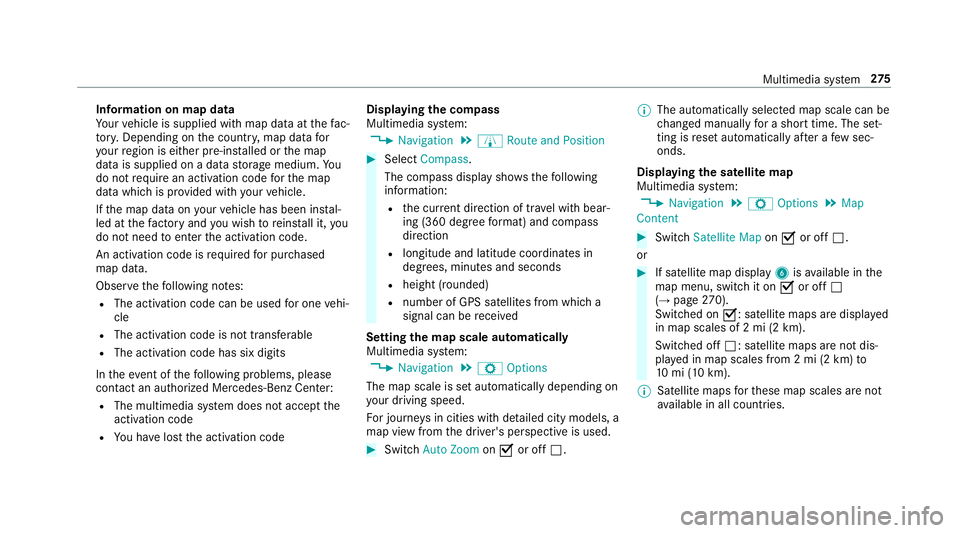
Multimedia sy stem:
,Navigation.À Route and Position
#Select Compass.
The compass display sho wsthefo llowing
information:
Rth e cur rent di rection of tr avel with bear‐
ing (360 deg reefo rm at) and compass
direction
Rlongitude and latitude coo rdinates in
degrees, minutes and seconds
Rheight (rounded)
Rnumber of GPS satellites from which a
signal can be receive d
Setting the map scale automatically
Multimedia sy stem:
,Navigation.Z Options
The map scale is set automatically depending on
yo ur driving speed.
Fo r journe ysin cities with de tailed city models, a
map view from the driver's perspective is used.
#Switch Auto Zoom onO or off ª. %
The automatically selected map scale can be
changed manually for a short time. The set‐
ting is reset automatically af ter a few sec‐
onds.
Displaying the satellite map
Multimedia sy stem:
,Navigation.Z Options.Map
Content
#Switch Satellite Map onO or off ª.
or
#If satellite map display 6isavailable in the
map menu, switch it on Oor off ª
(
→page 270).
Switched on O: satellite maps are displa yed
in map scales of 2 mi (2 km).
Swit ched off ª: satellite maps are not dis‐
pla yed in map scales from 2 mi (2 km) to
10 mi (10 km).
% Satellite maps forth ese map scales are not
av ailable in all countries.
Multimedia sy stem 27
5
Page 292 of 502
Transfer redve hicle data when using Apple
CarPlay™ and Android Auto
Information on trans ferred vehicle data
When using Android Autoor Apple CarPlay™,
cer tain vehicle data is transfer redto the mobile
phone. This enables youto getth e best out of
selected mobile phone services. Vehicle data is
not directly accessible.
The following sy stem information is transmit ted:
RSoftware release of the multimedia sy stem
RSy stem ID (anonymized)
The transfer of this data is used tooptimize com‐
munication between theve hicle and the mobile
phone.
To do this, and toassign se veralve hicles tothe
mobile phone, a vehicle identifier is randomly
ge nerated.
This has no connection totheve hicle identifica‐
tion number (VIN) and is dele ted when the multi‐
media sy stem is reset (
→page 249).
Th efo llowing driving status data is transmitted:
RTransmission position engaged
RDistinction between par ked, standstill, rolling
and driving
RDay/night mode of the instrument clus ter
The transfer of this data is used toalter how
con tent is displ ayed tocor respond tothe driving
situation.
The following position data is transmitte d:
RCoordinates
RSpeed
RCompass direction
RAcceleration dire ction
This data is only transfer red while the navigation
sy stem is active in order toimpr oveit (e.g. so it
can continue functioning when in a tunnel).
Mercedes-Benz mbrace®(USA)
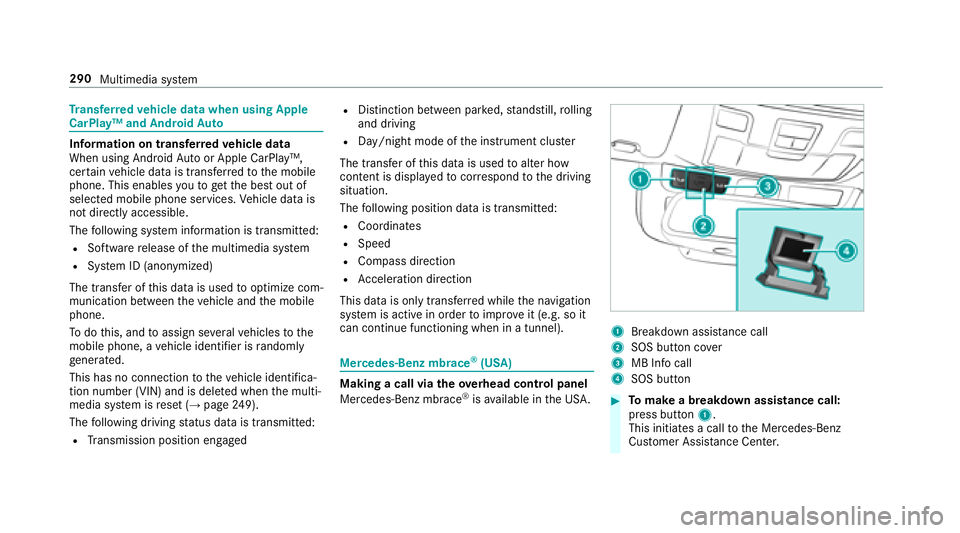
Making a call via theove rhead control panel
Mercedes-Benz mbrace®is available in the US A.
1Breakdown assis tance call
2SOS button co ver
3MB Info call
4SOS button
#To make a breakdown assistance call:
press button 1.
This initia tes a call tothe Mercedes-Benz
Cus tomer Assis tance Center.
290
Multimedia sy stem
Page 297 of 502
#SelectConfirm Settings .
#Tomanually set the access data of the
mobile phone network pr ovider: select
Manual Settings.
An ove rview of the pr ovider settings appears.
#Set the access data.
#Select Confirm Settings .
% Set the access data in accordance with your
data pac kage . Otherwise, additional costs
may be incu rred. You can contact your
mob ilephone network prov ider toobtain the
precise access data.
Switching the Blu etoo th
®profile
Re quirements
RThe mobile phone supports the DUN and
PA N Blue tooth®profiles.
Multimedia sy stem:
,System.ö Connectivity.Inter-
net Settings
#To switch from DUN toPAN: select the
mobile phone.
#Select ¥.
#SelectChange Configuration.
#Activate OAutomatic Configuration.
The Internet connection is au tomatical lycon‐
fi gured using thePA N Blue tooth
®profile.
#Toswitch from PANto DUN :select the
mobile phone.
#Select ¥.
#SelectChange Configuration.
#Deactivate ªAutomatic Configuration.
#Select Configure Settings Using COMAND .
#Configuringthe Internet connection using
preset or manual access data (→page 294).
Editing access data
Re quirements
RThe mobile phone supports the Blue tooth®
DUN profile. Multimedia sy
stem:
,System.ö Connectivity.Inter-
net Settings
#Highlight the mobile phone.
#Select ¥.
#SelectChange Configuration .
#For mobile phones with PAN and DUN:
select Configure Settings Using COMAND .
#Configurethe Internet connection using pre‐
set or manual access data (→page 294).
Canceling Internet access permission for a
mobile phone
Multimedia sy stem:
,System.ö Connectivity.Inter-
net Settings
#Highlight the mobile phone.
#Select ¥.
#SelectDelete Configuration .
#SelectYes.
Multimedia sy stem 295