display MERCEDES-BENZ S-CLASS COUPE 2018 Manual PDF
[x] Cancel search | Manufacturer: MERCEDES-BENZ, Model Year: 2018, Model line: S-CLASS COUPE, Model: MERCEDES-BENZ S-CLASS COUPE 2018Pages: 502, PDF Size: 6.29 MB
Page 244 of 502
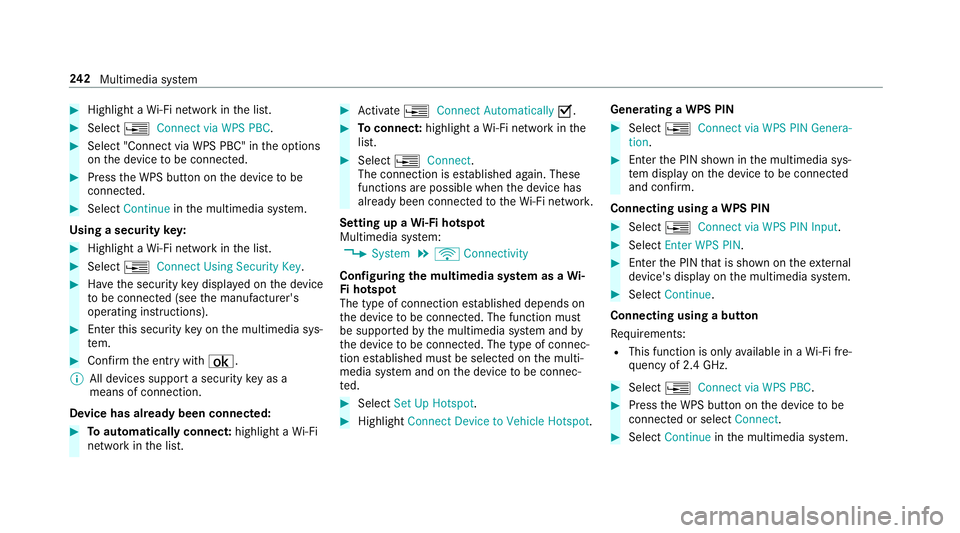
#Highlight aWi-Fi network in the list.
#Select ¥Connect via WPS PBC.
#Select "Connect via WPS PBC" in the options
on the device tobe connec ted.
#Press the WPS button on the device tobe
connec ted.
#Select Continue inthe multimedia sy stem.
Using a security key:
#Highlight a Wi-Fi network in the list.
#Select ¥Connect Using Security Key.
#Have the security keydispla yed on the device
to be connec ted (see the manufacturer's
operating instructions).
#En terth is security keyon the multimedia sys‐
te m.
#Confirm the ent rywith ¡.
% All devices support a security keyas a
mean sof connection .
Device ha salread ybeen connec ted:
#To automatically connect: highlight aWi-Fi
network in the list.
#Ac tivate ¥ Connect Automatically O.
#Toconnect: highlight a Wi-Fi network in the
list.
#Select ¥Connect .
The connection is es tablished again. These
functions are possible when the device has
already been connected totheWi -Fi networ k.
Setting up a Wi-Fi hotspot
Multimedia sy stem:
,System.ö Connectivity
Configuring the multimedia sy stem as a Wi-
Fi hotspot
The type of connection es tablished depends on
th e device tobe connec ted. The function must
be suppor tedby the multimedia sy stem and by
th e device tobe connec ted. The type of connec‐
tion es tablished must be selected on the multi‐
media sy stem and on the device tobe connec‐
te d.
#Select Set Up Hotspot .
#HighlightConnect Device to Vehicle Hotspot .Generating a WPS PIN
#Select
¥Connect via WPS PIN Genera-
tion .
#Enterth e PIN shown in the multimedia sys‐
te m display on the device tobe connec ted
and con firm .
Connecting using a WPS PIN
#Select ¥Connect via WPS PIN Input .
#SelectEnter WPS PIN.
#Enterth e PIN that is shown on theex tern al
device's display on the multimedia sy stem.
#Select Continue.
Connecting using a button
Re quirements:
RThis function is only available in a Wi-Fi fre‐
qu ency of 2.4 GHz.
#Select ¥Connect via WPS PBC.
#Pressthe WPS button on the device tobe
connec ted or select Connect.
#SelectContinue inthe multimedia sy stem.
24 2
Multimedia sy stem
Page 245 of 502
Connecting using a securitykey
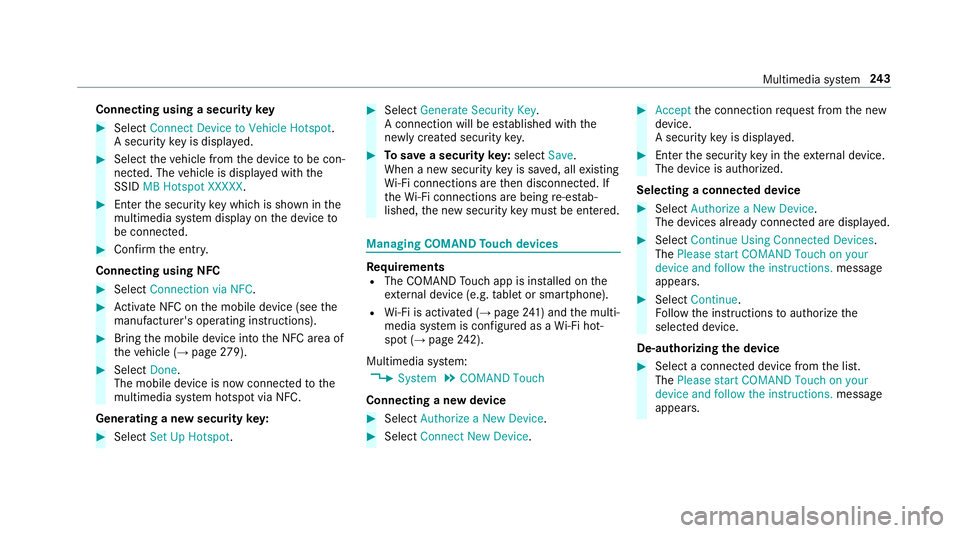
#Select Connect Device to Vehicle Hotspot .
A securi tykeyis displa yed.
#Select theve hicle from the device tobe con‐
nec ted. The vehicle is displa yed with the
SSID MB Hotspot XXXXX .
#Enterthe security keywhic his shown in the
multimedia sy stem display on the device to
be connec ted.
#Confirm the ent ry.
Connecting using NFC
#Select Connection via NFC.
#Activate NFC on the mobile device (see the
manufacturer's operating instructions).
#Bring the mobile device into the NFC area of
th eve hicle (→page 279).
#Select Done.
The mobile device is now connected tothe
multimedia sy stem hotspot via NFC.
Generating a new security key:
#Select Set Up Hotspot .
#SelectGenerate Security Key.
A connection will be es tablished with the
newly crea ted security key.
#Tosave a security key:select Save.
When a new security keyis sa ved, all existing
Wi -Fi connections are then disconnected. If
th eWi -Fi connections are being re-es tab‐
lished, the new security keymus tbe en tere d.
Managing COMAND Touch devices
Re quirementsRThe COMAND Touch app isins talled on the
ex tern al device (e.g. tablet or smartphone).
RWi -Fi is acti vated (→page 241) and the multi‐
media sy stem is confi gured as a Wi-Fi hot‐
spot (
→pa ge 242).
Multimedia sy stem:
,System.COMAND Touch
Connecting a new device
#Select Authorize a New Device.
#SelectConnect New Device.
#Accept the connection requ est from the new
device.
A security keyis displa yed.
#En terth e security keyin theex tern al device.
The device is authorized.
Selecting a connected device
#Select Authorize a New Device.
The devices already connec ted are displa yed.
#Select Continue Using Connected Devices.
The Please start COMAND Touch on your
device and follow the instructions. message
appears.
#Select Continue.
Fo llow the instructions toauthorize the
selected device.
De-authorizing the device
#Select a connec ted device from the list.
The Please start COMAND Touch on your
device and follow the instructions. message
appears.
Multimedia sy stem 24
3
Page 248 of 502
%Alternati vely,yo u can ha vePIN pr otection
re set at an authorized Mercedes-Benz Cen‐
te r.
User profile
Setting a user profile
Multimedia sy stem:
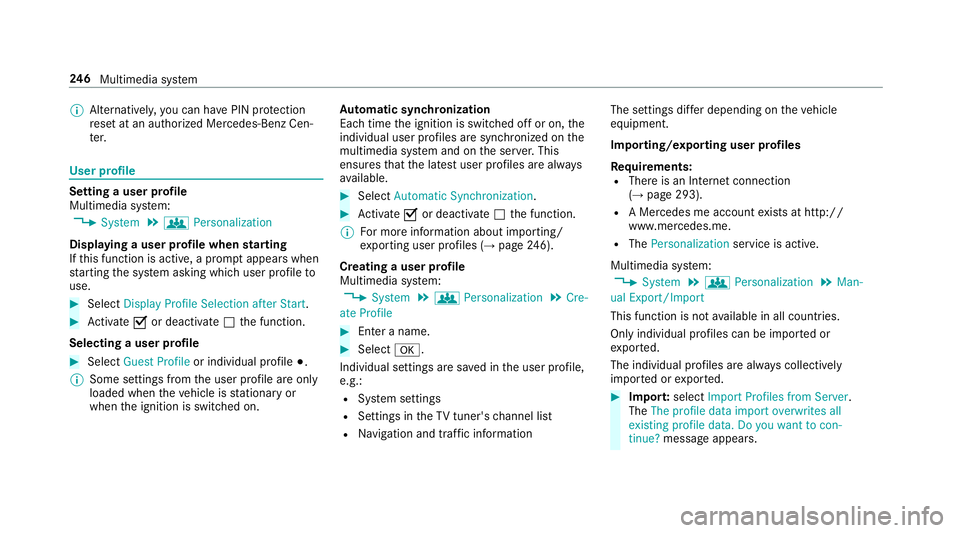
,System.g Personalization
Displaying a user profile when starting
If th is function is active, a prom ptappears when
st arting the sy stem asking which user profile to
use.
#Select Display Profile Selection after Start .
#Activate Oor deacti vate ª the function.
Selecting a user profile
#Select Guest Profile or individual profile #.
% Some settings from the user profile are only
loaded when theve hicle is stationary or
when the ignition is switched on. Au
tomatic syn chronization
Each time the ignition is switched off or on, the
individual user profiles are synchronized on the
multimedia sy stem and on the ser ver.This
ensures that the latest user profiles are alw ays
av ailable.
#Select Automatic Synchronization .
#Activate Oor deacti vate ª the function.
% For more information about importing/
ex porting user profiles (
→page 246).
Crea ting a user profile
Multimedia sy stem:
,System.g Personalization.Cre-
ate Profile
#En ter a name.
#Select a.
Individual settings are sa ved in the user profile,
e.g.:
RSy stem settings
RSettings in theTV tuner's channel list
RNa vigation and traf fic information The settings diff
er depending on theve hicle
equipment.
Importing/exporting user profiles
Re quirements:
RThere is an Internet connection
(→page 293).
RA Mercedes me account exists at http://
www.me rcedes.me.
RThe Personalization service is active.
Multimedia sy stem:
,System.g Personalization.Man-
ual Export/Import
This function is not available in all countries.
Only individual profiles can be impor ted or
ex por ted.
The individual profiles are alw ays collectively
impor ted or expor ted.
#Impor t:select Import Profiles from Server.
The The profile data import overwrites all
existing profile data. Do you want to con-
tinue? message appears .
246
Multimedia sy stem
Page 253 of 502
Programs Function
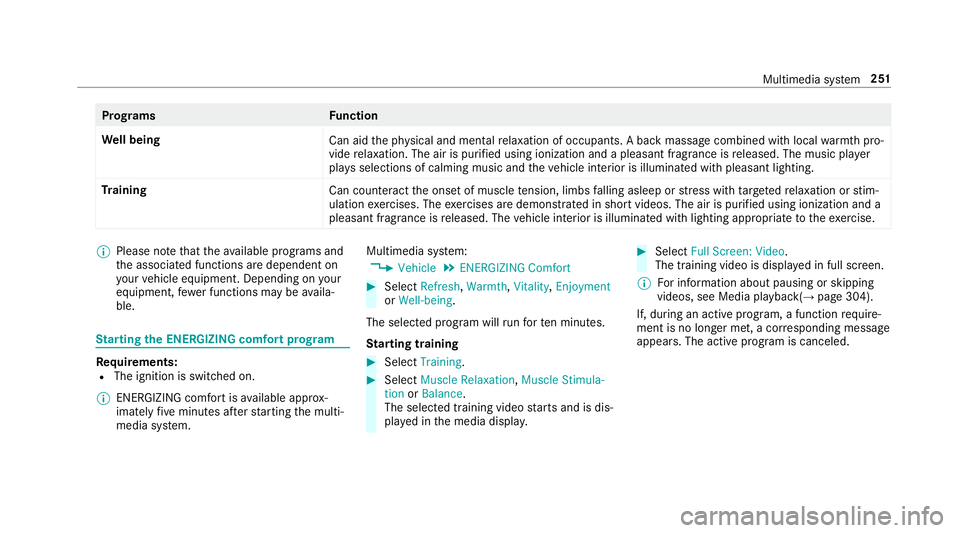
We ll being
Can aidthe ph ysical and menta lre laxation of occupants. A back massage combined with local warmthpro‐
vide relaxation. The air is purified using ionization and a pleasant fragrance is released. The music pla yer
pla ysselections of calming music and theve hicle interior is illuminated with pleasant lighting.
Tr aining
Can counteractthe onset of muscle tension, limbs falling asleep or stre ss with targeted relaxation or stim‐
ulation exercises. The exercises are demonst rated in short videos. The air is purified using ionization and a
pleasant fragrance is released. The vehicle interior is illuminated with lighting appropriate totheex ercise.
%
Please no tethat theav ailable prog rams and
th e associated functions are dependent on
yo ur vehicle equipment. Depending on your
equipment, fewe r functions may be availa‐
ble.
St arting the ENERGIZING comfort prog ram
Re quirements:RThe ignition is switched on.
% ENE RGIZING comfort is available appr ox‐
imately five minutes af terst arting the multi‐
media sy stem. Multimedia sy
stem:
,Vehicle.ENERGIZING Comfort
#Select Refresh, Warmth,Vitality ,Enjoyment
or Well-being .
The selected prog ram will runfo rte n minu tes.
St arting training
#Select Training.
#SelectMuscle Relaxation, Muscle Stimula-
tion orBalance.
The selected training video starts and is dis‐
pla yed in the media displa y.
#SelectFull Screen: Video .
The training video is display ed in full screen.
% For information about pausing or skipping
videos, see Media playba ck(
→page 304).
If, during an active prog ram, a function require‐
ment is no longer met, a cor responding message
appears . The acti veprogram is canceled.
Multimedia sy stem 251
Page 258 of 502
#If intermediatedestinations are set, these
can also be selected as the sear chposition
af te r selecting Near Destination .
Me thod 2
#Select All Categories .
#Selectthe categor y.
#Selectthe POI.
#Ro ute guidance is active: selectthe sear ch
position prior tochoosing a POI.
#If intermediate destinations are set, these
can also be selected as the sear chposition
af te r selecting Near Destination .
Alternatively filtering the display byPOI
#Enter a sear chterm intheª Search:
line.
The results list sho wsreleva nt POIs.
#Select ¡.
The firs t POI in the list is highlighted.
#Select the POI. Example: setting
the sear chposition for the
parking ca tegory during active route guid‐
ance
#Select In the Vicinity ,Near Destination or
Along the Route.
The list sho ws the located POIs or opens an
ove rview of thero ute destination af ter
selecting Near Destination.
#Selectthe POI.
#Select Near Destination: select the inter‐
mediate destination or the destination.
St arting an automatic gasst ation sear ch
Re quirements:
RThe automatic gasst ation sear chis activated
O (→page 261).
Driving situation
Ro ute guidance isactive. The fuel le vel in the
fuel tank reaches there ser vefuel le vel.
The Reserve Fuel Do you want to start a search
for surrounding gas stations? message is shown.
#SelectYes.
The automatic gasst ation sear chbegins. The
av ailable gasst ations along thero ute or in
th e vicinity of theve hicle's cur rent position
are displ ayed.
#Select thega sst ation.
The address of thega sst ation is displa yed.
#Ifro ute guidance isnot active, select Start
Route Guidance .
The selected gasst ation is set as the desti‐
nation. Route guidance begins.
or
#If ro ute guidance isactive, select Start New
Route Guidance orSet as Next Way Point .
St art New Route Guidance :th e selected gas
st ation is set as a new destination. The pr evi‐
ous destinations and intermediate destina‐
tions are dele ted. Ro ute guidance tothega s
st ation begins.
Set as Next Way Point :th e selected gasst a‐
tion is set as the next intermediate destina‐
tion. Route guidance begins.
256
Multimedia system
Page 260 of 502
Alternativelyfiltering the display bycontacts
#Enter a name or telephone number, forex am‐
ple, into the sear chfield.
#Select ¡.
The firs t contact in the list is highlighted.
#Select the conta ct.
#Selectthe address.
Entering geo-coordina tes
Multimedia sy stem:
,Navigation.Previous and Other Desti-
nations.Geo-coordinates
#En terge o-coordinates as latitude and longi‐
tude coordinates in degrees, minutes and
seconds.
The map sho ws the position.
#Confirm the ent ry.
#To calculate a route: select Start Route
Guidance.
#If a route has already been created, select
St art New Route Guidance orSet as Way
Point . Selecting fr
omthe map
Multimedia sy stem:
,Navigation.Z Options.Map
Menu
#Alternativel y:ifth e map is displa yed in full
screen mode, press theTo uch Control, the
controller or theto uchpad.
The map menu appears.
#Select "mo vemap" in map menu 2
(→page 270).
#Swipe in any di rection on theTo uch Control
or touchpad.
or
#Slid eth e controller in any direction.
The map mo ves in the cor responding direc‐
tion under the crosshair. The more you mo ve
yo ur finger away from thest arting position
on theto uchpad, thefast erthe map mo ves.
#Press theTo uch Control, the controller or the
to uchpad.
If se veral destinations are located around the
crosshair, a li stsho wstheav ailable POIs and
ro ads.
If a destination is located exact ly on the
crosshair, the destination address is dis‐
pla yed.
#Select the destination in the list.
The destination address is shown.
Setting the map orientation to2D or 3D
#Highlight Map Orientation: 2D/3D .
#PresstheTo uch Control, theto uchpad or the
controller.
The map will be displ ayed in the selected
map orientation.
Showing traf fic messages in the vicinity of
th e map
#Select Traffic Messages for the Vicinity.
The map appears.
#Swipe left or right on theto uchpad.
or
#Slide the controller tothe left or right.
The pr evious or next traf fic incident is high‐
lighted on the map. Information on the tra ffic
incident is displa yed.
258
Multimedia sy stem
Page 261 of 502
Showing POIs inthe vicinity of the map
#Select POIs in the Vicinity .
#Swipe left orright on theto uchpad.
or
#Slid eth e controller tothe left or right.
The pr evious or next POI is highlighte d onthe
map. The name or the address is shown.
#Alternativel y,to filter the display byPOI
categor y:swipe down on theTo uch Control
or theto uchpad.
or
#Slid eth e controller down.#Select the POI categor y.
% User Defined allowspersonal POI symbols to
be selected (
→page 272).
Ro ute
Calculating a route
Re quirements:
RThe destination has been entered.
RThe destination address is shown.
#Ifro ute guidance isnot active, select Start
Route Guidance .
The route tothe destination is calculated.
The map sho ws thero ute. Route guidance
th en begins.
or
#If ro ute guidance isactive, select Start New
Route Guidance orSet as Next Way Point .
Start New Route Guidance :th e selected des‐
tination address is set as a new destination.
The pr evious destinations and intermediate
destinations are dele ted. Ro ute guidance to
th e new destination begins.
Set as Next Way Point :th e selected destina‐
tion address is set as the next intermediate
destination. Route guidance begins.
Ta king alternative routes into considera tion
#Selecting an altern ative route (→page 261).
Other menu functions
#To save the destination: select¥Store
in "Previous Destinations" .
#Todispl ayon the map: select¥Map.
#Tocall a telephone number: select¥
Call .
#Tocall up an Internet address: select
¥ www(ifavailable).
Selecting a route type
Multimedia sy stem:
,Navigation.À Route and Position
#Select Route Settings.
#Selectthero ute type.
A ro ute has already been created: thero ute
is calculated on the basis of the new route
type.
A ro ute has not been created: the next route
is calculated on the basis of the new route
type.
REco Route
An economical route is calculated. The
jo urney time may be somew hat longer
th an forqu icke rro utes.
The symbol forth e cur rent vehicle posi‐
tion is displa yed in green.
RFast Route
Multimedia sy stem 259
Page 263 of 502
The function is notavailable in all coun‐
tries.
RAnnounce Street Names
The multimedia sy stem announces the
names of thero ads that will follow the
upcoming change of direction.
This function is not available in all coun‐
tries and languages.
Displ aying destination information
Requ irements:
RA destination is entered.
Multimedia sy stem:
,Navigation
#Select Way Points and Info.
The following information is displa yed:
RIntermediate destinations and destination
The route can also inc ludeuptofour
intermediate destinations.
RNa me, addre ss
RRemaining driving dis tance
RTime of ar riva l Selecting an alternative
route
Multimedia sy stem:
,Navigation.À Route and Position
#Select Alternative Route.
The routes are display ed in accordance with
th e setting made in thero ute settings.
The cur rently selected route is sho wn with a
dark blue line.
#Select the alternative route.
Switch ingthe automatic gasst ation sear ch
on/off
Multimedia sy stem:
,Navigation.Z Options
#Switch Reserve Fuel onO or off ª.
Switched on O: whenthe fuel reser veleve l
is reached, a prom ptappears asking whe ther
yo uwa nttostart sear ching forga sst ations.
Using au tomatic gasst ation sear ch
Re quirement:
The automatic gasst ation sear chis activated O
(
→page 261). The prom
ptReserve Fue lDo you want to start a
search for surroundin ggas stations? appears.
#SelectYes .
The automatic gasst ation sear chbegins. The
av ailable gasst ations along thero ute or in
th e vicinity are displa yed.
#Select thega sst ation.
#Va riant 1: when there is no route, a gasst a‐
tion is set as the destination.
#Va riant 2: when there is a route, a gasst ation
is set as the next intermediate destination.
St arting the automatic service station
sear ch
Re quirements:
RATTENTION ASSIST and theSuggest Rest
Area function are activated (→page 193).
Driving situation
The ATTENTION ASSIST Do you want to search
for a rest area? messageis shown.
#SelectYes.
The service station sear ch starts. The availa‐
ble service stations along thero ute or in the
Multimedia sy stem 261
Page 264 of 502
vicinity oftheve hicle's cur rent position are
displ ayed.
#Select the service station.
The service station address is displa yed.
#Ifro ute guidance isnot act ive, select Start
Route Guidance .
The selected service station is set as a desti‐
nation. Route guidance begins.
or
#If ro ute guidance isact ive, select Start New
Route Guidance orSet as Next Way Point .
St art New Route Guidance :th e selected
service station is set as a new destination.
The pr evious destination and all intermediate
destinations are dele ted. Ro ute guidance to
th e service station begins.
Set as Next Way Point :th e selected service
st ation is set as the next intermediate desti‐
nation. Route guidance begins.
Ro ute guidance
Note s onroute guidance
&
WARNING Risk of dist raction from oper‐
ating integrated communication equip‐
ment while theve hicle is in motion
If yo u operate communication equipment
integrated in theve hicle when driving, you
will be distracted from the tra ffic situation.
This could also cause youto lose control of
th eve hicle.
#Only operate this equipment when the
traf fic situation permits.
#If yo u cannot be sure of this, stop the
ve hicle whilst paying attention toroad
and traf fic conditions and ope rate the
equipment with theve hicle stationar y.
You must observ eth e legal requirements forth e
country in whi chyou are cur rently driving when
operating the multimedia sy stem.
Ro ute guidance begins once a route has been
calculated. The
road and traf fic ru les and regulations alw ays
ha ve priority over multimedia sy stem driving rec‐
ommendations.
Driving recommendations are:
RNa vigation announcements
RRoute guidance display s
RLanerecommendations
If yo udo not follow the navigation announce‐
ments or if you lea vethe calculated route, a new
ro ute iscalculated automaticall y.
Driving recommendations may diff er fromthe
actual road and traf fic conditions if:
RThe route isdiver ted
RThe direction of a one-w aystre et has been
ch anged
Fo rth is reason, you must alw ays obser veroad
and traf fic ru les and regulations during your
jo urne y.
The route may dif fer from the ideal route due to
th efo llowing:
RRo adwor ks
262
Multimedia sy stem
Page 265 of 502
RIncompletedigital map data
Changing direction overview
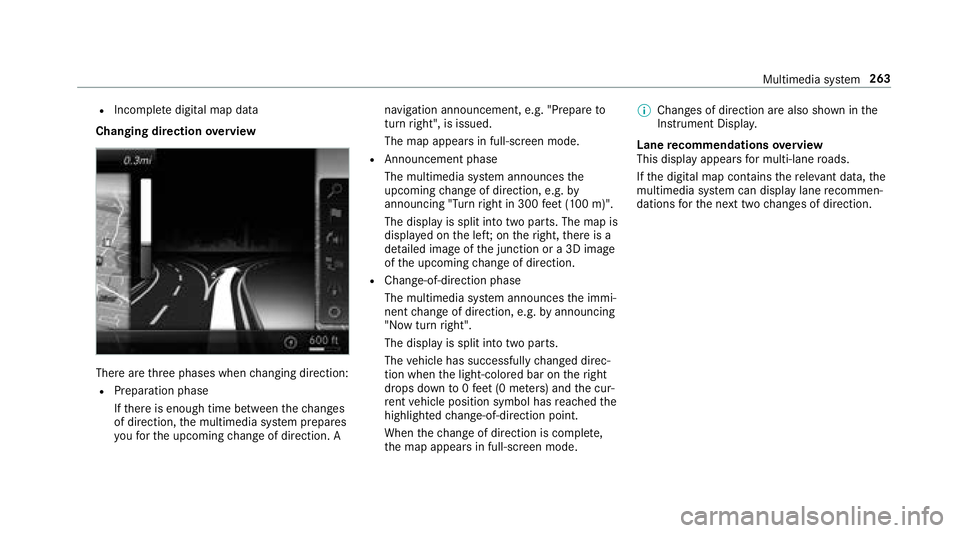
There are thre e phases when changing direction:
RPreparation phase
Ifth ere is enough time between thech anges
of direction, the multimedia sy stem prepares
yo ufo rth e upcoming change of direction. A navigation announcement, e.g. "Prepare
to
turn right", is issued.
The map appears in full-screen mode.
RAnnouncement phase
The multimedia sy stem announces the
upcoming change of direction, e.g. by
announcing "Turn right in 300 feet (100 m)".
The display is split into two parts. The map is
displa yed on the lef t;on theright, there is a
de tailed image of the junction or a 3D image
of the upcoming change of direction.
RChange -of-direction phase
The multimedia sy stem announces the immi‐
nent change of direction, e.g. byannouncing
"N ow turn right".
The display is split into two parts.
The vehicle has successfully changed direc‐
tion when the light-colored bar on theright
drops down to0feet (0 me ters) and the cur‐
re nt vehicle position symbol has reached the
highlighted change-of-direction point.
When thech ange of direction is comple te,
th e map appears in full-screen mode. %
Changes of direction are also shown in the
Instrument Displa y.
Lane recommendations overview
This display appears for multi-lane roads.
If th e digital map conta insthere leva nt da ta,
th e
mu
ltimedia sy stem can display lane recommen‐
dations forth e next two changes of direction.
Multimedia sy stem 263