display MERCEDES-BENZ S-CLASS COUPE 2018 Repair Manual
[x] Cancel search | Manufacturer: MERCEDES-BENZ, Model Year: 2018, Model line: S-CLASS COUPE, Model: MERCEDES-BENZ S-CLASS COUPE 2018Pages: 502, PDF Size: 6.29 MB
Page 221 of 502
Rdo not use any abbreviations, unnecessary
spaces or special characters.
If a station list entry is not recognized:
Rsay theRead out station list voice command.
Essential voice commands
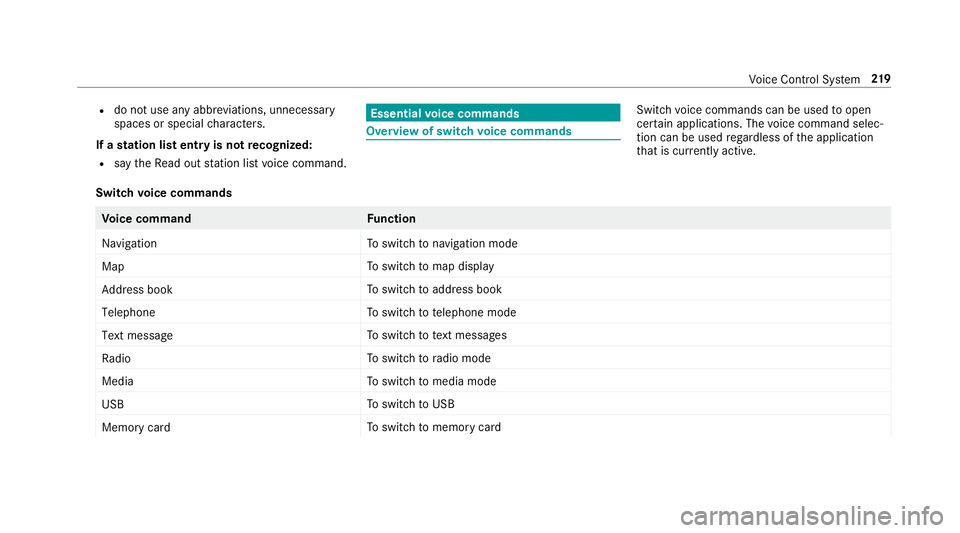
Overview of switch voice commands
Swit chvoice commands can be used toopen
cer tain applications. The voice command selec‐
tion can be used rega rdless of the application
th at is cur rently acti ve.
Switch voice commands
Vo ice command Function
Navigation To
switch tonavigation mode
Map To
switch tomap display
Address book To
switch toaddress book
Telephone To
switch totelephone mode
Text message To
switch totext message s
Radio To
switch toradio mode
Media To
switch tomedia mode
USB To
switch toUSB
Memory card To
switch tomemory card
Voice Cont rol Sy stem 21
9
Page 225 of 502
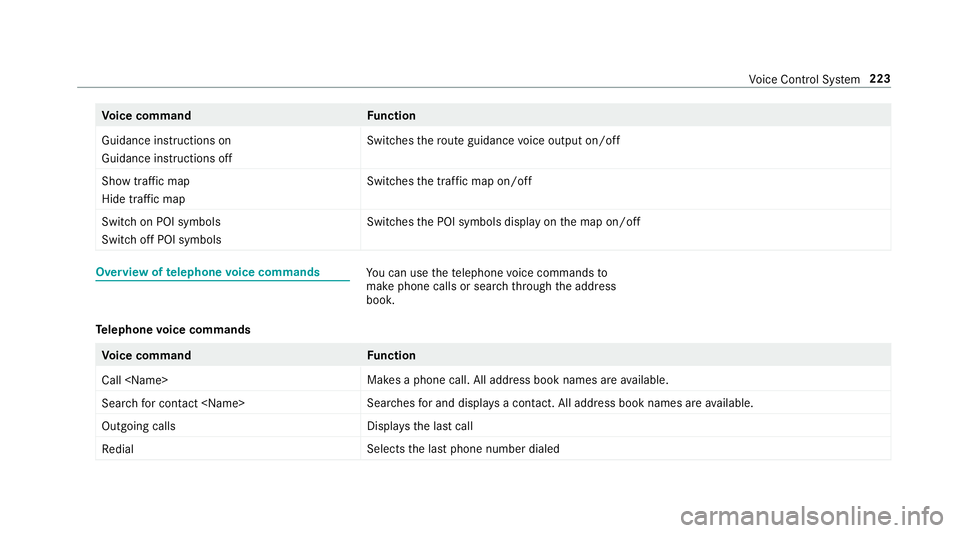
Voice command Function
Guidance instructions on
Guidance instructions off Switches
thero ute guidance voice output on/off
Show traffic map
Hide traffic map Swit
ches the tra ffic map on/off
Switch on POI symbols
Switch off POI symbols Swit
ches the POI symbols display on the map on/off
Overview of telephone voice commandsYou can use thete lephone voice commands to
make phone calls or sear chthro ugh the address
book.
Te lephone voice commands
Vo ice command Function
Call
available.
Search for contact
ches for and displa ysa con tact. All address book names are available.
Outgoing calls Displa
ys the last call
Redial Selects
the last phone number dialed
Vo ice Cont rol Sy stem 223
Page 226 of 502
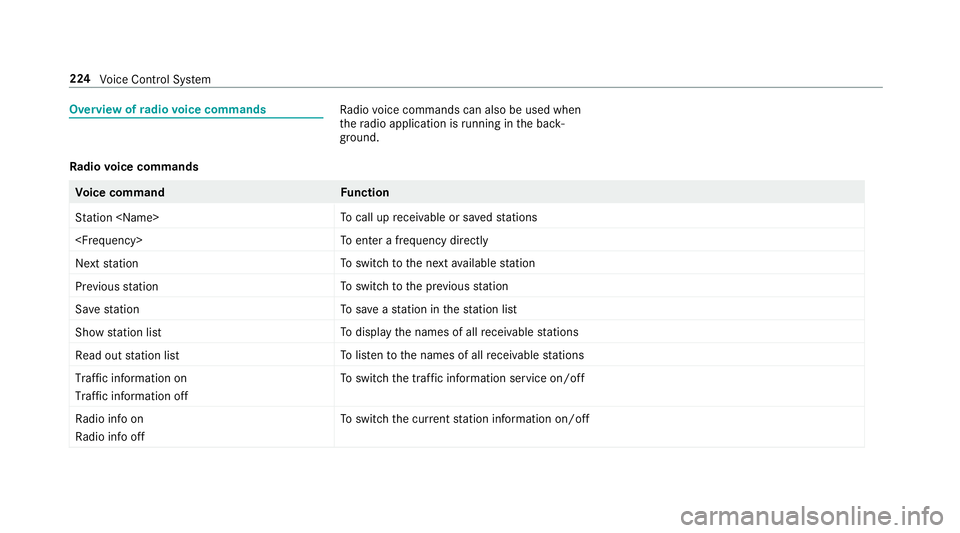
Overview ofradio voice commandsRa dio voice commands can also be used when
th era dio application is running in the back‐
ground.
Ra dio voice commands
Vo ice command Function
Station
call up receiva ble or sa vedstations
enter a frequency directly
Next station To
switch tothe next available station
Previous station To
switch tothe pr evious station
Save station To
save ast ation in thest ation list
Show station list To
display the names of all receiva blestations
Read out station list To
listento the names of all receiva blestations
Traffic information on
Traffic information off To
switch the traf fic information service on/off
Radio info on
Radio info off To
switch the cur rent station information on/off
224
Voice Cont rol Sy stem
Page 229 of 502
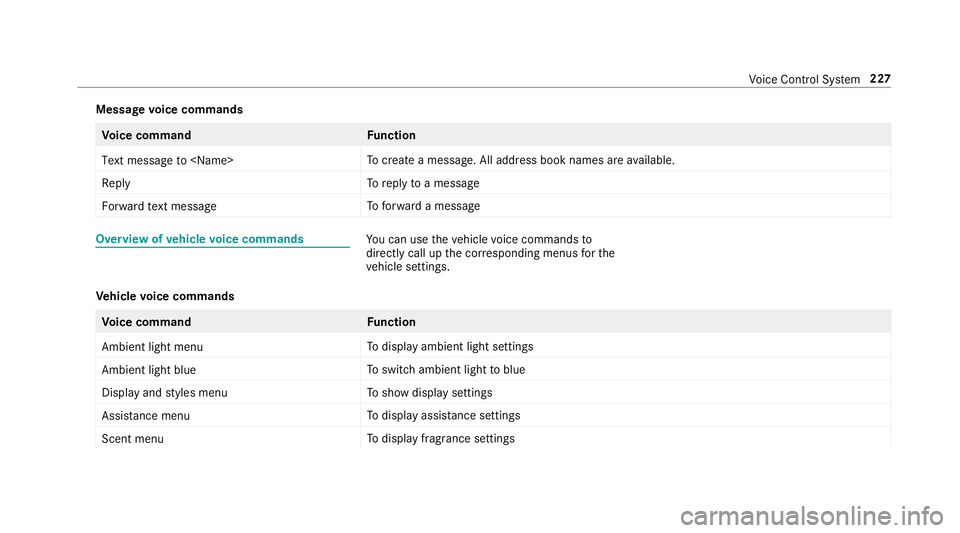
Messagevoice commands
Vo ice command Function
Text message to
create a message. All address book names are available.
Reply To
reply toa message
Forward text message To
forw ard a message
Overview of vehicle voice commandsYou can use theve hicle voice commands to
directly call up the cor responding menus forth e
ve hicle settings.
Ve hicle voice commands
Vo ice command Function
Ambient light menu To
display ambient light settings
Ambient light blue To
switch ambient light toblue
Display and styles menu To
show display settings
Assistance menu To
display assis tance settings
Scent menu To
display fragrance settings
Voice Cont rol Sy stem 227
Page 230 of 502
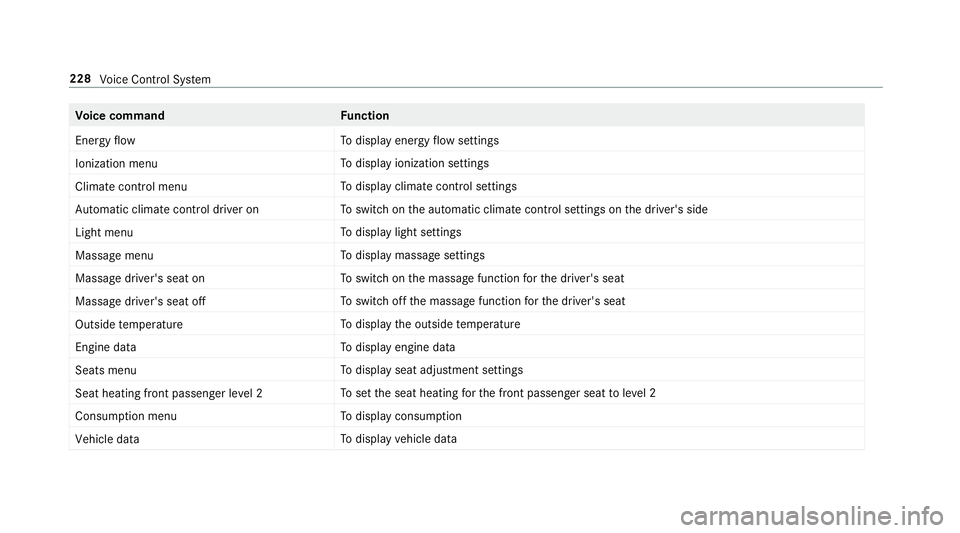
Voice command Function
Energy flow To
display energy flow settings
Ionization menu To
display ionization settings
Climate control menu To
display climate control settings
Automatic climate control driver on To
switch on the automatic climate control settings on the driver's side
Light menu To
display light settings
Massage menu To
display massage settings
Massage driver's seat on To
switch on the massage function forth e driver's seat
Massage driver's seat off To
switch off the massage function forth e driver's seat
Outside temperature To
display the outside temp erature
Engine data To
display engine data
Seats menu To
display seat adjustment settings
Seat heating front passenger level 2 To
set the seat heating forth e front passenger seat toleve l 2
Consumption menu To
display consum ption
Vehicle data To
display vehicle data
228
Voice Cont rol Sy stem
Page 231 of 502
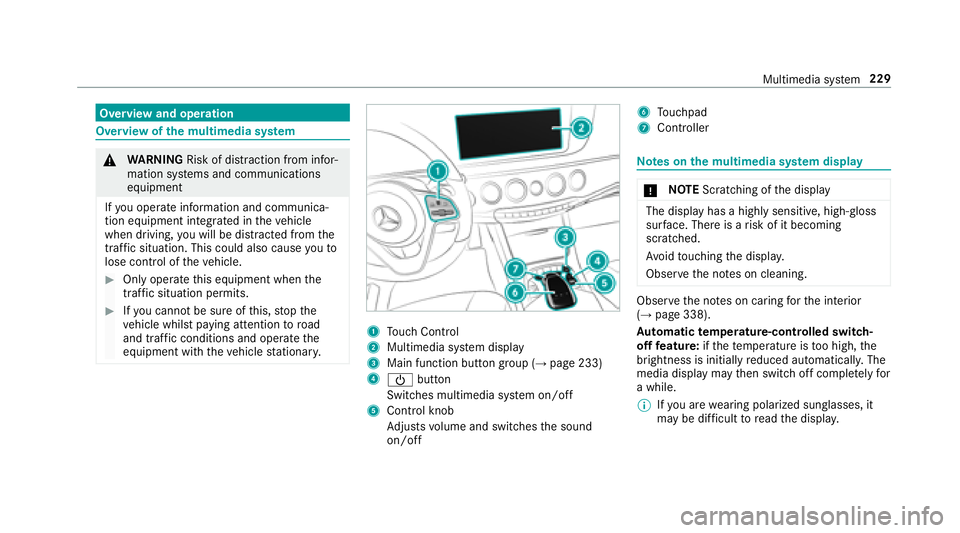
Overview and operation
Overview ofthe multimedia sy stem
&
WARNING Risk of dist raction from infor‐
mation sy stems and communications
equipment
If yo u operate information and communica‐
tion equipment integ rated in theve hicle
when driving, youwill be dis tracted from the
traf fic situation. This could also cause youto
lose control of theve hicle.
#Only operate this equipment when the
traf fic situation permits.
#If yo u cannot besure of this, stop the
ve hicle whilst paying attention toroad
and traf fic conditions and ope rate the
equipment with theve hicle stationar y.
1Touch Control
2Multimedia system display
3Main function button group (→page 233)
4Ü button
Switches multimedia sy stem on/off
5Control knob
Ad justs volume and switches the sound
on/off
6To uchpad
7Controller
Note s onthe multimedia sy stem display
* NO
TEScratching of the display
The display has a highly sensitive, high-gloss
sur face. There is arisk of it becoming
scratched.
Av oid touching the displa y.
Obser vethe no tes on cleaning.
Obser vethe no tes on caring forth e interior
(→page 338).
Au tomatic temperature-cont rolled switch-
off feature: ifth ete mp erature is too high, the
brightness is initially reduced automatically. The
media display may then switch off comple tely for
a while.
% Ifyo u are wearing polarized sungl asses, it
may be dif ficult toread the displa y.
Multimedia sy stem 229
Page 233 of 502
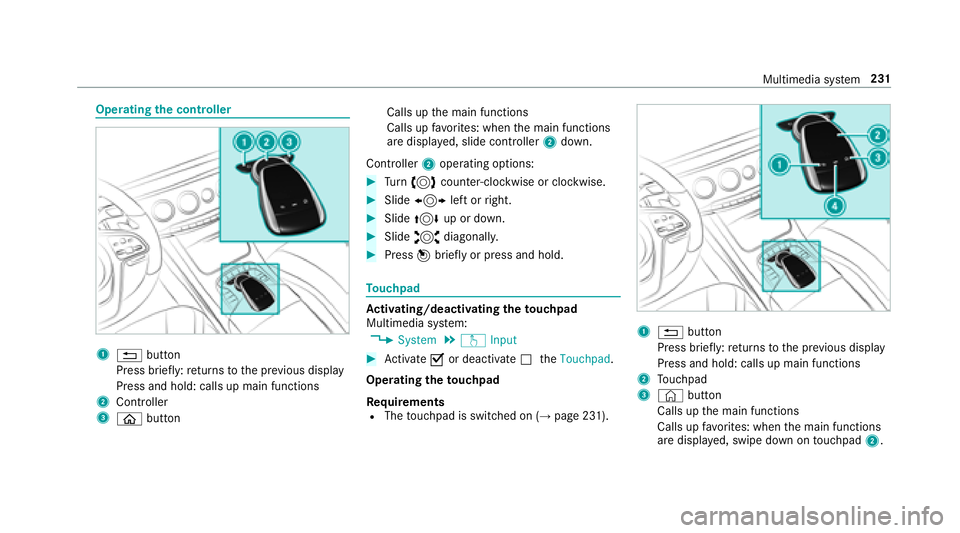
Operatingthe controller
1% button
Press brief ly:re turns tothe pr evious display
Press and hold: calls up main functions
2Cont roller
3ò button Calls up
the main functions
Calls up favo rite s: when the main functions
are displa yed, slide controller 2down.
Controller 2operating options:
#Turn 3 counter-clockwise or clockwise.
#Slide1 left or right.
#Slide 4 up or down.
#Slide2 diagonally.
#Press 7brief lyor press and hold.
To uchpad
Ac tivating/deactivating the touchpad
Multimedia sy stem:
,System.w Input
#Activate Oor deacti vate ª theTouchpad .
Operating theto uchpad
Re quirements
RThe touchpad is switched on (→page 231).
1% button
Press brief ly:re turns tothe pr evious display
Press and hold: calls up main functions
2To uchpad
3© button
Calls up the main functions
Calls up favo rite s: when the main functions
are displa yed, swipe down on touchpad 2.
Multimedia sy stem 231
Page 235 of 502
#Tohide the control menu: swipe down on
th eto uchpad using two fingers.
Main functions
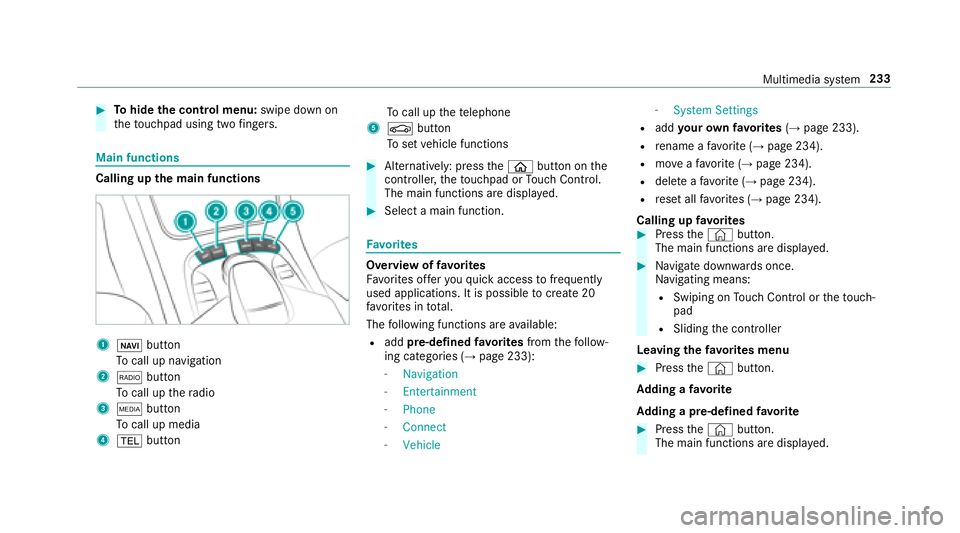
Calling up the main functions
1ß button
To call up navigation
2$ button
To call up thera dio
3Õ button
To call up media
4% button To
call up thete lephone
5Ø button
To set vehicle functions
#Alternatively: press theò button on the
controller, theto uchpad or Touch Control.
The main functions are display ed.
#Select a main function.
Favorite s
Overview of favo rite s
Fa vorite s of feryo uqu ick access tofrequently
used applications. It is possible tocreate 20
fa vo rite s in tota l.
The following functions are available:
Radd pre-defined favo rite sfrom thefo llow‐
ing categories (→page 233):
-Navigation
-Entertainment
-Phone
-Connect
-Vehicle
-System Settings
Radd your ow nfa vo rite s(→page 233).
Rre name a favo rite (→page 234).
Rmo veafa vo rite (→page 234).
Rdele teafa vo rite (→page 234).
Rreset all favo rite s (→page 234).
Calling up favo rite s
#Press the© button.
The main functions are displa yed.
#Na vigate down wards once.
Na vigating means:
RSwiping on Touch Control or theto uch‐
pad
RSlid ingthe controller
Leaving thefa vo rite s menu
#Press the© button.
Ad ding a favo rite
Ad ding a pre-de fined favo rite
#Press the© button.
The main functions are displa yed.
Multimedia sy stem 233
Page 240 of 502
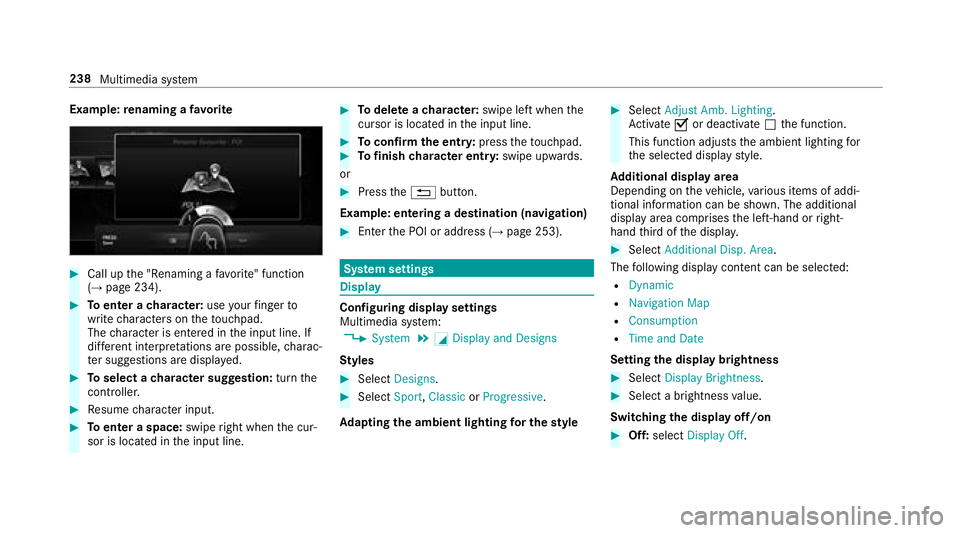
Example:renaming a favo rite
#Call upthe "Renaming a favo rite " function
(→page 234).
#To enter a character: useyour finger to
write characters on theto uchpad.
The character is entered in the input line. If
dif fere nt interpr etations are possible, charac‐
te r suggestions are displa yed.
#To select a character suggestion: turnthe
controller.
#Re sume character input.
#To enter a space: swiperight when the cur‐
sor is located in the input line.
#To del ete a character: swipe left when the
cursor is loca ted in the input line.
#To confirm the entr y:press theto uchpad.#To finish character entr y:swipe upwards.
or
#Press the% button.
Example: entering a destination (navigation)
#En terth e POI or address (→page 253).
Sy stem settings
Display
Configuring display settings
Multimedia sy stem:
,System.G Display and Designs
Styl es
#Select Designs.
#SelectSport,Classic orProgressive .
Ad apting the ambient lighting for the style
#Select Adjust Amb. Lighting .
Ac tivate Oor deacti vate ª the function.
This function adjusts the ambient lighting for
th e selected display style.
Ad ditional displ ayarea
Depending on theve hicle, various items of addi‐
tional information can be shown. The additional
display area comprises the left-hand or right-
hand third of the displa y.
#SelectAdditional Disp. Area .
The following display con tent can be selected:
RDynamic
RNavigation Map
RConsumption
RTime and Date
Setting the display brightness
#Select Display Brightness.
#Select a brightness value.
Switching the display off/on
#Off: select Display Off .
238
Multimedia sy stem
Page 241 of 502
#On:press a button, %forex ample.
Displ aydesign
#Select Day/Night Design .
#SelectAutomatic, Day Design orNight
Design.
Ad ditional displ ayarea
Depending on theve hicle, various items of addi‐
tional information can be shown. The additional
display area comprises the left-hand or right-
hand third of the displa y.
#SelectAdditional Disp. Area .
The following display con tent can be selected:
RDynamic
RNavigation Map
RConsumption
RTime and Date
Time and date
Setting the time and date automatical ly
Multimedia sy stem:
,System.& Time and Date
#Deactivate ªManual Time Adjustment .
The time and date are set automatically for
th e selected time zone and summer time
option.
% The cor rect time is requ ired forth efo llowing
functions:
RRo ute guidance with time-dependent
traf fic guidance.
RCalculation of expected time of ar riva l.
Setting the time zone
Multimedia sy stem:
,System.& Time and Date.Time
Zone:
The list of count ries is displa yed.
#Select a count ry#.
Depending on the count ry, time zones are
displa yed.
#Select a time zone.
The time zone set is displa yed af terTime
Zone:.
Setting summer time
The Automatic Daylight Saving Time andDay-
light Saving Time options cannot be selected in
all countries.
Multimedia sy stem:
,System.& Time and Date
Au tomatically
#Switch Automatic Daylight Saving Time on
O or off ª.
Manually
#Deactivate ªAutomatic Daylight Saving
Time .
#Select Daylight Saving Time .
#SelectOnorOff.
Multimedia sy stem 239