display MERCEDES-BENZ S-Class MAYBACH 2017 W222 Comand Manual
[x] Cancel search | Manufacturer: MERCEDES-BENZ, Model Year: 2017, Model line: S-Class MAYBACH, Model: MERCEDES-BENZ S-Class MAYBACH 2017 W222Pages: 230, PDF Size: 8.27 MB
Page 156 of 230
Your multimediasystem equipment
These operating instructions describe all the
standard and optional equipment of your multi-
media system, as available at the time of going
to press. Country-specifi cdifferences are pos-
sible. Bear in mind that your vehicle may not
feature all functions described here. This also
applies to safety-relevant systems andfunc-
tions.
Read the information on qualified specialist
workshop s in the vehicle Operator's Manual.
Switching on the radio
XPress the $button.
The Radio menu appears. You will hear the
last station played on the last waveband
selected.
Overview
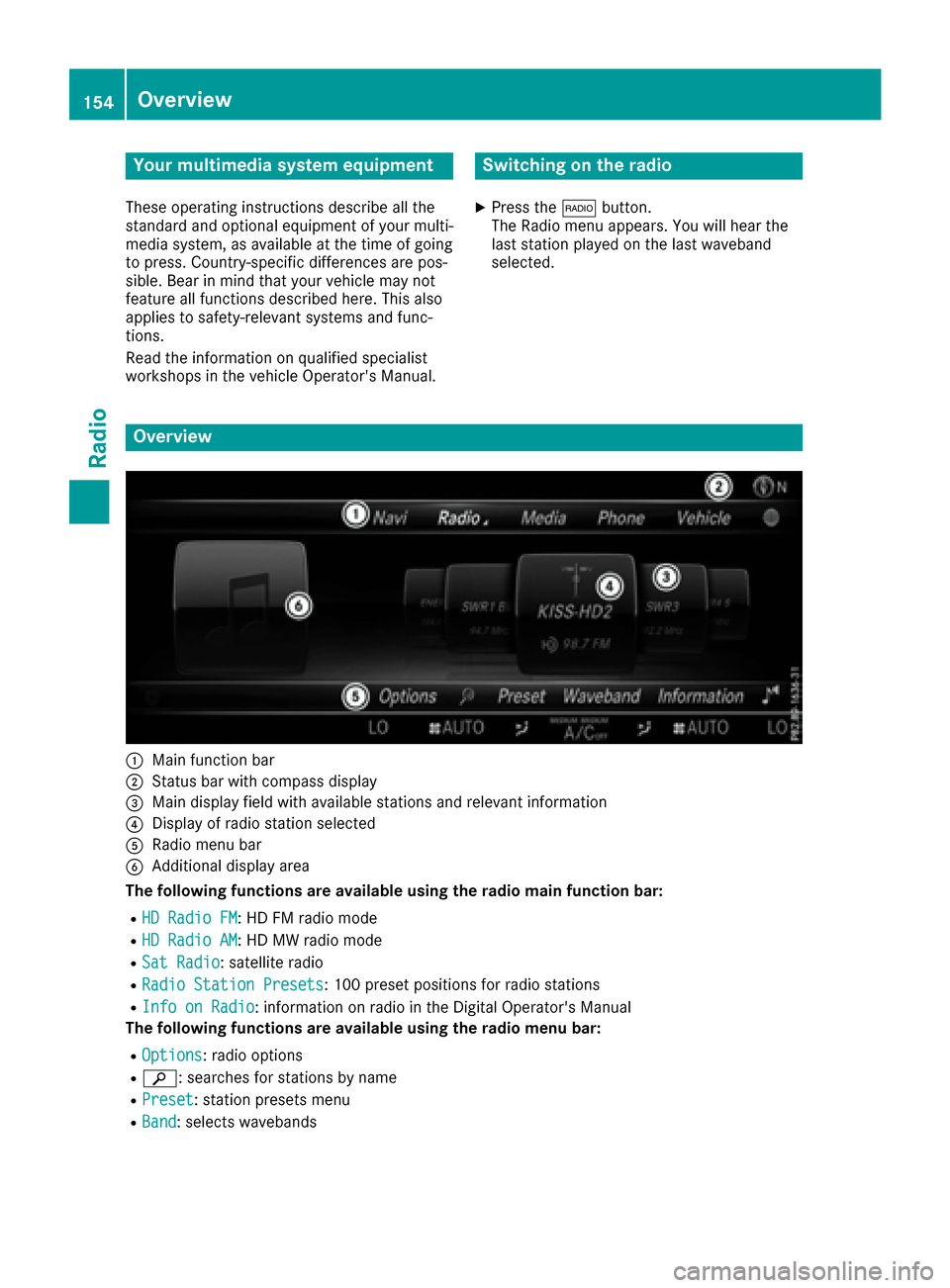
:Main function bar
;Status bar with compass display
=Main display field with available stations and relevant information
?Display of radio station selected
ARadio menu bar
BAdditional display area
Th e following functions are available using theradio main function bar:
RHD Radio FM:HD FM radio mode
RHD Radio AM:HD MW radio mode
RSat Radio: satellite radio
RRadio Statio nPreset s:10 0 preset positions for radio stations
RInf oon Radio: information on radio in the Digital Operator's Manual
Th e following functions are available using theradio menu bar:
ROption s: radio options
Rè: searches for stations by name
RPreset: station presets menu
RBand: selects wavebands
154Overview
Radio
Page 157 of 230
RInfo: displays additional information about the current station (radio text)
Rà: sound settings, Burmester®sound
Switching HD Radio on/off
XIn radio mode: slide the controller6.
XTo selectOptions: turn and press the con-
troller.
XBy selecting Oorª in front of HD Radio,
you determine whether HD radio is switched
on or off.
If HD radio is switched off, the system does not
switch to digital radio and it is not possible to
select any sub-channels.
iHD Radio™ and the HD, HD Radio, and “Arc”
logos are proprietary trademarks of iBiquity
Digital Corp.
Setting the waveband
Button activation
XPress the $button.
A menu appears with a selection of HD
Radio FM,HD Radio AM,Sat Radio,Infoon Radioand Radio Station Presets.
XTo select the required waveband: turn and
press the controller.
Using the main function bar
XIn radio mode: slide 5the controller.
The radio main function bar and menu bar
appear. Radio
is active.
XPress the controller.
A menu appears with a selection of HD
RadioFM,HDRadioAM,SatRadio, RadioStation Presetsand Info on Radio.
XTo select the required waveband: turn and
press the controller.
Using the menu bar
XIn radio mode: slide 6the controller.
XTo select Band: turn and press the controller.
A menu appears with a selection of HD
Radio FM,HD Radio AMand Sat Radio.
XTo select the required waveband: turn and
press the controller.
Station
Selecting a station
Using the main display field
All currently available stations are displayed.
XIn radio mode: turn the controller until the
desired station is in the center.
Using the current station list
iThe station list is available in HD FM radio
mode or HD AM radio mode. It includes all
stations that can be received.
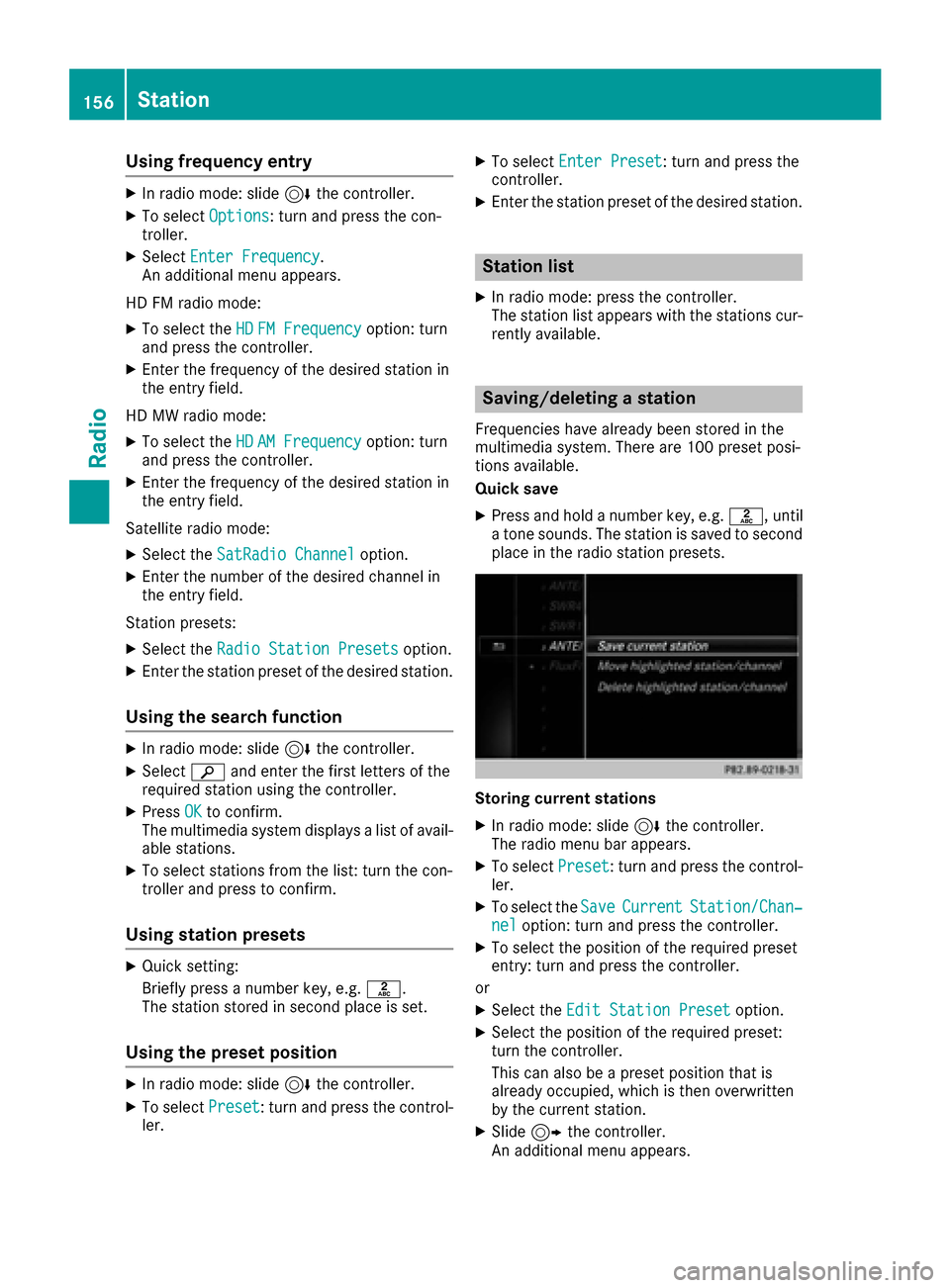
XIn radio mode: press the controller.
The station list appears with the stations cur- rently available.
XTo select the desired station: turn and press
the controller.
Station155
Radio
Page 158 of 230
Using frequency entry
XIn radio mode: slide6the controller.
XTo select Options: turn and press the con-
troller.
XSelect Enter Frequency.
An additional menu appears.
HD FM radio mode:
XTo select the HDFM Frequencyoption: turn
and press the controller.
XEnter the frequency of the desired station in
the entry field.
HD MW radio mode:
XTo select the HDAM Frequencyoption: turn
and press the controller.
XEnter the frequency of the desired station in
the entry field.
Satellite radio mode:
XSelect the SatRadio Channeloption.
XEnter the number of the desired channel in
the entry field.
Station presets:
XSelect the Radio Station Presetsoption.
XEnter the station preset of the desired station.
Using the search function
XIn radio mode: slide 6the controller.
XSelect èand enter the first letters of the
required station using the controller.
XPress OKto confirm.
The multimedia system displays a list of avail-
able stations.
XTo select stations from the list: turn the con-
troller and press to confirm.
Using station presets
XQuick setting:
Briefly press a number key, e.g. l.
The station stored in second place is set.
Using the preset position
XIn radio mode: slide 6the controller.
XTo select Preset: turn and press the control-
ler.
XTo select Enter Preset: turn and press the
controller.
XEnter the station preset of the desired station.
Station list
XIn radio mode: press the controller.
The station list appears with the stations cur-
rently available.
Saving/deleting a station
Frequencies have already been stored in the
multimedia system. There are 100 preset posi-
tions available.
Quick save
XPress and hold a number key, e.g. l, until
a tone sounds. The station is saved to second
place in the radio station presets.
Storing current stations
XIn radio mode: slide 6the controller.
The radio menu bar appears.
XTo select Preset: turn and press the control-
ler.
XTo select the SaveCurrentStation/Chan‐neloption: turn and press the controller.
XTo select the position of the required preset
entry: turn and press the controller.
or
XSelect the Edit Station Presetoption.
XSelect the position of the required preset:
turn the controller.
This can also be a preset position that is
already occupied, which is then overwritten
by the current station.
XSlide9the controller.
An additional menu appears.
156Station
Radio
Page 159 of 230
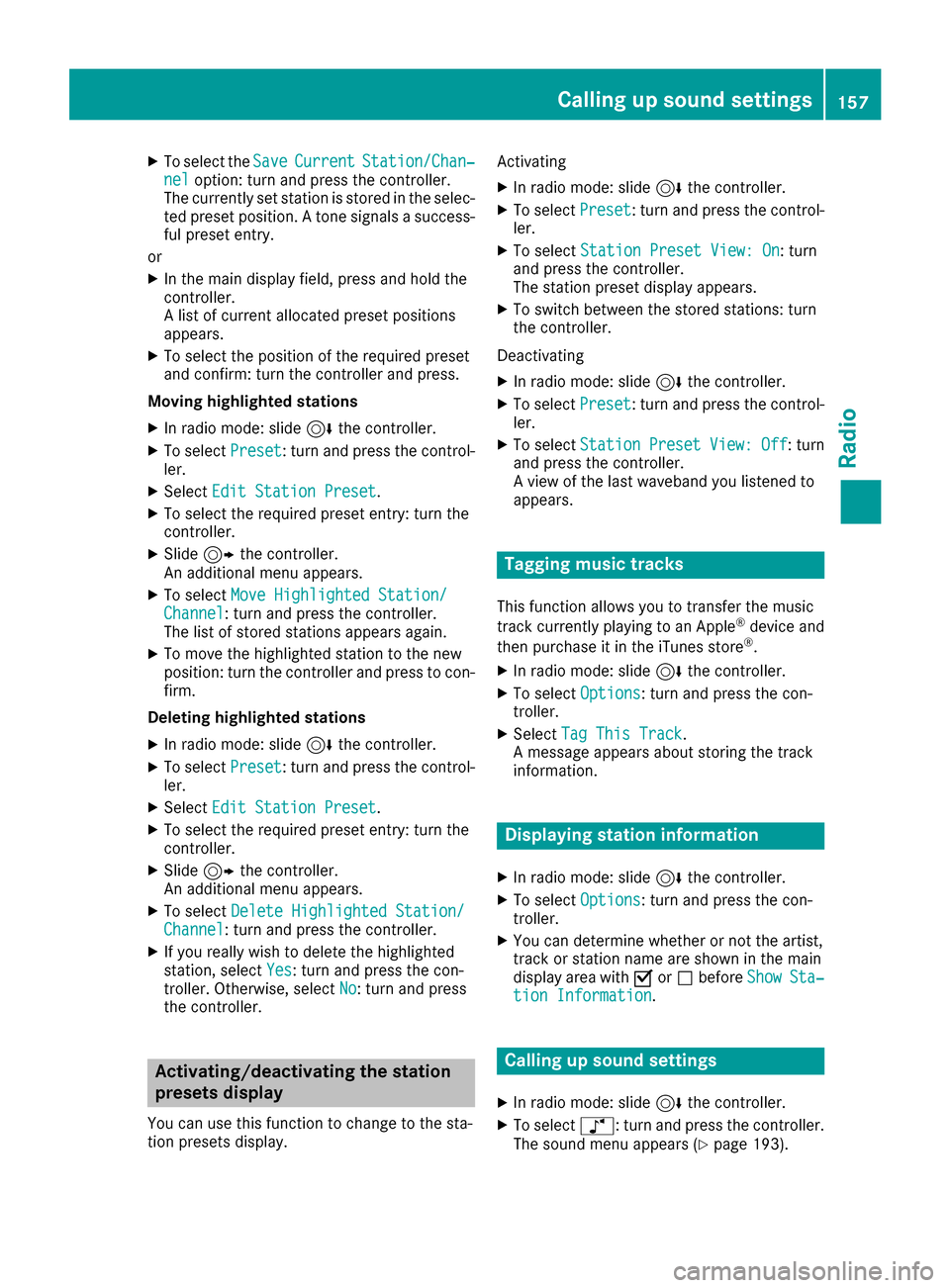
XTo select theSaveCurrentStation/Chan‐neloption: turn and press the controller.
The currently set station is stored in the selec-
ted preset position. A tone signals a success-
ful preset entry.
or
XIn the main display field, press and hold the
controller.
A list of current allocated preset positions
appears.
XTo select the position of the required preset
and confirm: turn the controller and press.
Moving highlighted stations
XIn radio mode: slide 6the controller.
XTo select Preset: turn and press the control-
ler.
XSelect Edit Station Preset.
XTo select the required preset entry: turn the
controller.
XSlide9the controller.
An additional menu appears.
XTo select Move Highlighted Station/Channel: turn and press the controller.
The list of stored stations appears again.
XTo move the highlighted station to the new
position: turn the controller and press to con-
firm.
Deleting highlighted stations
XIn radio mode: slide 6the controller.
XTo select Preset: turn and press the control-
ler.
XSelect Edit Station Preset.
XTo select the required preset entry: turn the
controller.
XSlide9the controller.
An additional menu appears.
XTo select Delete Highlighted Station/Channel: turn and press the controller.
XIf you really wish to delete the highlighted
station, select Yes: turn and press the con-
troller. Otherwise, select No: turn and press
the controller.
Activating/deactivating the station
presets display
You can use this function to change to the sta-
tion presets display. Activating
XIn radio mode: slide
6the controller.
XTo select Preset: turn and press the control-
ler.
XTo select Station Preset View: On: turn
and press the controller.
The station preset display appears.
XTo switch between the stored stations: turn
the controller.
Deactivating
XIn radio mode: slide 6the controller.
XTo select Preset: turn and press the control-
ler.
XTo select StationPresetView:Off: turn
and press the controller.
A view of the last waveband you listened to
appears.
Tagging music tracks
This function allows you to transfer the music
track currently playing to an Apple®device and
then purchase it in the iTunes store®.
XIn radio mode: slide 6the controller.
XTo select Options: turn and press the con-
troller.
XSelect Tag This Track.
A message appears about storing the track
information.
Displaying station information
XIn radio mode: slide 6the controller.
XTo select Options: turn and press the con-
troller.
XYou can determine whether or not the artist,
track or station name are shown in the main
display area with Oorª before Show
Sta‐tion Information.
Calling up sound settings
XIn radio mode: slide 6the controller.
XTo select à: turn and press the controller.
The sound menu appears (Ypage 193).
Calling up sound settings157
Radio
Page 160 of 230
Displaying information
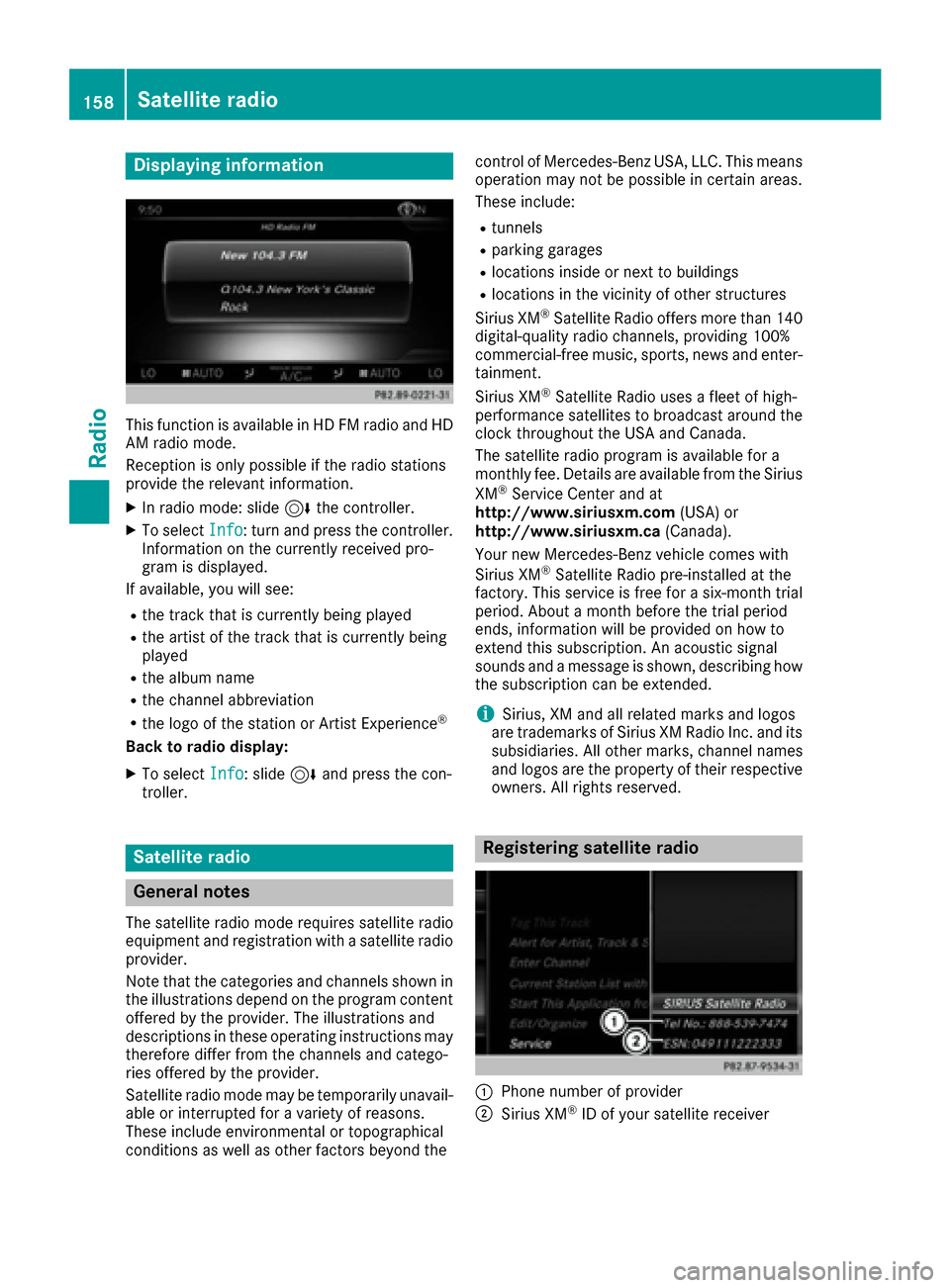
This function is available in HD FM radio and HD
AM radio mode.
Reception is only possible if the radio stations
providethe relevant information.
XIn radio mode: slide 6thecontroller.
XTo select Info:turn and press th econtroller.
Information on th ecurrentl y received pro-
gram is displayed.
If available, you will see:
Rth etrack that is currentl y being played
Rtheartist of th etrack that is currentl y being
played
Rth e album name
Rthe channel abbreviation
Rthe logo of the station or Artist Experience®
Back to radi o display:
XTo selectInfo: slide 6and press th econ-
troller.
Satellite radio
General notes
The satellite radio mode requires satellite radio
equipment and registration withasatellite radio
provider.
Notethat th e categories and channels shown in
th e illustrations depend on the program content
offered by th e provider. The illustrations and
descriptions in these operating instructions may
therefore diffe rfrom th e channels and catego-
ries offered by th e provider.
Satellite radio mode may be temporarily unavail-
able or interrupted foravariety of reasons.
These include environmental or topographical
conditions as well as other factors beyond the contro
lof Mercedes-Benz USA, LLC. Thismeans
operation may not be possible in certain areas.
These include:
Rtunnels
Rparking garages
Rlocations inside or next to buildings
Rlocations in the vicinity of other structures
Sirius XM®Satellite Radio offers more than 140
digital-quality radio channels, providing 100%
commercial-free music, sports, news and enter-
tainment.
Sirius XM
®Satellite Radio uses a fleet of high-
performance satellites to broadcast around the
cloc kthroughout th eUS A and Canada.
The satellite radio pro gram is available fo
ra
monthly fee. Details are available from the Sirius
XM
®Service Center and at
http://www.siriusxm.com (USA) or
http://www.siriusxm.ca (Canada).
Your new Mercedes-Benz vehicle comes with
Sirius XM
®Satellite Radio pre-installed at the
factory. Thi s service is free fo rasix-month trial
period. About a month before the trial period
ends, information will be provided on how to
extend this subscription. An acoustic signal
sounds and a message is shown, describing how
th e subscription can be extended.
iSirius, XM and all related marks and logos
are trademarks of Sirius XM Radio Inc. and its
subsidiaries. Allother marks , channel names
and logos are the property of their respective
owners. Allright s reserved.
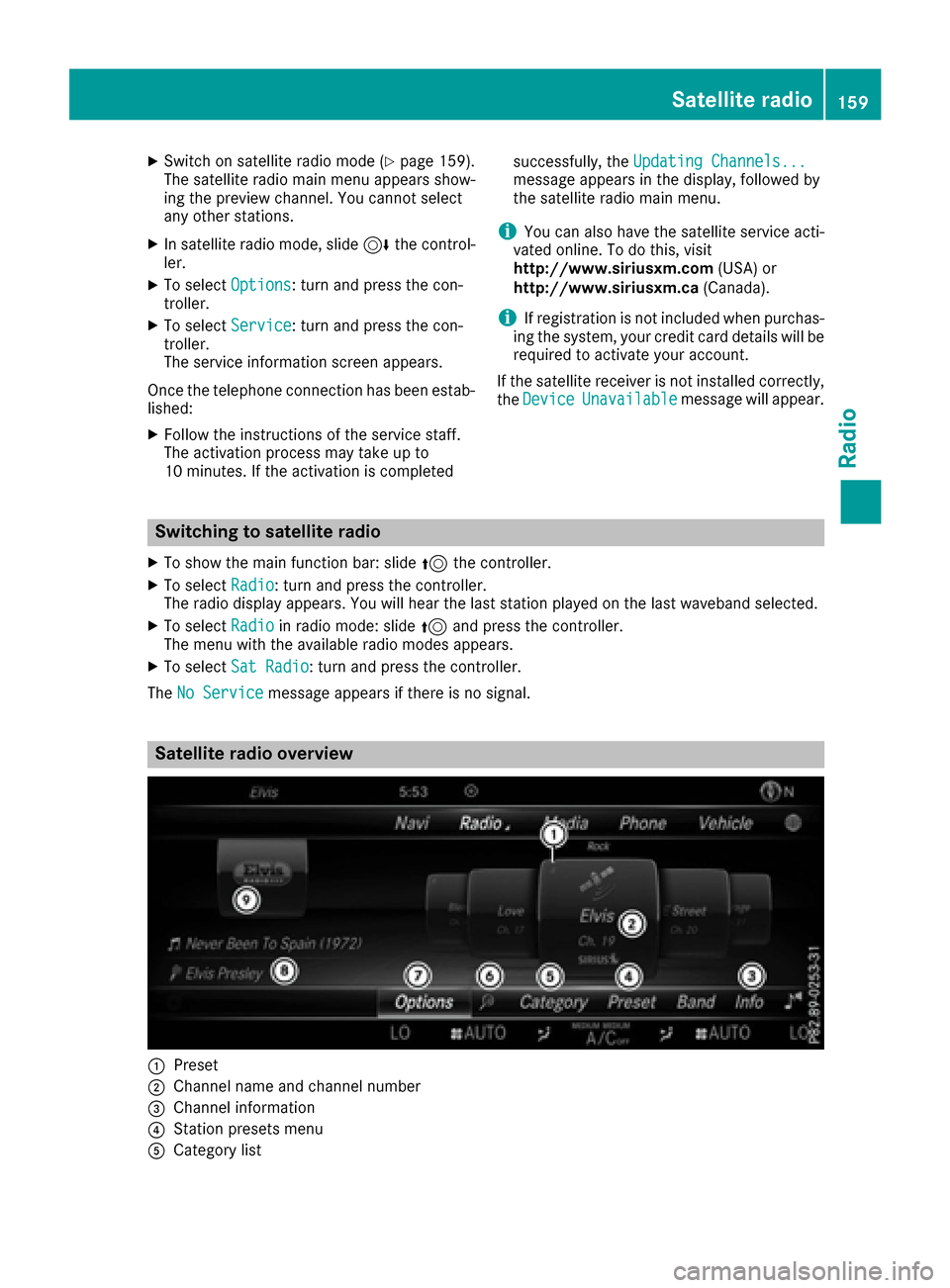
Registering satellite radio
:Phone number of provider
;Sirius XM®ID of your satellite receiver
158Satellite radio
Radio
Page 161 of 230
XSwitch on satellite radio mode (Ypage 159).
The satellite radio main menu appears show-
ing the preview channel. You cannot select
any other stations.
XIn satellite radio mode, slide 6the control-
ler.
XTo select Options: turn and press the con-
troller.
XTo select Service: turn and press the con-
troller.
The service information screen appears.
Once the telephone connection has been estab-
lished:
XFollow the instructions of the service staff.
The activation process may take up to
10 minutes. If the activation is completed successfully, the
Updating Channels...
message appears in the display, followed by
the satellite radio main menu.
iYou can also have the satellite service acti-
vated online. To do this, visit
http://www.siriusxm.com (USA) or
http://www.siriusxm.ca (Canada).
iIf registration is not included when purchas-
ing the system, your credit card details will be
required to activate your account.
If the satellite receiver is not installed correctly,
the Device
Unavailablemessage will appear.
Switching to satellite radio
XTo show the main function bar: slide 5the controller.
XTo select Radio: turn and press the controller.
The radio display appears. You will hear the last station played on the last waveband selected.
XTo select Radioin radio mode: slide 5and press the controller.
The menu with the available radio modes appears.
XTo select Sat Radio: turn and press the controller.
The No Service
message appears if there is no signal.
Satellite radio overview
:Preset
;Channel name and channel number
=Channel information
?Station presets menu
ACategory list
Satellite radio159
Radio
Page 162 of 230
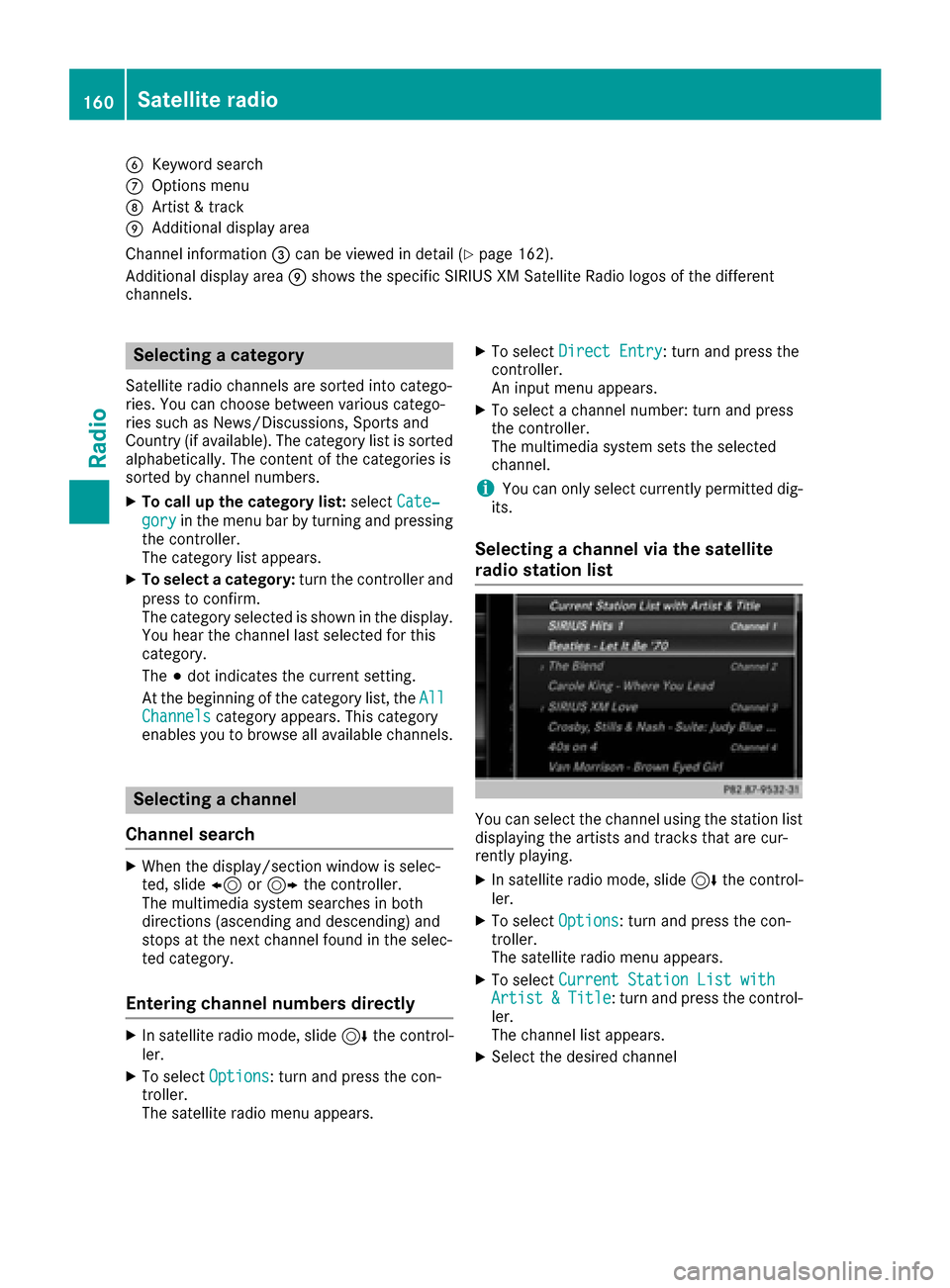
BKeyword search
COptions menu
DArtist & track
EAdditional display area
Channel information =can be viewed in detail (
Ypage 162).
Additional display area Eshows the specific SIRIUS XM Satellite Radio logos of the different
channels.
Selecting a category
Satellite radio channels are sorted into catego-
ries. You can choose between various catego-
ries such as News/Discussions, Sports and
Country (if available). The category list is sorted
alphabetically. The content of the categories is
sorted by channel numbers.
XTo call up the category list: selectCate‐
goryin the menu bar by turning and pressing
the controller.
The category list appears.
XTo select a category: turn the controller and
press to confirm.
The category selected is shown in the display.
You hear the channel last selected for this
category.
The #dot indicates the current setting.
At the beginning of the category list, the All
Channelscategory appears. This category
enables you to browse all available channels.
Selecting a channel
Channel search
XWhen the display/section window is selec-
ted, slide 8or9 the controller.
The multimedia system searches in both
directions (ascending and descending) and
stops at the next channel found in the selec-
ted category.
Entering channel numbers directly
XIn satellite radio mode, slide 6the control-
ler.
XTo select Options: turn and press the con-
troller.
The satellite radio menu appears.
XTo select Direct Entry: turn and press the
controller.
An input menu appears.
XTo select a channel number: turn and press
the controller.
The multimedia system sets the selected
channel.
iYou can only select currently permitted dig-
its.
Selecting a channel via the satellite
radio station list
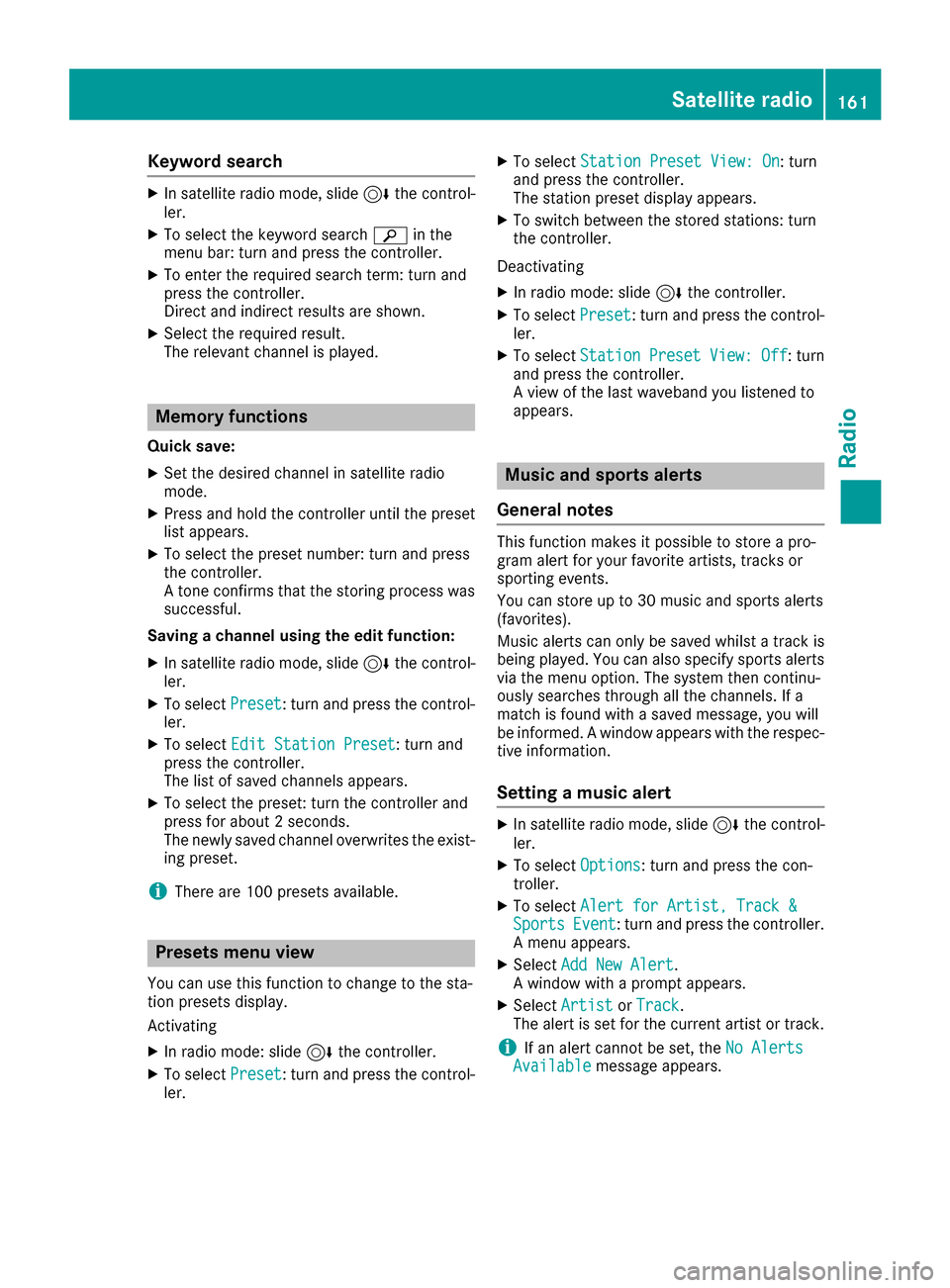
You can select the channel using the station list
displaying the artists and tracks that are cur-
rently playing.
XIn satellite radio mode, slide 6the control-
ler.
XTo select Options: turn and press the con-
troller.
The satellite radio menu appears.
XTo select Current Station List withArtist&Title: turn and press the control-
ler.
The channel list appears.
XSelect the desired channel
160Satellite radio
Radio
Page 163 of 230
Keyword search
XIn satellite radio mode, slide6thecontrol -
ler.
XTo select the keyword search èin the
menu bar: turn and press thecontroller.
XTo enter the required search term : turn and
press th econtroller.
Direc t and indirect results are shown.
XSelect the required result.
The relevant channel is played.
Memory functions
Quick save:
XSe tth e desired channel in satellite radio
mode.
XPress and hold the controller until the preset
list appears.
XTo select the preset number: turn and press
th econtroller.
A tone confirm sthat th estoring process was
successful.
Saving a channel using the edit function:
XIn satellite radio mode, slide 6thecontrol -
ler.
XTo select Preset: turnand press th econtrol -
ler.
XTo select EditStatio nPreset: turn and
press th econtroller.
The list of saved channels appears.
XTo select the preset: turn the controller and
press for about 2 seconds.
The newly saved channel overwrites the exist-
ing preset.
iThere are 100 presets available.
Presets menu view
You can use this function to change to the sta-
tion presets display.
Activating
XIn radio mode: slide 6thecontroller.
XTo select Preset: turnand press th econtrol -
ler.
XTo select StationPreset View: On: turn
and press th econtroller.
The station preset display appears.
XTo switch between the stored stations: turn
th econtroller.
Deactivating
XIn radio mode: slide 6thecontroller.
XTo select Preset: turnand press th econtrol -
ler.
XTo select StationPresetView:Off: turn
and press th econtroller.
A view of the last waveband you listened to
appears.
Music and sports alerts
Gene ral notes
This function makes it possible to storea pro-
gram alert for your favorite artists, tracks or
sporting events.
You can store up to 30 music and sports alerts
(favorites).
Music alerts can only be saved whils tatrack is
being played. You can also specify sports alerts
via th e menu option. The system then continu-
ously searches through all the channels. Ifa
match is found withasaved message, you will
be informed. A window appears with the respec-
tive information.
Setting a music alert
XIn satellite radio mode, slide 6thecontrol -
ler.
XTo select Options: turnand press th econ-
troller.
XTo select Alert for Artist ,Track &SportsEvent: turnand press th econtroller.
A menu appears.
XSelect Add New Alert.
A window wit haprompt appears.
XSelectArtistorTrack.
The alert is set for the current artist or track.
iIf an alert cannot be set, theNo AlertsAvailablemessage appears.
Satellite radio161
Radio
Page 164 of 230
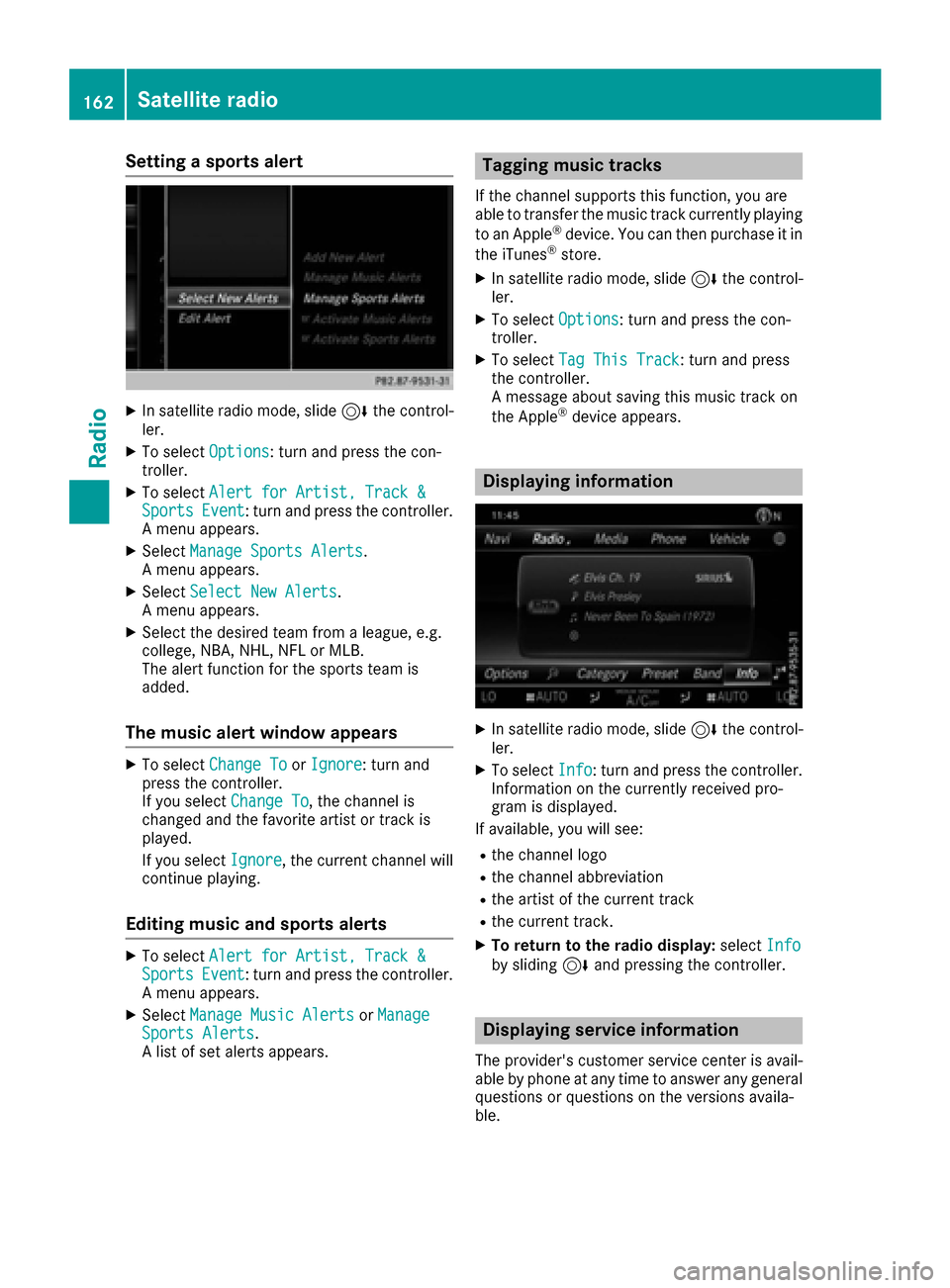
Setting a sports alert
XIn satellite radio mode, slide6the control-
ler.
XTo select Options: turn and press the con-
troller.
XTo select Alert for Artist, Track &SportsEvent: turn and press the controller.
A menu appears.
XSelect Manage Sports Alerts.
A menu appears.
XSelect Select New Alerts.
A menu appears.
XSelect the desired team from a league, e.g.
college, NBA, NHL, NFL or MLB.
The alert function for the sports team is
added.
The music alert window appears
XTo select Change ToorIgnore: turn and
press the controller.
If you select Change To
, the channel is
changed and the favorite artist or track is
played.
If you select Ignore
, the current channel will
continue playing.
Editing music and sports alerts
XTo select Alert for Artist, Track &SportsEvent: turn and press the controller.
A menu appears.
XSelect Manage Music AlertsorManageSports Alerts.
A list of set alerts appears.
Tagging music tracks
If the channel supports this function, you are
able to transfer the music track currently playing
to an Apple
®device. You can then purchase it in
the iTunes®store.
XIn satellite radio mode, slide 6the control-
ler.
XTo select Options: turn and press the con-
troller.
XTo select Tag This Track: turn and press
the controller.
A message about saving this music track on
the Apple
®device appears.
Displaying information
XIn satellite radio mode, slide 6the control-
ler.
XTo select Info: turn and press the controller.
Information on the currently received pro-
gram is displayed.
If available, you will see:
Rthe channel logo
Rthe channel abbreviation
Rthe artist of the current track
Rthe current track.
XTo return to the radio display: selectInfoby sliding 6and pressing the controller.
Displaying service information
The provider's customer service center is avail-
able by phone at any time to answer any general
questions or questions on the versions availa-
ble.
162Satellite radio
Radio
Page 165 of 230
XIn satellite radio mode, slide6the control-
ler.
XTo select Options: turn and press the con-
troller.
XTo select Service: turn and press the con-
troller.
The provider's details appear.
XTo return to the main display: press the
% button.
Channel list updates
During reception of a new channel list, the
Updating Channels...message is shown.
The channel last selected is switched to mute
until the update has been completed. Satellite
radio mode is not available during this process. Once the update has been completed, the sat-
ellite radio basic menu appears. The channel
last selected will be played if it is still available.
Sound settings
Information on sound settings (Ypage 193).
Satellite radio163
Radio