display MERCEDES-BENZ S-Class MAYBACH 2017 W222 Comand Manual
[x] Cancel search | Manufacturer: MERCEDES-BENZ, Model Year: 2017, Model line: S-Class MAYBACH, Model: MERCEDES-BENZ S-Class MAYBACH 2017 W222Pages: 230, PDF Size: 8.27 MB
Page 206 of 230
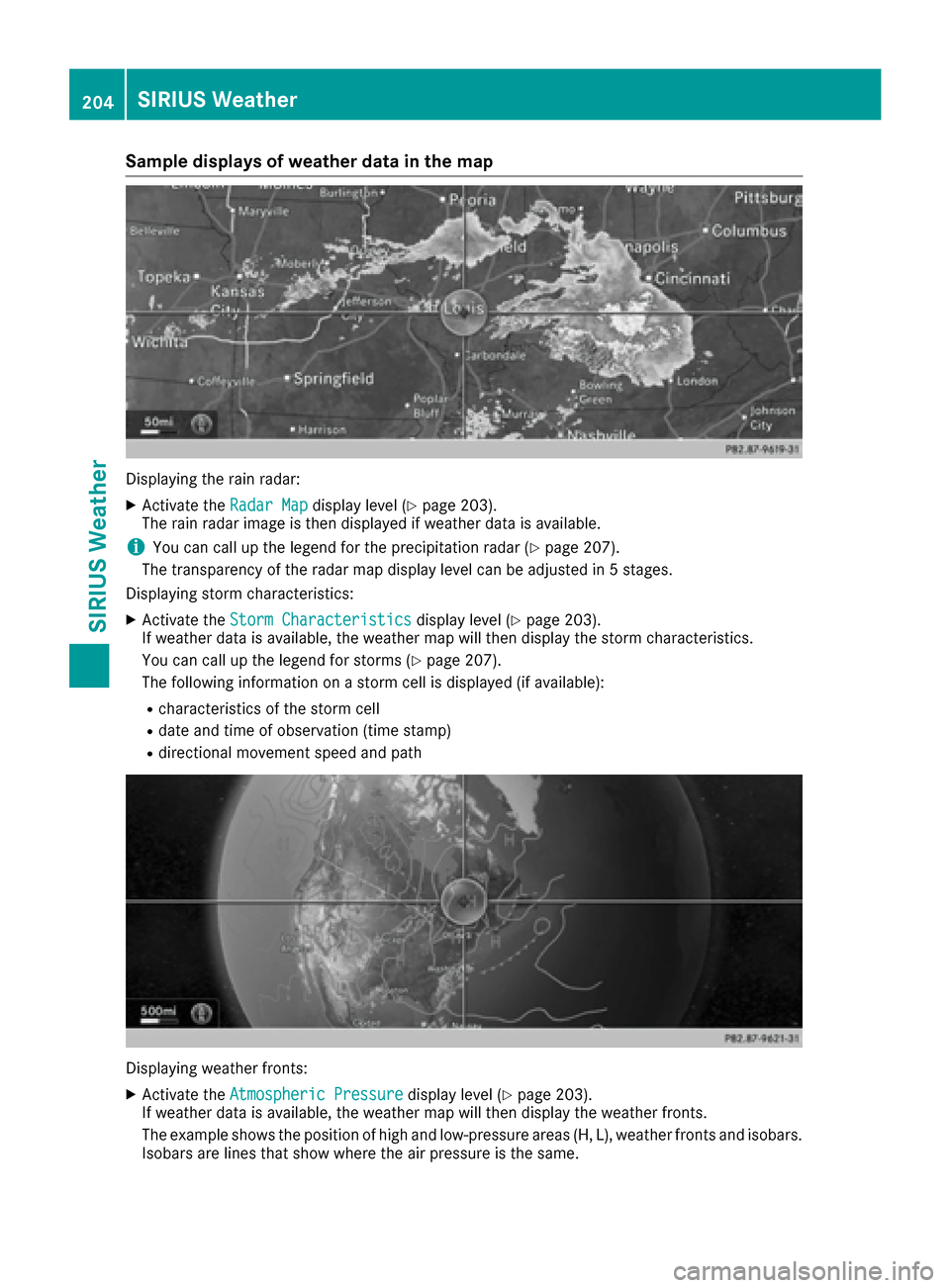
Sample displays of weather data in the map
Displaying the rain radar:
XActivate theRadar Mapdisplay level (Ypage 203).
The rain radar image is then displayed if weather data is available.
iYou can call up the legend for the precipitation radar (Ypage 207).
The transparency of the radar map display level can be adjusted in 5 stages.
Displaying storm characteristics:
XActivate the Storm Characteristicsdisplay level (Ypage 203).
If weather data is available, the weather map will then display the storm characteristics.
You can call up the legend for storms (
Ypage 207).
The following information on a storm cell is displayed (if available):
Rcharacteristics of the storm cell
Rdate and time of observation (time stamp)
Rdirectional movement speed and path
Displaying weather fronts:
XActivate the Atmospheric Pressuredisplay level (Ypage 203).
If weather data is available, the weather map will then display the weather fronts.
The example shows the position of high and low-pressure areas (H, L), weather fronts and isobars.
Isobars are lines that show where the air pressure is the same.
204SIRIUS Weather
SIRIUS Weather
Page 207 of 230
Legend: weather fronts
Weather frontExplanation
Cold front
(blue line with blue trian-
gles)If a cold front moves in, the weather remains changeable and there
are often rain showers and thunderstorms. The air temperature
decreases.
Warm front
(red line with red semi-cir-
cles)A warm front may cause more prolonged steady rain, more cloud
cover and a slow rise in temperature.
Stationary front
(red and blue line with red
semi-circles and blue trian-
gles)The weather front moves minimally. The weather remains change-
able in this area.
Occlusion
(purple line with purple
semi-circles and triangles)An occlusion arises when the faster cold front catches up and joins
the warm front ahead of it. The weather remains changeable and
rainy within an occlusion.
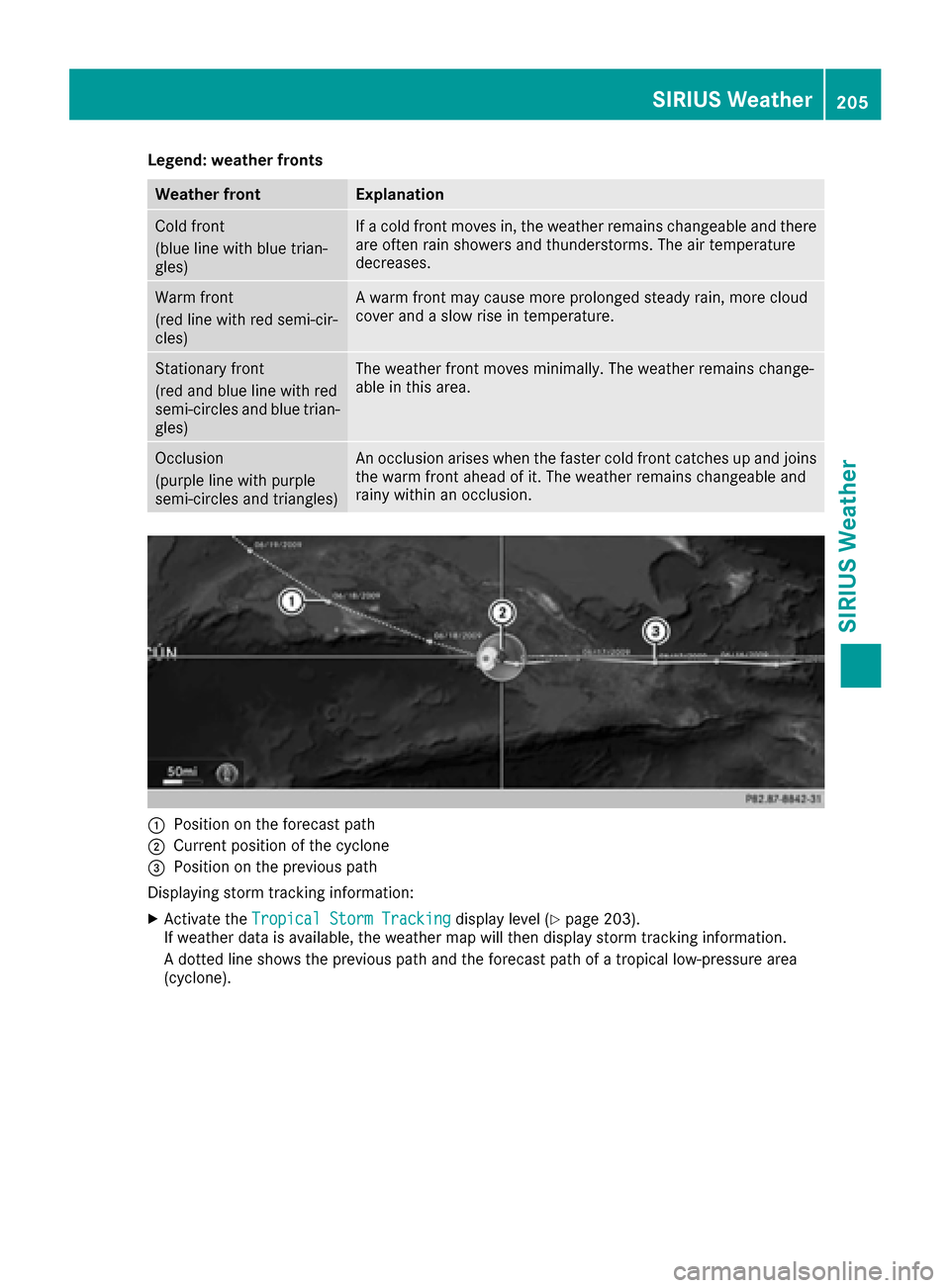
:Position on the forecast path
;Current position of the cyclone
=Position on the previous path
Displaying storm tracking information:
XActivate the Tropical Storm Trackingdisplay level (Ypage 203).
If weather data is available, the weather map will then display storm tracking information.
A dotted line shows the previous path and the forecast path of a tropical low-pressure area
(cyclone).
SIRIUS Weather205
SIRIUS Weather
Page 208 of 230
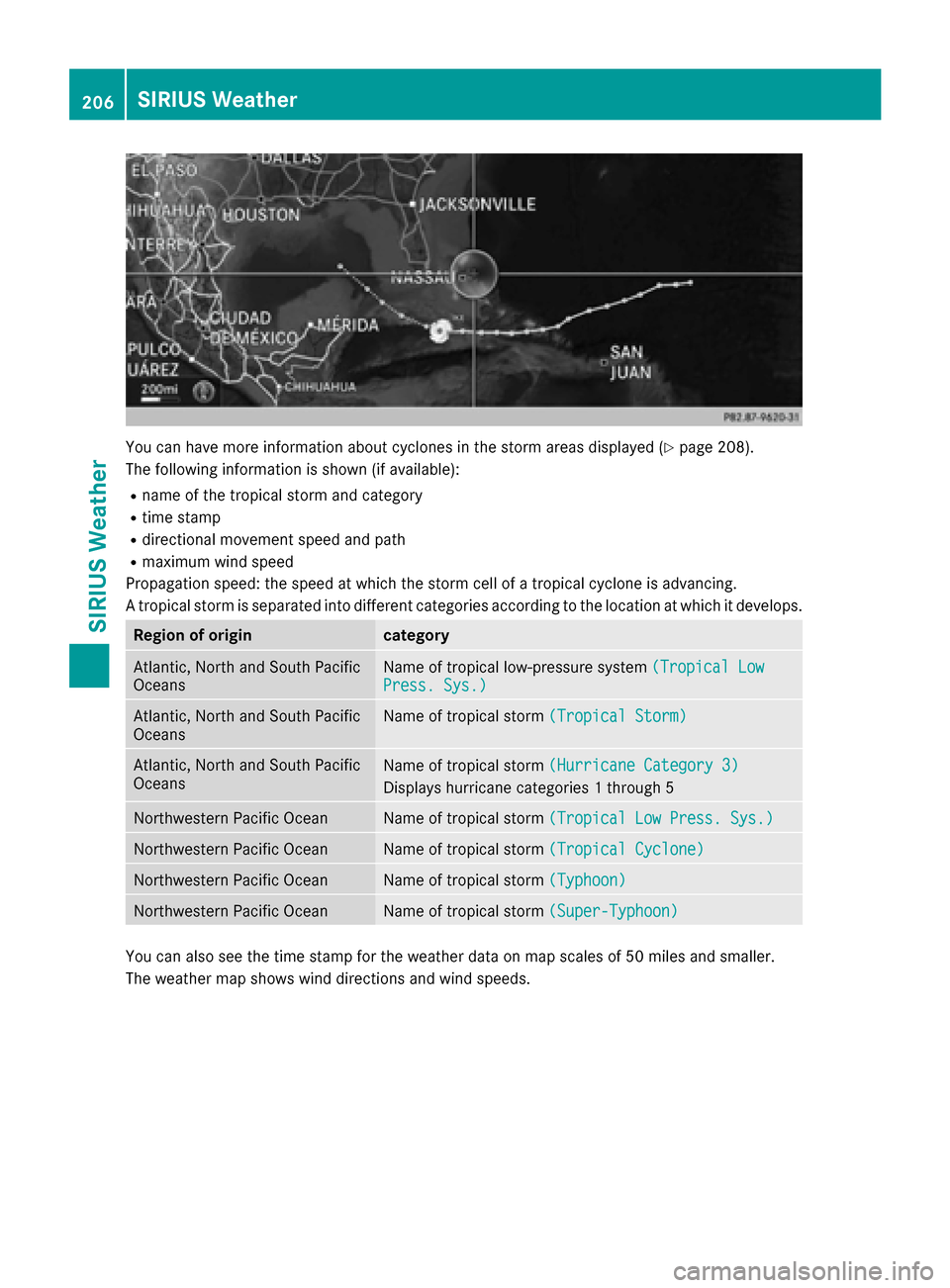
You can have more information about cyclones in the storm areas displayed (Ypage 208).
The following information is shown (if available):
Rname of the tropical storm and category
Rtime stamp
Rdirectional movement speed and path
Rmaximum wind speed
Propagation speed: the speed at which the storm cell of a tropical cyclone is advancing.
A tropical storm is separated into different categories according to the location at which it develops.
Region of origincategory
Atlantic, North and South Pacific
OceansName of tropical low-pressure system (Tropical LowPress. Sys.)
Atlantic, North and South Pacific
OceansName of tropical storm(Tropical Storm)
Atlantic, North and South Pacific
OceansName of tropical storm(Hurricane Category 3)
Displays hurricane categories 1 through 5
Northwestern Pacific OceanName of tropical storm(Tropical Low Press. Sys.)
Northwestern Pacific OceanName of tropical storm(Tropical Cyclone)
Northwestern Pacific OceanName of tropical storm(Typhoon)
Northwestern Pacific OceanName of tropical storm(Super-Typhoon)
You can also see the time stamp for the weather data on map scales of 50 miles and smaller.
The weather map shows wind directions and wind speeds.
206SIRIUS Weather
SIRIUS Weather
Page 209 of 230
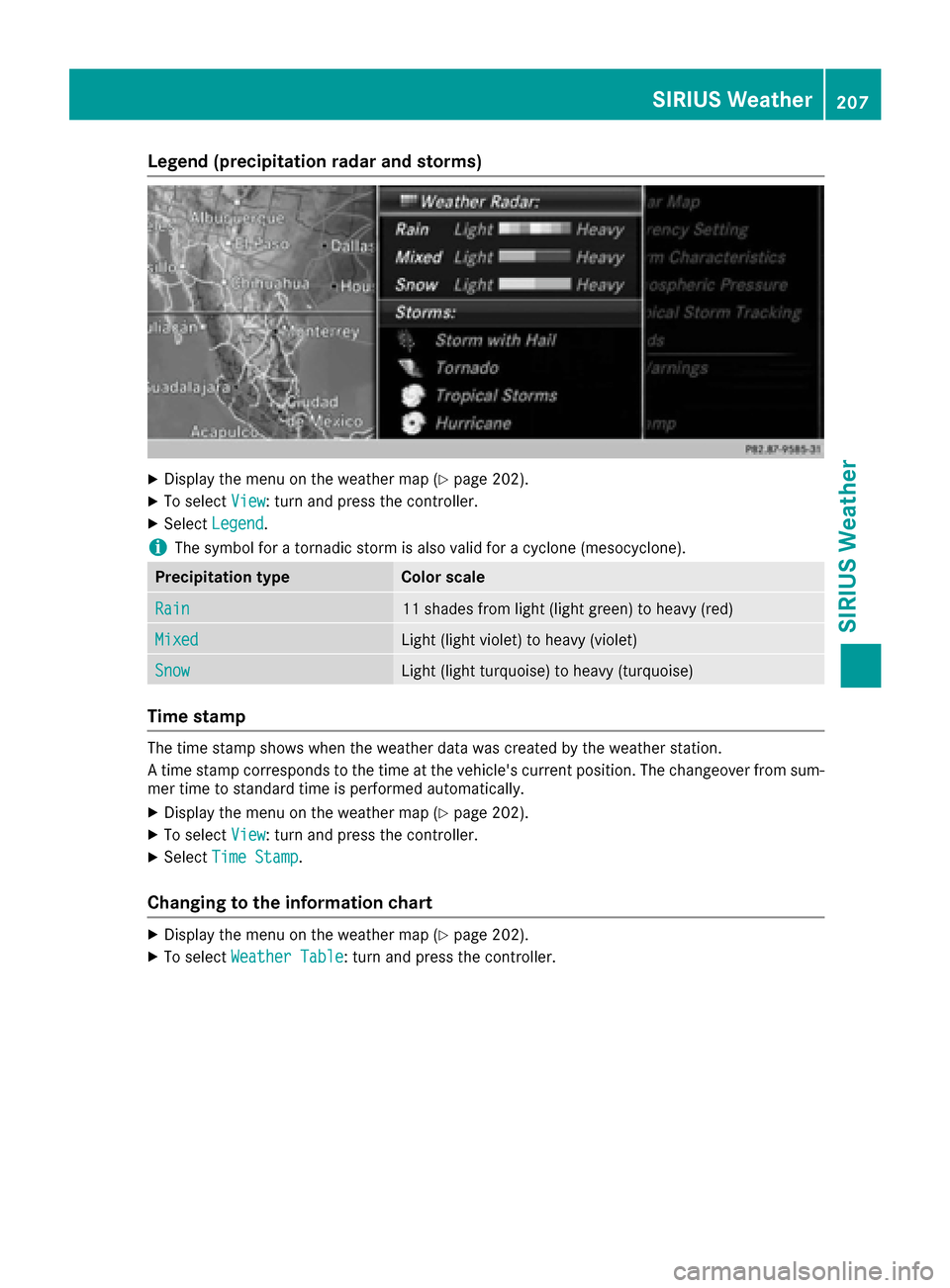
Legend (precipitation radar and storms)
XDisplay the menu on the weather map (Ypage 202).
XTo selectView: turn and press the controller.
XSelectLegend.
iThe symbol for a tornadic storm is also valid for a cyclone (mesocyclone).
Precipitation typeColor scale
Rain11 shades from light (light green) to heavy (red)
MixedLight (light violet) to heavy (violet)
SnowLight (light turquoise) to heavy (turquoise)
Time stamp
The time stamp shows when the weather data was created by the weather station.
A time stamp corresponds to the time at the vehicle's current position. The changeover from sum-
mer time to standard time is performed automatically.
XDisplay the menu on the weather map (Ypage 202).
XTo select View: turn and press the controller.
XSelectTime Stamp.
Changing to the information chart
XDisplay the menu on the weather map (Ypage 202).
XTo select Weather Table: turn and press the controller.
SIRIUS Weather207
SIRIUS Weather
Page 210 of 230
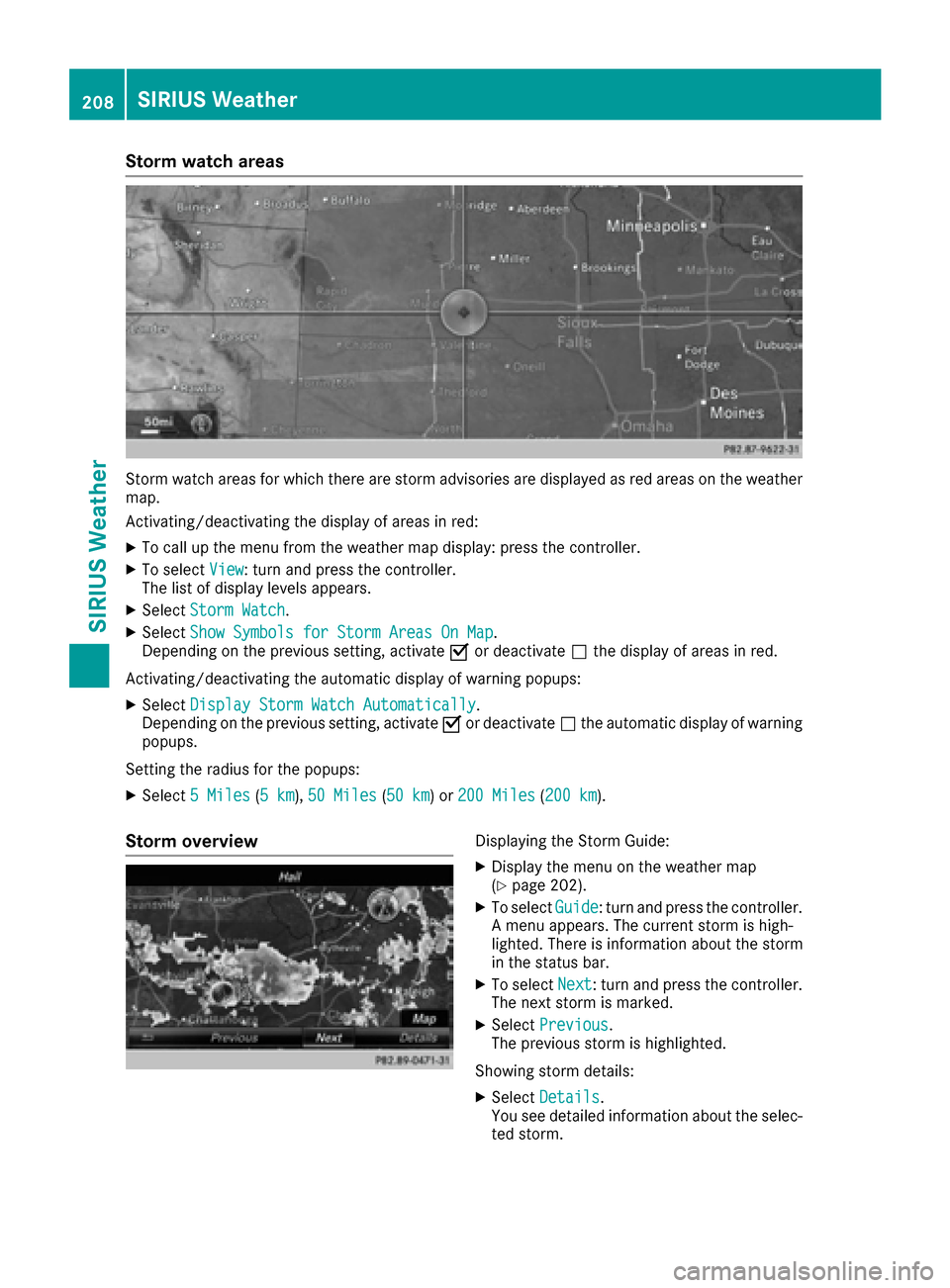
Storm watch areas
Storm watch areas for which there are storm advisories are displayed as red areas on the weather
map.
Activating/deactivating the display of areas in red:
XTo call up the menu from the weather map display: press the controller.
XTo selectView: turn and press the controller.
The list of display levels appears.
XSelect Storm Watch.
XSelectShow Symbols for Storm Areas On Map.
Depending on the previous setting, activate Oor deactivate ªthe display of areas in red.
Activating/deactivating the automatic display of warning popups:
XSelect Display Storm Watch Automatically.
Depending on the previous setting, activate Oor deactivate ªthe automatic display of warning
popups.
Setting the radius for the popups:
XSelect 5 Miles(5 km),50 Miles(50 km) or 200 Miles(200 km).
Storm overviewDisplaying the Storm Guide:
XDisplay the menu on the weather map
(Ypage 202).
XTo select Guide: turn and press the controller.
A menu appears. The current storm is high-
lighted. There is information about the storm
in the status bar.
XTo select Next: turn and press the controller.
The next storm is marked.
XSelect Previous.
The previous storm is highlighted.
Showing storm details:
XSelect Details.
You see detailed information about the selec-
ted storm.
208SIRIUS Weather
SIRIUS Weather
Page 211 of 230
Your multimediasystem equipment
These operating instructions describe all the
standard and optional equipment of your multi-
media system, as available at the time of going
to press. Country-specifi cdifferences are pos-
sible. Bear in mind that your vehicle may not
feature all functions described here. This also
applies to safety-relevant systems andfunc-
tions.
Read the information on qualified specialist
workshop s in the vehicle Operator's Manual.
Rear Seat Entertainment System
overview
Important safety notes
GWARNING
The CD/DVD drive is a class1 laser product.
If you ope nth e housing of the CD/DVD drive,
there is a risk of exposure to invisible laser
radiation. This laser radiation could damage
your retina. There is a risk of injury.
Never open the housing. Always have main-
tenanc e and repair work carried out at a quali-
fied specialist workshop.
GWARNING
If objects such as headphones/headsets or
external audio/video sources are not secured
in the passenger compartment, they can be
flung around and hit vehicle occupants. There
is a risk of injury, fo r example in the event of
sudden braking or a sudden change in direc-
tion .
Always stow these items or similar objects
carefully so that they cannot be flung around,
fo r example in a lockable vehicle stowage
compartment.
Components
The Rear Seat Entertainment System includes:
Rtwoscreens fo rth e rear behind the front-seat
head restraints
Rtw oremot econtrols fo rth e rear compart -
ment
Ra CD/DVD drive in th e rearcompartmen t
RAUXjack s
RtwoUS B ports
Rtwo sets of cordless headphones
General notes
RYou can only adjust the volume forth e head-
phone s supplied, directly on the headphones.
RIf media from differentsources are used,they
can be used separately from each of theoper-
ating positions. Example: a film from theDV D
drive is played on the rear right-hand operat-
ing position. This means that another film
from th e same DVDcanno t be played sepa-
rately on the rear left-hand operating position. However, all other media sources (e.g. radio,
Media Interface ) or the online and Internet
function s can be used.
RIf you use th e same medium on both sides,
you can both carry out the respective set-
tings. The "last one wins" principle applies
here, i.e. the last setting activated is favored.
RThe Internet can be used separately at all
operating positions.
RThe Internet can only be used if it is set up and
connecte d via a telephone(Ypage 142).
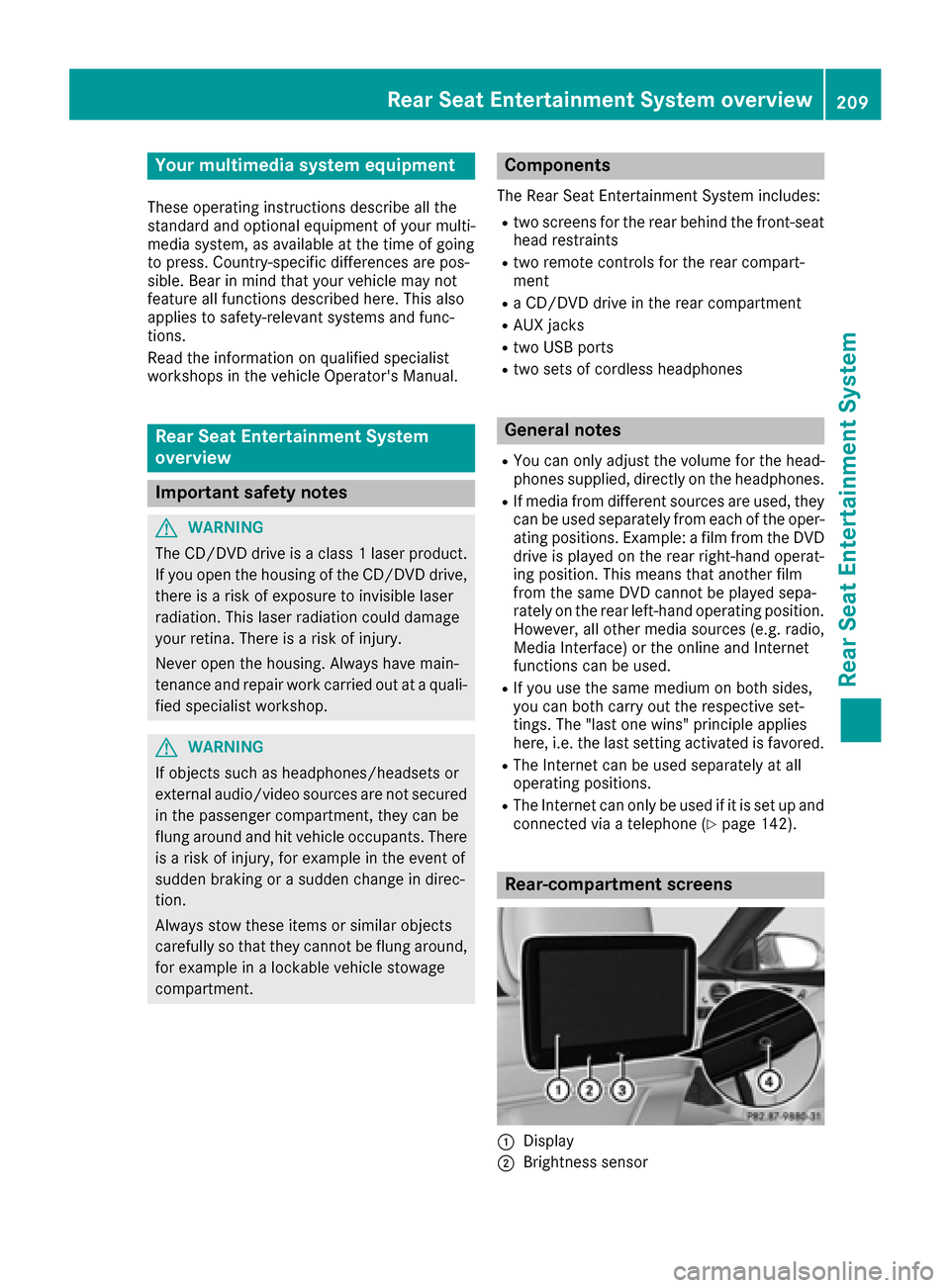
Rear-compartment screens
:Display
;Brightness sensor
Rear Seat Entertainment System overview209
Rear Seat Entertainment System
Z
Page 212 of 230
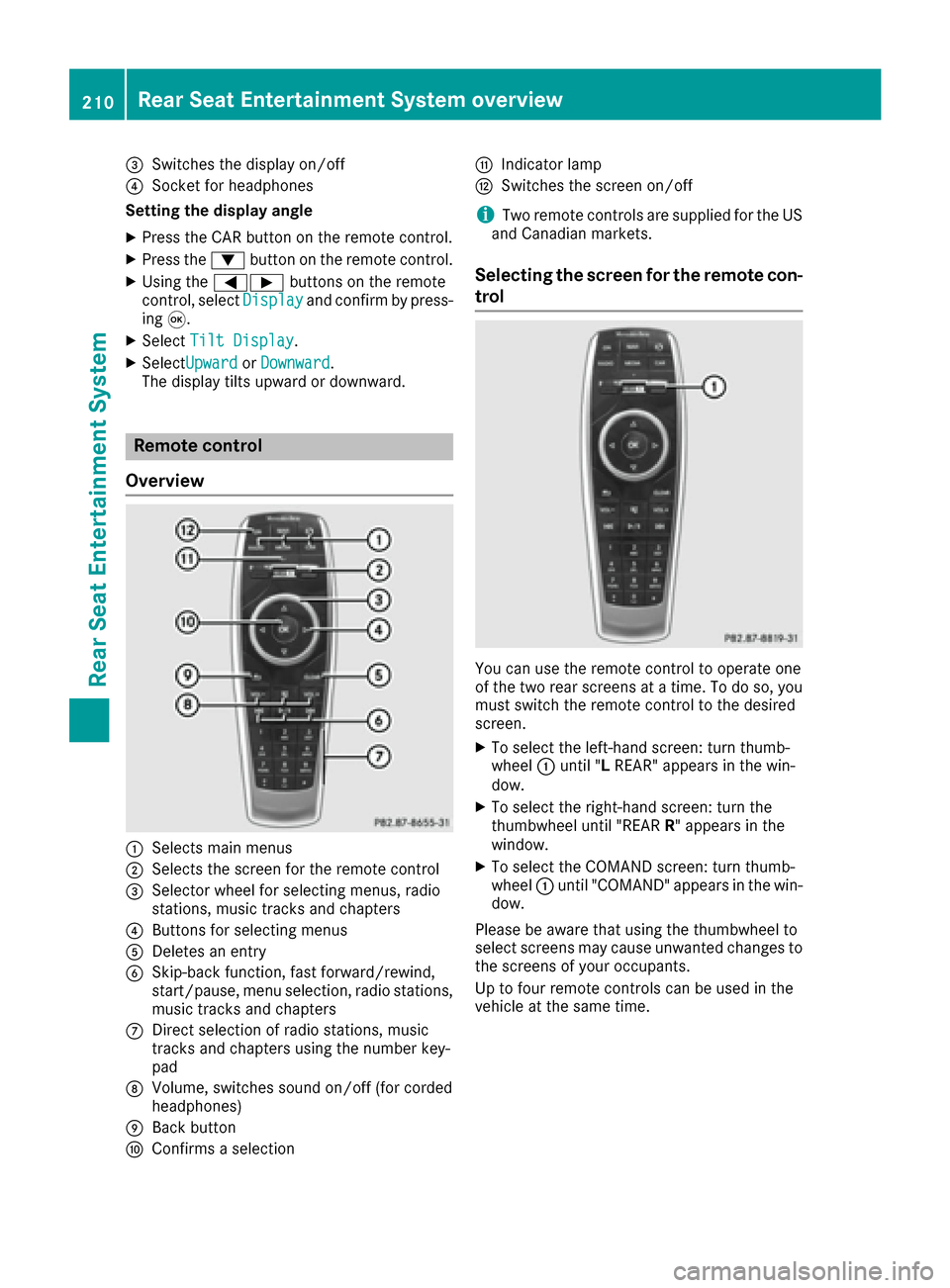
=Switches the display on/off
?Socket for headphones
Setting the display angle
XPress the CAR button on the remote control.
XPress the :button on the remote control.
XUsing the =Ì buttons on the remote
control, select Displayand confirm by press-
ing 9.
XSelect Tilt Display.
XSelectUpwardorDownward.
The display tilts upward or downward.
Remote control
Overview
:Selects main menus
;Selects the screen for the remote control
=Selector wheel for selecting menus, radio
stations, music tracks and chapters
?Buttons for selecting menus
ADeletes an entry
BSkip-back function, fast forward/rewind,
start/pause, menu selection, radio stations,
music tracks and chapters
CDirect selection of radio stations, music
tracks and chapters using the number key-
pad
DVolume, switches sound on/off (for corded
headphones)
EBack button
FConfirms a selection
GIndicator lamp
HSwitches the screen on/off
iTwo remote controls are supplied for the US
and Canadian markets.
Selecting the screen for the remote con-
trol
You can use the remote control to operate one
of the two rear screens at a time. To do so, you
must switch the remote control to the desired
screen.
XTo select the left-hand screen: turn thumb-
wheel :until " LREAR" appears in the win-
dow.
XTo select the right-hand screen: turn the
thumbwheel until "REAR R" appears in the
window.
XTo select the COMAND screen: turn thumb-
wheel :until "COMAND" appears in the win-
dow.
Please be aware that using the thumbwheel to
select screens may cause unwanted changes to
the screens of your occupants.
Up to four remote controls can be used in the
vehicle at the same time.
210Rear Seat Entertainment System overview
Rear Seat Entertainment System
Page 214 of 230
Indicator lamp on the remote control
The color of the indicator lamp shows whether
or notthe entry has been correctly transmitted
every time you press a button. It also shows the
condition of the inserted batteries.
LED dis-
playStatus
Green
(flashes
once)Entr y being transmitted.
The batteries are fine.
Red
(flashes
once)Entr y being transmitted.
The batteries are almost dis-
charged.
Orang e
(flashes
three
times )Entryno tcorrectl ytransmitted.
UnlitThe batteries are discharged.
iThe function of the remote control may be
impaired by other radio-based electronic
devices such as mobile phones or laptops.
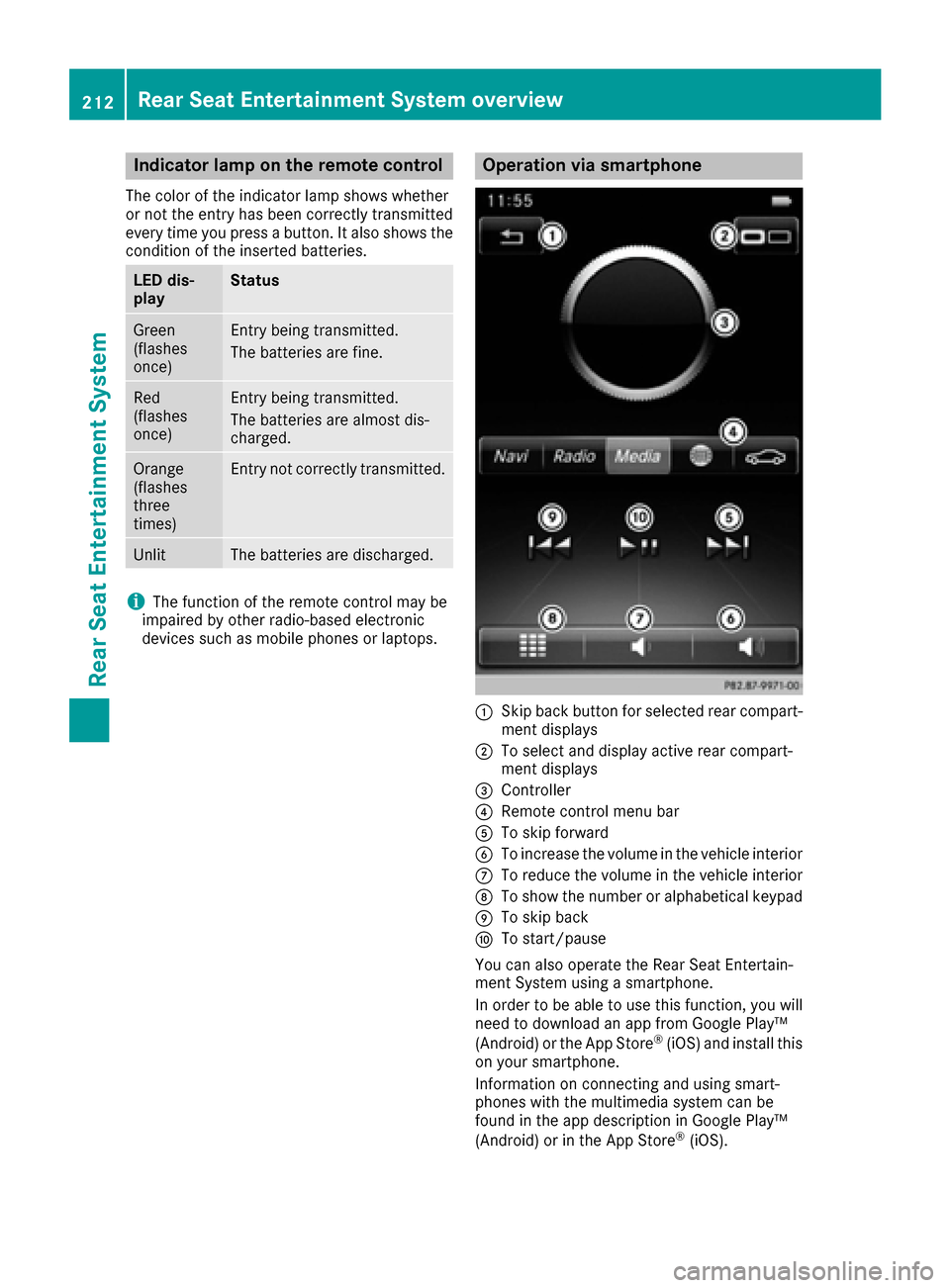
Operation via smartphone
:Skip back button for selected rear compart- ment displays
;To select and display active rear compart-
ment displays
=Controller
?Remote control men u bar
ATo skip forward
BTo increasethe volume in the vehicle interior
CTo reduce the volume in the vehicle interior
DTo show the number or alphabetical keypad
ETo skip back
FTo start/pause
You can also operate the Rear Seat Entertain-
ment System usingasmartphone.
In order to be able to use this function, you will
need to download an app from Google Play™
(Android) or the AppStore
®(iOS) and install this
on your smartphone.
Information on connecting and using smart-
phones with the multimedia system can be
found in the app description in Google Play™
(Android) or in the AppStore
®(iOS).
212Rear Seat Entertainment System overview
Rear Seat Entertainment System
Page 216 of 230
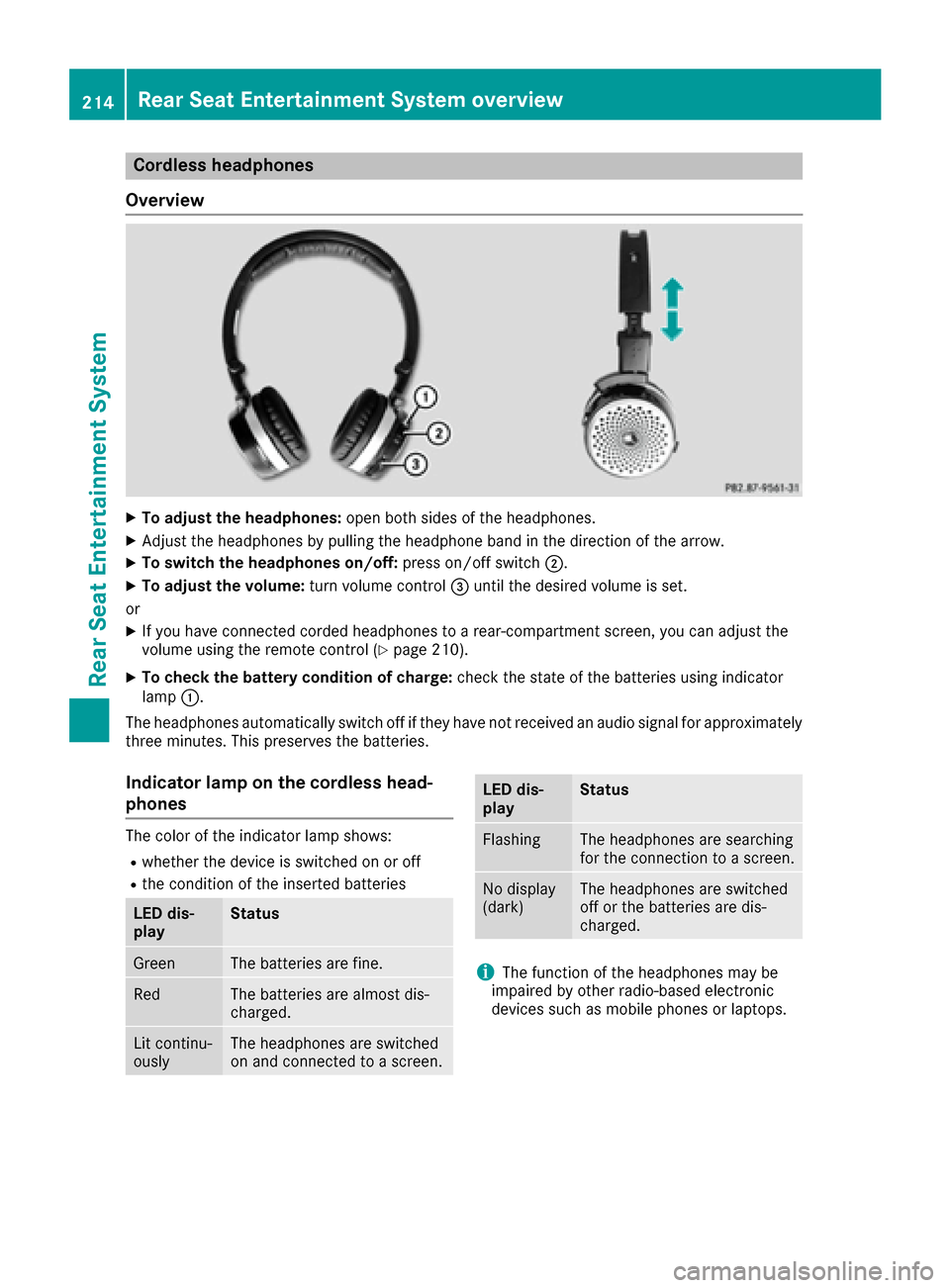
Cordless headphones
Overview
XTo adjust the headphones: open both sides of the headphones.
XAdjust the headphones by pulling the headphone band in the direction of the arrow.
XTo switch the headphones on/off: press on/off switch;.
XTo adjust the volume: turn volume control=until the desired volume is set.
or
XIf you have connected corded headphones to a rear-compartment screen, you can adjust the
volume using the remote control (Ypage 210).
XTo check the battery condition of charge: check the state of the batteries using indicator
lamp :.
The headphones automatically switch off if they have not received an audio signal for approximately
three minutes. This preserves the batteries.
Indicator lamp on the cordless head-
phones
The color of the indicator lamp shows:
Rwhether the device is switched on or off
Rthe condition of the inserted batteries
LED dis-
playStatus
GreenThe batteries are fine.
RedThe batteries are almost dis-
charged.
Lit continu-
ouslyThe headphones are switched
on and connected to a screen.
LED dis-
playStatus
FlashingThe headphones are searching
for the connection to a screen.
No display
(dark)The headphones are switched
off or the batteries are dis-
charged.
iThe function of the headphones may be
impaired by other radio-based electronic
devices such as mobile phones or laptops.
214Rear Seat Entertainment System overview
Rear Seat Entertainment System
Page 218 of 230
The remote control contains two type AAA, 1.5 V
batteries.
XTo open the battery compartment:remove
battery compartment cover =on the back of
the remote control.
XPush catch tab ;down and take off battery
compartment cover =.
XRemove discharged batteries Afrom the
tray.
XInsert the new batteries. Observe the polarity
markings on the batteries and battery com-
partment when doing so.
Left-hand battery: the positive pole (+) must
face upwards.
Right-hand battery: the positive pole (+) must
face downwards.
XTo close the battery compartment: insert
battery compartment cover =starting with
retaining lugs ?into the battery compart-
ment and allow catch tab ;to engage in
place.
Replacing cordless headphone batter-
ies
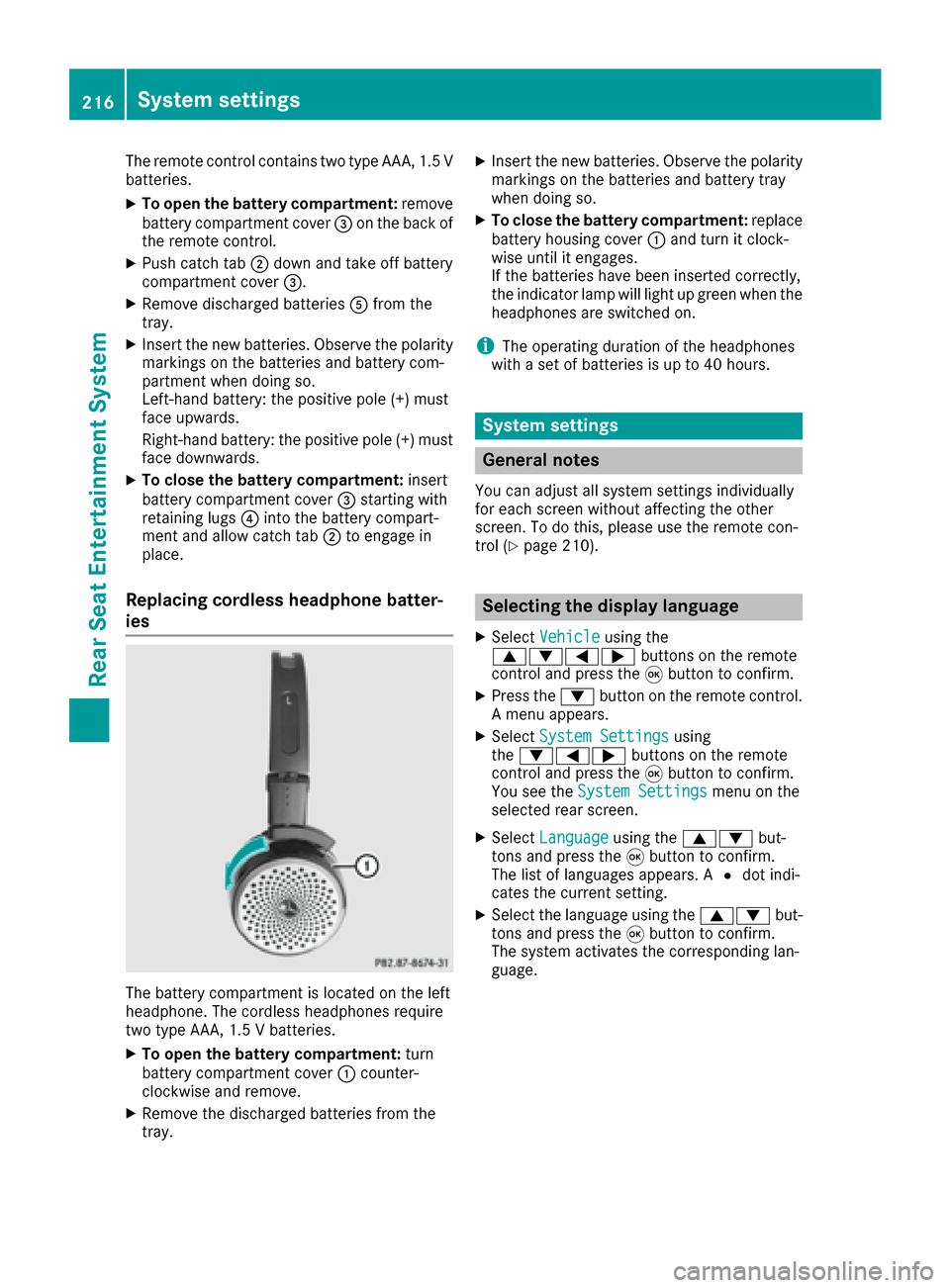
The battery compartment is located on the left
headphone. The cordless headphones require
two type AAA, 1.5 V batteries.
XTo open the battery compartment: turn
battery compartment cover :counter-
clockwise and remove.
XRemove the discharged batteries from the
tray.
XInsert the new batteries. Observe the polarity
markings on the batteries and battery tray
when doing so.
XTo close the battery compartment: replace
battery housing cover :and turn it clock-
wise until it engages.
If the batteries have been inserted correctly,
the indicator lamp will light up green when the
headphones are switched on.
iThe operating duration of the headphones
with a set of batteries is up to 40 hours.
System settings
General notes
You can adjust all system settings individually
for each screen without affecting the other
screen. To do this, please use the remote con-
trol (
Ypage 210).
Selecting the display language
XSelect Vehicleusing the
9:=; buttons on the remote
control and press the 9button to confirm.
XPress the :button on the remote control.
A menu appears.
XSelect System Settingsusing
the :=; buttons on the remote
control and press the 9button to confirm.
You see the System Settings
menu on the
selected rear screen.
XSelect Languageusing the 9: but-
tons and press the 9button to confirm.
The list of languages appears. A #dot indi-
cates the current setting.
XSelect the language using the 9:but-
tons and press the 9button to confirm.
The system activates the corresponding lan-
guage.
216System settings
Rear Seat Entertainment System