ESP MERCEDES-BENZ S-Class MAYBACH 2017 W222 Comand Manual
[x] Cancel search | Manufacturer: MERCEDES-BENZ, Model Year: 2017, Model line: S-Class MAYBACH, Model: MERCEDES-BENZ S-Class MAYBACH 2017 W222Pages: 230, PDF Size: 8.27 MB
Page 66 of 230
XTo selectParentalControl: turn and press
the controller.
The menu to select the side in the rear com-
partment is activated.
XSelect Rear LeftorRear Right.
XTo select Lockto lock/unlock the rear com-
partment displays: slide 9and press the
controller.
The display is locked, a corresponding mes-
sage with &appears on the screen.
Unlock
appears in the display.
Exiting the vehicle settings:
XTo select &: slide 6and press the con-
troller.
iThe volume can still be adjusted if you have
locked the rear compartment display. It can
also be switched on/off using the integrated
switch.
360° camera
General notes
The 360° camera covers the immediate sur-
roundings of the vehicle and assists you, for
instance when parking or at exits with reduced
visibility.
The 360° camera is only an aid. It is not a
replacement for your attention to your immedi-
ate surroundings. You are always responsible
for safe maneuvering and parking. Make sure
that no persons or animals are in the maneu-
vering range.
Further information on the 360°camera can be
found in the vehicle Operator's Manual.
Displaying the 360° camera image
The 360° camera image can be displayed if:
Ryour vehicle is equipped with a 360° camera
Rthe multimedia system is switched on
Rthe 360° Camerafunction is switched on
XPress the Øbutton.
The vehicle menu is displayed.
XSelect 360° Camera.
The 360° camera image appears in split-
screen mode. You will see the previous view on the display if,
when the function is switched on:
Ryou turn the SmartKey to position
1in the
ignition lock
Ryou select transmission position P
Rwhen you are driving at moderate speeds
Manually switching the display
XTo select &: slide 6and press the con-
troller.
Automatically switching the display:
XYou can switch on the 360 camera display
automatically using the reverse gear
(
Ypage 64).
Switching automatic mode of the
360° camera on/off
This function activates the 360° camera when
reverse gear is engaged.
XPress the Øbutton.
or
XPress Vehiclein the main function bar.
The vehicle menu is displayed.
XTo switch to the menu bar: slide 6the con-
troller.
XTo select System Settings: turn and press
the controller.
XSelect 360° Camera.
XSelectActivation by R gear.
The function is switched on Oor off ª,
depending on the previous status.
Opening the camera cover for clean-
ing
XTo select Open Camera Coverin the 360°
camera menu: turn the controller and press to
confirm.
The Please Wait...
message appears for
approximately three seconds.
The camera cover opens.
The camera cover closes automatically if:
Rthe ignition is switched off
Rthe vehicle exceeds a moderate speed
64360° camera
Vehicle functions
Page 67 of 230
Rear view camera
General notes
The rear view camera covers the immediate sur-
roundings of the vehicle and assists you when
parking.
The rear view camera is only an aid. It is not a
replacement for your attention to your immedi-
ate surroundings. You are always responsible
for safe maneuvering and parking. When maneu-
vering or parking, make sure that there are no
persons, animals or objects in the area in whichyou are maneuvering.
You can find further information about the rear
view camera in the vehicle Operator's Manual.
Switching the rear view camera auto-
matic mode on/off
This function activates the rear view camera
when reverse gear is engaged.
XPress the Øbutton.
or
XPress Vehiclein the main function bar.
The vehicle menu is displayed.
XSlide 6the controller.
XTo select System Settings: turn and press
the controller.
XSelect Rear View Camera.
The Rear View Cameramenu appears.
XSelect Activation by R gear.
The function is switched on Oor off ª,
depending on the previous status.
When you start the vehicle and engage
reverse gear, the camera cover opens auto-
matically if the function is activated. The area
behind the vehicle is shown with guide lines in
the display (see the vehicle Operator's Man-
ual).
Object detection
The rear view camera can detect moving and
stationary objects. If, for example, a pedestrian
or another vehicle is detected, these objects are
marked with bars. The system is only able to
detect and mark stationary objects when your
vehicle is moving. By contrast, stationary
objects will always be detected and marked. Switching object detection on/off
XTo select
ObjectDetectionin the rear view
camera menu: turn and press the controller.
The function is switched on Oor off ª,
depending on the previous status.
Opening the camera cover for clean-
ing
XTo select Open Camera Coverin the rear
view camera menu: turn and press the con-
troller.
The Please Wait...
message appears for
approximately three seconds.
The camera cover opens.
The camera cover closes automatically if:
Rthe ignition is switched off
Rthe vehicle pulls away
Rear view camera65
Vehicle functions
Z
Page 68 of 230
Your multimediasystem equipment
These operating instructions describe all the
standard and optional equipment of your multi-
media system, as available at the time of going
to press. Country-specifi cdifferences are pos-
sible. Bear in mind that your vehicle may not
feature all functions described here. This also
applies to safety-relevant systems andfunc-
tions.
Read the information on qualified specialist
workshop s in the vehicle Operator's Manual.
Introduction
Important safety notes
GWARNING
If you operate information systems and com-
munication equipment integrated in the vehi-
cl e while driving, you will be distracted from
traffic conditions. You could also lose control
of th e vehicle. There is a risk of an accident.
Only operate the equipment when the traffic
situation permits. If you are not sure that this
is possible, park the vehicle paying attention
to traffic condition s and operatethe equip-
ment when the vehicle is stationary.
You must observe the legal requirements for the
country in which you are currently driving when
operating the multimedia system.
The multimedia system calculates the routeto
th edestination without taking accoun tof th e
following, for example:
Rtraffic lights
Rstop and yield signs
Rmerging lanes
Rparking or stopping in a no parking/no stop-
ping zone
Rother road and traffic rules and regulations
Rnarrow bridges
The multimedia system can give incorrect navi-
gation commands if the actual street/traffic sit-
uation does notcorrespon d withthe digital
map's data. Digital maps do not cover all areas
no r all routes in an area. For example, a
route
may have been diverted or the direction of a one-
way street may have changed. Fo
rthis reason , you must always observe road
and traffic rules and regulations during your
journey. Road and traffic rules and regulations
always have priority over the system's driving
recommendations.
Navigation announcements are intended to
direct you while driving without diverting your
attention from th e road anddriving.
Please always use this feature instead of con-
sulting the map display for directions. Looking
at the icons or map display can distract you from
traffic conditions and driving, and increase the
risk of an accident.
General notes
Operational readiness of the navigation syste m
The navigation system must determine the posi-
tion of the vehicle before first use or whenever
operational status is restored. Therefore, you
may have to drive fo rawhile before precise
rout e guidance is possible.
GPS reception
Amon g other things, correct functioning of the
navigation system depends on GPS reception. In
certain situations, GPS reception may be
impaired, there may be interference or there
may be no reception at all, e.g. in tunnels or
parking garages.
Using roof carriers may impair th ecorrect func-
tioning of a roof antenna (phone, satellite radio,
GPS).
Entry restriction
In certain countries, dat a entry is restricted if
th e vehicle is traveling at more than approx-
imately 3 mph (5 km/h). The restriction is deac- tivated as soo n as the vehicle speed drops
below about 2 mph (3 km/h).
When the restriction is active, certain entries
canno t be made. This will be indicated by the
fact that certain menu items are grayed out and
canno t be selected.
The following entries are not possible, for exam-
ple:
Rentering thedestination city an d street
Renteringadestination via the map
66Introduction
Navigation
Page 70 of 230
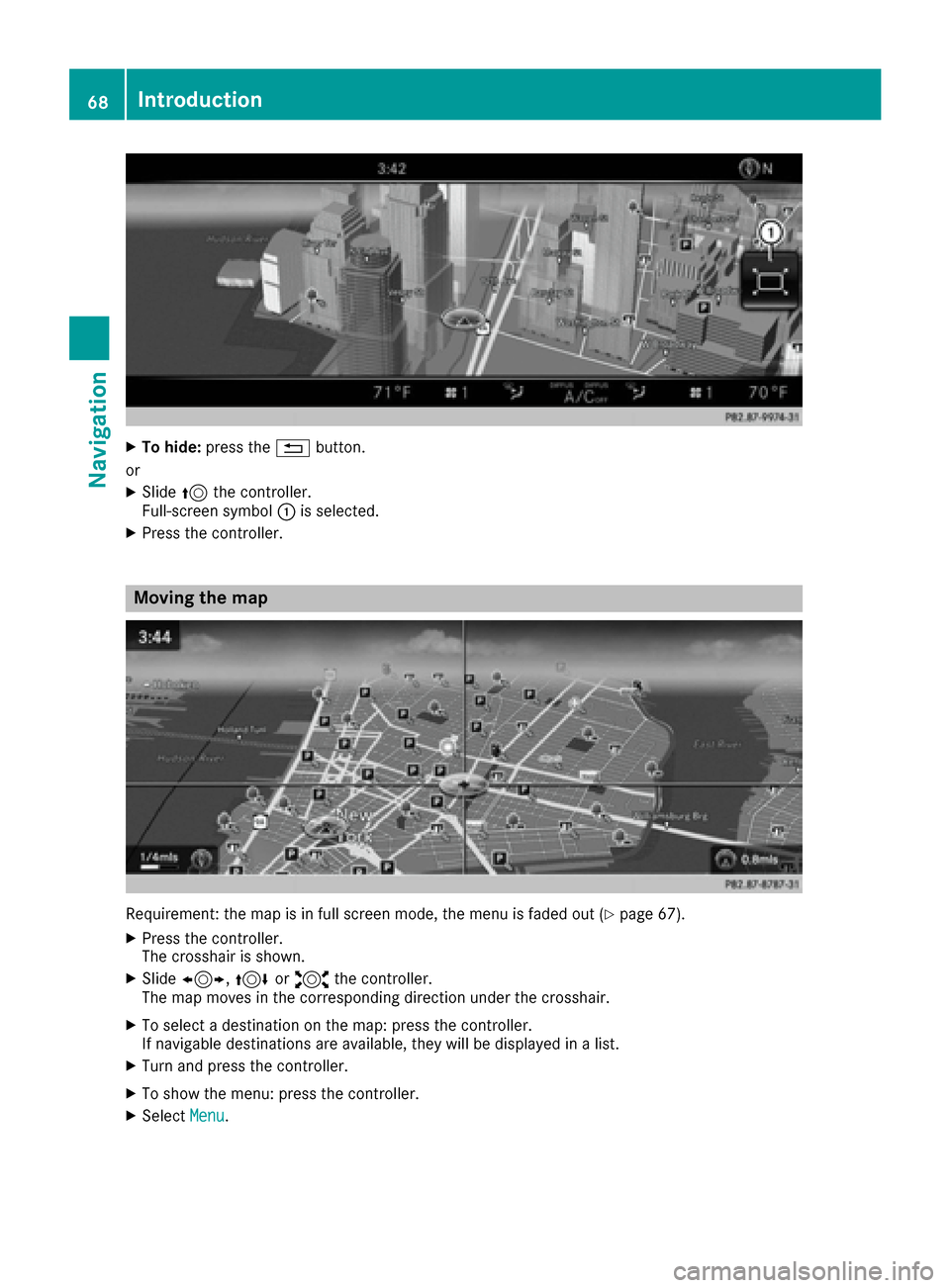
XTo hide:press the %button.
or
XSlide 5the controller.
Full-screen symbol :is selected.
XPress the controller.
Moving the map
Requirement: the map is in full screen mode, the menu is faded out (Ypage 67).
XPress the controller.
The crosshair is shown.
XSlide 1, 4or2 the controller.
The map moves in the corresponding direction under the crosshair.
XTo select a destination on the map: press the controller.
If navigable destinations are available, they will be displayed in a list.
XTurn and press the controller.
XTo show the menu: press the controller.
XSelect Menu.
68Introduction
Navigation
Page 71 of 230
Basic settings
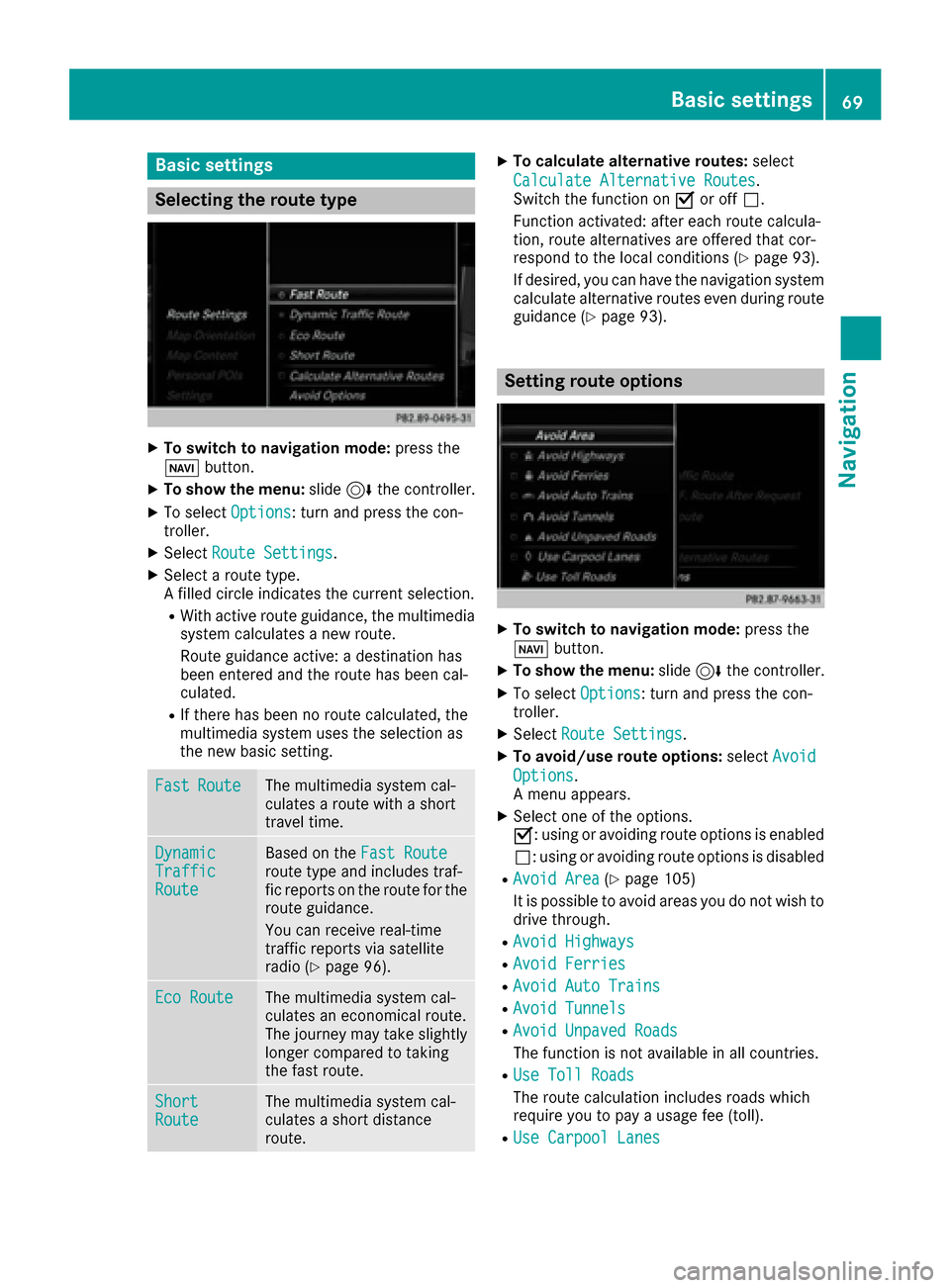
Selecting the route type
XTo switch to navigation mode:press the
Ø button.
XTo show the menu: slide6the controller.
XTo select Options: turn and press the con-
troller.
XSelect Route Settings.
XSelect a route type.
A filled circle indicates the current selection.
RWith active route guidance, the multimedia
system calculates a new route.
Route guidance active: a destination has
been entered and the route has been cal-
culated.
RIf there has been no route calculated, the
multimedia system uses the selection as
the new basic setting.
FastRouteThe multimedia system cal-
culates a route with a short
travel time.
DynamicTrafficRoute
Based on the Fast Routeroute type and includes traf-
fic reports on the route for the
route guidance.
You can receive real-time
traffic reports via satellite
radio (
Ypage 96).
Eco RouteThe multimedia system cal-
culates an economical route.
The journey may take slightly
longer compared to taking
the fast route.
ShortRouteThe multimedia system cal-
culates a short distance
route.
XTo calculate alternative routes: select
Calculate Alternative Routes
.
Switch the function on Oor off ª.
Function activated: after each route calcula-
tion, route alternatives are offered that cor-
respond to the local conditions (
Ypage 93).
If desired, you can have the navigation system calculate alternative routes even during route
guidance (
Ypage 93).
Setting route options
XTo switch to navigation mode: press the
Ø button.
XTo show the menu: slide6the controller.
XTo select Options: turn and press the con-
troller.
XSelect Route Settings.
XTo avoid/use route options: selectAvoid
Options.
A menu appears.
XSelect one of the options.
O: using or avoiding route options is enabled
ª: using or avoiding route options is disabled
RAvoid Area(Ypage 105)
It is possible to avoid areas you do not wish to
drive through.
RAvoid Highways
RAvoid Ferries
RAvoid Auto Trains
RAvoid Tunnels
RAvoid Unpaved Roads
The function is not available in all countries.
RUse Toll Roads
The route calculation includes roads which
require you to pay a usage fee (toll).
RUse Carpool Lanes
Basic settings69
Navigation
Z
Page 85 of 230
XTo selectDestination: turn and press the
controller.
XSelect From Mercedes-Benz Apps.
A list shows the available destinations that
have been transmitted to the vehicle up to
this point.
Using geo-coordinates
XTo switch to navigation mode: press the
ß button.
XTo show the menu: slide6the controller.
XTo select Destination: turn and press the
controller.
XSelect Using Geo-Coordinates.
Geo-coordinates are entered in degrees,
minutes and seconds.
Entering the latitude and longitude coordi-
nates
XTo change the value: turn the controller.
XTo move the selection within the line: slide
1 the controller.
XTo move the selection between lines: slide
4the controller.
XTo confirm the value: press the controller.
Saving a destination
XTo select Save: turn and press the controller.
The destination can be saved:
Ra navigable address book contact
Rto the SD card
Ra home address
Starting route calculation
XTo select Start Route Guidance: turn and
press the controller.
Personal POIs and routes
General notes
The use of personal POIs for displaying traffic
surveillance equipment is not permitted in every country. Please observe the country-specific
regulations and always drive at a suitable speed.
Personal POIs are filed in categories:
RNot Classified
Standard entry for personal POIs
RMercedes-Benz Apps
Personal POIs (destinations, routes) that you
have imported via the online functions.
RCategories which you have created yourself,
e.g. on your PC
Personal routes are not categorized.
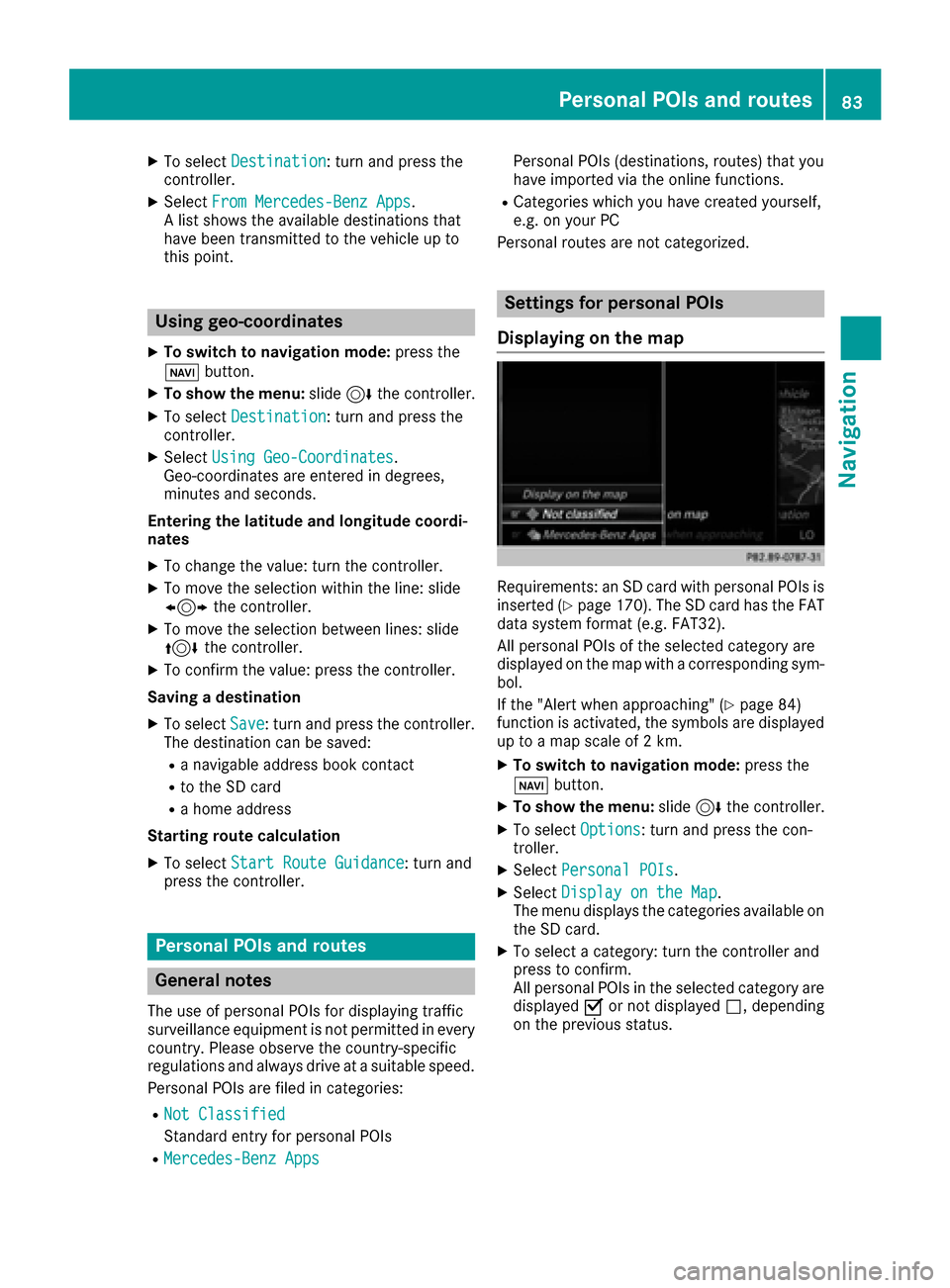
Settings for personal POIs
Displaying on the map
Requirements: an SD card with personal POIs is
inserted (Ypage 170). The SD card has the FAT
data system format (e.g. FAT32).
All personal POIs of the selected category are
displayed on the map with a corresponding sym-
bol.
If the "Alert when approaching" (
Ypage 84)
function is activated, the symbols are displayed up to a map scale of 2 km.
XTo switch to navigation mode: press the
ß button.
XTo show the menu: slide6the controller.
XTo select Options: turn and press the con-
troller.
XSelect Personal POIs.
XSelectDisplay on the Map.
The menu displays the categories available on
the SD card.
XTo select a category: turn the controller and
press to confirm.
All personal POIs in the selected category are
displayed Oor not displayed ª, depending
on the previous status.
Personal POIs and routes83
Navigation
Z
Page 86 of 230
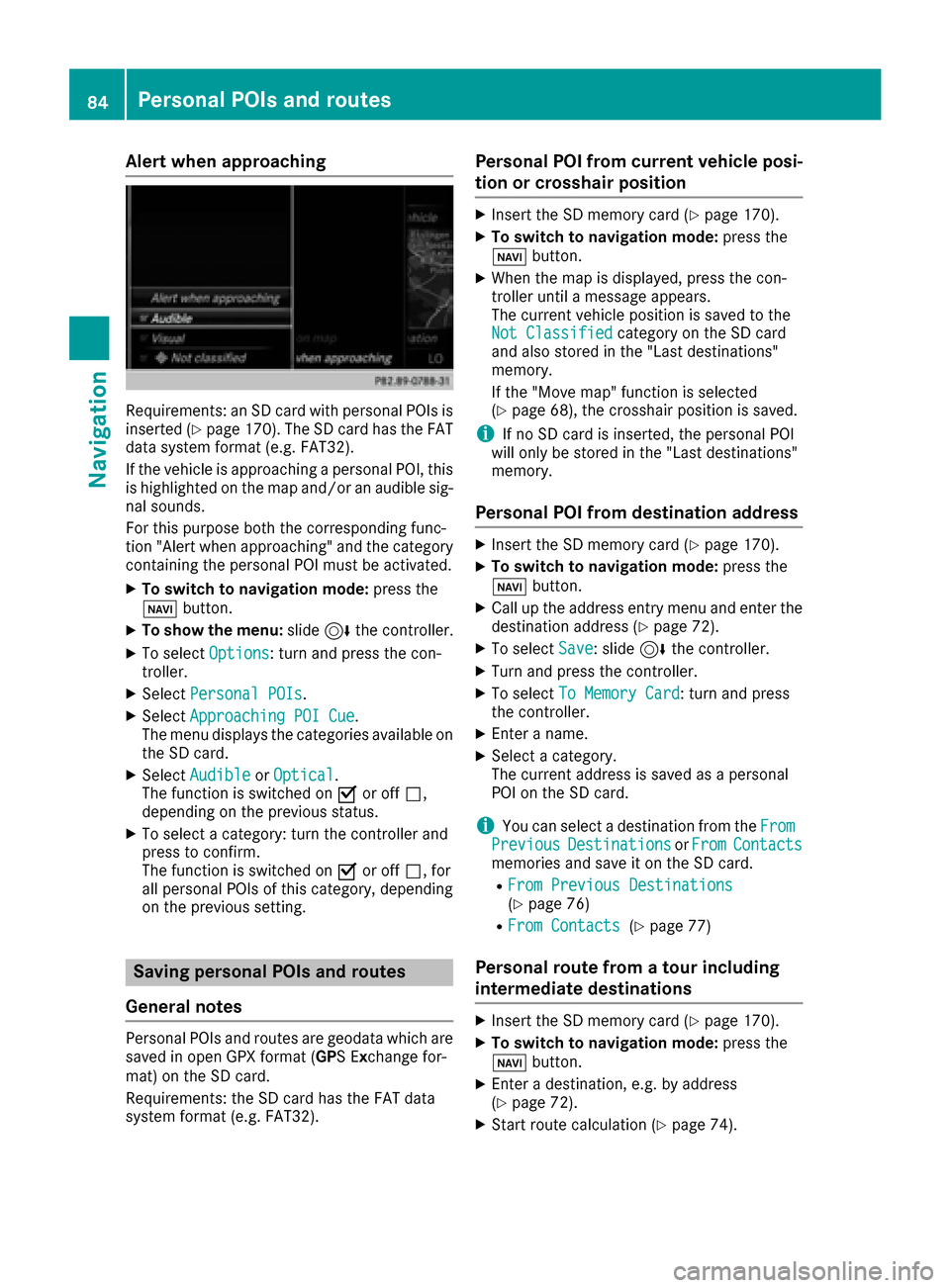
Alert when approaching
Requirements: an SD card with personal POIs is
inserted (Ypage 170). The SD card has theFAT
data system format (e.g. FAT32).
If th e vehicle is approachingapersonal POI, this
is highlighted on the map and/or an audible sig-
nal sounds.
Fo r this purpose both thecorresponding func-
tion "Alert when approaching" and the category
containing the personal POI must be activated.
XTo switch to navigation mode: press the
ß button.
XTo sho wthemenu: slide6thecontroller.
XTo select Options: turnand press th econ-
troller.
XSelect Personal POI s.
XSelectApproaching POI Cue.
The menu displays the categories available on
th e SD card.
XSelect Audibl eorOptica l.
The function is switched on Oor off ª,
depending on the previous status.
XTo select a category: turn the controller and
press to confirm .
The function is switched on Oor off ª, for
all personal POIs of this category, depending
on the previous setting .
Saving personal POIs and routes
Gene ral notes
Personal POIs and routes are geodata which are
saved in open GPX format ( GPSE xchange for-
mat) on the SD card.
Requirements: the SD card has the FAT data
system format (e.g. FAT32).
Personal POI from current vehicle posi-
ti on or crosshair position
XInser tth eSD memory car d(Ypage 170).
XTo switch to navigation mode: press the
ß button.
XWhen the map is displayed, press the con-
troller until a message appears.
The current vehicle position is saved to the
Not Classifie d
category on the SD card
and also stored in the "Last destinations"
memory.
If th e "Move map" function is selected
(
Ypage 68), the crosshair position is saved.
iIf no SD car d is inserted, the personal POI
will only be stored in the "Last destinations"
memory.
Personal POI from destination address
XInser tth eSD memory car d(Ypage 170).
XTo switch to navigation mode: press the
ß button.
XCall up the address entry menu and enter the
destination address (Ypage 72).
XTo select Save: slide 6thecontroller.
XTurn and press th econtroller.
XTo select To Memory Car d: turnand press
th econtroller.
XEnte raname.
XSelectacategory.
The current address is saved as a personal
POI on the SD card.
iYou can select a destination from the FromPreviousDestinationsorFro mContactsmemories and save it on the SD card.
RFromPrevious Destinations(Ypage 76)
RFro mContacts(Ypage 77)
Personal rou te from a tour including
intermediate destinations
XInser tth eSD memory car d(Ypage 170).
XTo switch to navigation mode: press the
ß button.
XEnteradestination, e.g. by address
(Ypage 72).
XStart route calculation (Ypage 74).
84Personal POIs and routes
Navigation
Page 89 of 230
Rroad narrowing
Rtemporary traffic rules and regulations
The navigation system can give differing driving
recommendations if the actual street/traffic sit-
uation does not correspond with the digital
map's data. For example, if the road layout or
the direction of a one-way street has been
changed.
For this reason, you must always observe road
and traffic rules and regulations during your
journey. Road and traffic rules and regulations
always have priority over system driving recom-
mendations.
Route guidance begins once a route has been
calculated (
Ypage 74).
The navigation system guides you to your des-
tination by means of driving recommendations
in the form of audible navigation announce-
ments and route guidance displays. The route guidance displays can be seen if nav-
igation mode is switched on.
If you do not follow the navigation announce-
ments or if you leave the calculated route, the
navigation system automatically calculates a
new route to the destination.
If the digital map contains the corresponding
information, the following applies:
RDuring route guidance, the navigation system
tries to avoid roads with restricted access.
Those roads, for example, that are closed to
through-traffic.
RRoads that have time restrictions (e.g. closed
on Sundays and public holidays) are consid-
ered for route guidance on days when they are
open. For this purpose, the relevant times
must be correctly stored in the database.
Displays during route guidance
Change of direction
Changes of direction have three phases:
RPreparation phase
RAnnouncement phase
RChange-of-direction phase
Changes in direction are also shown in the multifunction display (see the vehicle Operator's Man-
ual).
Preparation phase: the navigation system prepares you for the upcoming change of direction.
Based on the example display below, the change of direction is announced by the "Prepare to turn
right message", for instance. You see the full-screen map.
Announcement phase: the navigation system announces the imminent change of direction. The
change of direction is announced ahead of time, such as with the announcement "Turn right in
0.5 miles".
The display is now split into two sectors. The map is shown on the left side of the display, and a
detailed image of the intersection or a 3D image of the imminent change of direction is shown on
the right side of the display.
Route guidance87
Navigation
Z
Page 96 of 230
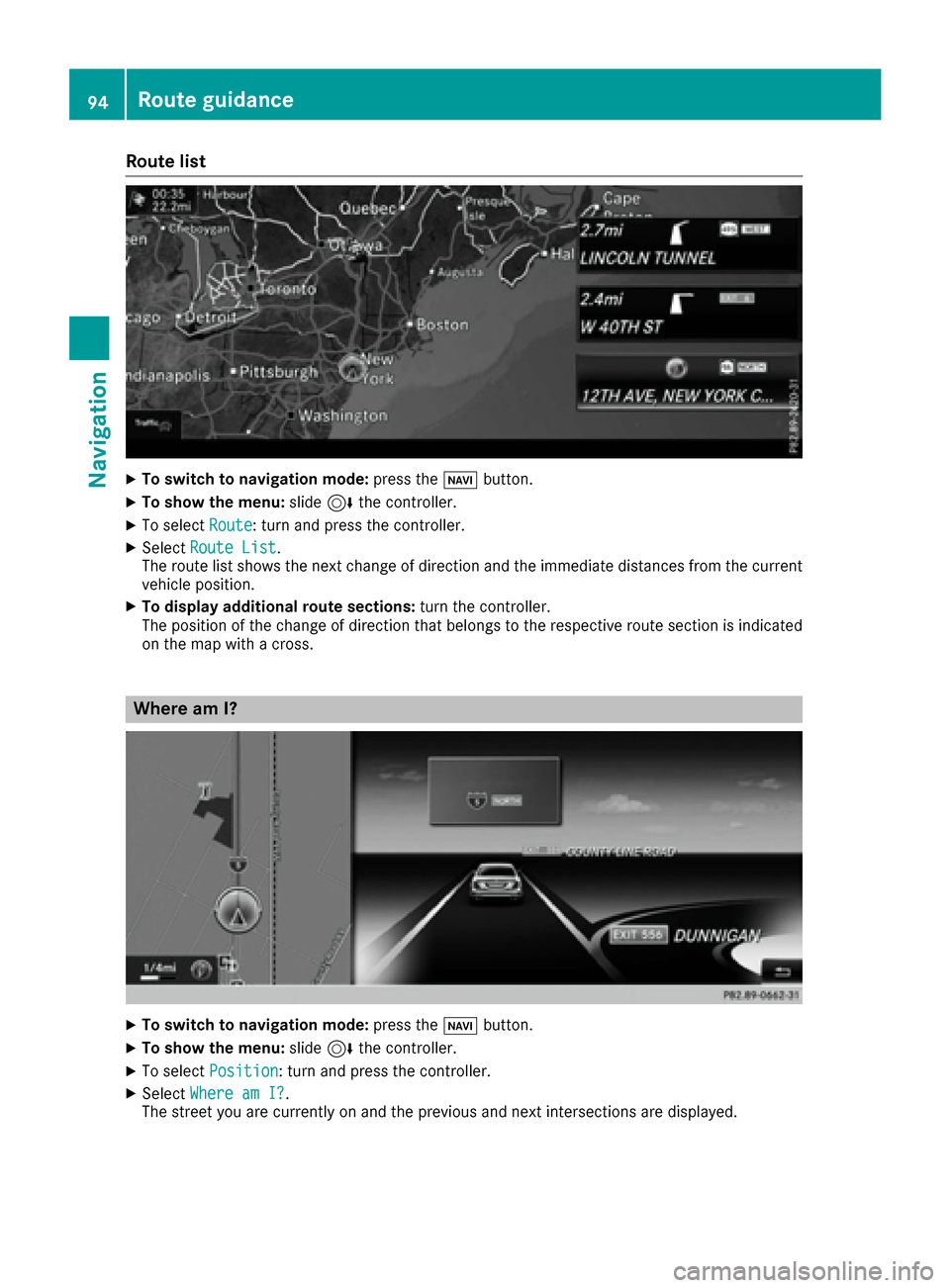
Route list
XTo switch to navigation mode:press theØbutton.
XTo show the menu: slide6the controller.
XTo select Route: turn and press the controller.
XSelectRoute List.
The route list shows the next change of direction and the immediate distances from the current
vehicle position.
XTo display additional route sections: turn the controller.
The position of the change of direction that belongs to the respective route section is indicated
on the map with a cross.
Where am I?
XTo switch to navigation mode: press theØbutton.
XTo show the menu: slide6the controller.
XTo select Position: turn and press the controller.
XSelectWhere am I?.
The street you are currently on and the previous and next intersections are displayed.
94Route guidance
Navigation
Page 97 of 230
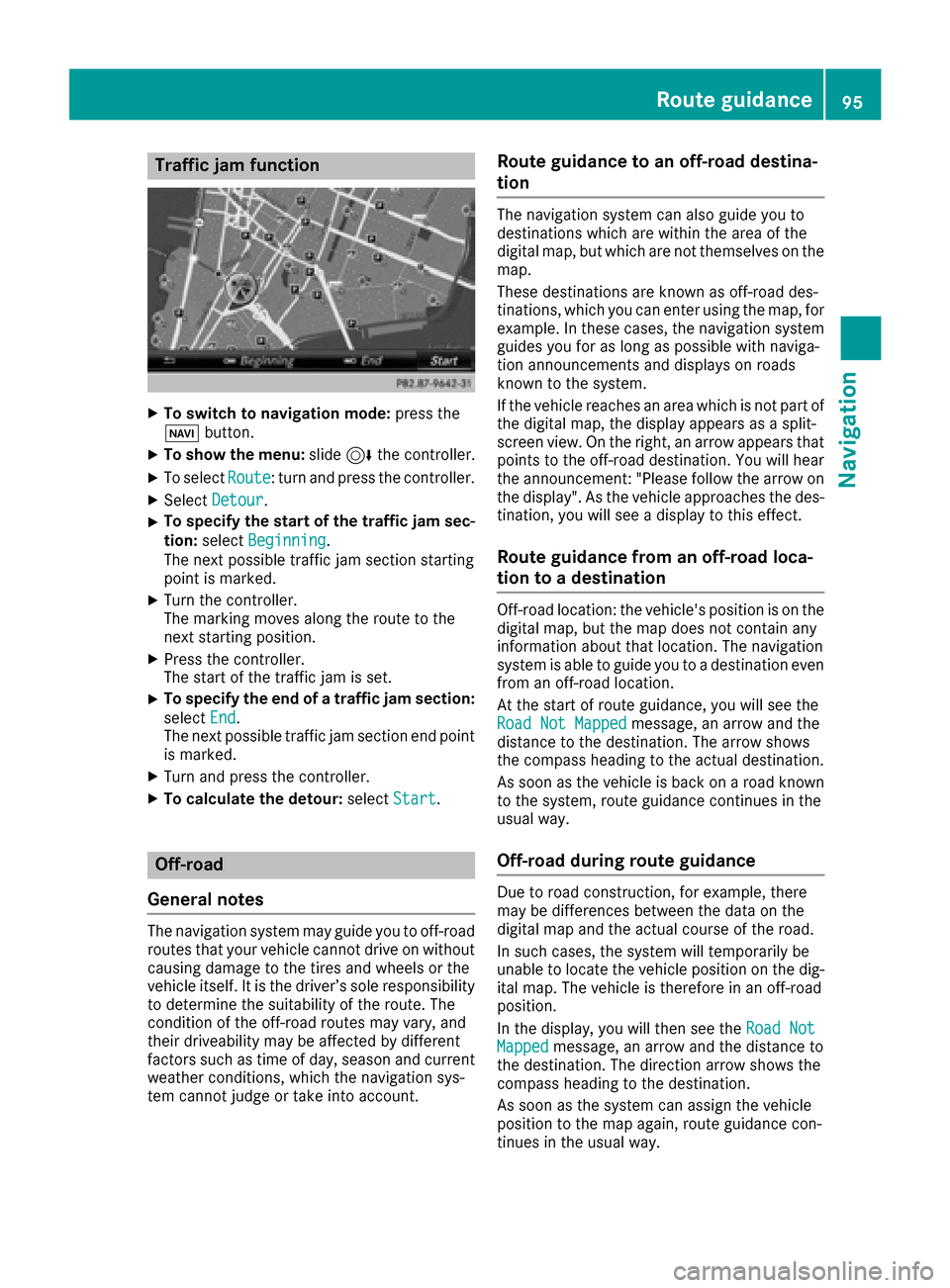
Traffic jam function
XTo switch to navigation mode:press the
Ø button.
XTo show the menu: slide6the controller.
XTo select Route: turn and press the controller.
XSelectDetour.
XTo specify the start of the traffic jam sec-
tion: select Beginning
.
The next possible traffic jam section starting
point is marked.
XTurn the controller.
The marking moves along the route to the
next starting position.
XPress the controller.
The start of the traffic jam is set.
XTo specify the end of a traffic jam section:
select End
.
The next possible traffic jam section end point
is marked.
XTurn and press the controller.
XTo calculate the detour: selectStart.
Off-road
General notes
The navigation system may guide you to off-road
routes that your vehicle cannot drive on without
causing damage to the tires and wheels or the
vehicle itself. It is the driver’s sole responsibility to determine the suitability of the route. The
condition of the off-road routes may vary, and
their driveability may be affected by different
factors such as time of day, season and current
weather conditions, which the navigation sys-
tem cannot judge or take into account.
Route guidance to an off-road destina-
tion
The navigation system can also guide you to
destinations which are within the area of the
digital map, but which are not themselves on the
map.
These destinations are known as off-road des-
tinations, which you can enter using the map, for
example. In these cases, the navigation system
guides you for as long as possible with naviga-
tion announcements and displays on roads
known to the system.
If the vehicle reaches an area which is not part of the digital map, the display appears as a split-
screen view. On the right, an arrow appears that
points to the off-road destination. You will hear
the announcement: "Please follow the arrow on
the display". As the vehicle approaches the des- tination, you will see a display to this effect.
Route guidance from an off-road loca-
tion to a destination
Off-road location: the vehicle's position is on the
digital map, but the map does not contain any
information about that location. The navigation
system is able to guide you to a destination even
from an off-road location.
At the start of route guidance, you will see the
Road Not Mapped
message, an arrow and the
distance to the destination. The arrow shows
the compass heading to the actual destination.
As soon as the vehicle is back on a road known
to the system, route guidance continues in the
usual way.
Off-road during route guidance
Due to road construction, for example, there
may be differences between the data on the
digital map and the actual course of the road.
In such cases, the system will temporarily be
unable to locate the vehicle position on the dig-
ital map. The vehicle is therefore in an off-road
position.
In the display, you will then see the Road Not
Mappedmessage, an arrow and the distance to
the destination. The direction arrow shows the
compass heading to the destination.
As soon as the system can assign the vehicle
position to the map again, route guidance con-
tinues in the usual way.
Route guidance95
Navigation
Z