ESP MERCEDES-BENZ S-Class MAYBACH 2017 W222 Comand Manual
[x] Cancel search | Manufacturer: MERCEDES-BENZ, Model Year: 2017, Model line: S-Class MAYBACH, Model: MERCEDES-BENZ S-Class MAYBACH 2017 W222Pages: 230, PDF Size: 8.27 MB
Page 197 of 230
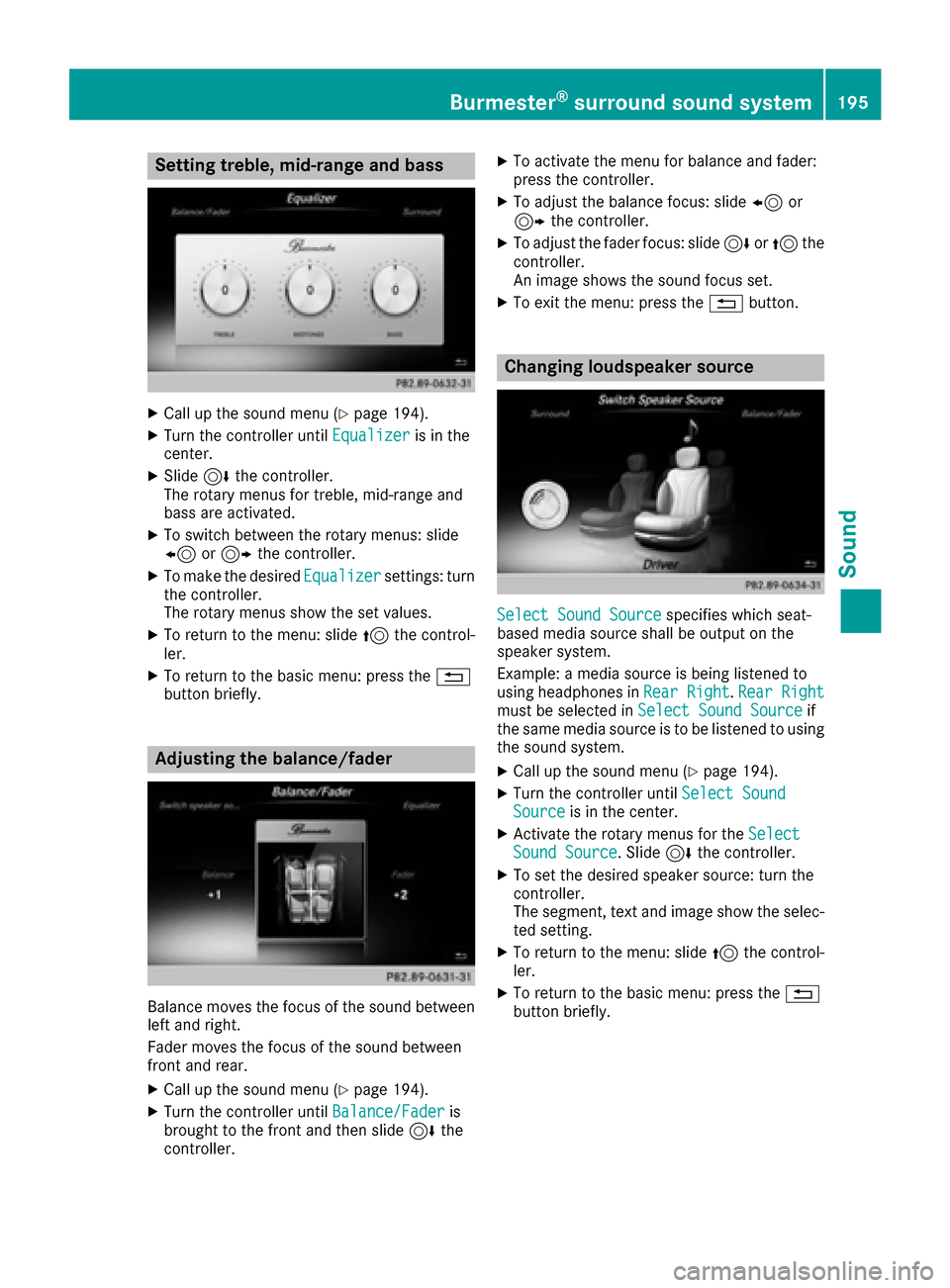
Setting treble, mid-range and bass
XCall up the sound menu (Ypage 194).
XTurn the controller untilEqualizeris in the
center.
XSlide 6the controller.
The rotary menus for treble, mid-range and
bass are activated.
XTo switch between the rotary menus: slide
8 or9 the controller.
XTo make the desired Equalizersettings: turn
the controller.
The rotary menus show the set values.
XTo return to the menu: slide 5the control-
ler.
XTo return to the basic menu: press the %
button briefly.
Adjusting the balance/fader
Balance moves the focus of the sound between
left and right.
Fader moves the focus of the sound between
front and rear.
XCall up the sound menu (Ypage 194).
XTurn the controller until Balance/Faderis
brought to the front and then slide 6the
controller.
XTo activate the menu for balance and fader:
press the controller.
XTo adjust the balance focus: slide 8or
9 the controller.
XTo adjust the fader focus: slide 6or5 the
controller.
An image shows the sound focus set.
XTo exit the menu: press the %button.
Changing loudspeaker source
Select Sound Sourcespecifies which seat-
based media source shall be output on the
speaker system.
Example: a media source is being listened to
using headphones in Rear Right
.Rear Rightmust be selected in Select Sound Sourceif
the same media source is to be listened to using
the sound system.
XCall up the sound menu (Ypage 194).
XTurn the controller until Select SoundSourceis in the center.
XActivate the rotary menus for the SelectSound Source. Slide6the controller.
XTo set the desired speaker source: turn the
controller.
The segment, text and image show the selec-
ted setting.
XTo return to the menu: slide 5the control-
ler.
XTo return to the basic menu: press the %
button briefly.
Burmester®surround sound system195
Sound
Page 198 of 230
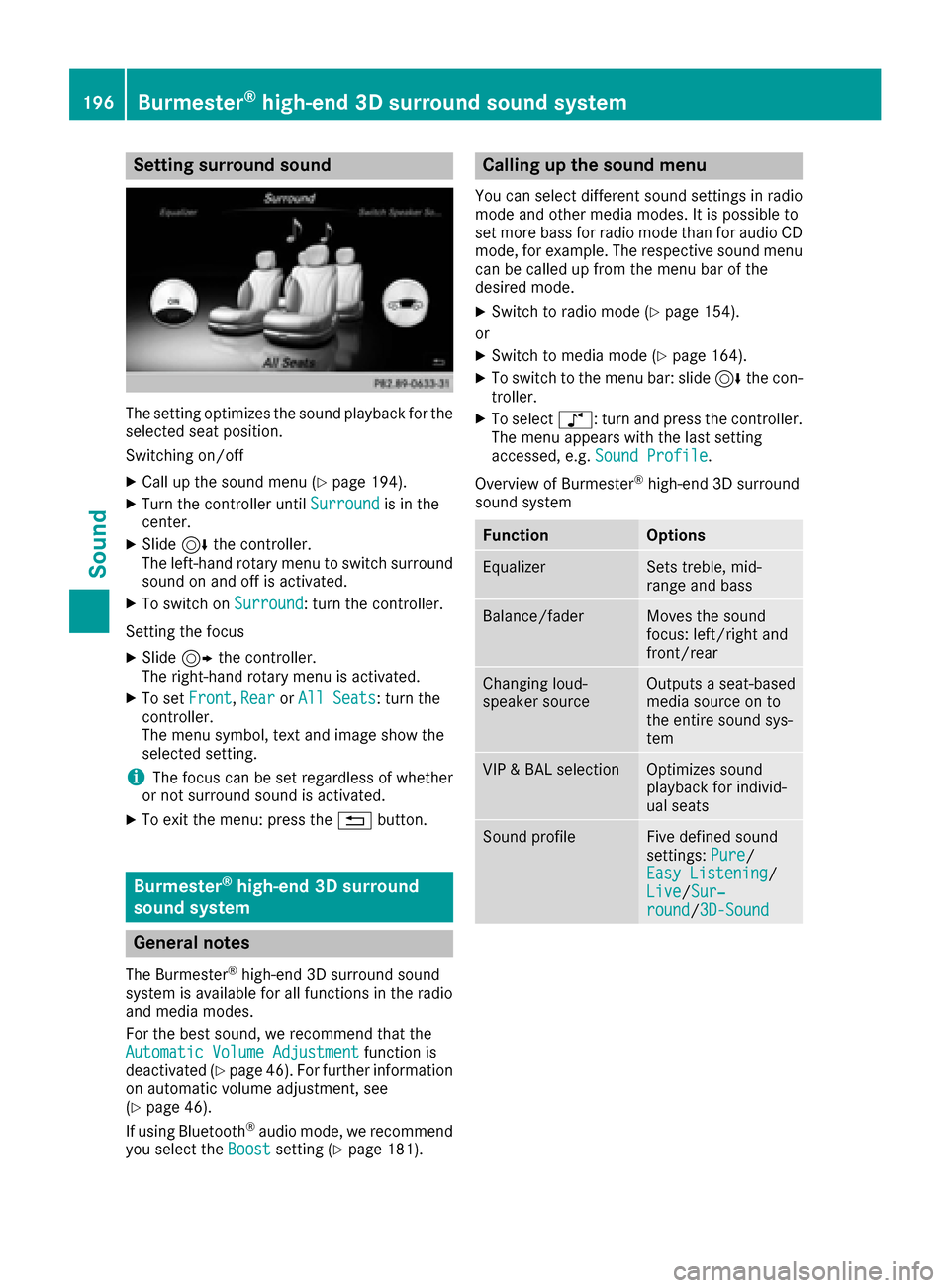
Setting surround sound
The setting optimizes the sound playback for the
selected seat position.
Switching on/off
XCall up the sound menu (Ypage 194).
XTurn the controller untilSurroundis in the
center.
XSlide 6the controller.
The left-hand rotary menu to switch surround
sound on and off is activated.
XTo switch on Surround: turn the controller.
Setting the focus
XSlide 9the controller.
The right-hand rotary menu is activated.
XTo set Front,Rearor All Seats: turn the
controller.
The menu symbol, text and image show the
selected setting.
iThe focus can be set regardless of whether
or not surround sound is activated.
XTo exit the menu: press the %button.
Burmester®high-end 3D surround
sound system
General notes
The Burmester®high-end 3D surround sound
system is available for all functions in the radio
and media modes.
For the best sound, we recommend that the
Automatic Volume Adjustment
function is
deactivated (Ypage 46). For further information
on automatic volume adjustment, see
(
Ypage 46).
If using Bluetooth®audio mode, we recommend
you select the Boostsetting (Ypage 181).
Calling up the sound menu
You can select different sound settings in radio
mode and other media modes. It is possible to
set more bass for radio mode than for audio CD
mode, for example. The respective sound menu
can be called up from the menu bar of the
desired mode.
XSwitch to radio mode (Ypage 154).
or
XSwitch to media mode (Ypage 164).
XTo switch to the menu bar: slide 6the con-
troller.
XTo select à: turn and press the controller.
The menu appears with the last setting
accessed, e.g. Sound Profile
.
Overview of Burmester
®high-end 3D surround
sound system
FunctionOptions
EqualizerSets treble, mid-
range and bass
Balance/faderMoves the sound
focus: left/right and
front/rear
Changing loud-
speaker sourceOutputs a seat-based
media source on to
the entire sound sys-
tem
VIP & BAL selectionOptimizes sound
playback for individ-
ual seats
Sound profileFive defined sound
settings: Pure/
Easy Listening/
Live/Sur‐round/3D-Sound
196Burmester®high-end 3D surround sound system
Sound
Page 199 of 230
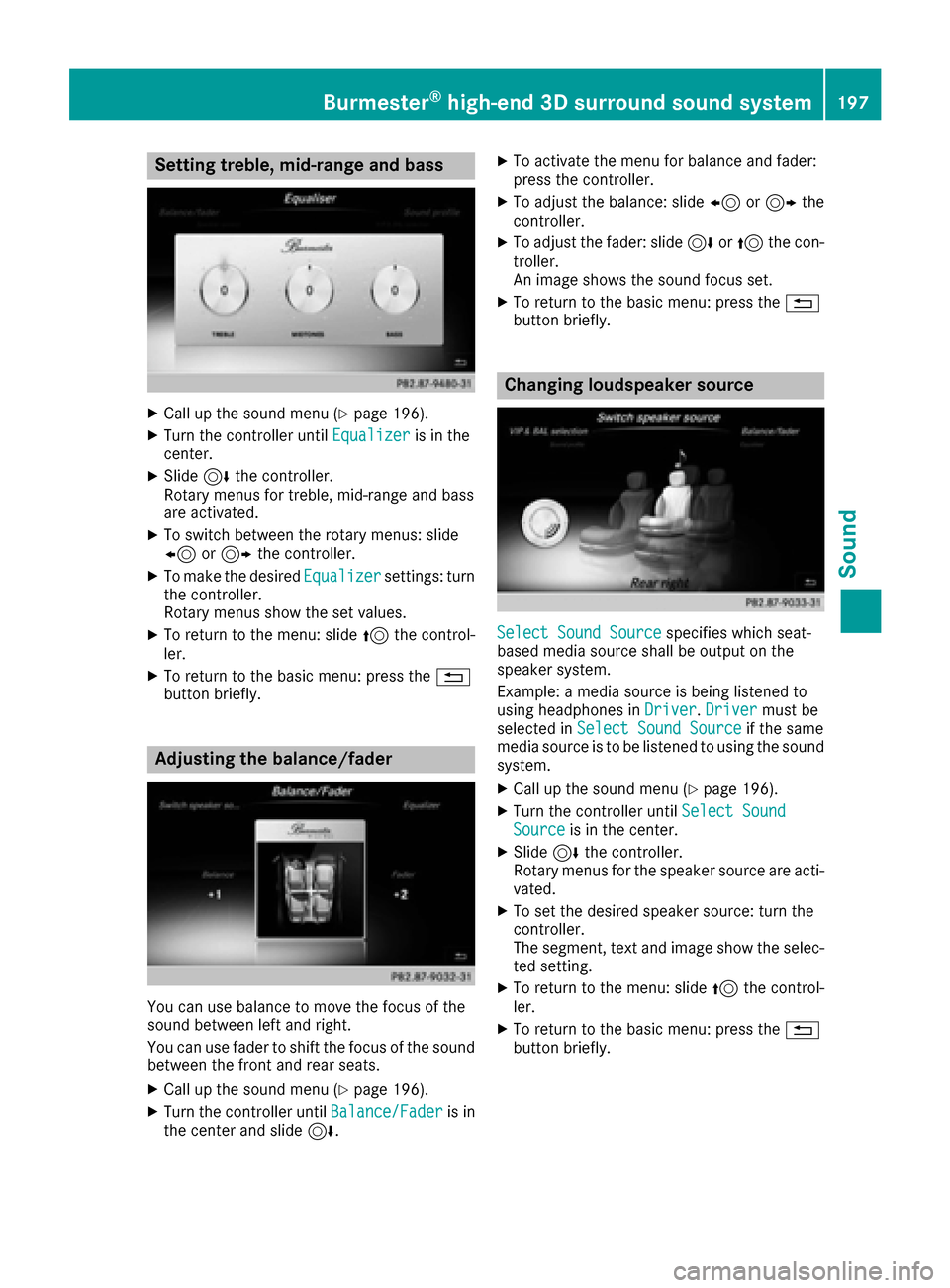
Setting treble, mid-range and bass
XCall up the sound menu (Ypage 196).
XTurn the controller untilEqualizeris in the
center.
XSlide 6the controller.
Rotary menus for treble, mid-range and bass
are activated.
XTo switch between the rotary menus: slide
8 or9 the controller.
XTo make the desired Equalizersettings: turn
the controller.
Rotary menus show the set values.
XTo return to the menu: slide 5the control-
ler.
XTo return to the basic menu: press the %
button briefly.
Adjusting the balance/fader
You can use balance to move the focus of the
sound between left and right.
You can use fader to shift the focus of the sound
between the front and rear seats.
XCall up the sound menu (Ypage 196).
XTurn the controller until Balance/Faderis in
the center and slide 6.
XTo activate the menu for balance and fader:
press the controller.
XTo adjust the balance: slide 8or9 the
controller.
XTo adjust the fader: slide 6or5 the con-
troller.
An image shows the sound focus set.
XTo return to the basic menu: press the %
button briefly.
Changing loudspeaker source
Select Sound Sourcespecifies which seat-
based media source shall be output on the
speaker system.
Example: a media source is being listened to
using headphones in Driver
.Drivermust be
selected in Select Sound Sourceif the same
media source is to be listened to using the sound
system.
XCall up the sound menu (Ypage 196).
XTurn the controller until Select SoundSourceis in the center.
XSlide6the controller.
Rotary menus for the speaker source are acti-
vated.
XTo set the desired speaker source: turn the
controller.
The segment, text and image show the selec-
ted setting.
XTo return to the menu: slide 5the control-
ler.
XTo return to the basic menu: press the %
button briefly.
Burmester®high-end 3D surround sound system197
Sound
Page 200 of 230
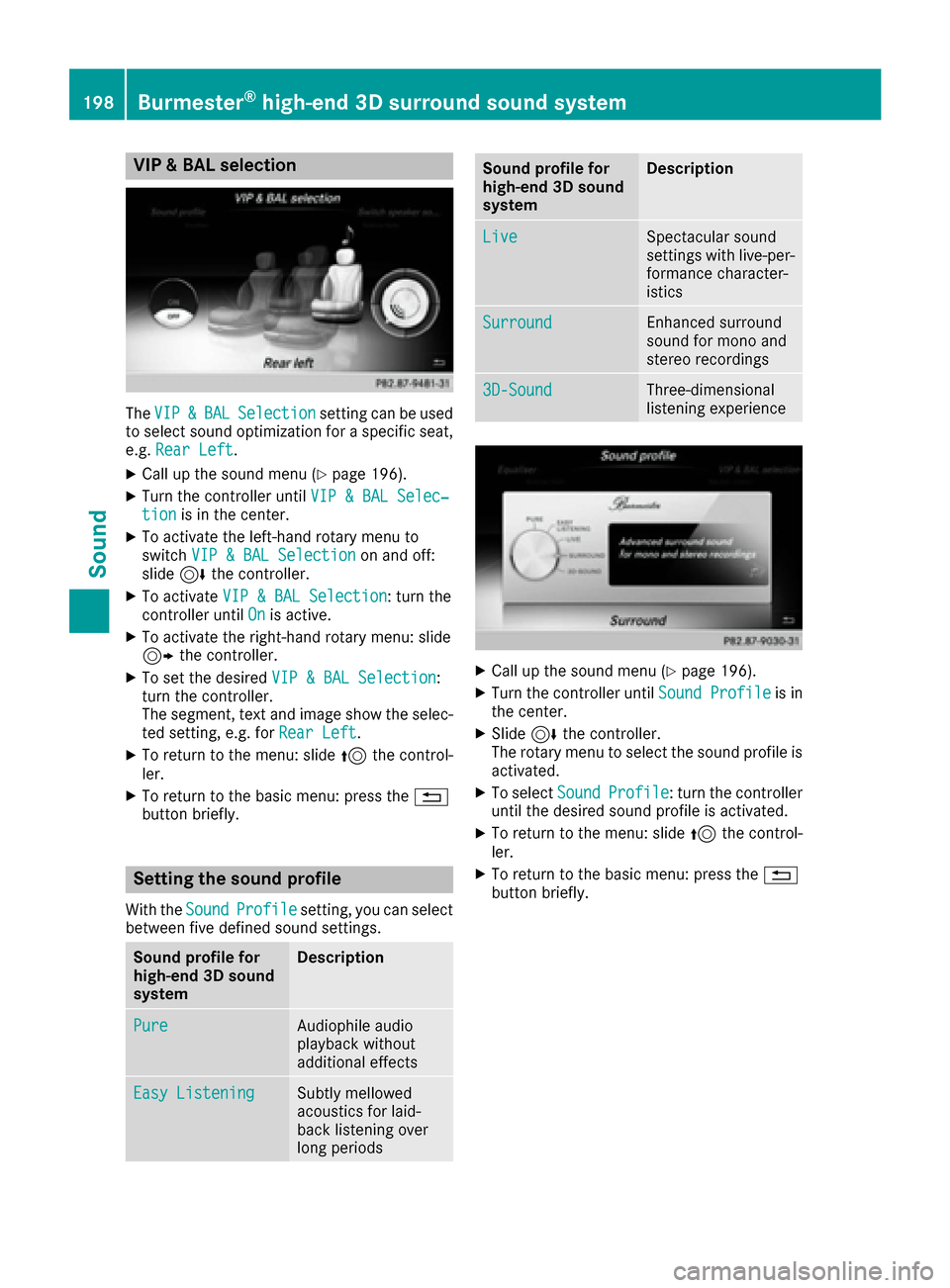
VIP & BAL selection
TheVIP&BALSelectionsetting can be used
to select sound optimization for a specific seat,
e.g. Rear Left
.
XCall up the sound menu (Ypage 196).
XTurn the controller until VIP & BAL Selec‐tionis in the center.
XTo activate the left-hand rotary menu to
switchVIP & BAL Selectionon and off:
slide 6the controller.
XTo activate VIP & BAL Selection: turn the
controller until Onis active.
XTo activate the right-hand rotary menu: slide
9the controller.
XTo set the desired VIP & BAL Selection:
turn the controller.
The segment, text and image show the selec-
ted setting, e.g. for Rear Left
.
XTo return to the menu: slide 5the control-
ler.
XTo return to the basic menu: press the %
button briefly.
Setting the sound profile
With the SoundProfilesetting, you can select
between five defined sound settings.
Sound profile for
high-end 3D sound
systemDescription
PureAudiophile audio
playback without
additional effects
Easy ListeningSubtly mellowed
acoustics for laid-
back listening over
long periods
Sound profile for
high-end 3D sound
systemDescription
LiveSpectacular sound
settings with live-per-
formance character-
istics
SurroundEnhanced surround
sound for mono and
stereo recordings
3D-SoundThree-dimensional
listening experience
XCall up the sound menu (Ypage 196).
XTurn the controller until Sound Profileis in
the center.
XSlide 6the controller.
The rotary menu to select the sound profile is
activated.
XTo select SoundProfile: turn the controller
until the desired sound profile is activated.
XTo return to the menu: slide 5the control-
ler.
XTo return to the basic menu: press the %
button briefly.
198Burmester®high-end 3D surround sound system
Sound
Page 204 of 230
Option 2: selecting the area in the
weather map
XCall up the weather map (Ypage 202).
XMove the weather map so that the crosshair isover the desired area (Ypage 202).
XPress the controller.
The information chart shows the weather
forecast for the selected area. The data is
supplied by the nearest weather station.
Memory functions
Storing the area in the weather memory
You can save locations that are called up fre-
quently in ten preset positions (0, 1-9) in the
weather memory.
XIn the weather memory: select the area for
the weather forecast (Ypage 200).
The selected location appears at the top in the status bar.
XTo select Positionin the information chart:
turn and press the controller.
XSelect Presets.
XSelect a preset using the controller.
XPress and hold the controller until you hear a
tone.
The area is entered on the selected preset.
Equipment with telephone keypad
XTo store rapidly: in the daily forecast
(Ypage 199) press and hold a number key,
e.g. l, until the preset position number is
shown in the status bar in front of the area
name.
iYou can also use this function in the five-day
forecast (Ypage 199), and in the detailed
information view (Ypage 200).
Selecting an area from the weather
memory
XDirectly from the weather memory: select
Position
from the information chart: turn
and press the controller.
XSelect Presets.
XSelect the memory position which contains
the location you require.
The weather data for the selected area is dis-
played. Equipment with telephone keypad
XQuick select:
if a location is stored in the
weather memory, for example when the cur-
rent forecast display is active, briefly press a
number key, e.g. l.
The weather data for the selected area is dis-
played.
Weather map
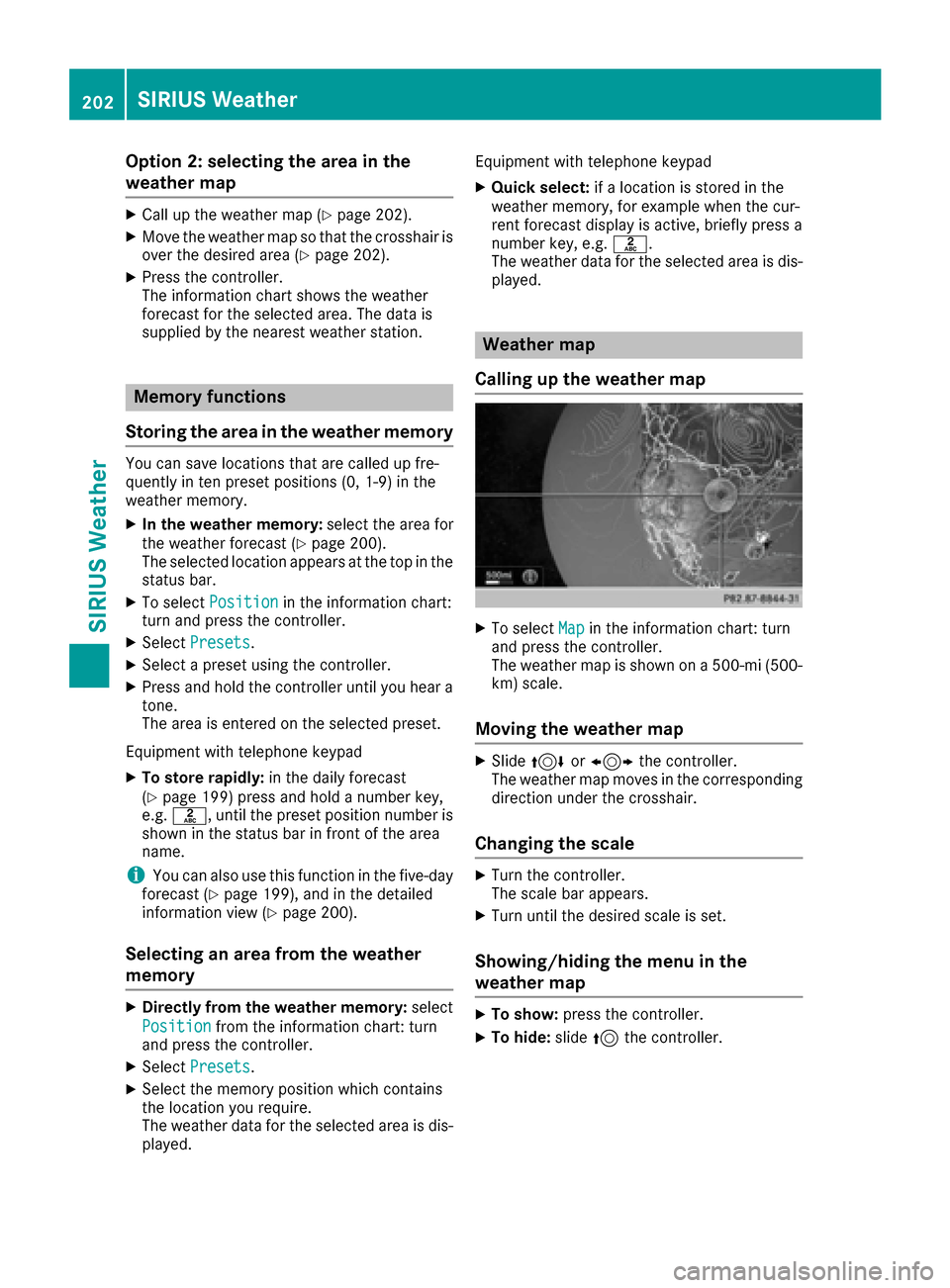
Calling up the weather map
XTo select Mapin the information chart: turn
and press the controller.
The weather map is shown on a 500-mi (500-
km) scale.
Moving the weather map
XSlide 4 or1 the controller.
The weather map moves in the corresponding
direction under the crosshair.
Changing the scale
XTurn the controller.
The scale bar appears.
XTurn until the desired scale is set.
Showing/hiding the menu in the
weather map
XTo show: press the controller.
XTo hide:slide5the controller.
202SIRIUS Weather
SIRIUS Weather
Page 209 of 230
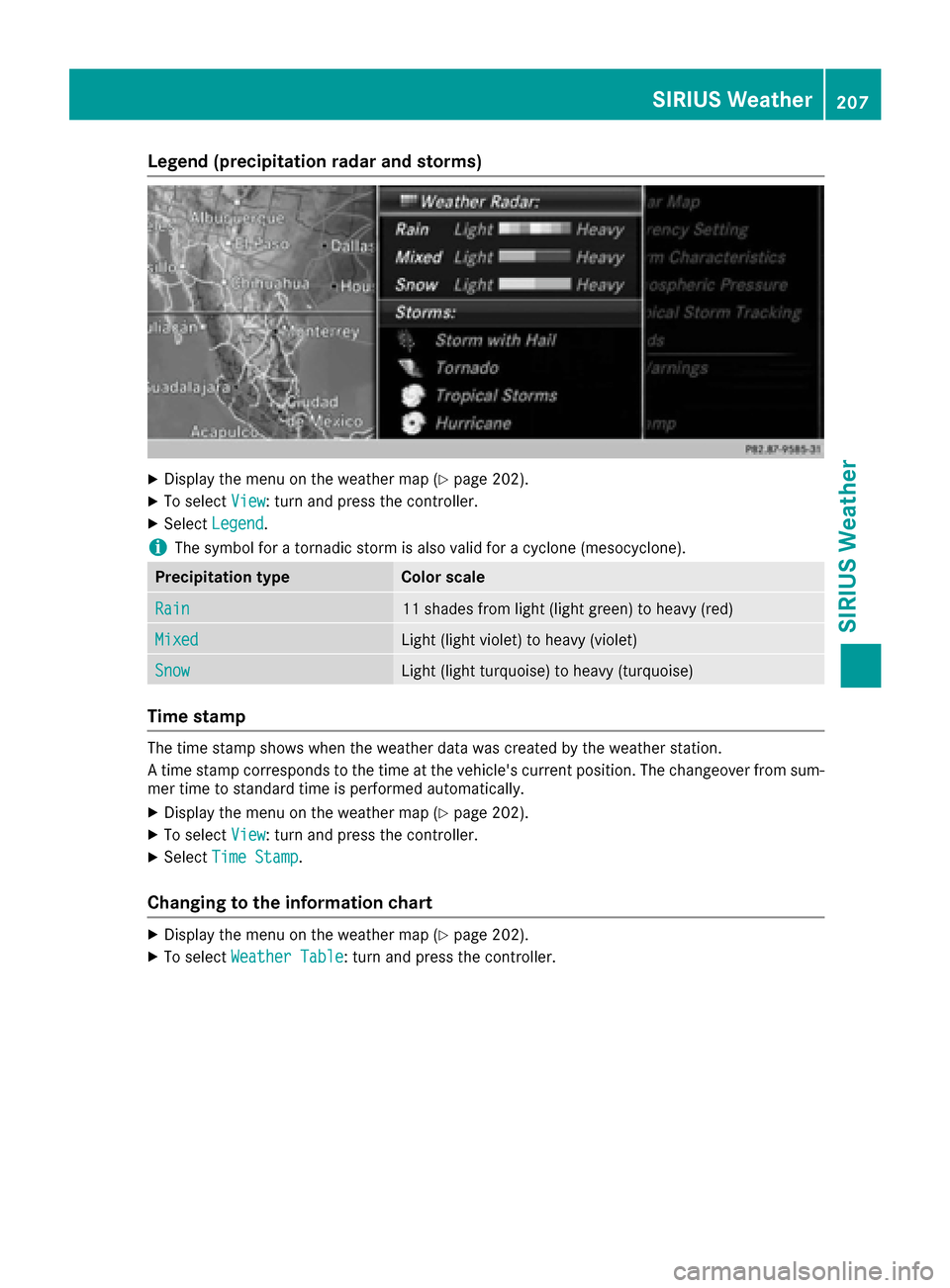
Legend (precipitation radar and storms)
XDisplay the menu on the weather map (Ypage 202).
XTo selectView: turn and press the controller.
XSelectLegend.
iThe symbol for a tornadic storm is also valid for a cyclone (mesocyclone).
Precipitation typeColor scale
Rain11 shades from light (light green) to heavy (red)
MixedLight (light violet) to heavy (violet)
SnowLight (light turquoise) to heavy (turquoise)
Time stamp
The time stamp shows when the weather data was created by the weather station.
A time stamp corresponds to the time at the vehicle's current position. The changeover from sum-
mer time to standard time is performed automatically.
XDisplay the menu on the weather map (Ypage 202).
XTo select View: turn and press the controller.
XSelectTime Stamp.
Changing to the information chart
XDisplay the menu on the weather map (Ypage 202).
XTo select Weather Table: turn and press the controller.
SIRIUS Weather207
SIRIUS Weather
Page 211 of 230
Your multimediasystem equipment
These operating instructions describe all the
standard and optional equipment of your multi-
media system, as available at the time of going
to press. Country-specifi cdifferences are pos-
sible. Bear in mind that your vehicle may not
feature all functions described here. This also
applies to safety-relevant systems andfunc-
tions.
Read the information on qualified specialist
workshop s in the vehicle Operator's Manual.
Rear Seat Entertainment System
overview
Important safety notes
GWARNING
The CD/DVD drive is a class1 laser product.
If you ope nth e housing of the CD/DVD drive,
there is a risk of exposure to invisible laser
radiation. This laser radiation could damage
your retina. There is a risk of injury.
Never open the housing. Always have main-
tenanc e and repair work carried out at a quali-
fied specialist workshop.
GWARNING
If objects such as headphones/headsets or
external audio/video sources are not secured
in the passenger compartment, they can be
flung around and hit vehicle occupants. There
is a risk of injury, fo r example in the event of
sudden braking or a sudden change in direc-
tion .
Always stow these items or similar objects
carefully so that they cannot be flung around,
fo r example in a lockable vehicle stowage
compartment.
Components
The Rear Seat Entertainment System includes:
Rtwoscreens fo rth e rear behind the front-seat
head restraints
Rtw oremot econtrols fo rth e rear compart -
ment
Ra CD/DVD drive in th e rearcompartmen t
RAUXjack s
RtwoUS B ports
Rtwo sets of cordless headphones
General notes
RYou can only adjust the volume forth e head-
phone s supplied, directly on the headphones.
RIf media from differentsources are used,they
can be used separately from each of theoper-
ating positions. Example: a film from theDV D
drive is played on the rear right-hand operat-
ing position. This means that another film
from th e same DVDcanno t be played sepa-
rately on the rear left-hand operating position. However, all other media sources (e.g. radio,
Media Interface ) or the online and Internet
function s can be used.
RIf you use th e same medium on both sides,
you can both carry out the respective set-
tings. The "last one wins" principle applies
here, i.e. the last setting activated is favored.
RThe Internet can be used separately at all
operating positions.
RThe Internet can only be used if it is set up and
connecte d via a telephone(Ypage 142).
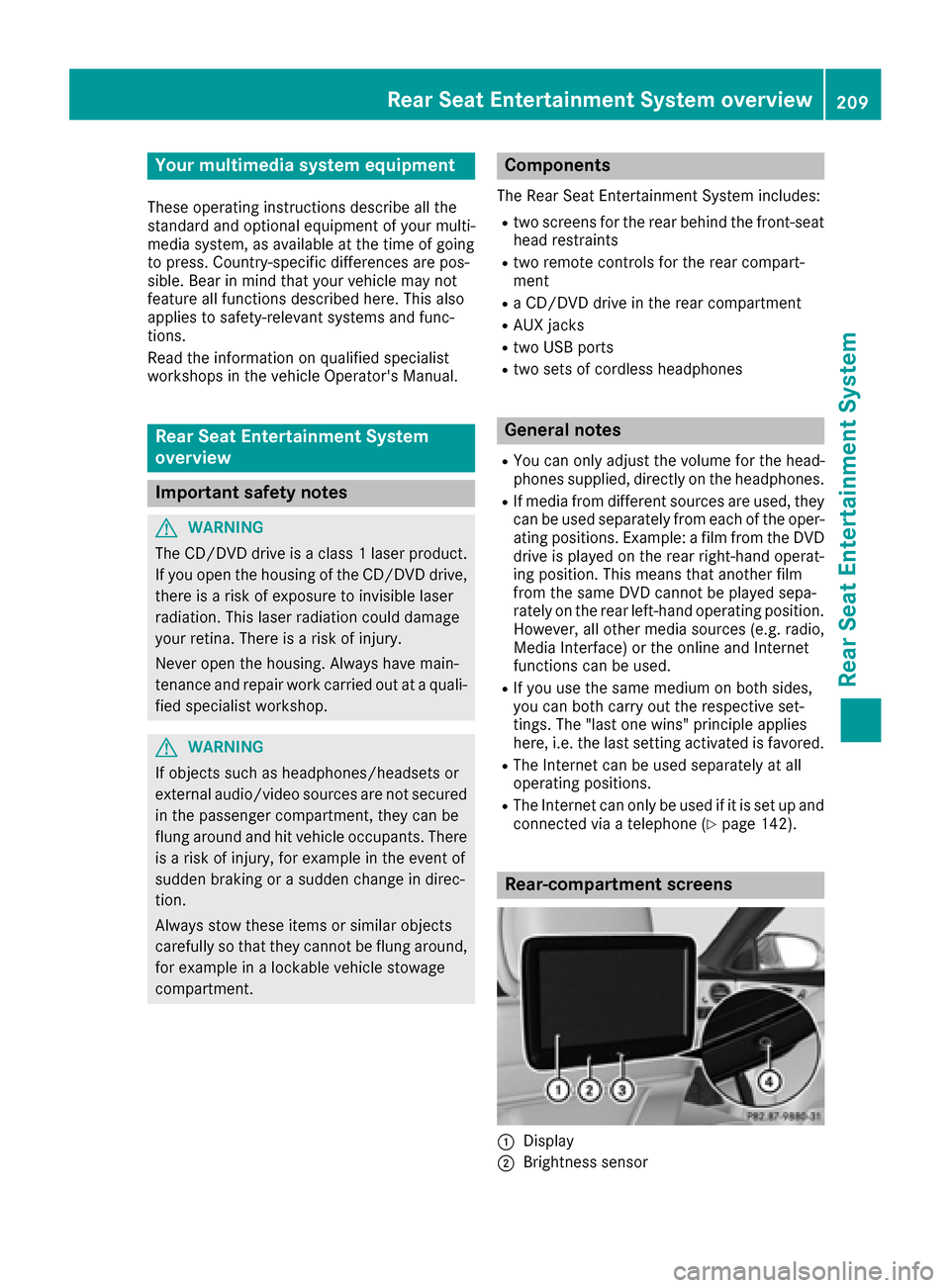
Rear-compartment screens
:Display
;Brightness sensor
Rear Seat Entertainment System overview209
Rear Seat Entertainment System
Z
Page 213 of 230
Switching the screen on/off
The switched-on rear compartment screens
switch off after 30 minutes if:
Rthe SmartKey is in position0or 1in the igni-
tion lock
Rthe SmartKey is not inserted
Before the screens switch off, they show a mes-
sage to this effect.
You can switch the screens back on. Please note
that this may cause the starter battery to dis-
charge.
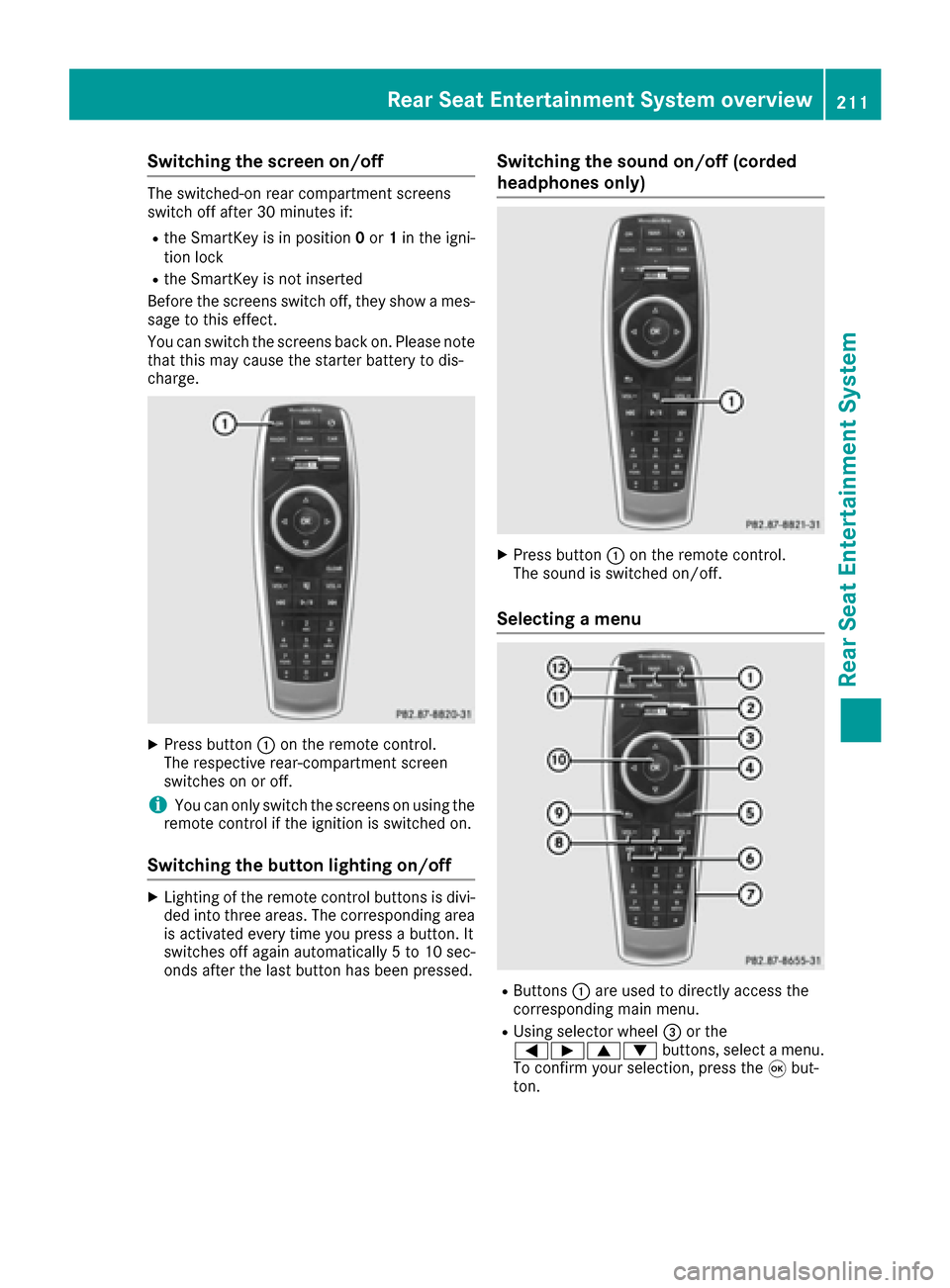
XPress button :on the remote control.
The respective rear-compartment screen
switches on or off.
iYou can only switch the screens on using the
remote control if the ignition is switched on.
Switching the button lighting on/off
XLighting of the remote control buttons is divi-
ded into three areas. The corresponding area
is activated every time you press a button. It
switches off again automatically 5 to 10 sec-
onds after the last button has been pressed.
Switching the sound on/off (corded
headphones only)
XPress button :on the remote control.
The sound is switched on/off.
Selecting a menu
RButtons :are used to directly access the
corresponding main menu.
RUsing selector wheel =or the
=Ì9: buttons, select a menu.
To confirm your selection, press the 9but-
ton.
Rear Seat Entertainment System overview211
Rear Seat Entertainment System
Z
Page 217 of 230
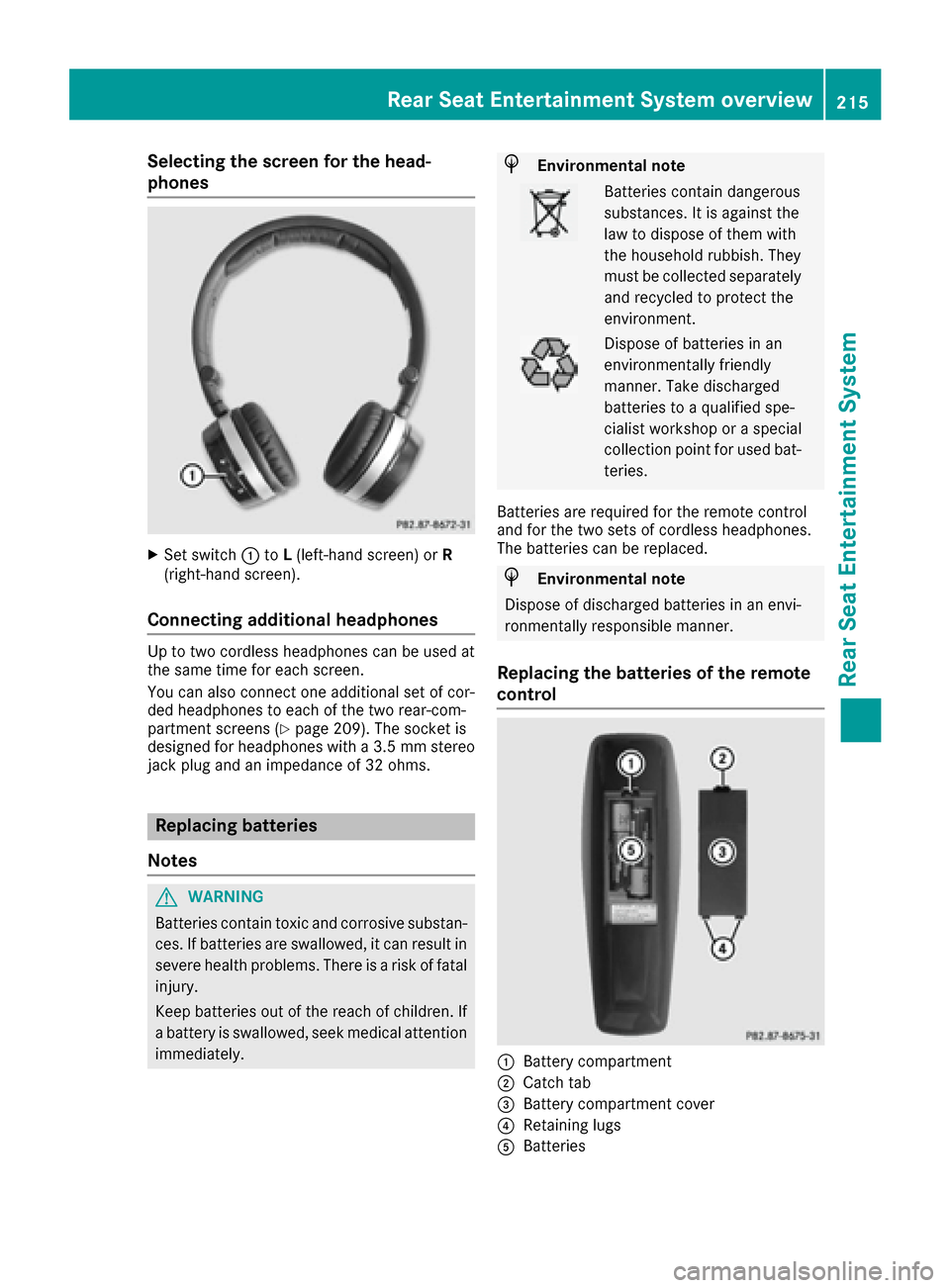
Selecting the screen for the head-
phones
XSet switch:toL(left-hand screen) or R
(right-hand screen).
Connecting additional headphones
Up to two cordless headphones can be used at
the same time for each screen.
You can also connect one additional set of cor-
ded headphones to each of the two rear-com-
partment screens (
Ypage 209). The socket is
designed for headphones with a 3.5 mm stereo
jack plug and an impedance of 32 ohms.
Replacing batteries
Notes
GWARNING
Batteries contain toxic and corrosive substan- ces. If batteries are swallowed, it can result in
severe health problems. There is a risk of fatalinjury.
Keep batteries out of the reach of children. If
a battery is swallowed, seek medical attention immediately.
HEnvironmental note
Batteries contain dangerous
substances. It is against the
law to dispose of them with
the household rubbish. They
must be collected separatelyand recycled to protect the
environment.
Dispose of batteries in an
environmentally friendly
manner. Take discharged
batteries to a qualified spe-
cialist workshop or a special
collection point for used bat-
teries.
Batteries are required for the remote control
and for the two sets of cordless headphones.
The batteries can be replaced.
HEnvironmental note
Dispose of discharged batteries in an envi-
ronmentally responsible manner.
Replacing the batteries of the remote
control
:Battery compartment
;Catch tab
=Battery compartment cover
?Retaining lugs
ABatteries
Rear Seat Entertainment System overview215
Rear Seat Entertainment System
Z
Page 218 of 230
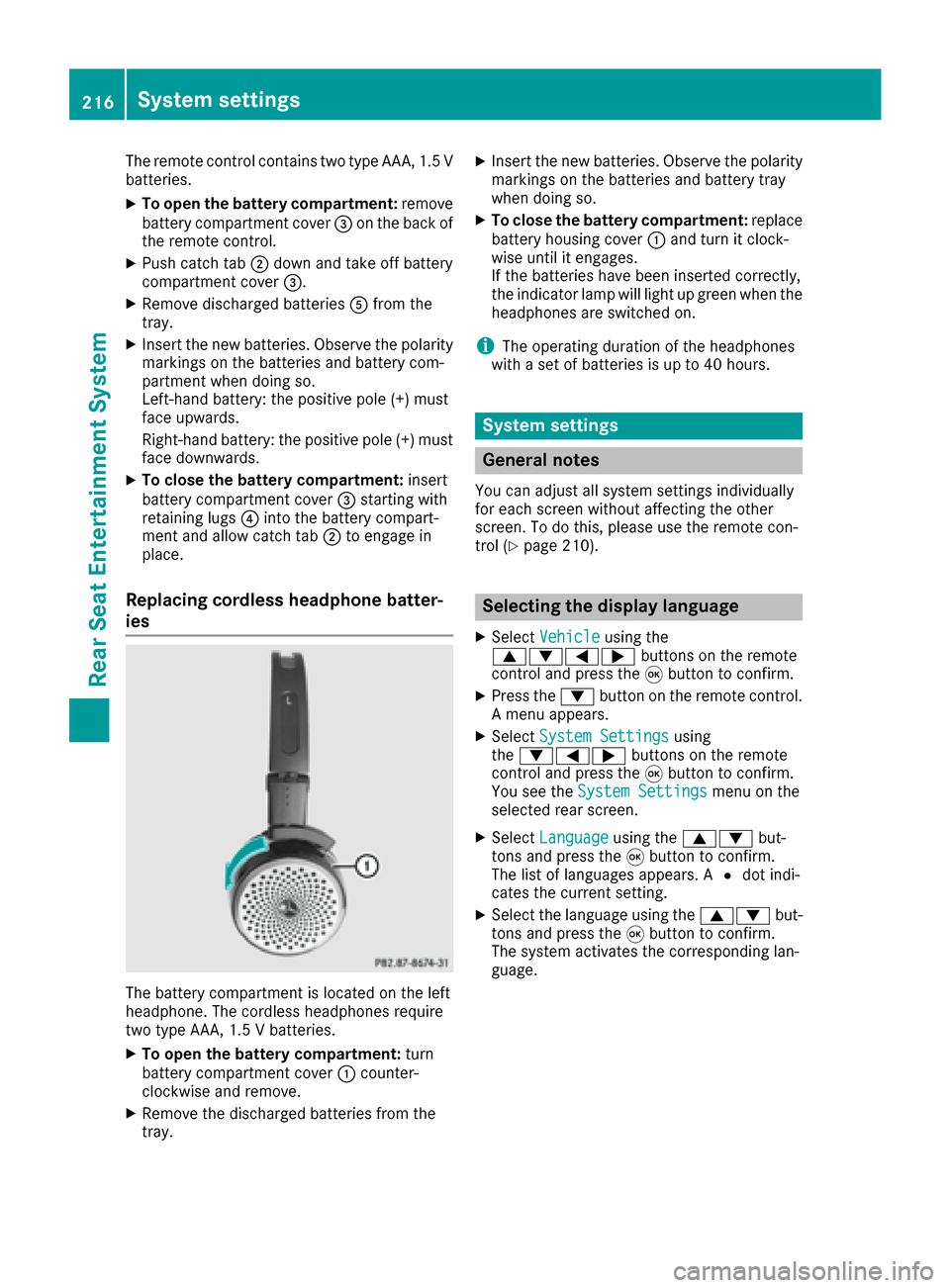
The remote control contains two type AAA, 1.5 V
batteries.
XTo open the battery compartment:remove
battery compartment cover =on the back of
the remote control.
XPush catch tab ;down and take off battery
compartment cover =.
XRemove discharged batteries Afrom the
tray.
XInsert the new batteries. Observe the polarity
markings on the batteries and battery com-
partment when doing so.
Left-hand battery: the positive pole (+) must
face upwards.
Right-hand battery: the positive pole (+) must
face downwards.
XTo close the battery compartment: insert
battery compartment cover =starting with
retaining lugs ?into the battery compart-
ment and allow catch tab ;to engage in
place.
Replacing cordless headphone batter-
ies
The battery compartment is located on the left
headphone. The cordless headphones require
two type AAA, 1.5 V batteries.
XTo open the battery compartment: turn
battery compartment cover :counter-
clockwise and remove.
XRemove the discharged batteries from the
tray.
XInsert the new batteries. Observe the polarity
markings on the batteries and battery tray
when doing so.
XTo close the battery compartment: replace
battery housing cover :and turn it clock-
wise until it engages.
If the batteries have been inserted correctly,
the indicator lamp will light up green when the
headphones are switched on.
iThe operating duration of the headphones
with a set of batteries is up to 40 hours.
System settings
General notes
You can adjust all system settings individually
for each screen without affecting the other
screen. To do this, please use the remote con-
trol (
Ypage 210).
Selecting the display language
XSelect Vehicleusing the
9:=; buttons on the remote
control and press the 9button to confirm.
XPress the :button on the remote control.
A menu appears.
XSelect System Settingsusing
the :=; buttons on the remote
control and press the 9button to confirm.
You see the System Settings
menu on the
selected rear screen.
XSelect Languageusing the 9: but-
tons and press the 9button to confirm.
The list of languages appears. A #dot indi-
cates the current setting.
XSelect the language using the 9:but-
tons and press the 9button to confirm.
The system activates the corresponding lan-
guage.
216System settings
Rear Seat Entertainment System