ESP MERCEDES-BENZ S-Class MAYBACH 2017 W222 Comand Manual
[x] Cancel search | Manufacturer: MERCEDES-BENZ, Model Year: 2017, Model line: S-Class MAYBACH, Model: MERCEDES-BENZ S-Class MAYBACH 2017 W222Pages: 230, PDF Size: 8.27 MB
Page 103 of 230
XTo selectDeleteorDelete All: turn and
press the controller.
A prompt appears.
XSelect YesorNo.
Selecting Yesdeletes the selected destina-
tion or all destinations.
Map functions
General notes
Company logos displayed on the map are trademarks of the respective companies and used solely
for the purpose of indicating the locations of these companies. The use of such logos on the map
does not indicate approval of, support of or advertising by these companies for the navigation
system itself.
iEquipment with a touchpad: alternatively you can carry out this operation using the touchpad
(Ypage 28).
Map settings
Setting the map scale
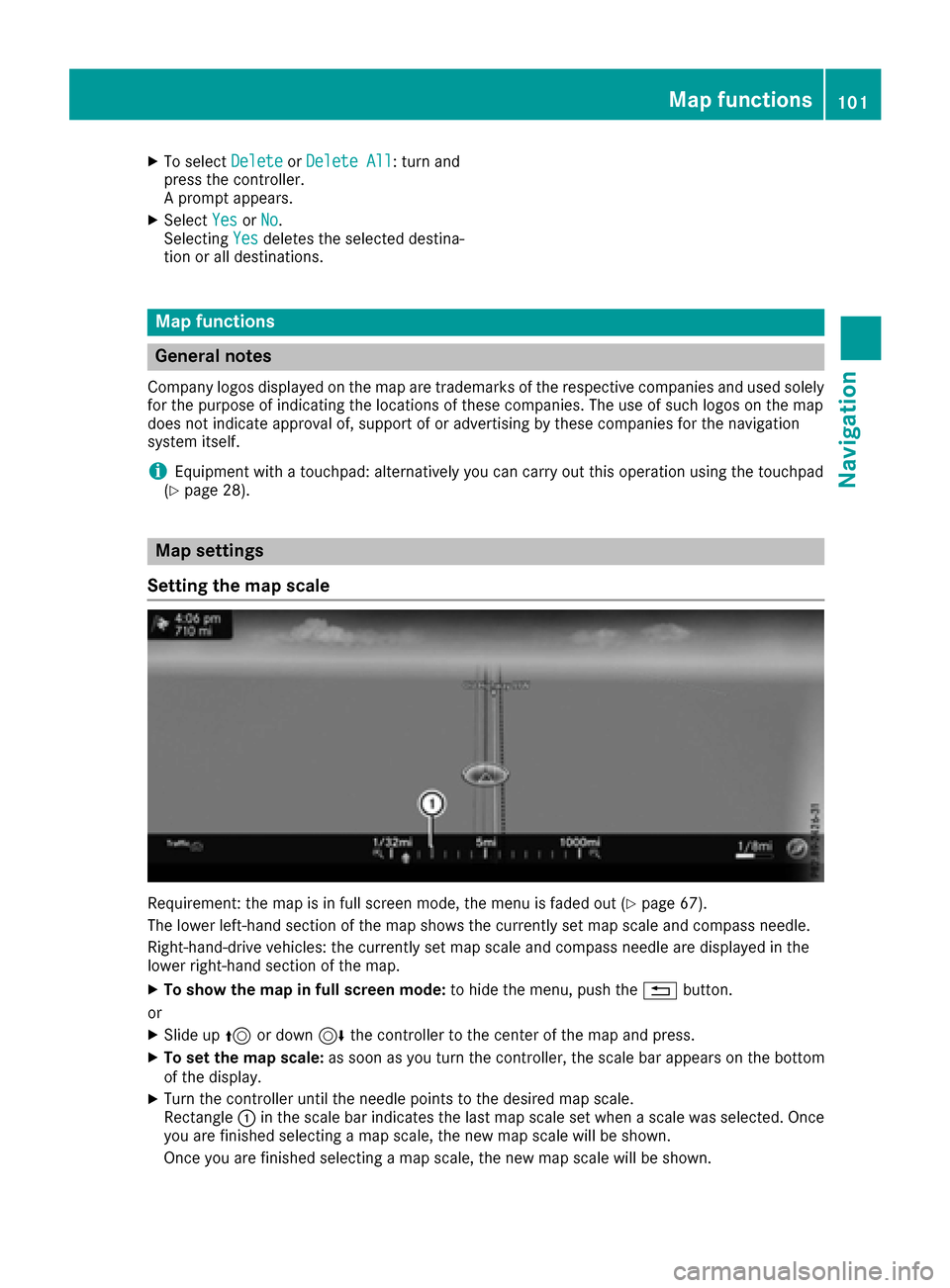
Requirement: the map is in full screen mode, the menu is faded out (Ypage 67).
The lower left-hand section of the map shows the currently set map scale and compass needle.
Right-hand-drive vehicles: the currently set map scale and compass needle are displayed in the
lower right-hand section of the map.
XTo show the map in full screen mode: to hide the menu, push the%button.
or
XSlide up 5or down 6the controller to the center of the map and press.
XTo set the map scale: as soon as you turn the controller, the scale bar appears on the bottom
of the display.
XTurn the controller until the needle points to the desired map scale.
Rectangle :in the scale bar indicates the last map scale set when a scale was selected. Once
you are finished selecting a map scale, the new map scale will be shown.
Once you are finished selecting a map scale, the new map scale will be shown.
Map functions101
Navigation
Z
Page 122 of 230
Redial
XTo call up the telephone menu: press the
%button.
XTo select win the telephone menu: turn
and press the controller.
The list of outgoing calls is displayed. The
most recently dialed number is at the top.
XTo select an entry and make a call: turn and
press the controller.
For redialing using the multifunction steering
wheel (see the vehicle Operator's Manual).
Further information about ending a call
(
Ypage 122).
Using call lists
XTo call up the telephone menu: press the
% button.
XTo switch to the menu bar: slide 6the con-
troller.
XTo select Call Lists: turn and press the
controller.
XTo select CallsReceivedorCallsDialed:
turn and press the controller.
The relevant list is displayed.
XTo select an entry and make a call: turn and
press the controller.
Selecting and placing a call using the multifunc- tion steering wheel (see vehicle Operator's Man-
ual)
Further information about ending a call
(
Ypage 122).
Using the phone book
XTo call up the telephone menu: press the
% button.
XTo select Namein the telephone menu: turn
and press the controller.
XSearch for a contact (Ypage 124).
XTo make a call: press the controller.
Selecting and placing a call using the multifunc- tion steering wheel (see vehicle Operator's Man-
ual)
Further information about ending a call
(
Ypage 122).
Using the telephone keypad on the con-
troller
If your vehicle is equipped with a telephone key-
pad, you can use this function.
XTo call up the telephone menu: press the
% button.
XEnter the digits using the telephone keypad.
As soon as one of the buttons on the tele-
phone keypad is touched, the corresponding
button is highlighted in the display.
XTo select win the telephone menu: turn
and press the controller.
The call is made.
Functions available during a call
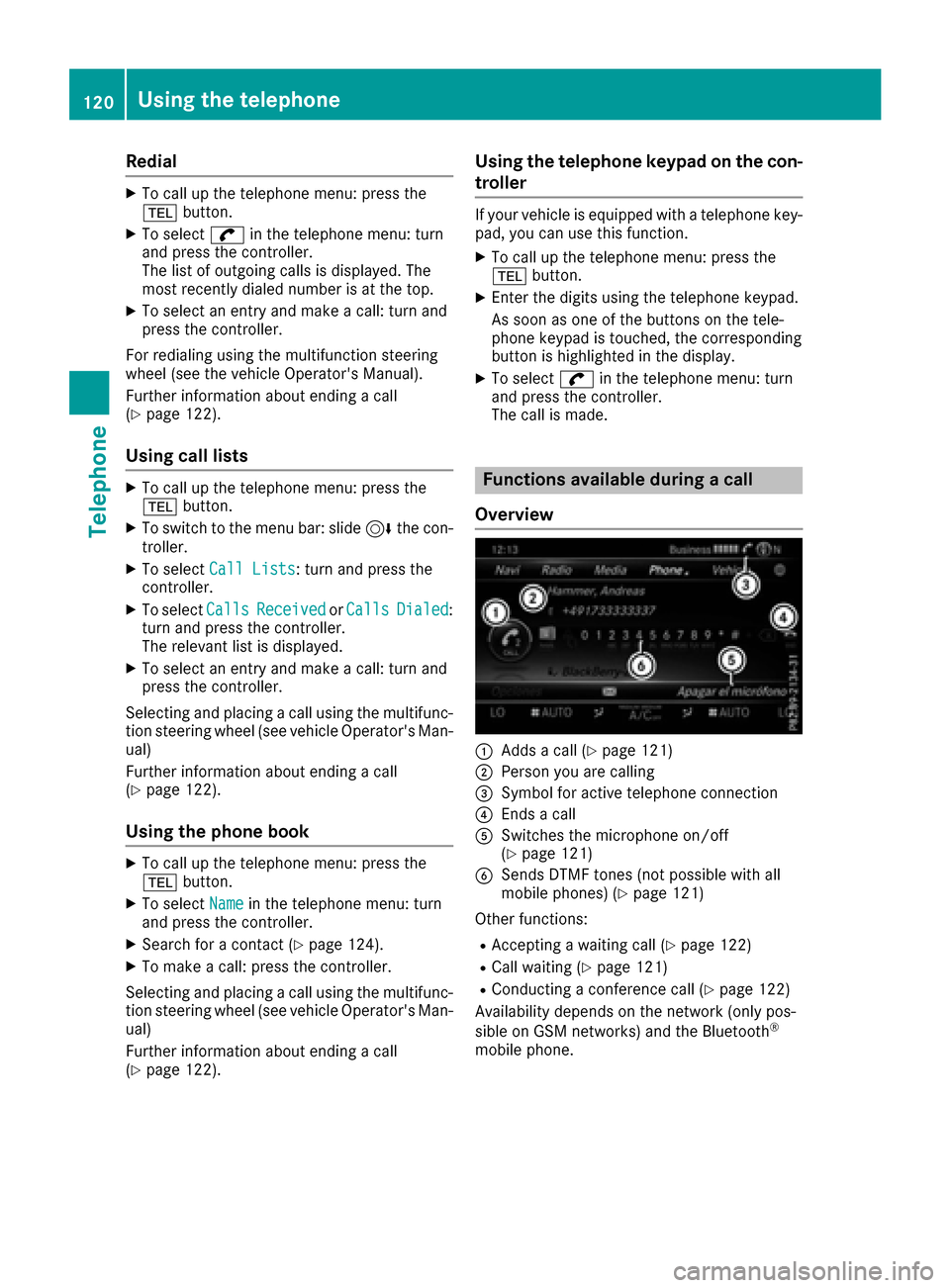
Overview
:Adds a call (Ypage 121)
;Person you are calling
=Symbol for active telephone connection
?Ends a call
ASwitches the microphone on/off
(Ypage 121)
BSends DTMF tones (not possible with all
mobile phones) (Ypage 121)
Other functions:
RAccepting a waiting call (Ypage 122)
RCall waiting (Ypage 121)
RConducting a conference call (Ypage 122)
Availability depends on the network (only pos-
sible on GSM networks) and the Bluetooth
®
mobile phone.
120Using the telephone
Telephone
Page 123 of 230
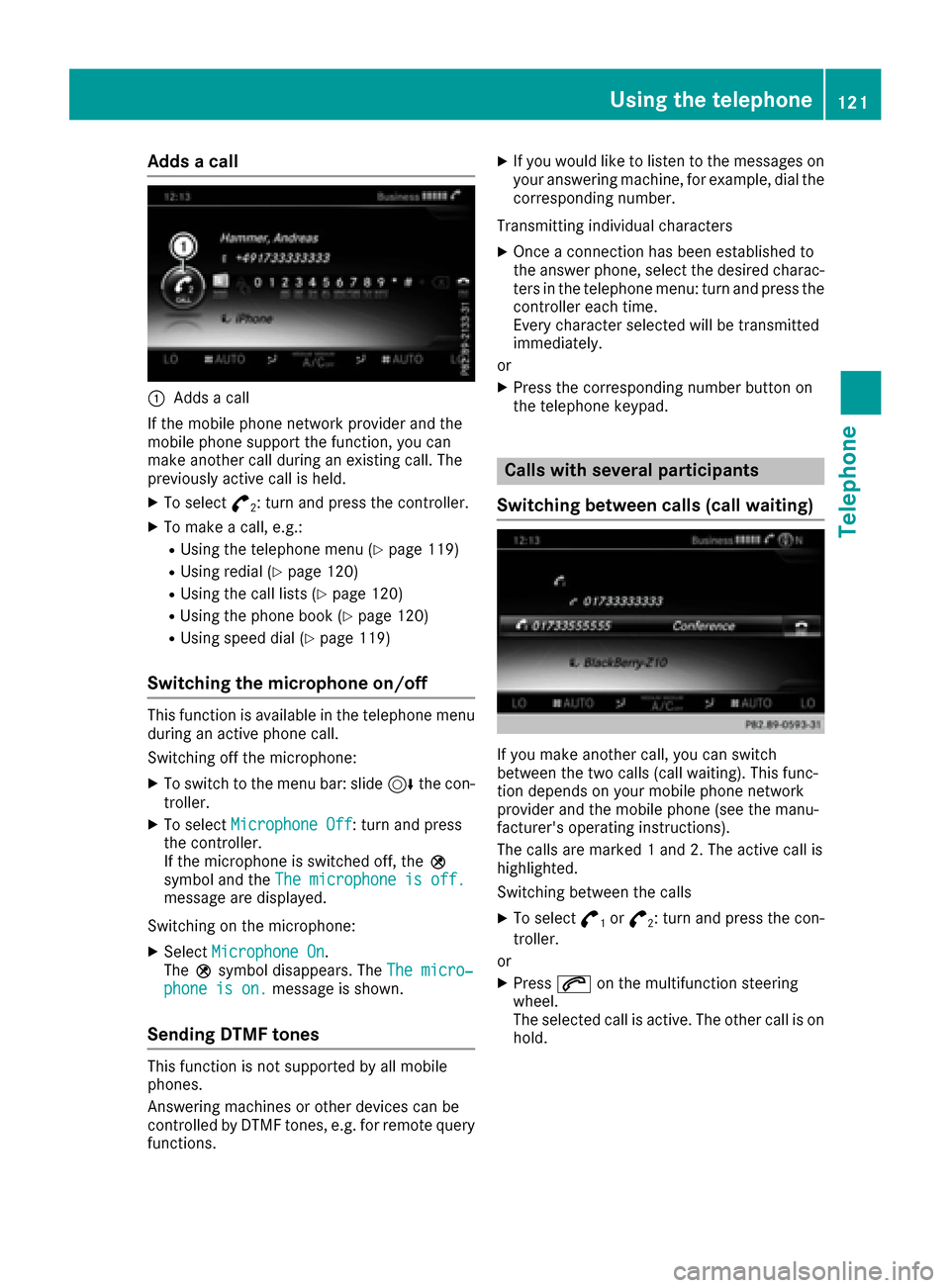
Adds a call
:Addsa call
If th e mobile phone network provider and the
mobile phone support the function, you can
make another call during an existing call. The
previously active call is held.
XTo select °2: turnand press th econtroller.
XTo mak eacall, e.g.:
RUsing th e telephone men u(Ypage 119)
RUsing redial (Ypage 120)
RUsing the call lists(Ypage 120)
RUsing the phone book (Ypage 120)
RUsing speed dial (Ypage 119)
Switching the microphone on/off
This function is available in the telephone menu
during an active phone call.
Switching off the microphone:
XTo switch to th e menu bar: slide 6thecon-
troller.
XTo select Microphon eOff: turn and press
th econtroller.
If th e microphone is switched off, theQ
symbol and the The microphon eis off .
message are displayed.
Switching on the microphone:
XSelect Microphon eOn.
The Qsymbol disappears. The The micro‐
phone is on.message is shown.
Sending DTMF tones
This function is not supported by all mobile
phones.
Answering machines or other devices can be
controlled by DTMF tones, e.g. for remote query
functions.
XIf you would like to listen to the messages on
your answering machine, for example, dial the
corresponding number.
Transmitting individual characters
XOnce a connection has been established to
th e answer phone, select the desired charac-
ters in th e telephone menu: turn and press the
controller each time.
Every characte r selected will be transmitted
immediately.
or
XPress th e corresponding number button on
th e telephone keypad.
Calls with several participants
Switching between calls (call waiting)
If you make another call, you can switch
between the two calls (call waiting). This func-
tion depends on your mobile phone network
provider and the mobile phone (see the manu-
facturer's operating instructions).
The calls are marke d1and 2. The active call is
highlighted.
Switching between the calls
XTo select °1or°2: turn and press th econ-
troller.
or
XPress 6on the multifunction steering
wheel.
The selected call is active. The other call is on
hold.
Using the telephone121
Telephone
Z
Page 130 of 230
XSearch for the desired entry (Ypage 136).
XPress the controller when you have finished
searching.
The telephone number has been saved.
A maximum of five telephone numbers can be
saved for one contact.
If five numbers are already stored for the con-
tact you are searching for, a prompt will appear
asking whether you wish to overwrite one of the
existing numbers.
If you wish to overwrite one of the phone num-
bers:
XTo select Yes: turn and press the controller.
A list of the existing five phone numbers is
displayed.
XTo select the phone number to be overwritten
from the list: turn the controller and press to
confirm.
The entry is overwritten with the new tele-
phone number.
If you do not wish to overwrite any of the phone
numbers:
XTo select No: turn and press the controller.
The process is canceled.
Deleting call lists
Call lists which are generated and managed by
the multimedia system can be deleted in the
multimedia system.
You cannot delete call lists from the multimedia
system which are displayed on a mobile phone
that supports the PBAP Bluetooth
®.
XTo call up the telephone menu: press the
% button.
XTo switch to the menu bar: slide 6the con-
troller.
XTo select Call Lists: turn and press the
controller.
XSelect Delete Call Lists.
A prompt appears asking whether you wish to
delete all call lists.
XTo select Yes: turn and press the controller.
The call lists are deleted.
iIf you delete call lists from the mobile phone
(see the manufacturer's operating instruc-
tions), the multimedia system updates the
call list display the next time it connects.
Speed dial lists
Setting up speed dial
XTo call up the telephone menu: press the
% button.
XTo call up the menu bar: slide 6the con-
troller.
XTo select Call Lists: turn and press the
controller.
XSelect Speed Dial Preset List.
The speed dial list is displayed.
XTo highlight a memory position for the speed
dial: turn the controller.
If you highlight an entry that already exists in the speed dial list, this is overwritten with the
new entry.
XTo select G: slide 9the controller.
XSelect Assign Speed Dial Preset.
The phone book is displayed.
XSearch for a contact (Ypage 124).
XTo select a contact: turn and press the con-
troller.
The phone number has been saved as a speed
dial.
Deleting a speed dial number
Deleting a speed dial preset
XTo call up the telephone menu: press the
% button.
XTo call up the menu bar: slide 6the con-
troller.
XTo select Call Lists: turn and press the
controller.
XSelect Speed Dial Preset List.
The speed dial list is displayed.
XTo highlight the memory position you want to
delete: turn the controller.
XTo select G: slide 9the controller.
XTo select DeleteSpeedDialPreset: turn
and press the controller.
XTo select Yes: turn and press the controller.
The speed dial preset has been deleted.
128Speed dial lists
Telephone
Page 133 of 230
XTo switch to the menu bar: slide6the con-
troller.
XTo select Download: turn and press the con-
troller.
Downloading text messages and e-mails
from the phone
XSelect From the Phone.
The messages are downloaded. If you have
selected Automatic Download
in the e-mail
settings, manual downloading is not possible.
Updating from the e-mail server by the
mobile phone
XSelect From the E-Mail Server.
The e-mails in the mobile phone are updated.
This function is not supported by all mobile
phones.
Reading messages
In the message menu
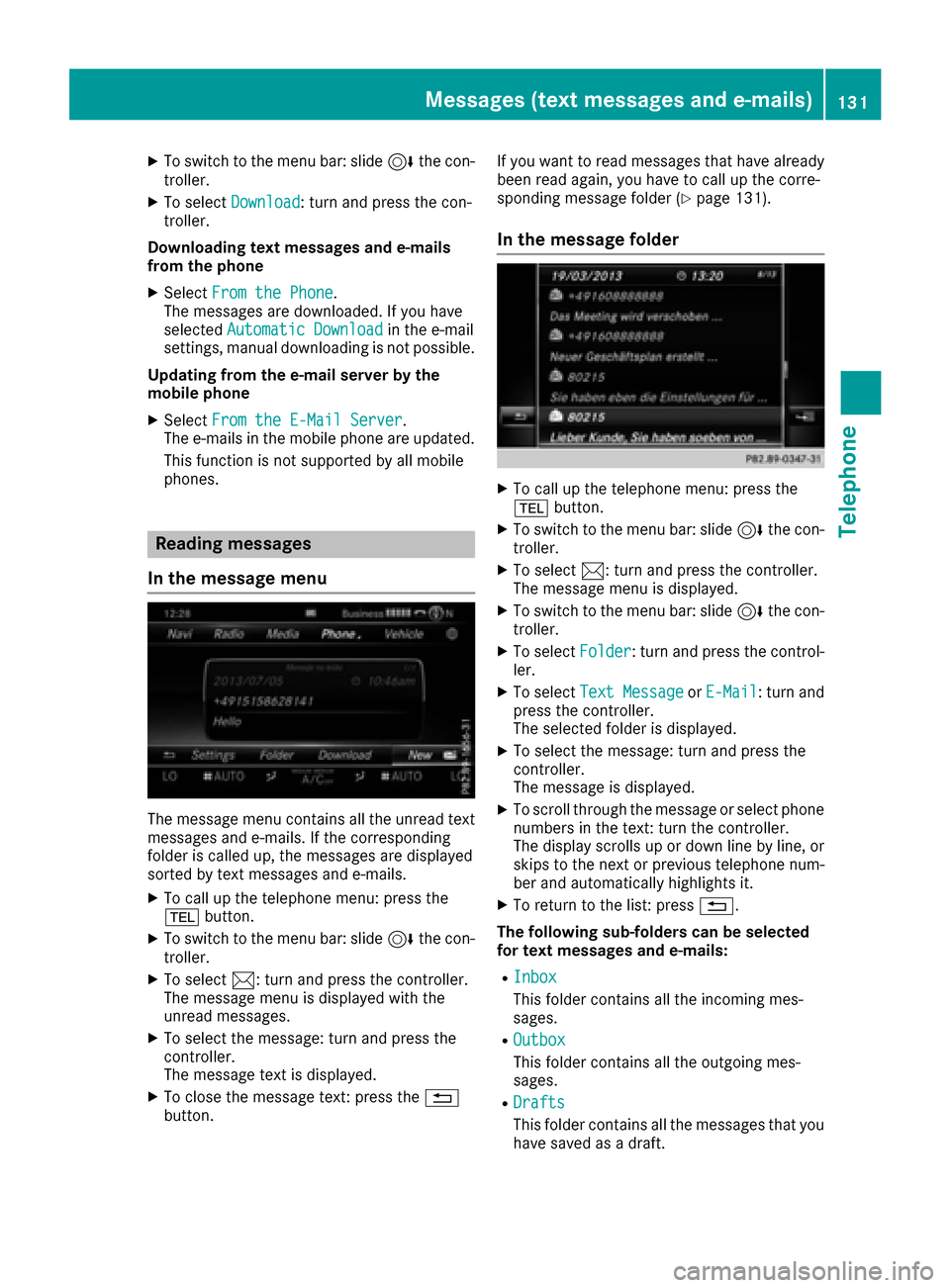
The message menu contains all the unread text
messages and e-mails. If the corresponding
folder is called up, the messages are displayed
sorted by text messages and e-mails.
XTo call up the telephone menu: press the
% button.
XTo switch to the menu bar: slide 6the con-
troller.
XTo select 1: turn and press the controller.
The message menu is displayed with the
unread messages.
XTo select the message: turn and press the
controller.
The message text is displayed.
XTo close the message text: press the %
button. If you want to read messages that have already
been read again, you have to call up the corre-
sponding message folder (
Ypage 131).
In the message folder
XTo call up the telephone menu: press the
%
button.
XTo switch to the menu bar: slide 6the con-
troller.
XTo select 1: turn and press the controller.
The message menu is displayed.
XTo switch to the menu bar: slide 6the con-
troller.
XTo select Folder: turn and press the control-
ler.
XTo select Text MessageorE-Mail: turn and
press the controller.
The selected folder is displayed.
XTo select the message: turn and press the
controller.
The message is displayed.
XTo scroll through the message or select phone numbers in the text: turn the controller.
The display scrolls up or down line by line, or
skips to the next or previous telephone num-ber and automatically highlights it.
XTo return to the list: press %.
The following sub-folders can be selected
for text messages and e-mails:
RInbox
This folder contains all the incoming mes-
sages.
ROutbox
This folder contains all the outgoing mes-
sages.
RDrafts
This folder contains all the messages that you
have saved as a draft.
Messages (text messages and e-mails)131
Telephone
Z
Page 142 of 230
Automatically importing contacts
from the phone
Depending on the mobile phone used, you can
set whether the contacts should be called up
automatically after the mobile phone is connec-
te dto th e multimedia system.
XConnect a mobile phone (Ypage 113).
XCall up the address book (Ypage 136).
XTo show the menu bar: slide 6thecontrol -
ler.
XTo select Options: turnand press th econ-
troller.
XTo select Automaticall yImport Con ‐tacts fromPhone: turn and press th econ-
troller.
You can allow Oor suppress ªthe auto-
matic download.
Saving a contact
Saved contact s are indicated in the phone book
by different symbols (Ypage 123).
XCall up the address book (Ypage 136).
XTo select a contact: turnand press th econ-
troller.
The details for the contact are displayed.
XTo select G: slide 9thecontroller.
XTo select Save: turn and press th econtroller.
The contact has now been saved.
iIf th e saved address book entry containsa
phone number, the entry is also displayed in
th e phone book.
Saving or editing the contact data in the mul-
timedia system does not changeth econtact s
on the mobile phone. If automatic download-
ing of phone contacts is activated, the multi-
media system displays the copy¥with the
changed data. To add additional data, such as additional phone numbers or e-mail
addresses, select this contact. In this way,
you avoid creating additional copies of the
mobile phone entry.
Deleting a name
XCall up the address book (Ypage 136).
XSearc h for a contact (Ypage 136).
XTo select G: slide 9thecontroller.
XTo select Delete Entry: turnand press th e
controller.
XTo select Yes: turnand press th econtroller.
The contact is deleted.
Importing contacts
Informati on and requirements
Contacts can be imported as vCards (vcf files). A
vCard is an electronic business card. A memory
card, USB device or a Bluetooth
®connection
can be used for importing.
iUp to 2000 entries can be imported into the
address book.Amessage notifies you when
th e maximum number is reached. In order to
be able to then import new contacts, you have
to delete existing contact s(
Ypage 140).
SourceRequirements
Memory cardThe SD card is inserted. It
contains importable contact
details.
USB deviceThe USB device is inserted
into theUS B port. It contains
importable contact details.
Bluetooth®
connection
If th e sending of vCards is
supported via Bluetooth®,
vCards can be received on
mobile phones or netbooks,
for example.
Bluetooth
®must be activa-
te d in the multimedia system
and on the respective device;
see th e manufacturer's oper-
ating instructions.
Importing from the memorycard or USB
device
Contacts imported from the memory card or
from aUS B device are identified by the ¯
symbol.
The following conditions must be fulfilled in
order to import vCards:
RvCards (vcf files) may be located in the main
directory or in folders. The multimedia system
140Address book
Telephone
Page 146 of 230
XTo select a mobile phone from the device list:turn the controller and press to confirm.
If the mobile phone supports the Bluetooth
®
PAN profile or the USB classes RNDIS, CDC/
NCM or CDC/ECM, Internet access is set up.
You can use the Internet functions.
If the connected mobile phone does not sup-
port the named Bluetooth
®profile or the
named USB classes, predefined (Ypage 144)
or manual access data (Ypage 144) must be
set.
Setting access data of the mobile
phone network provider
Selecting the predefined access data of
the mobile phone network provider
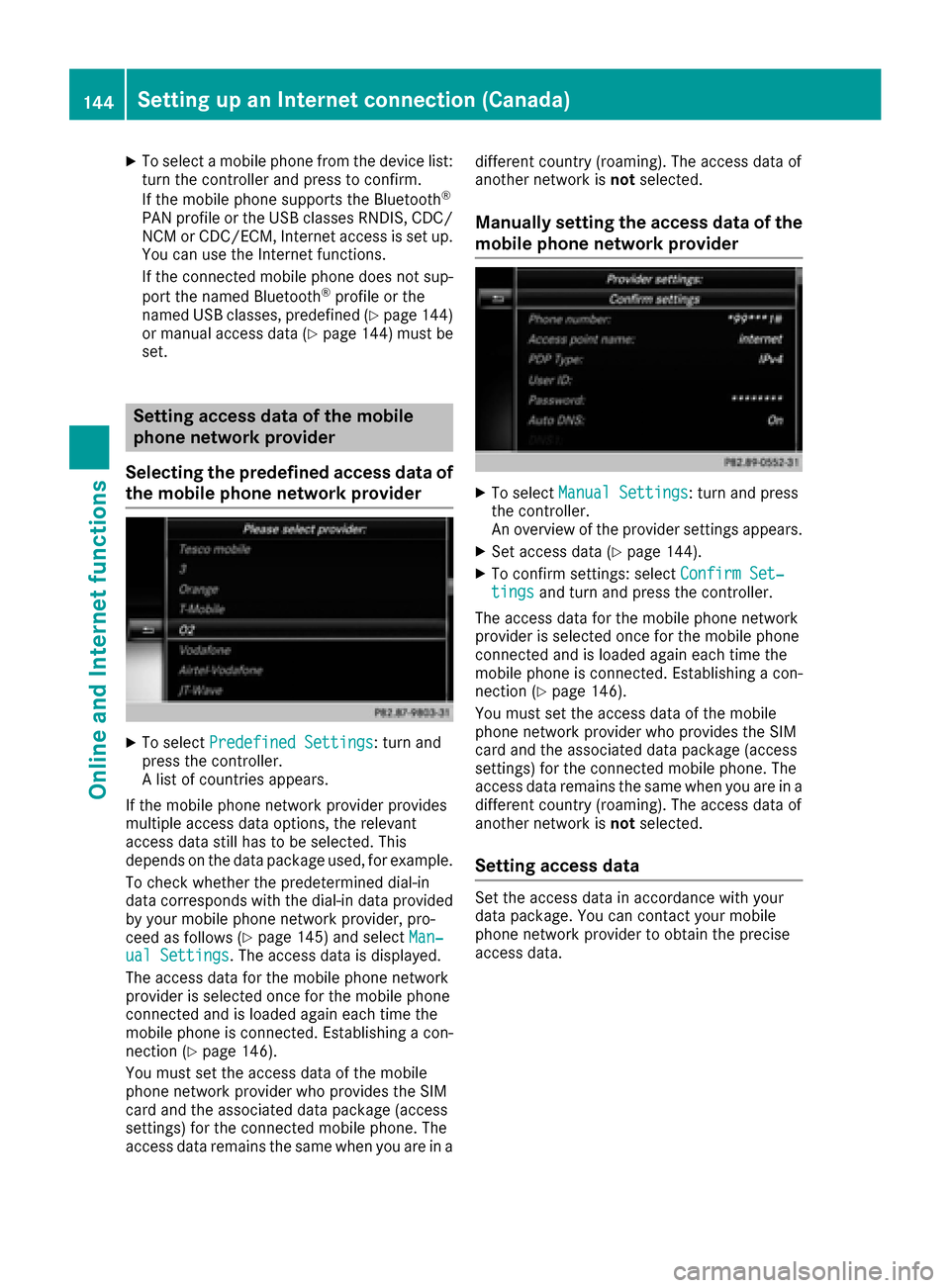
XTo select Predefined Settings: turn and
press the controller.
A list of countries appears.
If the mobile phone network provider provides
multiple access data options, the relevant
access data still has to be selected. This
depends on the data package used, for example.
To check whether the predetermined dial-in
data corresponds with the dial-in data provided by your mobile phone network provider, pro-
ceed as follows (
Ypage 145) and select Man‐ual Settings. The access data is displayed.
The access data for the mobile phone network
provider is selected once for the mobile phone
connected and is loaded again each time the
mobile phone is connected. Establishing a con-
nection (
Ypage 146).
You must set the access data of the mobile
phone network provider who provides the SIM
card and the associated data package (access
settings) for the connected mobile phone. The
access data remains the same when you are in a different country (roaming). The access data of
another network is
notselected.
Manually setting the access data of the
mobile phone network provider
XTo select Manual Settings: turn and press
the controller.
An overview of the provider settings appears.
XSet access data (Ypage 144).
XTo confirm settings: select Confirm Set‐tingsand turn and press the controller.
The access data for the mobile phone network
provider is selected once for the mobile phone
connected and is loaded again each time the
mobile phone is connected. Establishing a con-
nection (
Ypage 146).
You must set the access data of the mobile
phone network provider who provides the SIM
card and the associated data package (access
settings) for the connected mobile phone. The
access data remains the same when you are in a
different country (roaming). The access data of
another network is notselected.
Setting access data
Set the access data in accordance with your
data package. You can contact your mobile
phone network provider to obtain the precise
access data.
144Setting up an Internet connection (Canada)
Online and Internet functions
Page 152 of 230
XTo selectwww: turn and press the controller.
An input menu for the web address is dis-
played.
XEnter characters using the controller
(Ypage 34) or the number keypad.
XTo finish entry and call up a website: select
¬.
Selecting a web address from the list
XWhen the character bar is displayed, slide
5 the controller.
XTo select the desired web address: turn and
press the controller.
The web address can still be changed as
desired.
XTo call up a website: select ¬.
The website is called up.
Navigating the website
StepResult
XTurn the controller.Navigates from one
selectable item (e.g.
link, text field or
menu) to the next and
highlights the respec-
tive element on the
website.
Sliding the controller:
XLeft or right 1
XUp or down4
XDiagonally2
Moves the pointer on
the page.
XPress the control-
ler.Opens the selected
item.
XPress%.Calls up the menu.
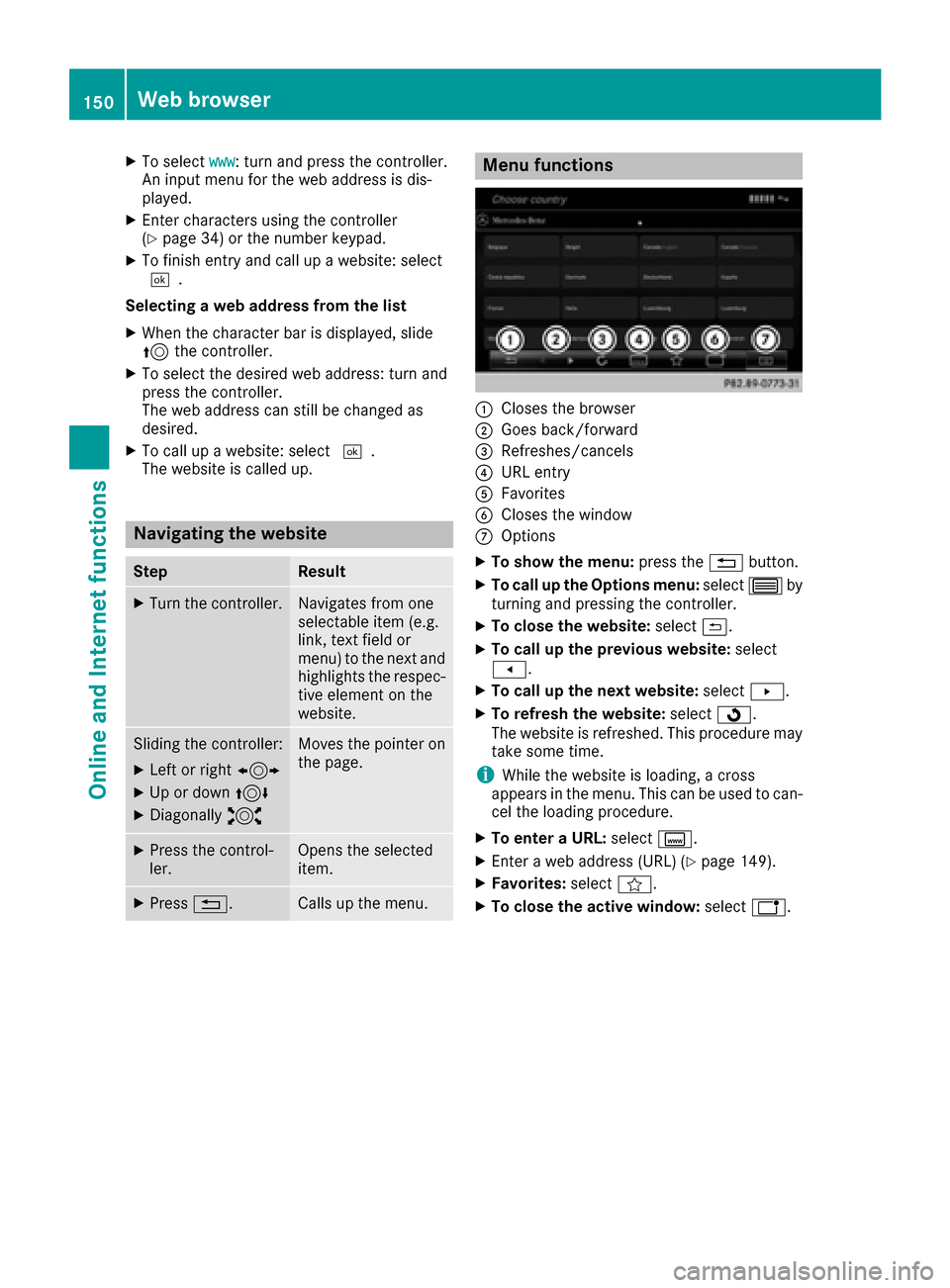
Menu functions
:Closes the browser
;Goes back/forward
=Refreshes/cancels
?URL entry
AFavorites
BCloses the window
COptions
XTo show the menu: press the%button.
XTo call up the Options menu: select3by
turning and pressing the controller.
XTo close the website: select&.
XTo call up the previous website: select
t.
XTo call up the next website: selectu.
XTo refresh the website: selectÎ.
The website is refreshed. This procedure may
take some time.
iWhile the website is loading, a cross
appears in the menu. This can be used to can-
cel the loading procedure.
XTo enter a URL: selectg.
XEnter a web address (URL) (Ypage 149).
XFavorites: selectf.
XTo close the active window: selecth.
150Web browser
Online and Internet functions
Page 160 of 230
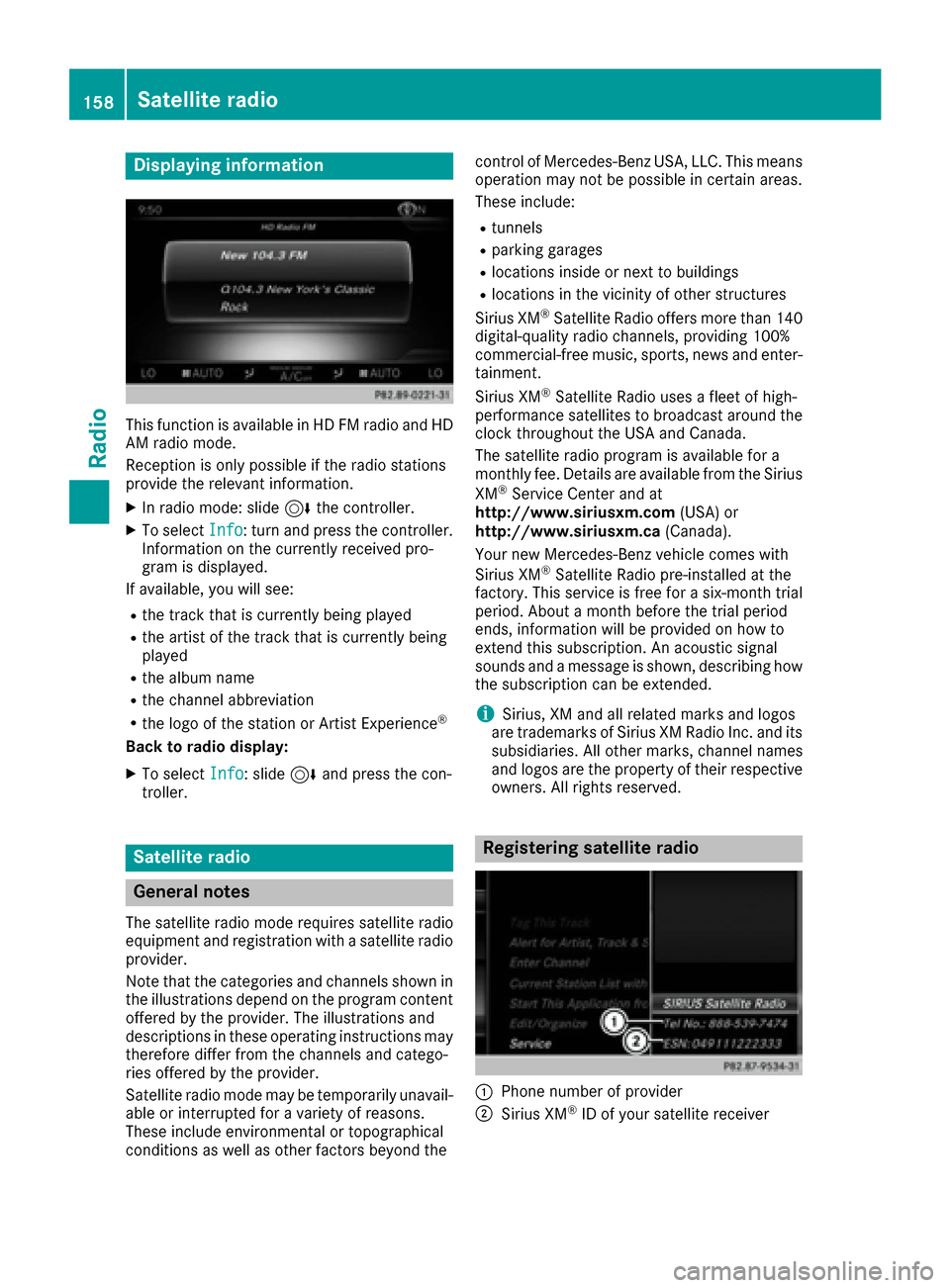
Displaying information
This function is available in HD FM radio and HD
AM radio mode.
Reception is only possible if the radio stations
providethe relevant information.
XIn radio mode: slide 6thecontroller.
XTo select Info:turn and press th econtroller.
Information on th ecurrentl y received pro-
gram is displayed.
If available, you will see:
Rth etrack that is currentl y being played
Rtheartist of th etrack that is currentl y being
played
Rth e album name
Rthe channel abbreviation
Rthe logo of the station or Artist Experience®
Back to radi o display:
XTo selectInfo: slide 6and press th econ-
troller.
Satellite radio
General notes
The satellite radio mode requires satellite radio
equipment and registration withasatellite radio
provider.
Notethat th e categories and channels shown in
th e illustrations depend on the program content
offered by th e provider. The illustrations and
descriptions in these operating instructions may
therefore diffe rfrom th e channels and catego-
ries offered by th e provider.
Satellite radio mode may be temporarily unavail-
able or interrupted foravariety of reasons.
These include environmental or topographical
conditions as well as other factors beyond the contro
lof Mercedes-Benz USA, LLC. Thismeans
operation may not be possible in certain areas.
These include:
Rtunnels
Rparking garages
Rlocations inside or next to buildings
Rlocations in the vicinity of other structures
Sirius XM®Satellite Radio offers more than 140
digital-quality radio channels, providing 100%
commercial-free music, sports, news and enter-
tainment.
Sirius XM
®Satellite Radio uses a fleet of high-
performance satellites to broadcast around the
cloc kthroughout th eUS A and Canada.
The satellite radio pro gram is available fo
ra
monthly fee. Details are available from the Sirius
XM
®Service Center and at
http://www.siriusxm.com (USA) or
http://www.siriusxm.ca (Canada).
Your new Mercedes-Benz vehicle comes with
Sirius XM
®Satellite Radio pre-installed at the
factory. Thi s service is free fo rasix-month trial
period. About a month before the trial period
ends, information will be provided on how to
extend this subscription. An acoustic signal
sounds and a message is shown, describing how
th e subscription can be extended.
iSirius, XM and all related marks and logos
are trademarks of Sirius XM Radio Inc. and its
subsidiaries. Allother marks , channel names
and logos are the property of their respective
owners. Allright s reserved.
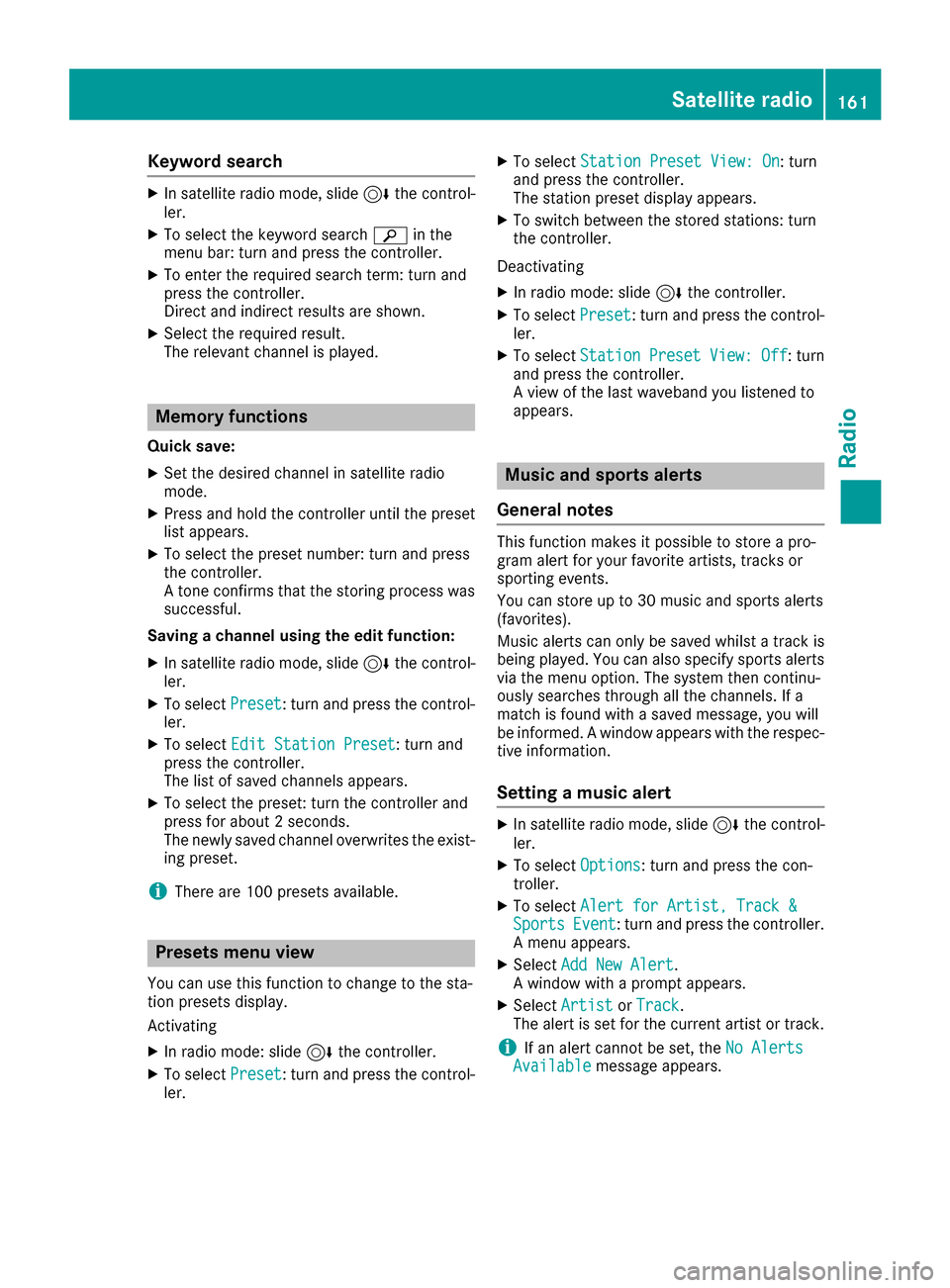
Registering satellite radio
:Phone number of provider
;Sirius XM®ID of your satellite receiver
158Satellite radio
Radio
Page 163 of 230
Keyword search
XIn satellite radio mode, slide6thecontrol -
ler.
XTo select the keyword search èin the
menu bar: turn and press thecontroller.
XTo enter the required search term : turn and
press th econtroller.
Direc t and indirect results are shown.
XSelect the required result.
The relevant channel is played.
Memory functions
Quick save:
XSe tth e desired channel in satellite radio
mode.
XPress and hold the controller until the preset
list appears.
XTo select the preset number: turn and press
th econtroller.
A tone confirm sthat th estoring process was
successful.
Saving a channel using the edit function:
XIn satellite radio mode, slide 6thecontrol -
ler.
XTo select Preset: turnand press th econtrol -
ler.
XTo select EditStatio nPreset: turn and
press th econtroller.
The list of saved channels appears.
XTo select the preset: turn the controller and
press for about 2 seconds.
The newly saved channel overwrites the exist-
ing preset.
iThere are 100 presets available.
Presets menu view
You can use this function to change to the sta-
tion presets display.
Activating
XIn radio mode: slide 6thecontroller.
XTo select Preset: turnand press th econtrol -
ler.
XTo select StationPreset View: On: turn
and press th econtroller.
The station preset display appears.
XTo switch between the stored stations: turn
th econtroller.
Deactivating
XIn radio mode: slide 6thecontroller.
XTo select Preset: turnand press th econtrol -
ler.
XTo select StationPresetView:Off: turn
and press th econtroller.
A view of the last waveband you listened to
appears.
Music and sports alerts
Gene ral notes
This function makes it possible to storea pro-
gram alert for your favorite artists, tracks or
sporting events.
You can store up to 30 music and sports alerts
(favorites).
Music alerts can only be saved whils tatrack is
being played. You can also specify sports alerts
via th e menu option. The system then continu-
ously searches through all the channels. Ifa
match is found withasaved message, you will
be informed. A window appears with the respec-
tive information.
Setting a music alert
XIn satellite radio mode, slide 6thecontrol -
ler.
XTo select Options: turnand press th econ-
troller.
XTo select Alert for Artist ,Track &SportsEvent: turnand press th econtroller.
A menu appears.
XSelect Add New Alert.
A window wit haprompt appears.
XSelectArtistorTrack.
The alert is set for the current artist or track.
iIf an alert cannot be set, theNo AlertsAvailablemessage appears.
Satellite radio161
Radio