light MERCEDES-BENZ S-Class MAYBACH 2017 W222 Comand Manual
[x] Cancel search | Manufacturer: MERCEDES-BENZ, Model Year: 2017, Model line: S-Class MAYBACH, Model: MERCEDES-BENZ S-Class MAYBACH 2017 W222Pages: 230, PDF Size: 8.27 MB
Page 167 of 230
Activating media using themain func-
ti on bar
XTo display the main function bar: slide 5the
controller.
XTo select Media: turnand press th econtroller.
The last media source you have set is dis-
played.
XTo select Mediain media mode: slide 5and
press th econtroller.
The menu appears with the available media
sources.
XTo select the media source: turn thecontrol -
ler and press to confirm .
If th e media source contains music or video
files, these will be played. The corresponding
basic menu will be shown.
Activating media using the number
keypad
i
If you touch a key in the touch-sensitive
number keypad, the number field is displayed
in the additional display area.
XTouch any number key when in media mode.
The number field is shown. The active media
source is highlighted.
XTo select a media source: press thecorre-
sponding number key.
If th e media source contains music or video
files, these will be played. The corresponding
basic menu will be shown.
XTo select a track from th e active media
source: press theg key on the number
keypad.
An input field appears.
XTo ente ratrack number: use the number key-
pad to enter the desired numbers.
The track is played.
XTo sho w track information: press thes
ke y on the number keypad
An additional field appears with thetrack
information.
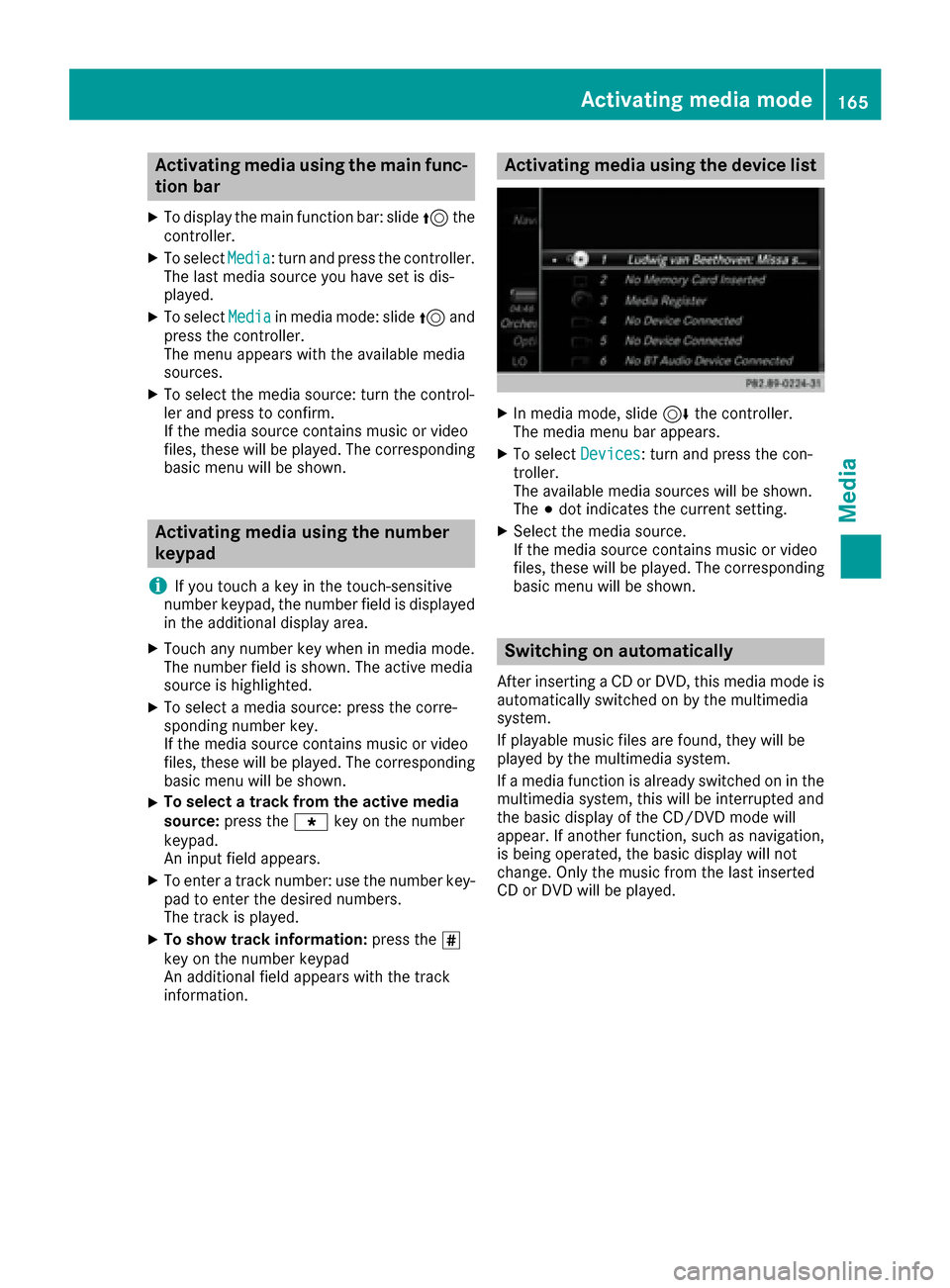
Activating media using the device list
XIn media mode, slide 6thecontroller.
The media menu bar appears.
XTo select Devices: turnand press th econ-
troller.
The available media sources will be shown.
The #dot indicates the current setting.
XSelect the media source.
If th e media source contains music or video
files, these will be played. The corresponding
basic menu will be shown.
Switching on automatically
After inserting a CD or DVD, this media mode is
automatically switched on by the multimedia
system.
If playable music files are found, they will be
played by the multimedia system.
If a media function is already switched on in the
multimedia system, this will be interrupted and
th e basic display of the CD/DVD mode will
appear. If another function, such as navigation,
is being operated, the basic display will not
change. Only the music from the last inserted
CD or DVD will be played.
Activating media mode16 5
Media
Page 178 of 230
XSelectSave Files to Media Register.
The media list appears. A data medium from
which files can be copied is selected auto-
matically.
iThe Save Files to Media Registerfunction can be reached from any media
application.
XSelect the displayed data medium.
The data medium is loaded.
If the data medium contains files that can be
copied, a selection menu appears.
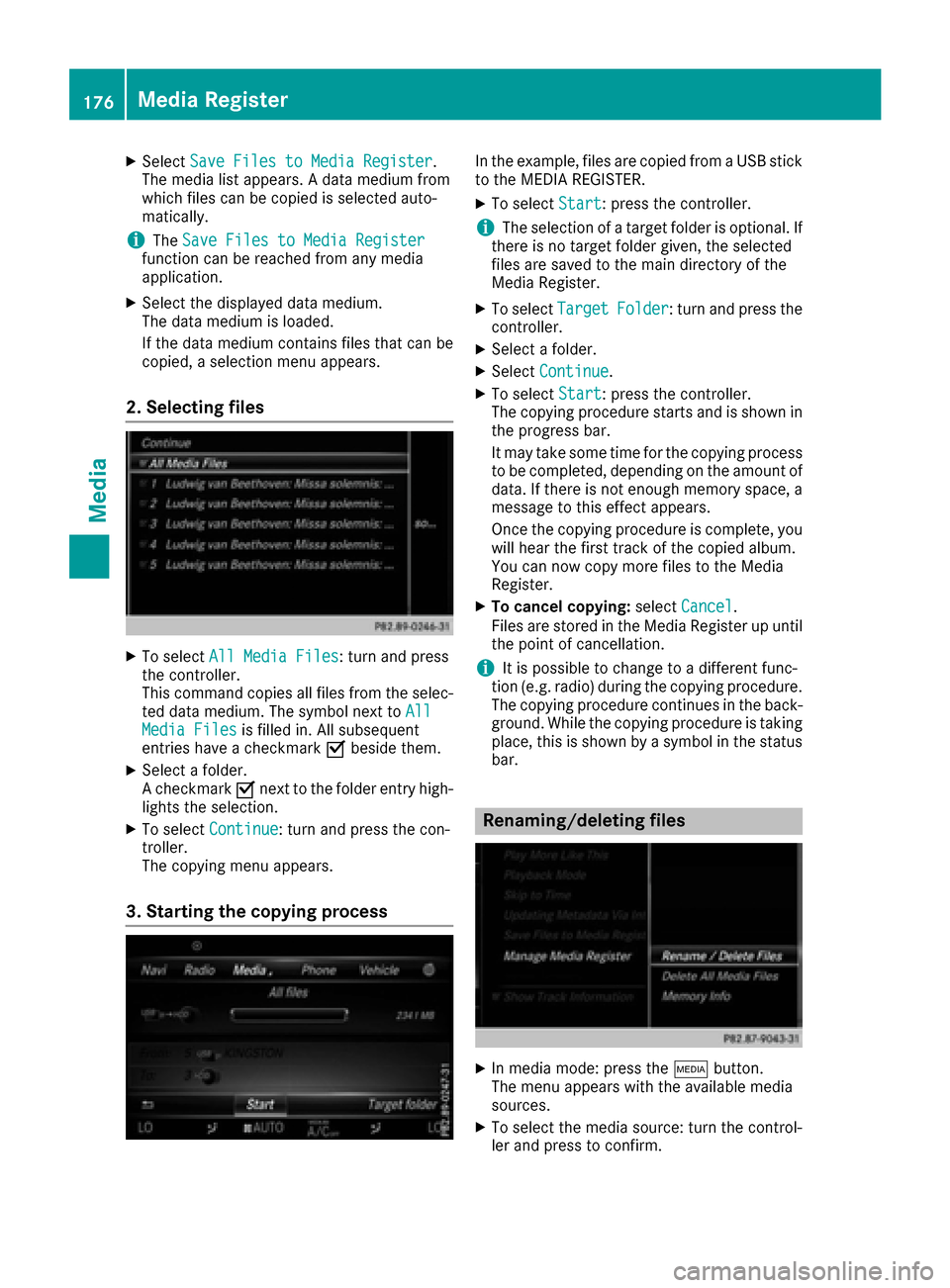
2. Selecting files
XTo select All Media Files: turn and press
the controller.
This command copies all files from the selec-
ted data medium. The symbol next to All
Media Filesis filled in. All subsequent
entries have a checkmark Obeside them.
XSelect a folder.
A checkmark Onext to the folder entry high-
lights the selection.
XTo select Continue: turn and press the con-
troller.
The copying menu appears.
3. Starting the copying process
In the example, files are copied from a USB stick
to the MEDIA REGISTER.
XTo select Start: press the controller.
iThe selection of a target folder is optional. If
there is no target folder given, the selected
files are saved to the main directory of the
Media Register.
XTo select TargetFolder: turn and press the
controller.
XSelect a folder.
XSelect Continue.
XTo select Start: press the controller.
The copying procedure starts and is shown in
the progress bar.
It may take some time for the copying process
to be completed, depending on the amount of
data. If there is not enough memory space, a
message to this effect appears.
Once the copying procedure is complete, you
will hear the first track of the copied album.
You can now copy more files to the Media
Register.
XTo cancel copying: selectCancel.
Files are stored in the Media Register up until
the point of cancellation.
iIt is possible to change to a different func-
tion (e.g. radio) during the copying procedure.
The copying procedure continues in the back-
ground. While the copying procedure is taking
place, this is shown by a symbol in the status bar.
Renaming/deleting files
XIn media mode: press the Õbutton.
The menu appears with the available media
sources.
XTo select the media source: turn the control-
ler and press to confirm.
176Media Register
Media
Page 179 of 230
XTo switch to the menu bar: slide6the con-
troller.
XTo select Options: turn and press the con-
troller.
XSelect Manage Media Register.
XSelectRename / Delete Files.
The file list is displayed.
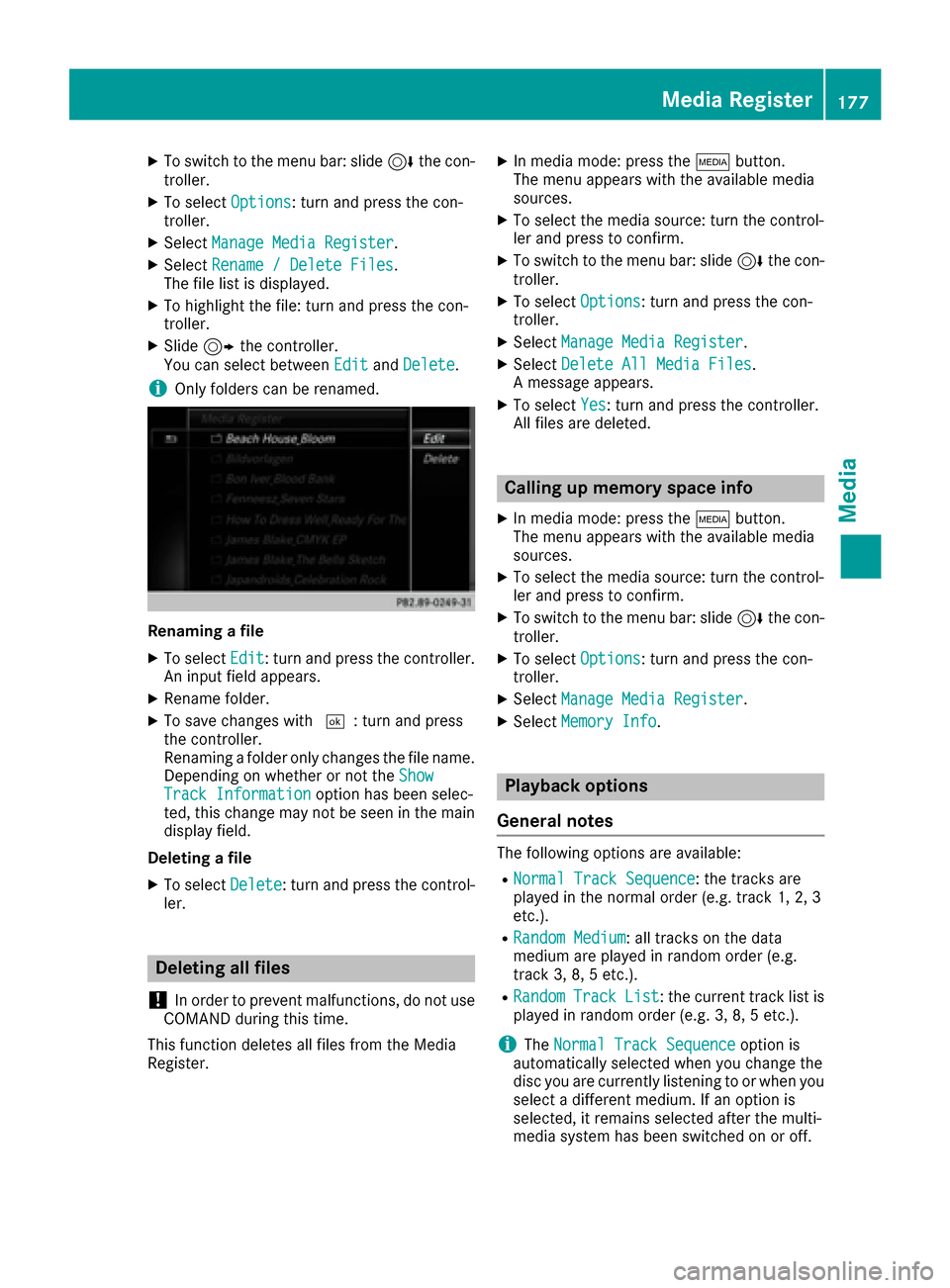
XTo highlight the file: turn and press the con-
troller.
XSlide 9the controller.
You can select between EditandDelete.
iOnly folders can be renamed.
Renaming a file
XTo select Edit: turn and press the controller.
An input field appears.
XRename folder.
XTo save changes with ¬: turn and press
the controller.
Renaming a folder only changes the file name.
Depending on whether or not the Show
Track Informationoption has been selec-
ted, this change may not be seen in the main
display field.
Deleting a file
XTo select Delete: turn and press the control-
ler.
Deleting all files
!
In order to prevent malfunctions, do not use
COMAND during this time.
This function deletes all files from the Media
Register.
XIn media mode: press the Õbutton.
The menu appears with the available media
sources.
XTo select the media source: turn the control-
ler and press to confirm.
XTo switch to the menu bar: slide 6the con-
troller.
XTo select Options: turn and press the con-
troller.
XSelect Manage Media Register.
XSelectDelete All Media Files.
A message appears.
XTo select Yes: turn and press the controller.
All files are deleted.
Calling up memory space info
XIn media mode: press the Õbutton.
The menu appears with the available media
sources.
XTo select the media source: turn the control-
ler and press to confirm.
XTo switch to the menu bar: slide 6the con-
troller.
XTo select Options: turn and press the con-
troller.
XSelect Manage Media Register.
XSelectMemory Info.
Playback options
General notes
The following options are available:
RNormal Track Sequence: the tracks are
played in the normal order (e.g. track 1, 2, 3
etc.).
RRandom Medium: all tracks on the data
medium are played in random order (e.g.
track 3, 8, 5 etc.).
RRandomTrackList: the current track list is
played in random order (e.g. 3, 8, 5 etc.).
iThe Normal Track Sequenceoption is
automatically selected when you change the
disc you are currently listening to or when you
select a different medium. If an option is
selected, it remains selected after the multi-
media system has been switched on or off.
Media Register177
Media
Z
Page 188 of 230
Videos cannot be shown on the driver's side
while the vehicle is in motion.
Switching to AUX video mode
XConnect the external video source.
The video AUX port is located in the stowage
compartment in the center console.
The video AUX is not selected automatically.
XPress theÕbutton.
The last media source you have set is dis-
played.
XTo select Media: slide5and press the con-
troller.
The menu appears with the available media
sources.
XTo select Aux: turn and press the controller.
The AUX video menu appears.
XTo select Audio/Videoin the menu bar: slide
6 and press the controller.
The Source
TypeSelectionmenu appears.
XTo select Video: turn and press the controller.
The #dot indicates the current setting.
If the video source is connected and playback
selected, the image from the external video
source will appear if Video
is selected.
Please see the manufacturer's operating
instructions for how to operate the external
video source.
Information about sound settings
(
Ypage 193)
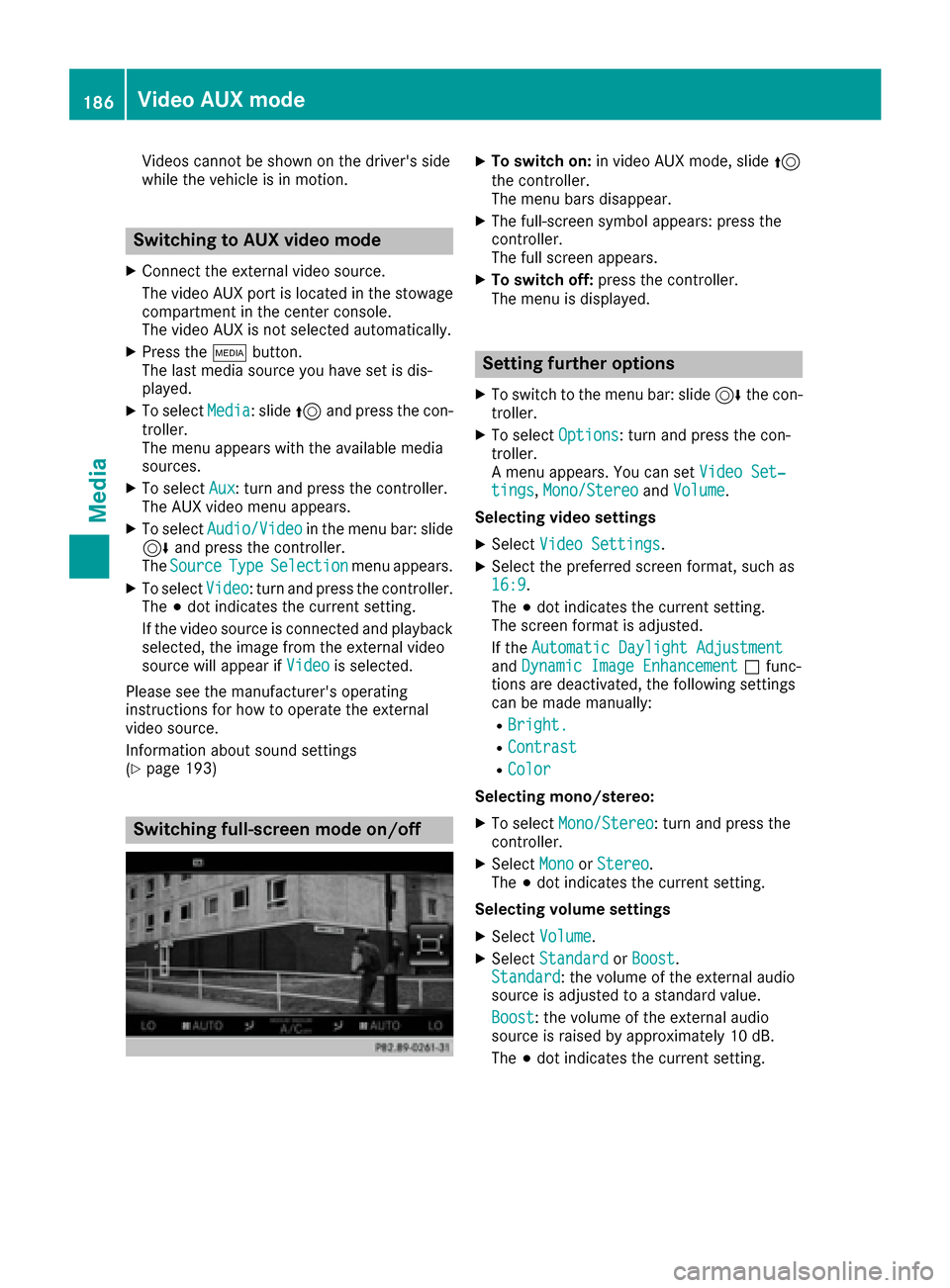
Switching full-screen mode on/off
XTo switch on: in video AUX mode, slide 5
the controller.
The menu bars disappear.
XThe full-screen symbol appears: press the
controller.
The full screen appears.
XTo switch off: press the controller.
The menu is displayed.
Setting further options
XTo switch to the menu bar: slide 6the con-
troller.
XTo select Options: turn and press the con-
troller.
A menu appears. You can set Video Set‐
tings,Mono/Stereoand Volume.
Selecting video settings
XSelect Video Settings.
XSelect the preferred screen format, such as
16:9.
The #dot indicates the current setting.
The screen format is adjusted.
If the Automatic Daylight Adjustment
andDynamic Image Enhancementªfunc-
tions are deactivated, the following settings
can be made manually:
RBright.
RContrast
RColor
Selecting mono/stereo:
XTo select Mono/Stereo: turn and press the
controller.
XSelect MonoorStereo.
The #dot indicates the current setting.
Selecting volume settings
XSelect Volume.
XSelectStandardorBoost.
Standard: the volume of the external audio
source is adjusted to a standard value.
Boost
: the volume of the external audio
source is raised by approximately 10 dB.
The #dot indicates the current setting.
186Video AUX mode
Media
Page 191 of 230
Switching on DVD full-screen mode
It is possible to switch from the DVD basic dis-
play to full screen mode as follows:
XSlide5the controller.
The main function bar and menu bar are hid-
den. A full-screen symbol will be shown.
XPress the controller.
The full-screen mode appears.
Selecting menu options
XTo select Options: slide6the controller
when in full-screen mode
The video menu appears.
XPress the controller.
The DVD basic display appears.
XTo switch to the menu bar: slide 6the con-
troller.
XTo select Options: turn and press the con-
troller.
A menu appears.
Skip to time
XTo select Skip to Time: turn and press the
controller.
A menu appears.
XTo set the time: turn the controller.
or
Set the desired time using the number key-
pad.
XTo hide the menu: press the %button.
Displaying the DVD functions
XTo select DVDFunctions: turn and press the
controller.
A menu appears (
Ypage 190).
Starting an application at a different seat
XTo select Start Application at OtherSeat: turn and press the controller.
The menu appears: (Ypage 166).
iActivating the parental control screen:
(Ypage 63).
Selecting video settings
XSelect Video Settings.
A menu appears.
Video settings
Dynamic image enhancement
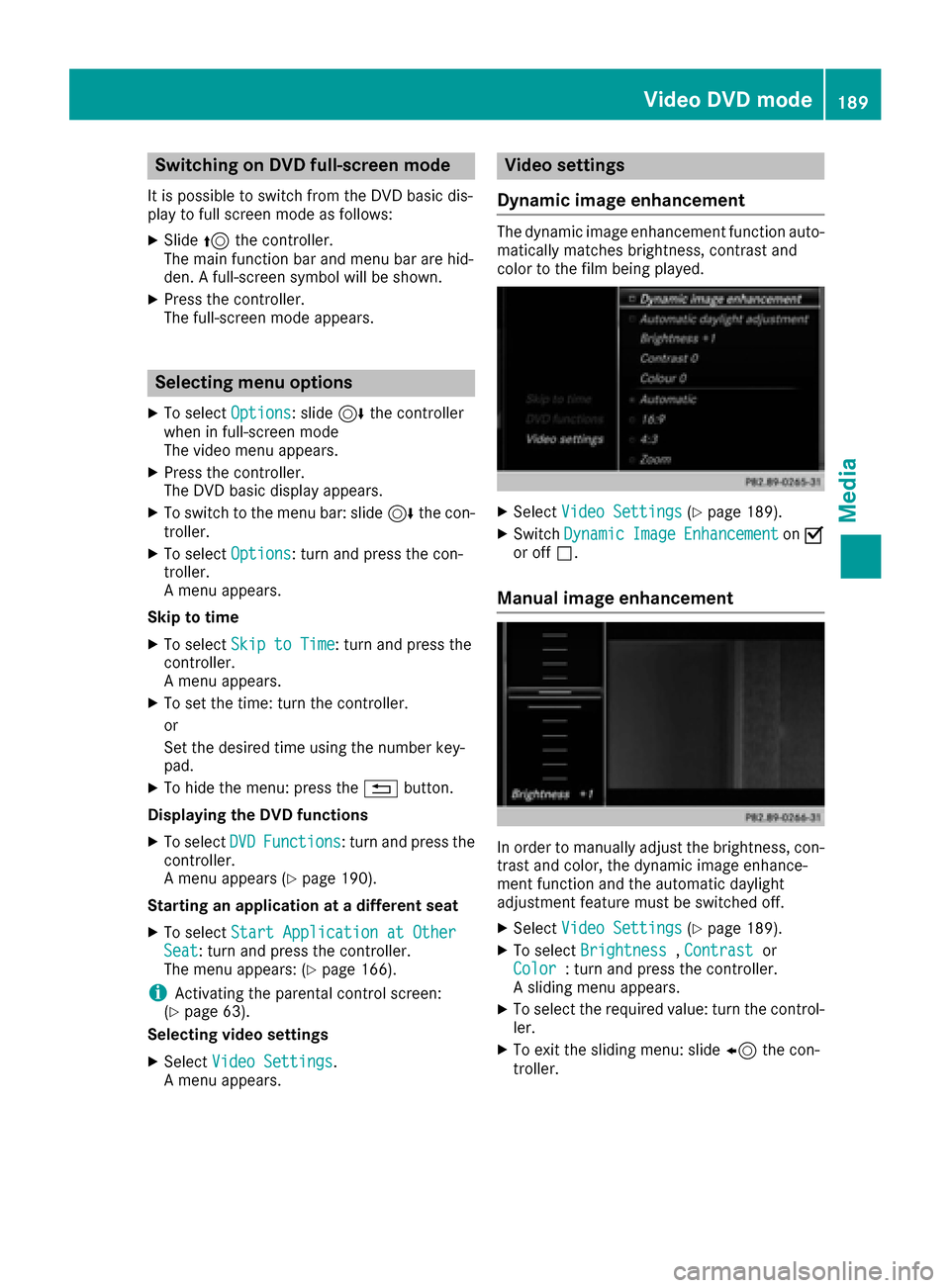
The dynamic image enhancement function auto-
matically matches brightness, contrast and
color to the film being played.
XSelect Video Settings(Ypage 189).
XSwitch DynamicImageEnhancementonO
or off ª.
Manual image enhancement
In order to manually adjust the brightness, con-
trast and color, the dynamic image enhance-
ment function and the automatic daylight
adjustment feature must be switched off.
XSelect Video Settings(Ypage 189).
XTo select Brightness,Contrastor
Color: turn and press the controller.
A sliding menu appears.
XTo select the required value: turn the control-
ler.
XTo exit the sliding menu: slide 8the con-
troller.
Video DVD mode189
Media
Z
Page 193 of 230
FStops playback
GPauses playback
Using the DVD functions
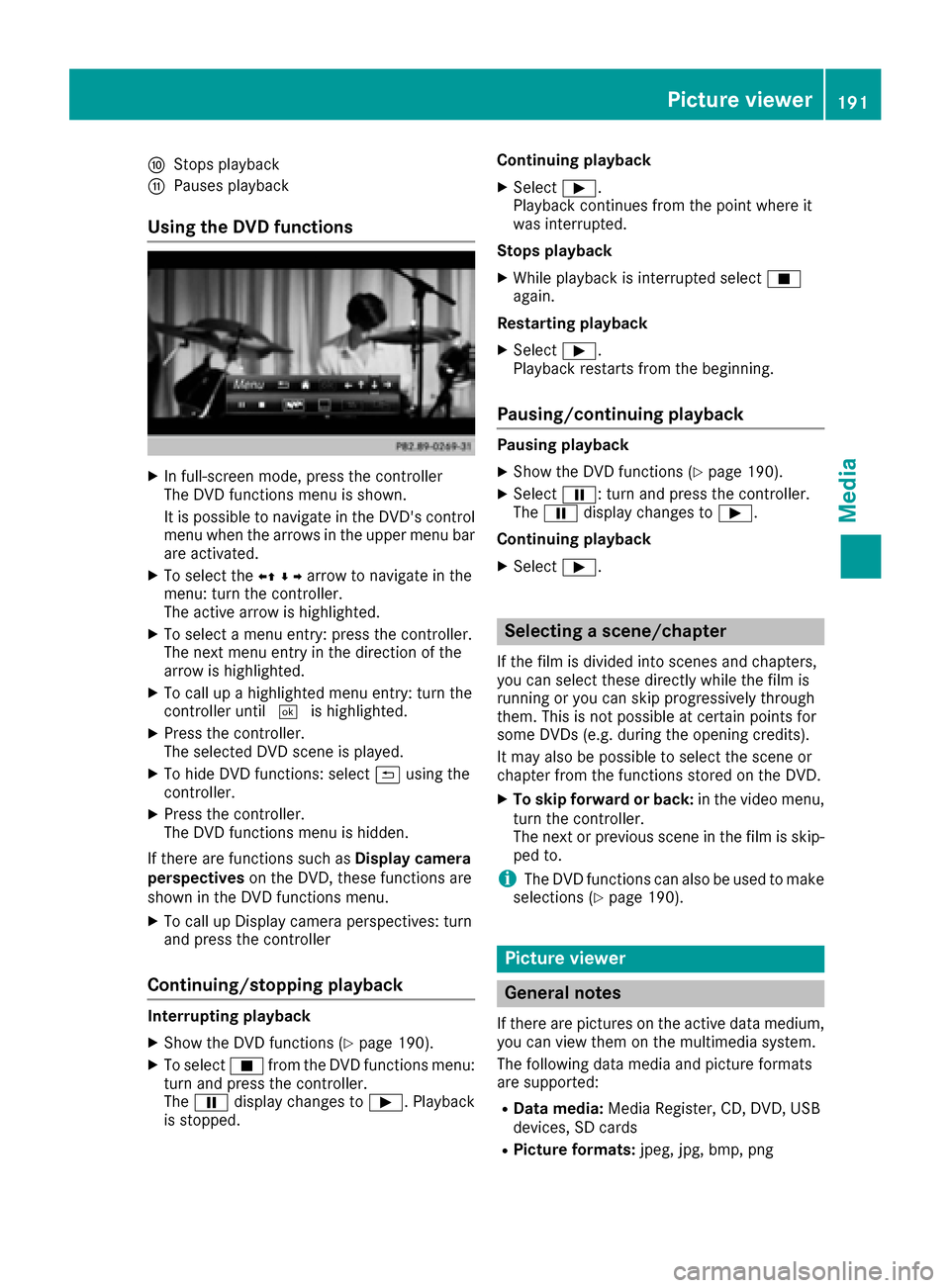
XIn full-screen mode, press the controller
The DVD functions menu is shown.
It is possible to navigate in the DVD's control
menu when the arrows in the upper menu bar
are activated.
XTo select theXZ¬Yarrow to navigate in the
menu: turn the controller.
The active arrow is highlighted.
XTo select a menu entry: press the controller.
The next menu entry in the direction of the
arrow is highlighted.
XTo call up a highlighted menu entry: turn the
controller until ¬is highlighted.
XPress the controller.
The selected DVD scene is played.
XTo hide DVD functions: select &using the
controller.
XPress the controller.
The DVD functions menu is hidden.
If there are functions such as Display camera
perspectives on the DVD, these functions are
shown in the DVD functions menu.
XTo call up Display camera perspectives: turn
and press the controller
Continuing/stopping playback
Interrupting playback
XShow the DVD functions (Ypage 190).
XTo select Éfrom the DVD functions menu:
turn and press the controller.
The Ë display changes to Ì. Playback
is stopped. Continuing playback
XSelect
Ì.
Playback continues from the point where it
was interrupted.
Stops playback
XWhile playback is interrupted select É
again.
Restarting playback
XSelect Ì.
Playback restarts from the beginning.
Pausing/continuing playback
Pausing playback
XShow the DVD functions (Ypage 190).
XSelect Ë: turn and press the controller.
The Ë display changes to Ì.
Continuing playback
XSelect Ì.
Selecting a scene/chapter
If the film is divided into scenes and chapters,
you can select these directly while the film is
running or you can skip progressively through
them. This is not possible at certain points for
some DVDs (e.g. during the opening credits).
It may also be possible to select the scene or
chapter from the functions stored on the DVD.
XTo skip forward or back: in the video menu,
turn the controller.
The next or previous scene in the film is skip-
ped to.
iThe DVD functions can also be used to make
selections (Ypage 190).
Picture viewer
General notes
If there are pictures on the active data medium,
you can view them on the multimedia system.
The following data media and picture formats
are supported:
RData media: Media Register, CD, DVD, USB
devices, SD cards
RPicture formats: jpeg, jpg, bmp, png
Picture viewer191
Media
Z
Page 203 of 230
Option 1: selecting the area in the infor-
mation chart
XTo selectPositionin the information chart:
turn and press the controller.
XTo select the current vehicle position:
select Current Position
in the menu.
The multimedia system receives weather data
for the current vehicle position from the near-
est weather station and automatically dis-
plays the data.
Requirement for "Near destination": a route to a
destination has been calculated (
Ypage 74).
The menu item is otherwise grayed out.
XTo select the vicinity of the destination:
select Near
Destination: turn and press the
controller.
XTo select a winter sports area: selectAt
Ski Areafrom the menu: turn the controller
and press to confirm.
XSelect a state, e.g. Colorado.
XSelect a winter sports area from the menu.
The weather data and other information is
displayed for the winter sports area that has
been selected. The data is supplied by the
nearest weather station.
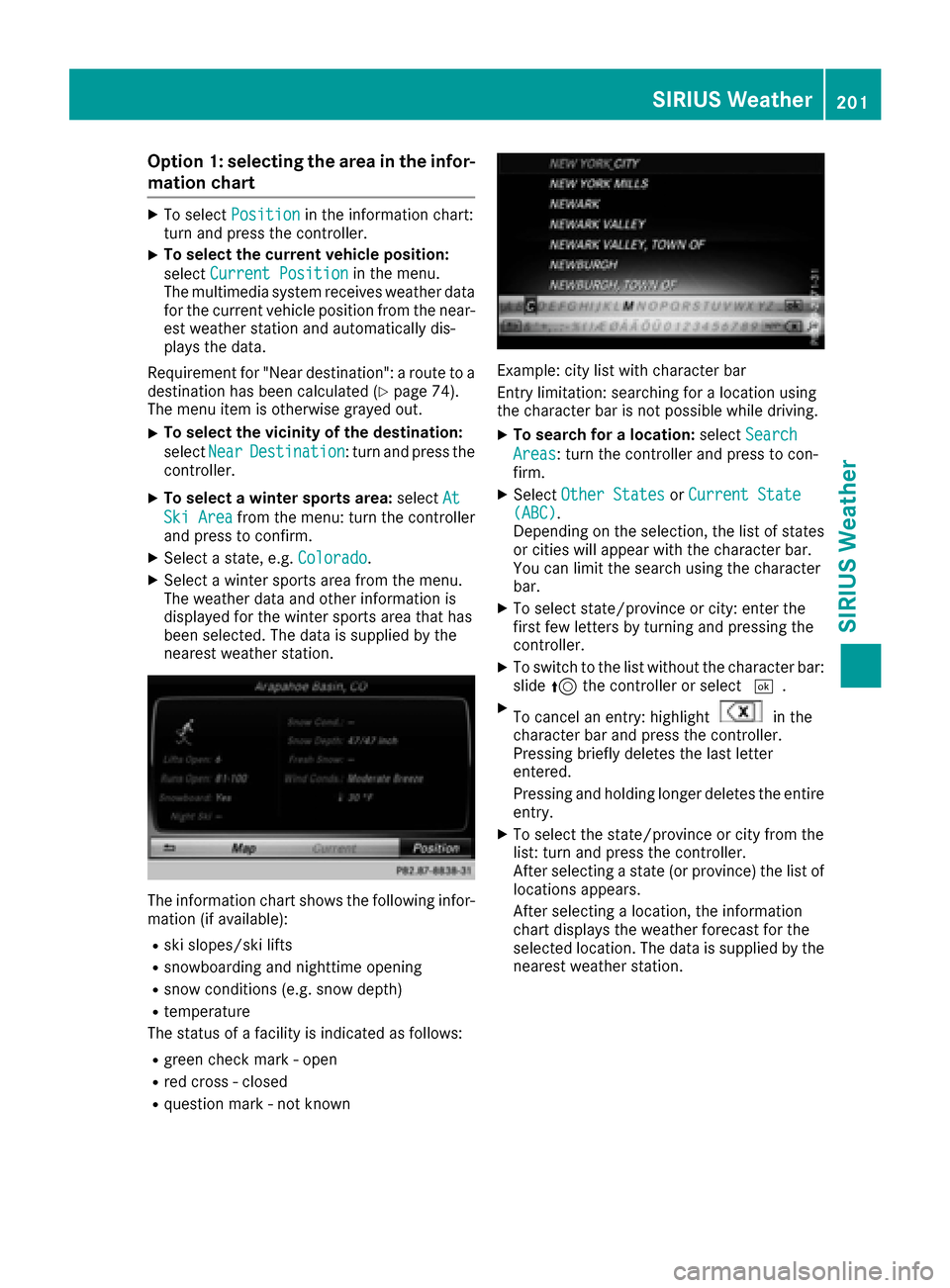
The information chart shows the following infor-
mation (if available):
Rski slopes/ski lifts
Rsnowboarding and nighttime opening
Rsnow conditions (e.g. snow depth)
Rtemperature
The status of a facility is indicated as follows:
Rgreen check mark - open
Rred cross - closed
Rquestion mark - not known
Example: city list with character bar
Entry limitation: searching for a location using
the character bar is not possible while driving.
XTo search for a location: selectSearch
Areas: turn the controller and press to con-
firm.
XSelect Other StatesorCurrent State(ABC).
Depending on the selection, the list of states
or cities will appear with the character bar.
You can limit the search using the character
bar.
XTo select state/province or city: enter the
first few letters by turning and pressing the
controller.
XTo switch to the list without the character bar:
slide 5the controller or select ¬.
XTo cancel an entry: highlightin the
character bar and press the controller.
Pressing briefly deletes the last letter
entered.
Pressing and holding longer deletes the entire
entry.
XTo select the state/province or city from the
list: turn and press the controller.
After selecting a state (or province) the list of
locations appears.
After selecting a location, the information
chart displays the weather forecast for the
selected location. The data is supplied by the
nearest weather station.
SIRIUS Weather201
SIRIUS Weather
Page 209 of 230
Legend (precipitation radar and storms)
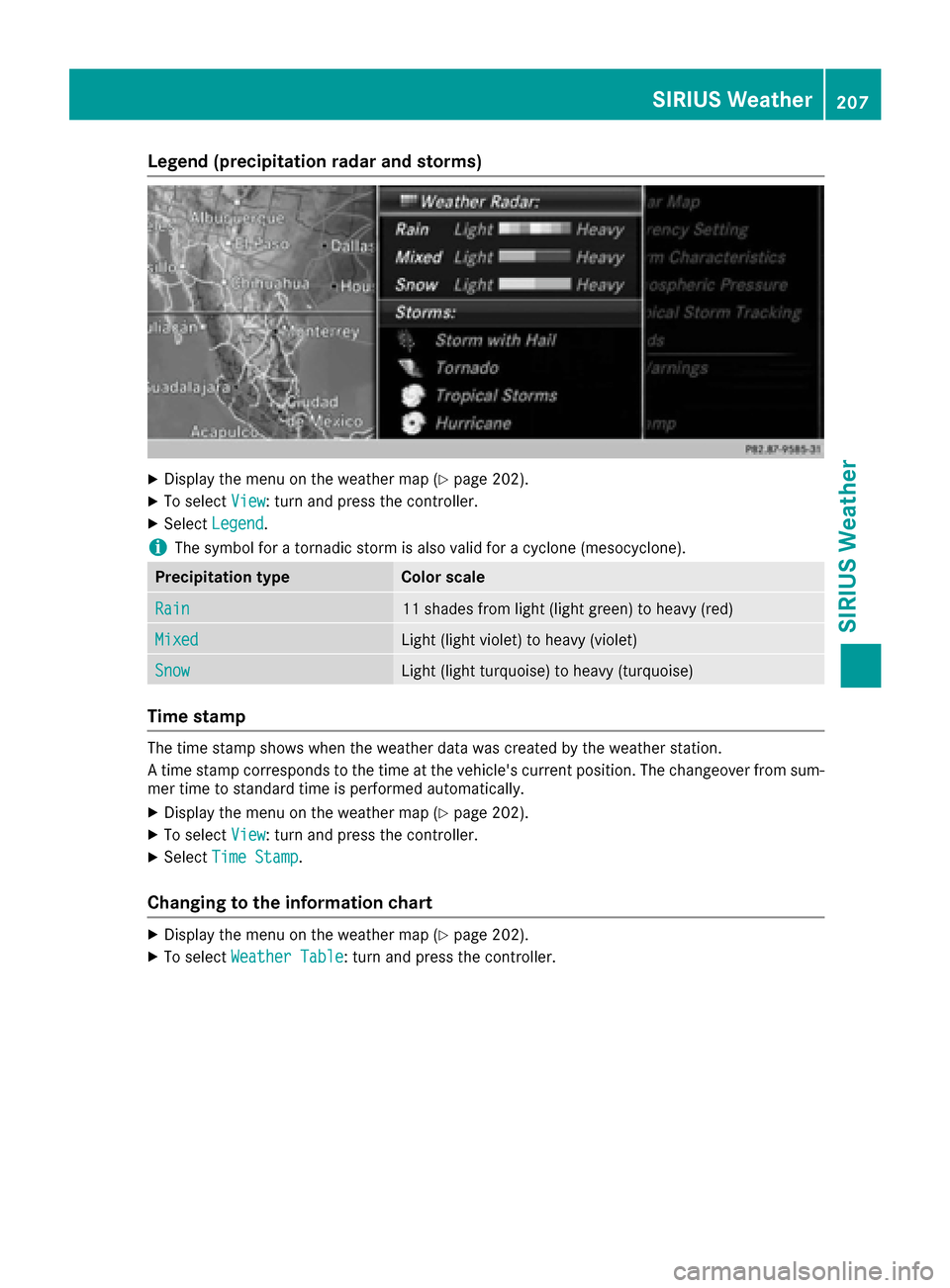
XDisplay the menu on the weather map (Ypage 202).
XTo selectView: turn and press the controller.
XSelectLegend.
iThe symbol for a tornadic storm is also valid for a cyclone (mesocyclone).
Precipitation typeColor scale
Rain11 shades from light (light green) to heavy (red)
MixedLight (light violet) to heavy (violet)
SnowLight (light turquoise) to heavy (turquoise)
Time stamp
The time stamp shows when the weather data was created by the weather station.
A time stamp corresponds to the time at the vehicle's current position. The changeover from sum-
mer time to standard time is performed automatically.
XDisplay the menu on the weather map (Ypage 202).
XTo select View: turn and press the controller.
XSelectTime Stamp.
Changing to the information chart
XDisplay the menu on the weather map (Ypage 202).
XTo select Weather Table: turn and press the controller.
SIRIUS Weather207
SIRIUS Weather
Page 210 of 230
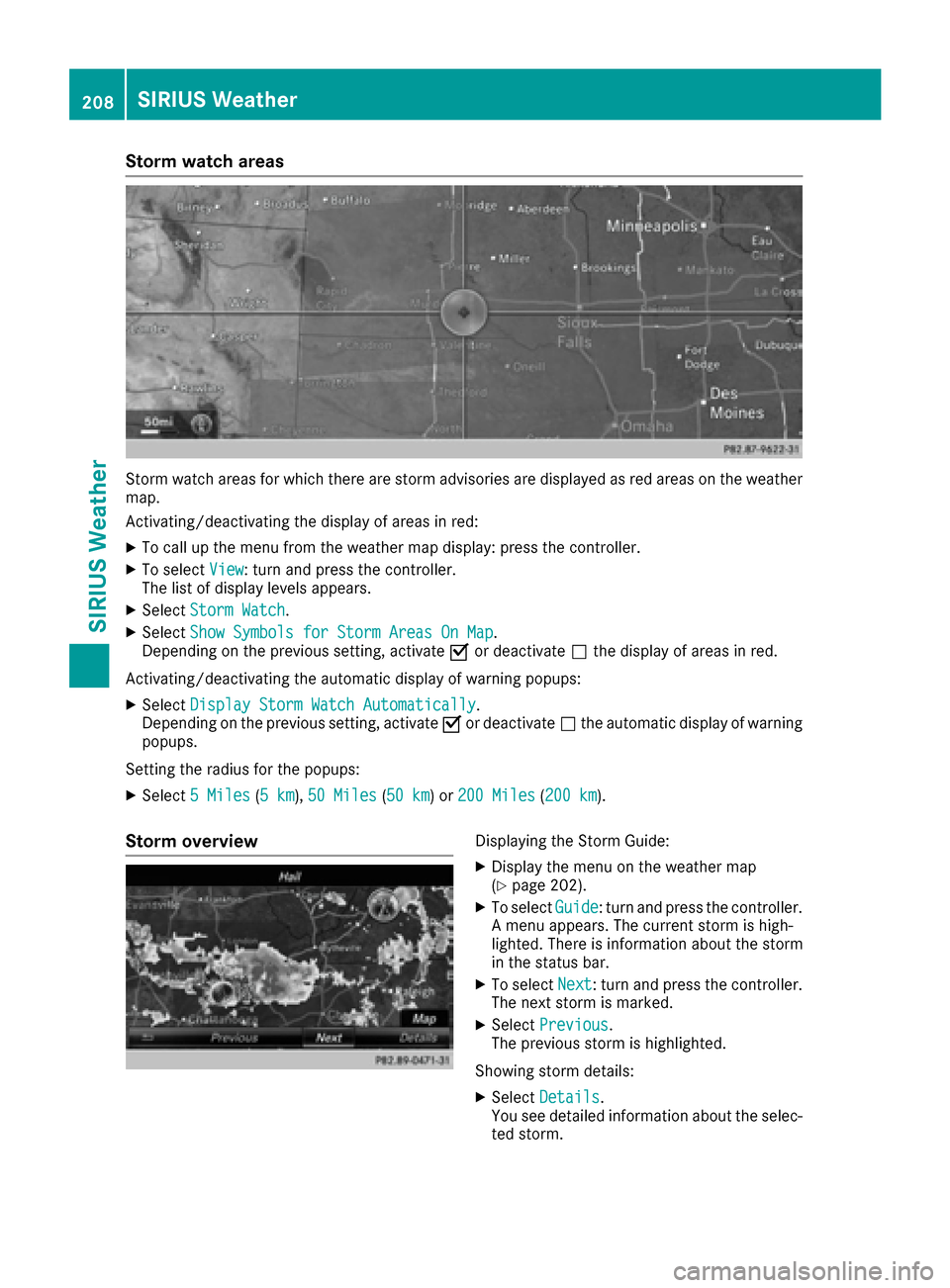
Storm watch areas
Storm watch areas for which there are storm advisories are displayed as red areas on the weather
map.
Activating/deactivating the display of areas in red:
XTo call up the menu from the weather map display: press the controller.
XTo selectView: turn and press the controller.
The list of display levels appears.
XSelect Storm Watch.
XSelectShow Symbols for Storm Areas On Map.
Depending on the previous setting, activate Oor deactivate ªthe display of areas in red.
Activating/deactivating the automatic display of warning popups:
XSelect Display Storm Watch Automatically.
Depending on the previous setting, activate Oor deactivate ªthe automatic display of warning
popups.
Setting the radius for the popups:
XSelect 5 Miles(5 km),50 Miles(50 km) or 200 Miles(200 km).
Storm overviewDisplaying the Storm Guide:
XDisplay the menu on the weather map
(Ypage 202).
XTo select Guide: turn and press the controller.
A menu appears. The current storm is high-
lighted. There is information about the storm
in the status bar.
XTo select Next: turn and press the controller.
The next storm is marked.
XSelect Previous.
The previous storm is highlighted.
Showing storm details:
XSelect Details.
You see detailed information about the selec-
ted storm.
208SIRIUS Weather
SIRIUS Weather
Page 213 of 230
Switching the screen on/off
The switched-on rear compartment screens
switch off after 30 minutes if:
Rthe SmartKey is in position0or 1in the igni-
tion lock
Rthe SmartKey is not inserted
Before the screens switch off, they show a mes-
sage to this effect.
You can switch the screens back on. Please note
that this may cause the starter battery to dis-
charge.
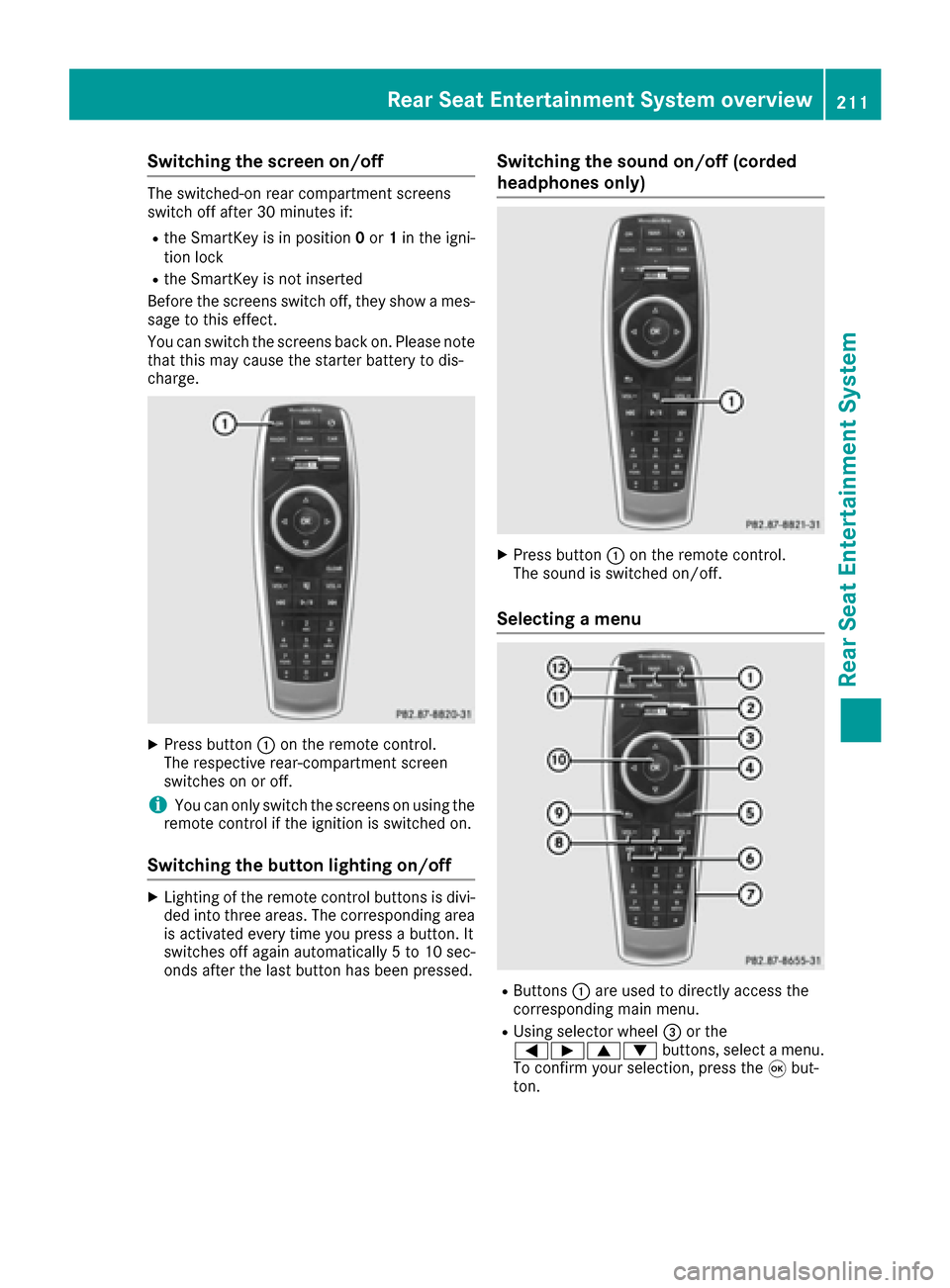
XPress button :on the remote control.
The respective rear-compartment screen
switches on or off.
iYou can only switch the screens on using the
remote control if the ignition is switched on.
Switching the button lighting on/off
XLighting of the remote control buttons is divi-
ded into three areas. The corresponding area
is activated every time you press a button. It
switches off again automatically 5 to 10 sec-
onds after the last button has been pressed.
Switching the sound on/off (corded
headphones only)
XPress button :on the remote control.
The sound is switched on/off.
Selecting a menu
RButtons :are used to directly access the
corresponding main menu.
RUsing selector wheel =or the
=Ì9: buttons, select a menu.
To confirm your selection, press the 9but-
ton.
Rear Seat Entertainment System overview211
Rear Seat Entertainment System
Z