light MERCEDES-BENZ S-Class MAYBACH 2017 W222 Comand Manual
[x] Cancel search | Manufacturer: MERCEDES-BENZ, Model Year: 2017, Model line: S-Class MAYBACH, Model: MERCEDES-BENZ S-Class MAYBACH 2017 W222Pages: 230, PDF Size: 8.27 MB
Page 133 of 230
XTo switch to the menu bar: slide6the con-
troller.
XTo select Download: turn and press the con-
troller.
Downloading text messages and e-mails
from the phone
XSelect From the Phone.
The messages are downloaded. If you have
selected Automatic Download
in the e-mail
settings, manual downloading is not possible.
Updating from the e-mail server by the
mobile phone
XSelect From the E-Mail Server.
The e-mails in the mobile phone are updated.
This function is not supported by all mobile
phones.
Reading messages
In the message menu
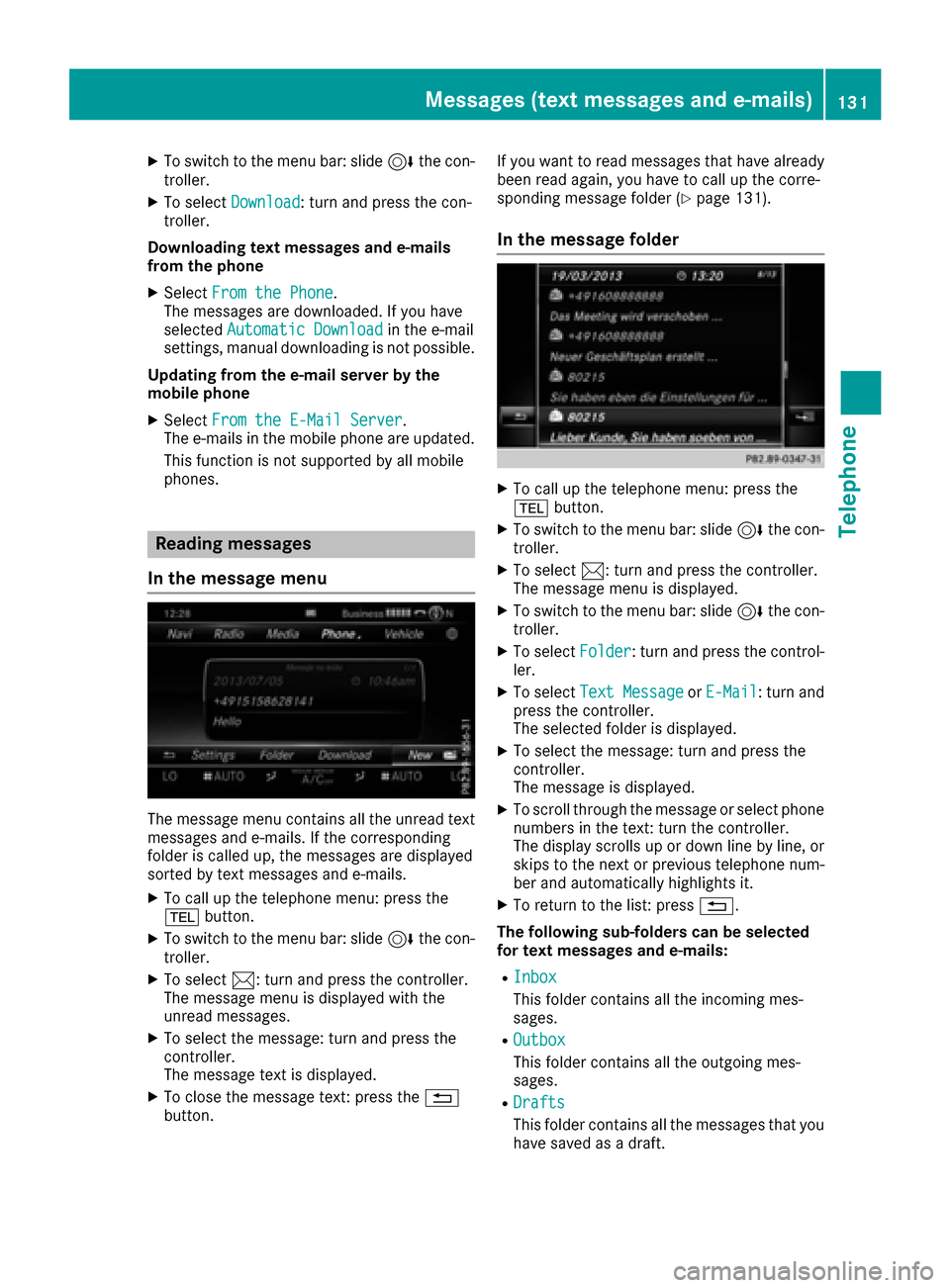
The message menu contains all the unread text
messages and e-mails. If the corresponding
folder is called up, the messages are displayed
sorted by text messages and e-mails.
XTo call up the telephone menu: press the
% button.
XTo switch to the menu bar: slide 6the con-
troller.
XTo select 1: turn and press the controller.
The message menu is displayed with the
unread messages.
XTo select the message: turn and press the
controller.
The message text is displayed.
XTo close the message text: press the %
button. If you want to read messages that have already
been read again, you have to call up the corre-
sponding message folder (
Ypage 131).
In the message folder
XTo call up the telephone menu: press the
%
button.
XTo switch to the menu bar: slide 6the con-
troller.
XTo select 1: turn and press the controller.
The message menu is displayed.
XTo switch to the menu bar: slide 6the con-
troller.
XTo select Folder: turn and press the control-
ler.
XTo select Text MessageorE-Mail: turn and
press the controller.
The selected folder is displayed.
XTo select the message: turn and press the
controller.
The message is displayed.
XTo scroll through the message or select phone numbers in the text: turn the controller.
The display scrolls up or down line by line, or
skips to the next or previous telephone num-ber and automatically highlights it.
XTo return to the list: press %.
The following sub-folders can be selected
for text messages and e-mails:
RInbox
This folder contains all the incoming mes-
sages.
ROutbox
This folder contains all the outgoing mes-
sages.
RDrafts
This folder contains all the messages that you
have saved as a draft.
Messages (text messages and e-mails)131
Telephone
Z
Page 134 of 230
iFolders cannot be selected if they are
empty.
Depending on the mobile phone used, the sub-
folder function may be available.
Read-aloud function for messages
XTo start the read-aloud function: press the
controller when the message is displayed.
XTo select Read Aloud: turn and press the
controller.
The multimedia system reads the message
aloud.
XTo cancel the read-aloud function: press the
8 button.
or
XPress the controller, select Cancel Read-Aloud Functionand press the controller
again.
You can set the language (
Ypage 46) and the
speed (Ypage 43) of the read-aloud function.
Displaying details and phone numbers
The multimedia system can also show a short-
ened sender display in full.
XTo call up the telephone menu: press the
% button.
XTo switch to the menu bar: slide 6the con-
troller.
XTo select 1: turn and press the controller.
The message menu is displayed.
XTo switch to the menu bar: slide 6the con-
troller.
XTo select Folder: turn and press the control-
ler.
XTo select Text MessageorE-Mail: turn and
press the controller.
The selected folder is displayed.
XTo highlight the desired message: turn the
controller.
XTo select G: slide 9the controller.
XTo select Details: turn and press the con-
troller.
The detailed view appears.
XTo close the detailed display: slide8 the
controller.
XTo return to the telephone menu: press the
% button.
Writing text messages
Writing a new text message
Observe the requirements for the message func-
tion (Ypage 129).
XTo call up the telephone menu: press the
% button.
XTo switch to the menu bar: slide 6the con-
troller.
XTo select 1: turn and press the controller.
The message menu is displayed.
XTo switch to the menu bar: slide 6the con-
troller.
XTo select New: turn and press the controller.
XTo selectText Message: turn and press the
controller.
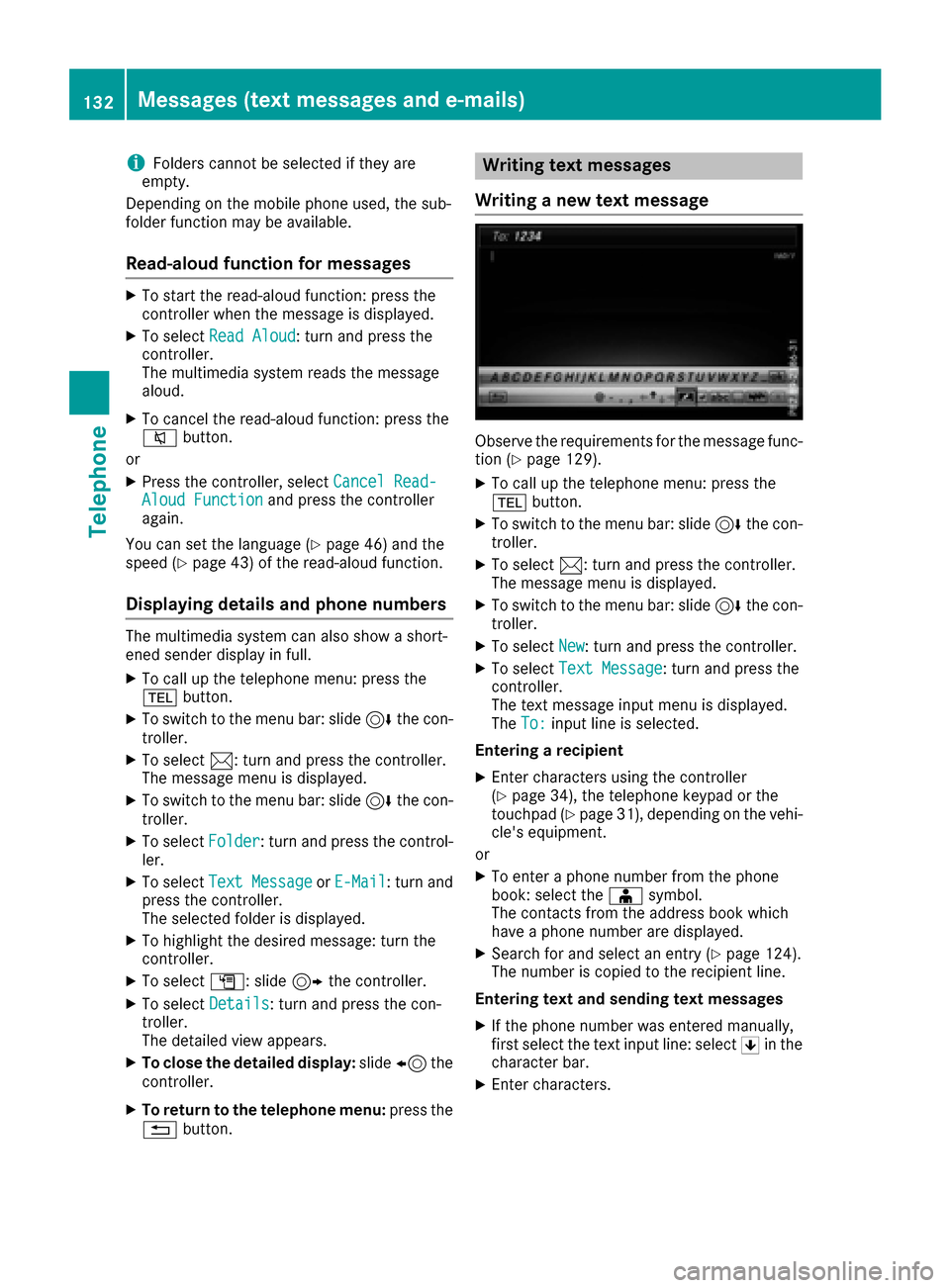
The text message input menu is displayed.
The To:
input line is selected.
Entering a recipient
XEnter characters using the controller
(Ypage 34), the telephone keypad or the
touchpad (Ypage 31), depending on the vehi-
cle's equipment.
or
XTo enter a phone number from the phone
book: select the Æsymbol.
The contacts from the address book which
have a phone number are displayed.
XSearch for and select an entry (Ypage 124).
The number is copied to the recipient line.
Entering text and sending text messages
XIf the phone number was entered manually,
first select the text input line: select 5in the
character bar.
XEnter characters.
132Messages (text messages and e-mails)
Telephone
Page 136 of 230
Text templates
Using text templates
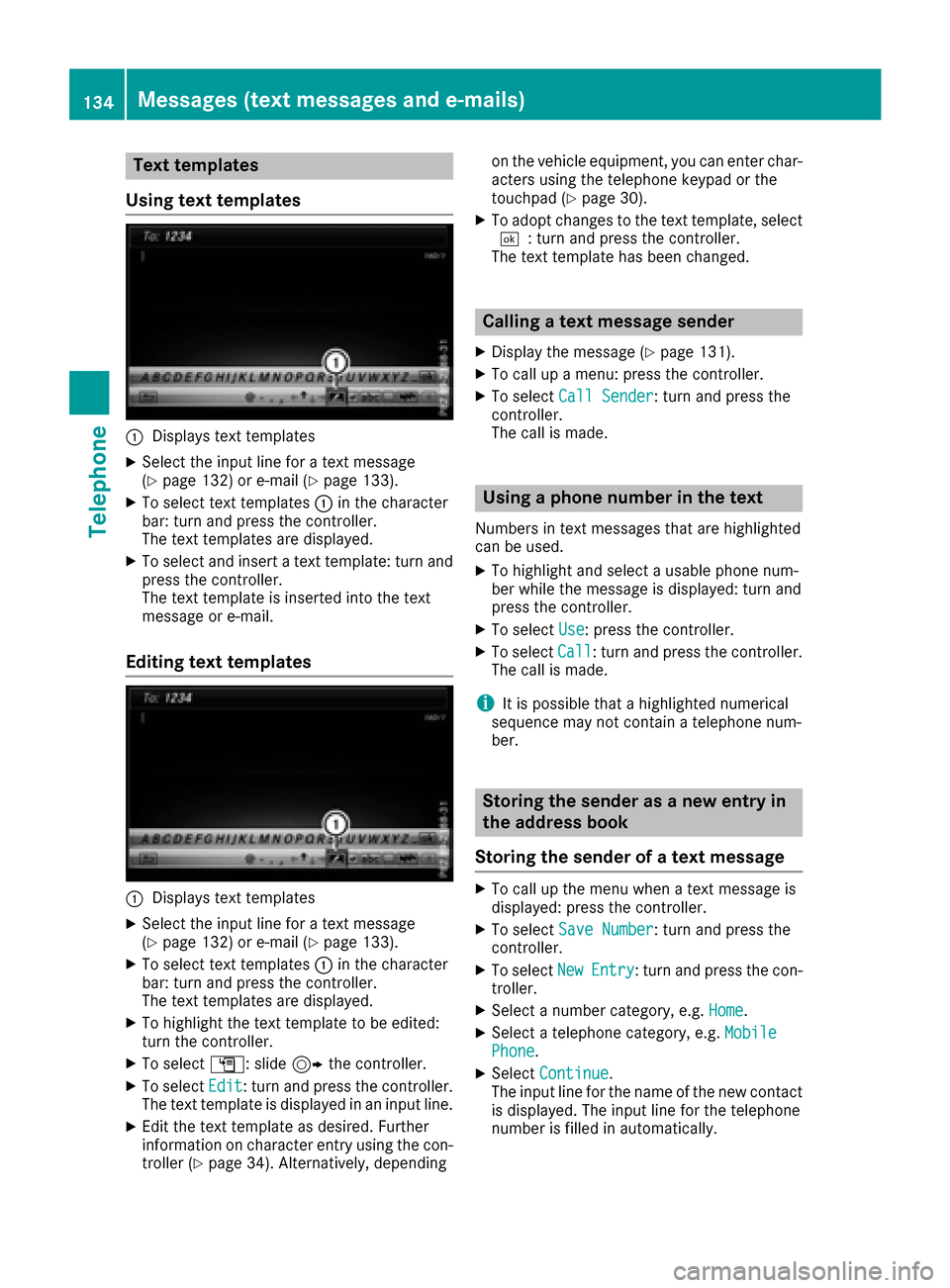
:Displays text templates
XSelect the input line for a text message
(Ypage 132) or e-mail (Ypage 133).
XTo select text templates :in the character
bar: turn and press the controller.
The text templates are displayed.
XTo select and insert a text template: turn and
press the controller.
The text template is inserted into the text
message or e-mail.
Editing text templates
:Displays text templates
XSelect the input line for a text message
(Ypage 132) or e-mail (Ypage 133).
XTo select text templates :in the character
bar: turn and press the controller.
The text templates are displayed.
XTo highlight the text template to be edited:
turn the controller.
XTo select G: slide 9the controller.
XTo select Edit: turn and press the controller.
The text template is displayed in an input line.
XEdit the text template as desired. Further
information on character entry using the con-
troller (
Ypage 34). Alternatively, depending on the vehicle equipment, you can enter char-
acters using the telephone keypad or the
touchpad (
Ypage 30).
XTo adopt changes to the text template, select
¬: turn and press the controller.
The text template has been changed.
Calling a text message sender
XDisplay the message (Ypage 131).
XTo call up a menu: press the controller.
XTo select Call Sender: turn and press the
controller.
The call is made.
Using a phone number in the text
Numbers in text messages that are highlighted
can be used.
XTo highlight and select a usable phone num-
ber while the message is displayed: turn and
press the controller.
XTo select Use: press the controller.
XTo selectCall: turn and press the controller.
The call is made.
iIt is possible that a highlighted numerical
sequence may not contain a telephone num-
ber.
Storing the sender as a new entry in
the address book
Storing the sender of a text message
XTo call up the menu when a text message is
displayed: press the controller.
XTo select Save Number: turn and press the
controller.
XTo select NewEntry: turn and press the con-
troller.
XSelect a number category, e.g. Home.
XSelect a telephone category, e.g. MobilePhone.
XSelectContinue.
The input line for the name of the new contact
is displayed. The input line for the telephone
number is filled in automatically.
134Messages (text messages and e-mails)
Telephone
Page 138 of 230
If a mobile phone is connected to the multimedia
system and automatic calling up is activated
(
Ypage 140), the mobile phone's contacts are
displayed in the address book. If you disconnect
the mobile phone from the multimedia system,
these contacts are no longer displayed in the
address book.
When you import, save, edit or add contacts,
they will be saved in the multimedia system.
These contacts will remain available even when
you connect the multimedia system to a differ-
ent mobile phone. You can view these contacts
even without a mobile phone.
iThe address book can store a total of 5000
contacts.
R2000 entries are reserved for permanently
saved contacts.
R3000 entries are reserved for contacts that
you can load from the mobile phone.
iBefore selling your vehicle, delete the con-
tacts saved in the multimedia system using
the reset function (
Ypage 50).
Calling up the address book
XTo call up the telephone menu: press the
% button.
XTo switch to the main function bar: slide 5
the controller.
XTo select Phone: press the controller.
XTo selectAddress Book: turn and press the
controller.
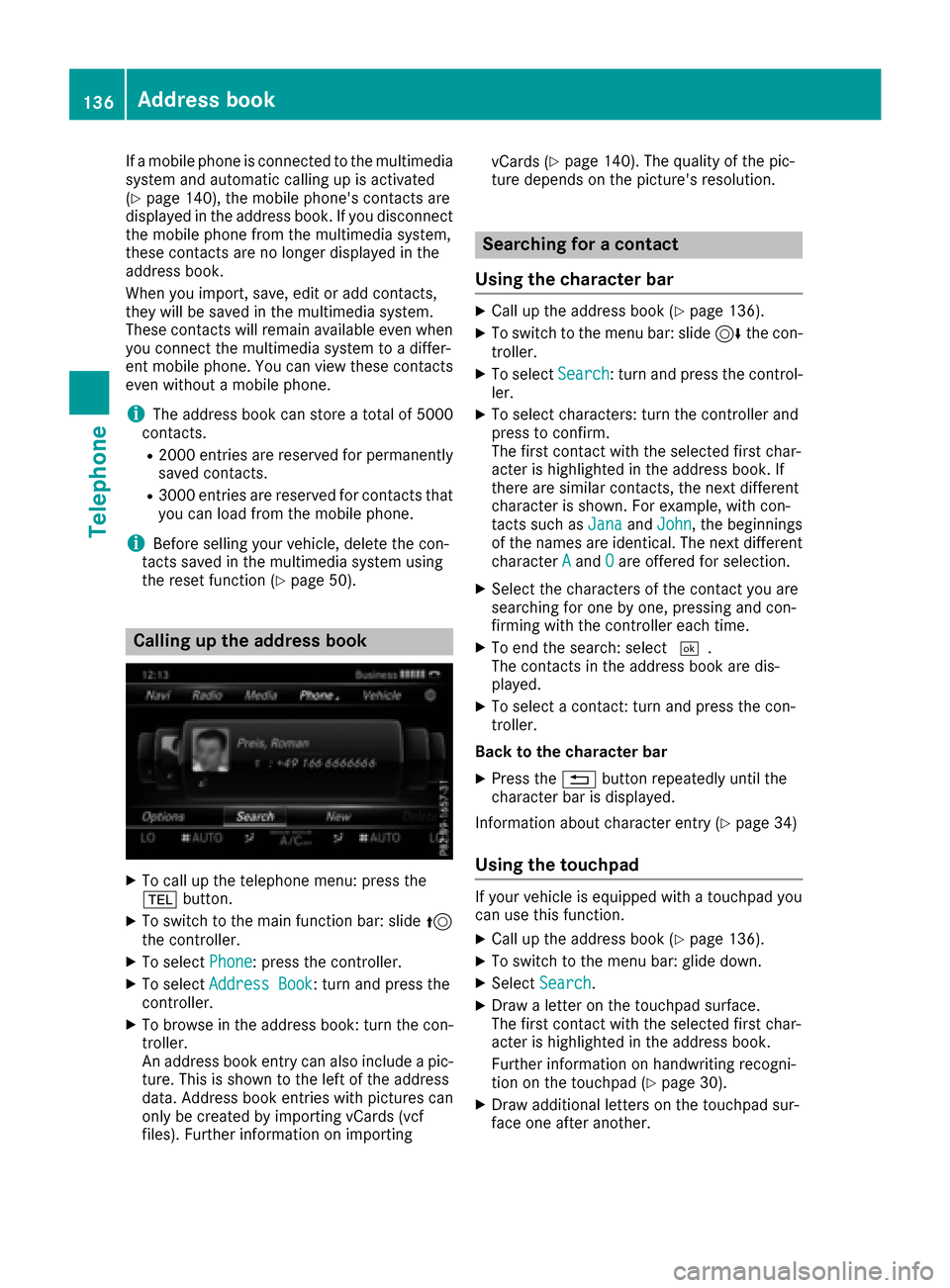
XTo browse in the address book: turn the con- troller.
An address book entry can also include a pic-
ture. This is shown to the left of the address
data. Address book entries with pictures can
only be created by importing vCards (vcf
files). Further information on importing vCards (
Ypage 140). The quality of the pic-
ture depends on the picture's resolution.
Searching for a contact
Using the character bar
XCall up the address book (Ypage 136).
XTo switch to the menu bar: slide 6the con-
troller.
XTo select Search: turn and press the control-
ler.
XTo select characters: turn the controller and
press to confirm.
The first contact with the selected first char-
acter is highlighted in the address book. If
there are similar contacts, the next different
character is shown. For example, with con-
tacts such as Jana
andJohn, the beginnings
of the names are identical. The next different
character A
andOare offered for selection.
XSelect the characters of the contact you are
searching for one by one, pressing and con-
firming with the controller each time.
XTo end the search: select ¬.
The contacts in the address book are dis-
played.
XTo select a contact: turn and press the con-
troller.
Back to the character bar
XPress the %button repeatedly until the
character bar is displayed.
Information about character entry (
Ypage 34)
Using the touchpad
If your vehicle is equipped with a touchpad you
can use this function.
XCall up the address book (Ypage 136).
XTo switch to the menu bar: glide down.
XSelect Search.
XDraw a letter on the touchpad surface.
The first contact with the selected first char-
acter is highlighted in the address book.
Further information on handwriting recogni-
tion on the touchpad (
Ypage 30).
XDraw additional letters on the touchpad sur-
face one after another.
136Address book
Telephone
Page 140 of 230
XCall up the address book (Ypage 136).
XTo select a contact: turn and press the con-
troller.
The detailsfor the contact are displayed.
XTo select the address or geo-coordinates:
turn and press the controller.
The navigation menu is displayed.
XTo selectStartRouteGuidance: slide6
and press the controller.
The route to the destination address is calcu-
lated and route guidance starts.
Making a call
XCall up the address book (Ypage 136).
XTo select a contact: turn and press the con-
troller.
The details for the contact are displayed.
XTo select a telephone number: turn and press
the controller.
The number is dialed. Further information
about the functions during a call
(
Ypage 120).
Sending text messages
XCall up the address book (Ypage 136).
XTo select a contact: turn and press the con-
troller.
The detailsfor the contact are displayed.
XTo highlight the telephone number: turn the
controller.
XTo selectG: slide 9the controller.
XTo select Send Text Message: turn and
press the controller.
The entry fields for a text message are dis-
played.
Observe the requirements for the message func-
tion (
Ypage 129).
Sending an e-mail
XCall up the address book (Ypage 136).
XSelect an entry: turn and press the controller.
The details for the contact are displayed.
XTo select an e-mail address: turn and press
the controller.
The entry fields for an e-mail are displayed
(
Ypage 133). Observe the requirements for the message func-
tion (
Ypage 129).
Displaying sub-entry information
XCall up the address book (Ypage 136).
XSelect an entry: turn and press the controller.
The details for the contact are displayed.
XTo highlight the desired entry: turn the con-
troller.
XTo select
G: slide 9the controller.
XTo select Details: turn and press the con-
troller.
The display is shown in full.
XTo close the detailed display: press the %
button.
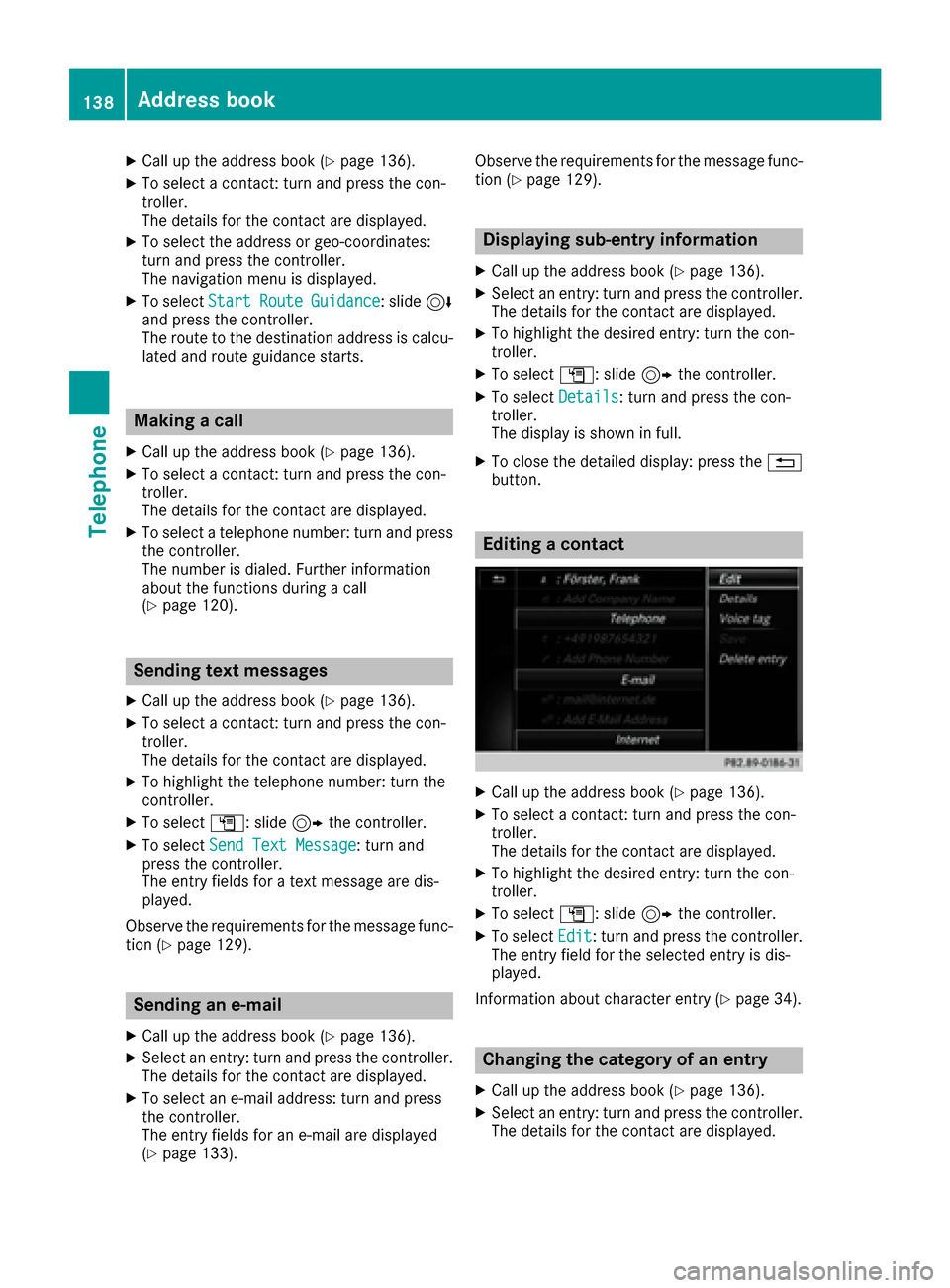
Editing a contact
XCall up the address book (Ypage 136).
XTo select a contact: turn and press the con-
troller.
The details for the contact are displayed.
XTo highlight the desired entry: turn the con-
troller.
XTo select G: slide 9the controller.
XTo select Edit: turn and press the controller.
The entry field for the selected entry is dis-
played.
In formation about character entry (
Ypage 34).
Changing the category of an entry
XCall up the address book (Ypage 136).
XSelect an entry: turn and press the controller.
The details for the contact are displayed.
138Address book
Telephone
Page 141 of 230
XTo highlight the desired entry: turn the con-
troller.
XTo selectG: slide 9the controller.
XTo select Change Category: turn and press
the controller.
XTo select a category: turn the controller and
press to confirm.
Storing the phone number as a speed
dial number
XCall up the address book (Ypage 136).
XSelect an entry: turn and press the controller.
The details for the contact are displayed.
XTo highlight the desired telephone number:
turn the controller.
XTo select G: slide 9the controller.
XTo select Speed Dial: turn and press the
controller.
XTo select AssignSpeedDialPreset: turn
and press the controller.
XTo select a memory position for the speed
dial: turn and press the controller.
The phone number has been saved as a speed
dial.
Voice tags
Introduction
You can enter voice tags via the Voice Control
System (see the separate operating instruc-
tions). Once you have assigned a voice tag to an
address book entry, you can call up this entry
with a voice command and dial a phone number,
for example. You can add one voice tag per
address book entry.
Adding or changing a voice tag
XCall up the address book (Ypage 136).
XSearch for an address book entry with or with-
out a voice tag ¦(Ypage 136).
XTo select G: slide 9the controller.
XTo select VoiceTag: turn and press the con-
troller.
XTo select Add: turn and press the controller.
Subsequent operation is voice-controlled.
The Voice Control System guides you through
the dialogs.
Deleting a voice tag
XCall up the address book (Ypage 136).
XSearch for an address book entry with a voice
tag (Ypage 136).
XTo select G: slide 9the controller.
XTo select VoiceTag: turn and press the con-
troller.
XTo select Delete: turn and press the control-
ler.
XTo select Yes: turn and press the controller.
The voice tag is deleted.
Listening to a voice tag
XSearch for an address book entry with a voice
tag (Ypage 136).
XTo select G: slide 9the controller.
XTo select VoiceTag: turn and press the con-
troller.
XTo select Listen: turn and press the control-
ler.
You hear the voice tag.
Changing the display and sorting cri-
teria for contacts
XCall up the address book (Ypage 136).
XTo show the menu bar: slide 6the control-
ler.
XTo select Options: turn and press the con-
troller.
XTo select Display and Sorting: turn and
press the controller.
You have the following options:
RLast Name, First Name(default setting)
The contacts are sorted by surname and dis-
played with a comma.
RLast Name First Name
The contacts are sorted by surname and dis-
played without a comma.
RFirst Name Last Name
The contacts are sorted by first name and dis-
played without a comma.
XTo select the required option: turn and press
the controller.
The contacts are sorted and displayed
according to the selection.
Address book139
Telephone
Z
Page 147 of 230
Explanation of the access data
Input fieldMeaning
Phone Num‐ber:Access number for estab-
lishing the connection
The access number
depends on the mobile
phone used. For GSM/
UMTS mobile phones,
*99***1#
is used as a
standard.
AccessPoint:APN network access point
(A ccess PointName)
You can obtain this infor-
mation from your mobile
phone network provider.
Entry is not necessary for
all mobile phone network
providers and mobile
phones.
PDP Type:Internet protocol used.
You can obtain this infor-
mation from your mobile
phone network provider.
User ID:The user identification can
be obtained from your
mobile phone network pro-
vider.
Entry is not necessary for
all mobile phone network
providers.
Password:The password can be
obtained from your mobile
phone network provider.
Entry is not necessary for
all mobile phone network
providers.
Auto DNS:Automatic allocation of
DNS servers is activated. If
the function is deactivated,
the DNS server addresses
must be entered manually.
DNS ( Domain Name
Service).
DNS1:
DNS2:
Fields for entering the DNS
server addresses manually.
The address can be
obtained from your mobile
phone network provider.
Managing existing access data
Calling up the device list
XTo display the main function bar: slide 5the
controller.
XTo select ®: turn and press the controller.
The menu with the Internet functions is dis-
played.
XTo switch to the menu bar: slide 6the con-
troller.
XTo select Settings: turn and press the con-
troller.
XTo select Configure Internet Settings:
turn and press the controller.
The device list is displayed.
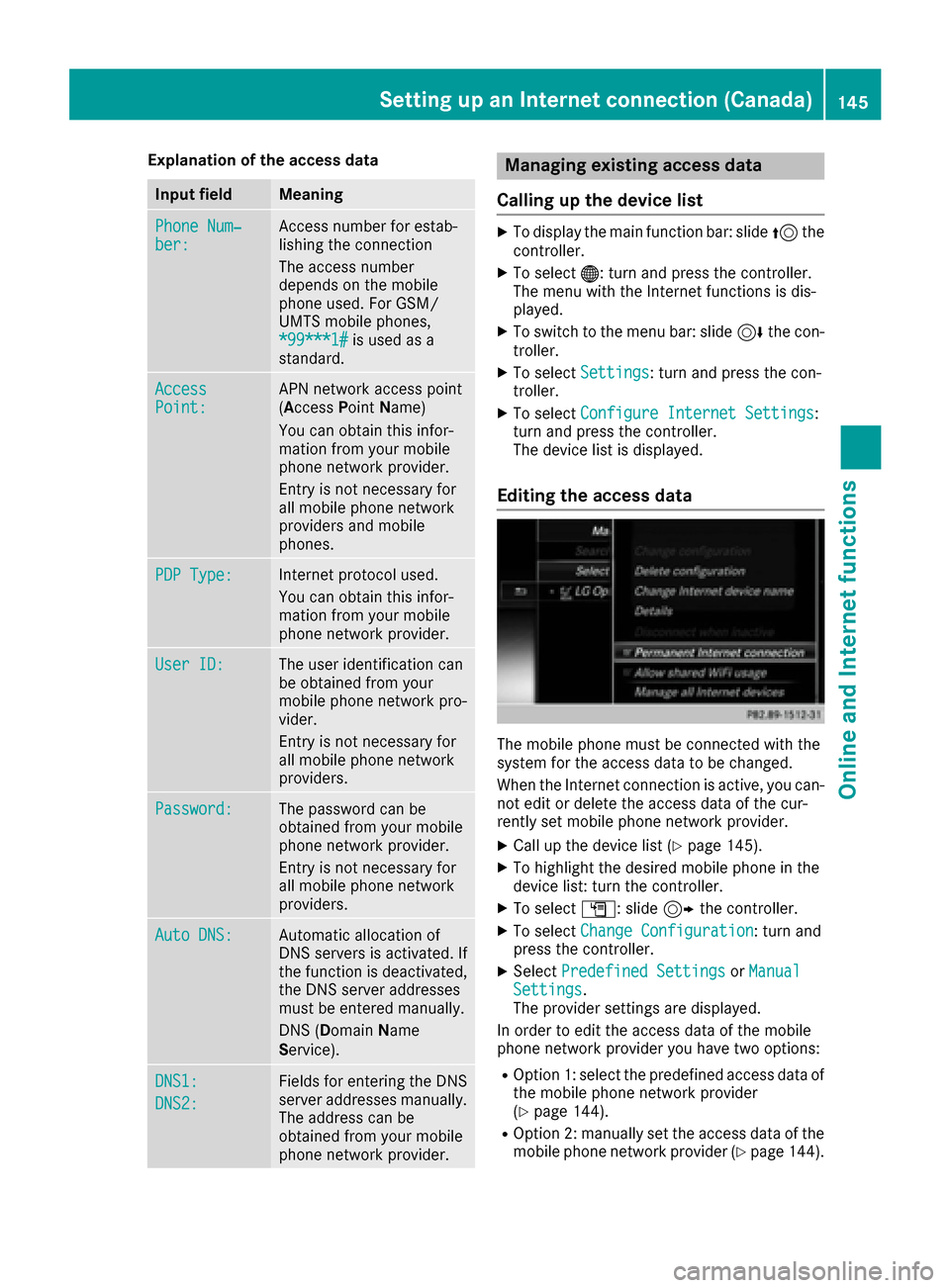
Editing the access data
The mobile phone must be connected with the
system for the access data to be changed.
When the Internet connection is active, you can-
not edit or delete the access data of the cur-
rently set mobile phone network provider.
XCall up the device list (Ypage 145).
XTo highlight the desired mobile phone in the
device list: turn the controller.
XTo select G: slide 9the controller.
XTo select Change Configuration: turn and
press the controller.
XSelect Predefined SettingsorManualSettings.
The provider settings are displayed.
In order to edit the access data of the mobile
phone network provider you have two options:
ROption 1: select the predefined access data of
the mobile phone network provider
(
Ypage 144).
ROption 2: manually set the access data of the
mobile phone network provider (Ypage 144).
Setting up an Internet connection (Canada)145
Online and Internet functions
Z
Page 148 of 230
Canceling Internet access permission
for a mobile phone
XCall up the device list (Ypage 145).
XTo highlight the desired mobile phone in the
device list: turn the controller.
XTo selectG: slide 9the controller.
XTo select Delete Configuration: turn and
press the controller.
A prompt appears asking whether you wish to
delete the Internet configuration.
XTo select Yes: turn and press the controller.
The Internet access permission for the mobile
phone is now canceled. The mobile phone can
now no longer be used by the system for
Internet functions.
Setting automatic disconnection of
the Internet connection
If a preset time has elapsed during which the
Internet functions have not been used, the Inter-
net automatically disconnects.
XCall up the device list (Ypage 145).
XTo highlight the desired mobile phone in the
device list: turn the controller.
XTo select G: slide 9the controller.
XTo select Disconnect AutomaticallyWhen Inactive: turn and press the control-
ler.
XTo select 5 Minutes,10 Minutesor 20Minutes: turn and press the controller.
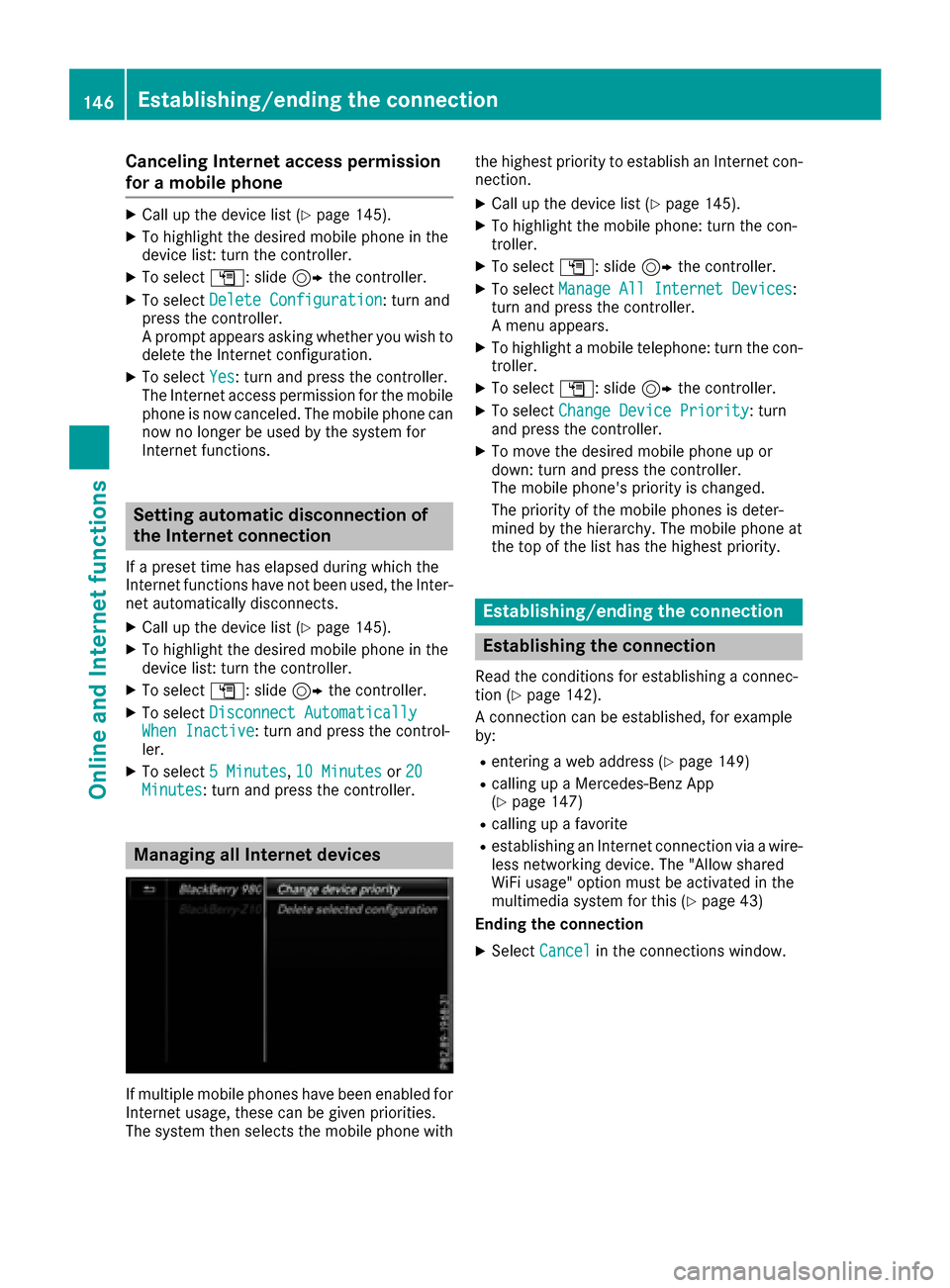
Managing all Internet devices
If multiple mobile phones have been enabled for
Internet usage, these can be given priorities.
The system then selects the mobile phone with the highest priority to establish an Internet con-
nection.
XCall up the device list (Ypage 145).
XTo highlight the mobile phone: turn the con-
troller.
XTo select
G: slide 9the controller.
XTo select Manage All Internet Devices:
turn and press the controller.
A menu appears.
XTo highlight a mobile telephone: turn the con-
troller.
XTo select G: slide 9the controller.
XTo select Change Device Priority: turn
and press the controller.
XTo move the desired mobile phone up or
down: turn and press the controller.
The mobile phone's priority is changed.
The priority of the mobile phones is deter-
mined by the hierarchy. The mobile phone at
the top of the list has the highest priority.
Establishing/ending the connection
Establishing the connection
Read the conditions for establishing a connec-
tion (Ypage 142).
A connection can be established, for example
by:
Rentering a web address (Ypage 149)
Rcalling up a Mercedes-Benz App
(Ypage 147)
Rcalling up a favorite
Restablishing an Internet connection via a wire-
less networking device. The "Allow shared
WiFi usage" option must be activated in the
multimedia system for this (
Ypage 43)
Ending the connection
XSelect Cancelin the connections window.
146Establishing/ending the connection
Online and Internet functions
Page 152 of 230
XTo selectwww: turn and press the controller.
An input menu for the web address is dis-
played.
XEnter characters using the controller
(Ypage 34) or the number keypad.
XTo finish entry and call up a website: select
¬.
Selecting a web address from the list
XWhen the character bar is displayed, slide
5 the controller.
XTo select the desired web address: turn and
press the controller.
The web address can still be changed as
desired.
XTo call up a website: select ¬.
The website is called up.
Navigating the website
StepResult
XTurn the controller.Navigates from one
selectable item (e.g.
link, text field or
menu) to the next and
highlights the respec-
tive element on the
website.
Sliding the controller:
XLeft or right 1
XUp or down4
XDiagonally2
Moves the pointer on
the page.
XPress the control-
ler.Opens the selected
item.
XPress%.Calls up the menu.
Menu functions
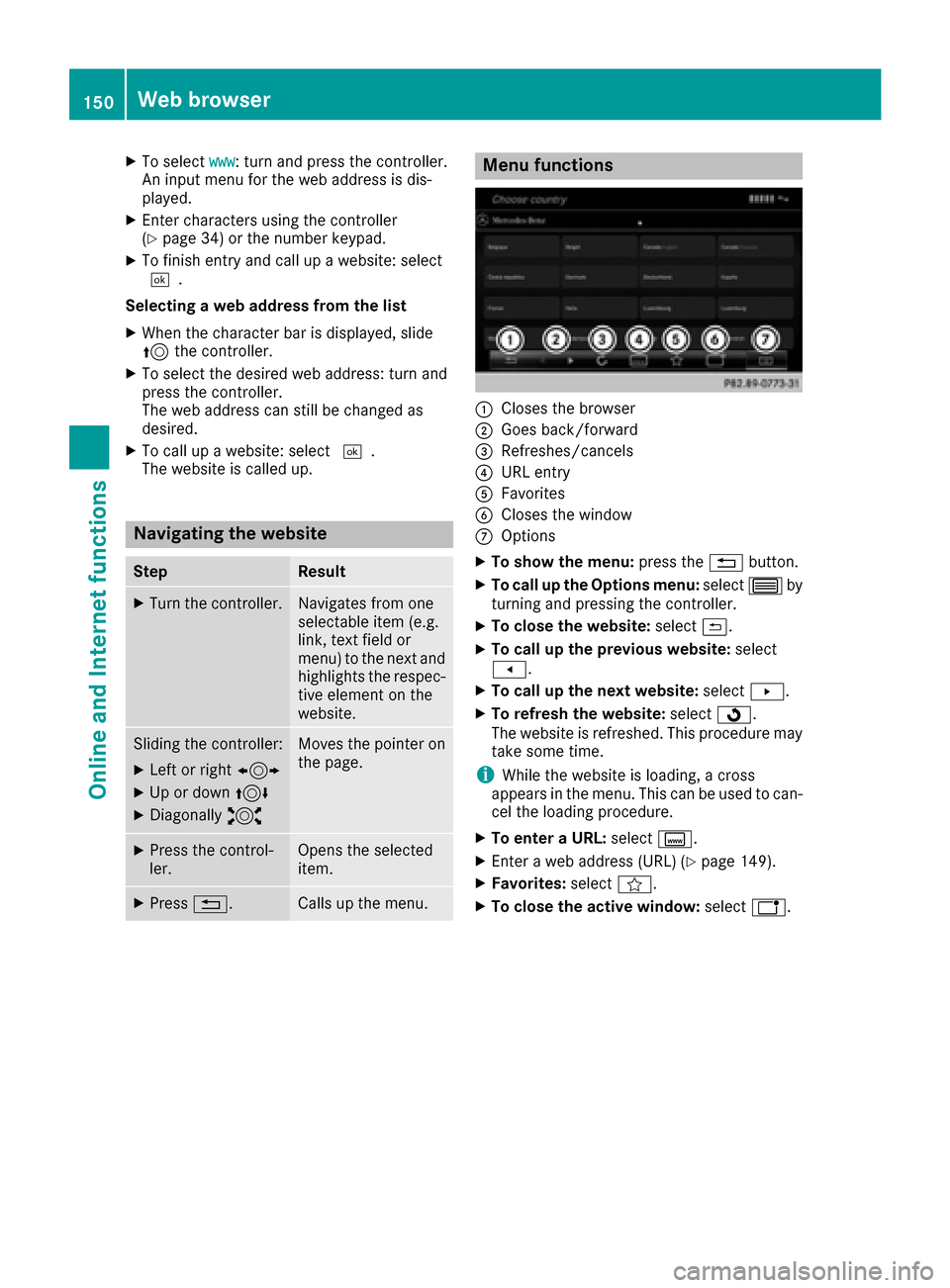
:Closes the browser
;Goes back/forward
=Refreshes/cancels
?URL entry
AFavorites
BCloses the window
COptions
XTo show the menu: press the%button.
XTo call up the Options menu: select3by
turning and pressing the controller.
XTo close the website: select&.
XTo call up the previous website: select
t.
XTo call up the next website: selectu.
XTo refresh the website: selectÎ.
The website is refreshed. This procedure may
take some time.
iWhile the website is loading, a cross
appears in the menu. This can be used to can-
cel the loading procedure.
XTo enter a URL: selectg.
XEnter a web address (URL) (Ypage 149).
XFavorites: selectf.
XTo close the active window: selecth.
150Web browser
Online and Internet functions
Page 159 of 230
XTo select theSaveCurrentStation/Chan‐neloption: turn and press the controller.
The currently set station is stored in the selec-
ted preset position. A tone signals a success-
ful preset entry.
or
XIn the main display field, press and hold the
controller.
A list of current allocated preset positions
appears.
XTo select the position of the required preset
and confirm: turn the controller and press.
Moving highlighted stations
XIn radio mode: slide 6the controller.
XTo select Preset: turn and press the control-
ler.
XSelect Edit Station Preset.
XTo select the required preset entry: turn the
controller.
XSlide9the controller.
An additional menu appears.
XTo select Move Highlighted Station/Channel: turn and press the controller.
The list of stored stations appears again.
XTo move the highlighted station to the new
position: turn the controller and press to con-
firm.
Deleting highlighted stations
XIn radio mode: slide 6the controller.
XTo select Preset: turn and press the control-
ler.
XSelect Edit Station Preset.
XTo select the required preset entry: turn the
controller.
XSlide9the controller.
An additional menu appears.
XTo select Delete Highlighted Station/Channel: turn and press the controller.
XIf you really wish to delete the highlighted
station, select Yes: turn and press the con-
troller. Otherwise, select No: turn and press
the controller.
Activating/deactivating the station
presets display
You can use this function to change to the sta-
tion presets display. Activating
XIn radio mode: slide
6the controller.
XTo select Preset: turn and press the control-
ler.
XTo select Station Preset View: On: turn
and press the controller.
The station preset display appears.
XTo switch between the stored stations: turn
the controller.
Deactivating
XIn radio mode: slide 6the controller.
XTo select Preset: turn and press the control-
ler.
XTo select StationPresetView:Off: turn
and press the controller.
A view of the last waveband you listened to
appears.
Tagging music tracks
This function allows you to transfer the music
track currently playing to an Apple®device and
then purchase it in the iTunes store®.
XIn radio mode: slide 6the controller.
XTo select Options: turn and press the con-
troller.
XSelect Tag This Track.
A message appears about storing the track
information.
Displaying station information
XIn radio mode: slide 6the controller.
XTo select Options: turn and press the con-
troller.
XYou can determine whether or not the artist,
track or station name are shown in the main
display area with Oorª before Show
Sta‐tion Information.
Calling up sound settings
XIn radio mode: slide 6the controller.
XTo select à: turn and press the controller.
The sound menu appears (Ypage 193).
Calling up sound settings157
Radio