light MERCEDES-BENZ S-Class MAYBACH 2017 W222 Comand Manual
[x] Cancel search | Manufacturer: MERCEDES-BENZ, Model Year: 2017, Model line: S-Class MAYBACH, Model: MERCEDES-BENZ S-Class MAYBACH 2017 W222Pages: 230, PDF Size: 8.27 MB
Page 218 of 230
The remote control contains two type AAA, 1.5 V
batteries.
XTo open the battery compartment:remove
battery compartment cover =on the back of
the remote control.
XPush catch tab ;down and take off battery
compartment cover =.
XRemove discharged batteries Afrom the
tray.
XInsert the new batteries. Observe the polarity
markings on the batteries and battery com-
partment when doing so.
Left-hand battery: the positive pole (+) must
face upwards.
Right-hand battery: the positive pole (+) must
face downwards.
XTo close the battery compartment: insert
battery compartment cover =starting with
retaining lugs ?into the battery compart-
ment and allow catch tab ;to engage in
place.
Replacing cordless headphone batter-
ies
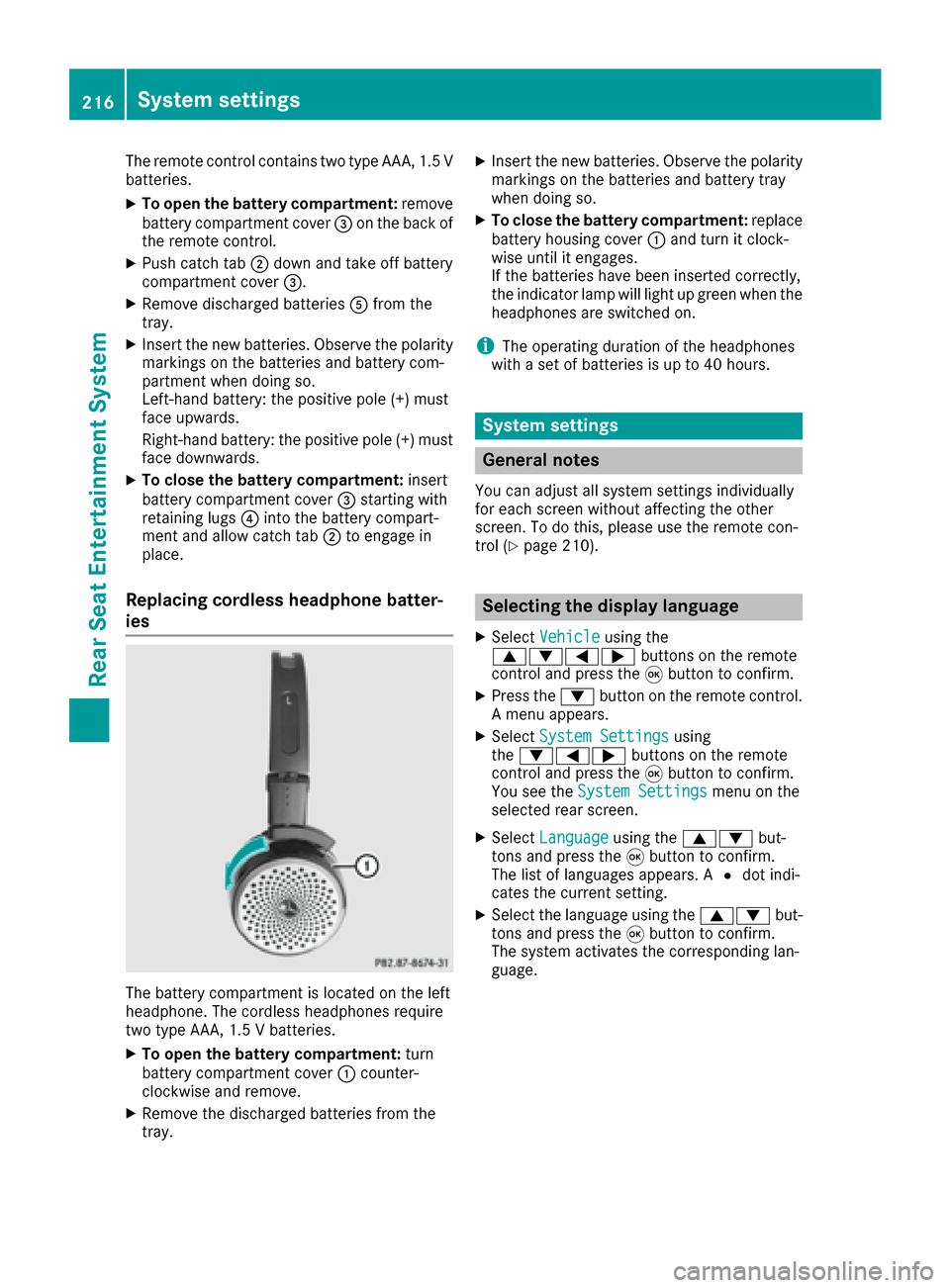
The battery compartment is located on the left
headphone. The cordless headphones require
two type AAA, 1.5 V batteries.
XTo open the battery compartment: turn
battery compartment cover :counter-
clockwise and remove.
XRemove the discharged batteries from the
tray.
XInsert the new batteries. Observe the polarity
markings on the batteries and battery tray
when doing so.
XTo close the battery compartment: replace
battery housing cover :and turn it clock-
wise until it engages.
If the batteries have been inserted correctly,
the indicator lamp will light up green when the
headphones are switched on.
iThe operating duration of the headphones
with a set of batteries is up to 40 hours.
System settings
General notes
You can adjust all system settings individually
for each screen without affecting the other
screen. To do this, please use the remote con-
trol (
Ypage 210).
Selecting the display language
XSelect Vehicleusing the
9:=; buttons on the remote
control and press the 9button to confirm.
XPress the :button on the remote control.
A menu appears.
XSelect System Settingsusing
the :=; buttons on the remote
control and press the 9button to confirm.
You see the System Settings
menu on the
selected rear screen.
XSelect Languageusing the 9: but-
tons and press the 9button to confirm.
The list of languages appears. A #dot indi-
cates the current setting.
XSelect the language using the 9:but-
tons and press the 9button to confirm.
The system activates the corresponding lan-
guage.
216System settings
Rear Seat Entertainment System
Page 219 of 230
Switching the display design
XSelectVehicleusing the
9:=; buttons on the remote
control and press the 9button to confirm.
XSelect System Settingsusing
the :=; buttons on the remote
control and press the 9button to confirm.
You see the System Settings
menu on the
selected rear screen.
XSelect Displayusing the 9: buttons
on the remote control and press the 9button
to confirm.
XSelect Day Mode,Night Modeor Automaticusing the 9: buttons and press the 9
button to confirm.
The dot indicates the current setting.
DesignExplanation
Day ModeThe display is set perma-
nently to day design.
Night ModeThe display is set perma-
nently to night design.
AutomaticThe display design
changes depending on
the vehicle instrument
cluster illumination.
Setting the brightness
XSelect Vehicleusing the
9:=; buttons on the remote
control and press the 9button to confirm.
XSelect System Settingsusing
the :=; buttons on the remote
control and press the 9button to confirm.
You see the System Settings
menu on the
selected rear screen.
XSelect Displayusing the :9 buttons
on the remote control and press the 9button
to confirm.
XSelect Brightnessusing the 9: but-
tons and press the 9button.
A scale appears.
XAdjust the brightness using the 9:
buttons and press the 9button to confirm.
The brightness bar moves up or down. The
picture becomes lighter or darker in accord-
ance with the scale.
Showing/hiding the picture
XSelect Vehicleusing the
9:=; buttons on the remote
control and press the 9button to confirm.
XPress button :on the remote control.
A menu appears.
XSelect Display Offusing the
9:=; buttons and press the
9 button to confirm.
XTo display the picture: press the9button.
Adjusting sound settings
You can select the sound settings in the radio,
audio CD/audio DVD/MP3, video DVD and AUX
modes.
XSelect a medium (e.g. CD mode)
(Ypage 221).
XTo show the menu: press the :button on
the remote control.
XSelect Soundusing the :=; but-
tons on the remote control and press the 9
button to confirm.
XSelect sound settings using
the :=; buttons on the remote
control and press the 9button.
XSelect the desired setting using the selector
wheel on the remote control.
XTo exit the menu: press the %button on
the remote control.
Picture settings
Overview
You can select the picture settings in video DVD and AUX mode.
System settings217
Rear Seat Entertainment System
Z
Page 227 of 230
XTo stop playback:while playback is inter-
rupted, select Éagain and press 9to
confirm.
Playback stops and returns to the beginning
of the DVD. Ìis highlighted.
XTo restart playback: selectÌand press
the 9button to confirm.
Playback starts from the beginning of the
DVD.
Selecting a scene/chapter
General notes
Also observe the information on the video DVD
mode (Ypage 191).
Skipping forward/back
XPress =or; on the remote control.
The control menu appears for approximately
eight seconds.
Selecting a scene/chapter directly
The examples illustrate how to select scene/
chapter 5.
Option 1:
XWhile the film is running, press the hbut-
ton on the remote control.
XPress the corresponding number key, such as
5 .
Option 2:
XPress the 9button on the remote control
and show the menu.
XSelect Menuand press the 9button.
The DVD menu appears.
XSelect Scene selection and press the 9but-
ton to confirm.
XUsing the 9or: button, select num-
ber 5for example, and press the 9button to
confirm.
In both cases, playback will begin from the 5th
scene or chapter after a brief pause.
Selecting a film/track
First selection option:
XPress the 9button on the remote control
and show the menu.
XSelect Menuusing the 9:=;
buttons on the remote control and press the
9 button to confirm.
The DVD menu appears.
XSelect Track selection using the
9:=; buttons on the remote
control and press the 9button to confirm.
XTo call up the selection list: press the 9but-
ton.
XSelect a film/title.
Second selection option:
XExample: selecting film 2
Press button 2.
After a brief pause, the second film is played.
DVD menu
Calling up the DVD menu
The DVD menu is the menu stored on the DVD
itself. It is structured in various ways according
to the individual DVD and permits certain
actions and settings.
In the case of multi-language DVDs, for example,
you can change the DVD language in the DVD
menu.
XPress the 9button on the remote control
and show the menu.
XSelect Menuusing the 9:=;
buttons on the remote control and press the
9 button to confirm.
The DVD menu appears.
Selecting menu items in the DVD menu
XSelect a menu item using the
9:=; buttons on the remote
control and press the 9button to confirm.
Video DVD mode225
Rear Seat Entertainment System
Z
Page 228 of 230
XSelectSelectusing the 9:=;
buttons on the remote control and press the
9 button to confirm.
The system executes the function or shows a
submenu.
XIf available, additional options can now be
selected.
The system then switches back to the DVD
menu.
iMenu items which cannot be selected are
shown in gray.
Stopping a film or skipping to the begin-
ning or end of a scene
XSelect any menu item from the DVD menu.
The menu appears.
XTo stop the film: select the¿menu item
and press the 9button on the remote control
to confirm.
XTo skip to the end of a scene: select the
F menu item and press 9to confirm.
XTo skip to the start of a scene: select the
E menu item and press 9to confirm.
Moving up one level in the DVD menu
XShow the DVD menu.
XPress the %back button on the remote
control or select the corresponding menu
item in the DVD menu.
Back to the movie
XPress the %back button repeatedly until
you see the movie.
Setting the audio format
This function is not available on all DVDs. If it is
available, you can set the audio language or the
audio format. The number of settings is deter-
mined by the DVD content. It may also be pos-
sible to access the settings from the DVD menu.
XPress the 9button on the remote control
and show the menu.
XSelect Video DVD using the
9:=; buttons on the remote
control and press the 9button to confirm.
XSelect DVDFunctionsand press the 9but-
ton.
XSelect Audio Languageand press the 9
button.
A menu appears after a short while. The #dot
in front of an entry indicates the currently
selected language.
XSelect the language using the 9:but-
tons and press the 9button to confirm.
XTo exit the menu: press the=or;
button.
Subtitles and camera angle
These functions are not available on all DVDs.
The number of subtitle languages and camera
angles available depends on the content of the
DVD. It may also be possible to access the set-
tings from the DVD menu.
XPress the 9button on the remote control
and show the menu.
XSelect Video DVD using the
9:=; buttons on the remote
control and press the 9button to confirm.
XSelect DVDFunctionsand press the 9but-
ton.
XSelect, for example Subtitles, and press the
9 button.
A menu appears. The #dot in front of an entry
indicates the current setting.
XSelect the setting using the 9:but-
tons and press the 9button to confirm.
XTo exit the menu: press the=or;
button.
Interactive content
DVDs can also contain interactive content (e.g.
a video game). In a video game, you may be able
to influence events by selecting and triggering
actions. The type and number of actions depend
on the DVD.
XSelect an action using the
9;:= buttons on the remote
control and press the 9button to execute it.
A menu appears and the first entry, Select
is
highlighted.
XPress the 9button.
226Video DVD mode
Rear Seat Entertainment System