audio MERCEDES-BENZ S-CLASS SEDAN 2012 Owner's Manual
[x] Cancel search | Manufacturer: MERCEDES-BENZ, Model Year: 2012, Model line: S-CLASS SEDAN, Model: MERCEDES-BENZ S-CLASS SEDAN 2012Pages: 536, PDF Size: 39.39 MB
Page 134 of 536
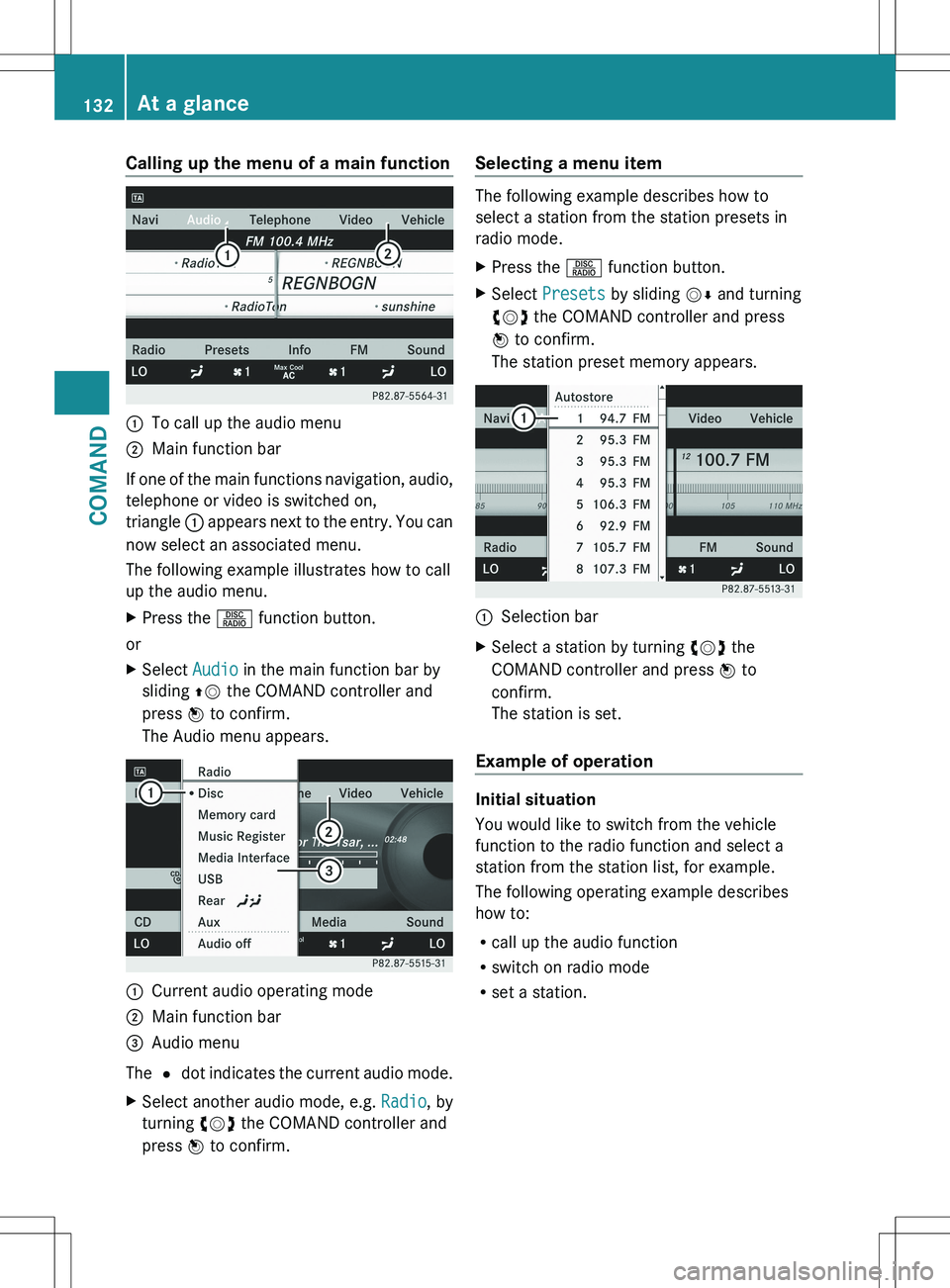
Calling up the menu of a main function:To call up the audio menu;Main function bar
If one of the main functions navigation, audio,
telephone or video is switched on,
triangle : appears next to the entry. You can
now select an associated menu.
The following example illustrates how to call
up the audio menu.
XPress the R function button.
or
XSelect Audio in the main function bar by
sliding ZV the COMAND controller and
press W to confirm.
The Audio menu appears.:Current audio operating mode;Main function bar=Audio menu
The # dot indicates the current audio mode.
XSelect another audio mode, e.g. Radio, by
turning cVd the COMAND controller and
press W to confirm.Selecting a menu item
The following example describes how to
select a station from the station presets in
radio mode.
XPress the R function button.XSelect Presets by sliding VÆ and turning
cVd the COMAND controller and press
W to confirm.
The station preset memory appears.:Selection barXSelect a station by turning cVd the
COMAND controller and press W to
confirm.
The station is set.
Example of operation
Initial situation
You would like to switch from the vehicle
function to the radio function and select a
station from the station list, for example.
The following operating example describes
how to:
R call up the audio function
R switch on radio mode
R set a station.
132At a glanceCOMAND
Page 135 of 536
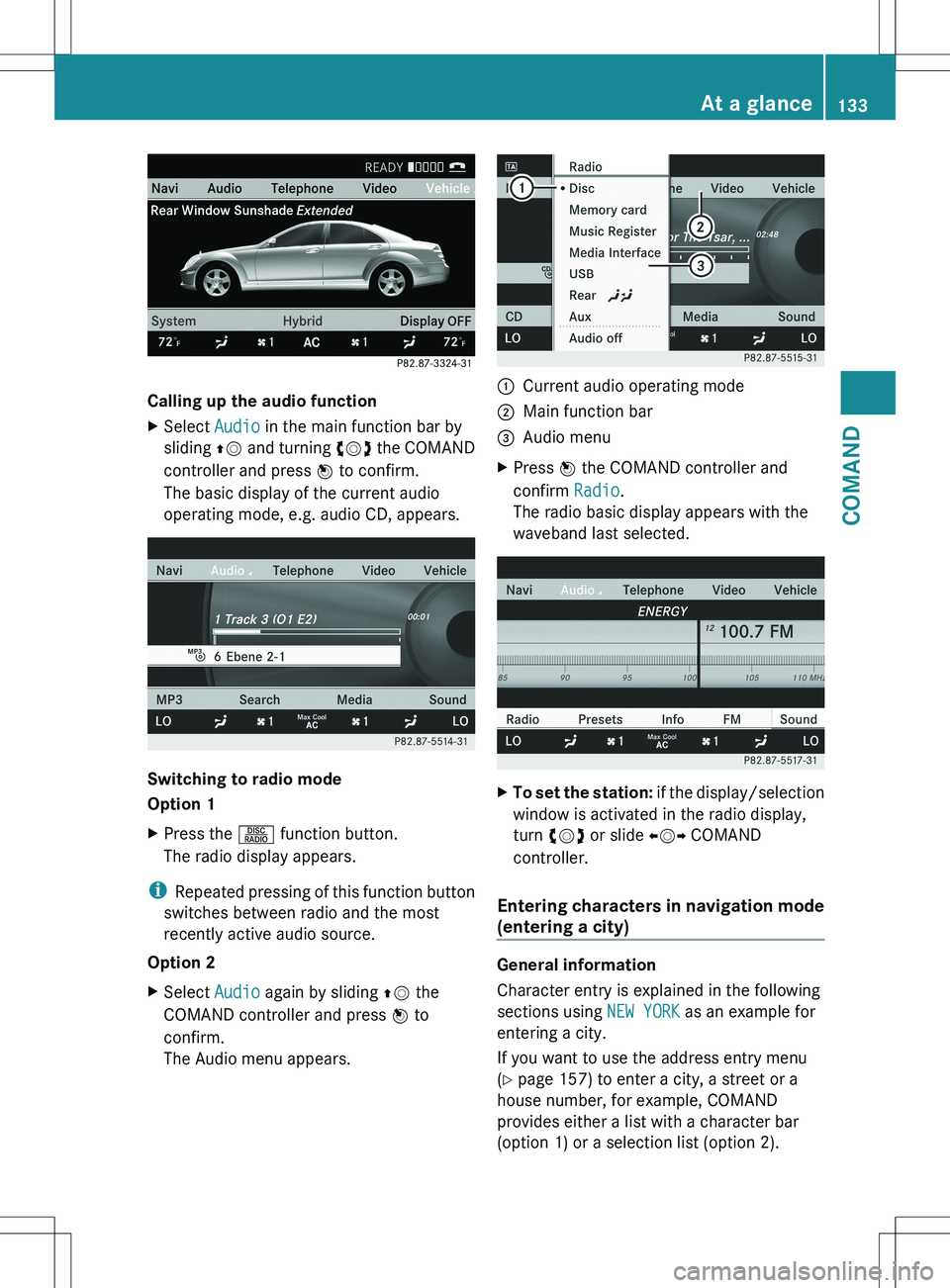
Calling up the audio function
XSelect Audio in the main function bar by
sliding ZV and turning cVd the COMAND
controller and press W to confirm.
The basic display of the current audio
operating mode, e.g. audio CD, appears.
Switching to radio mode
Option 1
XPress the R function button.
The radio display appears.
i Repeated pressing of this function button
switches between radio and the most
recently active audio source.
Option 2
XSelect Audio again by sliding ZV the
COMAND controller and press W to
confirm.
The Audio menu appears.:Current audio operating mode;Main function bar=Audio menuXPress W the COMAND controller and
confirm Radio.
The radio basic display appears with the
waveband last selected.XTo set the station: if the display/selection
window is activated in the radio display,
turn cVd or slide XVY COMAND
controller.
Entering characters in navigation mode
(entering a city)
General information
Character entry is explained in the following
sections using NEW YORK as an example for
entering a city.
If you want to use the address entry menu
( Y page 157) to enter a city, a street or a
house number, for example, COMAND
provides either a list with a character bar
(option 1) or a selection list (option 2).
At a glance133COMANDZ
Page 139 of 536

Option 1XSelect 4 or 5 in the character bar and
press W to confirm.
The input menu shows the data field
selected.:Cursor in the next data field;To store an entry=4 and 5 icons to select a data field
Option 2
XSlide ZV the COMAND controller
repeatedly until the character bar
disappears.XSelect the data field by sliding ZVÆ and
press W to confirm.
Storing an entry
XSelect ¬ in the character bar by turning
cVd the COMAND controller and press
W to confirm.
The entry is stored in the address book.
Further functions available in the
character bar
XTo switch the character bar to upper/
lower-case characters: select * or
E and press W to confirm.XTo switch the character set: select
p and press W to confirm.
The character set switches between
upper/lower-case letters and digits.XTo change the language of the
character bar: select B and press W
to confirm.XSelect the language by turning cVd the
COMAND controller and press W to
confirm.XTo reposition the cursor within the data
field: select 2 or 3 and press W to
confirm.:Cursor (repositioned);2 and 3 icon to reposition the cursorXDelete the character/entry ( Y page 211).
Basic functions of COMAND
Switching COMAND on/off
XPress the u function button on the
center console.
i If you switch off COMAND, playback of
the current audio or video source will also
be switched off. You cannot switch off
COMAND while making a call via COMAND.
You can also make phone calls using the
buttons on the multifunction steering
wheel when COMAND is switched off
( Y page 375).
At a glance137COMANDZ
Page 140 of 536
Switching the sound on or off
Switching audio and video sources on/off
XPress the 8 button on the multifunction
steering wheel.
The sound from the respective audio or
video source is switched on or off.
i When the sound is off, the system
displays the , symbol in the status line.
When you change the audio or video
source, or adjust the volume, sound
automatically switches on again.
i Even if the sound is switched off, you will
still hear traffic and navigation system
announcements.
Switching off traffic and navigation
announcements completely
XTraffic announcements: press the 8
button until the . message disappears
from the status bar of the display.
A confirmation tone sounds.XNavigation announcements: during an
announcement, press the 8 button on
the multifunction steering wheel.
Switching traffic and navigation
announcements on again
XTraffic announcements: press and hold
down the 8 button until the . display
appears in the status bar.
A confirmation tone sounds.XNavigation announcements: select the
y symbol in the navigation menu bar
and press W to confirm.
i
The navigation announcements are
activated again if you switch COMAND off
and on again or start a new route guidance.
Adjusting the volume
Adjusting the volume for the audio or
video source
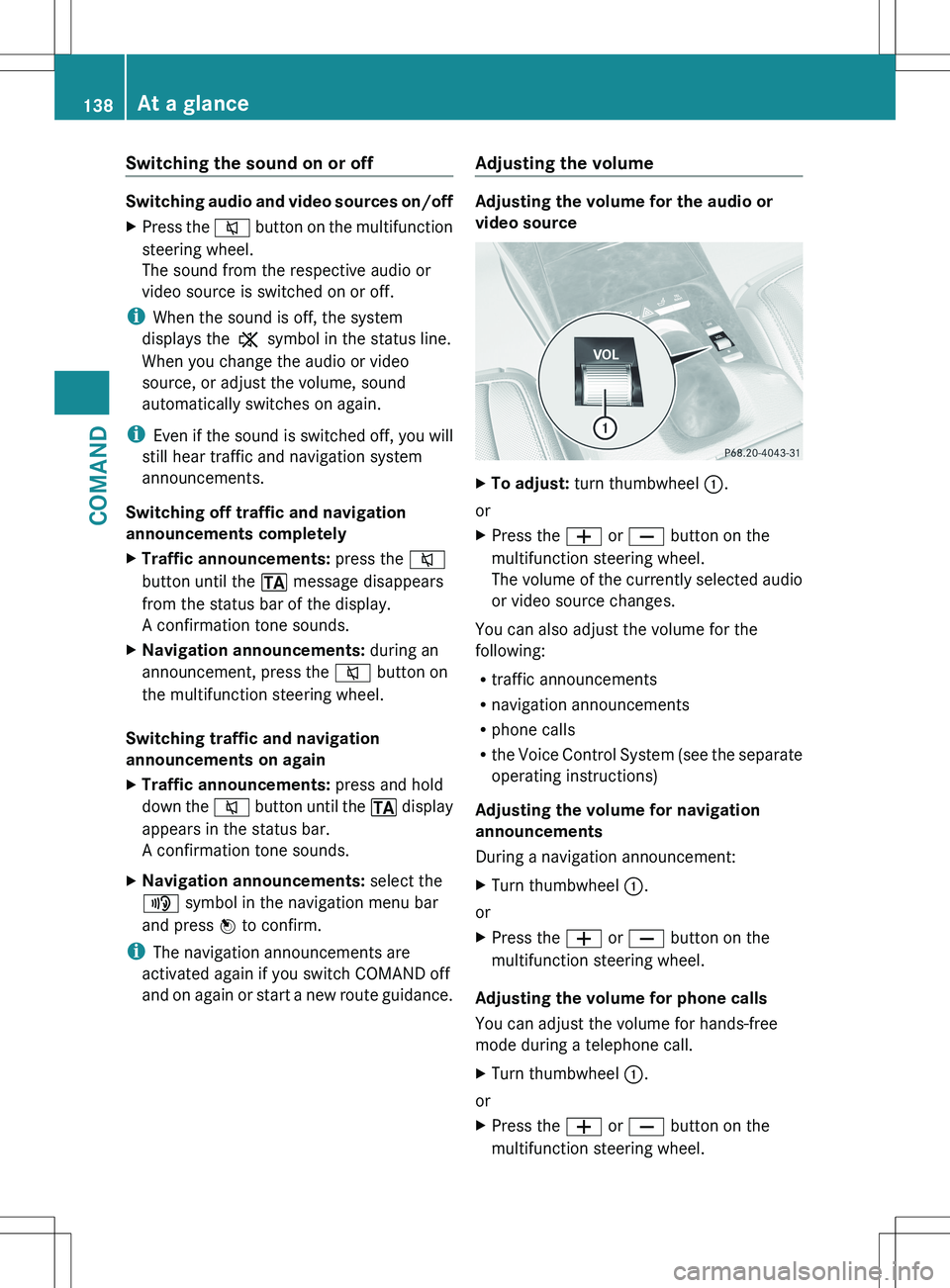
XTo adjust: turn thumbwheel :.
or
XPress the W or X button on the
multifunction steering wheel.
The volume of the currently selected audio
or video source changes.
You can also adjust the volume for the
following:
R traffic announcements
R navigation announcements
R phone calls
R the Voice Control System (see the separate
operating instructions)
Adjusting the volume for navigation
announcements
During a navigation announcement:
XTurn thumbwheel :.
or
XPress the W or X button on the
multifunction steering wheel.
Adjusting the volume for phone calls
You can adjust the volume for hands-free
mode during a telephone call.
XTurn thumbwheel :.
or
XPress the W or X button on the
multifunction steering wheel.138At a glanceCOMAND
Page 141 of 536
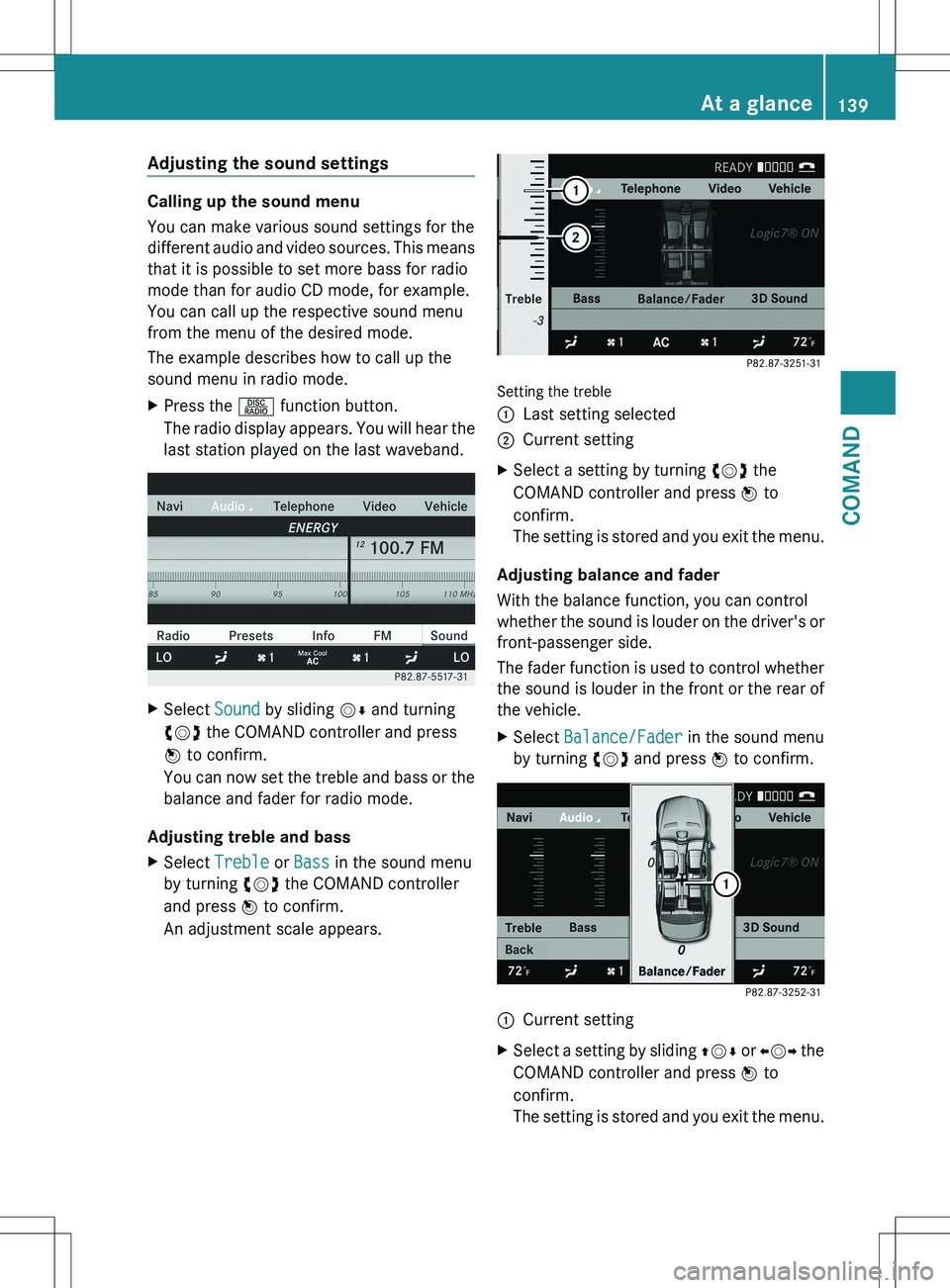
Adjusting the sound settings
Calling up the sound menu
You can make various sound settings for the
different audio and video sources. This means
that it is possible to set more bass for radio
mode than for audio CD mode, for example.
You can call up the respective sound menu
from the menu of the desired mode.
The example describes how to call up the
sound menu in radio mode.
XPress the R function button.
The radio display appears. You will hear the
last station played on the last waveband.XSelect Sound by sliding VÆ and turning
cVd the COMAND controller and press
W to confirm.
You can now set the treble and bass or the
balance and fader for radio mode.
Adjusting treble and bass
XSelect Treble or Bass in the sound menu
by turning cVd the COMAND controller
and press W to confirm.
An adjustment scale appears.
Setting the treble
:Last setting selected;Current settingXSelect a setting by turning cVd the
COMAND controller and press W to
confirm.
The setting is stored and you exit the menu.
Adjusting balance and fader
With the balance function, you can control
whether the sound is louder on the driver's or
front-passenger side.
The fader function is used to control whether
the sound is louder in the front or the rear of
the vehicle.
XSelect Balance/Fader in the sound menu
by turning cVd and press W to confirm.:Current settingXSelect a setting by sliding ZVÆ or XVY the
COMAND controller and press W to
confirm.
The setting is stored and you exit the menu.At a glance139COMANDZ
Page 142 of 536
Surround sound
General information
If your vehicle is equipped with the harman/
kardon ®
Logic 7 ®
surround sound system,
you can provide the optimum sound
experience for every passenger.
The harman/kardon ®
Logic7 ®
surround
sound system is available for the following
operating modes:
R radio (FM only)
R satellite radio
R audio CD
R audio DVD (MLP™, dts™, PCM and
Dolby ®
Digital audio formats)
R MP3
R Media Interface
R video DVD (PCM, dts™ and Dolby ®
Digital
audio formats)
R AUX
Because some DVDs contain both stereo and
multichannel audio formats, it may be
necessary to set the audio format
( Y page 232).
i The Logic7 ®
ON function enables
playback of stereo recordings, for instance,
with a surround sound experience for every
passenger. It enables optimum playback of
music and films on CDs, audio DVDs or
video DVDs with multichannel audio
formats, such as MLP™, dts™ or Dolby ®
Digital. This results in sound
characteristics like those intended by the
sound engineer when the original was
recorded.
i If you select Logic7®
OFF , the sound
system plays all playable formats as stored
on the medium. Due to the design of the
passenger compartment, an optimum
audio experience cannot be guaranteed for
all passengers.
i Discs which support the audio formats
mentioned have the following logos:
Dolby ®
Digital
dts™
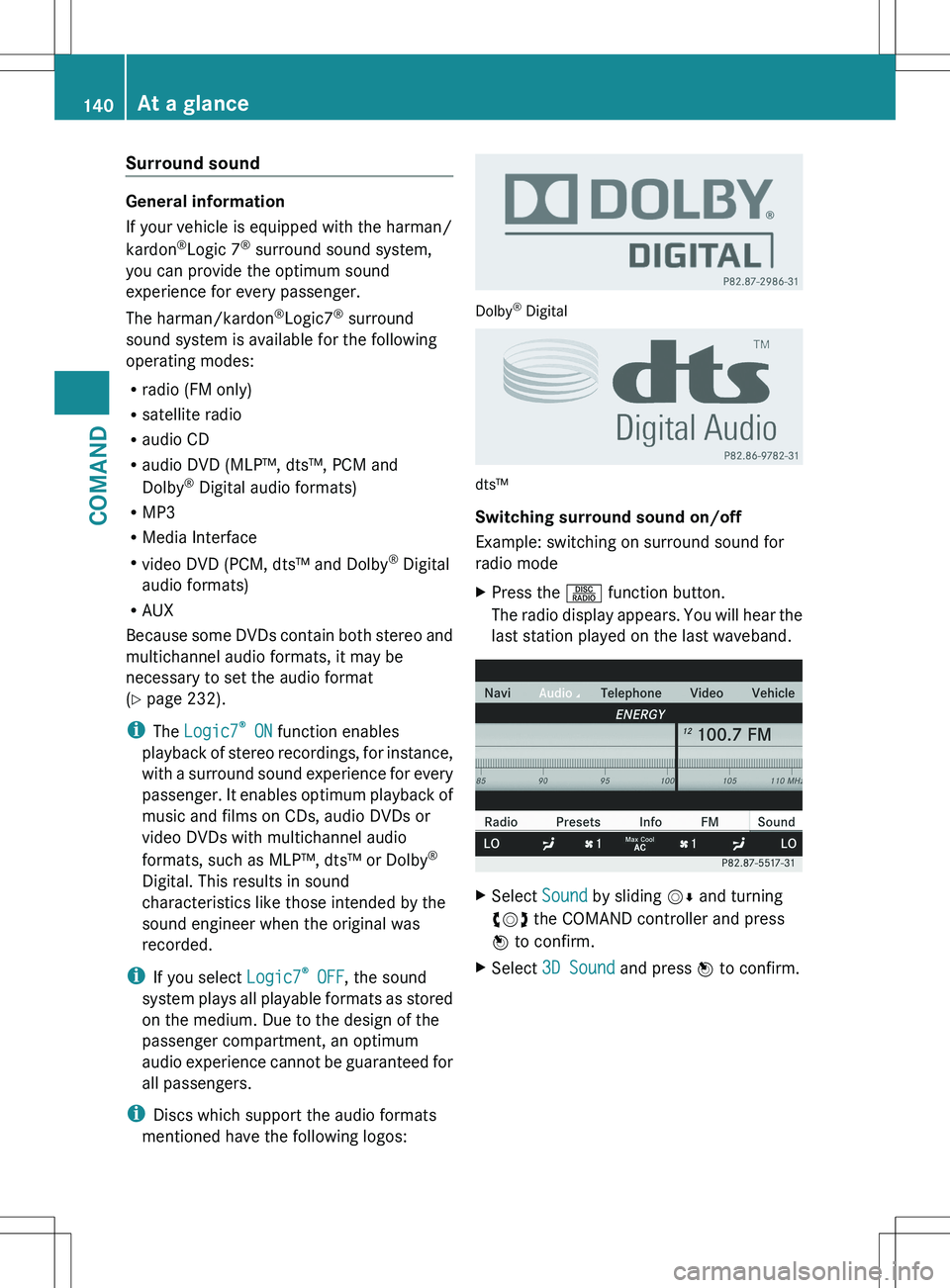
Switching surround sound on/off
Example: switching on surround sound for
radio mode
XPress the R function button.
The radio display appears. You will hear the
last station played on the last waveband.XSelect Sound by sliding VÆ and turning
cVd the COMAND controller and press
W to confirm.XSelect 3D Sound and press W to confirm.140At a glanceCOMAND
Page 143 of 536
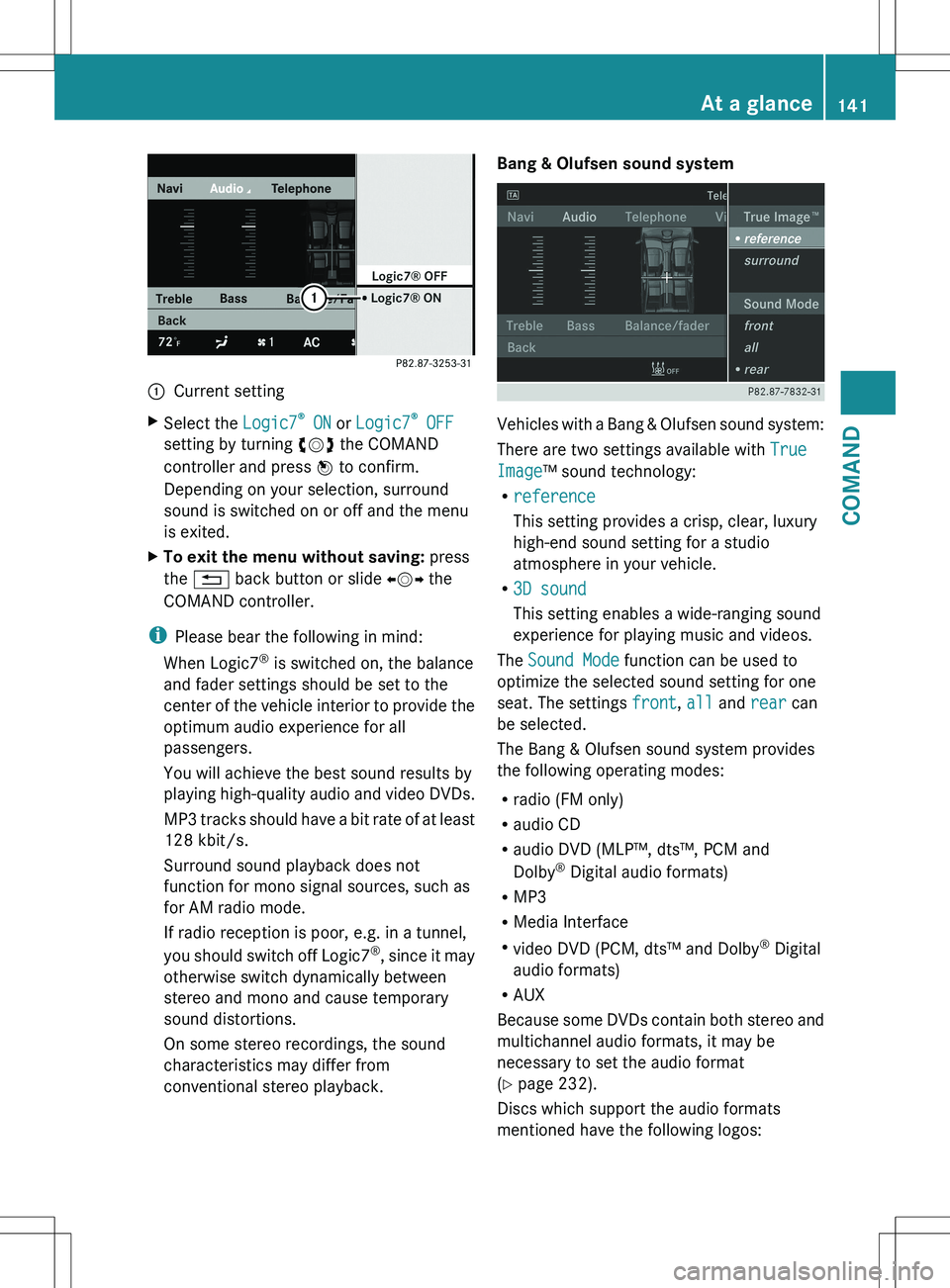
:Current settingXSelect the Logic7®
ON or Logic7 ®
OFF
setting by turning cVd the COMAND
controller and press W to confirm.
Depending on your selection, surround
sound is switched on or off and the menu
is exited.XTo exit the menu without saving: press
the % back button or slide XVY the
COMAND controller.
i Please bear the following in mind:
When Logic7 ®
is switched on, the balance
and fader settings should be set to the
center of the vehicle interior to provide the
optimum audio experience for all
passengers.
You will achieve the best sound results by
playing high-quality audio and video DVDs.
MP3 tracks should have a bit rate of at least
128 kbit/s.
Surround sound playback does not
function for mono signal sources, such as
for AM radio mode.
If radio reception is poor, e.g. in a tunnel,
you should switch off Logic7®
, since it may
otherwise switch dynamically between
stereo and mono and cause temporary
sound distortions.
On some stereo recordings, the sound
characteristics may differ from
conventional stereo playback.
Bang & Olufsen sound system
Vehicles with a Bang & Olufsen sound system:
There are two settings available with True
Image ™ sound technology:
R reference
This setting provides a crisp, clear, luxury
high-end sound setting for a studio
atmosphere in your vehicle.
R 3D sound
This setting enables a wide-ranging sound
experience for playing music and videos.
The Sound Mode function can be used to
optimize the selected sound setting for one
seat. The settings front, all and rear can
be selected.
The Bang & Olufsen sound system provides
the following operating modes:
R radio (FM only)
R audio CD
R audio DVD (MLP™, dts™, PCM and
Dolby ®
Digital audio formats)
R MP3
R Media Interface
R video DVD (PCM, dts™ and Dolby ®
Digital
audio formats)
R AUX
Because some DVDs contain both stereo and
multichannel audio formats, it may be
necessary to set the audio format
( Y page 232).
Discs which support the audio formats
mentioned have the following logos:
At a glance141COMANDZ
Page 144 of 536
Dolby®
Digital
dts™
MLP™
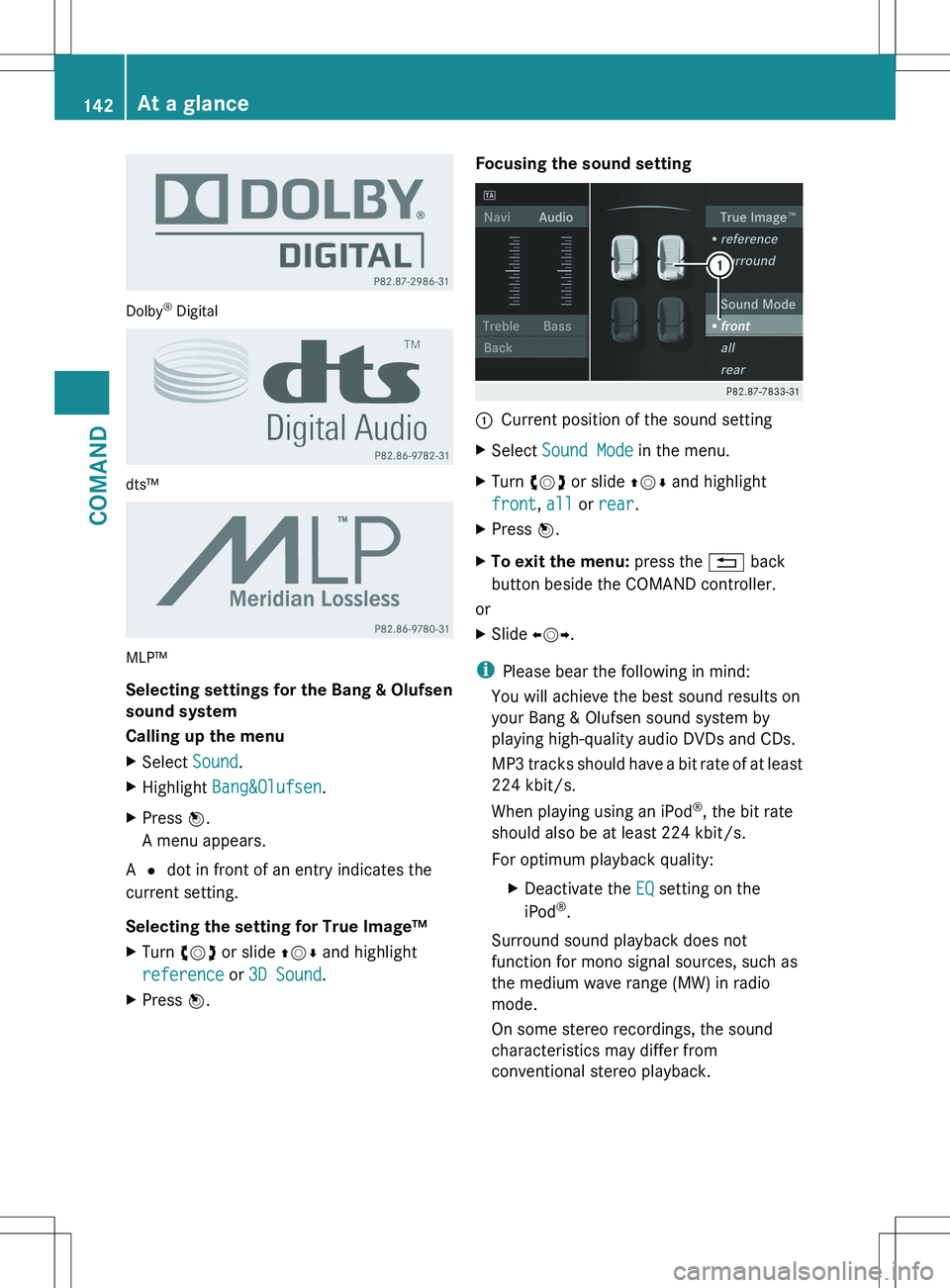
Selecting settings for the Bang & Olufsen
sound system
Calling up the menu
XSelect Sound.XHighlight Bang&Olufsen .XPress W.
A menu appears.
A # dot in front of an entry indicates the
current setting.
Selecting the setting for True Image™
XTurn cVd or slide ZVÆ and highlight
reference or 3D Sound .XPress W.Focusing the sound setting:Current position of the sound settingXSelect Sound Mode in the menu.XTurn cVd or slide ZVÆ and highlight
front , all or rear .XPress W.XTo exit the menu: press the % back
button beside the COMAND controller.
or
XSlide XVY.
i
Please bear the following in mind:
You will achieve the best sound results on
your Bang & Olufsen sound system by
playing high-quality audio DVDs and CDs.
MP3 tracks should have a bit rate of at least
224 kbit/s.
When playing using an iPod ®
, the bit rate
should also be at least 224 kbit/s.
For optimum playback quality:
XDeactivate the EQ setting on the
iPod ®
.
Surround sound playback does not
function for mono signal sources, such as
the medium wave range (MW) in radio
mode.
On some stereo recordings, the sound
characteristics may differ from
conventional stereo playback.
142At a glanceCOMAND
Page 146 of 536
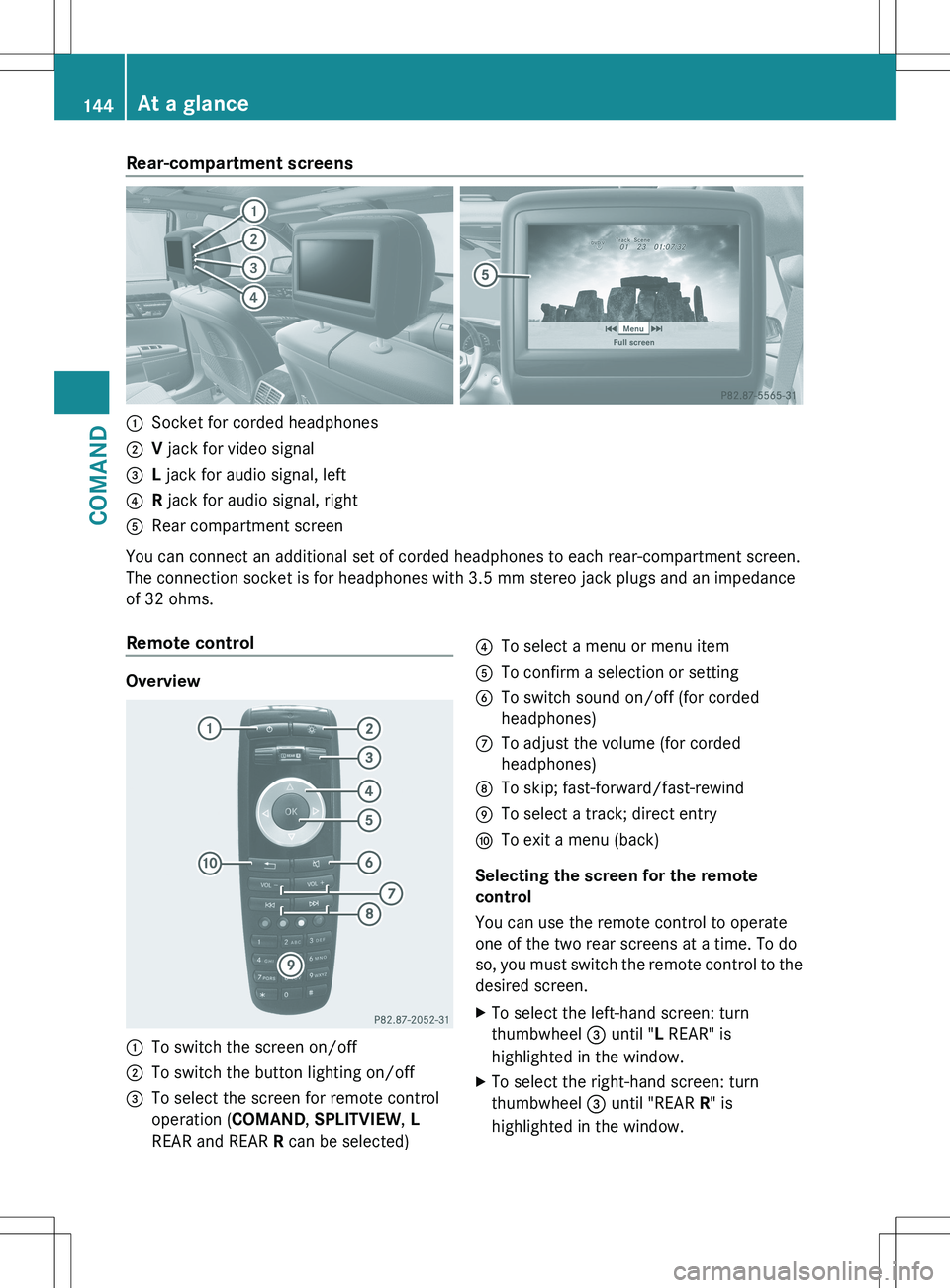
Rear-compartment screens:Socket for corded headphones;V jack for video signal=L jack for audio signal, left?R jack for audio signal, rightARear compartment screen
You can connect an additional set of corded headphones to each rear-compartment screen.
The connection socket is for headphones with 3.5 mm stereo jack plugs and an impedance
of 32 ohms.
Remote control
Overview
:To switch the screen on/off;To switch the button lighting on/off=To select the screen for remote control
operation ( COMAND, SPLITVIEW , L
REAR and REAR R can be selected)?To select a menu or menu itemATo confirm a selection or settingBTo switch sound on/off (for corded
headphones)CTo adjust the volume (for corded
headphones)DTo skip; fast-forward/fast-rewindETo select a track; direct entryFTo exit a menu (back)
Selecting the screen for the remote
control
You can use the remote control to operate
one of the two rear screens at a time. To do
so, you must switch the remote control to the
desired screen.
XTo select the left-hand screen: turn
thumbwheel = until " L REAR" is
highlighted in the window.XTo select the right-hand screen: turn
thumbwheel = until "REAR R" is
highlighted in the window.144At a glanceCOMAND
Page 147 of 536
Switching the screen on/off
If the SmartKey in the ignition lock is in
position 0 or 1 or if the SmartKey is not in the
ignition lock, the rear screens will switch off
after 30 minutes. Before the screens switch
off, they show a message to this effect.
You can switch the screens back on.
However, this will discharge the starter
battery.XPoint the remote control at the rear-
compartment screen which has been
selected for remote operation.XPress button : on the remote control.
The respective rear screen switches on or
off.
i You can only switch the screens on using
the remote control if the ignition is
switched on.
Switching the button lighting on/off
XPress button ; on the remote control.
Depending on the previous status, the
button lighting is switched on or off.
i If you do not use the remote control for
about 15 seconds, the button lighting
switches off automatically.
Switching the sound on/off (corded
headphones only)
XPress button B on the remote control.
The sound is switched on/off.
Selecting a menu/menu item and
confirming your selection
XPress the =;9: buttons to
select the menu/menu item and press the
9 button to confirm.
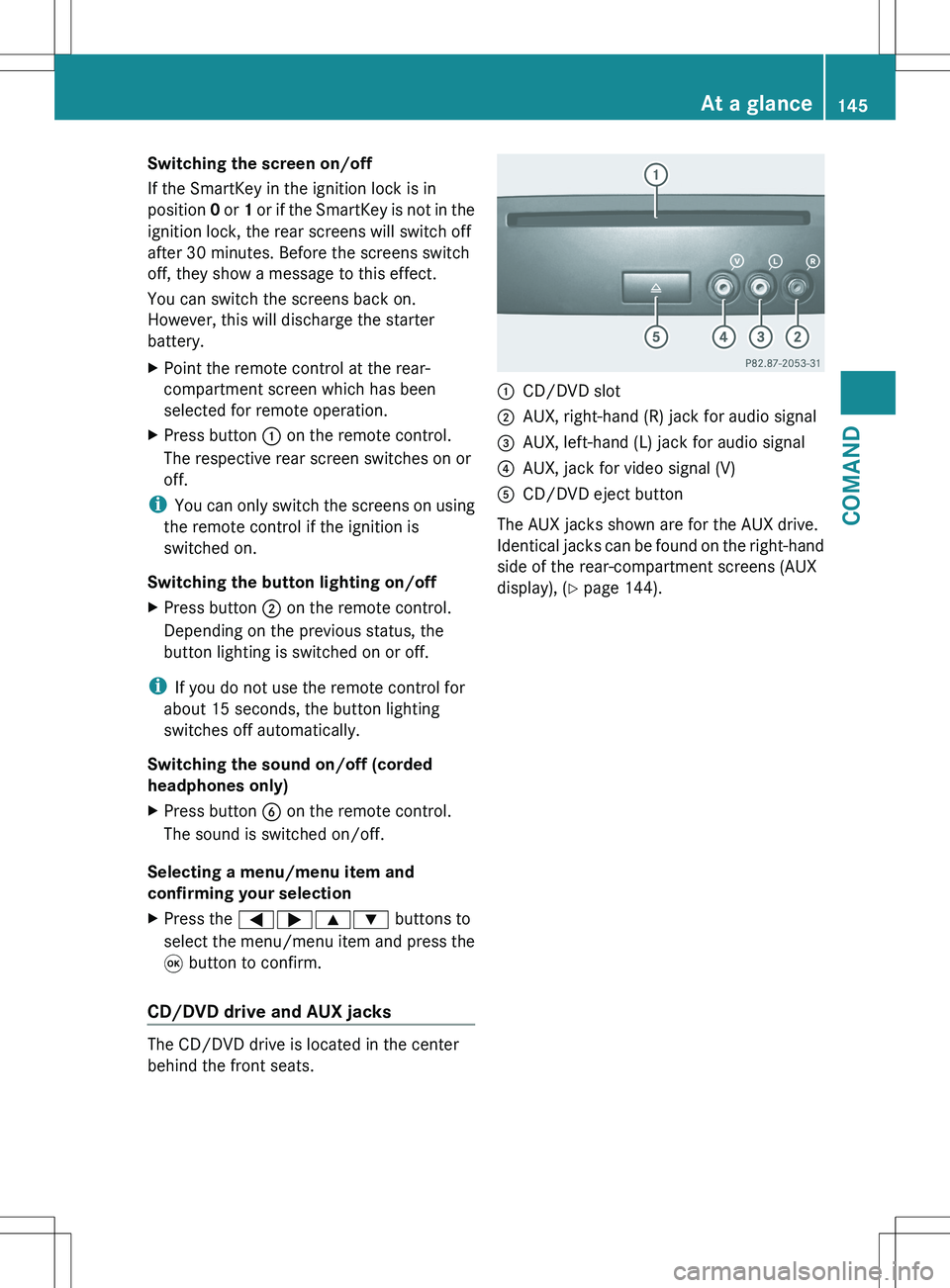
CD/DVD drive and AUX jacks
The CD/DVD drive is located in the center
behind the front seats.
:CD/DVD slot;AUX, right-hand (R) jack for audio signal=AUX, left-hand (L) jack for audio signal?AUX, jack for video signal (V)ACD/DVD eject button
The AUX jacks shown are for the AUX drive.
Identical jacks can be found on the right-hand
side of the rear-compartment screens (AUX
display), ( Y page 144).
At a glance145COMANDZ