ESP MERCEDES-BENZ S-CLASS SEDAN 2012 Repair Manual
[x] Cancel search | Manufacturer: MERCEDES-BENZ, Model Year: 2012, Model line: S-CLASS SEDAN, Model: MERCEDES-BENZ S-CLASS SEDAN 2012Pages: 536, PDF Size: 39.39 MB
Page 209 of 536
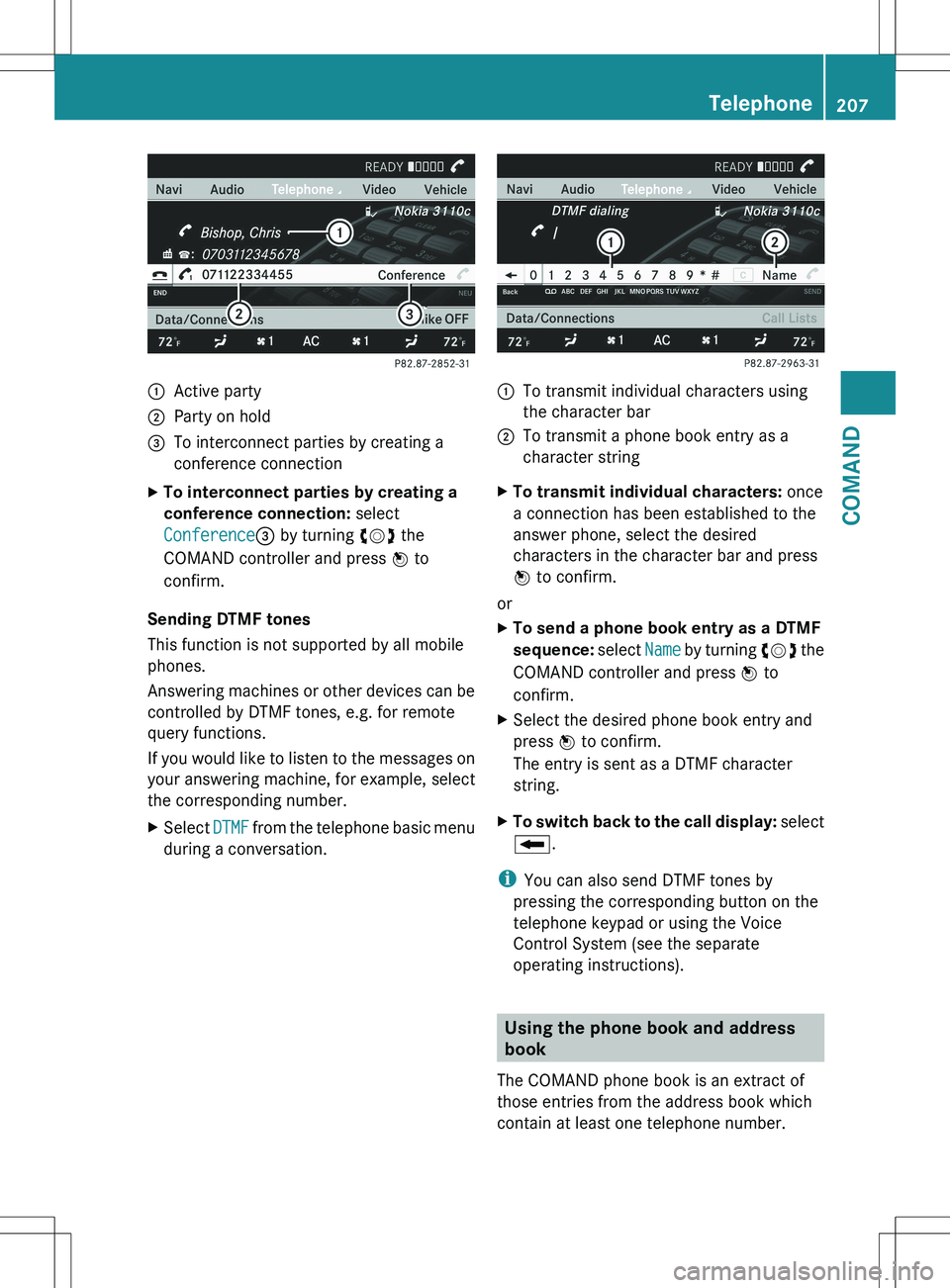
:Active party;Party on hold=To interconnect parties by creating a
conference connectionXTo interconnect parties by creating a
conference connection: select
Conference = by turning cVd the
COMAND controller and press W to
confirm.
Sending DTMF tones
This function is not supported by all mobile
phones.
Answering machines or other devices can be
controlled by DTMF tones, e.g. for remote
query functions.
If you would like to listen to the messages on
your answering machine, for example, select
the corresponding number.
XSelect DTMF from the telephone basic menu
during a conversation.:To transmit individual characters using
the character bar;To transmit a phone book entry as a
character stringXTo transmit individual characters: once
a connection has been established to the
answer phone, select the desired
characters in the character bar and press
W to confirm.
or
XTo send a phone book entry as a DTMF
sequence: select Name by turning cVd the
COMAND controller and press W to
confirm.XSelect the desired phone book entry and
press W to confirm.
The entry is sent as a DTMF character
string.XTo switch back to the call display: select
B .
i
You can also send DTMF tones by
pressing the corresponding button on the
telephone keypad or using the Voice
Control System (see the separate
operating instructions).
Using the phone book and address
book
The COMAND phone book is an extract of
those entries from the address book which
contain at least one telephone number.
Telephone207COMANDZ
Page 213 of 536
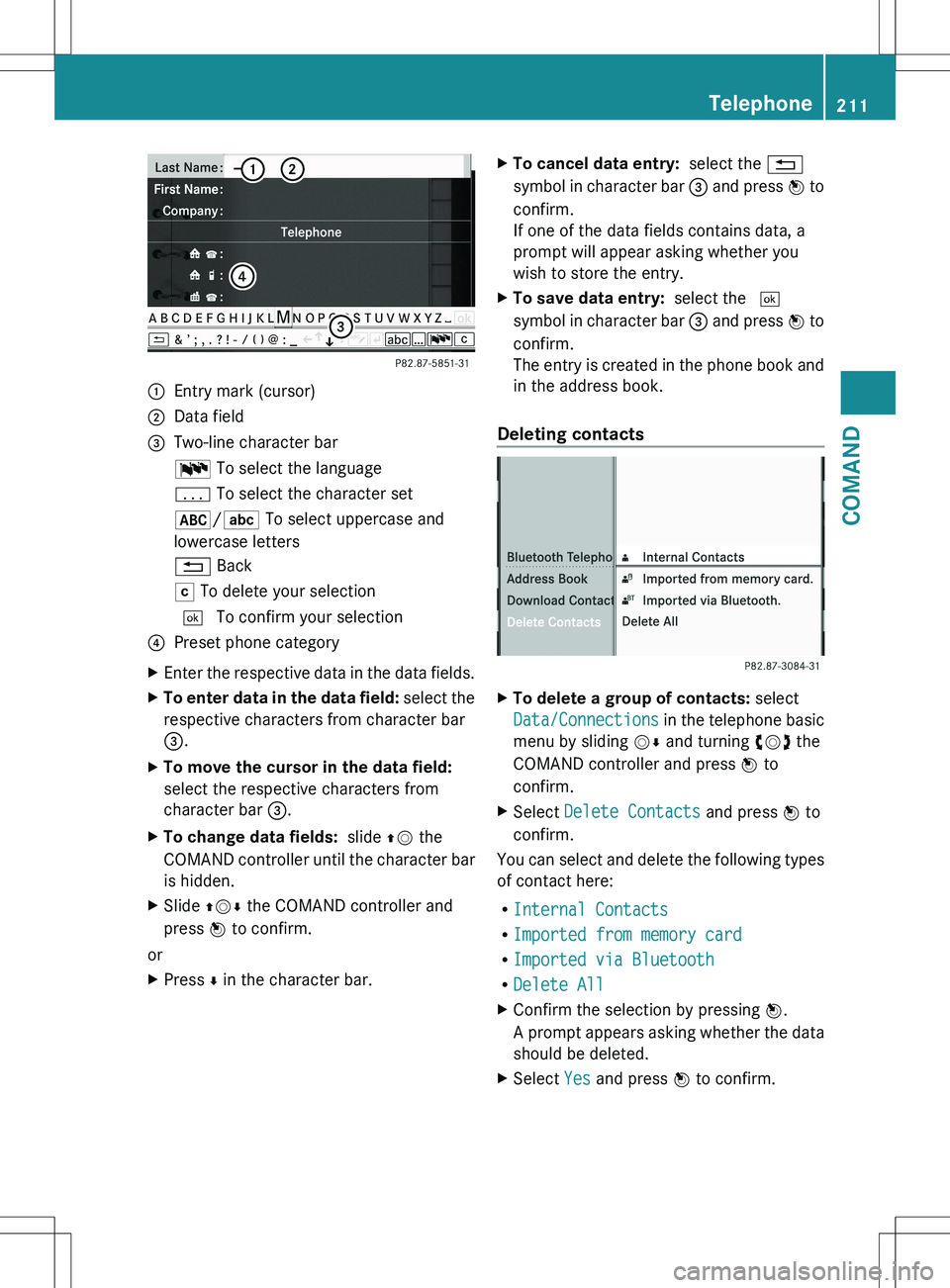
:Entry mark (cursor);Data field=Two-line character barB To select the languagep To select the character set*/E To select uppercase and
lowercase letters% BackF To delete your selection¬ To confirm your selection?Preset phone categoryXEnter the respective data in the data fields.XTo enter data in the data field: select the
respective characters from character bar
= .XTo move the cursor in the data field:
select the respective characters from
character bar =.XTo change data fields: slide ZV the
COMAND controller until the character bar
is hidden.XSlide ZVÆ the COMAND controller and
press W to confirm.
or
XPress Æ in the character bar.XTo cancel data entry: select the %
symbol in character bar = and press W to
confirm.
If one of the data fields contains data, a
prompt will appear asking whether you
wish to store the entry.XTo save data entry: select the ¬
symbol in character bar = and press W to
confirm.
The entry is created in the phone book and
in the address book.
Deleting contacts
XTo delete a group of contacts: select
Data/Connections in the telephone basic
menu by sliding VÆ and turning cVd the
COMAND controller and press W to
confirm.XSelect Delete Contacts and press W to
confirm.
You can select and delete the following types
of contact here:
R Internal Contacts
R Imported from memory card
R Imported via Bluetooth
R Delete All
XConfirm the selection by pressing W.
A prompt appears asking whether the data
should be deleted.XSelect Yes and press W to confirm.Telephone211COMANDZ
Page 215 of 536
XSelect Navigate and press W to confirm.XSelect Start and press W to confirm.
Voice tags
i
Voice tags are entered via the Voice
Control System; see the separate operating
instructions for the Voice Control System.
Adding or changing a voice tag
i You can add one voice tag per address
book entry.
XSearch for an address book entry with or
without a voice tag ( ¦ symbol).XSelect Options by sliding VY and turning
cVd the COMAND controller and press
W to confirm.XSelect Voice Name and press W to
confirm.XSelect Add or Change and press W to
confirm.
Subsequent operation is voice-controlled.
The Voice Control System guides you
through the menus.
Deleting a voice tag
XSearch for an address book entry with a
voice tag.XSelect Options by sliding VY and turning
cVd the COMAND controller and press
W to confirm.XSelect Voice Name and press W to
confirm.XSelect Delete and press W to confirm.
A deletion prompt appears.
Listening to a voice tag
XSearch for an address book entry with a
voice tag.XSelect Options by sliding VY and turning
cVd the COMAND controller and press
W to confirm.XSelect Voice Name and press W to
confirm.XSelect Listen and press W to confirm.
You will hear the voice tag.
Using call lists
Introduction
COMAND displays lists of calls received
(including missed calls) and made during
phone operation.
The respective menu item can only be
selected if:
R calls have already been made or received
in COMAND.
R the call lists have been imported from the
telephone.
Opening the call list and selecting an
entry
XTo call up the telephone menu: press the
S function button.XSelect Call Lists in the telephone basic
menu by sliding VÆ and turning cVd the
COMAND controller and press W to
confirm.
A menu appears.XSelect Calls Received or Calls
Dialed and press W to confirm.
The corresponding list appears.
i The list of calls made can also be opened
by pressing the SEND button in the menu
or on the telephone keyboard. This is
possible as long as no phone numbers have
been entered in the basic menu. The list of
calls made can also be opened in the on-
board computer.
Telephone213COMANDZ
Page 219 of 536
XDirectly in the station presets: select
Presets by sliding VÆ and turning cVd
the COMAND controller and press W to
confirm.
or
XPress W the COMAND controller when the
display/selection window is active.
The station preset memory appears. The
# dot indicates under which preset the
currently selected station is stored.XSelect a station by turning cVd and
pressing W to confirm or press a number
key, e.g. l.
Using the multifunction steering wheel
XPress = or ; to select the Audio
menu.XPress 9 or : briefly.
Selecting stations by entering the
frequency manually
XOption 1: press the Ä button.XOption 2: select Radio in the radio display
by sliding VÆ and turning cVd the
COMAND controller and press W to
confirm.XSelect Enter Frequency and press W to
confirm.
Irrespective of the option chosen, an input
menu will appear.XEnter a frequency using the number keys.
COMAND tunes in to the frequency
entered.WavebandFrequencyAM (MF)530 – 1700 kHzFM (VHF)87.7 – 107.9 MHzWB (Weather Band)Weather report
channels
i You can only enter currently permitted
numbers.
i If you enter a frequency in the FM or AM
wavebands which is outside the frequency
range, COMAND tunes in to the next lower
frequency.
Storing stations
Storing stations manually
There are twenty presets available for the FM
and AM wavebands.
XQuick save: press and hold a number key,
e.g. l , until you hear a tone.
The station is stored.XDirectly in the station presets: press W
the COMAND controller when the display/
selection window is active.
or
XSelect Presets by sliding VÆ and turning
cVd the COMAND controller and press
W to confirm.
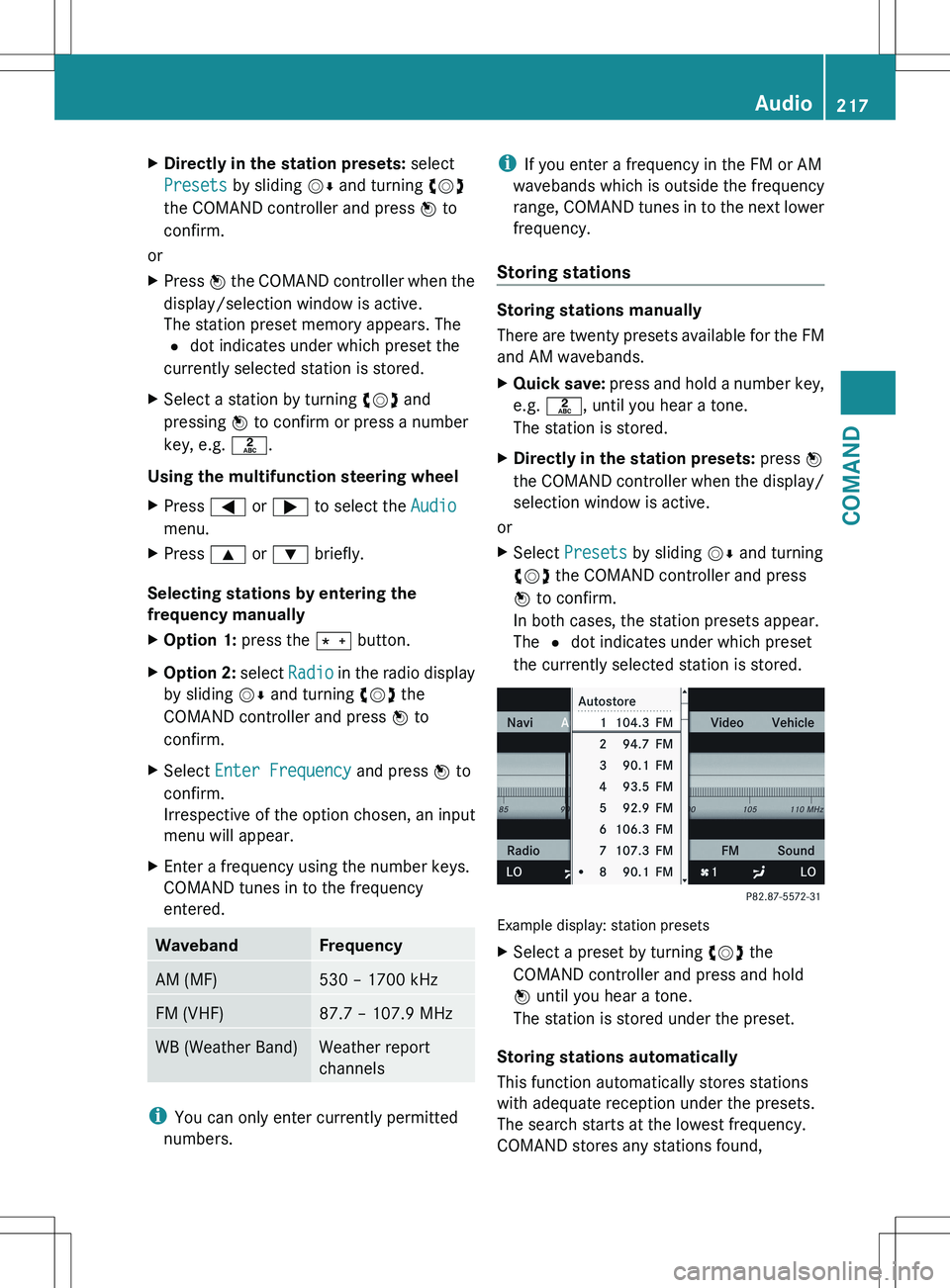
In both cases, the station presets appear.
The # dot indicates under which preset
the currently selected station is stored.
Example display: station presets
XSelect a preset by turning cVd the
COMAND controller and press and hold
W until you hear a tone.
The station is stored under the preset.
Storing stations automatically
This function automatically stores stations
with adequate reception under the presets.
The search starts at the lowest frequency.
COMAND stores any stations found,
Audio217COMANDZ
Page 220 of 536
beginning with preset 1. The storing process
ends once the highest frequency has been
reached or once ten stations have been
found. Any stations stored manually under
the presets will be lost. COMAND may not
occupy all memory slots when storing.XOption 1: press W the COMAND controller
when the display/selection window is
active.
The station preset memory appears.XOption 2: select Presets by sliding VÆ
and turning cVd the COMAND controller
and press W to confirm.
The station preset memory appears.XIrrespective of the option, select
Autostore and press W to confirm.
In both cases, COMAND searches for
stations that can be received. You will see
a message to this effect. The available
stations are automatically stored in the
preset positions.XTo cancel storing: select Cancel and
press W to confirm.
Weather Band
Switching on
XSelect the currently set waveband FM or
AM by sliding VÆ and turning cVd the
COMAND controller and press W to
confirm.XSelect WB from the menu and press W to
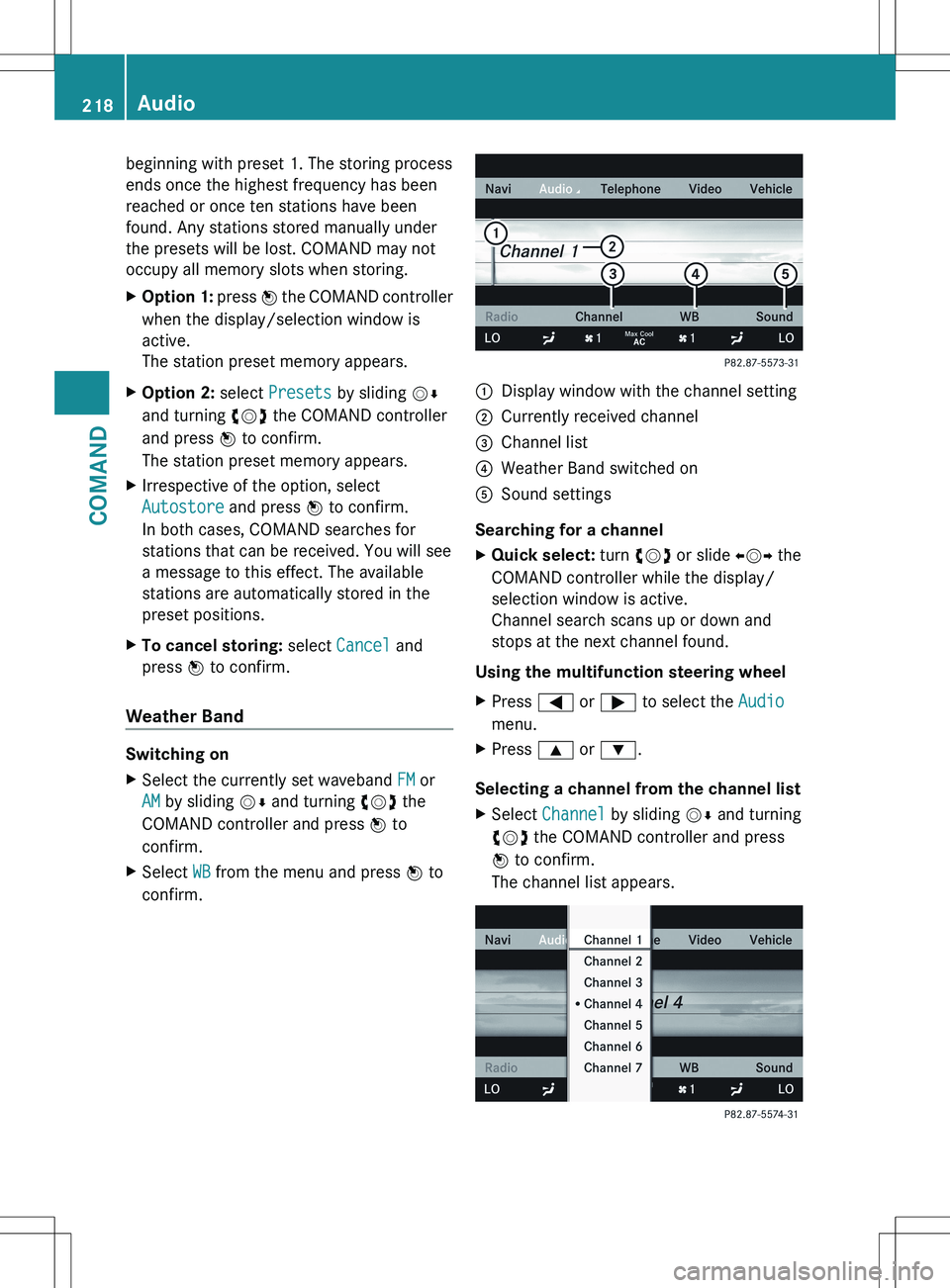
confirm.:Display window with the channel setting;Currently received channel=Channel list?Weather Band switched onASound settings
Searching for a channel
XQuick select: turn cVd or slide XVY the
COMAND controller while the display/
selection window is active.
Channel search scans up or down and
stops at the next channel found.
Using the multifunction steering wheel
XPress = or ; to select the Audio
menu.XPress 9 or : .
Selecting a channel from the channel list
XSelect Channel by sliding VÆ and turning
cVd the COMAND controller and press
W to confirm.
The channel list appears.218AudioCOMAND
Page 221 of 536
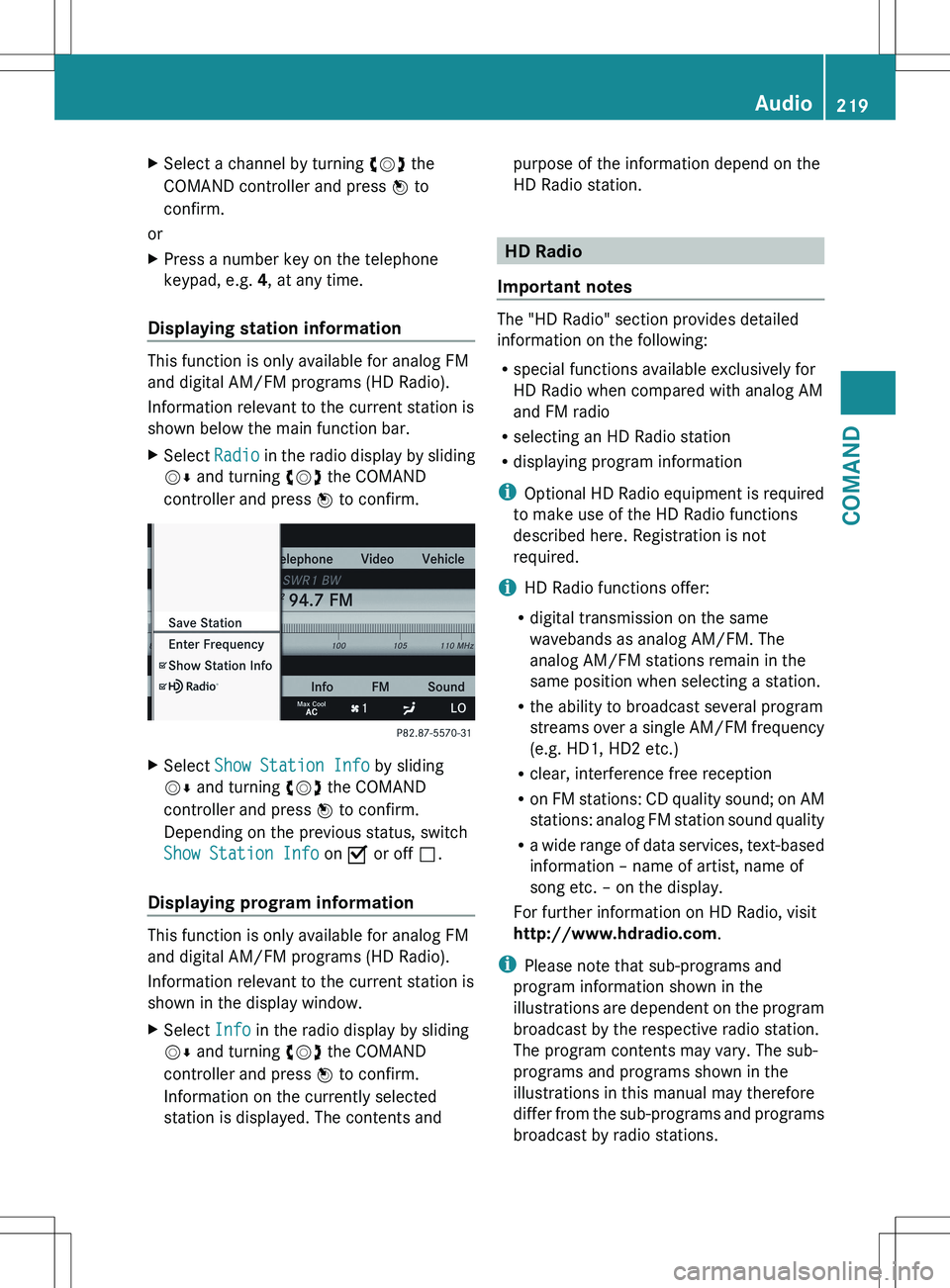
XSelect a channel by turning cVd the
COMAND controller and press W to
confirm.
or
XPress a number key on the telephone
keypad, e.g. 4, at any time.
Displaying station information
This function is only available for analog FM
and digital AM/FM programs (HD Radio).
Information relevant to the current station is
shown below the main function bar.
XSelect Radio in the radio display by sliding
V Æ and turning cVd the COMAND
controller and press W to confirm.XSelect Show Station Info by sliding
V Æ and turning cVd the COMAND
controller and press W to confirm.
Depending on the previous status, switch
Show Station Info on O or off ª.
Displaying program information
This function is only available for analog FM
and digital AM/FM programs (HD Radio).
Information relevant to the current station is
shown in the display window.
XSelect Info in the radio display by sliding
V Æ and turning cVd the COMAND
controller and press W to confirm.
Information on the currently selected
station is displayed. The contents andpurpose of the information depend on the
HD Radio station.
HD Radio
Important notes
The "HD Radio" section provides detailed
information on the following:
R special functions available exclusively for
HD Radio when compared with analog AM
and FM radio
R selecting an HD Radio station
R displaying program information
i Optional HD Radio equipment is required
to make use of the HD Radio functions
described here. Registration is not
required.
i HD Radio functions offer:
R digital transmission on the same
wavebands as analog AM/FM. The
analog AM/FM stations remain in the
same position when selecting a station.
R the ability to broadcast several program
streams over a single AM/FM frequency
(e.g. HD1, HD2 etc.)
R clear, interference free reception
R on FM stations: CD quality sound; on AM
stations: analog FM station sound quality
R a wide range of data services, text-based
information – name of artist, name of
song etc. – on the display.
For further information on HD Radio, visit
http://www.hdradio.com .
i Please note that sub-programs and
program information shown in the
illustrations are dependent on the program
broadcast by the respective radio station.
The program contents may vary. The sub-
programs and programs shown in the
illustrations in this manual may therefore
differ from the sub-programs and programs
broadcast by radio stations.
Audio219COMANDZ
Page 225 of 536
Selecting a categoryXTo call up the category list: select
Category by turning cVd the COMAND
controller and press W to confirm.
The category list appears.XTo select a category: select a category by
turning cVd the COMAND controller and
pressing W to confirm.
The category selected is shown in the
display. You hear the station last selected
for this category.
The All Channels category is at the top
of the category list. This category is sorted
by channel number and allows you to
browse all available channels.
Selecting a channel
Channel search
XTurn cVd or slide XVY the COMAND
controller while the display/selection
window in the SatRadio display is active.
COMAND searches in both directions
(ascending and descending) and stops at
the next channel found in the selected
category.
Using the multifunction steering wheel
XPress = or ; to select the Audio
menu.XPress and hold 9 or : .
SatRadio menu
XSelect Sat. Radio in the submenu bar by
turning cVd the COMAND controller and
press W to confirm.
The SatRadio menu appears.
Entering channel numbers directly
Option 1
XPress the Ä button.
An input menu appears.Option 2XSelect Sat. Radio in the submenu bar by
turning cVd the COMAND controller and
press W to confirm.XSelect Enter Channel and press W to
confirm.
An input menu appears.XTo enter a channel: irrespective of the
option, press the corresponding number
keys on the control panel one after the
other.
COMAND sets the selected channel.
i You can only select currently permitted
digits.
Selecting a channel from the SatRadio
channel list
XSelect Sat. Radio in the submenu bar by
turning cVd the COMAND controller and
press W to confirm.XSelect Channel List and press W to
confirm.
The channel list appears.XSelect a channel by turning cVd the
COMAND controller and press W to
confirm.
Memory functions
Storing channels
i There are ten presets available.
XPress W the COMAND controller when the
display/selection window is active.
or
XSelect Presets in the submenu bar by
turning cVd the COMAND controller and
press W to confirm.
In both cases, the channel presets appear.
The R dot in front of a preset position
indicates that the currently selected
channel is stored there.Audio223COMANDZ
Page 227 of 536
Audio CD/DVD and MP3 mode
Important safety notesGWARNING
COMAND is classified as a Class 1 laser
product. You must not open the casing. If you
open the casing, or if the casing is faulty or
damaged, there is a risk of exposure to
invisible laser radiation. This may damage
your eyes, or those of others.
COMAND does not contain any parts that can
be serviced by the user. For safety reasons,
all maintenance work must be carried out by
qualified aftersales technicians.
GWARNING
Only when the vehicle is stationary should
you:
R load a disc
R eject a disc
There is a risk of being distracted from the
road and traffic conditions if this is done while
the vehicle is in motion.
Inserting/ejecting CDs/DVDs
DVD changer
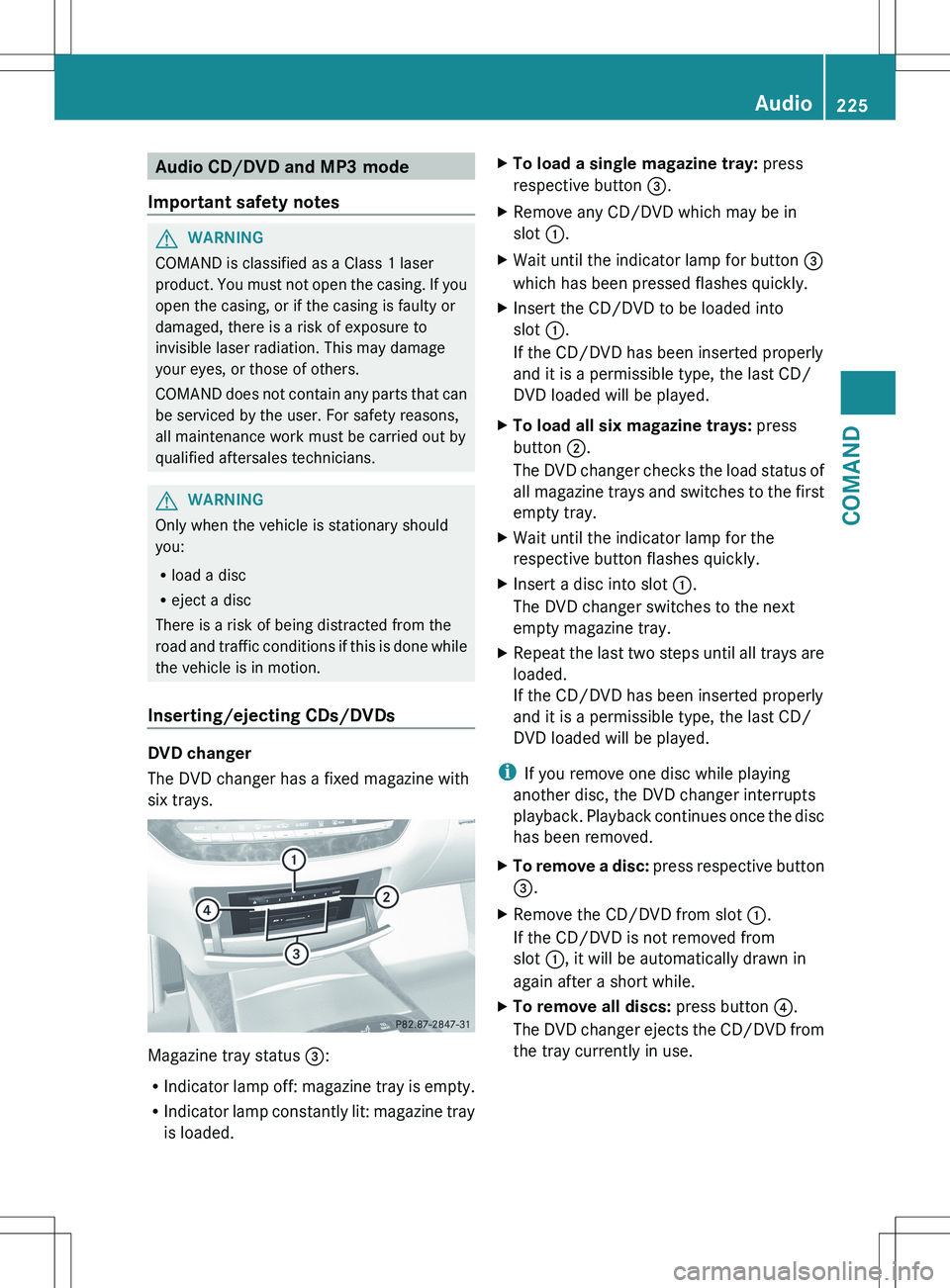
The DVD changer has a fixed magazine with
six trays.
Magazine tray status =:
R Indicator lamp off: magazine tray is empty.
R Indicator lamp constantly lit: magazine tray
is loaded.
XTo load a single magazine tray: press
respective button =.XRemove any CD/DVD which may be in
slot :.XWait until the indicator lamp for button =
which has been pressed flashes quickly.XInsert the CD/DVD to be loaded into
slot :.
If the CD/DVD has been inserted properly
and it is a permissible type, the last CD/
DVD loaded will be played.XTo load all six magazine trays: press
button ;.
The DVD changer checks the load status of
all magazine trays and switches to the first
empty tray.XWait until the indicator lamp for the
respective button flashes quickly.XInsert a disc into slot :.
The DVD changer switches to the next
empty magazine tray.XRepeat the last two steps until all trays are
loaded.
If the CD/DVD has been inserted properly
and it is a permissible type, the last CD/
DVD loaded will be played.
i If you remove one disc while playing
another disc, the DVD changer interrupts
playback. Playback continues once the disc
has been removed.
XTo remove a disc: press respective button
= .XRemove the CD/DVD from slot :.
If the CD/DVD is not removed from
slot :, it will be automatically drawn in
again after a short while.XTo remove all discs: press button ?.
The DVD changer ejects the CD/DVD from
the tray currently in use.Audio225COMANDZ
Page 231 of 536
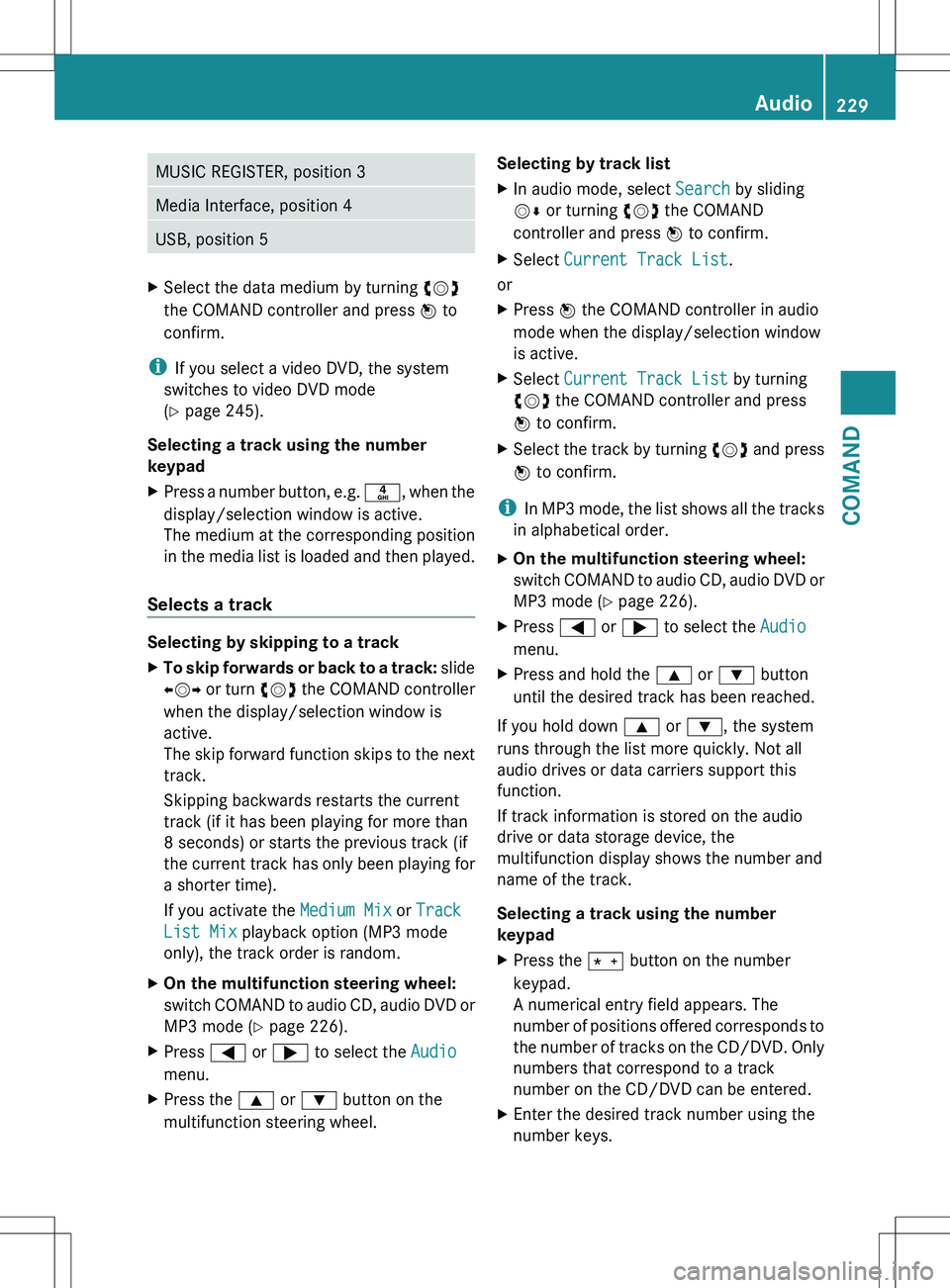
MUSIC REGISTER, position 3Media Interface, position 4USB, position 5XSelect the data medium by turning cVd
the COMAND controller and press W to
confirm.
i If you select a video DVD, the system
switches to video DVD mode
( Y page 245).
Selecting a track using the number
keypad
XPress a number button, e.g. n, when the
display/selection window is active.
The medium at the corresponding position
in the media list is loaded and then played.
Selects a track
Selecting by skipping to a track
XTo skip forwards or back to a track: slide
XVY or turn cVd the COMAND controller
when the display/selection window is
active.
The skip forward function skips to the next
track.
Skipping backwards restarts the current
track (if it has been playing for more than
8 seconds) or starts the previous track (if
the current track has only been playing for
a shorter time).
If you activate the Medium Mix or Track
List Mix playback option (MP3 mode
only), the track order is random.XOn the multifunction steering wheel:
switch COMAND to audio CD, audio DVD or
MP3 mode ( Y page 226).XPress = or ; to select the Audio
menu.XPress the 9 or : button on the
multifunction steering wheel.Selecting by track listXIn audio mode, select Search by sliding
V Æ or turning cVd the COMAND
controller and press W to confirm.XSelect Current Track List .
or
XPress W the COMAND controller in audio
mode when the display/selection window
is active.XSelect Current Track List by turning
cVd the COMAND controller and press
W to confirm.XSelect the track by turning cVd and press
W to confirm.
i
In MP3 mode, the list shows all the tracks
in alphabetical order.
XOn the multifunction steering wheel:
switch COMAND to audio CD, audio DVD or
MP3 mode ( Y page 226).XPress = or ; to select the Audio
menu.XPress and hold the 9 or : button
until the desired track has been reached.
If you hold down 9 or : , the system
runs through the list more quickly. Not all
audio drives or data carriers support this
function.
If track information is stored on the audio
drive or data storage device, the
multifunction display shows the number and
name of the track.
Selecting a track using the number
keypad
XPress the Ä button on the number
keypad.
A numerical entry field appears. The
number of positions offered corresponds to
the number of tracks on the CD/DVD. Only
numbers that correspond to a track
number on the CD/DVD can be entered.XEnter the desired track number using the
number keys.Audio229COMANDZ
Page 232 of 536
Fast forward/rewindXWhile the display/selection window is
active, slide XVY and hold the COMAND
controller until the desired position has
been reached.
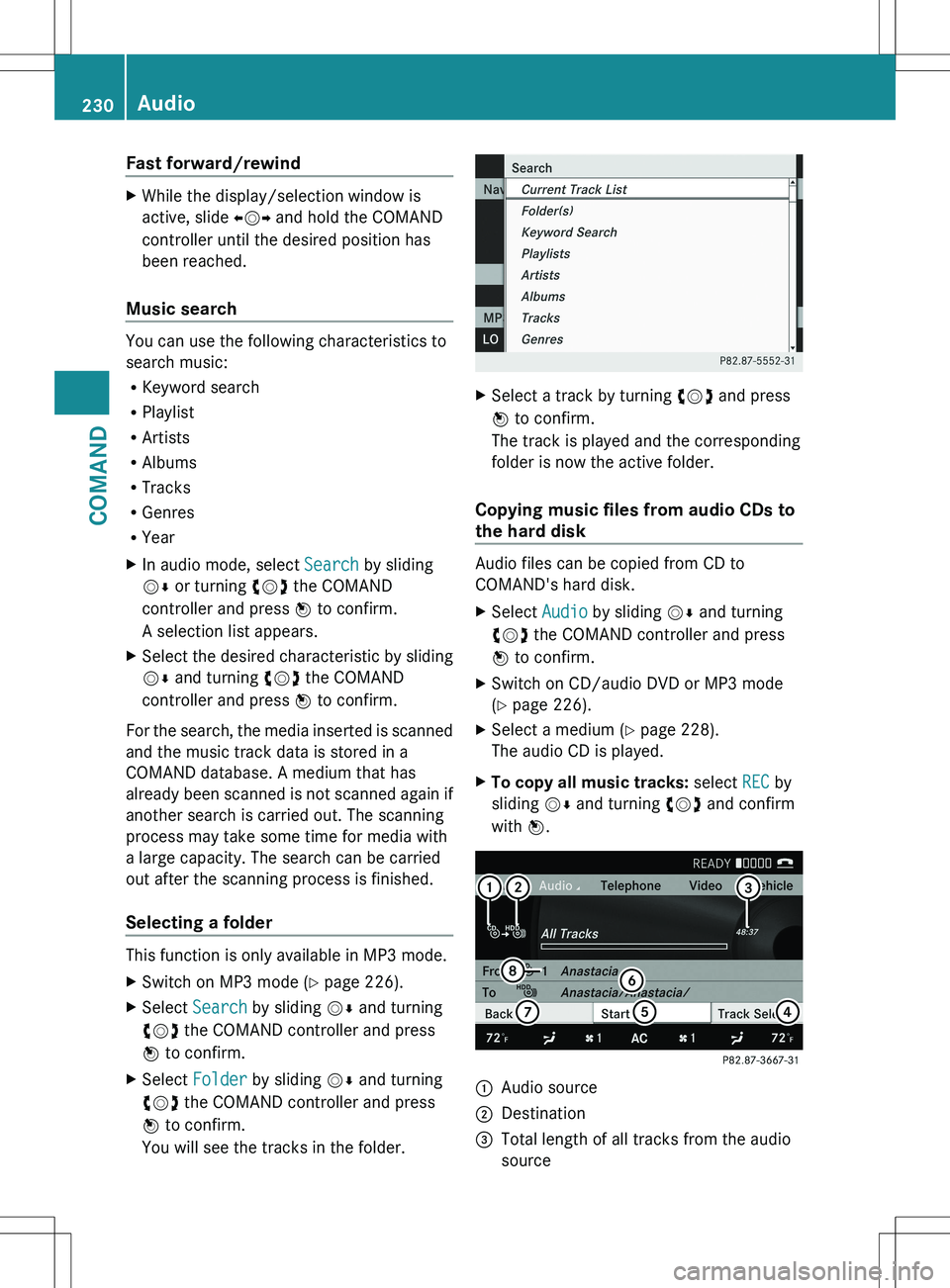
Music search
You can use the following characteristics to
search music:
R Keyword search
R Playlist
R Artists
R Albums
R Tracks
R Genres
R Year
XIn audio mode, select Search by sliding
V Æ or turning cVd the COMAND
controller and press W to confirm.
A selection list appears.XSelect the desired characteristic by sliding
V Æ and turning cVd the COMAND
controller and press W to confirm.
For the search, the media inserted is scanned
and the music track data is stored in a
COMAND database. A medium that has
already been scanned is not scanned again if
another search is carried out. The scanning
process may take some time for media with
a large capacity. The search can be carried
out after the scanning process is finished.
Selecting a folder
This function is only available in MP3 mode.
XSwitch on MP3 mode ( Y page 226).XSelect Search by sliding VÆ and turning
cVd the COMAND controller and press
W to confirm.XSelect Folder by sliding VÆ and turning
cVd the COMAND controller and press
W to confirm.
You will see the tracks in the folder.XSelect a track by turning cVd and press
W to confirm.
The track is played and the corresponding
folder is now the active folder.
Copying music files from audio CDs to
the hard disk
Audio files can be copied from CD to
COMAND's hard disk.
XSelect Audio by sliding VÆ and turning
cVd the COMAND controller and press
W to confirm.XSwitch on CD/audio DVD or MP3 mode
( Y page 226).XSelect a medium ( Y page 228).
The audio CD is played.XTo copy all music tracks: select REC by
sliding VÆ and turning cVd and confirm
with W.:Audio source;Destination=Total length of all tracks from the audio
source230AudioCOMAND