ESP MERCEDES-BENZ S-CLASS SEDAN 2012 Manual PDF
[x] Cancel search | Manufacturer: MERCEDES-BENZ, Model Year: 2012, Model line: S-CLASS SEDAN, Model: MERCEDES-BENZ S-CLASS SEDAN 2012Pages: 536, PDF Size: 39.39 MB
Page 233 of 536
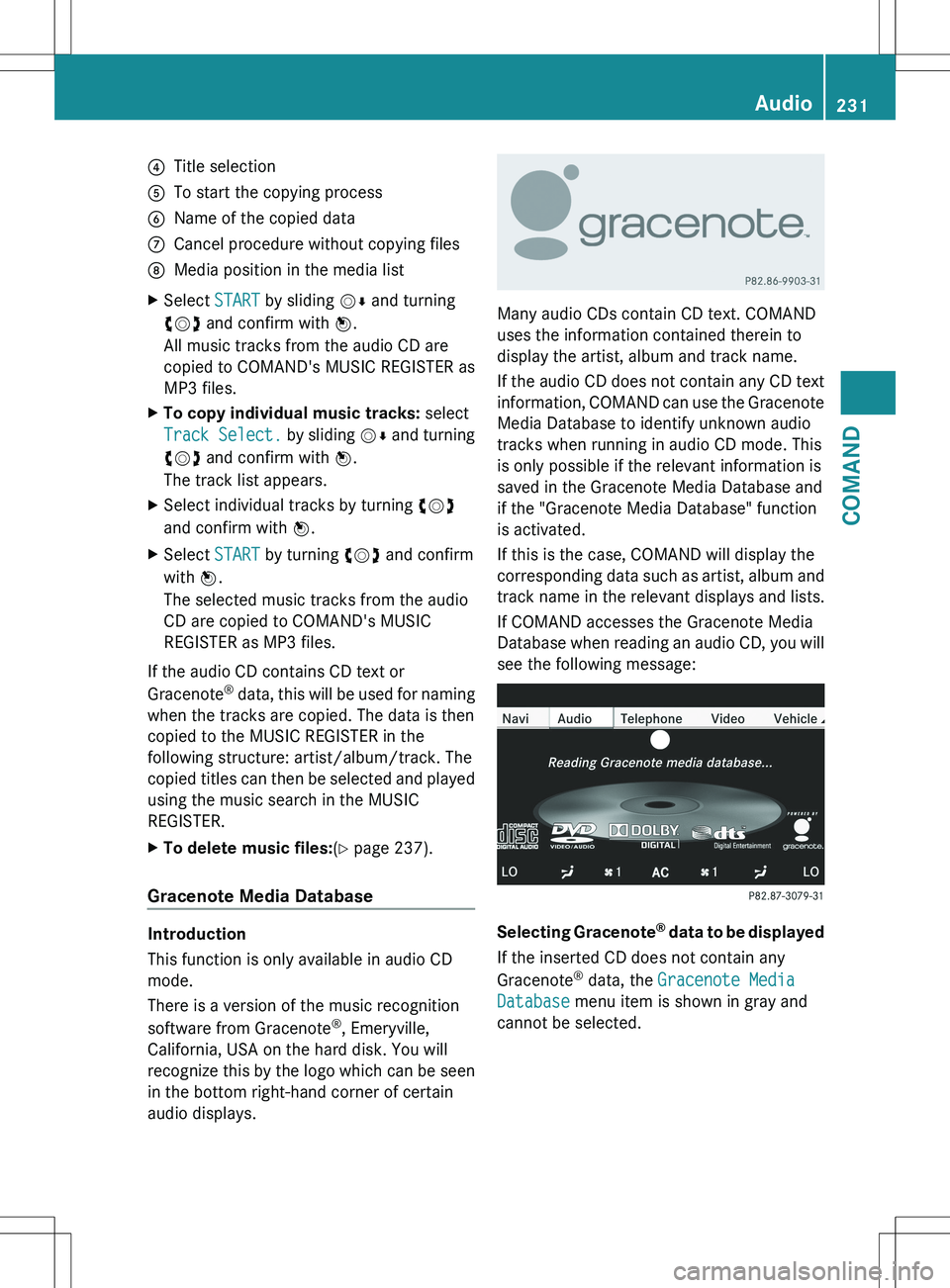
?Title selectionATo start the copying processBName of the copied dataCCancel procedure without copying filesDMedia position in the media listXSelect START by sliding VÆ and turning
cVd and confirm with W.
All music tracks from the audio CD are
copied to COMAND's MUSIC REGISTER as
MP3 files.XTo copy individual music tracks: select
Track Select. by sliding VÆ and turning
cVd and confirm with W.
The track list appears.XSelect individual tracks by turning cVd
and confirm with W.XSelect START by turning cVd and confirm
with W.
The selected music tracks from the audio
CD are copied to COMAND's MUSIC
REGISTER as MP3 files.
If the audio CD contains CD text or
Gracenote ®
data, this will be used for naming
when the tracks are copied. The data is then
copied to the MUSIC REGISTER in the
following structure: artist/album/track. The
copied titles can then be selected and played
using the music search in the MUSIC
REGISTER.
XTo delete music files: (Y page 237).
Gracenote Media Database
Introduction
This function is only available in audio CD
mode.
There is a version of the music recognition
software from Gracenote ®
, Emeryville,
California, USA on the hard disk. You will
recognize this by the logo which can be seen
in the bottom right-hand corner of certain
audio displays.
Many audio CDs contain CD text. COMAND
uses the information contained therein to
display the artist, album and track name.
If the audio CD does not contain any CD text
information, COMAND can use the Gracenote
Media Database to identify unknown audio
tracks when running in audio CD mode. This
is only possible if the relevant information is
saved in the Gracenote Media Database and
if the "Gracenote Media Database" function
is activated.
If this is the case, COMAND will display the
corresponding data such as artist, album and
track name in the relevant displays and lists.
If COMAND accesses the Gracenote Media
Database when reading an audio CD, you will
see the following message:
Selecting Gracenote ®
data to be displayed
If the inserted CD does not contain any
Gracenote ®
data, the Gracenote Media
Database menu item is shown in gray and
cannot be selected.
Audio231COMANDZ
Page 234 of 536
XSwitch on audio CD mode (Y page 226).XSelect CD by sliding VÆ and turning cVd
the COMAND controller and press W to
confirm.XSelect Gracenote Media Database by
turning cVd the COMAND controller and
press W to confirm.
Switch the function on O or off ª.
Updating Gracenote ®
music recognition
technology and the Gracenote Media
Database
The digital data on the Gracenote Media
Database becomes obsolete due to the
release of new CDs. Optimum functionality
can only be attained with up-to-date
Gracenote ®
music recognition technology.
Information about new versions can be
obtained from an authorized Mercedes-Benz
Center.
You can have your music recognition
software updated there with a DVD, or you
can update it yourself.
i The Gracenote Media Database is
updated in conjunction with the navigation
system's digital map ( Y page 192).
Setting the audio format
You can only set the audio format in audio
DVD mode. The number of audio formats
available depends on the DVD. The content of
an audio DVD is called an "album", and this
can be divided into up to nine groups. A group
can contain music in different sound qualities
(stereo and multichannel formats, for
example), or bonus tracks. Each group can
contain up to 99 tracks. If an audio DVD only
contains one audio format, the "Group" menu
item(s) cannot be selected.
XSwitch on audio DVD mode ( Y page 226).XSelect DVD-A by sliding VÆ and turning
cVd the COMAND controller and press
W to confirm.XSelect Group by turning cVd and press
W to confirm.
The list of available groups appears. The
# dot indicates the group currently
selected.XTo exit the menu: slide XVY the COMAND
controller or press the % button.
Playback options
The following options are available to you:
R Normal Track Sequence
The tracks are played in the normal order
(e.g. track 1, 2, 3, etc.).
In MP3 mode, the track order is determined
by the order in which the tracks are written
to the MP3 data carrier when it is created.
Alphabetical order is the most common.
Once all the tracks in a folder have been
played, the tracks in the next folder are
played.
R Medium Mix
All the tracks on the medium are played in
random order (e.g. track 3, 8, 5 etc.).
R Track List Mix (MP3 mode only)
All the tracks that are listed in the current
track list are played in random order.
XTo select options: switch on audio CD/
DVD or MP3 mode ( Y page 226).XSelect CD, DVD-A or MP3 by sliding VÆ and
turning cVd the COMAND controller and
press W to confirm.
The options list appears. The # dot
indicates the option selected.XSelect an option by turning cVd and press
W to confirm.
The option is switched on. For all options
except "Normal track sequence", you will
see a corresponding display in the display/
selection window. See the example of the
display in audio CD mode ( Y page 226).
i
The "Normal track sequence" option is
automatically selected when you change
the medium you are currently listening to
232AudioCOMAND
Page 235 of 536
or when you select a different medium. If
an option is selected, it remains selected
after COMAND is switched on or off.
Notes on MP3 mode
Permissible discs
R CD-R and CD-RW
R DVD+R and DVD+RW
R DVD-R and DVD-RW
R SD memory card:
R USB stick
R iPod ®
R MP3 player
Permissible file systems
R ISO 9660/Joliet standard for CDs
R UDF for audio and video DVDs
R FAT16 or FAT32 for storage media
Multisession CDs
For multisession CDs, the content of the first
session determines how COMAND will
process the CD. COMAND plays only one
session and gives priority to the audio CD
session.
If possible, use COMAND to play only CDs
which have been written in one session.
File structure of a data carrier
When you create a disc with compressed
music files, the tracks can be organized in
folders. A folder may also contain subfolders.
A disc can contain a maximum of 255 folders.
Each folder can contain a maximum of
255 tracks and 255 subfolders.
The disc may contain no more than eight
directory levels. Files beyond the eighth level
will not be recognized by the system.
Track and file names
When you create a disc with compressed
music files, you can assign names to the
tracks and folders.
COMAND uses these names accordingly for
the display. Folders which contain data other
than MP3 or WMA tracks are not displayed by
COMAND.
If MP3 or WMA files are stored in the root
directory itself, the root directory will also be
treated as a folder. COMAND will then show
the name of the root directory as the folder
name.
You must observe the following when
assigning track names:
R track names must have at least 1
character.
R track names must have the extension
"mp3" or "wma".
R there must be a full stop between the track
name and the extension.
Example of a correct track name:
"Track1.mp3".
i COMAND does not support ID3 tags.
Permissible formats
COMAND supports the following formats:
R Microsoft Windows Media Audio V2, V7, V8
and V9 (WMA)
Permissible bit and sampling rates
COMAND supports MP3 files of the following
types:
R fixed and variable bit rates from 32 kbit/s
to 320 kbit/s
R sampling rates of 8 kHz to 48 kHz
COMAND supports WMA files of the
following types:
R fixed bit rates from 5 kbit/s to 384 kbit/s
R sampling rates of 8 kHz to 48 kHz
COMAND does not support WMA files of the
following types:
R DRM (Digital Rights Management)
encrypted files
i Only use tracks with a bit rate of at least
128 kbit/s and a sampling rate of at least
44.1 kHz. Lower rates can cause a
noticeable deterioration in quality. This is
especially the case if you have activated a
surround sound function.Audio233COMANDZ
Page 237 of 536
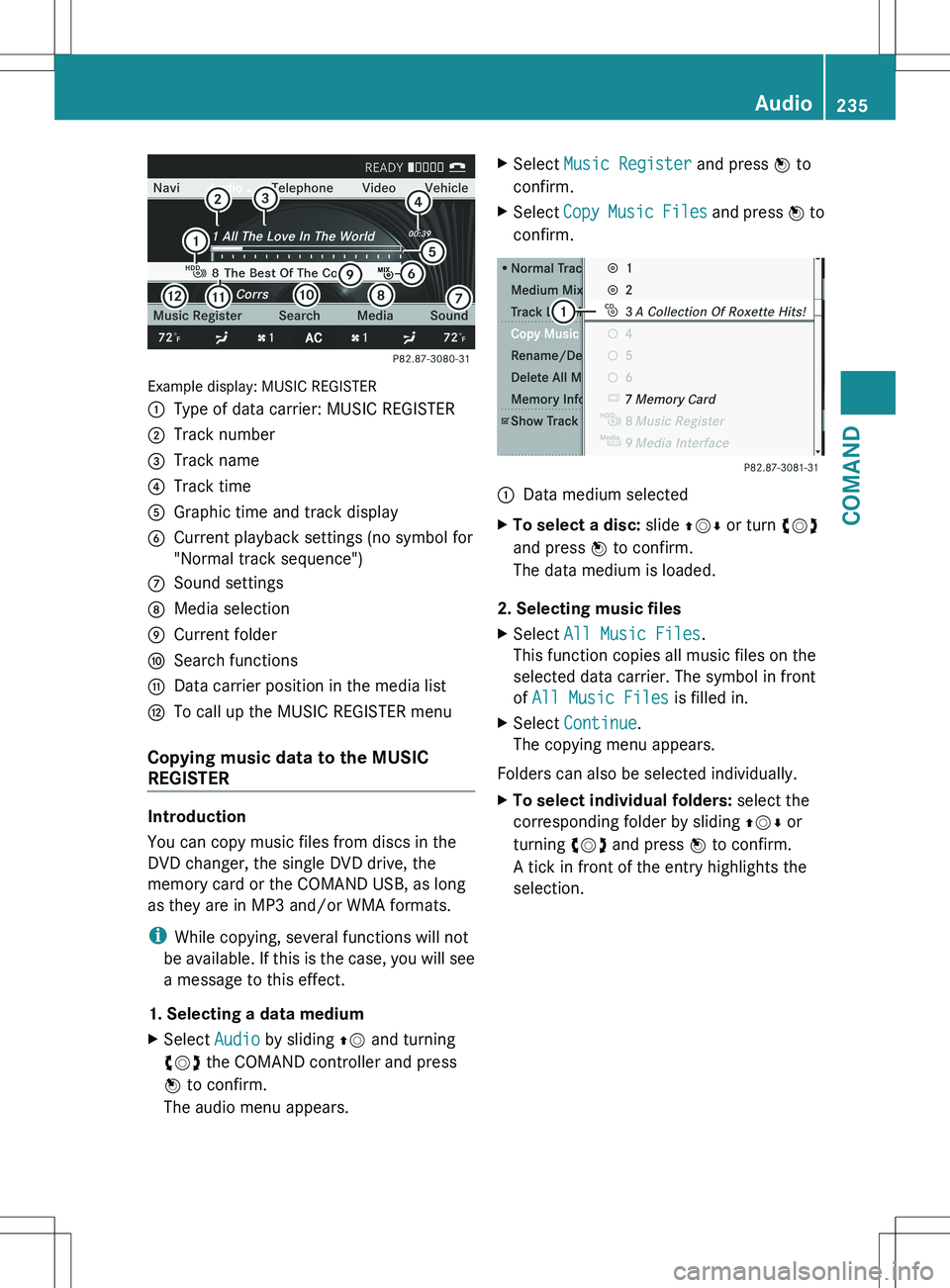
Example display: MUSIC REGISTER
:Type of data carrier: MUSIC REGISTER;Track number=Track name?Track timeAGraphic time and track displayBCurrent playback settings (no symbol for
"Normal track sequence")CSound settingsDMedia selectionECurrent folderFSearch functionsGData carrier position in the media listHTo call up the MUSIC REGISTER menu
Copying music data to the MUSIC
REGISTER
Introduction
You can copy music files from discs in the
DVD changer, the single DVD drive, the
memory card or the COMAND USB, as long
as they are in MP3 and/or WMA formats.
i While copying, several functions will not
be available. If this is the case, you will see
a message to this effect.
1. Selecting a data medium
XSelect Audio by sliding ZV and turning
cVd the COMAND controller and press
W to confirm.
The audio menu appears.XSelect Music Register and press W to
confirm.XSelect Copy Music Files and press W to
confirm.:Data medium selectedXTo select a disc: slide ZVÆ or turn cVd
and press W to confirm.
The data medium is loaded.
2. Selecting music files
XSelect All Music Files .
This function copies all music files on the
selected data carrier. The symbol in front
of All Music Files is filled in.XSelect Continue .
The copying menu appears.
Folders can also be selected individually.
XTo select individual folders: select the
corresponding folder by sliding ZVÆ or
turning cVd and press W to confirm.
A tick in front of the entry highlights the
selection.Audio235COMANDZ
Page 239 of 536
Folder functions
Introduction
You can view the content of the MUSIC
REGISTER, change folder or track names and
delete individual folders or tracks.
Calling up a folder
XSelect Search by sliding VÆ and turning
cVd the COMAND controller and press
W to confirm.XSelect Folder and press W to confirm.
You see the contents of the current folder.XTo switch to the superordinate folder:
select the U icon and press W to
confirm.
The display changes to the next folder up.
Changing the folder/track name
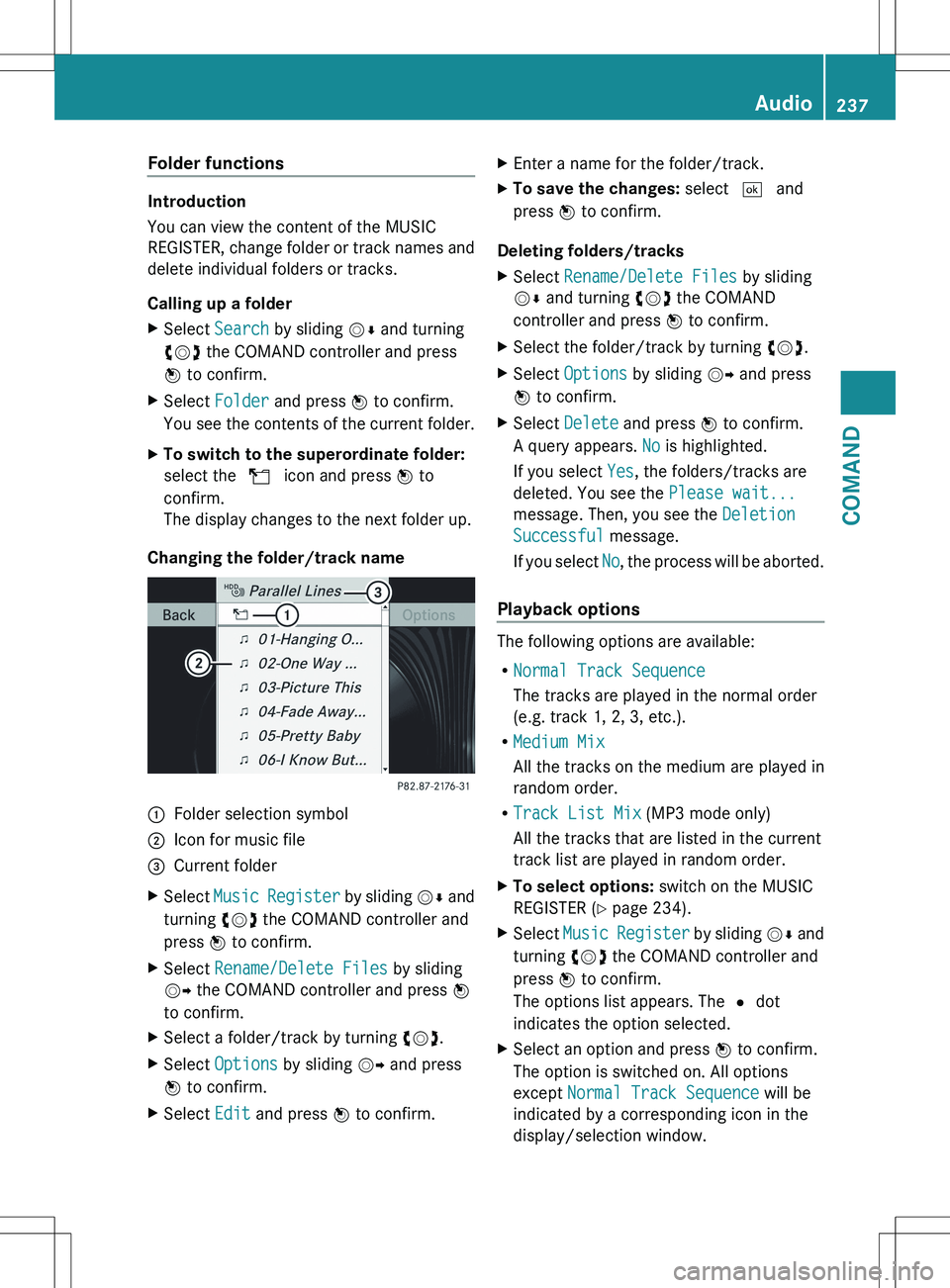
:Folder selection symbol;Icon for music file=Current folderXSelect Music Register by sliding VÆ and
turning cVd the COMAND controller and
press W to confirm.XSelect Rename/Delete Files by sliding
VY the COMAND controller and press W
to confirm.XSelect a folder/track by turning cVd.XSelect Options by sliding VY and press
W to confirm.XSelect Edit and press W to confirm.XEnter a name for the folder/track.XTo save the changes: select ¬ and
press W to confirm.
Deleting folders/tracks
XSelect Rename/Delete Files by sliding
V Æ and turning cVd the COMAND
controller and press W to confirm.XSelect the folder/track by turning cVd.XSelect Options by sliding VY and press
W to confirm.XSelect Delete and press W to confirm.
A query appears. No is highlighted.
If you select Yes, the folders/tracks are
deleted. You see the Please wait...
message. Then, you see the Deletion
Successful message.
If you select No, the process will be aborted.
Playback options
The following options are available:
R Normal Track Sequence
The tracks are played in the normal order
(e.g. track 1, 2, 3, etc.).
R Medium Mix
All the tracks on the medium are played in
random order.
R Track List Mix (MP3 mode only)
All the tracks that are listed in the current
track list are played in random order.
XTo select options: switch on the MUSIC
REGISTER ( Y page 234).XSelect Music Register by sliding VÆ and
turning cVd the COMAND controller and
press W to confirm.
The options list appears. The # dot
indicates the option selected.XSelect an option and press W to confirm.
The option is switched on. All options
except Normal Track Sequence will be
indicated by a corresponding icon in the
display/selection window.Audio237COMANDZ
Page 240 of 536
iThe Normal Track Sequence option is
automatically selected when you change
the disc you are currently listening to or
when you select a different medium. If an
option is selected, it remains selected after
COMAND is switched on or off.
Media Interface mode
Connection options
Overview
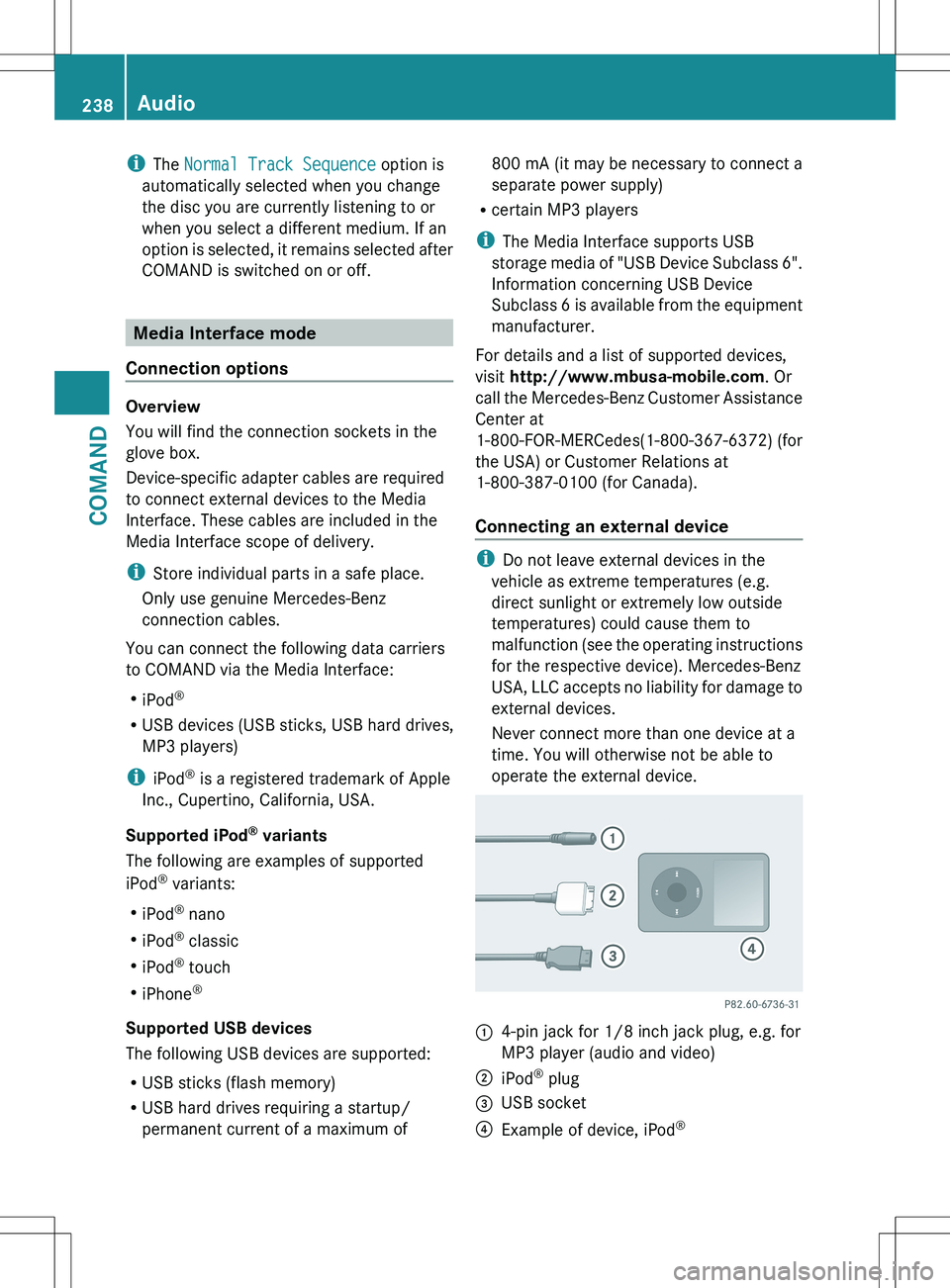
You will find the connection sockets in the
glove box.
Device-specific adapter cables are required
to connect external devices to the Media
Interface. These cables are included in the
Media Interface scope of delivery.
i Store individual parts in a safe place.
Only use genuine Mercedes-Benz
connection cables.
You can connect the following data carriers
to COMAND via the Media Interface:
R iPod ®
R USB devices (USB sticks, USB hard drives,
MP3 players)
i iPod ®
is a registered trademark of Apple
Inc., Cupertino, California, USA.
Supported iPod ®
variants
The following are examples of supported
iPod ®
variants:
R iPod ®
nano
R iPod ®
classic
R iPod ®
touch
R iPhone ®
Supported USB devices
The following USB devices are supported:
R USB sticks (flash memory)
R USB hard drives requiring a startup/
permanent current of a maximum of
800 mA (it may be necessary to connect a
separate power supply)
R certain MP3 players
i The Media Interface supports USB
storage media of "USB Device Subclass 6".
Information concerning USB Device
Subclass 6 is available from the equipment
manufacturer.
For details and a list of supported devices,
visit http://www.mbusa-mobile.com . Or
call the Mercedes-Benz Customer Assistance
Center at
1-800-FOR-MERCedes(1-800-367-6372) (for
the USA) or Customer Relations at
1-800-387-0100 (for Canada).
Connecting an external device
i Do not leave external devices in the
vehicle as extreme temperatures (e.g.
direct sunlight or extremely low outside
temperatures) could cause them to
malfunction (see the operating instructions
for the respective device). Mercedes-Benz
USA, LLC accepts no liability for damage to
external devices.
Never connect more than one device at a
time. You will otherwise not be able to
operate the external device.
:4-pin jack for 1/8 inch jack plug, e.g. for
MP3 player (audio and video);iPod ®
plug=USB socket?Example of device, iPod ®238AudioCOMAND
Page 242 of 536
under the corresponding position and
press W to confirm.
COMAND activates the connected device.
You will see a message to this effect. The
basic display then appears.
If no device is connected, you will see the
Media Interface entry instead of a
device name.
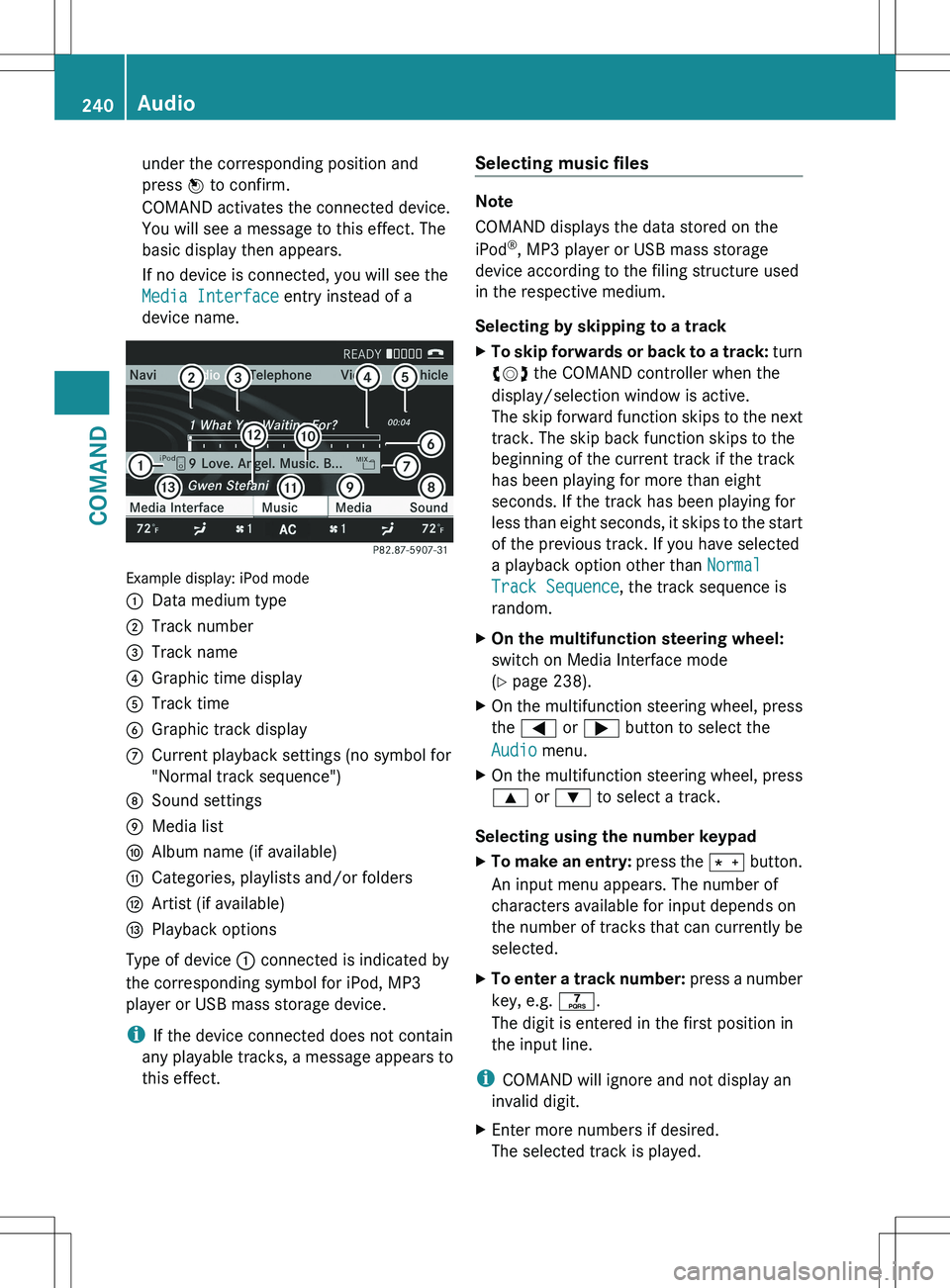
Example display: iPod mode
:Data medium type;Track number=Track name?Graphic time displayATrack timeBGraphic track displayCCurrent playback settings (no symbol for
"Normal track sequence")DSound settingsEMedia listFAlbum name (if available)GCategories, playlists and/or foldersHArtist (if available)IPlayback options
Type of device : connected is indicated by
the corresponding symbol for iPod, MP3
player or USB mass storage device.
i If the device connected does not contain
any playable tracks, a message appears to
this effect.
Selecting music files
Note
COMAND displays the data stored on the
iPod ®
, MP3 player or USB mass storage
device according to the filing structure used
in the respective medium.
Selecting by skipping to a track
XTo skip forwards or back to a track: turn
cVd the COMAND controller when the
display/selection window is active.
The skip forward function skips to the next
track. The skip back function skips to the
beginning of the current track if the track
has been playing for more than eight
seconds. If the track has been playing for
less than eight seconds, it skips to the start
of the previous track. If you have selected
a playback option other than Normal
Track Sequence , the track sequence is
random.XOn the multifunction steering wheel:
switch on Media Interface mode
( Y page 238).XOn the multifunction steering wheel, press
the = or ; button to select the
Audio menu.XOn the multifunction steering wheel, press
9 or : to select a track.
Selecting using the number keypad
XTo make an entry: press the Ä button.
An input menu appears. The number of
characters available for input depends on
the number of tracks that can currently be
selected.XTo enter a track number: press a number
key, e.g. q.
The digit is entered in the first position in
the input line.
i COMAND will ignore and not display an
invalid digit.
XEnter more numbers if desired.
The selected track is played.240AudioCOMAND
Page 243 of 536
Fast forward/rewindXWhile the display/selection window is
active, slide XVY and hold the COMAND
controller until the desired position has
been reached.
i On an iPod ®
, fast rewind only functions
within the current track.
Selecting a category/playlist/folder
iPod ®
and certain MP3 players
For an iPod ®
or MP3 player, you can select
tracks using categories or folders.
Depending on the device connected, the
following categories may be available, for
example:
R Current tracklist
R Playlists (e.g. All)
R Artists
R Albums
R Tracks
R Podcasts
R Genres
R Composers
R Audiobooks
i Some playback categories contain the
entry All. If this entry has been selected,
the entire content of the category selected
will be played.
USB devices
For USB mass storage devices, you can select
both folders as well as any existing playlists.
COMAND can also display the album name
and artist (metadata) during playback, if this
information has been entered into the
system.
Playlists are indicated in the display by a
special icon. When you open the playlist, the
corresponding tracks are displayed and
playback begins once a track is selected. You
can now select Category Mix instead of
Random Folder as a playback option.
For USB mass storage devices, you can
choose to display the metadata contained in
the tags of the encoded music data, or to
display the file and directory names during
playback.XTo display the album and artist name:
select Media Interface in the basic
display by sliding VÆ and turning cVd the
COMAND controller and press W to
confirm.XSelect Display Metadata and press W to
confirm.
Selecting a category and opening a folder
XPress W the COMAND controller when the
display/selection window is active.XSelect Folder by sliding VÆ and turning
cVd the COMAND controller and press
W to confirm.
You will see the available categories or the
folder content (e.g. other folders). The
display's status bar shows the selected
category or the folder name.
i The Music menu item is not available until
the device has been activated.
XSelect the category/folder by turning
cVd the COMAND controller and press
W to confirm.
You will see the content of the selected
category or selected folder.
i If the data needs to be read from the
connected device, the Please wait...
message appears.
XIf necessary, repeat this step until the
tracks in the desired folder/album appear.XSelect the track by turning cVd the
COMAND controller and press W to
confirm.
The track is played.XTo select one folder higher: select the
U icon and confirm with W.
i
The U icon is always shown at the top
of the respective folder.
Audio241COMANDZ
Page 244 of 536
Playing back the contents of a category
or folderXSelect the category or folder by turning
cVd the COMAND controller.XPress W the COMAND controller for longer
than two seconds.
The content of the category or folder
selected is played in accordance with the
playback option ( Y page 242) selected.
Alphabetical track selection
iPod ®
and MP3 players
This function is available for alphabetically
sorted categories and folders. This function
is not available for albums or playlists, for
example.
XSelect a category, e.g. Artists, by turning
cVd the COMAND controller and press
W to confirm.
The available artists are displayed.XPress the corresponding number key once
or several times to select the first letter of
the artist's name (e.g. for an artist
beginning with the letter "C", press number
key l three times).
The available letters are listed at the lower
edge of the display.
After a message, the first entry in the list
which matches the letter entered is
highlighted.
i If no corresponding entry exists, the last
entry corresponding to a previous letter is
highlighted instead.
i For iPods ®
and MP3 players, the quality
of the search results is highly dependent on
the version and language variant of the
software (e.g. iTunes ®
version) used to
populate the device.
USB mass storage device
This function is available for alphabetically
sorted directories. This function is not
available for albums or playlists, for example.
XIn a directory, press the corresponding
number key once or several times to select
the first letter of the artist's name (e.g. for
an artist beginning with the letter "C", press
number key l three times).
The available letters are listed at the lower
edge of the display.
If the directory only contains folders,
COMAND searches for folders. After a
message, the first entry which matches the
letter entered is shown at the top of the list.
If no entry matches the entered letter, the
first item in the list is the last entry to
correspond to a selection.
Selecting an active partition (USB mass
storage devices only)
You can select this function for USB mass
storage devices when the storage device is
partitioned. Up to four partitions (primary or
logical; FAT format) are supported.
i The Windows formatting program
supports FAT partitioning up to 32 GB as
standard.
XSelect Media Interface in the basic
display by sliding VÆ and turning cVd the
COMAND controller and press W to
confirm.XSelect Select Active Partition and
press W to confirm.
Playback options
The following options are available:
R Normal Track Sequence
Normal track sequence: you hear the
tracks in their normal order (e.g. numerical
or alphabetical).
R Random Tracks
All the tracks on the medium are played in
random order.
R Category Mix or Random Folder (for USB
devices if Folder has been selected)
242AudioCOMAND
Page 245 of 536
The tracks in the currently active category
or folder, including any subfolders, are
played in random order.
i For USB devices, the random playlists
offer a maximum of 300 tracks chosen at
random.XTo select a playback option: select
Media Interface in the basic display by
sliding VÆ and turning cVd the COMAND
controller and press W to confirm.
The options list appears. The # dot
indicates the option selected.XSelect an option and press W to confirm.
Separate USB connection
In addition to the USB connection on the
Media Interface, there is another USB
connection in the glove box. This connection
can also be used to play audio files.
Electrical consumption at this connection
must not exceed a continuous current of
500 mA. If the electrical consumption is
higher, use a separate source to provide
power for the USB device (e.g.
12 V power supply).
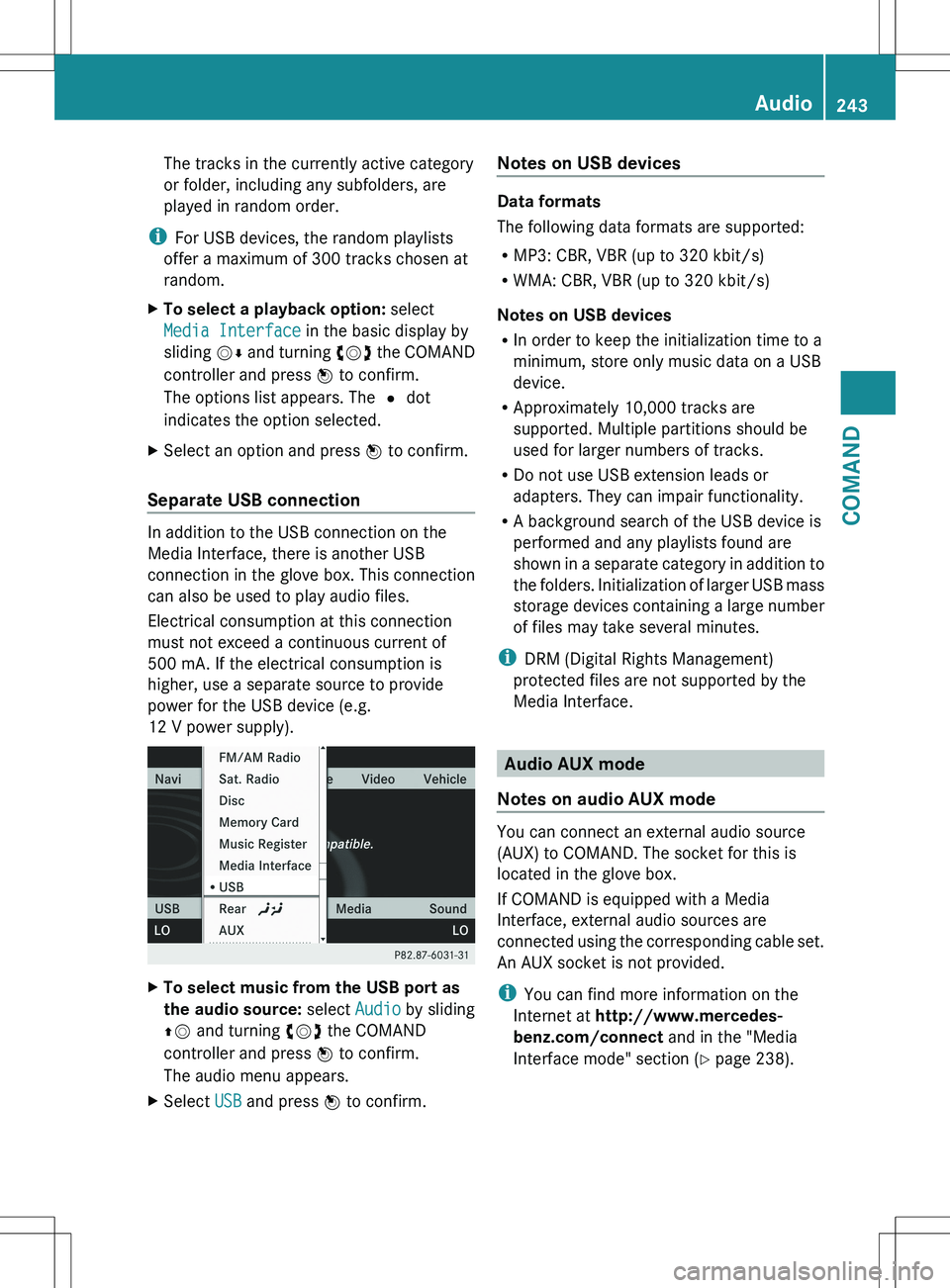
XTo select music from the USB port as
the audio source: select Audio by sliding
ZV and turning cVd the COMAND
controller and press W to confirm.
The audio menu appears.XSelect USB and press W to confirm.Notes on USB devices
Data formats
The following data formats are supported:
R MP3: CBR, VBR (up to 320 kbit/s)
R WMA: CBR, VBR (up to 320 kbit/s)
Notes on USB devices
R In order to keep the initialization time to a
minimum, store only music data on a USB
device.
R Approximately 10,000 tracks are
supported. Multiple partitions should be
used for larger numbers of tracks.
R Do not use USB extension leads or
adapters. They can impair functionality.
R A background search of the USB device is
performed and any playlists found are
shown in a separate category in addition to
the folders. Initialization of larger USB mass
storage devices containing a large number
of files may take several minutes.
i DRM (Digital Rights Management)
protected files are not supported by the
Media Interface.
Audio AUX mode
Notes on audio AUX mode
You can connect an external audio source
(AUX) to COMAND. The socket for this is
located in the glove box.
If COMAND is equipped with a Media
Interface, external audio sources are
connected using the corresponding cable set.
An AUX socket is not provided.
i You can find more information on the
Internet at http://www.mercedes-
benz.com/connect and in the "Media
Interface mode" section ( Y page 238).
Audio243COMANDZ