display message MERCEDES-BENZ S-CLASS SEDAN 2012 Manual Online
[x] Cancel search | Manufacturer: MERCEDES-BENZ, Model Year: 2012, Model line: S-CLASS SEDAN, Model: MERCEDES-BENZ S-CLASS SEDAN 2012Pages: 536, PDF Size: 39.39 MB
Page 359 of 536
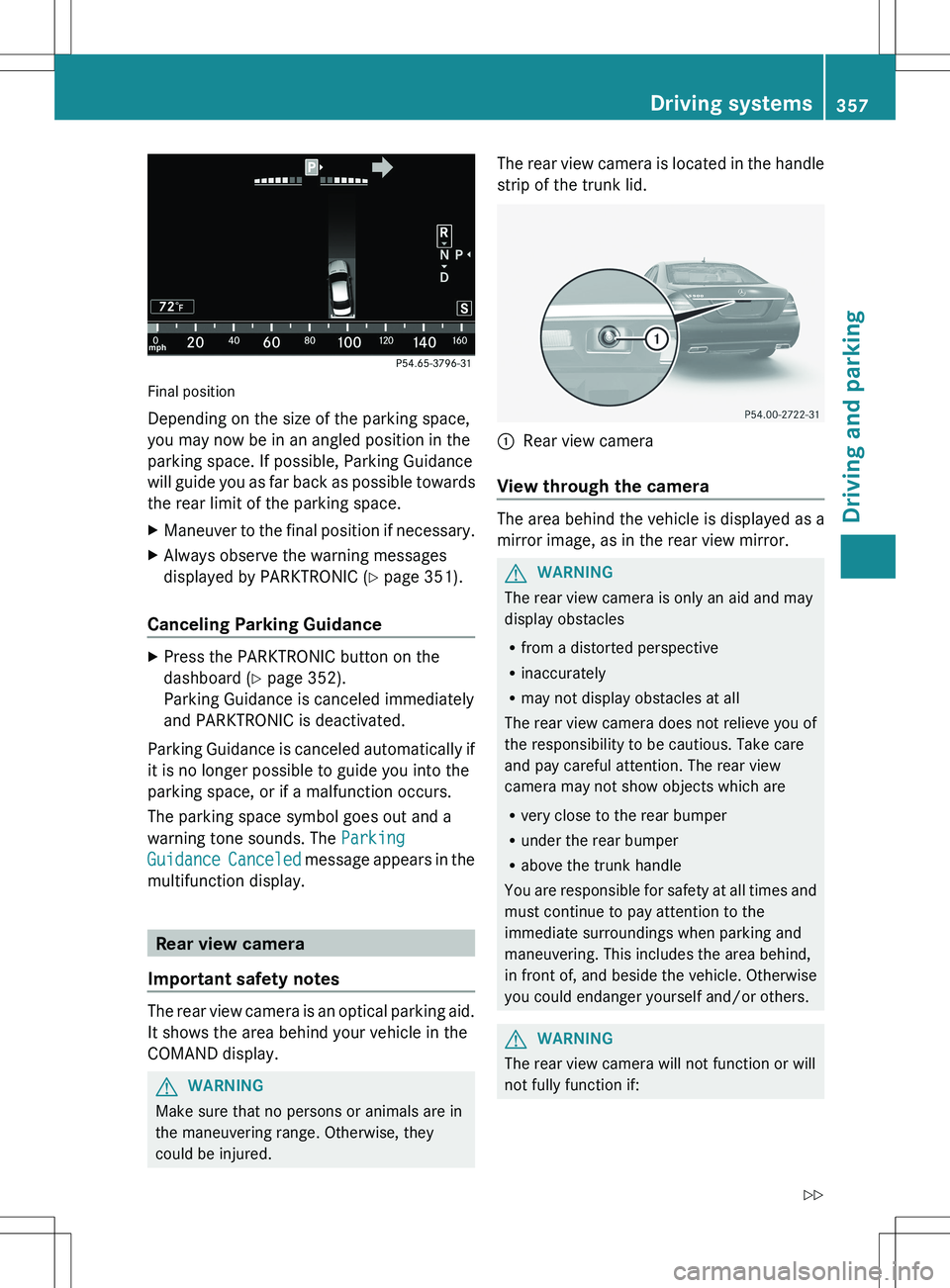
Final position
Depending on the size of the parking space,
you may now be in an angled position in the
parking space. If possible, Parking Guidance
will guide you as far back as possible towards
the rear limit of the parking space.
XManeuver to the final position if necessary.XAlways observe the warning messages
displayed by PARKTRONIC ( Y page 351).
Canceling Parking Guidance
XPress the PARKTRONIC button on the
dashboard ( Y page 352).
Parking Guidance is canceled immediately
and PARKTRONIC is deactivated.
Parking Guidance is canceled automatically if
it is no longer possible to guide you into the
parking space, or if a malfunction occurs.
The parking space symbol goes out and a
warning tone sounds. The Parking
Guidance Canceled message appears in the
multifunction display.
Rear view camera
Important safety notes
The rear view camera is an optical parking aid.
It shows the area behind your vehicle in the
COMAND display.
GWARNING
Make sure that no persons or animals are in
the maneuvering range. Otherwise, they
could be injured.
The rear view camera is located in the handle
strip of the trunk lid.:Rear view camera
View through the camera
The area behind the vehicle is displayed as a
mirror image, as in the rear view mirror.
GWARNING
The rear view camera is only an aid and may
display obstacles
R from a distorted perspective
R inaccurately
R may not display obstacles at all
The rear view camera does not relieve you of
the responsibility to be cautious. Take care
and pay careful attention. The rear view
camera may not show objects which are
R very close to the rear bumper
R under the rear bumper
R above the trunk handle
You are responsible for safety at all times and
must continue to pay attention to the
immediate surroundings when parking and
maneuvering. This includes the area behind,
in front of, and beside the vehicle. Otherwise
you could endanger yourself and/or others.
GWARNING
The rear view camera will not function or will
not fully function if:
Driving systems357Driving and parkingZ
Page 361 of 536
ATTENTION ASSIST
Important safety notes
ATTENTION ASSIST helps you during long,
monotonous journeys such as on freeways
and interstate highways. It is active in the
range between 50 mph (80 km/h) and
112 mph (180 km/h).
If ATTENTION ASSIST detects typical
indicators of fatigue or increasing lapses in
concentration on the part of the driver, it
suggests you take a break.
GWARNING
ATTENTION ASSIST is only an aid and may
detect your tiredness or lapses in
concentration too late or not at all. It is not a
substitute for a well-rested and attentive
driver.
Fatigue may cause you to recognize
hazardous situations too late, misjudge a
situation or react more slowly. For this
reason, make sure you feel rested before you
begin driving and during your journey. Make
sure that you take regular breaks in time,
particularly on long journeys. Otherwise, you
may fail to recognize dangers in time, cause
an accident and injure yourself and others.
ATTENTION ASSIST assesses your level of
fatigue or lapses in concentration by taking
the following criteria into account:
R your personal driving style, e.g. steering
characteristics
R driving conditions, e.g. time, driving time
The functionality of ATTENTION ASSIST is
restricted and warnings may be delayed or
not occur at all:
R if the road condition is poor, e.g. if the
surface is uneven or if there are potholes
R if there is a strong side wind
R if you have adopted a sporty driving style
with high cornering speeds or high rates of
acceleration
R if you are predominantly driving slower
than 50 mph (80 km/h) or faster than
112 mph (180 km/h)
R if you are currently using COMAND or
making a telephone call with it
R if the time has been set incorrectly
R in active driving situations, such as when
you change lanes or change your speed
Warning and display messages in the
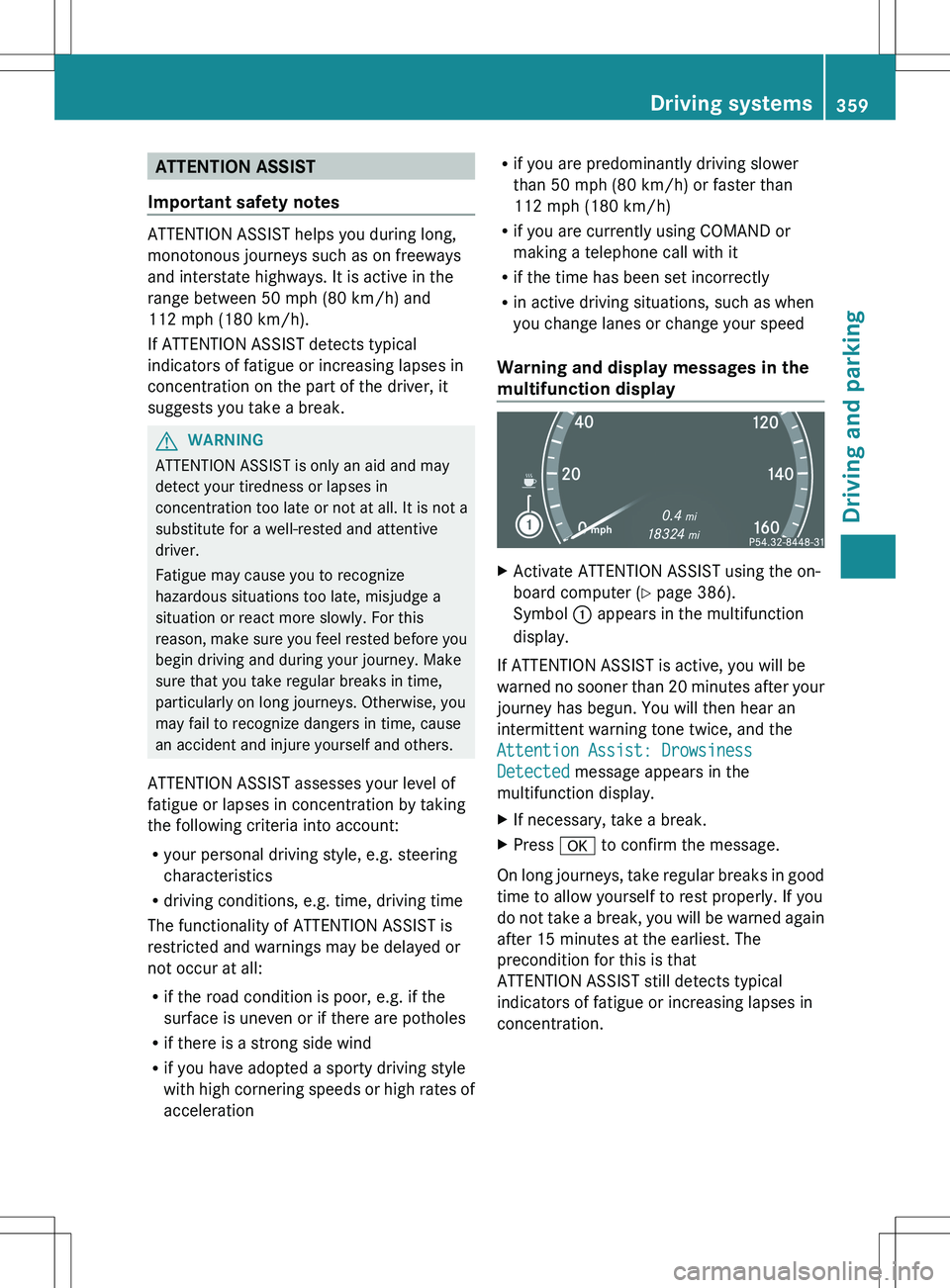
multifunction displayXActivate ATTENTION ASSIST using the on-
board computer ( Y page 386).
Symbol : appears in the multifunction
display.
If ATTENTION ASSIST is active, you will be
warned no sooner than 20 minutes after your
journey has begun. You will then hear an
intermittent warning tone twice, and the
Attention Assist: Drowsiness
Detected message appears in the
multifunction display.
XIf necessary, take a break.XPress a to confirm the message.
On long journeys, take regular breaks in good
time to allow yourself to rest properly. If you
do not take a break, you will be warned again
after 15 minutes at the earliest. The
precondition for this is that
ATTENTION ASSIST still detects typical
indicators of fatigue or increasing lapses in
concentration.
Driving systems359Driving and parkingZ
Page 375 of 536
Useful information ............................374
Important safety notes ....................374
Displays and operation ....................374
Menus and submenus ......................377
Display messages ............................. 390
Warning and indicator lamps in the
instrument cluster ............................422373On-board computer and displays
Page 376 of 536
Useful information
i This Operator's Manual describes all
models and all standard and optional
equipment of your vehicle available at the
time of publication of the Operator's
Manual. Country-specific differences are
possible. Please note that your vehicle may
not be equipped with all features
described. This also applies to safety-
related systems and functions.
i Please read the information on qualified
specialist workshops ( Y page 31).
Important safety notes
You will find an illustration of the instrument
cluster in the "At a glance" section
( Y page 37).
GWARNING
The driver's concentration must always be
directed primarily at road traffic.
For your safety and the safety of others,
selecting features through the multifunction
steering wheel should only be done by the
driver when traffic and road conditions permit
it to be done safely.
Bear in mind that at a speed of only 30 mph
(approximately 50 km/h), the vehicle covers
a distance of 44 feet (approximately 14 m) per
second.
GWARNING
No messages will be displayed if either the
instrument cluster or the multifunction
display is inoperative.
As a result, you will not be able to see
information about your driving conditions,
such as
R speed
R outside temperature
R warning/indicator lamps
Rmalfunction/warning messages
R failure of any systems
Driving characteristics may be impaired.
If you must continue to drive, do so with added
caution. Contact an authorized Mercedes-
Benz Center as soon as possible.GWARNING
HYBRID vehicles: It is imperative that you read
the HYBRID Supplemental Operating
Instructions included in your vehicle literature
portfolio. You may otherwise not receive all
necessary safety information and warning for
the operation of your vehicle.
GWARNING
Malfunction and warning messages are only
indicated for certain systems and are
intentionally not very detailed. The
malfunction and warning messages are
simply a reminder with respect to the
operation of certain systems. They do not
replace the owner's and/or driver's
responsibility to maintain the vehicle's
operating safety. Have all required
maintenance and safety checks performed on
the vehicle. Bring the vehicle to an authorized
Mercedes-Benz Center to address the
malfunction and warning messages.
Displays and operation
Coolant temperature display
GWARNING
Driving when your engine is overheated can
cause some fluids which may have leaked into
the engine compartment to catch fire. You
could be seriously burned.
Steam from an overheated engine can cause
serious burns which can occur just by opening
the engine hood. Stay away from the engine
if you see or hear steam coming from it.
Stop the vehicle in a safe location away from
other traffic. Turn off the engine, get out of the
374Displays and operationOn-board computer and displays
Page 377 of 536
vehicle and do not stand near the vehicle until
the engine has cooled down.
The coolant temperature gauge is in the
instrument cluster on the left-hand side.
Under normal operating conditions and with
the specified coolant level, the coolant
temperature may rise to 248 ‡ (120 †).
! A display message is shown if the coolant
temperature is too high.
If the coolant temperature is over
248 ‡(120 †), do not continue driving. The
engine will otherwise be damaged.
Tachometer
The red band in the tachometer indicates the
engine's overrevving range.
! Do not drive in the overrevving range, as
this could damage the engine.
The fuel supply is interrupted to protect the
engine when the red band is reached.
Outside temperature display
The outside temperature display is in the
multifunction display ( Y page 376).
GWARNING
The outside temperature indicator is not
designed to serve as an ice-warning device
and is therefore unsuitable for that purpose.
Indicated temperatures just above the
freezing point do not guarantee that the road
surface is free of ice. The road may still be icy,
especially in wooded areas or on bridges.
Changes in the outside temperature are
displayed after a short delay.
Operating the on-board computer
The on-board computer is activated as soon
as you turn the SmartKey to position 2 in the
ignition lock.
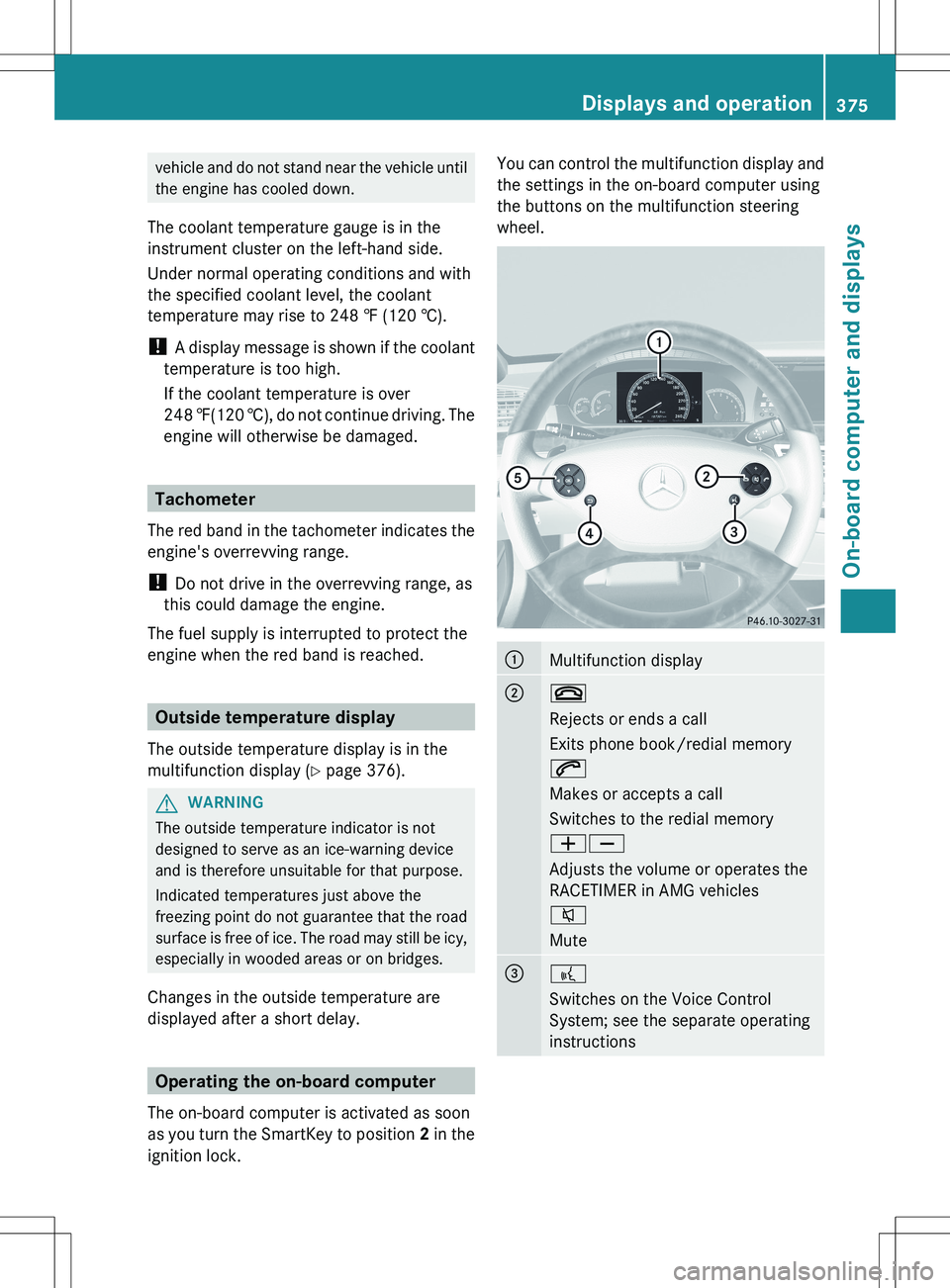
You can control the multifunction display and
the settings in the on-board computer using
the buttons on the multifunction steering
wheel.:Multifunction display;~
Rejects or ends a call
Exits phone book/redial memory
6
Makes or accepts a call
Switches to the redial memory
WX
Adjusts the volume or operates the
RACETIMER in AMG vehicles
8
Mute=?
Switches on the Voice Control
System; see the separate operating
instructionsDisplays and operation375On-board computer and displaysZ
Page 378 of 536
?%Press briefly:
Back
Switches off the Voice Control
System; see the separate operating
instructions
Hides display messages or calls up
the last Trip menu function used% Press and hold:
Calls up the standard display in the
Trip menuA=;
Selects a menu9: Press briefly:
Selects a function or scrolls through
lists
In the Audio menu: selects a stored
station, an audio track or a video
scene
In the Telephone menu: switches to
the phone book and selects a name
or a telephone number9: Press and hold:
In the Audio menu: selects a station
from the alphabetical list of stations,
starts station search or starts rapid
scrolling through an audio/video
disc
In the Telephone menu: starts rapid
scrolling through the phone booka
Confirms selections and display
messages
In the Telephone menu: switches to
the phone book and starts dialing
In the Audio menu: stops the station
search function at the desired stationMultifunction display
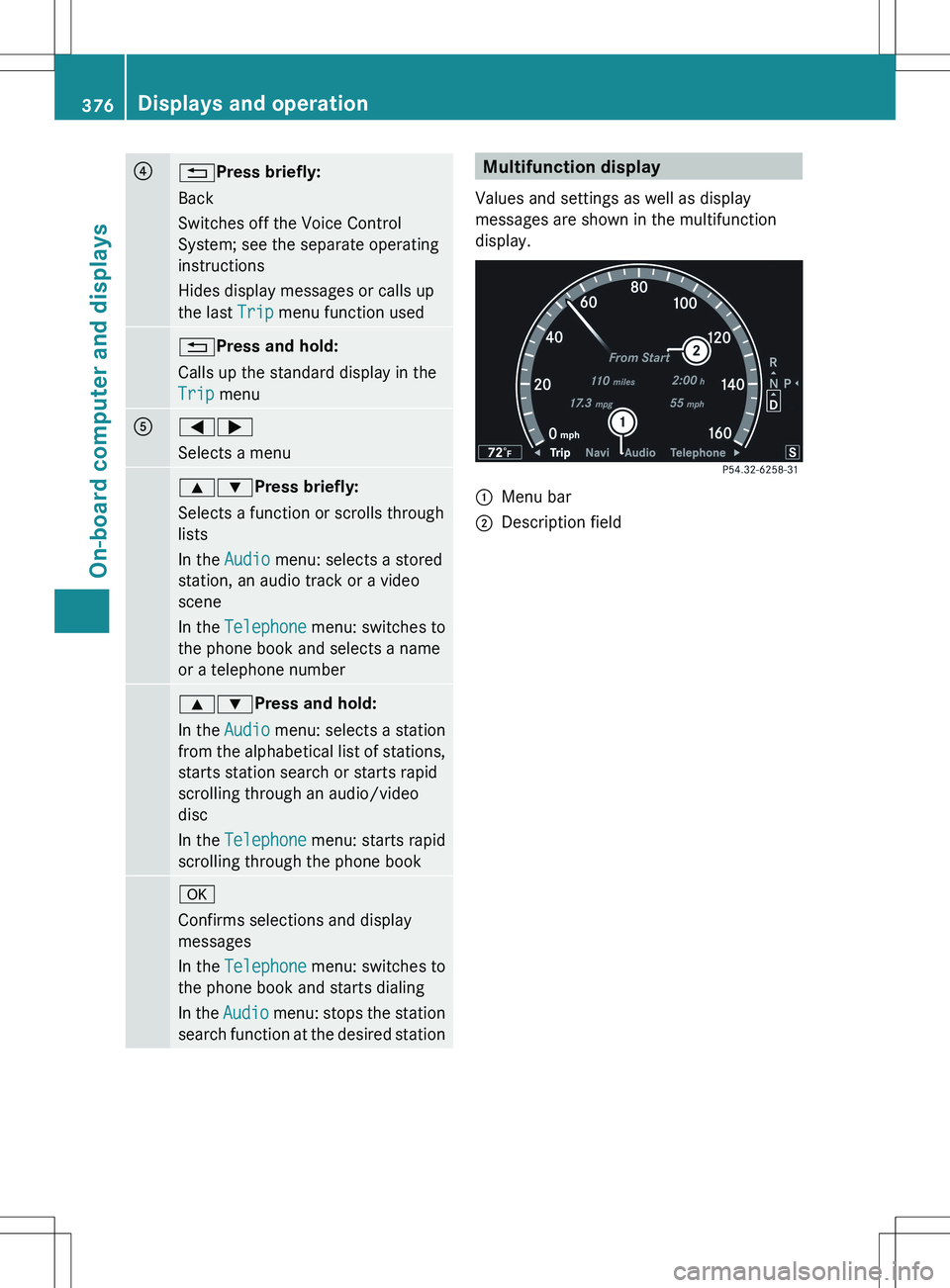
Values and settings as well as display
messages are shown in the multifunction
display.:Menu bar;Description field376Displays and operationOn-board computer and displays
Page 379 of 536
Menus and submenus
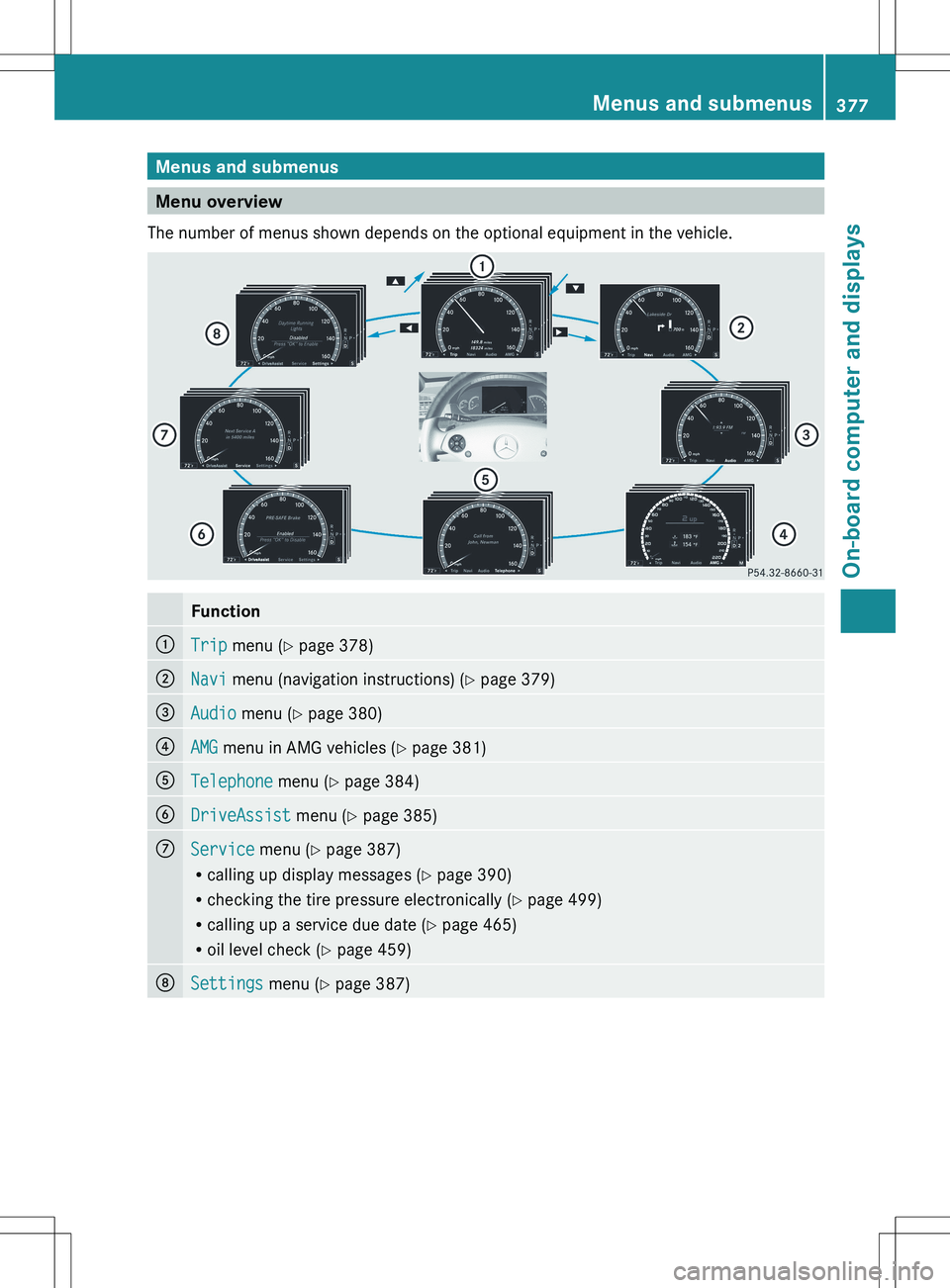
Menu overview
The number of menus shown depends on the optional equipment in the vehicle.
Function:Trip menu ( Y page 378);Navi menu (navigation instructions) ( Y page 379)=Audio menu ( Y page 380)?AMG menu in AMG vehicles ( Y page 381)ATelephone menu (Y page 384)BDriveAssist menu (Y page 385)CService menu (Y page 387)
R calling up display messages ( Y page 390)
R checking the tire pressure electronically ( Y page 499)
R calling up a service due date ( Y page 465)
R oil level check ( Y page 459)DSettings menu (Y page 387)Menus and submenus377On-board computer and displaysZ
Page 384 of 536
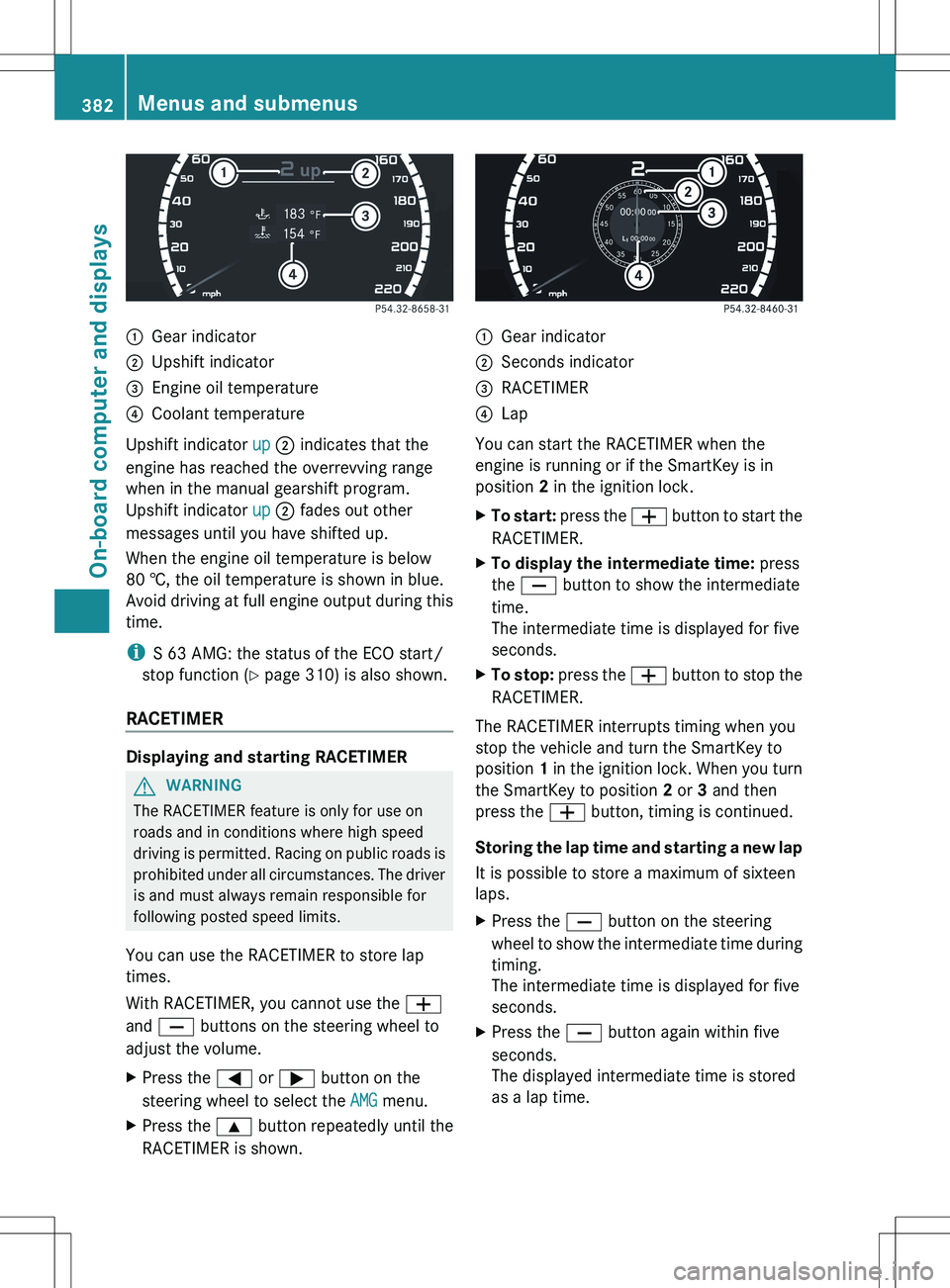
:Gear indicator;Upshift indicator=Engine oil temperature?Coolant temperature
Upshift indicator up ; indicates that the
engine has reached the overrevving range
when in the manual gearshift program.
Upshift indicator up ; fades out other
messages until you have shifted up.
When the engine oil temperature is below
80 †, the oil temperature is shown in blue.
Avoid driving at full engine output during this
time.
i S 63 AMG: the status of the ECO start/
stop function ( Y page 310) is also shown.
RACETIMER
Displaying and starting RACETIMER
GWARNING
The RACETIMER feature is only for use on
roads and in conditions where high speed
driving is permitted. Racing on public roads is
prohibited under all circumstances. The driver
is and must always remain responsible for
following posted speed limits.
You can use the RACETIMER to store lap
times.
With RACETIMER, you cannot use the W
and X buttons on the steering wheel to
adjust the volume.
XPress the = or ; button on the
steering wheel to select the AMG menu.XPress the 9 button repeatedly until the
RACETIMER is shown.:Gear indicator;Seconds indicator=RACETIMER?Lap
You can start the RACETIMER when the
engine is running or if the SmartKey is in
position 2 in the ignition lock.
XTo start: press the W button to start the
RACETIMER.XTo display the intermediate time: press
the X button to show the intermediate
time.
The intermediate time is displayed for five
seconds.XTo stop: press the W button to stop the
RACETIMER.
The RACETIMER interrupts timing when you
stop the vehicle and turn the SmartKey to
position 1 in the ignition lock. When you turn
the SmartKey to position 2 or 3 and then
press the W button, timing is continued.
Storing the lap time and starting a new lap
It is possible to store a maximum of sixteen
laps.
XPress the X button on the steering
wheel to show the intermediate time during
timing.
The intermediate time is displayed for five
seconds.XPress the X button again within five
seconds.
The displayed intermediate time is stored
as a lap time.382Menus and submenusOn-board computer and displays
Page 386 of 536
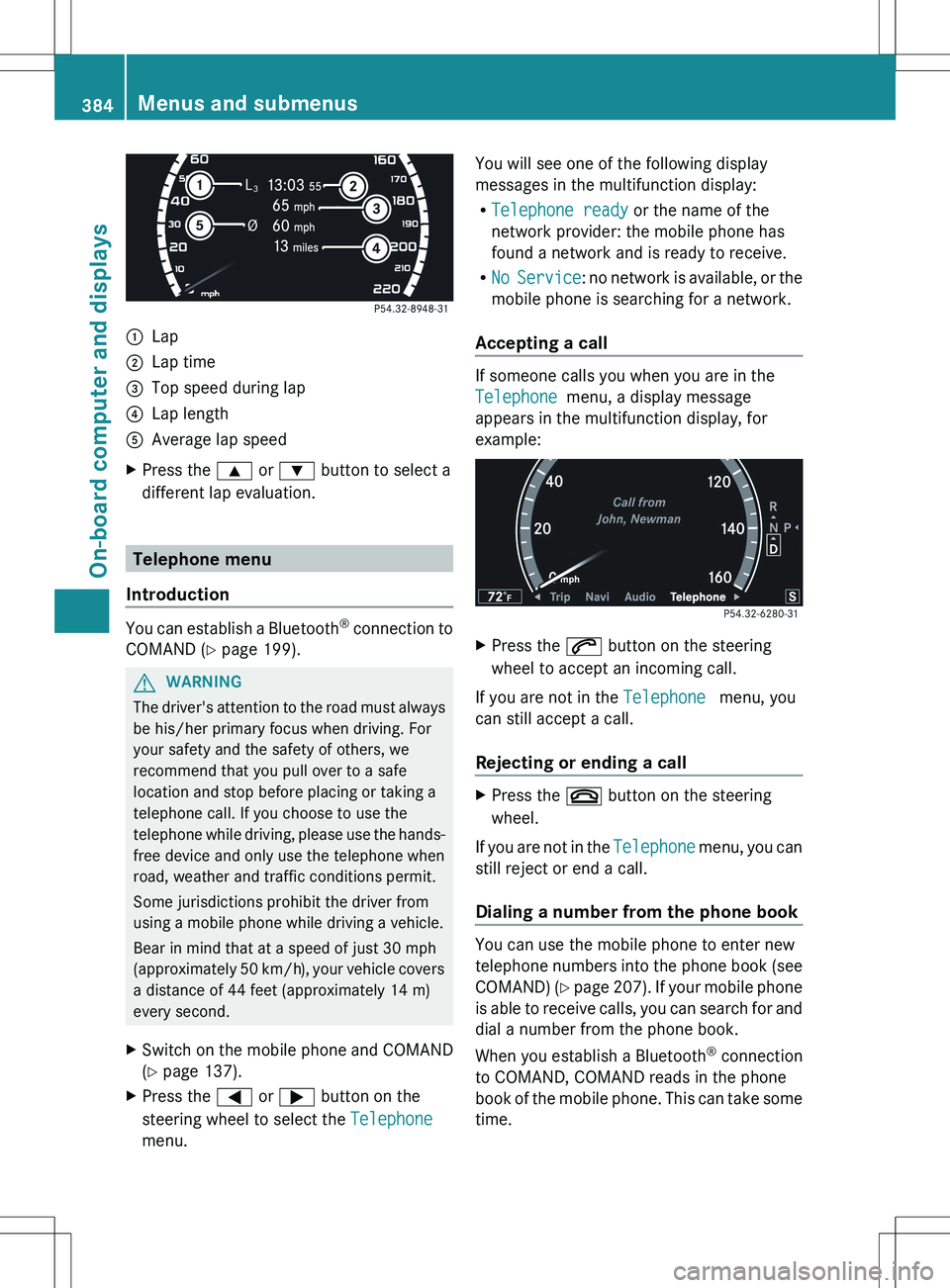
:Lap;Lap time=Top speed during lap?Lap lengthAAverage lap speedXPress the 9 or : button to select a
different lap evaluation.
Telephone menu
Introduction
You can establish a Bluetooth ®
connection to
COMAND ( Y page 199).
GWARNING
The driver's attention to the road must always
be his/her primary focus when driving. For
your safety and the safety of others, we
recommend that you pull over to a safe
location and stop before placing or taking a
telephone call. If you choose to use the
telephone while driving, please use the hands-
free device and only use the telephone when
road, weather and traffic conditions permit.
Some jurisdictions prohibit the driver from
using a mobile phone while driving a vehicle.
Bear in mind that at a speed of just 30 mph
(approximately 50 km/h), your vehicle covers
a distance of 44 feet (approximately 14 m)
every second.
XSwitch on the mobile phone and COMAND
( Y page 137).XPress the = or ; button on the
steering wheel to select the Telephone
menu.You will see one of the following display
messages in the multifunction display:
R Telephone ready or the name of the
network provider: the mobile phone has
found a network and is ready to receive.
R No Service : no network is available, or the
mobile phone is searching for a network.
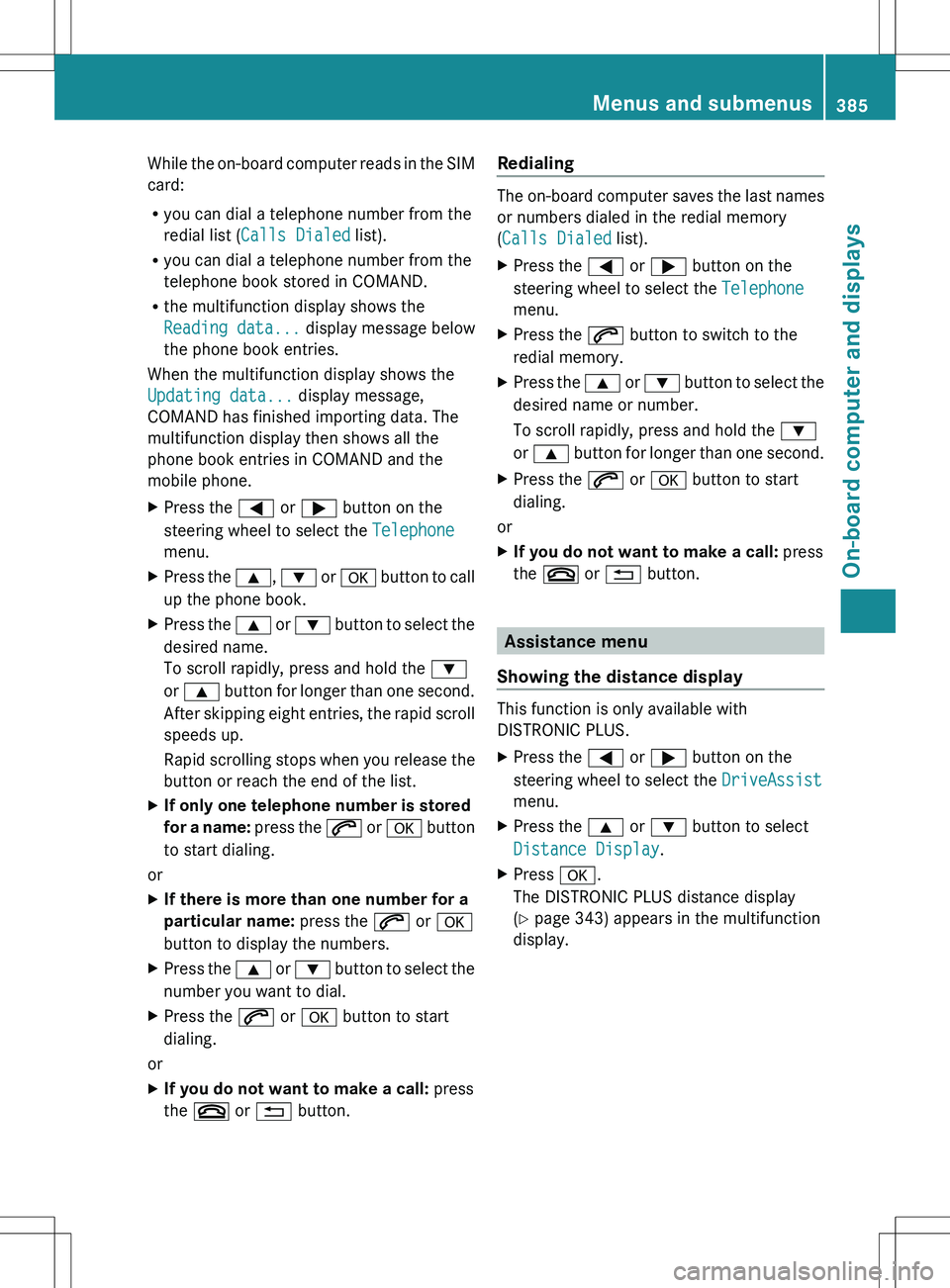
Accepting a call
If someone calls you when you are in the
Telephone menu, a display message
appears in the multifunction display, for
example:
XPress the 6 button on the steering
wheel to accept an incoming call.
If you are not in the Telephone menu, you
can still accept a call.
Rejecting or ending a call
XPress the ~ button on the steering
wheel.
If you are not in the Telephone menu, you can
still reject or end a call.
Dialing a number from the phone book
You can use the mobile phone to enter new
telephone numbers into the phone book (see
COMAND) (Y page 207). If your mobile phone
is able to receive calls, you can search for and
dial a number from the phone book.
When you establish a Bluetooth ®
connection
to COMAND, COMAND reads in the phone
book of the mobile phone. This can take some
time.
384Menus and submenusOn-board computer and displays
Page 387 of 536
While the on-board computer reads in the SIM
card:
R you can dial a telephone number from the
redial list ( Calls Dialed list).
R you can dial a telephone number from the
telephone book stored in COMAND.
R the multifunction display shows the
Reading data... display message below
the phone book entries.
When the multifunction display shows the
Updating data... display message,
COMAND has finished importing data. The
multifunction display then shows all the
phone book entries in COMAND and the
mobile phone.XPress the = or ; button on the
steering wheel to select the Telephone
menu.XPress the 9, : or a button to call
up the phone book.XPress the 9 or : button to select the
desired name.
To scroll rapidly, press and hold the :
or 9 button for longer than one second.
After skipping eight entries, the rapid scroll
speeds up.
Rapid scrolling stops when you release the
button or reach the end of the list.XIf only one telephone number is stored
for a name: press the 6 or a button
to start dialing.
or
XIf there is more than one number for a
particular name: press the 6 or a
button to display the numbers.XPress the 9 or : button to select the
number you want to dial.XPress the 6 or a button to start
dialing.
or
XIf you do not want to make a call: press
the ~ or % button.Redialing
The on-board computer saves the last names
or numbers dialed in the redial memory
( Calls Dialed list).
XPress the = or ; button on the
steering wheel to select the Telephone
menu.XPress the 6 button to switch to the
redial memory.XPress the 9 or : button to select the
desired name or number.
To scroll rapidly, press and hold the :
or 9 button for longer than one second.XPress the 6 or a button to start
dialing.
or
XIf you do not want to make a call: press
the ~ or % button.
Assistance menu
Showing the distance display
This function is only available with
DISTRONIC PLUS.
XPress the = or ; button on the
steering wheel to select the DriveAssist
menu.XPress the 9 or : button to select
Distance Display .XPress a.
The DISTRONIC PLUS distance display
( Y page 343) appears in the multifunction
display.Menus and submenus385On-board computer and displaysZ