display message MERCEDES-BENZ S-CLASS SEDAN 2012 Repair Manual
[x] Cancel search | Manufacturer: MERCEDES-BENZ, Model Year: 2012, Model line: S-CLASS SEDAN, Model: MERCEDES-BENZ S-CLASS SEDAN 2012Pages: 536, PDF Size: 39.39 MB
Page 239 of 536
Folder functions
Introduction
You can view the content of the MUSIC
REGISTER, change folder or track names and
delete individual folders or tracks.
Calling up a folder
XSelect Search by sliding VÆ and turning
cVd the COMAND controller and press
W to confirm.XSelect Folder and press W to confirm.
You see the contents of the current folder.XTo switch to the superordinate folder:
select the U icon and press W to
confirm.
The display changes to the next folder up.
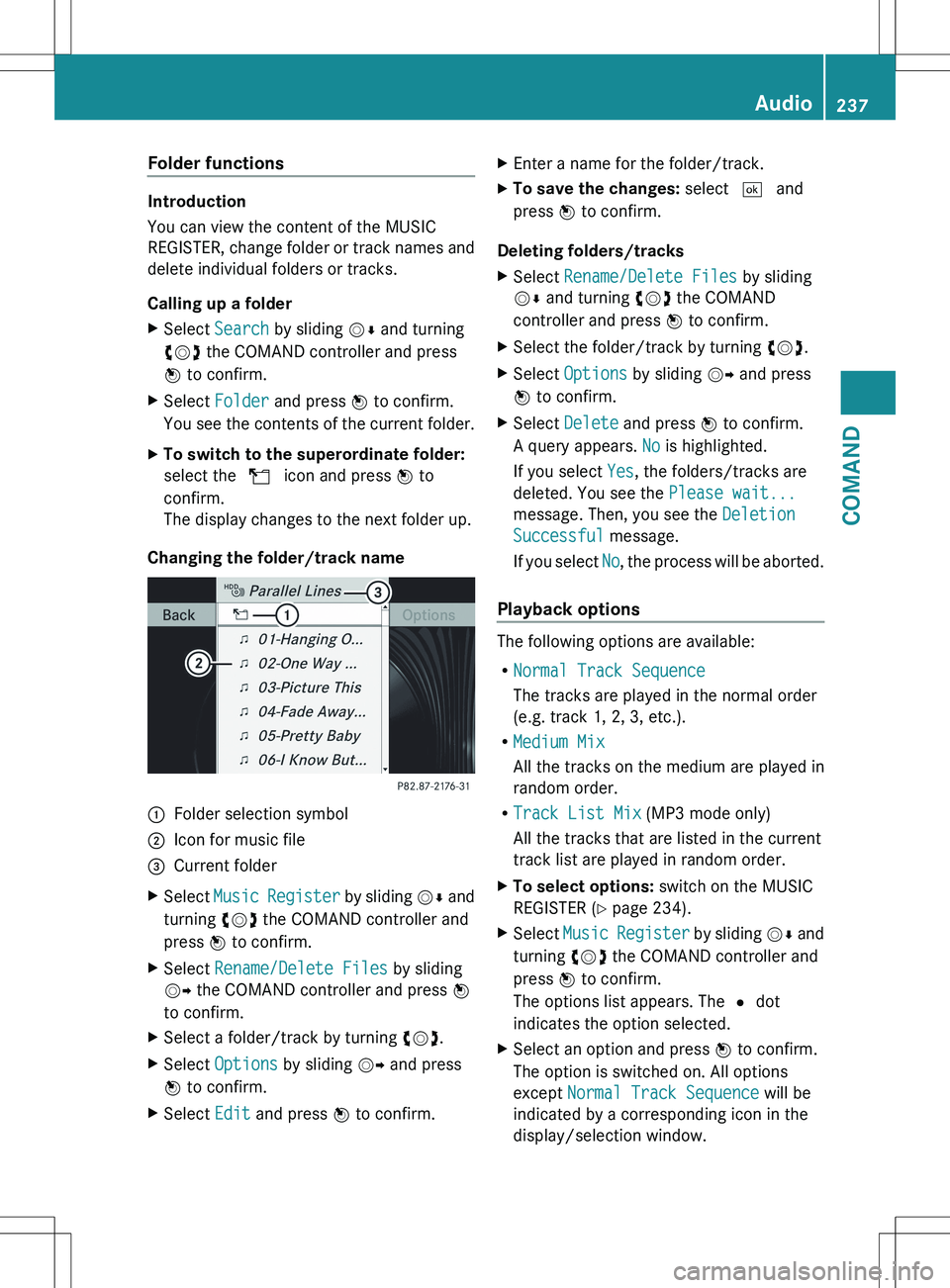
Changing the folder/track name
:Folder selection symbol;Icon for music file=Current folderXSelect Music Register by sliding VÆ and
turning cVd the COMAND controller and
press W to confirm.XSelect Rename/Delete Files by sliding
VY the COMAND controller and press W
to confirm.XSelect a folder/track by turning cVd.XSelect Options by sliding VY and press
W to confirm.XSelect Edit and press W to confirm.XEnter a name for the folder/track.XTo save the changes: select ¬ and
press W to confirm.
Deleting folders/tracks
XSelect Rename/Delete Files by sliding
V Æ and turning cVd the COMAND
controller and press W to confirm.XSelect the folder/track by turning cVd.XSelect Options by sliding VY and press
W to confirm.XSelect Delete and press W to confirm.
A query appears. No is highlighted.
If you select Yes, the folders/tracks are
deleted. You see the Please wait...
message. Then, you see the Deletion
Successful message.
If you select No, the process will be aborted.
Playback options
The following options are available:
R Normal Track Sequence
The tracks are played in the normal order
(e.g. track 1, 2, 3, etc.).
R Medium Mix
All the tracks on the medium are played in
random order.
R Track List Mix (MP3 mode only)
All the tracks that are listed in the current
track list are played in random order.
XTo select options: switch on the MUSIC
REGISTER ( Y page 234).XSelect Music Register by sliding VÆ and
turning cVd the COMAND controller and
press W to confirm.
The options list appears. The # dot
indicates the option selected.XSelect an option and press W to confirm.
The option is switched on. All options
except Normal Track Sequence will be
indicated by a corresponding icon in the
display/selection window.Audio237COMANDZ
Page 241 of 536
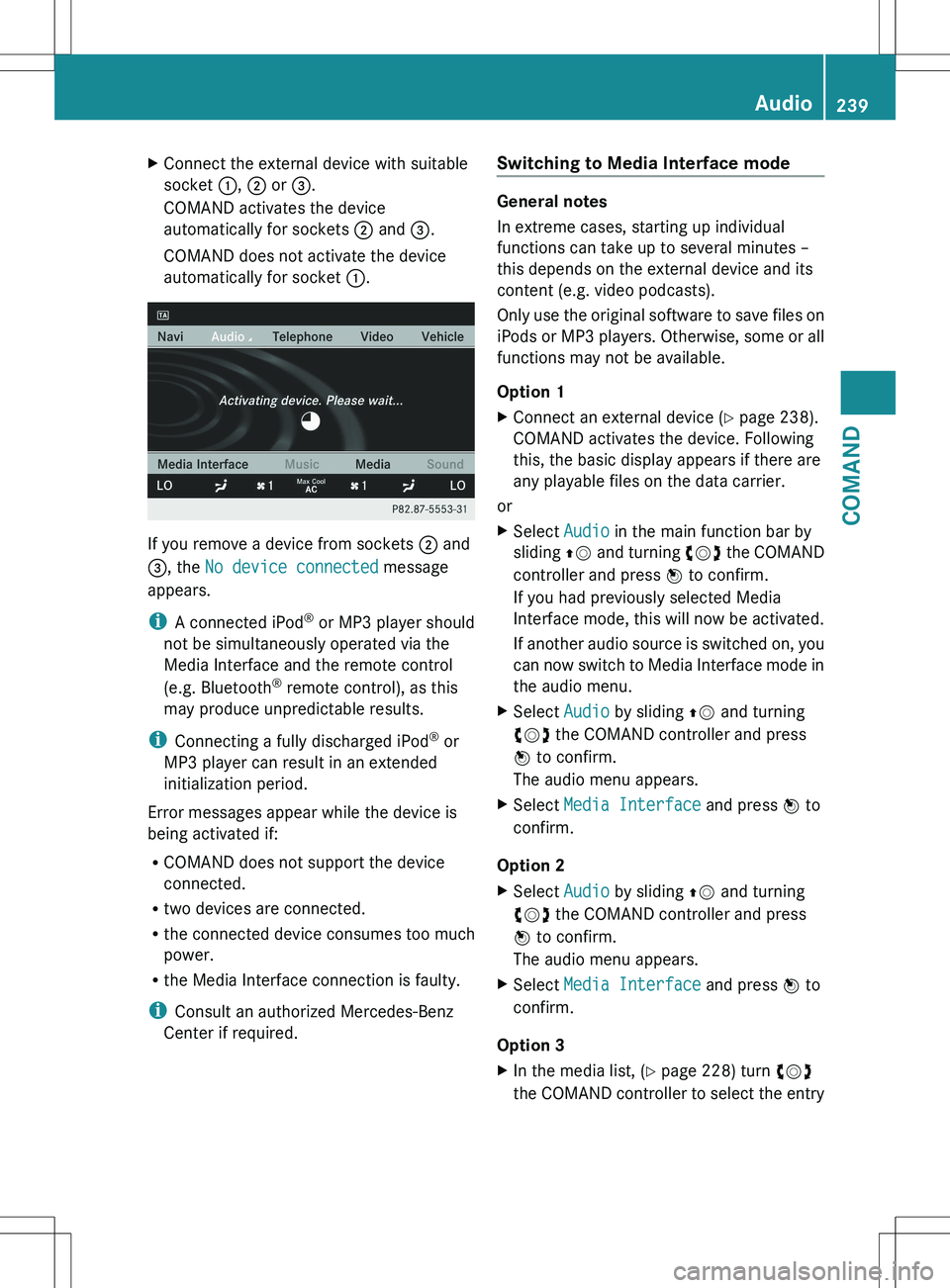
XConnect the external device with suitable
socket :, ; or =.
COMAND activates the device
automatically for sockets ; and =.
COMAND does not activate the device
automatically for socket :.
If you remove a device from sockets ; and
= , the No device connected message
appears.
i A connected iPod ®
or MP3 player should
not be simultaneously operated via the
Media Interface and the remote control
(e.g. Bluetooth ®
remote control), as this
may produce unpredictable results.
i Connecting a fully discharged iPod ®
or
MP3 player can result in an extended
initialization period.
Error messages appear while the device is
being activated if:
R COMAND does not support the device
connected.
R two devices are connected.
R the connected device consumes too much
power.
R the Media Interface connection is faulty.
i Consult an authorized Mercedes-Benz
Center if required.
Switching to Media Interface mode
General notes
In extreme cases, starting up individual
functions can take up to several minutes –
this depends on the external device and its
content (e.g. video podcasts).
Only use the original software to save files on
iPods or MP3 players. Otherwise, some or all
functions may not be available.
Option 1
XConnect an external device ( Y page 238).
COMAND activates the device. Following
this, the basic display appears if there are
any playable files on the data carrier.
or
XSelect Audio in the main function bar by
sliding ZV and turning cVd the COMAND
controller and press W to confirm.
If you had previously selected Media
Interface mode, this will now be activated.
If another audio source is switched on, you
can now switch to Media Interface mode in
the audio menu.XSelect Audio by sliding ZV and turning
cVd the COMAND controller and press
W to confirm.
The audio menu appears.XSelect Media Interface and press W to
confirm.
Option 2
XSelect Audio by sliding ZV and turning
cVd the COMAND controller and press
W to confirm.
The audio menu appears.XSelect Media Interface and press W to
confirm.
Option 3
XIn the media list, ( Y page 228) turn cVd
the COMAND controller to select the entryAudio239COMANDZ
Page 242 of 536
under the corresponding position and
press W to confirm.
COMAND activates the connected device.
You will see a message to this effect. The
basic display then appears.
If no device is connected, you will see the
Media Interface entry instead of a
device name.
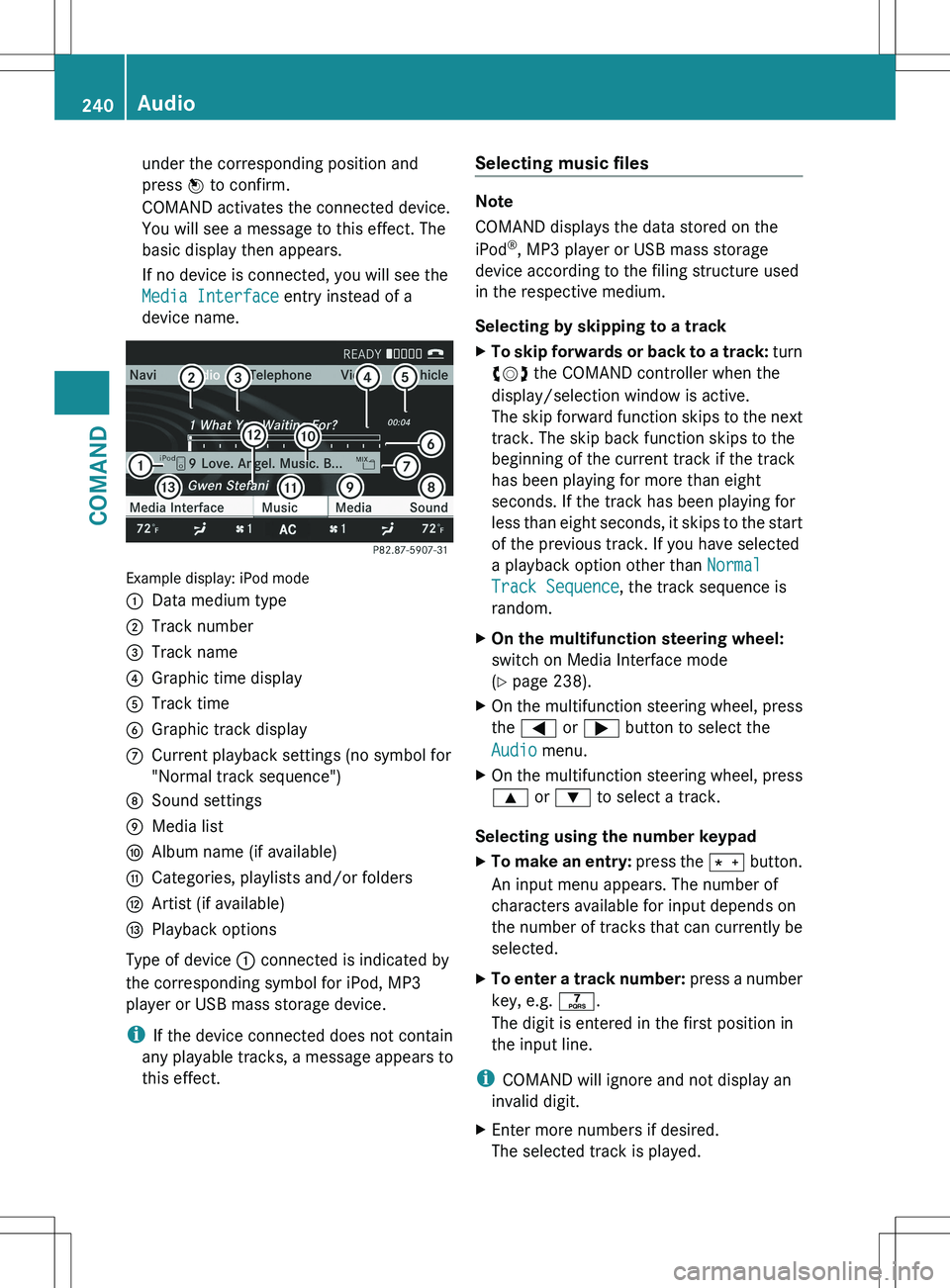
Example display: iPod mode
:Data medium type;Track number=Track name?Graphic time displayATrack timeBGraphic track displayCCurrent playback settings (no symbol for
"Normal track sequence")DSound settingsEMedia listFAlbum name (if available)GCategories, playlists and/or foldersHArtist (if available)IPlayback options
Type of device : connected is indicated by
the corresponding symbol for iPod, MP3
player or USB mass storage device.
i If the device connected does not contain
any playable tracks, a message appears to
this effect.
Selecting music files
Note
COMAND displays the data stored on the
iPod ®
, MP3 player or USB mass storage
device according to the filing structure used
in the respective medium.
Selecting by skipping to a track
XTo skip forwards or back to a track: turn
cVd the COMAND controller when the
display/selection window is active.
The skip forward function skips to the next
track. The skip back function skips to the
beginning of the current track if the track
has been playing for more than eight
seconds. If the track has been playing for
less than eight seconds, it skips to the start
of the previous track. If you have selected
a playback option other than Normal
Track Sequence , the track sequence is
random.XOn the multifunction steering wheel:
switch on Media Interface mode
( Y page 238).XOn the multifunction steering wheel, press
the = or ; button to select the
Audio menu.XOn the multifunction steering wheel, press
9 or : to select a track.
Selecting using the number keypad
XTo make an entry: press the Ä button.
An input menu appears. The number of
characters available for input depends on
the number of tracks that can currently be
selected.XTo enter a track number: press a number
key, e.g. q.
The digit is entered in the first position in
the input line.
i COMAND will ignore and not display an
invalid digit.
XEnter more numbers if desired.
The selected track is played.240AudioCOMAND
Page 243 of 536
Fast forward/rewindXWhile the display/selection window is
active, slide XVY and hold the COMAND
controller until the desired position has
been reached.
i On an iPod ®
, fast rewind only functions
within the current track.
Selecting a category/playlist/folder
iPod ®
and certain MP3 players
For an iPod ®
or MP3 player, you can select
tracks using categories or folders.
Depending on the device connected, the
following categories may be available, for
example:
R Current tracklist
R Playlists (e.g. All)
R Artists
R Albums
R Tracks
R Podcasts
R Genres
R Composers
R Audiobooks
i Some playback categories contain the
entry All. If this entry has been selected,
the entire content of the category selected
will be played.
USB devices
For USB mass storage devices, you can select
both folders as well as any existing playlists.
COMAND can also display the album name
and artist (metadata) during playback, if this
information has been entered into the
system.
Playlists are indicated in the display by a
special icon. When you open the playlist, the
corresponding tracks are displayed and
playback begins once a track is selected. You
can now select Category Mix instead of
Random Folder as a playback option.
For USB mass storage devices, you can
choose to display the metadata contained in
the tags of the encoded music data, or to
display the file and directory names during
playback.XTo display the album and artist name:
select Media Interface in the basic
display by sliding VÆ and turning cVd the
COMAND controller and press W to
confirm.XSelect Display Metadata and press W to
confirm.
Selecting a category and opening a folder
XPress W the COMAND controller when the
display/selection window is active.XSelect Folder by sliding VÆ and turning
cVd the COMAND controller and press
W to confirm.
You will see the available categories or the
folder content (e.g. other folders). The
display's status bar shows the selected
category or the folder name.
i The Music menu item is not available until
the device has been activated.
XSelect the category/folder by turning
cVd the COMAND controller and press
W to confirm.
You will see the content of the selected
category or selected folder.
i If the data needs to be read from the
connected device, the Please wait...
message appears.
XIf necessary, repeat this step until the
tracks in the desired folder/album appear.XSelect the track by turning cVd the
COMAND controller and press W to
confirm.
The track is played.XTo select one folder higher: select the
U icon and confirm with W.
i
The U icon is always shown at the top
of the respective folder.
Audio241COMANDZ
Page 244 of 536
Playing back the contents of a category
or folderXSelect the category or folder by turning
cVd the COMAND controller.XPress W the COMAND controller for longer
than two seconds.
The content of the category or folder
selected is played in accordance with the
playback option ( Y page 242) selected.
Alphabetical track selection
iPod ®
and MP3 players
This function is available for alphabetically
sorted categories and folders. This function
is not available for albums or playlists, for
example.
XSelect a category, e.g. Artists, by turning
cVd the COMAND controller and press
W to confirm.
The available artists are displayed.XPress the corresponding number key once
or several times to select the first letter of
the artist's name (e.g. for an artist
beginning with the letter "C", press number
key l three times).
The available letters are listed at the lower
edge of the display.
After a message, the first entry in the list
which matches the letter entered is
highlighted.
i If no corresponding entry exists, the last
entry corresponding to a previous letter is
highlighted instead.
i For iPods ®
and MP3 players, the quality
of the search results is highly dependent on
the version and language variant of the
software (e.g. iTunes ®
version) used to
populate the device.
USB mass storage device
This function is available for alphabetically
sorted directories. This function is not
available for albums or playlists, for example.
XIn a directory, press the corresponding
number key once or several times to select
the first letter of the artist's name (e.g. for
an artist beginning with the letter "C", press
number key l three times).
The available letters are listed at the lower
edge of the display.
If the directory only contains folders,
COMAND searches for folders. After a
message, the first entry which matches the
letter entered is shown at the top of the list.
If no entry matches the entered letter, the
first item in the list is the last entry to
correspond to a selection.
Selecting an active partition (USB mass
storage devices only)
You can select this function for USB mass
storage devices when the storage device is
partitioned. Up to four partitions (primary or
logical; FAT format) are supported.
i The Windows formatting program
supports FAT partitioning up to 32 GB as
standard.
XSelect Media Interface in the basic
display by sliding VÆ and turning cVd the
COMAND controller and press W to
confirm.XSelect Select Active Partition and
press W to confirm.
Playback options
The following options are available:
R Normal Track Sequence
Normal track sequence: you hear the
tracks in their normal order (e.g. numerical
or alphabetical).
R Random Tracks
All the tracks on the medium are played in
random order.
R Category Mix or Random Folder (for USB
devices if Folder has been selected)
242AudioCOMAND
Page 314 of 536
DeactivatingXDeactivate the ECO start/stop function
using COMAND ( Y page 265).
The ¤ symbol goes out and the Stop/
Start deactivated display message is
shown in the multifunction display.
i If drive program S or M has been selected,
the ECO start/stop function is always
deactivated.
Activating
XActivate the ECO start/stop function using
COMAND ( Y page 265).
The ¤ symbol and the Stop/Start
active display message is shown in the
multifunction display.
If not all conditions for automatic engine
switch-off ( Y page 311) are fulfilled, the
Stop/Start inactive message appears.
i
If you activate the ECO Start/Stop
function in drive programs S or M, drive
program C is selected automatically.
312DrivingDriving and parking
Page 325 of 536
XCompletely insert the filler neck of the fuel
pump nozzle into the tank and refuel.XOnly fill the tank until the pump nozzle
switches off.
i Do not add any more fuel after the pump
stops filling for the first time. Otherwise,
fuel may leak out.
Closing
XReplace the cap on the filler neck and turn
clockwise until it engages audibly.XClose the fuel filler flap.
i If you drive with the fuel filler cap open,
the reserve fuel warning lamp flashes. In
addition, the ; Check Engine warning
lamp may light up. A message appears in
the multifunction display ( Y page 409).
For further information on warning and
indicator lamps in the instrument cluster,
see ( Y page 429).
i Close the fuel filler flap before locking the
vehicle. Otherwise, the locking pin of the
central locking prevents the fuel filler flap
from closing.
Refueling323Driving and parkingZ
Page 327 of 536
DEF (BlueTEC vehicles only)
Important notes on use
To function properly, BlueTEC exhaust gas
aftertreatment must be operated with the
reducing agent DEF. Adding DEF is one of the
tasks performed during maintenance. Under
normal operating conditions, a tank of DEF
lasts until the next service due date.
When the DEF level is too low, the Check
Additive See Operator's Manual
message is shown in the multifunction
display.
When the DEF supply sinks to a minimum
level, the Remaining Starts: 16 message
is shown in the multifunction display.
When the Remaining Starts: 16 message
is shown in the multifunction display, you can
start the engine 16 more times. If DEF is not
added, it will then not be possible to restart
the engine. Fill the DEF tank with about 1 gal
(3.8l) of DEF or have the DEF tank refilled at
a qualified specialist workshop.
Use the special DEF refill bottle when filling
between maintenance intervals. Contact an
authorized Mercedes-Benz Center with any
questions or, if necessary, contact Roadside
Assistance ( Y page 29).
If the outside temperature is lower than 12 ‡
( Ò 11†) , damage may occur when adding DEF.
If DEF is frozen and there is an active warning
indicator, adding may not be possible. Park
the vehicle in a warmer place, e.g. in a garage,
until DEF has become fluid again. It will then
be possible to add DEF again. Alternatively,
have the DEF tank refilled at a qualified
specialist workshop.
Further information about BlueTEC exhaust
gas aftertreatment and DEF is available at any
authorized Mercedes-Benz Center.
Adding DEFGWARNING
Make sure
R DEF does not come into contact with skin,
eyes, or clothing
R to keep DEF out of the reach of children
If you and/or others have come into contact
with DEF:
R If DEF has gotten into contact with eyes,
flush with plenty of water immediately and
seek medical help.
R Clean affected skin immediately with plenty
of water.
R If DEF was swallowed, rinse mouth
immediately with plenty of water and drink
plenty of water. Consult a physician.
GWARNING
If you open the DEF tank cap, small amounts
of ammonia vapor may be released. This
depends in particular upon the age of the DEF.
Ammonia vapors have a pungent odor and are
particularly irritating to:
R skin
R mucous membranes
R eyes
You may experience a burning sensation in
your eyes, nose and throat, as well as
coughing and watering of the eyes.
Do not inhale any ammonia vapors that may
be released. Fill the DEF tank only in well-
ventilated areas.
! Only use DEF in accordance with
ISO 22241. Do not mix any additives with
DEF, and do not dilute DEF with water. This
may destroy the BlueTEC exhaust gas
aftertreatment system.
! Rinse surfaces that have come into
contact with DEF immediately with water or
remove DEF using a damp cloth and cold
water. If the DEF has already crystallized,
use a sponge and cold water to clean it. DEF
Refueling325Driving and parkingZ
Page 329 of 536
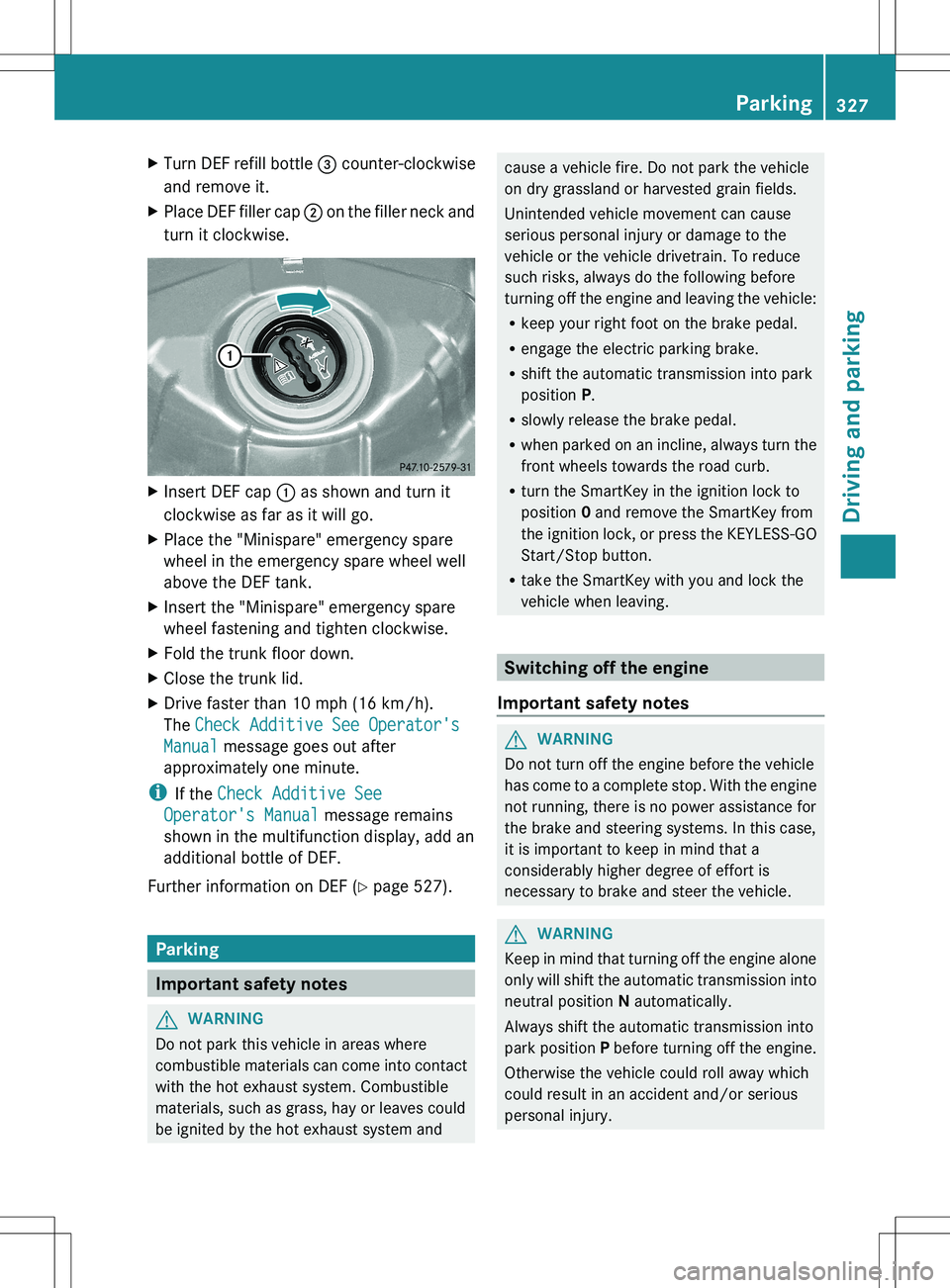
XTurn DEF refill bottle = counter-clockwise
and remove it.XPlace DEF filler cap ; on the filler neck and
turn it clockwise.XInsert DEF cap : as shown and turn it
clockwise as far as it will go.XPlace the "Minispare" emergency spare
wheel in the emergency spare wheel well
above the DEF tank.XInsert the "Minispare" emergency spare
wheel fastening and tighten clockwise.XFold the trunk floor down.XClose the trunk lid.XDrive faster than 10 mph (16 km/h).
The Check Additive See Operator's
Manual message goes out after
approximately one minute.
i If the Check Additive See
Operator's Manual message remains
shown in the multifunction display, add an
additional bottle of DEF.
Further information on DEF ( Y page 527).
Parking
Important safety notes
GWARNING
Do not park this vehicle in areas where
combustible materials can come into contact
with the hot exhaust system. Combustible
materials, such as grass, hay or leaves could
be ignited by the hot exhaust system and
cause a vehicle fire. Do not park the vehicle
on dry grassland or harvested grain fields.
Unintended vehicle movement can cause
serious personal injury or damage to the
vehicle or the vehicle drivetrain. To reduce
such risks, always do the following before
turning off the engine and leaving the vehicle:
R keep your right foot on the brake pedal.
R engage the electric parking brake.
R shift the automatic transmission into park
position P.
R slowly release the brake pedal.
R when parked on an incline, always turn the
front wheels towards the road curb.
R turn the SmartKey in the ignition lock to
position 0 and remove the SmartKey from
the ignition lock, or press the KEYLESS-GO
Start/Stop button.
R take the SmartKey with you and lock the
vehicle when leaving.
Switching off the engine
Important safety notes
GWARNING
Do not turn off the engine before the vehicle
has come to a complete stop. With the engine
not running, there is no power assistance for
the brake and steering systems. In this case,
it is important to keep in mind that a
considerably higher degree of effort is
necessary to brake and steer the vehicle.
GWARNING
Keep in mind that turning off the engine alone
only will shift the automatic transmission into
neutral position N automatically.
Always shift the automatic transmission into
park position P before turning off the engine.
Otherwise the vehicle could roll away which
could result in an accident and/or serious
personal injury.
Parking327Driving and parkingZ
Page 334 of 536
Limited braking performance on salt-
treated roadsGWARNING
The layer of salt on the brake discs and the
brake pads/linings may cause a delay in the
braking effect, resulting in a significantly
longer braking distance, which could lead to
an accident.
To avoid this danger, you should:
R occasionally brake carefully, without
putting other road users at risk, when you
are driving on salted roads. This helps to
remove any salt that may have started to
build up on the brake discs and the brake
pads/linings.
R maintain a greater distance to the vehicle
ahead and drive with particular care.
R carefully apply the brakes at the end of a
trip and immediately after commencing a
new trip, so that salt residues are removed
from the brake discs.
Servicing the brakes
! If the red brake warning lamp lights up in
the instrument cluster and you hear a
warning tone while the engine is running,
the brake fluid level may be too low.
Observe additional warning messages in
the multifunction display.
The brake fluid level may be too low due to
brake pad wear or leaking brake lines.
Have the brake system checked
immediately. This work should be carried
out at a qualified specialist workshop.
All checks and maintenance work on the
brake system must be carried out at a
qualified specialist workshop. Consult a
qualified specialist workshop to arrange this.
Have brake pads installed and brake fluid
replaced at a qualified specialist workshop.
GWARNING
If brake pads or brake fluid other than those
recommended are used, the braking
properties of the vehicle can be degraded to
an extent that safe braking is substantially
impaired. This could result in an accident.
! Vehicles with 4MATIC: function or
performance tests may only be carried out
on a 2-axle dynamometer. If you are
planning to have the vehicle tested on such
a dynamometer, contact an authorized
Mercedes-Benz Center to obtain further
information first. Otherwise, you could
damage the drive train or the brake system.
! Vehicles with 4MATIC: as the ESP®
system operates automatically, the engine
and the ignition must be switched off
(SmartKey in position 0 or 1 in the ignition
lock or Start/Stop button in position 0 or
1 ) when the electric parking brake is being
tested on a brake dynamometer.
Braking maneuvers triggered automatically
by ESP ®
may seriously damage the brake
system.
! Vehicles with 4MATIC: as the ESP®
system operates automatically, the engine
and the ignition system must be switched
off (SmartKey in position 0 or 1 in the
ignition lock or Start/Stop button in
position 0 or 1) when:
R testing the electric parking brake on a
brake dynamometer.
R you intend to have the vehicle towed with
one of the axles raised.
Braking maneuvers triggered automatically
by ESP ®
may seriously damage the brake
system.
If your brake system is subject only to
moderate loads, you should test the
functionality of your brakes at regular
intervals by pressing firmly on the brake pedal
at high speeds. This improves the grip of the
brake pads.GWARNING
Make sure that you do not endanger other
road users when you apply the brakes.
332Driving tipsDriving and parking