display message MERCEDES-BENZ S-CLASS SEDAN 2012 Workshop Manual
[x] Cancel search | Manufacturer: MERCEDES-BENZ, Model Year: 2012, Model line: S-CLASS SEDAN, Model: MERCEDES-BENZ S-CLASS SEDAN 2012Pages: 536, PDF Size: 39.39 MB
Page 207 of 536
iThe redialing function is also available
using the on-board computer
( Y page 385).
Calling voicemail
This function is only available if it is supported
by the mobile phone network provider.
You can only call voicemail if the voicemail
number is stored as preset 1 on the SIM card.XPress and hold the 4 button on the
telephone keypad.
or
XUse the COMAND controller to select 1 and
confirm until dialing commences.
Connecting a call to an entry in a call list
or in the COMAND phone book
XOpen a call list and select an entry
( Y page 213).
or
XCall up the COMAND phone book and
select an entry ( Y page 209).
Functions available during a call
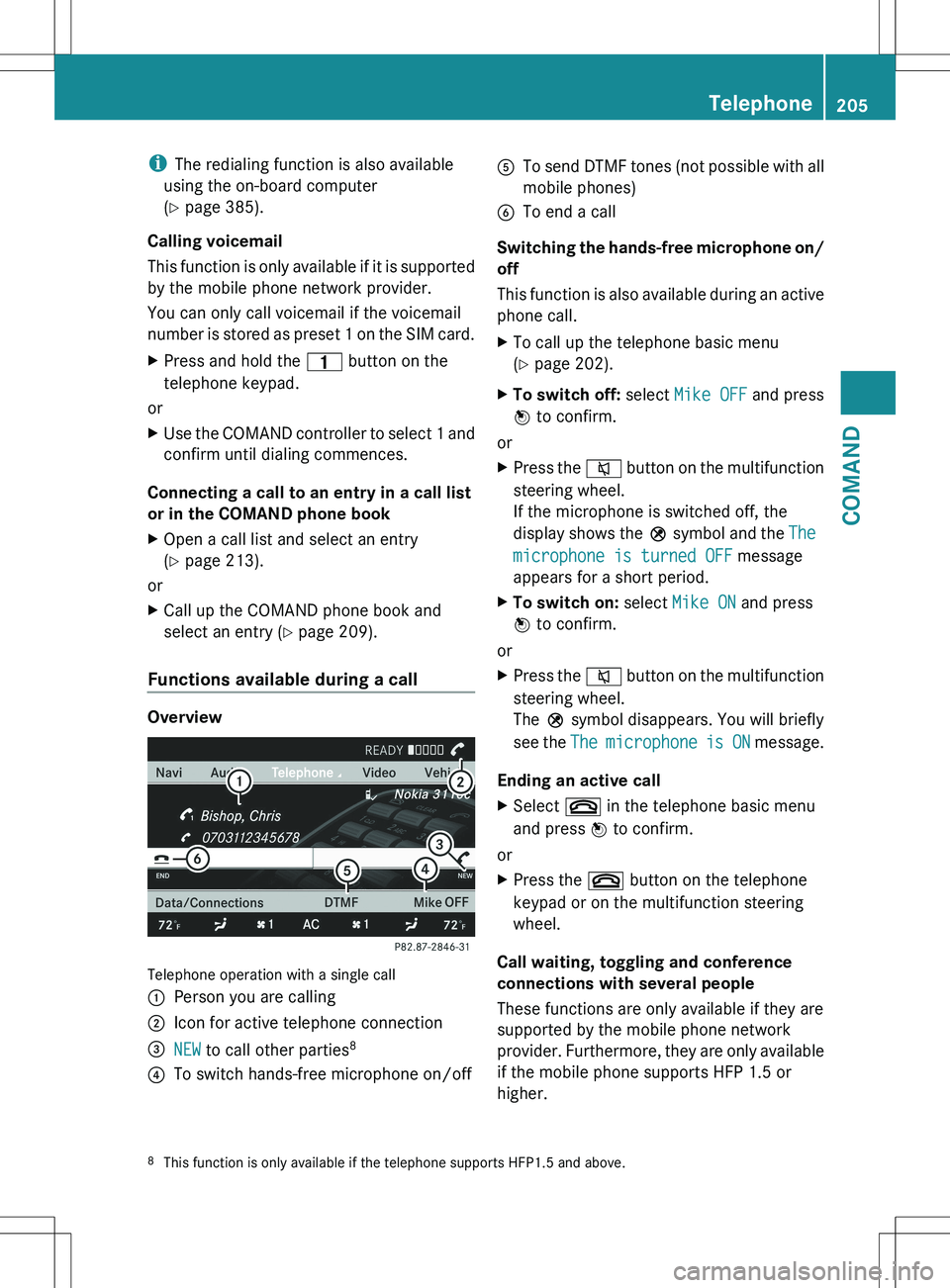
Overview
Telephone operation with a single call
:Person you are calling;Icon for active telephone connection=NEW to call other parties 8?To switch hands-free microphone on/offATo send DTMF tones (not possible with all
mobile phones)BTo end a call
Switching the hands-free microphone on/
off
This function is also available during an active
phone call.
XTo call up the telephone basic menu
( Y page 202).XTo switch off: select Mike OFF and press
W to confirm.
or
XPress the 8 button on the multifunction
steering wheel.
If the microphone is switched off, the
display shows the Q symbol and the The
microphone is turned OFF message
appears for a short period.XTo switch on: select Mike ON and press
W to confirm.
or
XPress the 8 button on the multifunction
steering wheel.
The Q symbol disappears. You will briefly
see the The microphone is ON message.
Ending an active call
XSelect ~ in the telephone basic menu
and press W to confirm.
or
XPress the ~ button on the telephone
keypad or on the multifunction steering
wheel.
Call waiting, toggling and conference
connections with several people
These functions are only available if they are
supported by the mobile phone network
provider. Furthermore, they are only available
if the mobile phone supports HFP 1.5 or
higher.
8 This function is only available if the telephone supports HFP1.5 and above.Telephone205COMANDZ
Page 209 of 536
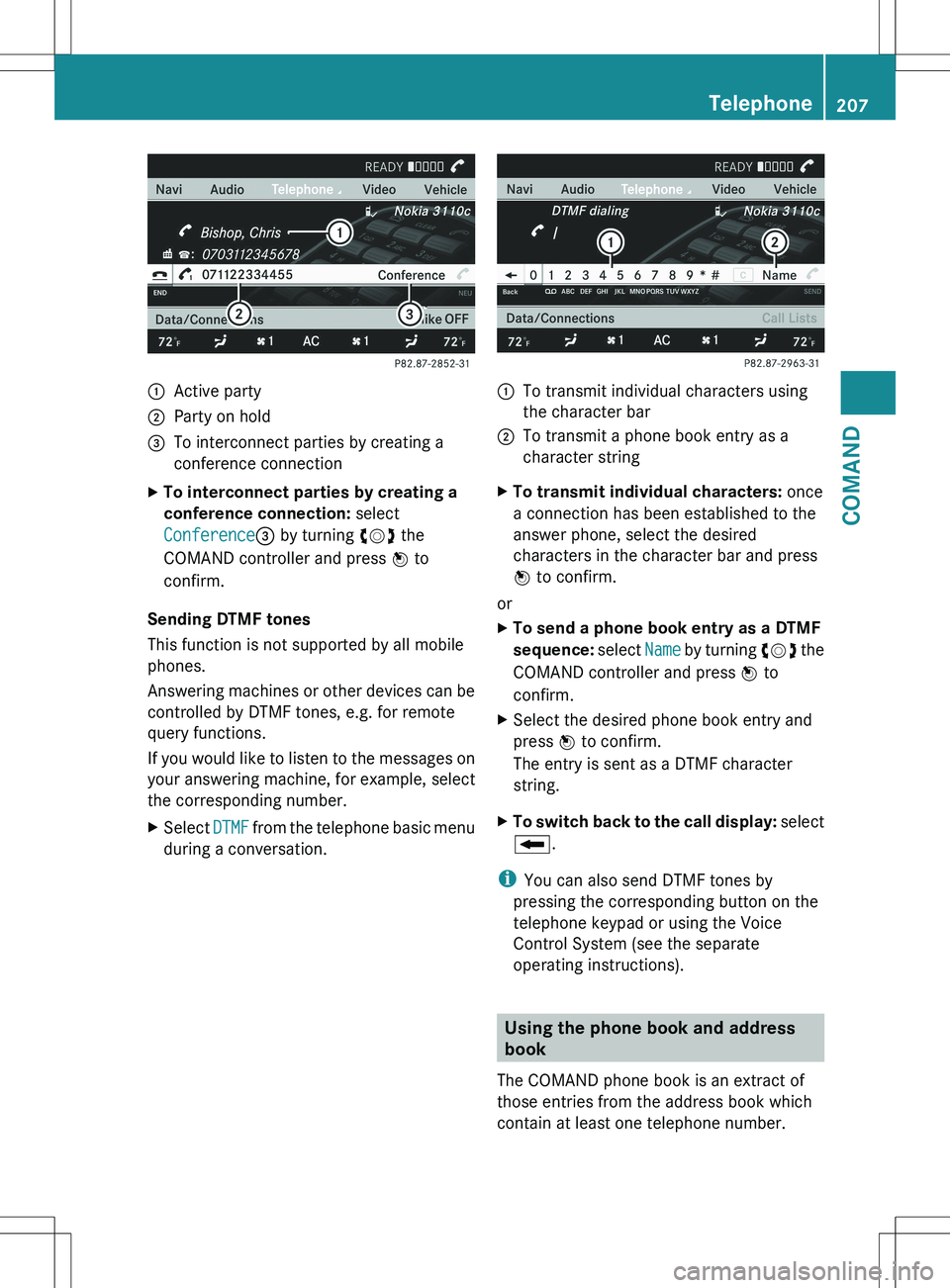
:Active party;Party on hold=To interconnect parties by creating a
conference connectionXTo interconnect parties by creating a
conference connection: select
Conference = by turning cVd the
COMAND controller and press W to
confirm.
Sending DTMF tones
This function is not supported by all mobile
phones.
Answering machines or other devices can be
controlled by DTMF tones, e.g. for remote
query functions.
If you would like to listen to the messages on
your answering machine, for example, select
the corresponding number.
XSelect DTMF from the telephone basic menu
during a conversation.:To transmit individual characters using
the character bar;To transmit a phone book entry as a
character stringXTo transmit individual characters: once
a connection has been established to the
answer phone, select the desired
characters in the character bar and press
W to confirm.
or
XTo send a phone book entry as a DTMF
sequence: select Name by turning cVd the
COMAND controller and press W to
confirm.XSelect the desired phone book entry and
press W to confirm.
The entry is sent as a DTMF character
string.XTo switch back to the call display: select
B .
i
You can also send DTMF tones by
pressing the corresponding button on the
telephone keypad or using the Voice
Control System (see the separate
operating instructions).
Using the phone book and address
book
The COMAND phone book is an extract of
those entries from the address book which
contain at least one telephone number.
Telephone207COMANDZ
Page 210 of 536
The address book organizes and stores
entries that are entered from different
sources (mobile phone, SD memory card,
Bluetooth ®
import, COMAND phone book,
navigation). You can use these entries to
make telephone calls and for navigation. You
can create a maximum of 3000 address book
entries.
Importing contacts automatically
COMAND automatically imports contacts
from a mobile phone to the phone book.
In this case, the mobile phone must be active
via the Bluetooth ®
interface.
Depending on the mobile phone, this process
may take some time. Depending on the
mobile phone used, only the phone book
entries in the mobile phone or these entries
and the phone book entries from the SIM card
are imported.
Automatically imported contacts in COMAND
can be identified by the Ã/0 symbol.
These are available to you in COMAND only
when the mobile phone is active via the
Bluetooth ®
interface.
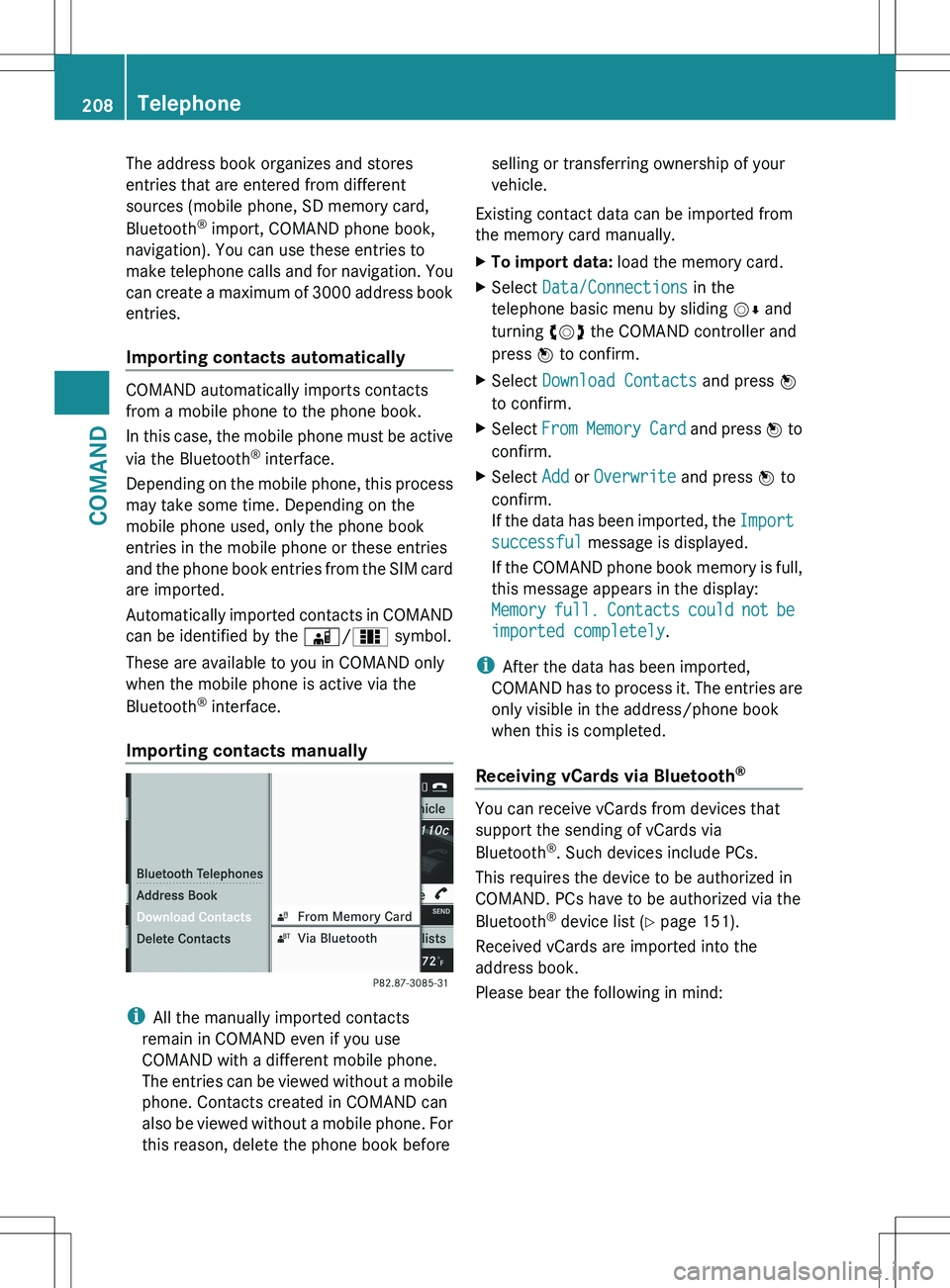
Importing contacts manually
i All the manually imported contacts
remain in COMAND even if you use
COMAND with a different mobile phone.
The entries can be viewed without a mobile
phone. Contacts created in COMAND can
also be viewed without a mobile phone. For
this reason, delete the phone book before
selling or transferring ownership of your
vehicle.
Existing contact data can be imported from
the memory card manually.XTo import data: load the memory card.XSelect Data/Connections in the
telephone basic menu by sliding VÆ and
turning cVd the COMAND controller and
press W to confirm.XSelect Download Contacts and press W
to confirm.XSelect From Memory Card and press W to
confirm.XSelect Add or Overwrite and press W to
confirm.
If the data has been imported, the Import
successful message is displayed.
If the COMAND phone book memory is full,
this message appears in the display:
Memory full. Contacts could not be
imported completely .
i
After the data has been imported,
COMAND has to process it. The entries are
only visible in the address/phone book
when this is completed.
Receiving vCards via Bluetooth ®
You can receive vCards from devices that
support the sending of vCards via
Bluetooth ®
. Such devices include PCs.
This requires the device to be authorized in
COMAND. PCs have to be authorized via the
Bluetooth ®
device list ( Y page 151).
Received vCards are imported into the
address book.
Please bear the following in mind:
208TelephoneCOMAND
Page 217 of 536
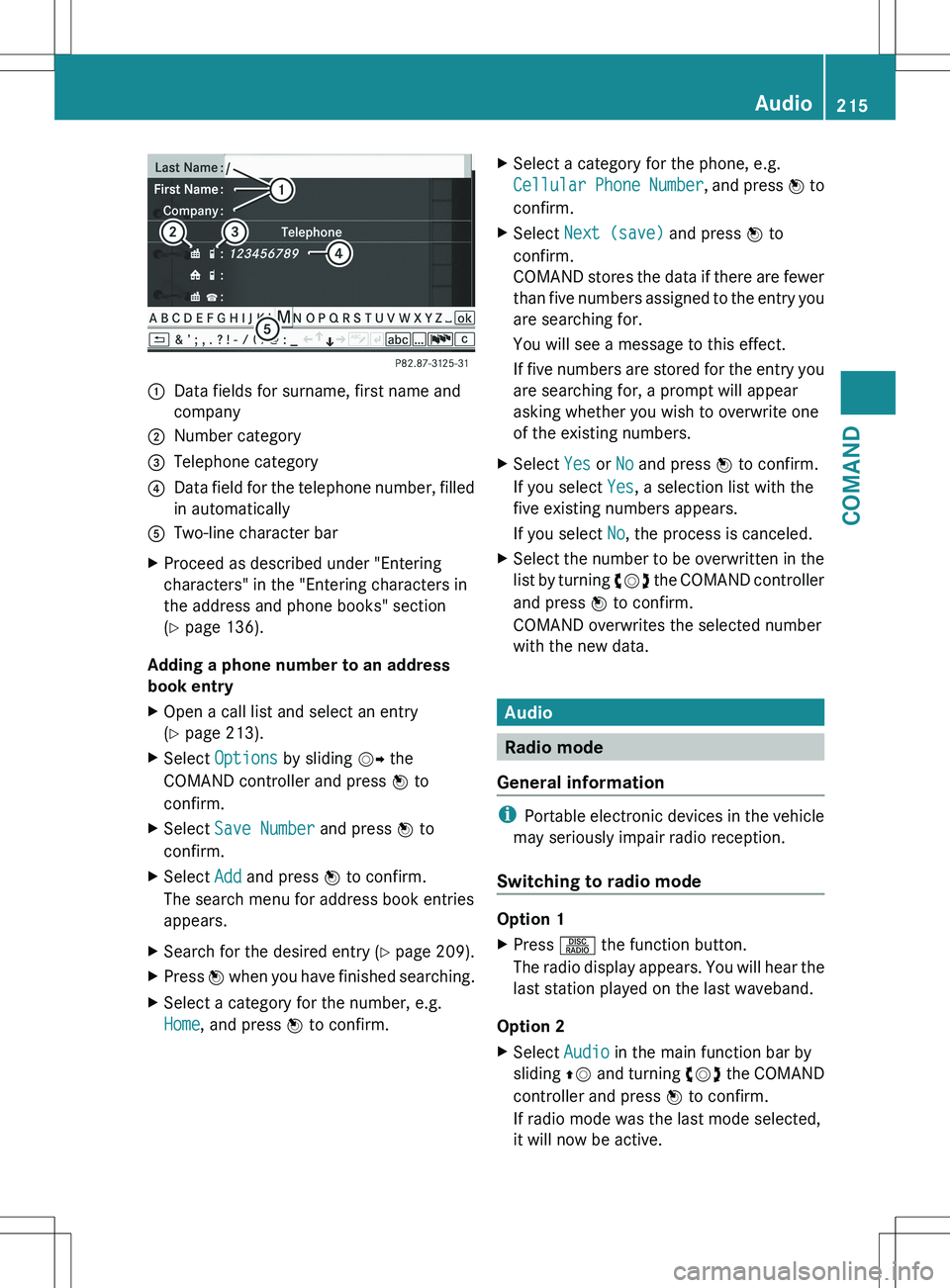
:Data fields for surname, first name and
company;Number category=Telephone category?Data field for the telephone number, filled
in automaticallyATwo-line character barXProceed as described under "Entering
characters" in the "Entering characters in
the address and phone books" section
( Y page 136).
Adding a phone number to an address
book entry
XOpen a call list and select an entry
( Y page 213).XSelect Options by sliding VY the
COMAND controller and press W to
confirm.XSelect Save Number and press W to
confirm.XSelect Add and press W to confirm.
The search menu for address book entries
appears.XSearch for the desired entry ( Y page 209).XPress W when you have finished searching.XSelect a category for the number, e.g.
Home , and press W to confirm.XSelect a category for the phone, e.g.
Cellular Phone Number , and press W to
confirm.XSelect Next (save) and press W to
confirm.
COMAND stores the data if there are fewer
than five numbers assigned to the entry you
are searching for.
You will see a message to this effect.
If five numbers are stored for the entry you
are searching for, a prompt will appear
asking whether you wish to overwrite one
of the existing numbers.XSelect Yes or No and press W to confirm.
If you select Yes, a selection list with the
five existing numbers appears.
If you select No, the process is canceled.XSelect the number to be overwritten in the
list by turning cVd the COMAND controller
and press W to confirm.
COMAND overwrites the selected number
with the new data.
Audio
Radio mode
General information
i Portable electronic devices in the vehicle
may seriously impair radio reception.
Switching to radio mode
Option 1
XPress R the function button.
The radio display appears. You will hear the
last station played on the last waveband.
Option 2
XSelect Audio in the main function bar by
sliding ZV and turning cVd the COMAND
controller and press W to confirm.
If radio mode was the last mode selected,
it will now be active.Audio215COMANDZ
Page 220 of 536
beginning with preset 1. The storing process
ends once the highest frequency has been
reached or once ten stations have been
found. Any stations stored manually under
the presets will be lost. COMAND may not
occupy all memory slots when storing.XOption 1: press W the COMAND controller
when the display/selection window is
active.
The station preset memory appears.XOption 2: select Presets by sliding VÆ
and turning cVd the COMAND controller
and press W to confirm.
The station preset memory appears.XIrrespective of the option, select
Autostore and press W to confirm.
In both cases, COMAND searches for
stations that can be received. You will see
a message to this effect. The available
stations are automatically stored in the
preset positions.XTo cancel storing: select Cancel and
press W to confirm.
Weather Band
Switching on
XSelect the currently set waveband FM or
AM by sliding VÆ and turning cVd the
COMAND controller and press W to
confirm.XSelect WB from the menu and press W to
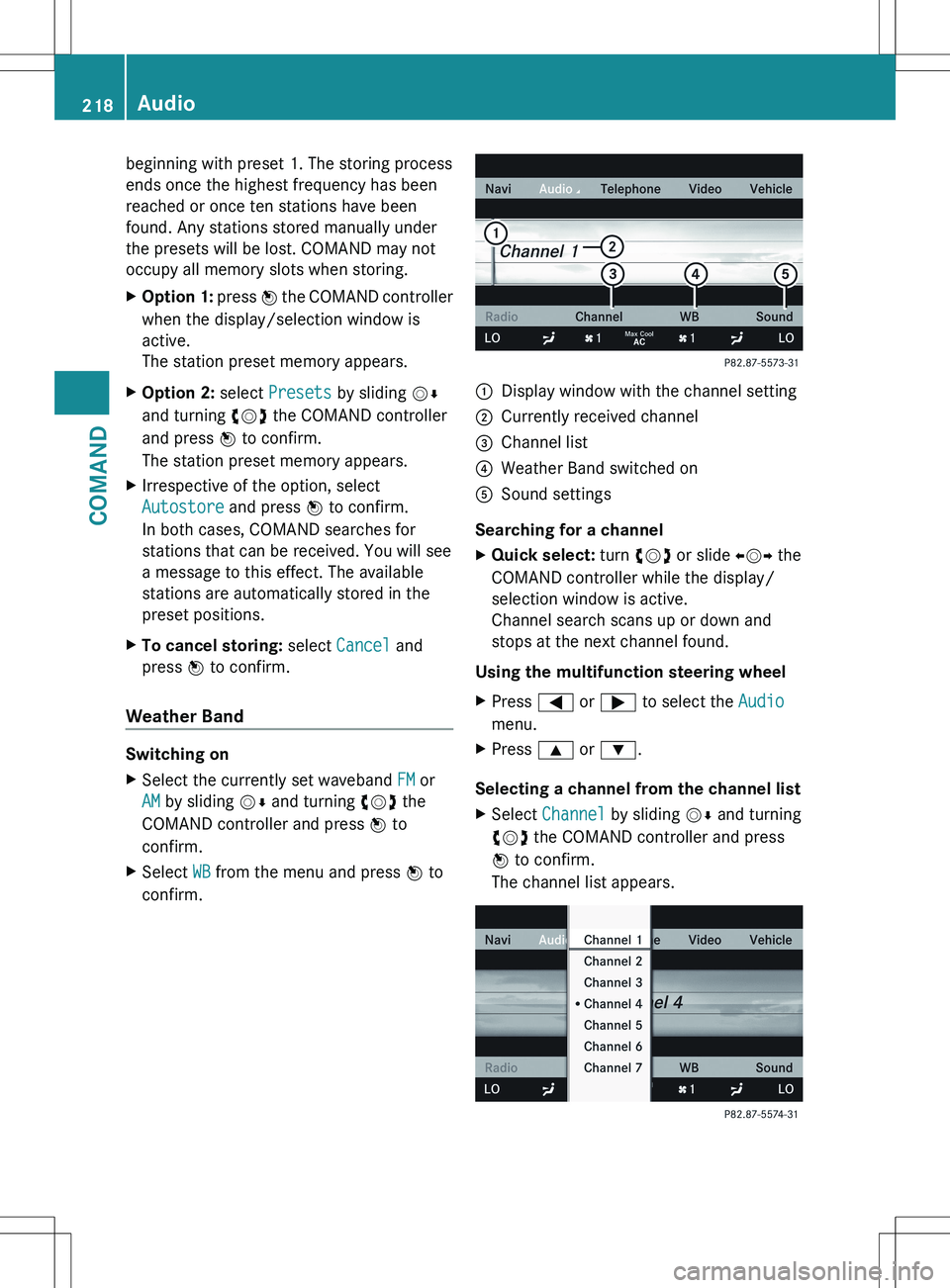
confirm.:Display window with the channel setting;Currently received channel=Channel list?Weather Band switched onASound settings
Searching for a channel
XQuick select: turn cVd or slide XVY the
COMAND controller while the display/
selection window is active.
Channel search scans up or down and
stops at the next channel found.
Using the multifunction steering wheel
XPress = or ; to select the Audio
menu.XPress 9 or : .
Selecting a channel from the channel list
XSelect Channel by sliding VÆ and turning
cVd the COMAND controller and press
W to confirm.
The channel list appears.218AudioCOMAND
Page 224 of 536
http://www.siriuscanada.com
(Canada).
Once the connection has been established:XFollow the instructions of the service staff.
The activation process may take up to ten
minutes. If the activation is completed
successfully, the No Service message
appears in the display, followed by the
satellite radio main menu.
i If registration is not included when
purchasing the system, your credit card
details will be required to activate your
account.
If the satellite receiver is not installed or is
not installed correctly, the Device not
available message will appear.
Switching on satellite radio mode
Notes
Important notes on registration, see
"Registering satellite radio" ( Y page 221).
Switching on satellite radio mode
XSelect Audio in the main function bar by
sliding ZV and turning cVd the COMAND
controller and press W to confirm.
If satellite radio mode was the last mode
selected, it will now be active.
If another audio mode is switched on, you
can now switch to satellite radio mode in
the audio menu.XSelect Audio by sliding ZV the COMAND
controller and pressing W to confirm.
The audio menu appears.XSelect Sat. Radio and press W to
confirm.
The No Service message appears when
starting up or if no signal is being received.
If the satellite receiver is not installed or is
not installed correctly, the Device not
available message will appear.Once COMAND receives the signal, the
satellite radio display appears. The station
last selected is played.
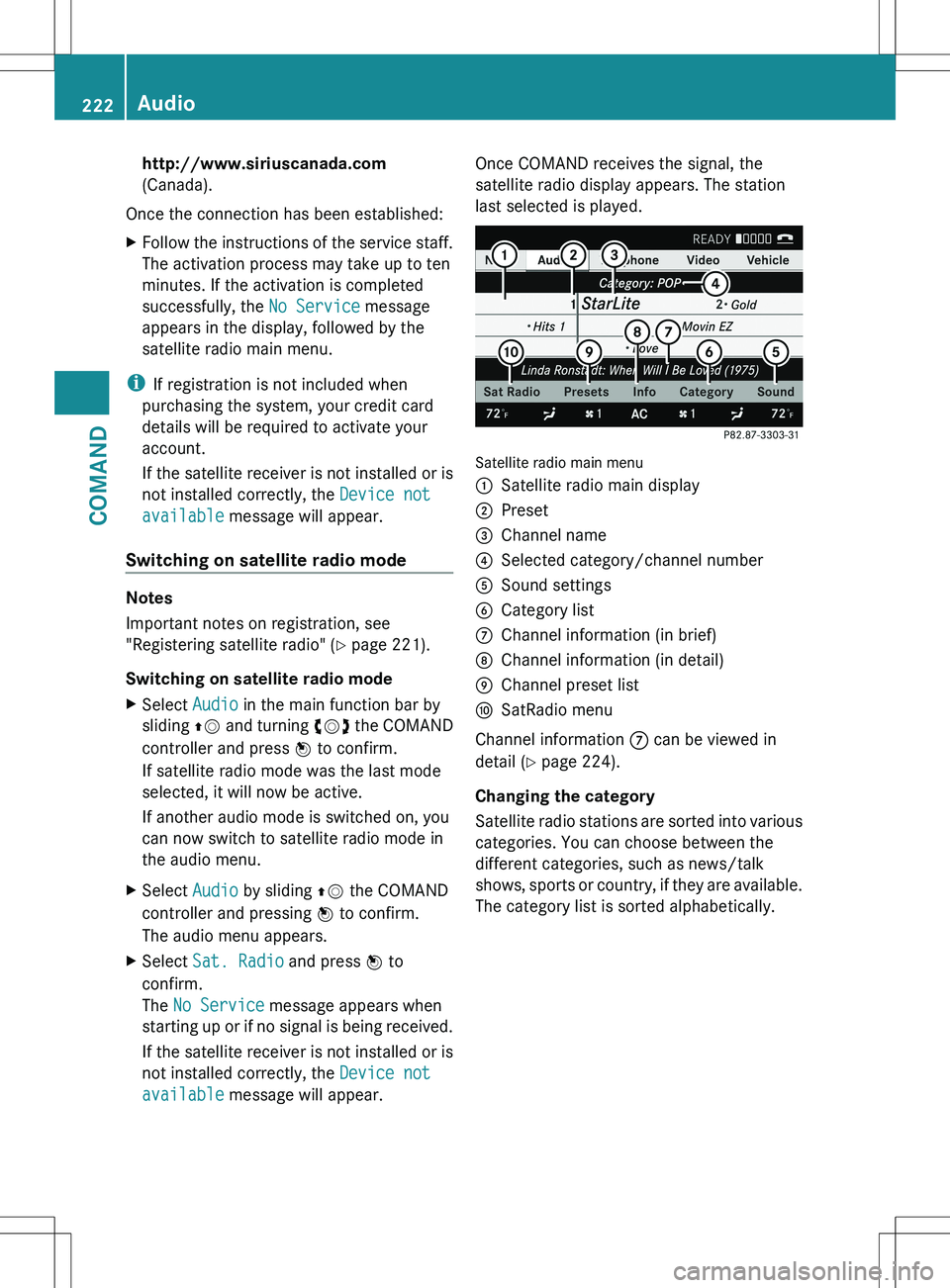
Satellite radio main menu
1Satellite radio main display2Preset3Channel name4Selected category/channel number5Sound settings6Category list7Channel information (in brief)8Channel information (in detail)9Channel preset listaSatRadio menu
Channel information 7 can be viewed in
detail ( Y page 224).
Changing the category
Satellite radio stations are sorted into various
categories. You can choose between the
different categories, such as news/talk
shows, sports or country, if they are available.
The category list is sorted alphabetically.
222AudioCOMAND
Page 226 of 536
XSelect a preset by turning cVd the
COMAND controller and press and hold
W until you hear a tone.
or
XPress and hold a number button, e.g. 4,
until you hear a tone.
The channel is stored under the preset.
Storing channels automatically
This function automatically stores channels
with adequate reception in the preset
memory. Channels stored manually in the
preset memory will be overwritten.
XOption 1: press W the COMAND controller
when the display/selection window is
active.XSelect Autostore in the presets by turning
cVd the COMAND controller and press
W to confirm.XOption 2: select Presets in the submenu
bar by sliding VÆ and turning cVd the
COMAND controller and press W to
confirm.XSelect Autostore and press W to confirm.
In both cases, COMAND searches for
channels that can be received. You will see
a message to this effect. The available
channels are automatically stored in the
preset positions.XTo cancel storing: select Cancel and
press W to confirm.
Selecting a channel from the preset list
XTo call up the channel list: select
Presets by turning cVd the COMAND
controller and press W to confirm.
The channel preset list appears.XTo set a channel: select a preset by
turning cVd the COMAND controller and
press W to confirm.
or
XPress a number key, e.g. 4.Using the multifunction steering wheelXPress = or ; to select the Audio
menu.XPress 9 or : briefly.
Displaying information
XSelect Info in the submenu bar by turning
cVd the COMAND controller and press
W to confirm.
Information on the currently received
program is displayed.XTo return to the SatRadio main display:
slide XVY the COMAND controller.
Displaying service information
The provider's customer service center is
available by phone at any time to answer any
general questions or questions on the
versions available.
XSelect Sat. Radio in the submenu bar by
turning cVd the COMAND controller and
press W to confirm.XSelect Service and press W to confirm.
The provider's details appear.XTo return to the SatRadio main display:
slide XVY the COMAND controller.
Channel list updates
When receiving a new channel list, the display
shows the Updating channel... message.
The station last selected is switched to mute
until the update has been completed.
Satellite radio mode is not available during
this process.
Once the update has been completed, the
satellite radio main menu appears. The
station last selected is played.
Sound settings
You will find details on the sound settings in
the "At a glance" section ( Y page 139).
224AudioCOMAND
Page 233 of 536
?Title selectionATo start the copying processBName of the copied dataCCancel procedure without copying filesDMedia position in the media listXSelect START by sliding VÆ and turning
cVd and confirm with W.
All music tracks from the audio CD are
copied to COMAND's MUSIC REGISTER as
MP3 files.XTo copy individual music tracks: select
Track Select. by sliding VÆ and turning
cVd and confirm with W.
The track list appears.XSelect individual tracks by turning cVd
and confirm with W.XSelect START by turning cVd and confirm
with W.
The selected music tracks from the audio
CD are copied to COMAND's MUSIC
REGISTER as MP3 files.
If the audio CD contains CD text or
Gracenote ®
data, this will be used for naming
when the tracks are copied. The data is then
copied to the MUSIC REGISTER in the
following structure: artist/album/track. The
copied titles can then be selected and played
using the music search in the MUSIC
REGISTER.
XTo delete music files: (Y page 237).
Gracenote Media Database
Introduction
This function is only available in audio CD
mode.
There is a version of the music recognition
software from Gracenote ®
, Emeryville,
California, USA on the hard disk. You will
recognize this by the logo which can be seen
in the bottom right-hand corner of certain
audio displays.
Many audio CDs contain CD text. COMAND
uses the information contained therein to
display the artist, album and track name.
If the audio CD does not contain any CD text
information, COMAND can use the Gracenote
Media Database to identify unknown audio
tracks when running in audio CD mode. This
is only possible if the relevant information is
saved in the Gracenote Media Database and
if the "Gracenote Media Database" function
is activated.
If this is the case, COMAND will display the
corresponding data such as artist, album and
track name in the relevant displays and lists.
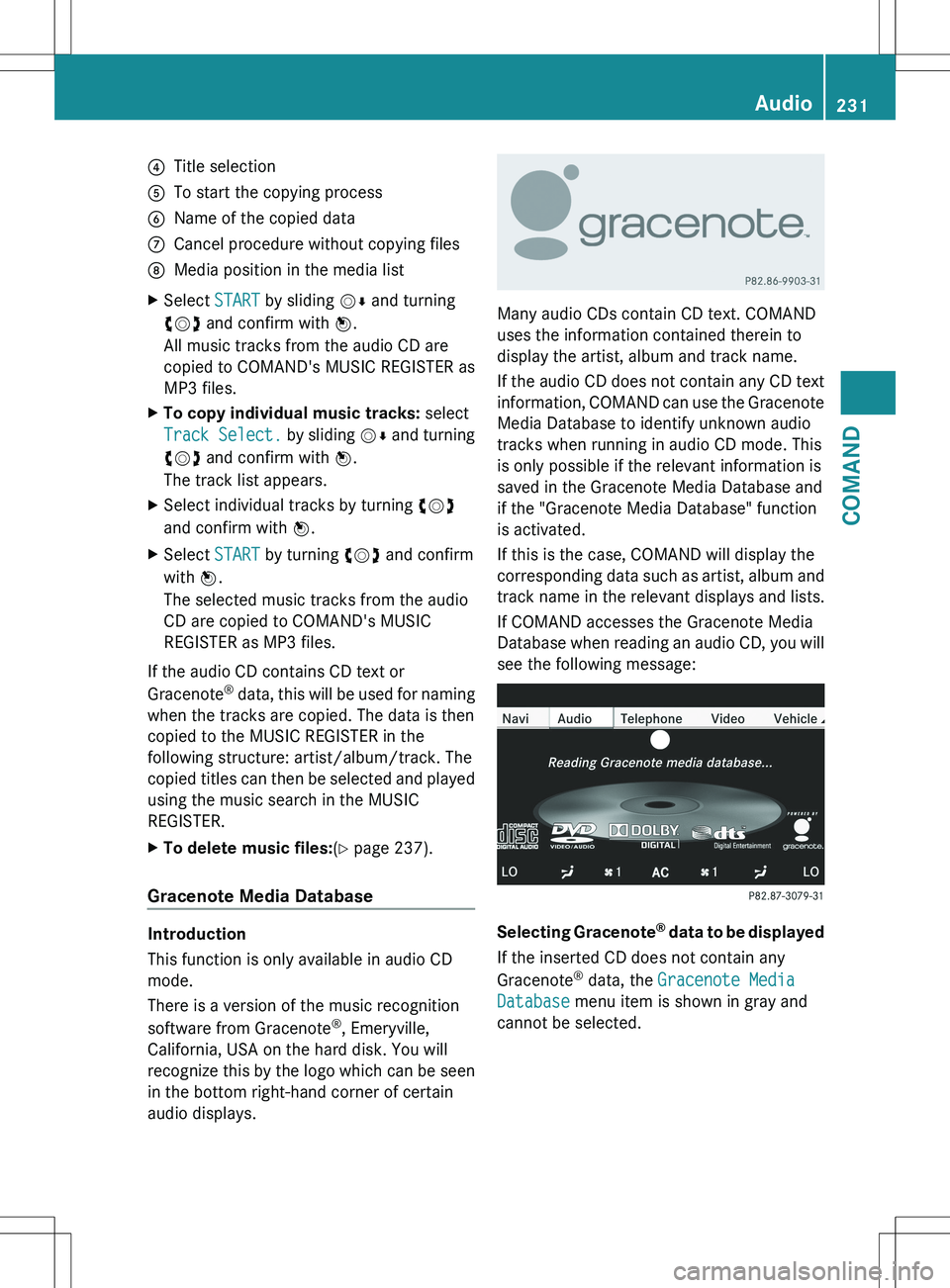
If COMAND accesses the Gracenote Media
Database when reading an audio CD, you will
see the following message:
Selecting Gracenote ®
data to be displayed
If the inserted CD does not contain any
Gracenote ®
data, the Gracenote Media
Database menu item is shown in gray and
cannot be selected.
Audio231COMANDZ
Page 237 of 536
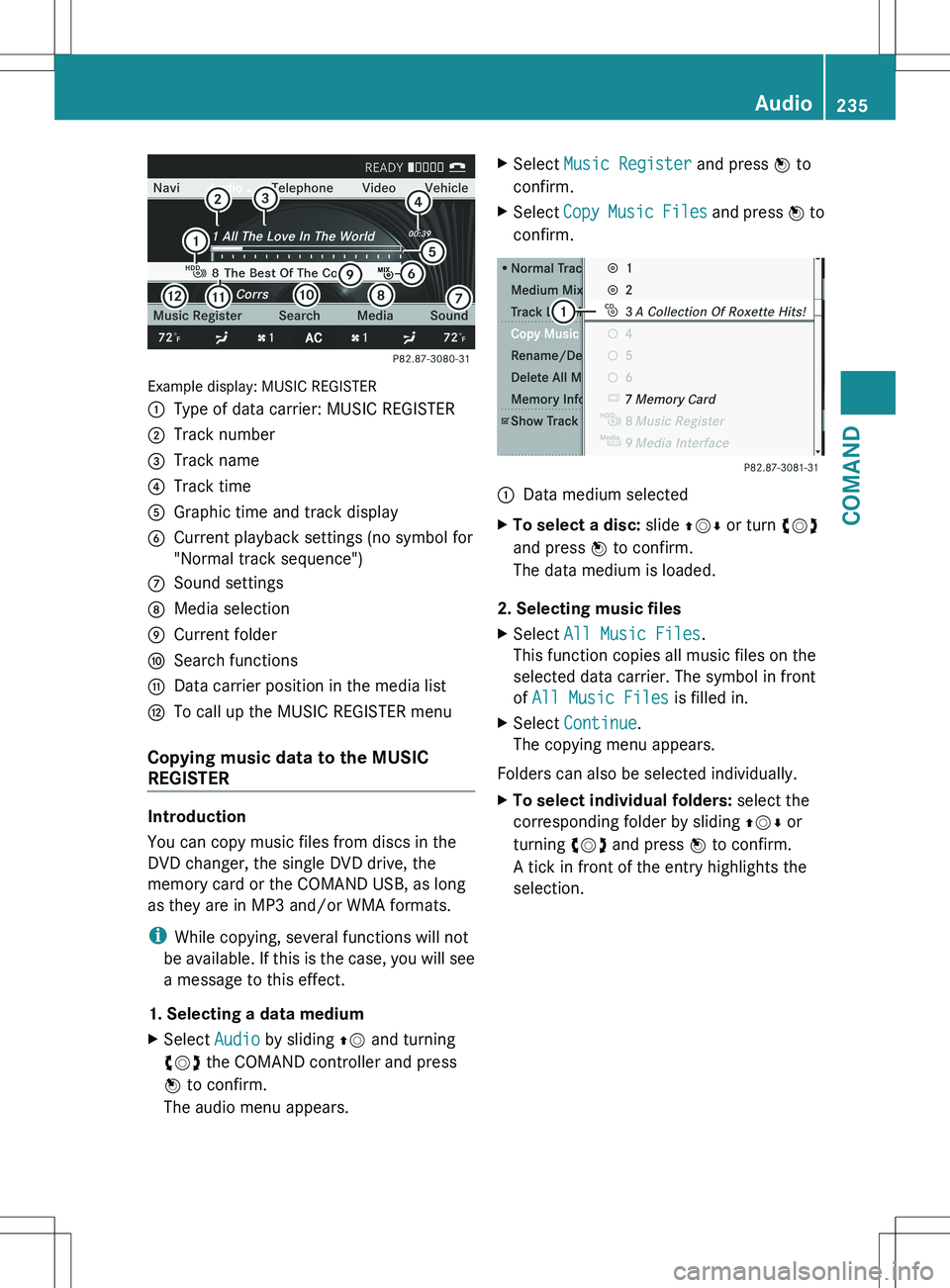
Example display: MUSIC REGISTER
:Type of data carrier: MUSIC REGISTER;Track number=Track name?Track timeAGraphic time and track displayBCurrent playback settings (no symbol for
"Normal track sequence")CSound settingsDMedia selectionECurrent folderFSearch functionsGData carrier position in the media listHTo call up the MUSIC REGISTER menu
Copying music data to the MUSIC
REGISTER
Introduction
You can copy music files from discs in the
DVD changer, the single DVD drive, the
memory card or the COMAND USB, as long
as they are in MP3 and/or WMA formats.
i While copying, several functions will not
be available. If this is the case, you will see
a message to this effect.
1. Selecting a data medium
XSelect Audio by sliding ZV and turning
cVd the COMAND controller and press
W to confirm.
The audio menu appears.XSelect Music Register and press W to
confirm.XSelect Copy Music Files and press W to
confirm.:Data medium selectedXTo select a disc: slide ZVÆ or turn cVd
and press W to confirm.
The data medium is loaded.
2. Selecting music files
XSelect All Music Files .
This function copies all music files on the
selected data carrier. The symbol in front
of All Music Files is filled in.XSelect Continue .
The copying menu appears.
Folders can also be selected individually.
XTo select individual folders: select the
corresponding folder by sliding ZVÆ or
turning cVd and press W to confirm.
A tick in front of the entry highlights the
selection.Audio235COMANDZ
Page 238 of 536
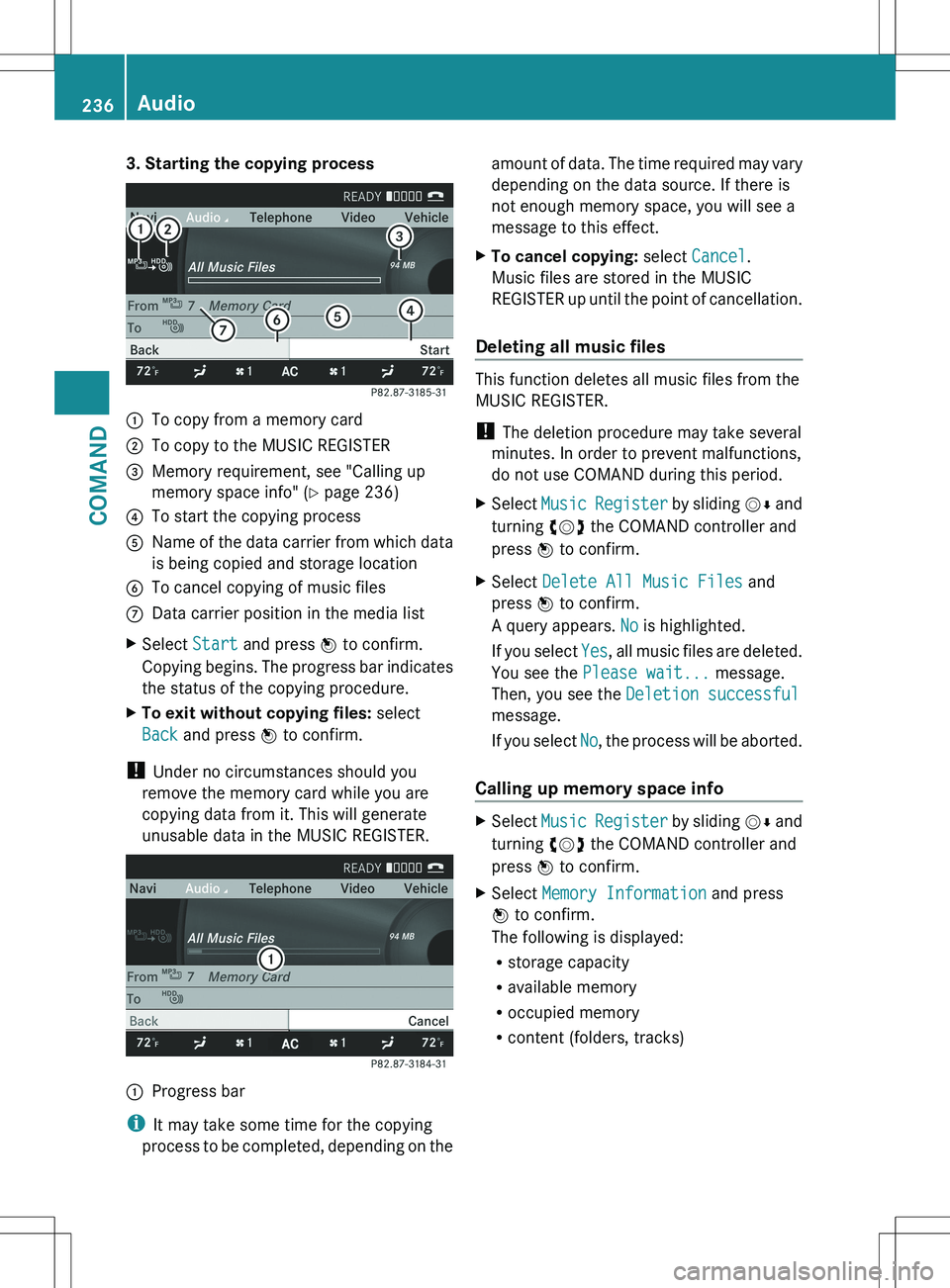
3. Starting the copying process:To copy from a memory card;To copy to the MUSIC REGISTER=Memory requirement, see "Calling up
memory space info" ( Y page 236)?To start the copying processAName of the data carrier from which data
is being copied and storage locationBTo cancel copying of music filesCData carrier position in the media listXSelect Start and press W to confirm.
Copying begins. The progress bar indicates
the status of the copying procedure.XTo exit without copying files: select
Back and press W to confirm.
!
Under no circumstances should you
remove the memory card while you are
copying data from it. This will generate
unusable data in the MUSIC REGISTER.
:Progress bar
i It may take some time for the copying
process to be completed, depending on the
amount of data. The time required may vary
depending on the data source. If there is
not enough memory space, you will see a
message to this effect.XTo cancel copying: select Cancel .
Music files are stored in the MUSIC
REGISTER up until the point of cancellation.
Deleting all music files
This function deletes all music files from the
MUSIC REGISTER.
! The deletion procedure may take several
minutes. In order to prevent malfunctions,
do not use COMAND during this period.
XSelect Music Register by sliding VÆ and
turning cVd the COMAND controller and
press W to confirm.XSelect Delete All Music Files and
press W to confirm.
A query appears. No is highlighted.
If you select Yes, all music files are deleted.
You see the Please wait... message.
Then, you see the Deletion successful
message.
If you select No, the process will be aborted.
Calling up memory space info
XSelect Music Register by sliding VÆ and
turning cVd the COMAND controller and
press W to confirm.XSelect Memory Information and press
W to confirm.
The following is displayed:
R storage capacity
R available memory
R occupied memory
R content (folders, tracks)236AudioCOMAND